CS-Cart UnoPim Connector helps businesses seamlessly integrate the UnoPim Product Information Management (PIM) system with the CS-Cart store.
The connector automates product synchronization between UnoPim and CS-Cart, reducing manual work and improving catalog management efficiency.
The connector supports real-time product updates, multi-store synchronization, category mapping, and two-way data transfer.
Store owners can manage products, categories, variants, images, pricing, and inventory from UnoPim while automatically updating CS-Cart.
With instant synchronization using webhooks, products update immediately whenever changes are made in UnoPim or CS-Cart.
The connector also validates product data before synchronization to prevent incomplete or incorrect products from appearing on the storefront.
Note: You need Queue Handler Add-on to use this add-on properly.
Note: Before installing the add-on, extract the downloaded package.
- Install the License Manager add-on first.
- Then install the required add-on.
- Follow the license activation steps to generate your license key.
Features
- Connect Multiple UnoPim Instances with different CS-Cart storefronts or vendors from a single platform.
- Enable Flexible Synchronization Modes, including import, export, two-way sync, or pause synchronization anytime.
- After selecting the synchronization direction, click Sync Products to start product synchronization between CS-Cart and UnoPim.
- Sync Product Names, Descriptions, Prices, Stock, Images, and Variants without manual effort.
- Transfer Products, Categories, Product Options, Variations, and Images seamlessly between UnoPim and CS-Cart.
- Synchronize Product Changes from CS-Cart to UnoPim to maintain accurate product information across platforms.
- Sync product changes from UnoPim to CS-Cart instantly using webhooks. Use cron jobs to synchronize bulk products from CS-Cart to UnoPim.
- Map UnoPim Categories and Channels with CS-Cart Storefronts using a simple visual mapping interface.
- Validate Product Data Before Synchronization to prevent incorrect pricing, missing language data, or broken products.
- Track All Synchronization Activities with Detailed Logs, including updated products, sync status, timestamps, and failed actions.
- Manage Large Product Catalogs Efficiently with automated synchronization and centralized product management.
- Reduce Manual Product Management Tasks and improve overall catalog accuracy across multiple stores.
Additionally, you can also use CS-Cart Shopify Connector to integrate CS-Cart with Shopify for seamless product and order synchronization.
CS-Cart Unopim Connector Installation
After downloading CS-Cart Unopim Connector add-on, you’ll get one zip file, one install.txt file, and a relevant User Guide manual doc.
Please read it carefully for proper configuration.
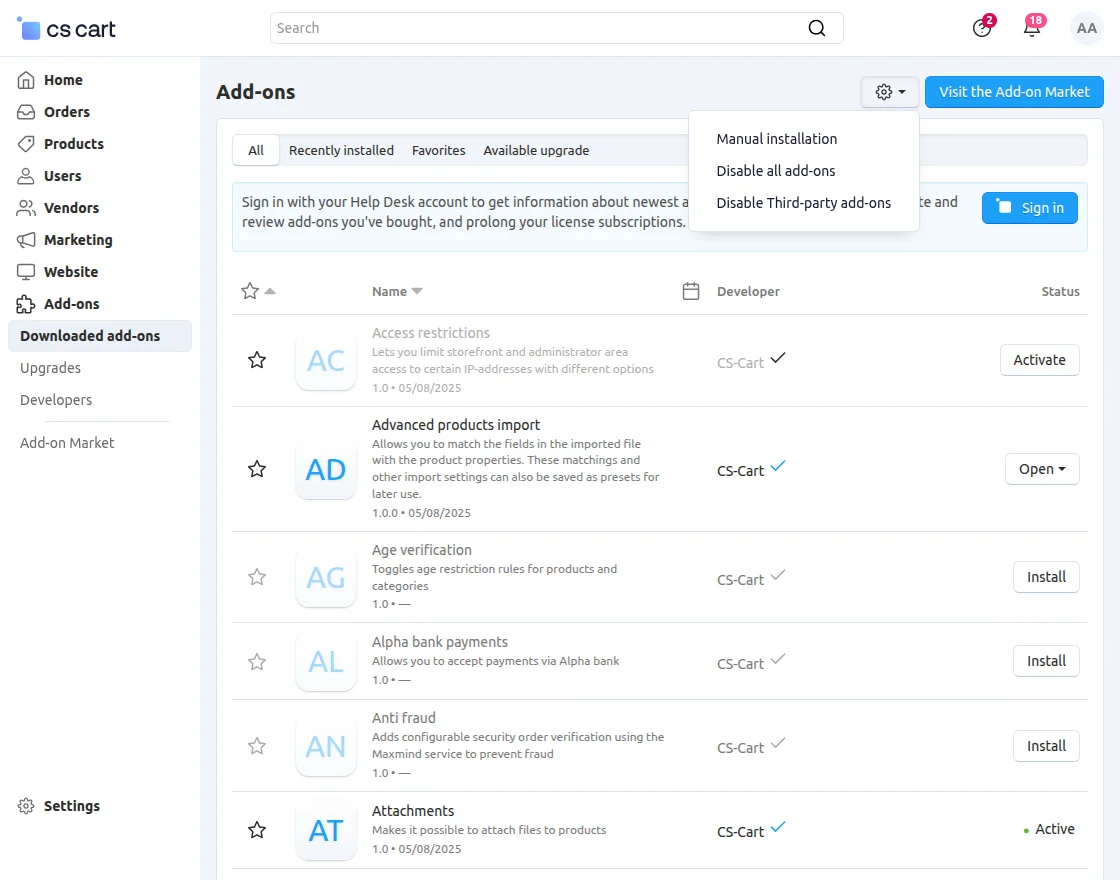
Go to Manage Add-ons, and click on “Manual Installation” as shown below in the snapshot.
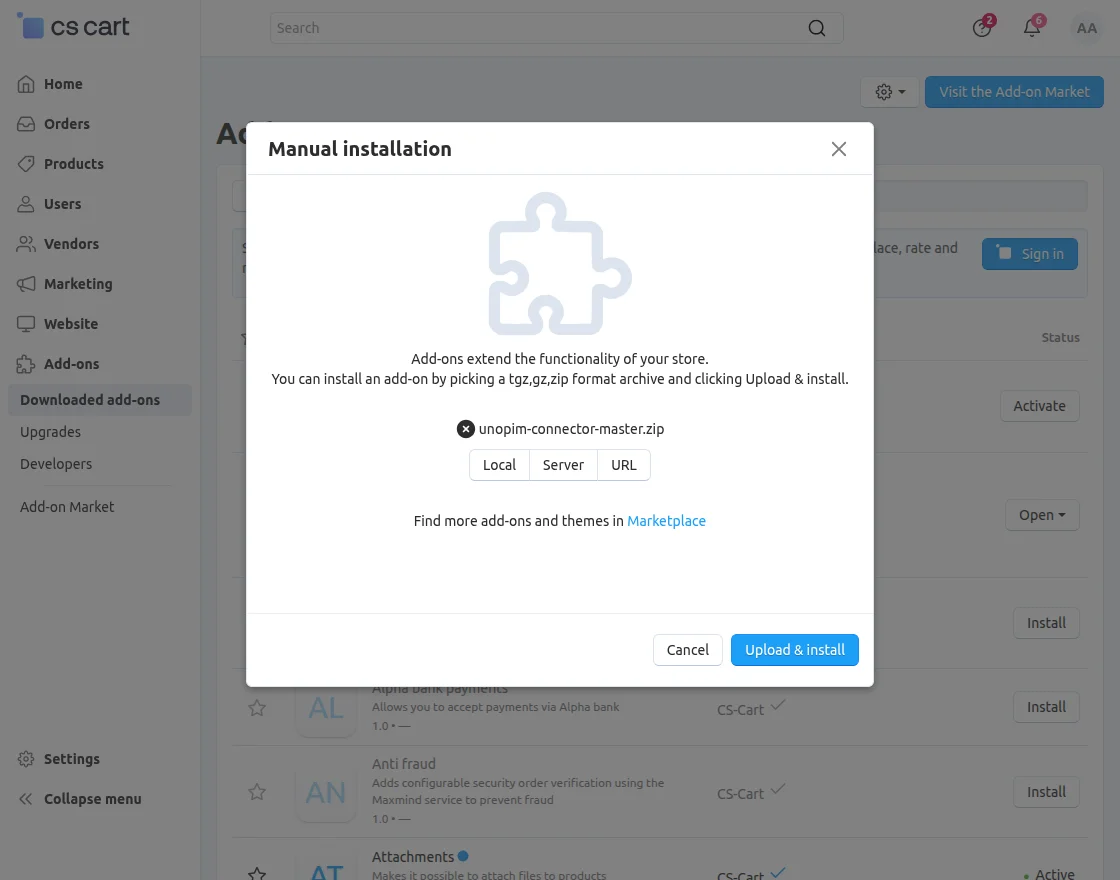
Click on “Local” to browse the zip file, and then click on “Upload & Install” as shown below in the snapshot.
Module Configuration || UnoPim
To connect CS-Cart with UnoPim, you need to install the UnoPim Connector.
Users
To create users in UnoPim, navigate to Settings > Users.
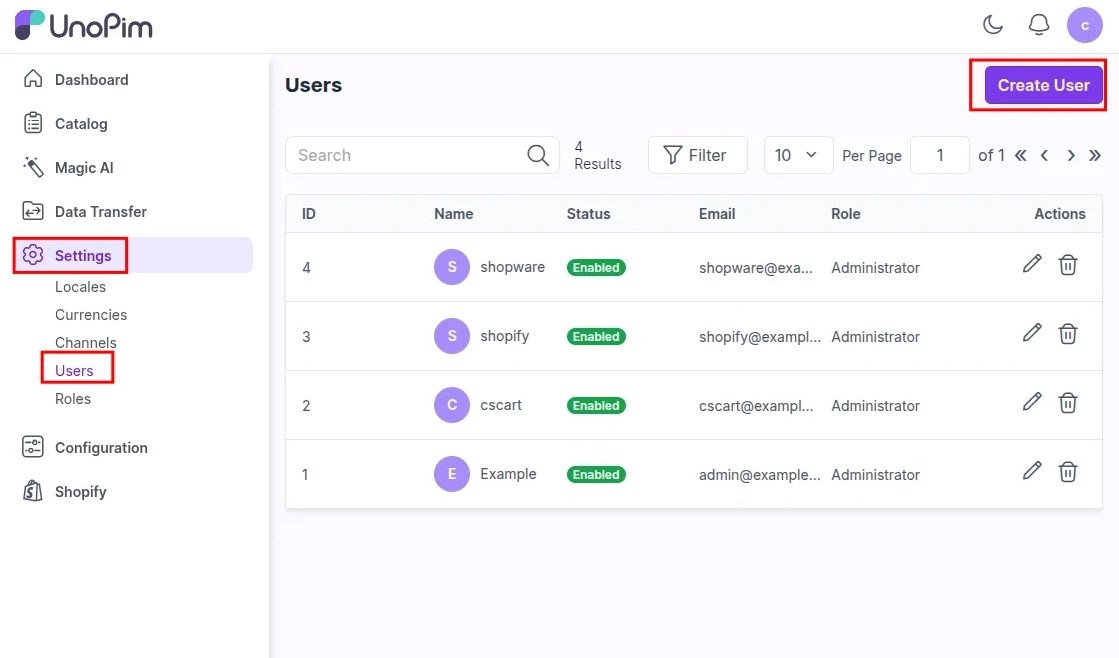
After creating users, you can assign the required user to the integration configuration.
Integration
To create an integration account in UnoPim, navigate to Configuration >> Integration.
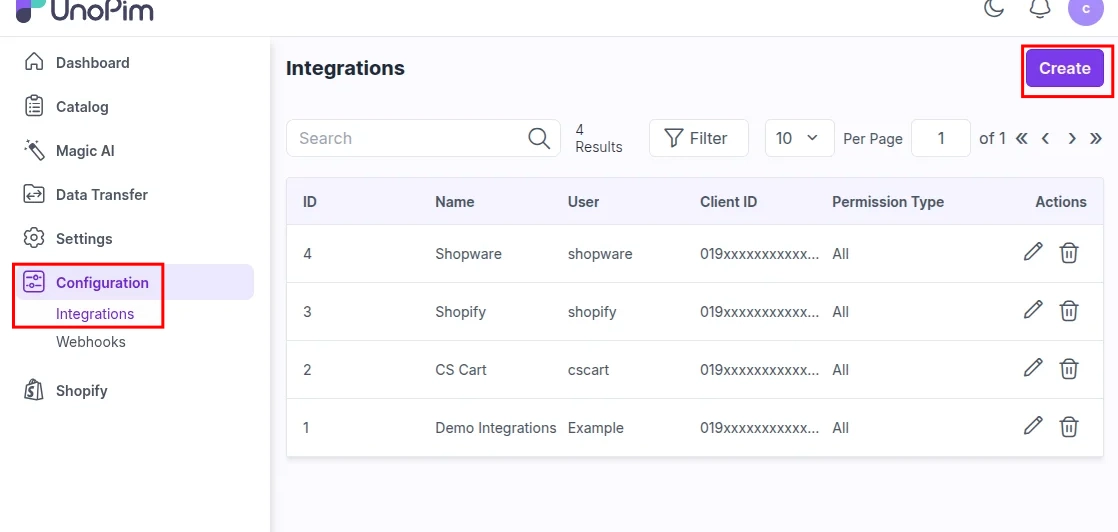
Create a new integration account by entering the required details.
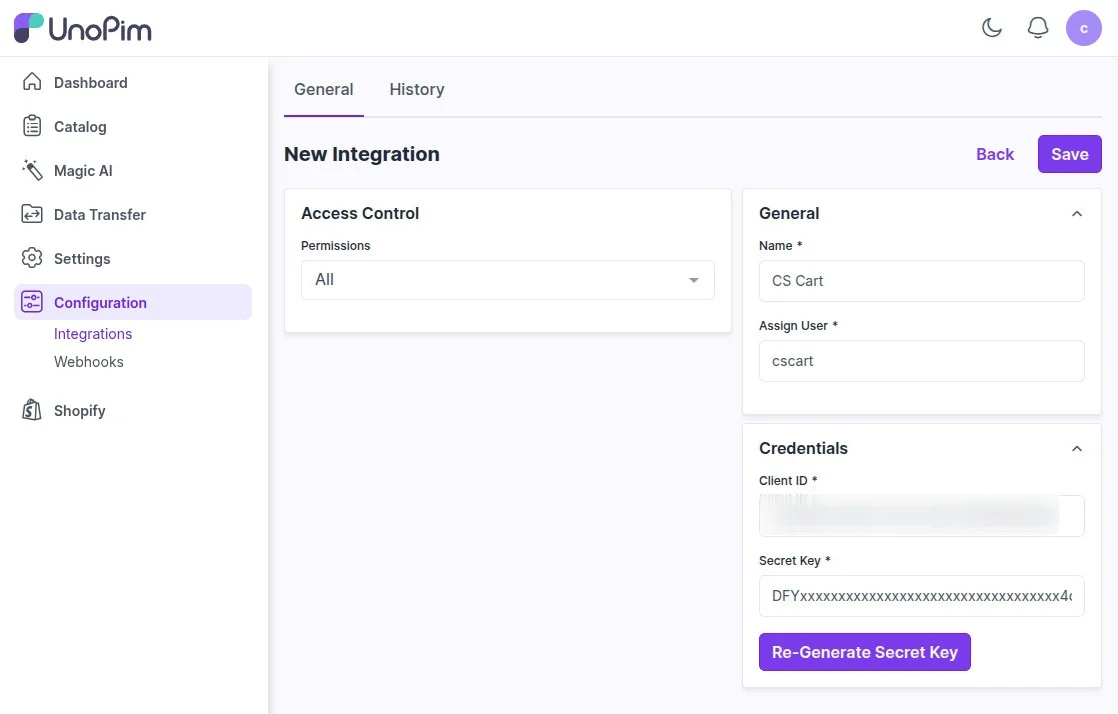
- Name: Enter the integration account name.
- Assign User: Select the user you want to assign to the integration account.
After saving the configuration, the system generates the Client ID and Client Secret ID for the integration account.
Webhook
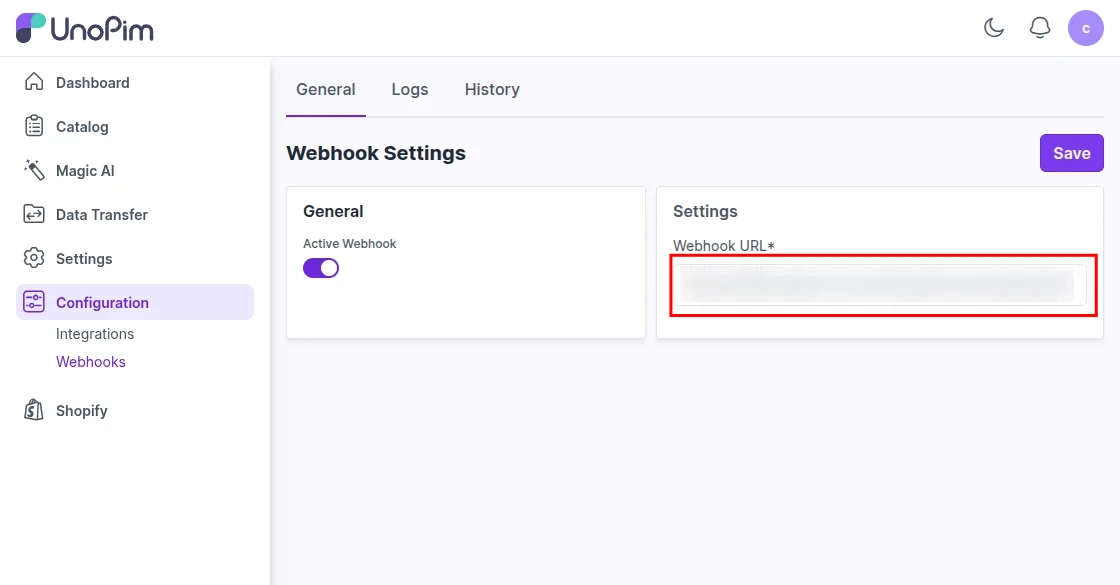
To configure the webhook in UnoPim, navigate to Configuration >> Webhook.
Module Configuration || CS-Cart
In the CS-Cart admin panel, navigate to Websites >> UnoPim Connector >> UnoPim Accounts to manage the UnoPim account settings.
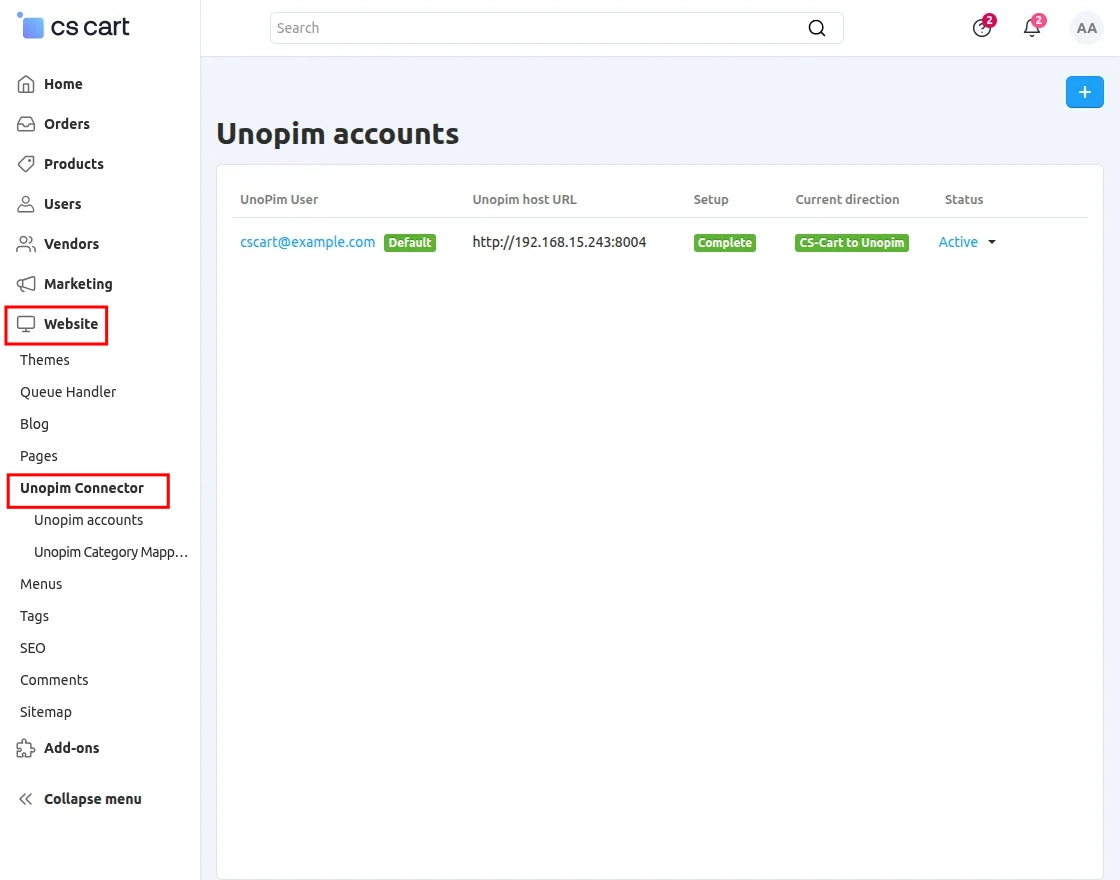
In the vendor panel, navigate to Products >> UnoPim Connector to access the UnoPim connector settings.
Click the Add Account button to connect CS-Cart with UnoPim.
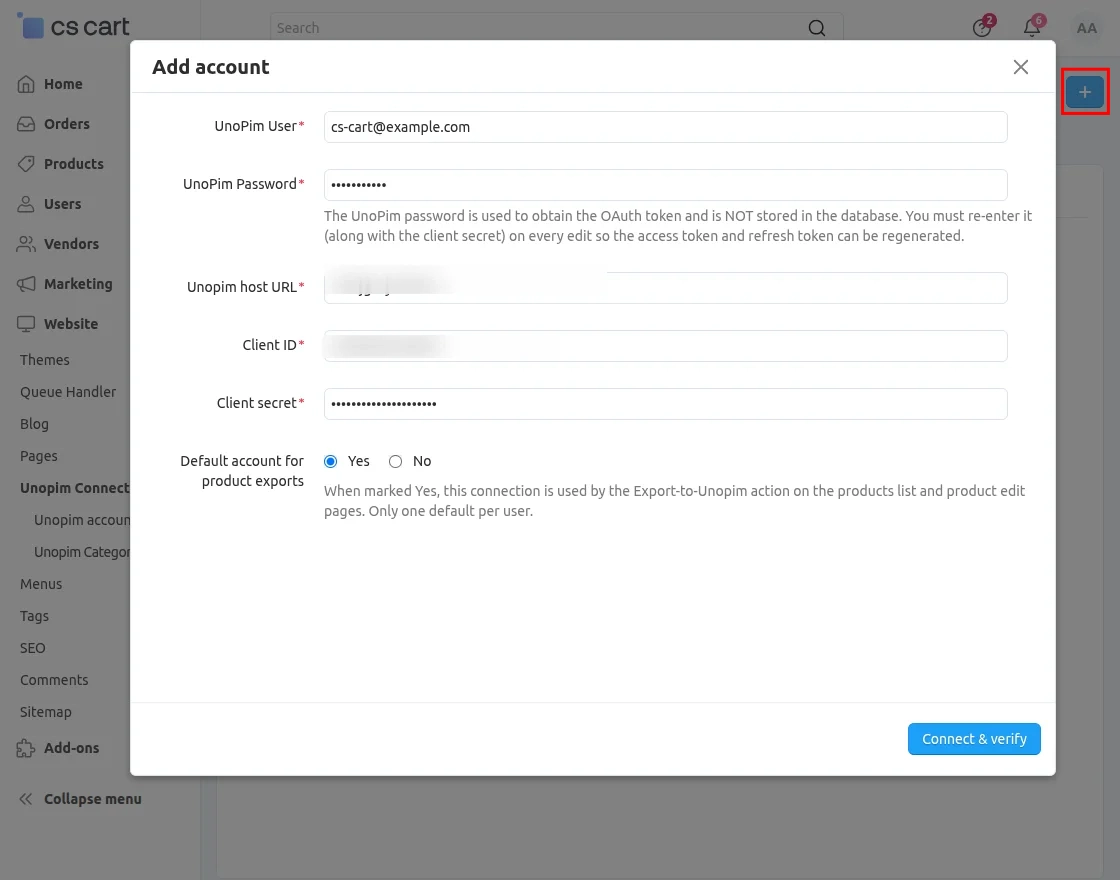
- UnoPim User: Enter the UnoPim username for authentication.
- UnoPim Password: Enter the password of your UnoPim account.
- UnoPim Host URL: Enter the UnoPim store URL.
- Client ID: Enter the client ID generated from the UnoPim integration settings.
- Client Secret: Enter the client secret key for secure API connection.
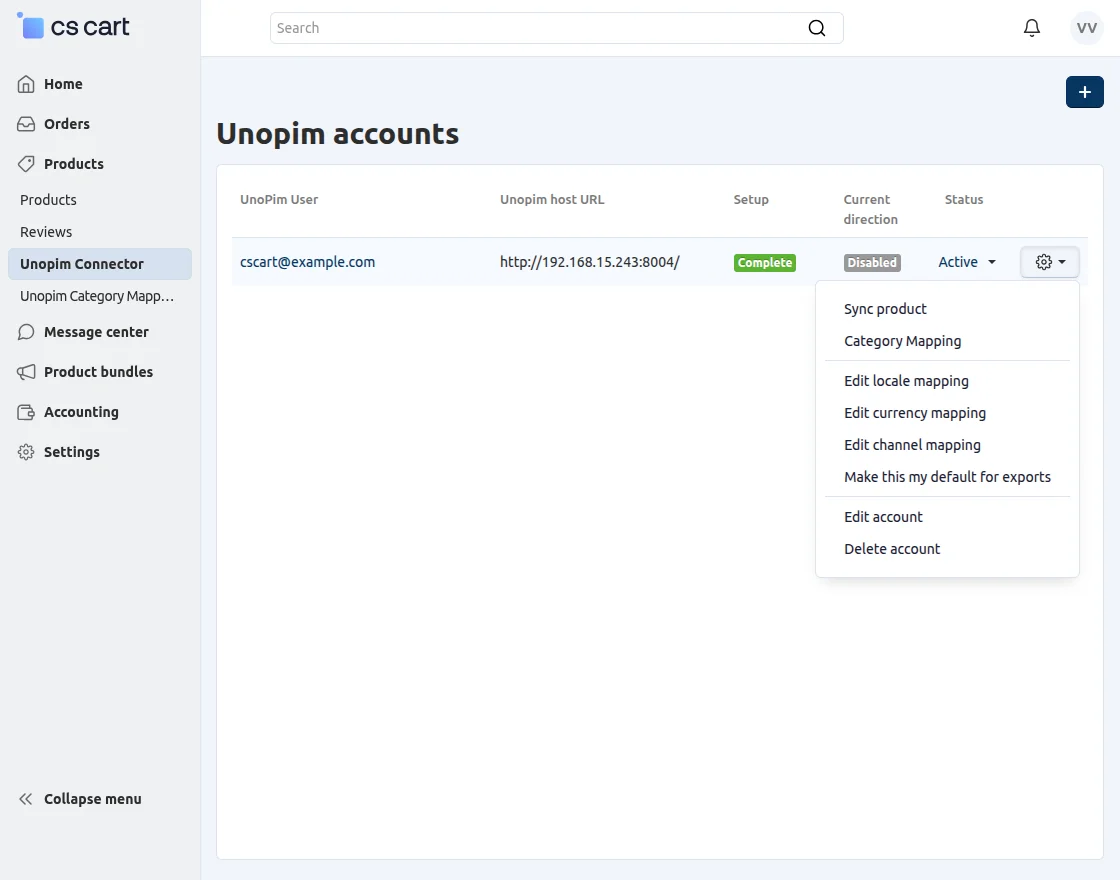
From the settings, you can set your UnoPim account as the default account.
Locale mapping
For each active CS-Cart language, select the corresponding UnoPim locale fetched from the connected account.
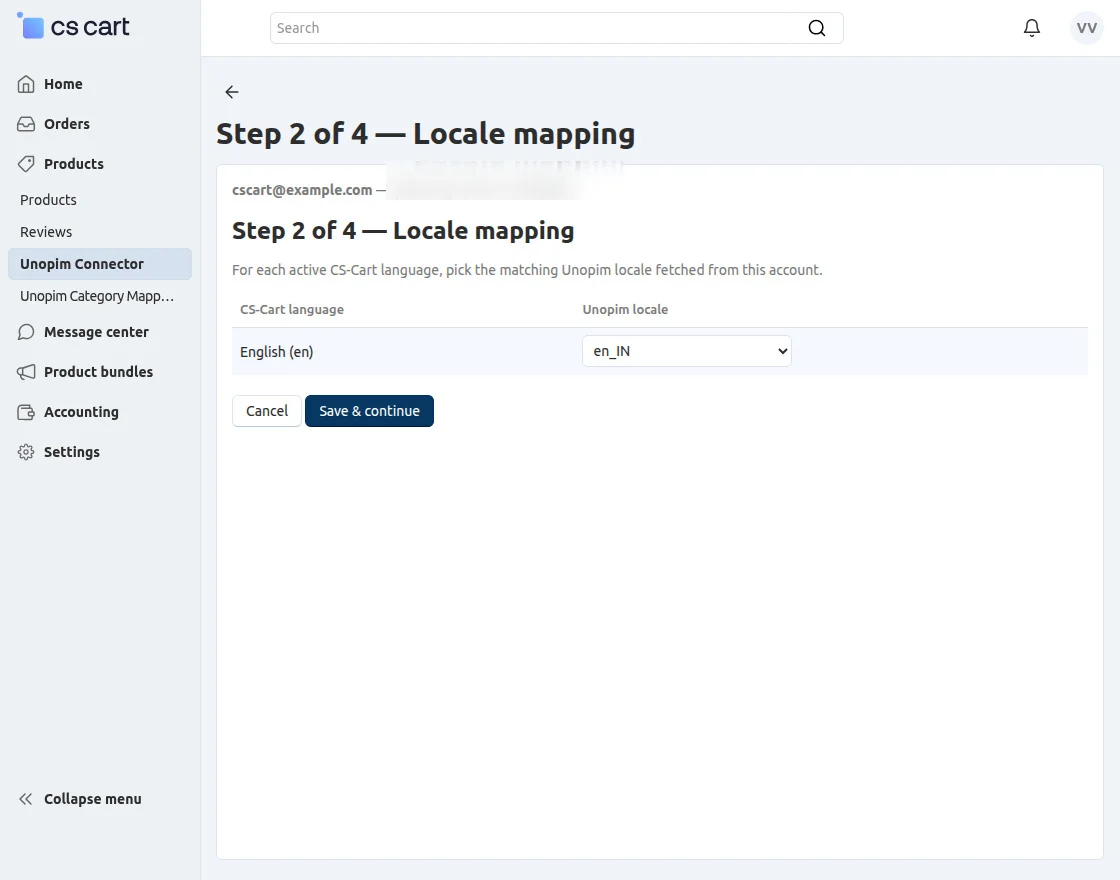
After completing the mapping, click Save and Continue to proceed further.
Currency Mapping
For each active CS-Cart currency, pick the matching Unopim currency.
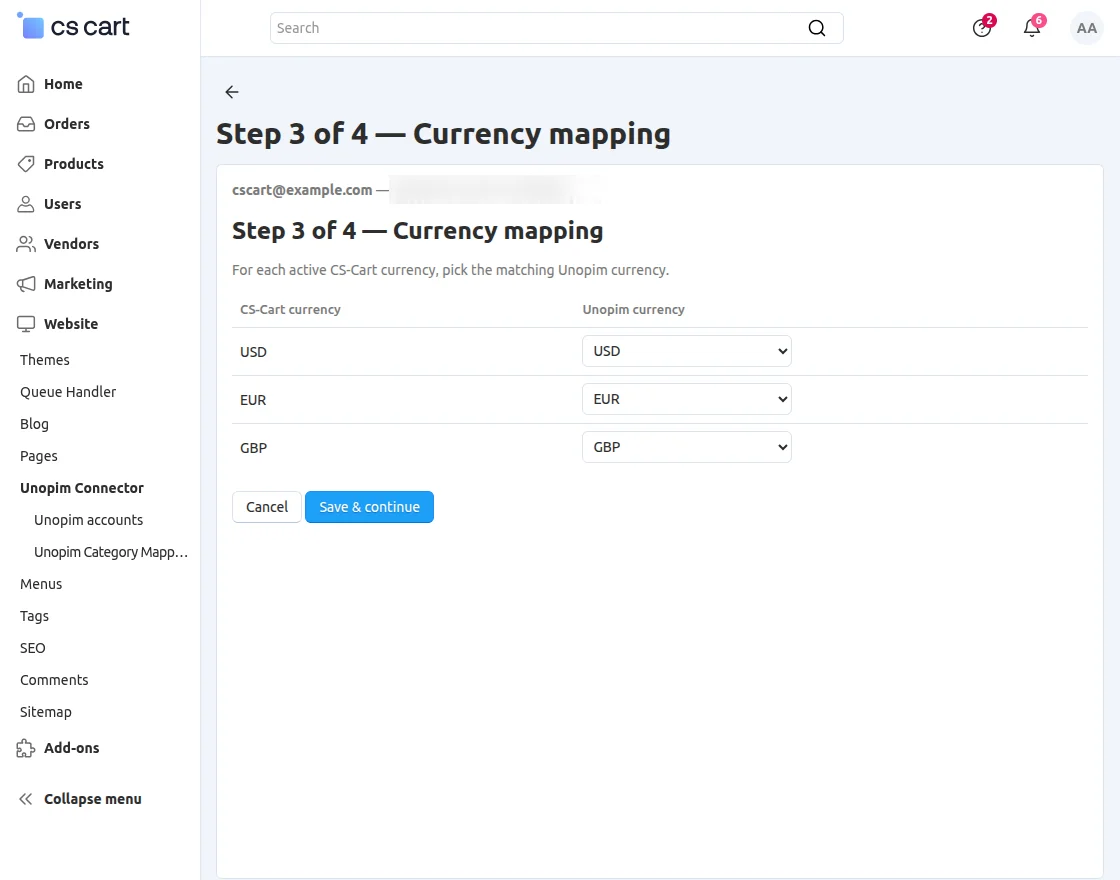
After mapping the currencies, click Save and Continue to proceed with the configuration.
Channel Mapping
Map your CS-Cart channel with the corresponding UnoPim channel for accurate product synchronization.
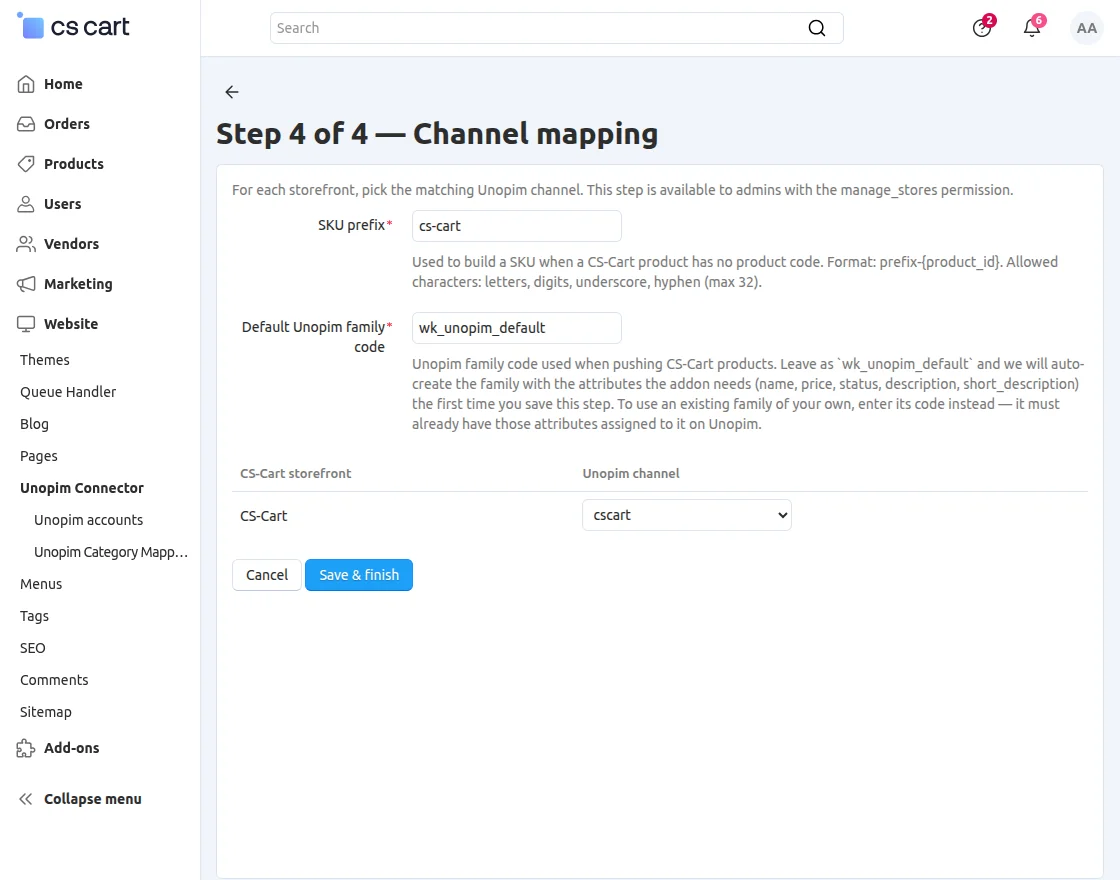
After completing the mapping, click Save and Finish Setup to complete the connector configuration.
Category Mapping
Map your CS-Cart categories with the corresponding UnoPim categories for accurate product synchronization.
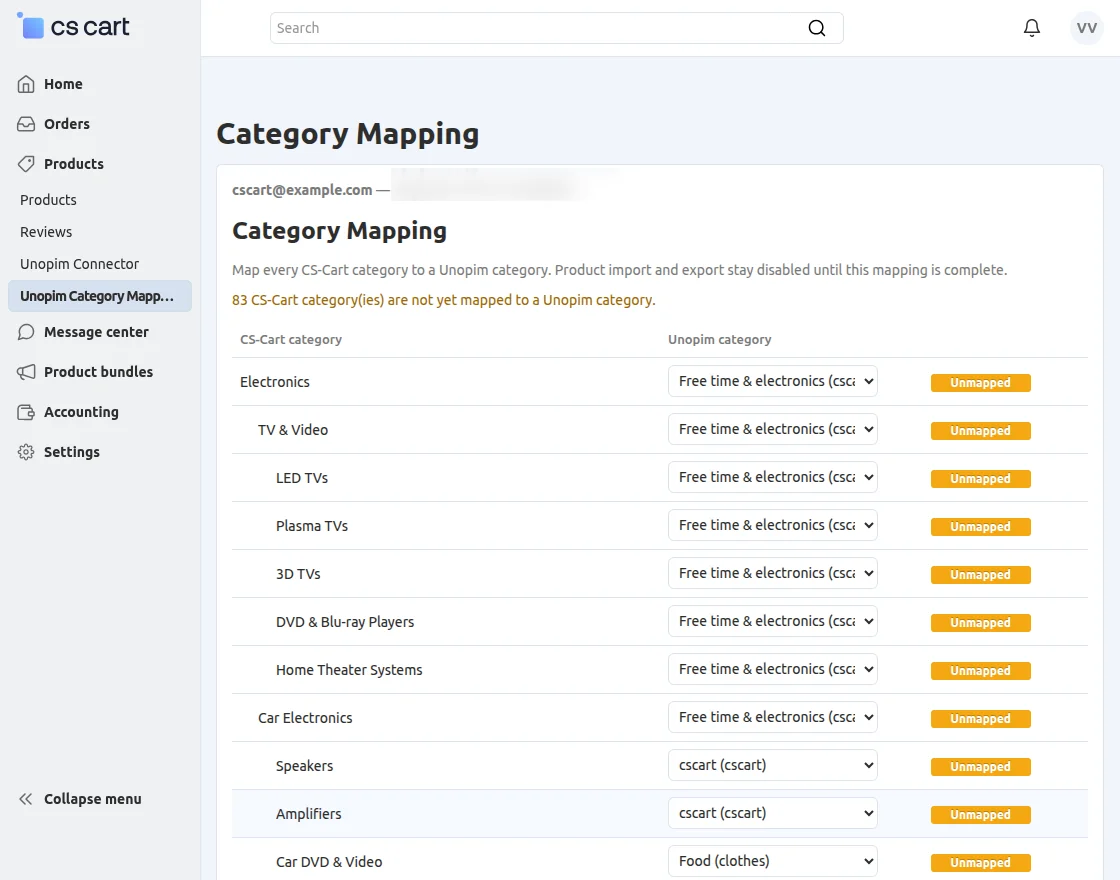
After completing the mapping, click Save Mapping to store the configuration.
Product Sync
Click on Sync Products from the settings to synchronize products between CS-Cart and UnoPim.
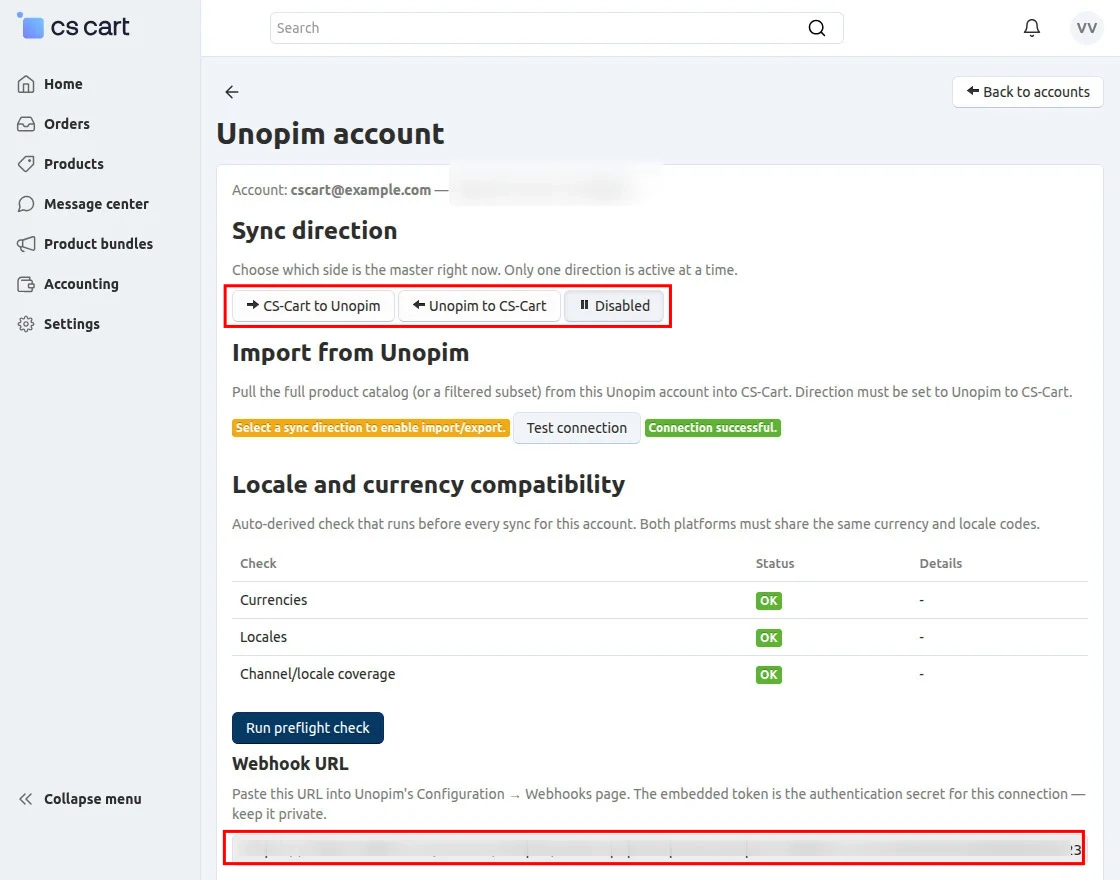
Select the synchronization direction based on your requirement, whether you want to sync products from UnoPim to CS-Cart or from CS-Cart to UnoPim.
Webhook URL: From here, you will get the webhook URL that needs to be added to your UnoPim account for real-time product synchronization.
Export Individual Product
To export products individually, navigate to Products in CS-Cart and go to Settings > Export to UnoPim.
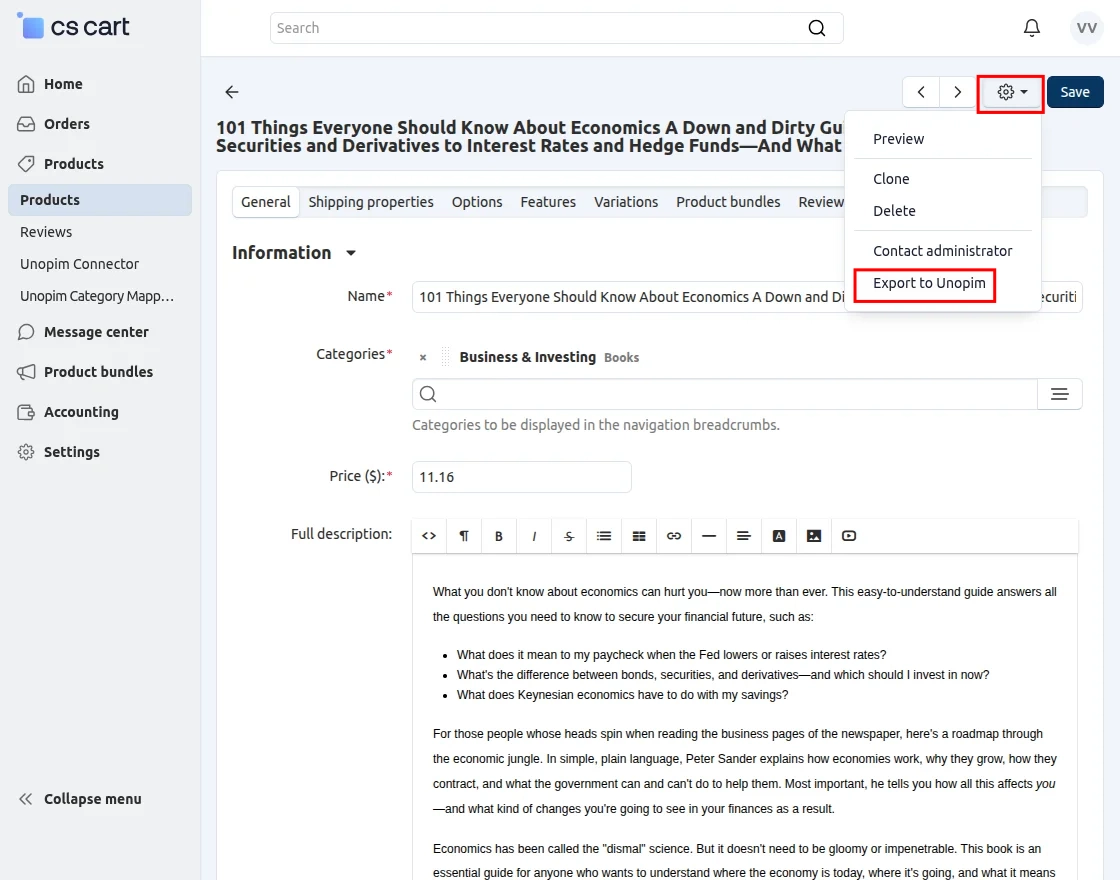
After clicking Export to UnoPim, the selected product will be exported to the default UnoPim account configured for synchronization.
All manually exported products are sent to the default selected connection.
Queue Handler
your_store_link/index.php?dispatch=queue_handler.import_data
Use this URL to run the Queue Handler for importing and synchronizing product data between CS-Cart and UnoPim.
Product on Unopim End
The product will be visible on the UnoPim end after successful synchronization.
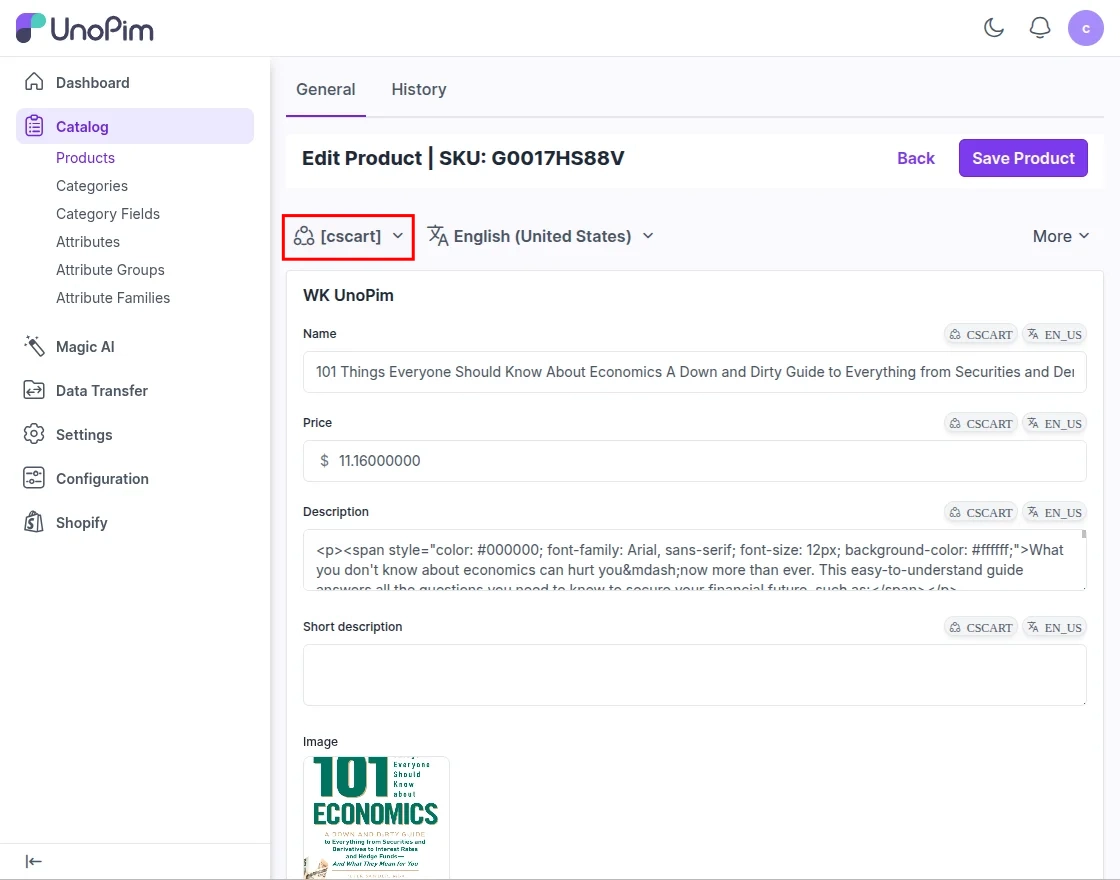
Select the channel to control the visibility of product details in UnoPim.
Support
If you have any questions, suggestions, or customization requests, feel free to contact us at [email protected] or submit a ticket at webkul.uvdesk.com.
Explore our premium-quality CS Cart Extensions to enhance your store functionality.
You can also explore our CS-Cart Development Services and Quality CS-Cart add-ons.
Current Product Version - 1.0
Supported Framework Version - 4.18.x, 4.19.x, 4.20.x

Be the first to comment.