CS-Cart Microsoft Clarity Integration integrates Microsoft Clarity with the CS-Cart storefront, allowing store owners to better understand customer behavior through heatmaps, session recordings, and e-commerce event tracking.
It also allows merchants to view Clarity statistics directly from the CS-Cart administration panel.
Features of CS-Cart Microsoft Clarity Integration
- Integrate Microsoft Clarity tracking with the CS-Cart storefront.
- Enable or disable Clarity recording from the storefront tracking settings.
- Support GDPR Cookie Consent integration.
- Load the Clarity tracking code dynamically on storefront pages.
- Exclude the CS-Cart Administration area and Vendor panels from tracking.
- Add customer group, currency, locale, device, storefront, UTM, and vendor information to sessions.
- Track product views, cart actions, checkout steps, purchases, catalog searches, signups, logins, wishlist, and comparison activities.
- Create custom events using CSS selectors.
- Prioritize recordings for cart, checkout, and completed orders.
- Mask personal, address, and financial information in recordings.
- Configure custom masking and unmasking selectors.
- Unmask product specifications and customer reviews.
- Capture storefront JavaScript errors and configure error exclusions.
- View Clarity statistics from the CS-Cart administration panel.
- Group dashboard metrics by device, browser, operating system, and country.
- Cache dashboard data when the daily API request limit is reached.
- Support Multi-Vendor and Multi-Storefront session information.
- Include 27 validated language packs.
How CS-Cart Microsoft Clarity Integration Works
The CS-Cart Microsoft Clarity Integration works by adding Microsoft Clarity tracking to the CS-Cart storefront.
The integration provides the following workflow:
CS-Cart Storefront → Microsoft Clarity Tracking → Session & Event Data → Clarity Insights
The add-on automatically loads the Clarity tracking code on storefront pages and adds CS-Cart-specific information to visitor sessions.
It can also send event markers for important customer activities such as product views, cart actions, checkout steps, purchases, searches, customer authentication, wishlist updates, and product comparisons.
Microsoft Clarity Account Configuration
Before configuring the CS-Cart integration, create a Microsoft Clarity project for the website.
Step 1: Sign In to Microsoft Clarity
Go to Microsoft Clarity and sign in using your preferred sign-in method.
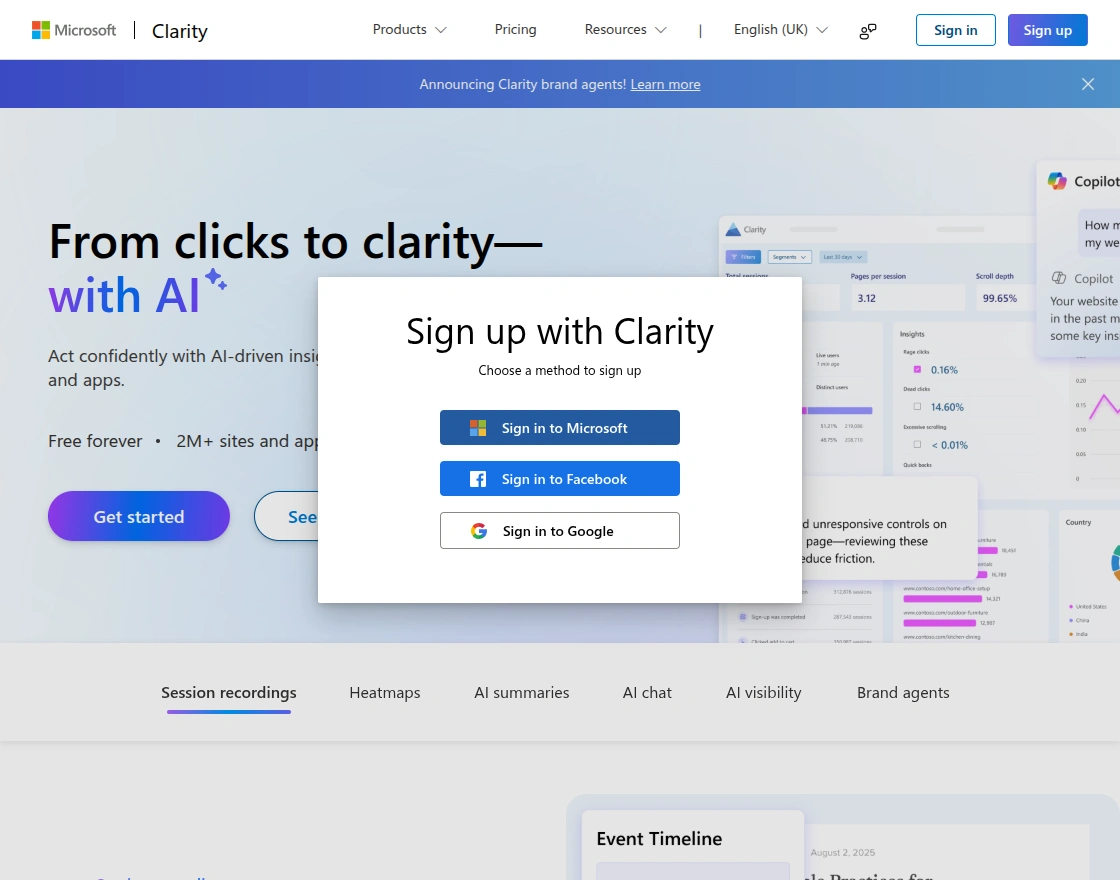
After signing in successfully, you can access the Clarity Projects page. From there, Microsoft Clarity allows you to create projects for the websites you want to monitor.
Step 2: Create a New Project
After signing in:
- Click New project.
- Enter the Name of the project.
- Enter the Website details.
- Click Add new project.
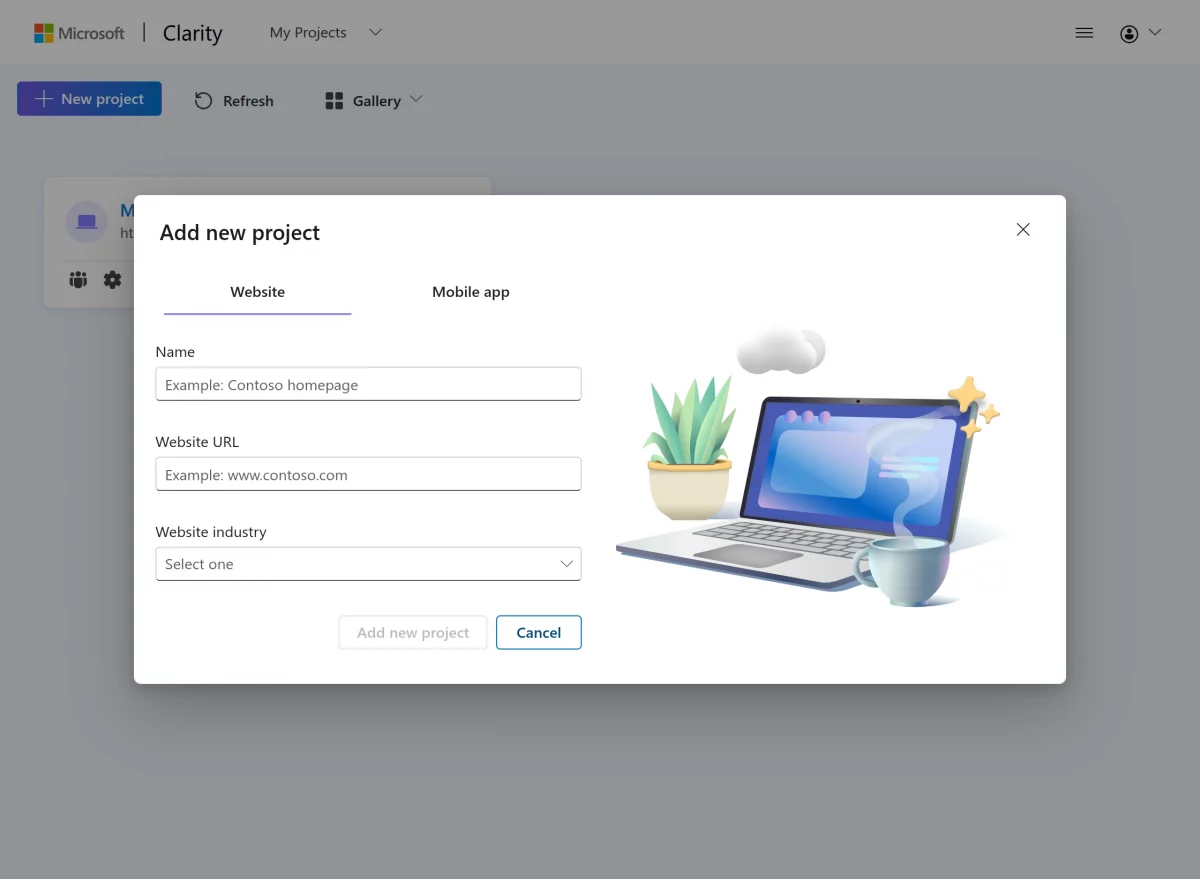
After creating the project, Clarity redirects you to the project setup area.
Step 3: Get the Clarity Project ID
After creating the project:
- Open the Clarity project.
- Go to Settings.
- Open Overview.
- Copy the Project ID.
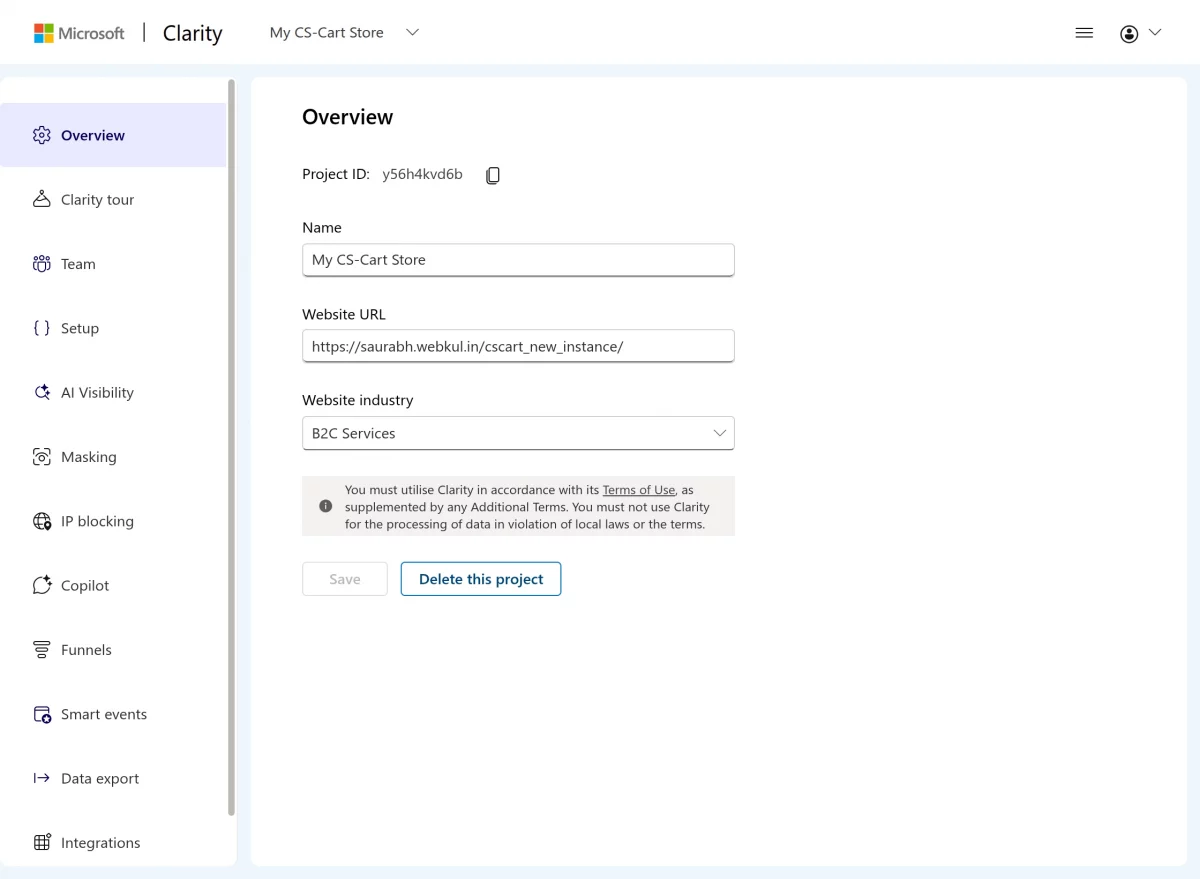
Microsoft Clarity provides the Project ID in the project Overview section.
The Project ID is used by the storefront integration to identify the Clarity project associated with the store.
Step 4: Configure Data Export
After opening the Data export section:
- Go to Settings in your Microsoft Clarity project.
- Open Data export.
- Click Generate new API token.
- Enter a name for the API token and generate it.
- Copy the generated API token and keep it secure.
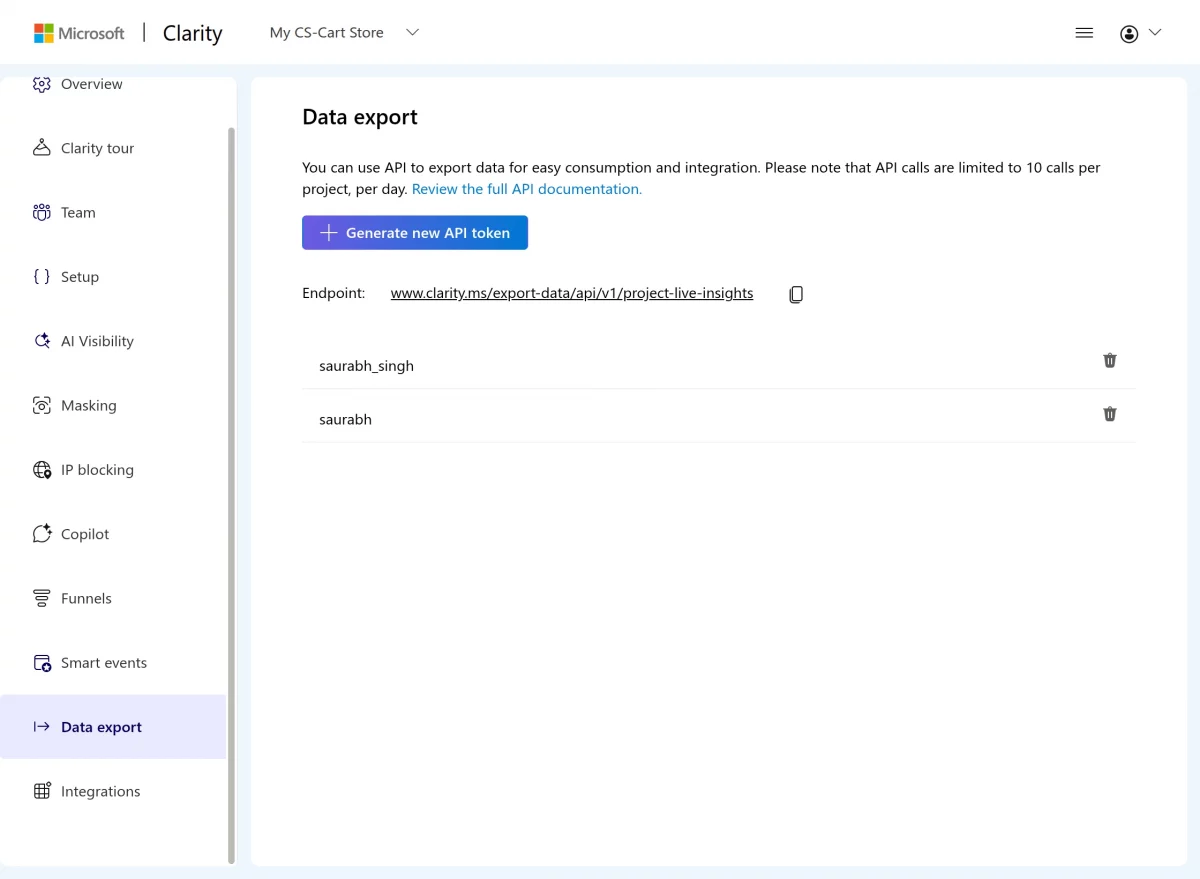
The Data Export API allows the add-on to access Clarity project data for integration and reporting purposes.
The generated API token is used to authenticate API requests and connect the Clarity data with the CS-Cart administration panel.
How To Upload And Install CS-Cart Microsoft Clarity Integration
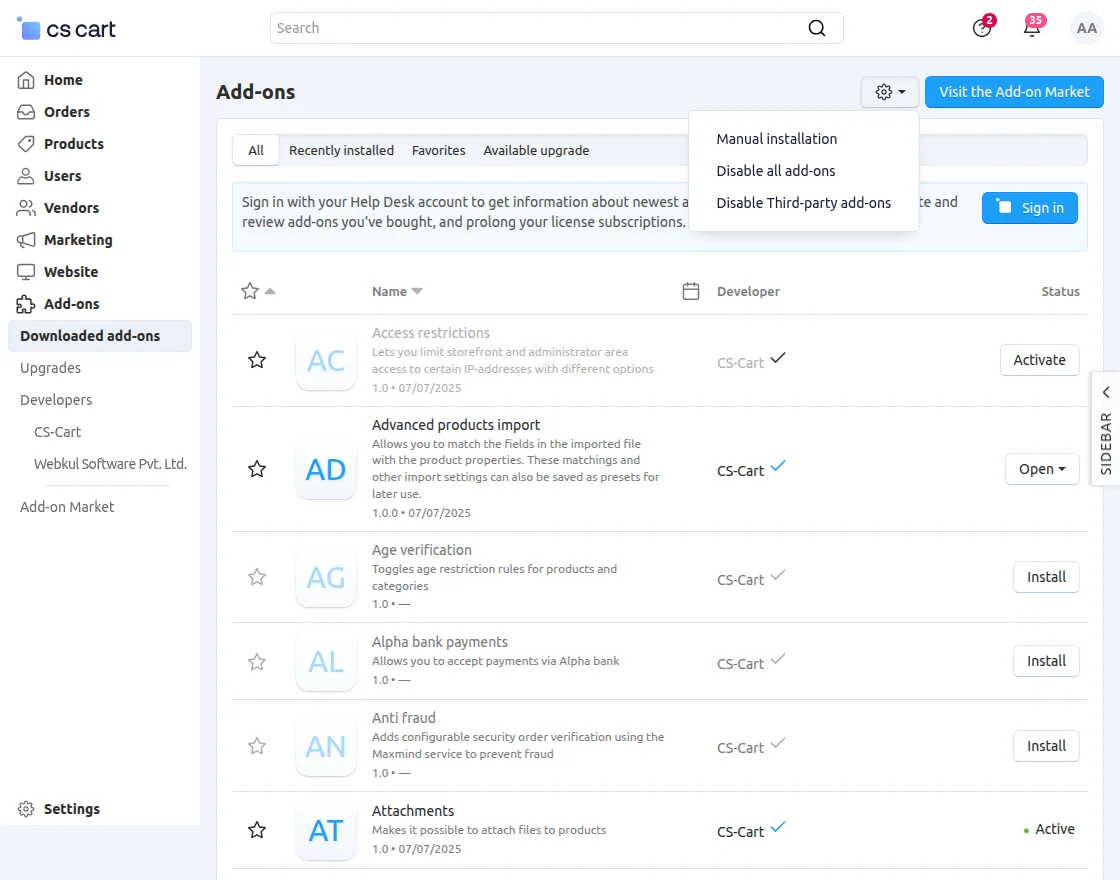
Go to Manage Add-ons, click on the gear drop-down, and select Manual Installation.
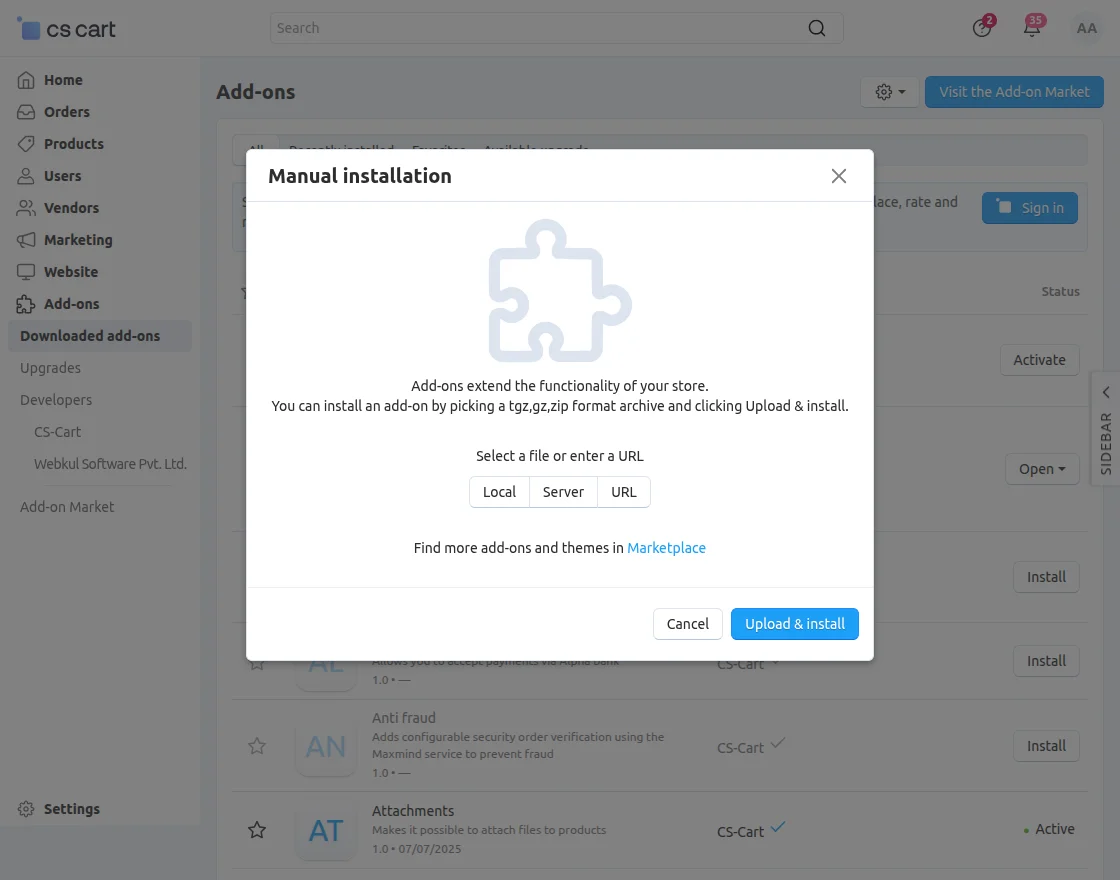
2. Click on Local to select the zip file.
Then click on “Upload & Install” as shown below in the snapshot.
Add-on installed successfully!
Configure Microsoft Clarity in CS-Cart
After installing the add-on, configure its available settings from:
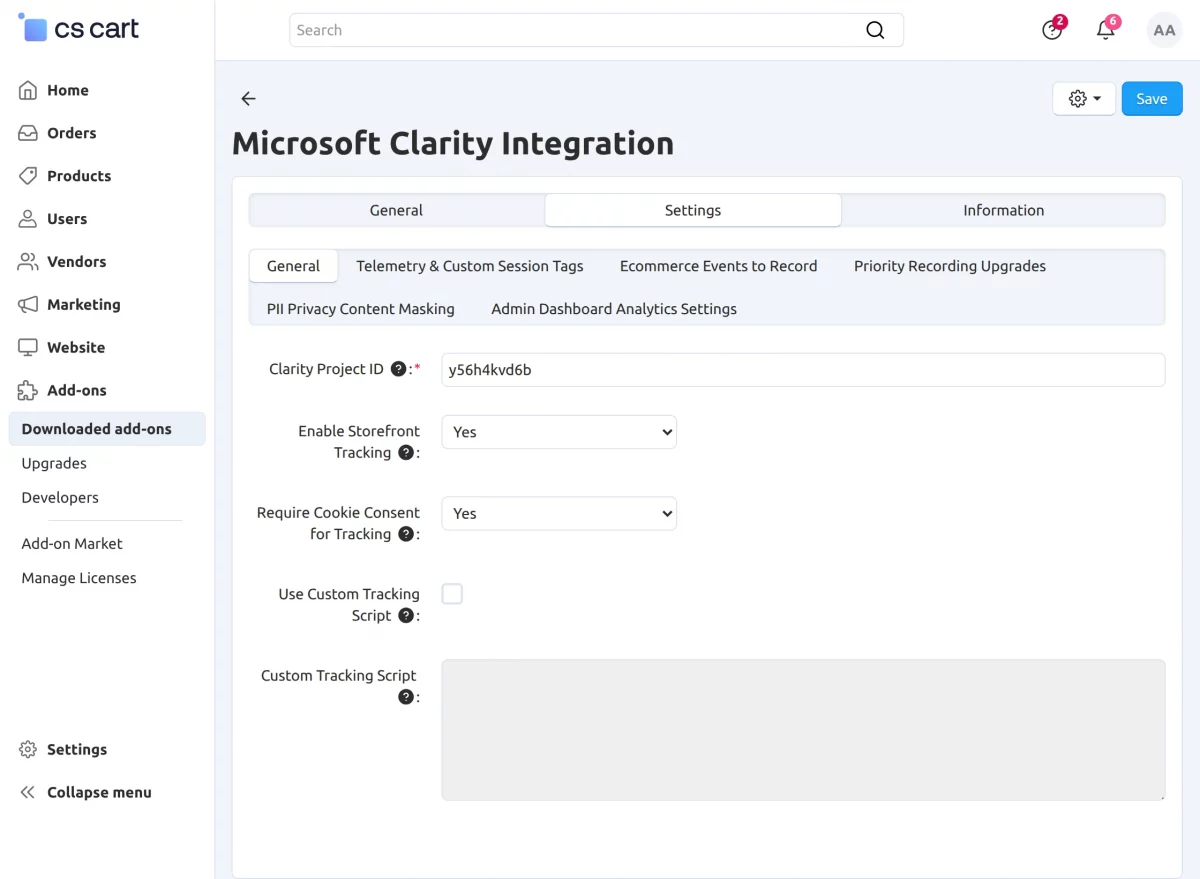
The General section allows merchants to configure the basic Clarity integration and storefront tracking options.
- Clarity Project ID: Enter the Microsoft Clarity Project ID to connect the store with the desired Clarity project.
- Enable Storefront Tracking: Enable or disable Clarity tracking on the storefront.
- Require Cookie Consent for Tracking: Choose whether customer consent is required before Clarity tracking starts.
- Use Custom Tracking Script: Enable this option to use a custom Clarity tracking script instead of the default configuration.
Telemetry & Custom Session Tags
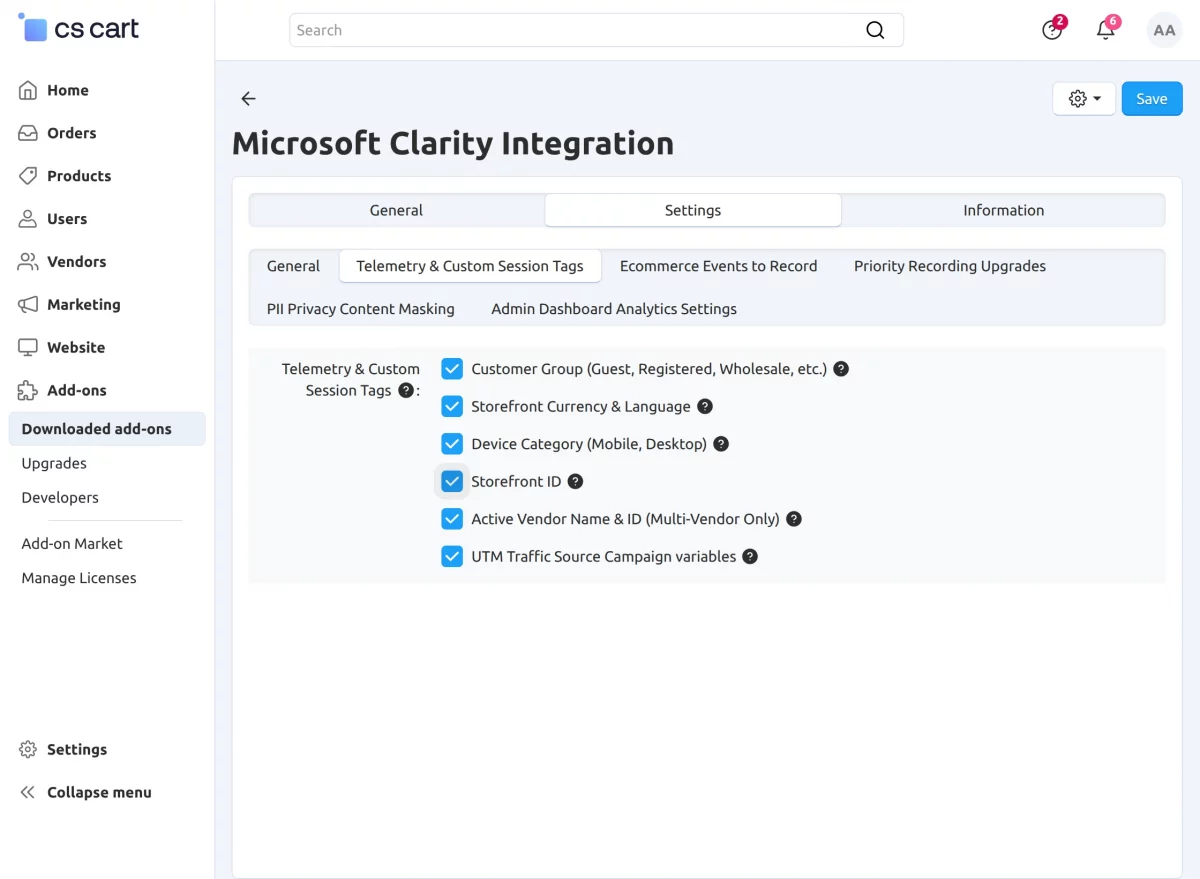
This section allows merchants to add useful storefront and customer context to Clarity session recordings.
- Customer Group (Guest, Registered, Wholesale, etc.): Identifies the customer group associated with each session.
- Storefront Currency & Language: Records the currency and language selected on the storefront.
- Device Category (Mobile, Desktop): Identifies whether the customer is using a mobile or desktop device.
- Storefront ID: Records the storefront ID associated with the customer session.
- Active Vendor Name & ID (Multi-Vendor Only): Records the active vendor’s name and ID for multi-vendor stores.
- UTM Traffic Source Campaign Variables: Captures UTM parameters to help identify the source and campaign that brought the customer to the storefront.
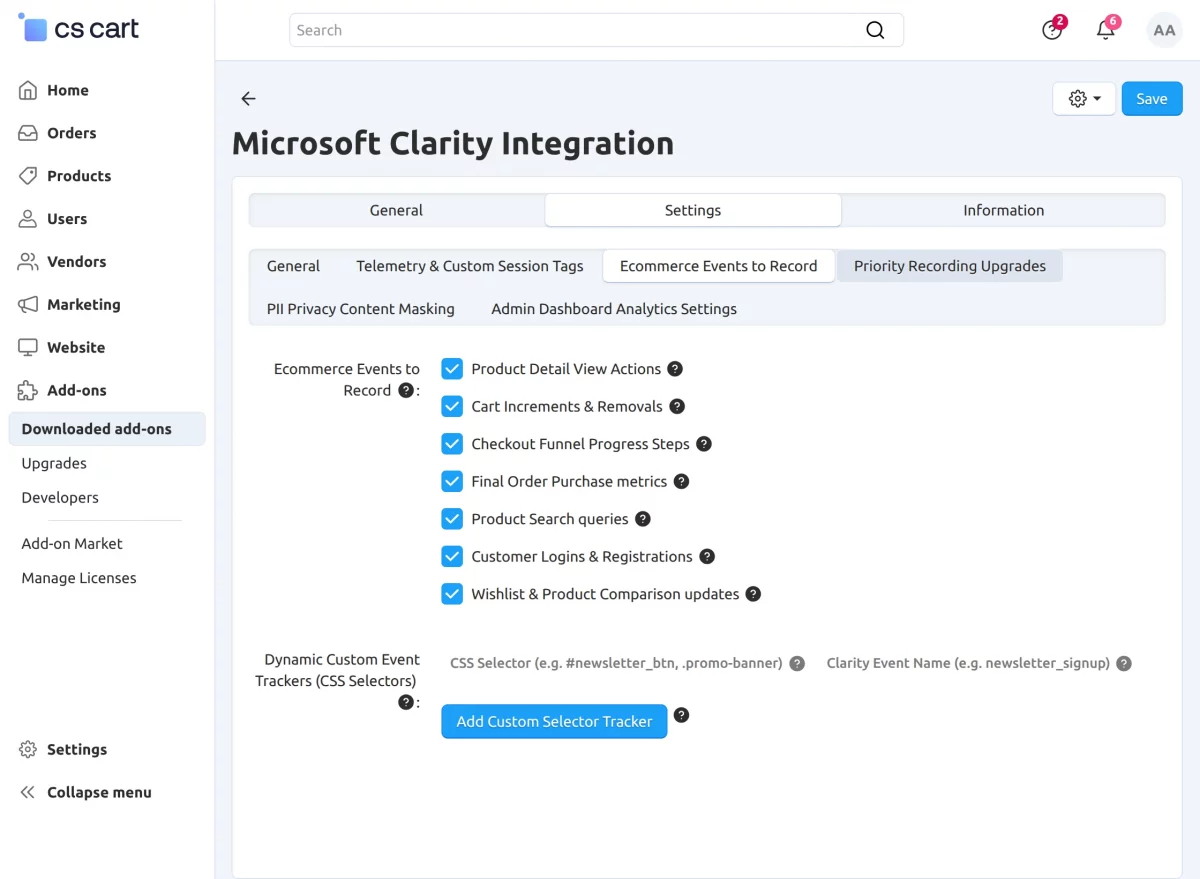
Ecommerce Events to Record
This section allows merchants to select important ecommerce and customer activities that should be recorded as events in Microsoft Clarity.
- Product Detail View Actions: Tracks when customers view product detail pages.
- Cart Increments & Removals: Records when customers add products to or remove products from their cart.
- Checkout Funnel Progress Steps: Tracks customer progress through the different stages of checkout.
- Final Order Purchase Metrics: Records completed purchases and related order events.
- Product Search Queries: Captures the search queries customers use to find products.
- Customer Logins & Registrations: Tracks customer login and registration activities.
- Wishlist & Product Comparison Updates: Records additions and removals from wishlists and product comparison lists.
- Dynamic Custom Event Trackers (CSS Selectors): Allows merchants to track custom storefront interactions using CSS selectors and assign a custom Clarity event name.
- CSS Selector: Enter the CSS selector of the storefront element you want to track.
- Clarity Event Name: Enter the name that should be assigned to the tracked event in Clarity.
- Add Custom Selector Tracker: Adds a new custom CSS selector-based event tracker.
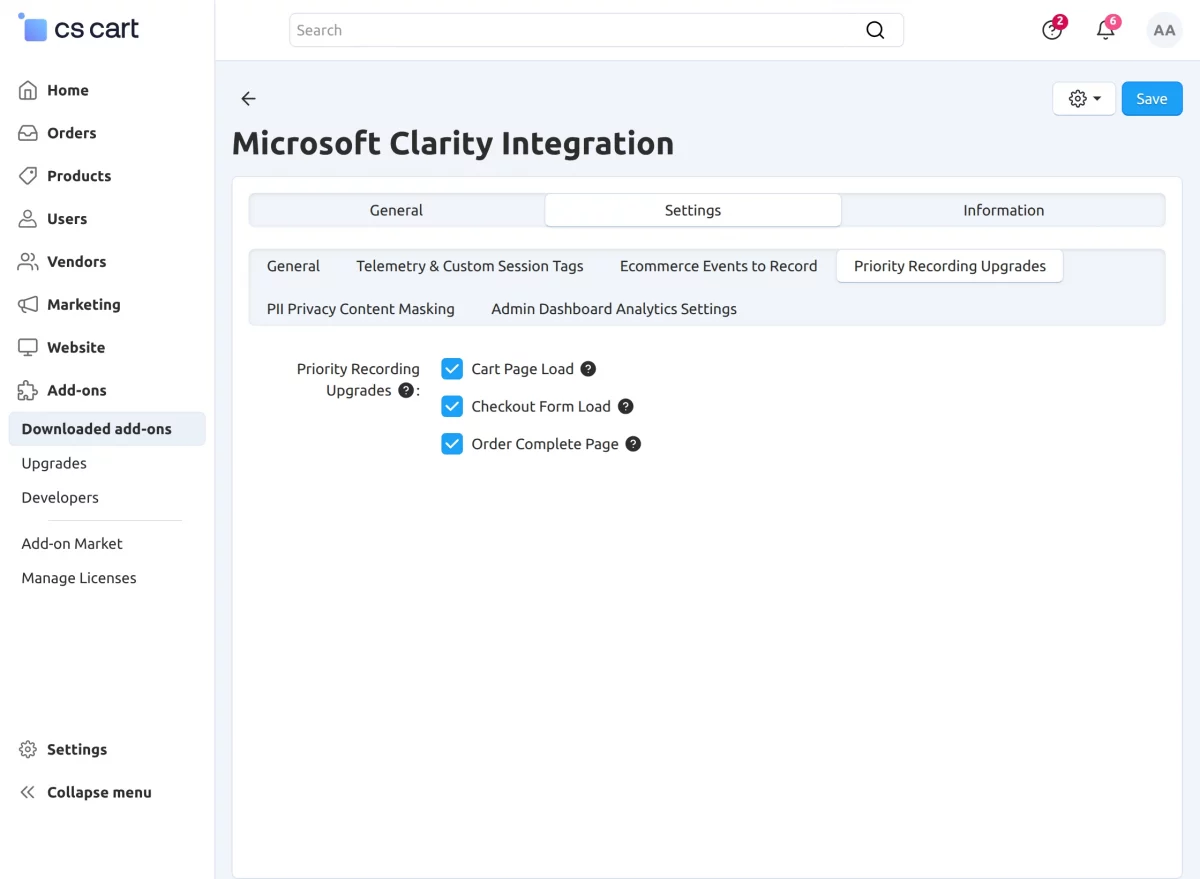
Priority Recording Upgrades
This section allows merchants to prioritize Clarity recordings that contain important shopping and conversion activities.
- Cart Page Load: Prioritizes sessions when customers load the cart page.
- Checkout Form Load: Prioritizes sessions when customers reach the checkout form.
- Order Complete Page: Prioritizes sessions where customers complete an order.
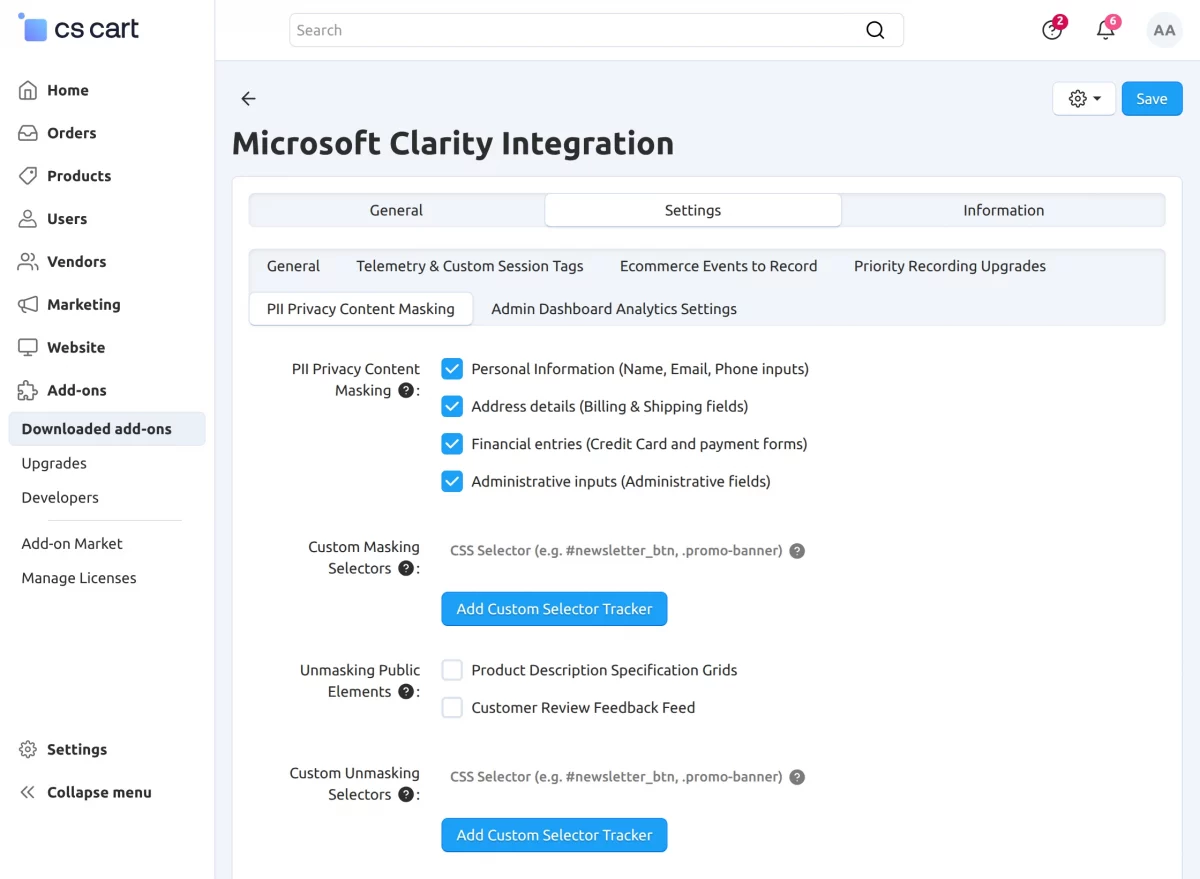
PII Privacy Content Masking
Additionally, this section allows merchants to protect sensitive customer information by masking personally identifiable and financial data in Clarity recordings.
- Personal Information (Name, Email, Phone Inputs): Masks customer names, email addresses, and phone numbers from Clarity recordings.
- Address Details (Billing & Shipping Fields): Masks billing and shipping address information to protect customer privacy.
- Financial Entries (Credit Card and Payment Forms): Masks sensitive payment and credit card information from session recordings.
- Administrative Inputs (Administrative Fields): Masks sensitive information entered in administrative fields.
- Custom Masking Selectors: Allows merchants to specify additional storefront elements that should be masked using CSS selectors.
- CSS Selector: Enter the CSS selector of the element containing sensitive information that should be masked.
- Add Custom Selector Tracker: Adds a custom CSS selector for masking sensitive information.
Admin Dashboard Analytics Settings
Additionally, this section allows merchants to configure how Microsoft Clarity analytics are displayed directly in the CS-Cart administration panel.
- Data Export API Token: Enter the Microsoft Clarity REST Data Export token to retrieve and display analytics in the CS-Cart backend.
- Enable Dashboard Widget: Enable or disable the Clarity analytics widget on the CS-Cart administration dashboard.
- Report Date Range: Select the time period for which Clarity analytics should be displayed, such as 24, 48, or 72 hours.
- Primary Grouping Dimension: Choose how analytics data should be grouped, such as Device, Browser, OS, Country, or URL.
- Update Cache Interval: Set how frequently the Clarity analytics data cache should be refreshed, from 1 to 12 hours.
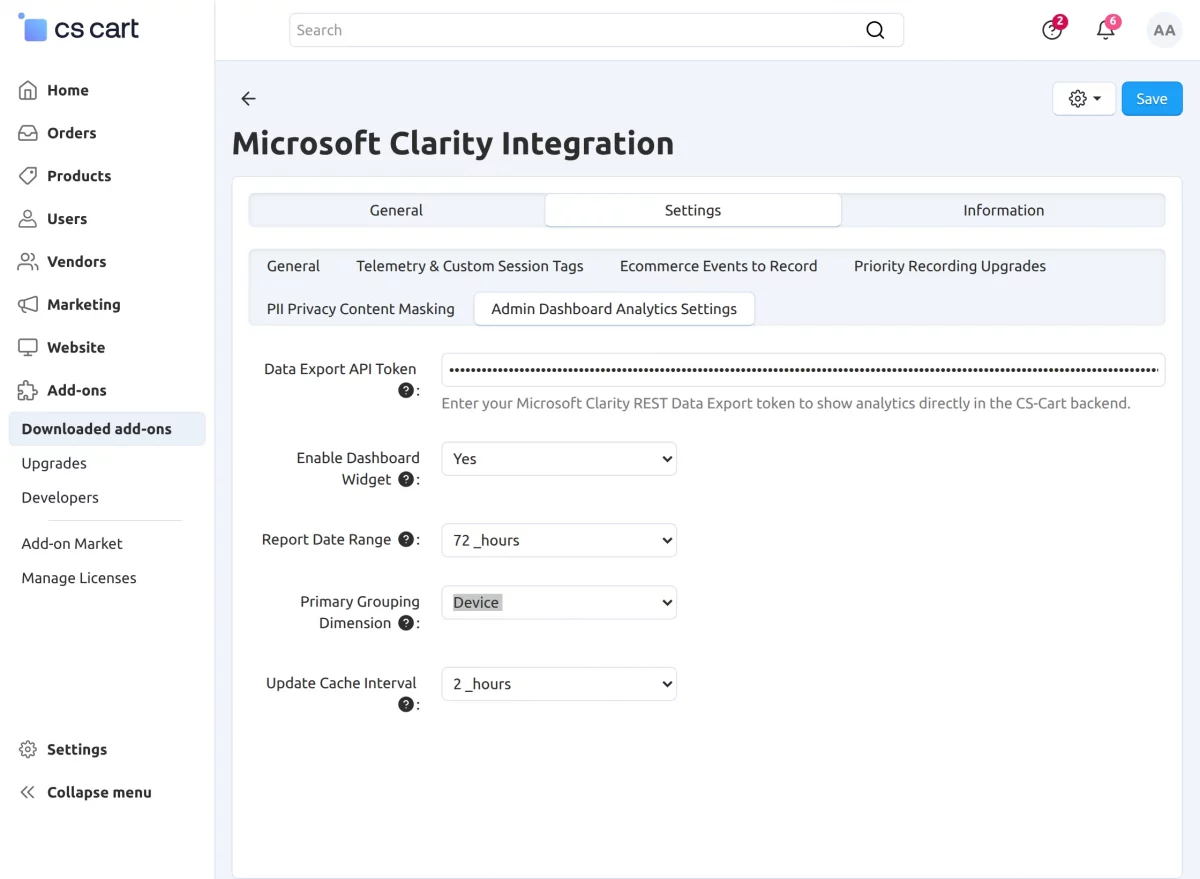
This is how you can configure the settings and save the changes.
How Microsoft Clarity Works in CS-Cart
The Microsoft Clarity integration works with the CS-Cart storefront and automatically adds the required tracking information.
Microsoft Clarity Dashboard
The add-on provides a native Microsoft Clarity dashboard inside the CS-Cart administration panel.
Go to:
Website → Microsoft Clarity
The dashboard displays project statistics for the last three days.
Microsoft Clarity Insights
The Microsoft Clarity Insights section provides an overview of important storefront engagement and user-behavior metrics, including:
- Last Updated: Displays the date and time when the analytics data was last updated.
- Sessions: First, this shows the total number of recorded user sessions. Rage Clicks: Additionally, this displays the number of repeated clicks that may indicate user frustration. Dead Clicks: Similarly, this shows clicks on elements that do not produce a noticeable action. Average Scroll Depth: Finally, this indicates the average percentage of the page that visitors scroll through.
- Dimension Breakdown Metrics: Provides a detailed breakdown of sessions based on the selected dimension, such as device type, along with rage clicks, dead clicks, average scroll depth, and engagement time.
- Refresh Data: Allows merchants to manually update the displayed Clarity analytics.
- Go to Microsoft Clarity: Opens the corresponding project directly in Microsoft Clarity for more detailed analysis.
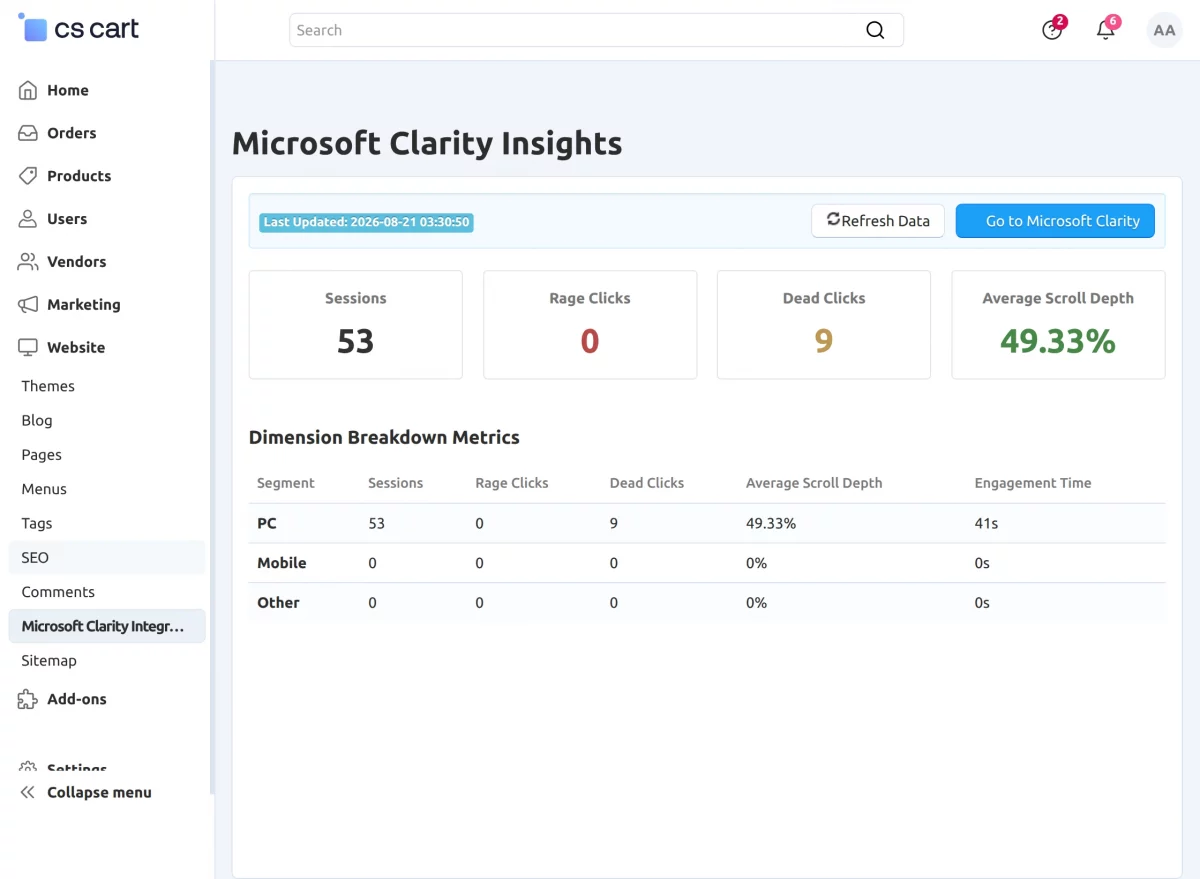
The analytics displayed in the Microsoft Clarity Insights section are fetched from the connected Microsoft Clarity project.
Additionally, merchants can view the same data directly in Microsoft Clarity for more detailed insights.
The same data can also be viewed directly on the Microsoft Clarity developer/dashboard end, where merchants can access more detailed reports and session insights.
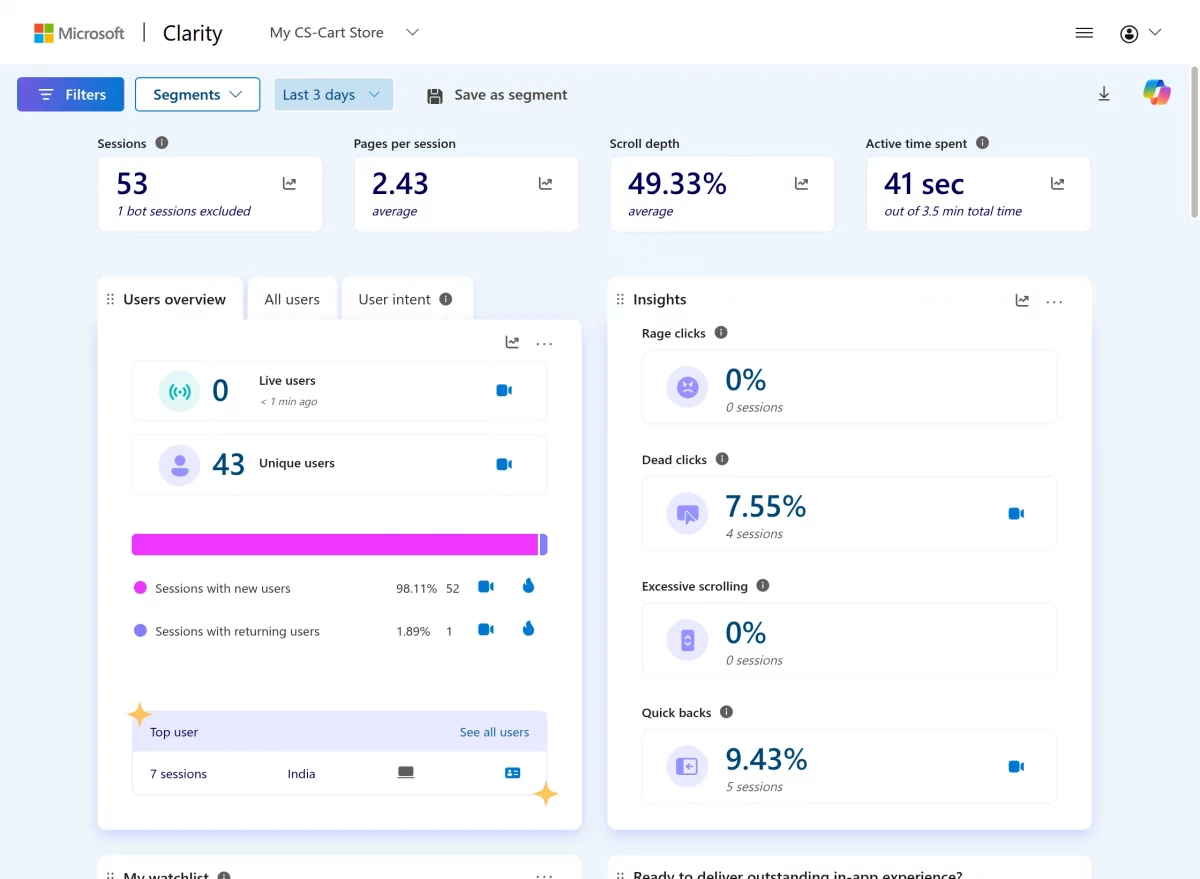
The dashboard also provides engagement breakdowns based on:
- Device
- Browser
- Operating System
- Country
Refresh Dashboard Data
The dashboard includes a Refresh Data button and displays the Last Updated timestamp.
The integration limits dashboard refresh requests to 10 requests per day to respect Microsoft API limits.
When the daily limit is reached, the add-on uses cached database data and displays a warning instead of making another external API request.
Changing the dashboard grouping dimension does not automatically consume an API request. The existing cached data is used until the merchant selects Refresh Data.
With Microsoft Clarity Integration, merchants can easily track customer behavior, monitor storefront performance, and gain valuable insights directly from the CS-Cart backend.
Moreover, this integration helps optimize the shopping experience by identifying user interactions, technical issues, and opportunities for improving conversions.
Support
This is all about CS-Cart Microsoft Clarity Integration. For further any query feel free to contact us at http://webkul.uvdesk.com
Please explore our cs-cart Development Services and Quality cs-cart add-ons
Current Product Version - 1.0
Supported Framework Version - (4.18.x - 4.20.x)

Be the first to comment.