


















CS-Cart Mangopay Payment Gateway:
Allow your CS-Cart store/e-commerce website to accept card payment via Mangopay with the splendid add-on CS-Cart Mangopay Payment Gateway.
Mangopay supports various cards which includes Visa, Mastercard, Maesro, Masterpass, Diners, Ideal, BCMC and PayLib.
Also, it works well in Staging and as well as in Production mode. So, integrate Mangopay now to your CS-Cart store to make the payment process hassle-free.
Features
- Well integrated with CS-Cart & CS-Cart Multi-Vendor.
- Supports various cards including Visa, Mastercard, Maestro, Masterpass, Diners, Ideal, BCMC, and PayLib.
- In addition, Provides the concept of holding the amount in the Escrow Wallet on successful order placement.
- Functionality to submit KYC details via admin end itself.
- Works with both Test and Live modes on the payment gateway.
- Also has functionality to set Order Status automatically on various transaction responses from Mangopay.
- Provides safe and secure payment to handle risk management system.
- Moreover Easy to configure and manage at admin end.
Video Tutorial
How To Upload and Install
-
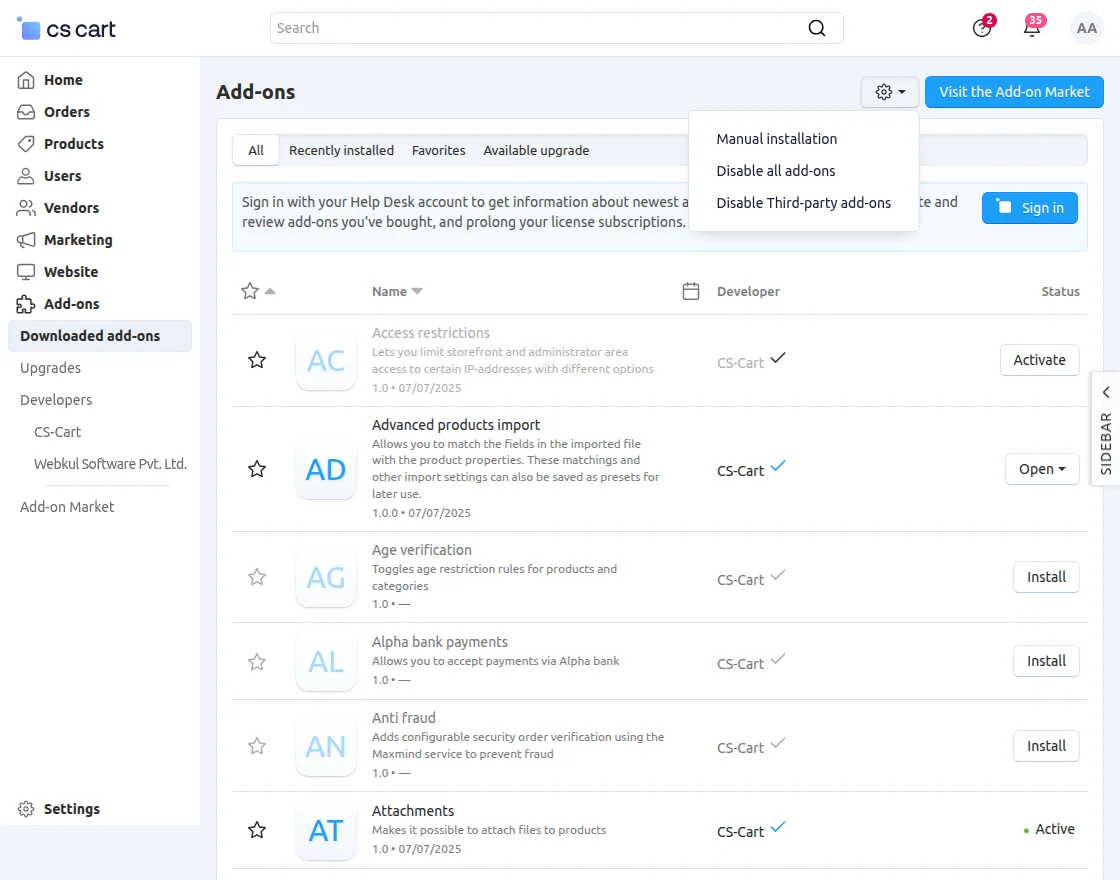
- Go to Manage Add-ons, click on the gear drop-down, and select Manual Installation.
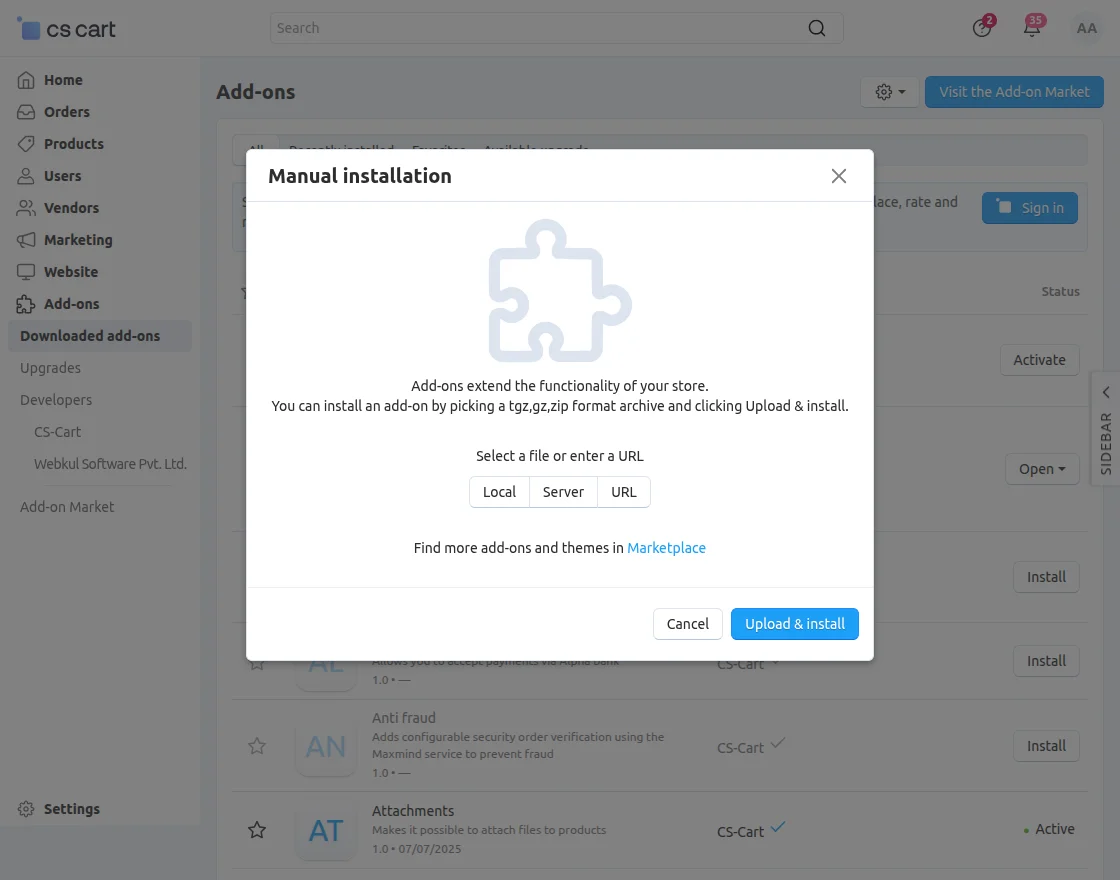
2. Click on Local to select the zip file.
Then click on “Upload & Install” as shown below in the snapshot.
Add-on installed successfully!
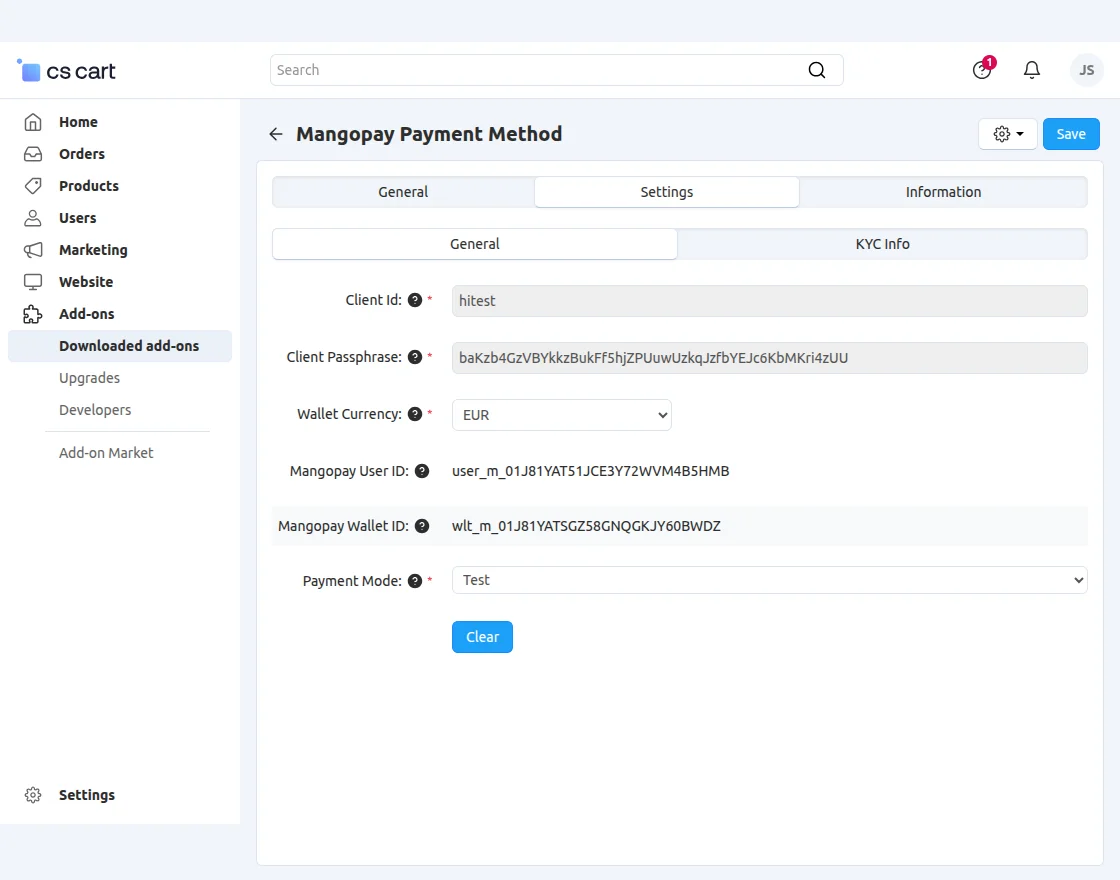
MangoPay Wallet Configuration
-
Client ID: The unique identifier used to connect the application with MangoPay.
-
Client Passphrase: The secure credential used to authenticate the MangoPay integration.
-
Wallet Currency: The currency configured for the wallet, set to EUR.
-
MangoPay User ID: The unique identifier of the MangoPay user associated with the wallet.
-
MangoPay Wallet ID: The unique identifier of the MangoPay wallet used for transactions.
-
Payment Mode: Indicates the environment in which payments are processed; currently set to Test mode.
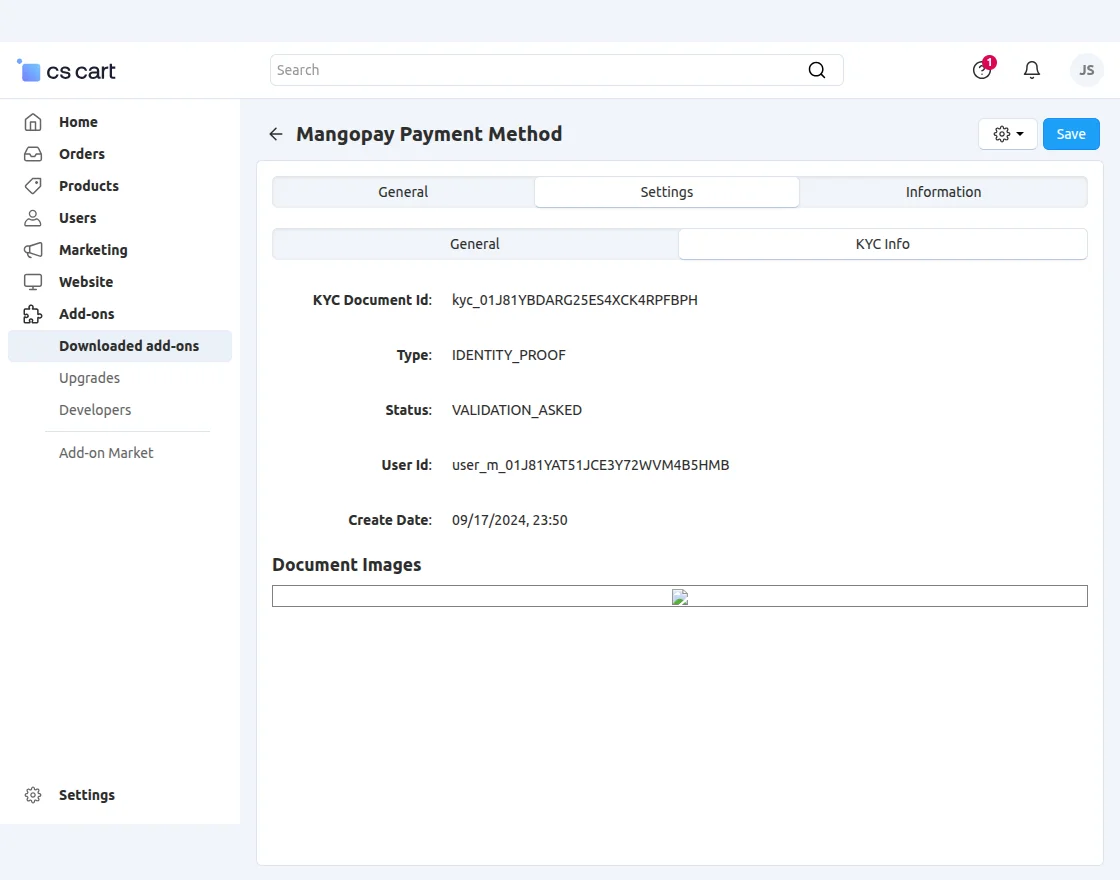
KYC Information
-
KYC Document ID: The unique identifier assigned to the submitted KYC document.
-
Type: Specifies the type of KYC document submitted, in this case, Identity Proof.
-
Status: Indicates the current verification stage; the document is awaiting validation.
-
User ID: The MangoPay user associated with the KYC document.
-
Create Date: The date and time when the KYC document was created.
-
Document Images: Contains the images uploaded as supporting documents for identity verification.
Mangopay Payment Method Configuration
Go to “Administration” tab and click on “Payment methods”.
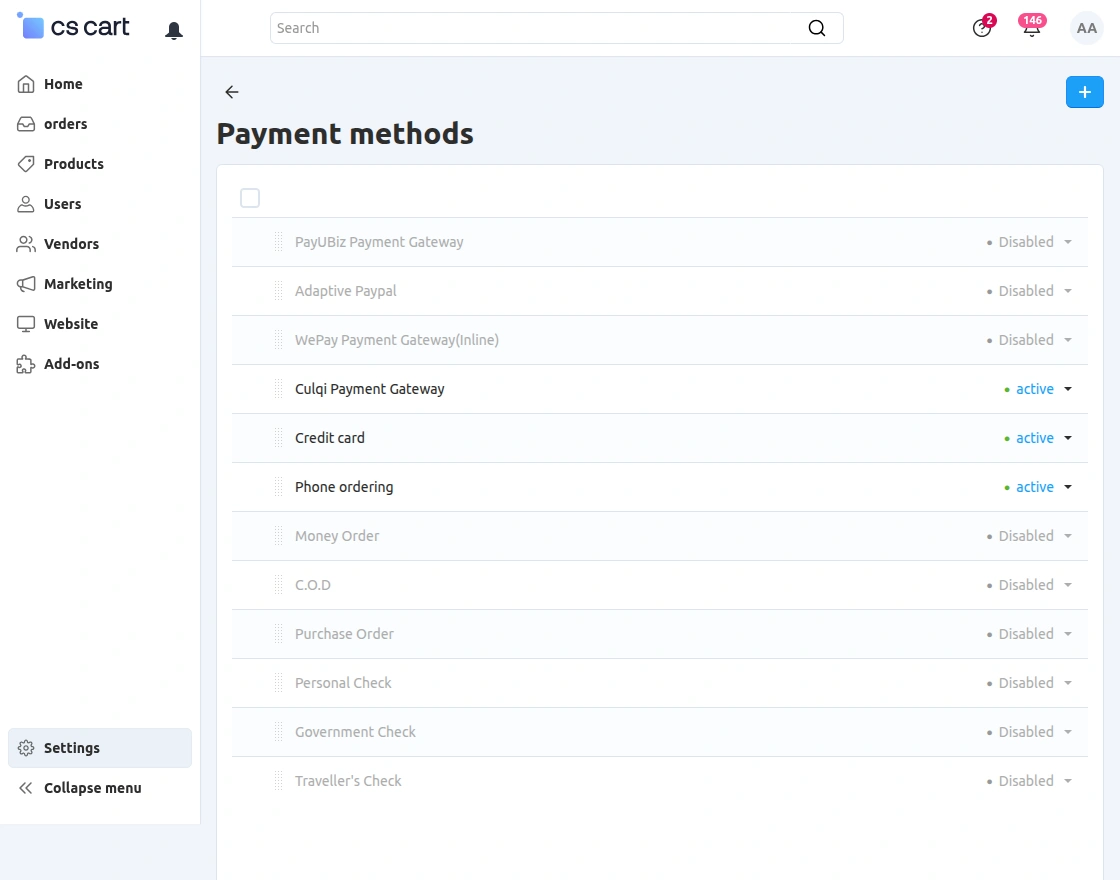
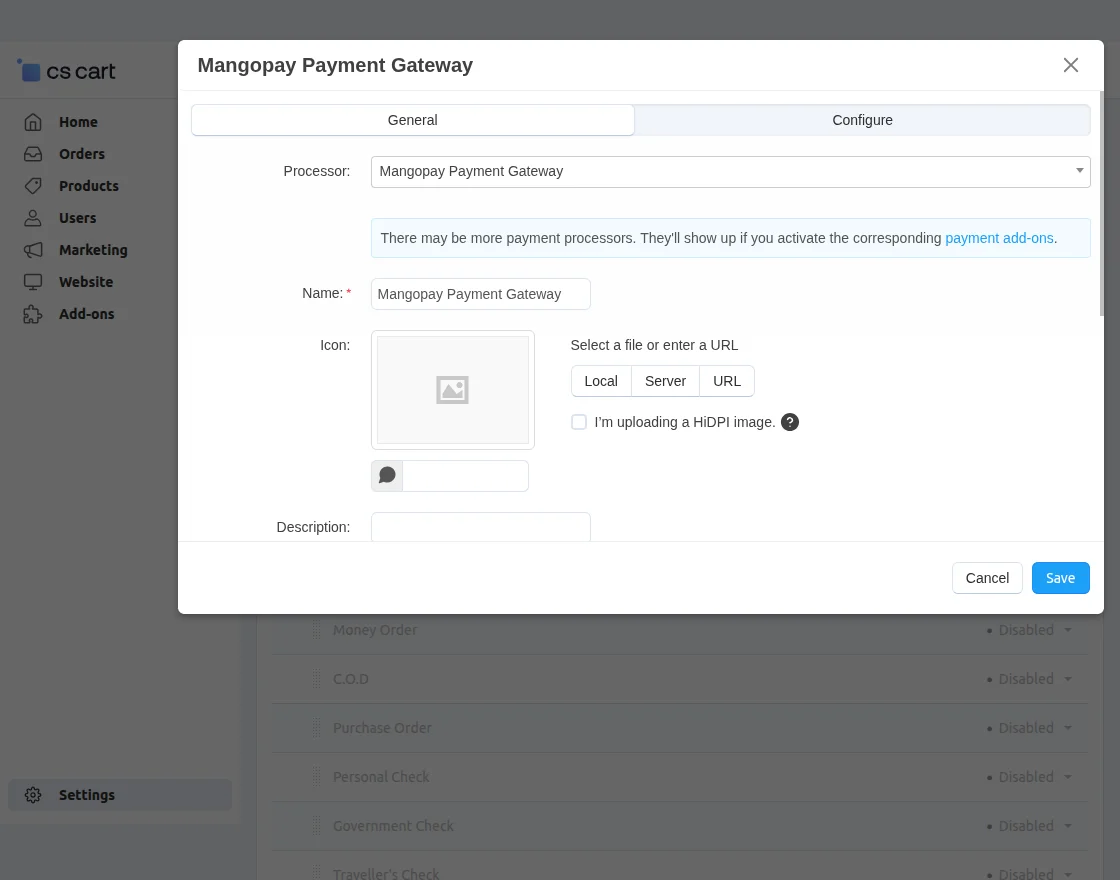
Click on “+” to create a new payment method and set the parameters as shown below in the snapshot.
- Set the name of the payment method.
- For checkout choose the processor as “Mangopay Payment Gateway”.
- Select template as “cc_outside.tpl” from the drop-down.
- Select the Payment Category.
- Finally Configure the tabs accordingly as shown below in the snapshot.
Click on “Configure” and set the parameters as shown below in the snapshot.
-
MangoPay Payment Gateway Creation
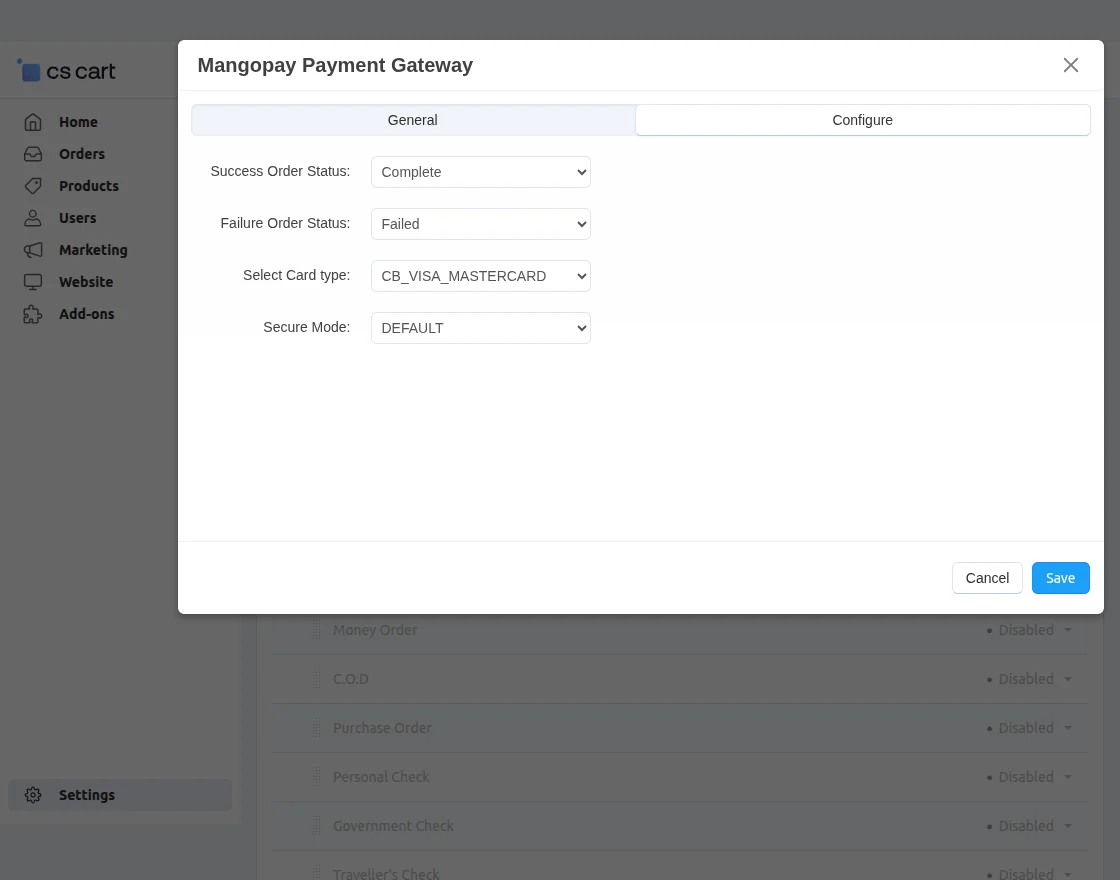
-
Success Order Status: Sets the order status to Complete when the payment is successfully processed.
-
Failure Order Status: Sets the order status to Failed when the payment transaction is unsuccessful.
-
Select Card Type: Specifies the supported card network, configured as CB_VISA_MASTERCARD.
-
Secure Mode: Defines the payment security mode, currently configured as Default.
-
Front End View
After successful configuration of payment method, New payment options via Mangopay (As per the configuration) will be available for customers at the front end.
For payment, the customer needs to select the payment method and submit the order.
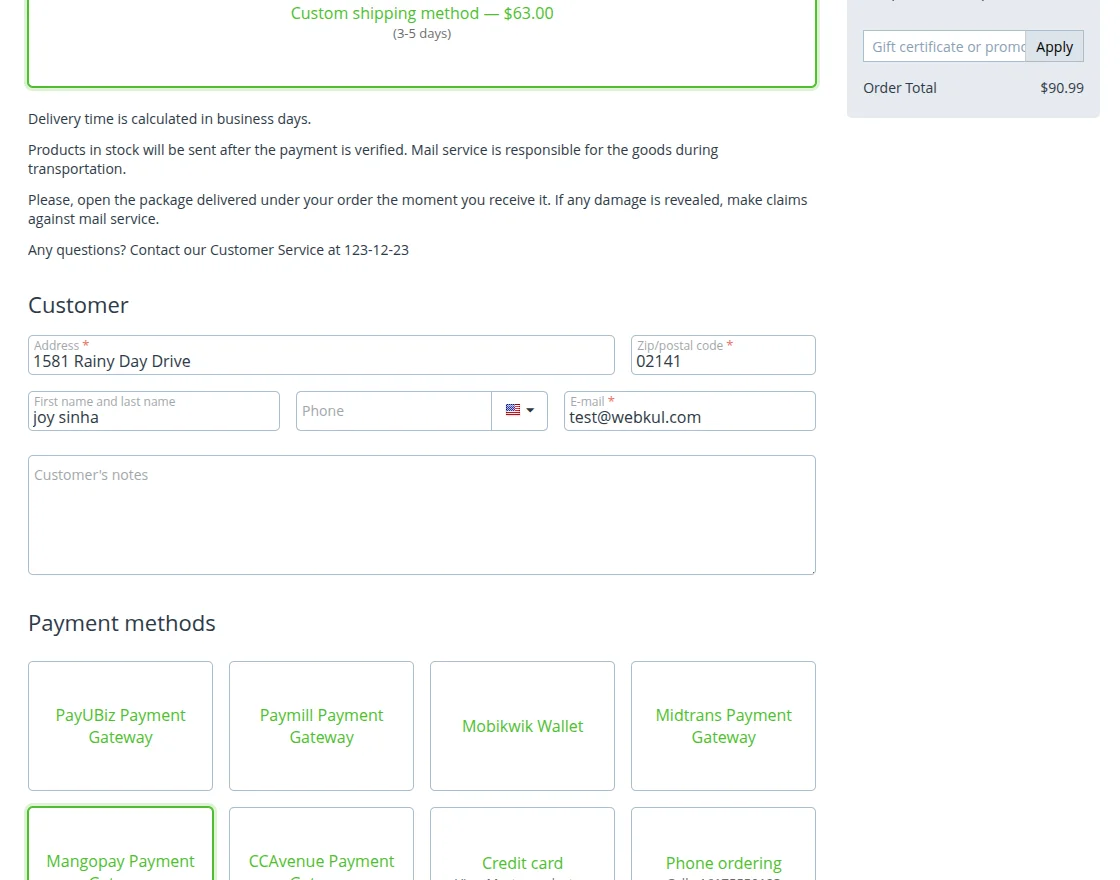
Customer will get redirected to the outside payment page of Mangopay as shown below. Then he/she needs to enter the card details & validate.

The order will be placed successfully.
Support
This is all about CS-Cart Mangopay Payment Gateway. Still, have any issue, feel free to contact us at http://webkul.uvdesk.com and let us know your views to make the module better.
Besides this you can explore our CS-Cart Development Services and Quality CS-Cart add-ons.
Current Product Version - 2.0
Supported Framework Version - 4.18

Be the first to comment.