CS-Cart Low Stock Notification is a useful add-on that automatically alerts admins, vendors, or custom recipients when a product’s quantity falls below the defined limit.
It removes the need for manual stock monitoring by sending real-time notifications via Email, SMS, or WhatsApp.
This helps businesses manage inventory more efficiently and take timely action for restocking.
As a result, products remain available for customers, reducing the chances of missed sales and improving the overall shopping experience.
Note: Before installing the add-on, extract the downloaded package.
- Install the License Manager add-on first.
- Then install the required add-on.
- Follow the license activation steps to generate your license key.
Features
- Sends notifications to admins and vendors when product stock falls below the set limit.
- Receive low stock alerts via Email, SMS, and WhatsApp.
- Allows customization of notification recipients.
- Supports multiple recipients for sending stock alerts.
- Enables setting a minimum stock threshold for each product.
- Supports integration with SMS APIs like Twilio and Clickatell.
- Well integrated with CS-Cart Multi-Vendor platform.
- Provides instant WhatsApp alerts when product stock runs low.
You can also check the overview of our module:
Installation
After downloading the CS Cart Stock Notification add-on, you’ll get one zip file, one install.txt file, and a relevant User Guide manual doc. Read it carefully for proper configuration.
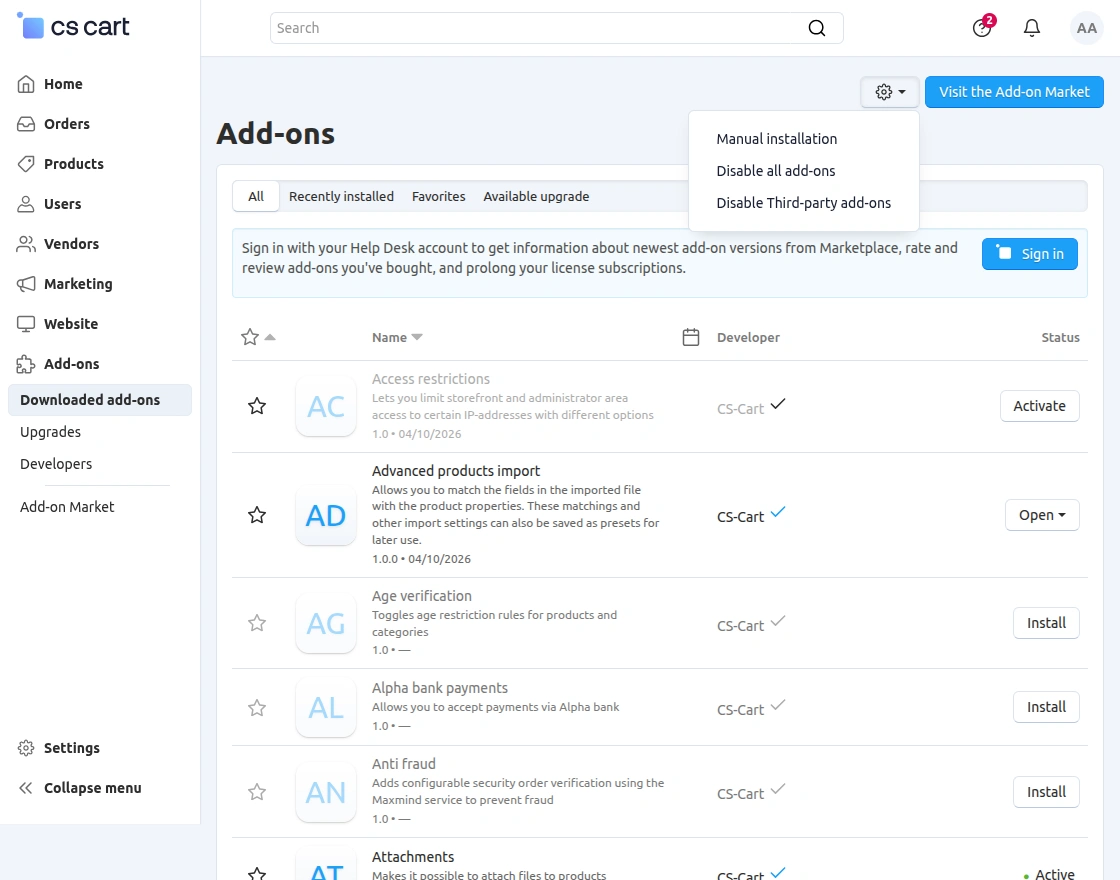
Log in to the CS-Cart Admin Panel, navigate through the Sidebar Menu to Add-ons → Downloaded add-ons.
Click on the settings icon at the top of the page and select Manual installation from the dropdown
Click on “local” to upload the zip file as shown below.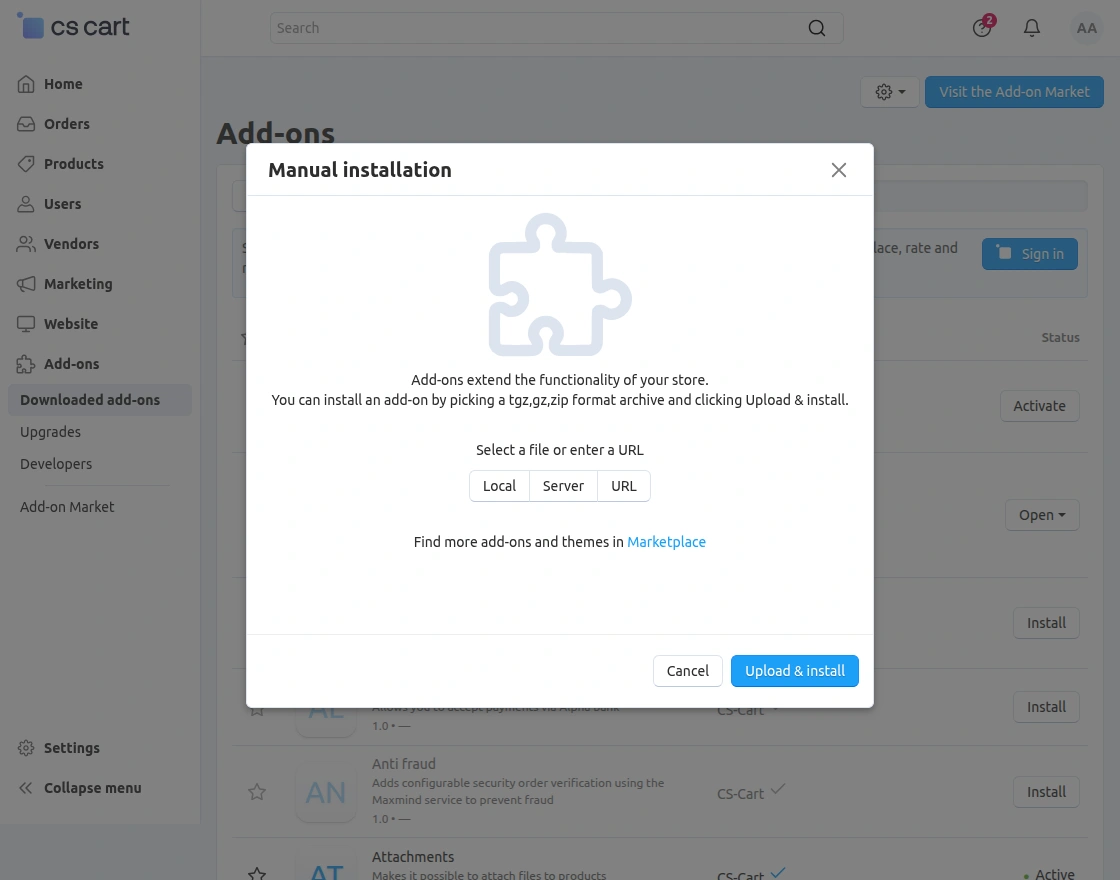
Add-on Configuration
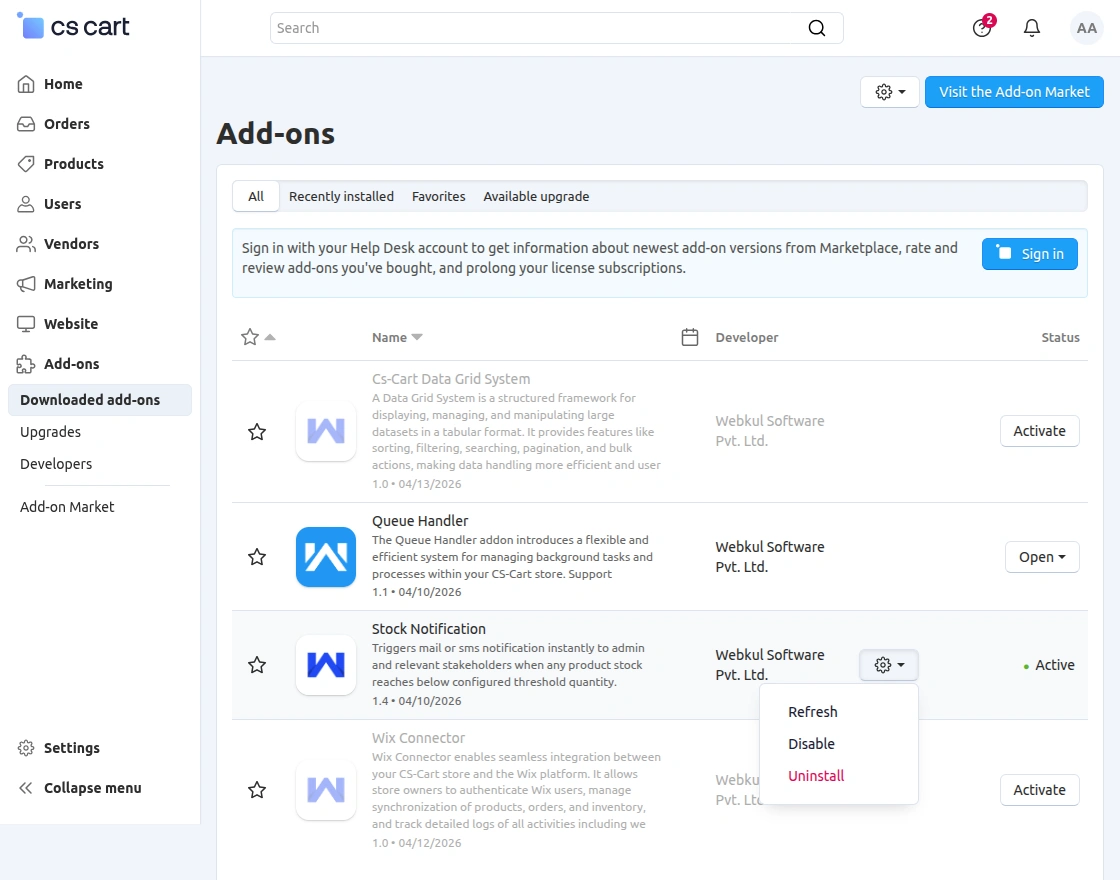
After installing the add-on, you will find CS Cart Stock Notification in the list of available add-ons. We will then configure the settings.
Click on “settings” to enable, disable, install, or refresh.
Make sure the add-on is activated, as shown in the snapshot below.
To optimize background task management, the CS-Cart Queue Handler add-on supports both Database and RabbitMQ queues.
It enables asynchronous processing to enhance your store’s performance and scalability.
Set the parameters accordingly
-
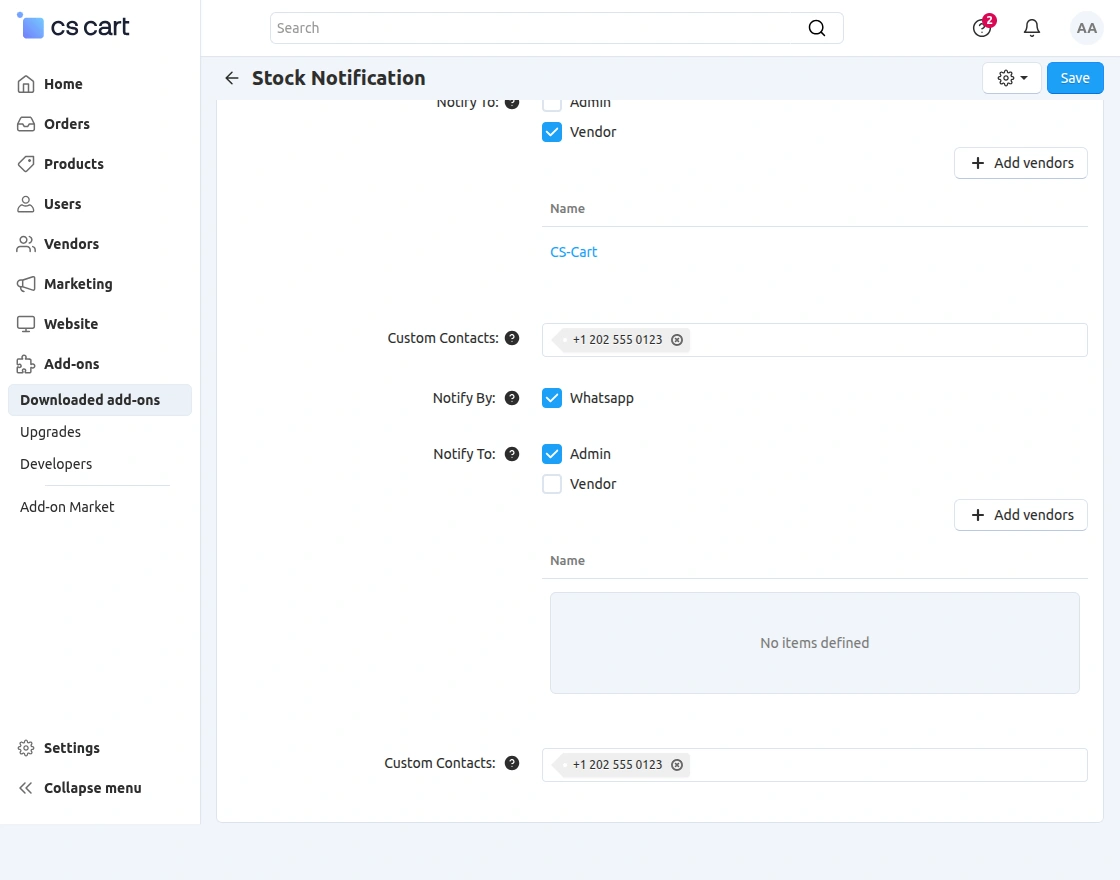
- Firstly, click on “Mail”, “SMS”, and “WhatsApp” to receive an alert based on it.
- Select the admin and vendor for mail and SMS to allow notification for both users.
- Click on “Add Vendor” to add vendors to the notification list.
- Finally, set a custom email id and contact number if any, to send email notifications and text messages regarding the low stock alert.
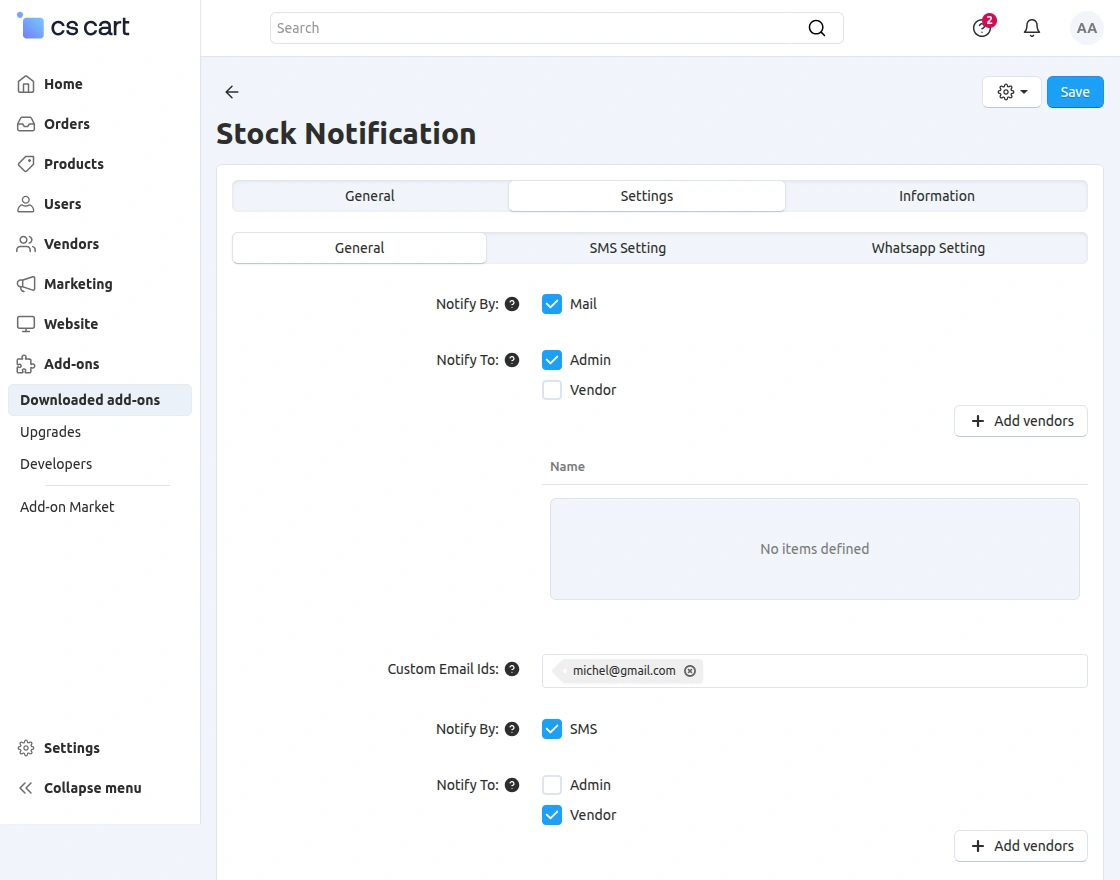
You can have more options that you can edit.
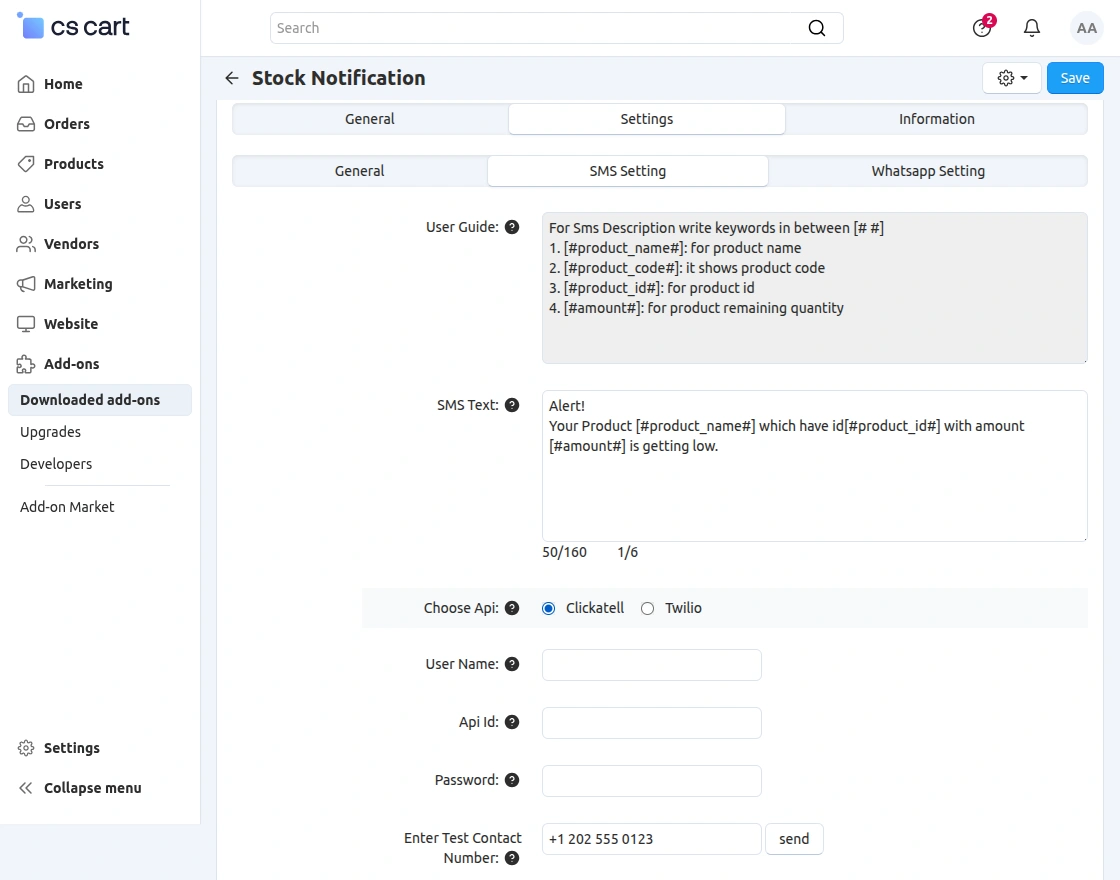
Set the SMS text as shown below.
Choose the SMS Api that has been provided. For Clickatell, set the parameters as shown below in the snapshot.
- Set the username, Api Id, and password.
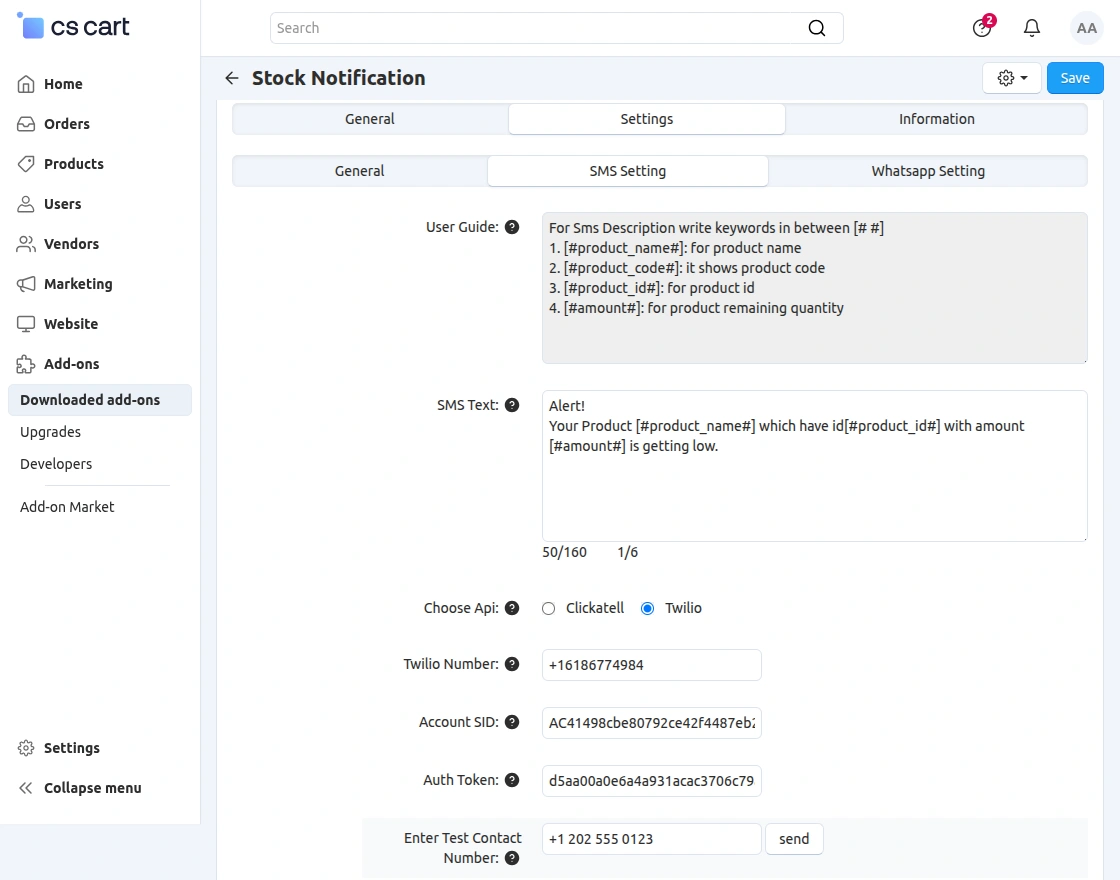
Fill in the parameters of Twilio as shown below in the snapshot.
- Set the Twilio number, Account SID, and Auth Token. The feature of the test contact number is provided.
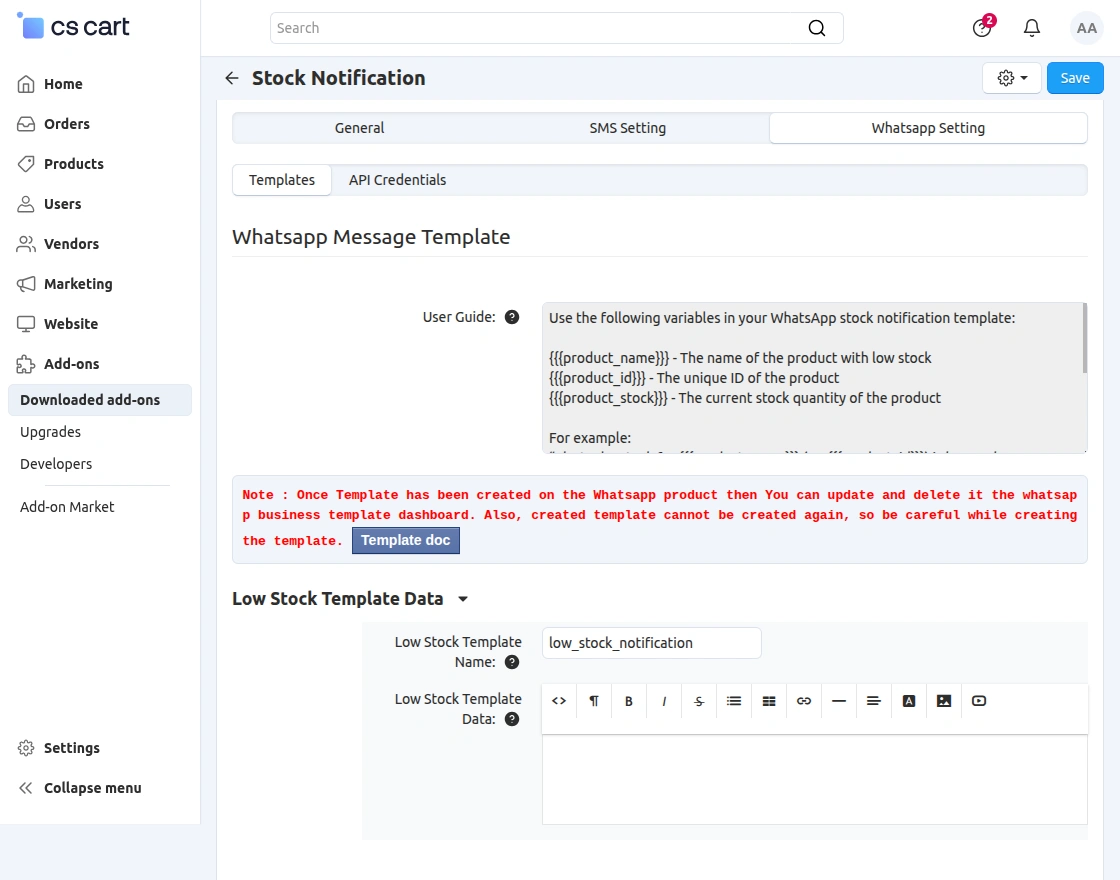
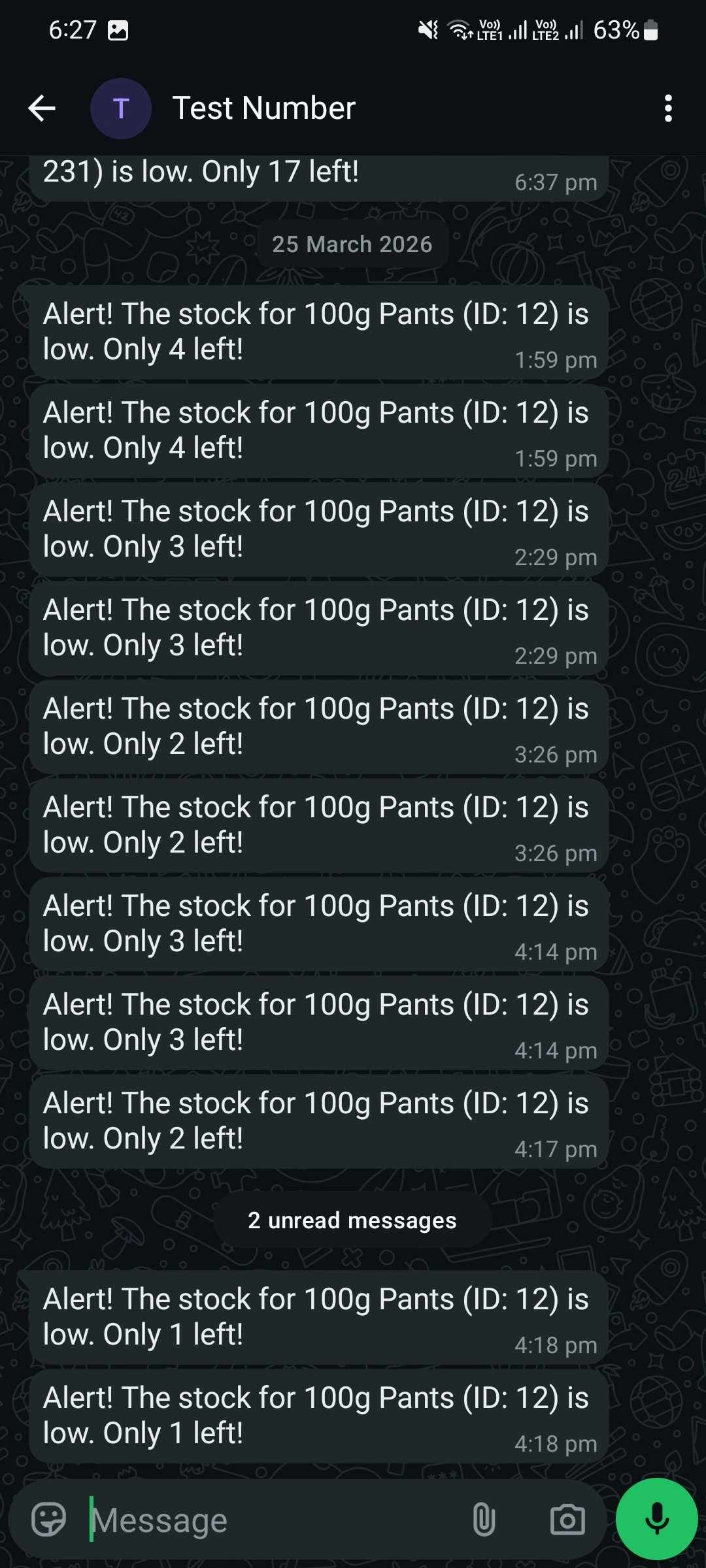
Moreover, the admin can also configure the WhatsApp message template for low stock data.
API Credential Generation-CS-Cart WhatsApp Order Notification
The admin will have to create an app from his Meta Developers account as shown in the screenshot.
To create a Meta Developers account, click here.
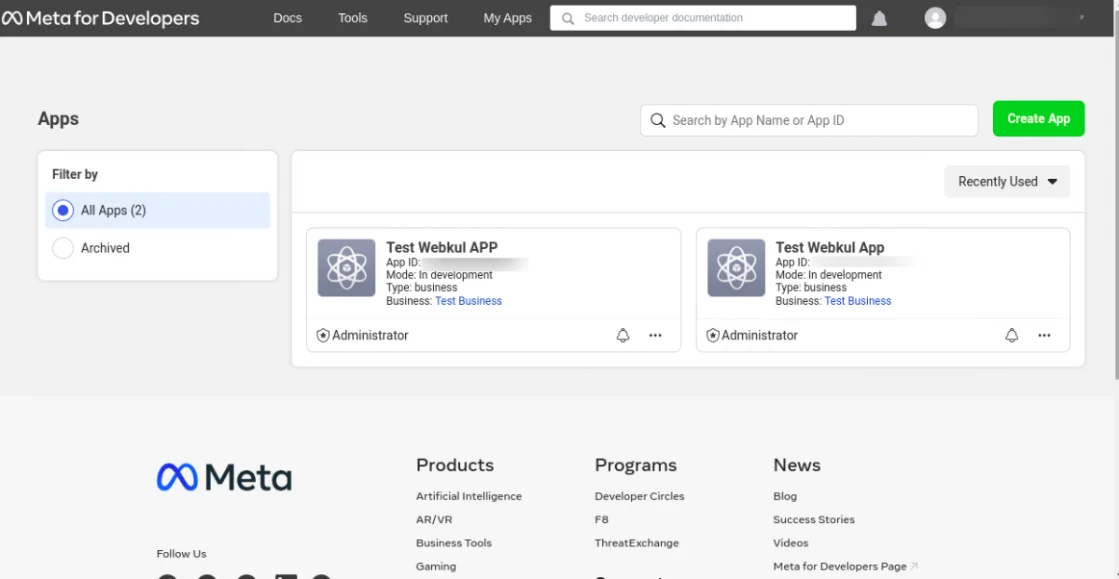
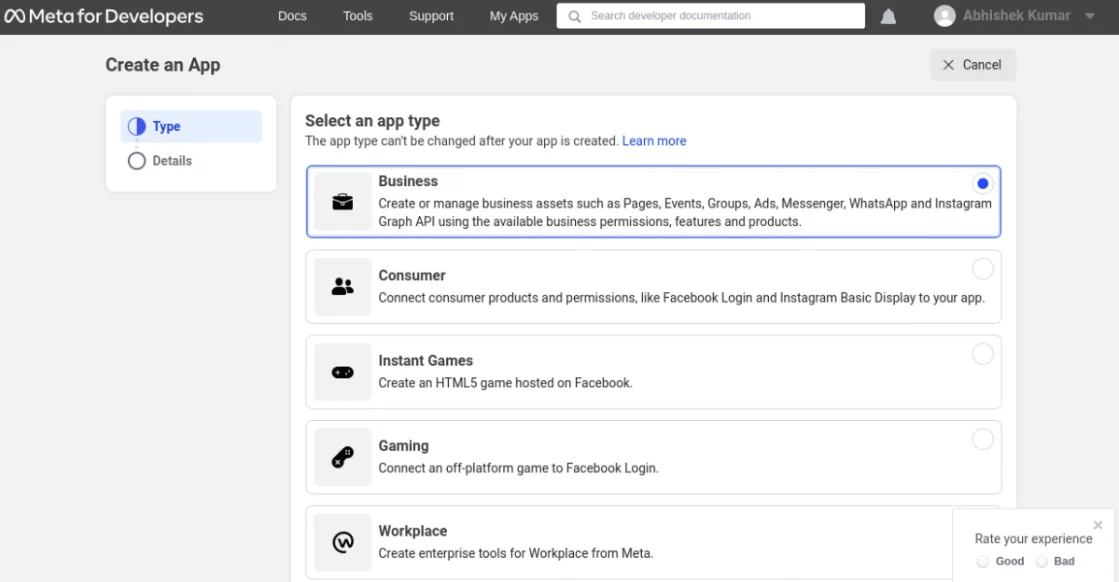
When the admin clicks on the Create App button, there will be an option to select the app type as per the image below.
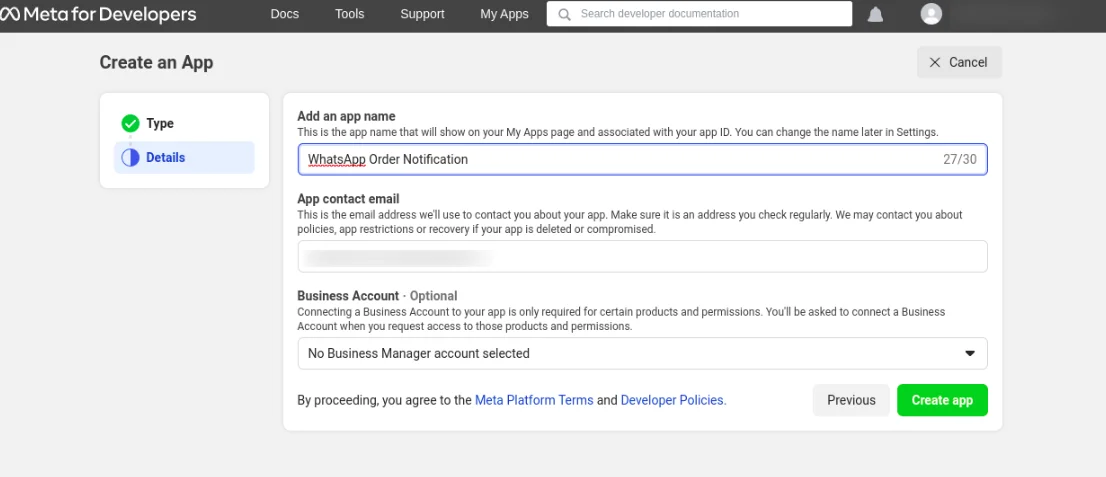
After that, the admin will select the details option, and a pop-up will appear to fill in the app name, app contact email, and business account.
Now, the user will have to click on the Create app button.
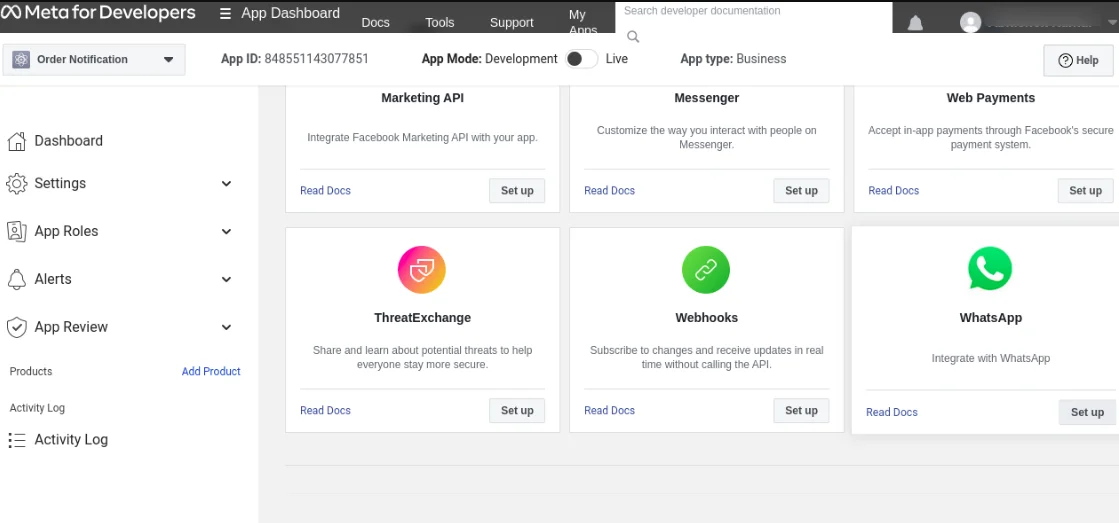
The store admin will click on the Setup option in WhatsApp once the app is created.
The access token, phone number id, and business account id will be displayed in the developer’s dashboard as shown in the image:
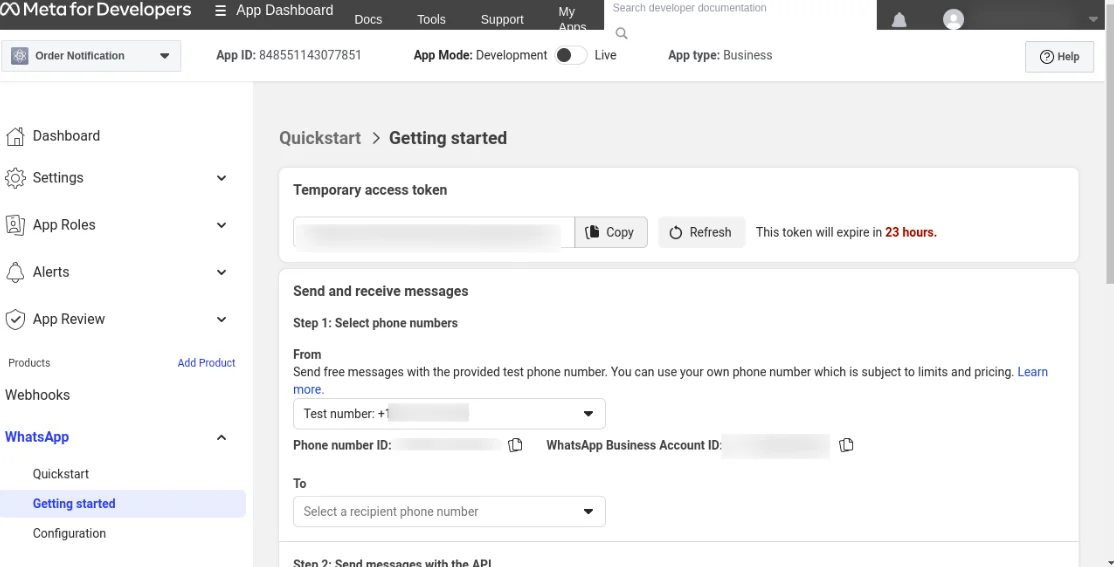
Note: Likewise, the admin needs to generate a new access token after a certain period of time, our access token will expire, and we will need to regenerate a new one.
The user must have a permanent business account to generate a permanent access token.
Api Credentials for CS-Cart WhatsApp Order Notification
Now, the user needs to click on the WhatsApp Order Notification Module to configure the module.
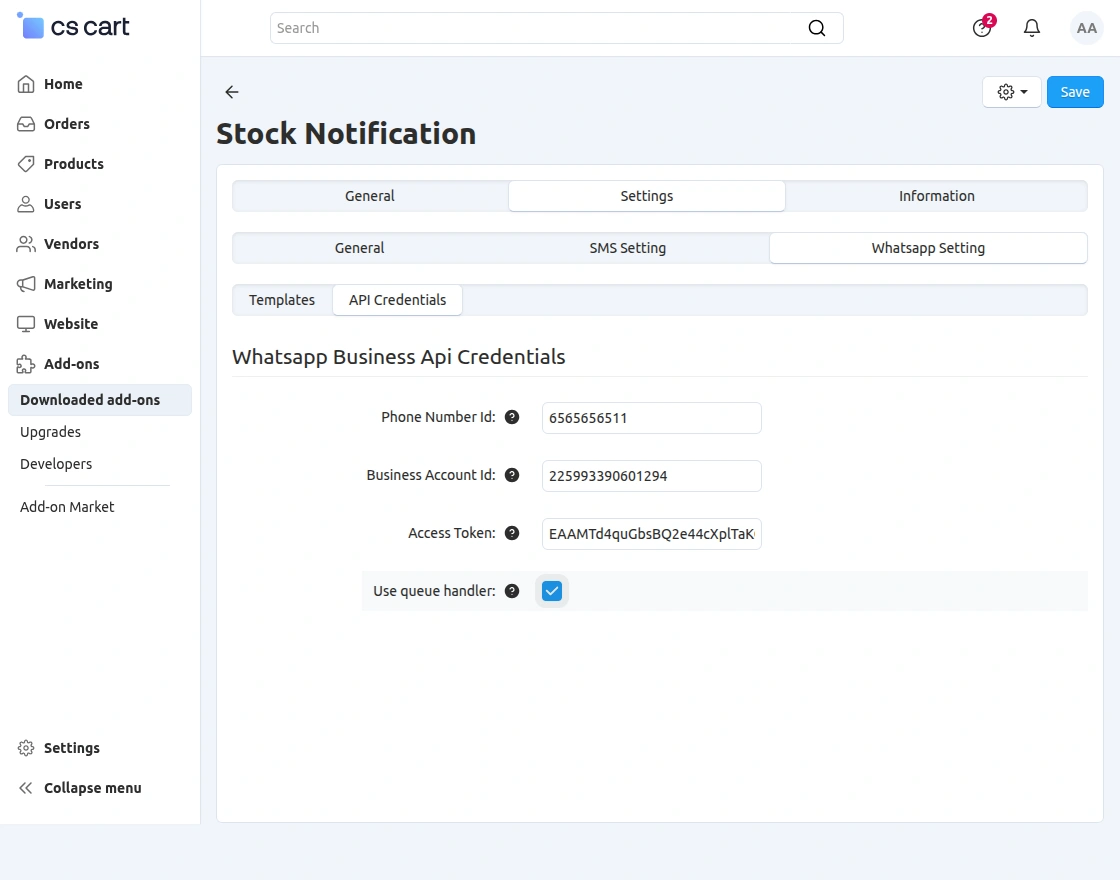
The admin has to make the following general settings to configure the module.
Phone Number id- The admin will enter the phone number id generated from the Meta developers’ account.
Business Account id- After that, the admin will enter the business account id.
Access Token- Now, the store admin will enter the access token.
CS-Cart Low Stock Notification – Admin End
To change the individual stock of any product, go to the product page. Click on the desired product as shown below in the snapshot.
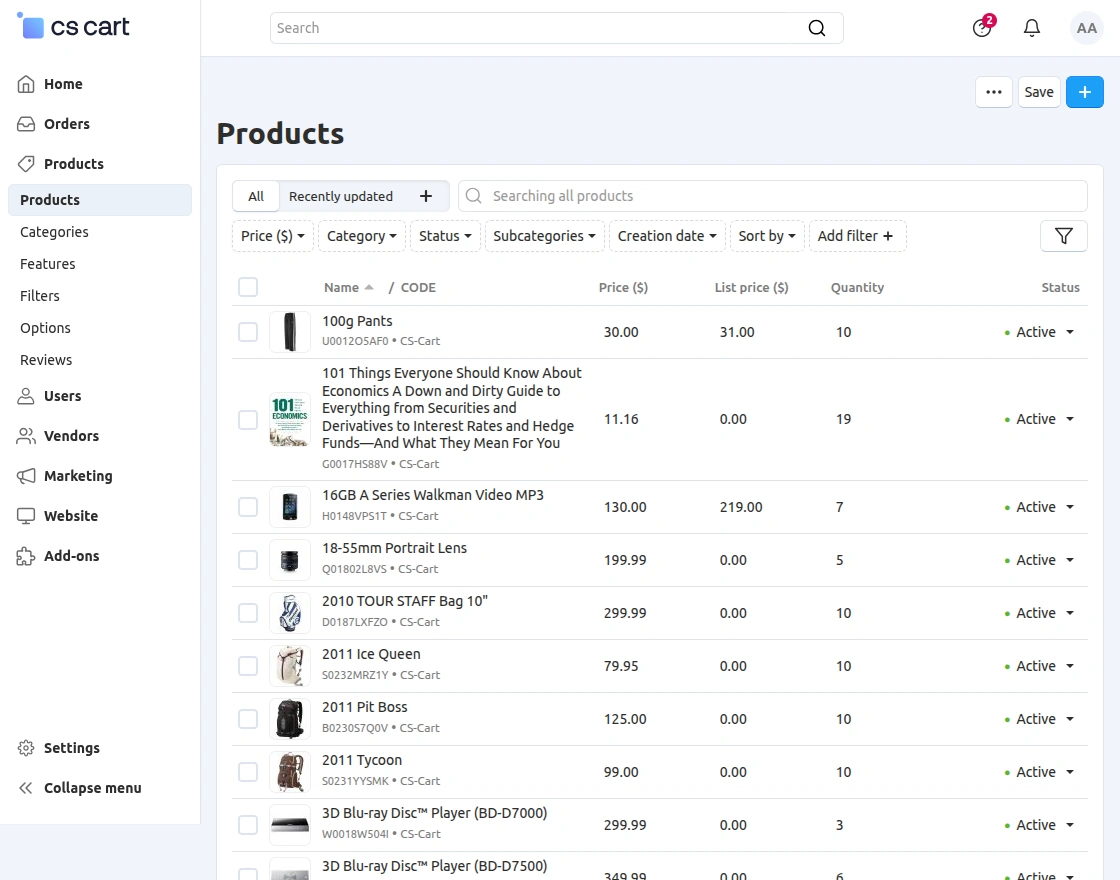
Go to add-ons and set the minimum inventory for the product below which the alert will generate.
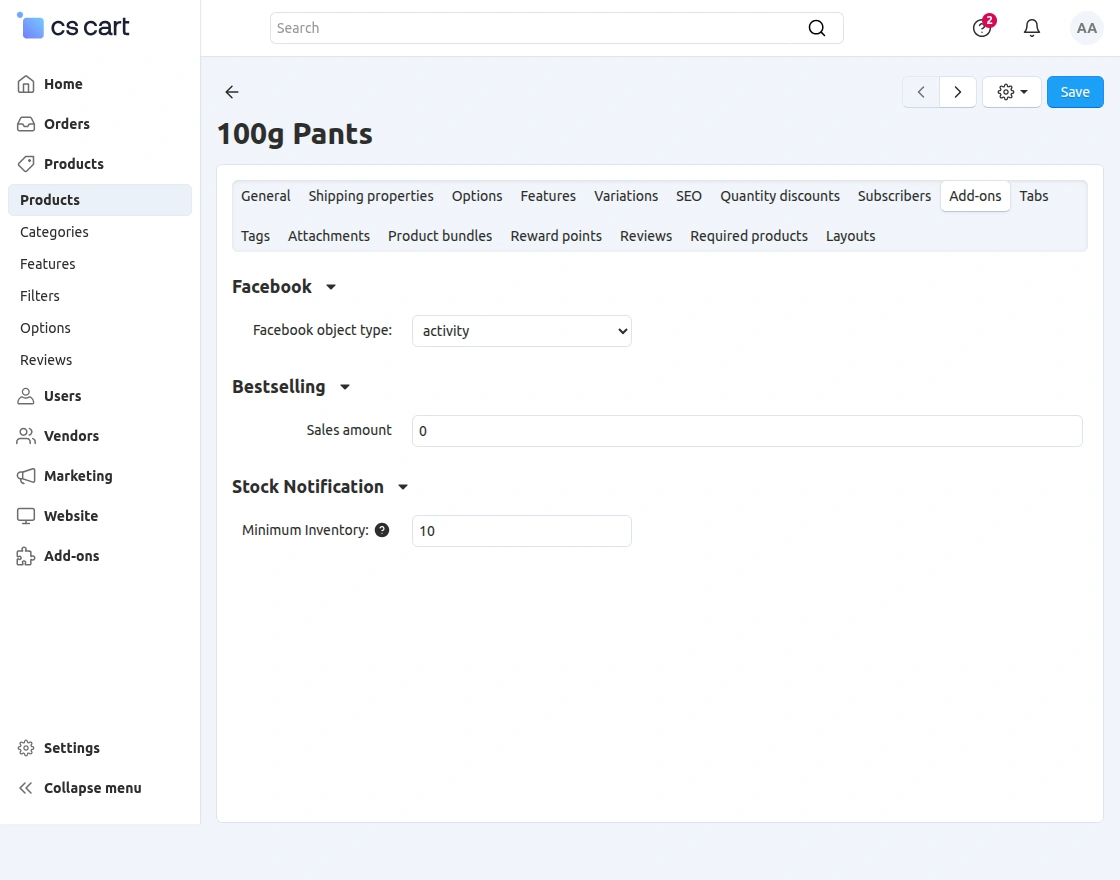
You can also manage the minimum inventory for the product from Settings.
Settings → General → Low Stock Notification Threshold
You can set the minimum inventory for the product.
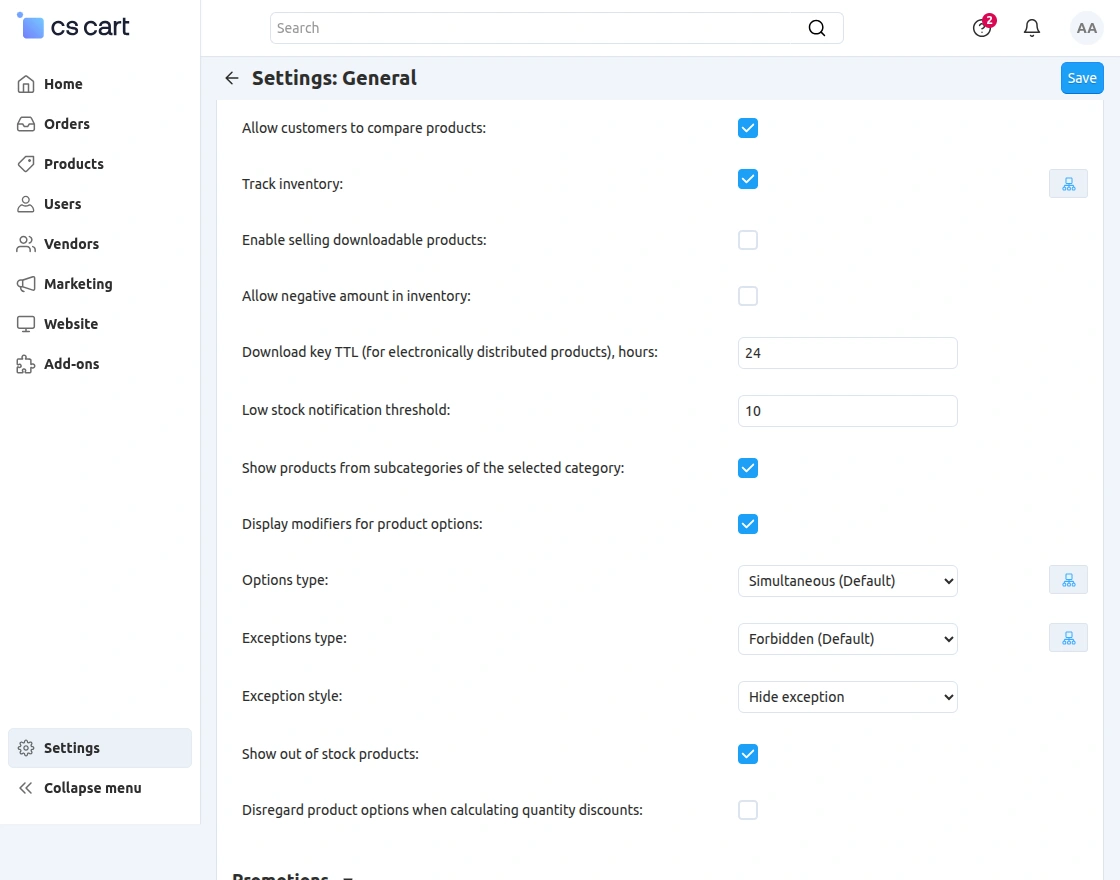
Email Template Configuration For Low Stock Notification:
To configure the low stock email template, go to the Settings section in the admin panel and click on Notifications, as shown below.
This section acts as a central place to manage all notification-related settings.
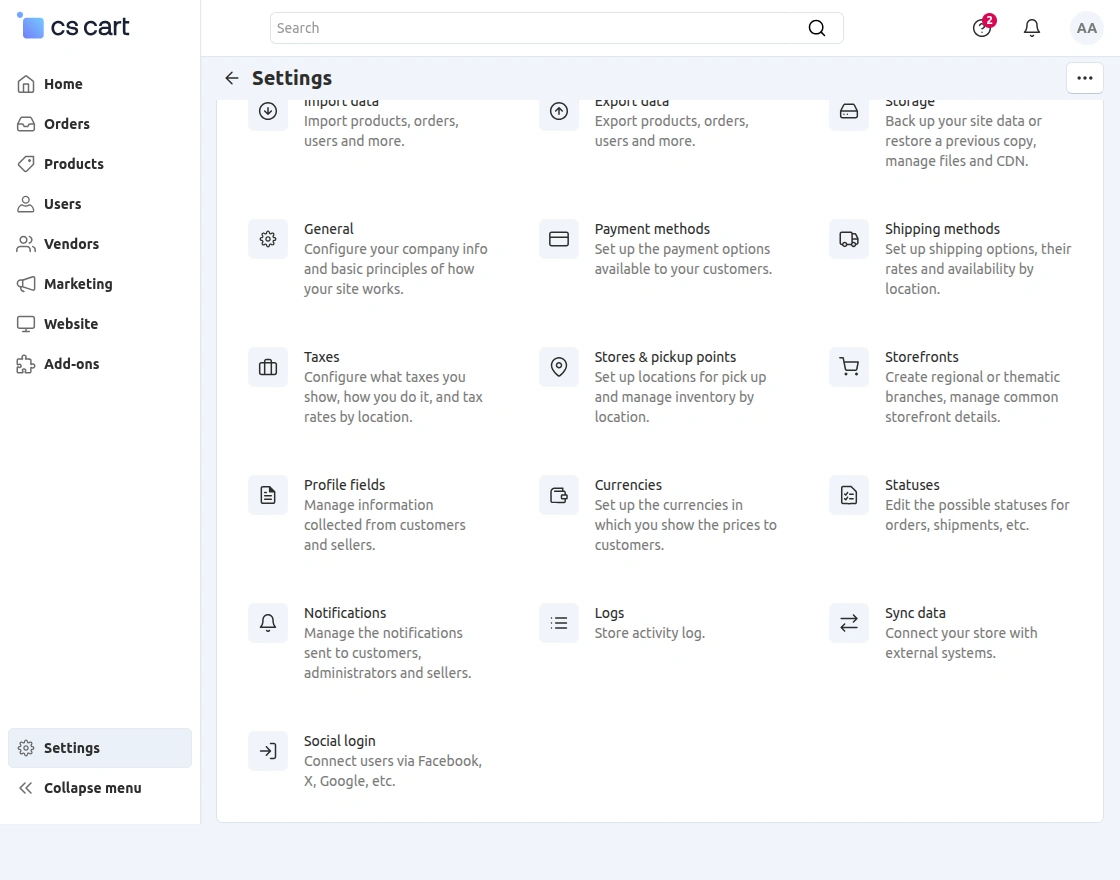
Within Notifications, open Administrator Notifications or Vendor Notifications and scroll down to the Stock Notification section.
Here, you will find the Low Stock Email option, which is used to manage low stock email alerts.
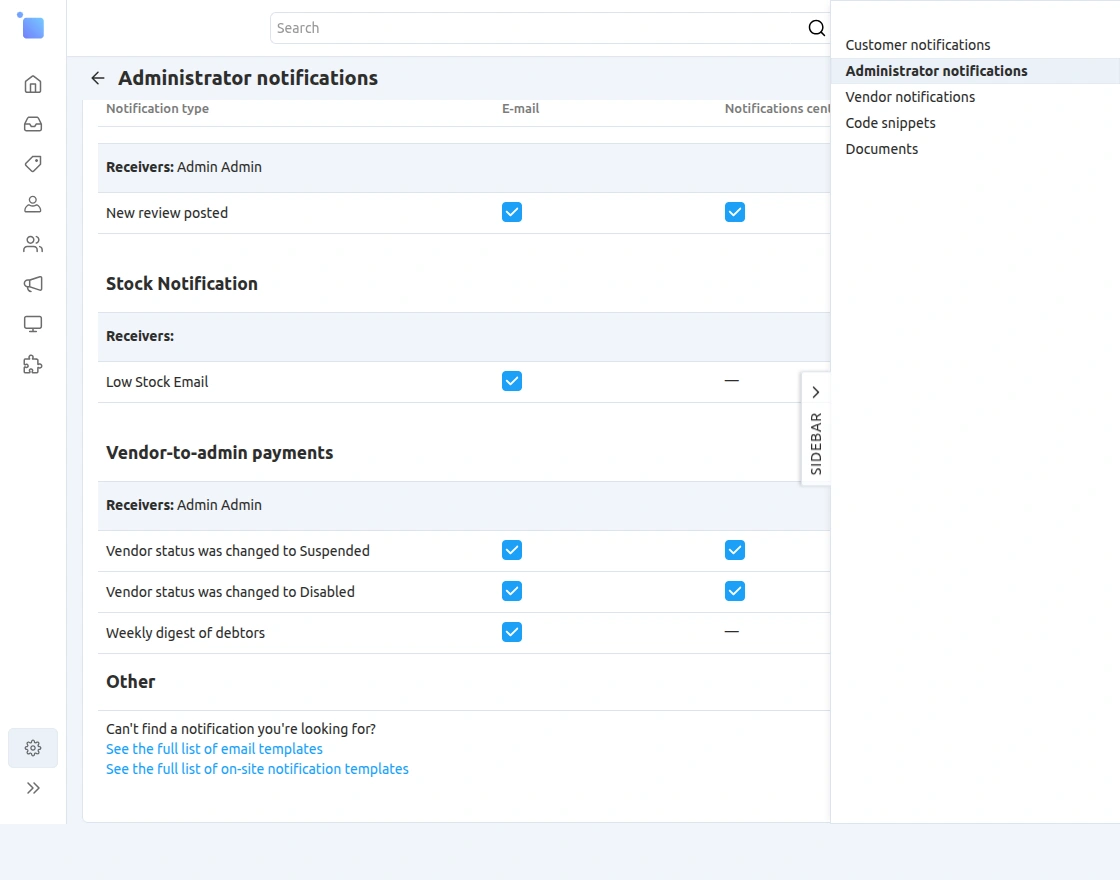
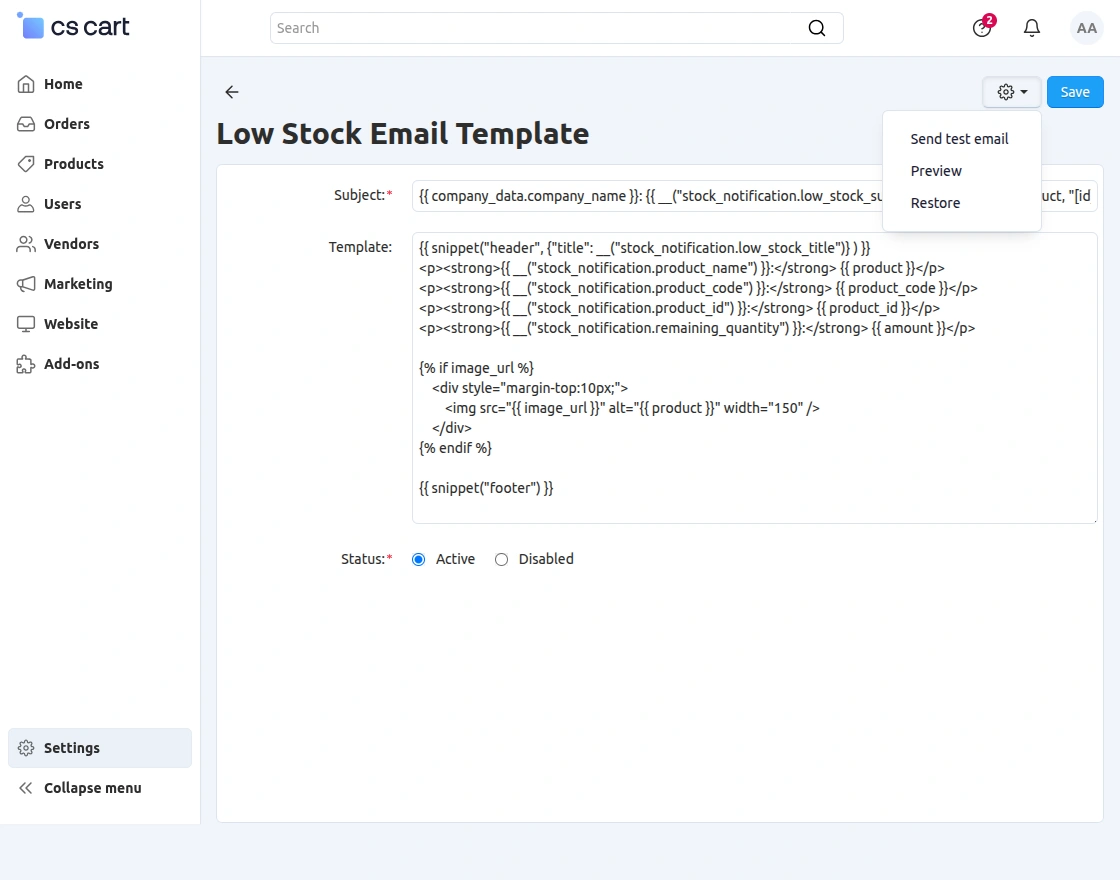
Click on Low Stock Email to open the email template configuration page. This will take you to the template editor, where you can manage both the subject and the email content.
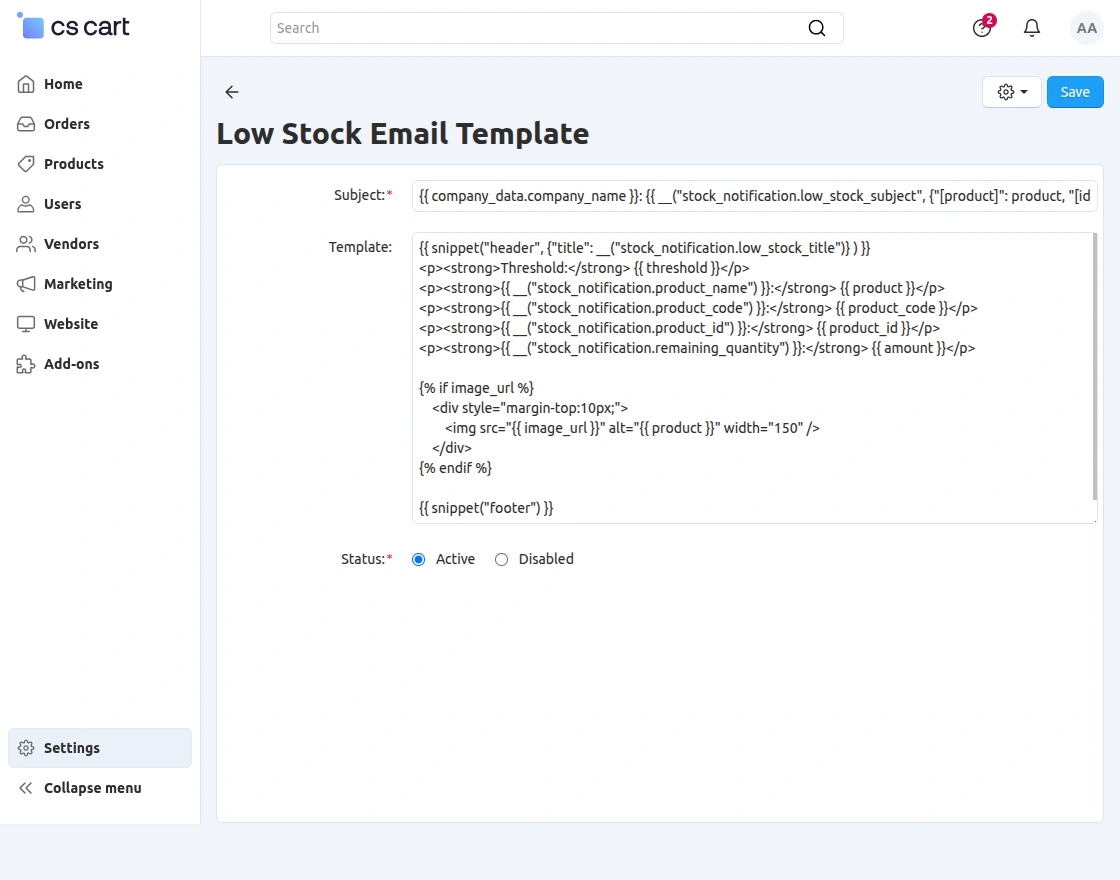
On this page, you can customize the email content using dynamic variables such as product name, product code, product ID, and remaining quantity.
This ensures that the notifications are clear, detailed, and informative for the recipients.
You can also use the options available at the top right to preview, restore, or send a test email, allowing you to check how the notification will appear before sending it.
Example of Email notification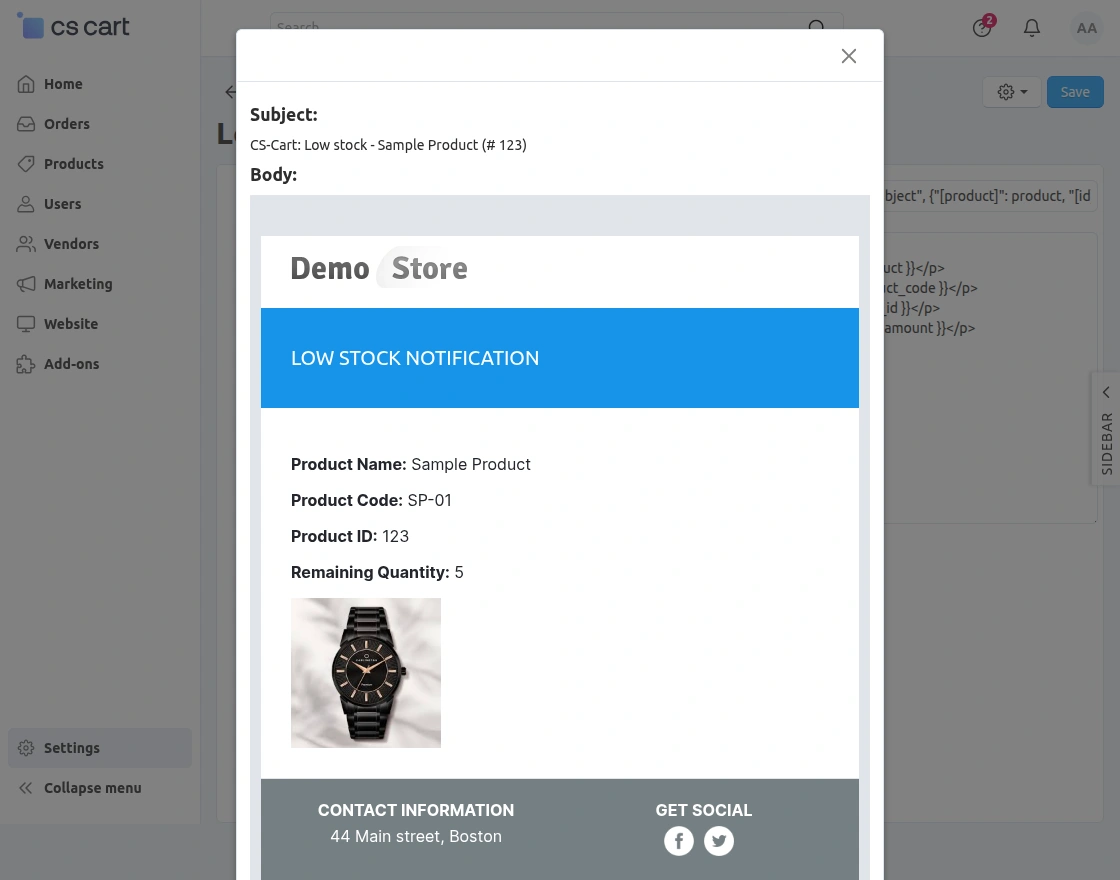
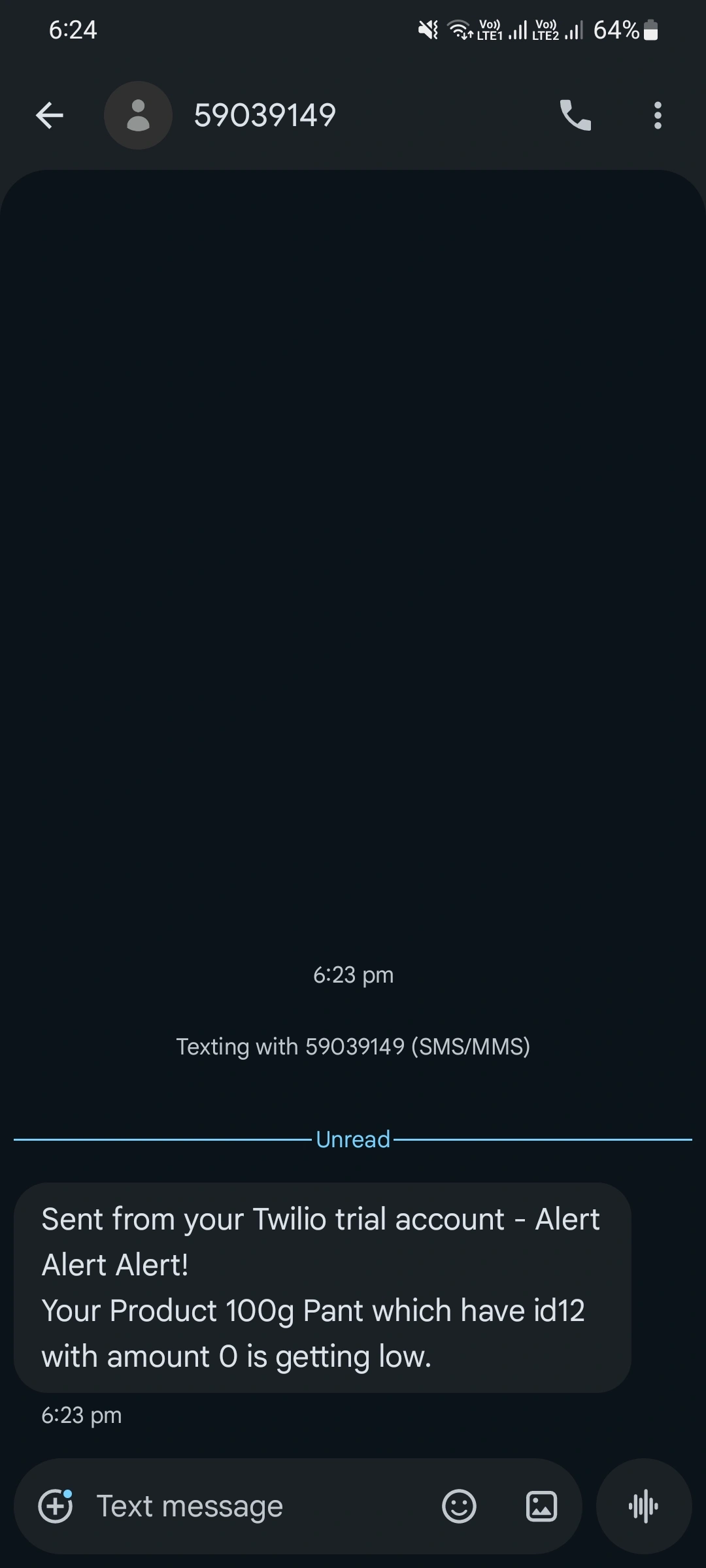
Examples of SMS and WhatsApp Notifications
Support
If you have any questions, suggestions, or customization requests, feel free to contact us at [email protected] or submit a ticket at webkul.uvdesk.com.
Explore our premium-quality CS Cart Extensions to enhance your store functionality.
You can also explore our CS-Cart Development Services and Quality CS-Cart add-ons.
Current Product Version - 1.4
Supported Framework Version - 4.16.x, 4.17.x, 4.18.x, 4.19.x, 4.20.x

Be the first to comment.