Moreover Store admin is allowed to activate catalog mode for specific categories and for rest categories store operates in default mode.
Note: Before installing the add-on, extract the downloaded package.
- Install the License Manager add-on first.
- Then install the required add-on.
- Follow the license activation steps to generate your license key.
Features
- Well integrated with CS-Cart Multi-Vendor.
- In addition Functionality to enable or disable catalog mode for specific categories.
- Option to allow catalog mode for the subcategories.
- Functionality to disable products in catalog mode automatically as per the number of days entered at backend.
- Functionality to send email notification to vendor, admin and custom mail ids when the product status changes automatically.
- Also Option to set the email template for notification is also provided at back-end.
- A single product can be listed either in catalog mode or any regular category.
- Moreover Easy to configure and manage at admin end.
Video Tutorial
Flow Of Installation And Configuration:
When you download the “CS-Cart Extended Catalog Mode”, you’ll get one zip file and the install.txt file. Read it carefully and follow it. After that, install the zip file.
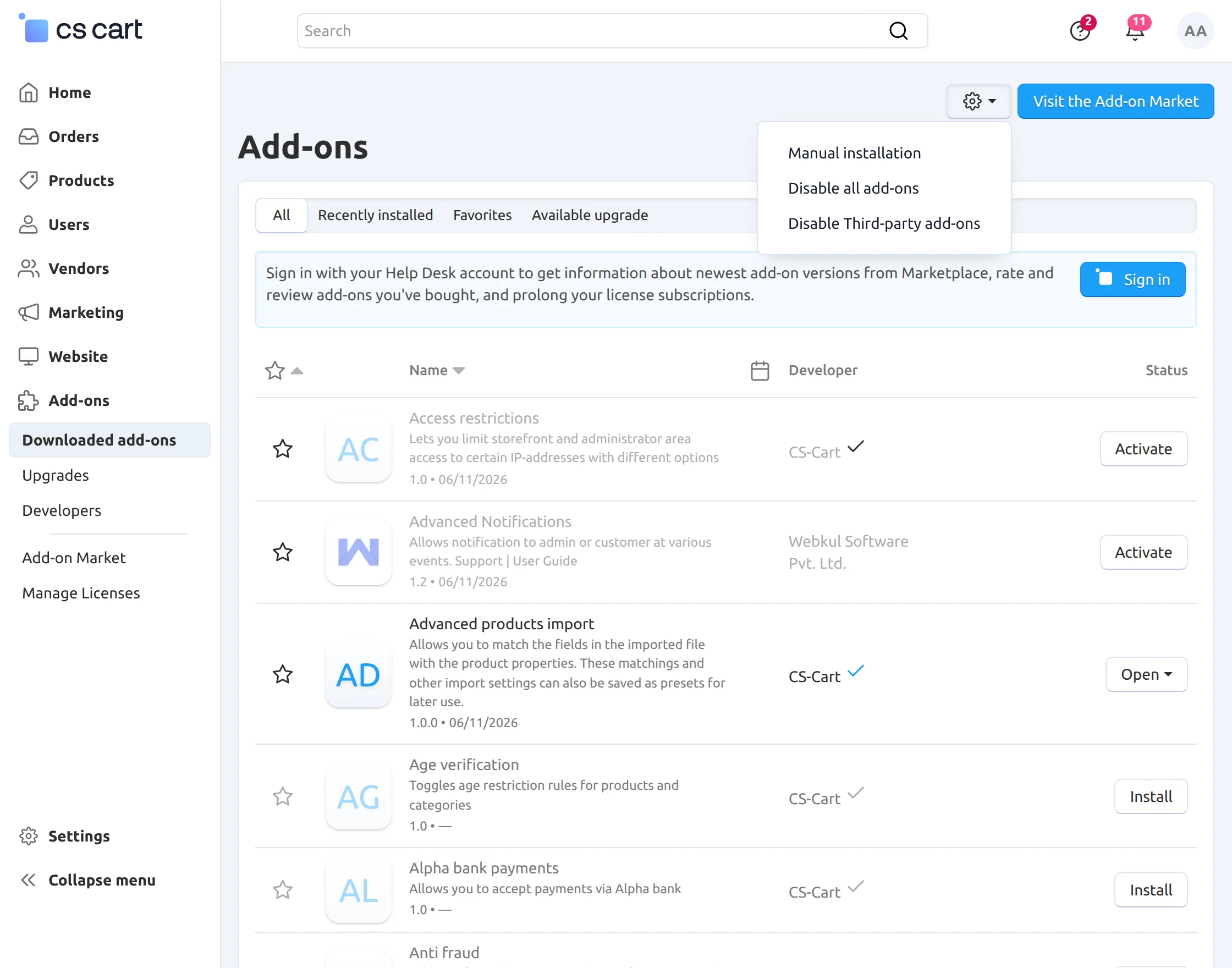
Navigate to Add-ons > Downloaded add-ons and click on the settings icon, from here you can manually install the zip file as shown below:
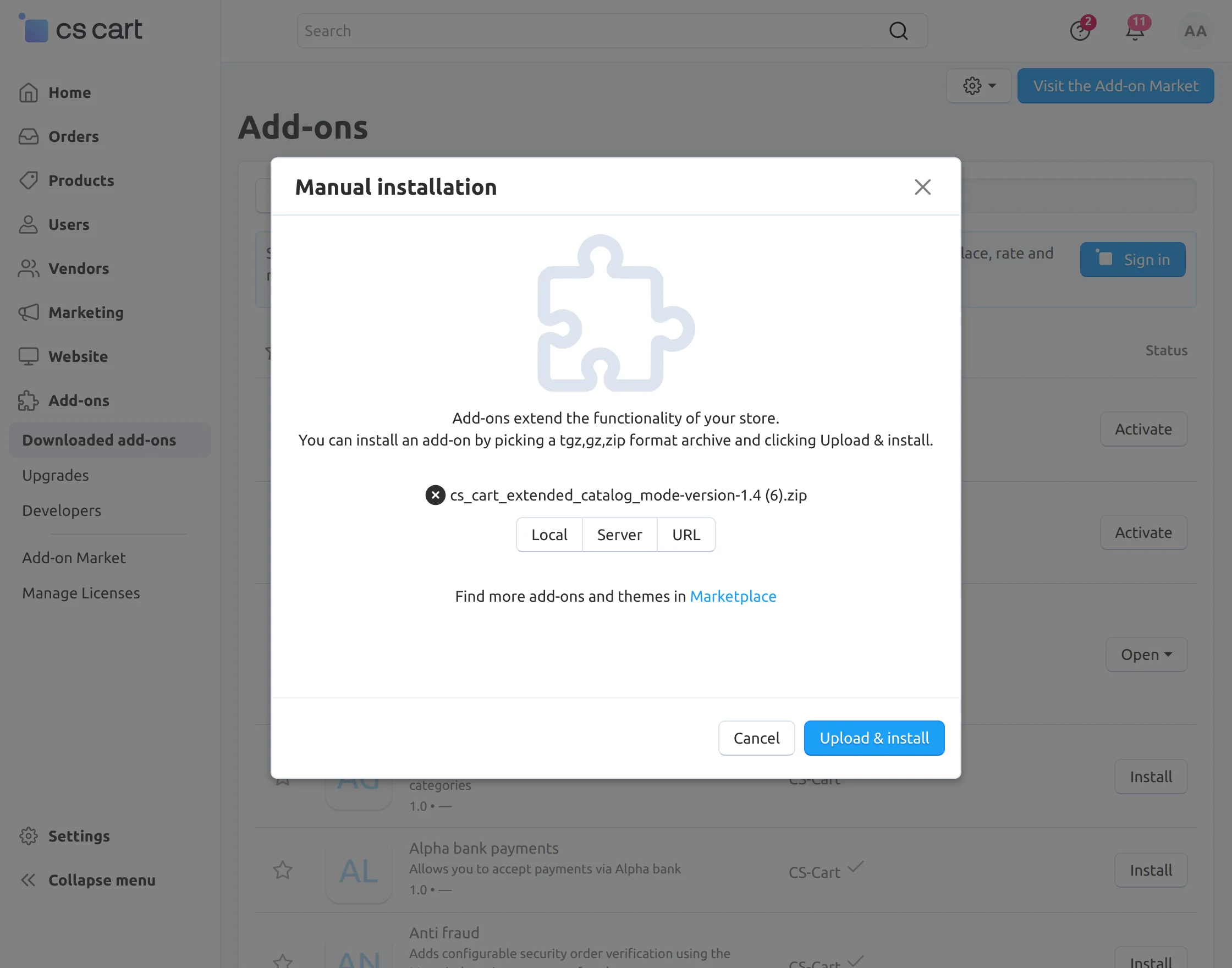
Click on “Local” to browse the zip file and then click on “Upload & Install” as shown below in the snapshot.
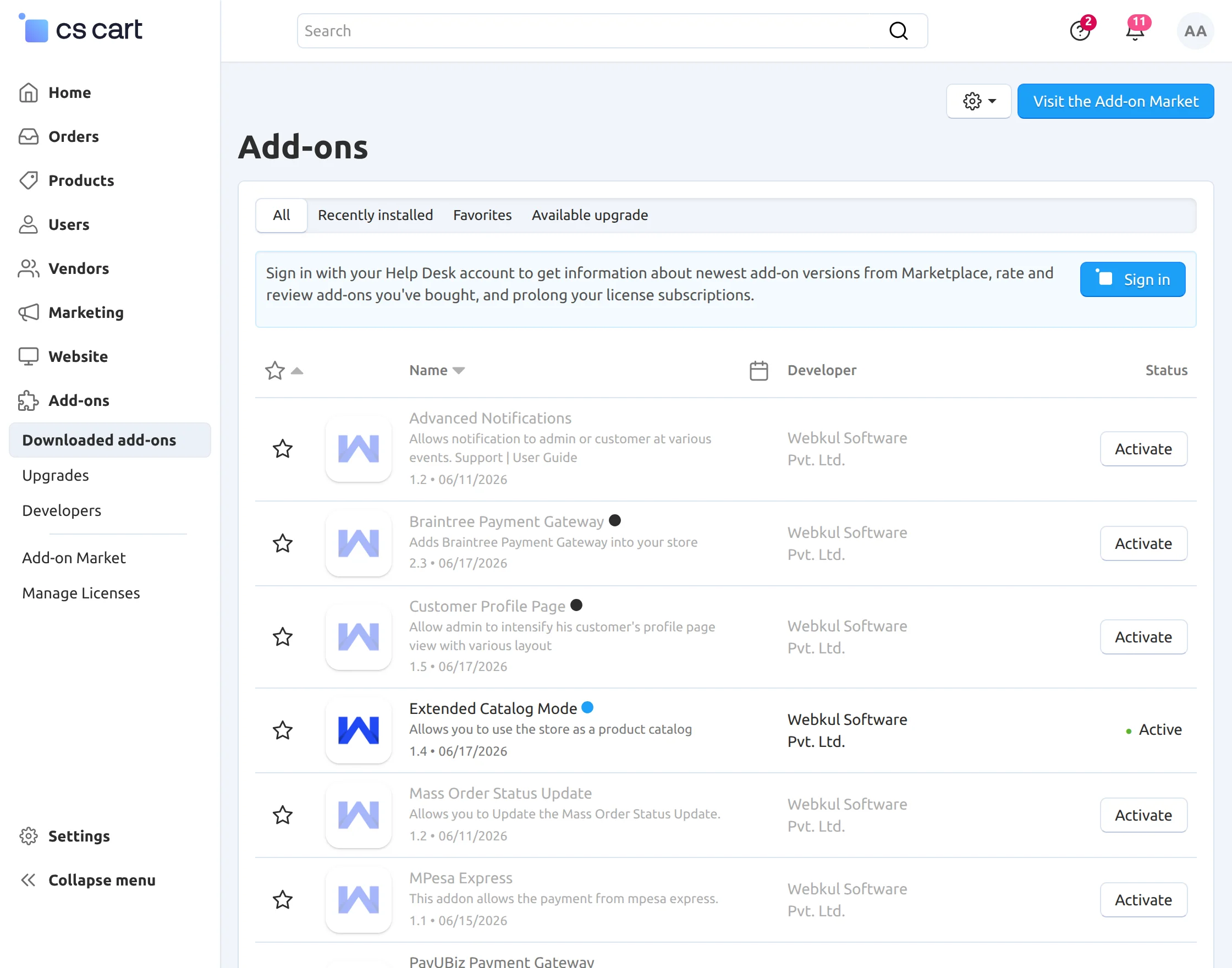
Activate Add-on
Once you install and activate the CS-Cart Extended Catalog Mode add-on, you can begin configuring its settings.
Note : This add-on is incompatible with below listed default add-ons of CS-Cart
- Buy Together
- Gift Certificate
- Catalog Mode
These automatically disabled when CS-Cart Extended Catalog Mode is installed.
Configuration
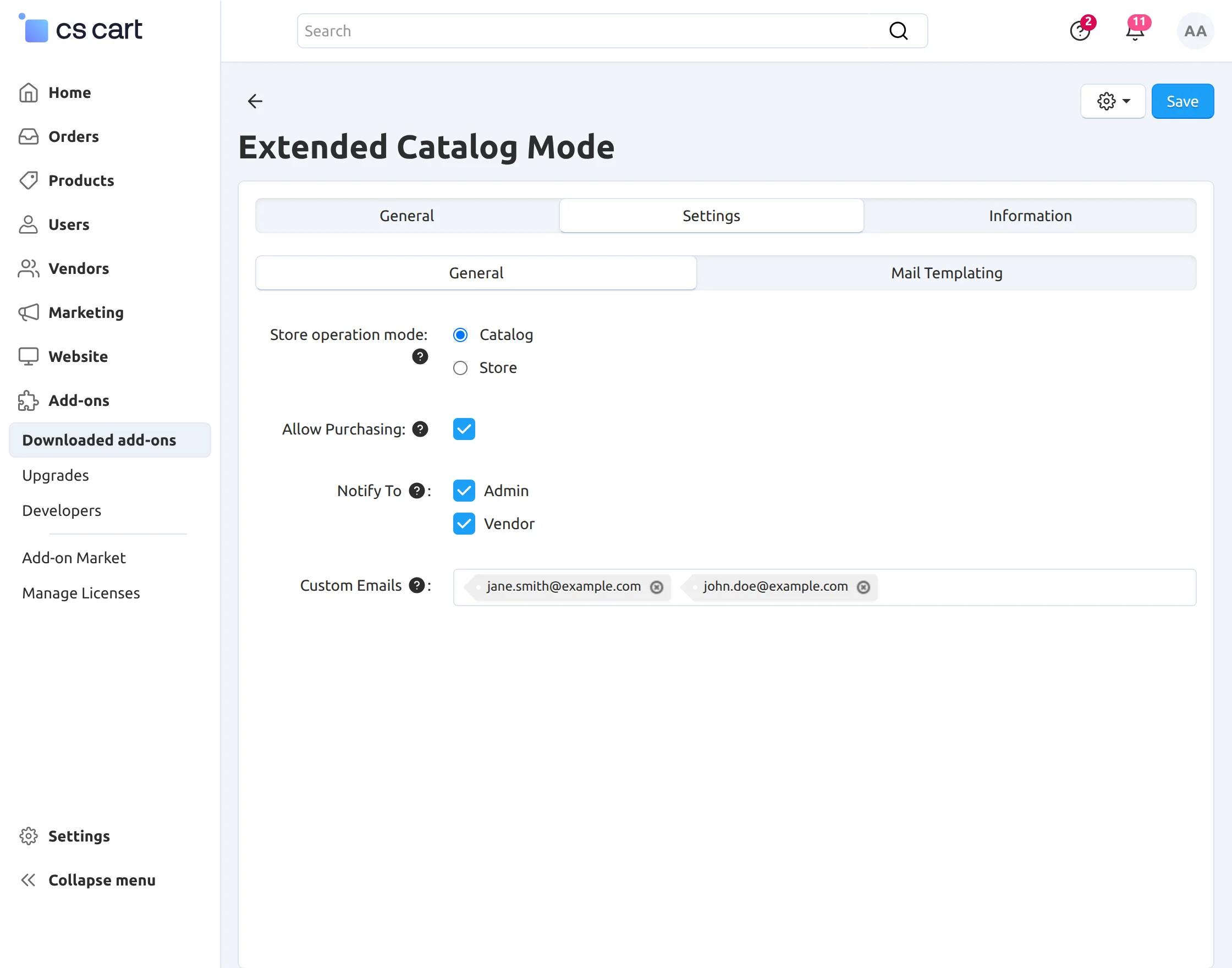
Finally, Click CS-Cart Extended Catalog Mode is installed successfully, click on the “Settings” tab as shown below in the snapshot –
Set the parameters as per the below screenshot., options
- Moreover Options to select the store operation mode have been provided.
- Choose Catalog to enable catalog mode of store operation.
- Choose Store to enable the default store operation mode.
- Click to allow purchasing products with empty Buy Now URL . Clearly If enabled, products with no specific link to an external website can be added to the cart and can be sold directly in the store.
- Notify to admin, Vendor or custom email ids when status of product automatically changes to “Disable” after Active period days.
- Enter the custom email id’s to the user notify.
- Finally Click on Save button to save the settings.
Click on Mail Templating tab to set the notification mail layout. User guide manual is provided for mail template.
- Set the notification mail text to notify to Admin, Vendor and Custom mail ids.
- Finally Click on Save button to save the settings.
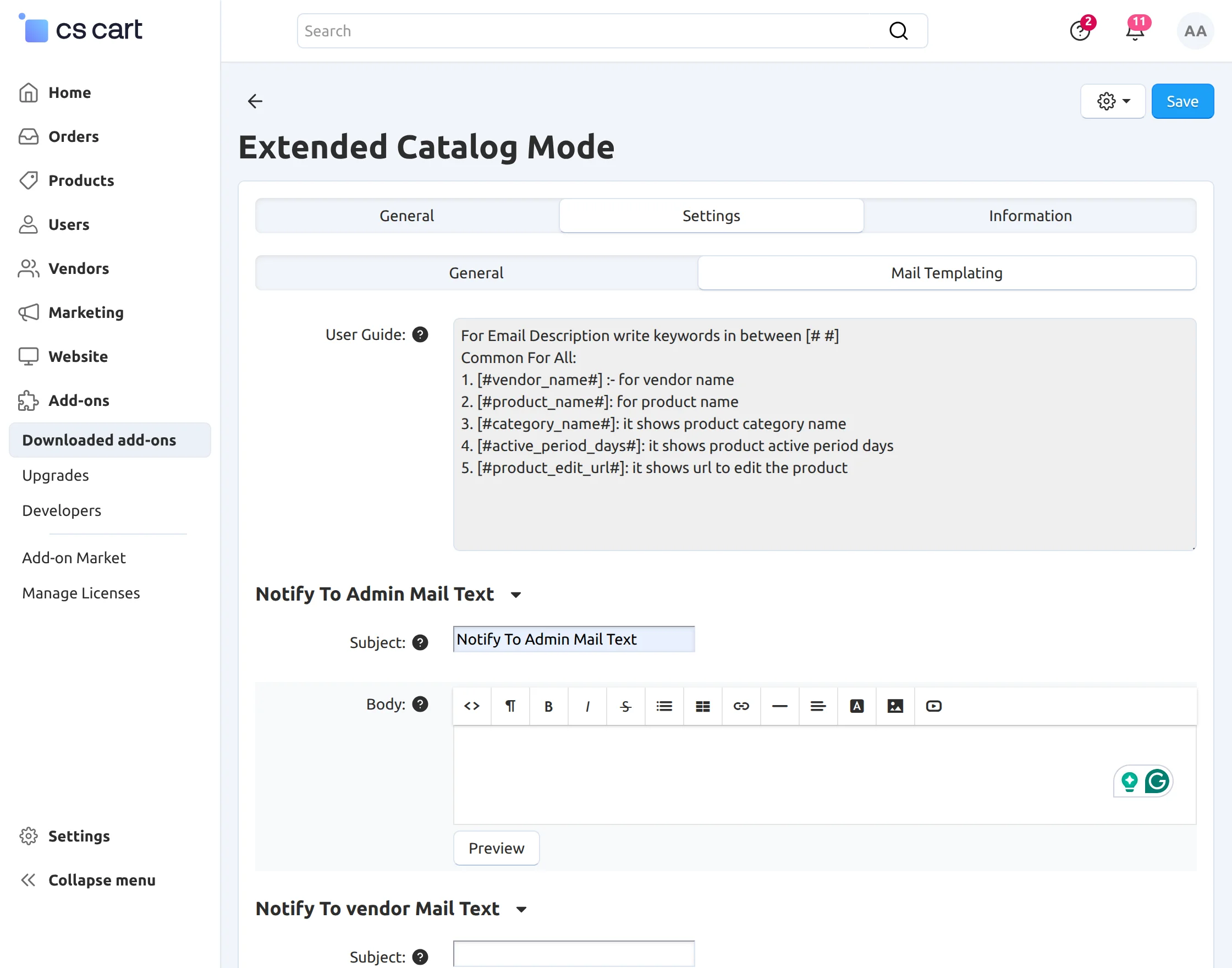
Back End View
How to enable catalog mode for specific category?
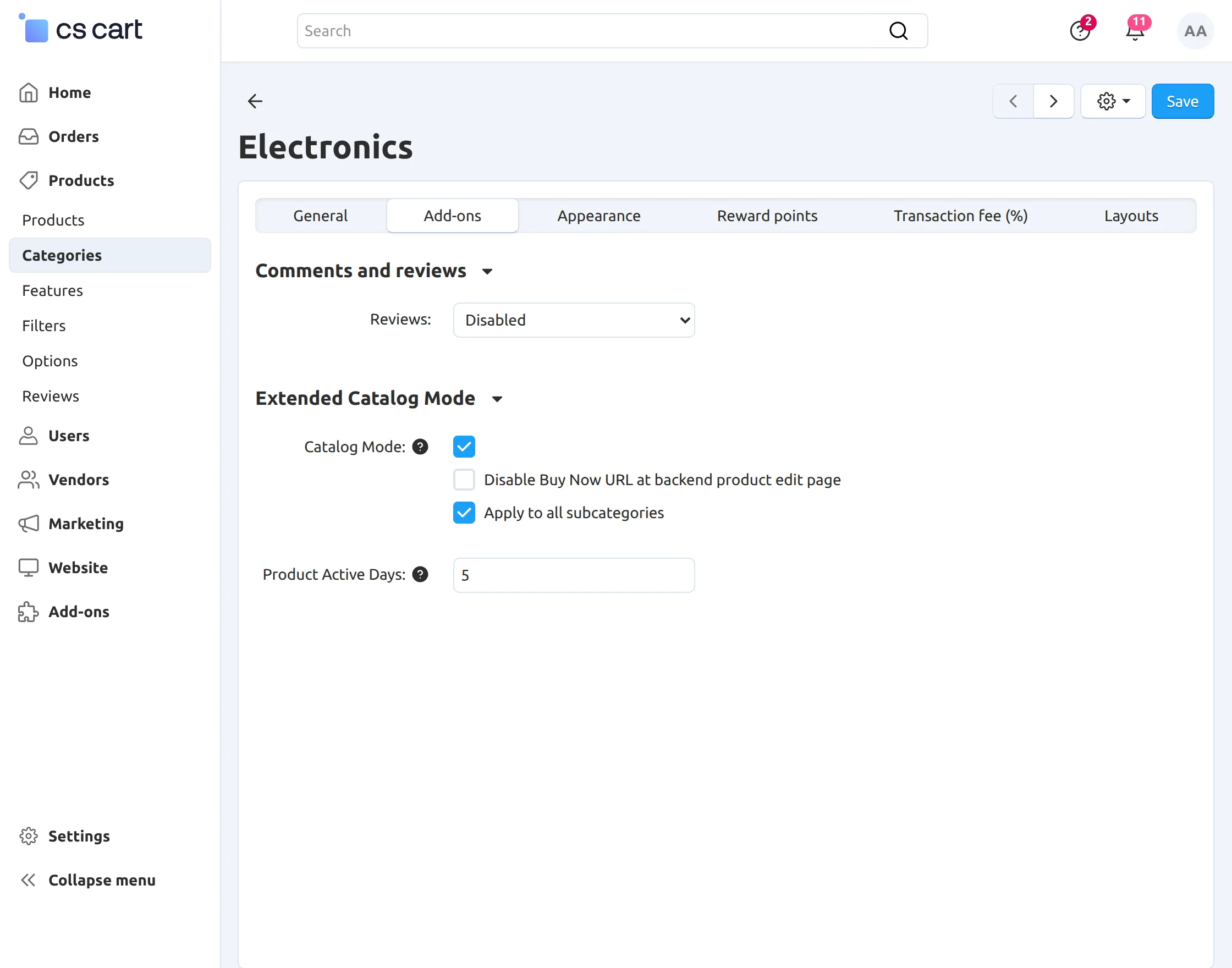
Firstly Go to Products -> Categories tab and click on the desired category to edit. Now click on Add-ons tab as shown below in the snapshot.
Make the changes for Extended Catalog Mode as per the below screenshot.
- Firstly Click to enable Catalog Mode for the selected category.
- Check to hide Buy Now URL field at the product detail page at back-end.
- Click to enable Catalog Mode for all subcategories.
- Finally Enter the number of days for which the status of the product is Active. If entered 0 here this means product will be active always.screenshot below
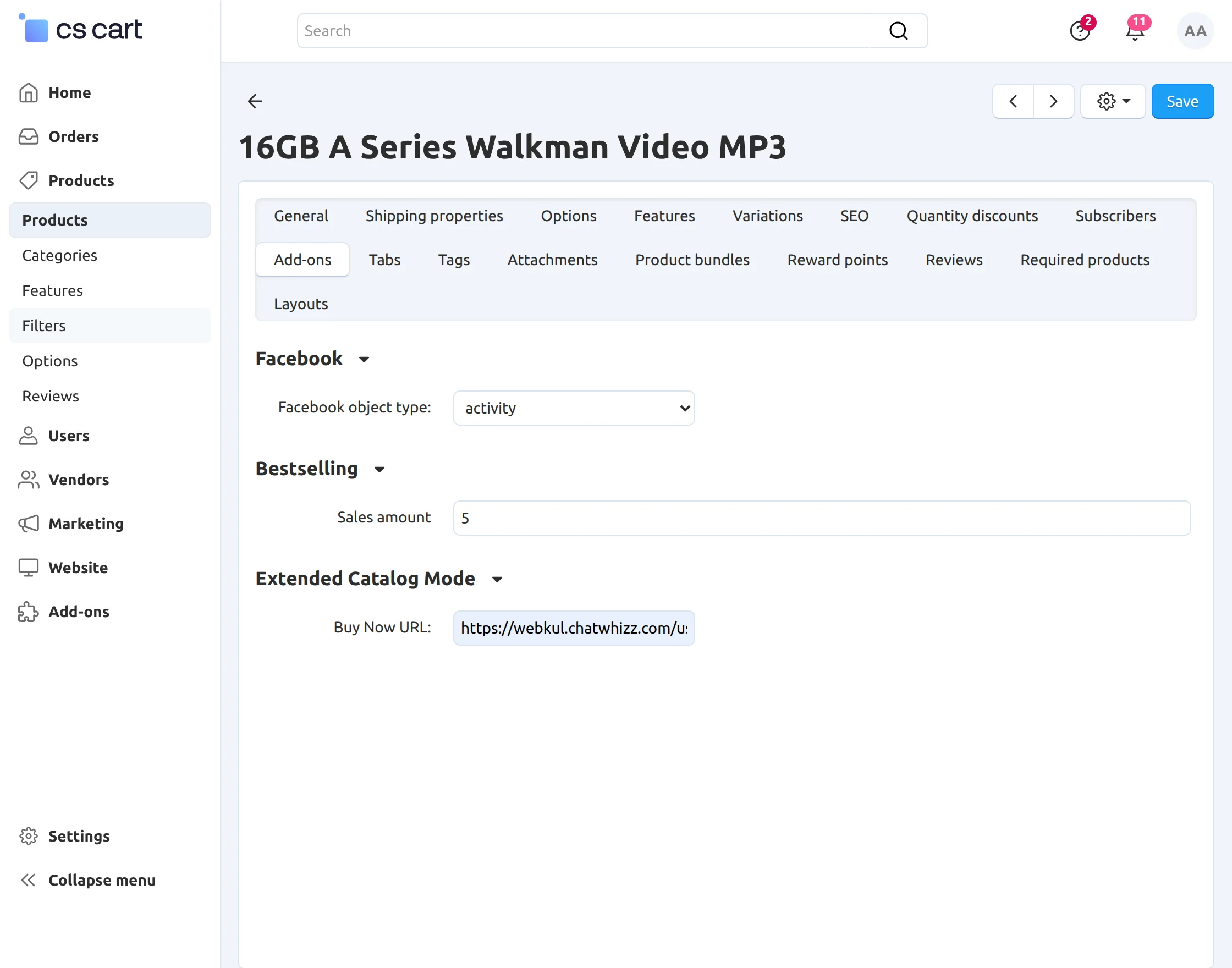
How to enter Buy Now URL for the product in catalog mode?
Go to Products → Products and select the desired product to edit.
Navigate to the Add-ons tab. Since products in Catalog Mode cannot be purchased directly from the store, enter the Buy Now URL for the product.
The Buy Now URL is the link to an external website where customers can purchase the product. After entering the URL, save the product settings.
Front End View
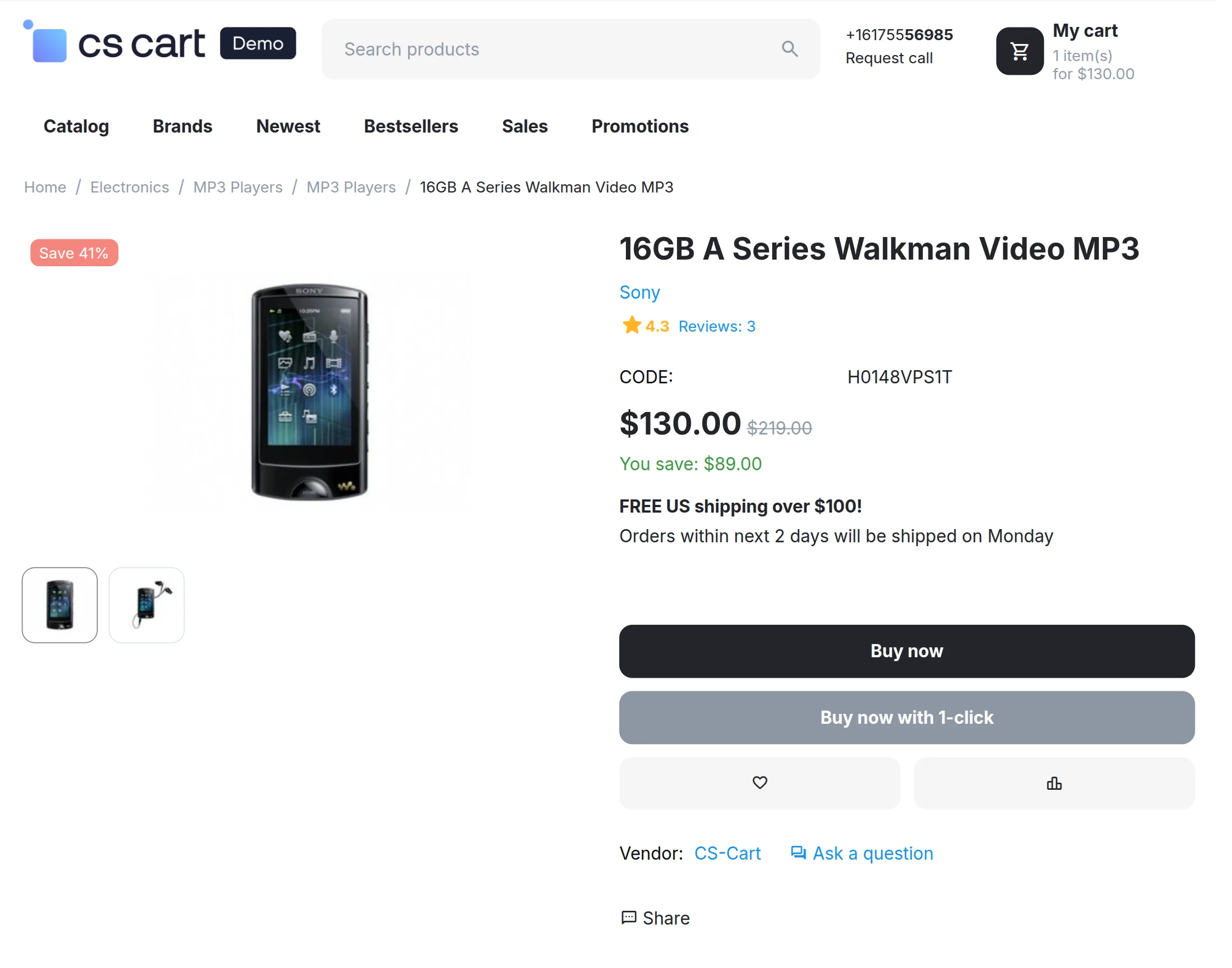
Go to Product Details Page at front-end as per the below screen shot.
Clearly Add To Cart button is available at frontend for default store operation mode. The product can directly be purchased from the store in default mode.
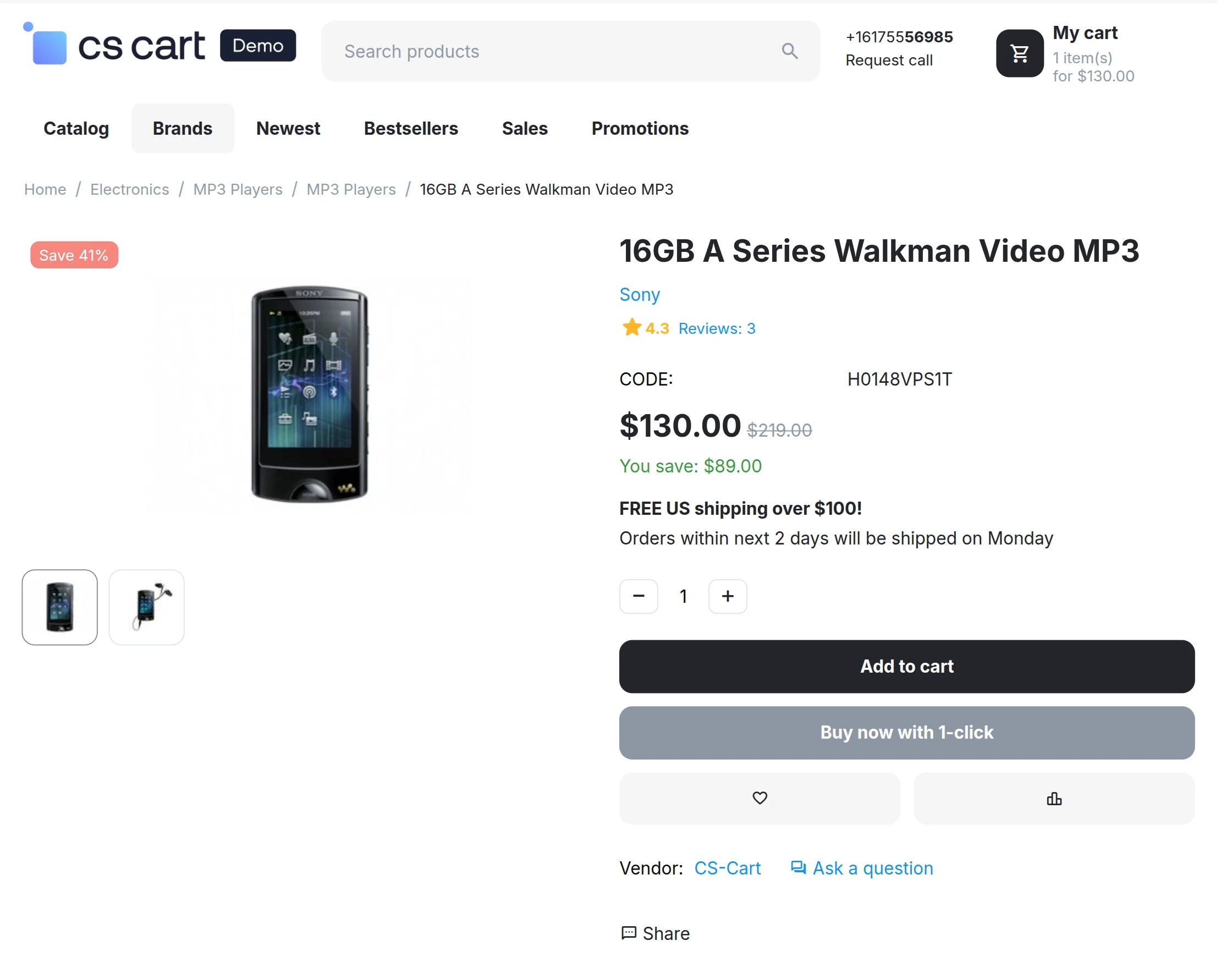
For products in catalog mode, Buy Now button appears at frontend, which redirects to the external website URL entered at back-end.
Finallly product is available for purchase there.
Support
If you have any questions, suggestions, or customization requests, feel free to contact us at [email protected] or submit a ticket at webkul.uvdesk.com.
Explore our premium-quality CS Cart Extensions to enhance your store functionality.
You can also explore our CS-Cart Development Services and Quality CS-Cart add-ons.
Current Product Version - 1.4
Supported Framework Version - 4.16.x to 4.20.x

Be the first to comment.