CS-Cart Delivery Feedback System allows store owners to collect customer feedback after an order is delivered.
Customer feedback is essential for understanding customer satisfaction, improving services, and providing a better shopping experience.
So, gather customer feedback smartly by adding a simple feedback form with the desired fields & potential questions to improve the user experience.
CS-Cart Delivery Feedback System is the perfect add-on that provides an organized customer delivery feedback system.
Install it today in your CS-Cart store & gather candid customer feedback.
Note:
- Install the add-on.
- Enter the license key.
- Follow the license activation steps.
Check a brief overview of the plugin –
Features & Benefits
- Well integrated with both CS-Cart and CS-Cart Multi-vendor.
- Functionality to add/remove custom question fields for the customer feedback form.
- Option to add the star rating for any potential questions.
- Functionality to manage email templates for customers to get delivery feedback.
- Works well with both old/new email templates.
- A separate tab in the order detail page at the front end is provided for the customer to submit feedback.
- Option to hide/keep/modify the submitted feedback response at the front end as per the add-on’s settings at the admin end.
- Functionality to set the order status to which the email notification will be sent to the customer.
Flow Of Installation And Configuration:
When you download the “CS-Cart Delivery Feedback System”, you’ll get one zip file and the install.txt file. Read it carefully and follow it. After that, install the zip file.
Navigate to Add-ons > Downloaded add-ons and click on the settings icon, from here you can manually install the zip file as shown below:
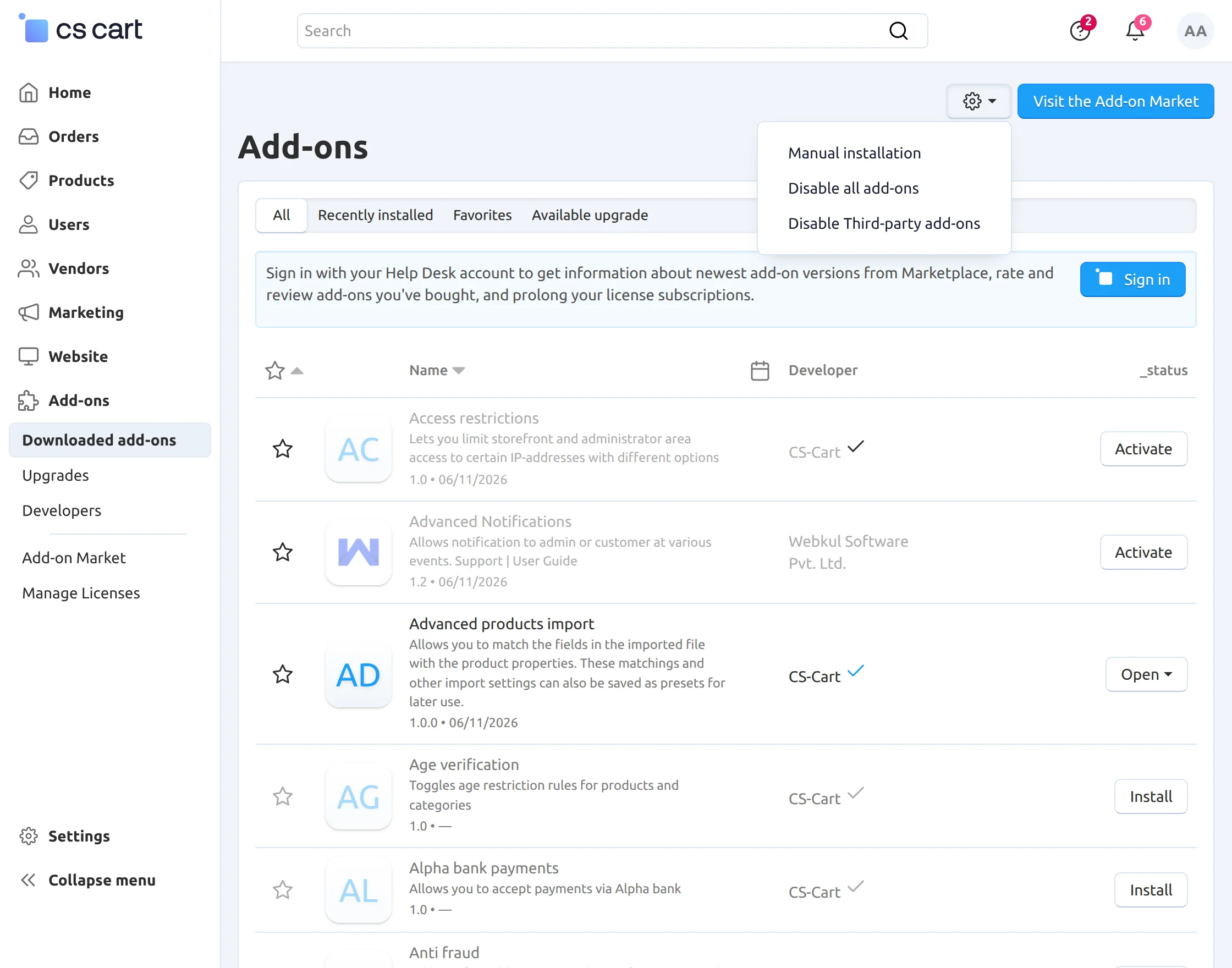
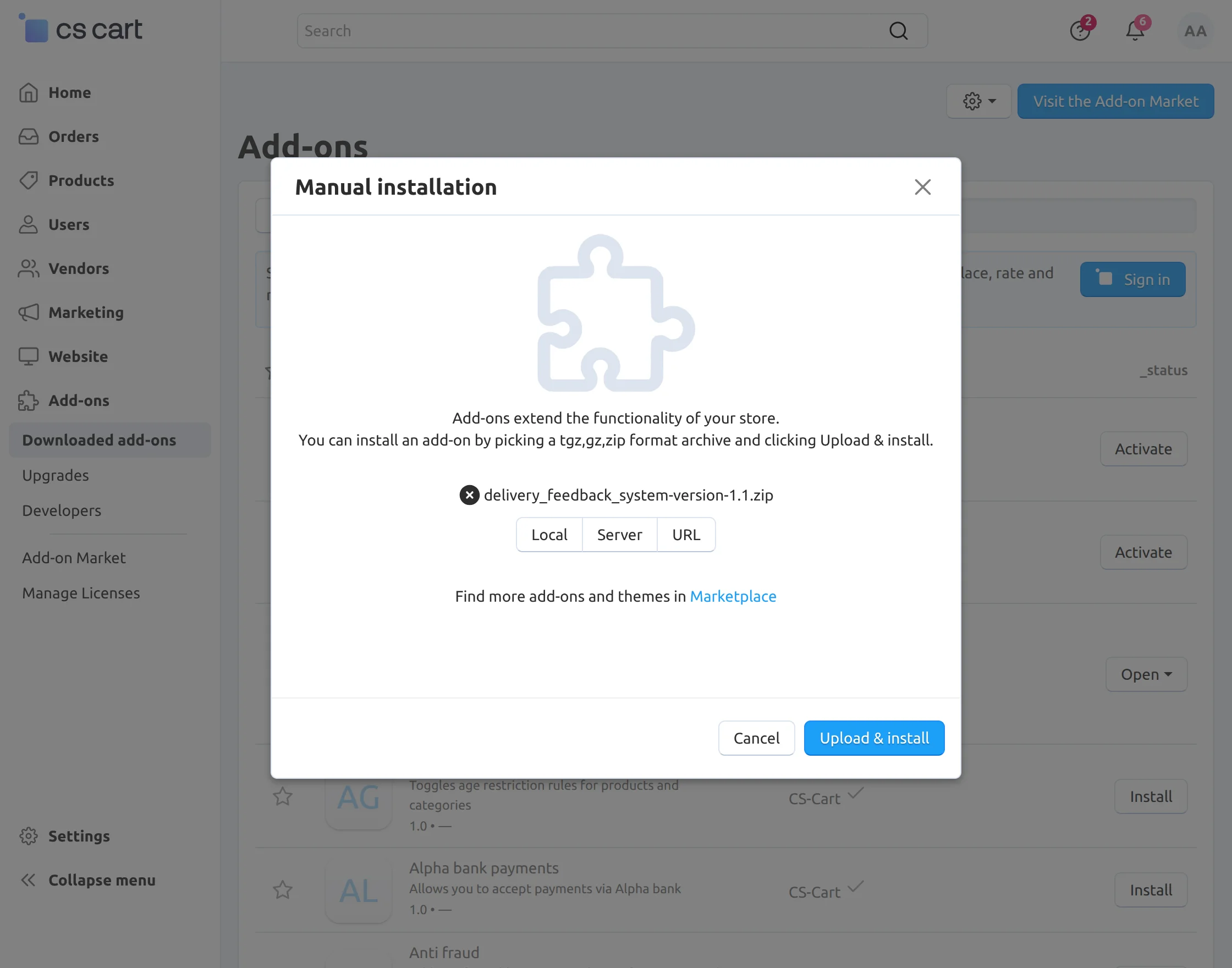
Click on “Local” to browse the zip file and then click on “Upload & Install” as shown below in the snapshot.
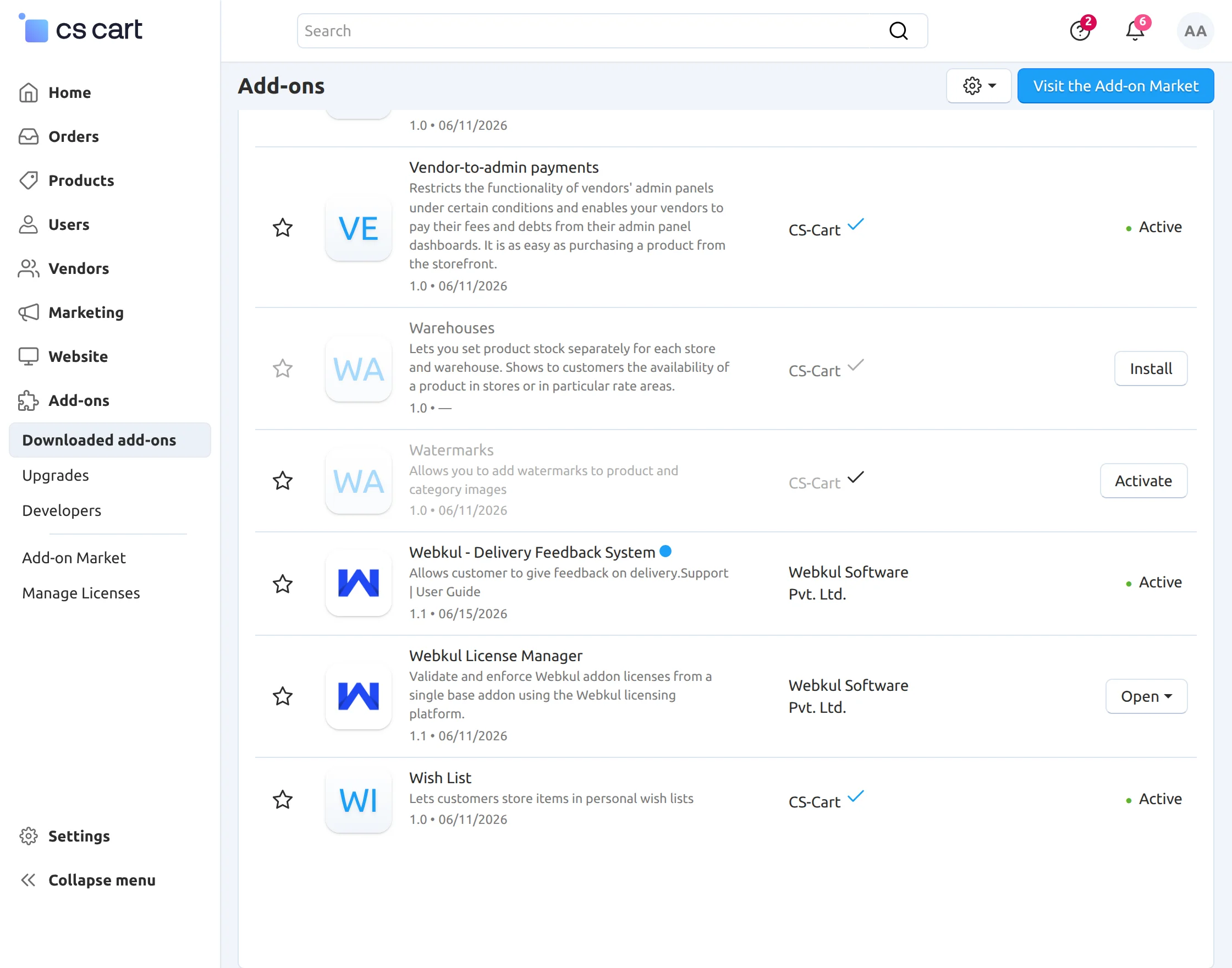
Activate Add-on
Once you install and activate the CS-Cart Delivery Feedback System, you can begin configuring its settings.
Addon Configuration
After successfully installing the add-on, we need to configure and manage its settings.
In General Settings, there is an option to :
- Set the order status to which you want to send the mail notification to a customer for submitting feedback.
- Set the customer action on the submitted feedback. As the customer will submit feedback from the front end, you can either allow viewing & editing of the submitted feedback or hide it from the front end.
- Check the box to send the mail on behalf of the customer to notify the order department & notify the store owner after the customer has submitted the feedback.
- Select “Yes” to send a separate delivery feedback email to the customer.
If you select “No”, you can add the provided link to the email notification body of the desired order status.
By clicking that link, the customer will get redirected to the feedback form available at the frontend.
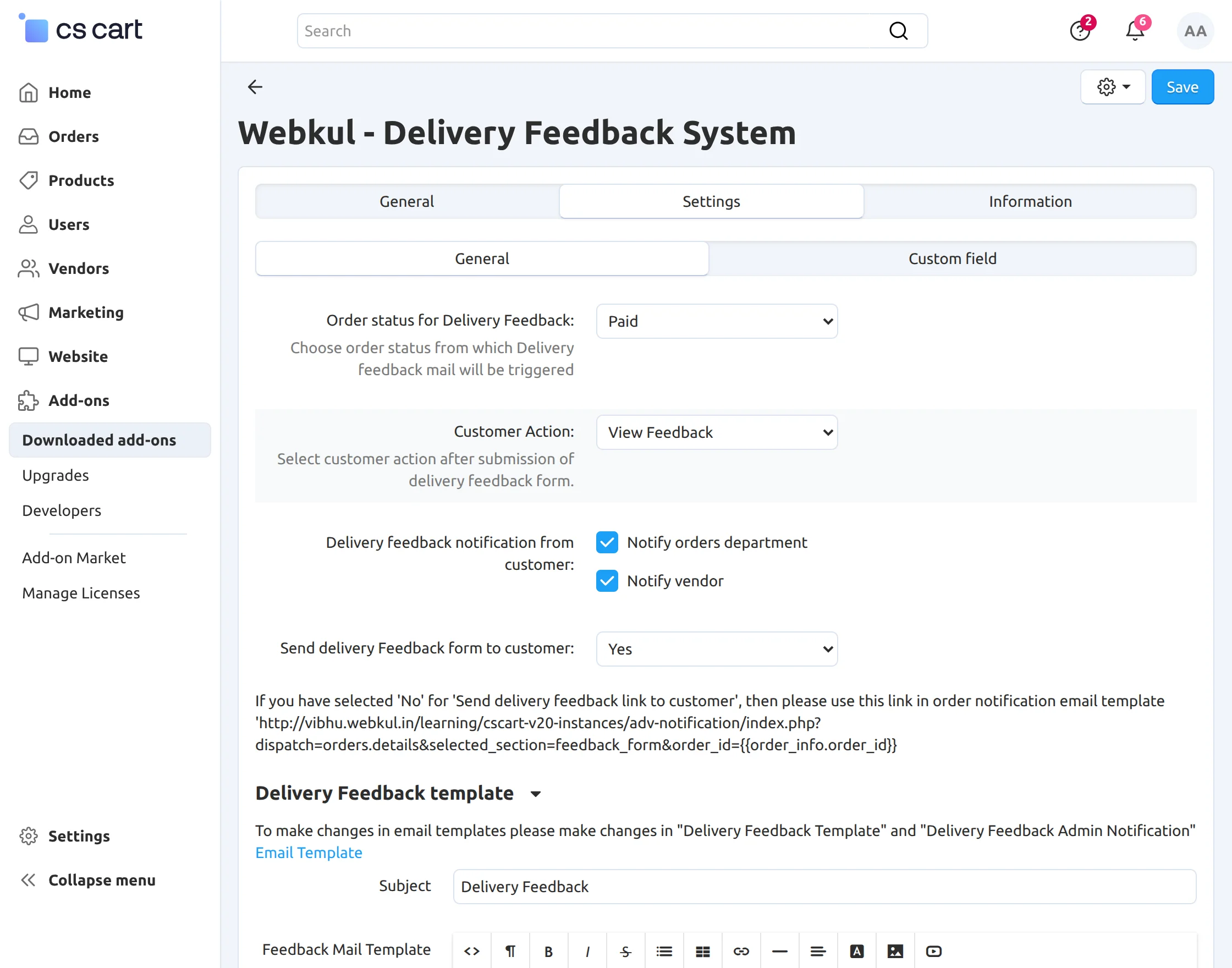
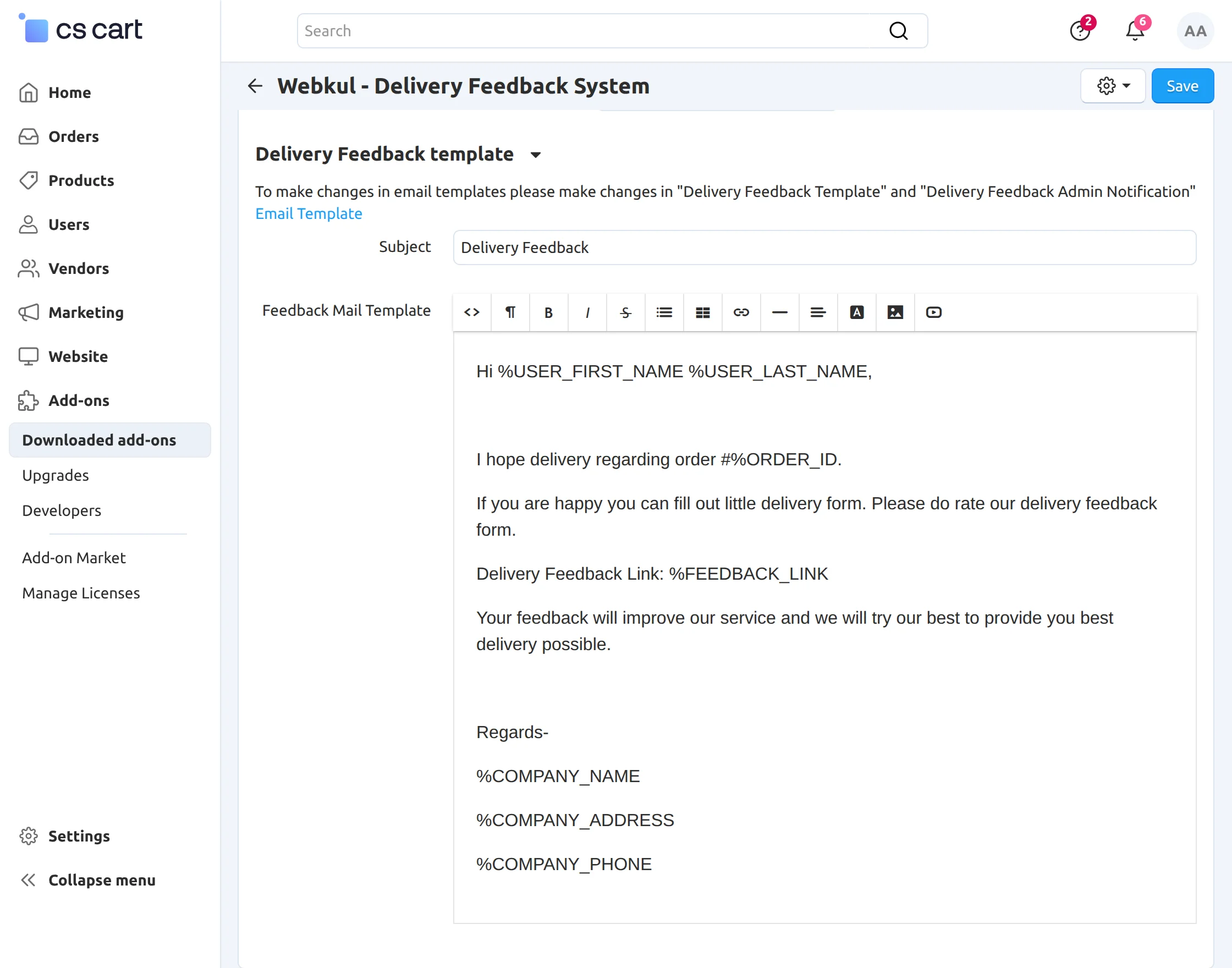
Further, there is a section, Delivery Feedback Template, where you can set the desired template using the placeholders provided in the notes.
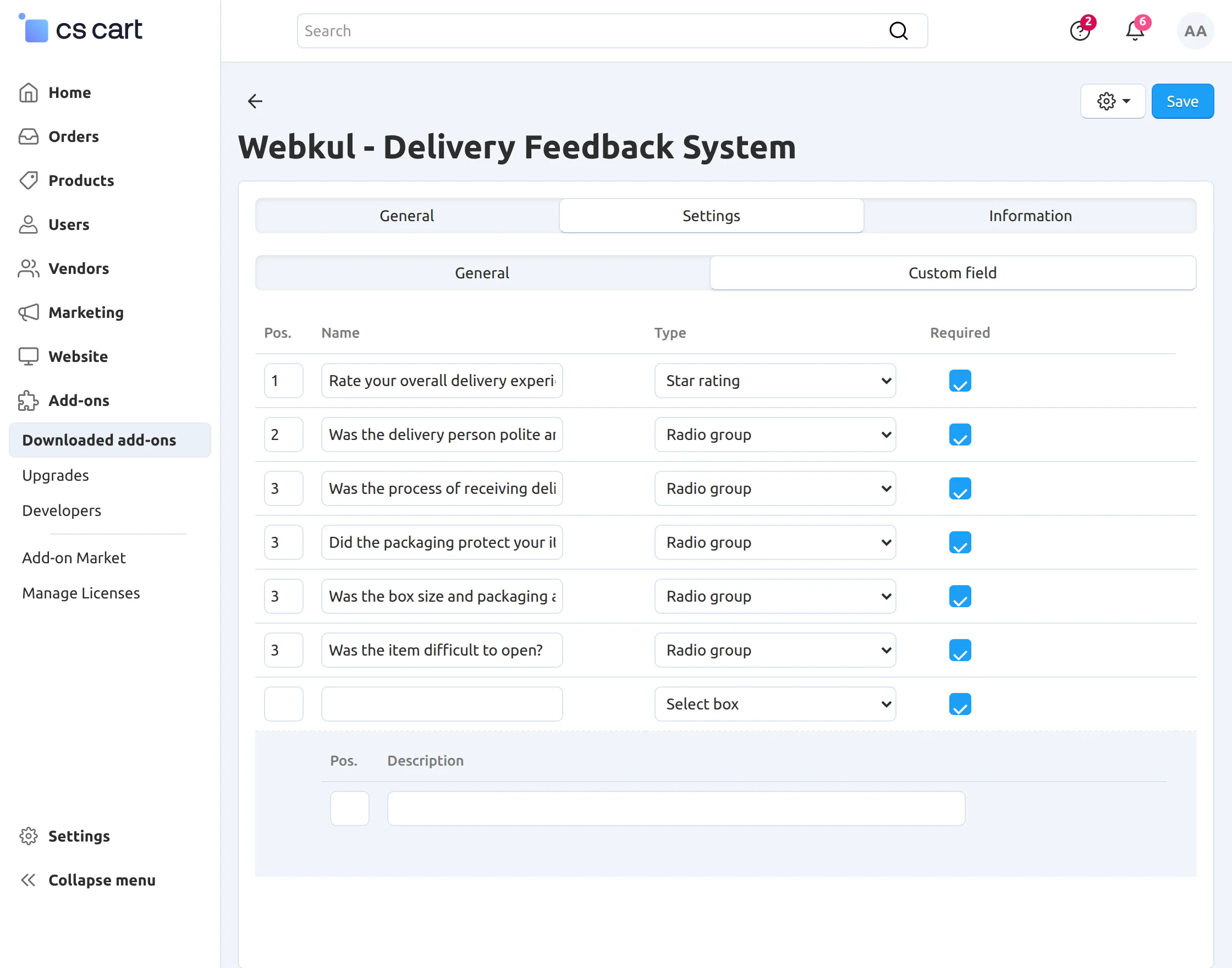
The next tab is for adding custom fields and potential questions for the feedback form.
You can add the question, select the response type (including star rating), and make it a mandatory field by checking the box.
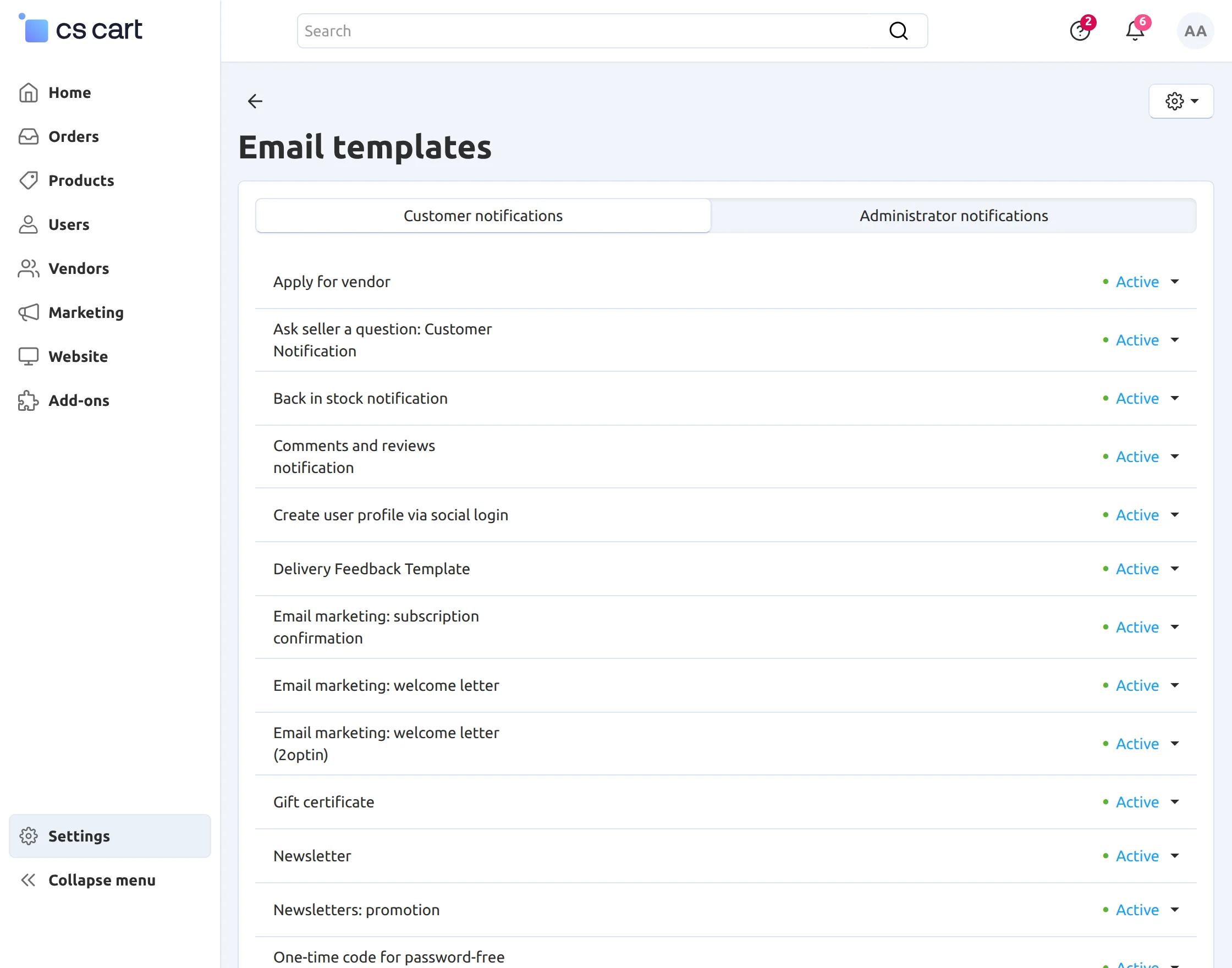
The email template for the customer, as per the new email templating feature, can be viewed & updated here.
Front End View
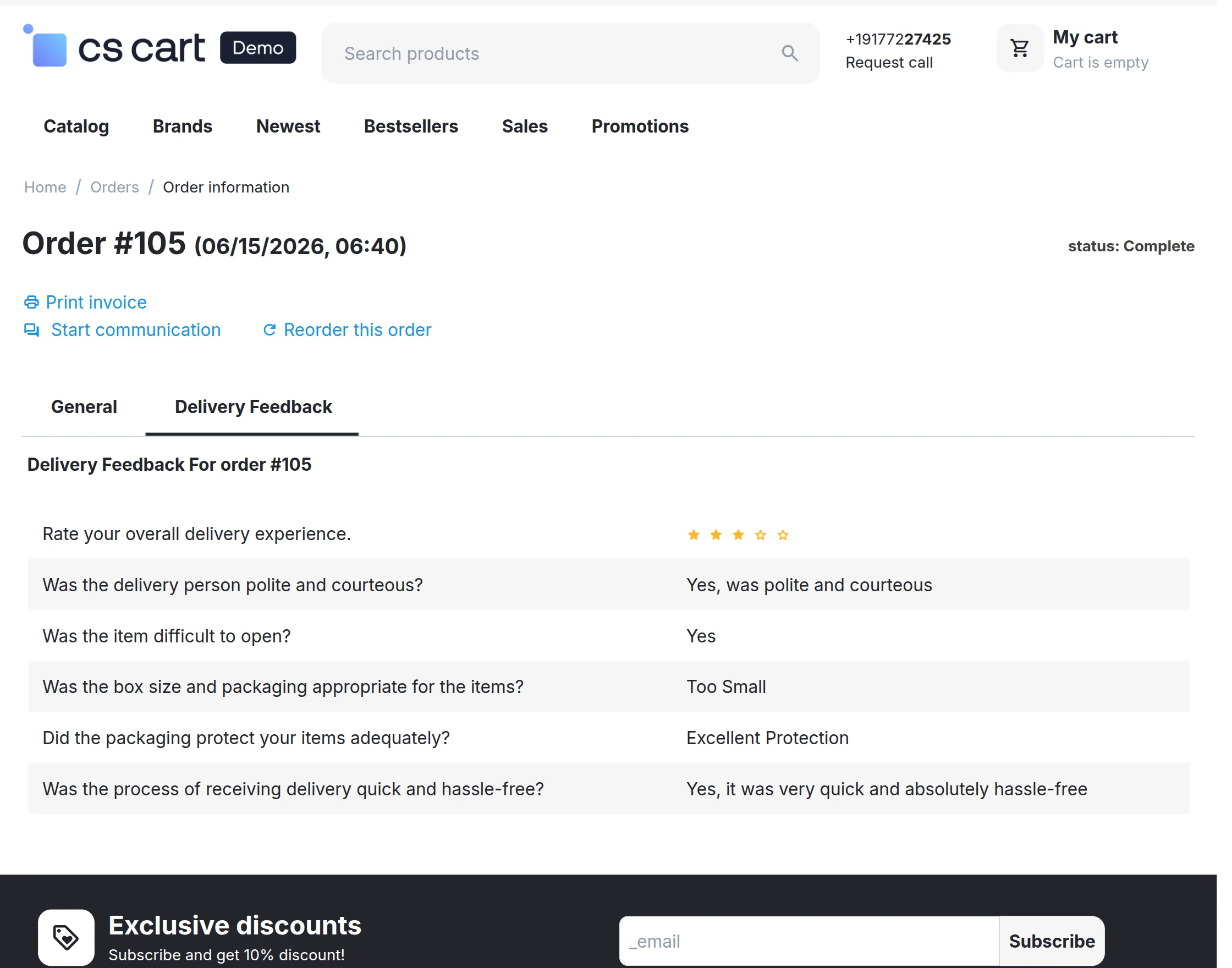
On the order details page, the customer will be able to view a tab for the Delivery Feedback form at the particular order status as per the add-on configuration.
You can send the feedback form link to the customer in the email notification. So this way, the customer can submit the feedback.
Store owner & order department will be notified via email on successful feedback submission as per the addon settings.
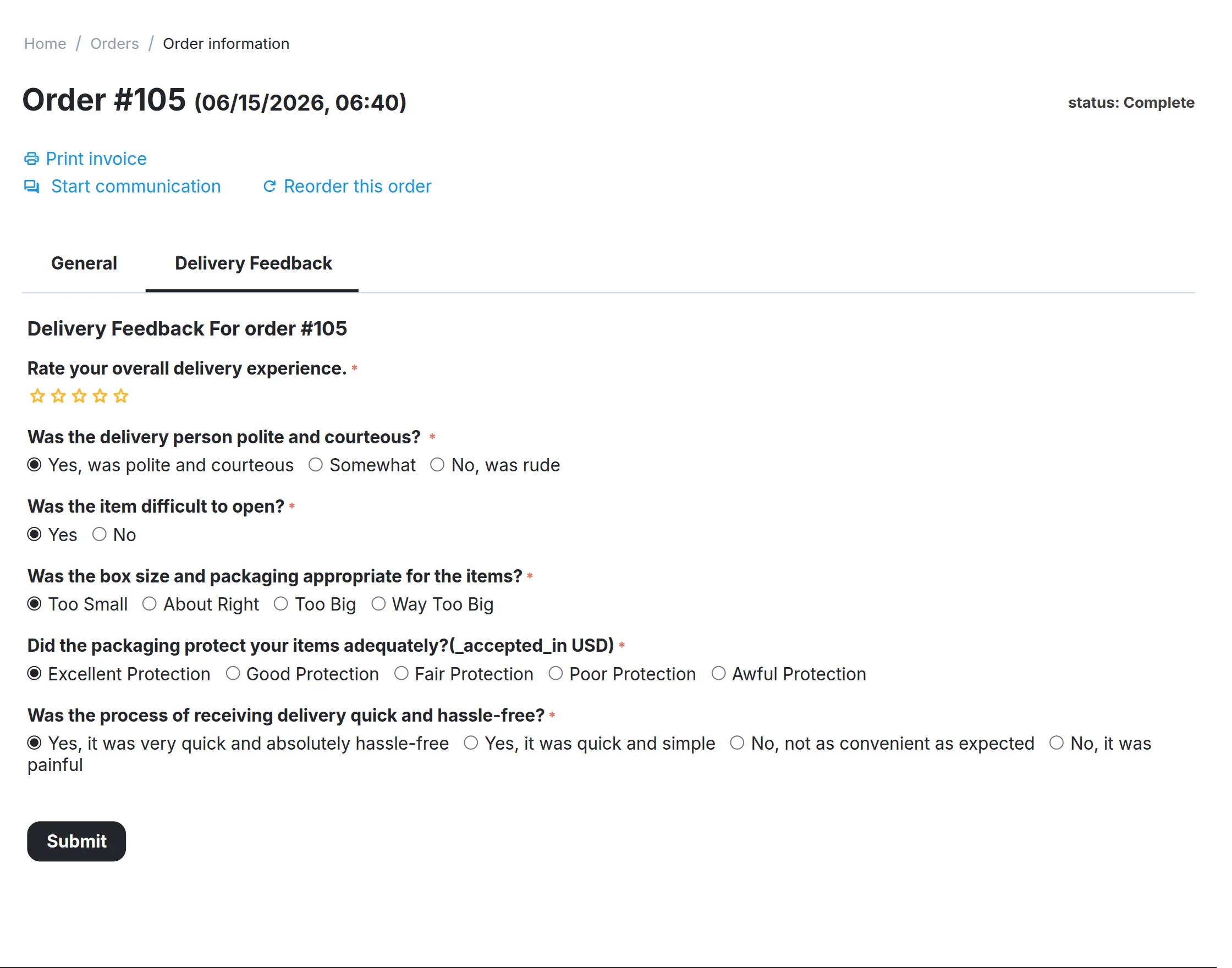
After submission of this form, this feedback response will be hidden if the “Customer Action“ field at the backend is set as “Hide Feedback“.
If you set “View Feedback” in this field, then the customer will be able to view the submitted response as shown below.
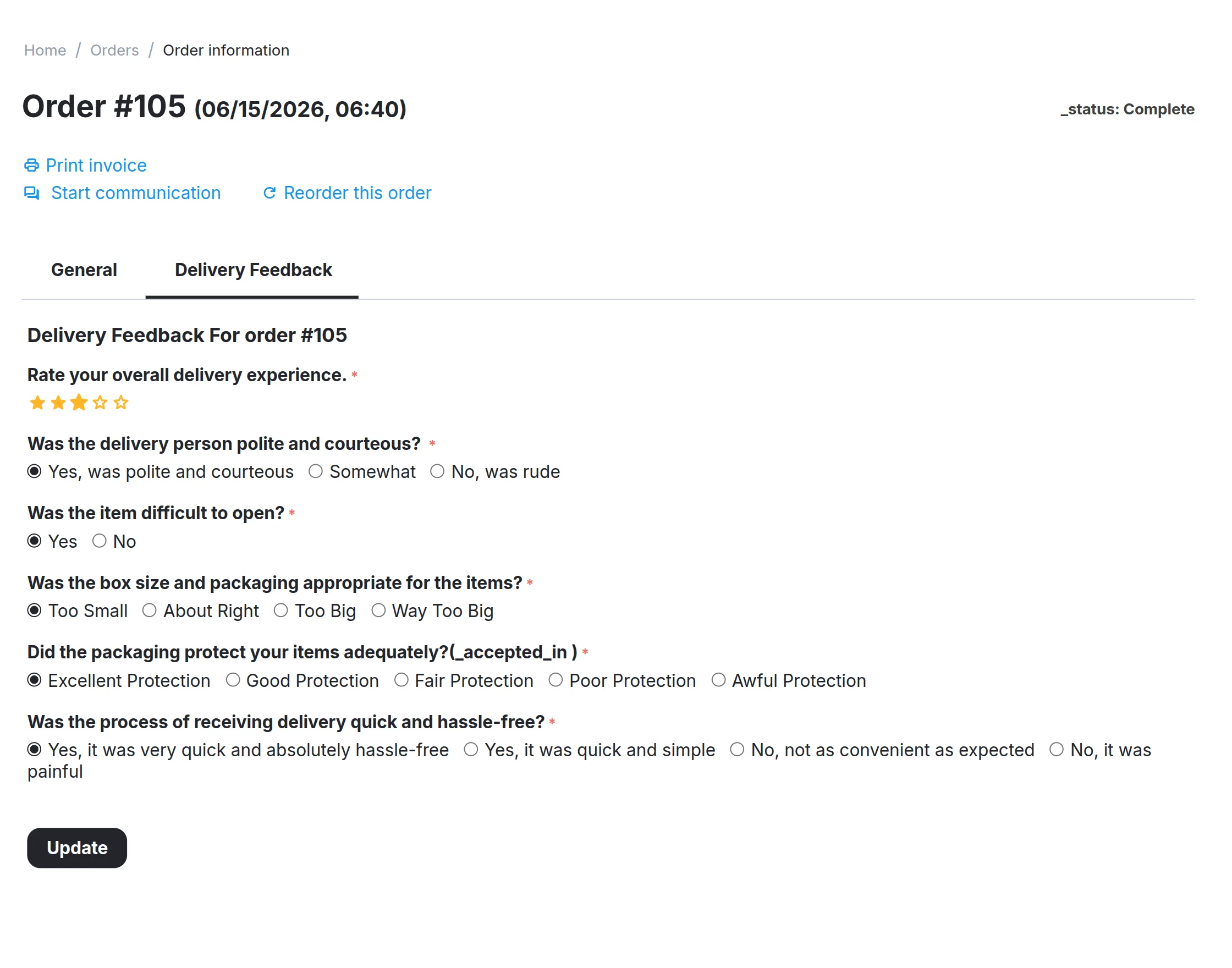
If you set “Allow Edit Feedback” in this field, then the customer will be able to view the submitted response as shown below.
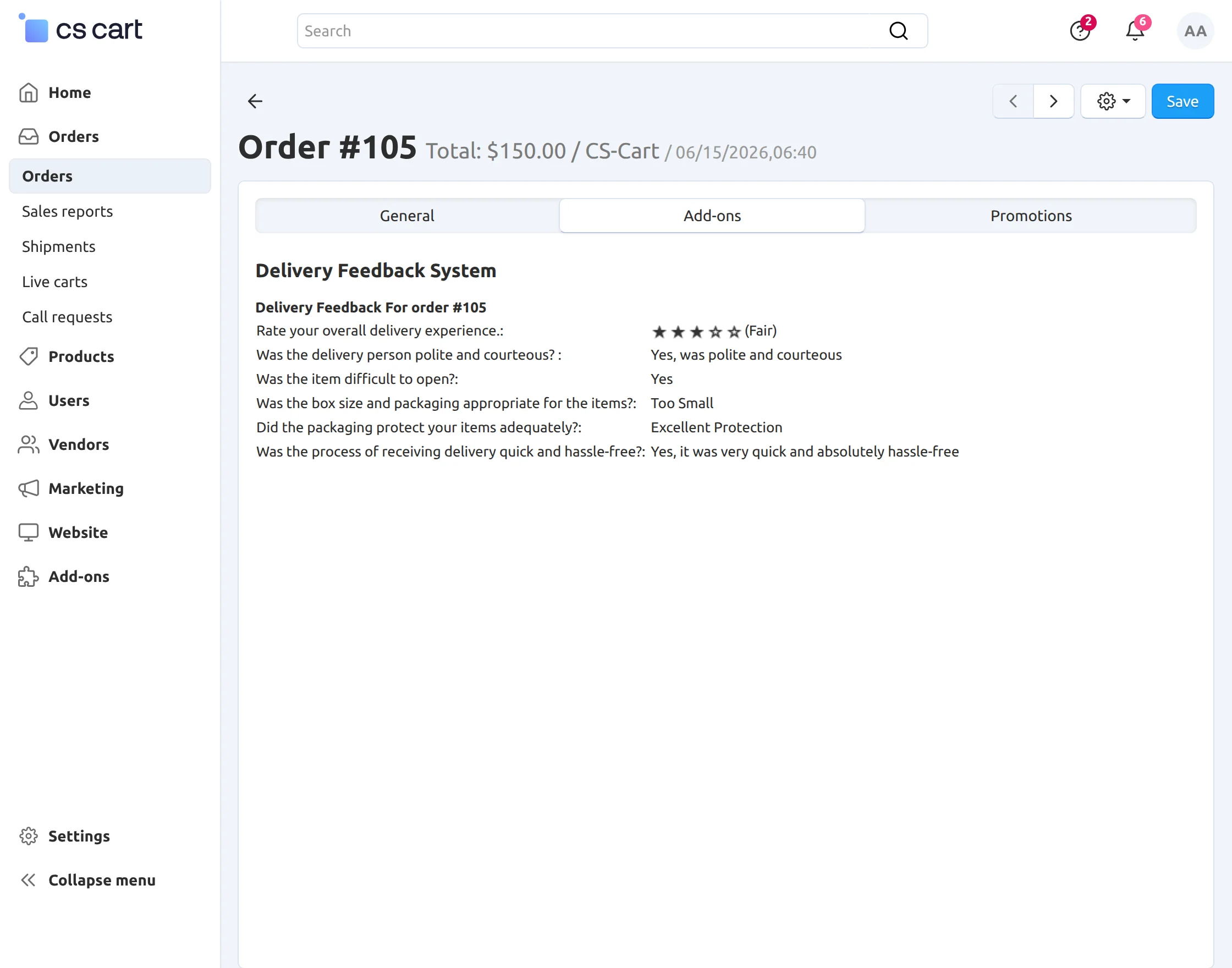
Back End View
Support
If you have any questions, suggestions, or customization requests, feel free to contact us at [email protected] or submit a ticket at webkul.uvdesk.com.
Explore our premium-quality CS Cart Extensions to enhance your store functionality.
You can also explore our CS-Cart Development Services and Quality CS-Cart add-ons.
Current Product Version - 1.1
Supported Framework Version - 4.16.x to 4.20.x

Be the first to comment.