CS-Cart Culqi Payment Gateway:
This impressive add-on integrates a secure payment gateway Culqi with CS-Cart. This allows users of the store to pay via Culqi.
It is the reliable payment solution and monitor transactions in real time. This payment gateway accept credit and debit cards for payment on your store.
Features
- Well integrated with CS-Cart Multi-Vendor.
- User friendly interface to receive online payments.
- Protects your business with a solid anti-fraud platform and intelligence.
- Provides fully secure payment to handle risk management system.
- Admin have complete control of the system.
- Easy to configure and manage at admin end.
We don’t have culqi credentials, please test the demo with your credentials.
For the 3DS feature, it is currently unavailable in the add-on. We can develop it under the add-on purchase support and provide it to you.
Note: Before installing the add-on, extract the downloaded package.
- Install the License Manager add-on first.
- Then install the required add-on.
- Follow the license activation steps to generate your license key.
Video Tutorial
How To Upload and Install
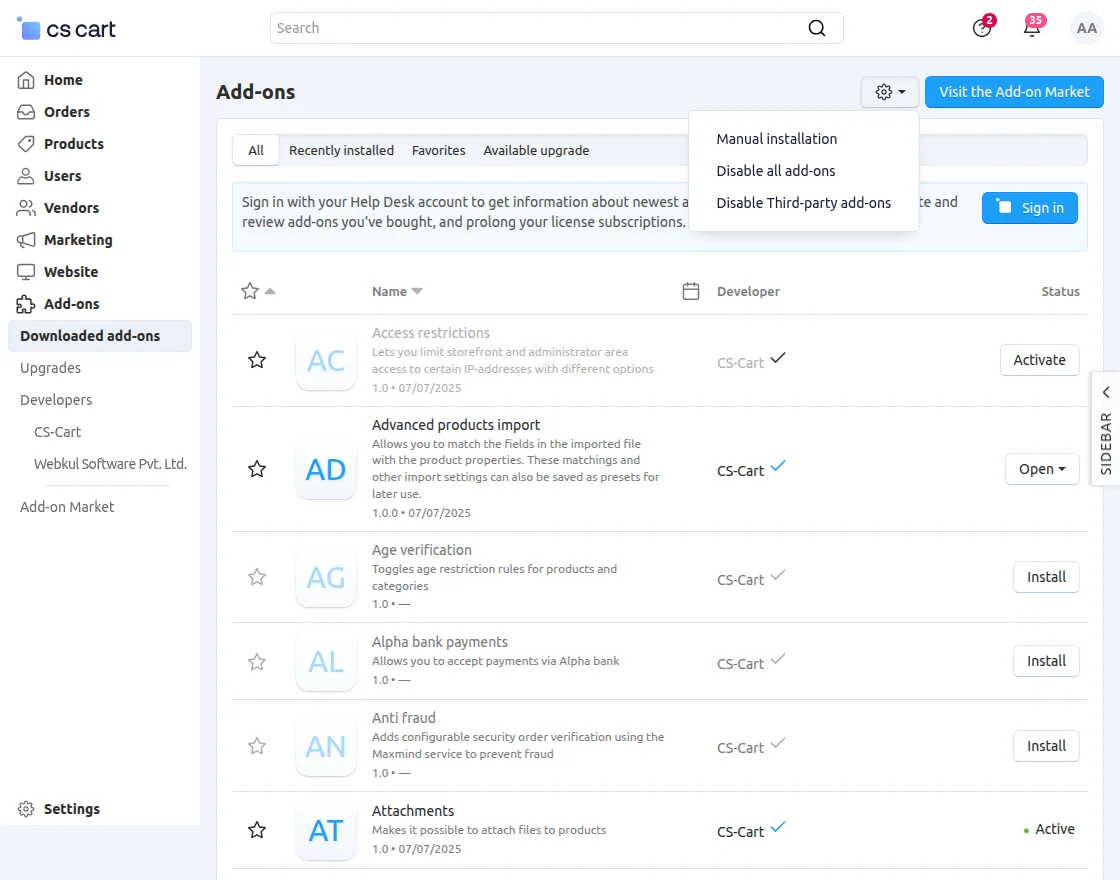
- Go to Manage Add-ons, click on the gear drop-down, and select Manual Installation.
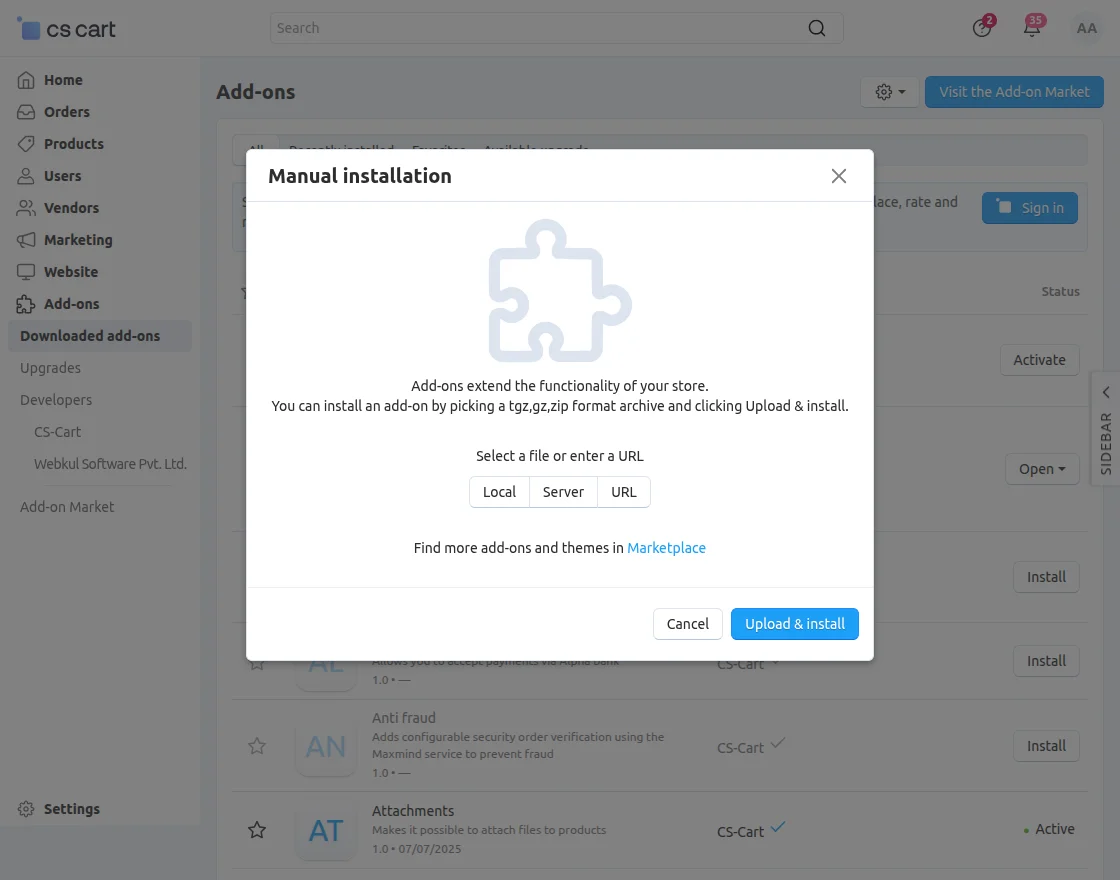
2. Click on Local to select the zip file.
Then click on “Upload & Install” as shown below in the snapshot.
Add-on installed successfully!
Back End View
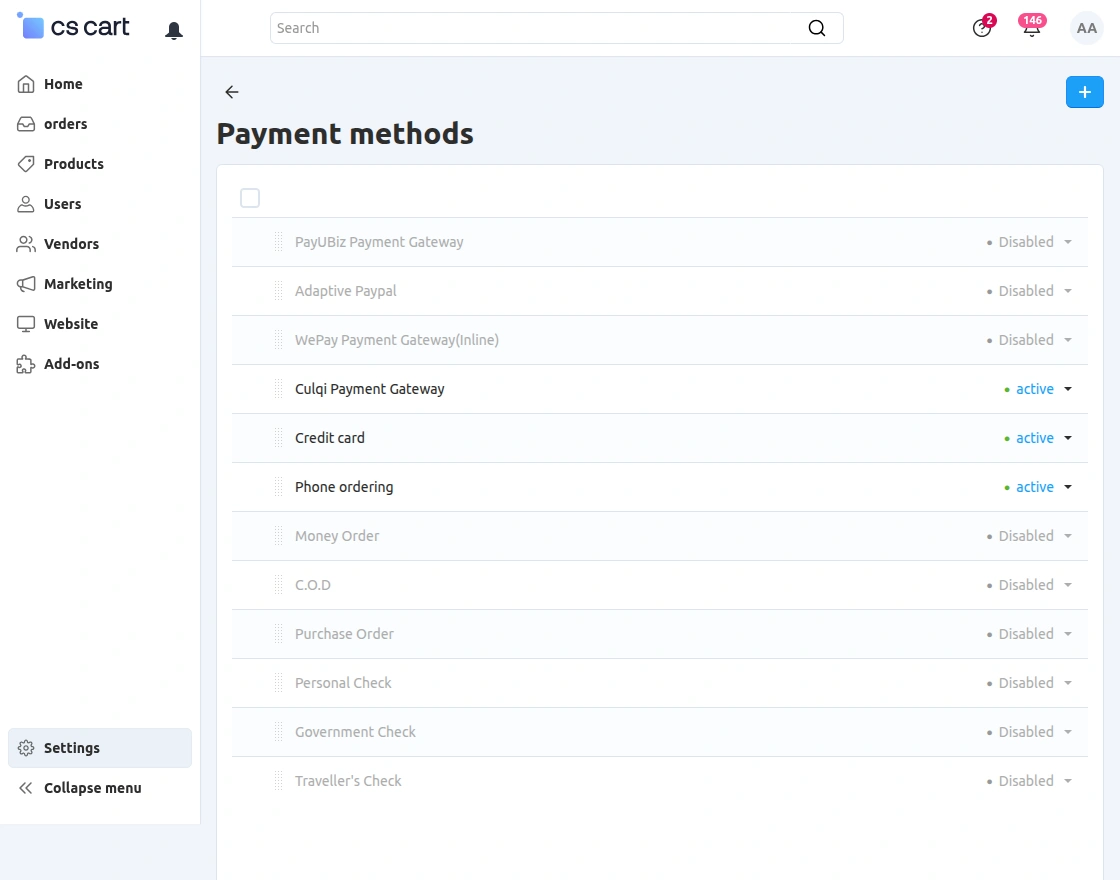
Go to “Administration” tab and click on “Payment methods”.
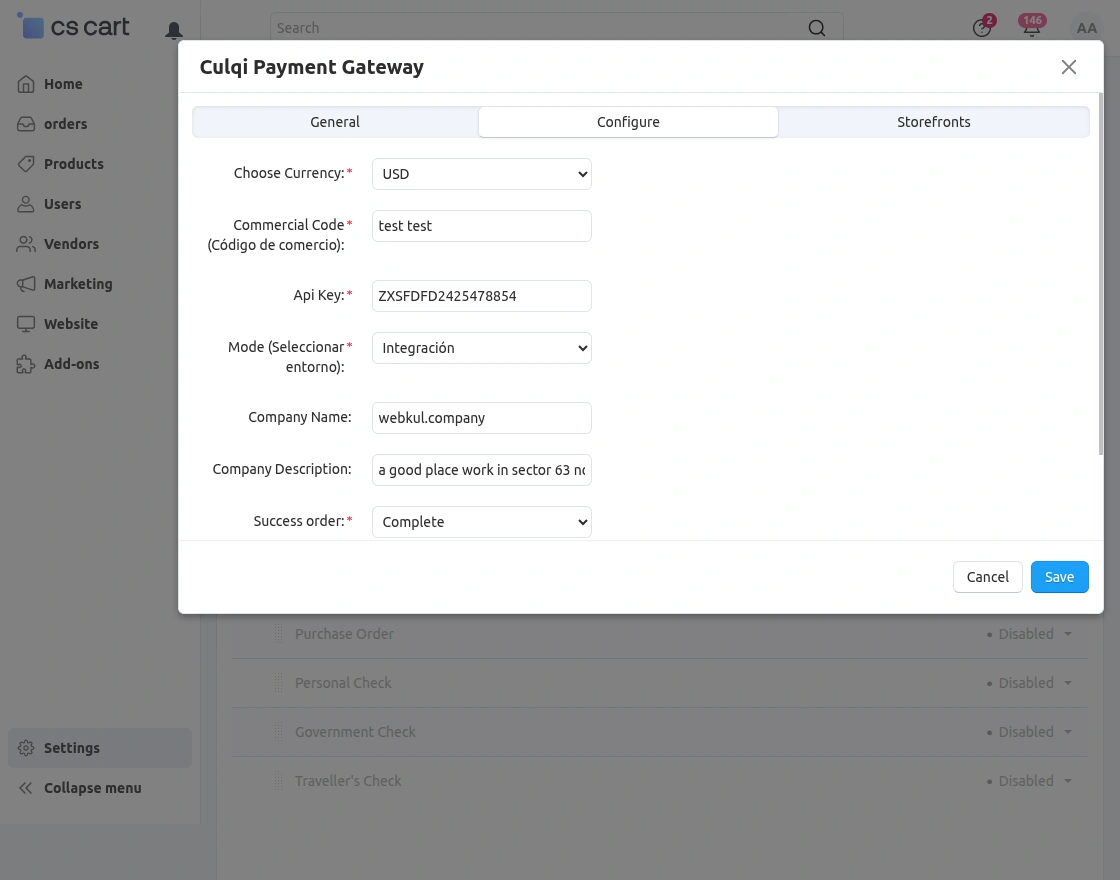
Set the parameters as shown below in the snapshot.
- Choose Currency: Select the supported currency, such as USD or PEN.
- Commercial Code: Enter the merchant’s commercial/commerce code.
- API Key: Add the API key provided by the payment service.
- Mode: Choose Integration for testing or Production for live transactions.
- Company Name: Enter the registered company or business name.
- Company Description: Provide a brief description of the company.
- Success Order Status: Select the order status to apply after a successful payment, such as Paid or Complete.
- Failed Order Status: Select the status to apply when a payment fails or is declined.
Click on “Configure” and set the parameters as shown below in the snapshot.
- Enter the short description of company to be displayed on the payment form.
- Select the order status for successful and failed transactions.
- Click on “Create” Button to create the payment method.
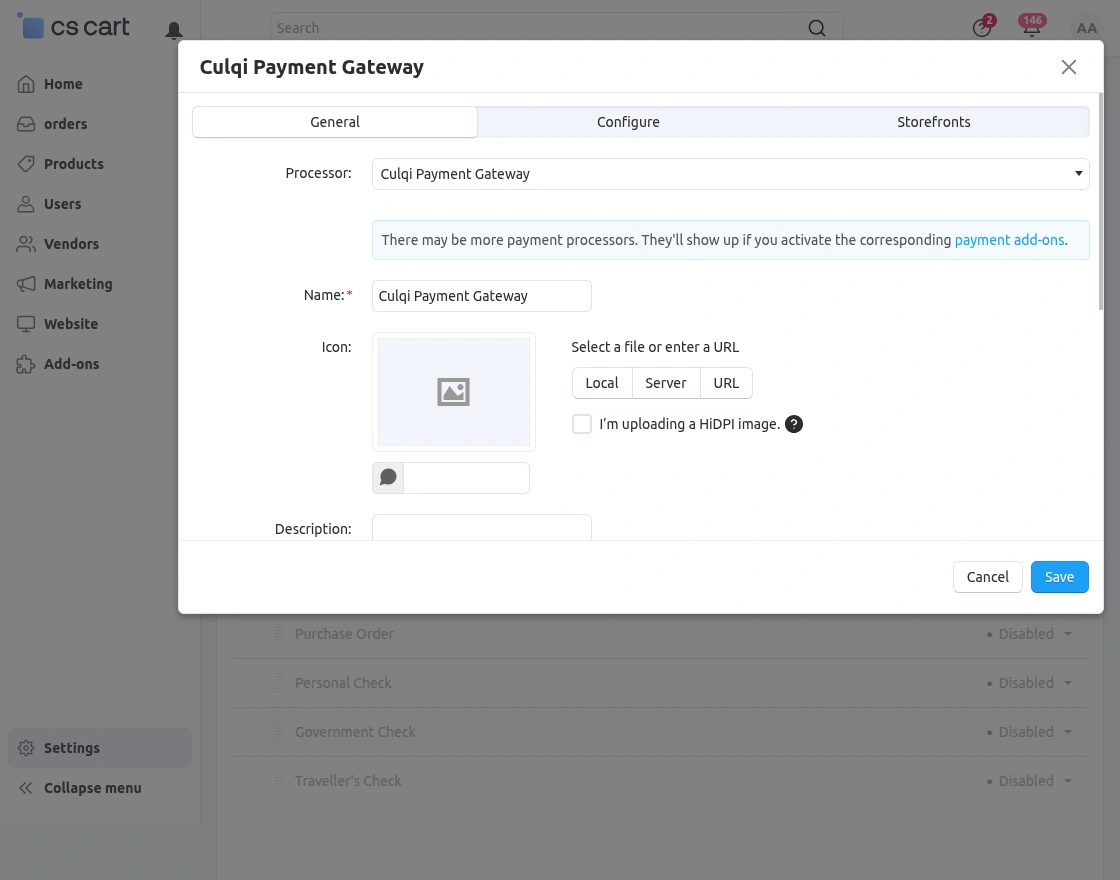
Once the Payment Method is created and configured, customer will get the option at front end to pay via Culqi .
Front End View
For payment via “Culqi Payment Method”on checkout page select the option as shown below in the snapshot.
- Click to accept the terms and conditions of vendor.
- Click on “Submit” button to submit the order.
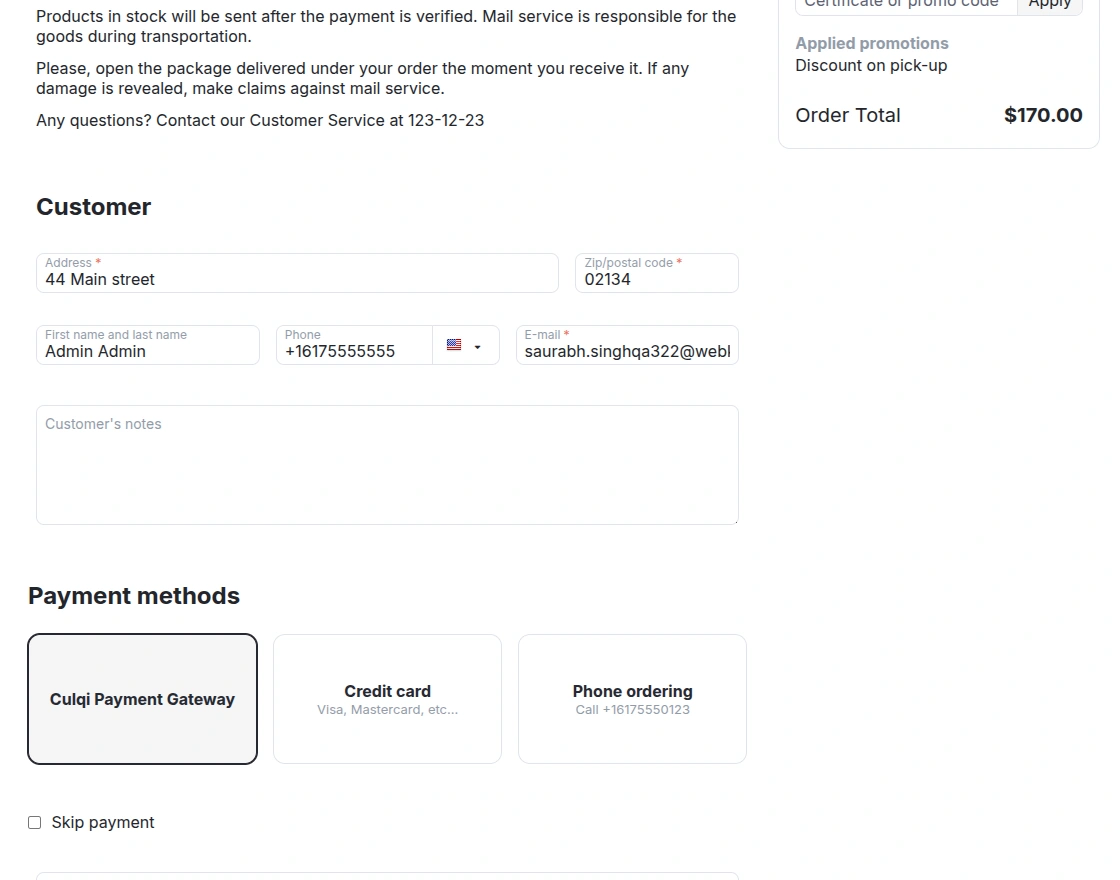
On clicking Submit My Order button, customer will get a popup form to enter the card details for payment as shown below.
After filling card details, click on the button to pay as per the below screenshot. 
Support
This is all about Culqi Payment Gateway. For further any query feel free to contact us at http://webkul.uvdesk.com
Please explore our cs-cart Development Services and Quality cs-cart add-ons
Current Product Version - 4.1
Supported Framework Version - 4.18.x - 4.20.x

Be the first to comment.