


















Introduction
Odoo Hotel Booking Channel Manager helps hotels connect OTA platforms with Odoo Hotel Management System using QloApps Channel Manager. It automatically syncs hotel bookings into Odoo, so hotel staff can manage reservations from one centralized system.
This module reduces manual booking management and keeps booking details updated automatically between OTA platforms and Odoo HMS. It helps hotels avoid confusion, reduce manual errors, and improve reservation management.
Using this module, hotels can sync bookings, manage room reservations, track booking logs, and update booking details like check-in and check-out dates directly from Odoo.
Prerequisites for Using Odoo Hotel Booking Channel Manager
Odoo Hotel Booking Channel Manager works in conjunction with the following module:
You must install the above-mentioned module before using Odoo Hotel Booking Channel Manager.
You also need an active QloApps Channel Manager subscription to connect OTA platforms successfully.
Features
- Connect Odoo HMS with OTA platforms using QloApps Channel Manager
- Automatically sync hotel bookings from multiple OTA platforms
- Manage all reservations from one centralized Odoo system
- Edit booking details like check-in and check-out dates easily
- Create automatic logs for every booking request
- Track booking status clearly using the logging system
- Reduce manual work and avoid booking errors
- Sync booking and availability updates in real time
Installation
1. Once you purchase the App from the Webkul store, you will receive a link to download the module’s zip file.
2. Extract the file on your system after the download finishes. As a result, you will be able to see a folder named- ‘hotel_qloapps_channel_manager’.
3. Copy and paste this folder inside your Odoo Add-Ons path.
4. Now, open Odoo App and click on the Settings menu. Here, click on Activate Developer Mode.
5. Then, open the Apps menu and click on ‘Update Modules List.’
6. In the search bar, remove all the filters and search ‘hotel_qloapps_channel_manager’.
7. You will be able to see the module in the search results. Click on ‘Activate’ to install it.
Workflow
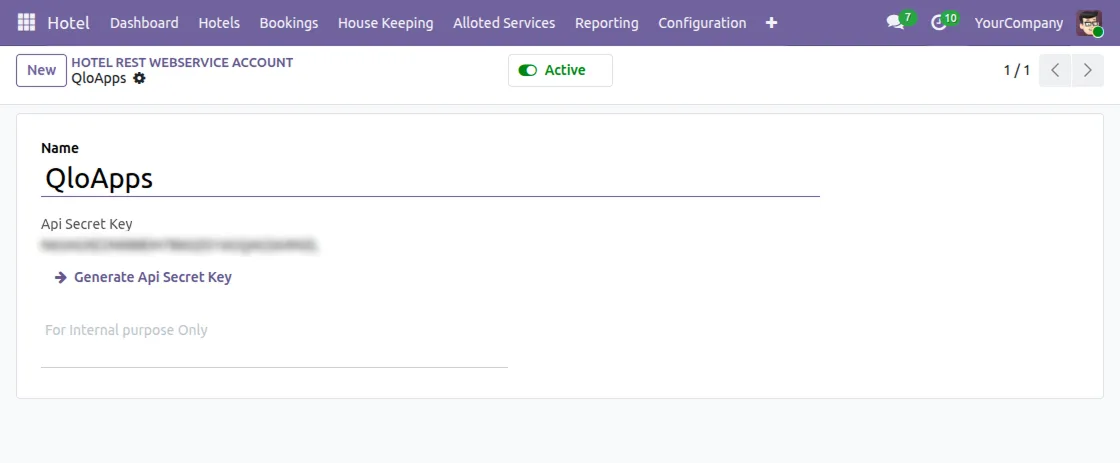
1. After installing the module, connect Odoo HMS with QloApps Channel Manager by navigating to Configuration > WebService Accounts. Enter the name and generate the API key to establish the connection setup.
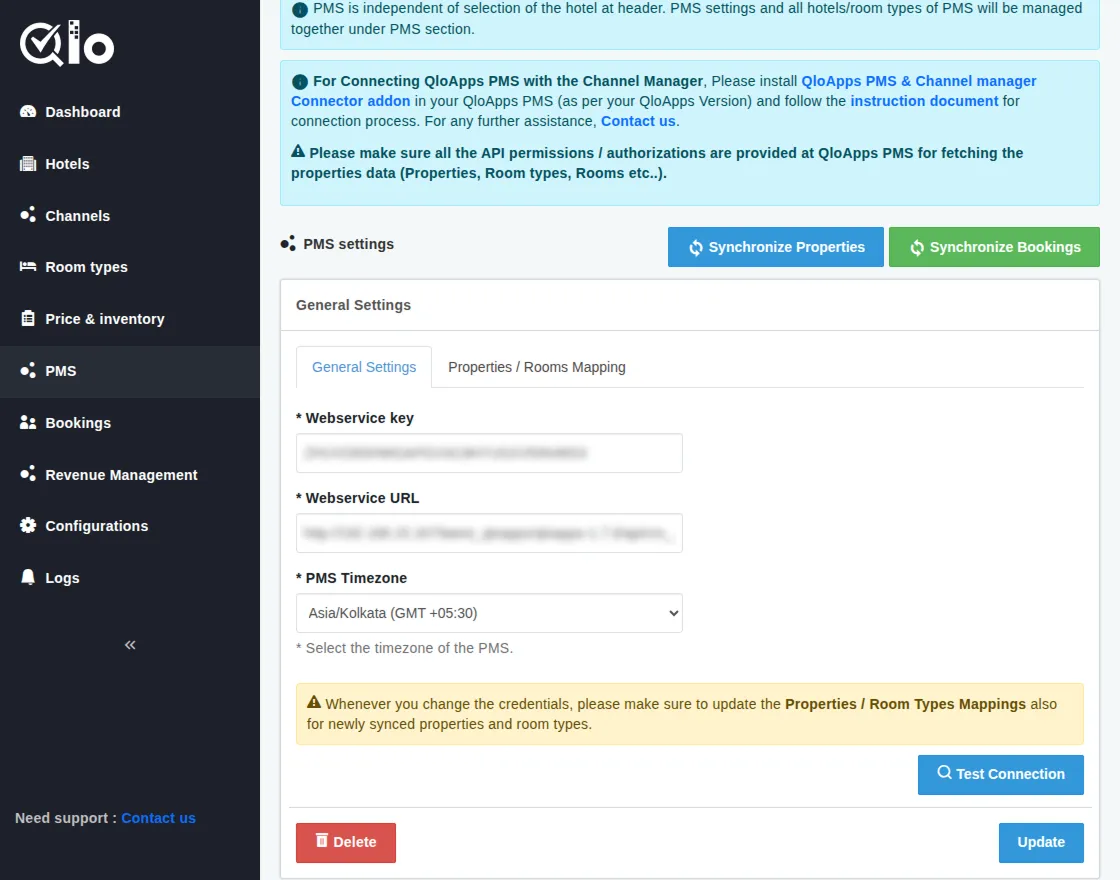
2. Copy the API Key into the Webservice Key, add the PMS URL in the Webservice URL field, select the correct timezone, click on Test Connection, and then Update to connect both systems successfully.
Note: While adding the PMS URL in the Webservice URL field, make sure to add /api at the end of the URL. Otherwise, the connection will not be established successfully.
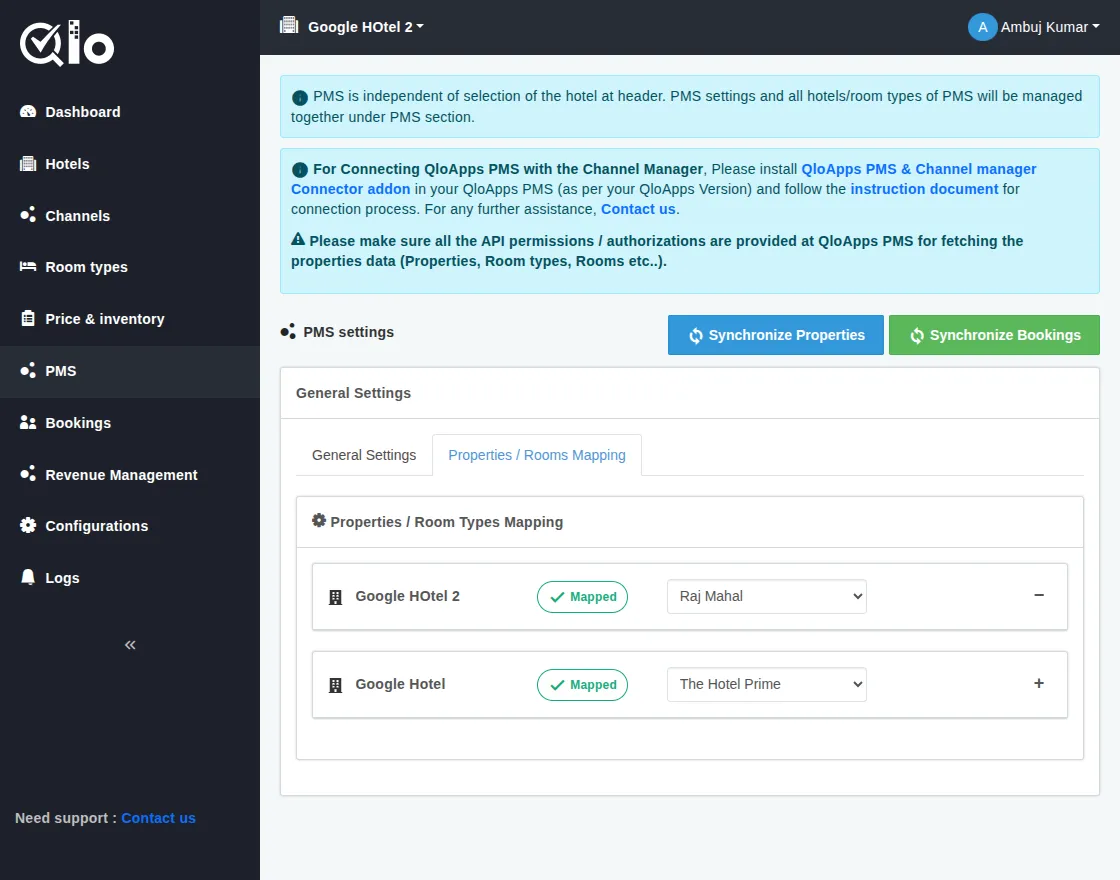
3. In the PMS option, open the Properties / Rooms Mapping section, select the room type from QloApps Channel Manager, match it with the corresponding room type in Odoo PMS, and configure the mapping when the tick is shown.
Note: Odoo Hotel Booking Channel Manager is free from Odoo end, but to use it, you need to have an active QloApps Channel Manager subscription.
Pricing Plans:
- Monthly: USD 30/month per property/hotel (USD 25/month for 6+ properties)
- Yearly: USD 300/year per property/hotel (USD 250/year for 6+ properties)
Need Help?
Hope you find the guide helpful! Please feel free to share your feedback in the comments below.
If you still have any issues/queries, please create a ticket at the UV Desk.
I hope this helps. In case of any further queries, contact us at our support mail.
Thanks for paying attention!!
Current Product Version - 1.0.8
Supported Framework Version - Odoo V16, V17, V18, V19

Be the first to comment.