The Bagisto Chatbot module lets shoppers search your catalog, build a cart, and check out in one conversation, no page hunting required.
A single agent, built on the Laravel AI SDK, picks the right tool per question and remembers earlier turns in the conversation.
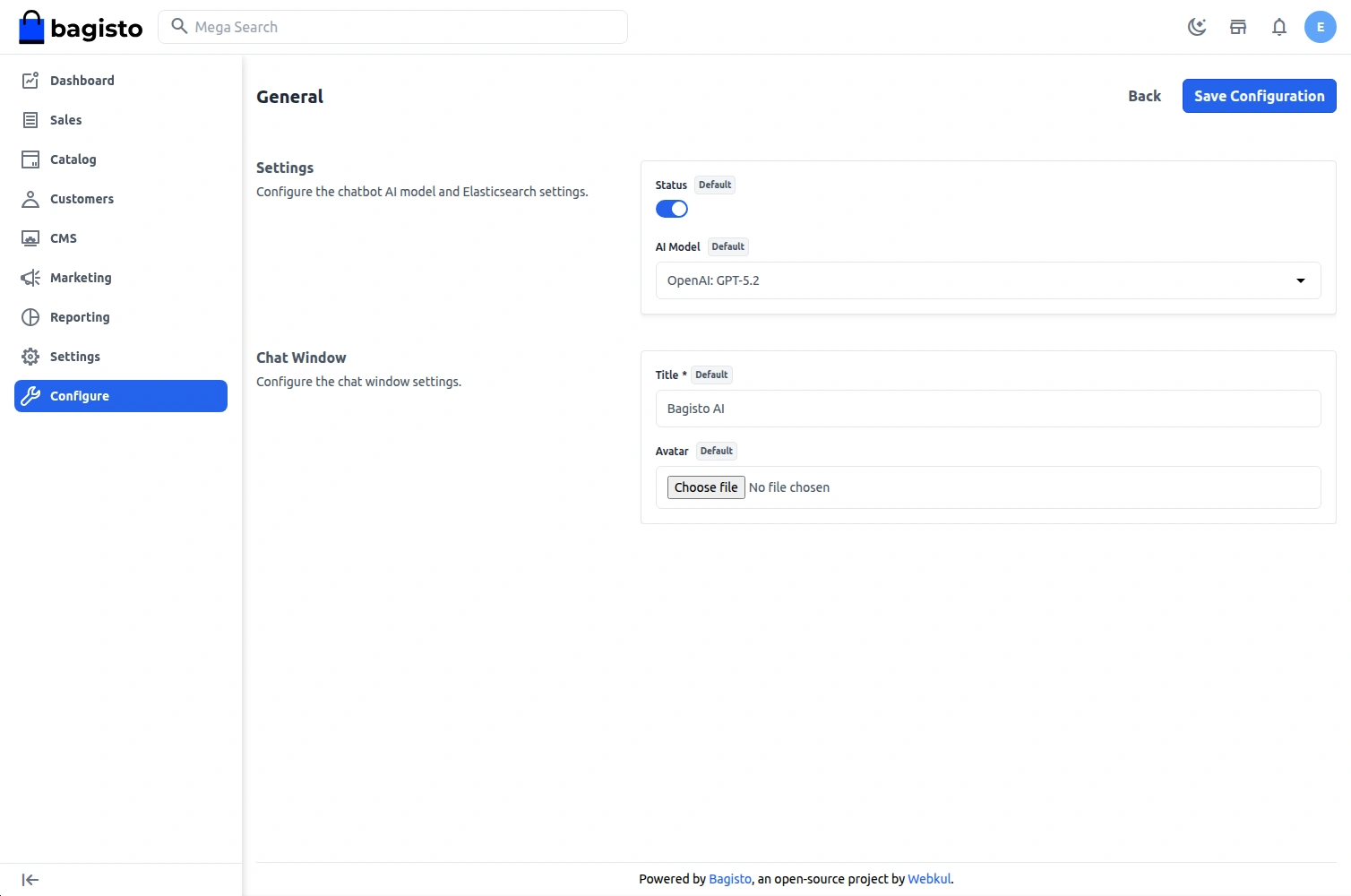
- Admin can enable or disable the chatbot and pick its AI model from Configuration > Chatbot > General > Settings.
- Customers can ask about products, pricing, availability, and catalog details to receive instant responses.
- Semantic product search runs on Elasticsearch vector search or, new in this release, MariaDB’s native VECTOR type, no separate search cluster required.
- Structured catalog queries cover cheapest or most expensive product, price range, stock availability, and product count.
- Customers can add items to cart, view the cart, remove items, and update quantities directly from the chat.
- A full checkout flow saves addresses, picks shipping and payment methods, and places the order, all without leaving the conversation.
- Conversational responses come from the AI provider configured through MagicAI, including OpenAI, Anthropic, Gemini, and Mistral.
- Multi-turn conversation memory lets customers ask natural follow-up questions without repeating context.
- Guest shoppers keep their conversation history too, tracked by a long-lived cookie, and old guest history can be cleaned up on a schedule.
- Products, categories, and CMS pages are indexed automatically and kept in sync whenever they change.
- Works with every Bagisto product type: Simple, Virtual, Configurable, Grouped, Bundle, Downloadable, and Booking.
- Compatible with Bagisto v2.4.11.
Installation
After installing the Bagisto Chatbot, configure a search driver, Elasticsearch or MariaDB, and an AI provider. Then follow the steps below.
Step 1: Extract the Extension
Unzip the extension and merge the packages folder into the root directory of your Bagisto project.
Step 2: Configure AutoloadingOpen the composer.json file and add the following line under the psr-4 section.
"Webkul\\Chatbot\\": "packages/Webkul/Chatbot/src"
Step 3: Register the Service ProviderOpen the bootstrap/providers.php file and add the following provider to the array.
Webkul\Chatbot\Providers\ChatbotServiceProvider::class,
Step 4: Complete the Setup
composer dump-autoload
php artisan migrate
The migration only creates a table for the MariaDB driver, and only when the connection is MariaDB 11.7 or newer.
On any other database it does nothing, so it is safe to run either way.
Step 5: Index Existing DataAfter installation, index the products, categories, and CMS pages into the active search driver.
php artisan chatbot:index
The chatbot now indexes your catalog data and automatically updates the index whenever products, categories, or CMS pages change.
You can also index specific entity types.
php artisan chatbot:index --type=products
php artisan chatbot:index --type=categories
php artisan chatbot:index --type=pages
To drop and recreate the index before indexing, required after mapping changes, run this instead.
php artisan chatbot:index --fresh
New products, categories, and pages are indexed automatically through event listeners whenever they are created or updated.
Guest conversations build up over time, so schedule this command to clear out old ones, thirty days by default.
php artisan chatbot:cleanup-guests
Choosing a Search Driver: Elasticsearch or MariaDB
Elasticsearch remains the default and needs a running Elasticsearch 8.x cluster reachable from Bagisto.
If you would rather avoid running a separate search service, switch to the MariaDB driver instead.
It stores vectors in a native VECTOR column and searches them with cosine distance, right inside your existing database.
MariaDB support needs version 11.7 or newer.
The admin panel only shows the MariaDB option when your connection actually supports it, so you cannot pick a driver that would fail at runtime.
Pick the driver from Configuration > Chatbot > General > Settings > Search Driver.
Then reindex your catalog with chatbot:index –fresh, since each driver keeps its own separate store.
Generate OpenAI Key – OpenAI Account
The chatbot works with any AI provider supported by MagicAI. This walkthrough uses OpenAI as an example.
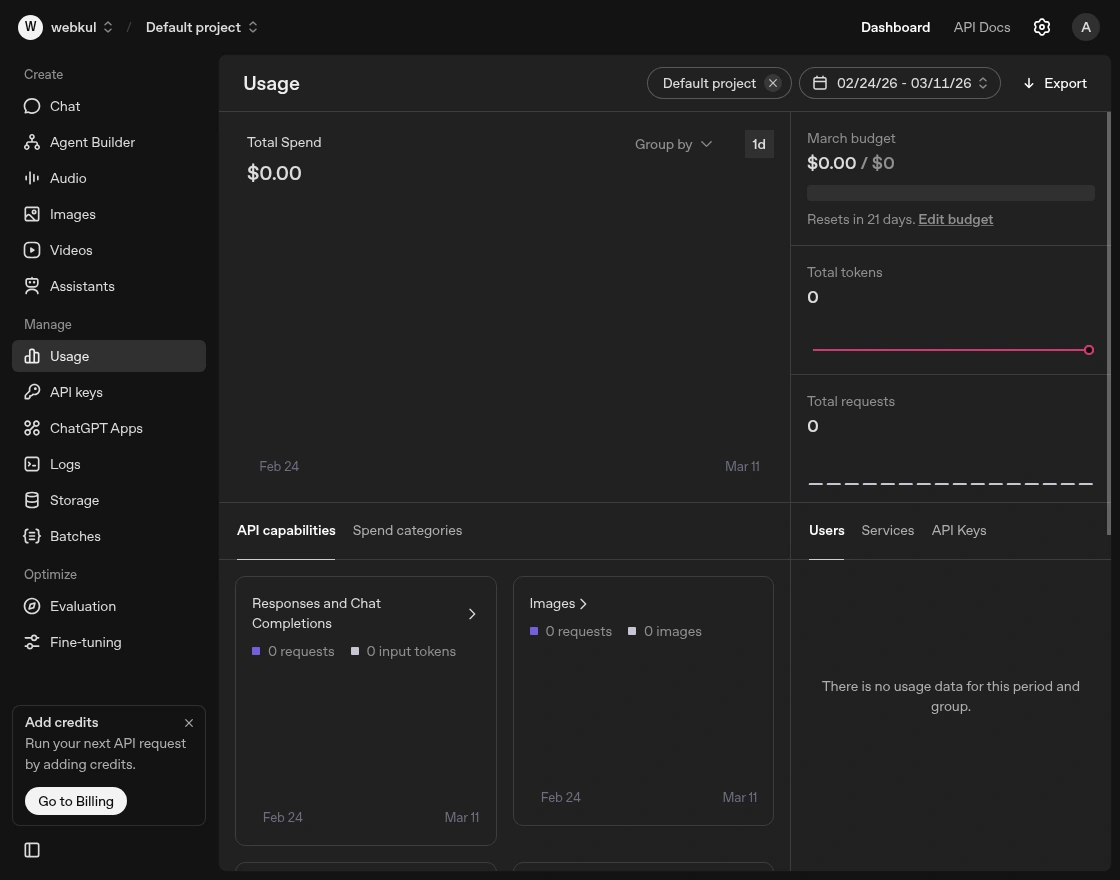
The user has to first create an OpenAI account and log in to the OpenAI dashboard as shown in the screenshot.
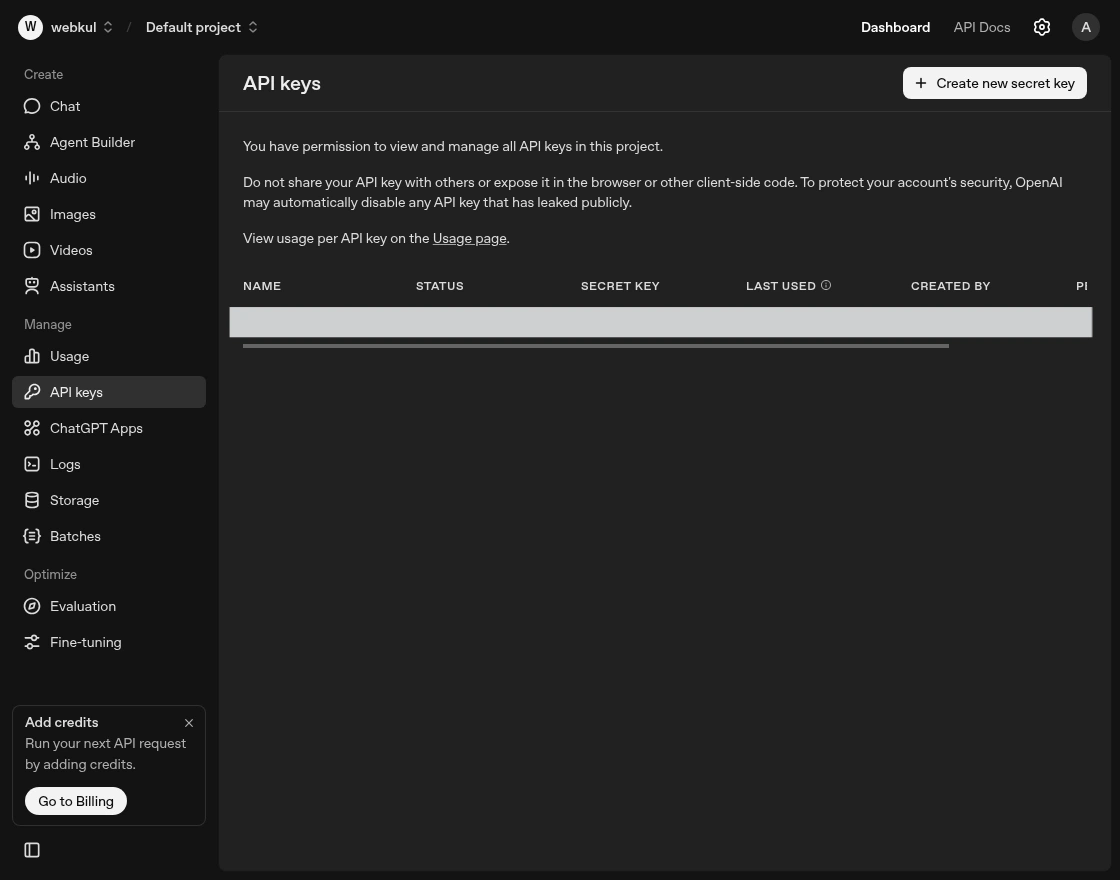
Now, the user can click on the API Keys option located in the sidebar.
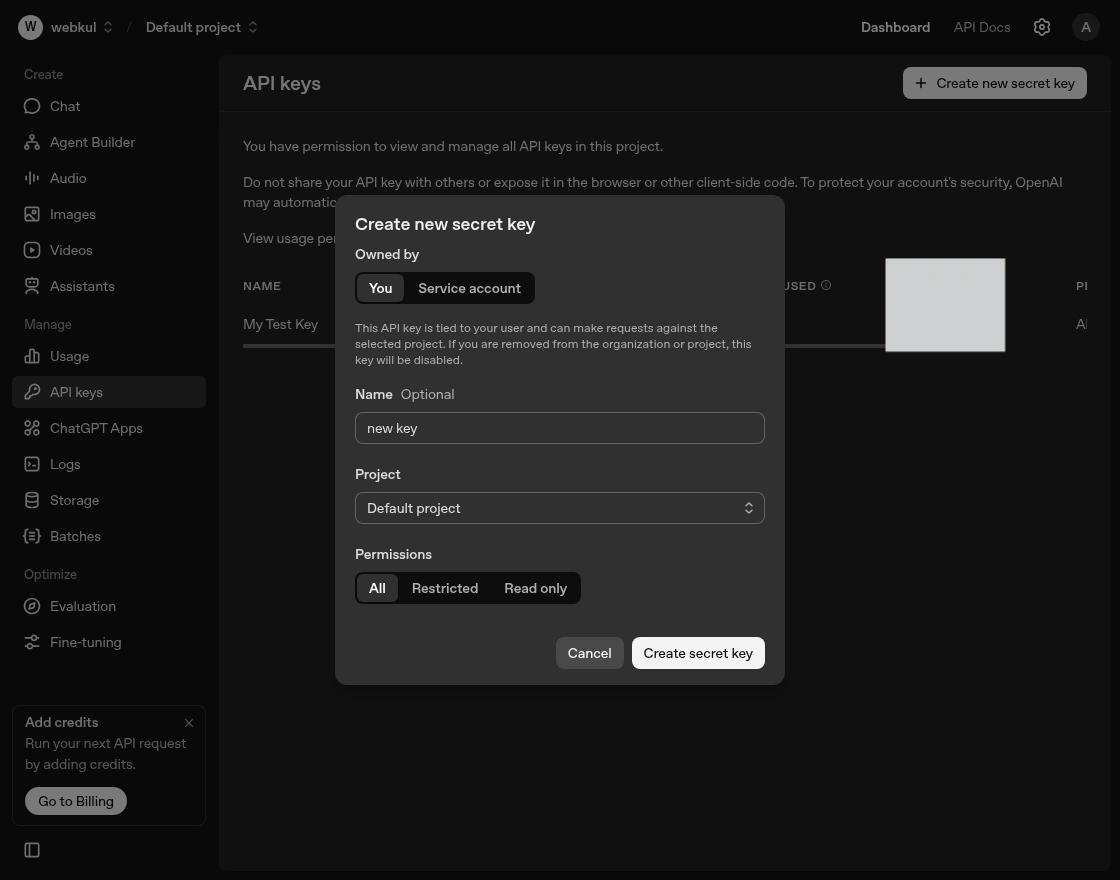
Now user need to click on Create New Secret Key button as shown in the screenshot. A pop-up appears to create the key.
In the pop-up, there will be a “Copy” button that allows the user to easily copy the key to their clipboard.
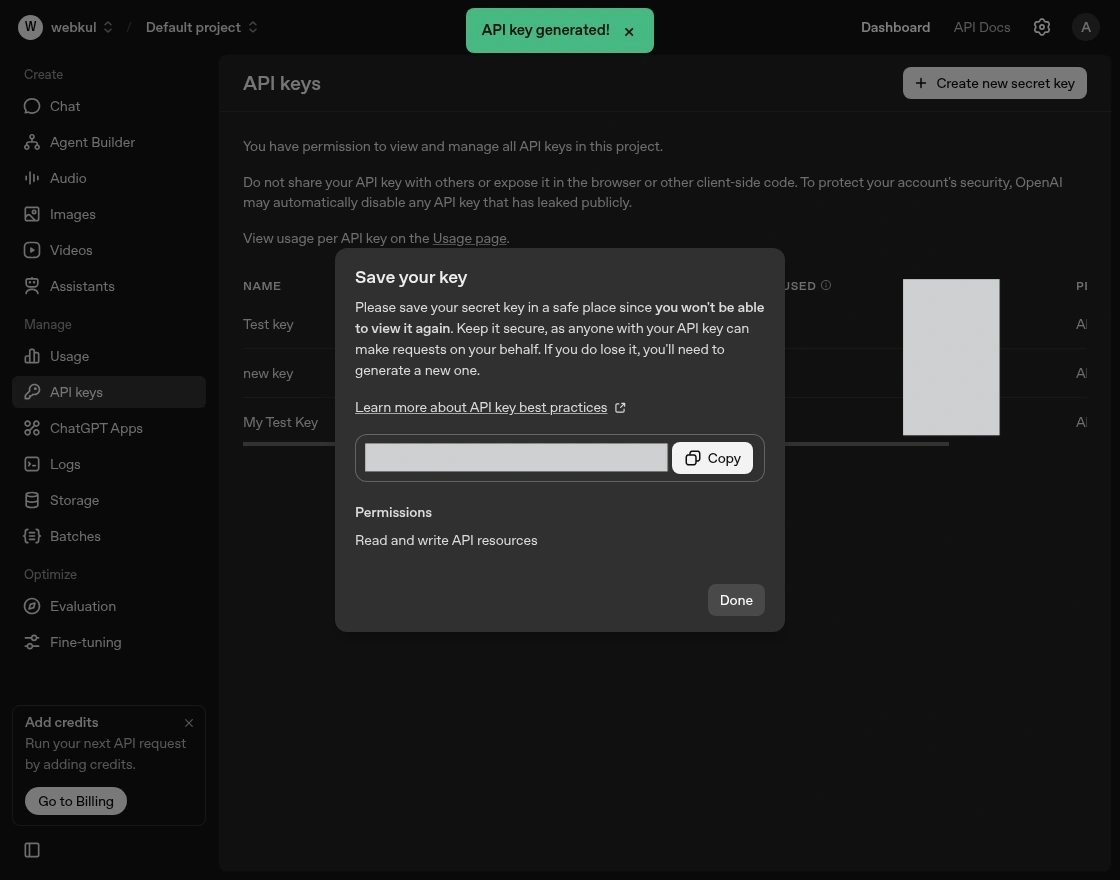
The generated key goes into the configuration settings section under the OpenAI key.
Admin Configuration of the AI Chatbot
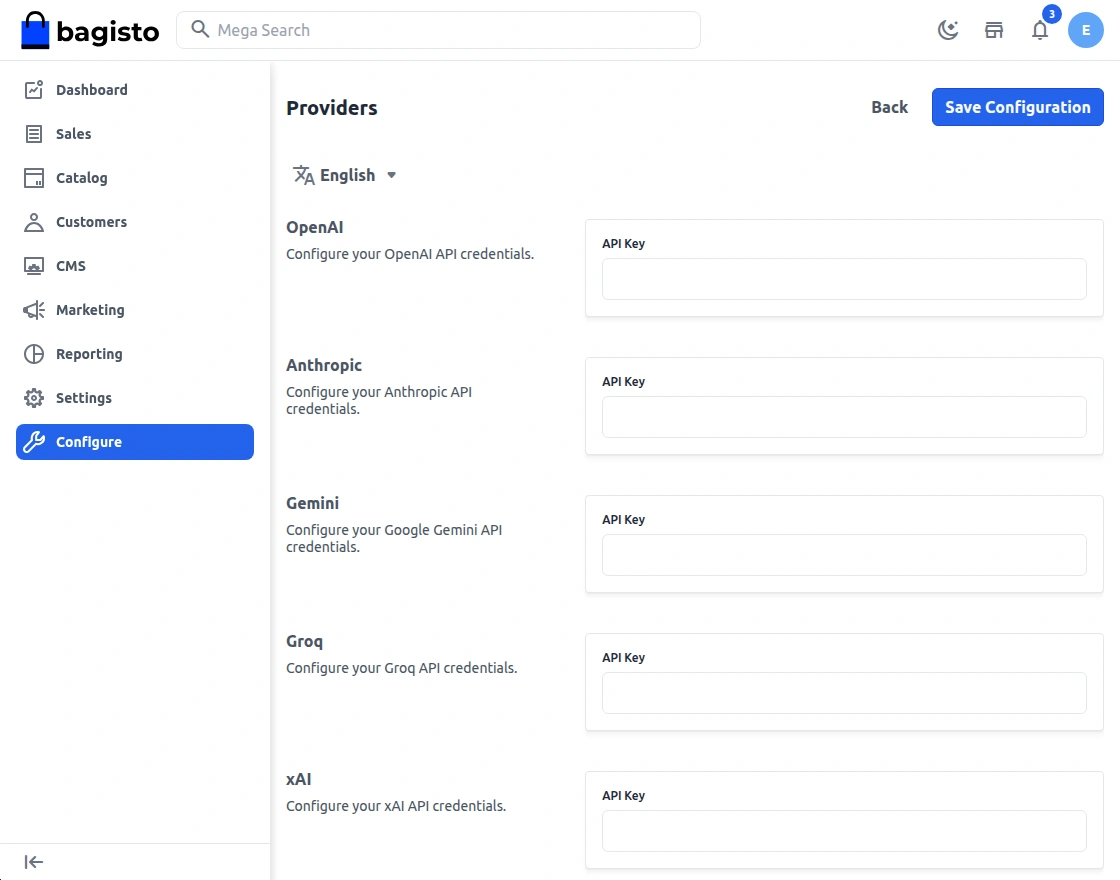
After generating the OpenAI API key, add it in the Bagisto admin panel under Configuration > Magic AI > Providers.
Paste the key there to enable the OpenAI provider for the chatbot.
After configuring the API key, go to Configuration > Chatbot > General in the admin panel.
Enable Status to activate the chatbot on the storefront and select the AI Model.
Storefront Workflow: Search, Cart, and Checkout in Chat
Shoppers click the chat icon on the storefront to get started.
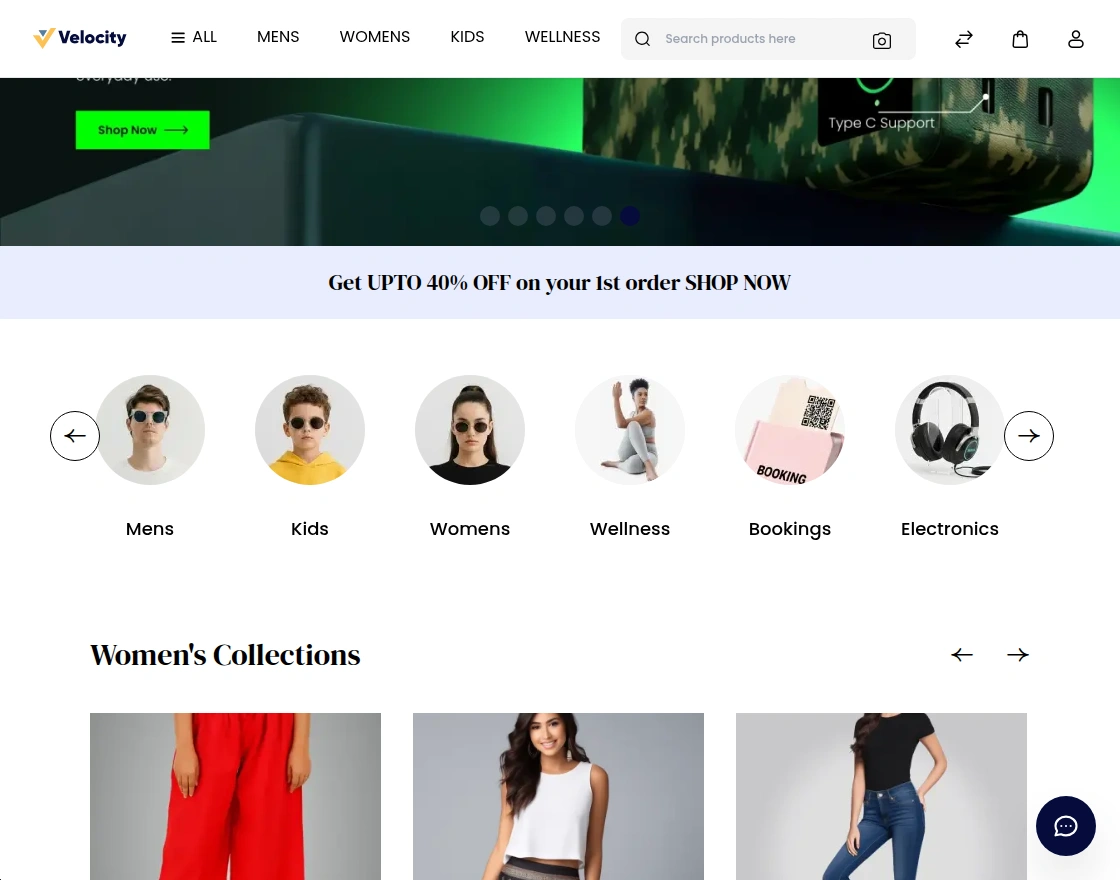
The chatbot greets the shopper and asks how it can help, then the shopper states what they need in their own words.
The agent picks the right tool for the question, product search, catalog lookup, cart, or checkout, and answers based on the shopper’s needs.
Follow-up questions carry the earlier context automatically, so shoppers can refine results without repeating themselves.
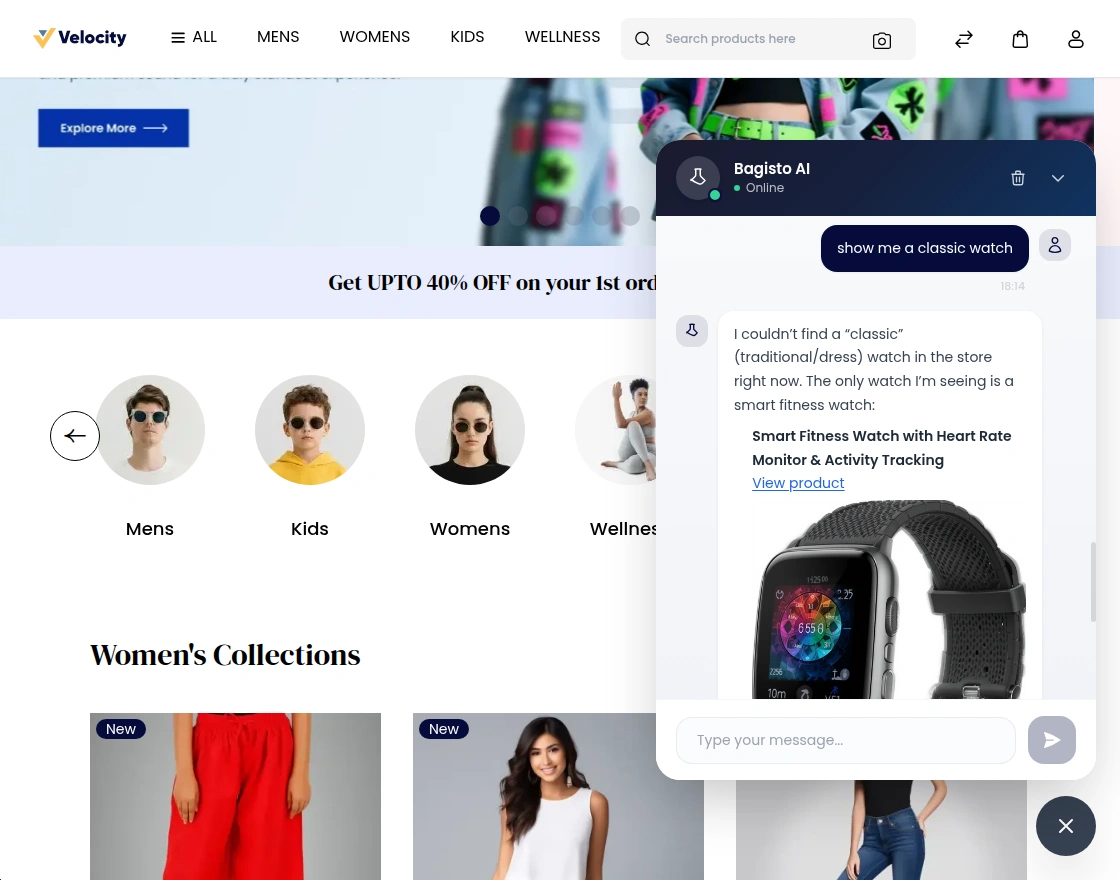
When a shopper is ready, they can add a product to the cart, provide an address, choose shipping and payment, and confirm the order, all inside the chat.
Clicking a product link still takes shoppers to the full product page whenever they want to check out from there instead.
Support
That is all about the Bagisto Chatbot extension. If you have any queries regarding the module, please contact us at Webkul Support System.
You can add an AI shopping assistant to your Bagisto Laravel E-commerce platform as well.
You may also check our quality Bagisto Extensions.
Current Product Version - v2.4.11
Supported Framework Version - v2.4.11

Be the first to comment.