The WordPress WooCommerce Marketplace Multi-Currency plugin enables your store to display prices and accept payments in multiple currencies, allowing customers to shop and checkout in their preferred currency and helping increase conversions.
Admins can configure multiple currencies, set a base currency, and manage exchange rates manually. Customers can easily switch currencies from the frontend and complete transactions in their selected currency.
Both admins and sellers can also set per-product exchange rates based on the store’s base currency.
WordPress WooCommerce Marketplace Multi-Currency is an add-on of the WordPress WooCommerce Multi Vendor Marketplace Plugin and requires it to be installed before use.
A production-ready version of the plugin is provided. A development version is available at an additional cost—please contact [email protected] for details.
Check a brief overview of the plugin –
Support
Dear Customers, if you have a question/query, please raise a ticket at webkul.uvdesk.com. We will do our best to answer as quickly as possible. Don’t give us a low rate without contacting support on the issue you’ve faced with. We are always happy to help you.
New Features (Latest Update)
🌍 GeoIP-Based Automatic Currency Detection
The plugin automatically detects the customer’s country using GeoIP technology and displays product prices in the appropriate local currency by default.
Key Benefits:
-
Detects customer location automatically
-
Displays prices in the correct local currency
-
Removes the need for manual currency selection
-
Enhances user experience and improves conversion rates
🔄 API-Based Live Exchange Rate Synchronization
The plugin now supports automatic exchange rate updates using trusted third-party currency APIs, ensuring accurate and up-to-date pricing across all supported currencies.
Supported API Providers:
-
Fixer.io
-
ExchangeRate-API
-
CurrencyLayer
-
CurrencyAPI
Key Highlights:
-
Automatically fetches live exchange rates
-
Configurable sync frequency (Hourly, Twice Daily, Daily, or Manual)
-
Reduces manual admin effort
-
Keeps marketplace pricing consistent and reliable
Features
- Admin can enable or disable the plugin.
- Owner can set the base currency.
- Allow the merchant to configure as many as currencies to the store.
- The store admin can configure the exchange rate manually for each currency.
- Admin and the seller can set the exchange rate equivalent to the base currency for each product.
- Owner can also update the exchange rate of all the sellers’ products.
- Per product currency exchange rate can be updated from “Product Edit Page” only.
- The seller can view the store currency information added by the admin in the seller panel.
- Enables customers to shop in their preferred currency.
- Customers can select the currency of any country from the options listed in the drop-down.
- Permits customer to check out and pay in their selected currency.
- The multi-currency feature will work on the product catalog page, product page, cart page, and the checkout page.
- This plugin synchronizes the latest exchange rates on both ends ie; the admin end and the seller end.
- Notification for Email feature enabled.
- Email will be sent to the seller if the admin updates the currency exchange rate of the sellers’ products.
Installation
The user will get a zip file which he has to upload in the “Add New” menu option in the WordPress admin panel. For this login to WordPress Admin Panel and Under the Dashboard hover your mouse over the “Plugins” menu option which brings out a Sub-Menu and then select the “Add New” option.

Post this, you will see an option on the top of your page that is “Upload Plugin”, click the option to upload the zip file.

After clicking on the “Upload Plugin” option, below that you will see a button “Choose File” click on the button to browse for the zip file as per the snapshot below.

Furthermore browsing the file, click the “Install Now” button to install the plugin as per the snapshot.

Now when the plugin is installed correctly, you will see the success message and an option to activate the plugin. Click on “Activate Plugin” to activate the installed plugin.

Admin Management
Later the module installation, the admin can see an MP Multi-Currency option in the admin panel as per the image. The admin will click on the MP Multi-Currency option to configure the plugin settings.
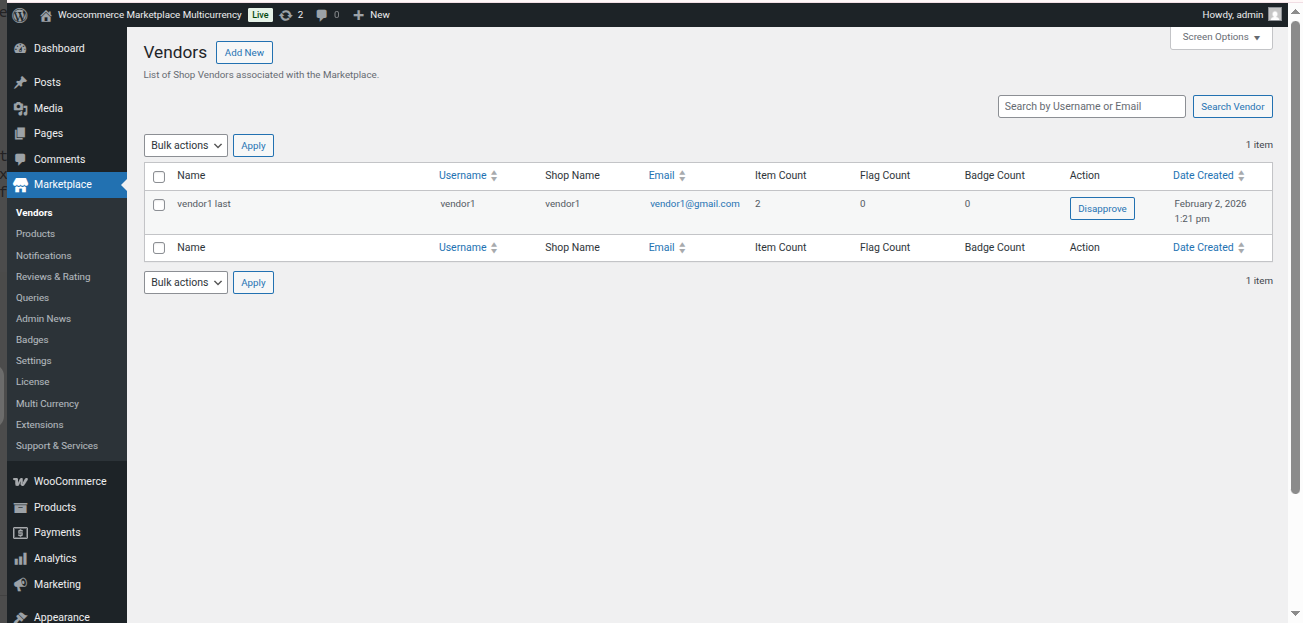
The admin gets redirected to the Configuration page when clicks on the Multi-Currency option.
The store owner can select the option Multi Currency>All Currencies to manage the Currency details. The admin can also edit/delete any currency from the admin panel.

The admin can add New Currencies after clicking on the Add New button as shown below image:
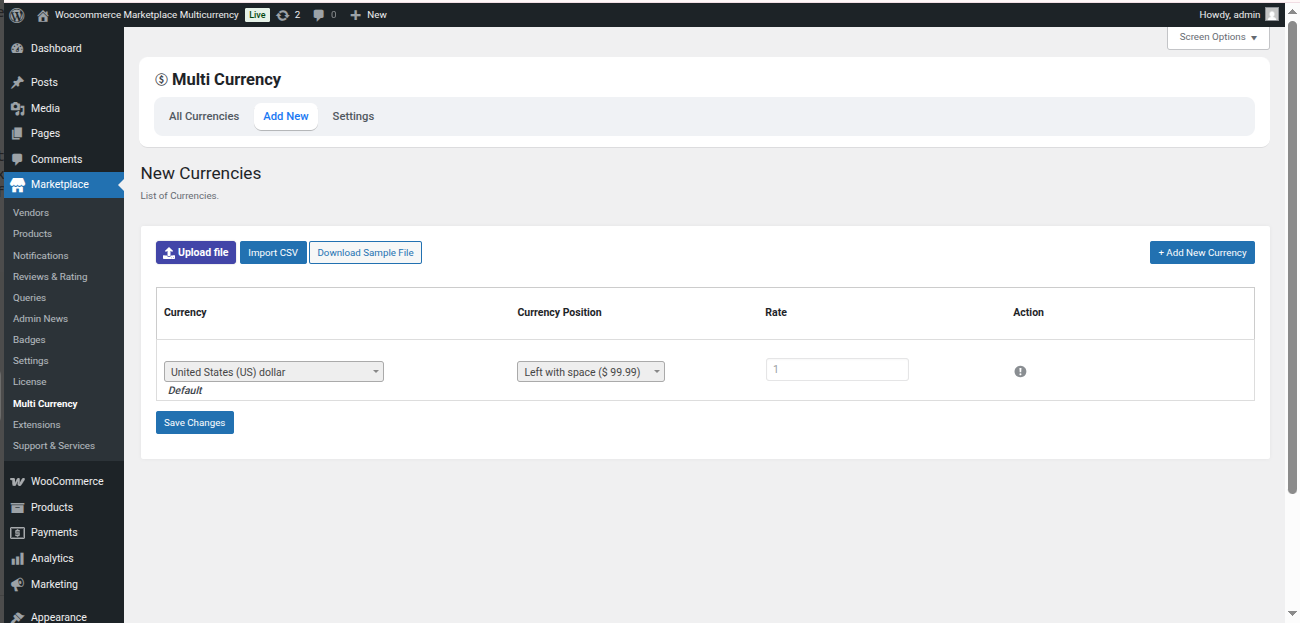
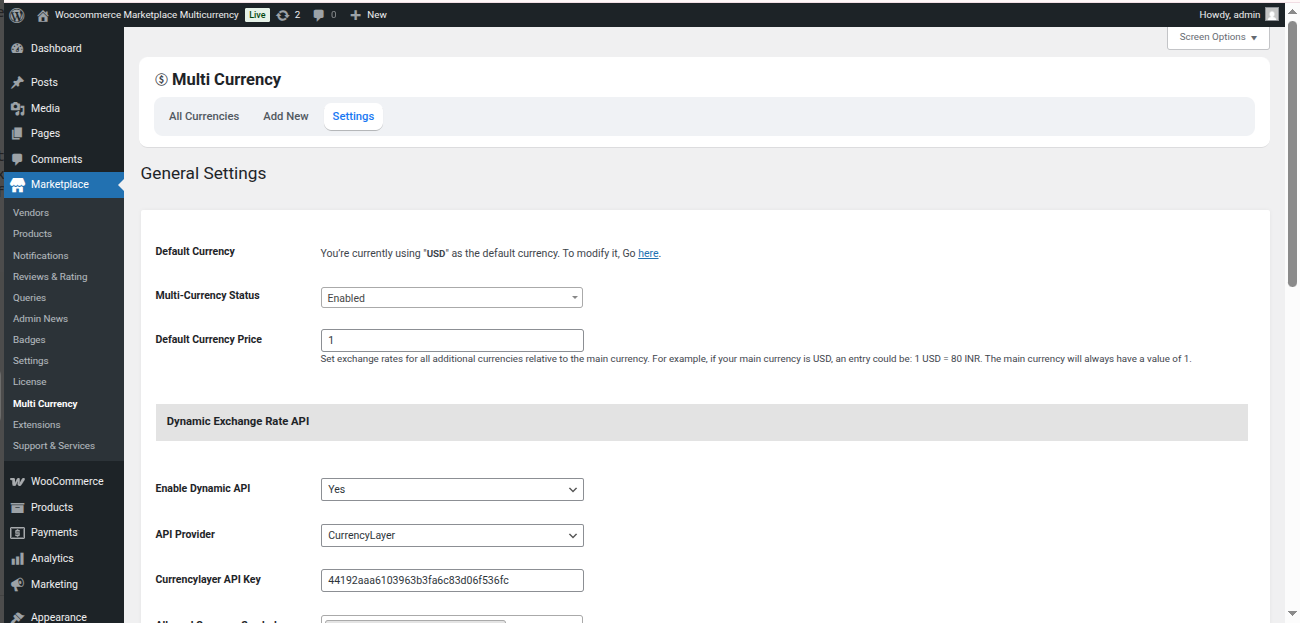
After, the admin can click on the Settings option and change the General settings for the Currency as shown below image:
- Default Currency: The store owner can also set default currency as per the choice. For this, the admin will click on the “here” link.
- Multi-Currency Status: The admin can enable/disable the status to select Multi-Currency option.
- Default Currency Price: The admin can set the default currency price, like 1 USD=60 INR.
All the configured currencies will be visible on the front end for the customers.
Note: The configured currencies and their exchange rate settings will be applicable to all the store products automatically.
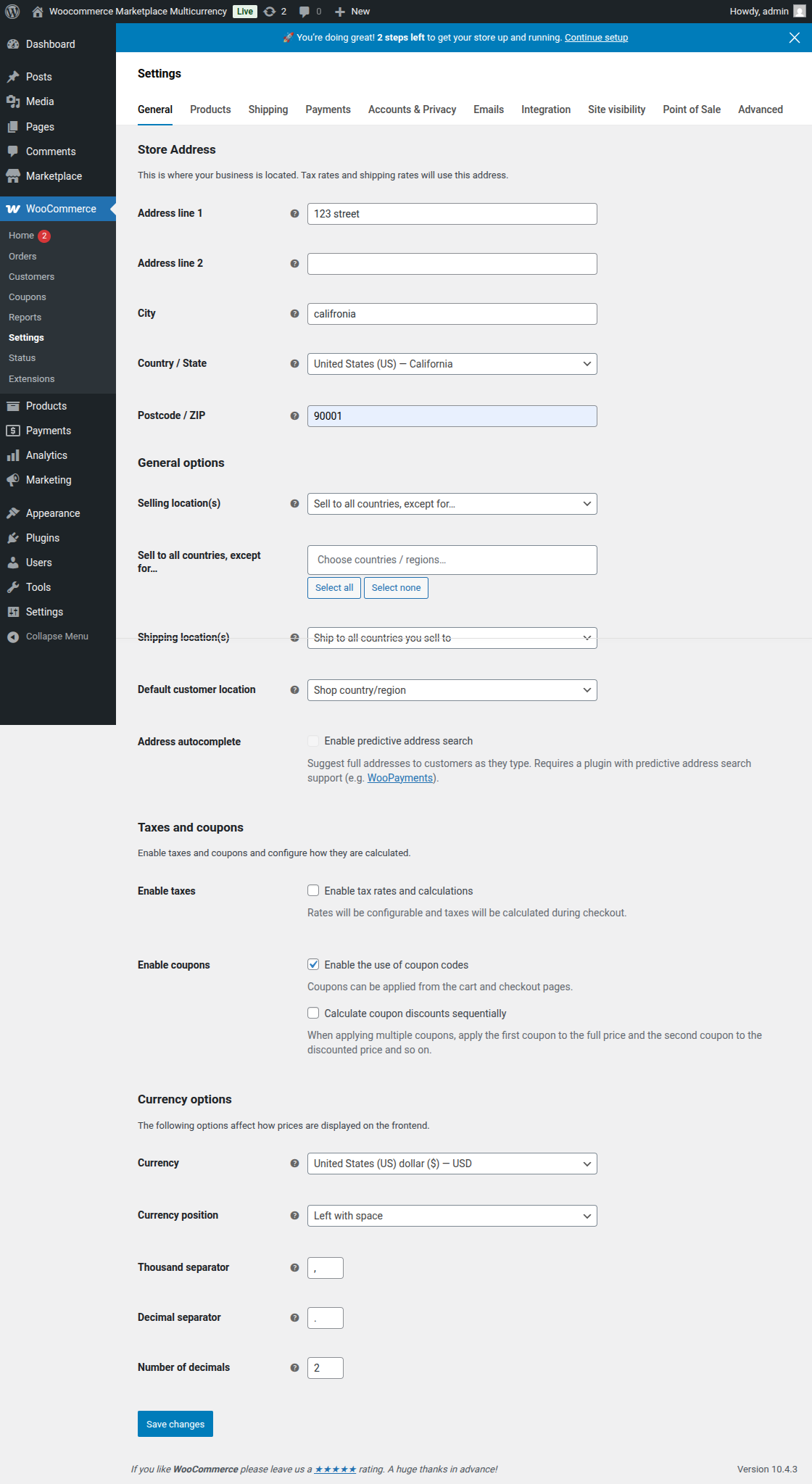
Even, the admin can set any desired currency as the default currency from the “Currency options”. And accordingly, the admin will change the exchange rates for different currencies based on the new default currency.
The exchange rate calculation for different currencies will be based on the default currency for weight 1 always.
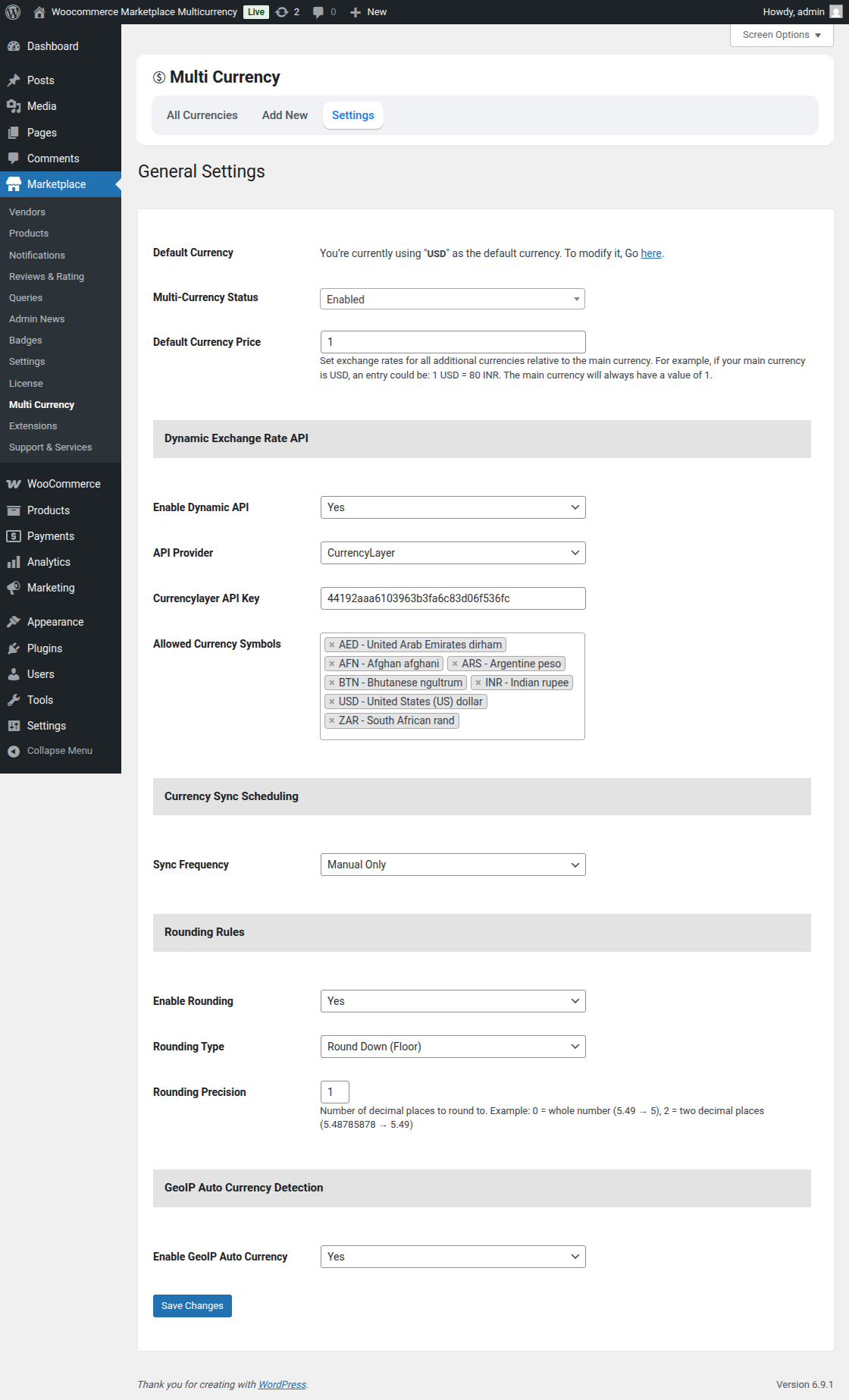
Dynamic Exchange Rate API
Enable Dynamic API
When enabled, the system automatically fetches live currency exchange rates from the selected API provider.
API Provider
The API Provider option allows the admin to choose the service from which live currency exchange rates.
The following API providers are available:
Fixer.io
A popular exchange rate service that provides real-time and historical currency data. Suitable for stores that require stable and widely supported currency rates.
Steps to generate API key:
Visit the official website:
https://fixer.io
Click on Sign Up.
Create an account using your email address.
After logging in, go to the Dashboard.
Copy the API Access Key displayed in your account panel.
Note: Free plans may have limited features such as HTTP-only access and fewer API calls. For production stores, upgrading to a paid plan is recommended.
ExchangeRate-API
A lightweight and fast exchange rate service offering simple integration and reliable currency conversion data.
Steps to generate API key:
Visit the official website:
https://www.exchangerate-api.com
Click on Get Free Key.
Register with your email address.
Once registration is complete, log in to your dashboard.
Copy the generated API Key.
Note: Free plans have request limits. For higher traffic stores, a paid plan is recommended.
CurrencyLayer
A robust and widely used currency conversion API that provides real-time exchange rates with high accuracy. It is commonly recommended for production environments.
Steps to generate API key:
Visit the official website:
https://currencylayer.com
Click on Sign Up Free.
Create an account and verify your email.
Log in to the dashboard.
Copy the API Access Key shown in your account section.
Recommendation: For live WooCommerce stores, use a paid plan to access HTTPS, real-time data, and advanced features.
CurrencyAPI
A modern exchange rate API offering real-time data with extensive currency support and developer-friendly features.
Steps to generate API key:
Visit the official website:
https://currencyapi.com
Click on Sign Up.
Create an account and log in.
Navigate to the Dashboard.
Copy your API Key.
Note: Free plans are suitable for testing, but production stores should consider upgrading for higher request limits.
Note: After selecting an API provider, make sure to enter the corresponding API Key to authenticate requests and enable successful rate synchronization.
Choosing the right API provider helps ensure consistent pricing, smooth currency updates, and a better experience for customers shopping in different currencies.
Allowed Currency Symbols
Here, you can select the currencies you want to support.
Currency Sync Scheduling
The Currency Sync Scheduling option controls how often the updates currency exchange rates from the selected API provider.
Sync Frequency Options:
-
Manual Only
Exchange rates are updated only when the admin manually triggers the sync. This option is ideal if you want full control over when rates are refreshed. -
Hourly
Currency rates are automatically synchronized every hour. Recommended for stores with frequent international transactions and price-sensitive products. -
Twice Daily
Exchange rates are updated two times a day, offering a balance between accuracy and server performance. -
Daily
Rates are synchronized once per day. Suitable for stores where currency fluctuations do not need near real-time updates.Rounding Rules
Enable Rounding
Turn this option on to apply rounding to converted prices, ensuring cleaner and more user-friendly pricing.Rounding Type
Choose how prices should be rounded:-
Round Down (Floor): Always rounds the price down to the specified precision.
Rounding Precision
Define the number of decimal places to round to.-
Example:
-
0→ Whole numbers (5.49 → 5) -
2→ Two decimal places (5.4878 → 5.49)
-
This helps maintain consistent pricing across currencies.
-
GeoIP Auto Currency Detection
Enable GeoIP Auto Currency
When enabled, the system automatically detects a customer’s location using GeoIP and displays prices in their local currency.
Frontend
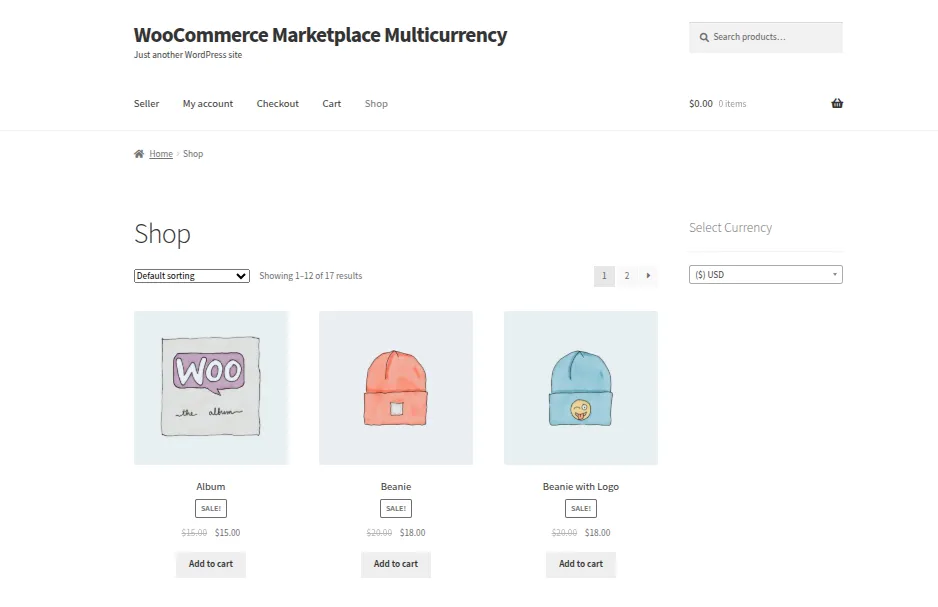
The store website displays the prices in the default currency. The customers can select in which currency they would like to see the prices from the available drop-down list as per the image.
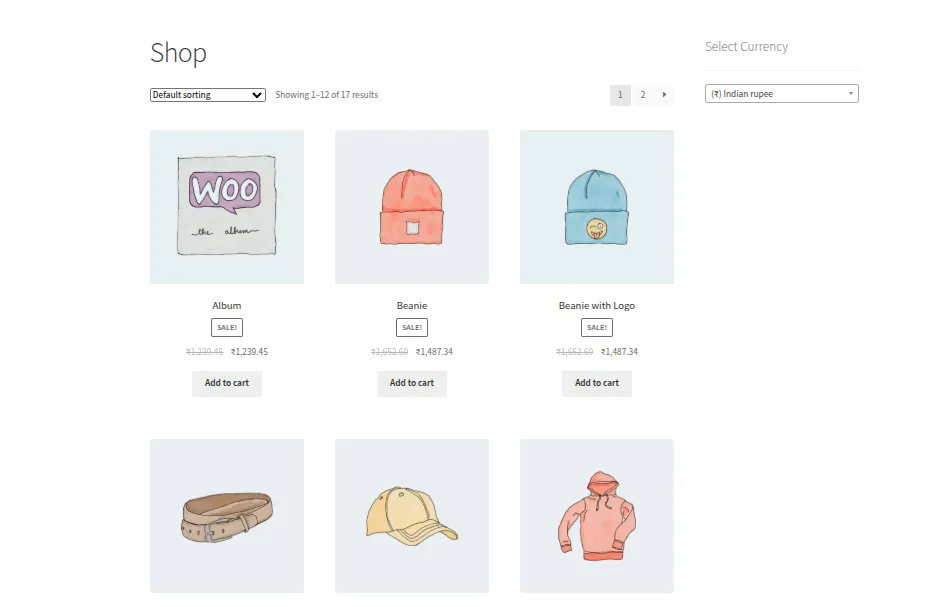
The store website will then displays the prices in the selected currency as per the image.
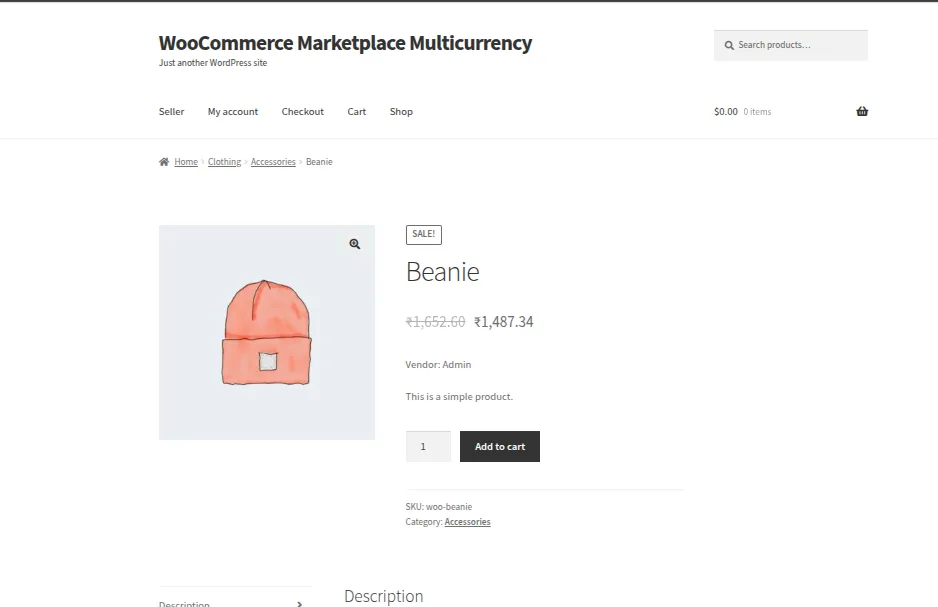
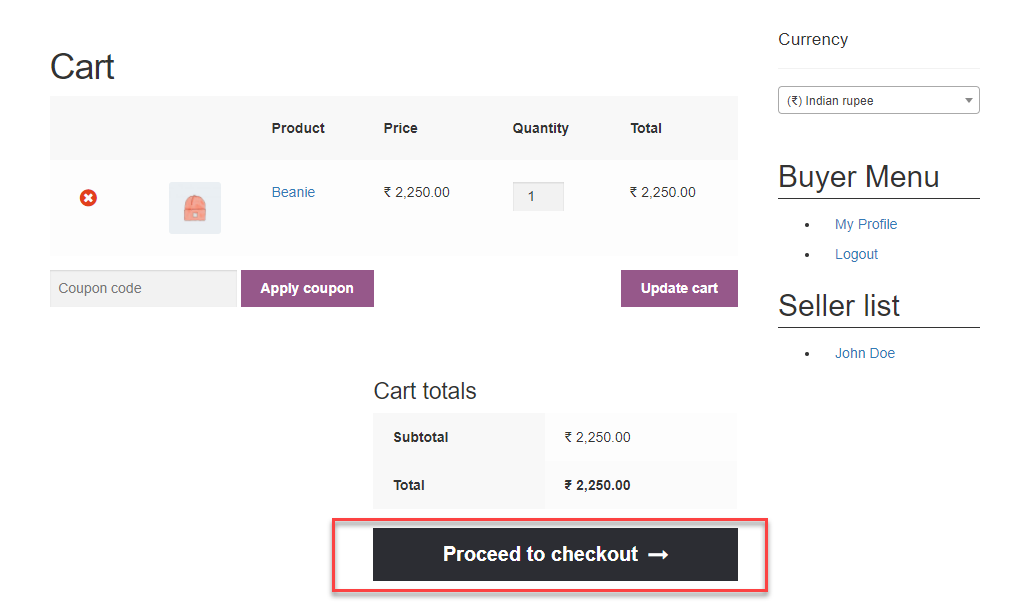
The customers can purchase an item and complete the transactions in selected currency also. For this, the customer will select a product and add it to the cart as per the image.
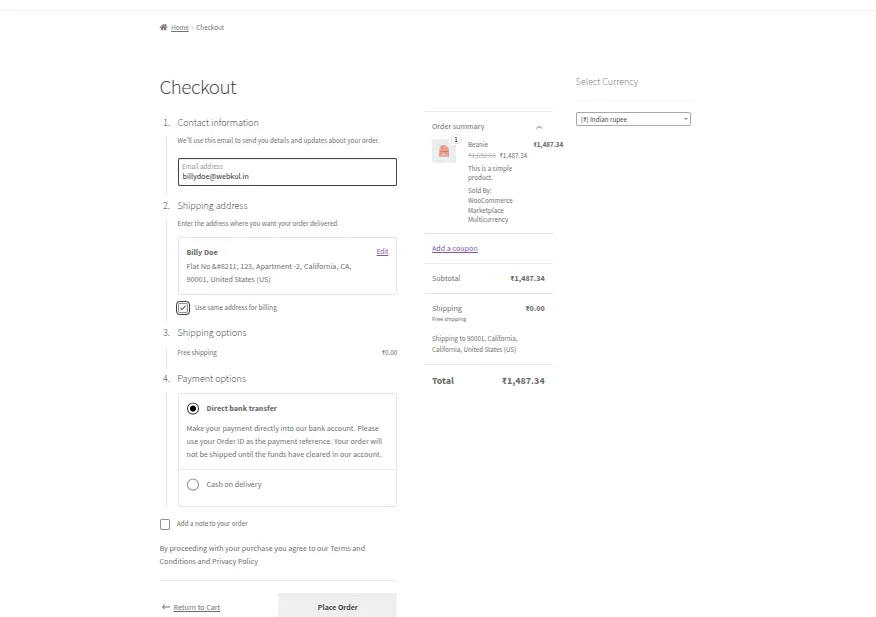
After this, the customer can proceed to checkout as per the image.
And then will place the order as per the image.
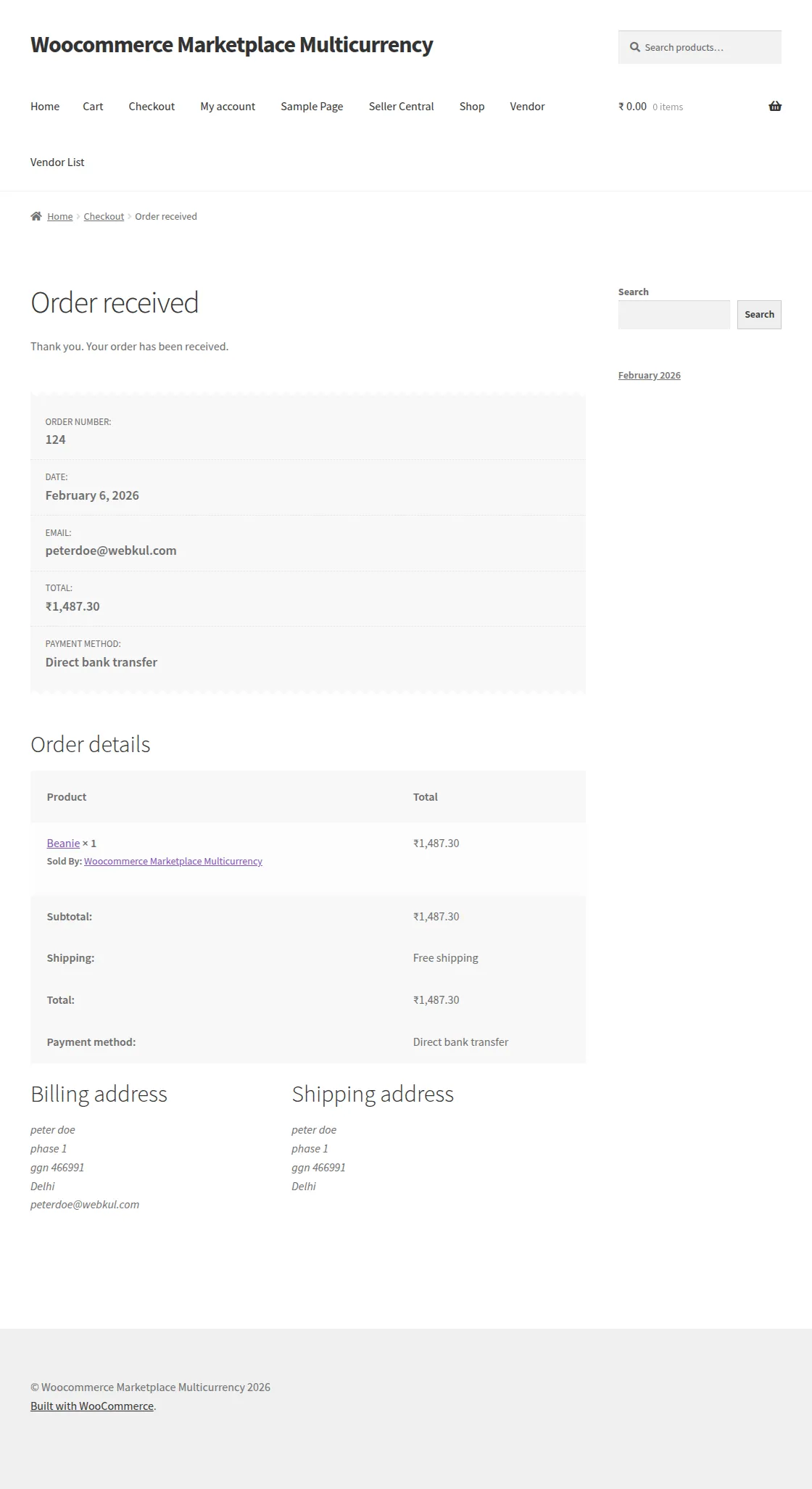
 shoppers can see the order price in the selected currency on the “Order Received” page as per the image.
At the frontend, the multi-currency widget will work on:
- Product catalog page
- Product page
- Cart page
- Checkout page
Seller Management
The seller can see a tab Multi-Currency in the seller panel as per the image.
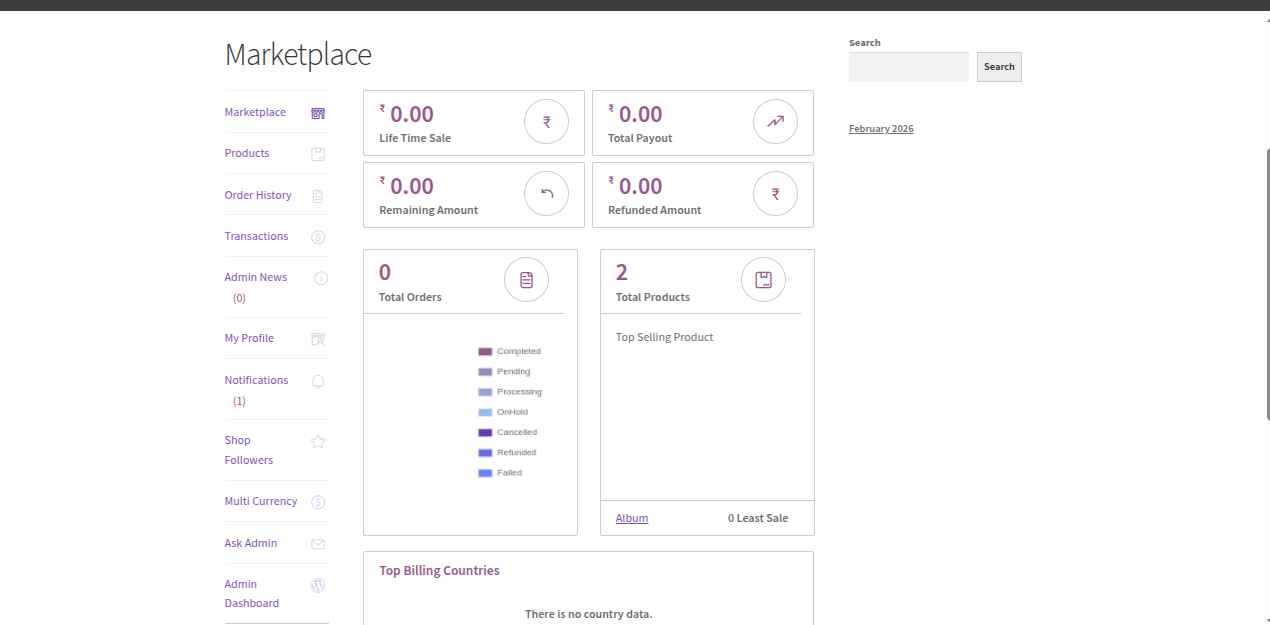
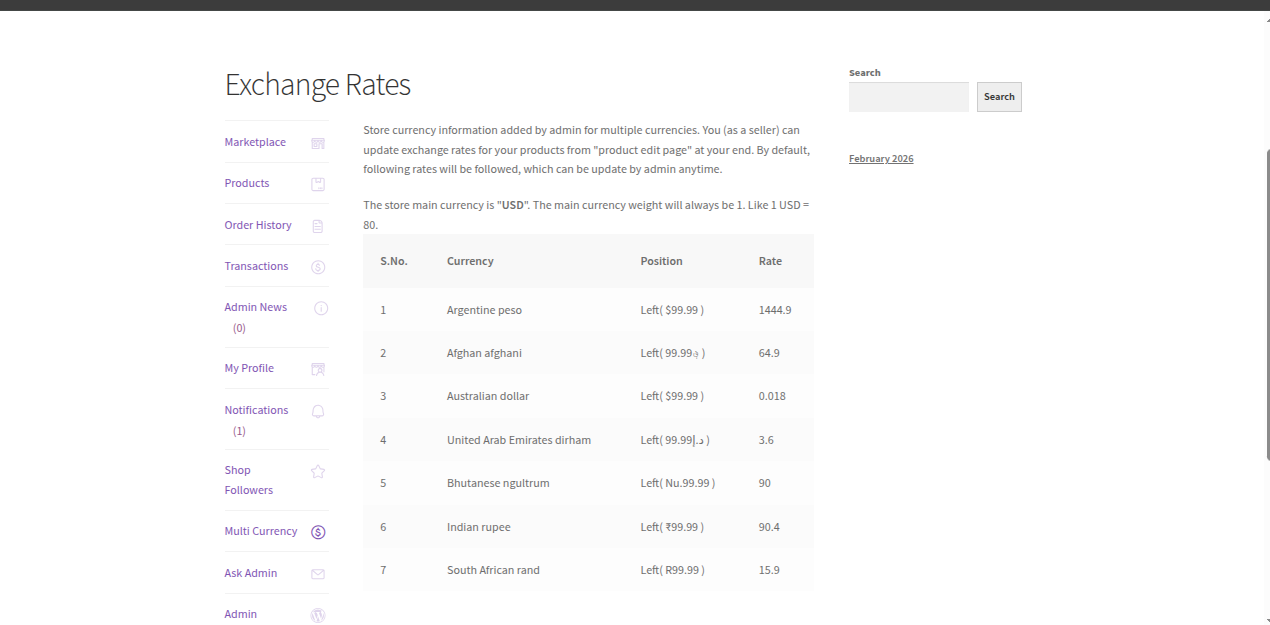
The seller can view the store currency information added by the admin by clicking on the Multi Currency option as per the image.
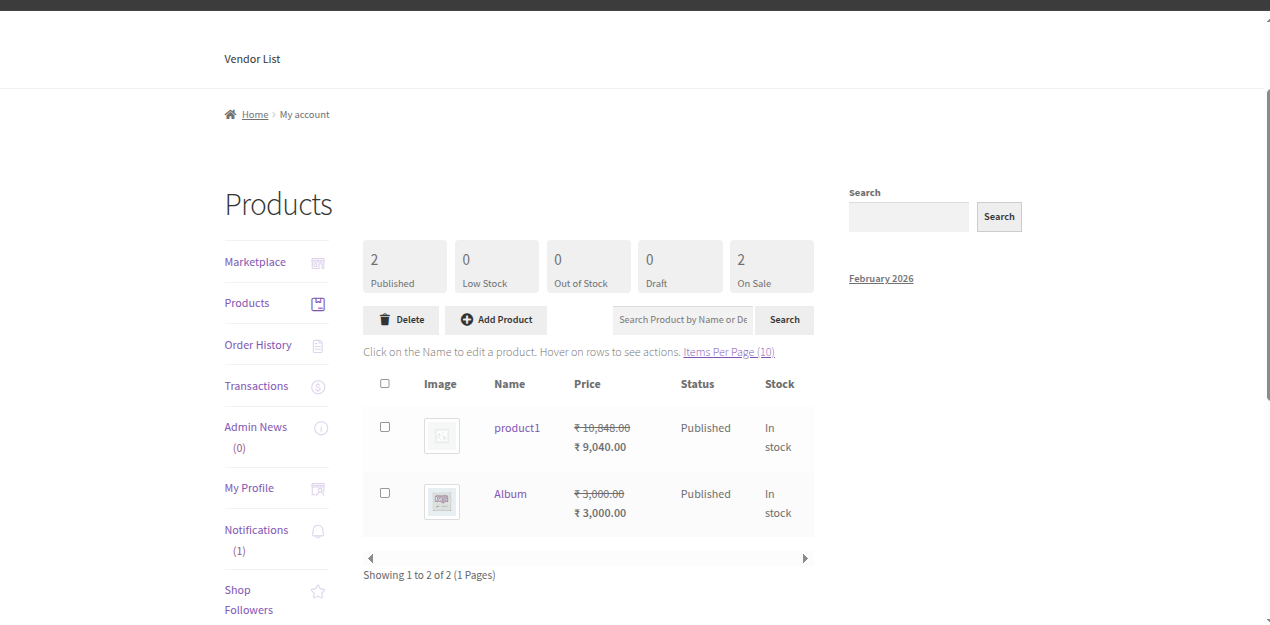
The sellers can set the exchange rate equivalent to the base currency for their product only. The seller can update the exchange rates for the products from “Product Edit Page” from their seller panel. For this, the sellers first select the product from the product list page for which they want to set the exchange rate.
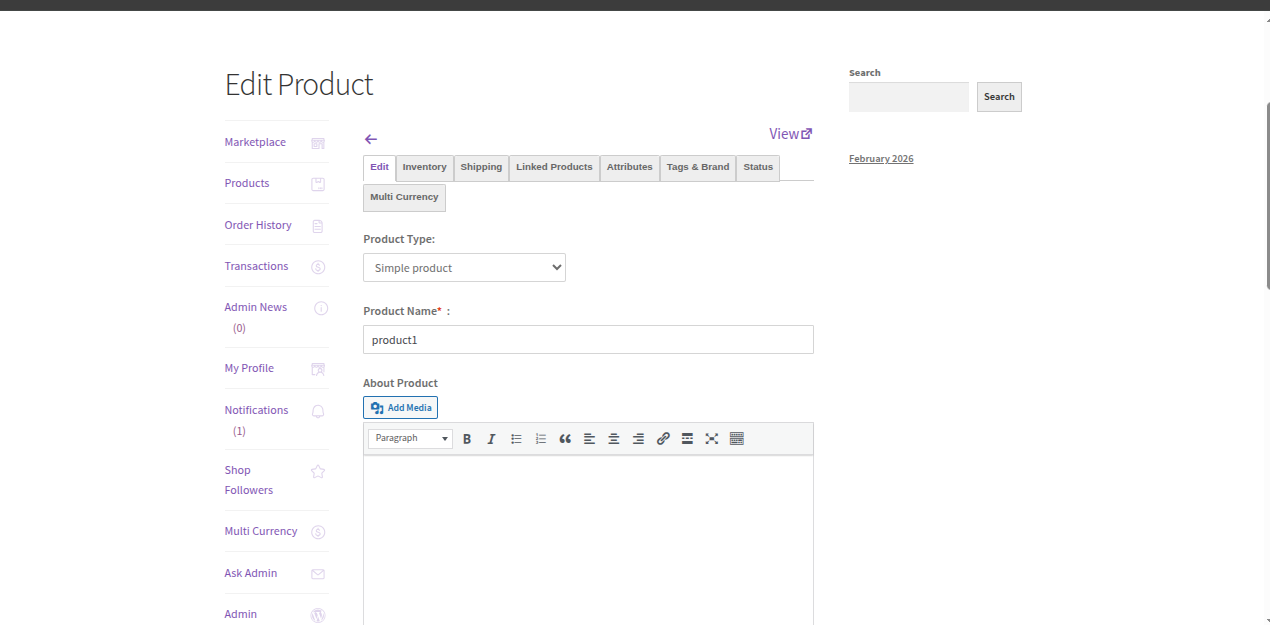
On the product edit page, the seller can see the Multi Currency tab as per the image.
The seller will see the currency exchange rate fields when clicking on the Multi Currency tab as per the image.
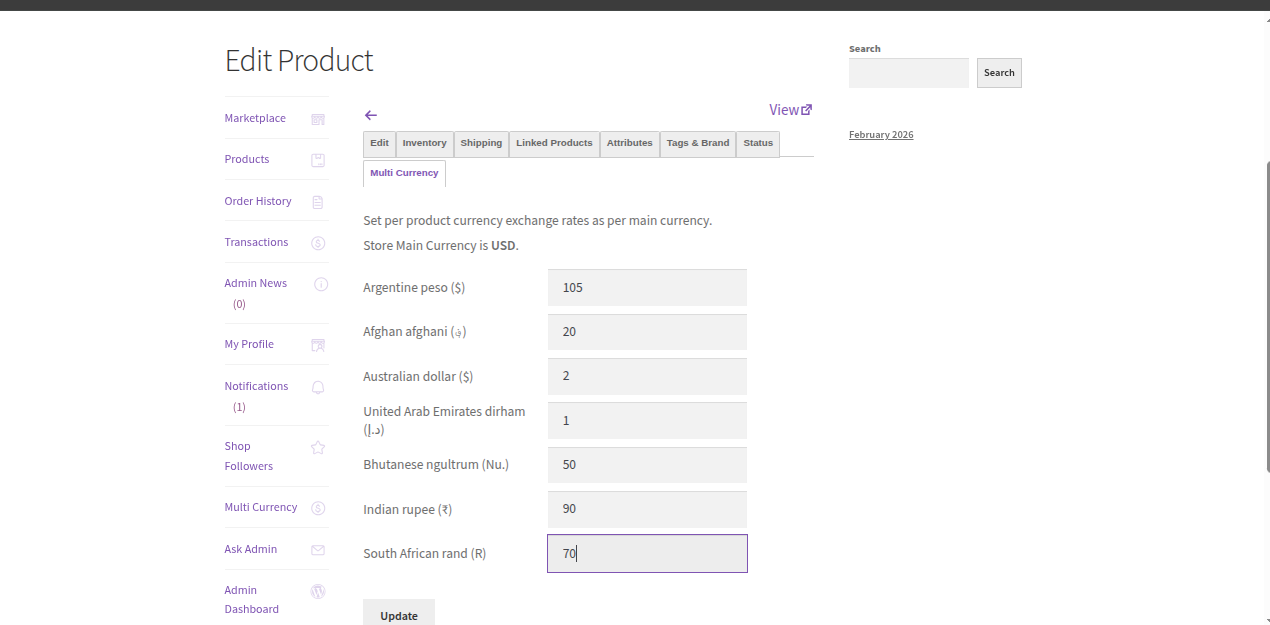
Here, the seller will set the exchange rate equivalent to the base currency.
Store website display products price in the default store currency. For product “Hoddie” price value in USD is $100.

The default Indian exchange rate has been set as Rs 45 for $1. Therefore, product price in the Indian currency before updating the exchange rate equivalent to the base currency for the product “Hoddie” is Rs 4,500.

The seller has changed the exchange rate to Rs 40 for $1. Therefore, product price in the Indian currency after updating the exchange rate equivalent to the base currency for the product “Hoddie” is Rs 4,000.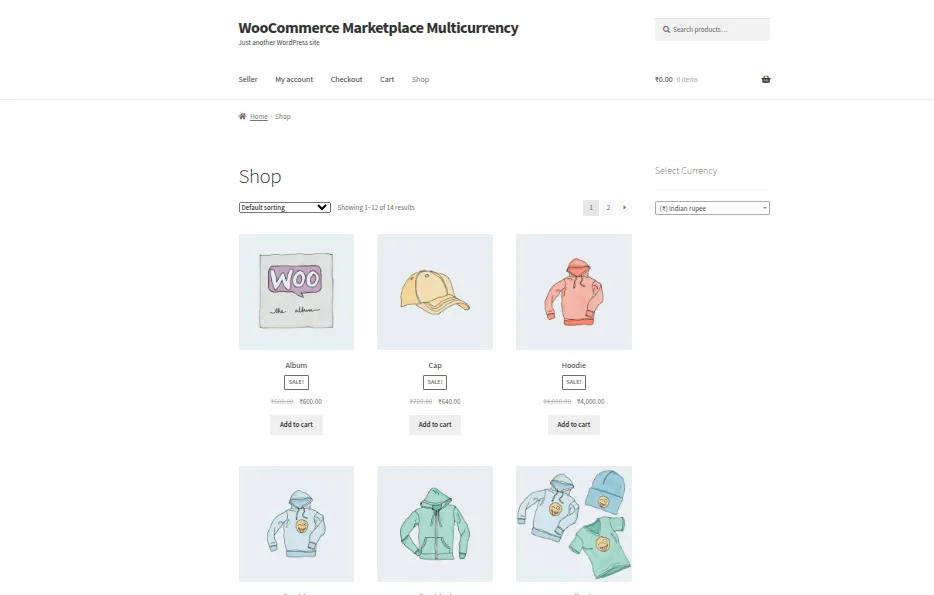
Note – You can also use the WooCommerce Marketplace Square Payment gateway to complete the payment in multicurrency.
Per Product Exchange Rate
Just like sellers, the admin can set the per product exchange rate equivalent to the base currency. The admin will update the exchange rates for the products from “Product Edit Page” from the admin panel. For this, the admin first selects the product from the product list page for which they want to set the exchange rate. On the product edit page, the admin can see the Multi Currency tab as per the image.

The admin will see the currency exchange rate fields when clicking on the Multi Currency tab as per the image.

Here, the admin will set the exchange rate equivalent to the base currency.
Exchange Rates Synchronisation
This plugin synchronizes the exchange rates on both ends ie; the admin end and the seller end.
CASE: 1
Suppose there is a product “Hoddie” whose price value in USD is $100 and the Indian exchange rate has been set as Rs 45 for $1. Therefore, the price value in Indian rupee is Rs 4,500.

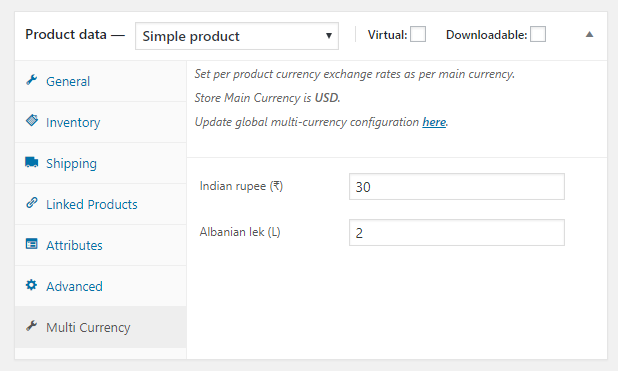
Now the admin has changed the Indian exchange rates for this sellers’ product to Rs 40 for $1 as per the image. So, the price value of this product in Indian rupee should become 40*100 = Rs 4,000.

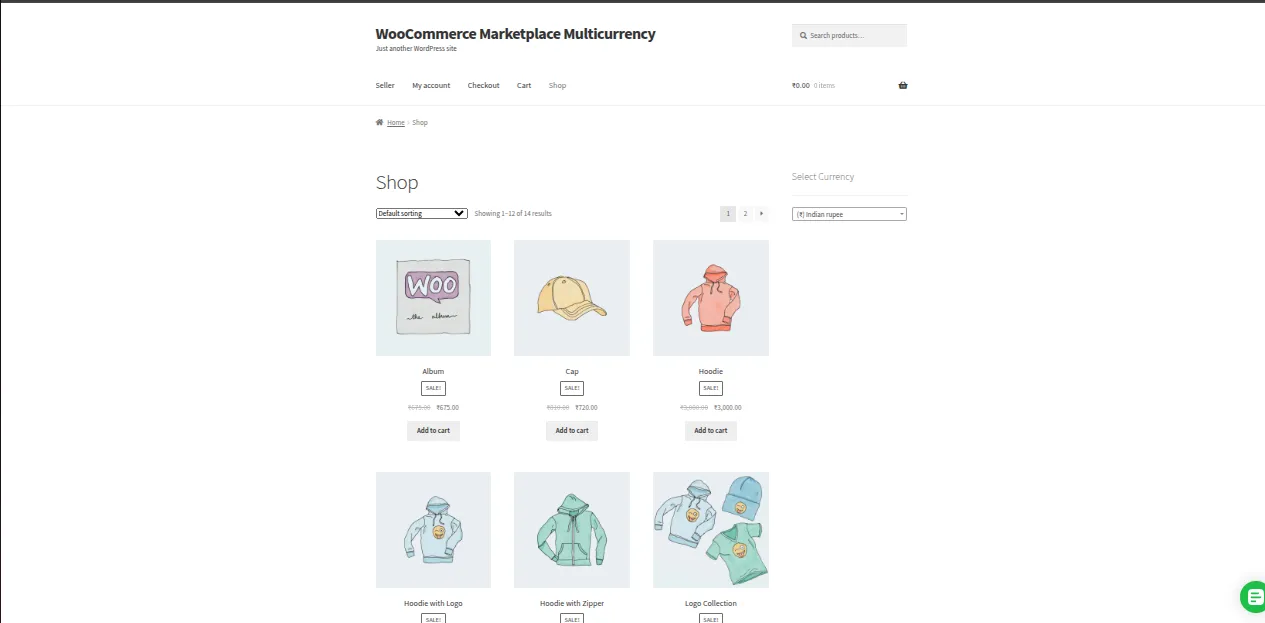
On the other hand, the seller also has updated the exchange rates for the same product to Rs 30 for $1. So, the price value of this product in Indian rupee should become 30*100 = Rs 3,000.

Now, in this case, last updated exchange rates will be displayed on the front end for that particular product. If the latest updations for the exchange rates made by the seller, then the exchange rate value will also be updated on the admin end automatically as per the below image.
And displayed on the frontend as well.
CASE: 2
Suppose the admin has set the default exchange rate value of Indian currency to Rs 45 for $1.
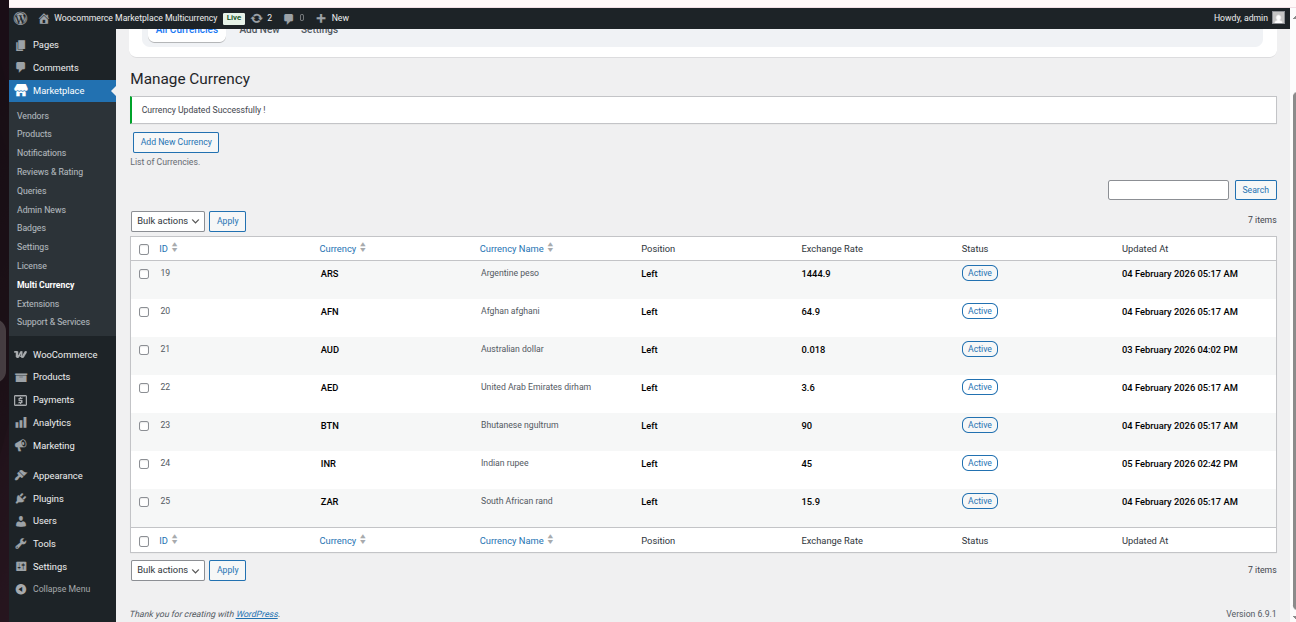
Now there is a product “Belt” whose price value in USD is $50 and the default Indian exchange rate has been set as Rs 45 for $1. Therefore, the price value in Indian rupee is Rs 2,250.

On the other hand, the admin also has updated the exchange rates for this product to Rs 20 for $1. So, the price value of this product in Indian rupee should become 20*50 = Rs 1,000.
Now, in this case per product exchange rates will be displayed on the front end for that particular product.

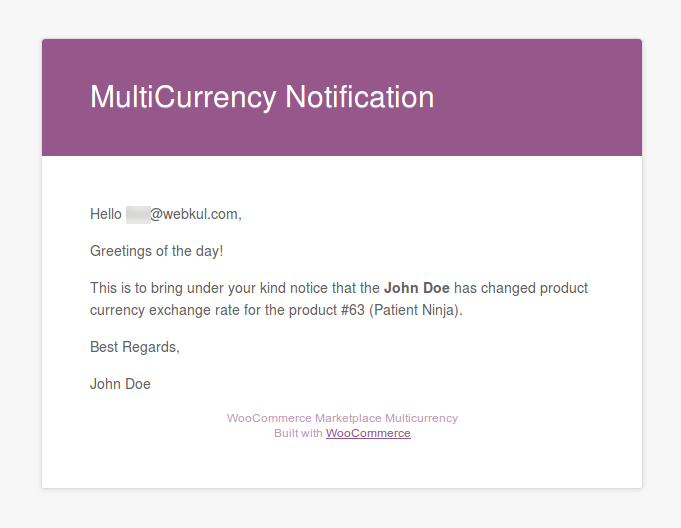
Email Notifications
This plugin also has email notifications feature.
- An email will be sent to the seller if the admin updates the currency exchange rate of the sellers’ products.

- An email will be sent to the admin if the sellers update the currency exchange rate of their products.
That’s all for the WordPress WooCommerce Marketplace Multi-Currency plugin. Still, have any issue, feel free to add a ticket and let us know your views to make the plugin better at webkul.uvdesk.com
Current Product Version - 1.3.0
Supported Framework Version - Wordpress Version: 6.9.0 WooCommerce Version: 10.4.0

Be the first to comment.