Opencart Marketplace Split Order add-on splits a single order into multiple order IDs, ensuring separate orders for different sellers’ products.
After adding products from different sellers in the shopping cart, the customers can select their preferred shipping and payment methods.
Once completing the checkout process, different orders IDs will be created automatically.
The customers can view separate order IDs from their Order History section. The order will be divided into distinct order IDs according to the number of sellers/admin(if admin’s products are also included) in the shopping cart.
Split Order helps in better management of the orders for both sellers and the customers.
Please note: – Split Order is an add-on for the Marketplace module for Opencart. Please install the Marketplace module first in order to use this add-on.
Note:
1. This module supports all templates and themes including the Journal theme.
2. Opencart Marketplace Split Order supports the Multi-Store feature of default Opencart.
Watch the below video tutorial to understand the plugin workflow –
Features
- Separate order IDs are created for different sellers automatically after placing the order.
- The customers can view detailed information about the separate order IDs from the Order History section.
- Order management for multiple sellers products becomes convenient for both customers and sellers.
- The source code of Split Order add-on is open for customization.
- The customers can view each order ID status separately for different seller’s products.
- Different order IDs benefit the customers and sellers at the time of handling return, refund, and exchange.
- Marketplace Split Order add-on supports multiple language translations.
Installation
Extract the downloaded zip file and then select the correct Opencart Version Folder according to your Opencart Software Version. Please view the screenshot below. After opening the correct Opencart Version folder, you need to upload admin and catalog folders to the root directory of Opencart.

Now login to your admin section and upload the XML file, this file is in the ocmod folder as shown in the upper screenshot. Please select the correct ocmod folder according to your Opencart version.
Click the Upload button and browse the file, and then click Continue.
Also, after Uploading the XML file, please navigate through Extensions->Modifications->Modification List. Now click the Refresh button as shown in the below screenshot. Once you have refreshed the modification cache you will get a success notification message on top.

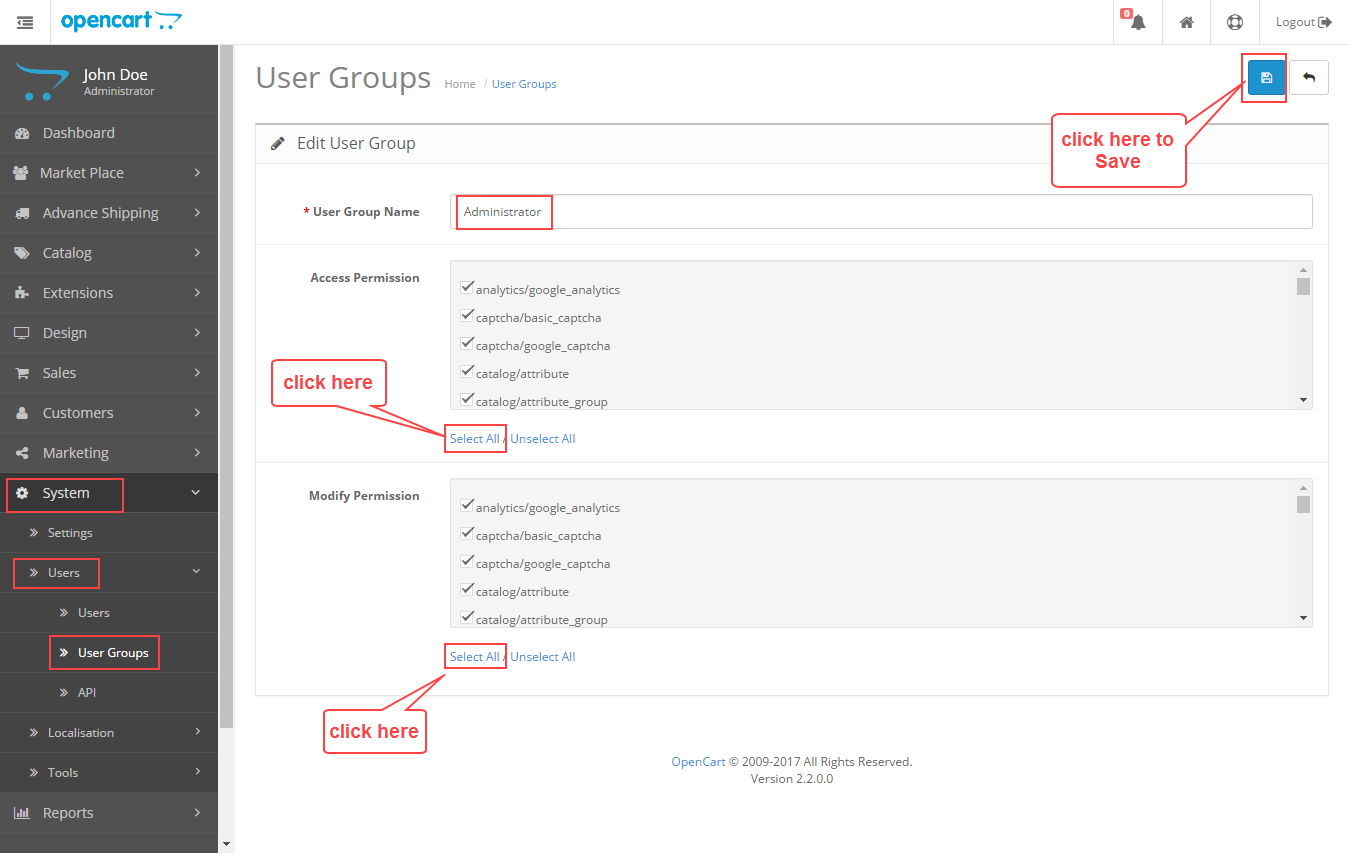
After that go to System->Users->Usergroup and edit ‘Administrator’ and click Select All for both Access Permission and Modify Permission and Save it.
Now navigate through Extensions->Modules->Marketplace->Module List and find Marketplace – Split Order from the list. Click the Install button as shown in the screenshot below.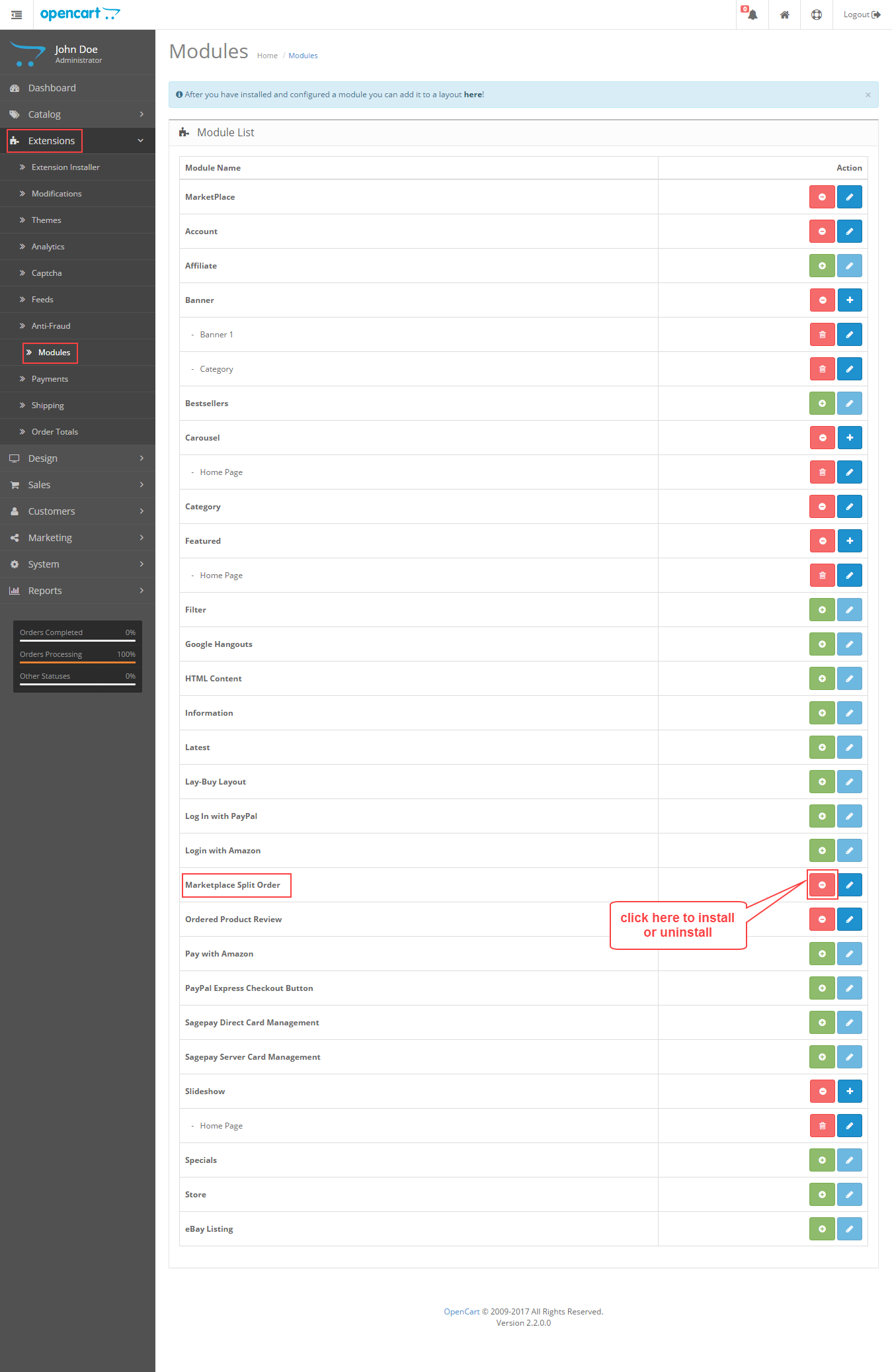
Module Translation
Marketplace Split Order add-on supports multiple languages, please click here to read about Opencart language installation and translation.
Admin Configuration
After installing this module, navigate through Extensions -> Modules -> Marketplace-> Module List. Click the Edit button to configure this module.
As the admin clicks on the Edit button, it redirects the admin to the Edit Marketplace Split Order page as shown in the image below.
The admin can set the module status as Enable, choose shipping and payment methods on this page.

Also, the admin sets the configurations as under:
Status: The admin can enable or disable the status of the module.
Select the Allowed Shipping Methods: The admin may choose the desired shipping methods from the list.
Select the Allowed Payment Methods: The admin may choose payment methods from the given list.
Customer Front-End View
After enabling this module, the customers can now add products from different sellers to their shopping cart.
The customers can view information about the added products such as product name, seller name, quantity, prices, and total in the shopping cart.
Also, the customer can proceed towards the checkout process for selecting the preferred shipping and payment methods.

In the checkout process, after entering the billing and delivery details, the customer can select any one of the Shipping Methods available on the screen.
The selected shipping method will be used for every product in the shopping cart.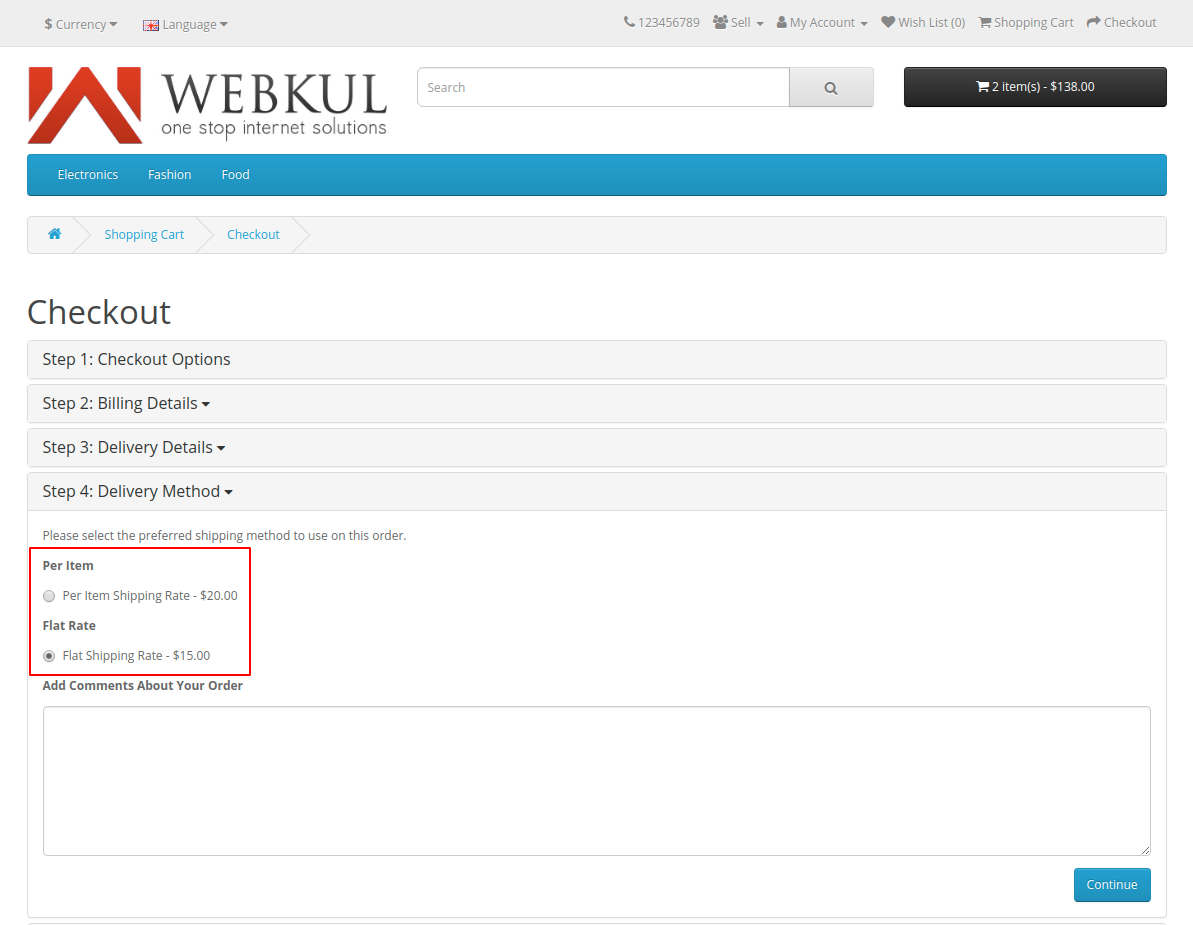
Now the customer can select the preferred Payment Method for all the products, and then click Continue.

At the Confirm Order step, the customers will see the total cost of all the products with shipping charges calculated accordingly. To place this order click on the Confirm button as shown below.

The confirmation message will appear once the order has been confirmed successfully.

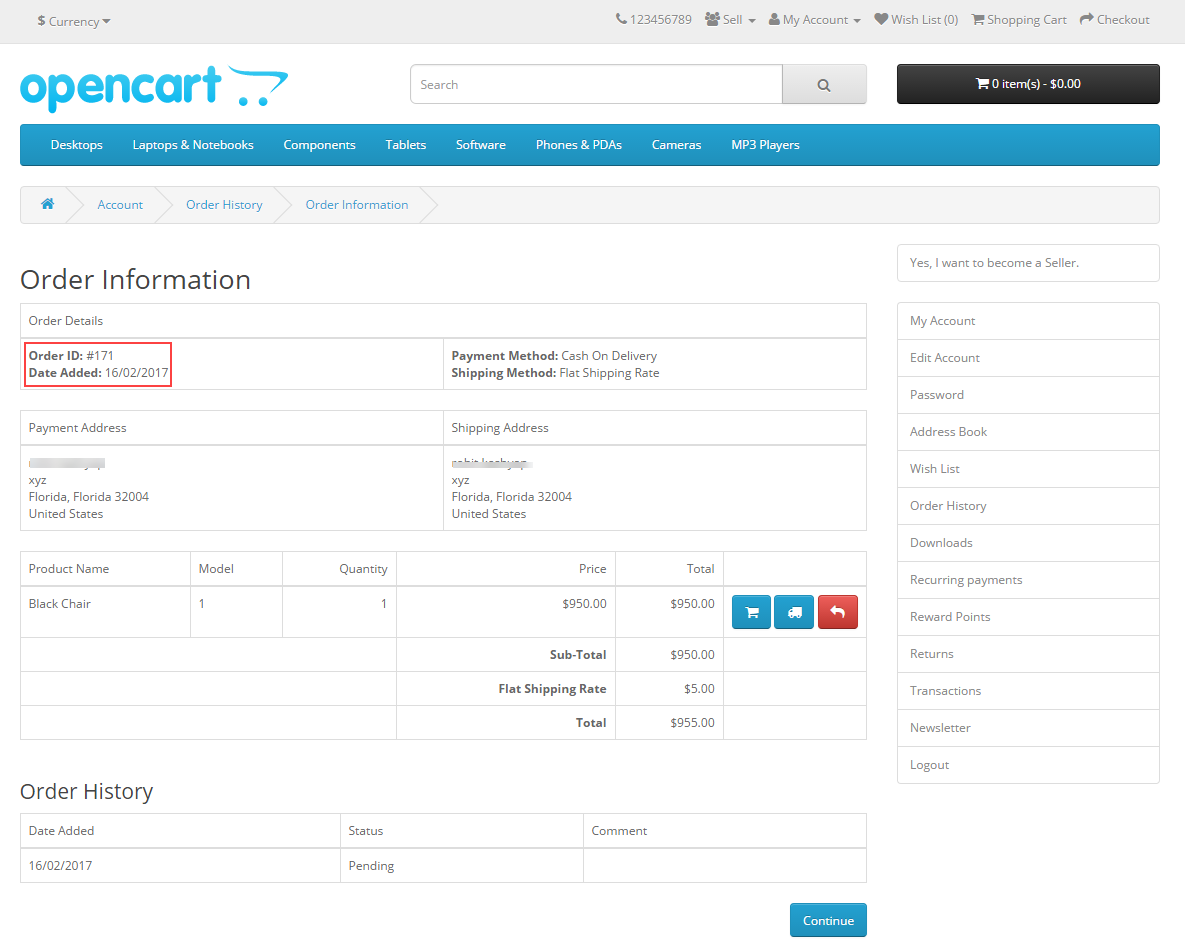
The customers can view information about their split order from My Account->Order History section. Every seller will be having a separate Order ID, click the View button to see more information about each split order created.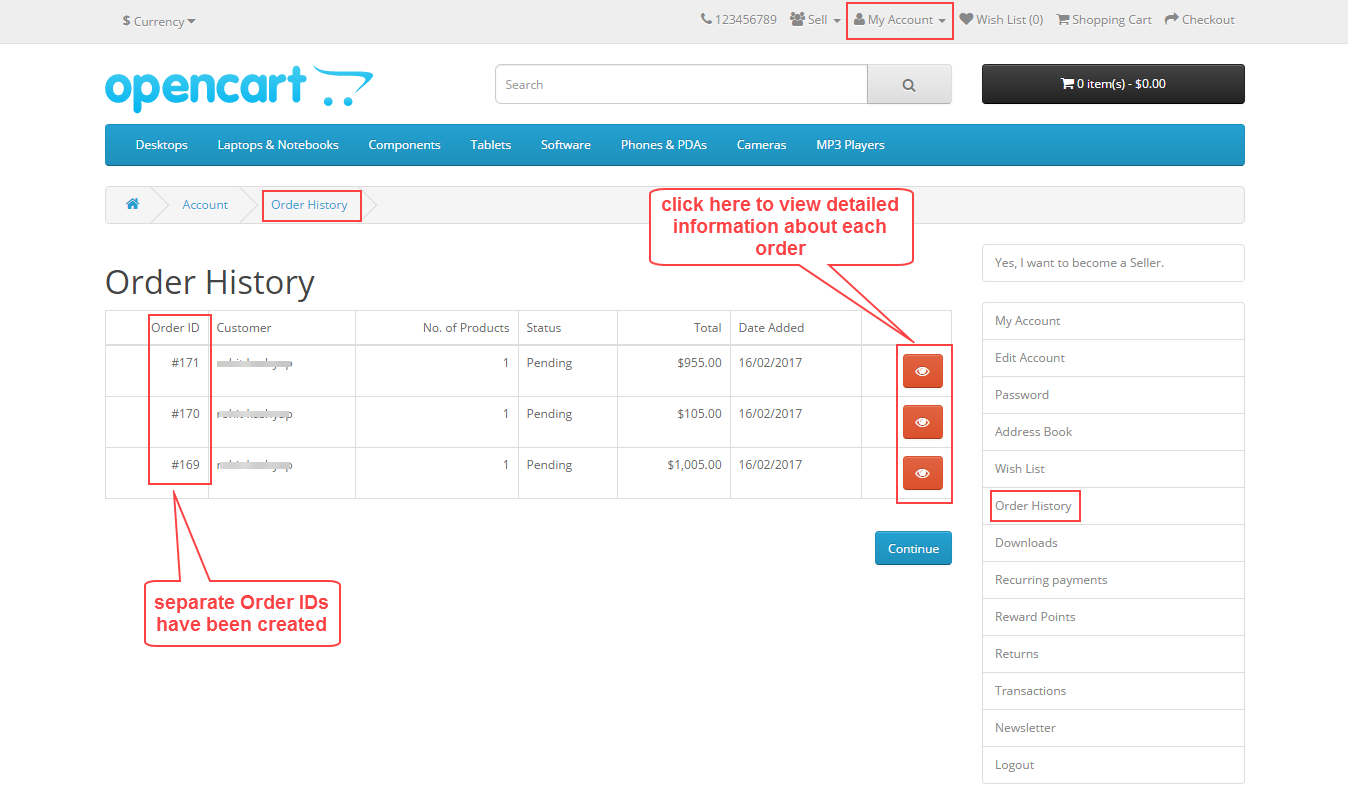
Here is the sample of separate split orders created below:
#169

#170

#171
Seller Front-End View
The sellers can view the separate order IDs from Order History section. Here are the sample orders for 3 different sellers.
#169
 #170
#170

#171
Admin back-end View
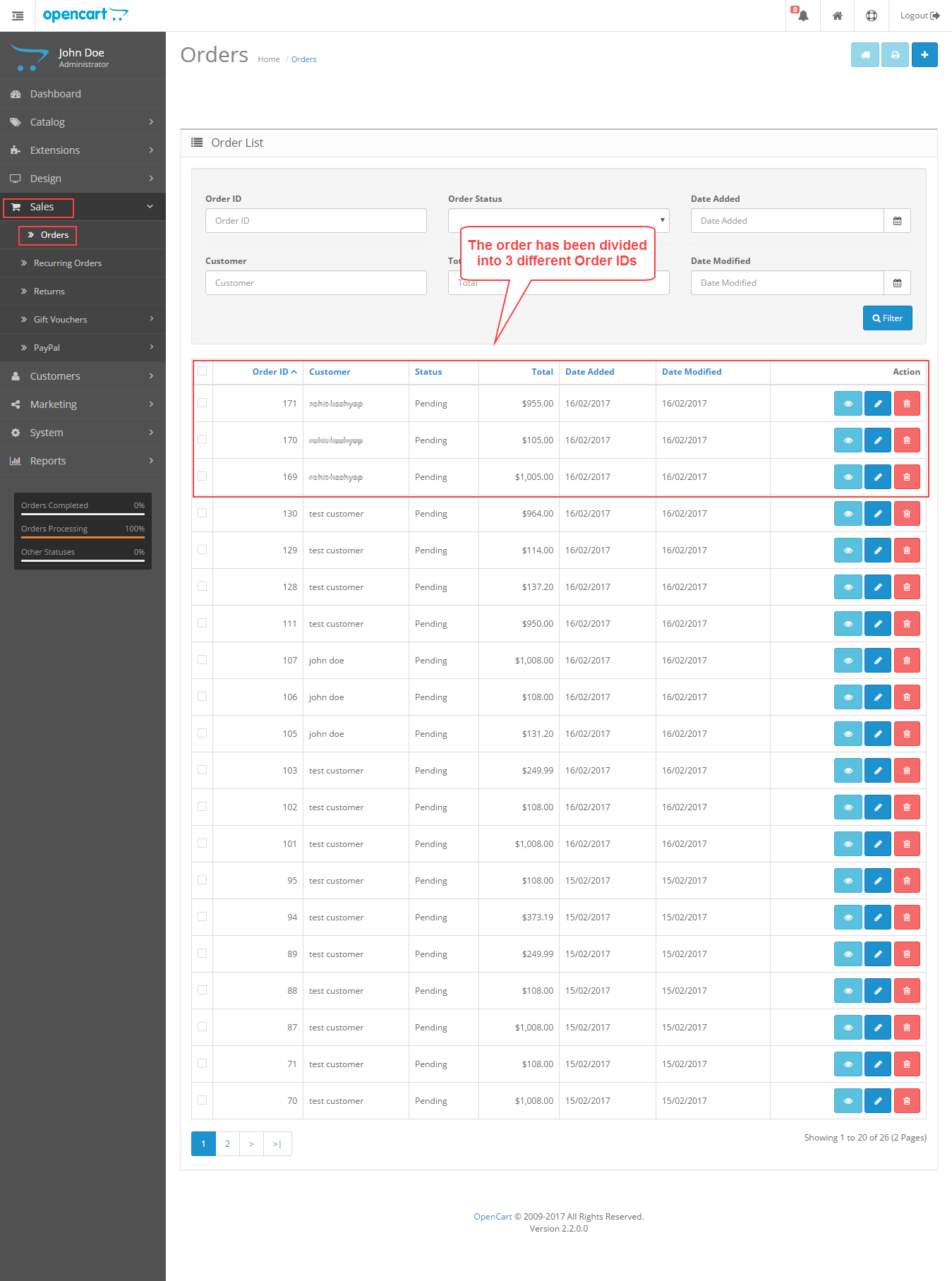
The admin can view the different orders created by navigating through Sales -> Orders -> Order List. From the screenshot below, you can see that there are 3 different Order IDs have been created – #169, #170 and #171.
Thank you for viewing this blog, if have any further queries or require more information please feel free to contact us at – https://webkul.uvdesk.com/.
Current Product Version - 3.1.1.8
Supported Framework Version - 3.x.x.x

Be the first to comment.