This PrestaShop Buy One Get One module lets you run “buy this, get that” offers: free products, discounts, free shipping, and mix-and-match deals.
It works out who qualifies, adds the reward to the basket by itself, and shows the offer to customers on the shop.
How offer builts
Every offer is three pieces, created in this order:
| Step | Screen | Answers |
| 1 | Strategies | What kind of offer is it, when does it run, who is it for? |
| 2 | Rules | What must be in the basket for it to apply? |
| 3 | Rewards | What does the customer get? |
A strategy on its own does nothing. It needs at least one rule and one reward.
Two ways to build one:
- Setup Wizard — one guided flow that asks all three in order and saves them together. Use this to create an offer.
- Strategies / Rules / Rewards — the three screens below. Use these to edit an existing offer, or to add a second rule or reward to one.
Setup Wizard
BOGO → Buy and Get Offers → Setup Wizard
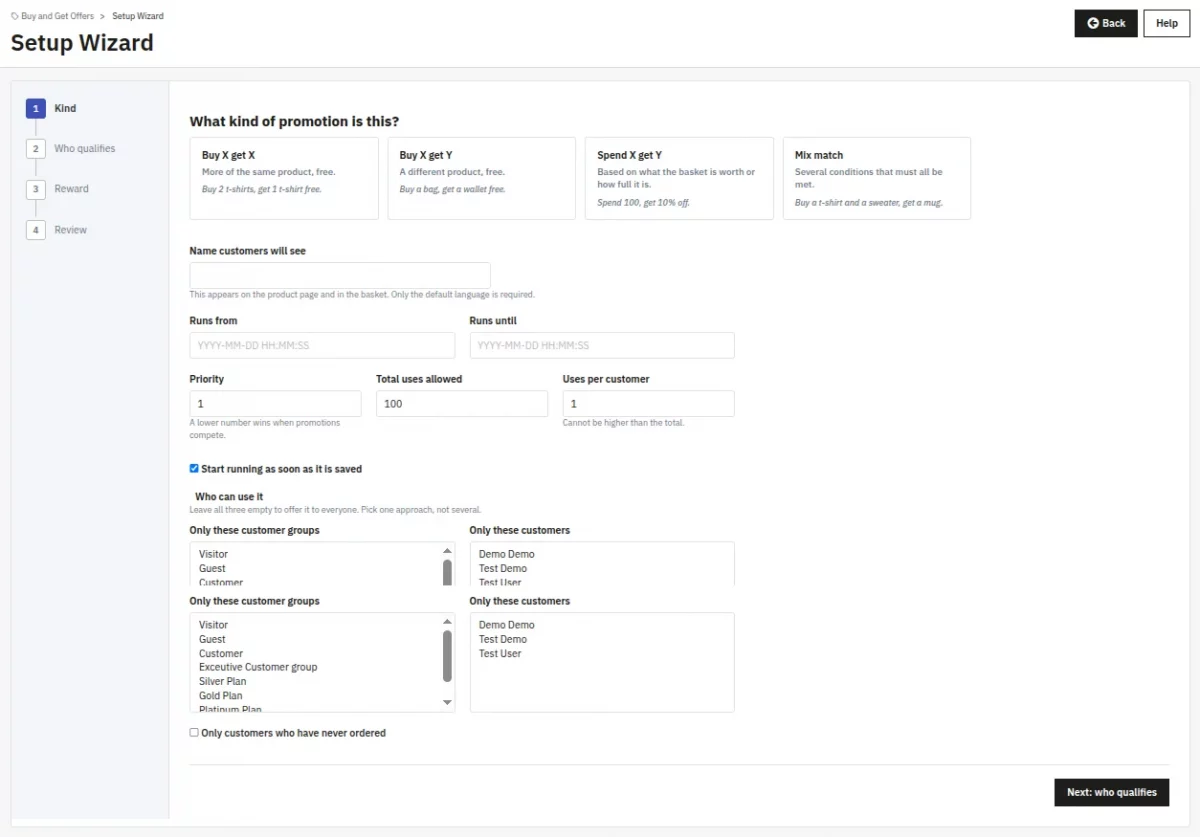
Four steps down the left. You cannot skip ahead past something unanswered — the wizard says what is missing and keeps you on that step.
| Step | What it asks |
| Kind | The promotion type, as four cards with an example each. Then the name customers will see, the dates, the status, the quantities, priority, usage limits, and who can use it. |
| Who qualifies | The rule. Only the rule types that make sense for the type you chose are offered. For Mix match, the condition builder appears instead. |
| Reward | What they get, as cards. Only the fields that reward type needs are shown — no gift product box on a percentage discount. |
| Review | The whole offer in one sentence, plus every field in a table with an Edit link per step. |
Save and close writes the strategy, the rule and the reward in one go.
If any of them is rejected, nothing is saved — you will not be left with a half-built offer — and the wizard reopens at the step that needs fixing with everything you typed still there.
The wizard saves exactly what the three screens save. An offer built either way is identical.
Configuration
BOGO → Buy and Get Offers → Configuration
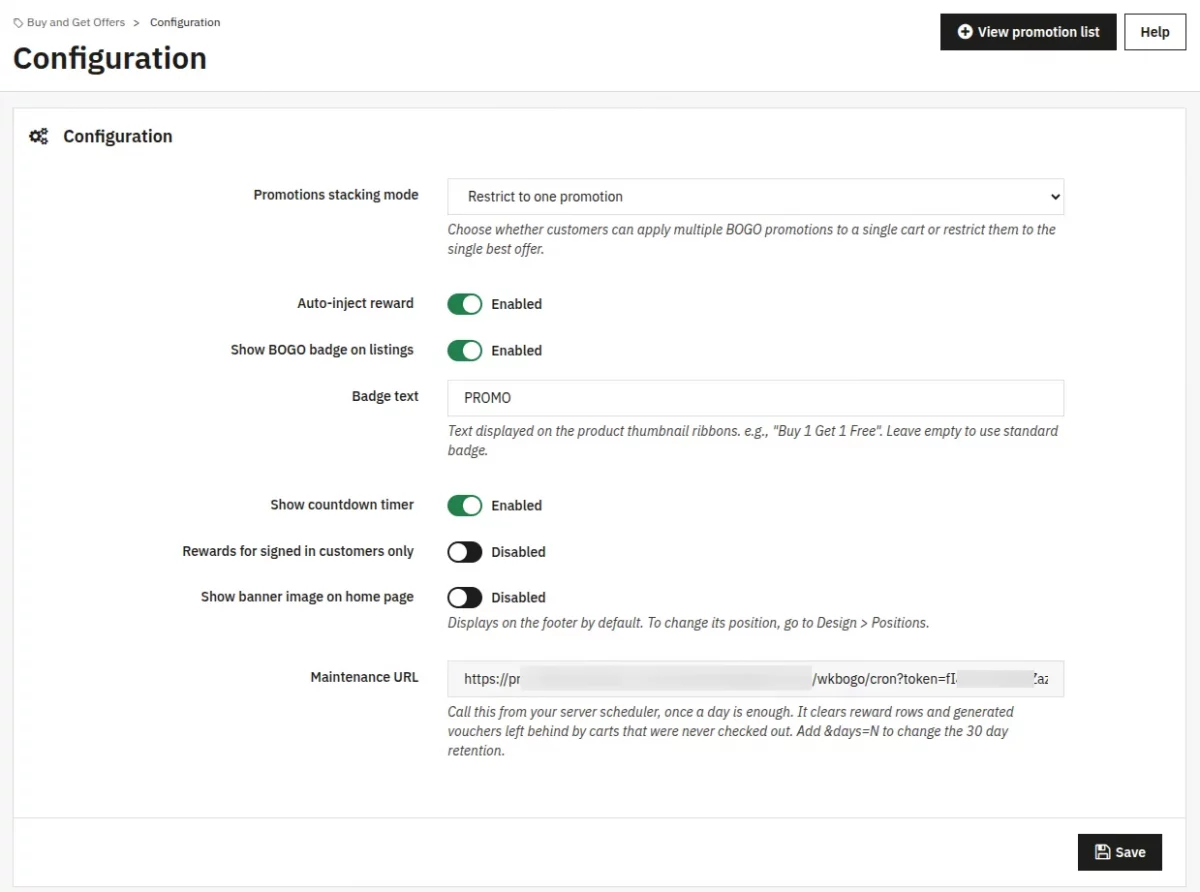
| Setting | What it does |
| Promotions stacking mode | Allow multiple promotions lets several offers apply to the same basket. Restrict to one promotion applies only one — and lets the customer pick which, when more than one is available on a product page. |
| Auto-inject reward | On: each reward follows its own “auto add” setting. Off: every reward waits for the customer to claim it. |
| Rewards for signed in customers only | On: guest baskets get no BOGO rewards, and any already held are cleared. Off (the default): guests are rewarded like anyone else. |
| Show BOGO badge on listings | Shows a small label on product thumbnails that are part of an offer. |
| Badge text | The wording on that label, per language. “PROMO” by default. |
| Show countdown timer | Shows how long an offer still has to run on the product page. Turning this off hides only the countdown — the offer details stay visible. |
| Show banner image on home page | Shows a promotional banner on the shop. Needs an image uploaded below. |
| Banner image | JPG, PNG or WEBP. Recommended 1200×300px. Use the delete link to remove it. |
| Maintenance URL | Read-only. The address your server scheduler should call once a day — see Keeping the shop tidy. Copy it as shown; it contains a secret token. |
Press Save after any change.
Strategies — the offer itself
BOGO → Buy and Get Offers → Strategies
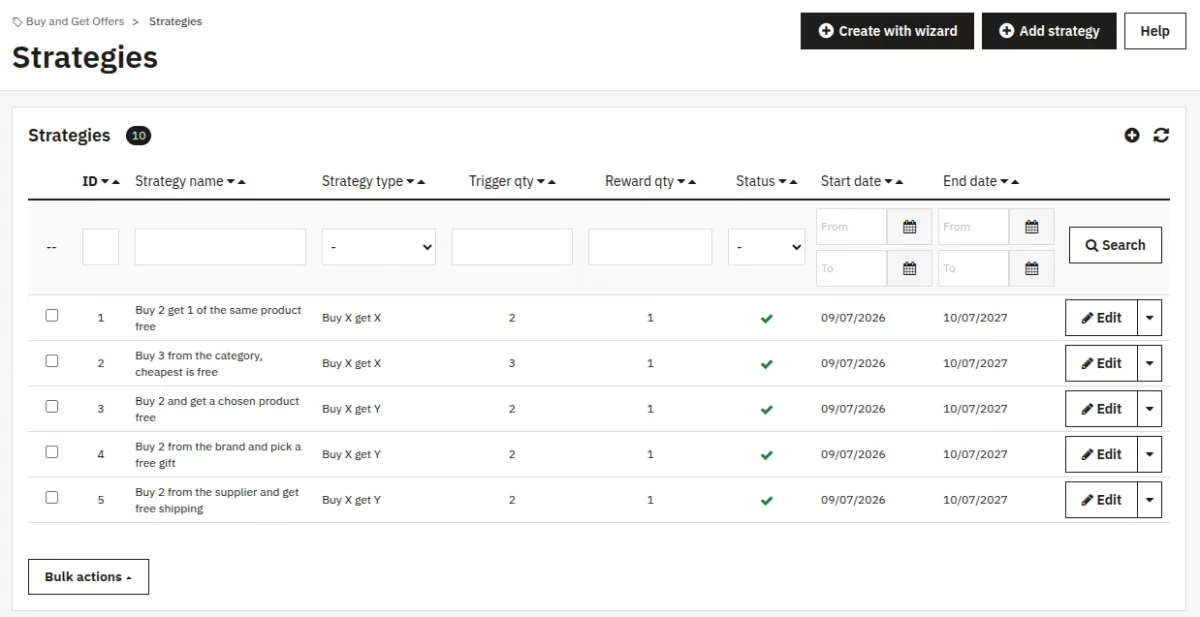
The list shows every offer with its type, quantities, status and dates. Use Add strategy to create one, or Edit on a row to change it.
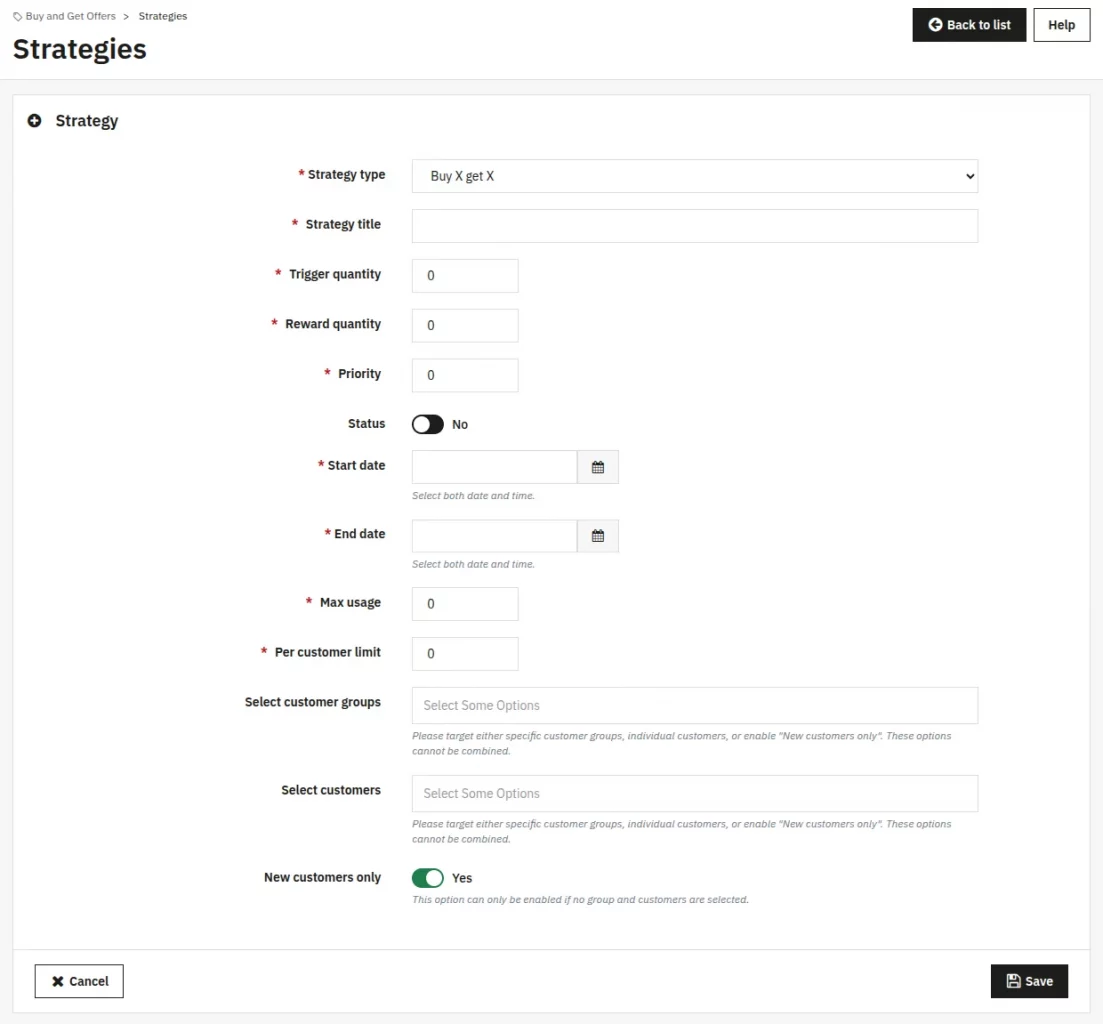
| Field | Meaning |
| Strategy type | Buy X get X — buy a product, get more of the same. Buy X get Y — buy one thing, get a different thing. Spend X get Y — based on basket total or basket size. Mix match — several conditions that must all be met. |
| Strategy title | The name the customer sees on the product page and in the basket. Per language. |
| Trigger quantity | How many items the customer must buy. |
| Reward quantity | How many items they get. |
| Priority | Used when offers compete and stacking is restricted. A lower number wins. |
| Status | Off means the offer is not running, whatever the dates say. |
| Start date / End date | The window the offer runs in. Outside it the offer is ignored completely — no reward, no badge. |
| Max usage | How many times the offer can be used across the whole shop. |
| Per customer limit | How many times one customer can use it. It cannot be higher than Max usage. |
| Select customer groups | Restrict the offer to chosen groups. |
| Select customers | Restrict it to named customers. |
| New customers only | Restrict it to customers who have not ordered before. |
The last three are mutually exclusive — pick one approach, not several.
Rules — who qualifies
BOGO → Buy and Get Offers → Rules
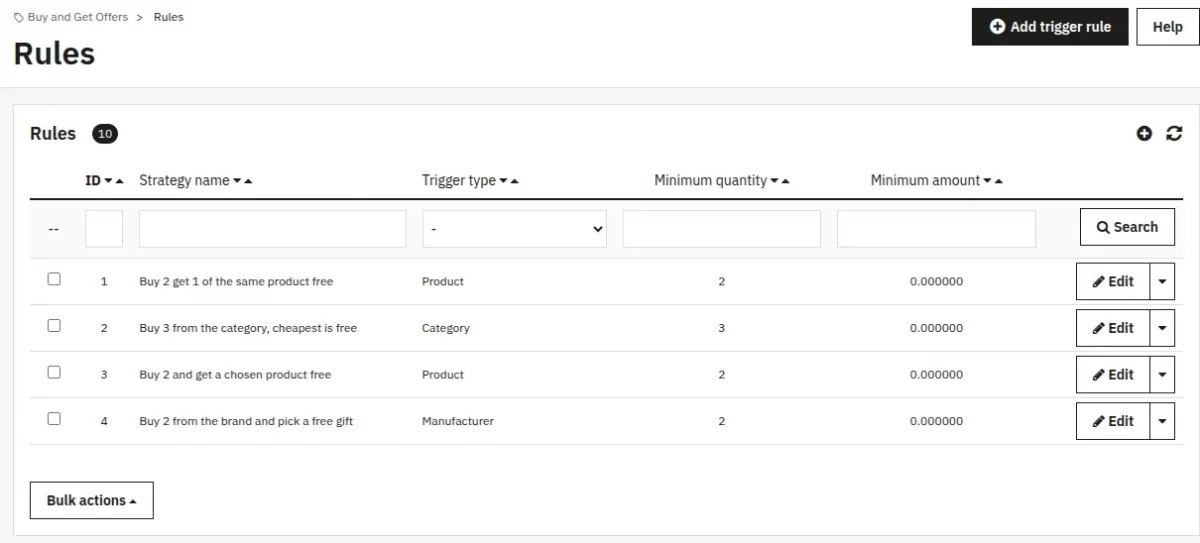
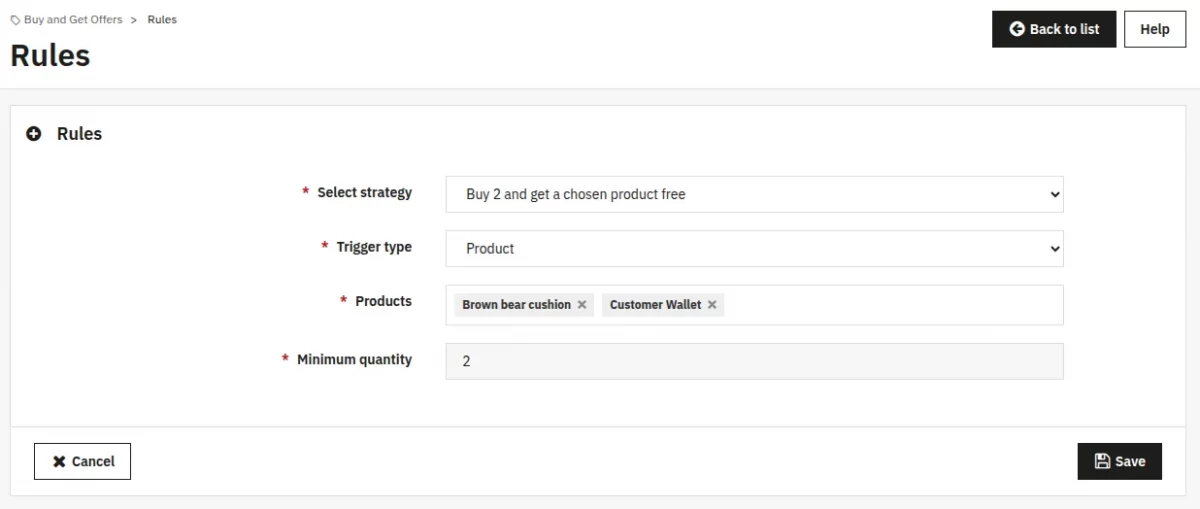
Choose the strategy the rule belongs to, then the rule type. Which types are offered depends on the strategy type:
| Rule type | Available for | The customer must have |
| Product | Buy X get X, Buy X get Y, Mix match | Chosen products in the basket |
| Category | same as above | Any product from the chosen categories |
| Manufacturer | same as above | Any product from the chosen brands |
| Supplier | same as above | Any product from the chosen suppliers |
| Cart total | Spend X get Y, Mix match | A basket value between the minimum and maximum amount |
| Cart quantity | Spend X get Y | At least the given number of items |
| Customer group | Spend X get Y | Membership of the chosen groups |
Minimum amount / Maximum amount apply to a Cart total rule. Leave the maximum empty for no upper limit; if you set it, it must be above the minimum.
A Mix match strategy can have several rules, and all of them must satisfy before giving the reward.
Rewards — what they get
BOGO → Buy and Get Offers → Rewards
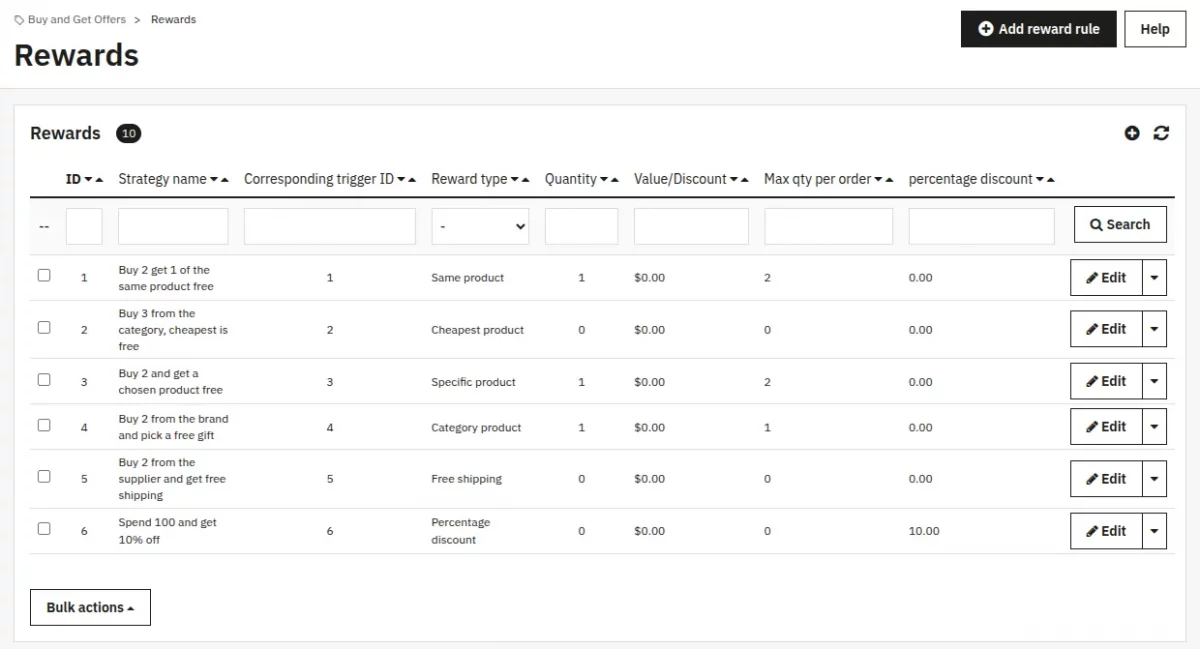
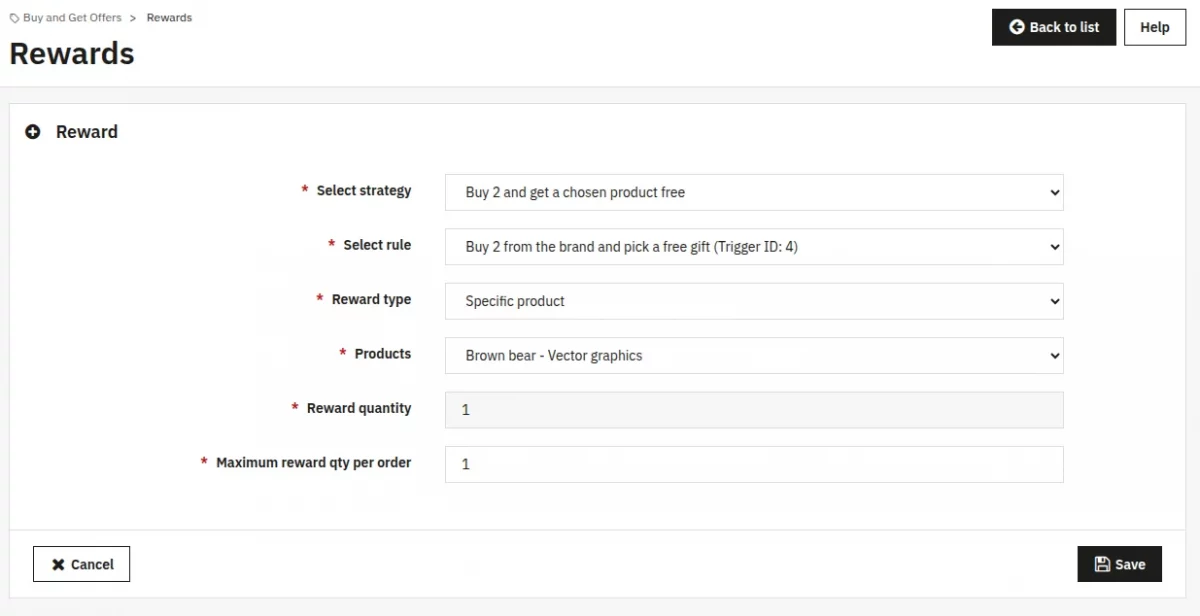
Pick the strategy, the rule it answers, and the reward type:
| Reward type | What the customer receives |
| Same product | More of the product that triggered the offer, free |
| Specific product | A particular product you choose, free — optionally a specific size or colour |
| Cheapest product | The cheapest qualifying item in the basket becomes free |
| Category product | The customer picks their free gift from a category you choose |
| Percentage discount | A percentage off the basket |
| Fixed discount | A fixed amount off the basket |
| Free shipping | Delivery is free |
Maximum reward qty per order caps how many free items a single order can receive, however large the basket is.
Analytics
BOGO → Buy and Get Offers → Analytics
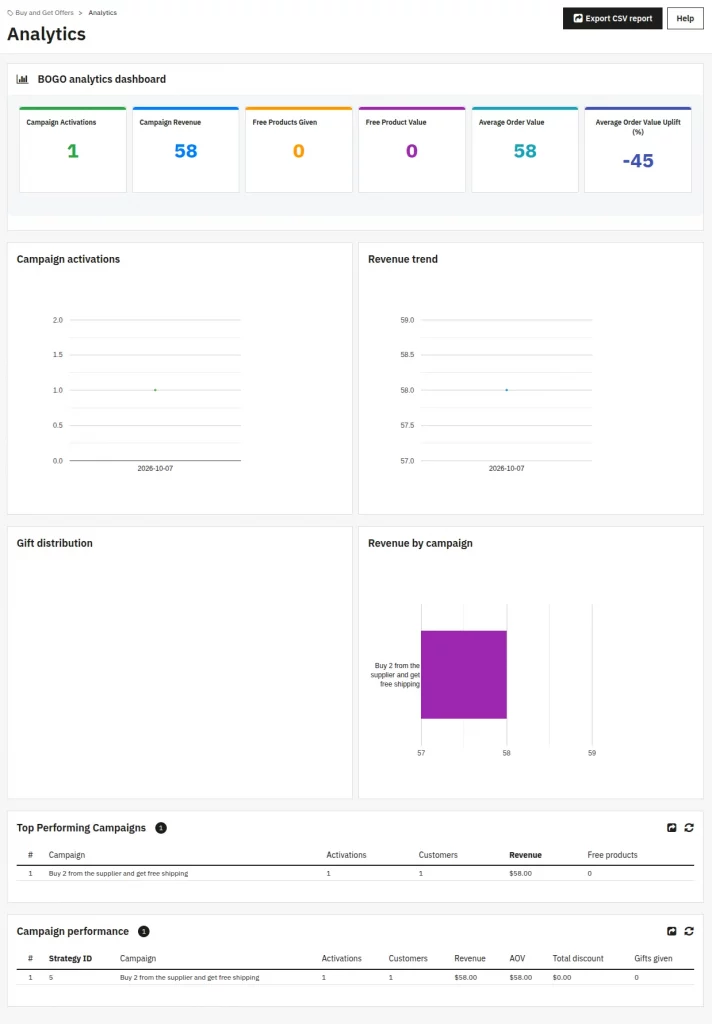
Six figures at the top: campaign activations, campaign revenue, free products given, the value of those free products, average order value, and how much higher that average is on BOGO orders.
Below: activations over time, revenue trend, how gifts split between offers, and revenue per offer. Two tables list top performing campaigns and per-campaign performance.
Export CSV report downloads the figures.
Disbursed Rewards
BOGO → Buy and Get Offers → Disbursed Rewards
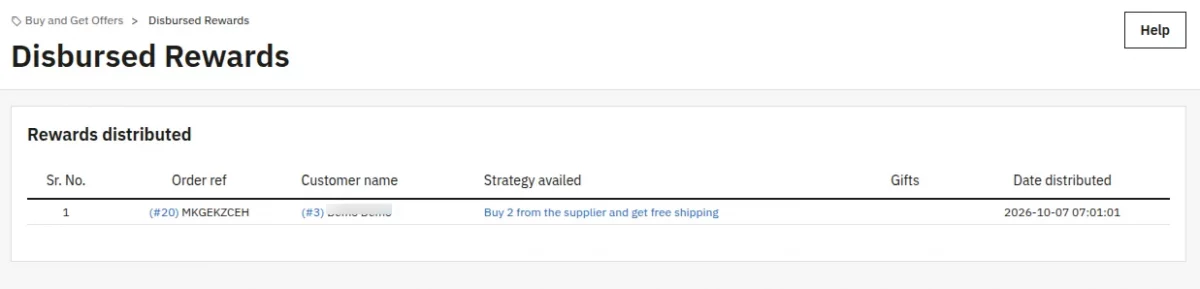
One row per reward actually given with an order: the order reference, the customer, which offer applied, the gift and its quantity, the discount, the order value and the date.
Sort or filter any column to check a specific customer or offer.
Setting an offer from the product page
You can also attach an offer while editing a product: Catalog → Products → edit a product → BOGO Condition tab.
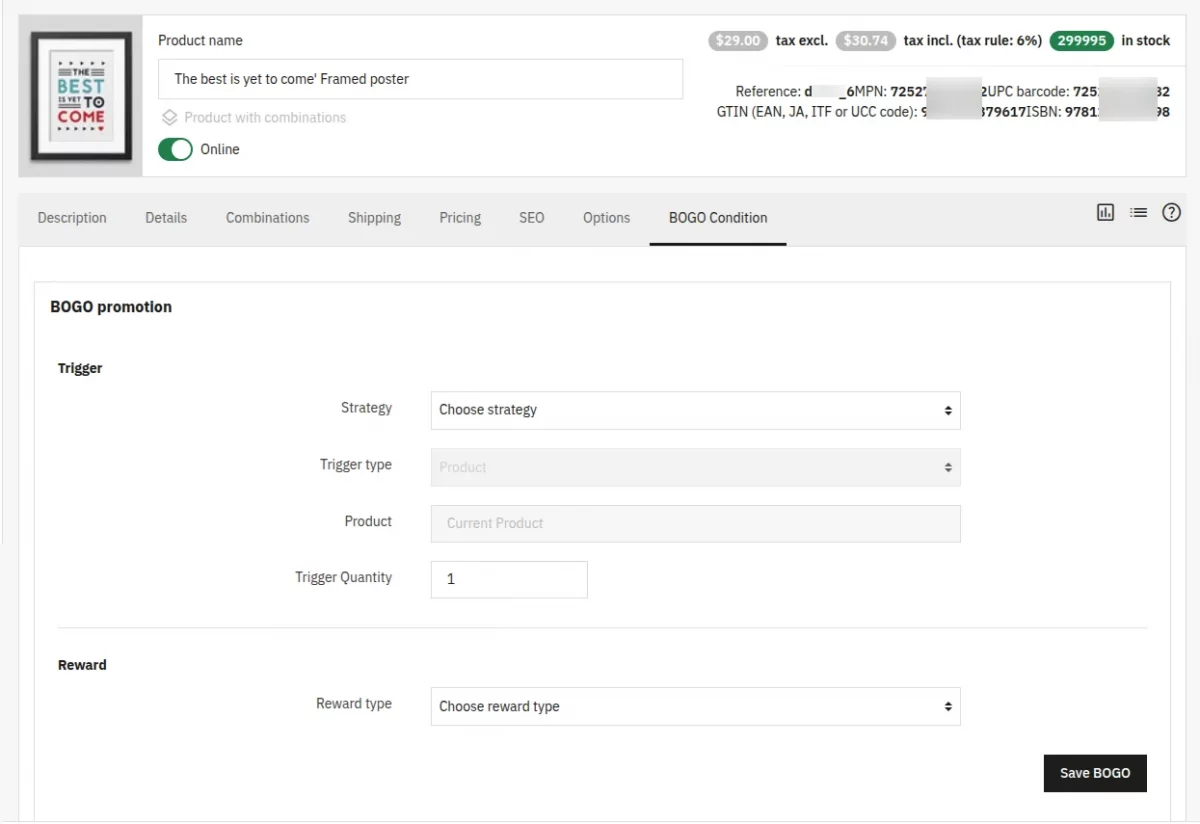
Pick an existing strategy, set the trigger quantity, choose the reward type and quantity, then Save BOGO.
This is a shortcut for one product — the full Strategy / Rules / Reward screens remain the place to manage offers properly.
What the customer sees
Product listings and the home page — a badge on every product in an offer, reading whatever you set as Badge text:
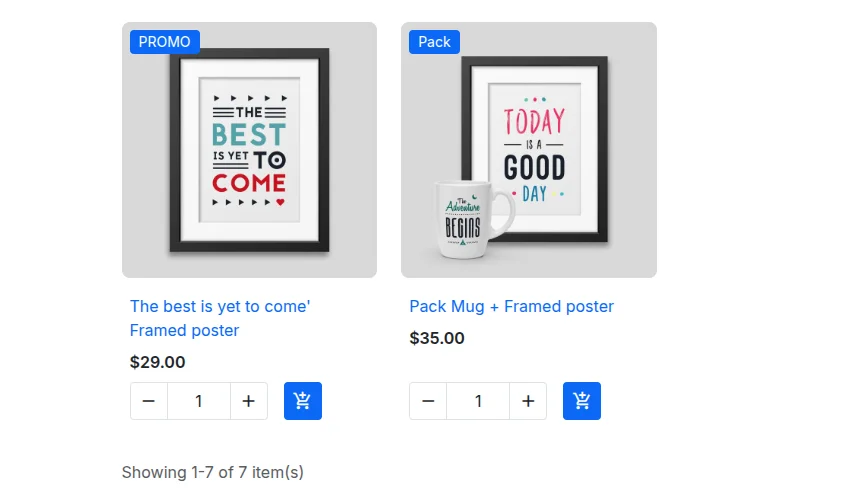
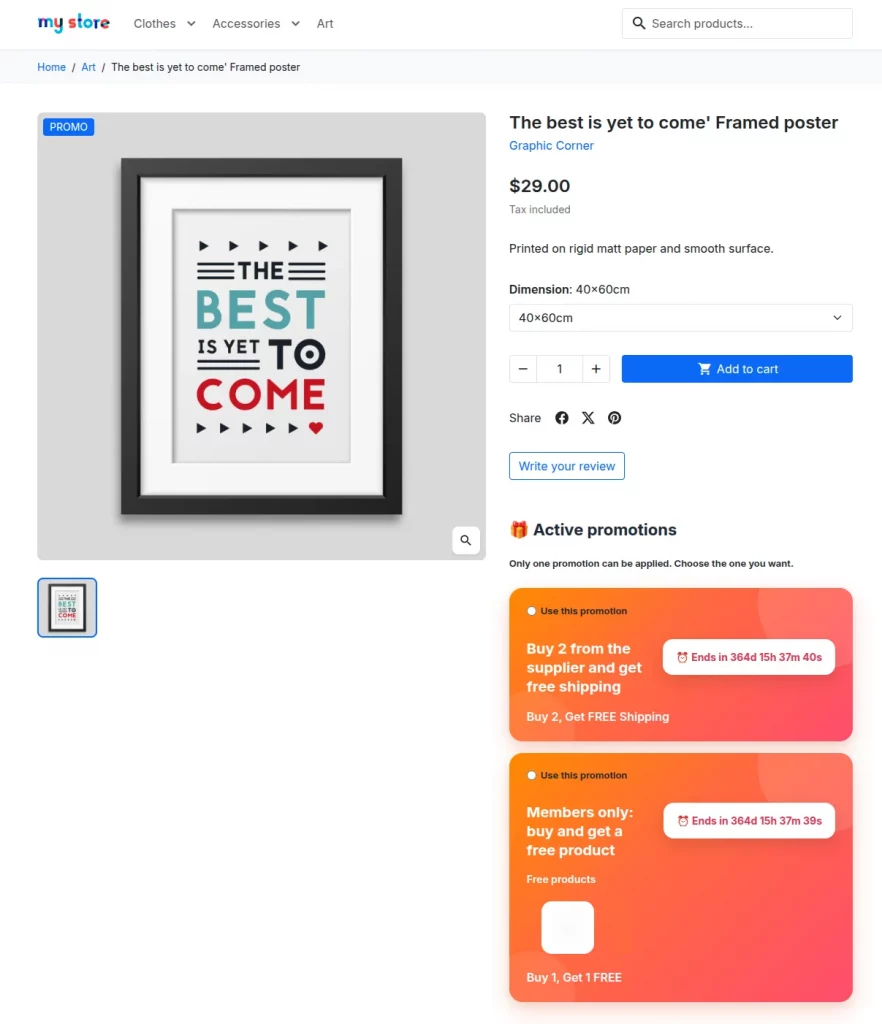
Product page — a card per available offer, with the reward described and a countdown when the offer has an end date:
Basket — the free item appears as its own line marked as a gift, the discount appears in the totals, and a green line shows what was saved:
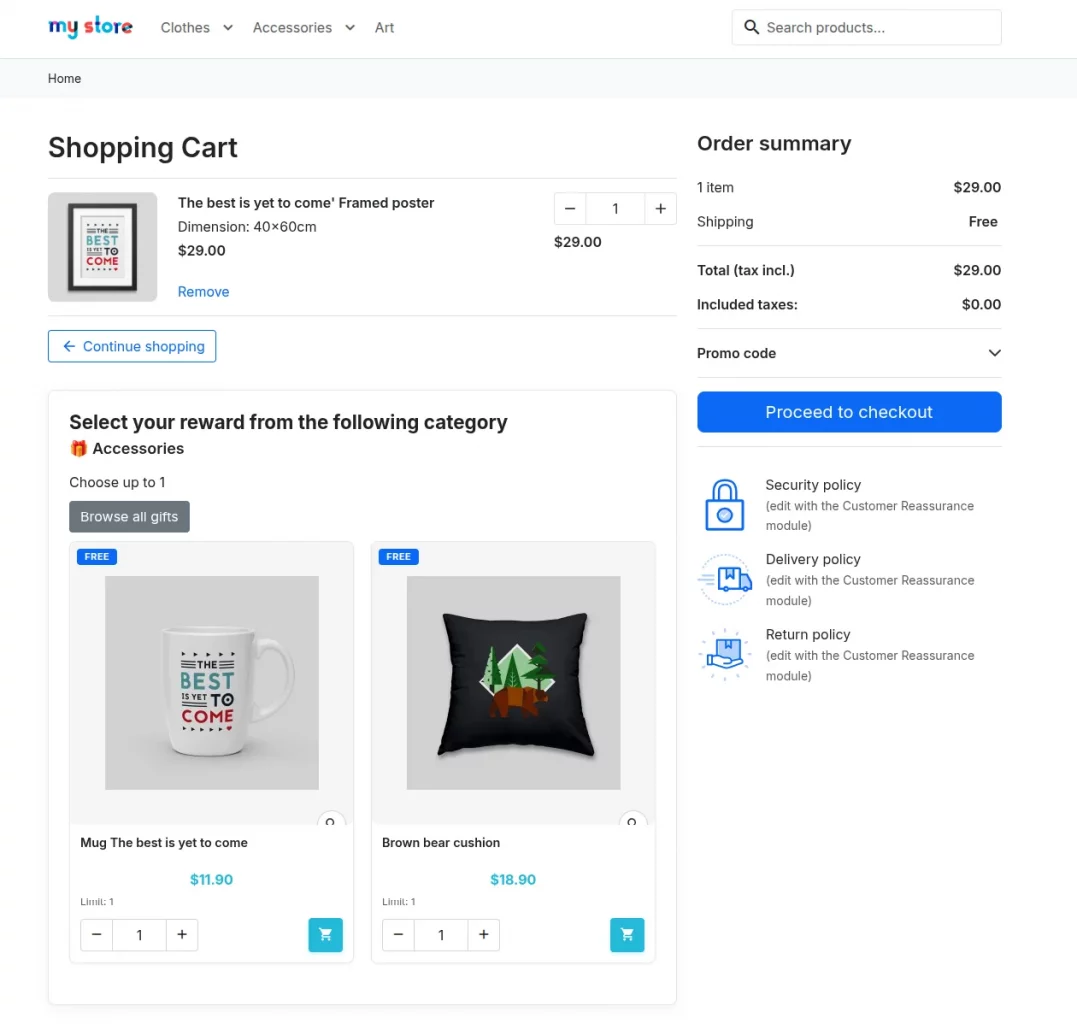
Choosing a free gift — when the offer lets the customer pick their gift, a Choose your free gift button appears on the product page, and Browse all gifts on the basket page.
Both open the same chooser:
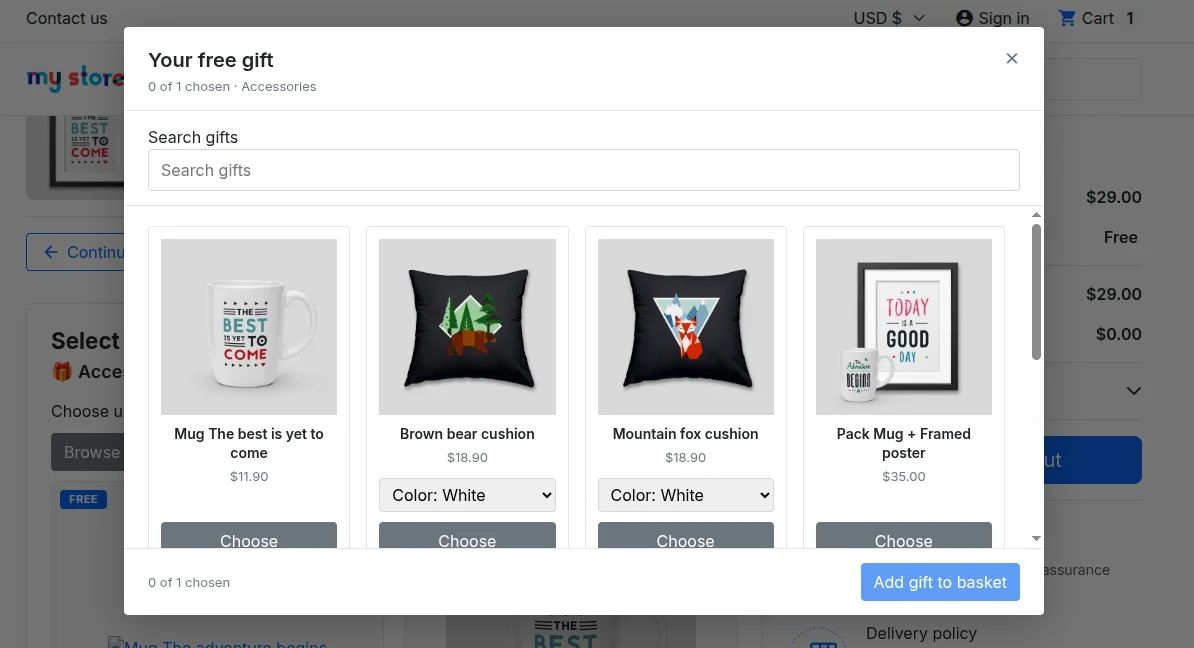
Every eligible product lists, twelve to a page, each with its price and a link to its product page. The search box matches product names.
Where a product has variants, the customer picks the size or colour on the card, and variants that cannot be supplied are flagged.
The header counts what they have picked against what they earned (“1 of 2 chosen”), so the limit is clear before they reach it.
Out-of-stock gifts shown greyed out rather than hidden — products you allow to backordered still count as available.
Choosing between offers — with stacking set to Restrict to one promotion and more than one offer available, the customer picks which one to use:
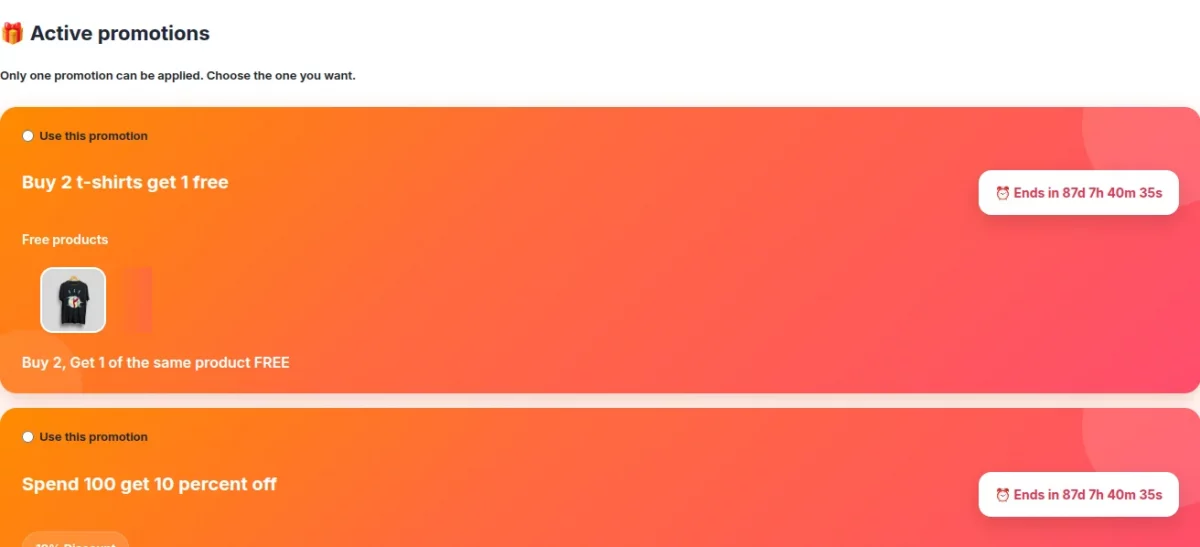
Badges and offers disappear by themselves once the user reaches the per-customer limit, after reaching the shop-wide Max usage, or once the end date passes.
Worked examples
Buy 2 t-shirts, get 1 free
- Strategy: type Buy X get X, trigger quantity 2, reward quantity 1, dates set, status on.
- Rule: type Product, select the t-shirt, minimum quantity 2.
- Reward: type Same product, reward quantity 1, maximum reward qty per order 2.
Spend between 100 and 300, get 10% off
- Strategy: type Spend X get Y.
- Rule: type Cart total, minimum amount 100, maximum amount 300.
- Reward: type Percentage discount, 10.
Buy 2 from a brand, cheapest item free
- Strategy: type Buy X get Y, trigger quantity 2.
- Rule: type Manufacturer, select the brand, minimum quantity 2.
- Reward: type Cheapest product.
Buy a t-shirt and a sweater, get a mug
- Strategy: type Mix match.
- Rule 1: Product → t-shirt, quantity 1. Rule 2: Product → sweater, quantity 1.
- Reward: Specific product → the mug.
Keeping the shop tidy
Baskets that never checked out still leave the offer’s bookkeeping behind: a reward record and the voucher the module generated for it.
Nothing removes those on its own, and the shop reads both tables on every basket page. So they should clear periodically.
The Configuration page shows a Maintenance URL. Give it to your server’s scheduler (cron) and have it called once a day:
curl -s “https://your-shop.com/module/wkbogo/cron?token=XXXXXXXX”
It is safe to call at any time and safe to call twice. It removes:
- Reward records and vouchers from baskets that never ordered and are more than 30 days old.
- Vouchers and records that no longer belong to any live offer, for example after deleting the offer.
Module never touches a voucher that appears on a placed order, so invoices and order histories are unaffected.
Two optional settings can append to the address:
| Added to the URL | Effect |
| &days=60 | Keep abandoned-basket records for 60 days instead of 30 |
| &grace=120 | Leave vouchers created in the last 120 minutes alone (default 60) |
The token is created when the module is installed and survives a reinstall, so a scheduler entry keeps working.
If the field shows a message instead of a URL, reinstall the module to generate the token.
Current Product Version - 1.0.0
Supported Framework Version - 9.x.x, 8.x.x, 17.x.x

Be the first to comment.