Introduction
Odoo Virtual Try-On is an Augmented Reality (AR) solution that lets customers preview sunglasses, necklaces, earrings, masks, nose rings, and other supported wearable products before purchasing. It uses real-time face tracking and 3D GLB models to deliver an interactive Virtual Try-On experience directly on your Odoo website.
This module allows store administrators to upload Binary glTF (.glb) models, configure VTO categories, and assign product- or variant-specific 3D models. Customers simply click the 3D Try-On button on the product page, allow camera access, and preview products in real time before making a purchase.
Odoo Virtual Try-On is suitable for businesses selling wearable products. It improves customer confidence, creates an engaging shopping experience, and helps customers make informed buying decisions.
Features
- Enable Virtual Try-On for selected website products.
- Preview sunglasses, necklaces, earrings, masks, and nose rings in real time.
- Detect facial landmarks using real-time face tracking.
- Upload Binary glTF (.glb) models for Virtual Try-On products.
- Assign separate 3D GLB models to product variants.
- Configure VTO categories and flexible face anchor positions.
- Display a dedicated 3D Try-On button on product pages.
- Support mobile phones, tablets, and desktop browsers.
- Automatically load default models when variant-specific models are unavailable.
- Deliver a smooth and interactive Augmented Reality shopping experience.
Installation
- Once you purchase the App from the Webkul store, you will receive a link to download module’s zip file.
- Extract the file on your system after the download finishes. As a result, you will be able to see a folder named- ‘odoo_virtual_try_on’.
- Copy and paste this folder inside your Odoo Add-Ons path.
- Now, open the Odoo App and click on the Settings menu. Here, click on Activate Developer Mode.
- Then, open the Apps menu and click on ‘Update Modules List.’
- In the search bar, remove all the filters and search ‘odoo_virtual_try_on’.
- You will be able to see module in the search results. Click on ‘Activate’ to install it.
Workflow
Configuration of Odoo Virtual Try-On
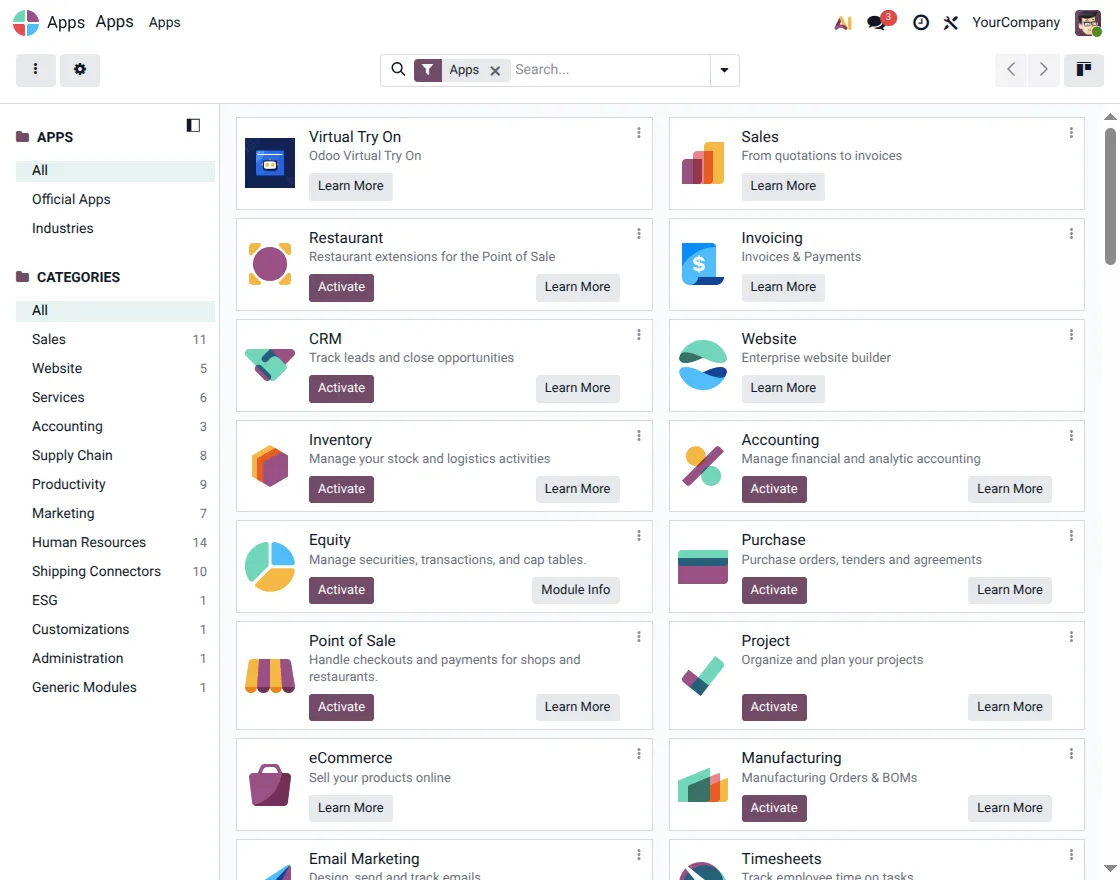
1. Go to Apps, remove the default filters if required, search for Virtual Try-On, and select the Odoo Virtual Try-On module.
Click Activate to install this module and enable the Virtual Try-On features in your Odoo instance.
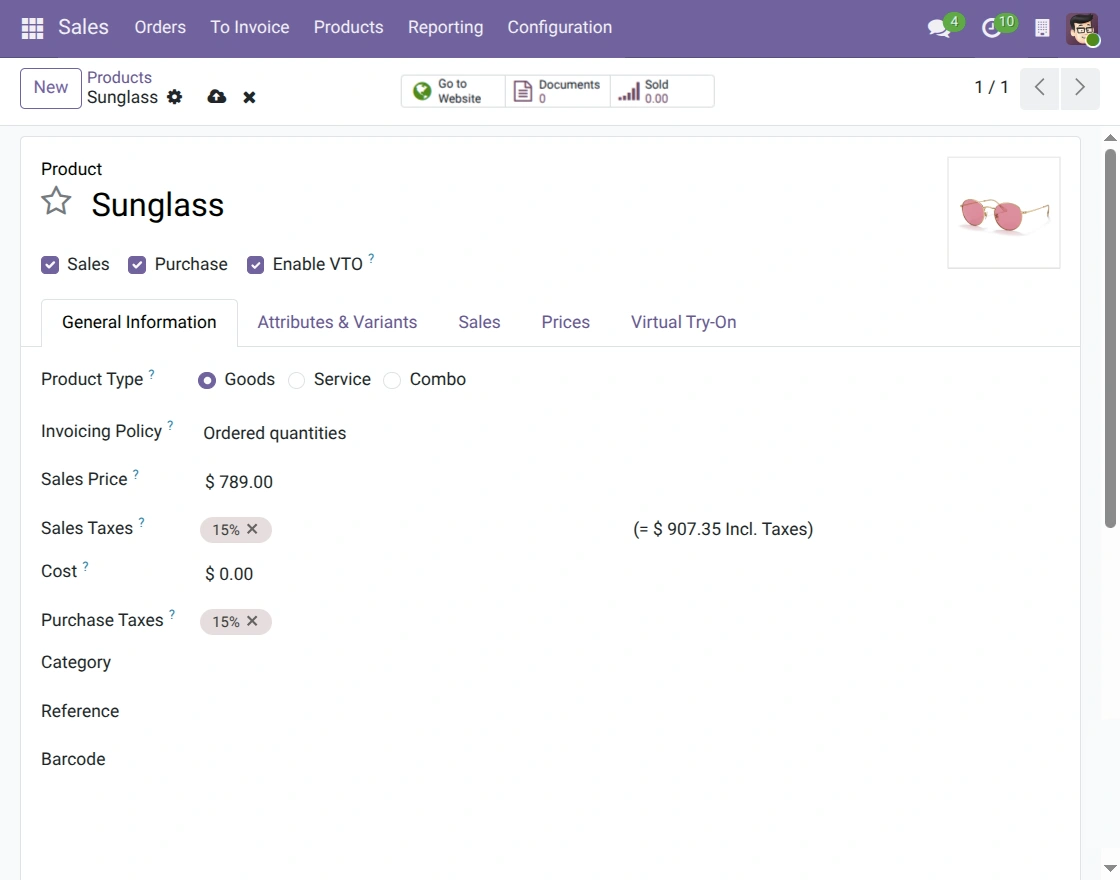
2. Go to Sales → Products, open the required product, and enable the Enable VTO checkbox to make the product eligible for the Virtual Try-On experience.
After enabling the feature, open the Virtual Try-On tab to continue configuring the product for virtual previews.
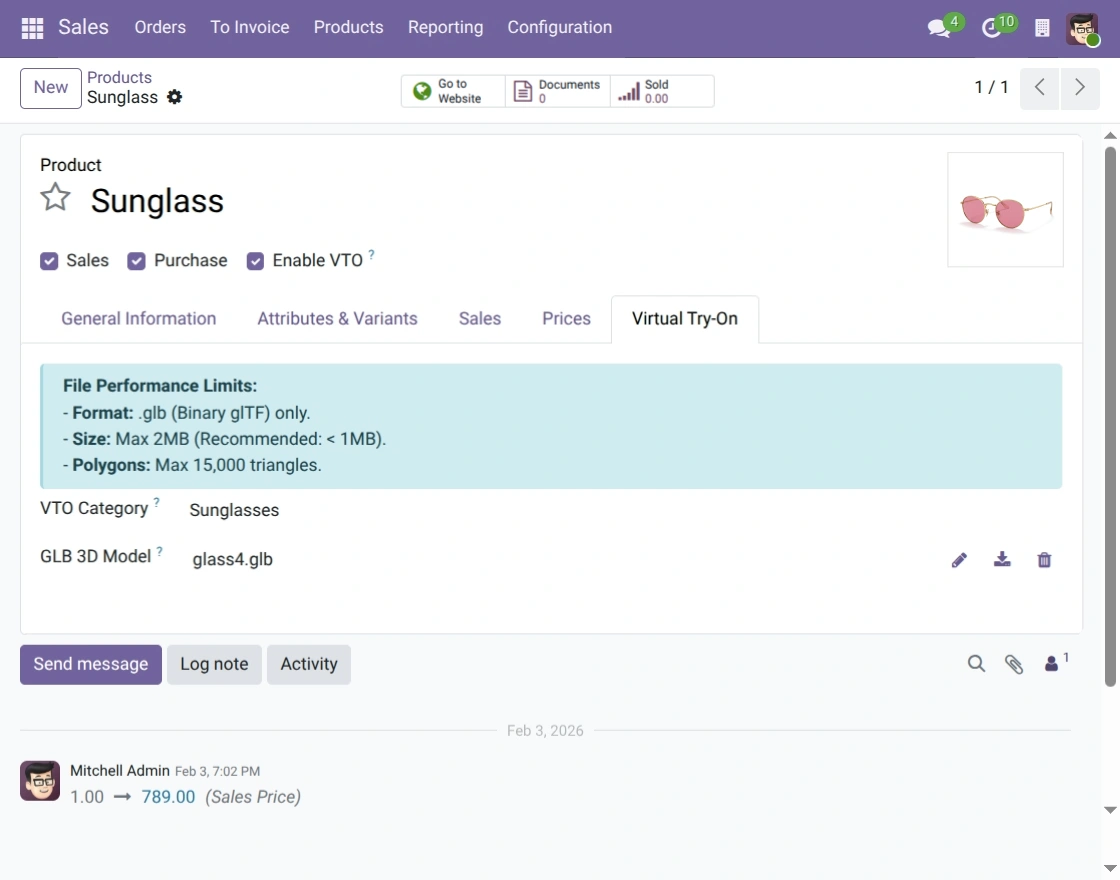
3. Open the Virtual Try-On tab, select the appropriate VTO Category, and upload the required Binary glTF (.glb) model for the selected product.
Save the configuration to enable the Virtual Try-On experience and apply the uploaded 3D model for live product previews.
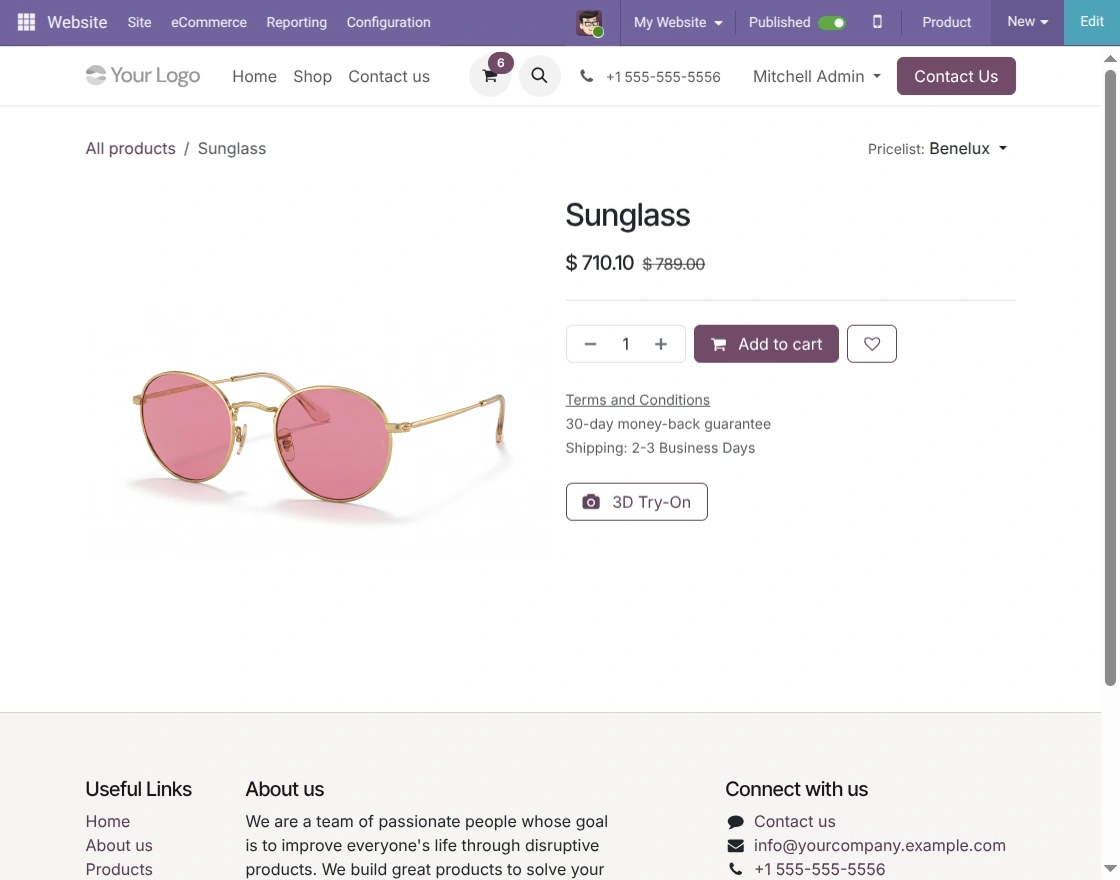
4. Go to the website product page and click the 3D Try-On button displayed below the Add to Cart option to start the Virtual Try-On experience.
Allow camera access when prompted to open the live preview and begin trying the selected wearable product in real time.
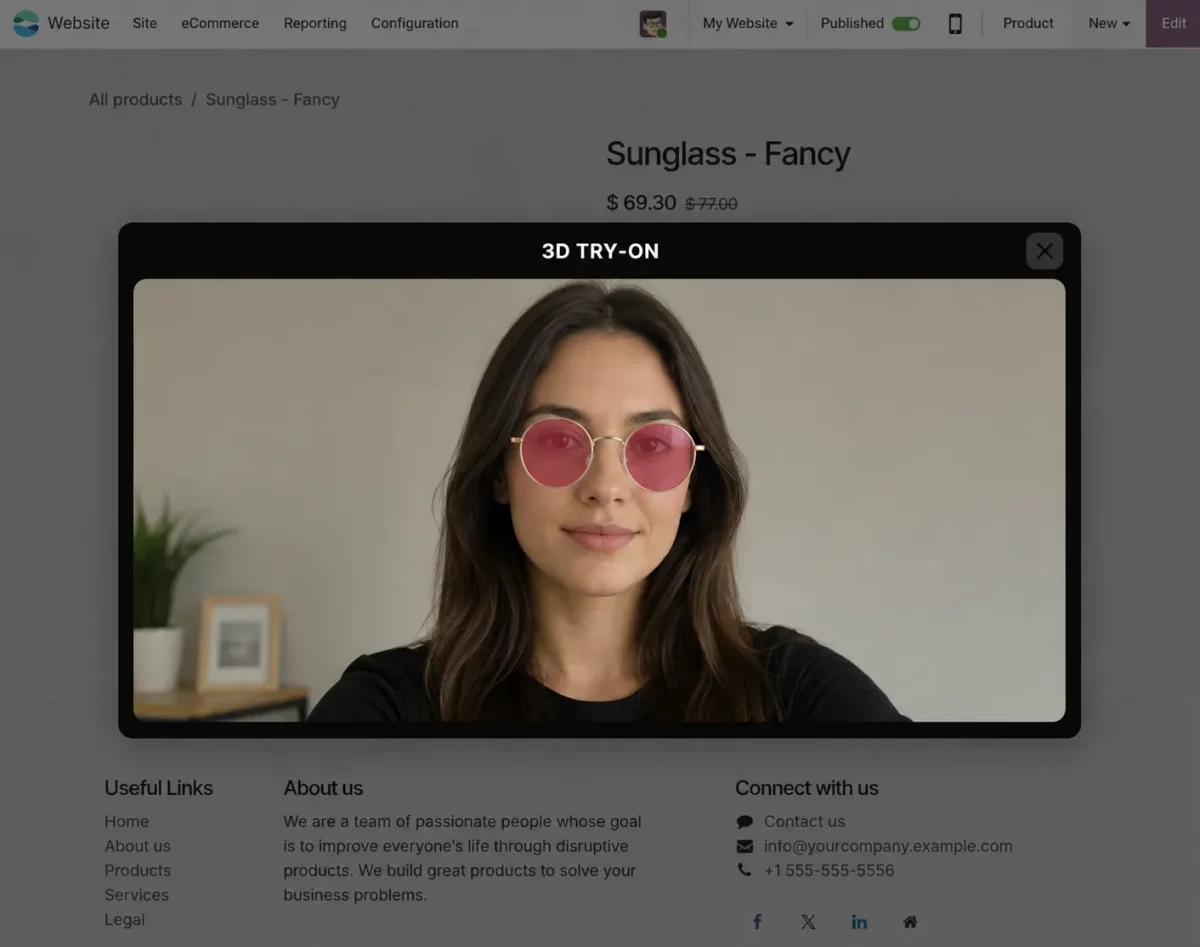
5. The Virtual Try-On window opens after camera access is granted, allowing customers to preview the selected wearable product using real-time face tracking and a 3D GLB model.
Customers can move naturally while the product stays aligned on their face, helping them evaluate the fit and appearance before making a purchase.
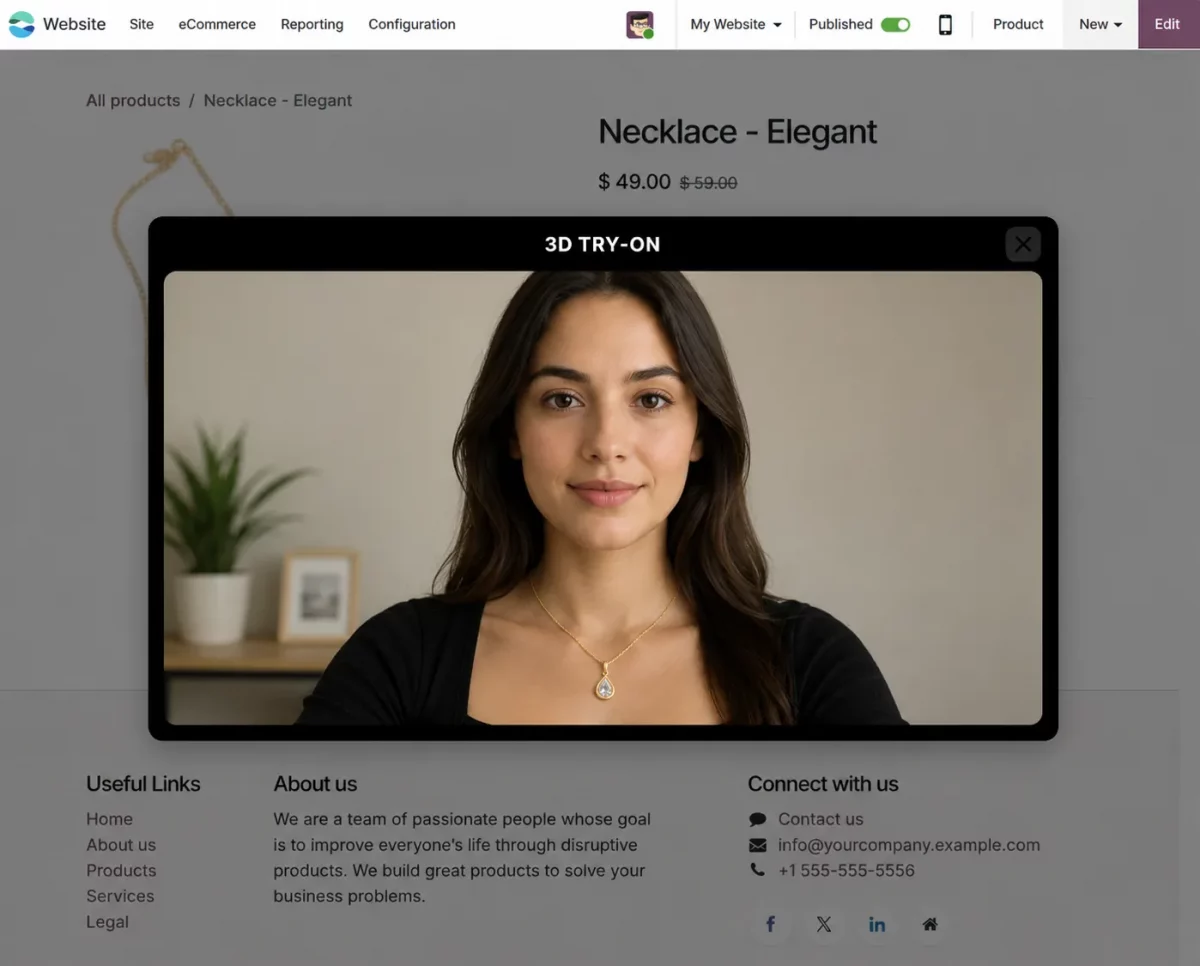
6. Open the 3D Try-On window from the necklace product page and allow camera access to preview the necklace using the live Virtual Try-On experience.
This module detects facial landmarks and positions the 3D necklace accurately, allowing customers to view the product naturally before making a purchase.
Need Help?
Hope you find guide helpful! Please feel free to share your feedback in the comments below.
If you still have any issues/queries, please create a ticket at the UV Desk.
I hope this helps. In case of any further queries, contact us at our support mail.
Thanks for paying attention!!
Current Product Version - 1.0.0
Supported Framework Version - ODOO 18, 19

Be the first to comment.