


















Magento 2 OpenStreet Map Pin Address adds an OpenStreetMap-based location picker to the Magento checkout address forms.
Customers can select a precise shipping or billing location by dragging a map pin or using the Current Location button.
This extension stores latitude and longitude for customer and order addresses and displays them in customer and admin order details.
Features
- Add an OpenStreetMap pin selector to the checkout shipping and billing address form.
- Allow customers to use Current Location for address selection.
- Allow customers to drag the map marker to select a precise address.
- Automatically fill address fields using reverse geocoding.
- Support OpenStreetMap without requiring any API key setup.
- Save Latitude and Longitude with customer address data.
- Show saved latitude and longitude in the admin order view.
- Support GraphQL address fields for latitude and longitude.
- Reduce incorrect or incomplete delivery address information.
Installation Download Module
Firstly, you need to log in to the Webkul Store, go to My Account>My Purchased Products section, verify, and then download and extract the contents of this zip folder on the system.
Upload Folder
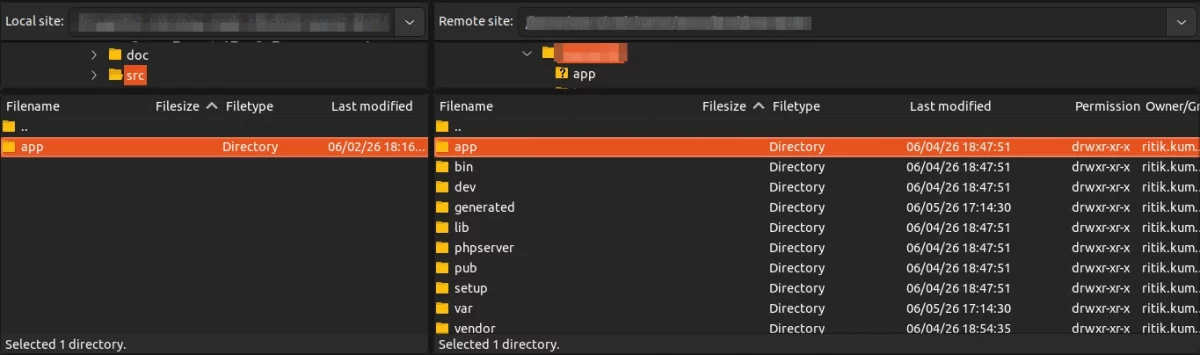
Once the module zip is extracted, follow path src>app and then copy the app folder into the Magento 2 root directory on the server as shown below:
Run Commands
You need to run the following commands:
php bin/magento setup:upgrade
php bin/magento setup:di:compile
php bin/magento setup:static-content:deploy
php bin/magento indexer:reindex
php bin/magento cache:flush
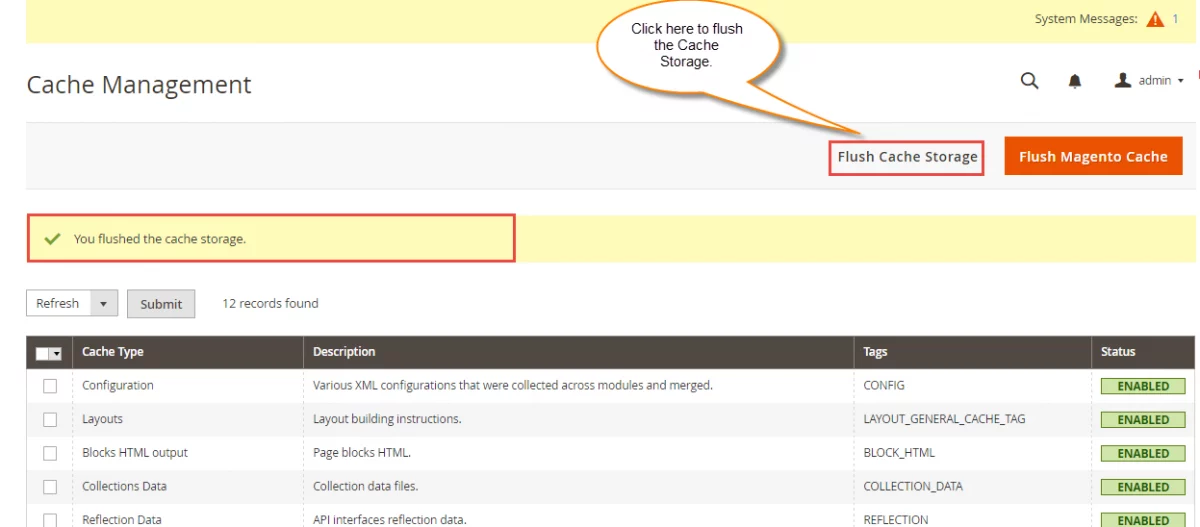
After running the commands, you have to flush the cache from the Adobe Commerce Cloud admin panel by navigating through->System->Cache management as shown below.
Multi-Lingual Configuration of Adobe Commerce
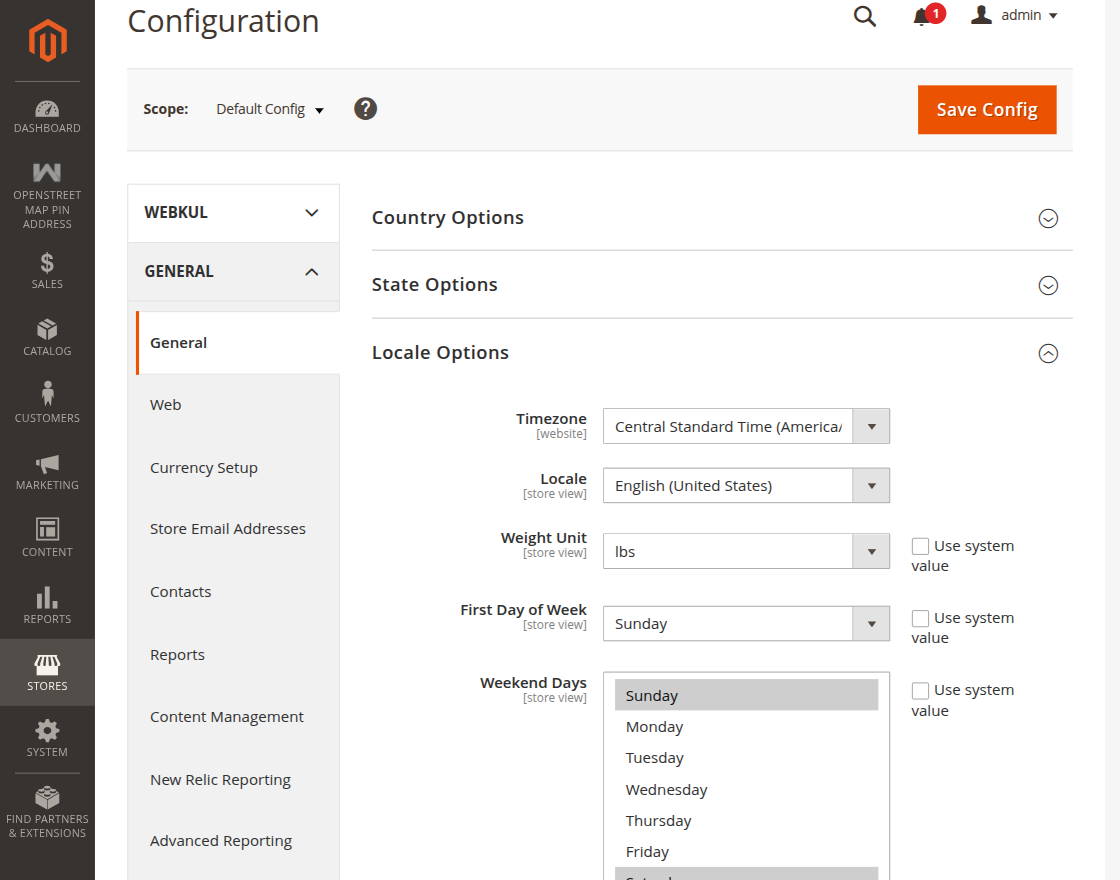
Go to Stores > Configuration > General > General > Locale Options and select the required locale from the Locale dropdown. Click Save Config to apply the changes, and then flush the Magento cache.
Language Translation
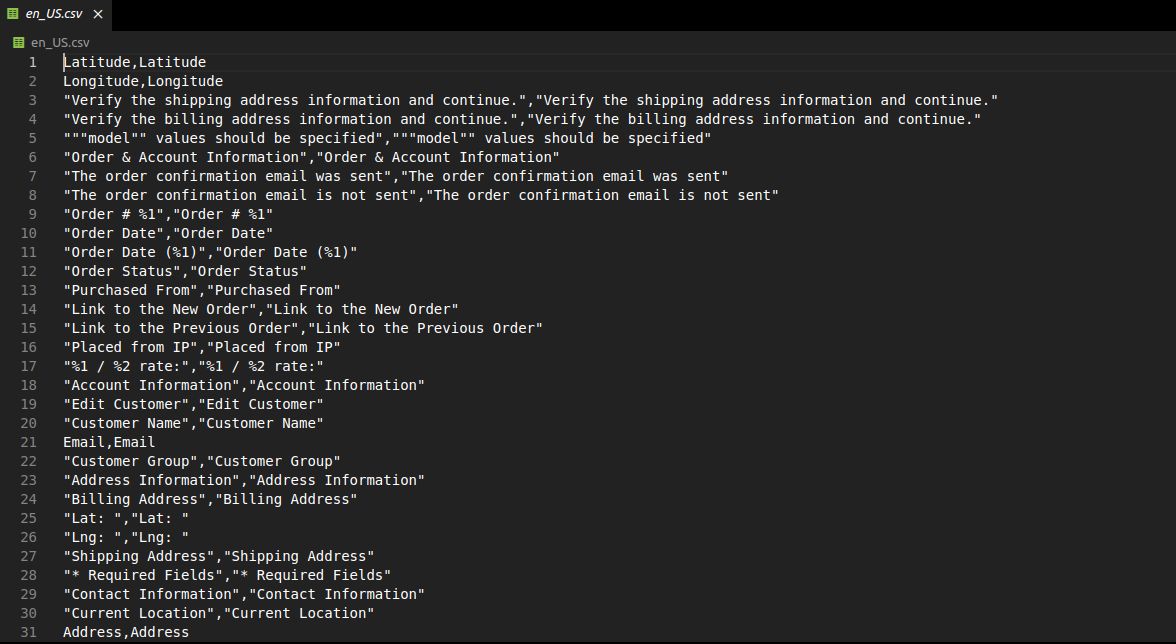
The translation file is available at: app/code/Webkul/OpenStreetMapPinAddress/i18n/en_US.csv
Copy the en_US.csv file and rename it according to the target locale, such as fr_FR.csv, de_DE.csv, or es_ES.csv.
Translate only the values in the second column, then upload the translated CSV file to app/code/Webkul/OpenStreetMapPinAddress/i18n.
After saving the translation file, flush the Magento cache to apply the changes.
Admin Configuration of Magento 2 OpenStreet Map Pin Address
To configure the module, go to Stores > Configuration > Webkul > OpenStreet Map Pin Address Settings.
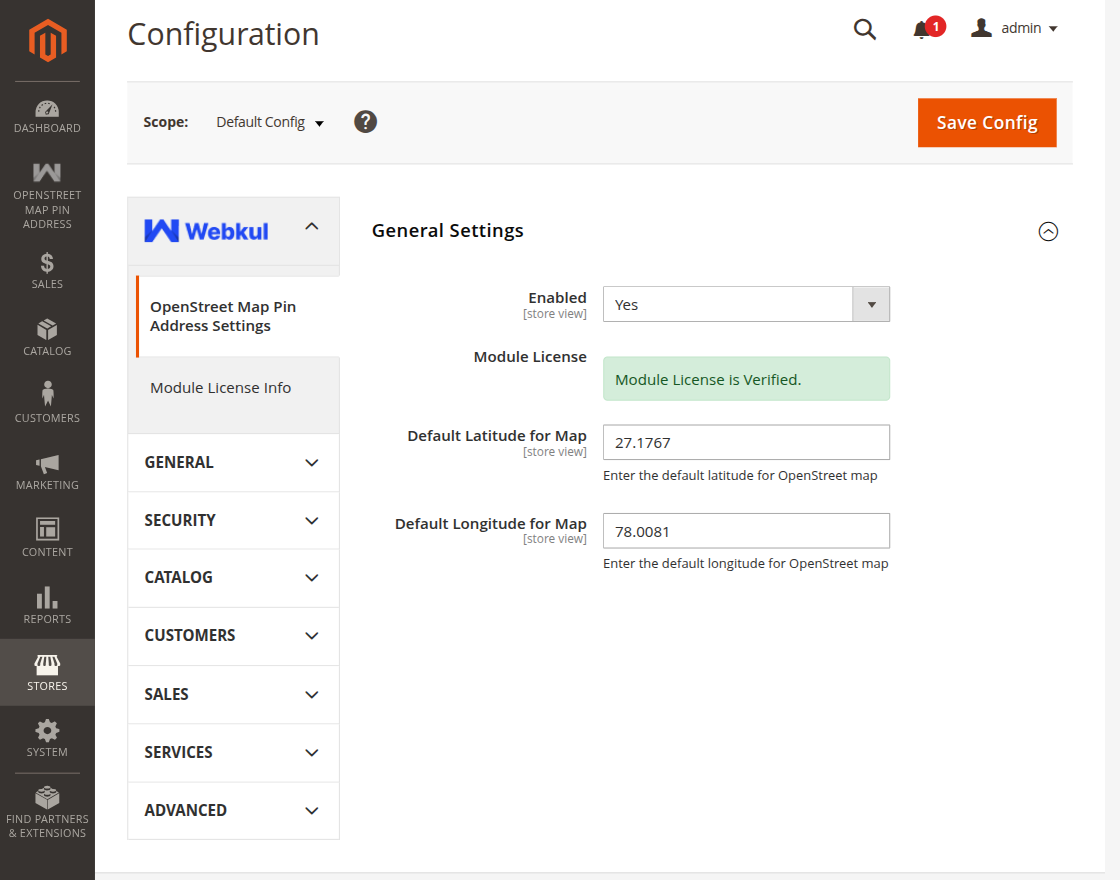
- Enabled: Select Yes to enable the OpenStreetMap pin address feature on the storefront checkout. Select No to disable it.
- Default Latitude for Map: Enter the default latitude used when the map loads without an existing customer coordinate.
- Default Longitude for Map: Enter the default longitude used when the map loads without an existing customer coordinate.
After updating the configuration, click Save Config and flush the Magento cache.
Customer Workflow
Customers can add a product to the cart and proceed to checkout. On the Shipping Address form, they can enter the address manually or use the map pin to select the delivery location
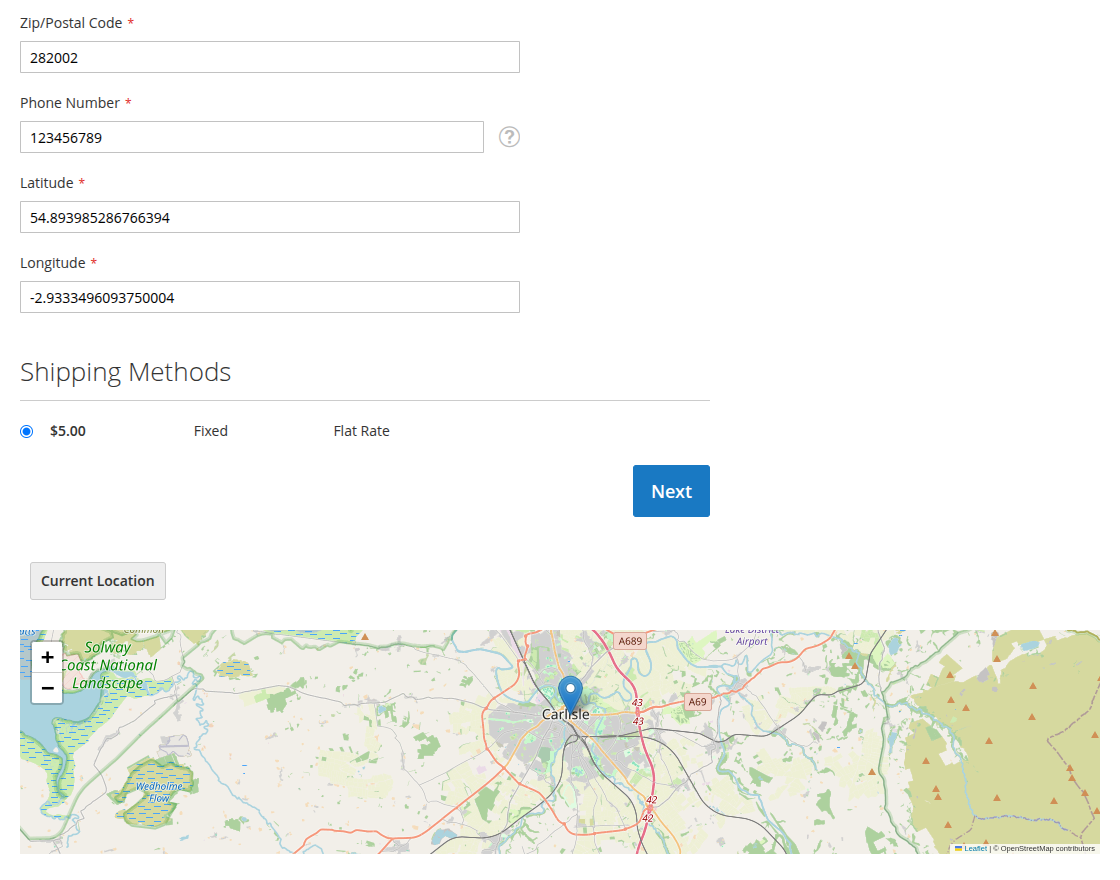
If required, they can click Current Location to use the browser’s location, drag the map marker to adjust the shipping address, and verify that the latitude and longitude values update automatically.
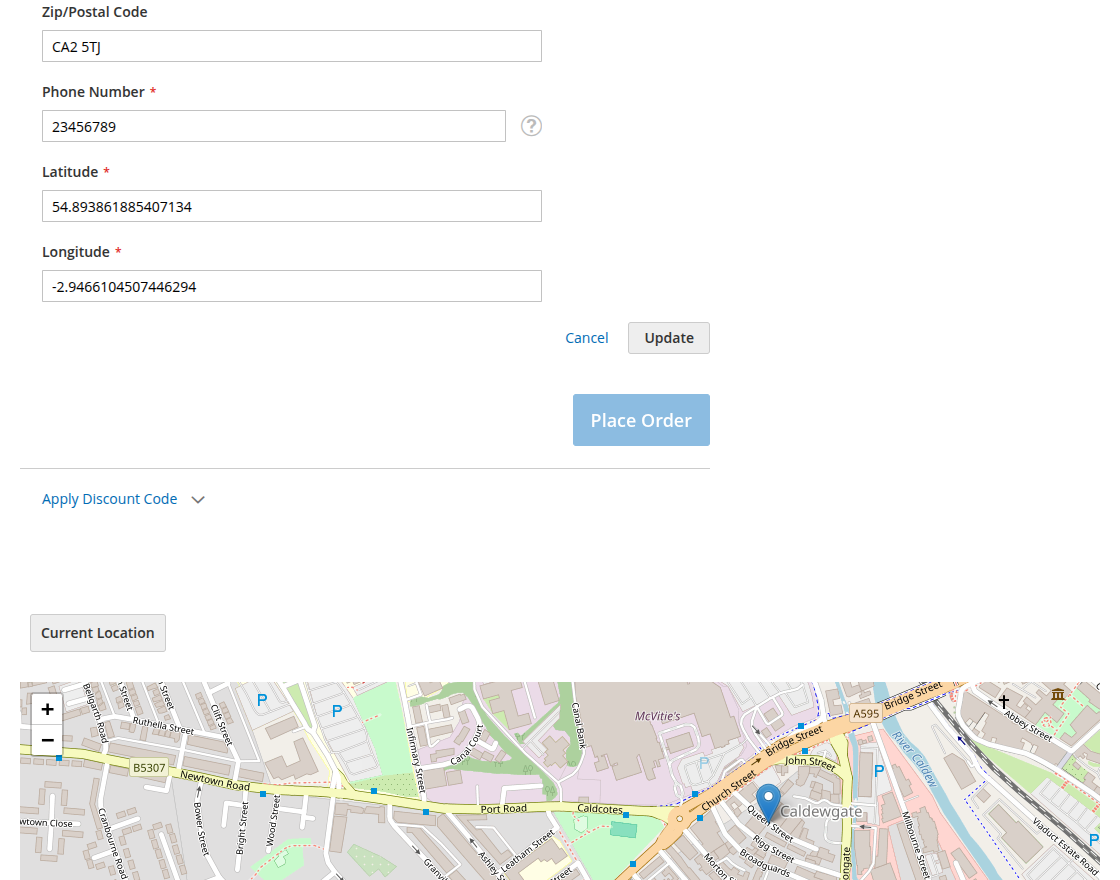
After selecting the shipping method, they can continue to the payment step. If the billing address is different, they can update the billing location using the map pin before placing the order.
Finally, they can open the order details in their customer account and verify the saved latitude and longitude values for both the shipping and billing addresses.
Customer can also change/add the address of his address book by using the map as well.
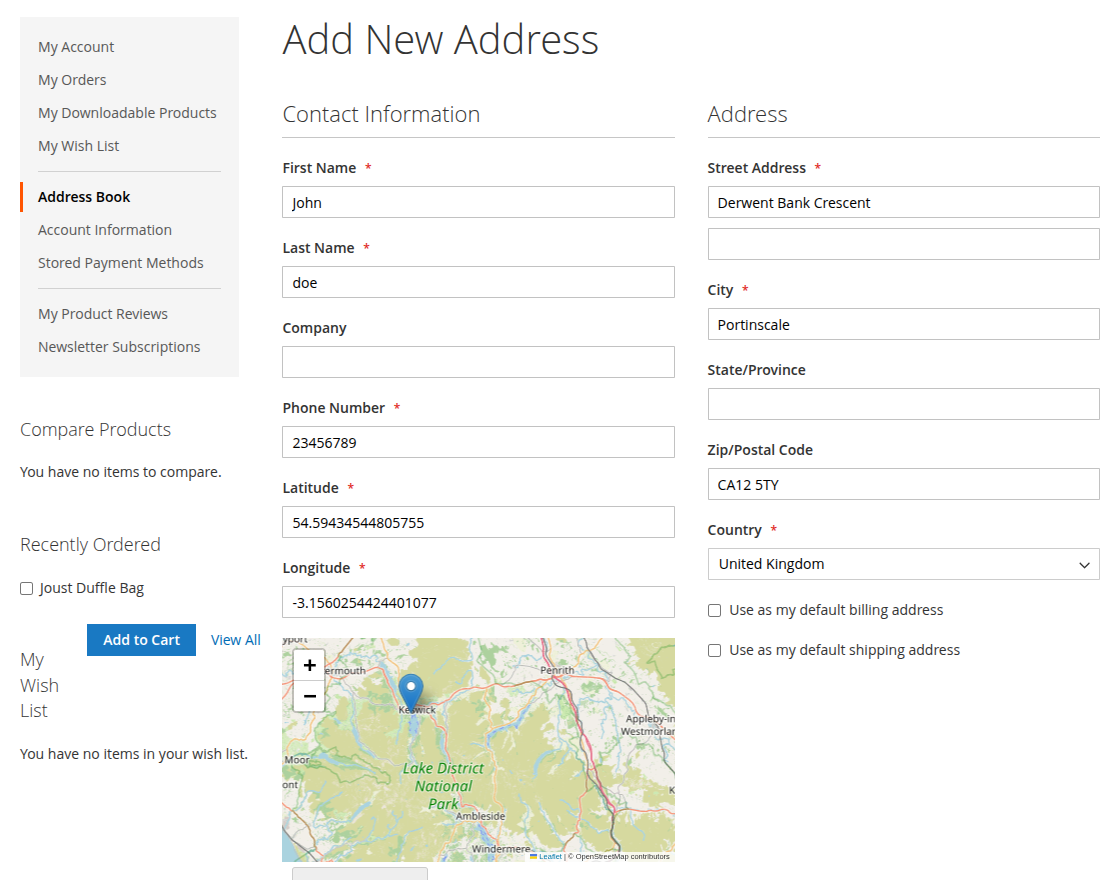
For updating/adding the address the customer can navigate through My Account > Address Book.
Admin Order Workflow
Admin can go to Sales > Orders and open the required order. Review the Order & Account Information section.
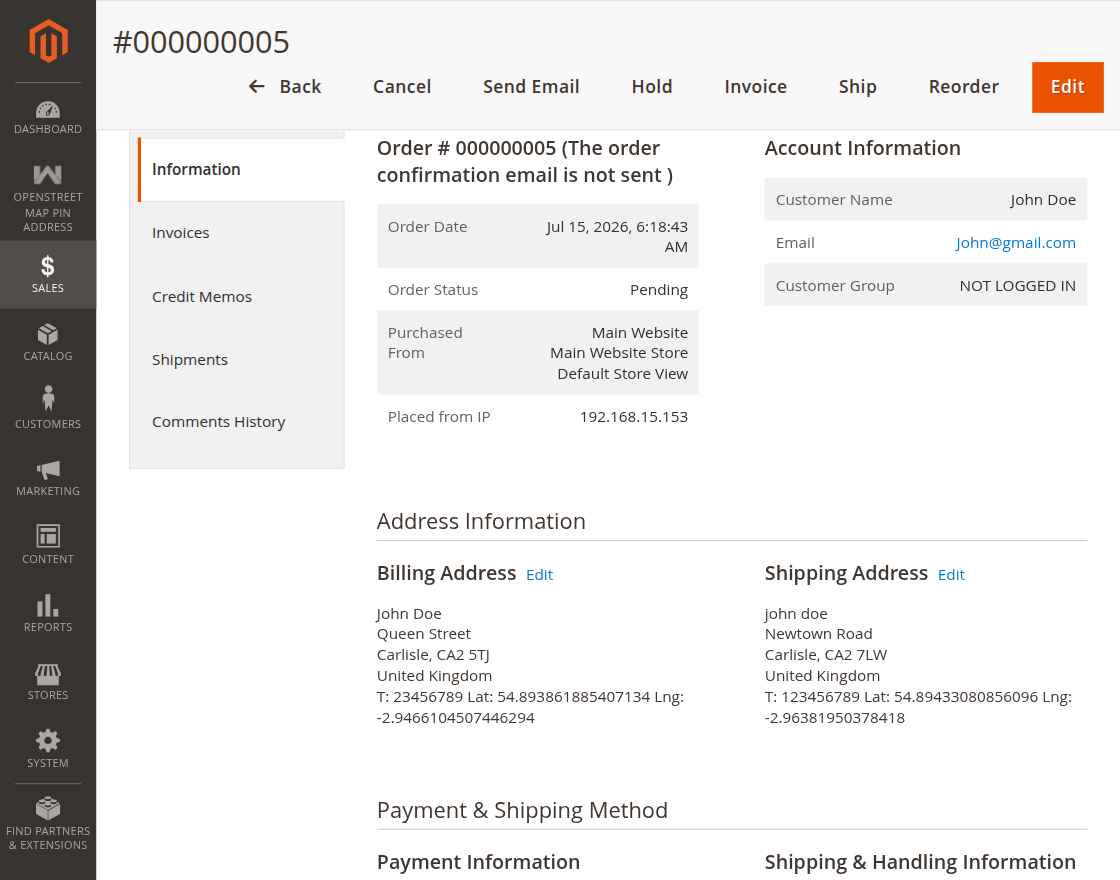
Next, check the Shipping Address and Billing Address blocks. Verify the saved latitude and longitude values for the order.
Support
That’s all about the Magento 2 Razorpay Magic Checkout module. In that case, if you have any issues or concerns, please email us at [email protected].
Our team will be happy to assist you. In addition, we will provide the required support.
You may also browse Magento 2 extensions
Current Product Version - 4.0.0
Supported Framework Version - Magento 2.0.x, 2.1.x, 2.2.x,2.3.x, 2.4.x

Be the first to comment.