Laravel Marketplace Store Pickup extension adds a fast, flexible click‑and‑collect option to your marketplace.
It lets sellers create physical pickup points and lets customers choose Pick up from store at checkout.
This reduces shipping costs, speeds up fulfillment, and improves the in‑store experience by giving buyers control over when and where they collect orders.
Note: This module is an add-on of Laravel Multi-Vendor Marketplace Extension.You must install the main extension before using this module.
Features of Laravel Marketplace Store Pickup Extension
- Enable or disable pickup method.
- Admin can set a custom shipping method name.
- Admins and sellers can manage store addresses and contact details.
- Sellers can create multiple pickup locations.
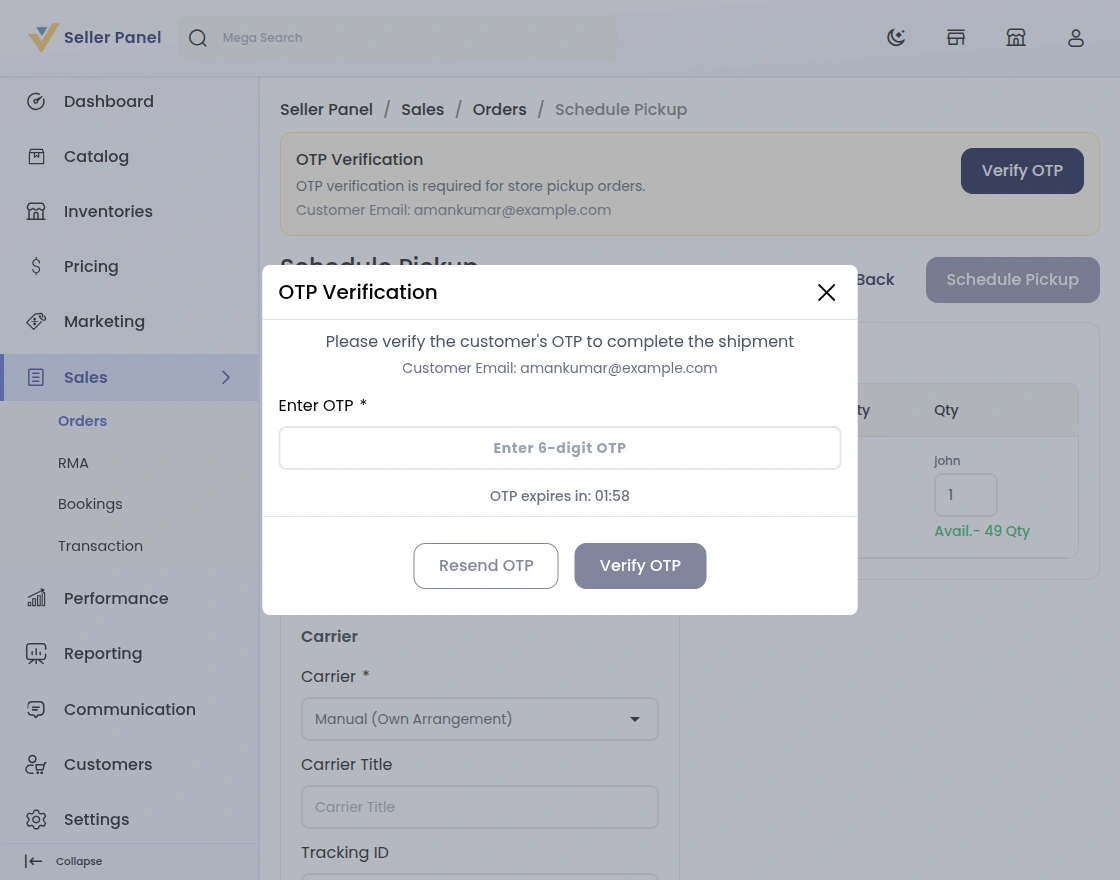
- Pickup process includes OTP verification.
- Customers can view store details on the product page.
- Sellers can configure store timings and holidays.
- Admins and sellers can schedule pickup timeslots.
- Products can be assigned to specific stores.
- Customers can search for the nearest store and view maps.
- Customers receive order scheduling and notifications.
- System controls capacity to prevent overbooking.
- Admins can manage pickup orders from the backend.
Laravel Marketplace Store Pickup Module Installation
Requirements:
- Bagisto: v2.4.10
- Bagisto Marketplace: v2.4.10.0
Installation:
- Unzip the respective extension zip and then merge “packages” folders into project root directory.
- Goto composer.json file and add following line under ‘psr-4’
"Webkul\\MarketplaceStorePickupShipping\\":"packages/Webkul/MarketplaceStorePickupShipping/src"
- Run these commands below to complete the setup
composer dump-autoload
- Go to bootstrap/providers.php file and add following line
use Webkul\MarketplaceStorePickupShipping\Providers\MarketplaceStorePickupShippingServiceProvider;

return [
	MarketplaceStorePickupShippingServiceProvider::class,
]
- Run the following commands to complete the setup:
php artisan mp-store-pickup:install
That’s it, now just execute the project on your specified domain.
Admin Management
Once you have successfully executed the module, you will see the Marketplace store pickup Shipping under Configuration-> Sales-> Shipping Methods.
Admin can easily configure the Marketplace Per Product Shipping by navigating to Shipping Methods -> Marketplace Store Pickup.
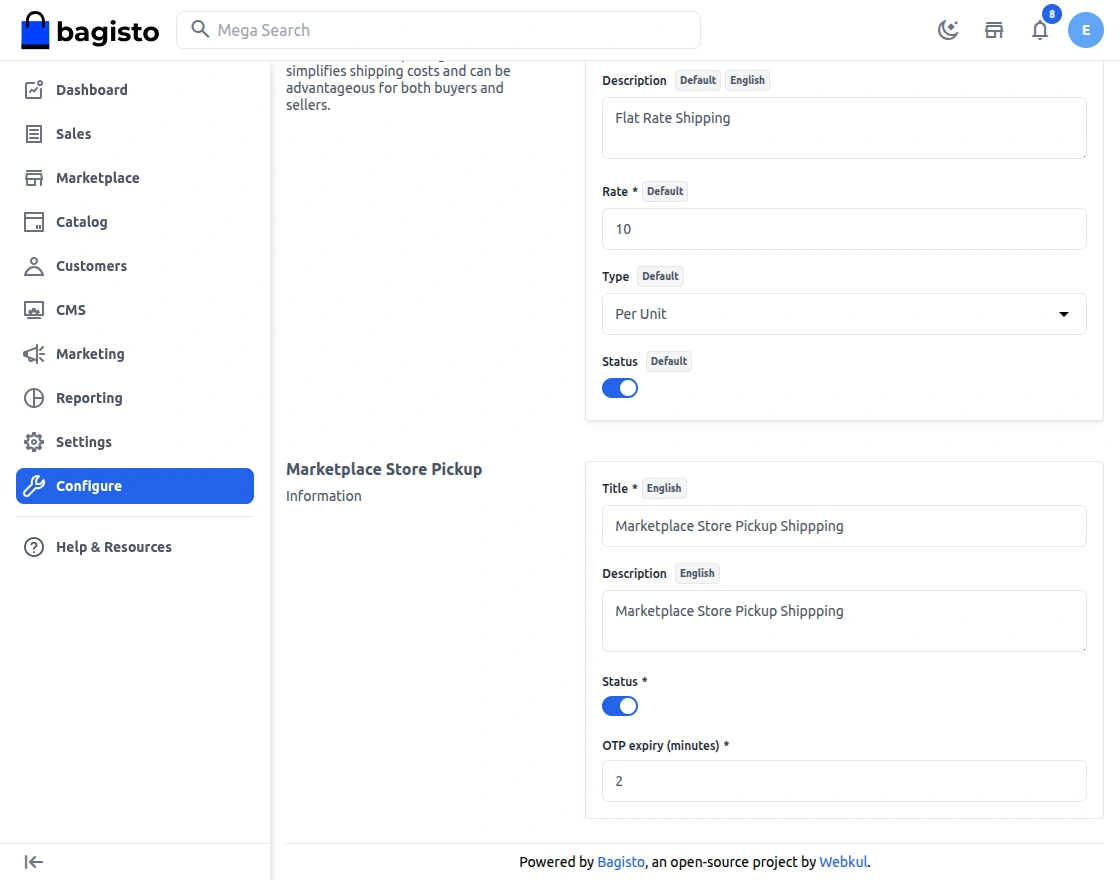
- Admin can “Active” or “Inactive” this module.
- Here admin can can define the OTP validity period (in minutes) for secure pickup confirmation.
After successful installation and configuration, the admin can access the Store Pickup section under Marketplace → Store Pickup.
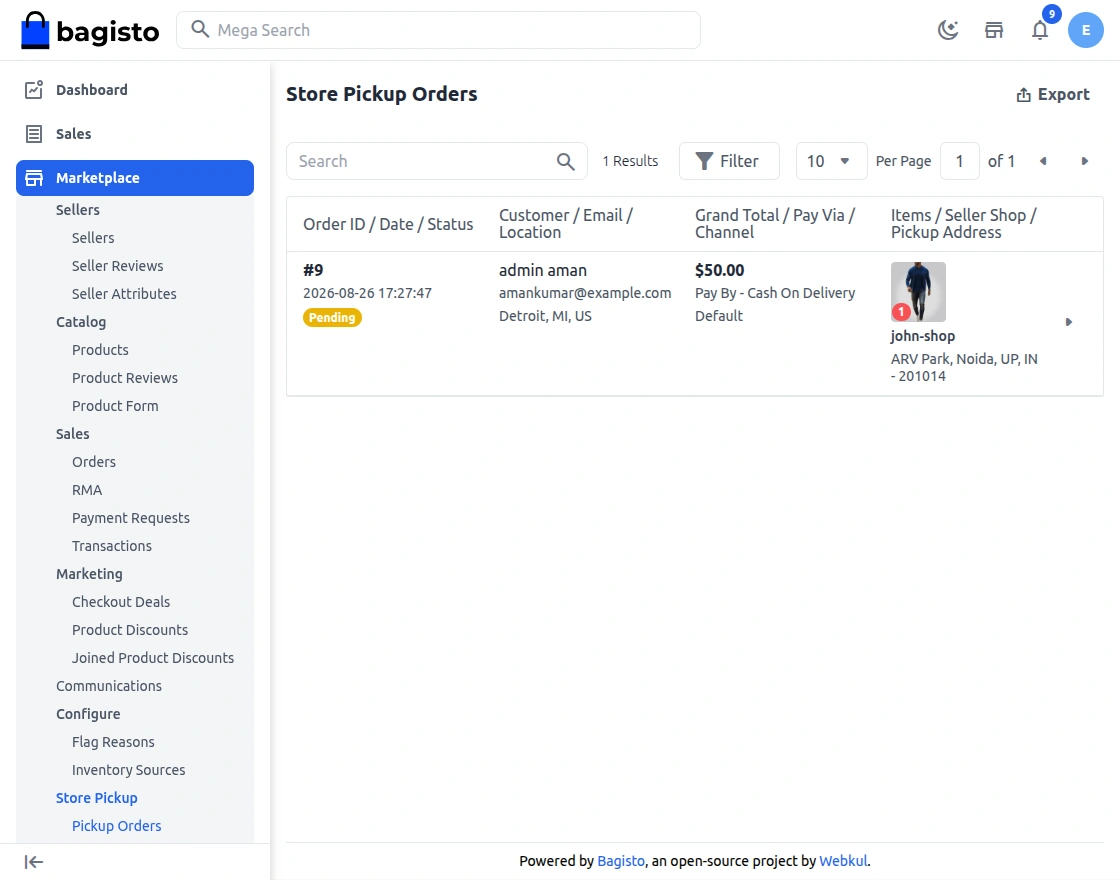
Here the admin can view all store pickup orders.
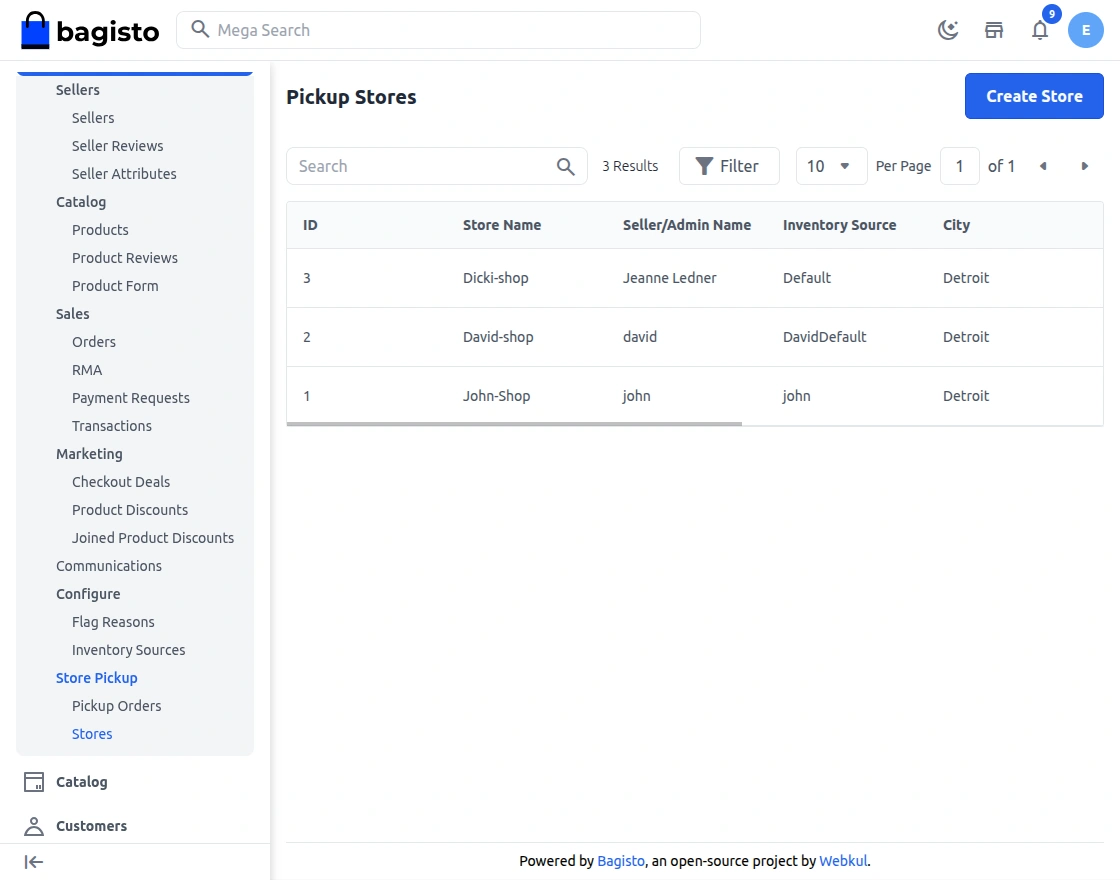
Clicking on a store displays a list of all available pickup locations.
Create Store
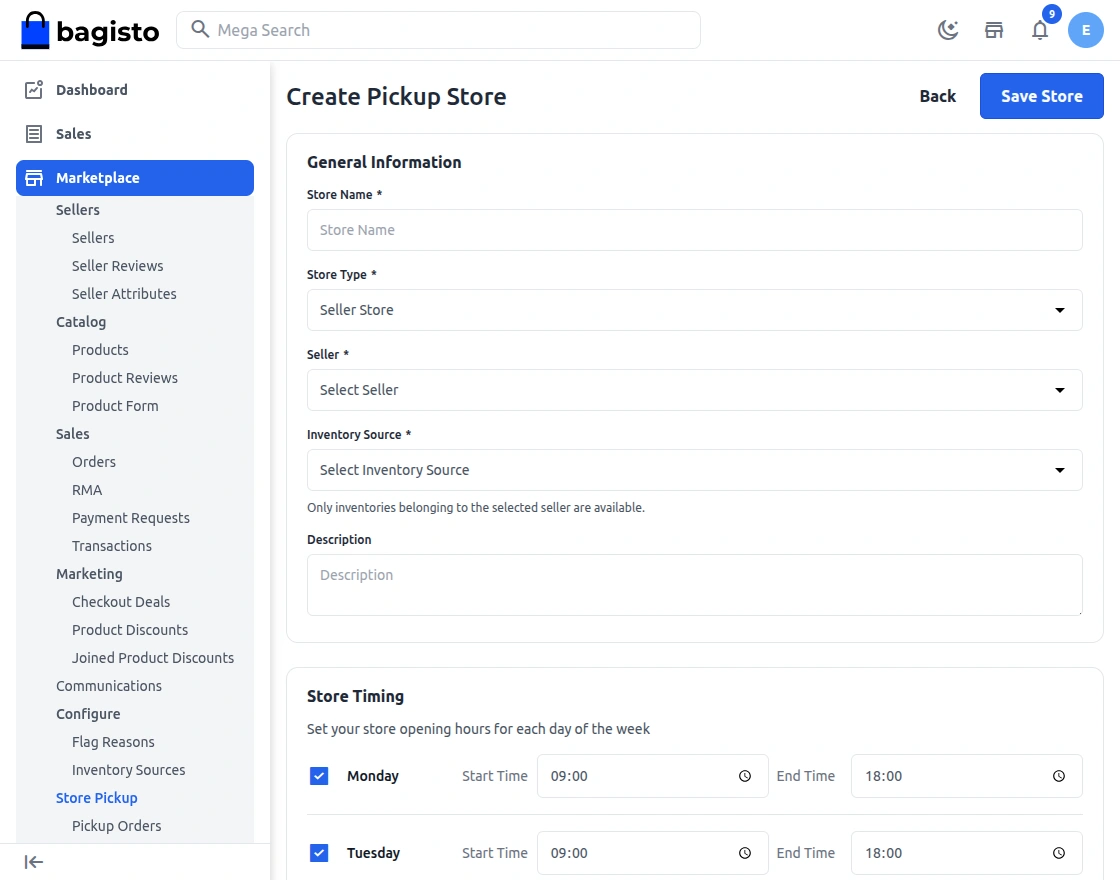
Clicking Create Store opens a form where the admin can create a pickup location either for the owner or for a specific seller.
General Information
- Store Name — Enter the public name of the pickup location shown to customers.
- Store Type — Choose whether this is an Admin Store or a Seller Store.
- Seller — When Seller Store is selected, pick the seller from the dropdown.
- Select Inventory Source — Only inventory sources that belong to the selected seller are available in this list.
- Description — Add a short description or instructions customers should see on the product page.
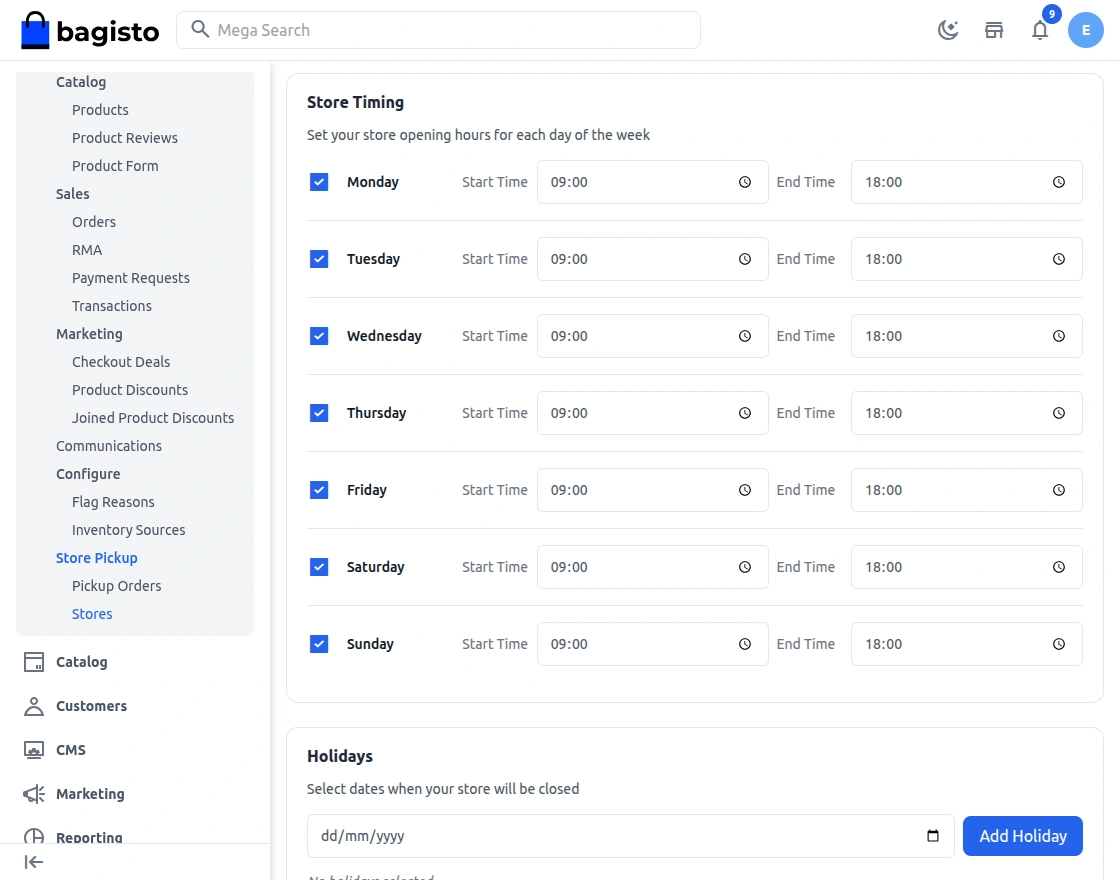
Store Timing and Holidays
Opening Hours — Define daily opening and closing times.
Timeslot Configuration — Set timeslot start/end.
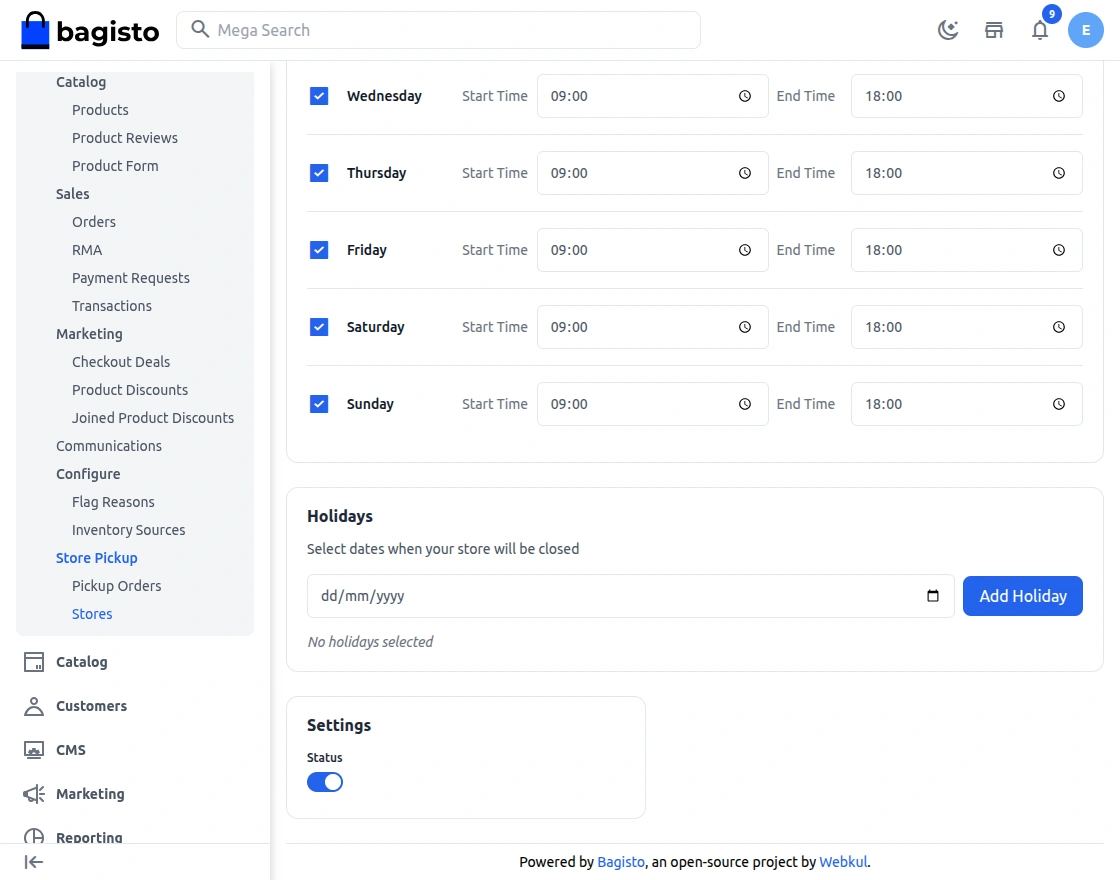
Holidays and Closed Dates — You can add single or multiple days as holidays according to your schedule; the store will not accept pickups on those dates.
Settings
Status — Set the store to Active or Inactive to control visibility on the storefront.
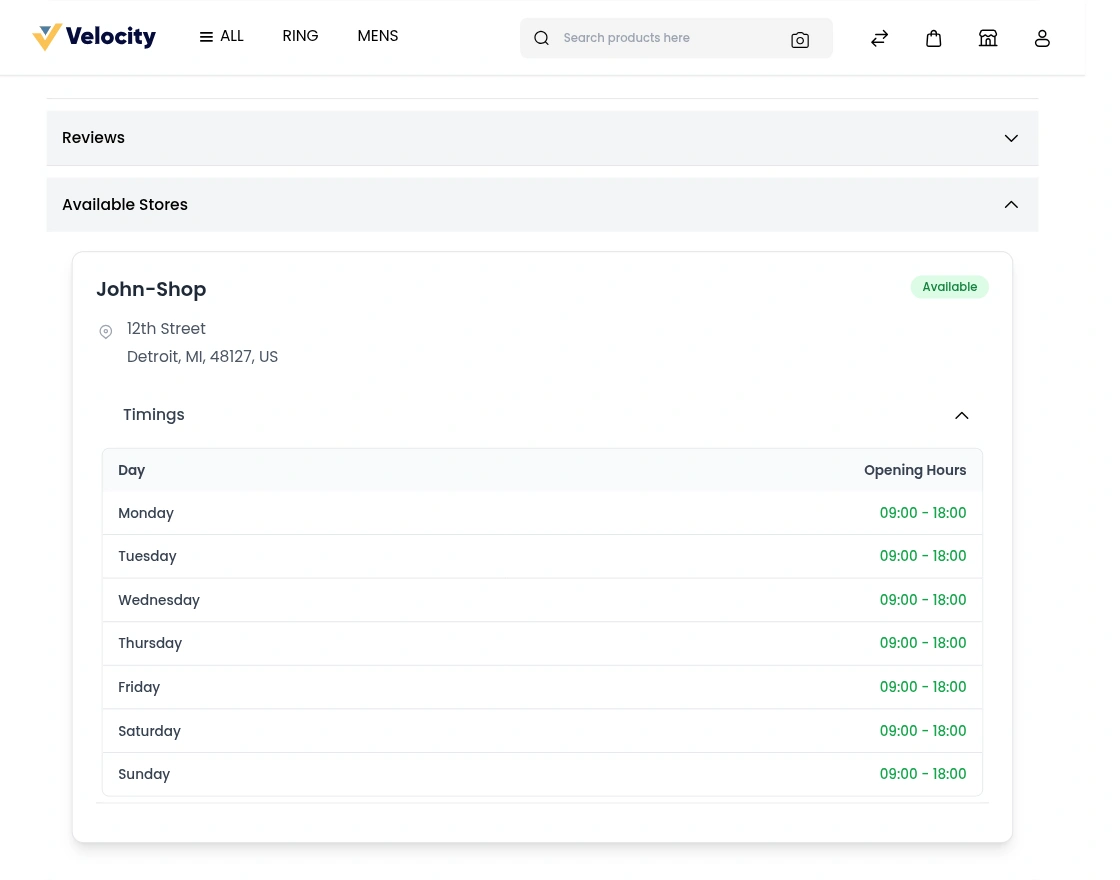
Store Visibility in Product Page
When a product is linked to an inventory source that is associated with one or more pickup stores, those stores become visible on the product page.
The product page shows only active stores that have available pickup options for the selected date, ensuring customers see valid collection points.
Products associated with the inventory source used to create a store will display that store’s information on the product page.
Only active stores with available pickup options are shown to customers.
Seller Guide
Sellers can create and manage their own pickup locations, control availability, and handle pickup orders without admin intervention.
This lets sellers offer local click‑and‑collect, reduce shipping costs, and provide faster fulfillment to nearby customers.
Checkout Flow for Store Pickup
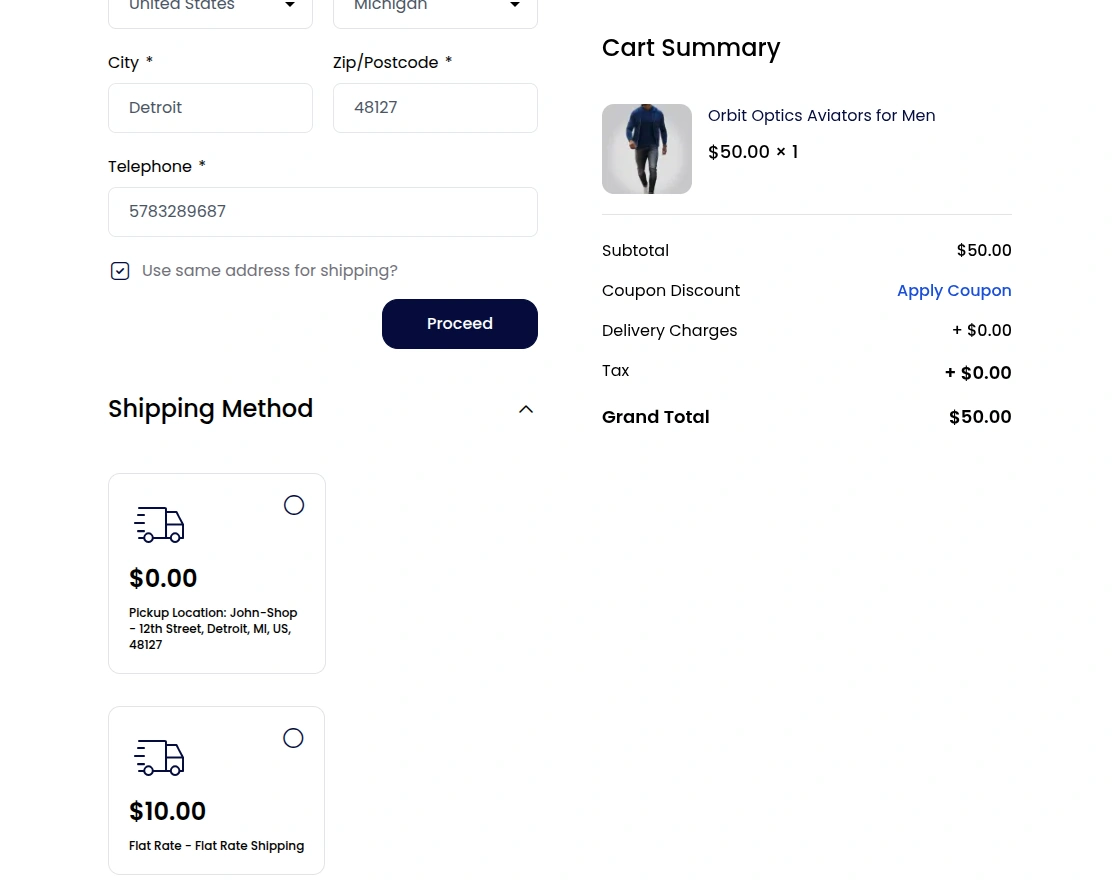
Selecting Shipping Method
When the customer reaches the Selecting Shipping Method section, they choose Store Pickup as the shipping option from the available methods.
The Store Pickup option appears with the configured store location with zero handling fee.
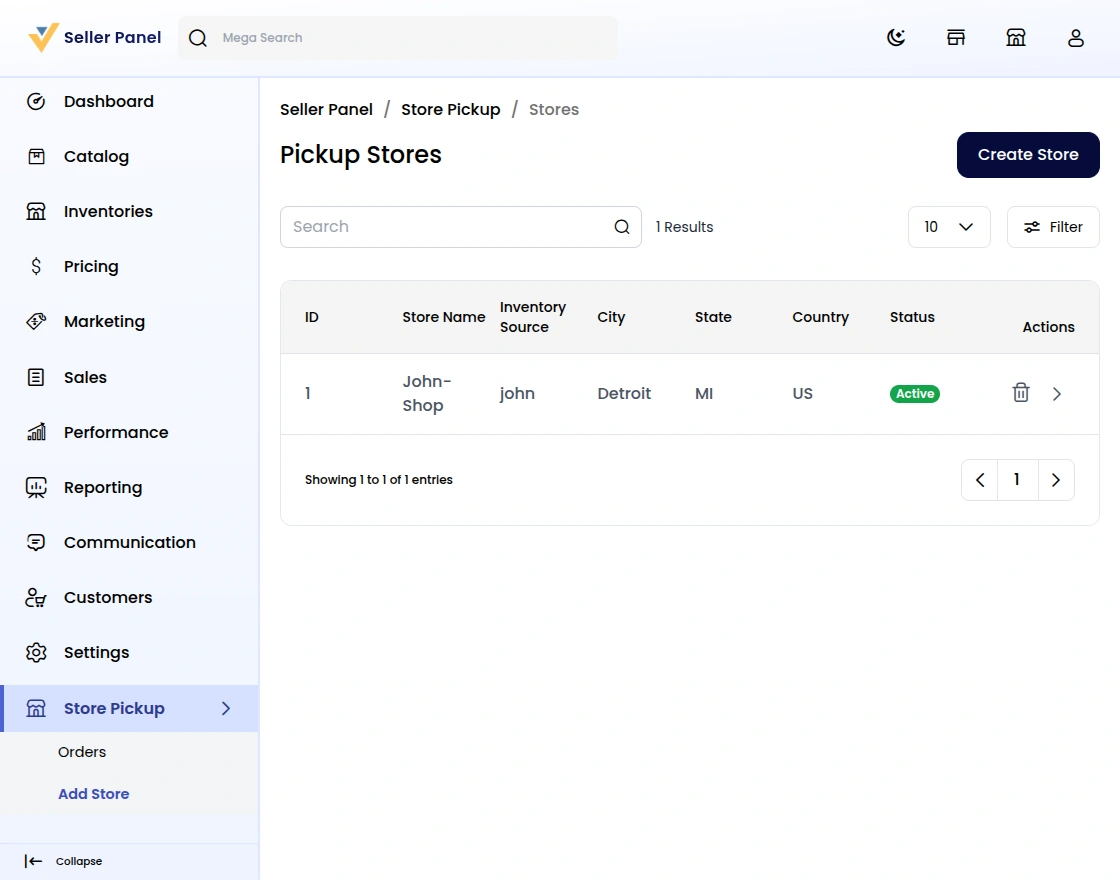
Creating and Managing Stores
When a seller opens their dashboard, the Store Pickup option is visible. Sellers can create new pickup locations, manage existing stores, and view all assigned pickup orders.
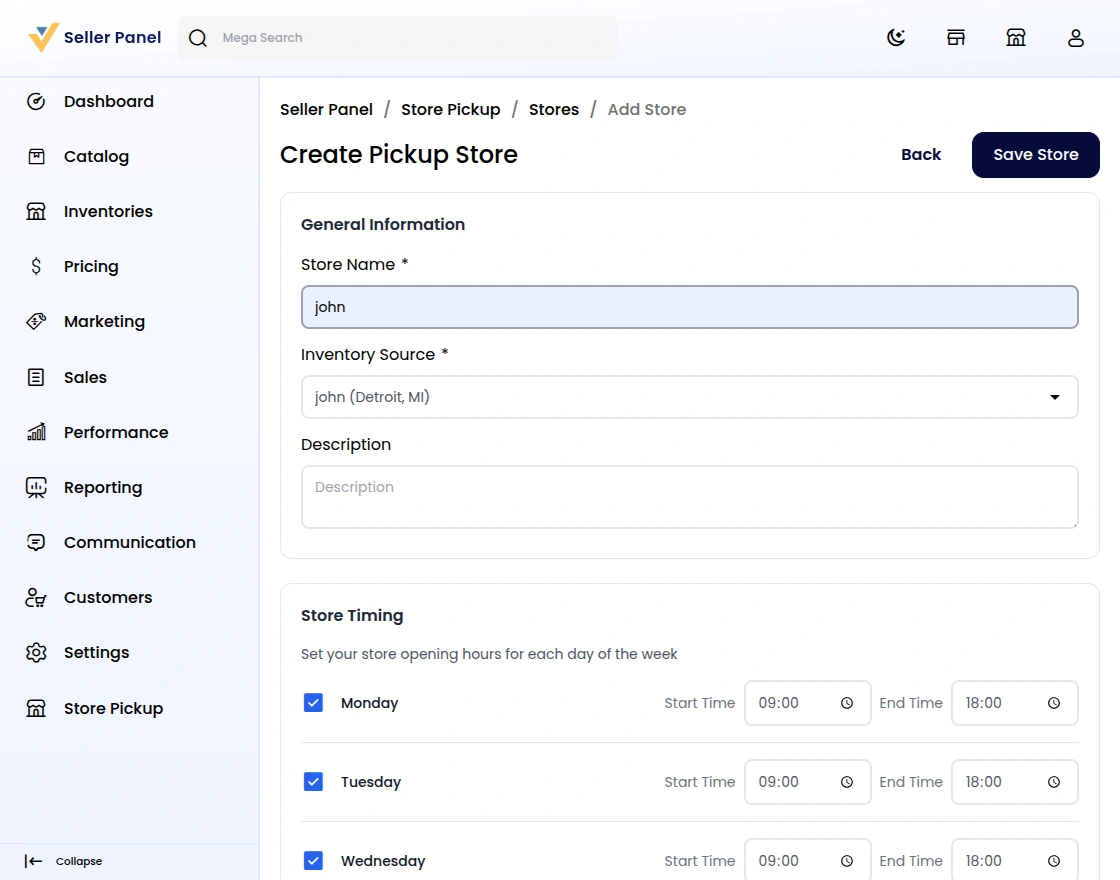
Create Store
Clicking Create Store in the seller dashboard opens the store creation form so sellers can add a pickup location for their products.
The form is organized into clear sections to speed up data entry and reduce errors. After saving, the new store appears in the seller’s store list and becomes available for assignment to products when set to Active.
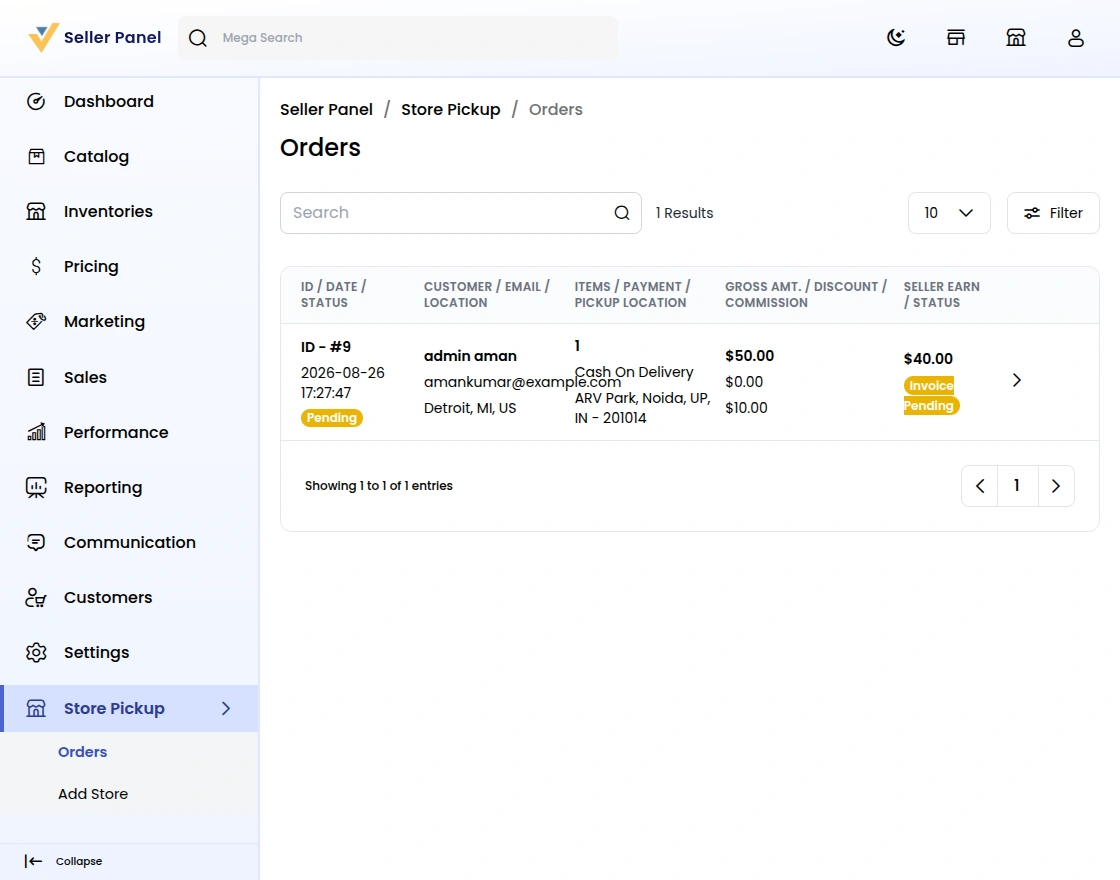
Seller Store Pickup Orders
When a seller opens Seller Dashboard → Store Pickup → Orders, they see a consolidated list of all store pickup orders for their stores.
This view gives sellers a clear, actionable overview so they can manage pickups efficiently.
seller
When a seller navigates to Dashboard → Store Pickup → Orders, they see all pickup orders linked to their stores.
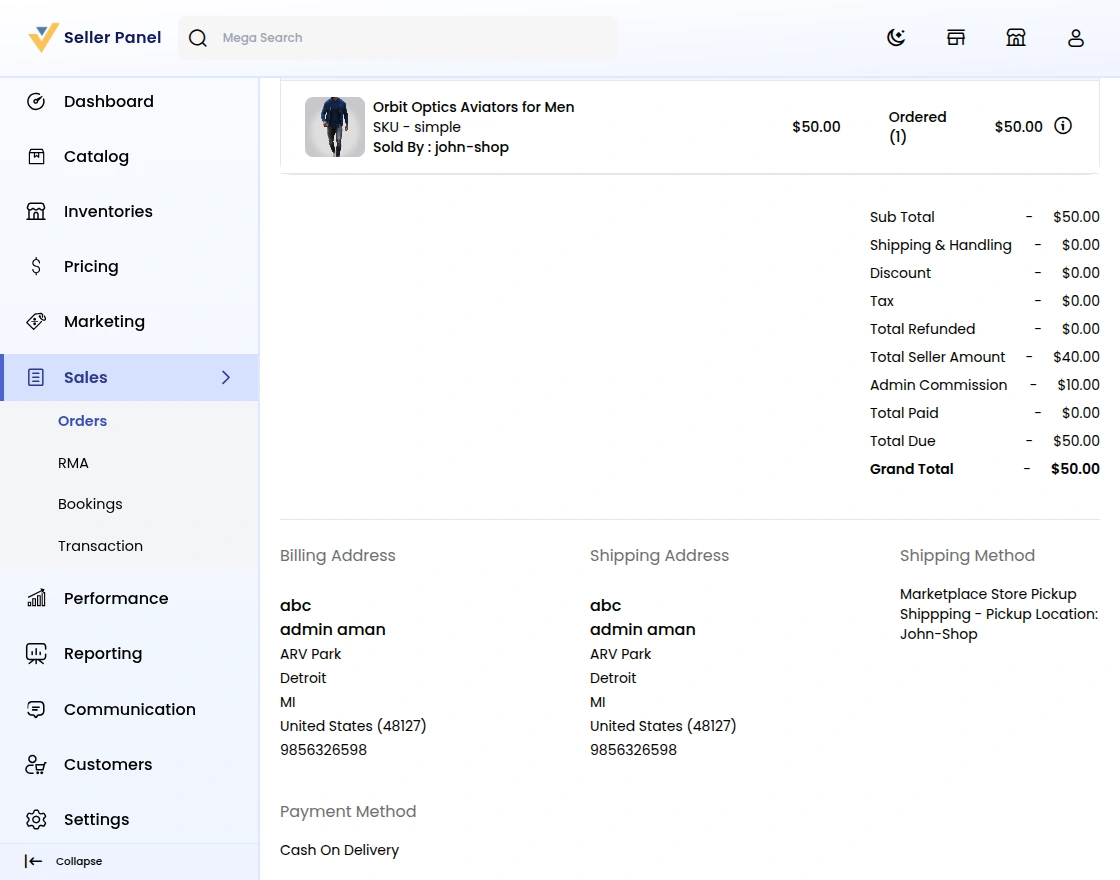
Generate OTP
- For every store pickup order, a Generate OTP option is visible.
- Clicking Generate OTP sends a one‑time password to the customer.
OTP Verification Requirement
- The OTP must be entered and verified before the order can be processed or marked as picked up.
- Without OTP verification, the system blocks fulfillment to ensure the order is securely verified before handover.
Support
So, that was a bit about the Bagisto Marketplace store pickup. For any queries or doubts, reach out to us at [email protected]. You can also raise a ticket at our HelpDesk System.
Current Product Version - v2.4.10
Supported Framework Version - Bagisto v2.4.10

Be the first to comment.