Introduction
Odoo POS Wallee Payment Acquirer integrates the Wallee payment gateway with the POS system for secure transactions.
It enables real-time QR POS payments directly within the Odoo POS interface through seamless integration with the POS Payment Base module using the Odoo POS Wallee Payment Acquirer.
It ensures smooth POS payment gateway processing with reliable transaction tracking and payment status updates.
Prerequisites for using Odoo POS Wallee Payment Acquirer
Odoo module name works in conjunction with the following module:
You must install the above-mentioned module to use the Module name.
Features
- QR-based payment support in POS
- Secure hosted card payment page
- Real-time payment status updates
- Payment line protection rules
- Backend transaction tracking
- Fast and contactless payments
- Secure credential-based configuration
- Smooth POS payment workflow
Installation
- Once you purchase the App from Webkul store, you will receive a link to download module’s zip file.
- Extract the file on your system after download finishes. As a result, you will be able to see a folder named- pos_wallee_payment_acquirer.
- Copy and paste this folder inside your Odoo Add-Ons path.
- Now, open Odoo App and click on the Settings menu. Here, click on Activate Developer Mode.
- Then, open Apps menu and click on ‘Update Modules List.’
- In the search bar, remove all the filters and search pos_wallee_payment_acquirer.
- You will be able to see module in the search results. Click on ‘Activate’ to install it.
Workflow
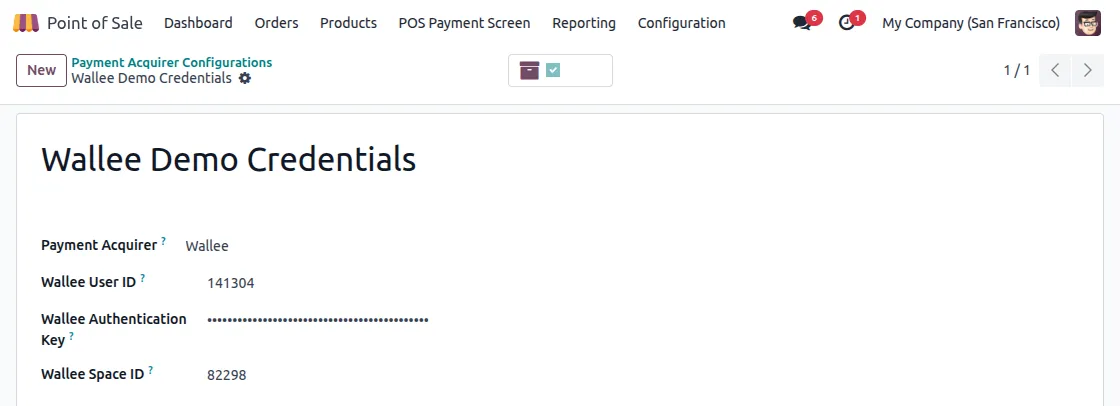
1. Configure Wallee Credentials
Go to the backend and open Wallee configuration settings.
Enter User ID, Authentication Key, and Space ID to connect the Wallee payment gateway.
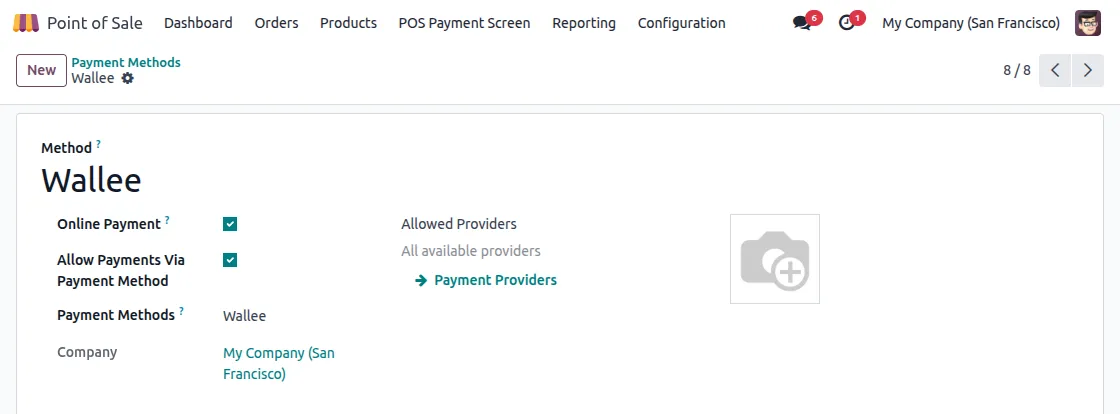
2. Set Up Wallee Payment Method
Go to POS payment methods and create a new method.
Select Wallee as the payment acquirer and enable it for POS payment gateway usage.
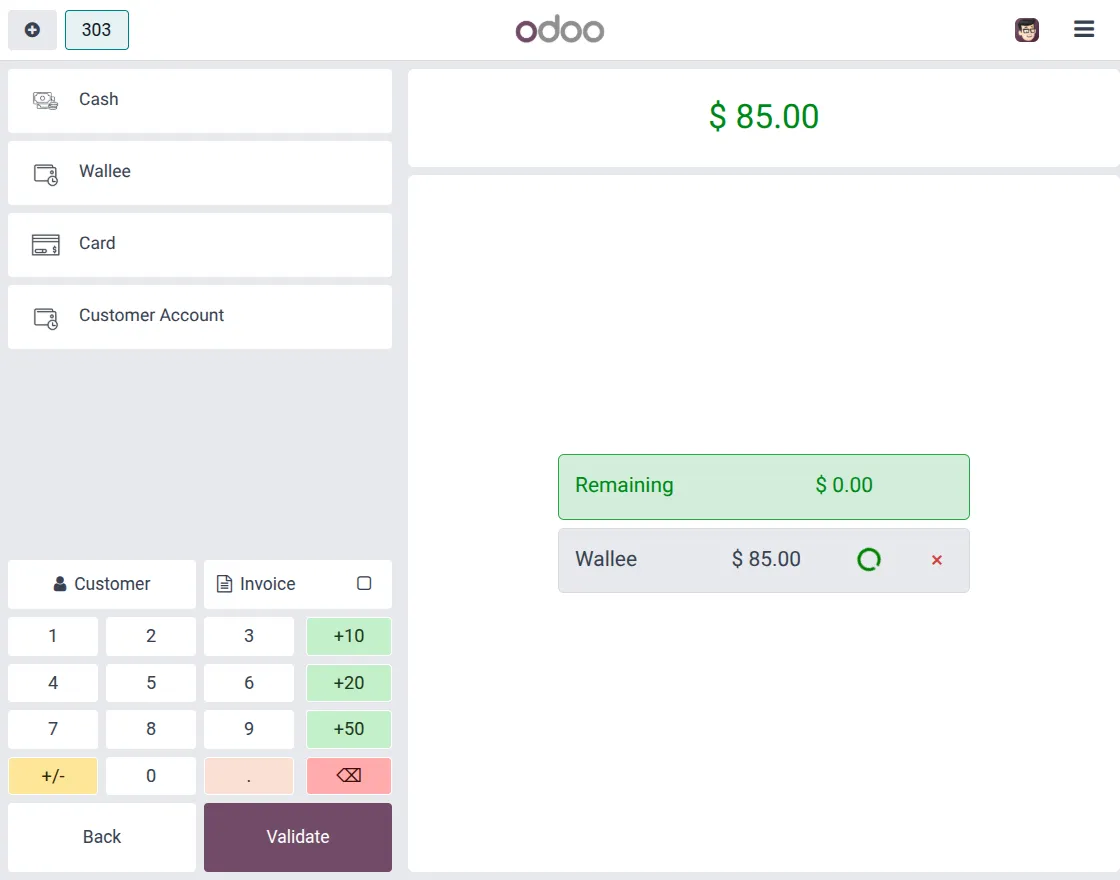
3. Select Wallee Payment Method
Open the POS session and go to the payment screen.
Select Wallee as the payment method to proceed with QR POS payment Odoo.
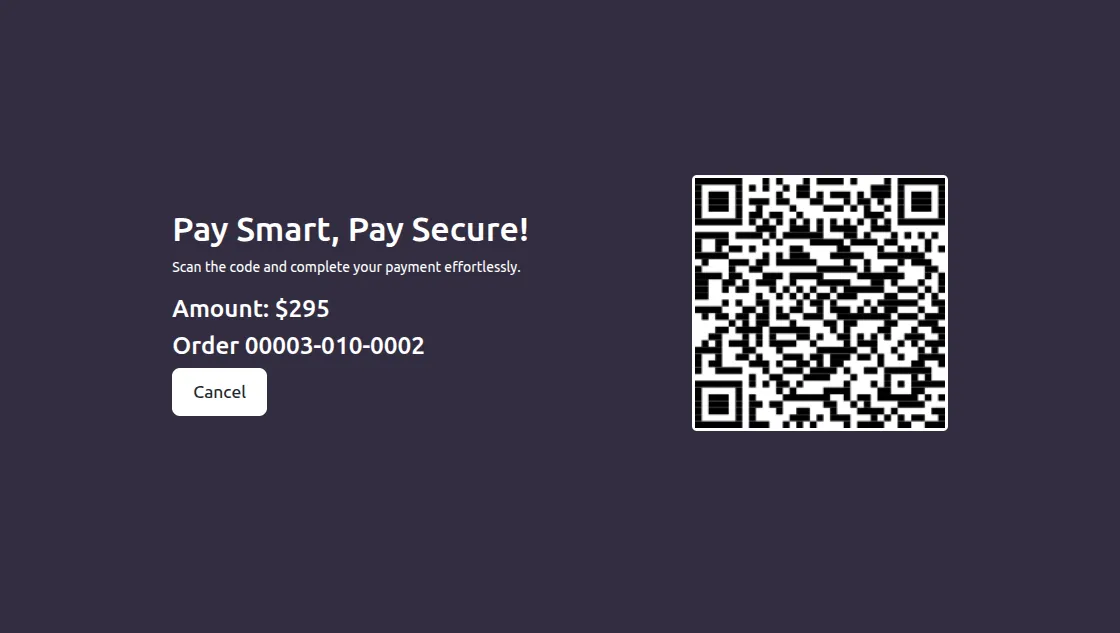
4. QR Code Generation Screen
After selecting Wallee, the QR code is generated on the POS Payment Base screen.
This QR code supports QR POS payment Odoo for the exact order amount.
5. Open Hosted Payment Page
The customer scans the QR code using their device.
A secure page opens using the Wallee payment gateway to enter card details.
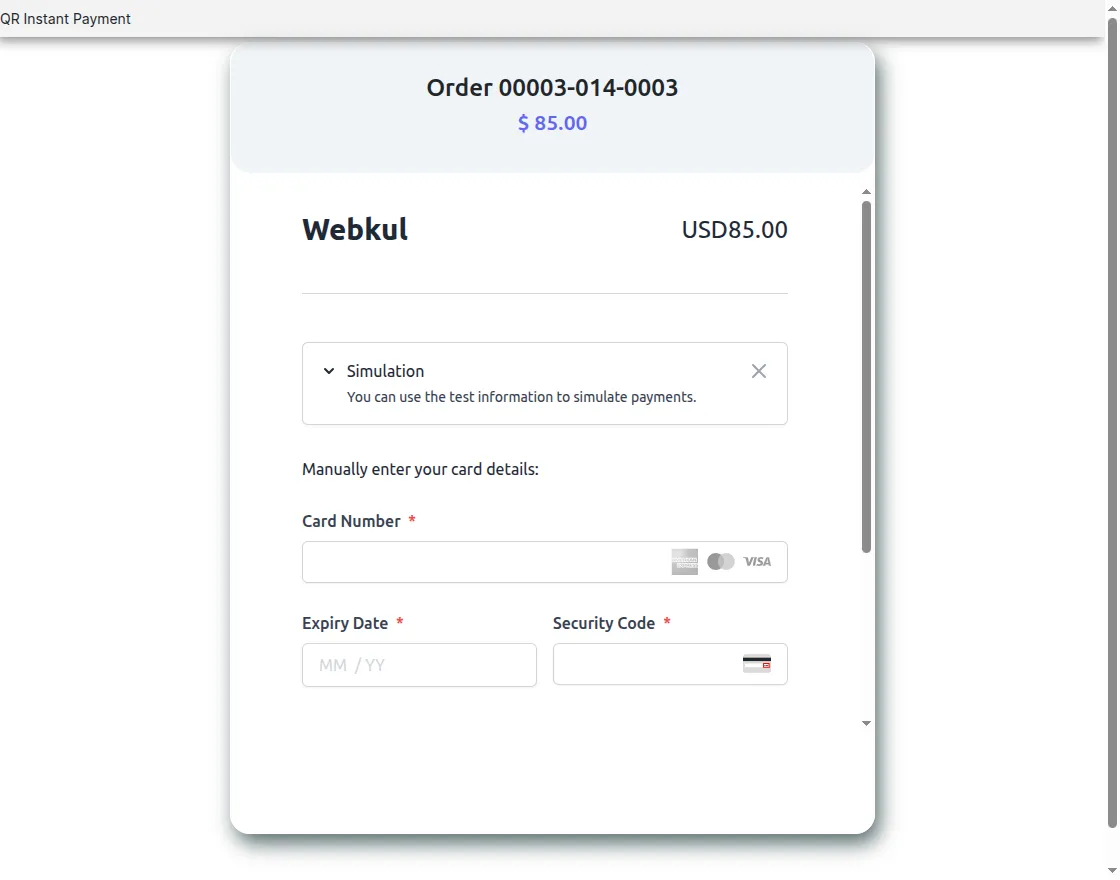
6. Complete Payment
Enter card details and confirm the payment.
This step ensures smooth Odoo payment integration with secure processing.
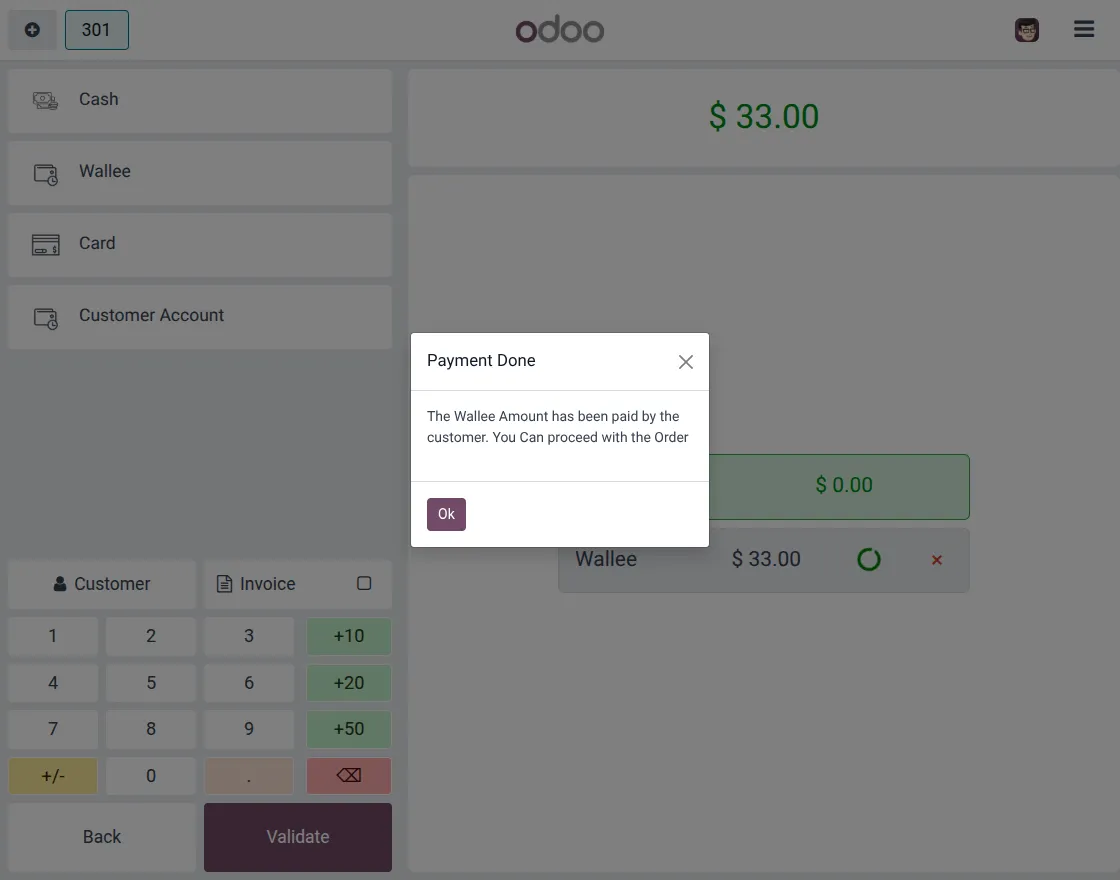
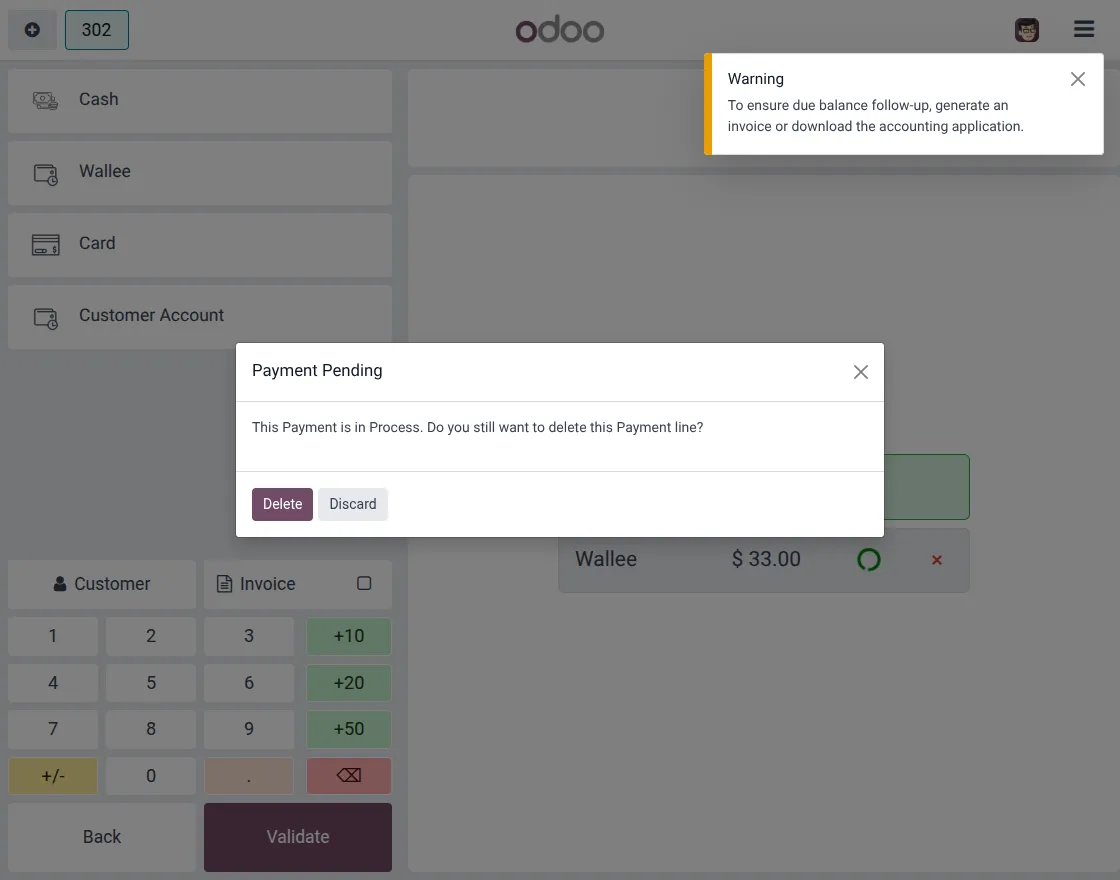
7. Payment Status Handling
The payment status is updated in real time within the POS system.
It reflects the processing status of the POS payment gateway transaction.
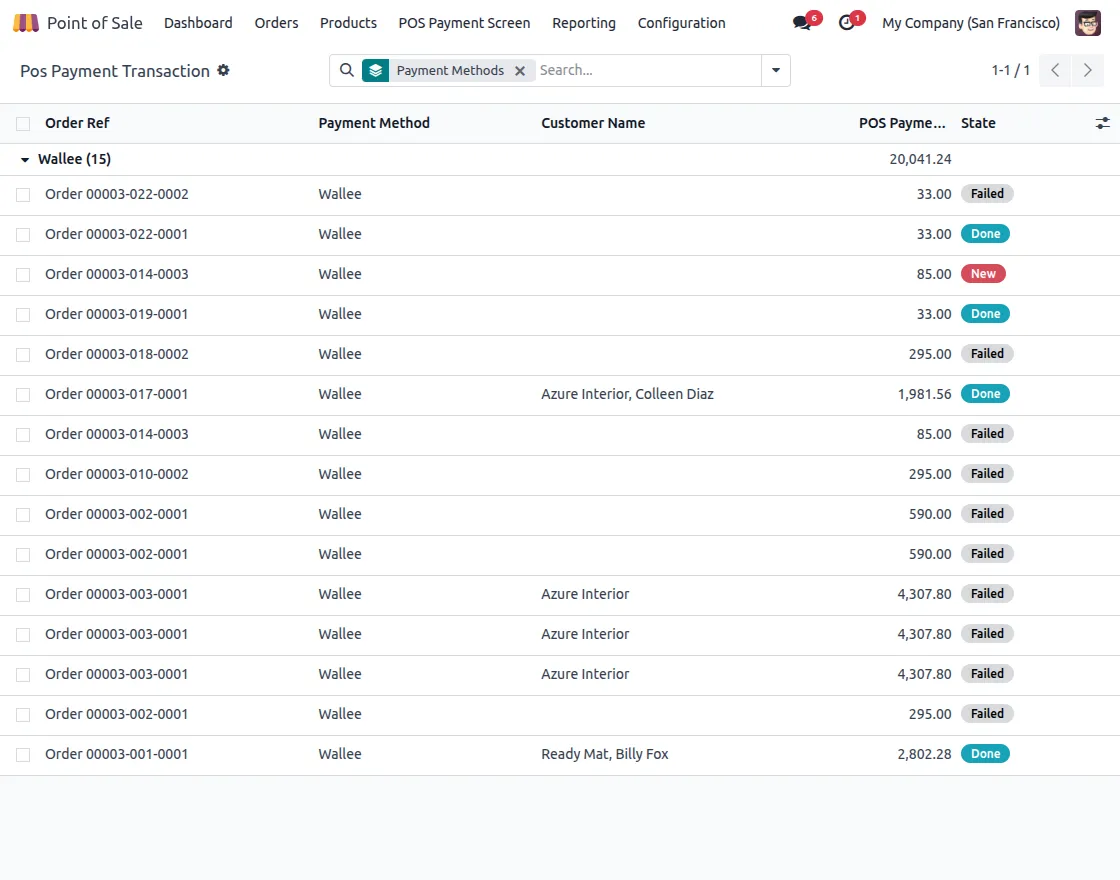
8. Backend Transaction Records
Go to the backend to view all payment transactions.
Each transaction is stored as part of the Odoo payment integration with proper status tracking.
Need Help ?
Hope you find guide helpful! Please feel free to share your feedback in the comments below.
If you still have any issues/queries, please create a ticket at the UVDesk.
I hope this helps. In case of any further queries, contact us at our support mail.
Thanks for paying attention!!
Current Product Version - 1.0.0
Supported Framework Version - Odoo V19, V18

Be the first to comment.