INTRODUCTION
Odoo Snowflake Connector helps you connect Odoo with Snowflake and sync business data easily.
You can export data, create tables, and use them for analytics and reporting.
With this connector, you can manage Snowflake databases and tables directly from Odoo.
It also supports automatic sync, schema updates, and data filtering for better control.
Prerequisites for using Odoo Snowflake Connector
Snowflake -> Python connector library used to establish connections in Snowflake
snowflake-snowpark-python -> Snowpark library used to perform DataFrame-based processing and advanced operations within Snowflake using Python
FEATURES
- Secure Snowflake connection setup
- Create and manage Snowflake databases
- Generate tables from Odoo models
- Flexible field and column mapping
- Incremental data synchronization
- Schema migration support
- Domain-based data filtering
- Automated synchronization using cron jobs
INSTALLATION
Once you purchase the App from the Webkul store, you will receive a link to download module’s zip file.
Extract the file on your system after download finishes. You will see a folder named ‘wk_snowflake_connector’.
Copy and paste this folder inside your Odoo Add-Ons path.
Now, open Odoo App and click on the Settings menu. Enable Developer Mode.
Open Apps menu and click on ‘Update Modules List.’
Search ‘wk_snowflake_connector’ and click on ‘Activate’ to install the module.
WORKFLOW
Step 1: Configure Snowflake Connection
- Go to Snowflake connection settings and create a new connection.
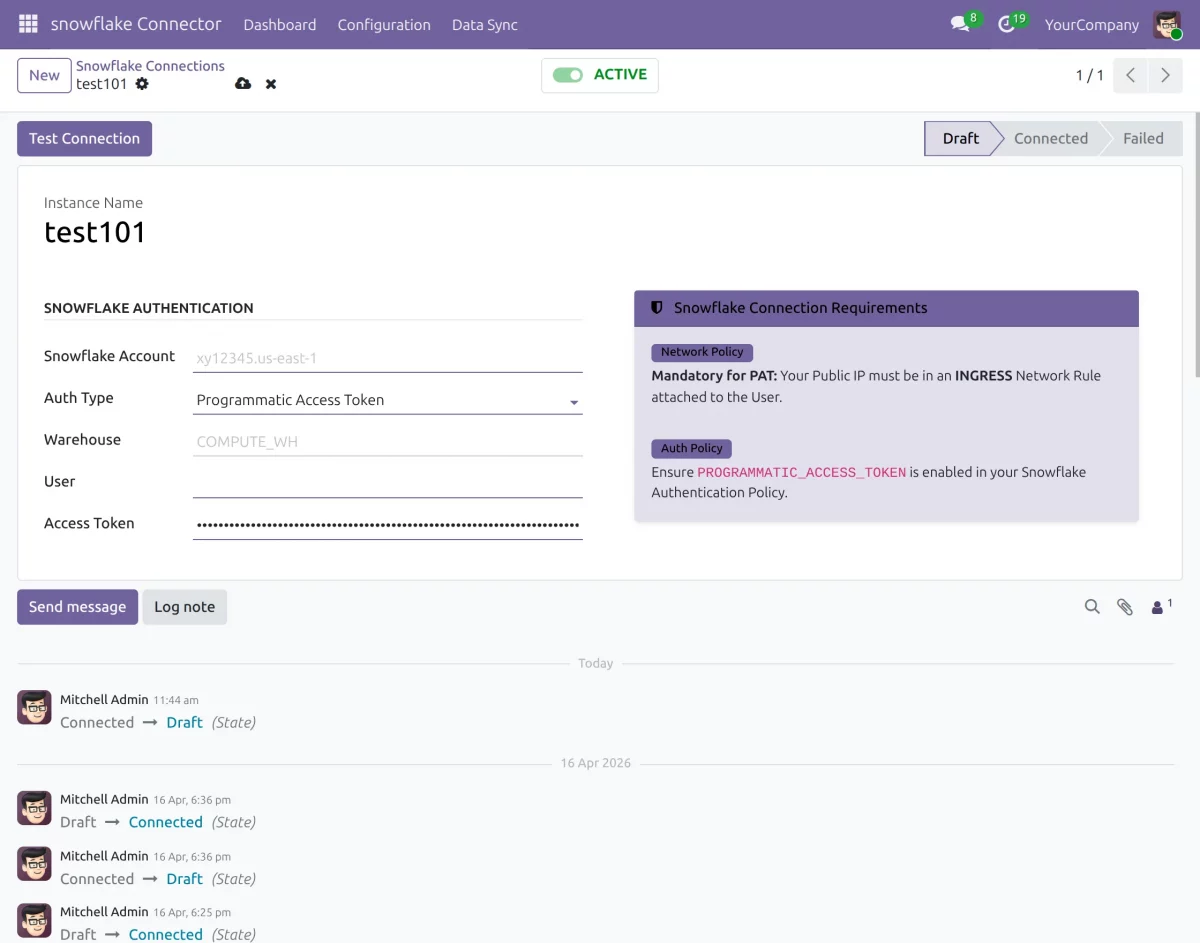
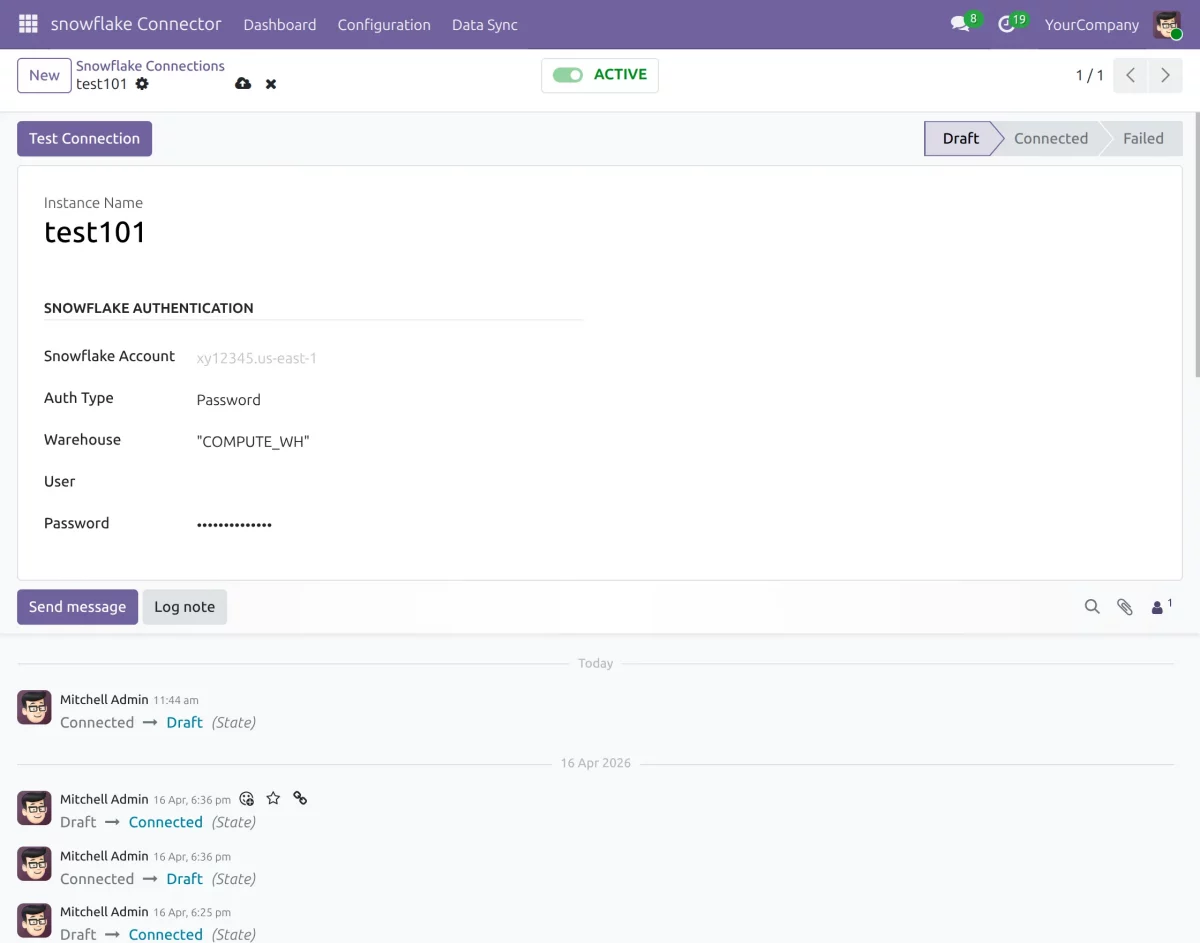
- Choose authentication type as Password or Programmatic Access Token (PAT).
- You can also set a warehouse for the connection if needed.
- If not configured, the system will automatically use the default warehouse.
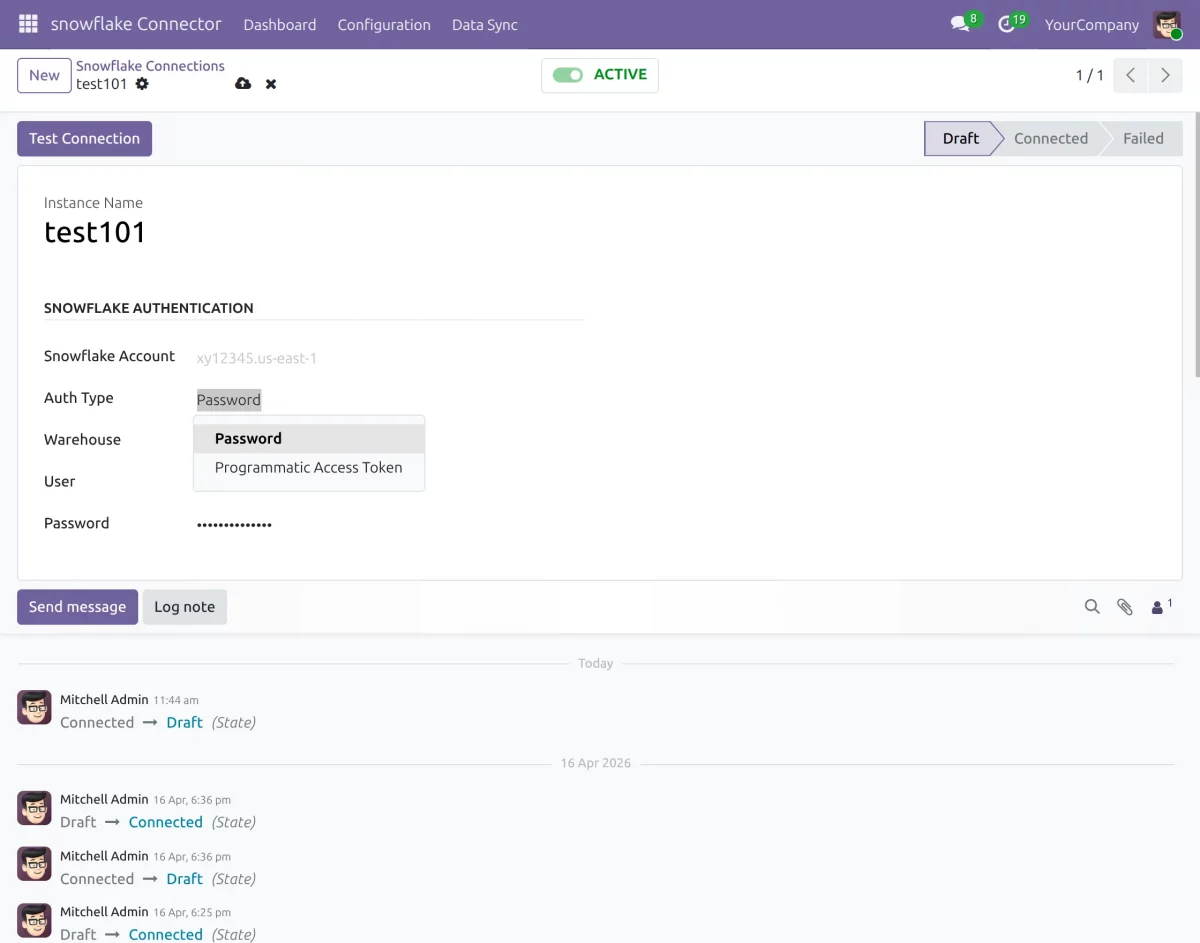
Step 2: Enter Connection Details
- Enter Snowflake account, username, password, or PAT, and warehouse details.
- Save and test the connection; once successful, your connection is ready to use.
Using PAT for Connection :
Using Password :
Step 3: Create Snowflake Database
- Go to the Snowflake database section in Odoo and create a new database.
- PUBLIC Schema will be used.
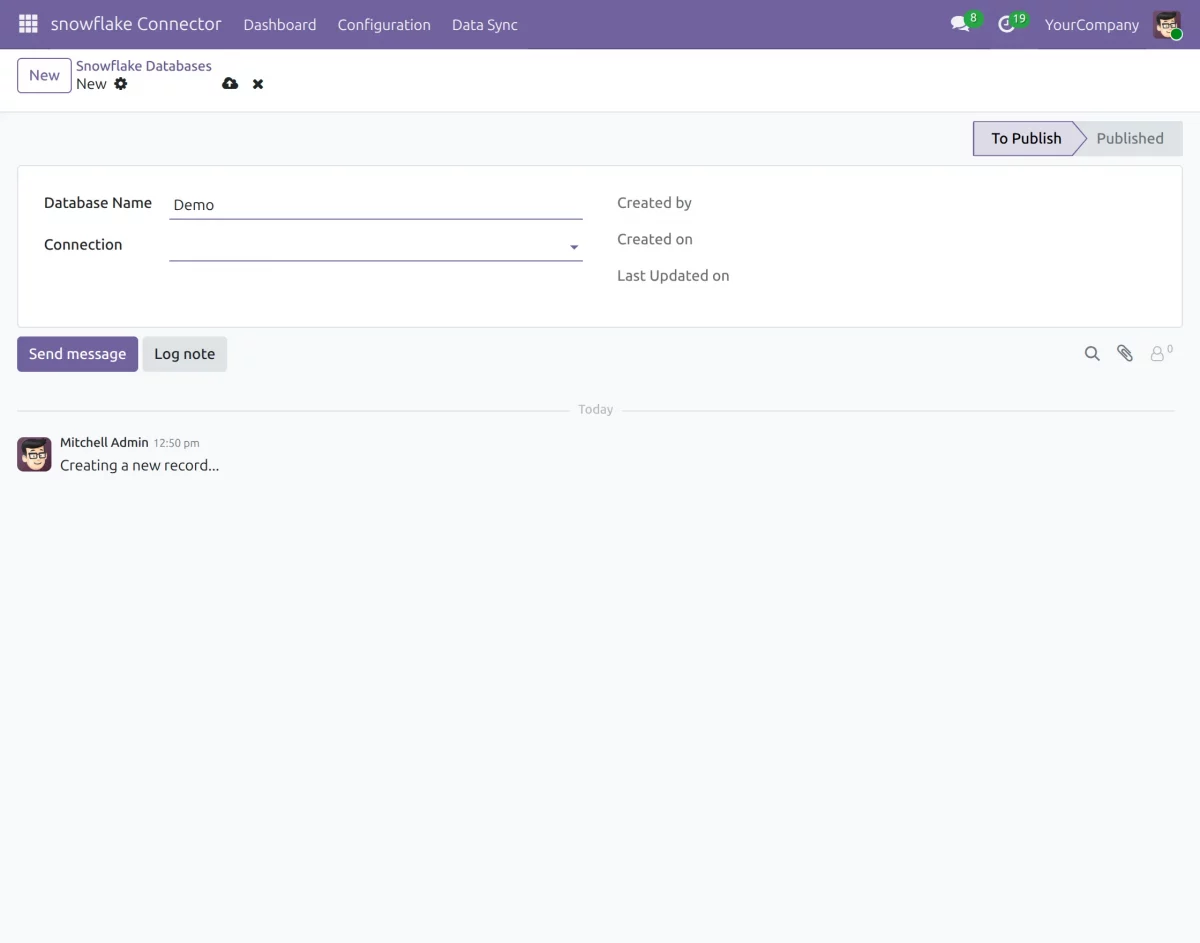
- After entering the details: Database Name, Connection Name
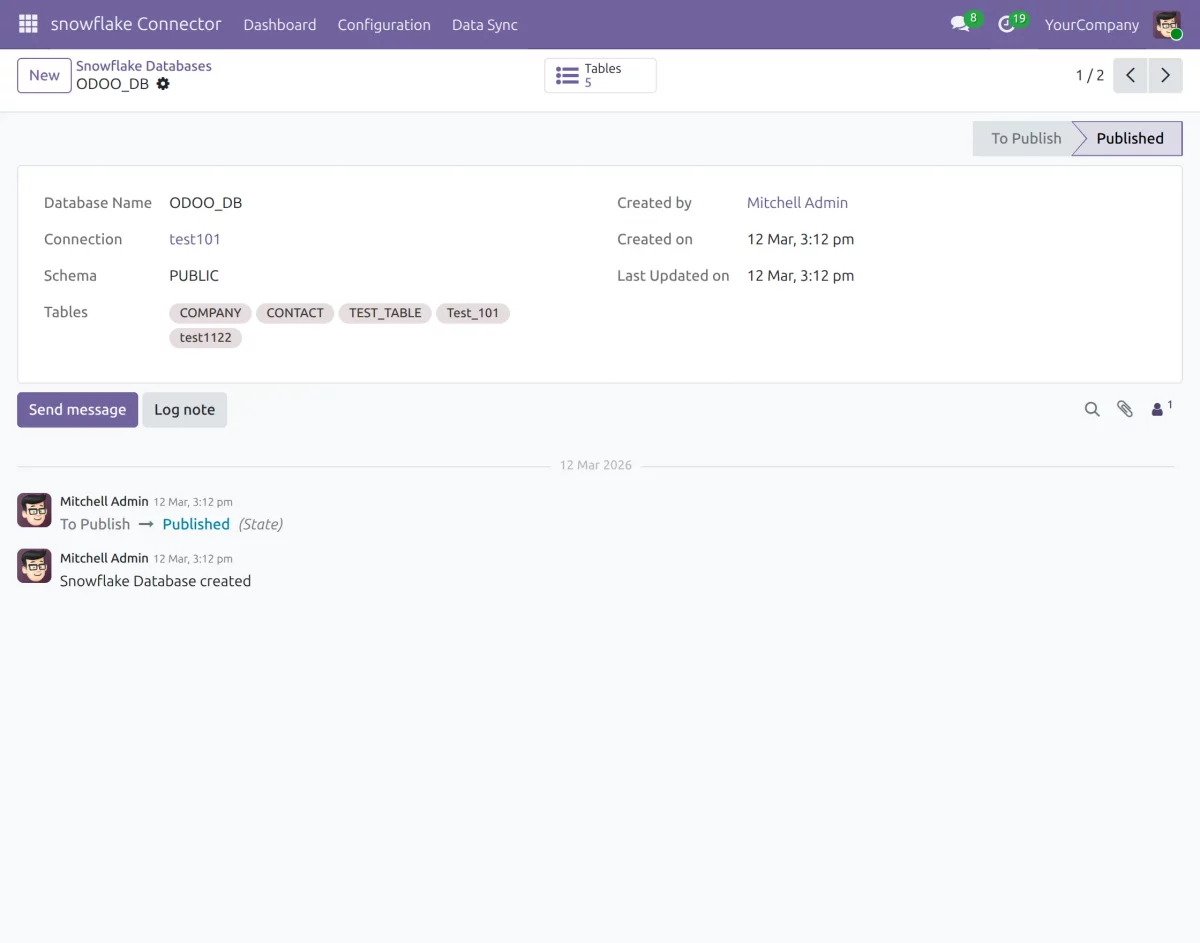
Step 4: Access Table Section
- Open the created database and click on the table icon.
- Here you can view existing tables or create new tables.
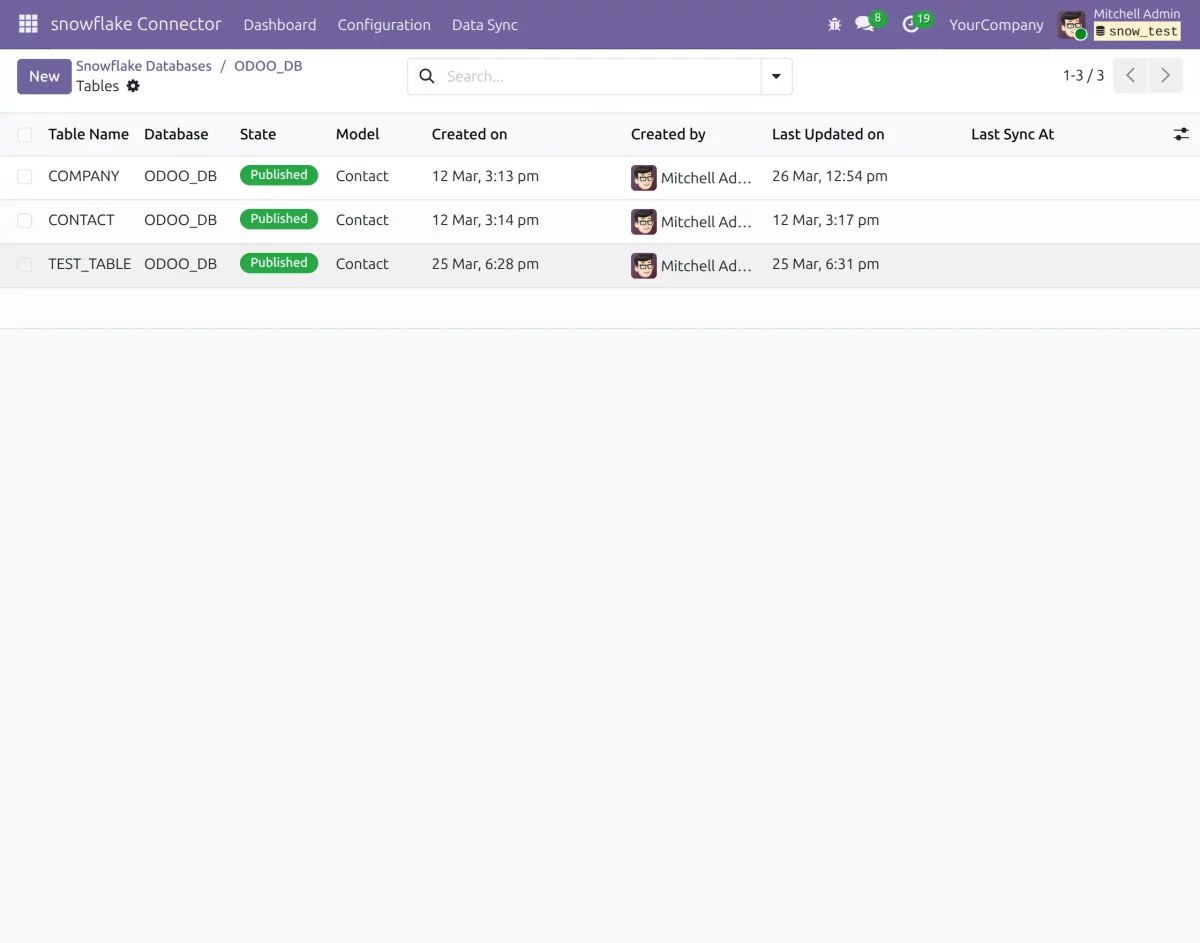
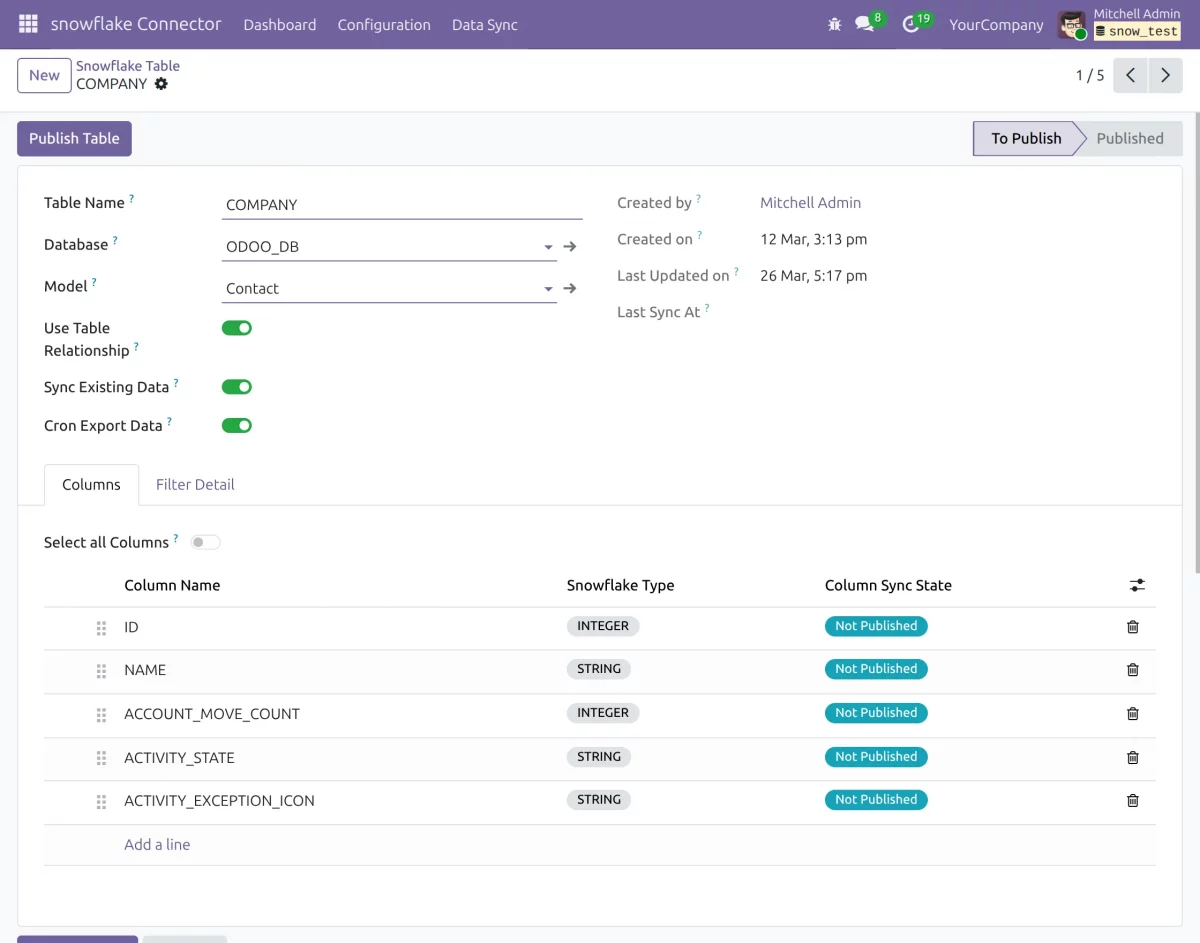
Step 5: Configure Table
- Create a table by selecting an Odoo model as the data source.
- Columns are generated automatically from model fields and can be customized.
- You can edit column names, sequence, and data types as needed.
- This helps structure the data properly before sending it to Snowflake.
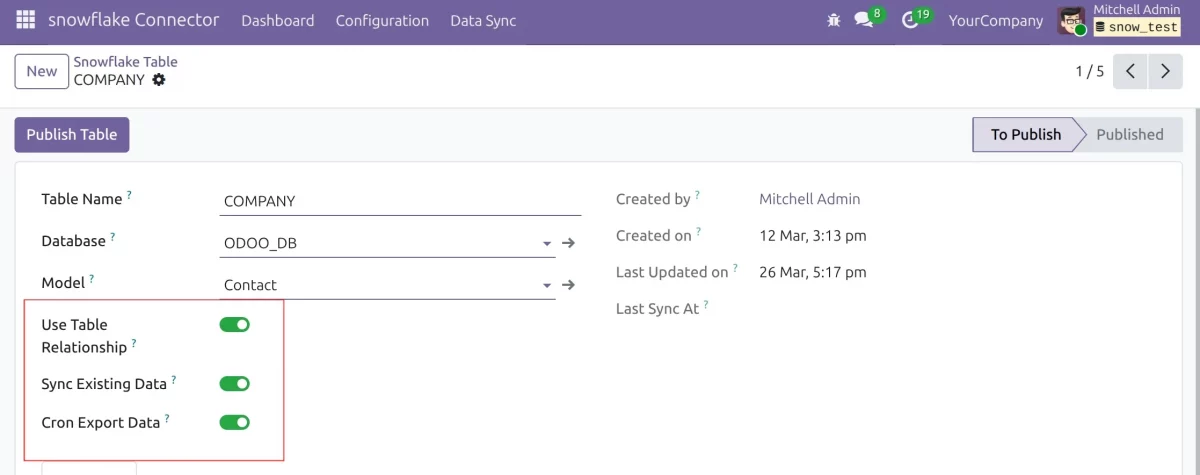
Step 6: Configure Table Logic (Relationship, Sync, Automation)
- You can define table relationships using Odoo relational fields.
Primary and foreign keys help link related tables and maintain structured data. - Enable Sync Existing Data to update already exported records when changes occur.
This ensures data stays consistent and prevents duplicate records in Snowflake. - You can also enable cron export to automate data synchronization.
This runs in the background and updates Snowflake data at scheduled intervals.
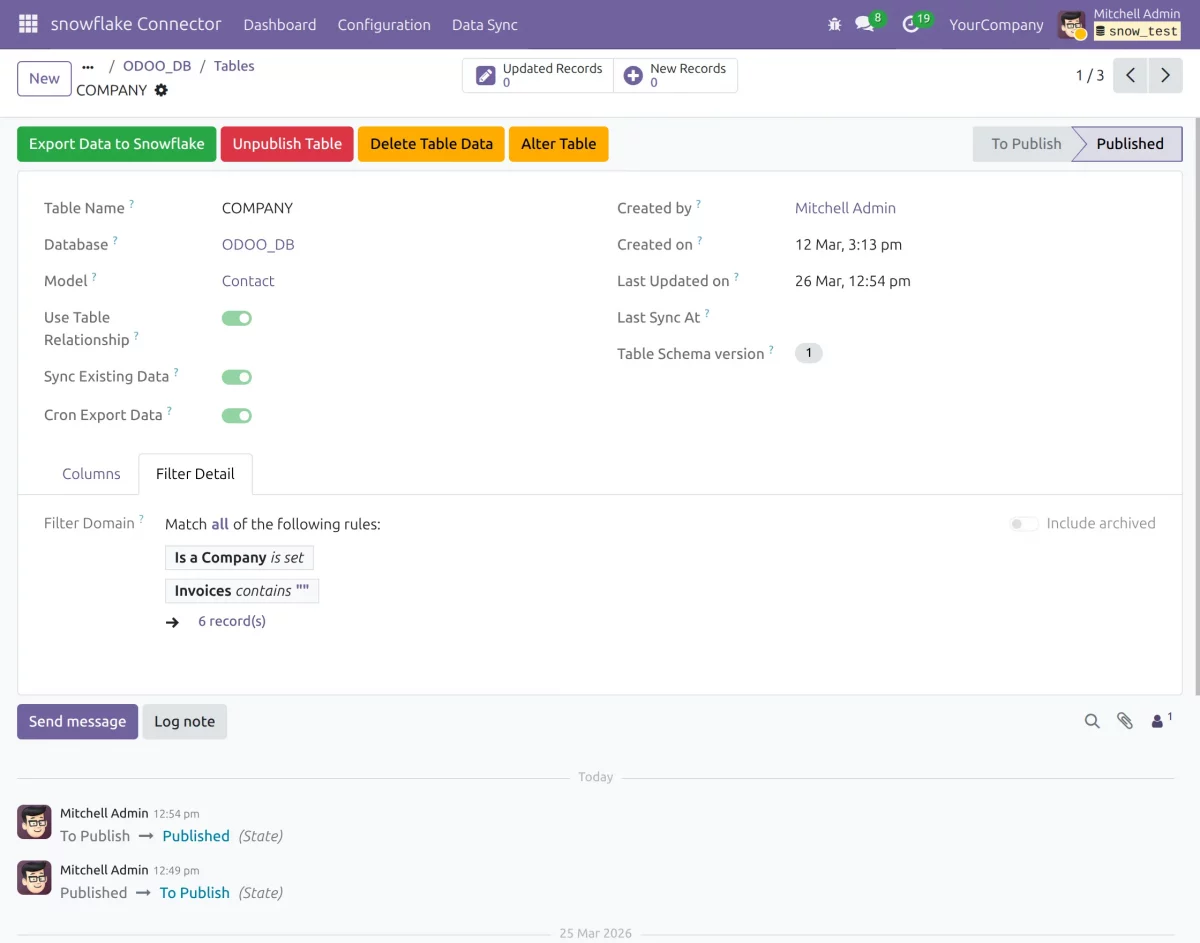
Step 7: Apply Domain Filters
- Use domain filters to control which records are exported.
- You can set rules like exporting only confirmed orders or active records.
- This ensures only the required data is sent to Snowflake.
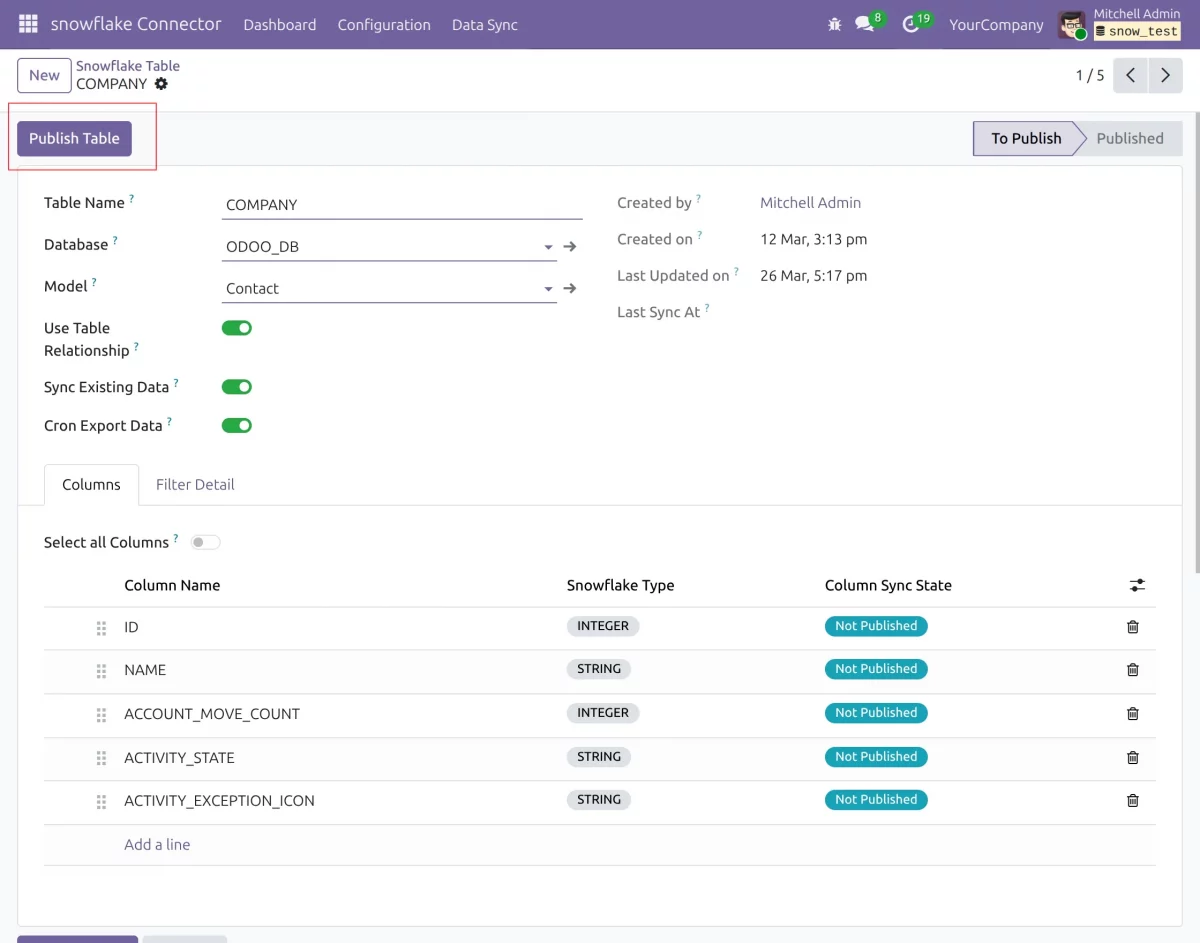
Step 8: Publish Table
- Click on the new button to create the table in Snowflake.
- After entering the details, you can click on the Publish button
- The system creates columns, keys, and table structure automatically.
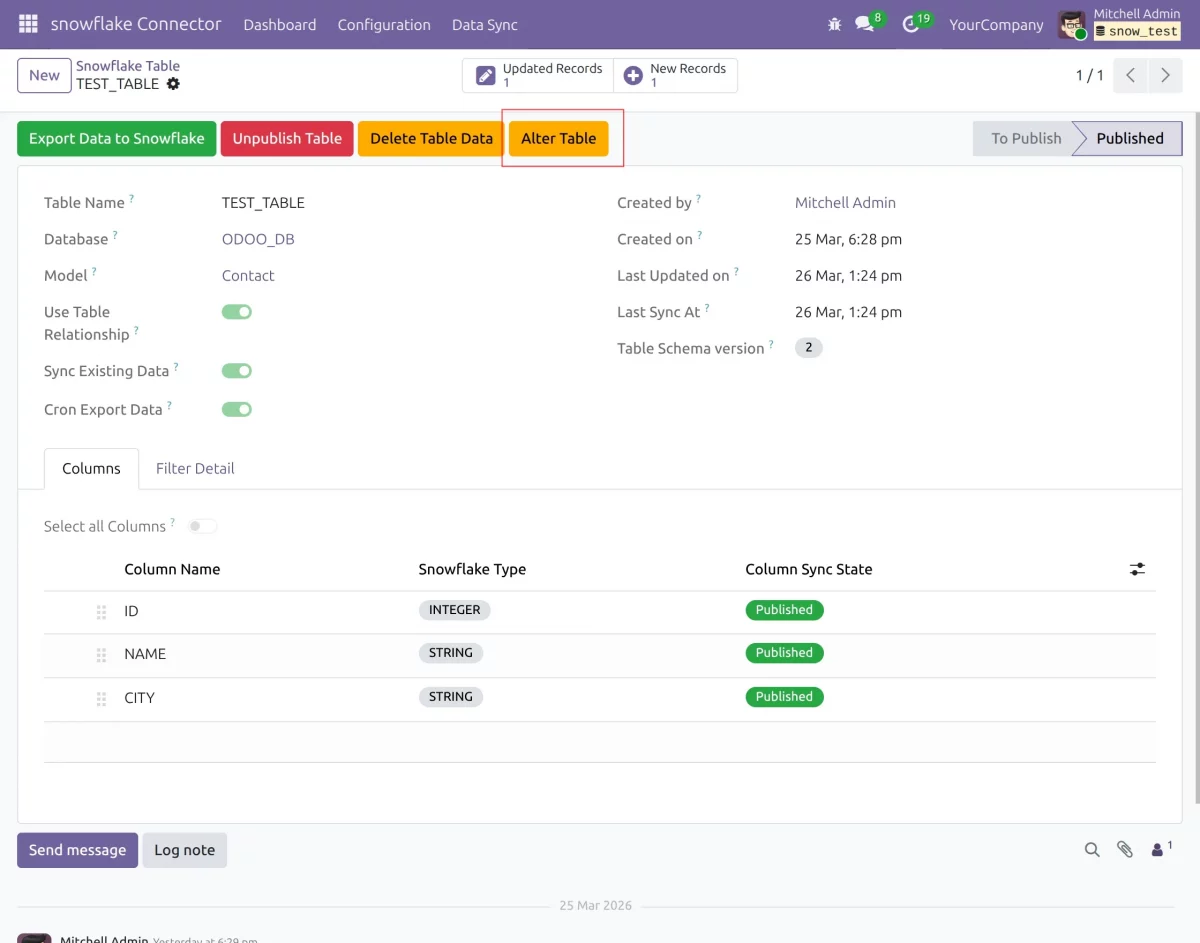
Step 9: Alter Table (Schema Update)
- Click on “Alter Table” to modify the table structure.
- You can add or remove columns based on model changes.
- Changes will appear in a pending migration state.
- This allows you to review updates before applying them.
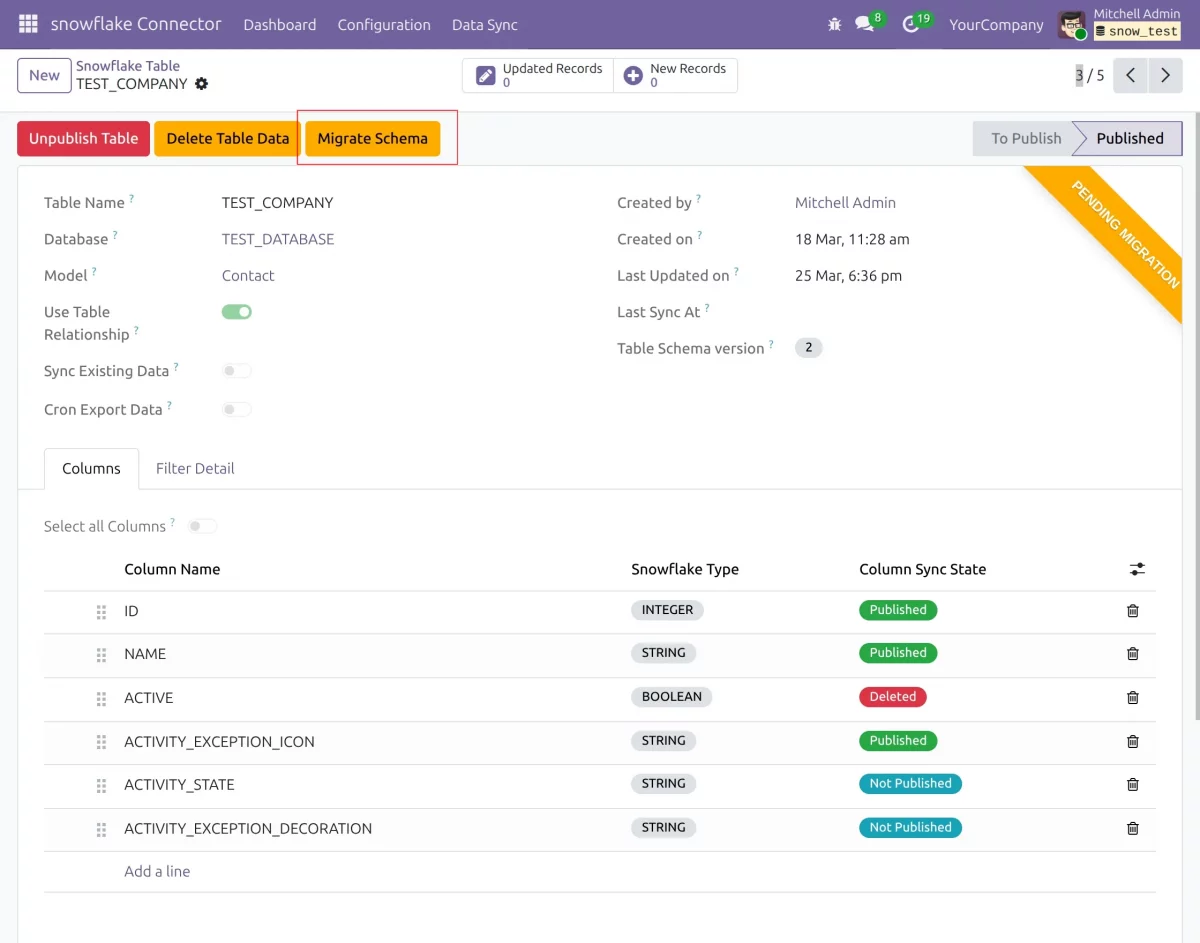
Step 10: Migrate Schema
- After altering the table, click on migrate to apply schema changes to Snowflake.
- This updates the table structure on the Snowflake side.
- New columns are added, and removed columns are updated.
- This keeps both systems aligned
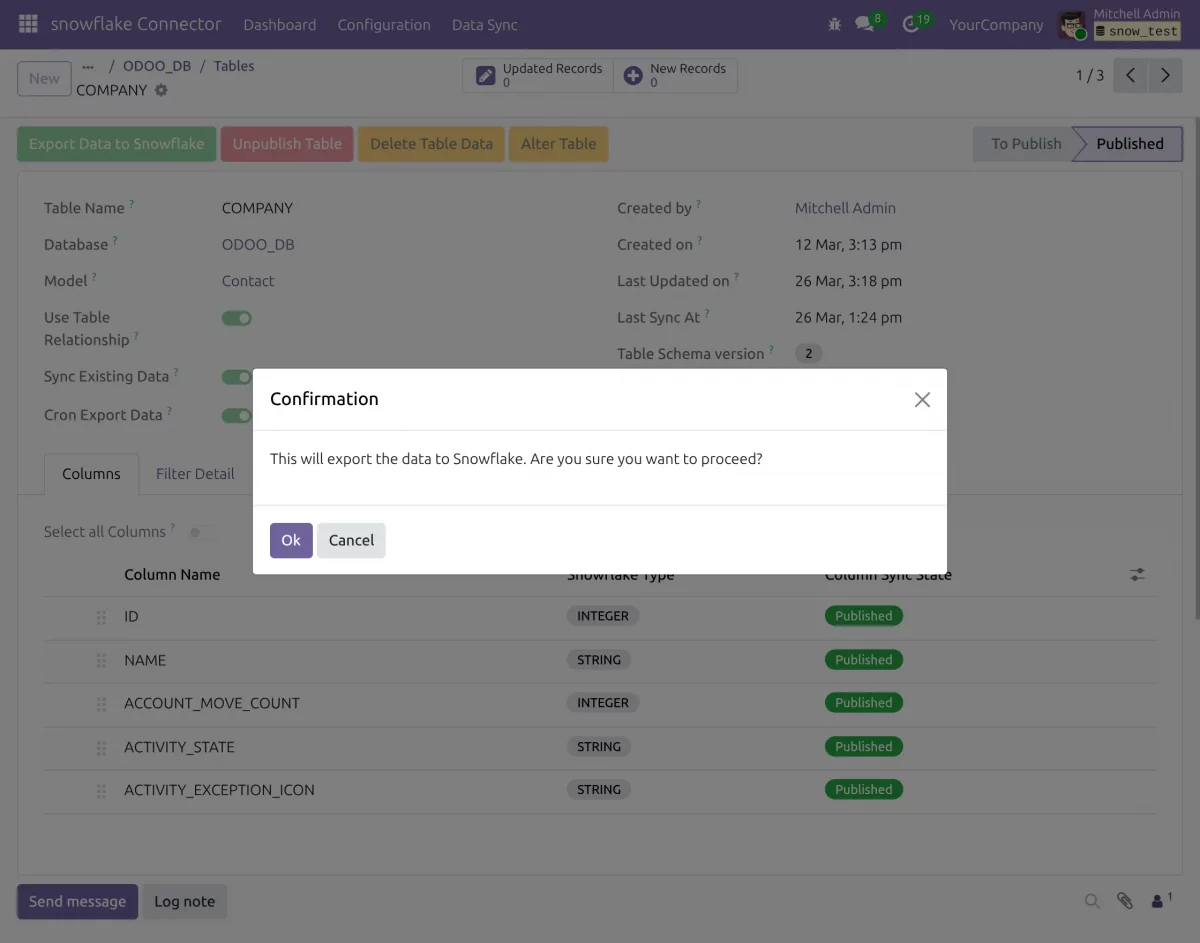
Step 11: Export Data
- Click on export to sync Odoo records to Snowflake tables.
- New records are inserted, and existing records are updated.
- This makes the process fast and efficient.
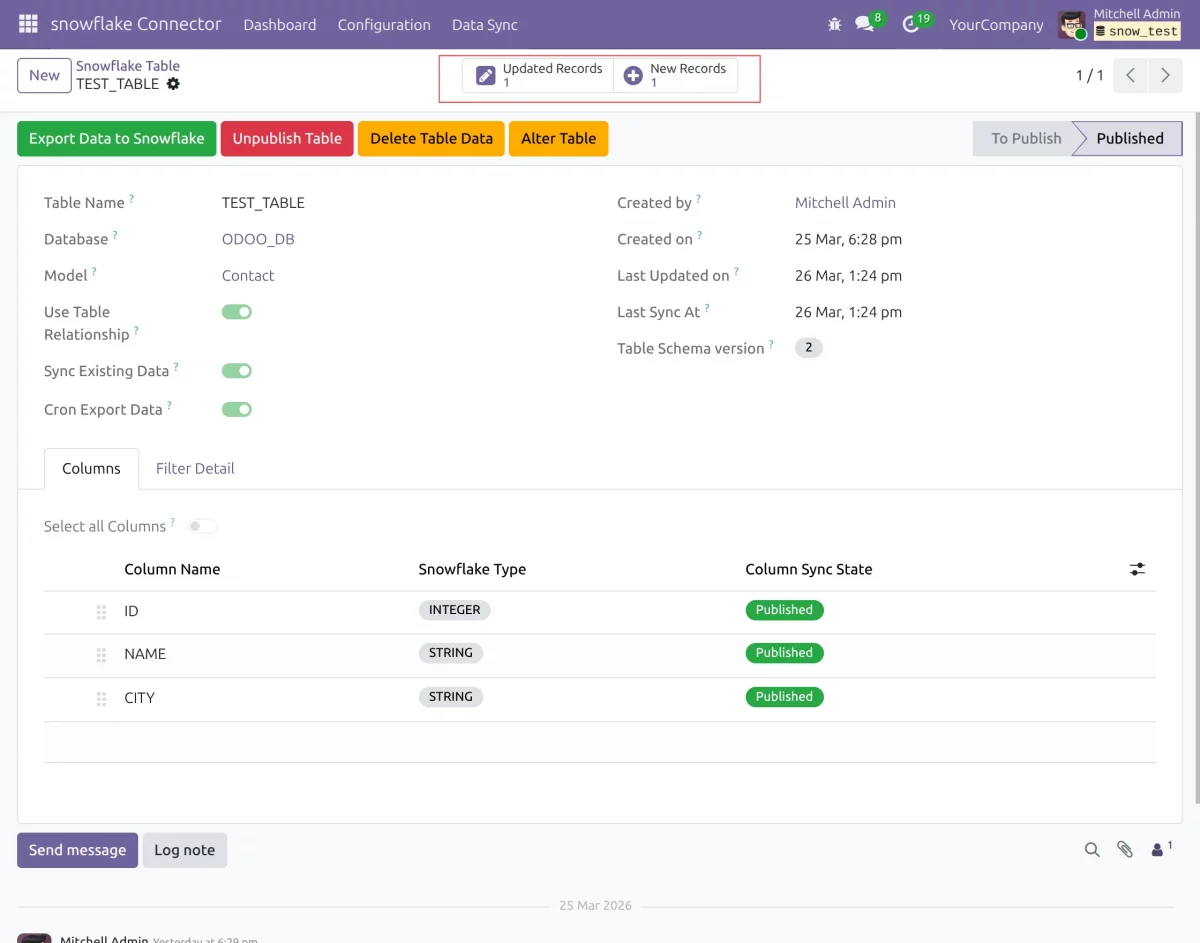
Step 12: Data to be synced
- New Record: It will show the no of records that are not synced. On clicking on this, you can see the record details
- Updated Records: It will show the number of records that have been modified on Odoo. On clicking on this, you can see the record details
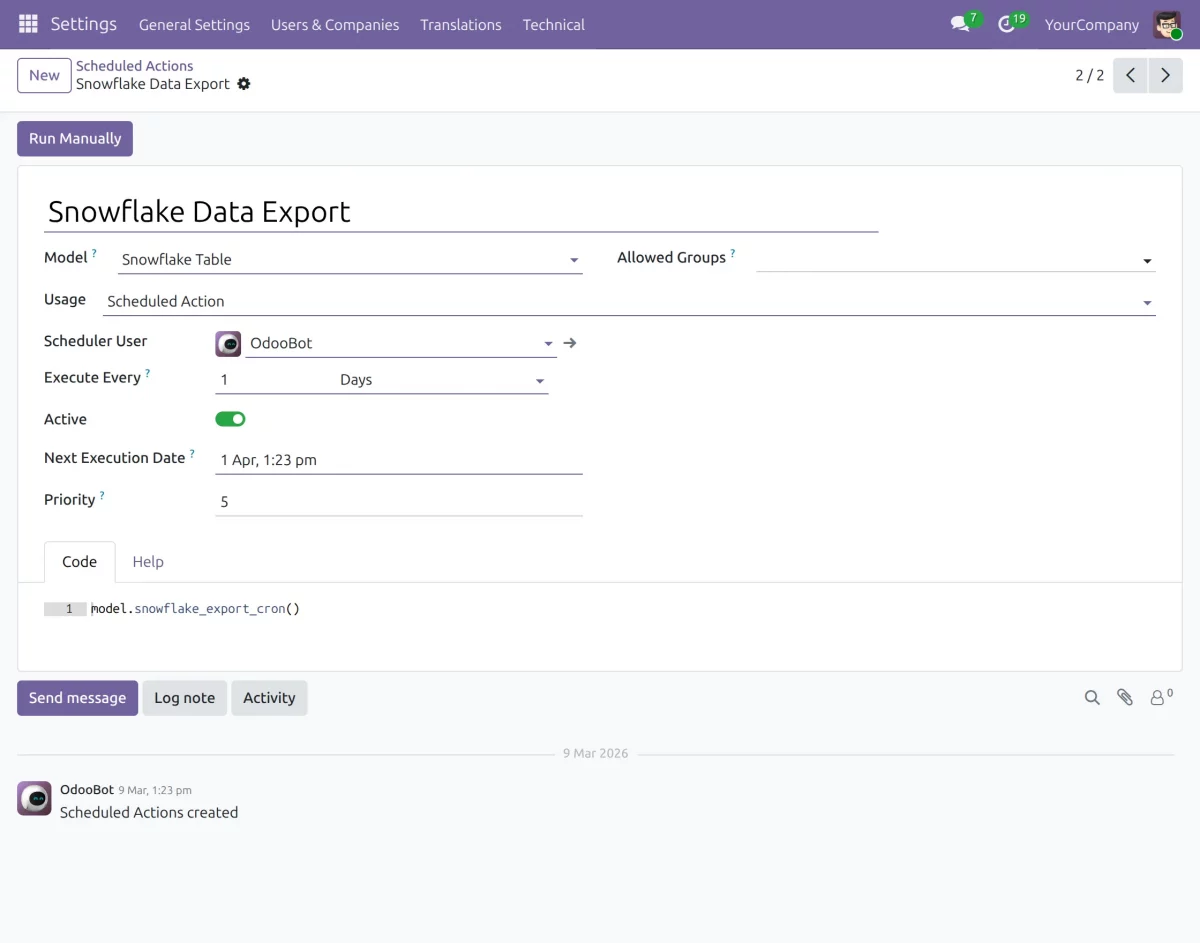
Step 13: Schedule Synchronization (Cron Configuration)
- Configure cron jobs for automatic synchronization.
- Set time intervals to run the export regularly.
- This keeps Snowflake data updated continuously.
- No manual work is required after setup.
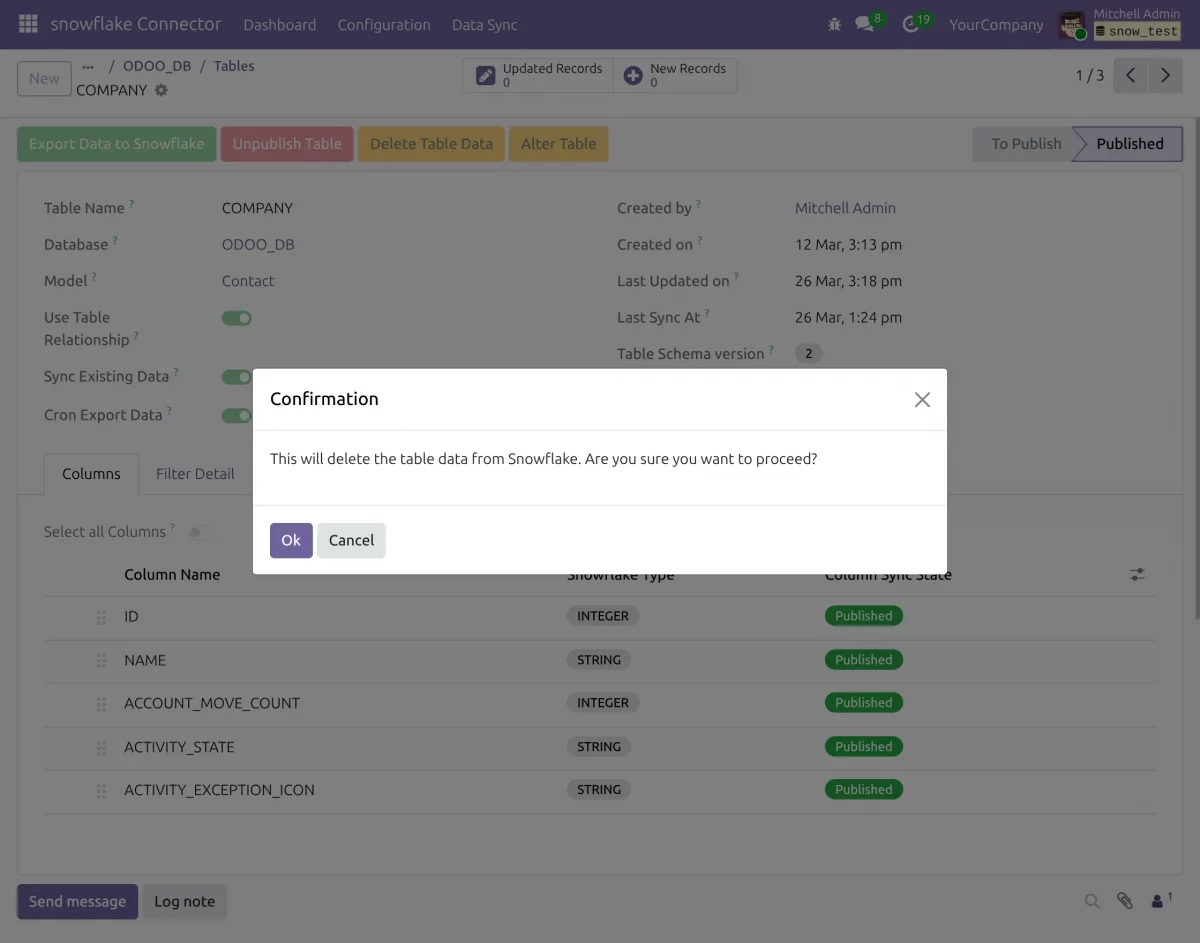
Step 14: Delete Table or Data
- Use delete options to remove tables or synced data.
- This resets synchronization and cleans the database.
- You can remove all records safely when needed.
- This is useful for re-syncing data from scratch.
NEED HELP?
Hope you find the guide helpful! Please feel free to share your feedback in the comments below.
If you still have any issues/queries, please create a ticket at the UV Desk.
In case of any further queries, contact us at our support mail: [email protected]
Thanks for paying attention!!
Supported Framework Version - Odoo V19, V18, V17

Be the first to comment.