Introduction
Odoo PostNord Delivery Carrier enables you to configure PostNord as a delivery method within your Odoo system and manage shipping operations directly from Sales and Delivery Orders.
The module allows you to apply rule-based shipping rates, create shipments, get labels in the chat box, and view tracking details without leaving the Odoo interface.
It works within Odoo’s standard Sales and Inventory workflow, ensuring that shipment information and tracking numbers remain available in the related Delivery Orders.
This user guide explains how to set up the carrier, configure shipping options, process shipments, and monitor tracking inside Odoo.
Features
- The module connects Odoo with PostNord using a secure API configuration.
- When you select the PostNord carrier on a Sales Order, the system automatically applies the predefined shipping charge based on the rule set.
- After you confirm the Sales Order, you can create the shipment directly from the Delivery Order.
- After you create the shipment, the system generates the shipping label in the chat inside Odoo.
- Tracking numbers appear in the Delivery Order after shipment creation.
- You can configure PostNord for multiple warehouses based on your business needs.
- You can add PostNord as a delivery method from the Delivery Methods menu.
- Users can access tracking and delivery information from one place.
- The module works within standard Odoo Sales and Inventory workflows.
Installation
- Once you purchase the App from Webkul store, you will receive a link to download the Module’s zip file.
- Extract the file on your system after the download finishes. You will be able to see a folder named postnord_delivery_carrier
- Copy and paste this folder inside your Odoo Add-Ons path.
- Now, open Odoo App and click on the Settings menu. Here, click on Activate Developer Mode.
- Open the Apps menu and click on ‘Update Modules List.’
- In the search bar, remove all the filters and search ‘postnord_delivery_carrier.’
- You will be able to see the module in the search results. Click on ‘Activate’ to install it.
Workflow
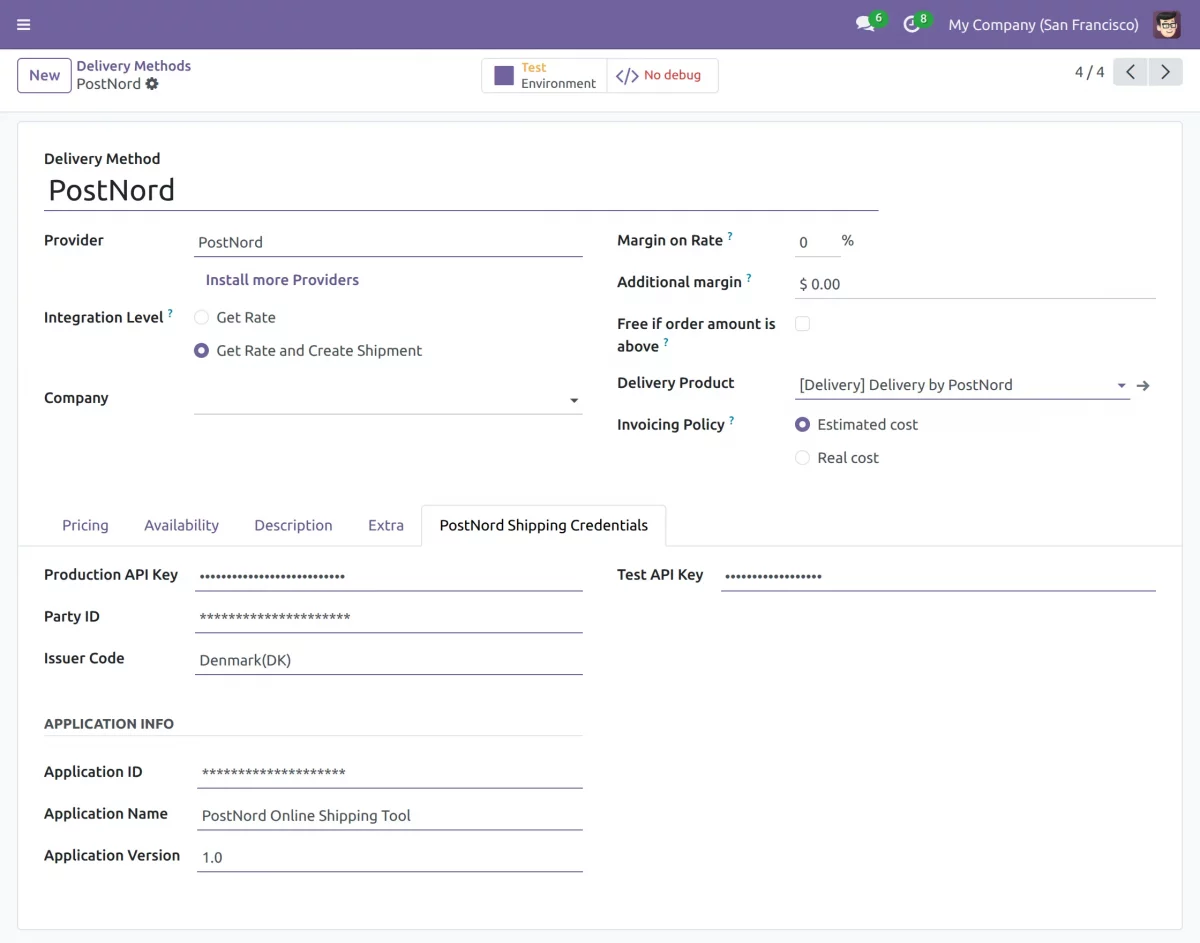
- Go to Inventory → Configuration → Delivery Methods, click Create, select PostNord as the provider, and enter your API credentials and other Details.
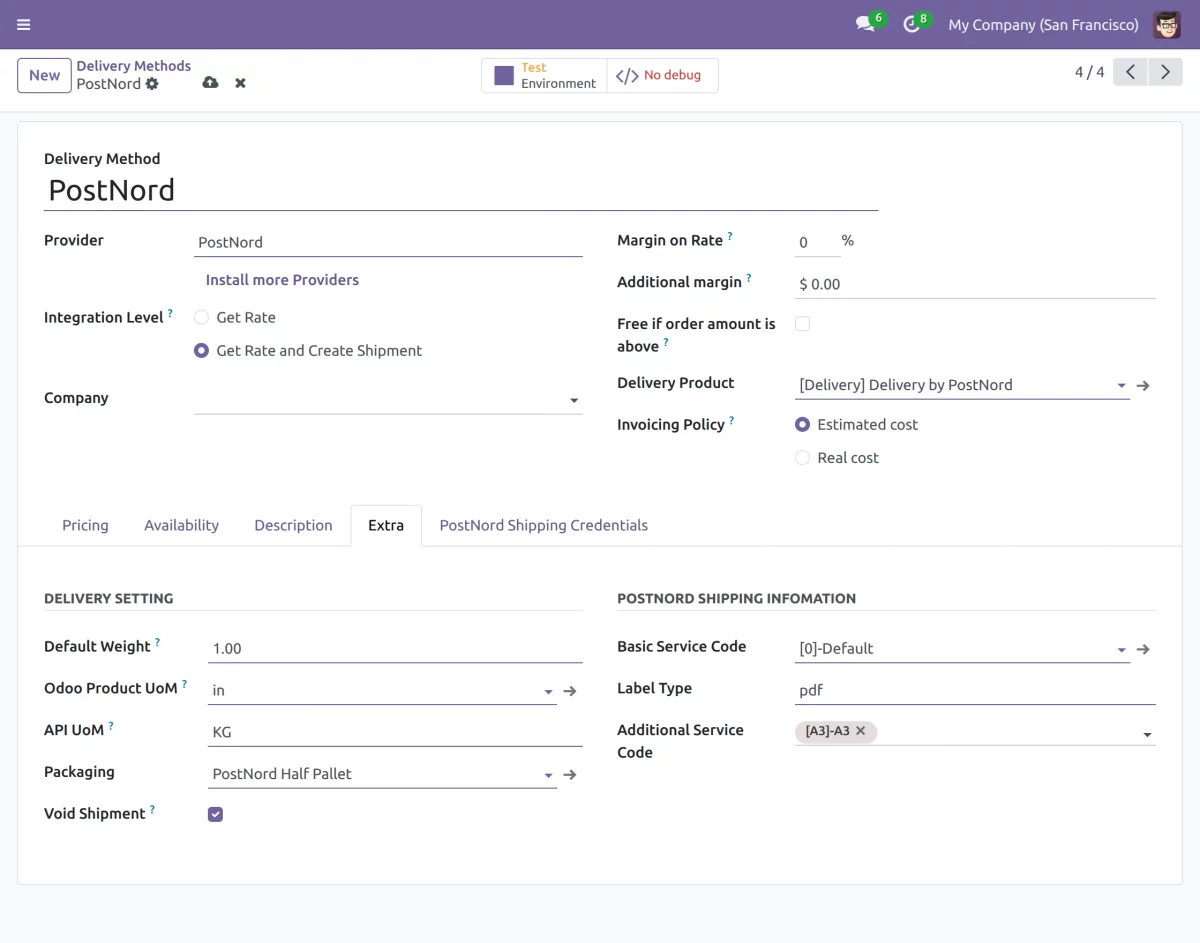
2. Configure settings such as default package weight, label format, and other shipping preferences. These options help ensure accurate shipment processing and smooth carrier integration.
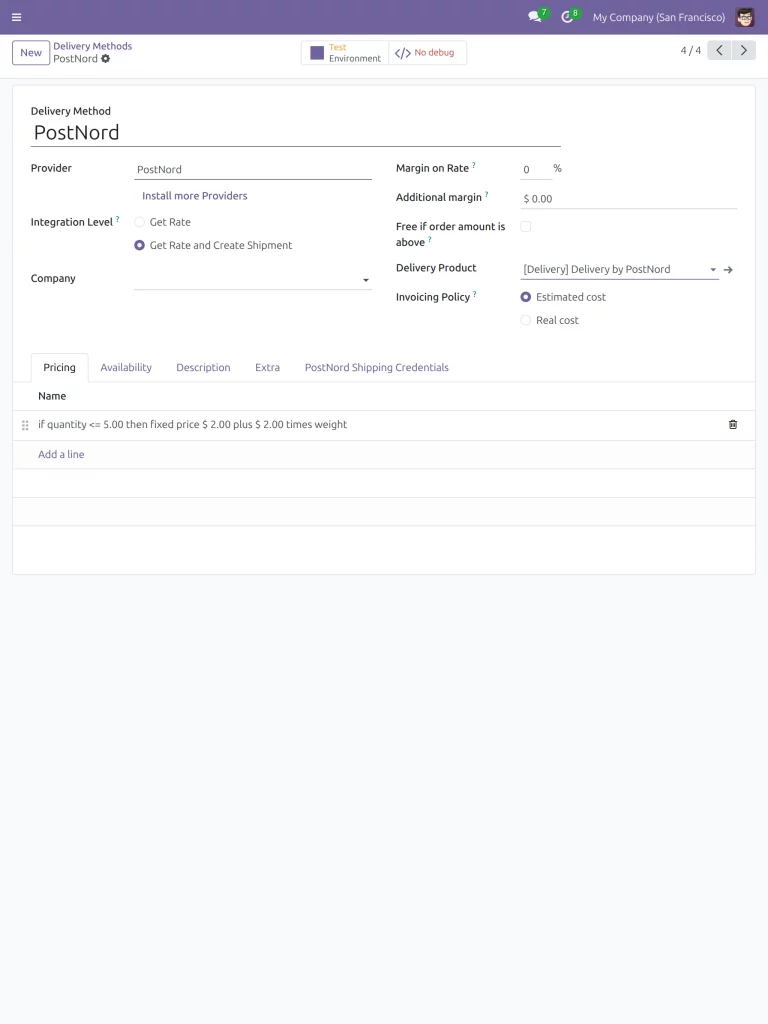
3. Create pricing rules to calculate shipping charges according to specific order conditions. For example, if the ordered quantity is less than 5, you can add an extra charge of $2 per item.
4. Add the shipping method to the sales order and select PostNord as the carrier. Select the total Order Weight as per the requirement and click on Get rate.

5. Click Get Rate to calculate the shipping cost for the order. The shipping charge is displayed based on the configured pricing rules.

6. After selecting the shipping method and confirming the sales order, open the corresponding delivery order to process and validate the shipment.
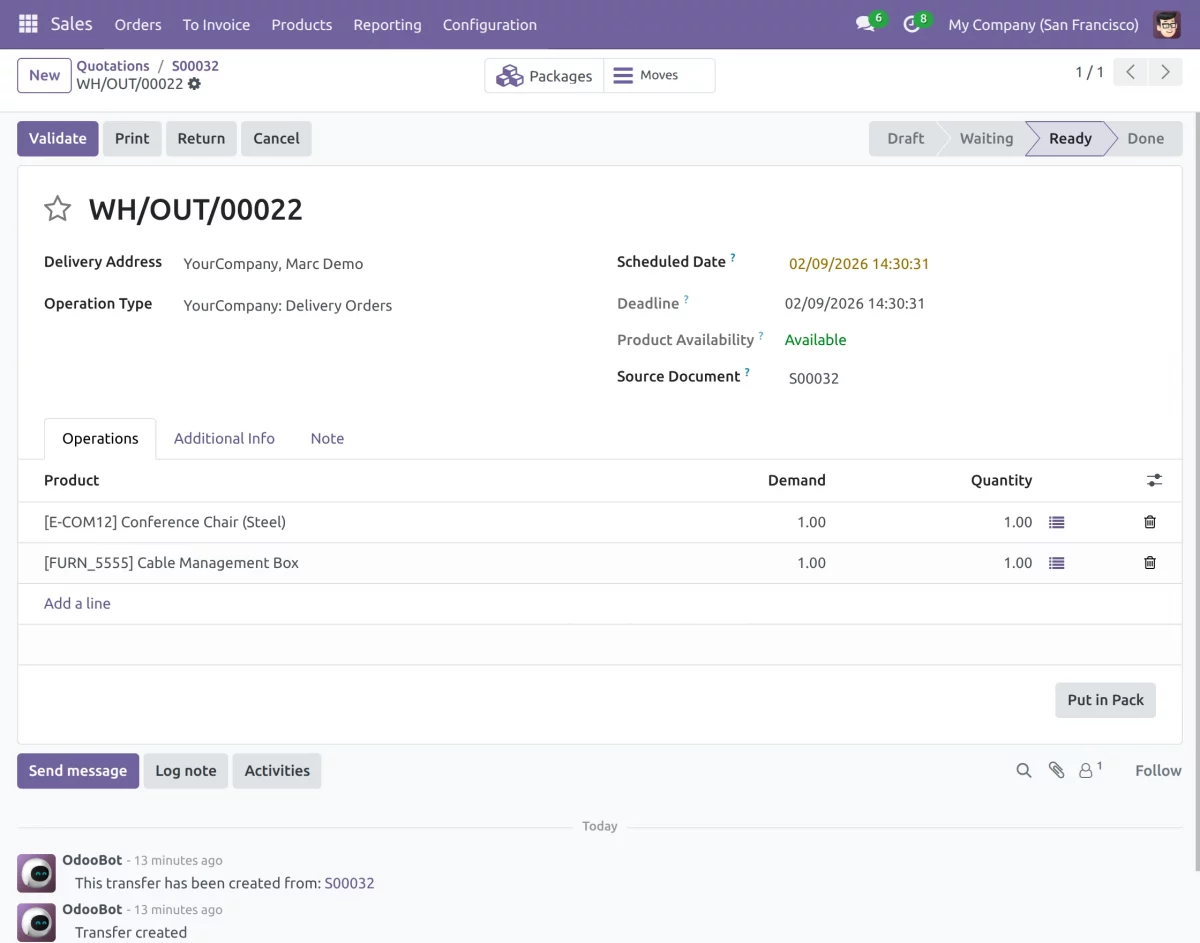
7. After validating the Delivery Order, click Generate Label to create the shipping label in Odoo. The label file is added to the chatter, where it can be downloaded and printed for dispatch.
The system also generates the tracking reference number, which can be tracked later.

8. After you create the shipment, the tracking number appears in the Delivery Order. You can check the delivery status directly in Odoo.

Need Help?
Hope you find the guide helpful! Please feel free to share your feedback in the comments below.
If you have any queries, please create a ticket at the UV Desk.
I hope this helps. In case of any further queries, contact us at our support email.
Thanks for paying attention!!
Current Product Version - 1.0.0
Supported Framework Version - Odoo v16,Odoo v17, Odoo v18, Odoo v19

Be the first to comment.