Magento 2 Dolibarr Connector allows you to synchronize products, orders, and customer data between your Magento 2 store and Dolibarr ERP.
Therefore, all order-related information such as customer name, email address, ordered items,billing and shipping details, and order totals, is synchronized
With Dolibarr based on the configured mappings.
Please Note:
- You need to create API credentials in Dolibarr to connect it with Magento 2.
- The extension supports two-way synchronization for products between Magento 2 and Dolibarr.
- Orders and customer data are synchronized from Magento 2 to Dolibarr only.
- Magento 2 Dolibarr Connector is fully compatible with Magento 2 and Adobe Commerce.
Video Tutorial of Magento2 Dolibarr Connector
Watch the below video tutorial to understand the extension workflow:
Features of the Dolibarr Connector For Magento2
- Sync products between Magento 2 and Dolibarr so product data stays consistent on both sides.
- Update products in Magento 2 and see the changes reflect in Dolibarr automatically.
- Import products from Dolibarr into Magento 2 with ease.
- Sync only products from mapped categories to keep your Magento catalog clean.
- Map Dolibarr categories with Magento 2 categories for proper product organization.
- Sync product attributes to maintain accurate and uniform product details.
- Automatically sync Magento 2 orders to Dolibarr for smooth processing.
- Sync customer details like name, email, and address from Magento 2 to Dolibarr.
- Manage orders and customers directly in Dolibarr with up-to-date data.
- Avoid duplicate products, orders, and customers with controlled synchronization.
- Control how and when data syncs using simple admin configurations.
Installation
Firstly, customers get a zip folder. Then they have to extract the contents of this zip folder on their system.
The extracted folder has a src folder, inside the src folder, you have the app folder.
The extracted folder is having an src folder, inside the src folder you have the app folder.
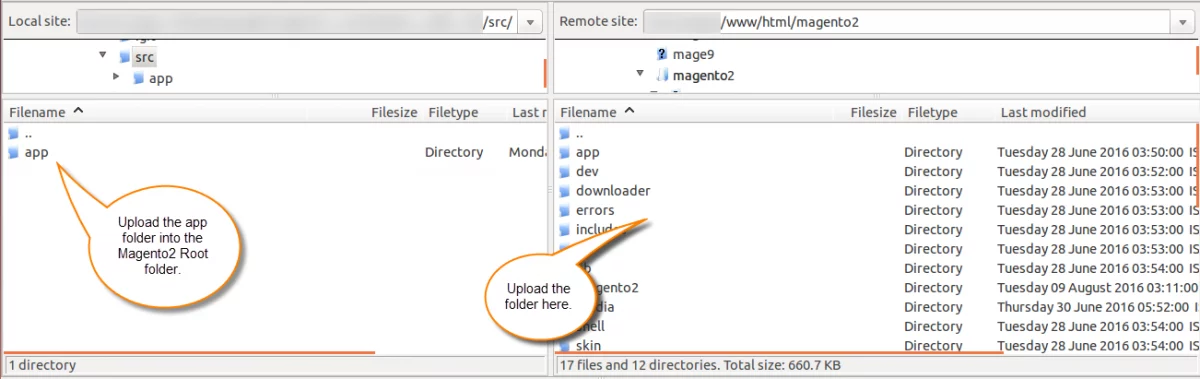
After that, you have to run these commands in the Magento2 root directory.
php bin/magento setup:upgrade
php bin/magento setup:di:compile
php bin/magento setup:static-content:deploy
php bin/magento indexer:reindex
php bin/magento cache:flush
Multi-Lingual Configuration of Adobe Commerce
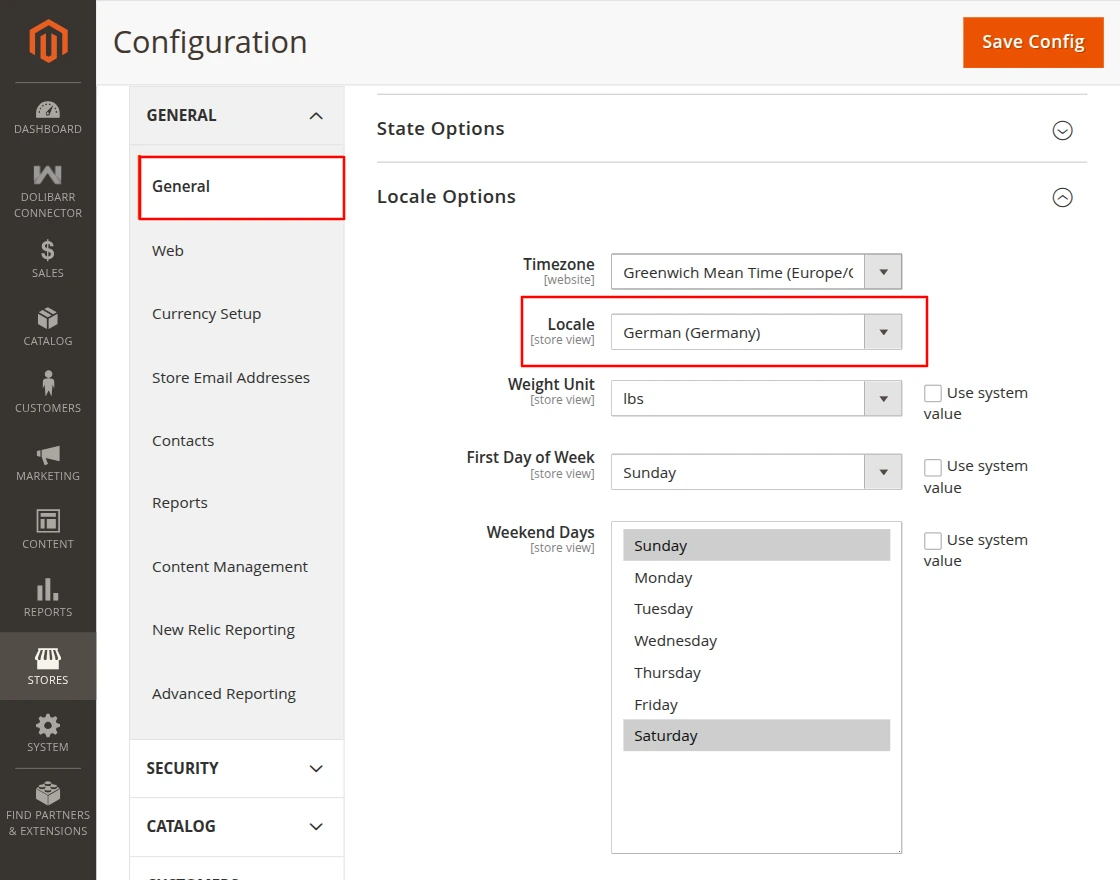
For Multilingual support, please navigate to Store>Configuration>General >Locale Options. And select your desired language from the Locale option.
Language Translation
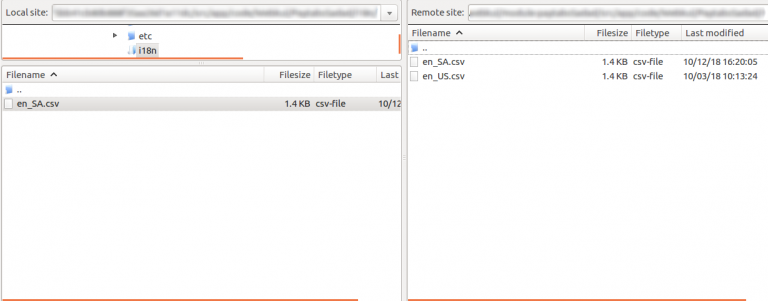
In order, to translate the module language, navigate through app/code/Webkul/DolibarrConnector/i18n,and edit the en_US.csv file.
Thereafter, rename the CSV as “en_SA.csv” and translate all right side content after the comma in the Arabic language. After editing the CSV, save it.
Then upload it to the path app/code/Webkul/DolibarrConnector/i18n where the Magento2 is installed on the server.
The module gets translated into the Arabic Language. It supports both RTL and LTR languages.
How to get Dolibarr API Credentials
To use the Magento 2 Dolibarr Connector, you must first set up Dolibarr locally or on a server.
Download the latest version of Dolibarr from the official Dolibarr GitHub repository and extract it.
Next, open Dolibarr in your browser using the live server URL.
Click on htdocs and then click Next.
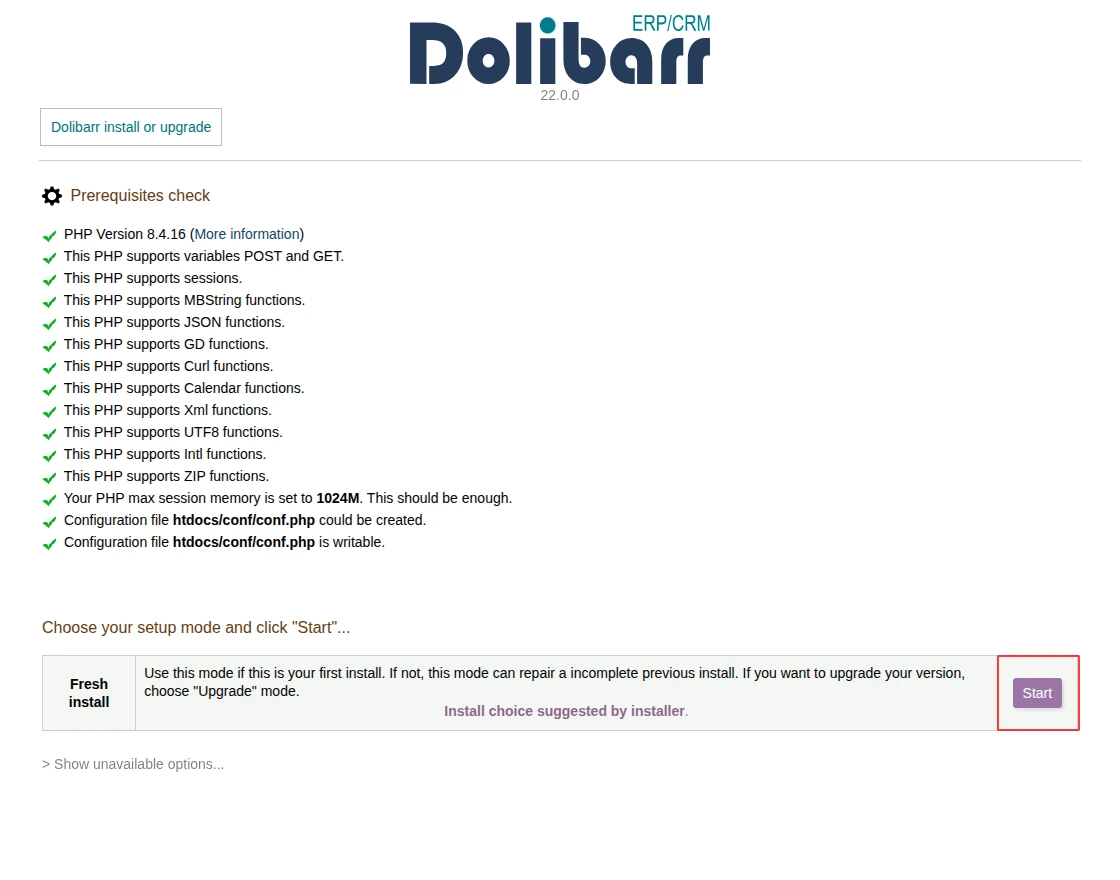
1. On the installation screen, click the Start button to begin the Dolibarr setup.
2. Now, enter the required Dolibarr database details. Fill in the database name, username, password, and host. Then click on Next.
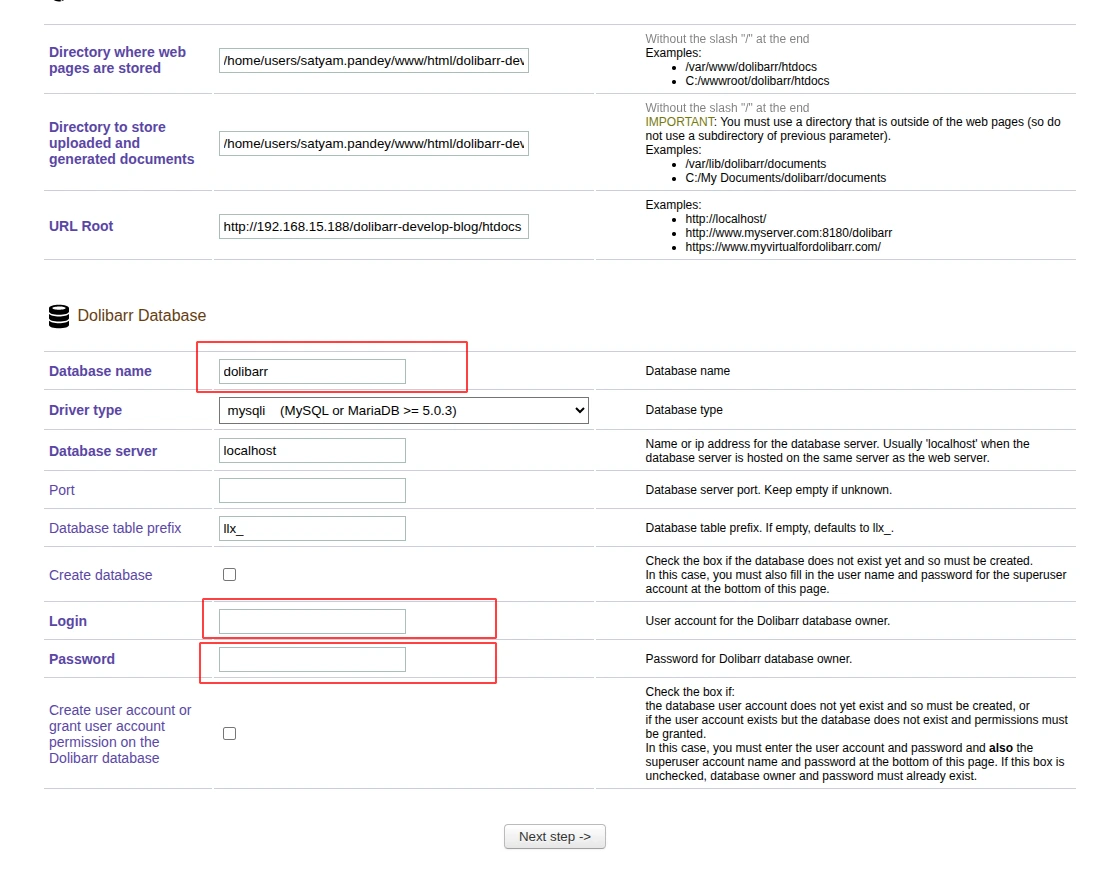
3. After the installation is complete, create a username and password.
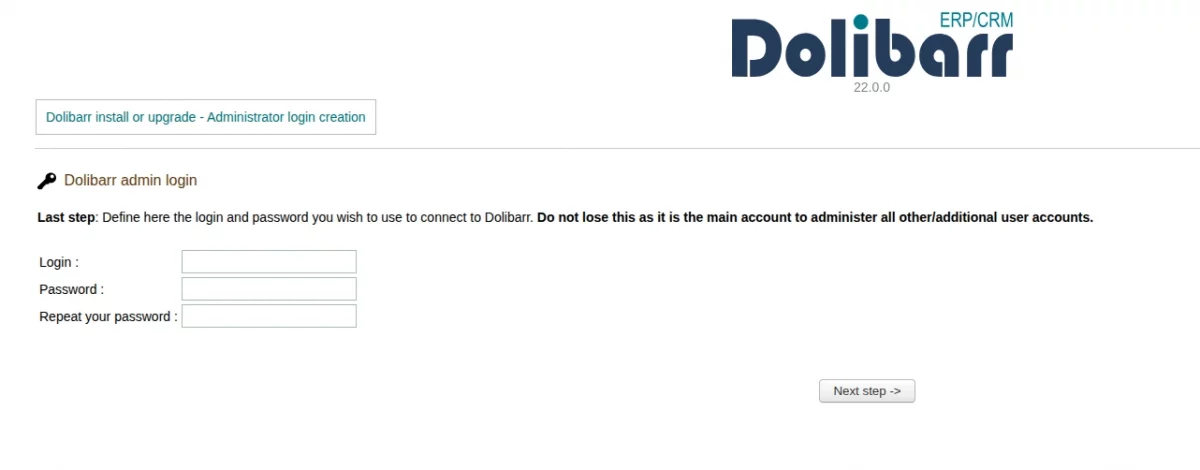
4. Once done, you will see a successful installation message.
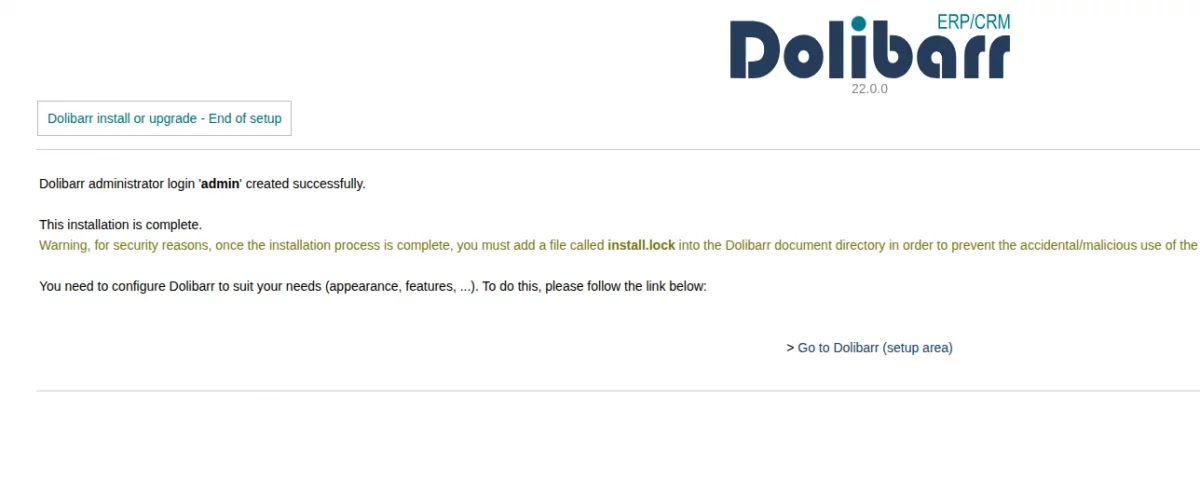
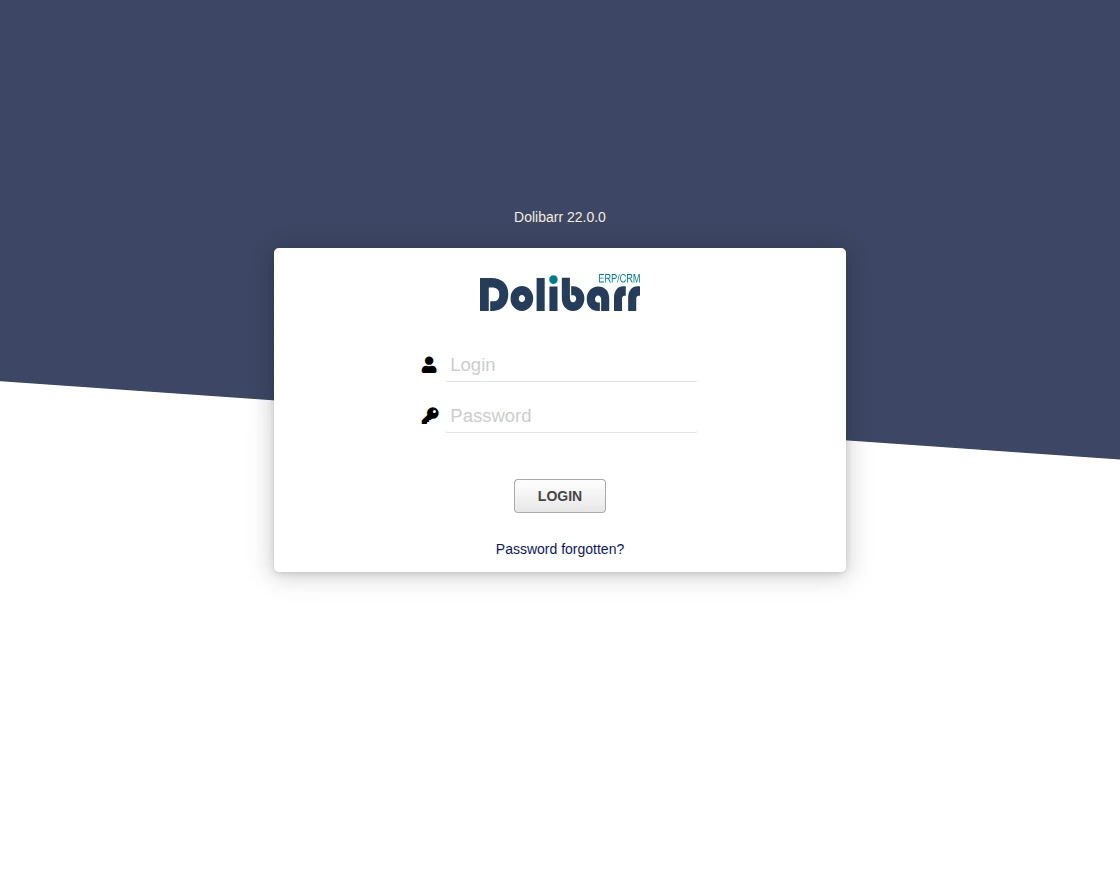
5. The login page opens when you click the Go to Dolibarr button. Enter the admin username and password to log in.
Setup Dolibarr
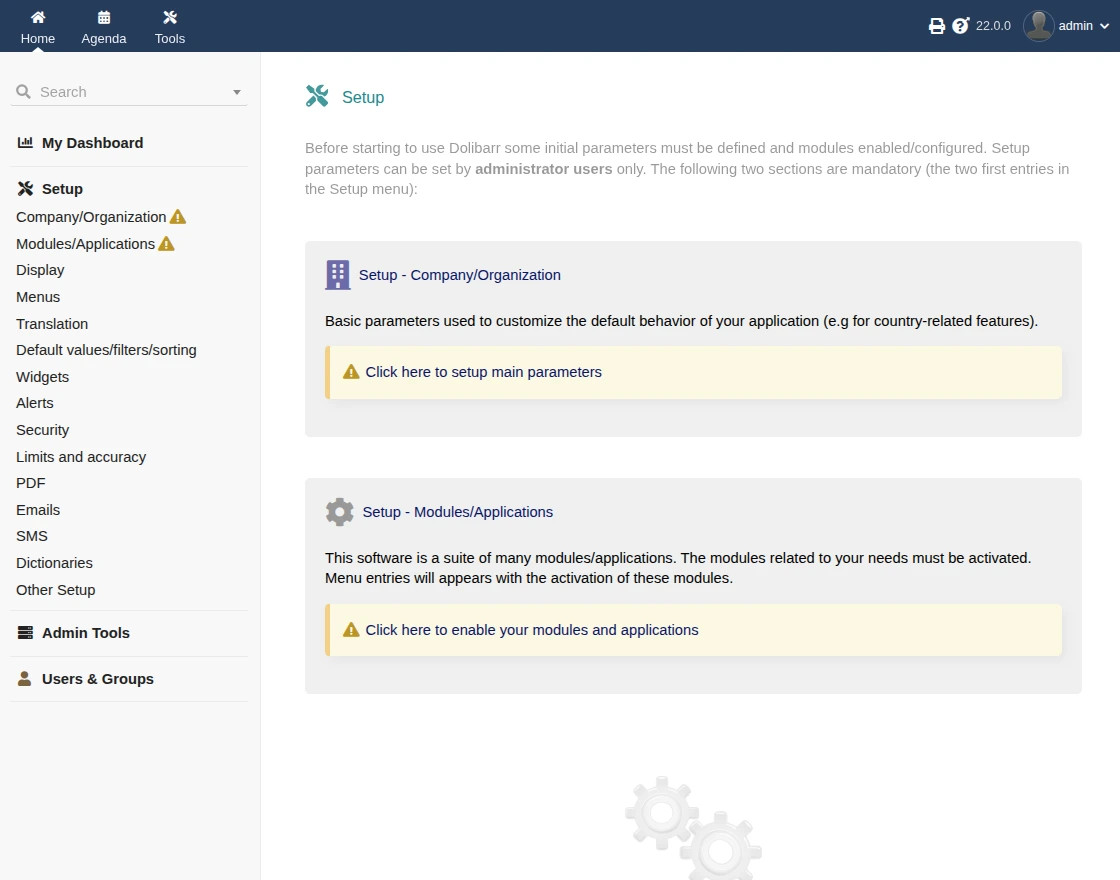
1. On the Dolibarr home page, click Setup → Modules / Application Setup.
2. Enable the required module that you want to use from the list.
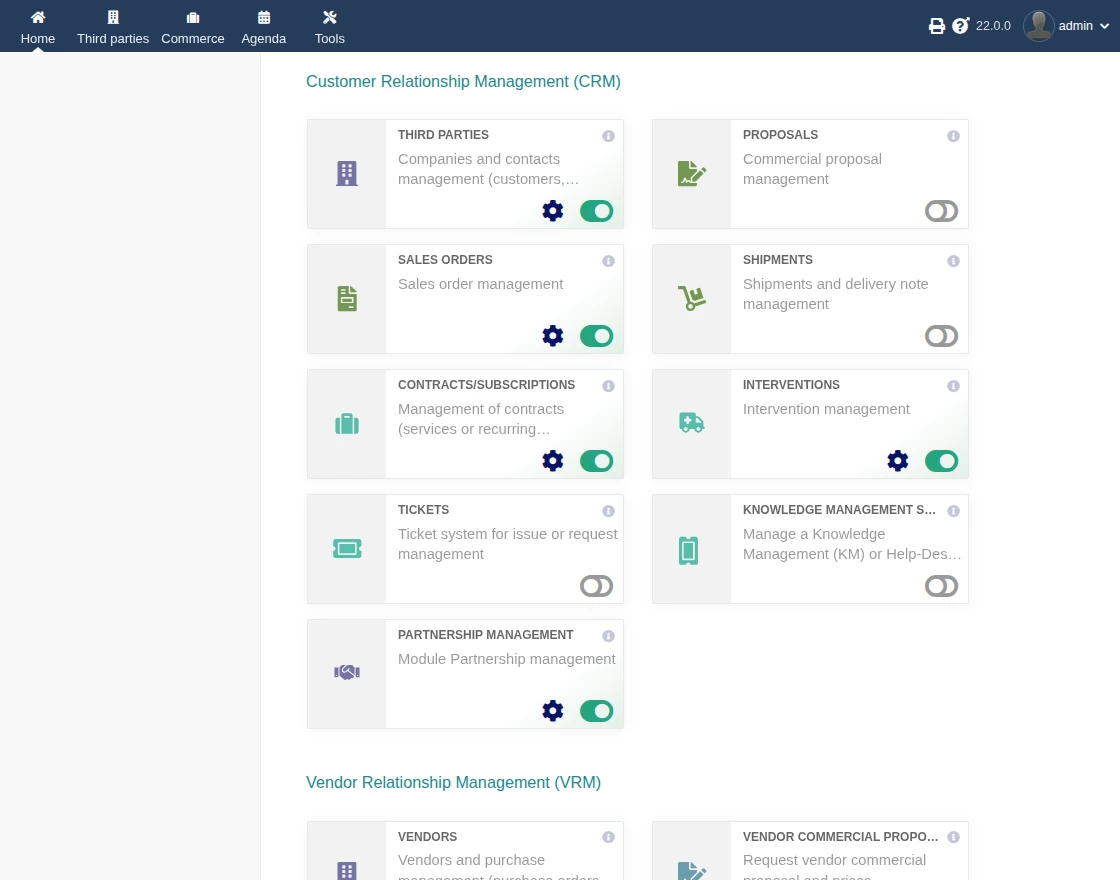
Please note: This is a very important step in the Dolibarr setup.
The connector will work smoothly only after the required modules are enabled.
Configuration
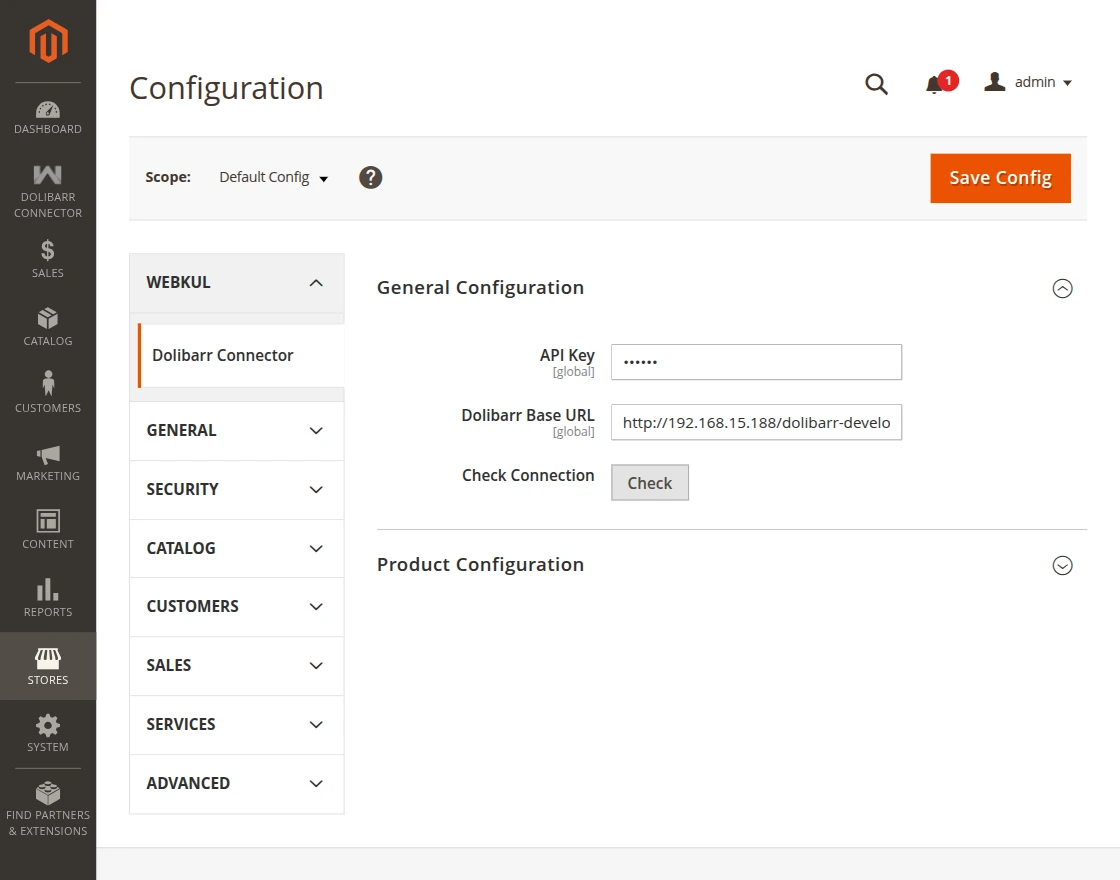
Finally, after the successful installation of the Adobe Commerce Dolibarr Connector, you can see the configuration panel under Store -> Configuration -> Webkul -> Dolibarr Connector.
General configuration: –
- API Keys – Enter the API key generated during the Dolibarr setup.
- Dolibarr Base URL – Enter the base URL of your Dolibarr installation (for example: http://your-dolibarr-url/htdocs)
- Check Connection – After saving the details, click Check to verify the connection.
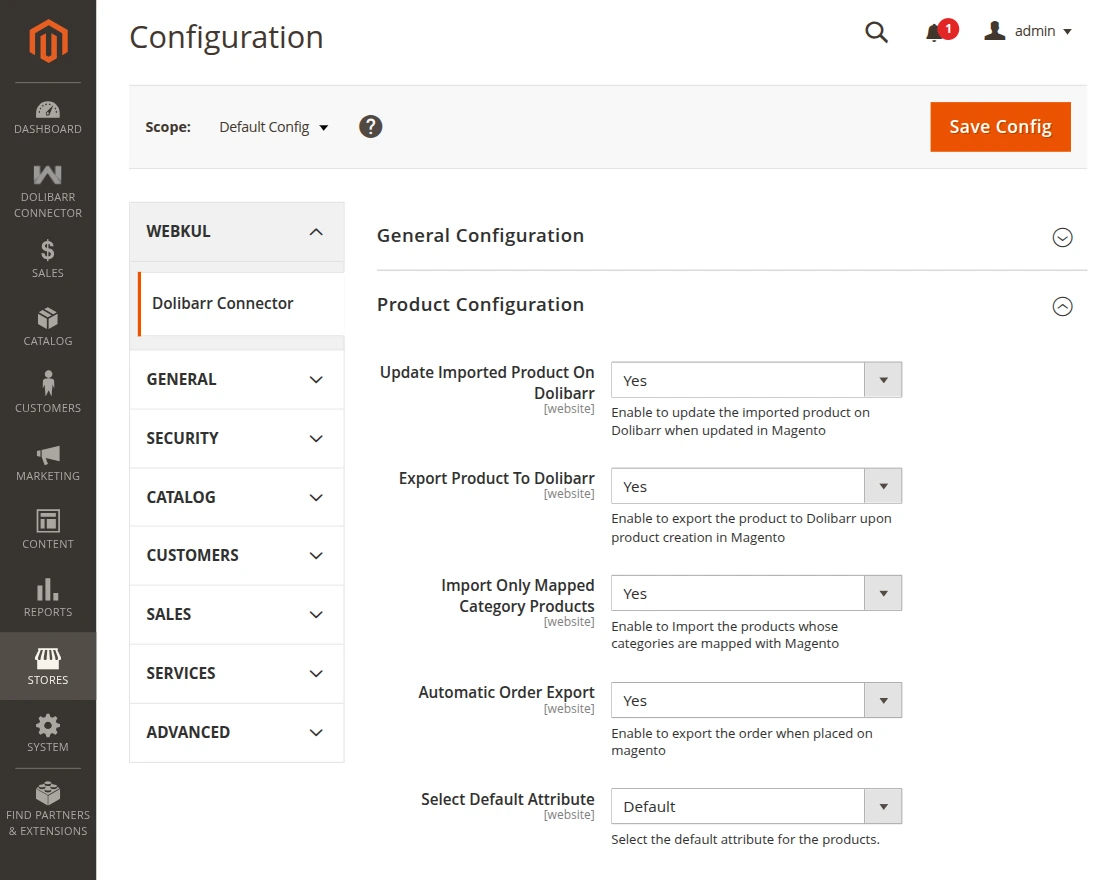
Product configuration: –
- Update Imported Products in Dolibarr – Automatically update products in Dolibarr when changes are made in Magento 2.
- Export Products to Dolibarr – Send newly created Magento 2 products to Dolibarr automatically.
- Import Only Mapped Category Products – Import products only from the categories you have mapped.
- Automatic Order Export – Export Magento 2 orders to Dolibarr without manual action.
- Select Default Attribute – Choose a default attribute for product synchronization.
After completing the module configuration, you can now proceed to the module setup and working.
Mapped Categories
To map categories, the admin needs to go to Dolibarr Connector → Mapped Category(s).
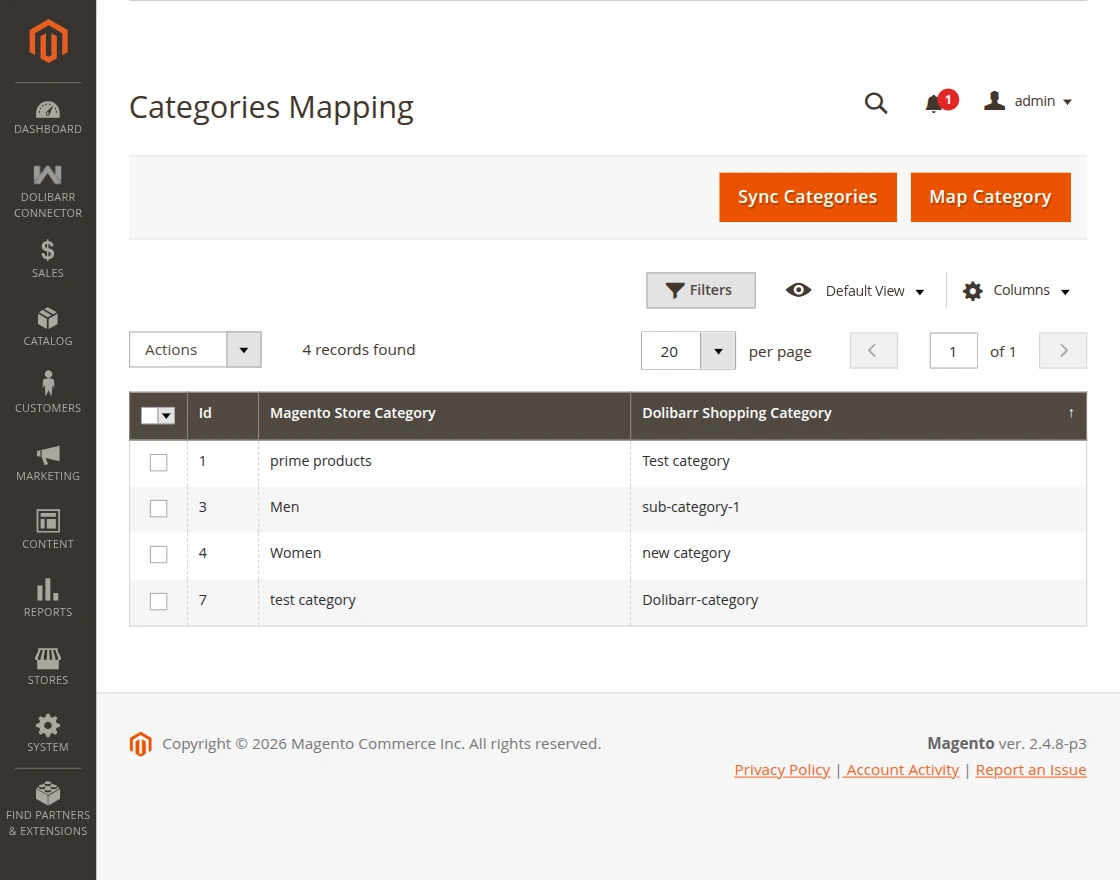
Click Sync Category to synchronize categories from Dolibarr.
Then click Map Category to map the synced Dolibarr categories with Magento 2 categories.
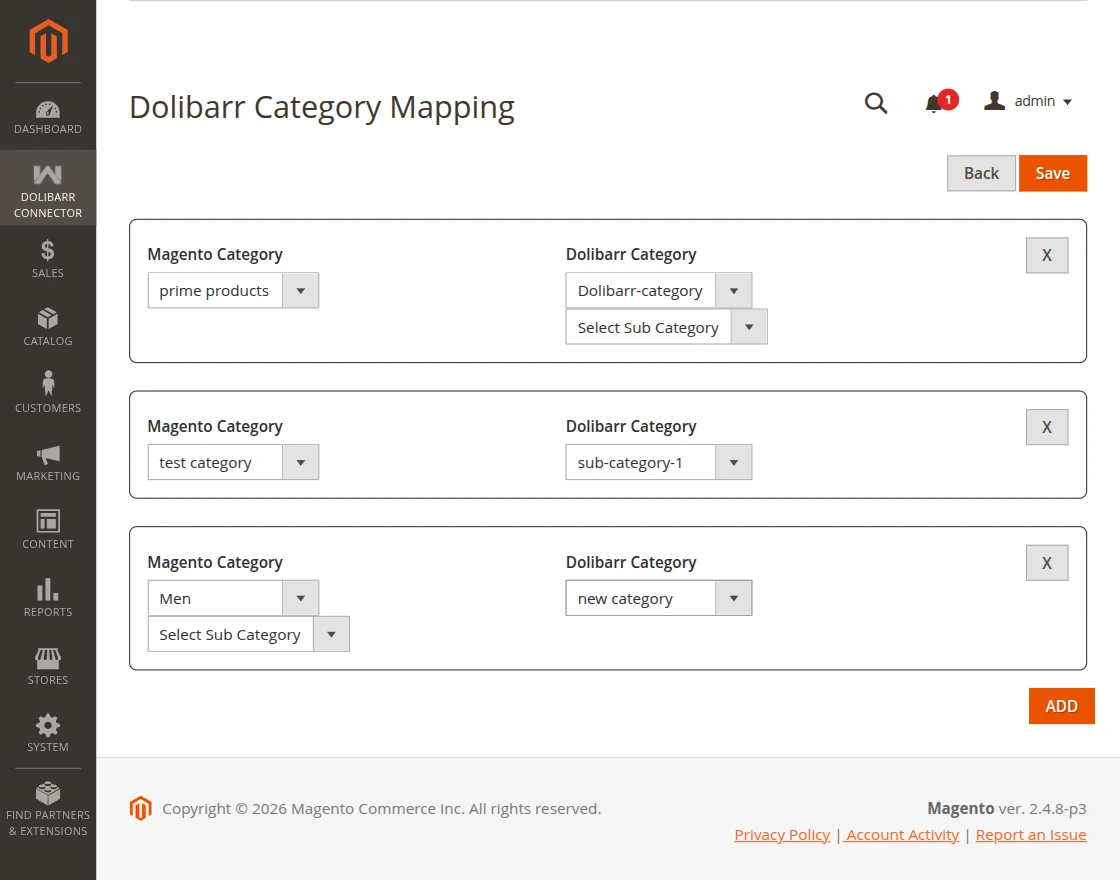
Click the Save button to map the categories between Dolibarr and Magento 2.
Mapped Attribute
To map attributes, the admin needs to go to Dolibarr Connector → Mapped Attributes(s).
Map all required Magento attributes with Dolibarr attributes so product data syncs correctly.
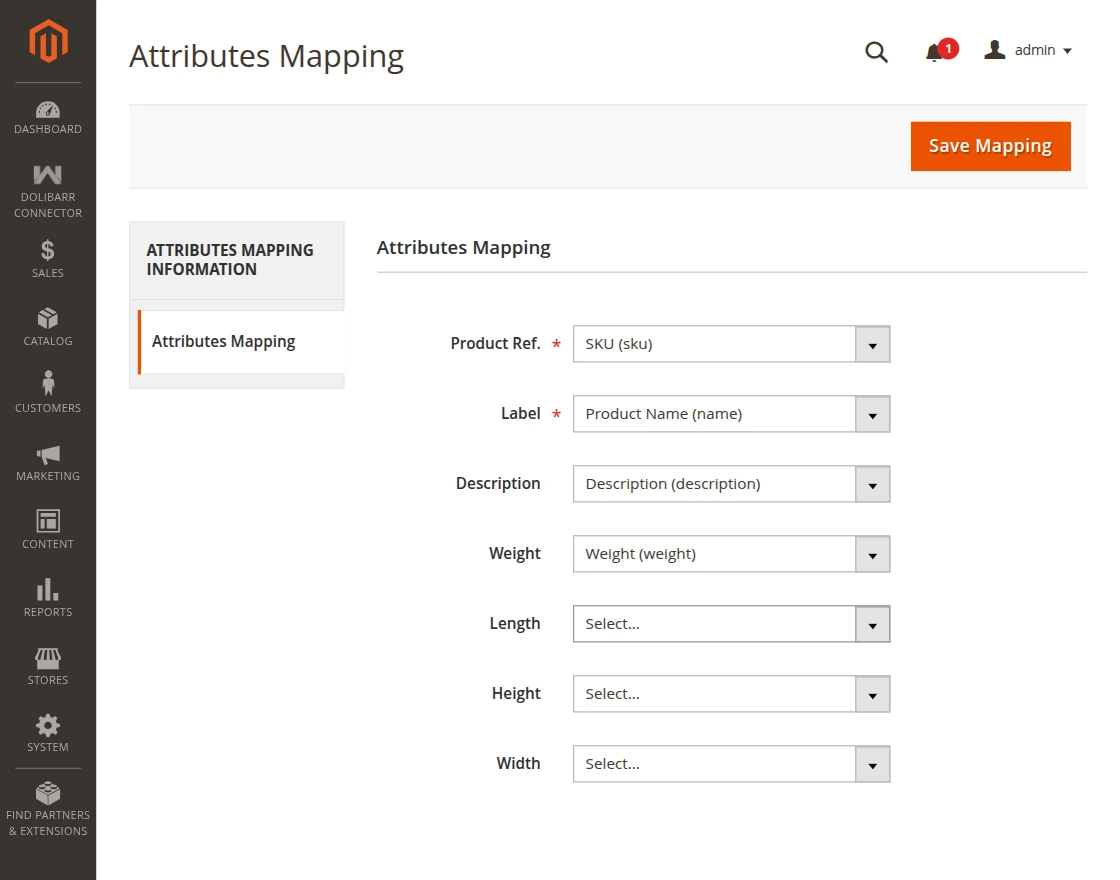
Click the Save Mapping button to save the mapping.
Please note: Before importing or exporting products, orders, and customers, you must run the following commands:
php bin/magento queue:consumers:start dolibarr.import.product &
php bin/magento queue:consumers:start dolibarr.reimport.product &
php bin/magento queue:consumers:start dolibarr.order.export &
Mapped Products
To map products, go to Dolibarr Connector → Mapped Products.
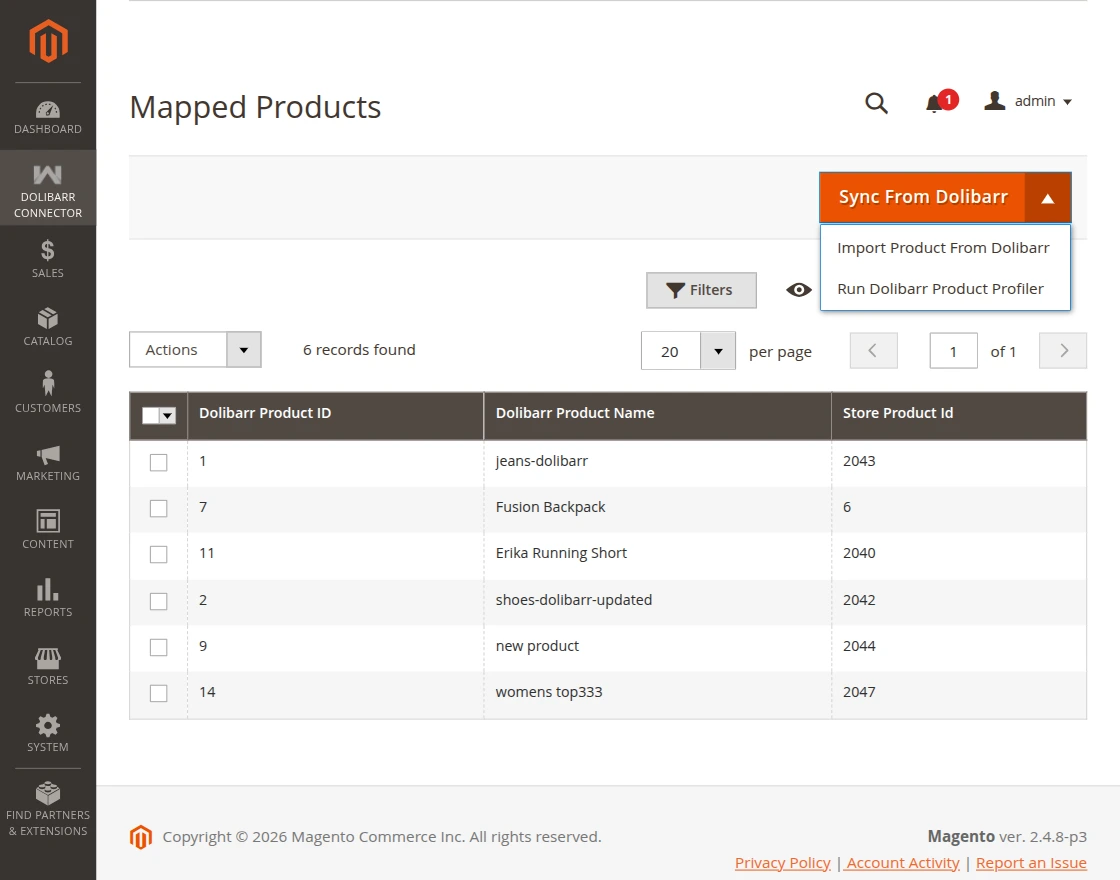
First, click Import Product from Dolibarr to import products.
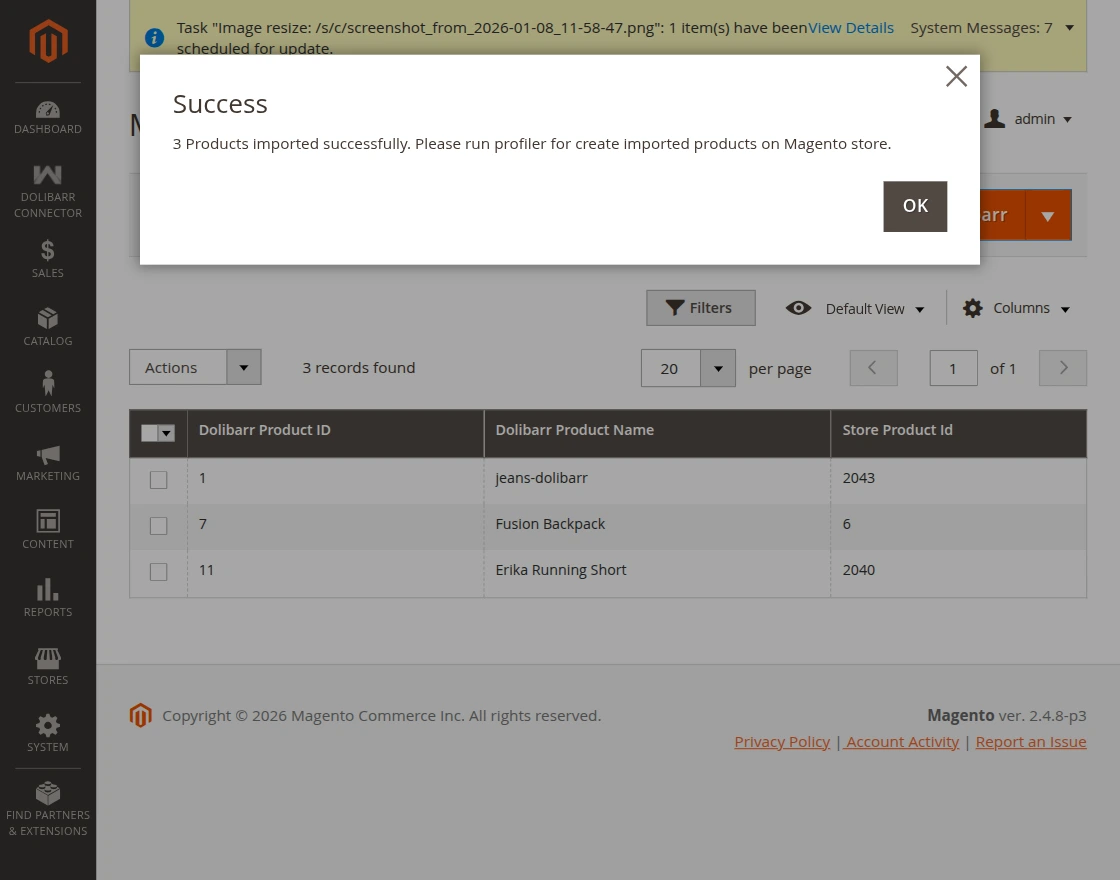
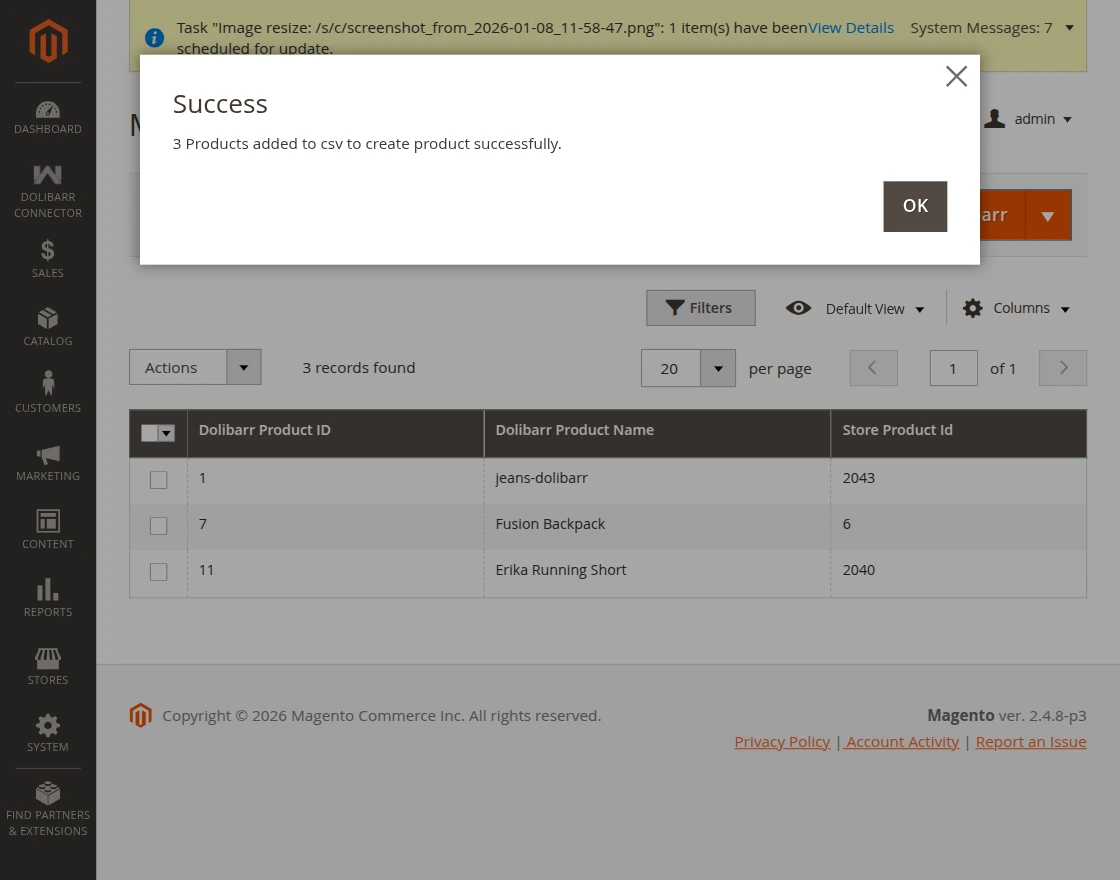
Then click Run Dolibarr Product Profiler. To add the product(s) to the Magento product list.
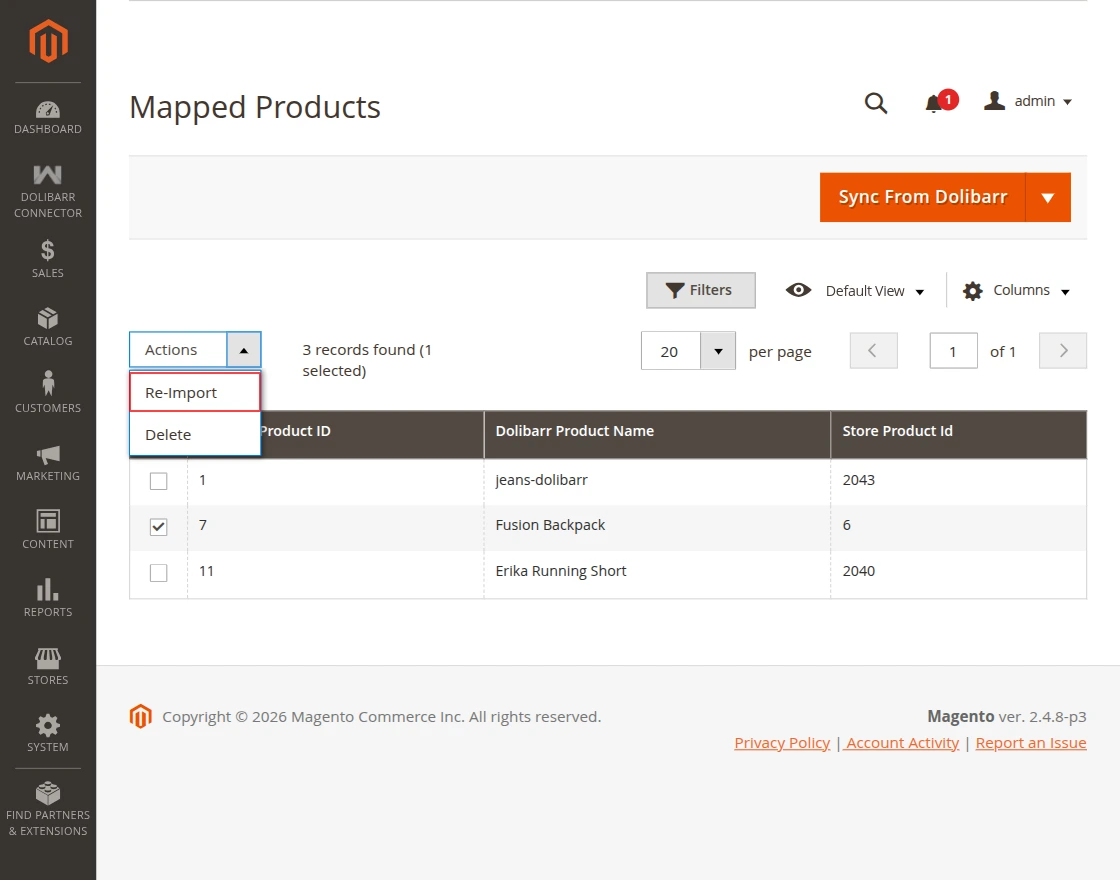
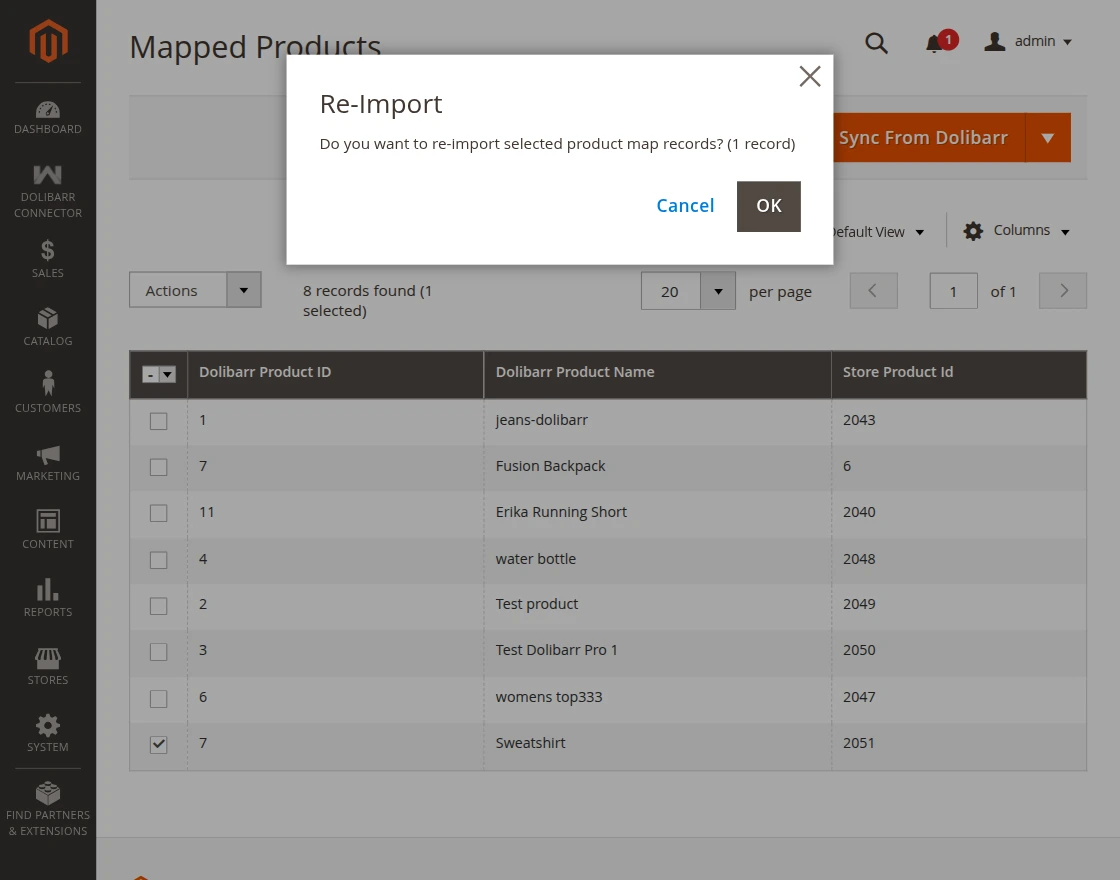
If a product is updated in Dolibarr, you need to re-import it into Magento 2.
To do this, go to Dolibarr Connector → Mapped Products.
Select the products and click Re-Import to update them.
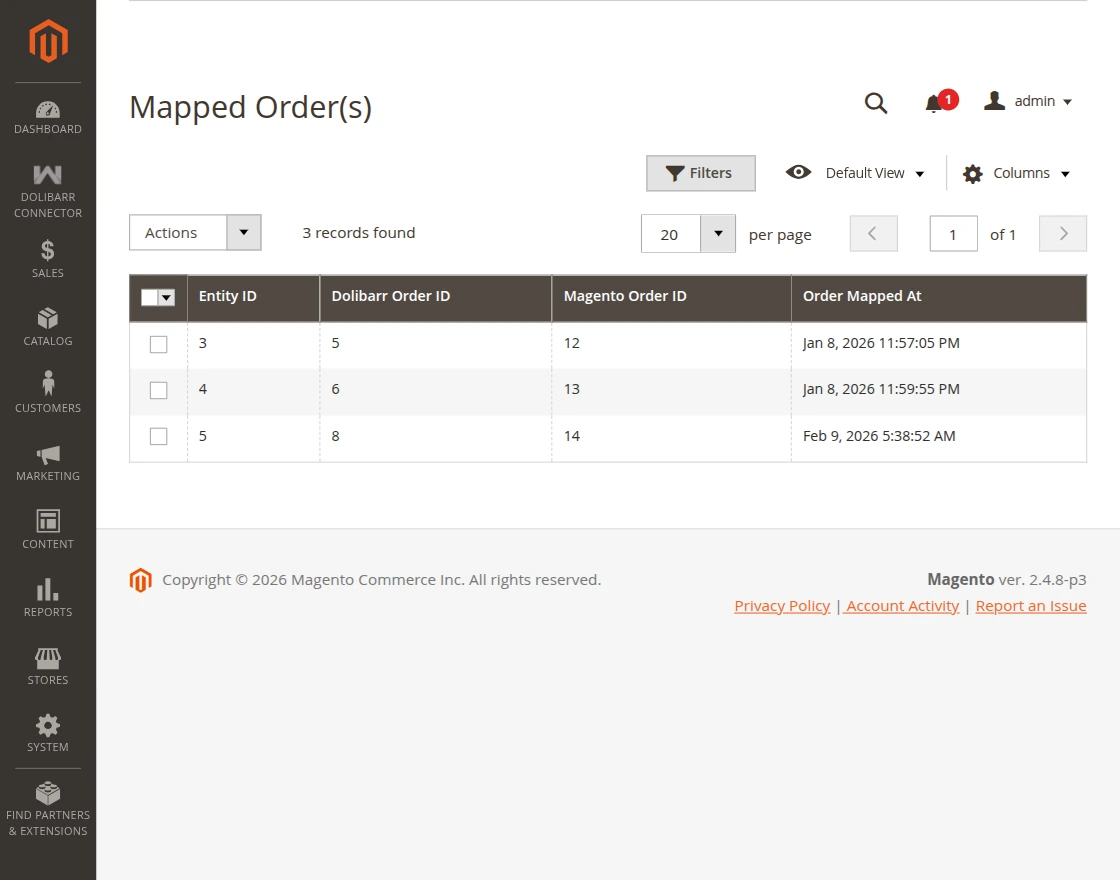
Mapped order(s)
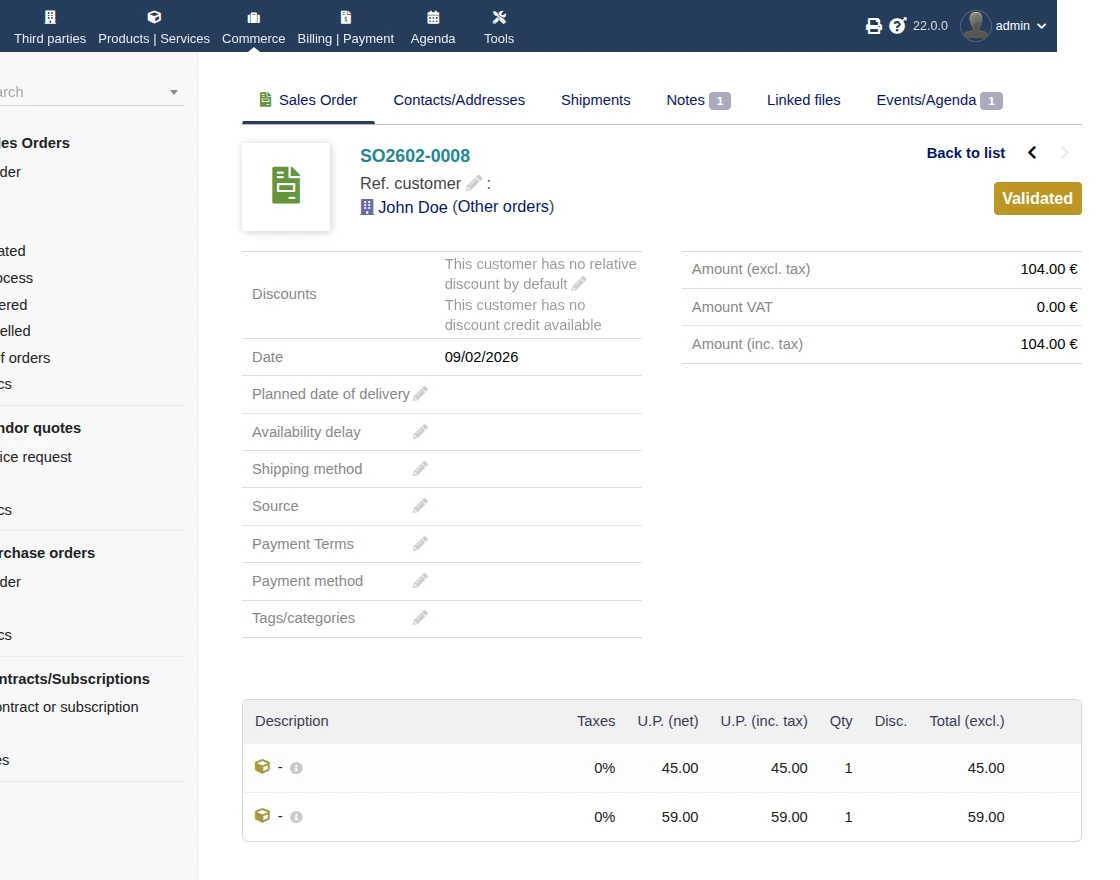
To map orders, place an order from the Magento 2 storefront.
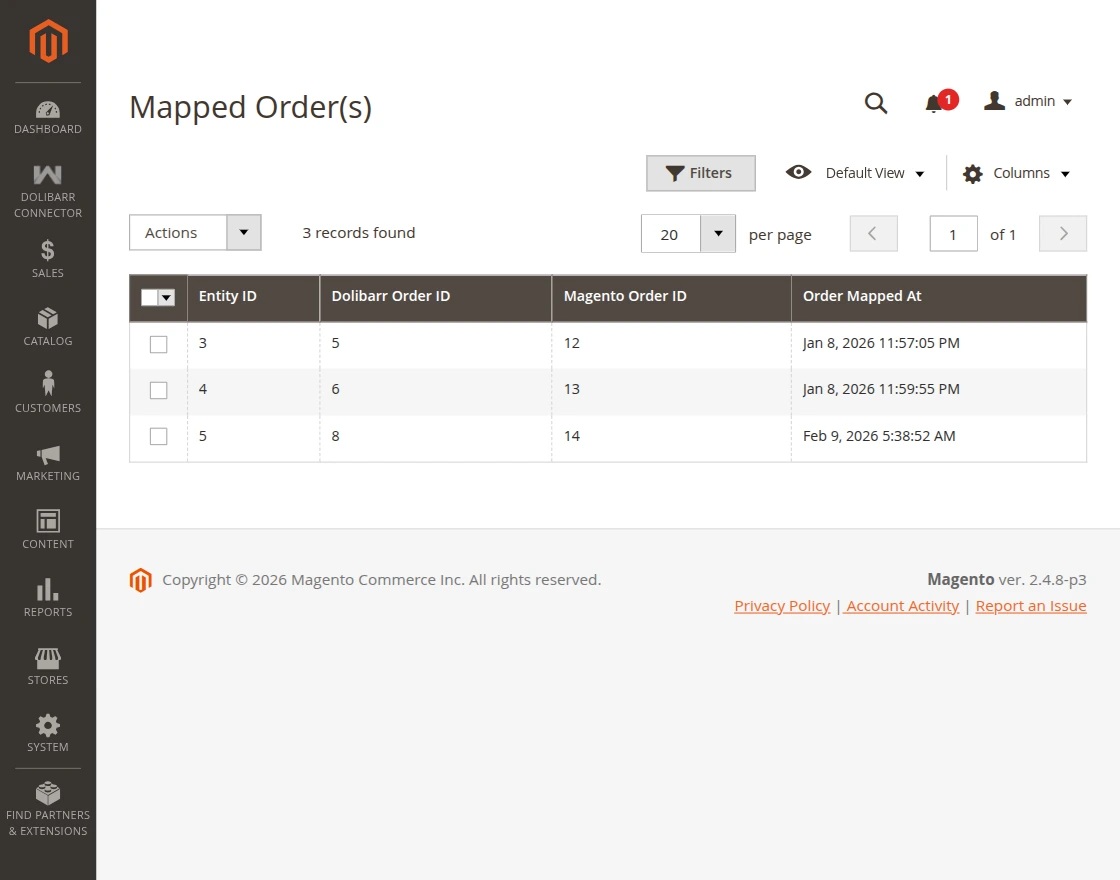
The order is then automatically exported to Dolibarr.
Mapped customer(s)
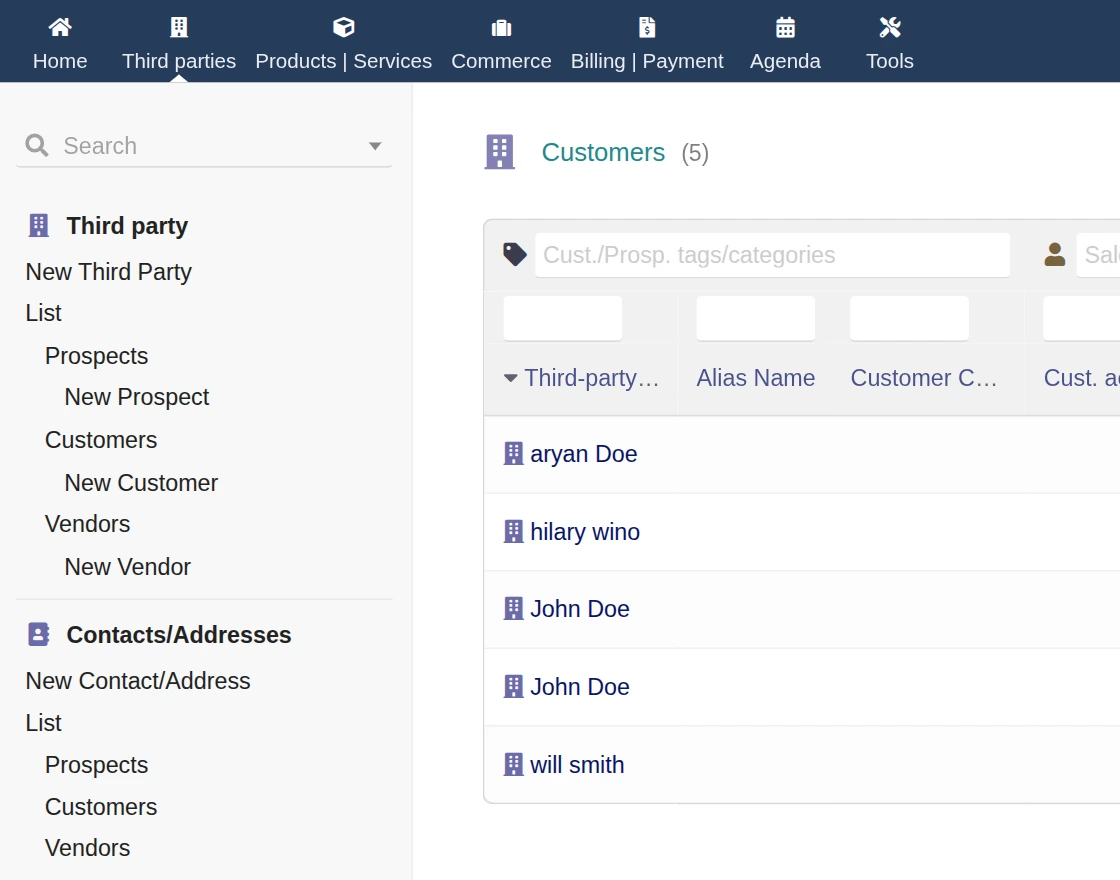
To map customers, place an order from the Magento 2 storefront.
The customer is then automatically exported to Dolibarr.
Two-Way Product Synchronization
The Magento 2 Dolibarr Connector supports two-way product synchronization to keep product data consistent on both platforms.
Magento 2 to Dolibarr Sync
When you create or update a product in the Magento 2 store, the extension automatically creates or updates the same product in Dolibarr.
1. Create or update a product from the Magento 2 admin panel.
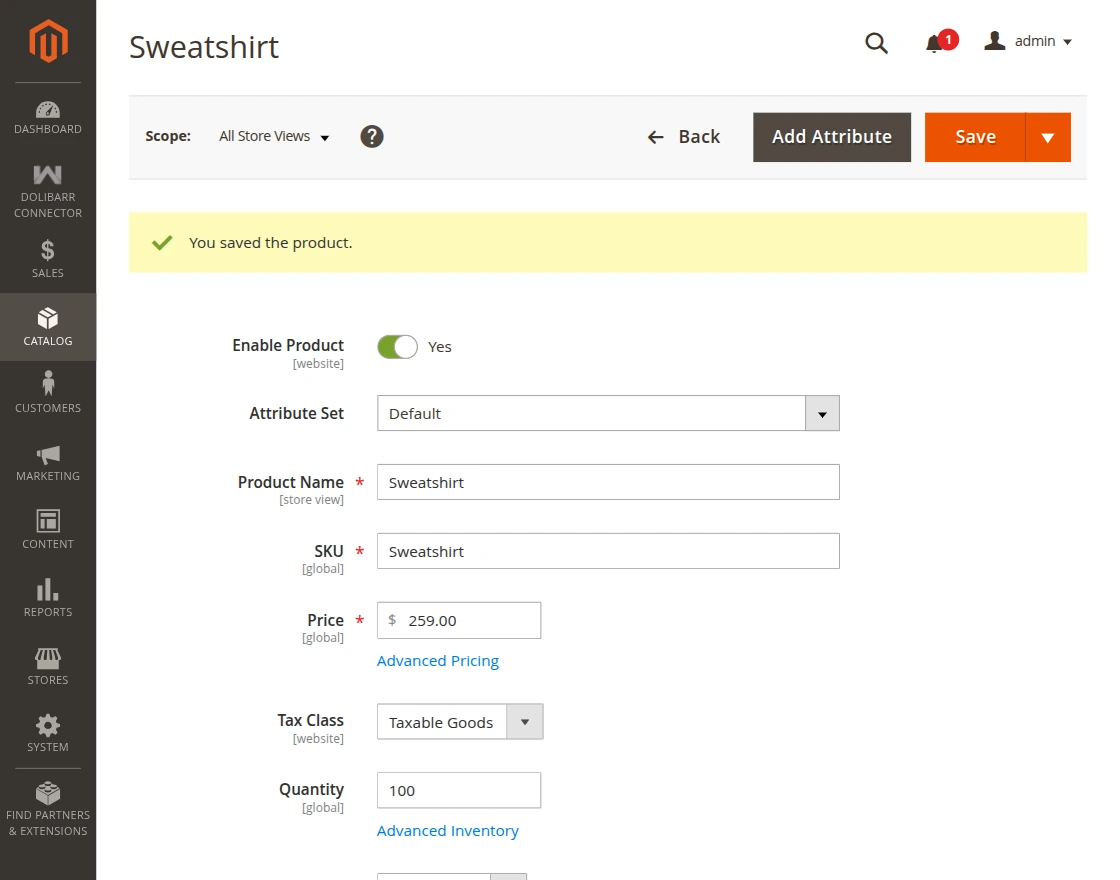
2. The product is automatically created or updated in Dolibarr.
Dolibarr to Magento 2 Sync
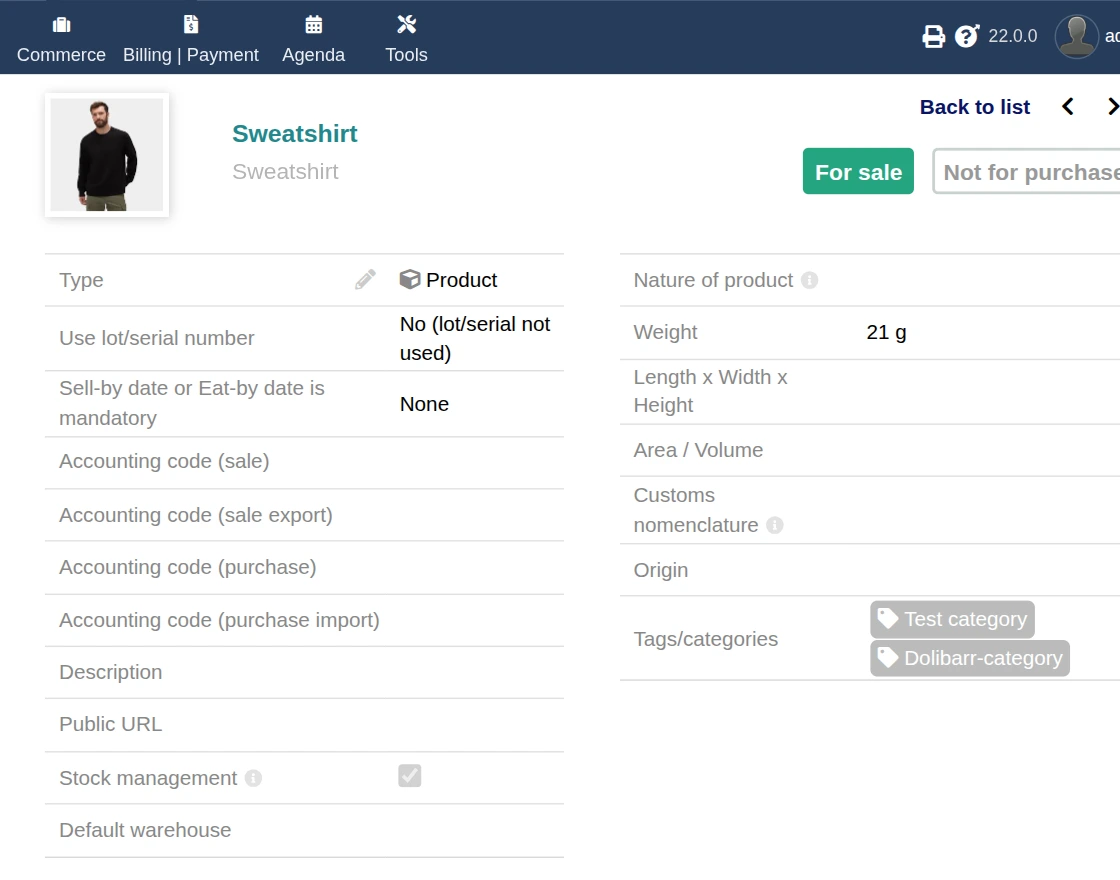
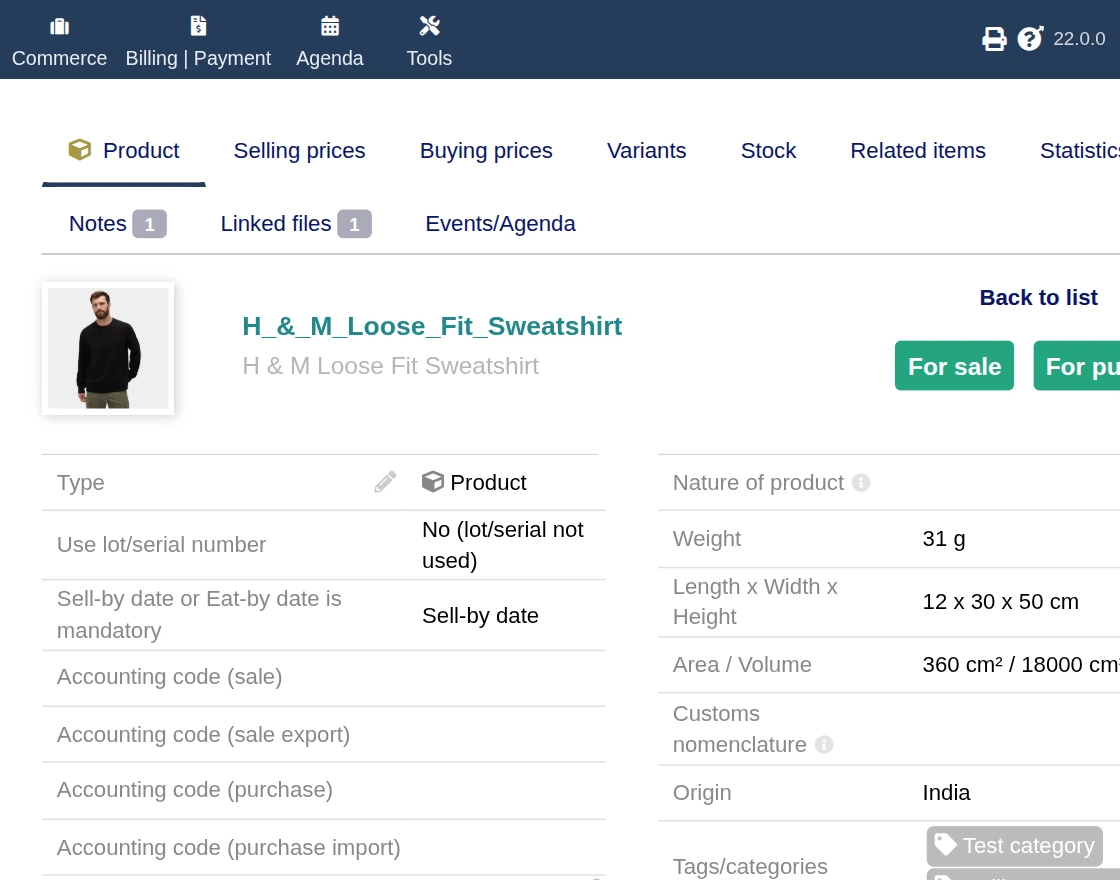
When you create or update a product in Dolibarr, the extension automatically updates the same product in the Magento 2 store.
1. Create or update a product in Dolibarr.
Note:
If a product is updated in Dolibarr, the admin must use the Re-Import option from Dolibarr Connector → Mapped Products to reflect the changes in Magento 2.
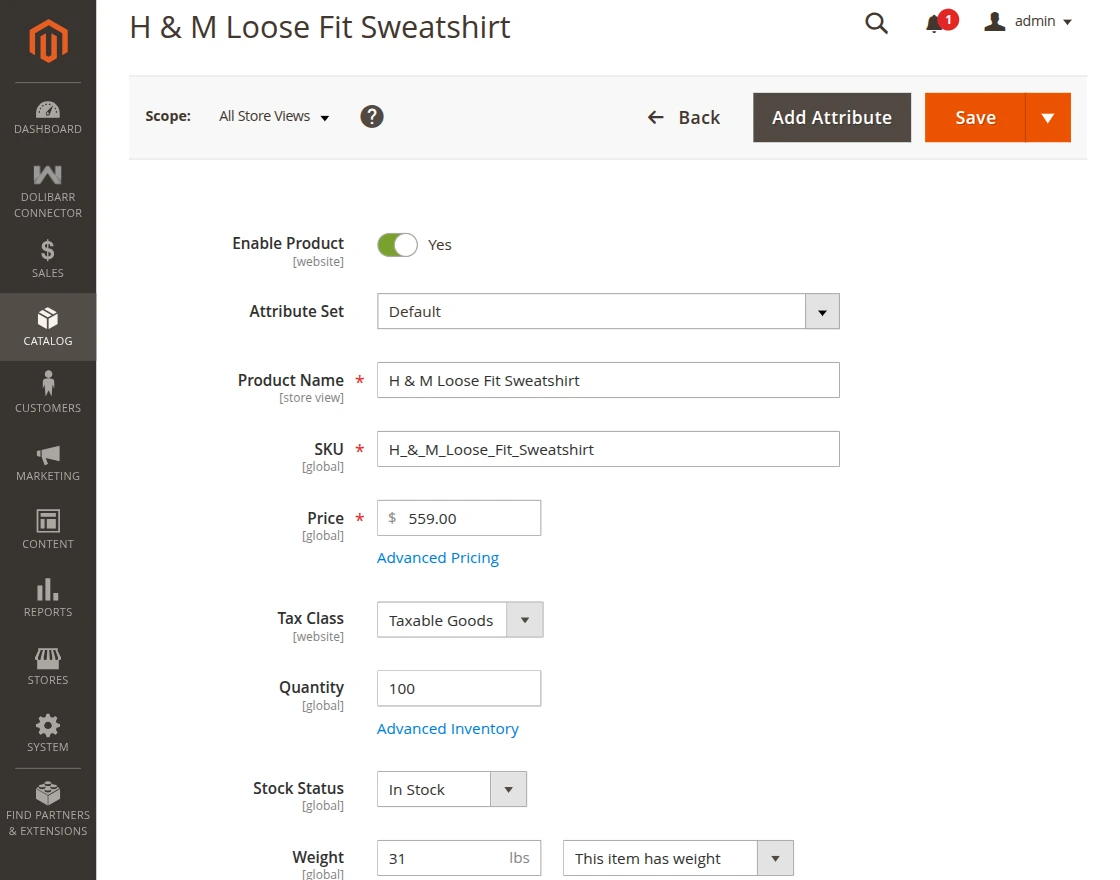
2. The product is automatically updated in Magento 2 after re-import.
In conclusion, that’s all for the Magento 2 Dolibarr Connector (Adobe Commerce). If you face any issues, feel free to raise a support ticket.
We’d also love to hear your feedback to improve the Magento 2 Dolibarr connector module at webkul.uvdesk.com.
Current Product Version - 4.0.0
Supported Framework Version - Magento 2.0.x, 2.1.x, 2.2.x,2.3.x, 2.4.x

Be the first to comment.