INTRODUCTION
Odoo Website Nexi Payment Provider helps people pay on a website. It uses Nexi to process payments securely.
When someone wants to pay, they are sent to Nexi’s payment page. They enter their card details only on Nexi, not on the website.
The website never sees or saves card numbers or secret details. This ensures that customer information remains private and secure.
Odoo Website Nexi Payment Provider makes paying easy and worry-free. Nexi takes full care of payment safety and security.
Features
- Odoo Website Nexi Payment Provider offers a seamless Nexi payment setup for Odoo websites, allowing customers to pay through a secure redirect to the Nexi payment page.
- The website does not store any card details, ensuring a safe and trusted payment process for users.
- Payment status updates automatically in Odoo after each transaction, helping admins track payments easily.
- Customers enjoy a smooth and simple checkout experience without confusion or extra steps.
- Admins can view all Nexi transactions in one central place for better management.
- The module ensures secure communication between Odoo and Nexi for reliable payment processing.
- Overall, it works as a Website Nexi Payment Gateway for online stores to accept safe online payments.
INSTALLATION
- Once you purchase the App from the Webkul store, you will receive a link to download module’s zip file.
- Extract the file on your system after the download finishes. As a result, you will be able to see a folder named- wk_payment_nexi(you can get the technical name from the Odoo app of the respective module)’
- Copy and paste this folder inside your Odoo Add-Ons path.
- Now, open the Odoo App and click on the Settings menu. Here, click on Activate Developer Mode.
- Then, open the Apps menu and click on ‘Update Modules List.’
- In the search bar, remove all the filters and search ‘wk_payment_nexi.’
- You will be able to see the module in the search results. Click on ‘Install’ to install it.
WORKFLOW
1. Configuration
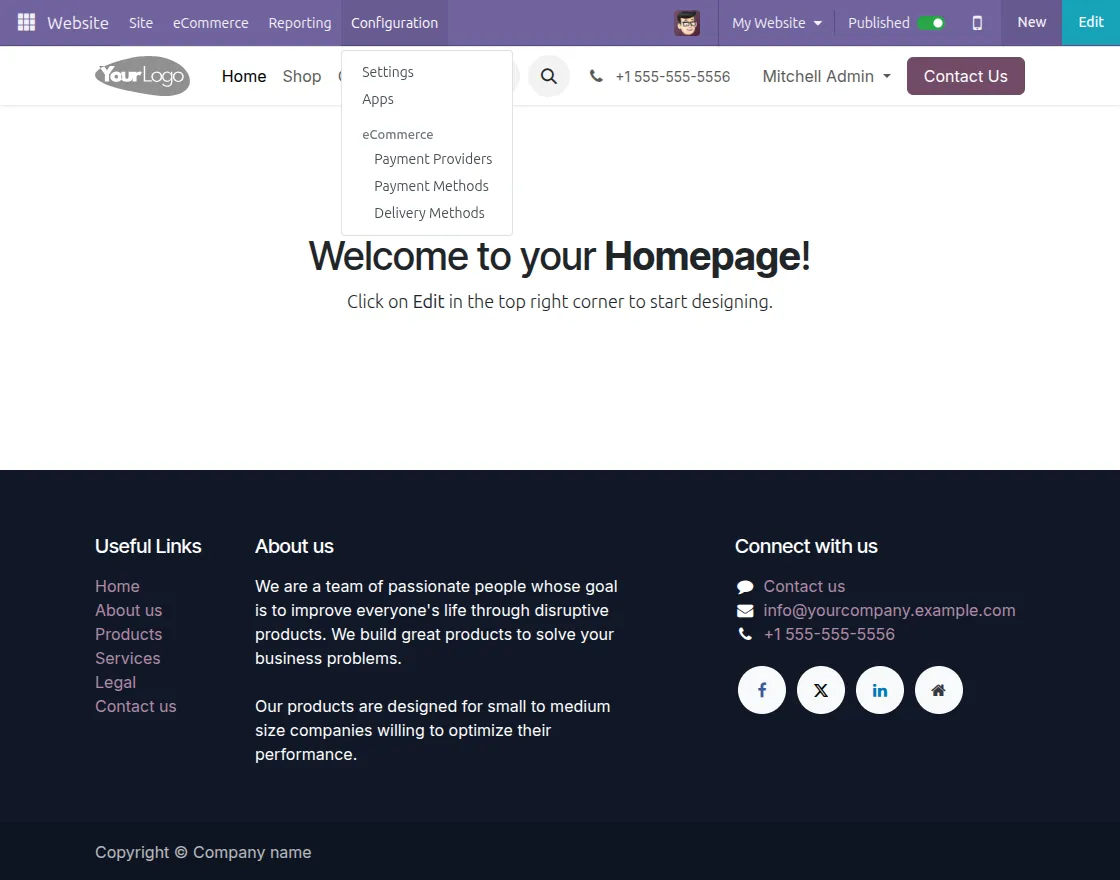
- After installing the Website Nexi Payment Provider, go to Configuration → Payment Provider in the backend.
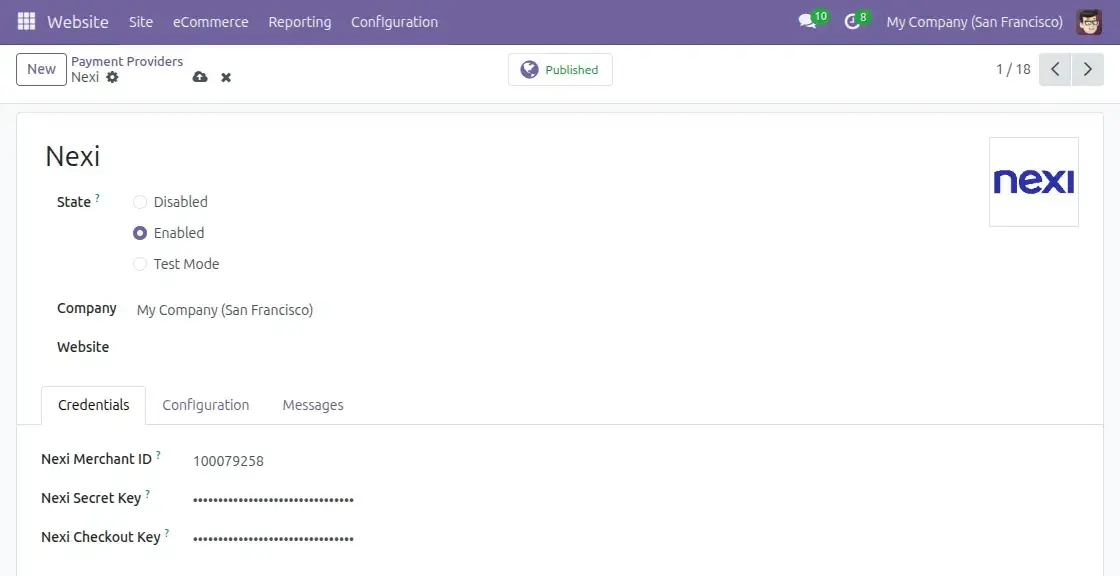
2. After selecting the payment method, check the Enable option for use and fill in the credentials for the Nexi account to link with the module.
Website View:
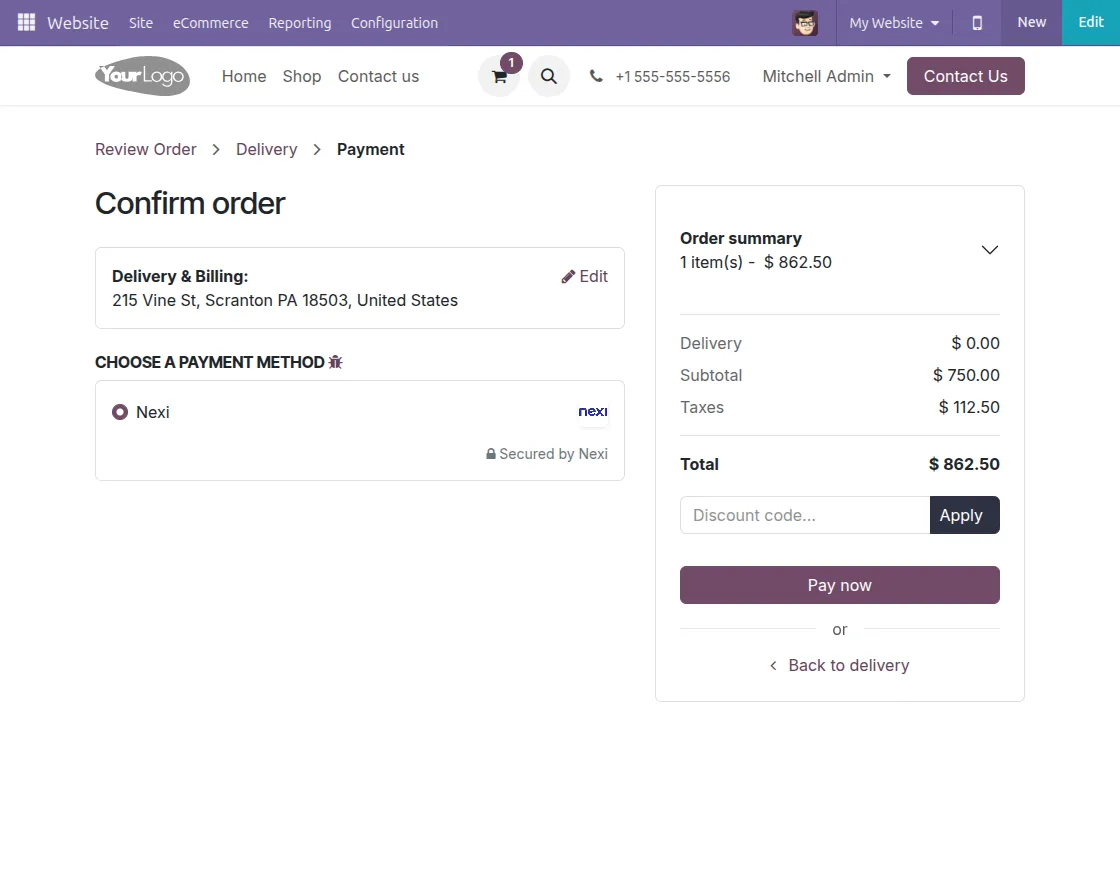
- Customers can select the Payment Method from the Website Checkout Page.
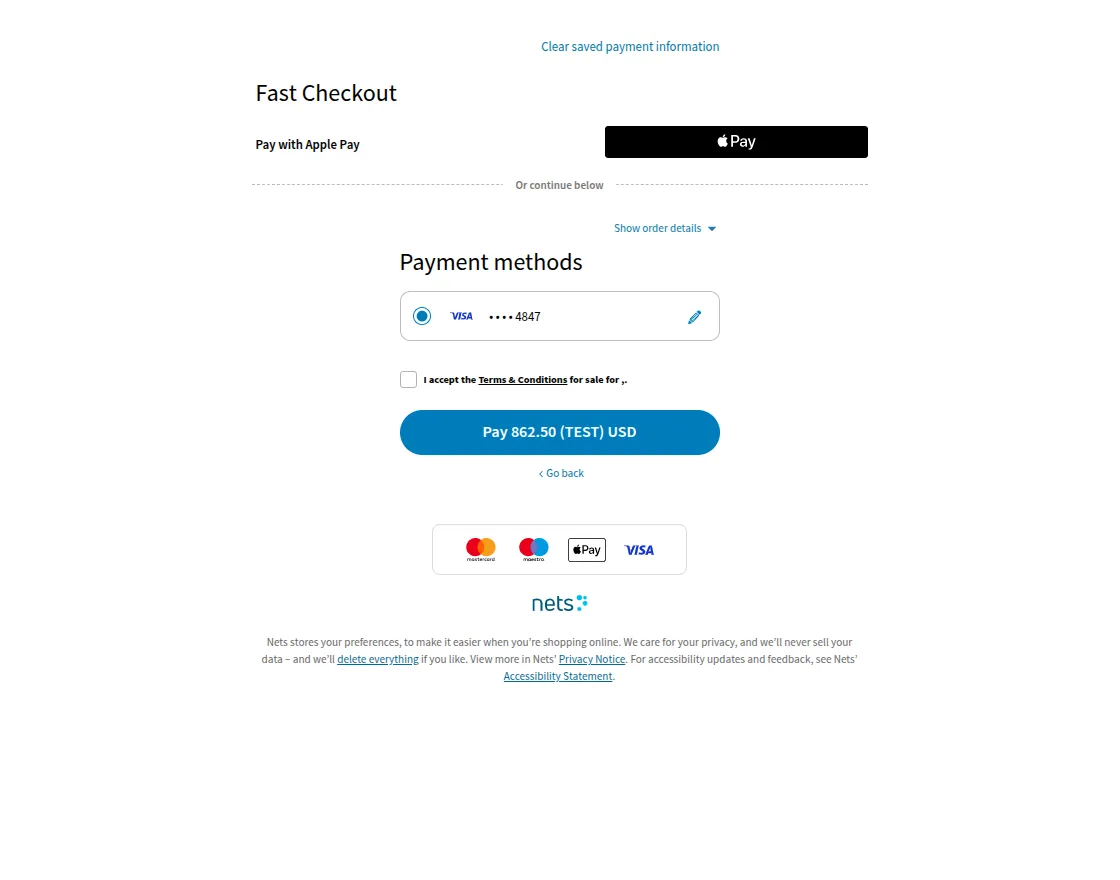
- After selecting the Payment Method, they may proceed to the final Secure Payment Gateway page to process the Card Payment and its credentials.
- Fill up your card credentials and click on Pay.
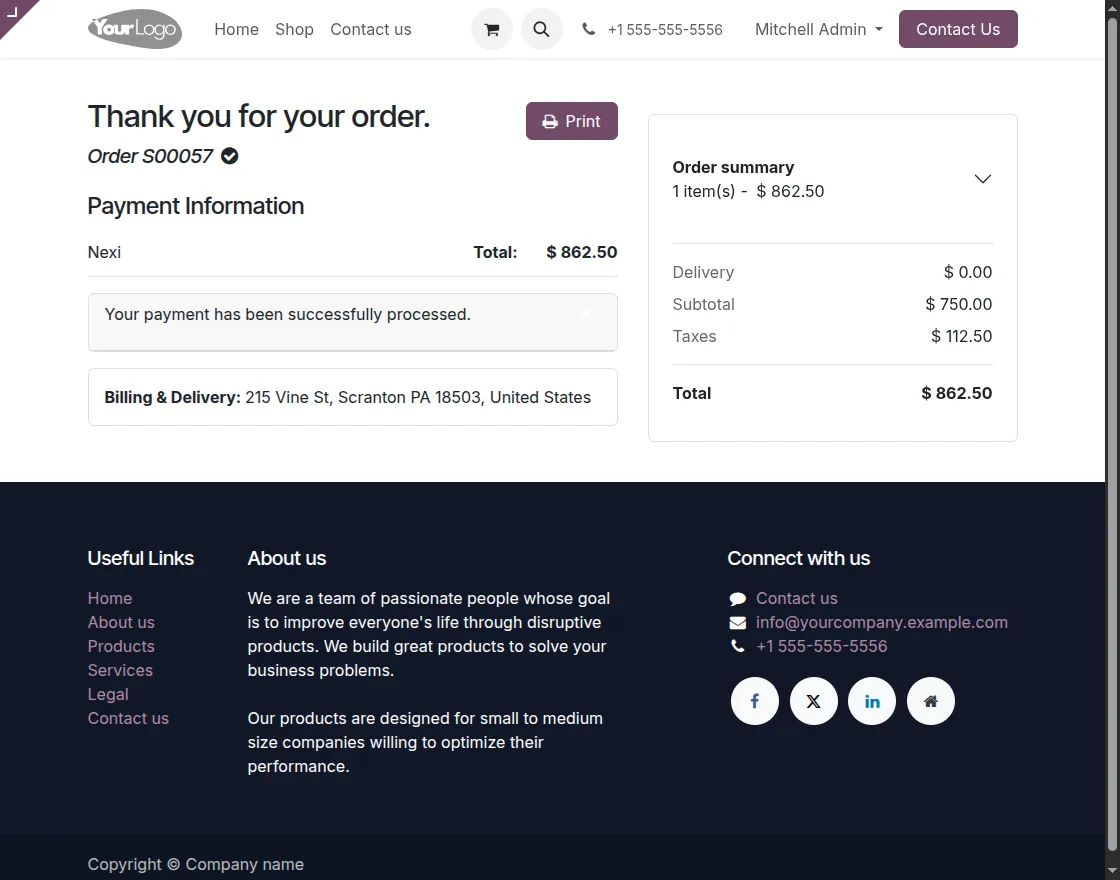
- After the successful payment, the page will be redirected to a page that says “Your Payment has been successfully processed.”
NEED HELP?
Hope you find the guide helpful! Please feel free to share your feedback in the comments below.
If you still have any issues/queries regarding the same, please raise a ticket at the UV Desk.
I hope this helps. In case of any further queries, contact us at our support email.
Thanks for paying attention!!
Current Product Version - 1.0.0
Supported Framework Version - Odoo v19,v18,v17,v16

Be the first to comment.