Introduction
Odoo Law Management System streamlines legal operations with a centralized platform to manage cases, clients, hearings, and evidence efficiently.
It ensures law firms and legal departments can operate smoothly with improved coordination and productivity.
Features
- Centralized dashboard for monitoring active cases, hearings, and deadlines.
- Complete case & trial management from initiation to closure.
- Client management with detailed profiles and case history.
- Lawyer profile & Opposition Lawyer management.
- Court and judge directory for easy case and hearing association.
- Priority-based case tracking to highlight urgent legal matters.
- Evidence and document management are linked to specific cases.
Installation
- Once you purchase the App from Webkul store, you will receive a link to download module’s zip file.
- Extract the file on your system after download finishes. As a result, you will be able to see a folder named- ‘wk_law_management’ (you can get the technical name from Odoo app of the respective module)’
- Copy and paste this folder inside your Odoo Add-Ons path.
- Now, open Odoo App and click on the Settings menu. Here, click on Activate Developer Mode.
- Then, open Apps menu and click on ‘Update Modules List.’
- In the search bar, remove all the filters and search ‘wk_law_management’
- You will be able to see module in the search results. Click on ‘Install’ to install it.
Workflow
- Odoo Law Management System offers a centralized overview of active cases, hearings, priorities, and lawyer workloads for quick monitoring and decision-making.

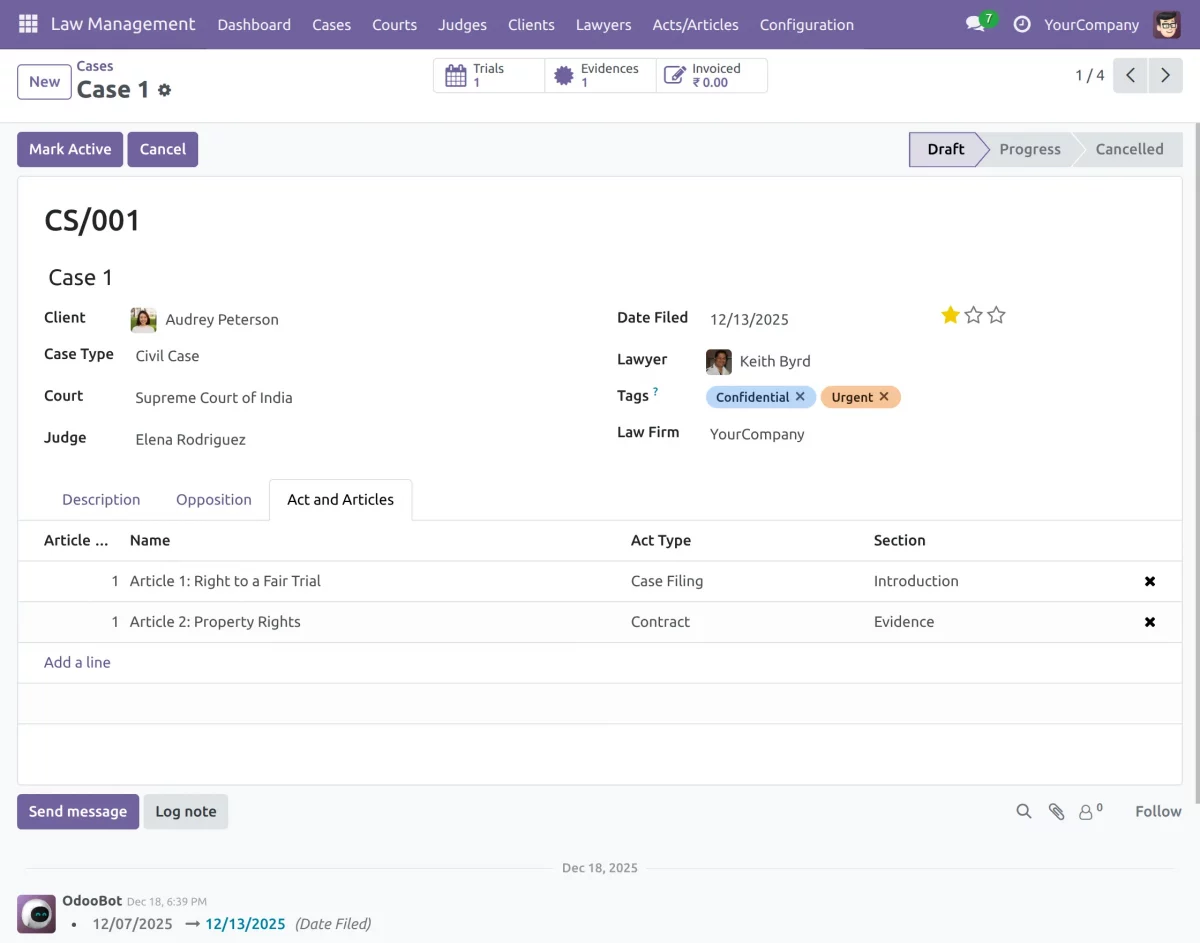
2. Open cases to create and manage cases. All related information can be quickly accessed using the smart buttons available at the top of the case form.
You can add trials, upload and organize evidence, record opposition lawyer details, add details like acts and articles, and manage them in a single place.
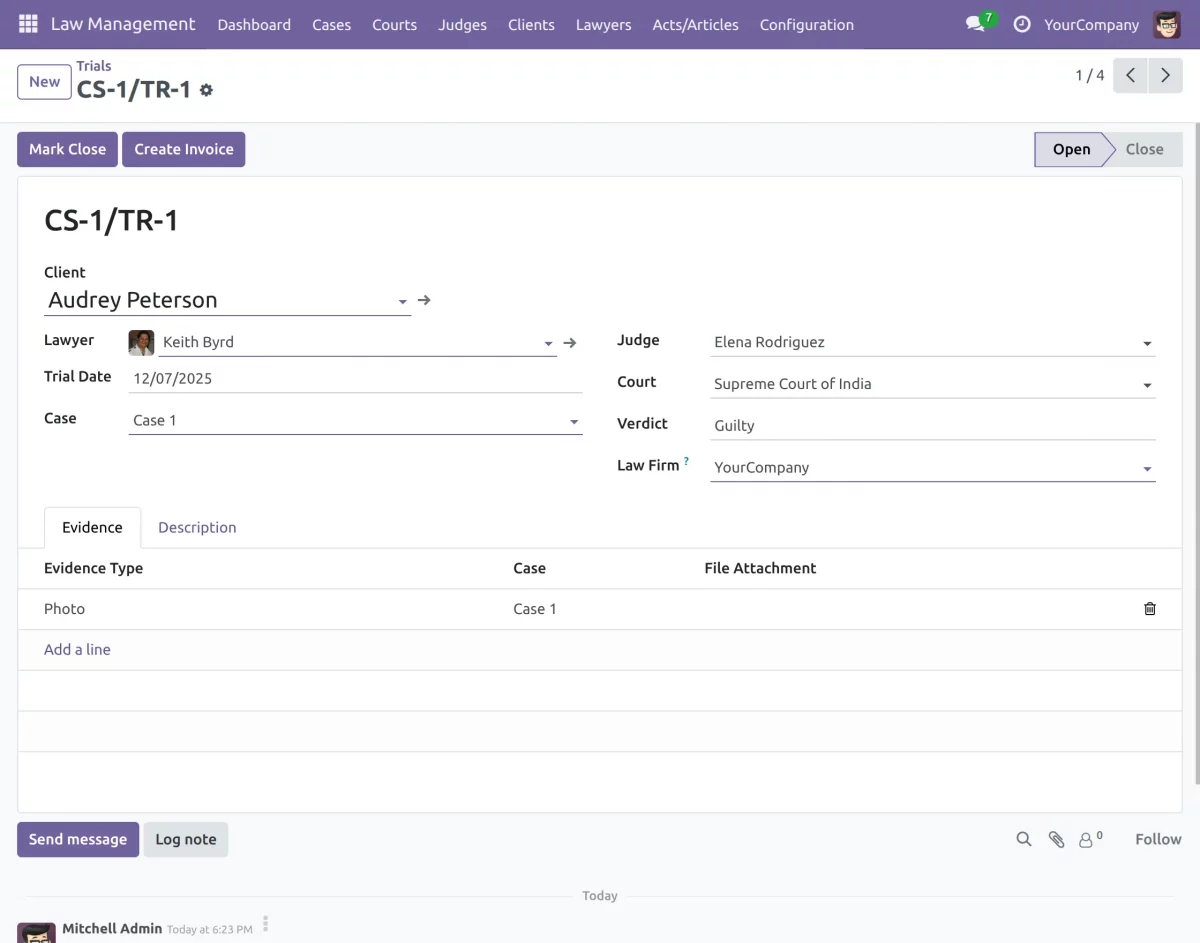
3. You can also create case trials and add the evidence related to that particular trial.
Also, you can easily manage other details related to that trial, like the judge, verdict, and court, all in one place.
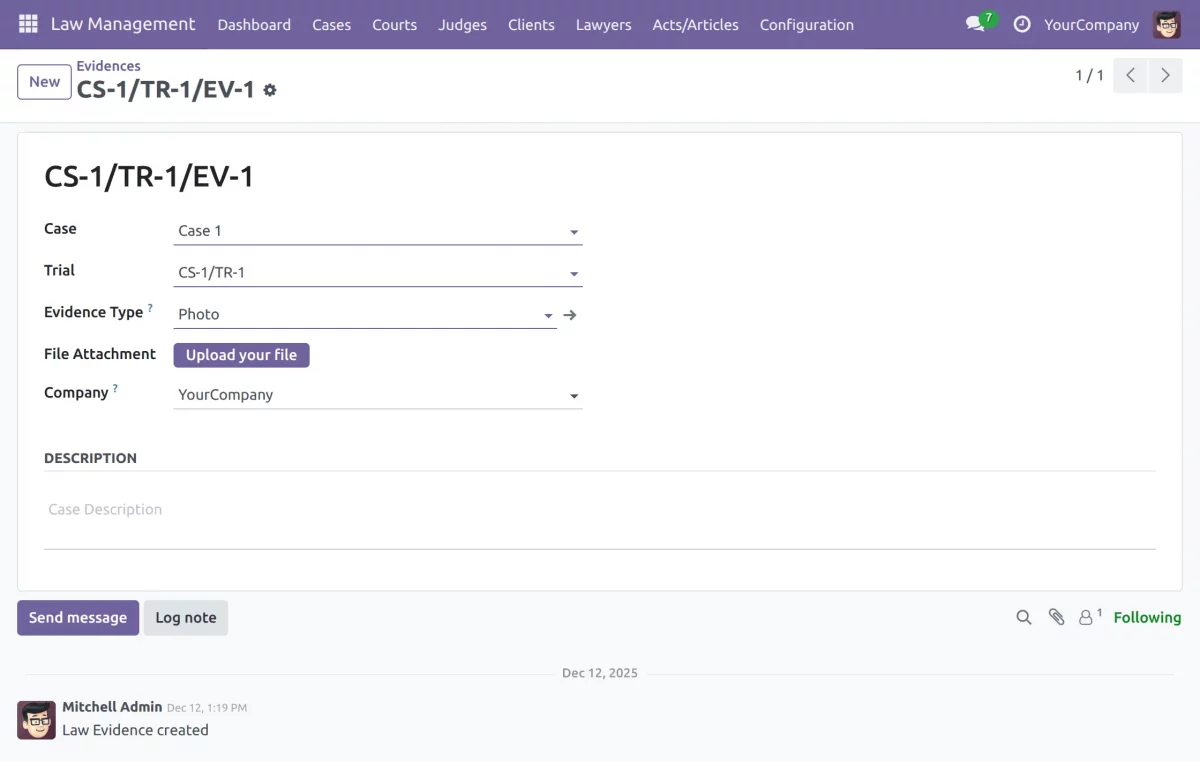
4. Create multiple evidence entries to access them easily, all in one place, and link them to the respective trial or case.
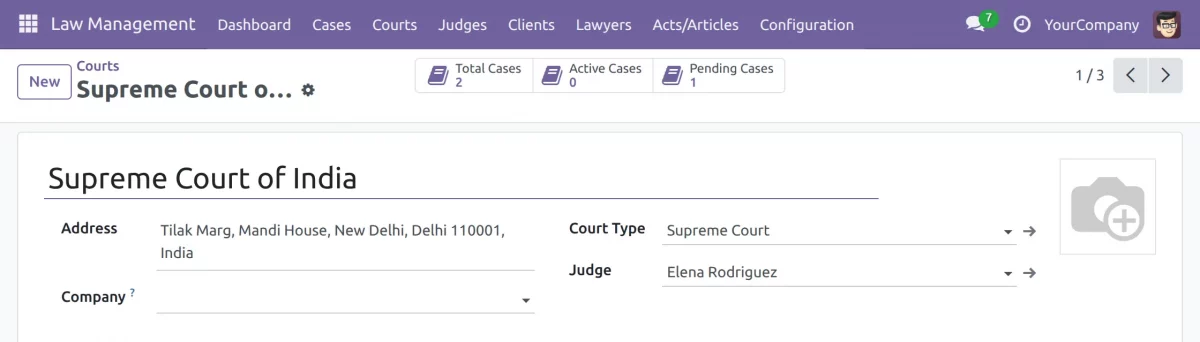
5. Click on Courts to add or edit court records; link courts to cases and hearings for accurate scheduling.
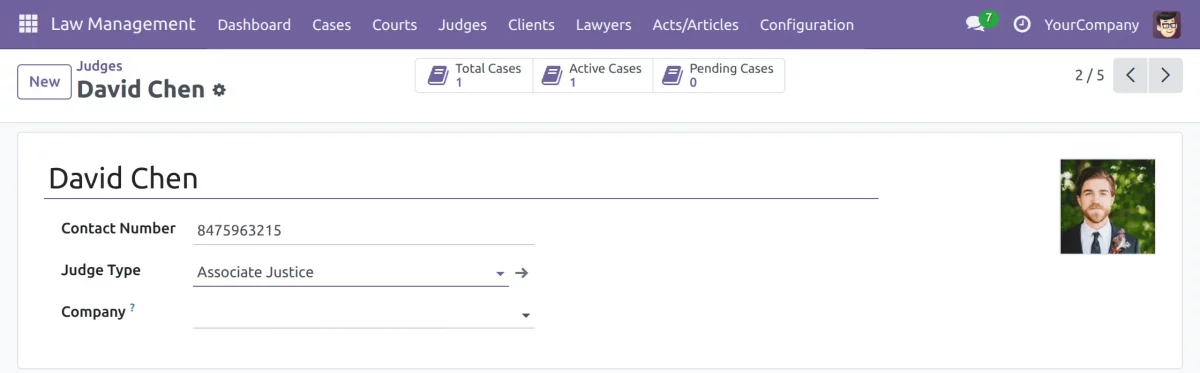
6. Open Judges to register and manage judge profiles; assign judges to hearings as needed.
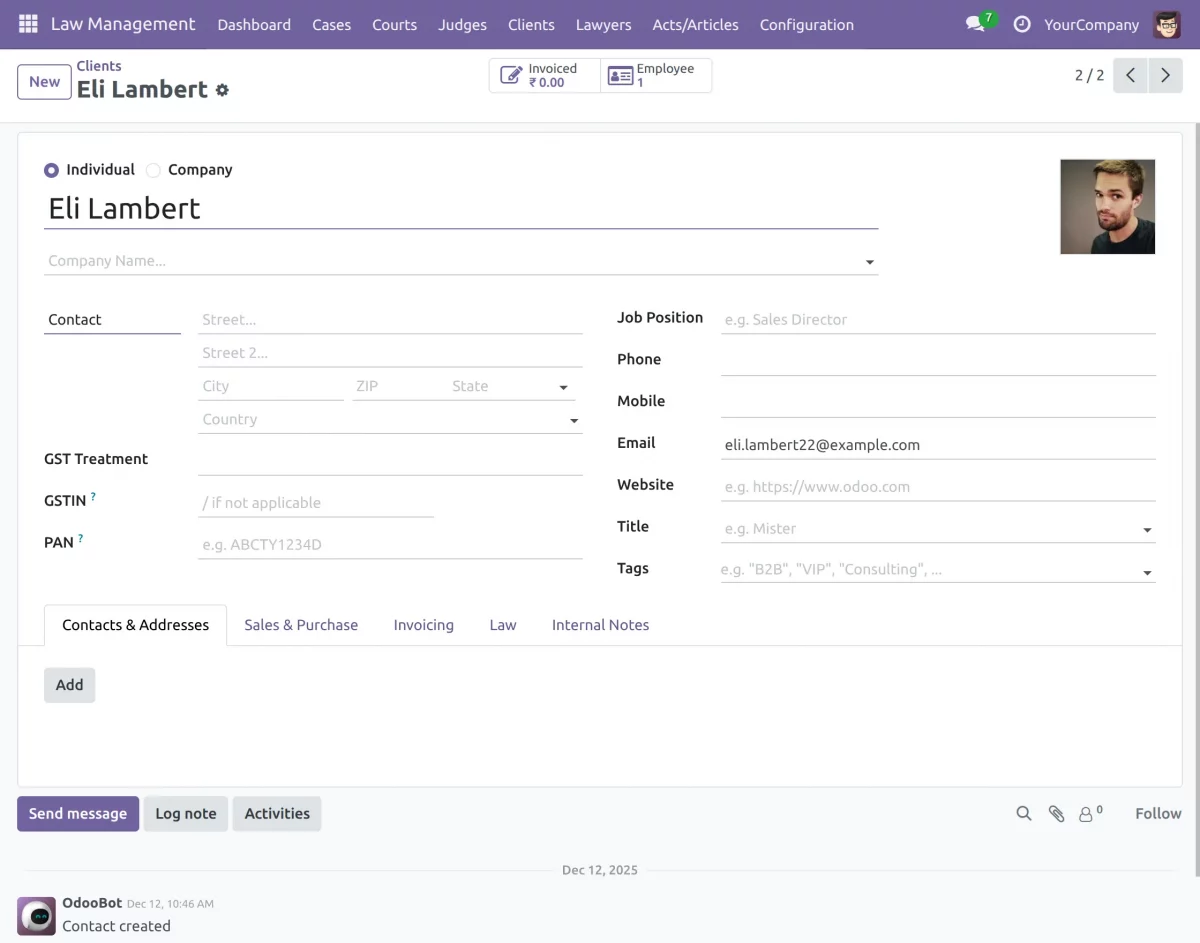
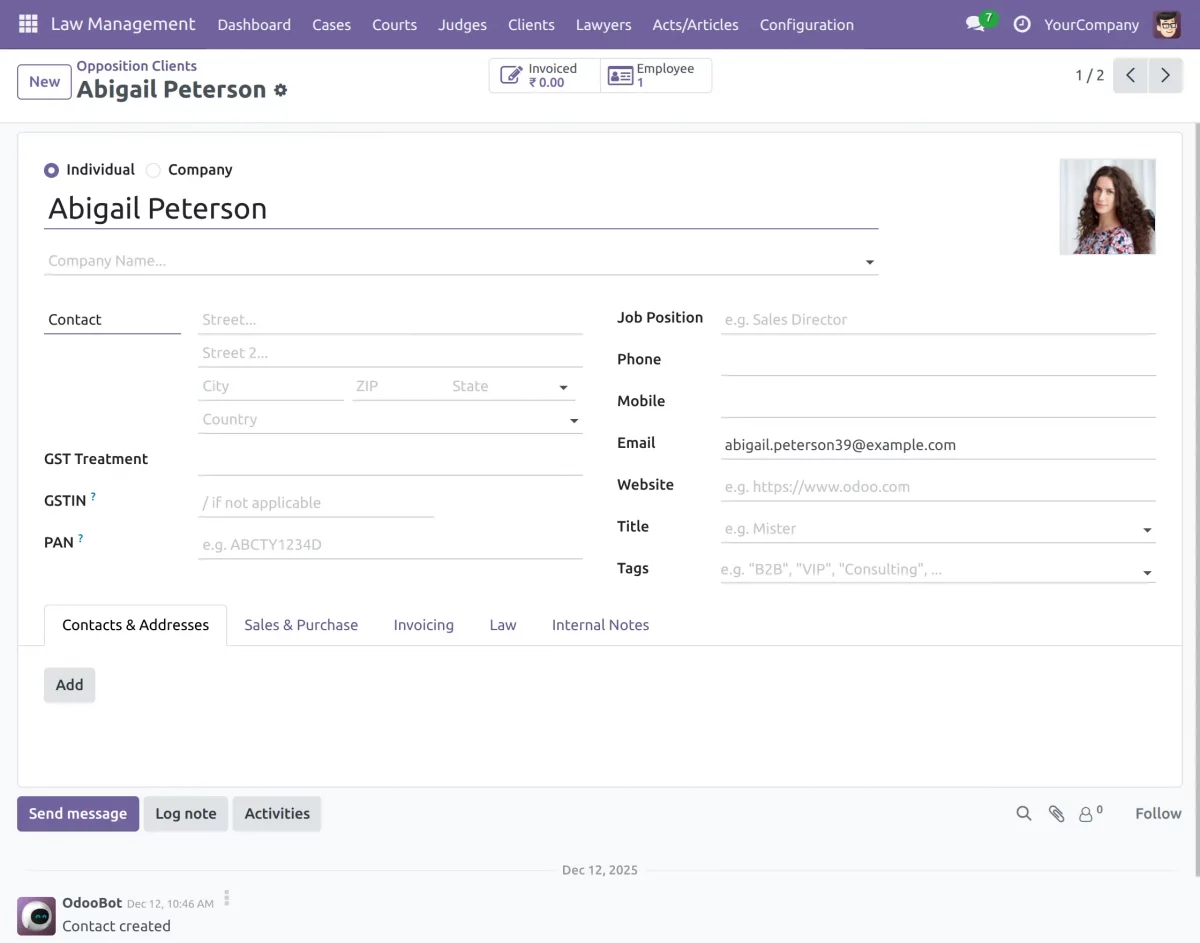
7. Open Clients to add and manage clients, including opposition clients; update their information.
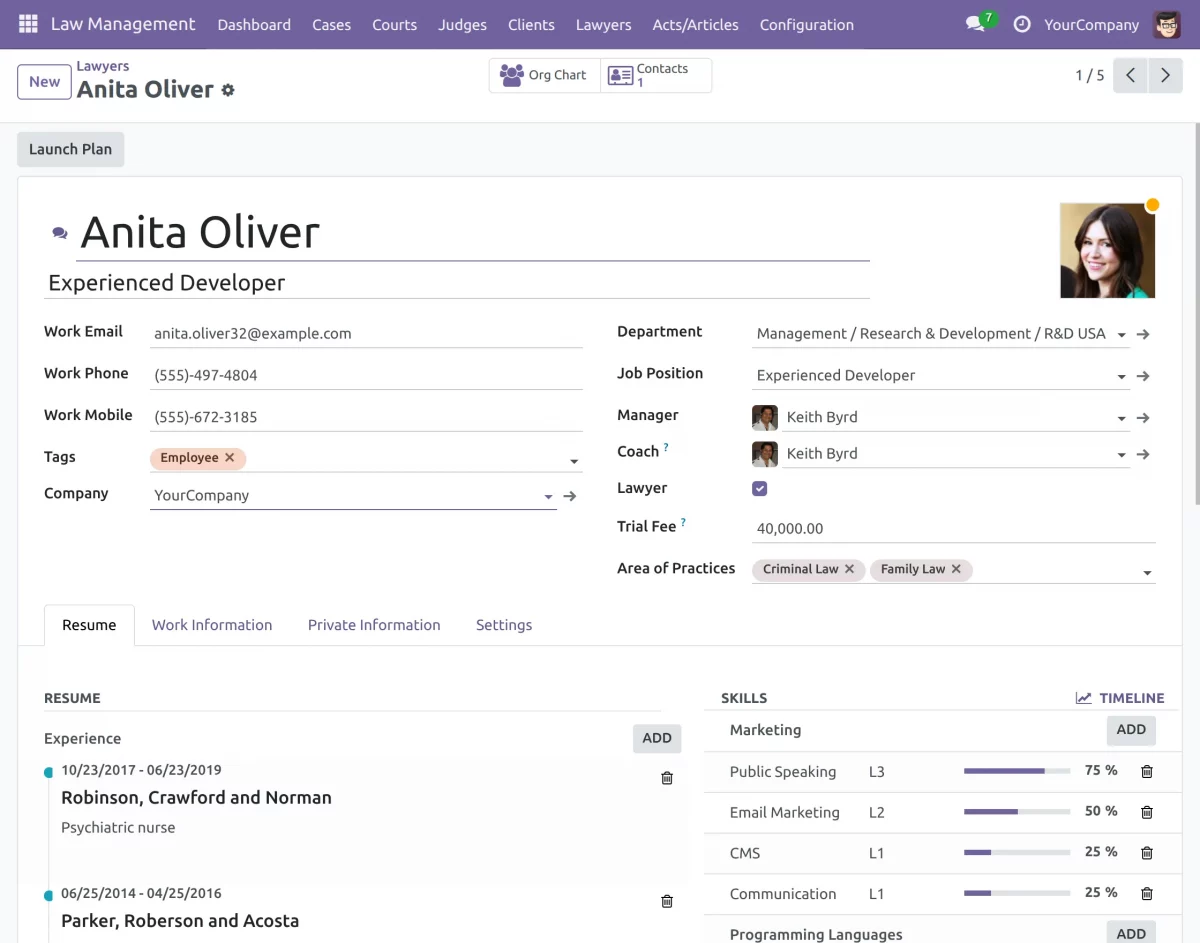
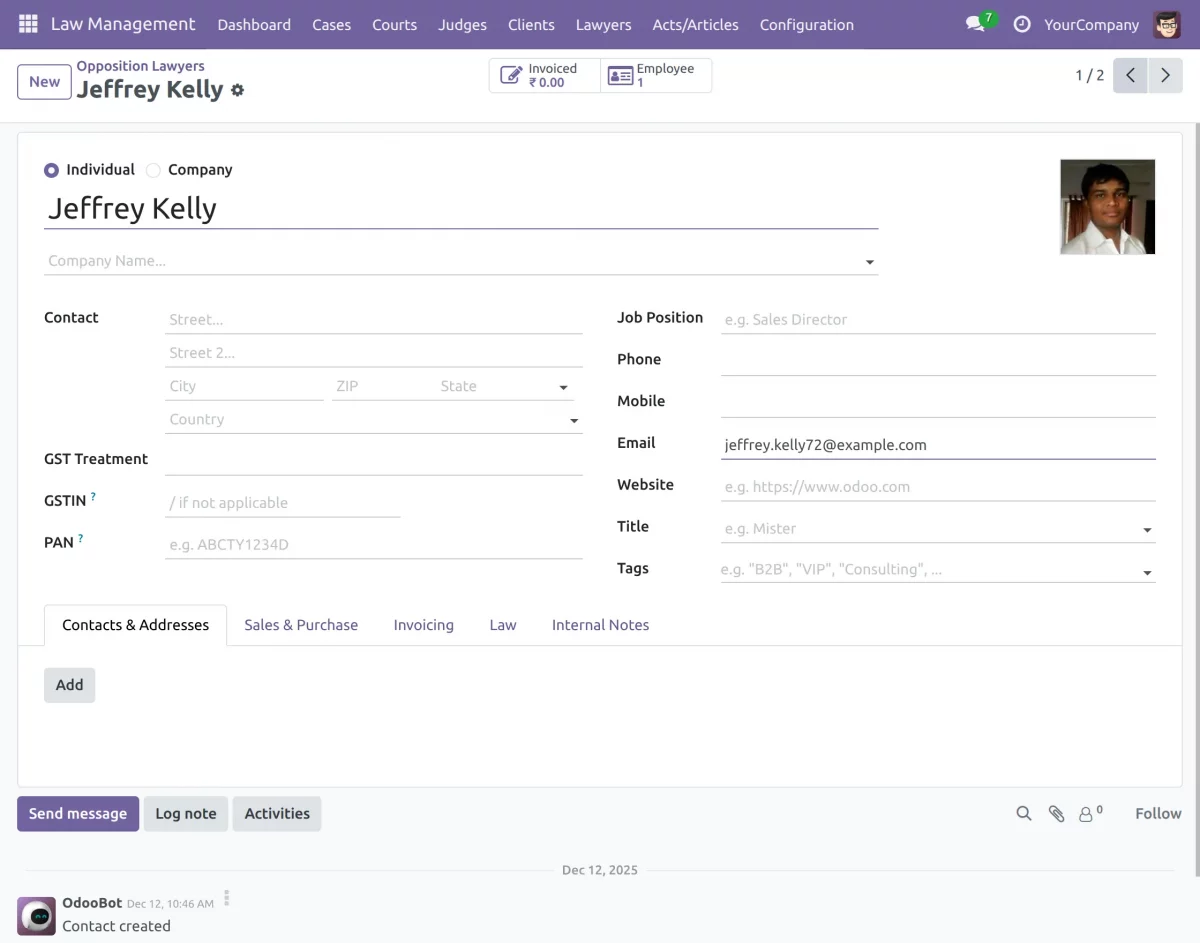
8. Open the Lawyers section to add and manage lawyer profiles, including opposition lawyer details; store their specialization, contact information.
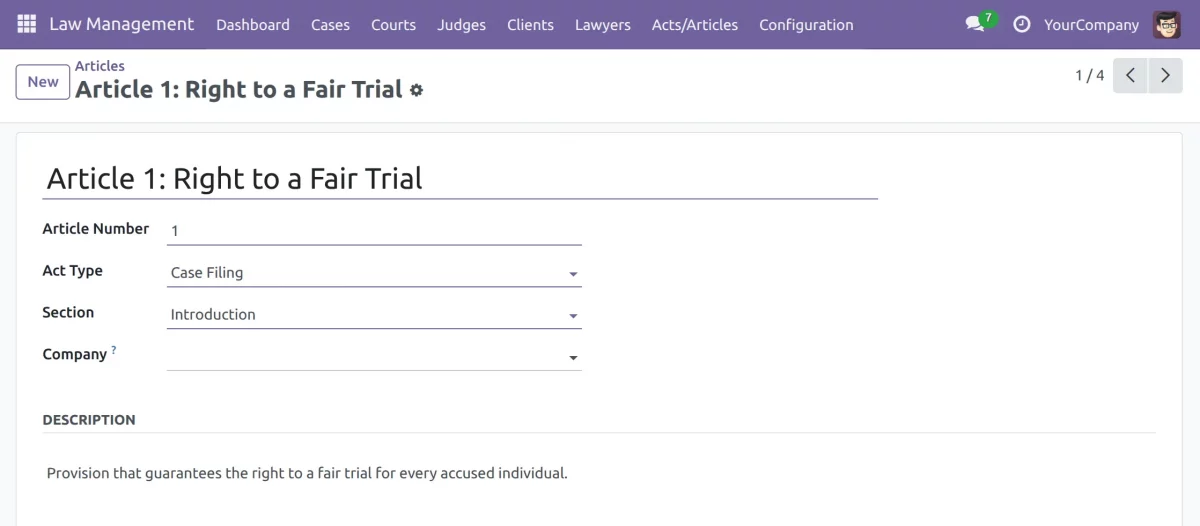
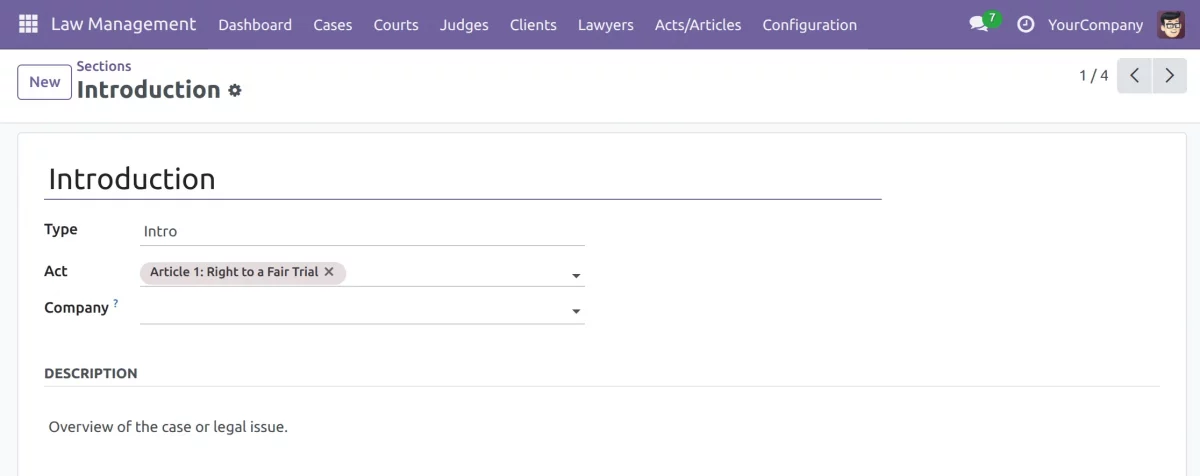
9. Open the Acts/Articles section to create and manage legal reference entries, like acts/ articles, & sections for quick lookup and accurate documentation.
Need Help?
Hope you find the guide helpful! Please feel free to share your feedback in the comments below.
If you still have any issues/queries, please create a ticket at the UV Desk.
I hope this helps. In case of any further queries, contact us at [email protected].
Thanks for paying attention!!
Current Product Version - 1.0.0
Supported Framework Version - Version 19, Version 18, Version 17.


Be the first to comment.