Introduction
Odoo Direct Refund From PayU India lets you initiate refunds for PayU transactions directly from Odoo, ensuring a reliable and secure refund process.
It simplifies the process by removing the need to switch between Odoo and the PayU dashboard. Refunds are processed instantly, and details are saved under the original payment record.
Admins gain better control with refund validation, reasons, and history tracking, and ensure every refund is clear and easy to manage.
Prerequisites for using Odoo Direct Refund from PayU India
Odoo Direct Refund From PayU India works in conjunction with the following module:
You need to install the modules mentioned above to use the module.
Features
- Odoo Direct Refund From PayU India enables invoice refunds.
- Mandatory credit note validation before confirming refund requests.
- Supports both full and multiple partial refund amounts.
- Capture refund reason easily using a guided refund wizard.
- Each refund securely links to its original PayU payment.
- Restricts refund amount from exceeding original payment.
- Track refund history with date, time, and transaction amount.
Installation
- Once you purchase the App from Webkul store, you will receive a link to download module’s zip file.
- Extract the file on your system after download finishes. As a result, you will be able to see a folder named: ‘payment_payu_india_refund’
- Copy and paste this folder inside your Odoo Add-Ons path.
- Now, open Odoo App and click on the Settings menu. Here, click on Activate Developer Mode.
- Then, open Apps menu and click on ‘Update Modules List.’
- In the search bar, remove all the filters and search ‘payment_payu_india_refund’
- You will be able to see module in the search results. Click on ‘Activate’ to install it.
Workflow
- After installing Odoo Direct Refund from PayU India, a Credit note must be generated from Original invoice before processing any refund.

2. Once Refund is initiated, you need to specify the refund reason in PayU wizard.
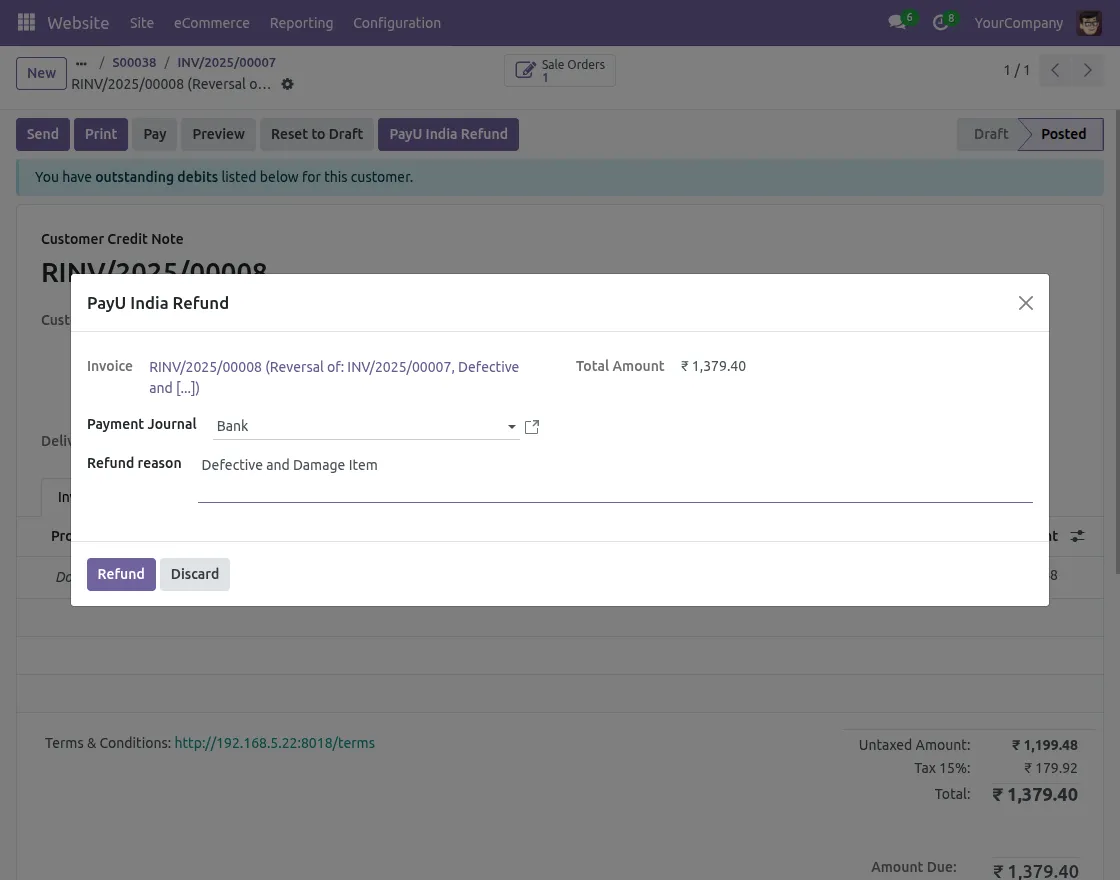
3. The transaction status updates automatically in Odoo once PayU confirms the refund.
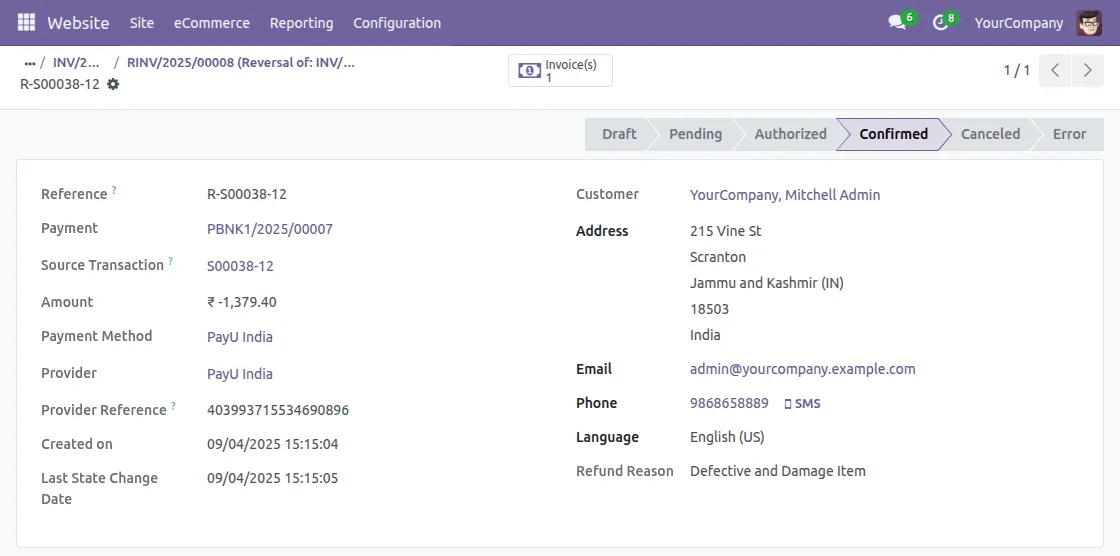
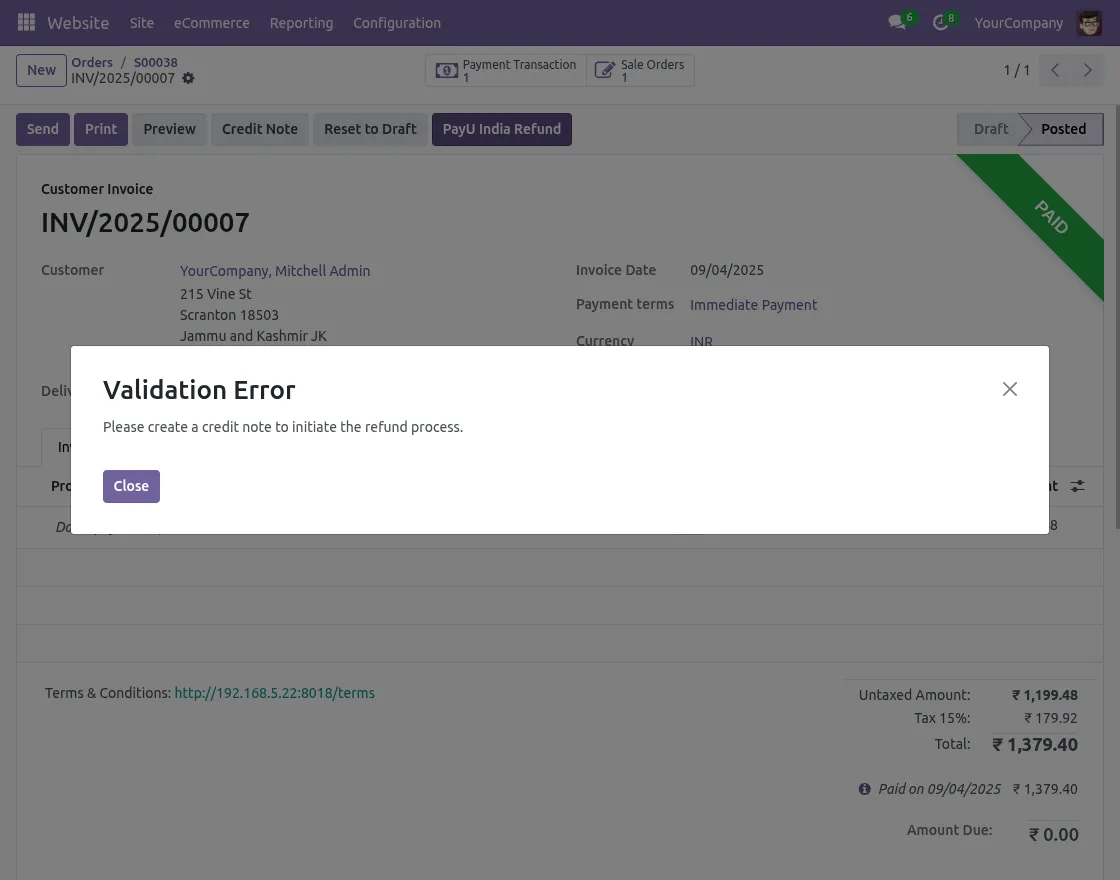
4. If you try to issue a refund without creating a credit note, the system shows a pop-up alert.
This reminder ensures no refund can be completed without the required credit note.
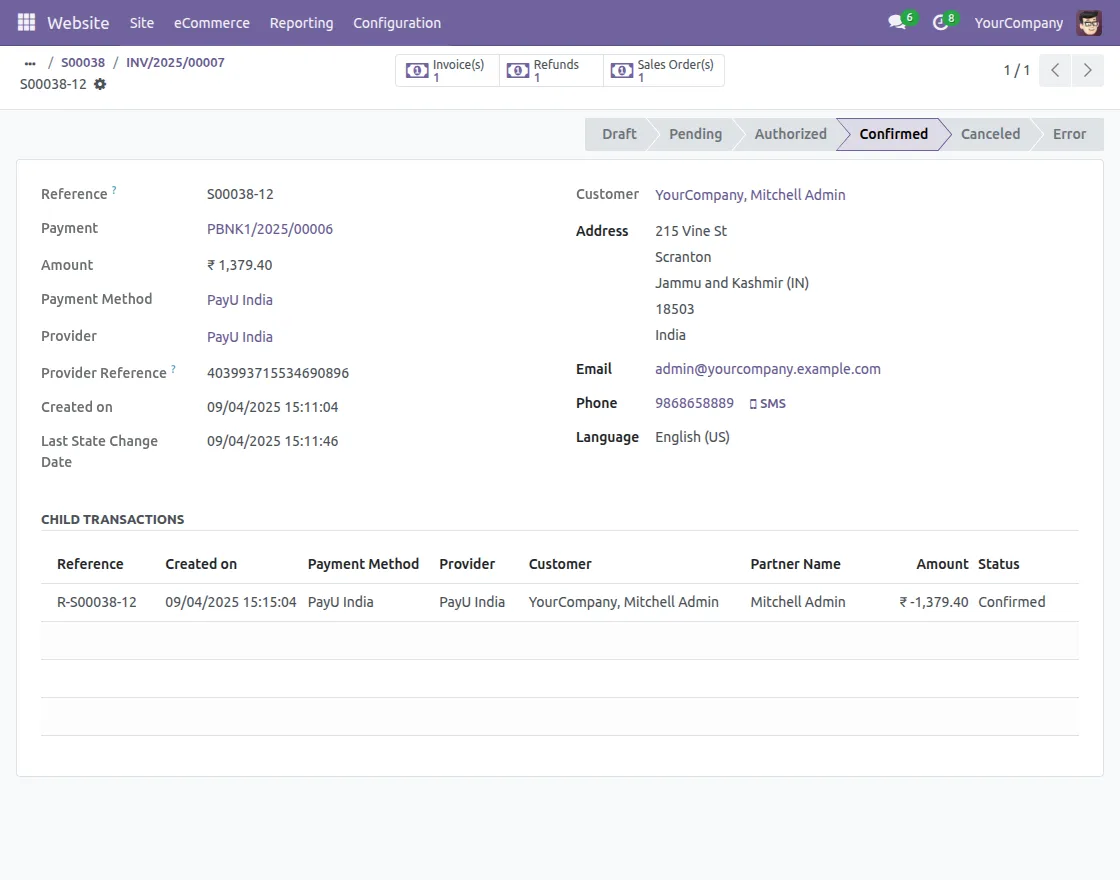
5. Each completed refund is recorded as a child transaction under Original payment. This helps users quickly track refund details, including date, time, amount, and reason.
Need Help?
Hope you find guide helpful! Please feel free to share your feedback in comments below.
If you still have any issues/queries, please create a ticket at UV Desk.
I hope this helps. In case of any further queries, contact us at [email protected].
Thanks for paying attention!!
Current Product Version - 1.0.0
Supported Framework Version - Odoo 19, 18

Be the first to comment.