INTRODUCTION
Odoo POS Square Terminal Pay connects Square Terminals with your Odoo POS system for fast and secure in-store payments.
The module integrates your POS interface with Square, enabling you to accept card payments seamlessly throughout the POS.
With this module, you can configure Square API keys, pair devices, monitor real-time terminal status, and review transaction history.
It ensures a smooth checkout experience by sending payment requests directly to the Square Terminal.
FEATURES
- Configure Square Terminal using API keys and details.
- Generate secure device codes for terminal pairing.
- Monitor Square Terminal status in real time.
- Odoo POS Square Terminal Pay enables Square as a POS payment option.
- Map Square payments with the correct accounting journals.
- Track Square transactions with clear payment logs.
- Maintain a full history of completed Square payments.
- Support multiple terminals across store locations.
- Ensure fast and secure card payment processing.
INSTALLATION
- Once you purchase App from the Webkul store, you will receive a link to download module’s zip file.
- Extract the file on your system after download finishes. As a result, you will be able to see a folder named ‘pos_square_terminal_pay.’
- Copy and paste this folder inside your Odoo Add-Ons path.
- Now, open Odoo App and click on the Settings menu. Here, click on Activate Developer Mode.
- Then, open Apps menu and click on ‘Update Modules List.’
- In search bar, remove all the filters and search ‘pos_square_terminal_pay.’
- You will be able to see the module in the search results. Click on ‘Activate’ to install it.
WORKFLOW
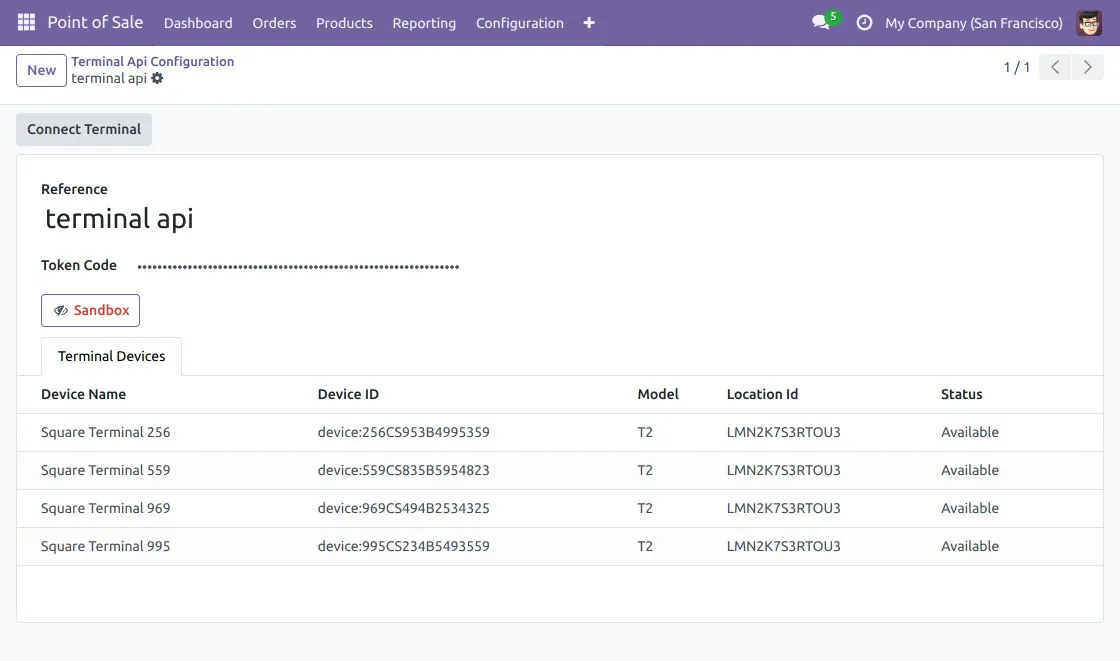
1. Configure Terminal API Settings
Add Square API key, device details, and location ID to establish a secure connection. This configuration links Odoo POS with your Square Terminal for real-time communication.
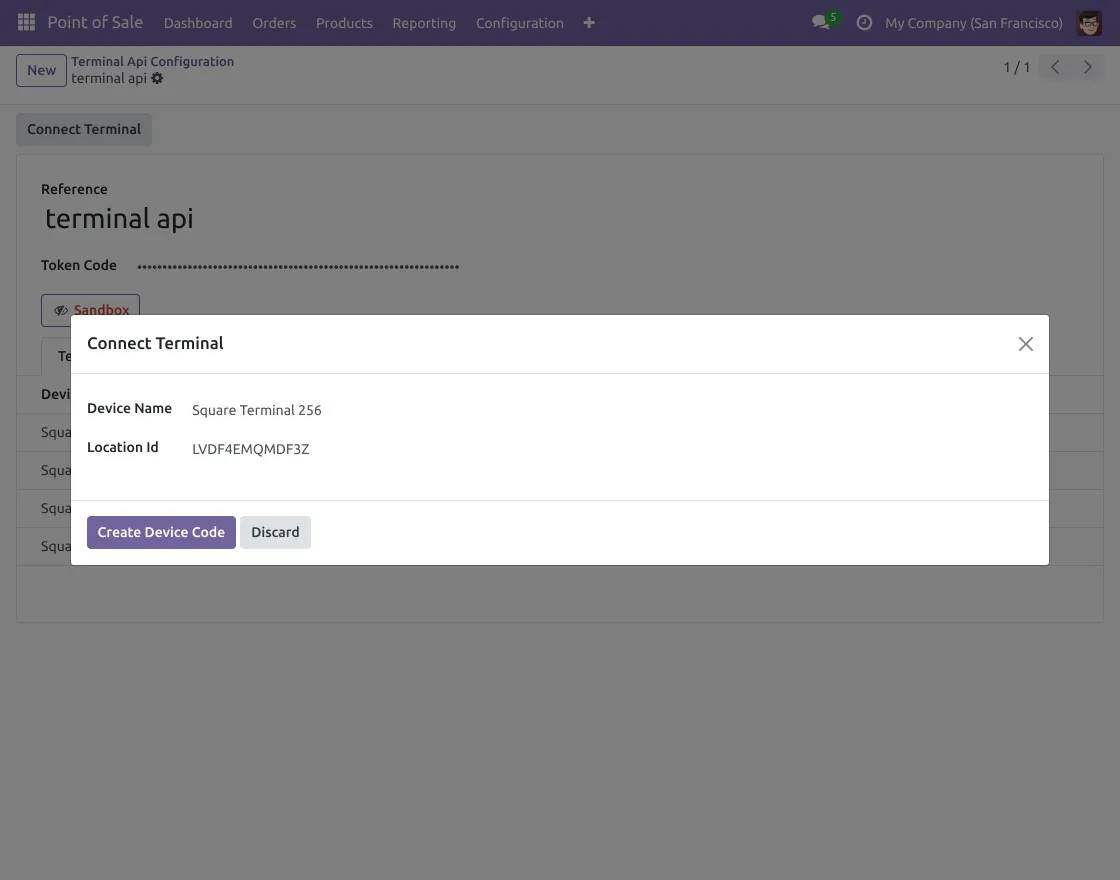
2. Start Terminal Pairing
Select the terminal you want to connect to and verify its details. Use “Create Device Code” button to begin the pairing process.
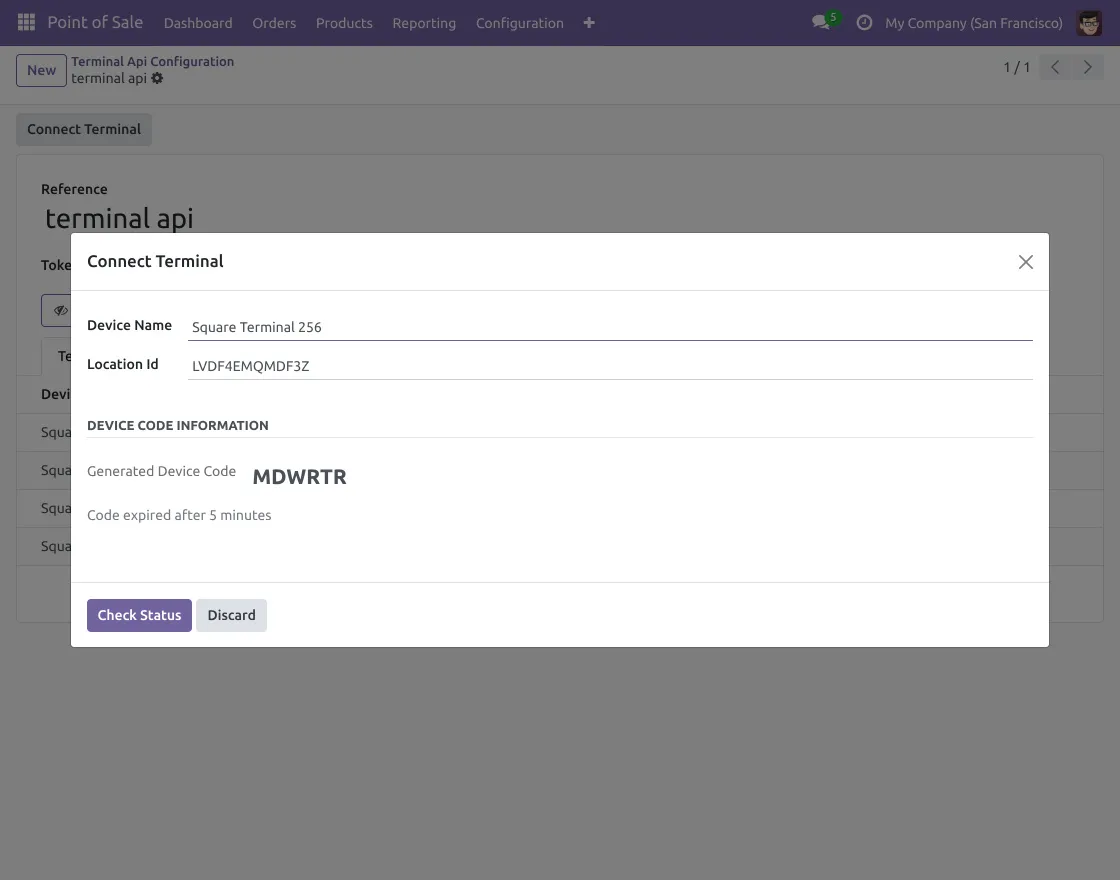
3. Generate the Device Code
A unique device code is generated instantly for terminal authentication. Enter this code on your Square Terminal within the validity time.
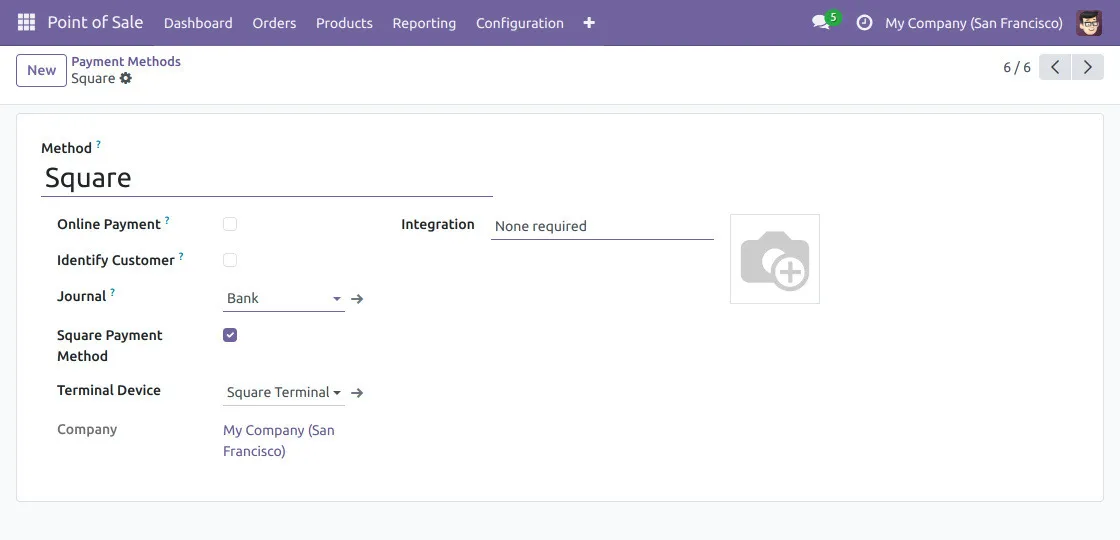
4. Enable Square as a Payment Method
Activate Square inside POS payment settings to process card payments through terminal. Choose appropriate journal and assign the correct terminal device.
5. Process Payments Using Square Terminal
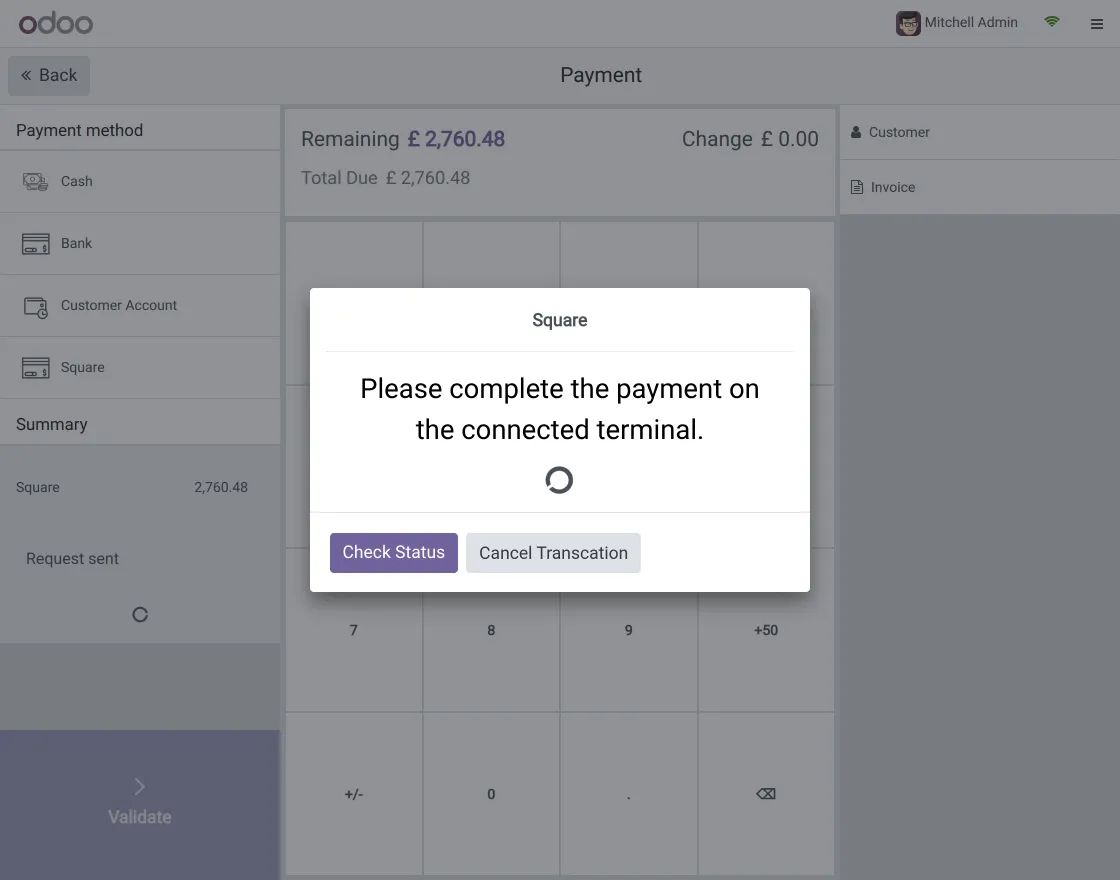
At checkout, select “Square” as the payment method and send the payment request. The terminal prompts the customer to complete the transaction securely.
6. View Square Transaction Details
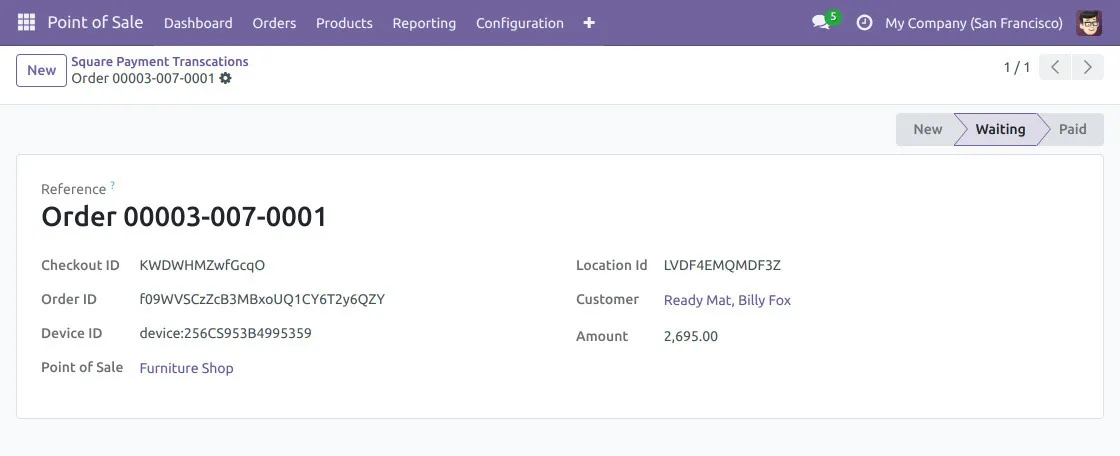
Access a dedicated menu to review transaction information, including amount, status, and device ID. This section helps you track all payments processed through Square inside Odoo.
NEED HELP?
Hope you find guide helpful! Please feel free to share your feedback in the comments below.
If you still have any issues/queries, please create a ticket at the UV Desk.
I hope this helps. In case of any further queries, contact us at [email protected].
Thanks for paying attention!!
Current Product Version - 1.0.0
Supported Framework Version - Odoo 19, 18, 17

Be the first to comment.