UnoPim Public Image URL streamlines product media management by enabling businesses to import media using attribute image, gallery, and file using public URLs.
It removes the need for manual uploads, speeds up catalog updates, and keeps all media properly organized and accessible.
With this extension, you can add media directly through CSV, XLS, or XLSX files, and the system automatically fetches the files and assigns them to the correct product attributes.
After import, media appear in UnoPim with publicly accessible links under the domain, making it easy to manage, display, and share.
This ensures that your product media is always ready to use, display, or share across platforms.
Similarly, when exporting products, any media in UnoPim, whether added via public URL or uploaded from a local folder ,will appear in the export file with its public url path.
You can also check our UnoPim Shopify Connector module, which helps you connect your Shopify store with UnoPim, making it easy to manage and transfer data.
To send product images and videos to Shopify by URL, use UnoPim Shopify Connector Pro alongside the free connector.
You may also like our UnoPim DAM (Digital Asset Management) module, which keeps your digital assets, like images, videos, and documents, safe and organized.
Features
- Export product media via Public URLs or ZIP files – Easily export image, gallery, and file as public URLs for sharing, or as ZIP files.
- Import media using public URLs – Add image, gallery, and files directly through CSV, XLS, or XLSX files, and the system automatically fetches the media for the product.
- Generate public URLs for image, file, and gallery – Automatically create public links for all product-related media, making it simple to share or integrate externally.
- Seamless integration and flexibility – Whether media is added via public URL or uploaded from a local folder, the module ensures smooth accessibility.
- Retrieve product media (image, file, asset, gallery) as public URLs via API for seamless integration.
- Allows image uploads via CSV/XLSX for efficient bulk management.
- Retrieve image, file, asset, and gallery URLs through API integration.
Note: Get product media type (image) attribute value as Public URL using API.
UnoPim Public Image URL – Manual Installation
To manually install the UnoPIM Public Image URL, first download and unzip the extension.
Merge the “packages” folder into the root directory of your Unopim project.
Register the package provider
Open the config/app.php file and add the following line under the providers array:
Webkul\PublicUrl\Providers\PublicUrlServiceProvider::class,
Open the composer.json file and add the following line under the psr-4 section:
"Webkul\\PublicUrl\\": "packages/Webkul/PublicUrl/src"
Run the following commands
Execute the following commands to complete the setup:
composer dump-autoload
php artisan optimize:clear
UnoPim Public Image URL – Workflow
After the UnoPim Public Image URL has been successfully installed, the user can import and export media in the form of the Public URL.
UnoPim Public Image URL – Create Export
Create Export of Media as Public URL: UnoPim allows exporting of product media attributes like image, gallery as well as file using its export functionality as shown in the snapshot below.
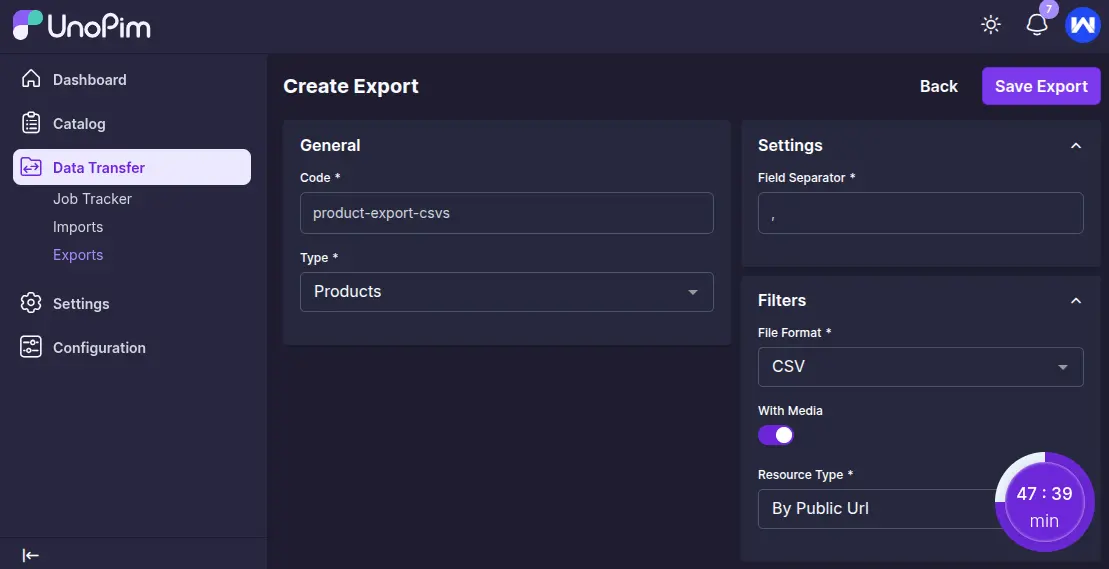
The user needs to follow the steps below to export the products, such as simple and configurable.
- Click on Data Transfer > Exports > Create Export.
- Under the General Section, the user needs to fill in the required fields code and type.
- Select Product Type as Products as it works only with products, not categories.
- Apply Filter choosing CSV or XLSX File format.
- UnoPim allows the editing of export job profiles for selecting various configurations on media.
- Field Separator (Delimiter such as, or ; )
- Choose Filters for file format, such as CSV, XLS, or XLSX files.
- Select the resource type as Zip or by Public URL.
- Enable or Disable the Media Option.
- If enabled, select Public URL for the resource type.
- The exported URLs will be visible and accessible if we select Public URL.
- Also, the user can select the resource type as Zip.
- Then, the exported URLs will not be accessible as public url if we select Zip.
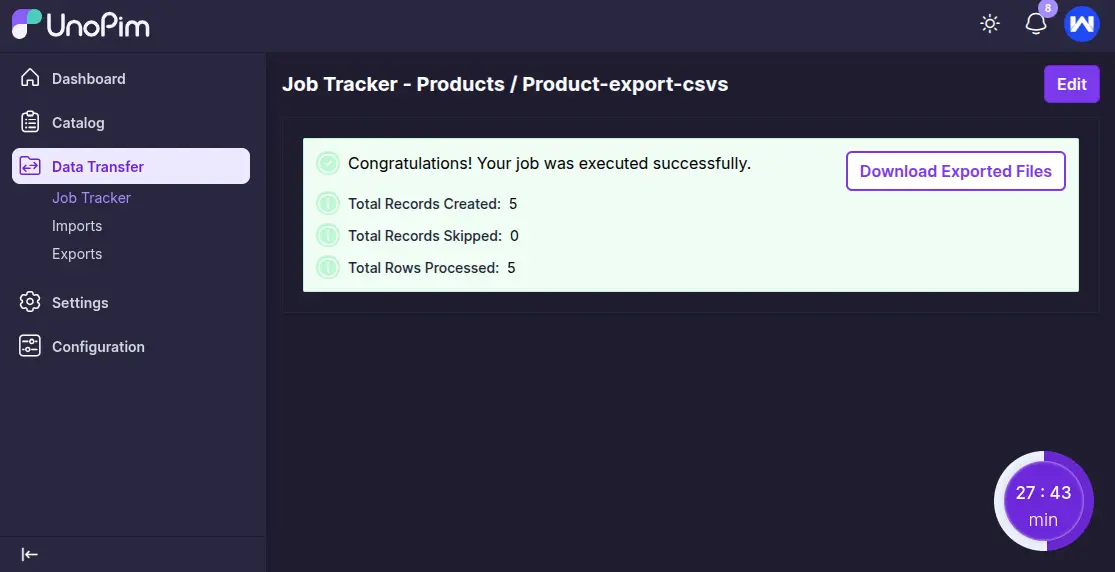
UnoPim allows easy export of product media, including all media files, using its export functionality.
- Export product media (image, gallery, and file) as public URLs.
- Supports various file formats such as CSV/XLSX.
- Simplifies media export for product images and files.
The user can see the exported file with the resource type as Public URL, as shown in the snapshot below.
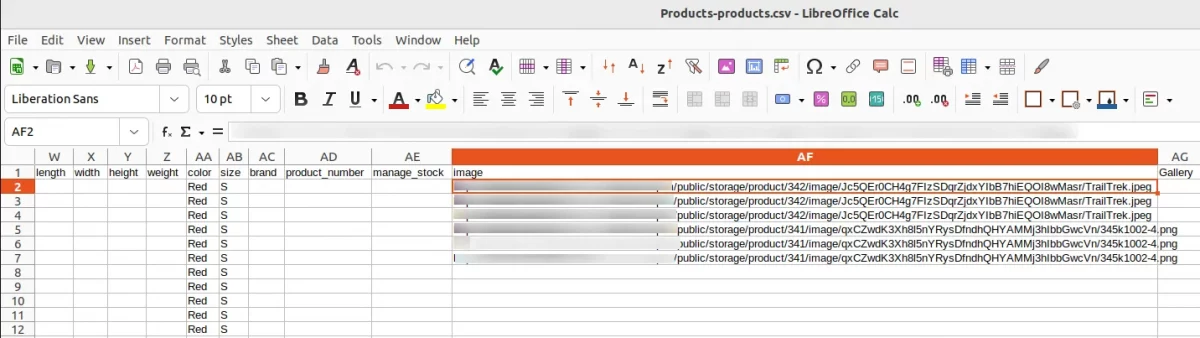
Note: Export product media type (image, file, gallery) attribute value as Public URL.
UnoPim Public Image URL – Create Import
Create an Import of Media Type Images: UnoPim allows users to import files using its import functionality, as shown in the snapshot below.
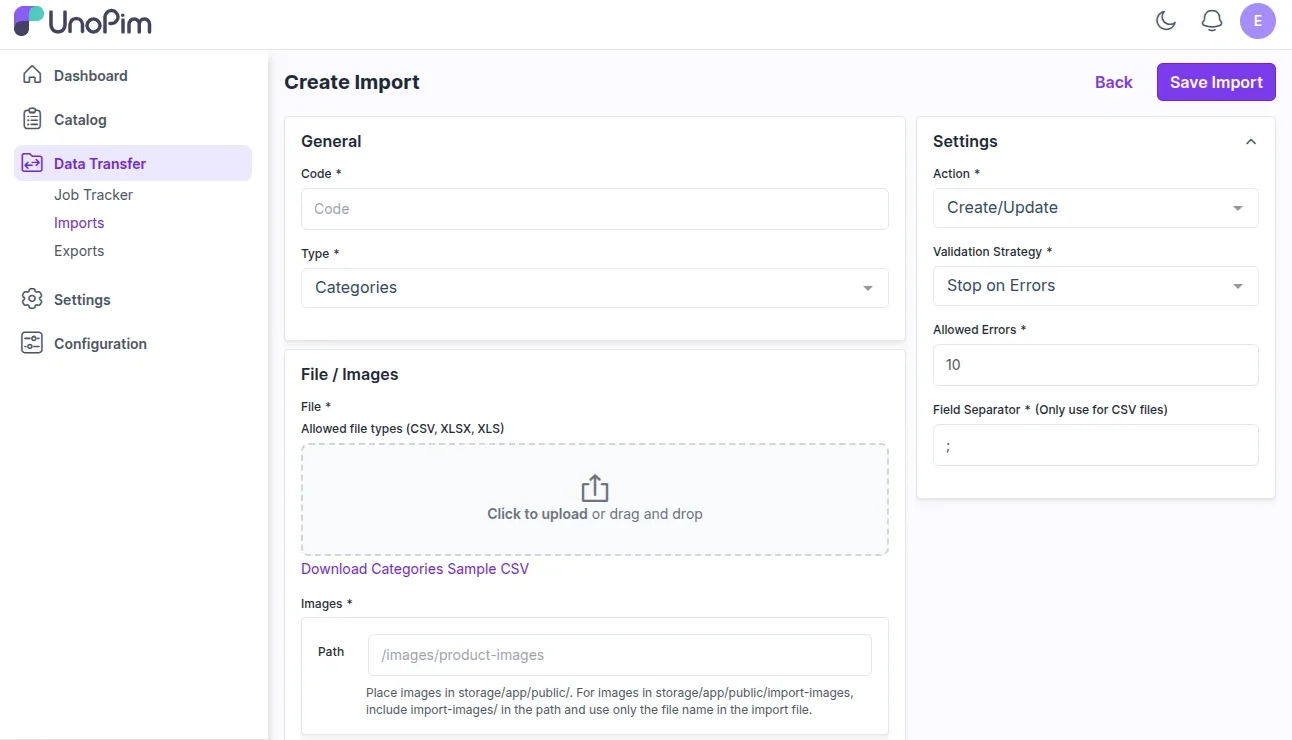
- Click on Data Transfer > Imports > Create Import.
- Under the Create Import Section, then General Section, the user needs to fill in the required fields such as code, type, and file.
- Select Product Type as Products, as it works only with products.
- Add image URL/value to the CSV or XLSX file.
- Choose CSV, XLSX, or XLS File format to import the images.
- Under the Settings section, set Actions as Create/ Update or Delete.
- Select Create/ Update.
- Set Validation Strategy as Stop on Errors or Skip Errors.
- If Skip Errors is selected, then select allowed errors as 10.
- UnoPim allows the editing of import job profiles for selecting various configurations of media.
- Field Separator (Delimiter such as, or ; )
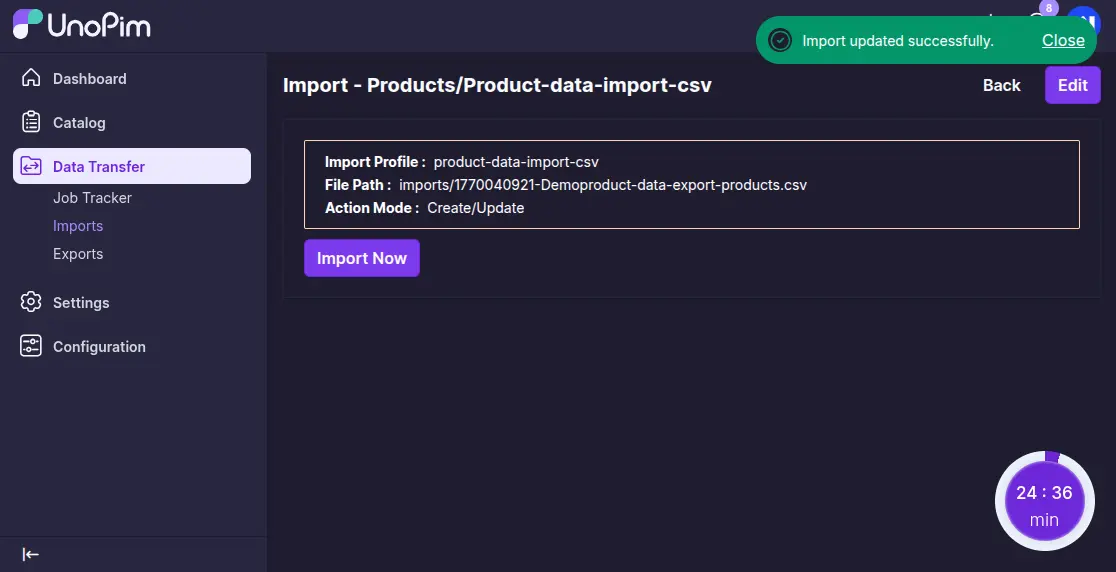
The user can successfully import the created file, as illustrated in the snapshot below.
Once the product is successfully imported, we can also see the media of the products, as shown in the snapshot below.
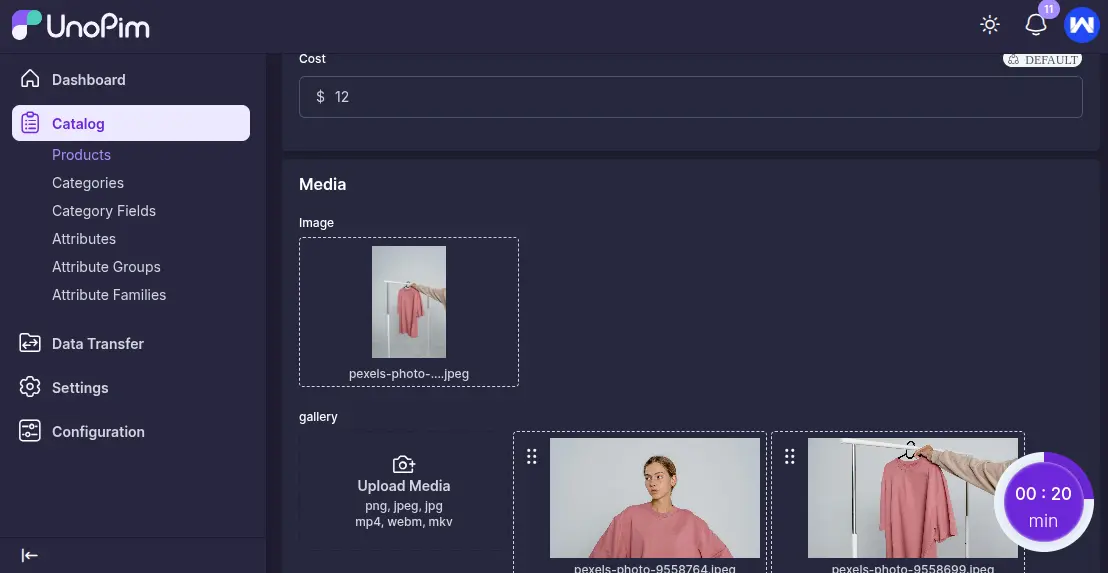
Note: Import product media type (image,gallery,file) attribute value as Public URL.
Explore our UnoPim AWS Integration module that lets users easily connect UnoPim with Amazon S3. It helps store images and PDFs safely and efficiently in the cloud.
Support
So, that was much about the User Guide of UnoPim Public Image URL for any queries or doubts reach out to us at [email protected].
You can also raise a ticket at our HelpDesk System.
Current Product Version - 1.1.0
Supported Framework Version - 1.0.0

Be the first to comment.