Krayin CRM WhatsApp module enables the store administrator to generate leads via their WhatsApp number.
Krayin CRM WhatsApp can sync all customers’ and merchants’ messages.
The CRM system facilitates the management of customer interaction across various sources and channels throughout the customer life cycle, involving both the customer and the sales department.
Features
- Customers can send a direct message to the administrator using their WhatsApp number.
- Admin can generate leads through WhatsApp.
- A special icon is available on the storefront to send messages to the admin.
- Admin can get the customer details.
- Supports text, image, and document from the admin end
- Customers can reply to the admin’s message directly through WhatsApp.
Requirements
- Krayin: v2.2.3 or higher.
Krayin – Laravel CRM
Krayin is built on the most popular PHP framework available in the market today, named Laravel. Since Krayin inherits features of Laravel, it makes Krayin a super flexible and scalable CRM software.
With the code-driven approach and also the fully customizable structure, you can easily add/change anything and can even deploy your code in the Krayin CRM.
Krayin ->
Readme File(For Installation).
Installation
Unzip the respective extension zip and then merge the “packages” folder into the project root directory.
- Add this in
bootstrap/providers.phpunder the providers array:
Webkul\WhatsApp\Providers\WhatsAppServiceProvider::class,
- Add to
composer.jsonunder ‘psr-4’:
"Webkul\\WhatsApp\\": "packages/Webkul/WhatsApp/src"
- Register the webhook route as a CSRF exception in
bootstrap/app.php:
'admin/whatsapp/webhook/handle-incoming-message'
Run these commands below to complete the setup
composer dump-autoload
php artisan whatsapp-crm:install
That’s it, now just configure the module settings
How Can The Admin Fetch The Access and Verification Token?
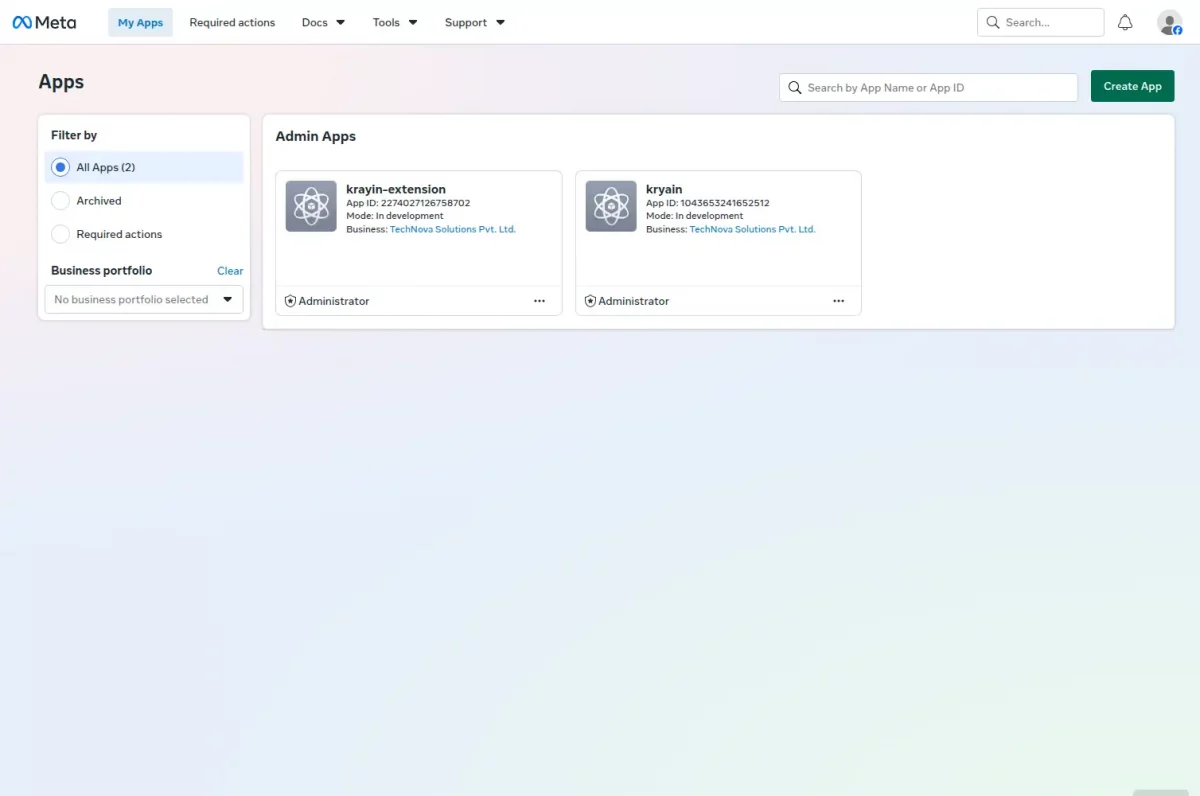
First, log into the Facebook Meta developer account and click on the Create App button.
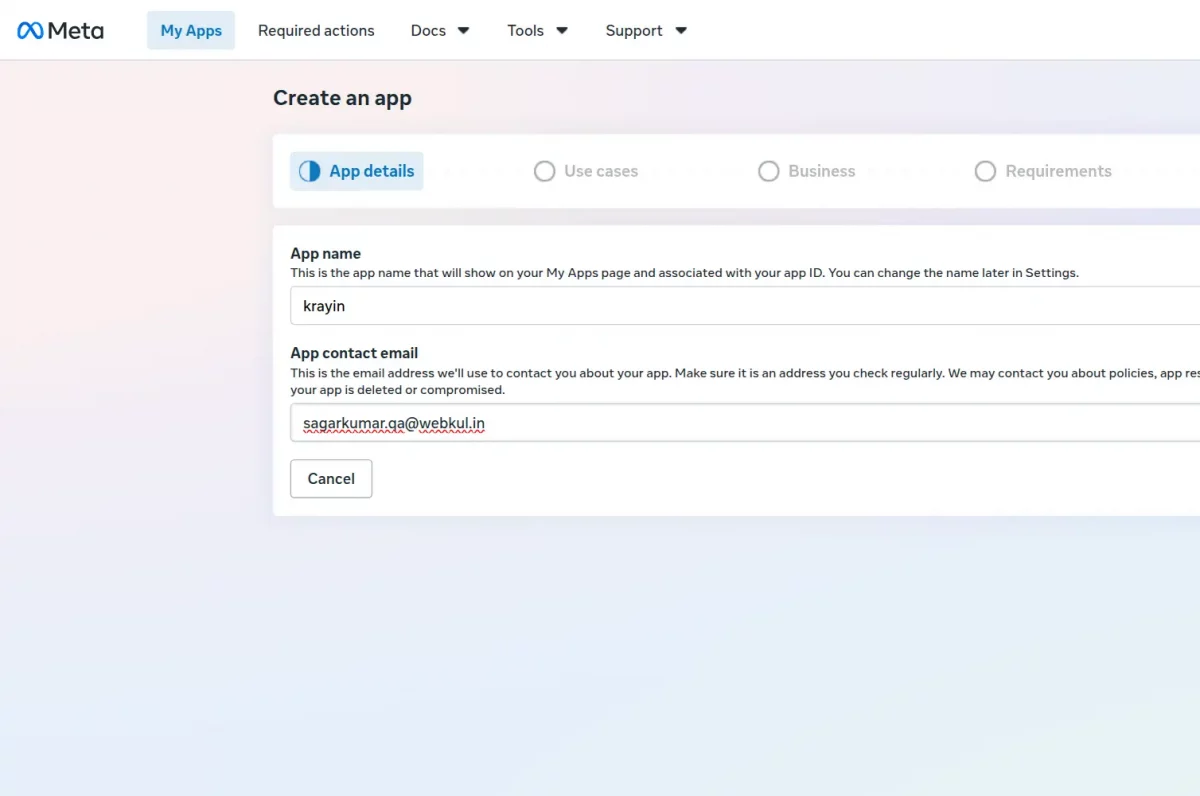
In the App details panel, fill out your custom App name and provide your active App contact email credentials.
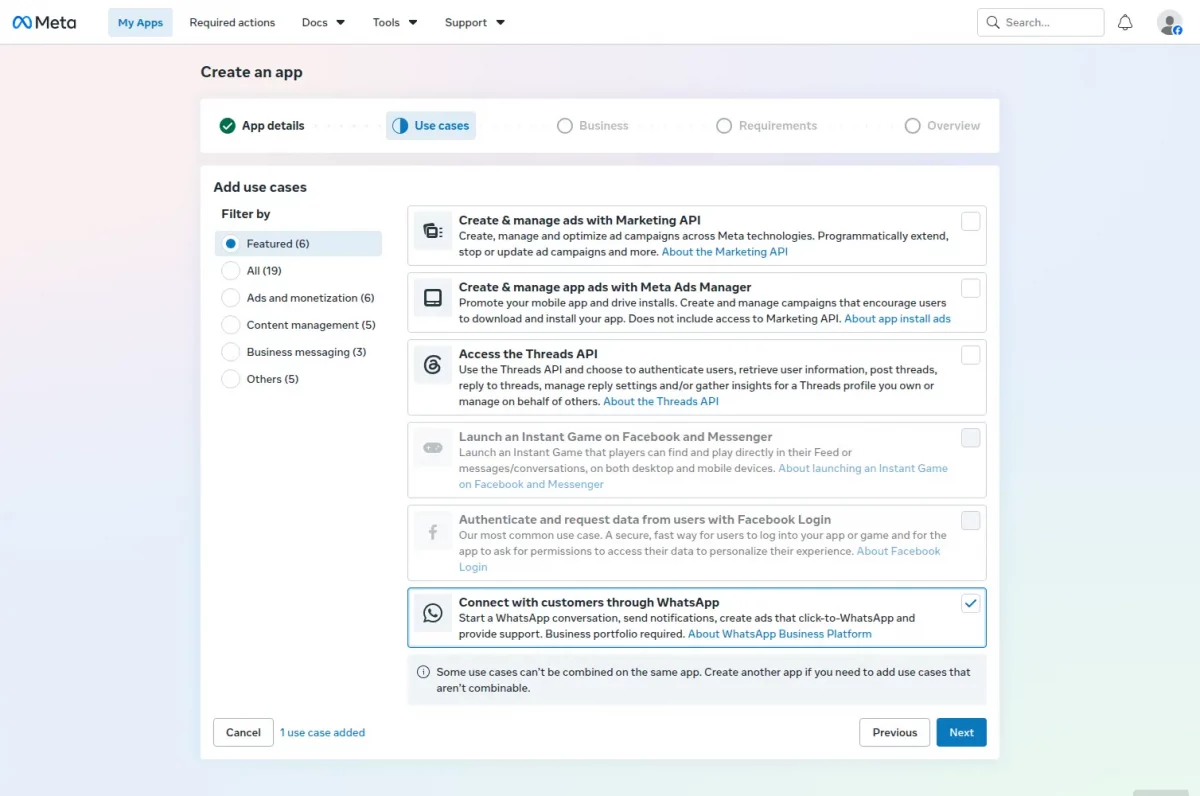
Under Add use cases, find Connect with customers through WhatsApp, toggle its checkbox, and click Next.
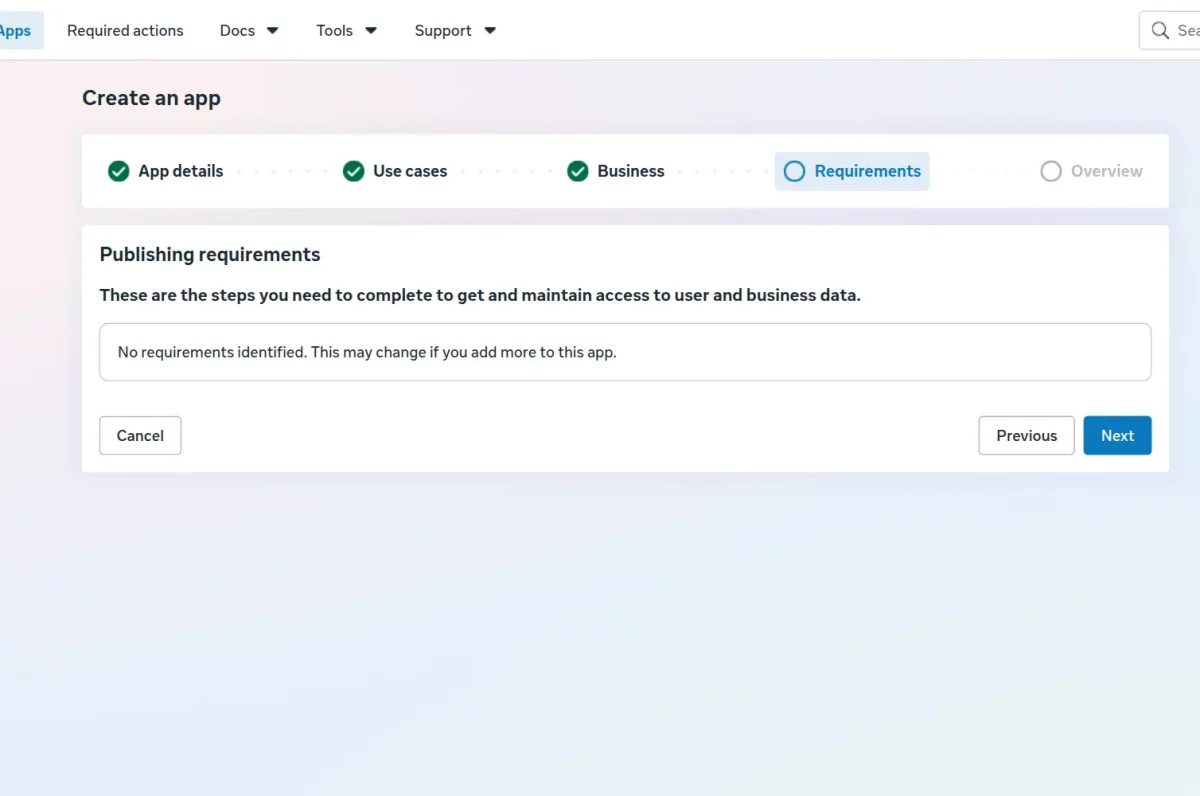
Review the Publishing requirements checklist to ensure compliance, then hit Next to move to the final review screen.
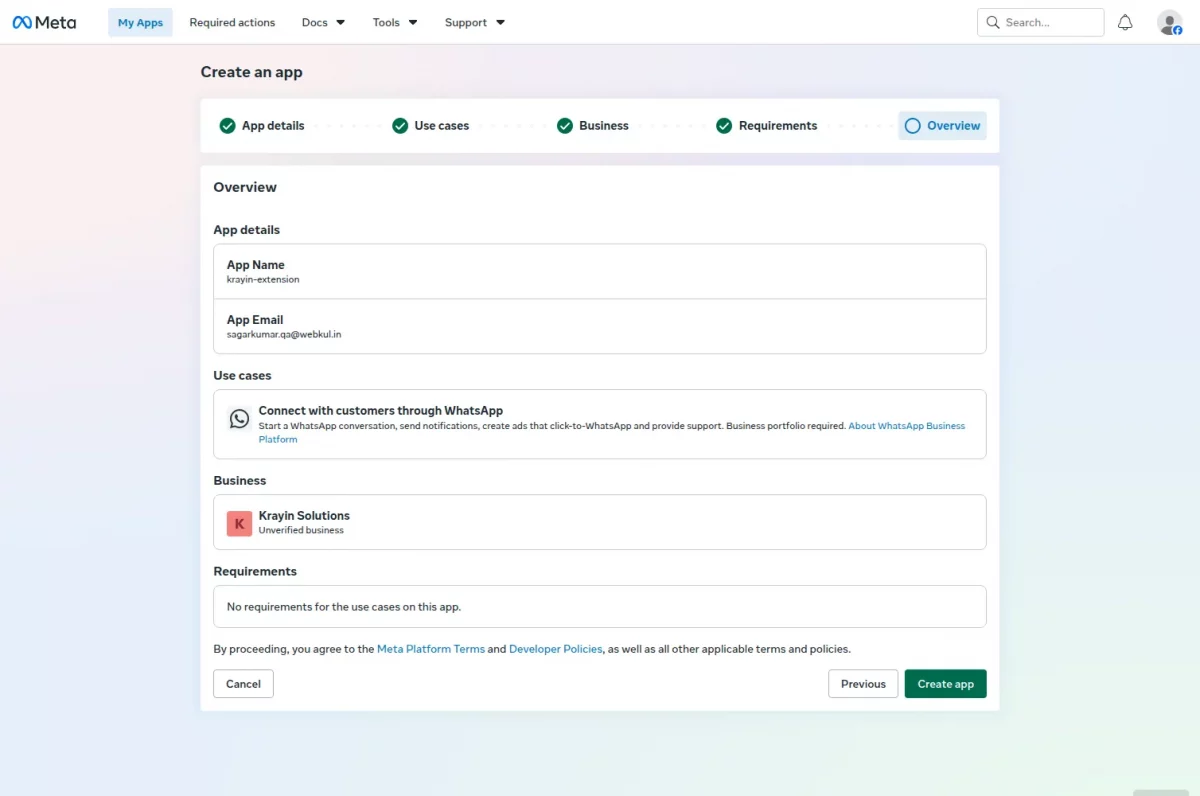
Check your application overview configurations, associate your business portfolio, and finalize by clicking Create app.
Open your newly created app, look at the sidebar menu options, navigate to Use case, and choose Try it out under WhatsApp.
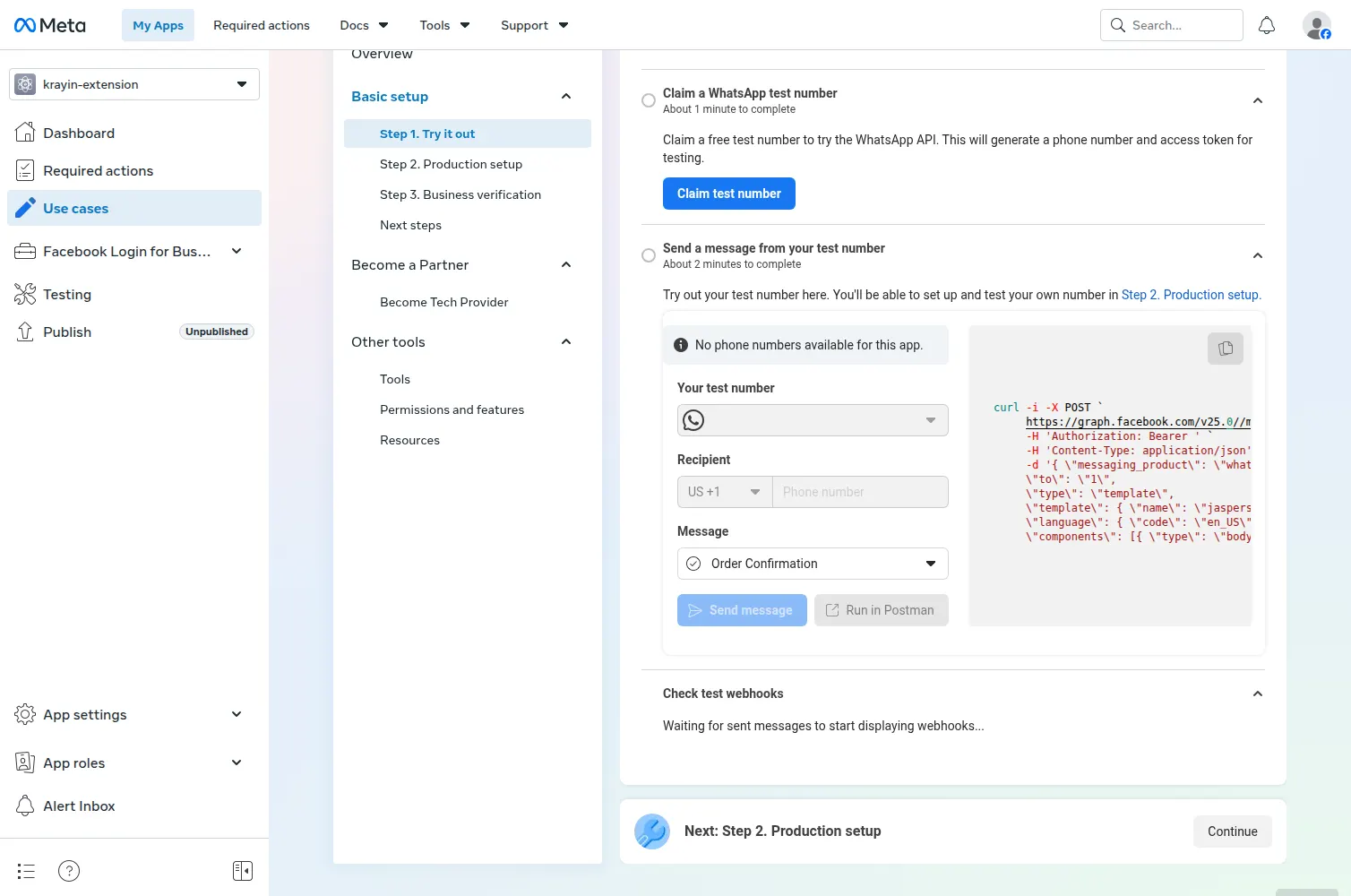
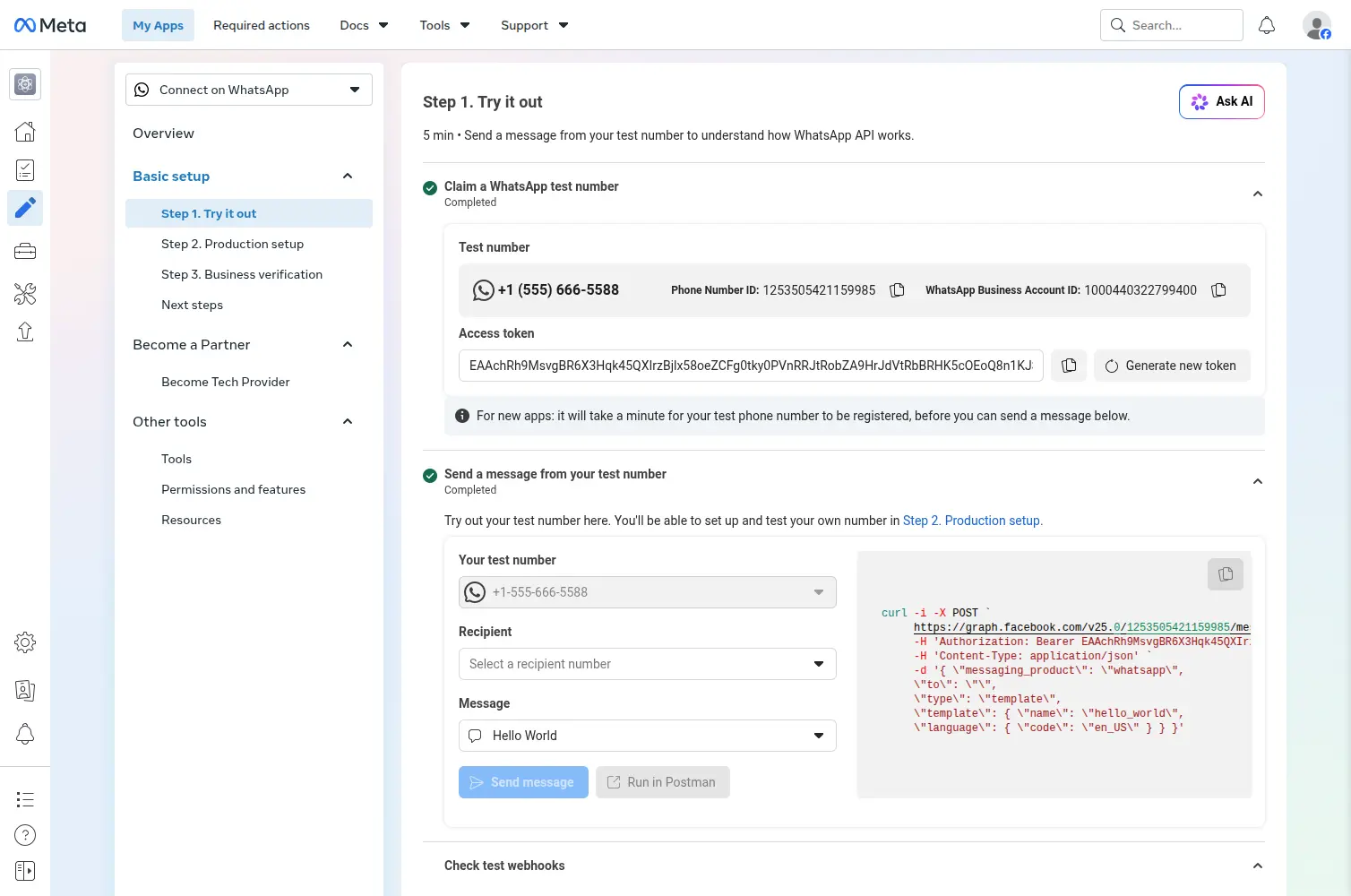
Hit Claim test number to generate a default sandbox number alongside your Phone Number ID and temporary Access Token.
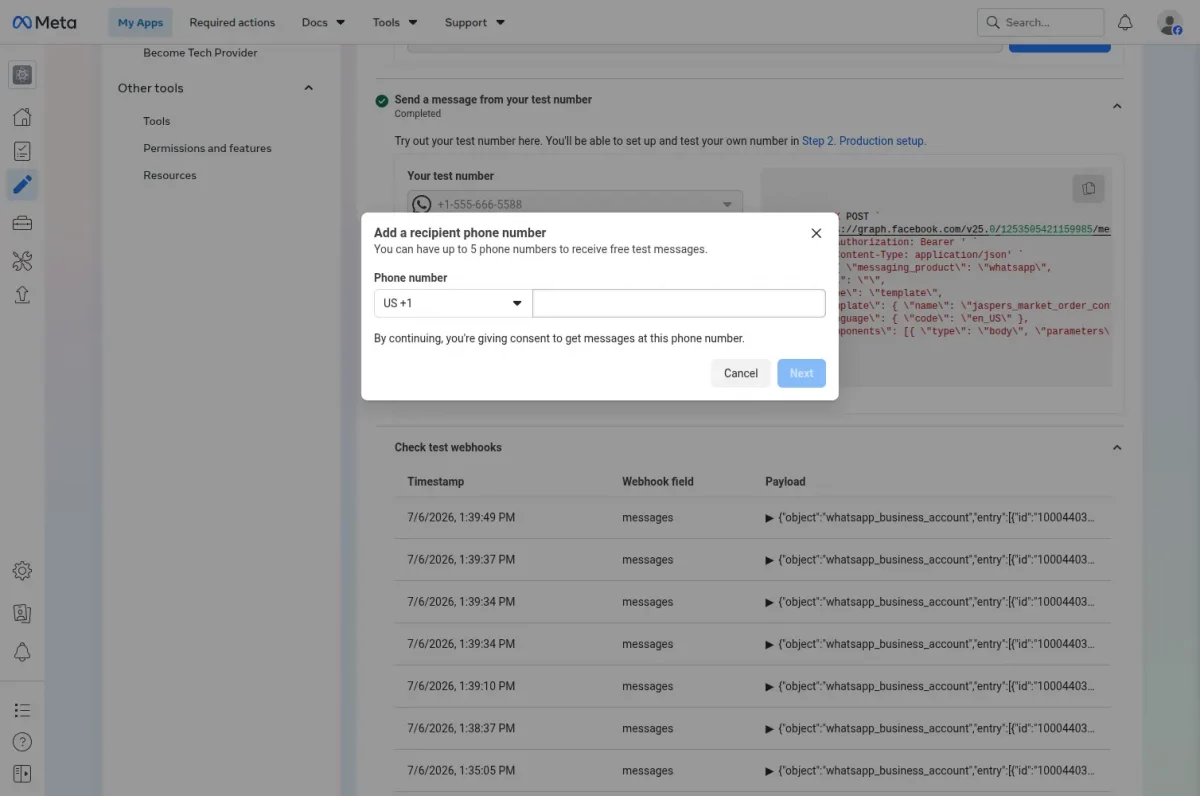
Launch the recipient configuration prompt, choose your country code, and input your mobile number to clear it for message testing.
Advance to Production setup to bind webhooks. Enter your application Callback URL, establish your custom Verify Token, and save changes.
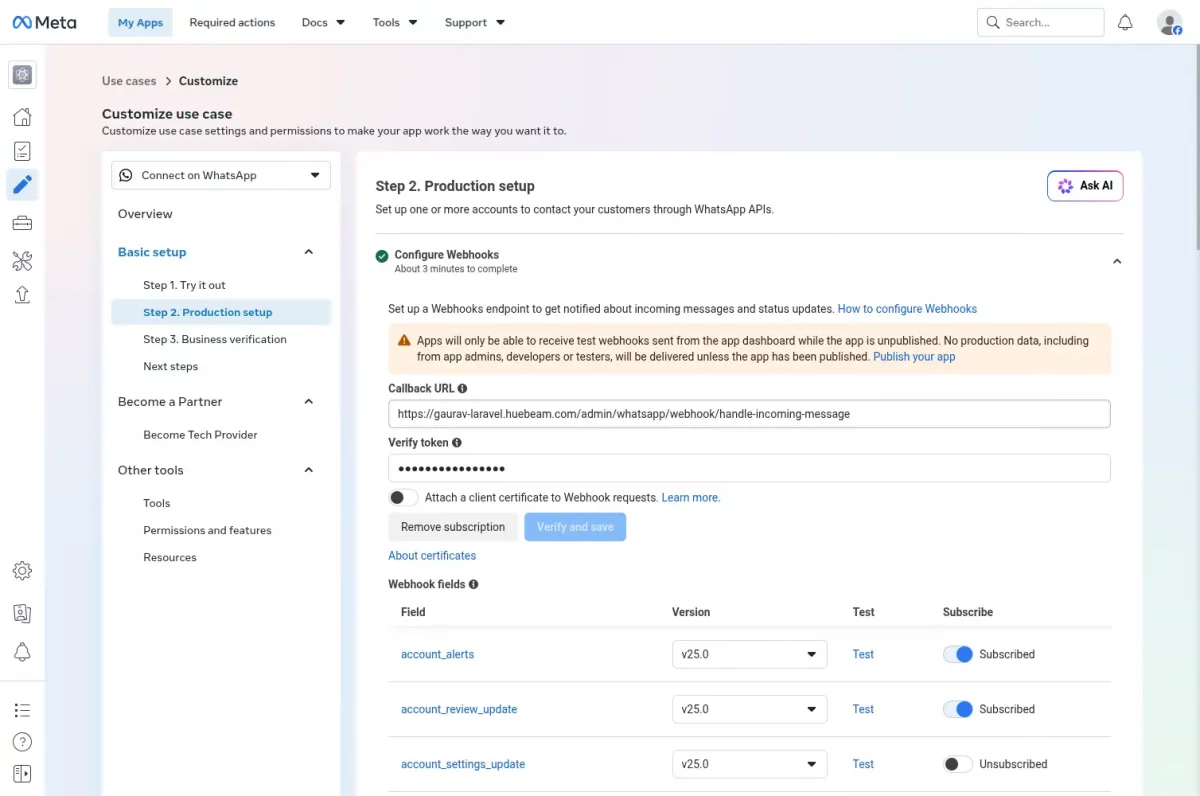
Scroll down to the permanent credential section and select Generate permanent token to secure non-expiring credentials.
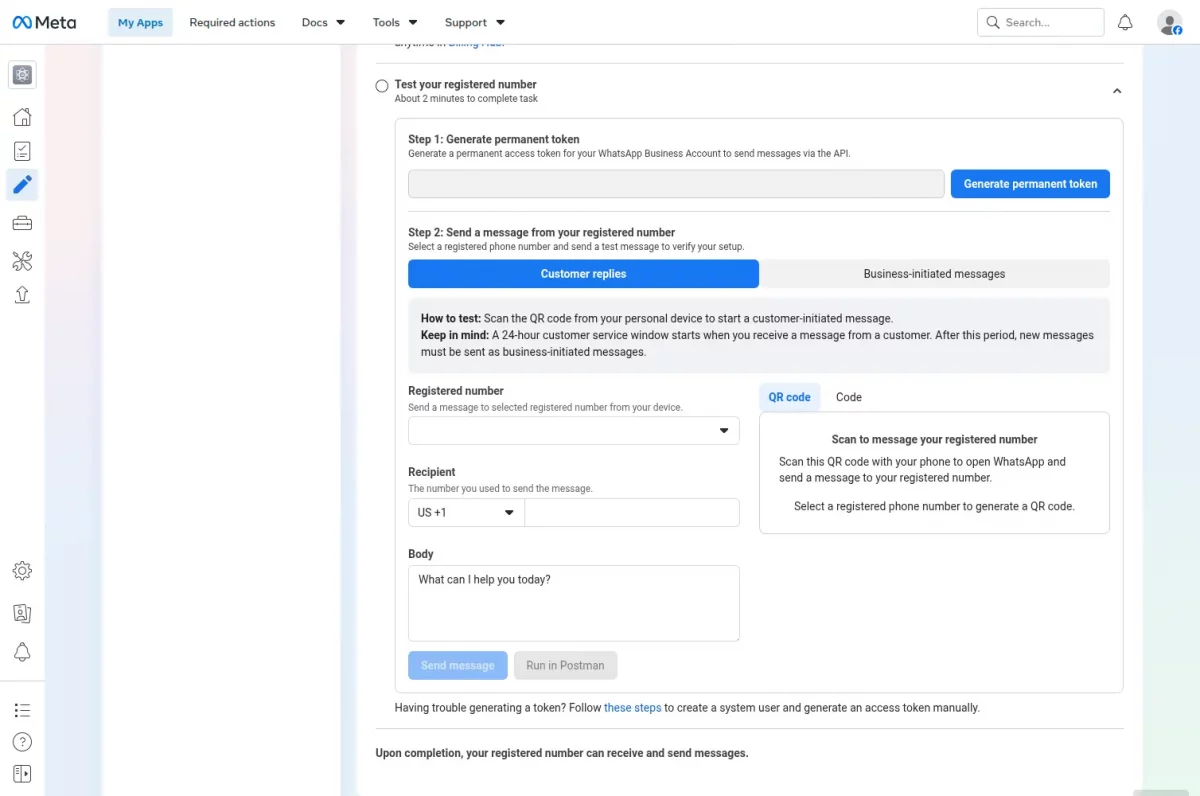
Copy your newly generated token strings, Phone Number ID, and App Secret parameters into your Krayin dashboard panel configurations.
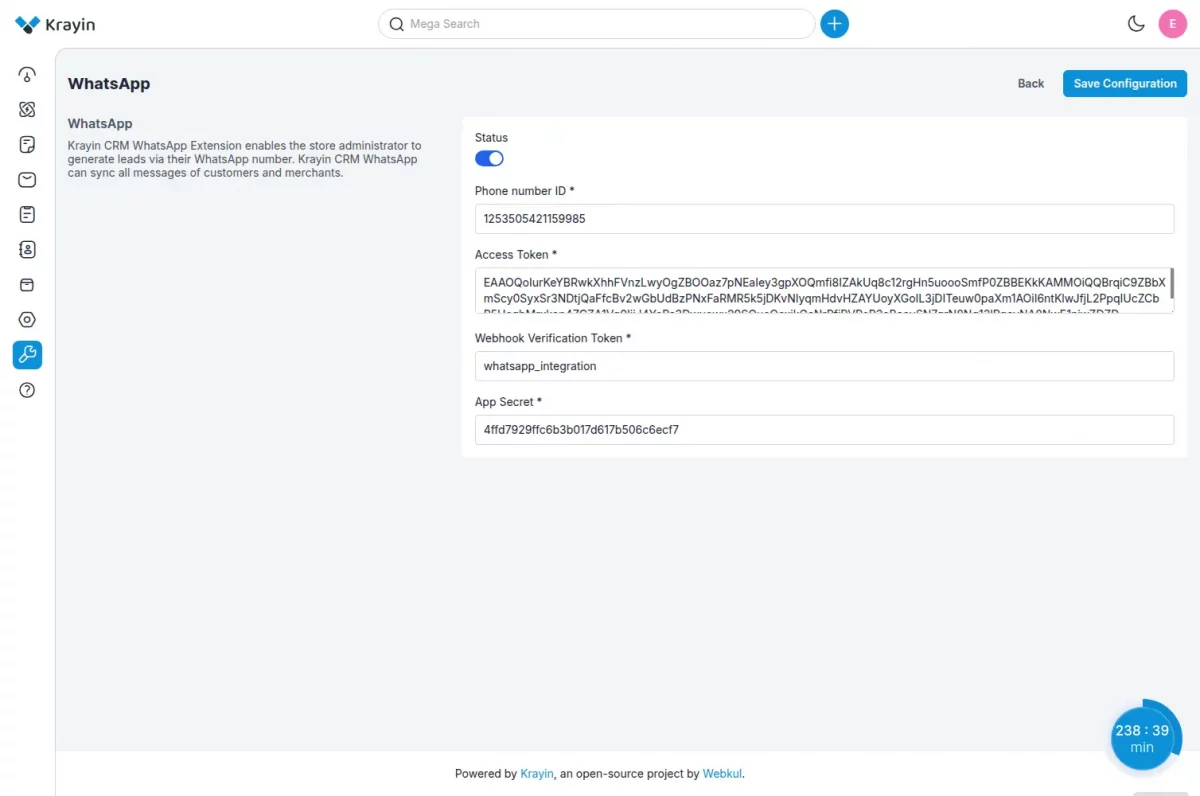
Then click on save.
Here the admin gets the Access Token.
Customer Workflow
Note:
- The information and logo of WhatsApp shared in this section(demonstration) is just a reference point of view.
- The user who is using the WhatsApp account has to manage on his own how he wants to provide the WhatsApp number to the website users.
On the storefront, the customer can click on the WhatsApp Icon on the bottom right corner.

After tapping on the Icon, the customer will be redirected to WhatsApp.
Now, customers can ask their queries directly to the admin.

The new leads were generated automatically after the customer messages the admin.
Now, if the admin messages the customer through Krayin CRM WhatsApp.

The customer will receive the admin’s message on the registered WhatsApp number.
Module configuration
After installing the module, the store admin will first configure the module.

On the Krayin Dashboard, the admin will navigate to Dashboard -> Configuration.

In the WhatsApp Section, the admin will:
- Active/inactive the Status of the module.
- Enter the Phone number ID.
- Enter the Access Token that is generated on the Meta Developer Account.
- Enters the Webhook Verification Token.
Note: Webhook Verification Token should be the same that is entered during generate APIs.
Generating Leads
Now the admin will navigate to the Leads Section. Here the admin can see the list of the ongoing leads.

Here, the admin finds the details of the Lead.

Now, the admin will go to the WhatsApp section.
Here, the admin gets the customer’s query.

The store admin enters messages to the customer. Then click on the send message button.

The store admin can directly message the customer’s WhatsApp number.
The admin can also check the conversation history below.

Support
So, that is all about Krayin CRM WhatsApp. If you have any queries regarding the plugin, contact us at Webkul Support System.
Current Product Version - v2.2.3
Supported Framework Version - v2.2.3

Be the first to comment.