Magento 2 Wix Connector helps the admin to import/export products from the Wix to the Magento 2 store. The admin can also import orders from Wix to Magento 2.
Whatever the changes the admin will make on Wix it will automatically reflected on Magento 2 if the Webhooks permission is on.
Similarly, If you want to export products from Amazon to a Magento 2 store then you can use our Magento 2 Amazon connector.
Note –
- Shipping and billing address is mandatory otherwise your order is shown in the missed order list.
Video Tutorial of Magento 2 Wix Connector
Check a brief overview of the extension –
Features
- The admin can import products from Wix.
- Admin can import Orders From Wix.
- Admin can export products to Wix.
- Changes made in the product on Wix will get updated in Magento automatically using webhooks.
- Ordering Wix products will modify the qty on Wix.
- Admin can Map Wix and Magento Store Categories.
- Admin can re-import orders from missing order grid.
- Admin can enable/disable the option to import Wix product images.
Installation
The installation is quite simple just like the standard Magento 2 extensions.
#1 Download Module
Firstly, you need to log in to the Webkul Store, go to My Account>My Purchased Products section, verify, and then download and extract the contents of this zip folder on the system.
#2 Upload Folder
Once the module zip is extracted, follow path src>app and then copy the app folder into the Adobe Commerce root directory on the server as shown below:

Unzip the respective extension zip and create Webkul(vendor) and Wix connector(module) name folder inside your Magento/app/code/ directory.
Then move all module files into the Magento root directory Magento2/app/code/Webkul/Wixconnector/ folder.
Run the Following Commands via the terminal
php bin/magento setup:upgrade
php bin/magento setup:di:compile
php bin/magento setup:static-content:deploy
php bin/magento indexer:reindex
php bin/magento cache:flush
Multilingual Support
Therefore, for Multilingual support, please navigate to Store>Configuration>General >Locale Options. Also, select your desired language from the Locale option.

Thus, in this way, a multi-lingual configuration can be done.
Language Translation
For module translation, navigate to the following path in your system src/app/code/Webkul/Wixconnector/i18n/en_US.csv Open the file named en_US.CSV for editing as shown in the screenshot below.

Then replace the words after the comma(,) on the right in the file with your translated words.

After editing and translating the CSV file, save the file name according to your region language and country code such as – de_DE.CSV.
Followed by uploading the translated file to the same folder from which you obtained it. Now your module translation is complete.

Thus, in this way, language translation can be done.
How to generate credentials for Wix?
The admin needs to create a developer account on Wix. To create an account they have to open the Wix Developer panel.

Here click on the sign-in button, and it will navigate you to another page.

Enter your email ID and password if you are an existing customer, If not then create an account with the provided social media platform or enter manually.

Once you log in it will show the app page, where you can see the created app or create a new one.

Now collect the secret key and app ID from the OAuth section.

You need to enter these URLs in the following manner at Wix.
App URL:- Base URL+wix+account+token
Redirect URL:- Base URL+wix+account+oauth
Once you get the credentials add these to the Magento 2 store configuration.
Create Webhook
The admin needs to create the webhook for auto sync of product data. Click on the Webhook section it will open the Webhook creation page.

Click on the add webhook button it will navigate you to another page. Select the API category from the drop-down list as Wix stores and select the product changed option.

Now enter the webhook URL in that section in the following format.
Webhooks URL:- Base URL+wix+webhooks+productchanged
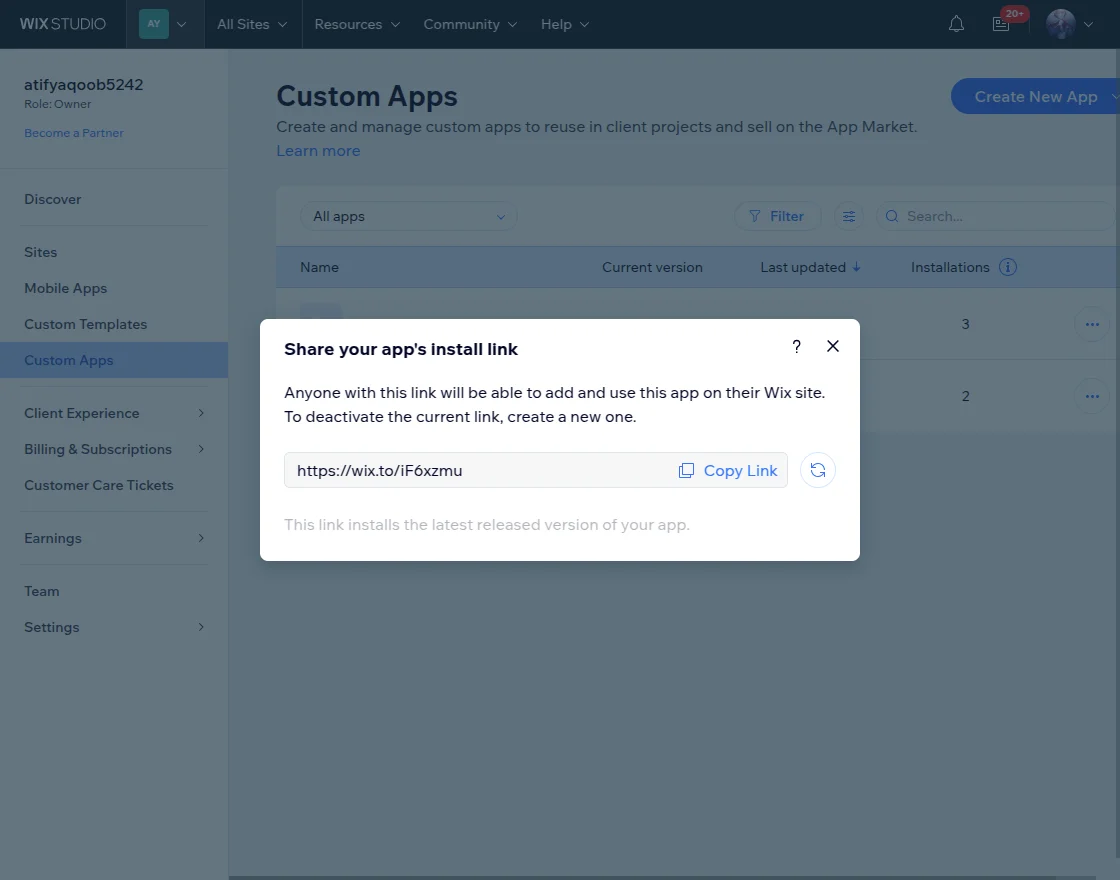
How to get Wix App URL?
After logging in to Wix, the customer will navigate to the custom apps at the Manage Wix page.
Now, selecting the respective app and clicking on the three dots, then navigate to share install link to generate the App link.
Module Configuration
After successfully configuring the Magento 2 Wix Connector module, you need to move Store > Configuration > Wix Connector. The below page will open here.

Module Enable – Dropdown to enable or disable the module.
App ID – Admin enter the app ID generated while creating the Wix credentials.
App URL – Similarly, admin will enter the Wix app URL.
Redirect URL – When the users authorize their app, then they will be redirected to this URL.
App Secret – Admin update the secret key fetched while generating Wix credentials.
Webhook Configuration
Enable the webhook permission will automatically allow the product update from Wix to Magento. If any changes are made to the Wix product, it will also reflect on the Magento 2 store.
Product Configuration
From product configuration, the admin can do the following –
Enable Import Images Along With Products – This option allows importing Wix product images.
Batch Size For Product Import – Enter the batch size for the product to import, and by default the batch size will be 100.
Product Inventory Update – Select yes or no to update product inventory option.
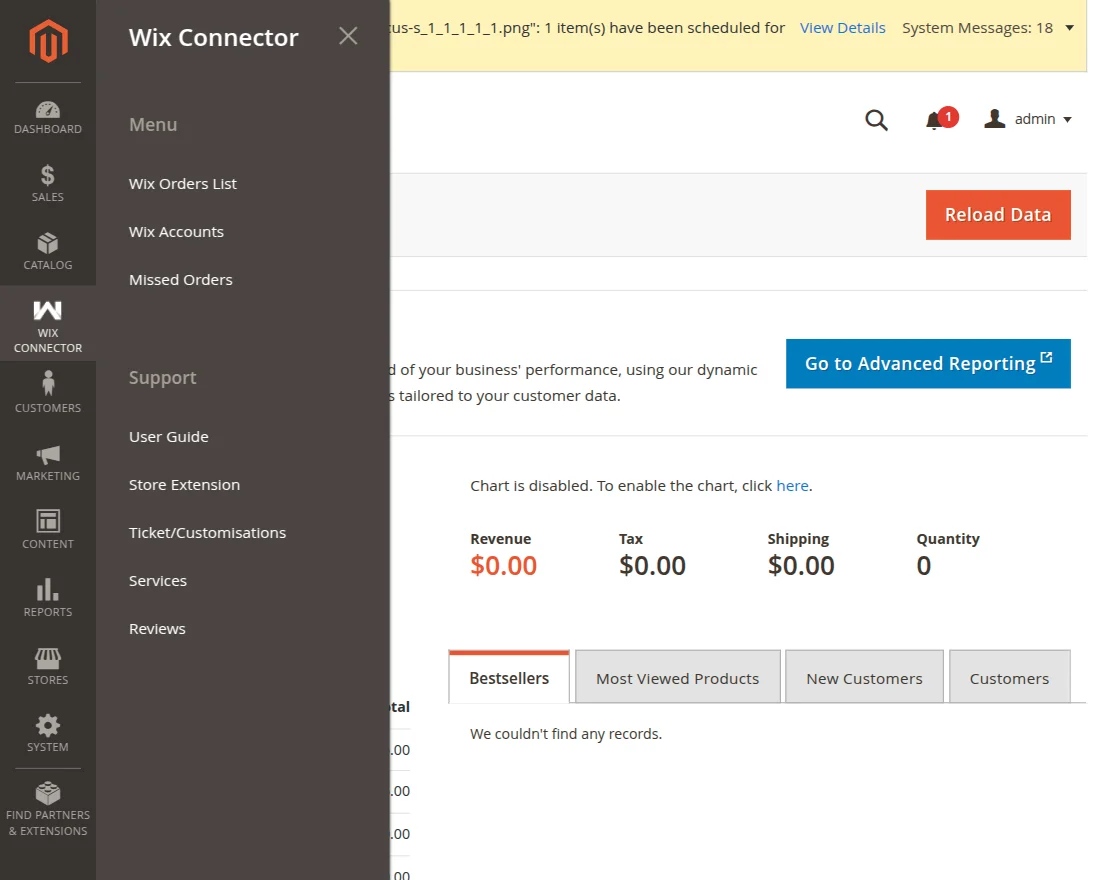
Manage Wix Connector
The admin can manage Wix orders list, accounts, and missed orders from the Wix connector section.
Add New Wix Account
The admin needs to add a new account with Wix instance ID.
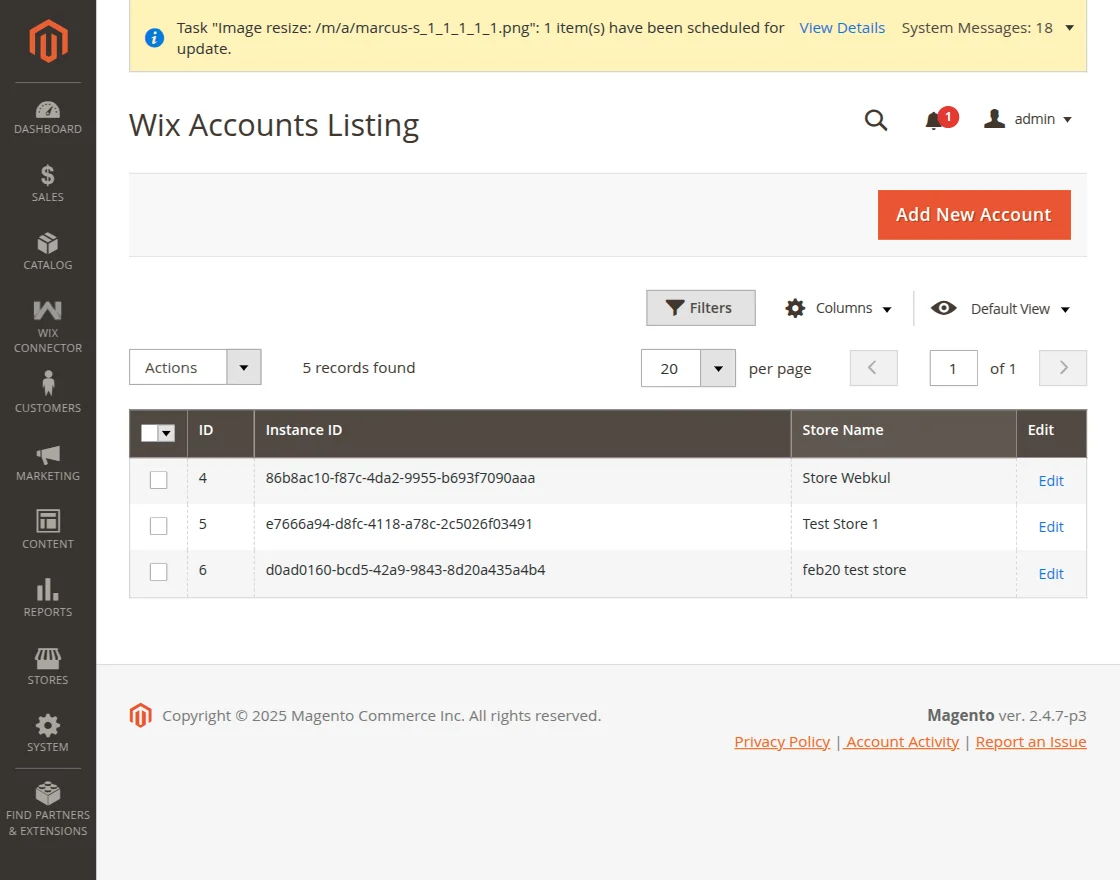
Click on the Add new account button it will navigate to another page.
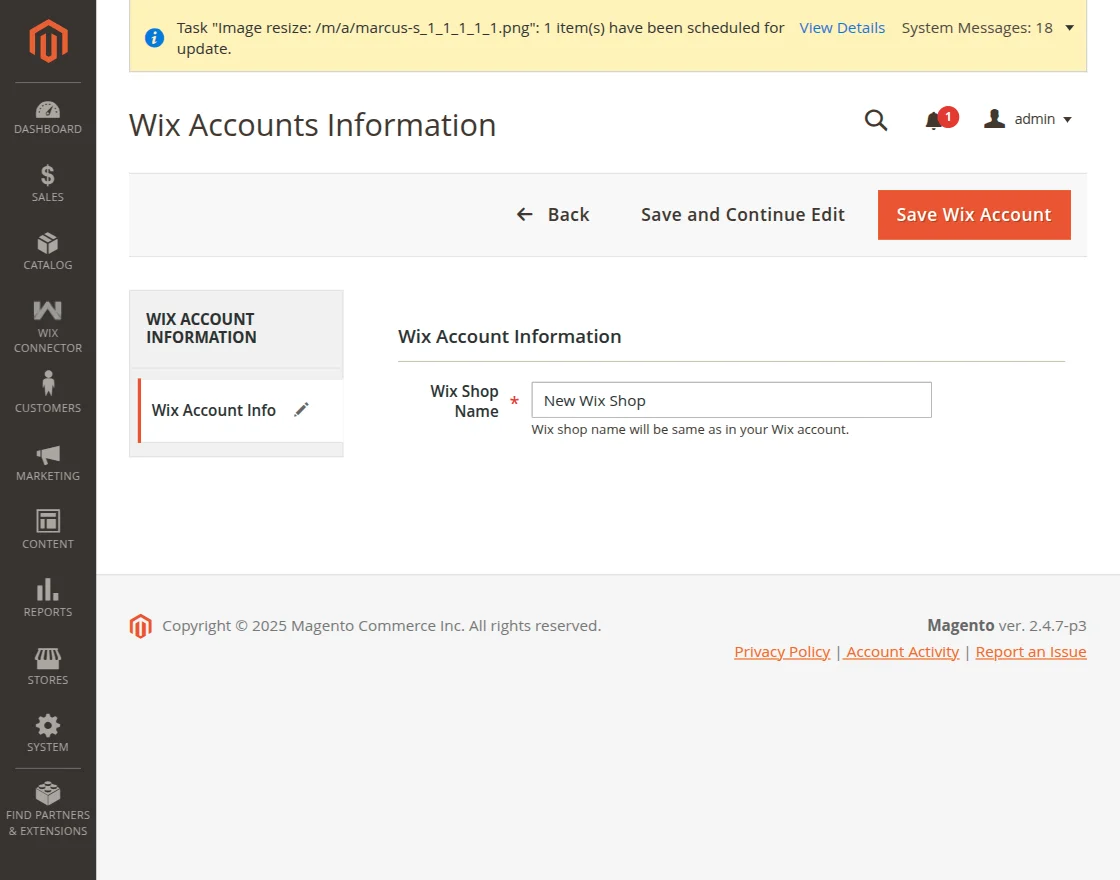
Enter the Wix shop name here and save it.
After that, click on the edit account information, and you will be able to authenticate the shop.
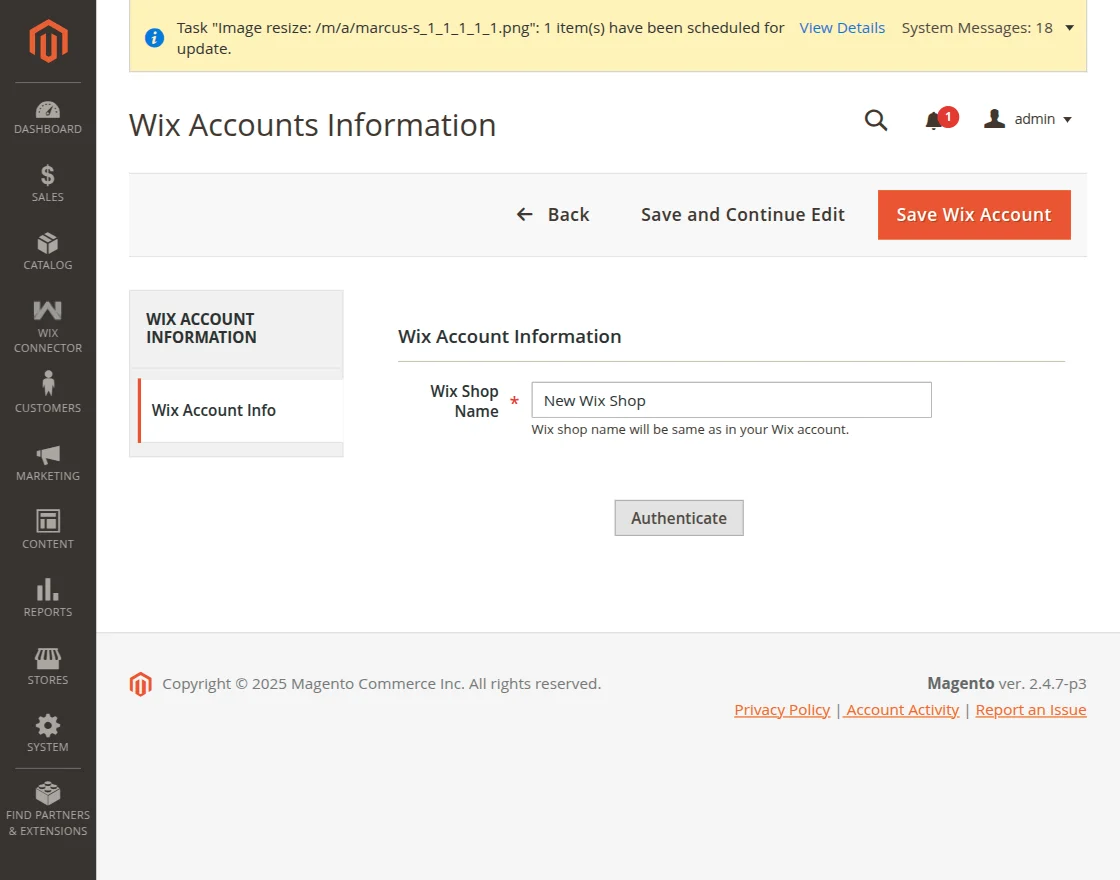

Click on the install button and it will authenticate the app by completing the process.
It will navigate you to the Wix page to add the app.

Once you select the site it will ask you to allow some permission for the app.
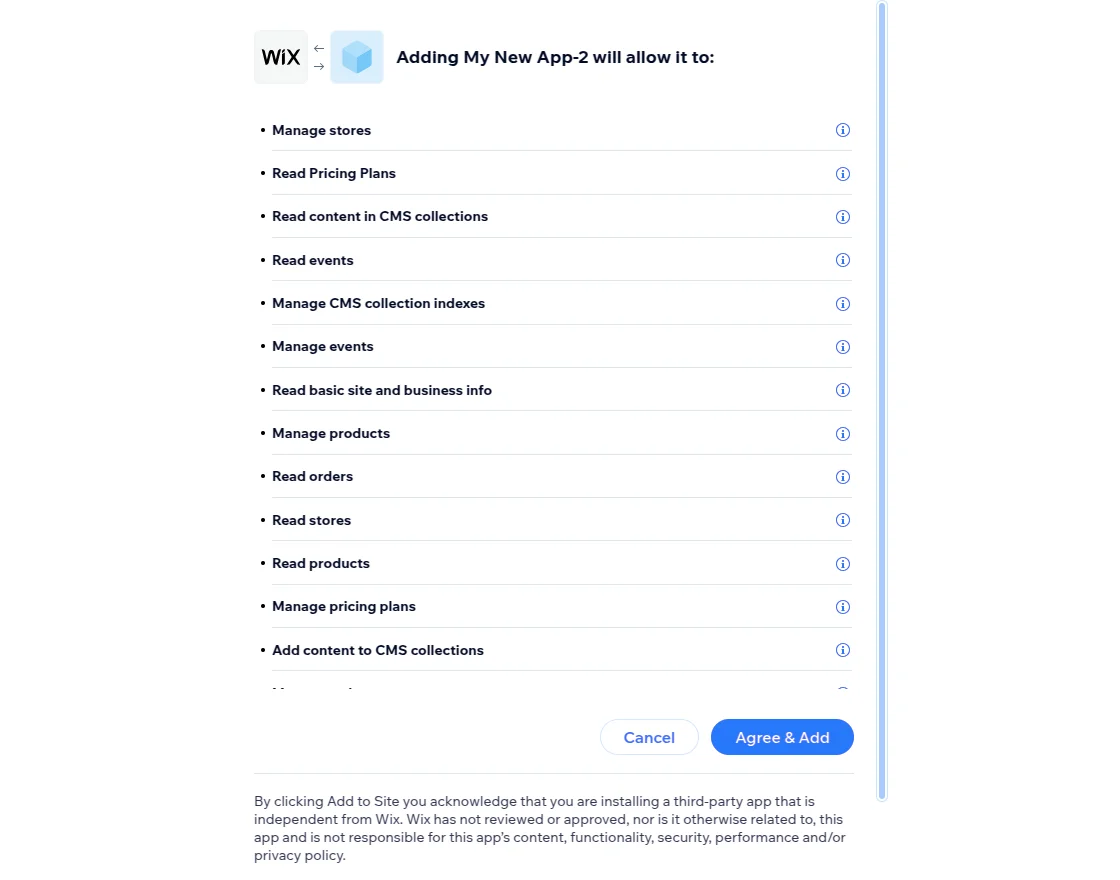
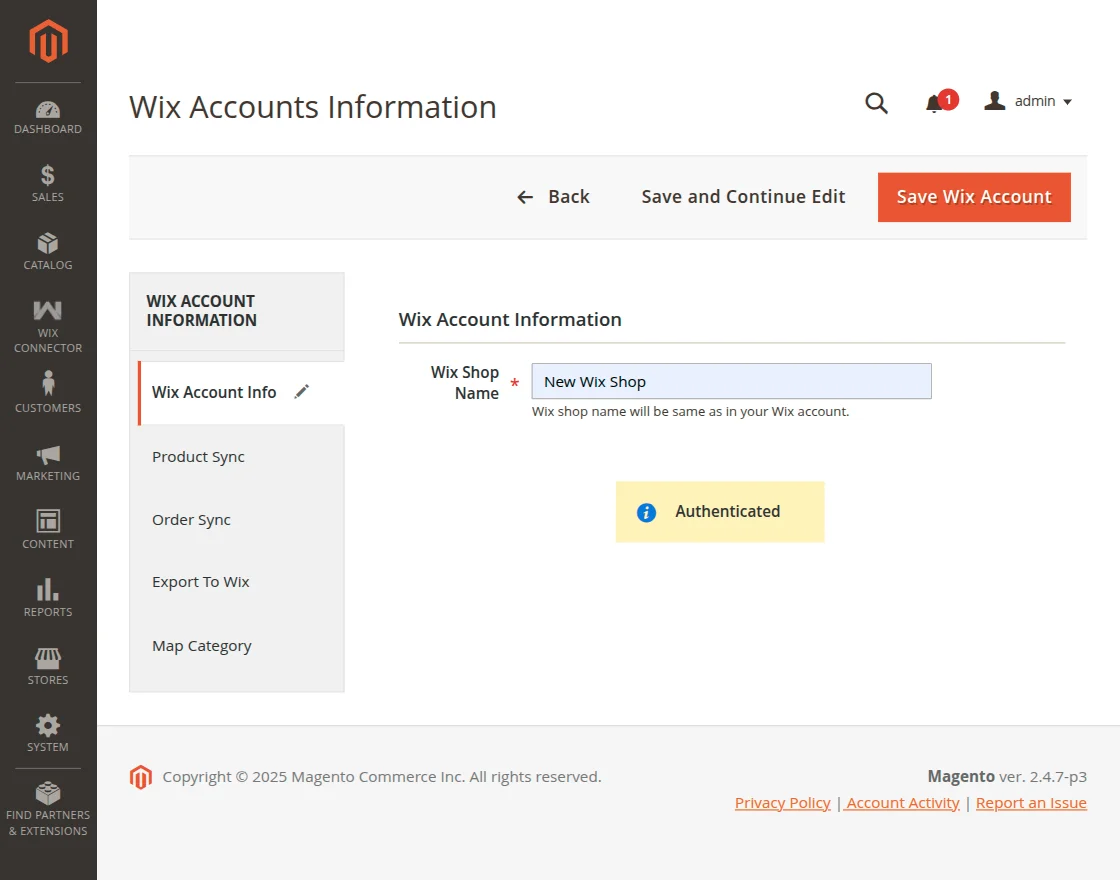
Once the shop name gets authenticated it will show the authenticated message and a few options will also open for product sync, order sync, and export to Wix.
Product Sync
Now, the admin can import products from the Wix store to the Adobe Commerce store by tapping on the import products from the Wix button.
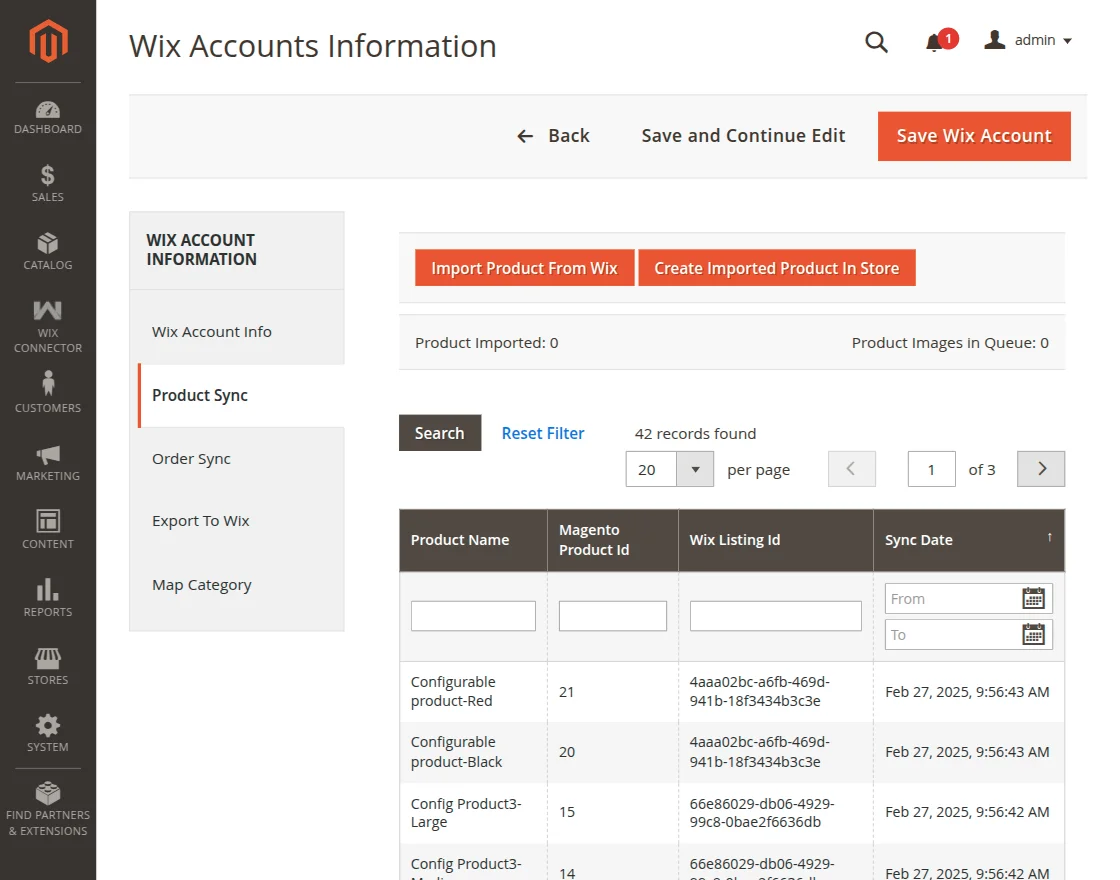
A pop-up will open for import products with the number of products on it.
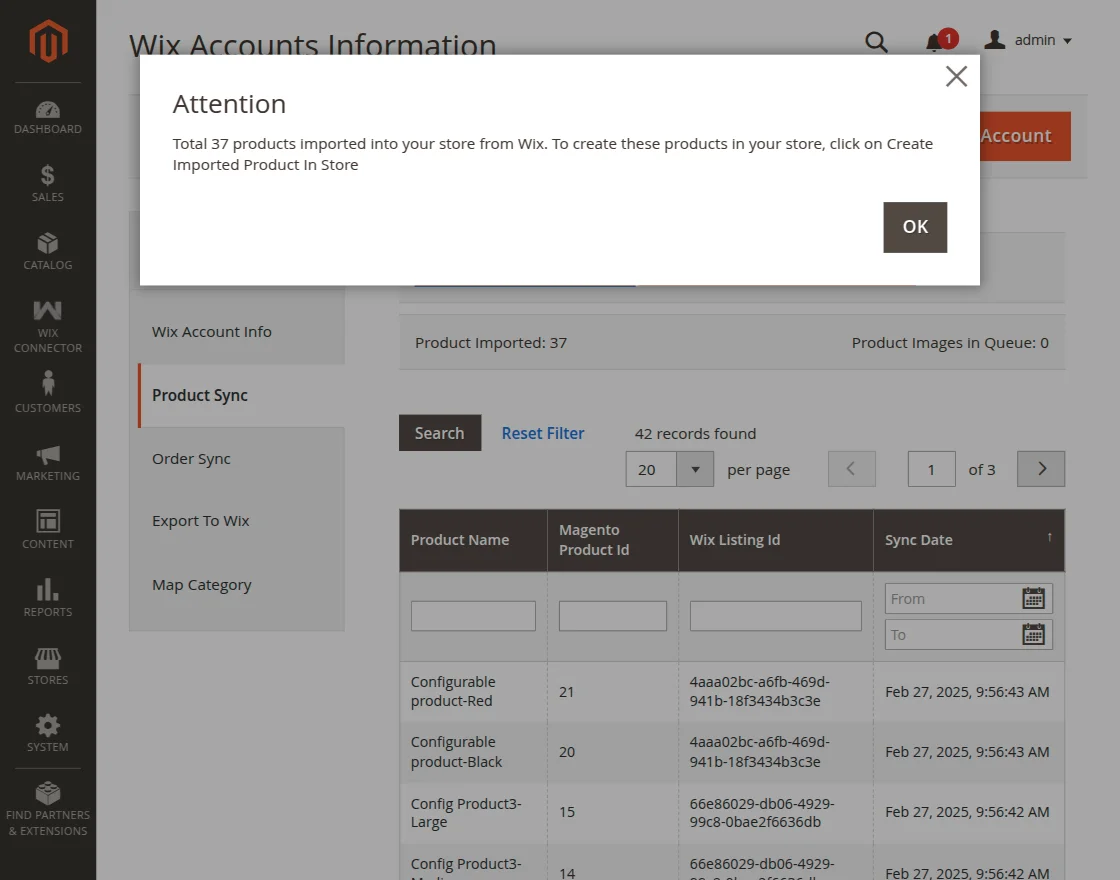
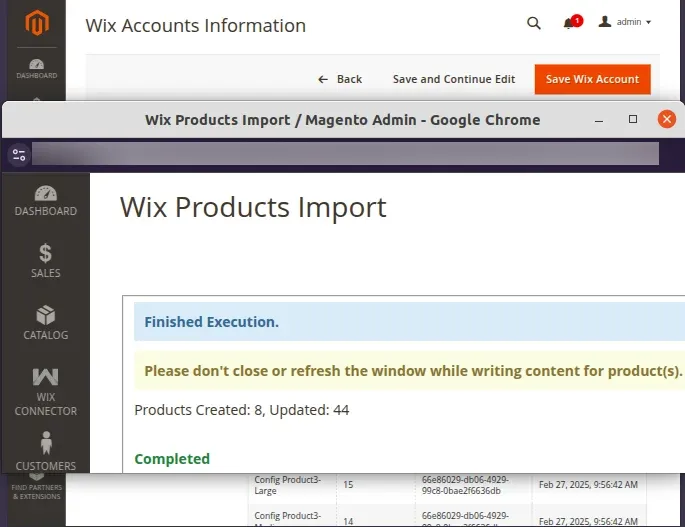
When you click on the ok button. After this, you need to create the imported product.
A product run job will run to export the product.
Order Sync
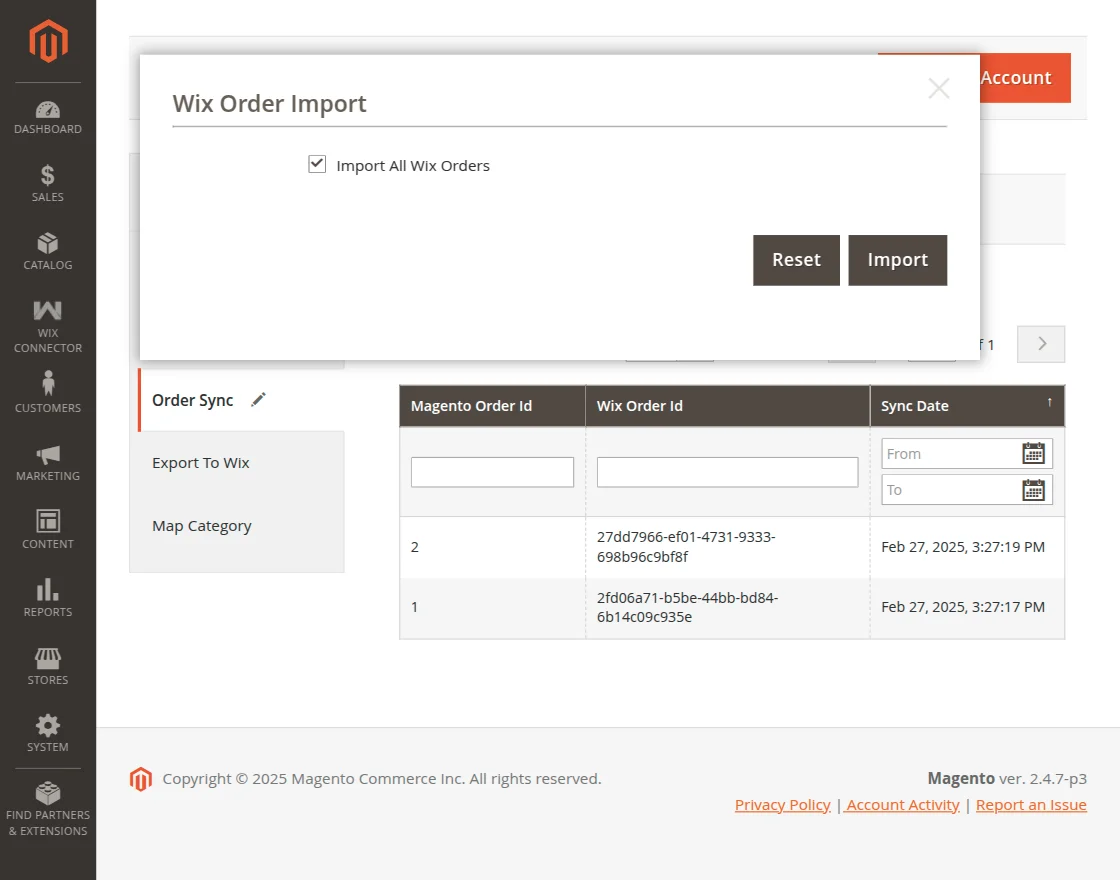
The admin can import orders from Wix to the Magento 2 store.

Click on the import button and a pop-up will open with the import all wix order option click on import.
An attention message will show on a popup with num of orders that going to be imported.
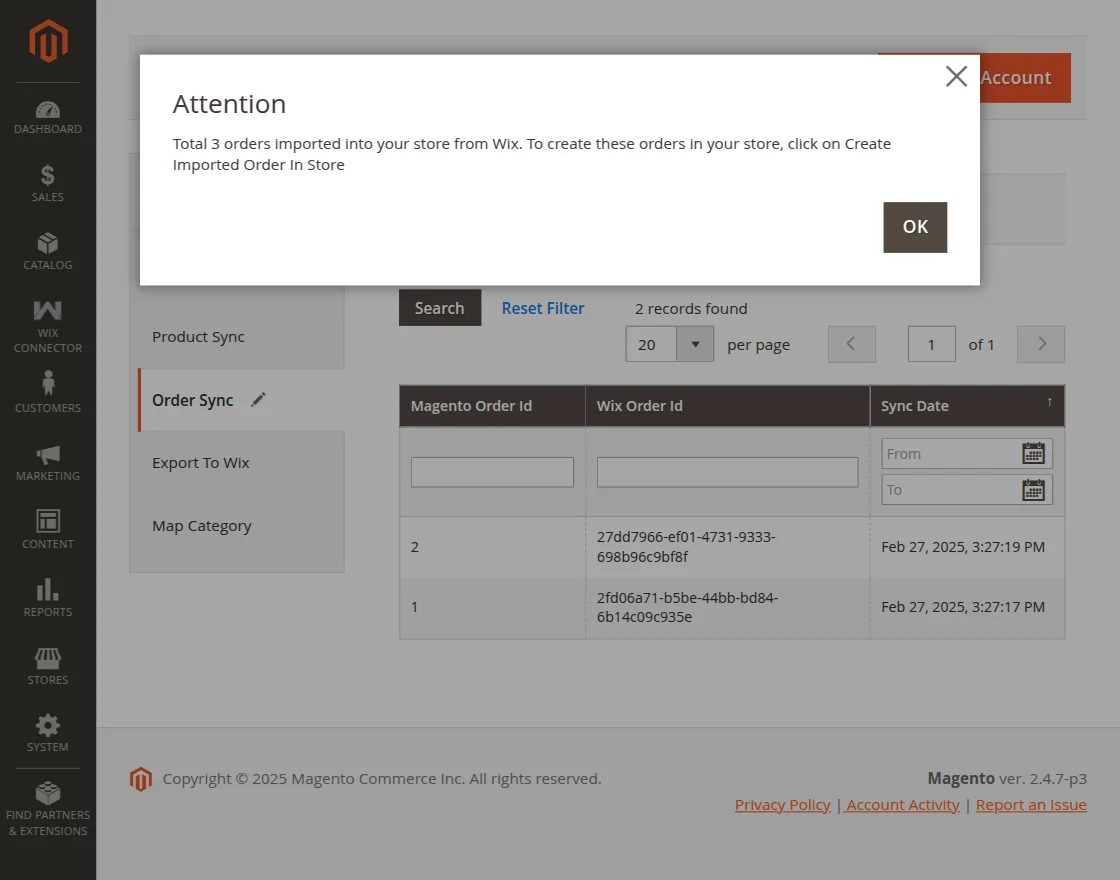
Afterward, you will click on create imported order, and the run job will be processed to import the order.
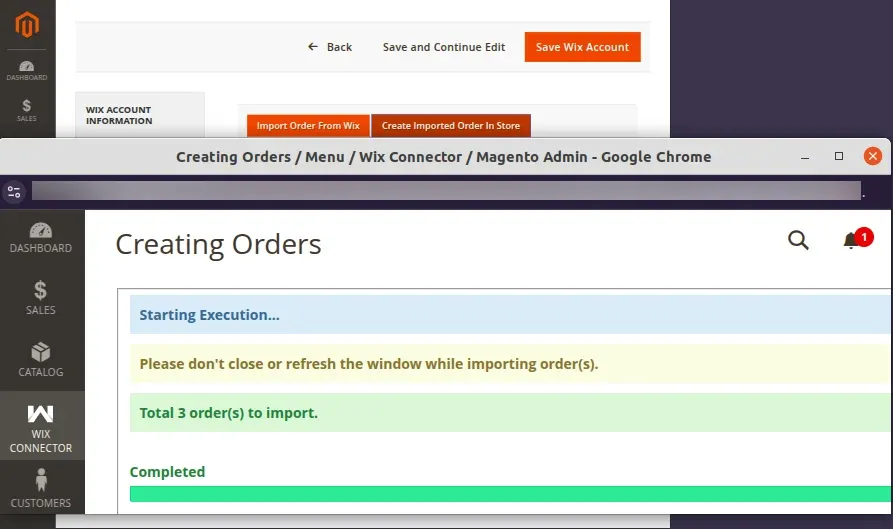
Note – If any order details are missing on Wix then those orders will move to the missed order section.
Export to Wix
The store owner can also export Magento 2 products to the Wix store.
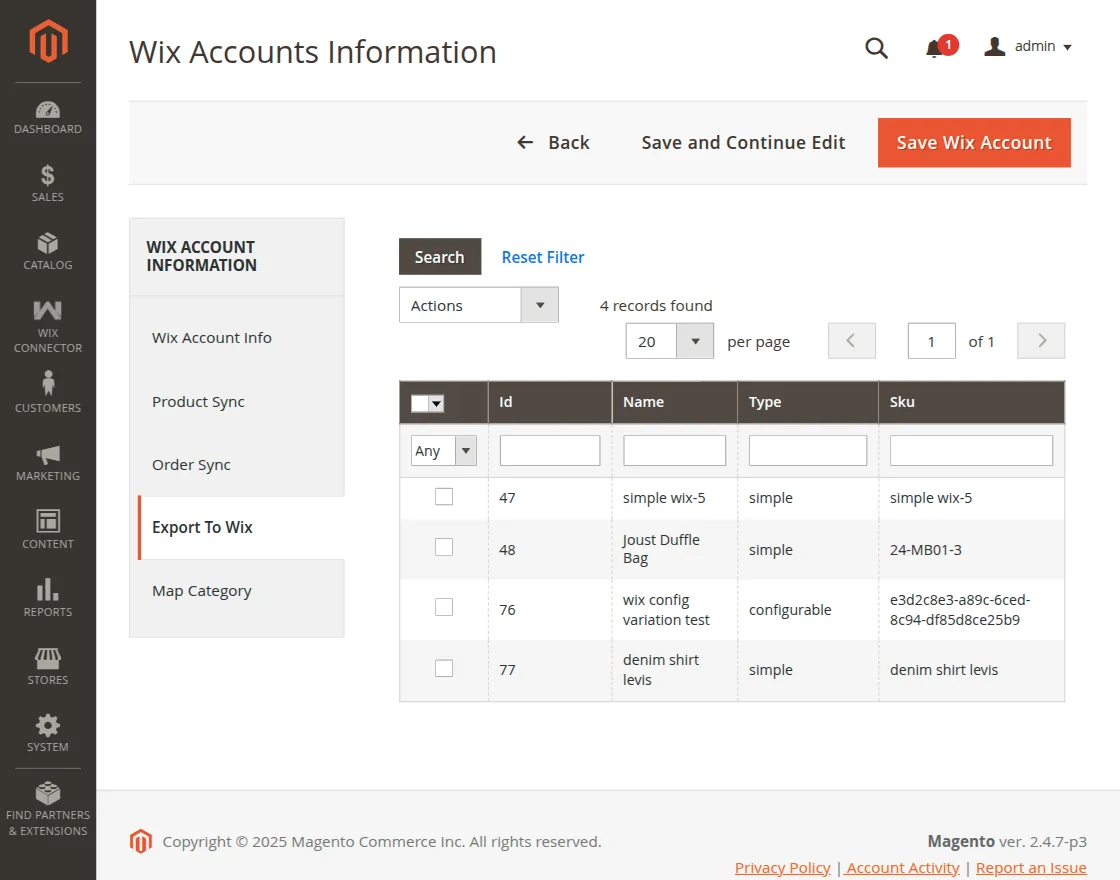
Select the product and then click on the action button.
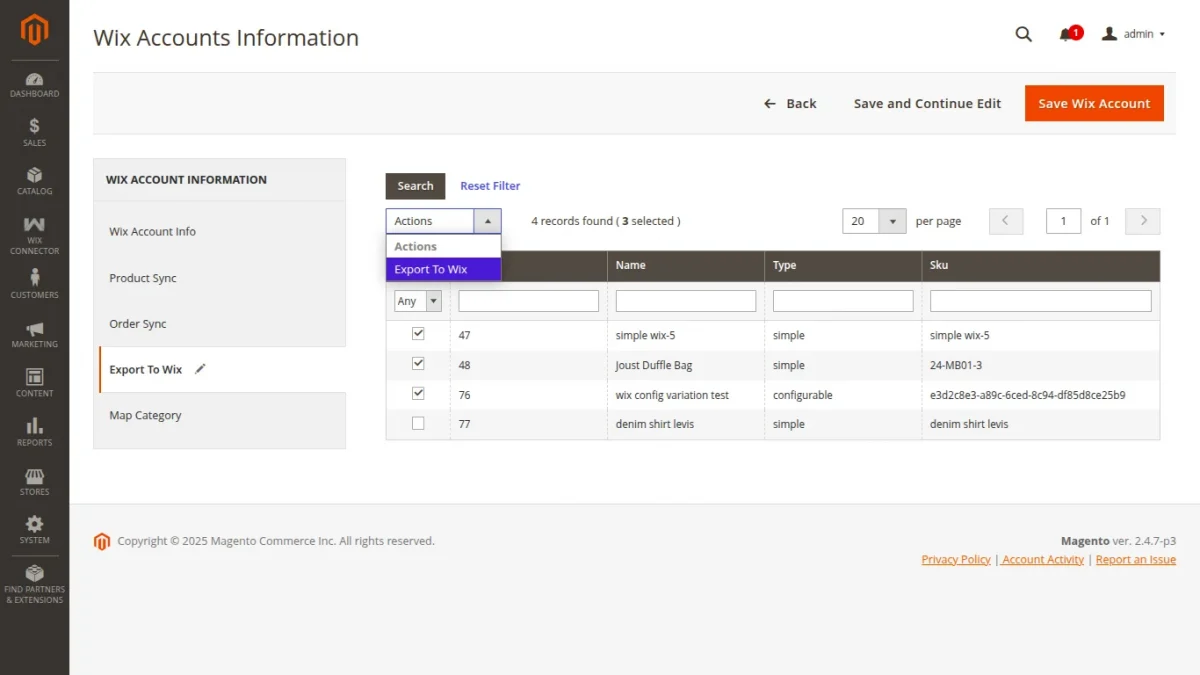
Here, click on the export to Wix option then it will display the submit button.
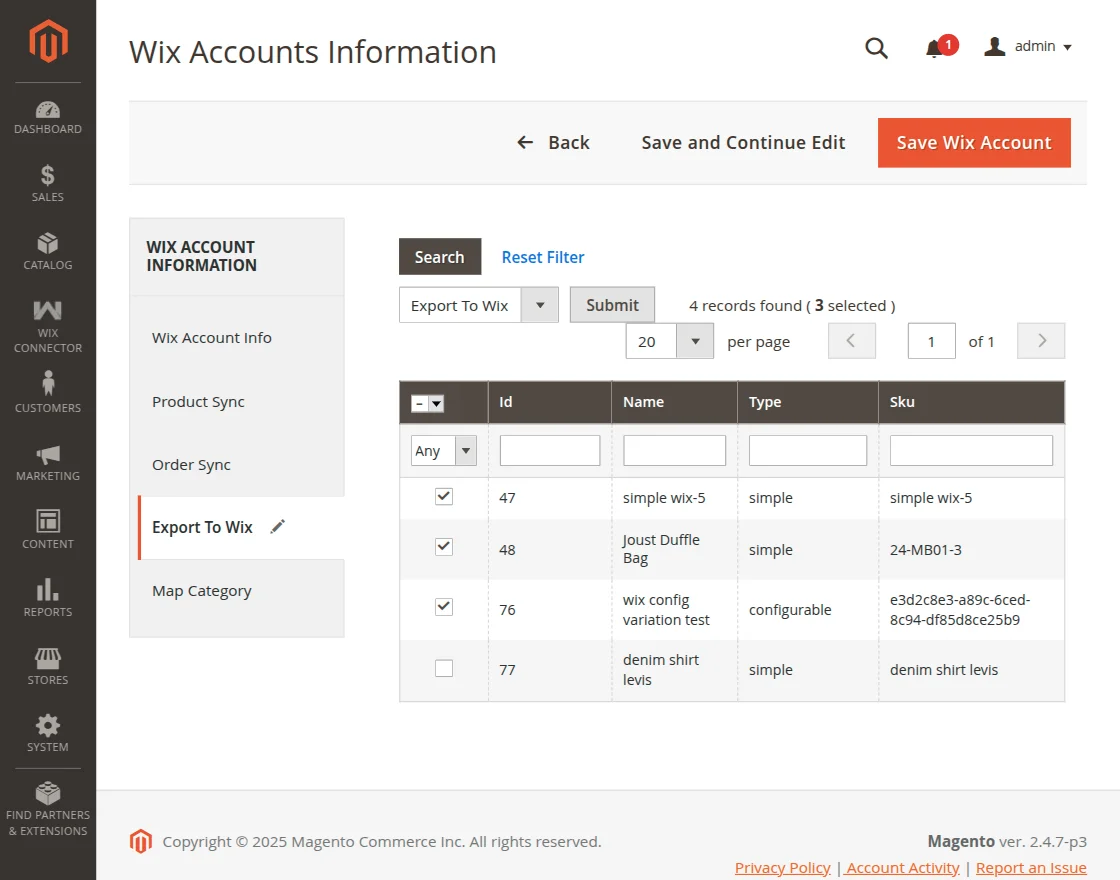
Click on the submit button the product will export to the Wix platform.
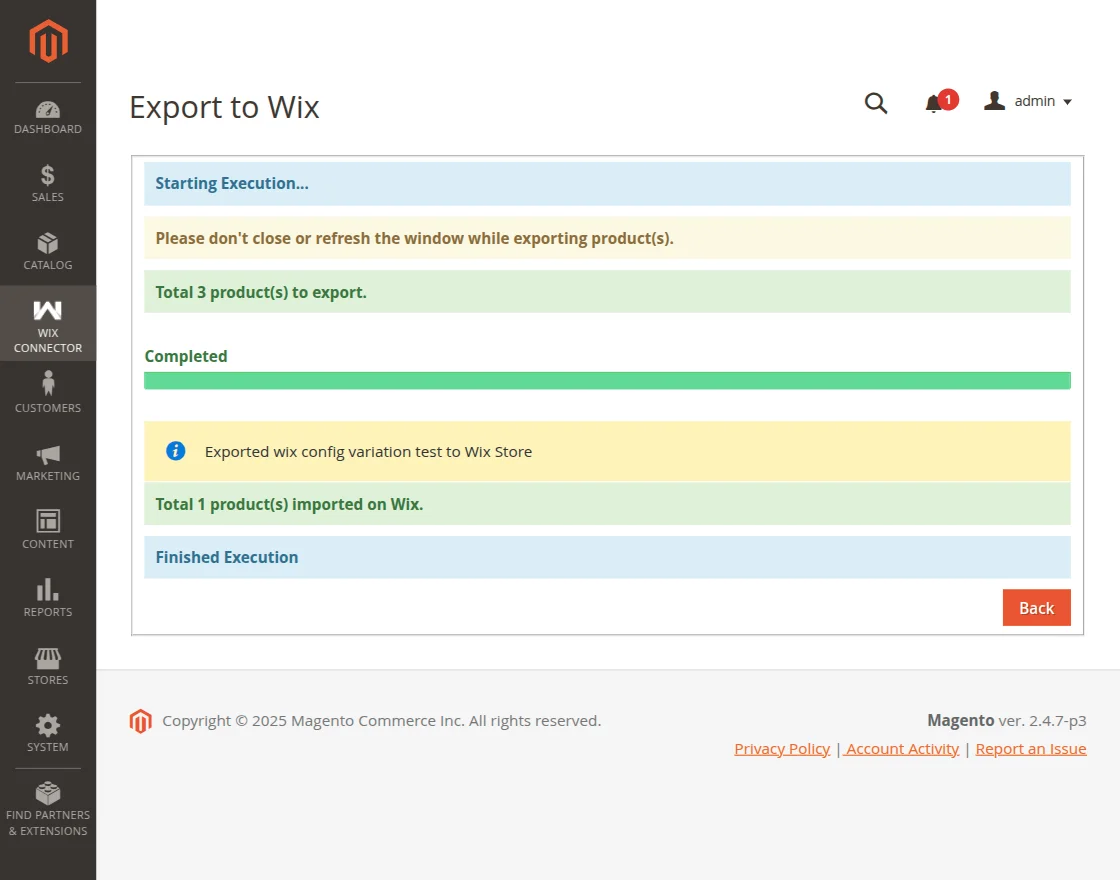
You can check the exported products on the Wix store as well. For that, you need to open a Wix store and login in the same.

Map Category
The admin can also map the store category to Wix category.
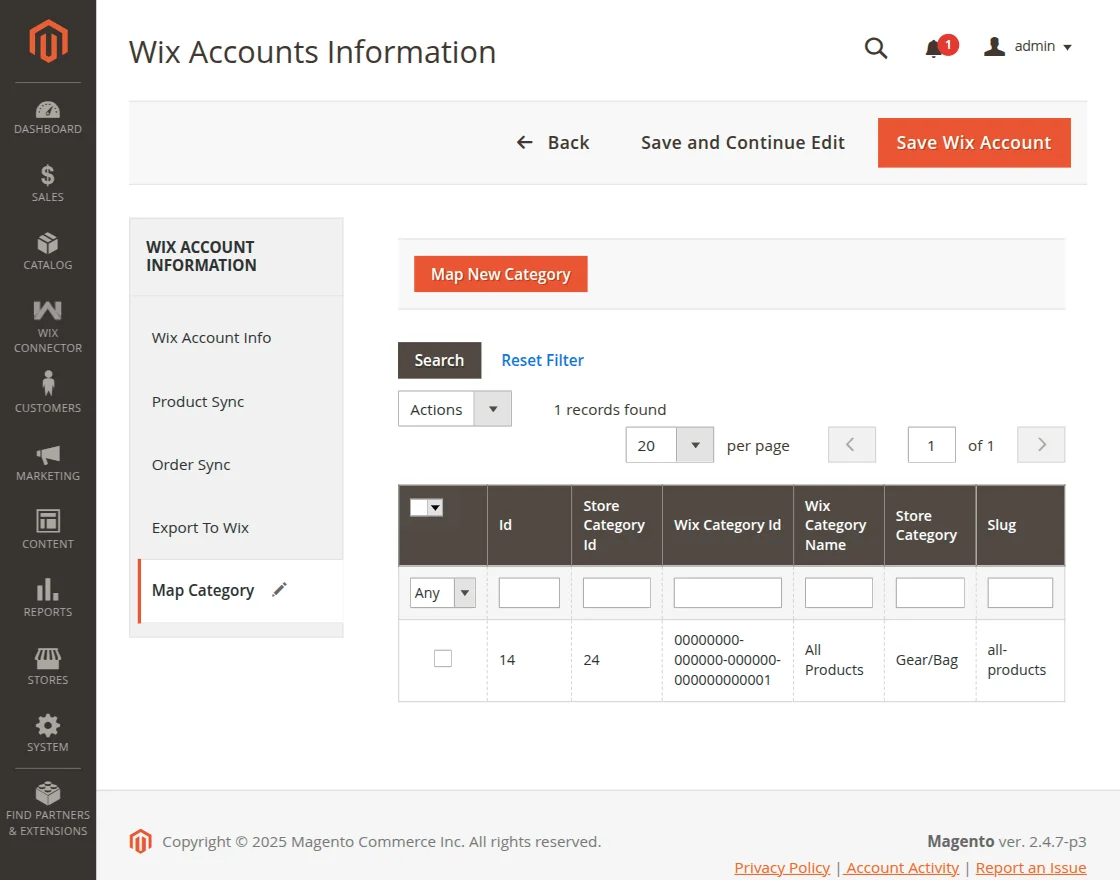
Admin will further click on the map new category, and the section will open as shown in the below image –
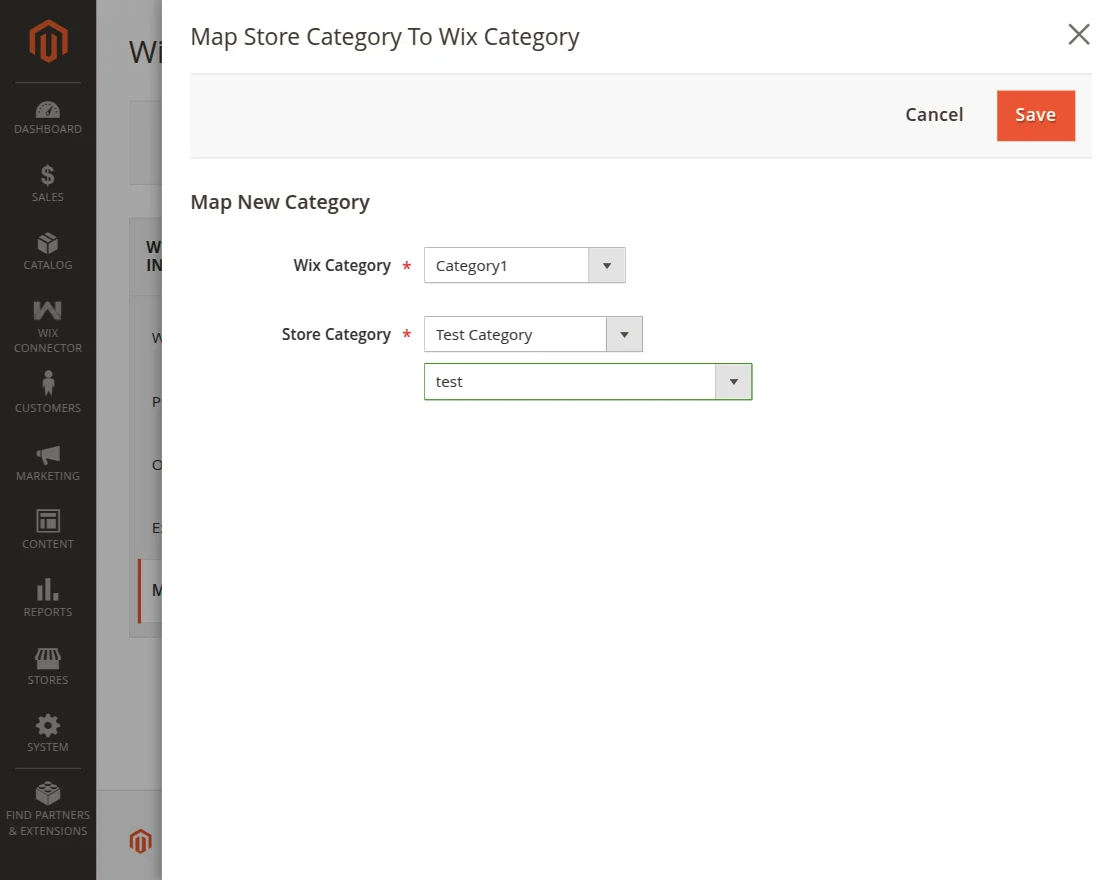
Here, the admin will select the Wix category and the Magento 2 store category that they want to map.
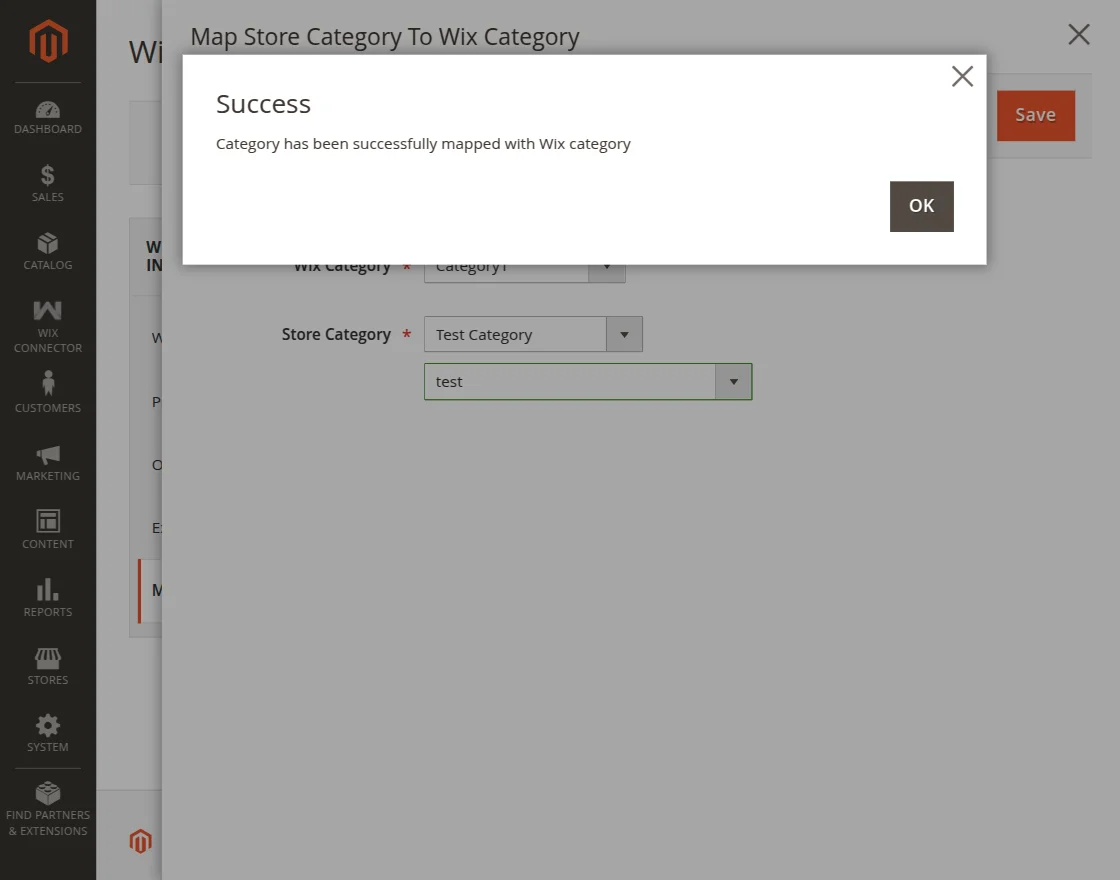
Further, the admin will click on save. The categories will be successfully mapped.
Wix Order List
Now, the admin can see the created Wix orders list as shown in the below image –
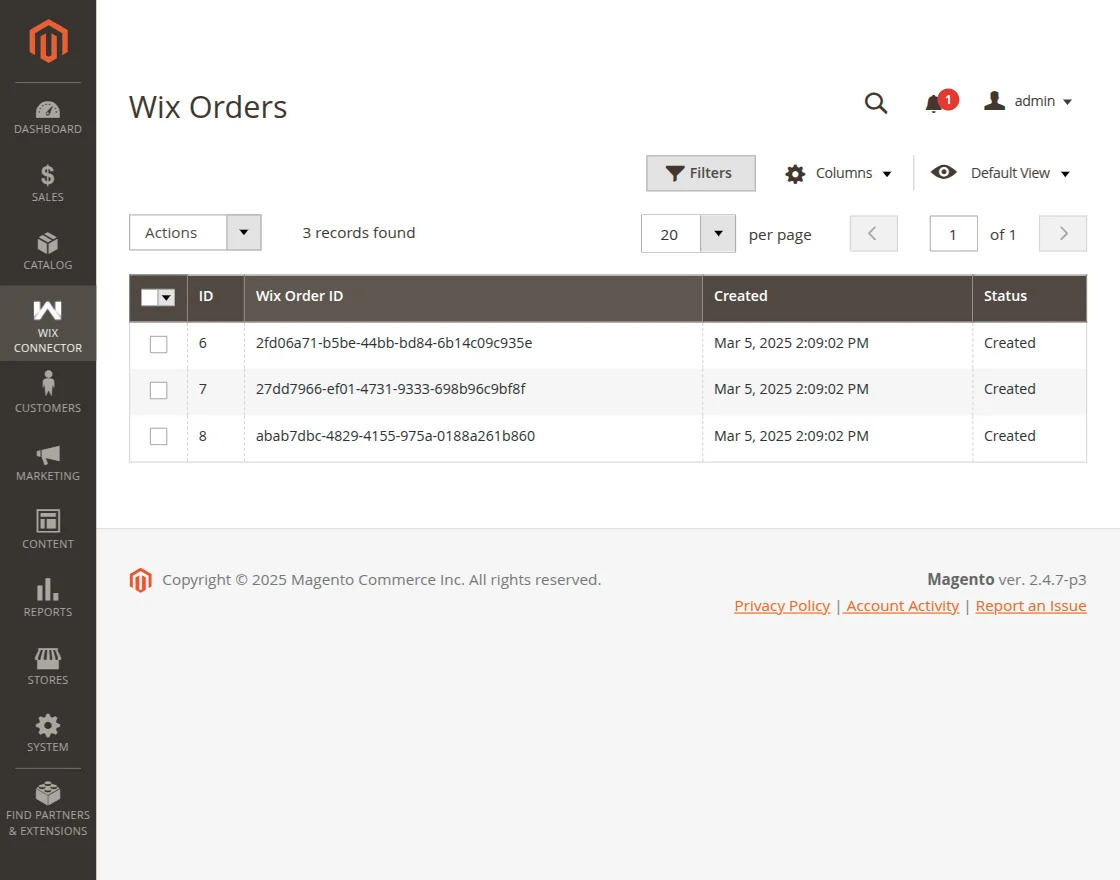
The admin can also delete the created orders from here in bulk mode or singly.
Missed Order List
Missed Wix order will be displayed here.

Now, admin can re-import the missed orders.
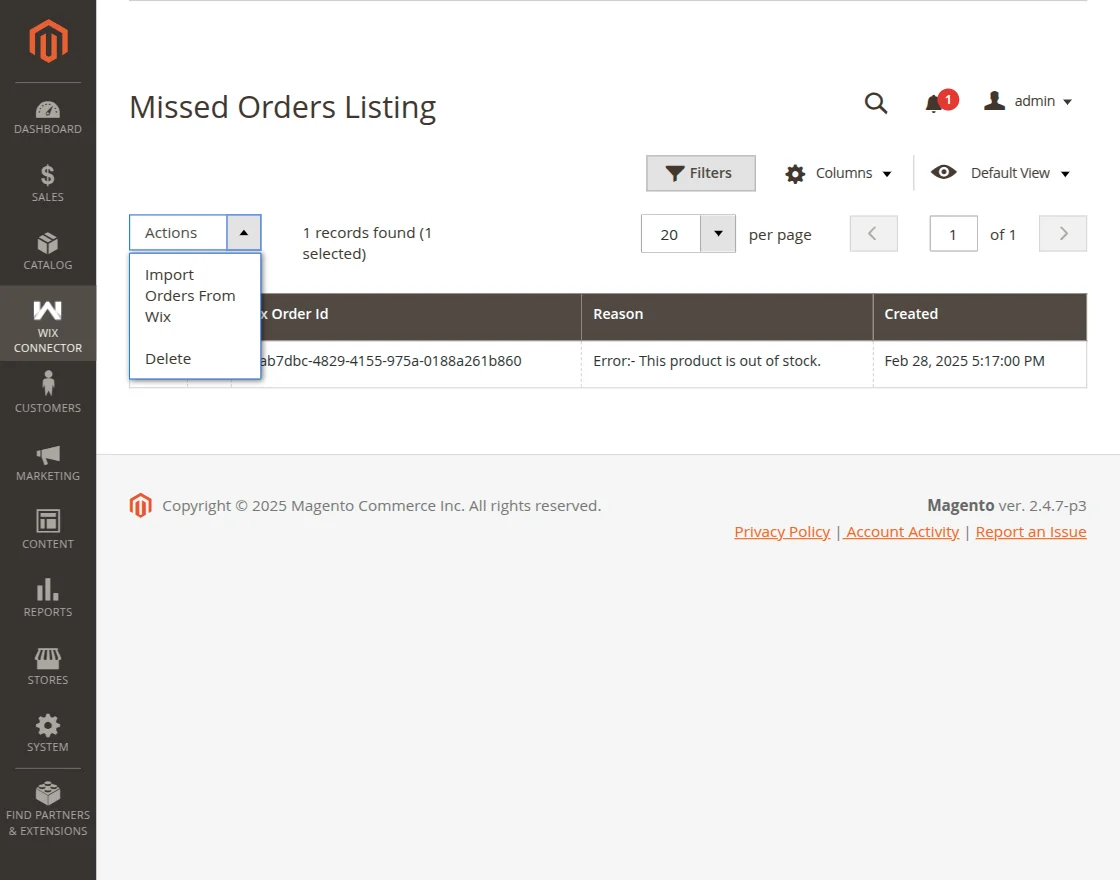
Further, admin will select the order and click on import orders from Wix.
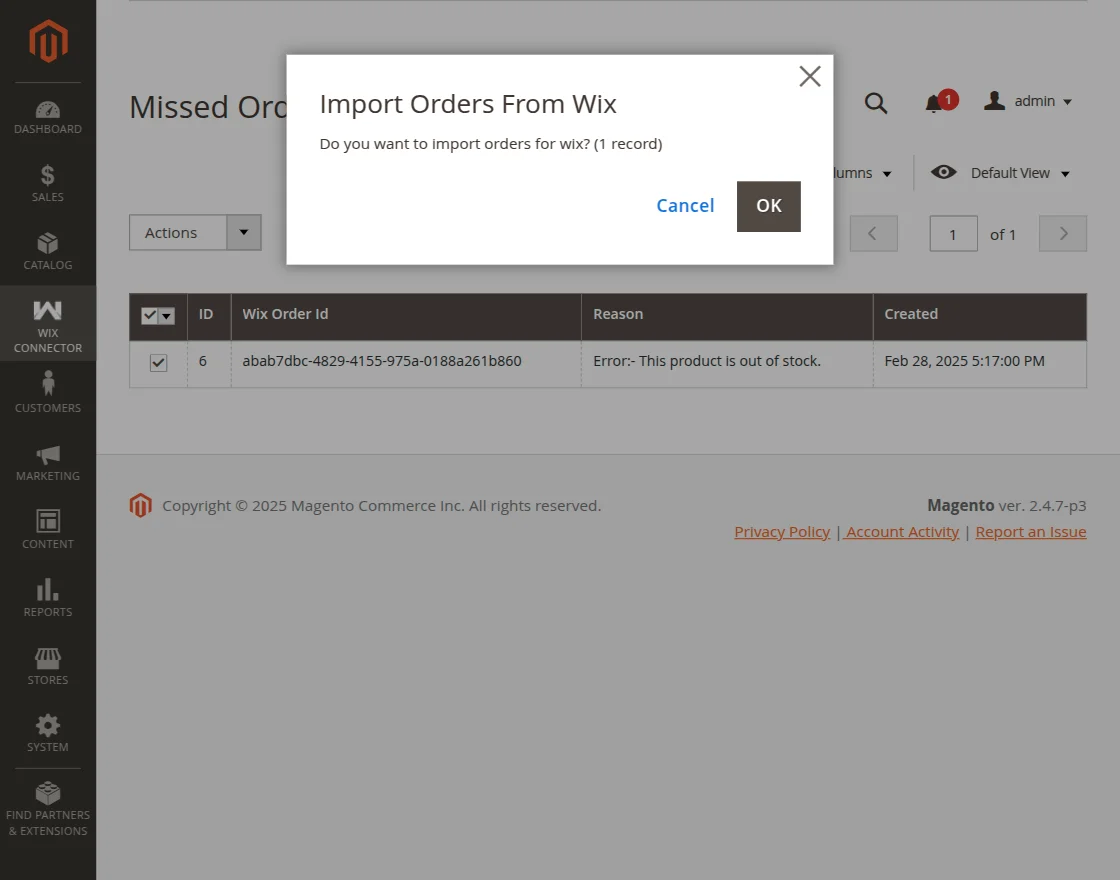
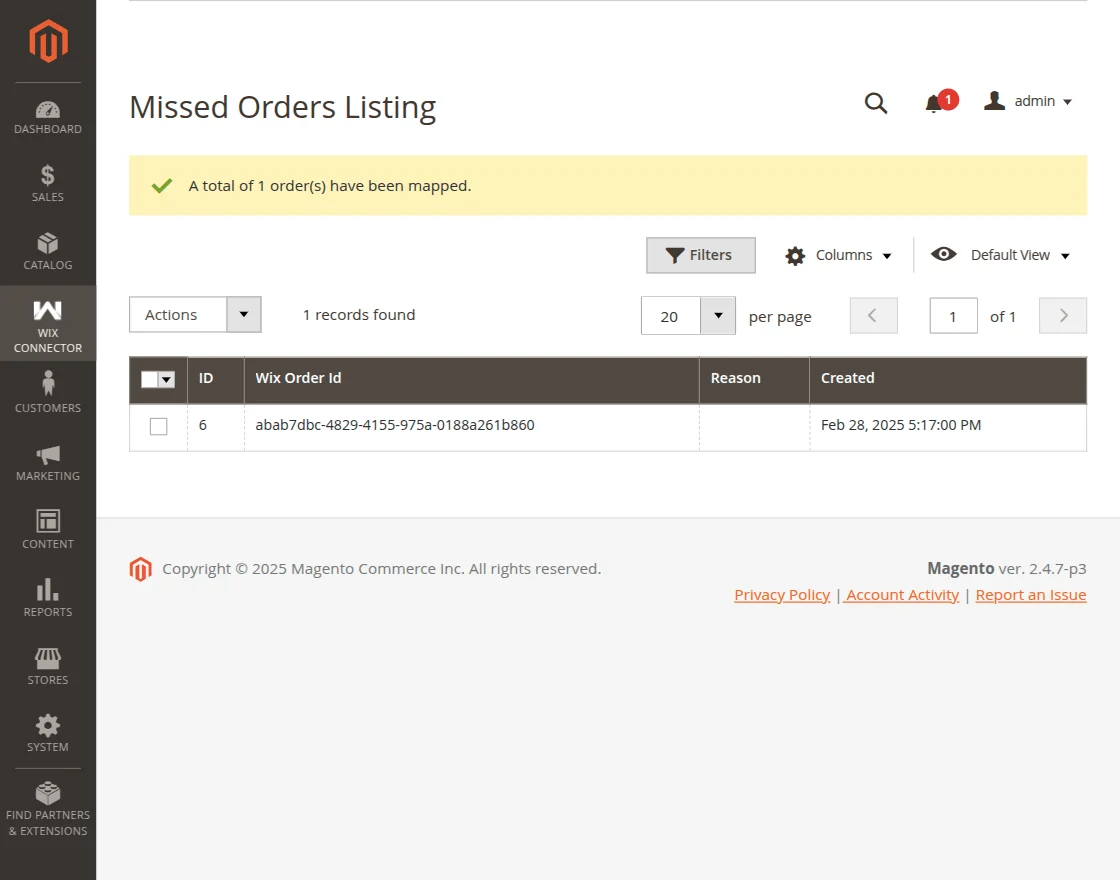
Now, click on Ok to import the orders from Wix. Finally, the order is mapped.
Magento 2 Wix Connector – Customer End Workflow
Customers can see the imported product on the Magento 2 store and place the order.

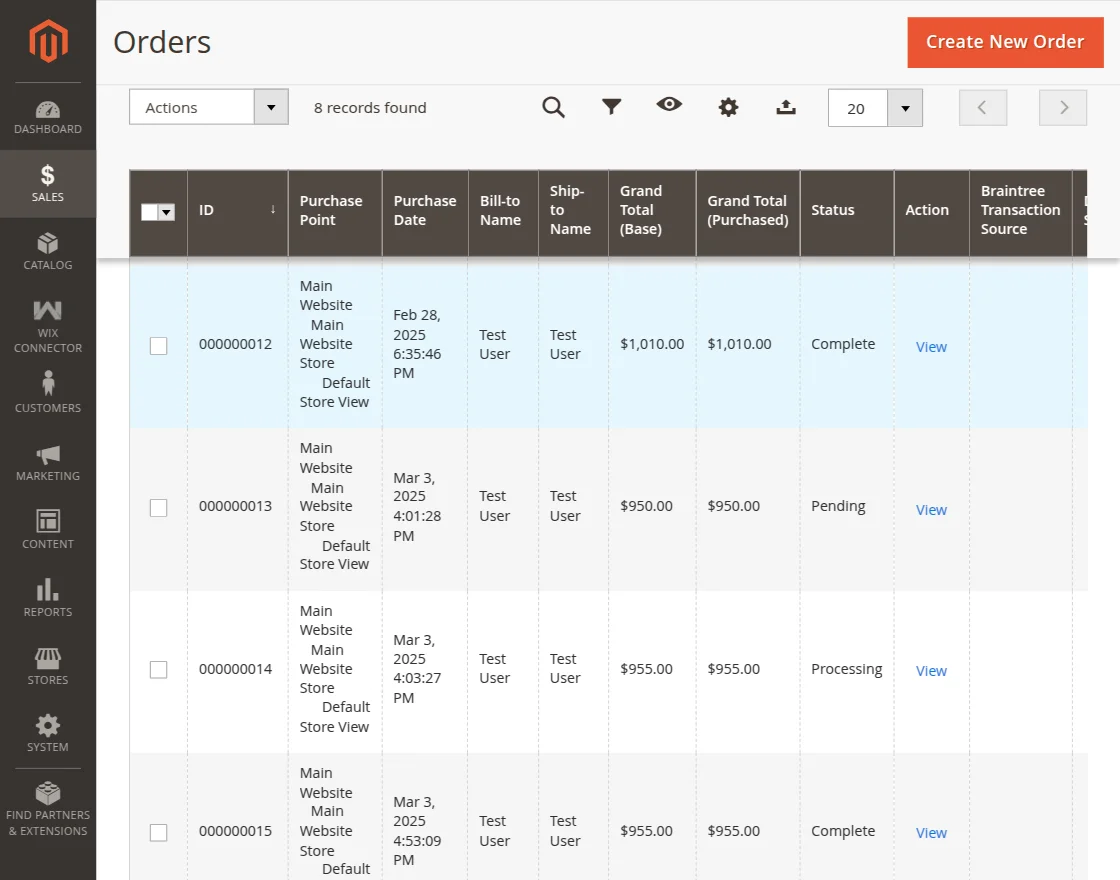
Once the customer places the order the admin can check order details in their order list section.
So, that is all about the Magento 2 Wix Connector extension. If you have any queries regarding the plugin, please get in touch with us at Webkul Support System.
Current Product Version - 5.0.2
Supported Framework Version - Magento 2.0.x, 2.1.x, 2.2.x,2.3.x, 2.4.x

Be the first to comment.