PrestaShop WhatsApp Business Order Notifications:
Notify or alert your customers of time-sensitive information, such as Order confirmation, Order status update, and Tracking number added to an order, by sending them notifications on WhatsApp.
In addition to it, you can create WhatsApp campaigns and send them to the customers.
Note: PrestaShop WhatsApp Business Order Notifications module is compatible with PrestaShop multi-store feature.
Features of PrestaShop WhatsApp Business Order Notifications
Let’s look closer at WhatsApp Business Order Notifications module features:
- Notify customers about their order confirmation, order status, order’s tracking number directly on WhatsApp.
- Select the order status to which the notification will be sent to the customers.
- Create message templates for each event (order confirm, order status update, cart abandoned, tracking number added to order and OTP) separately.
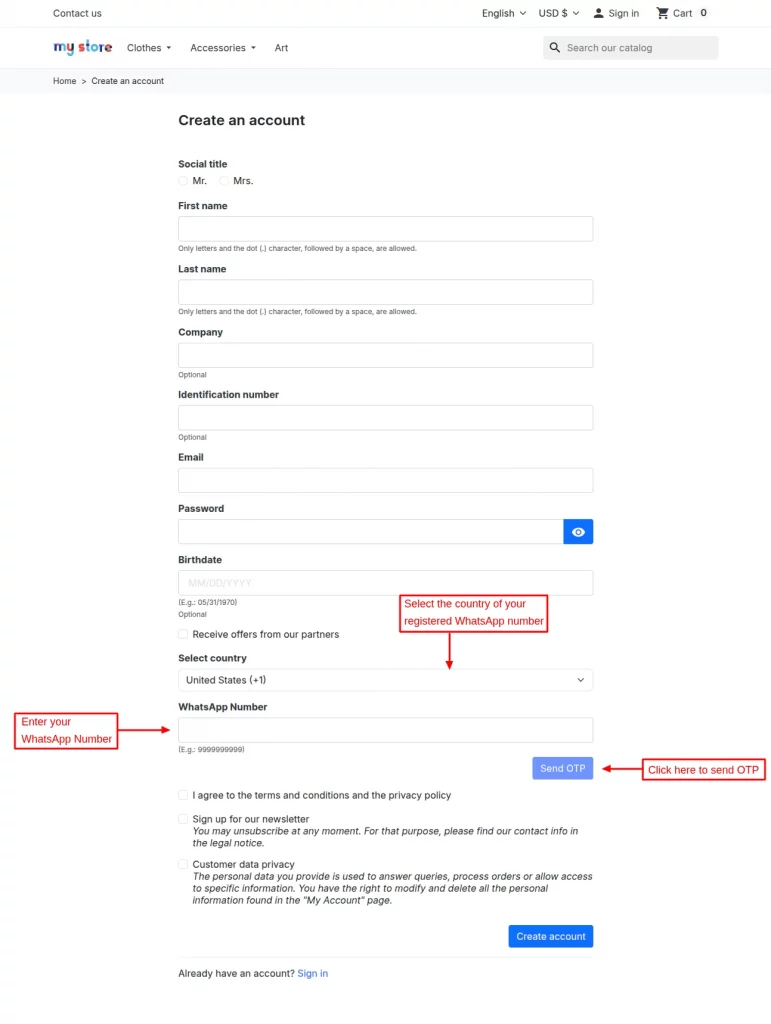
- Allow customers to add a WhatsApp number during registration to receive notifications.
- Verify the WhatsApp number during customer registration.
- Create campaigns for marketing purposes and send them to your customers on WhatsApp.
- Add category link to campaign.
- Delete the campaign from Meta on deleting from module’s end.
- View the list of customers who registered to receive the WhatsApp notification.
- Add interactive and more appealing buttons to your campaign messages. These buttons can be of 2 types:
– CTA
– Quick Reply - Automate responses to customer queries.
- Access Message Statistics.
Module Installation
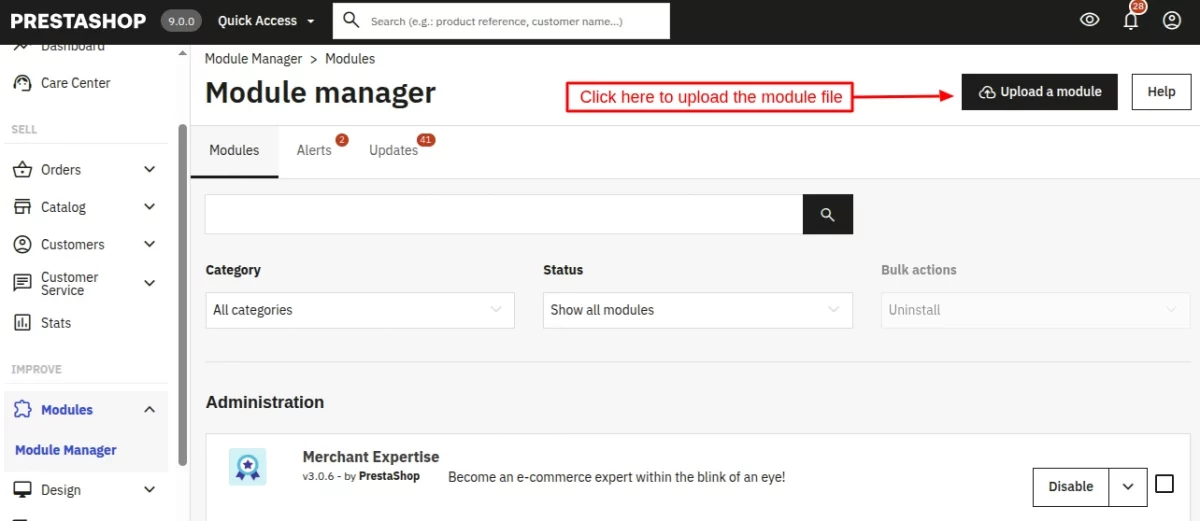
Firstly, go to the module manager in the back office and click on ‘upload a module’.
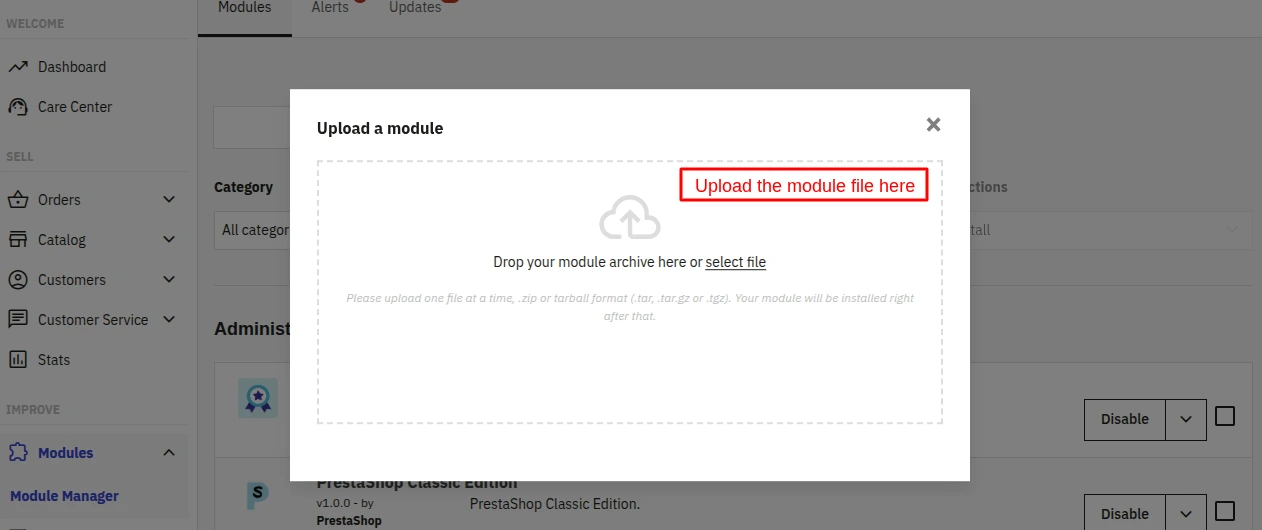
- After that, drag and drop the module file or select the file from the system.
- In this way, the module installation will be successful.
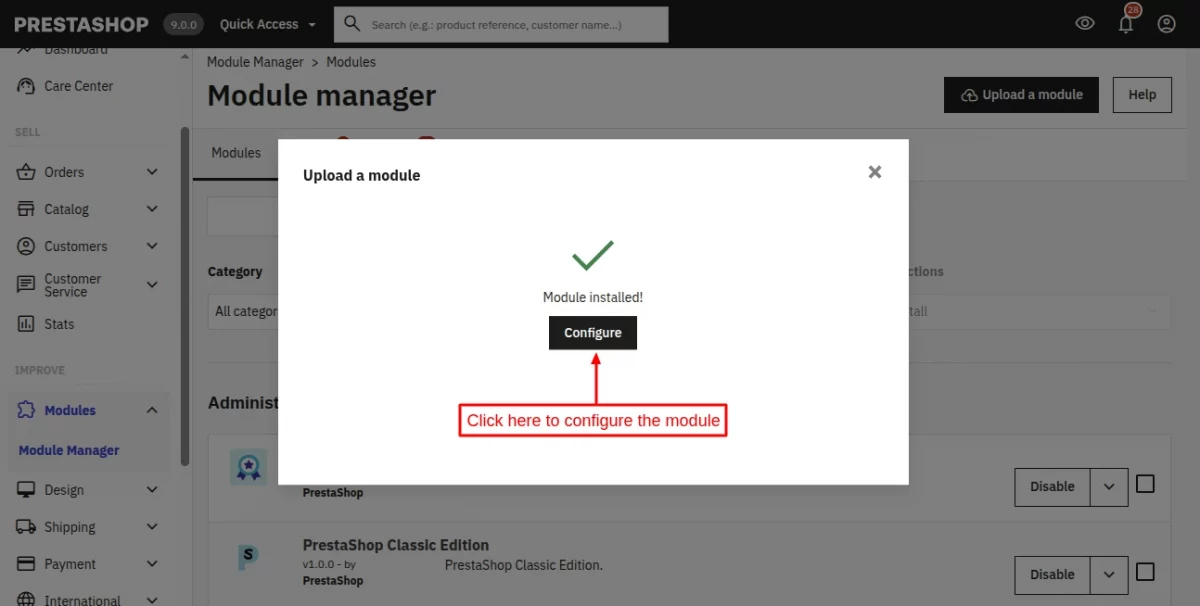
Or, you can also configure the module from the module list page.
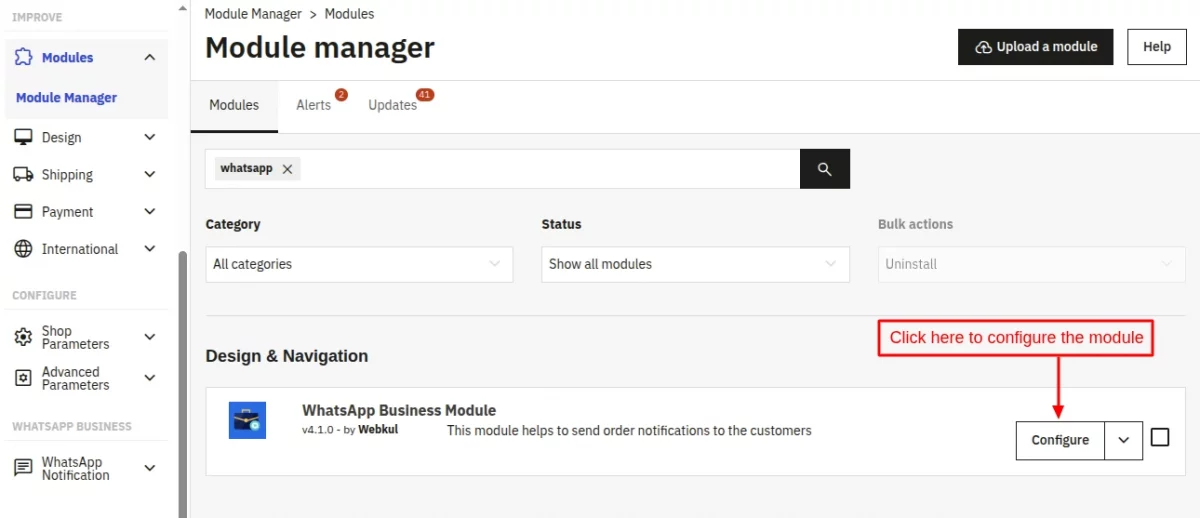
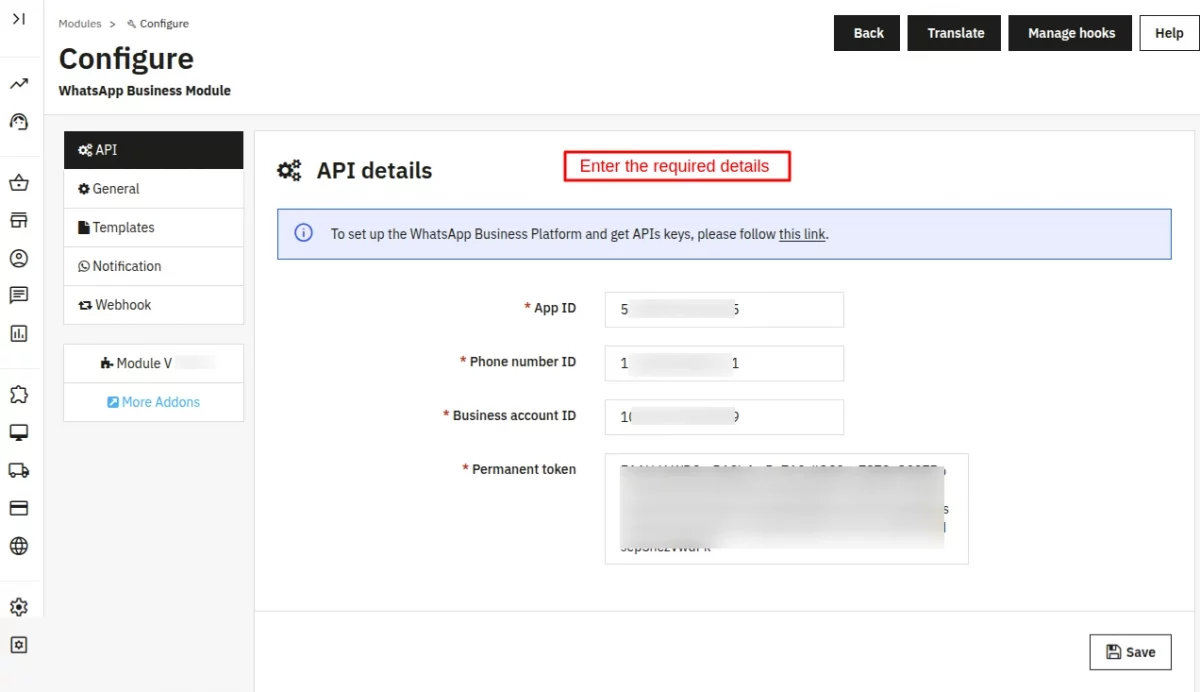
In order to configure this module, you must have the following details:
- App ID
- Phone Number ID
- Business Account ID
- Permanent Token
How to get the required Ids?
To get the API keys & add new apps to the account, you need to create a developer account on Facebook.
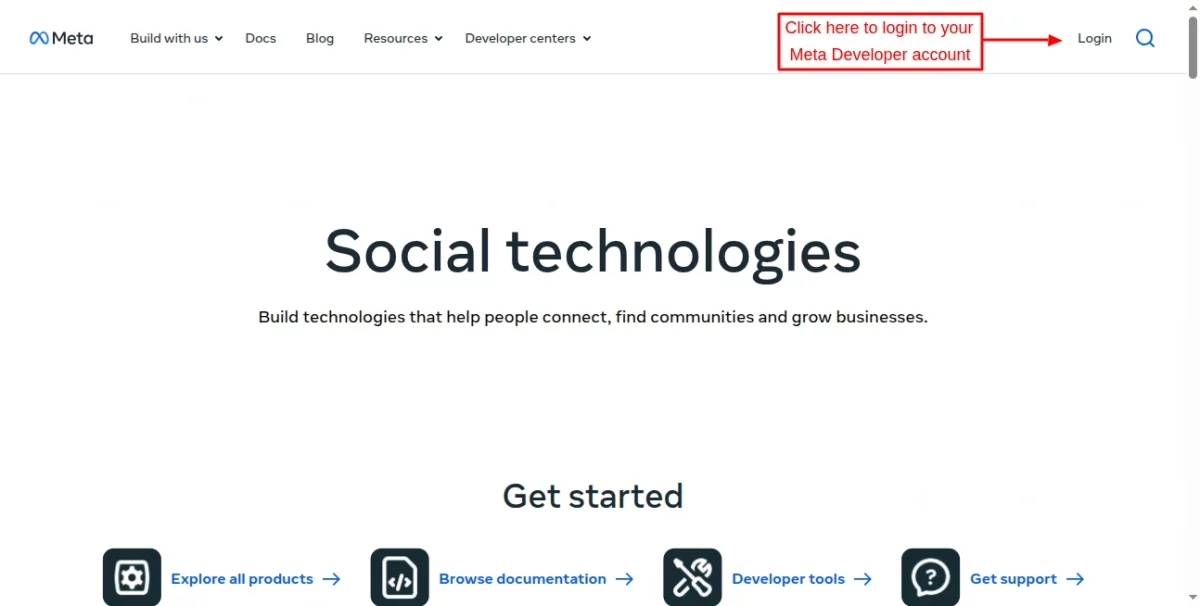
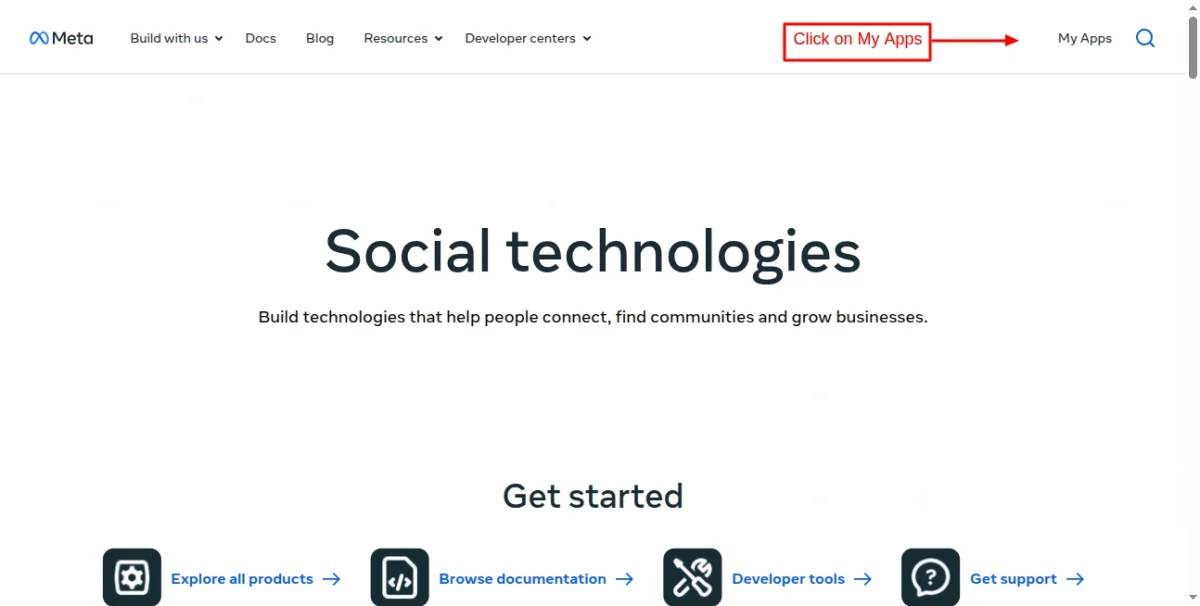
After logging in to the account, got to “My Apps” section.
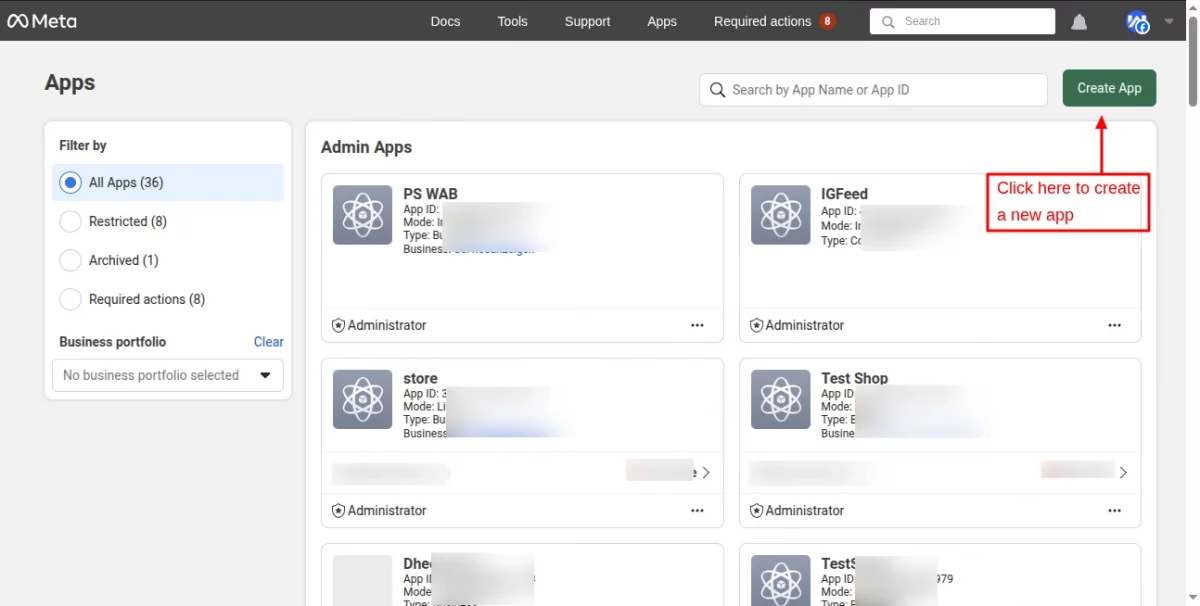
Click on the “Create App” button to create a new app.
Now, enter the “App name” and “App contact email” to create an app.
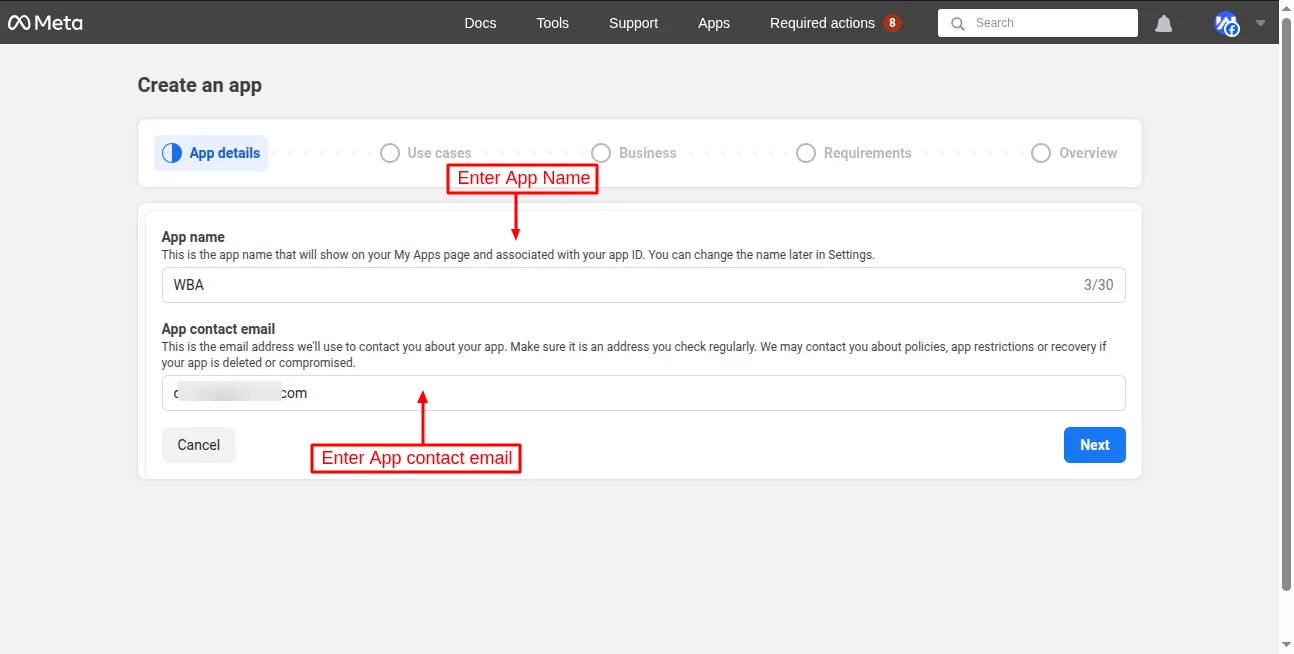
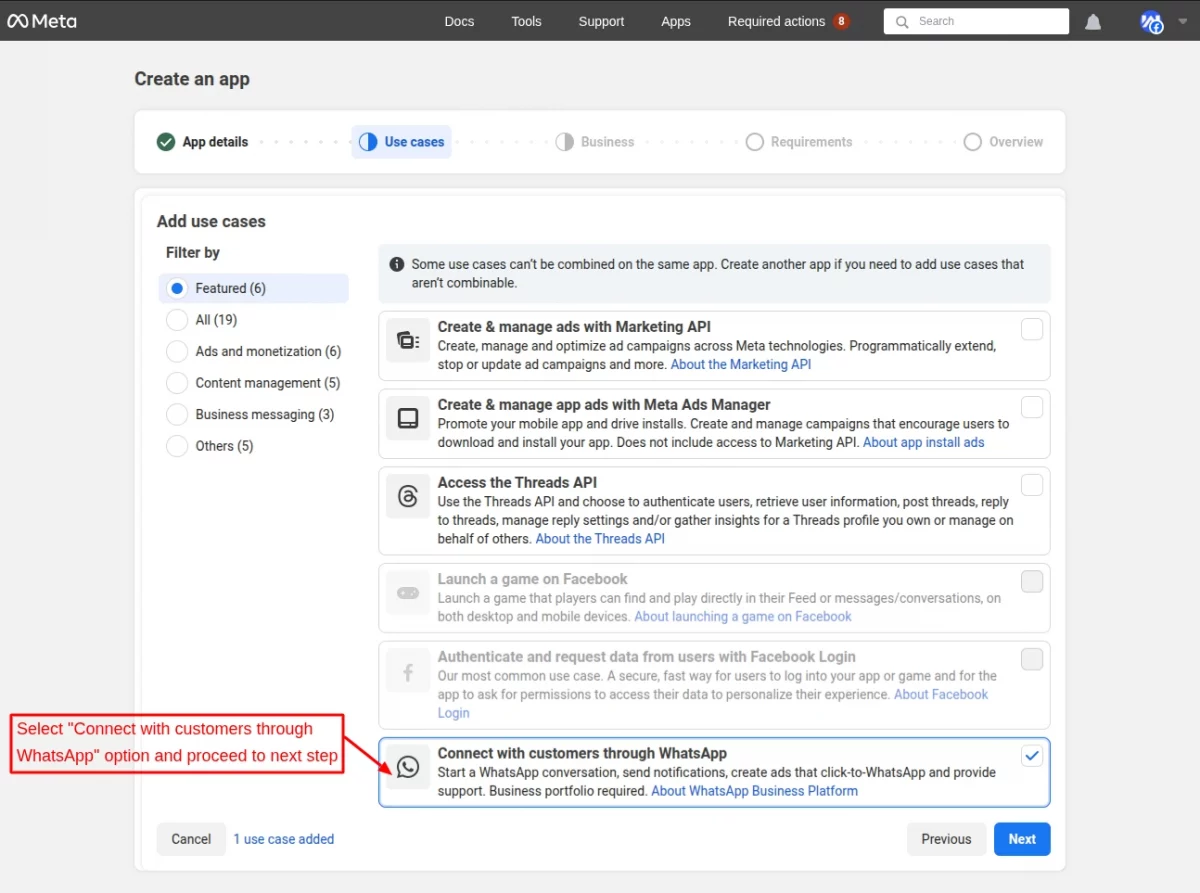
After entering the app name and contact email to create the App, you need to select the user case of the app.
Here, you have to select “Contact with customers through WhatsApp” and proceed to the next step.
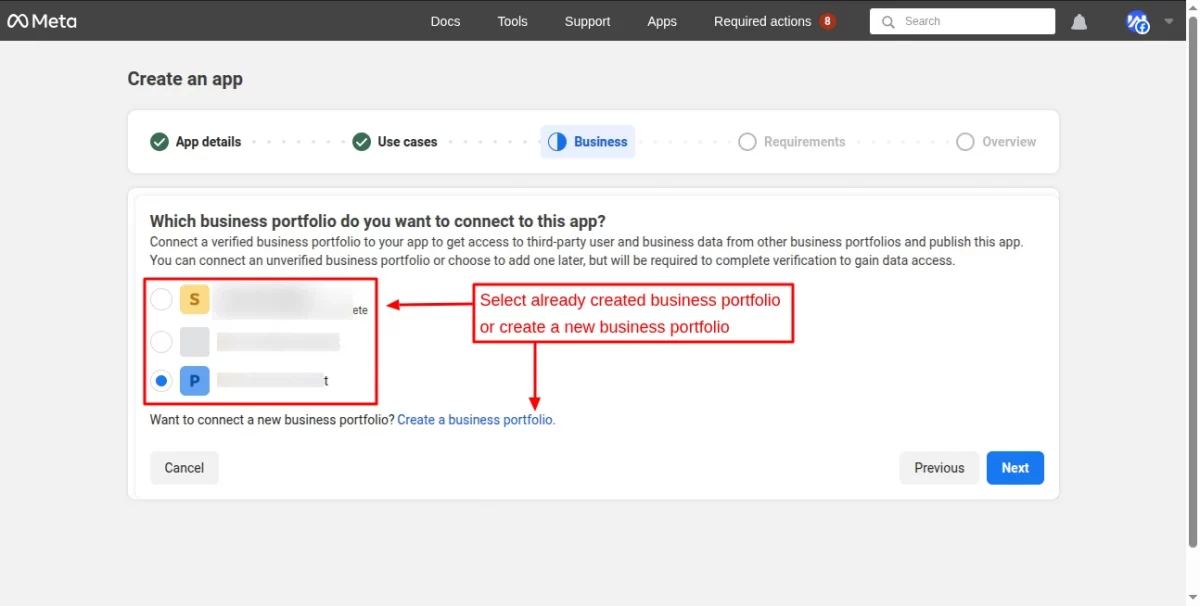
Now in the next step, you need to select the business portfolio for which you’re creating the app, or you can create a new business profile for creating the app.
Create a business portfolio:
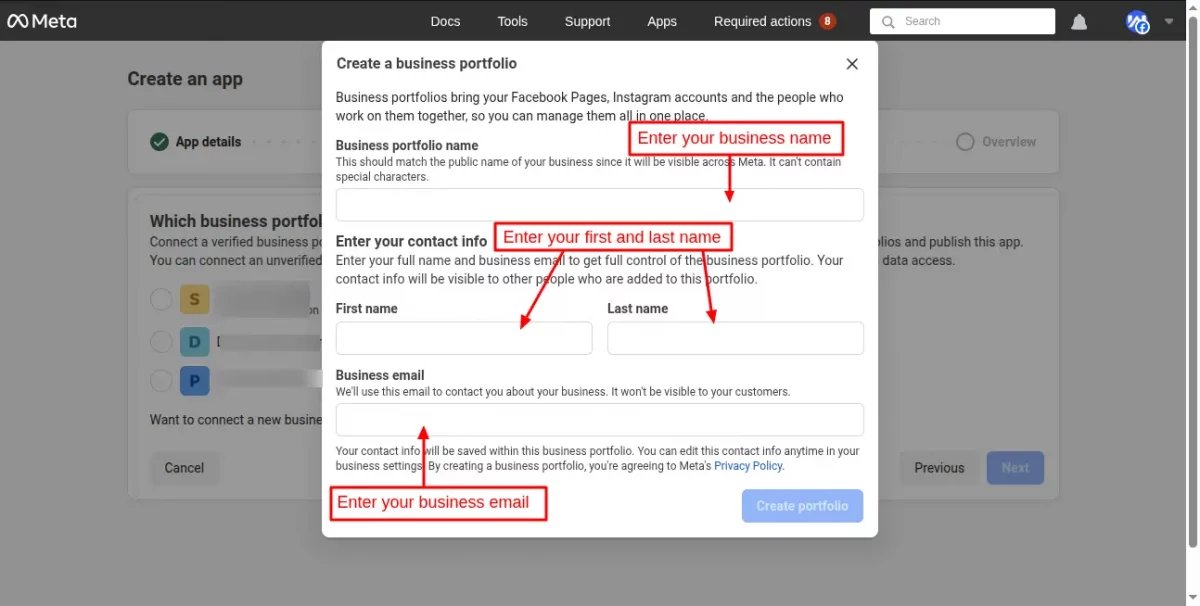
After selecting/creating business portfolio, you can proceed to next step “Requirements”.
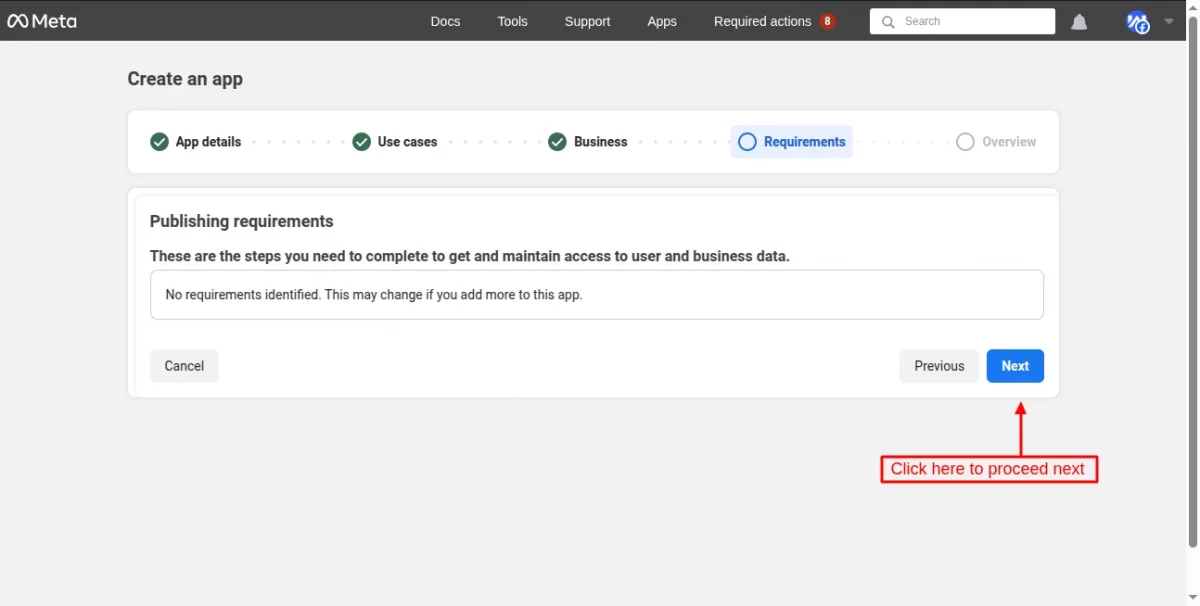
Now, you can overview the details of the app that you are going to create.
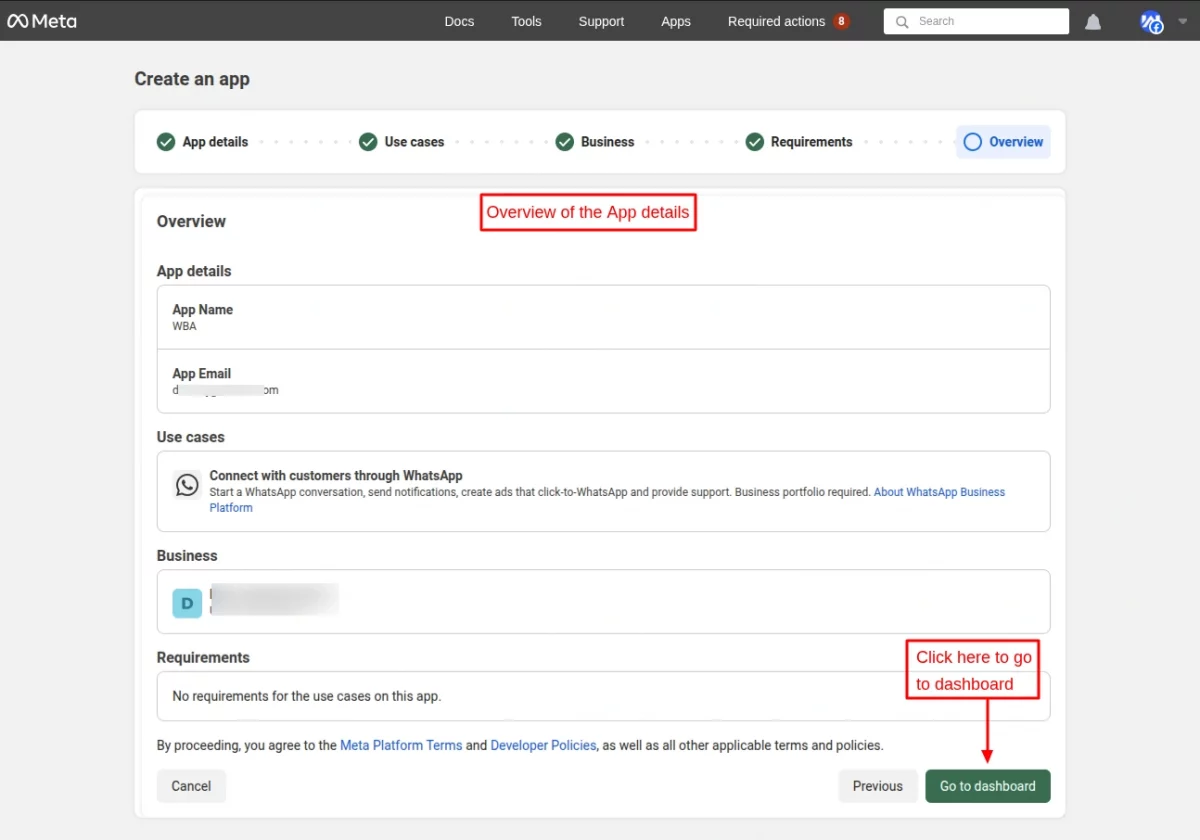
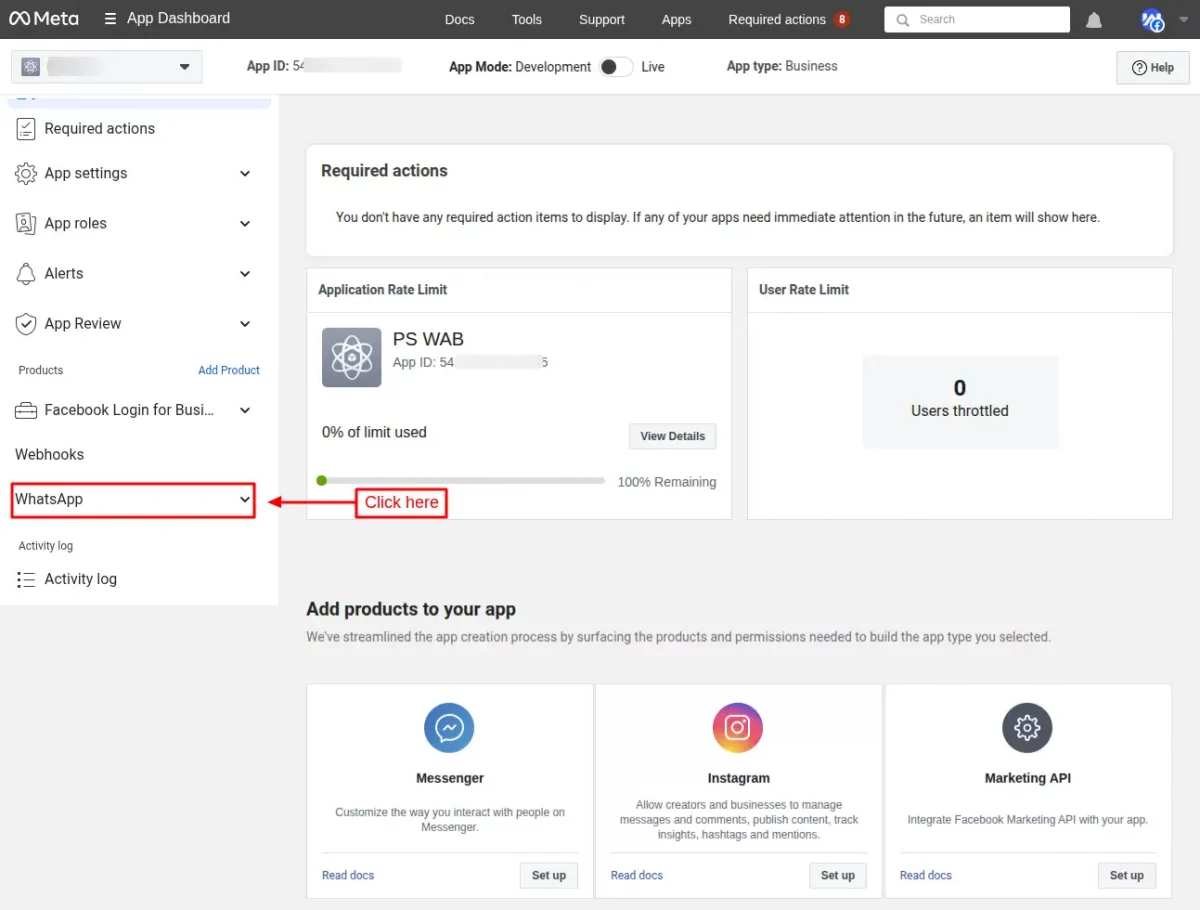
After verifying all the details and clicking the “Go to dashboard” button, you’ll be redirected to the App dashboard, and click on the WhatsApp tab available on the app dashboard page.
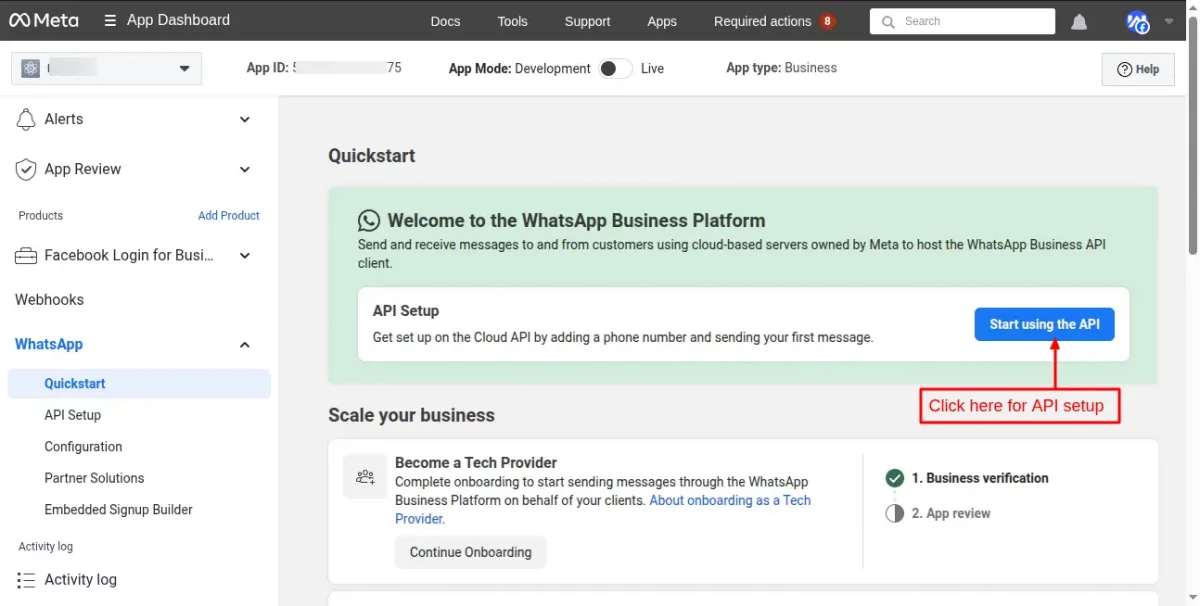
API Setup:
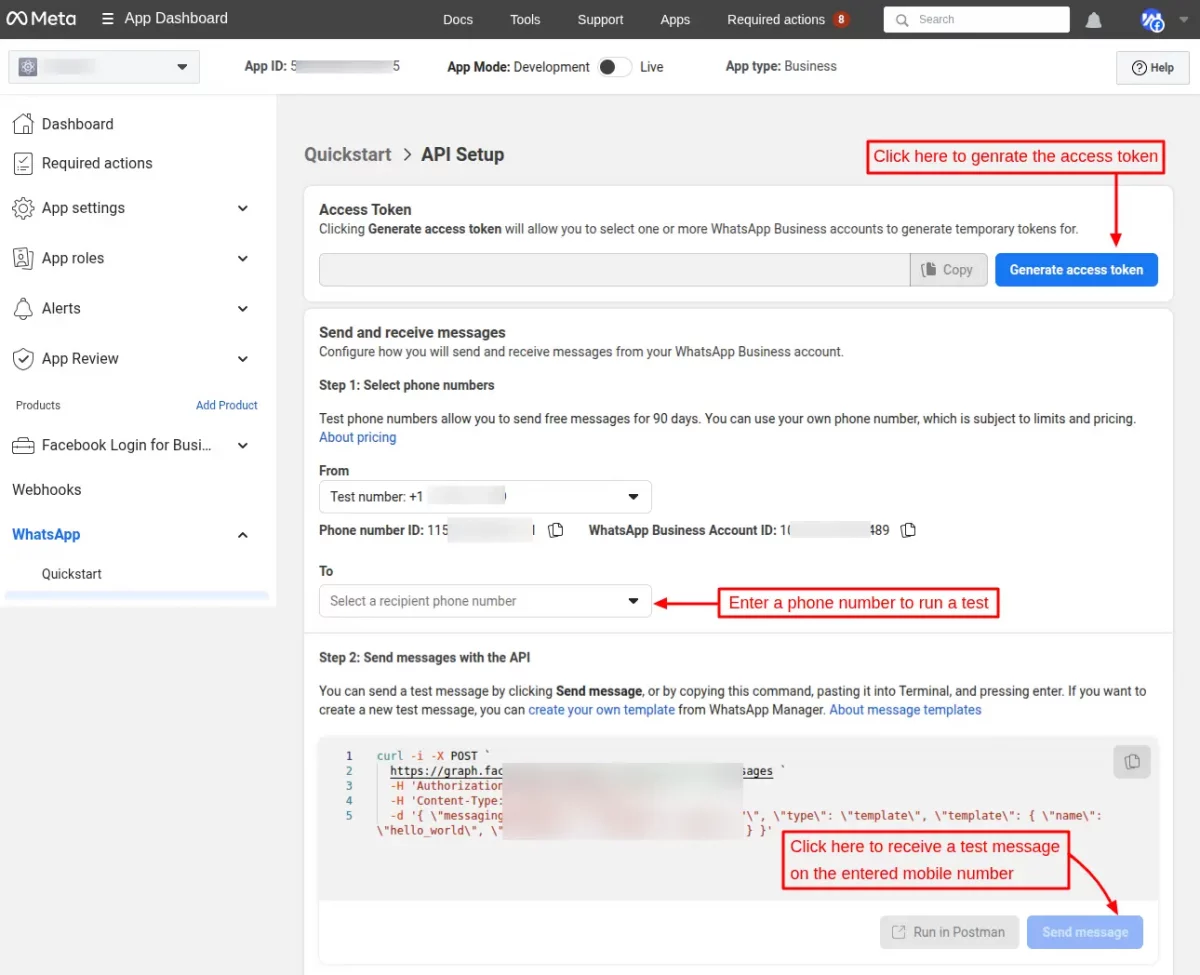
First, click on the “Start using the API” button.
After generating a temporary access token, send a test message on WhatsApp.
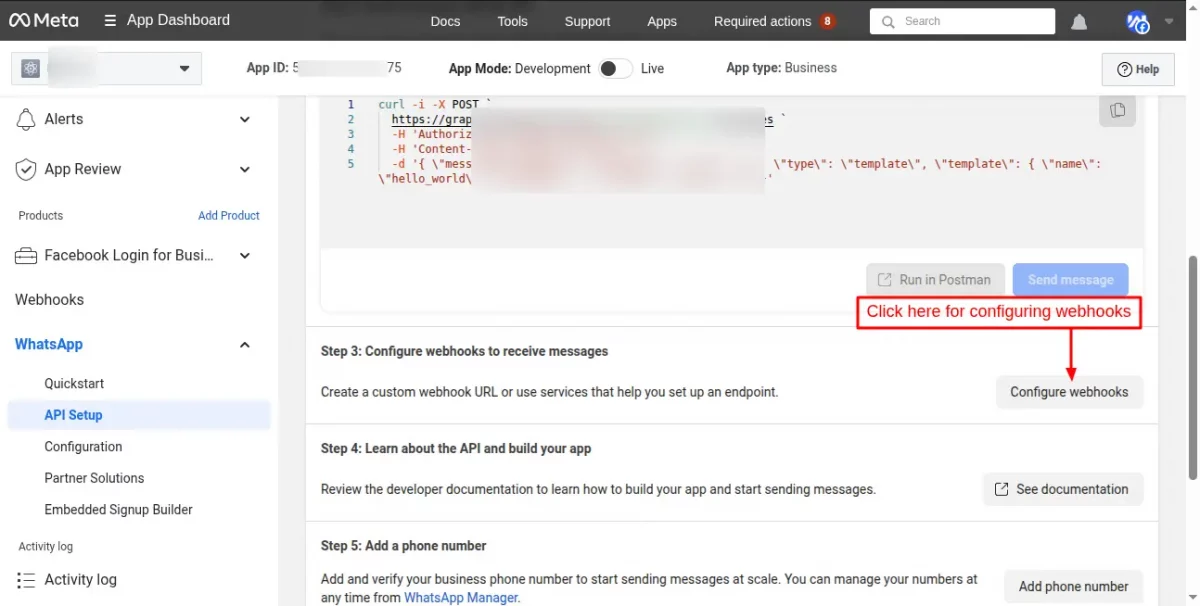
Moving forward to the next step, “Configure webhooks”.
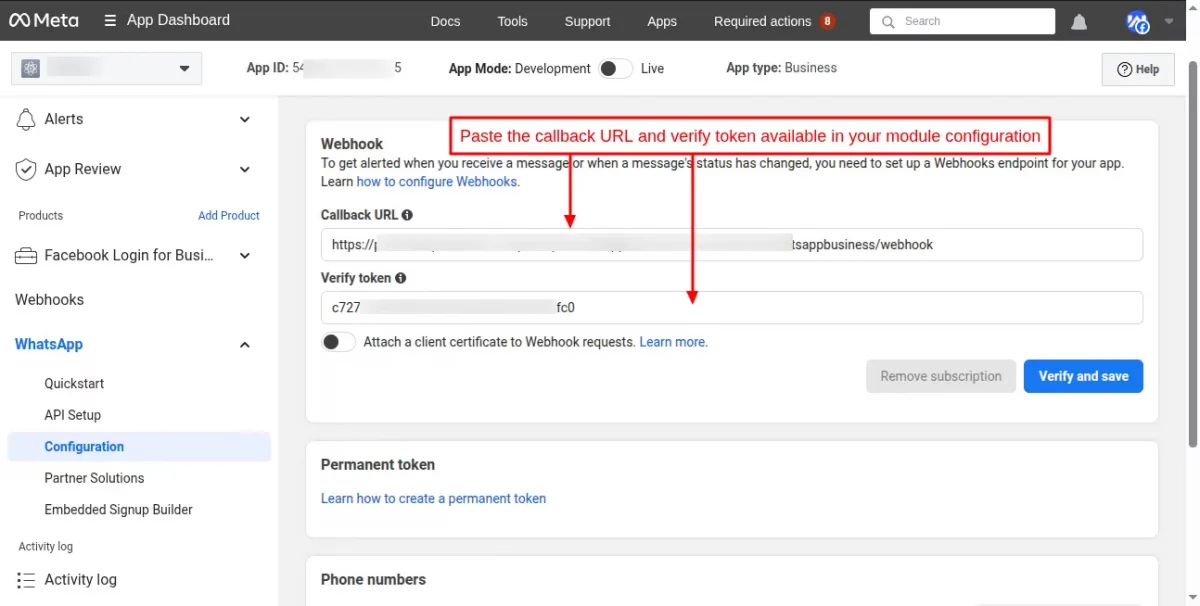
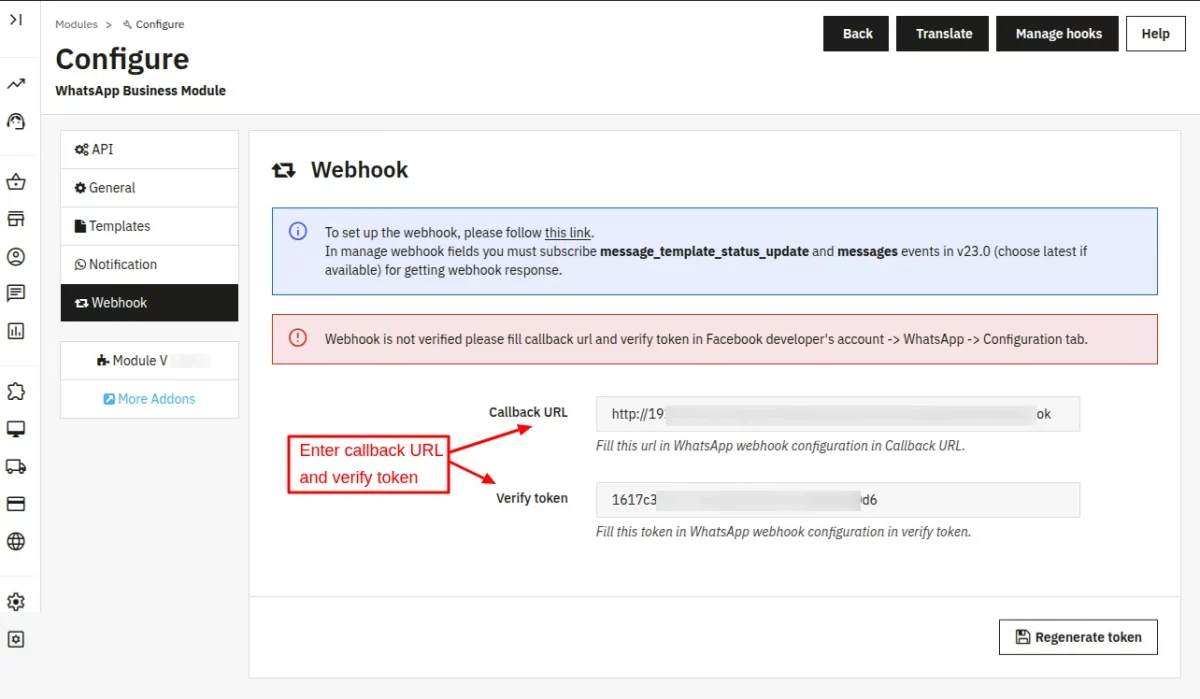
Now, enter the callback URL and verify token (which is already available in the module configuration under the “webhook” tab.
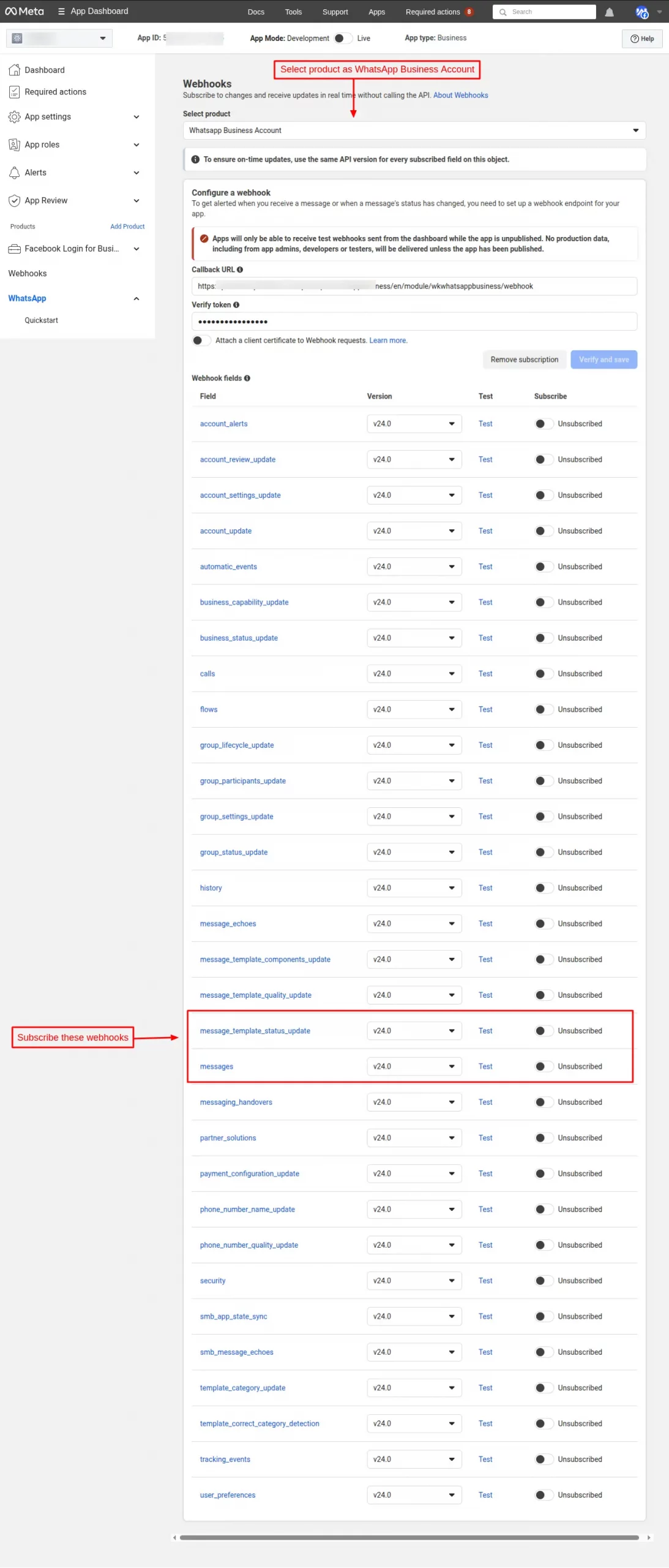
Now, select “WhatsApp Business Account” as product and subscribe message_template_status_update and messages events in v24.0.
Note: API version gets updated from time to time. You can use the latest version.
To go live, you will need to add a phone number.
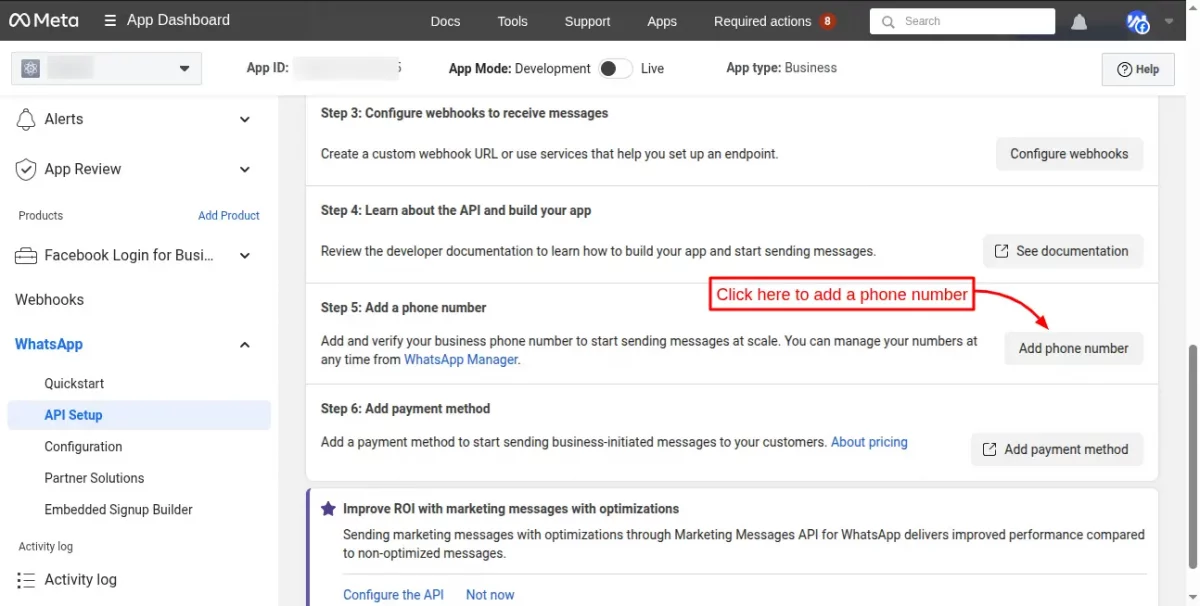
Add Phone Number:
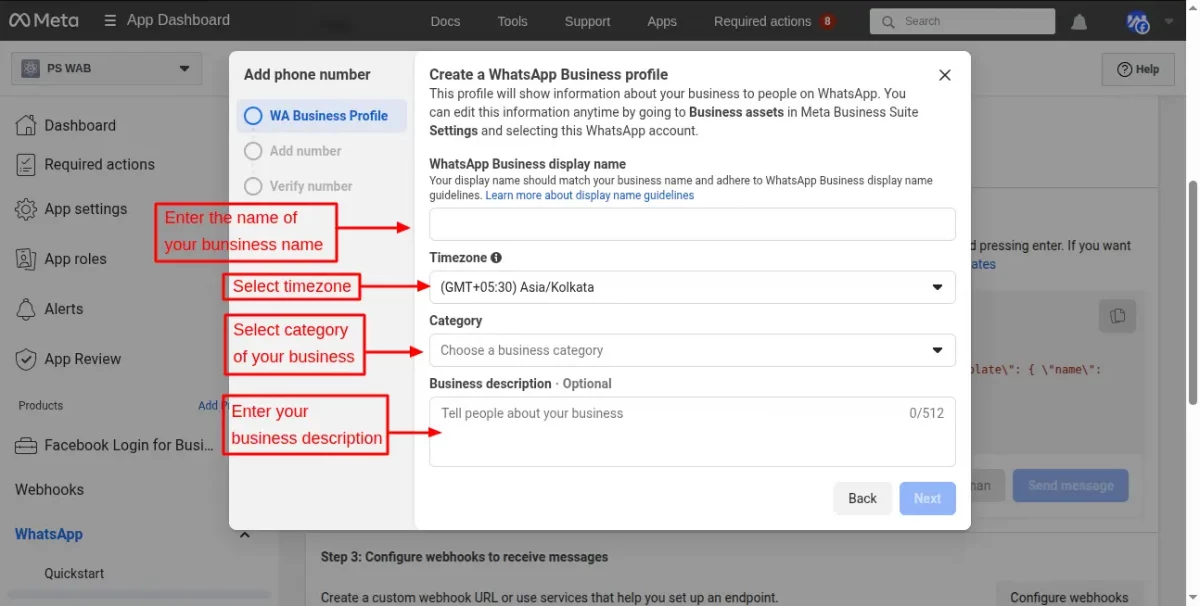
After clicking on the “Add phone number” button, a pop-up will be displayed to the user to enter the business name, category, and description.
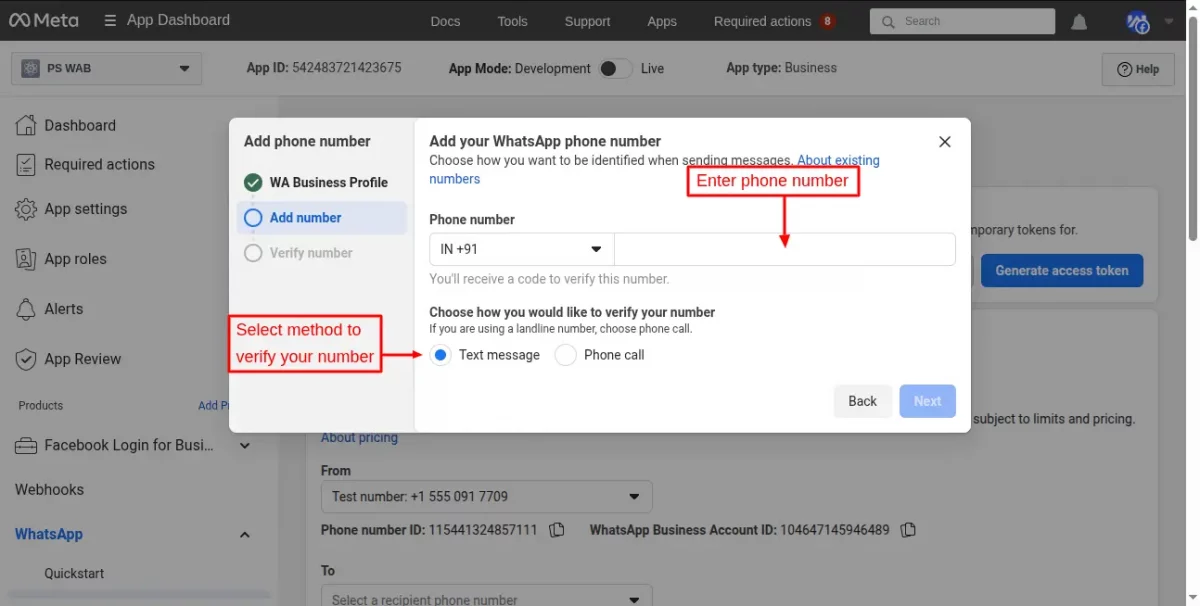
Now, you have to enter your phone number and verify it.
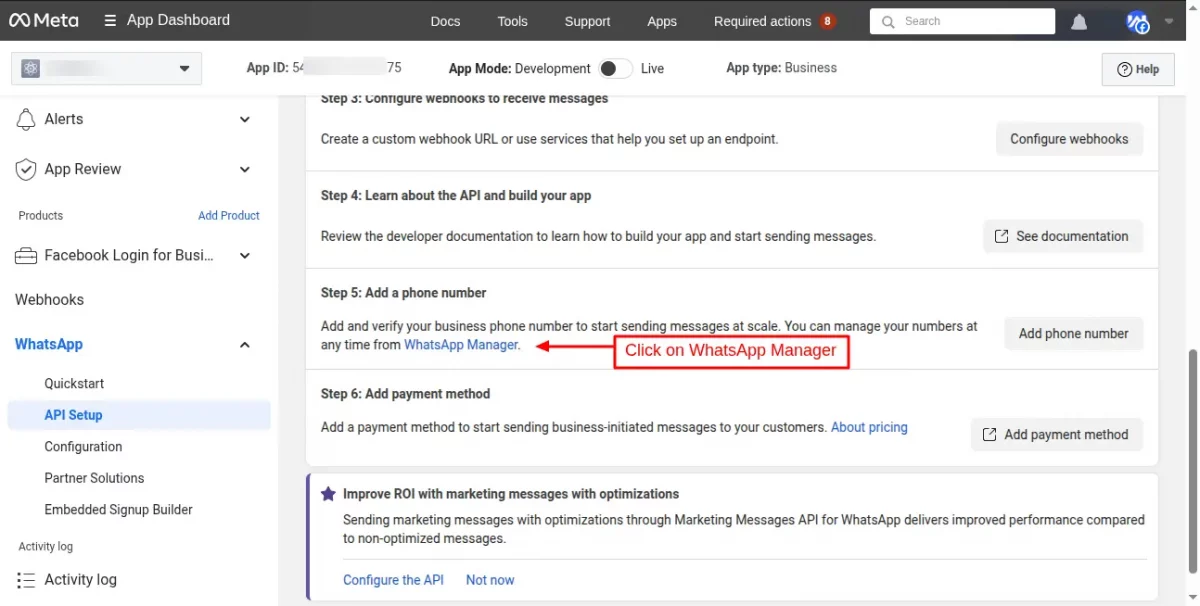
After verifying the mobile number, you have to click on the “WhatsApp Manager” link available in the “Add a phone number” step.
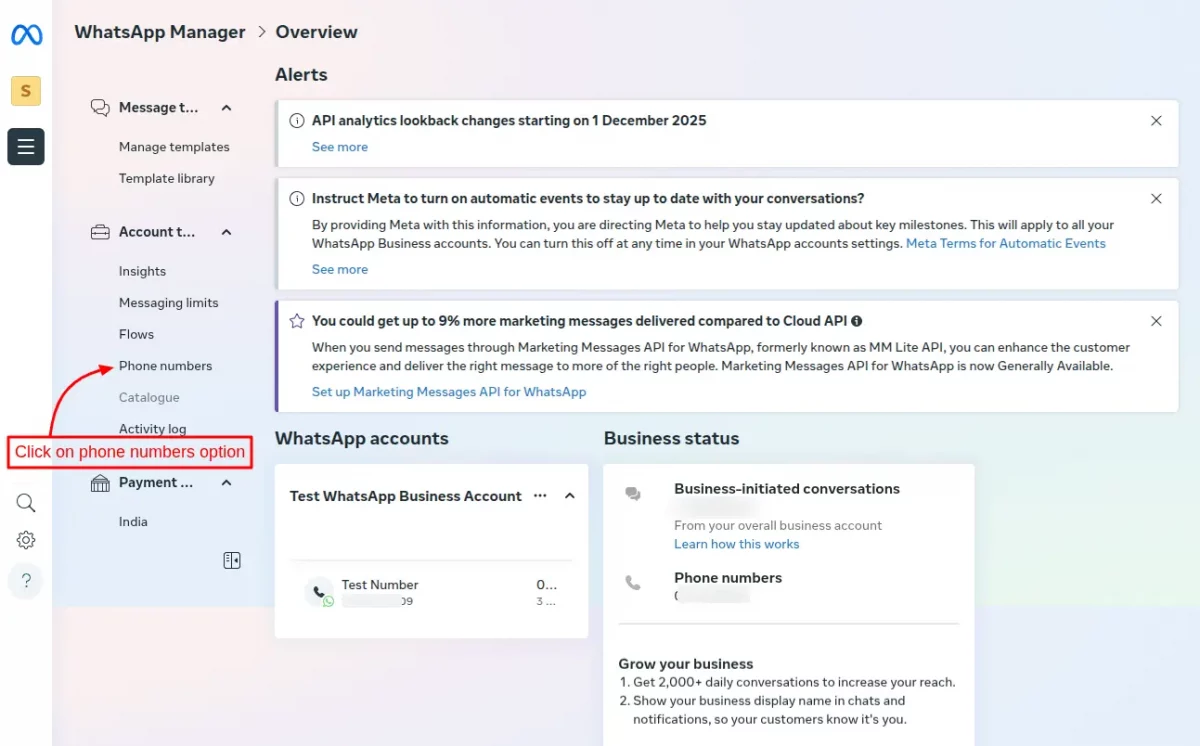
Then you’ll be redirected to the WhatsApp Manager dashboard, and you need to click on the “Phone number” option available in the “Account Tools” tab.
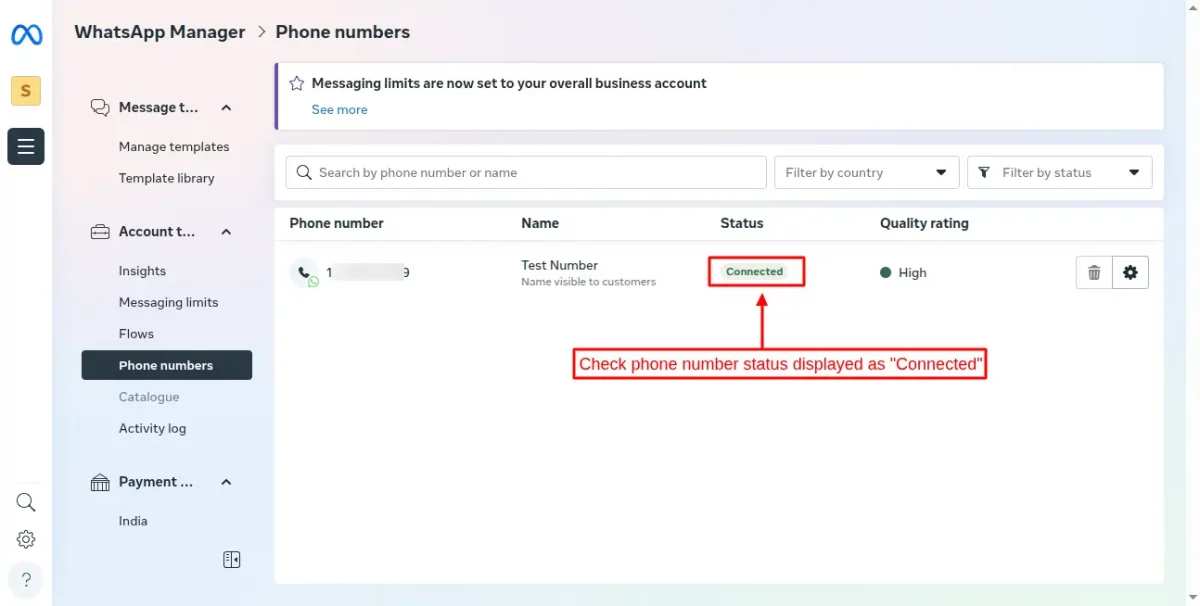
Now, check whether the phone number status is displayed as “Connected“.
Please note: It may take some time to change the phone number status from “Pending” to “Connected”.
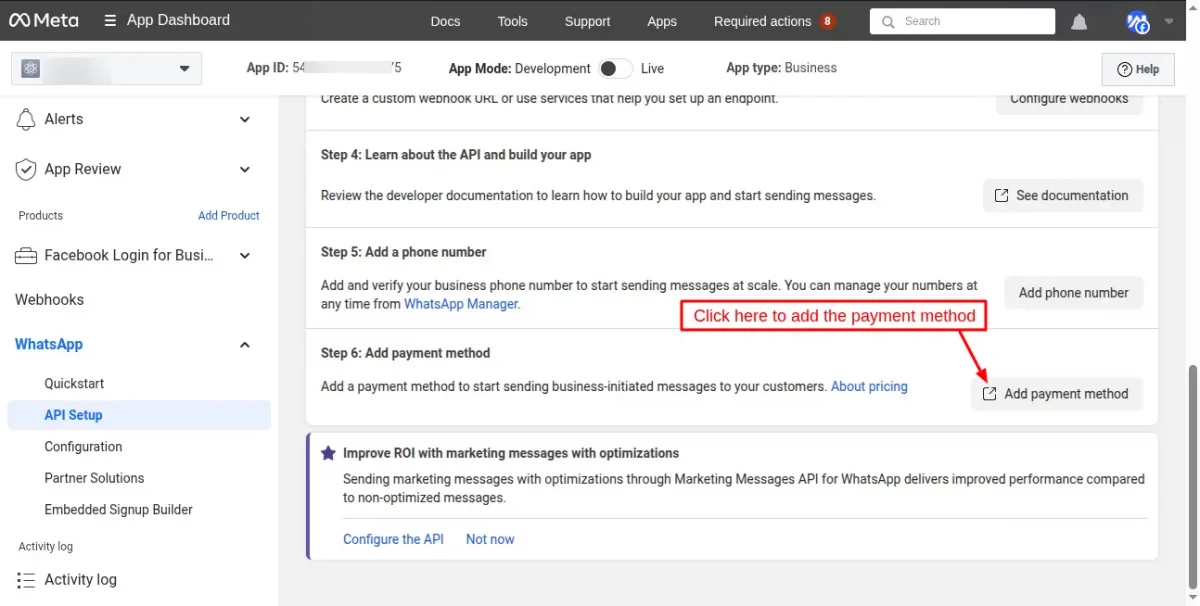
Now, go back to the “App dashboard” for adding the payment method.
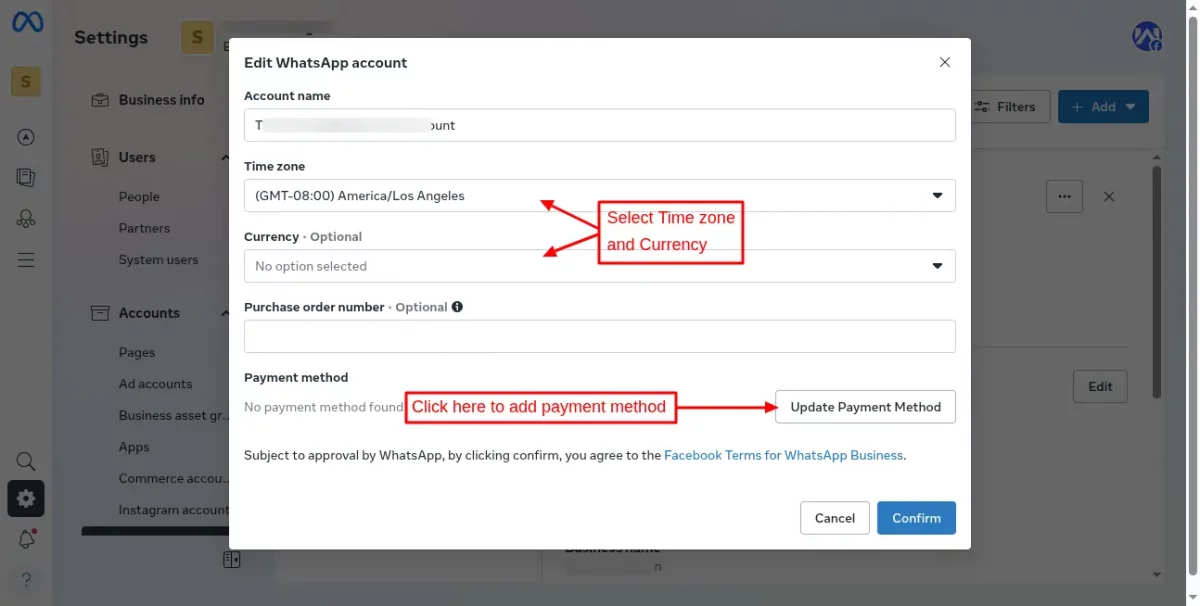
Click on the edit button to add the payment method.
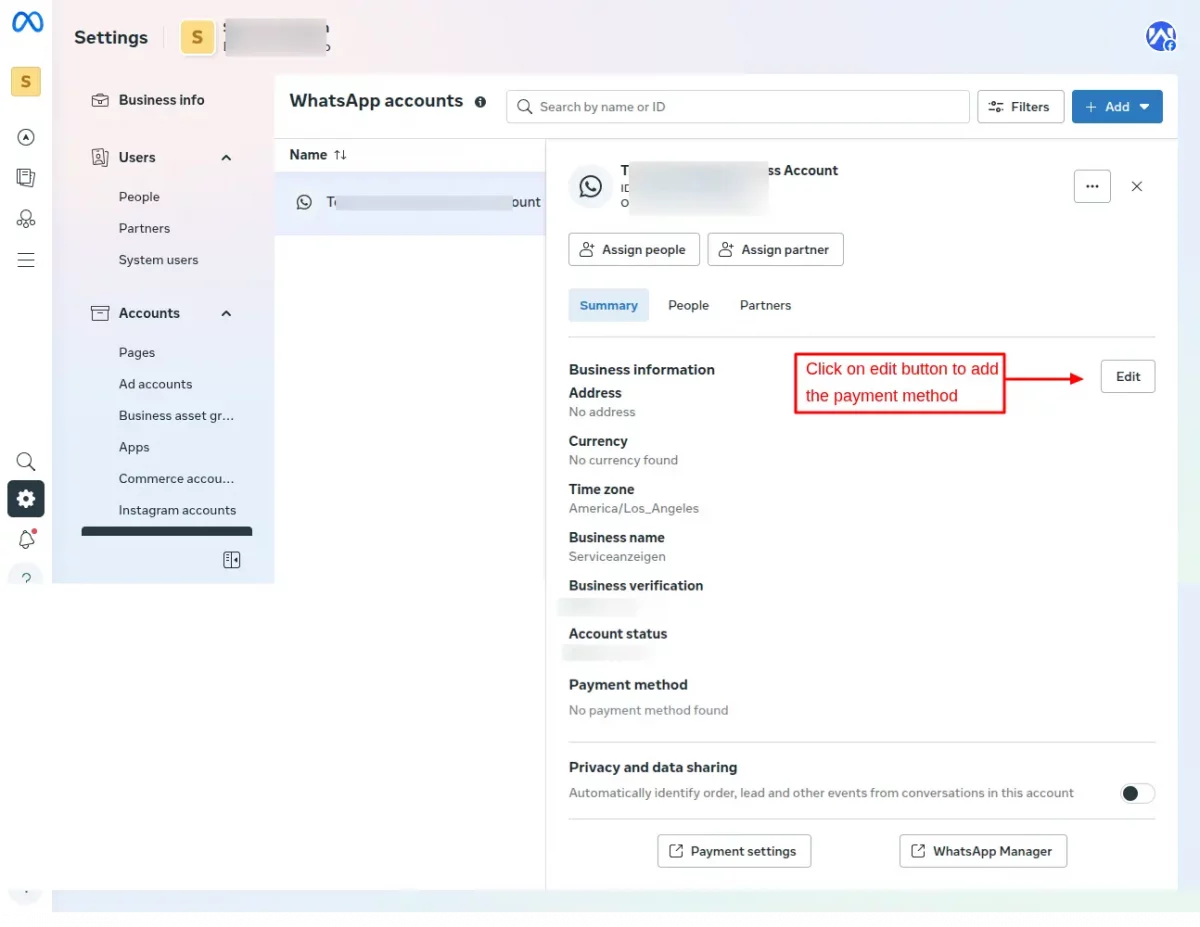
Now, click on the “Update Payment Method” option and enter the required details to add the payment option.
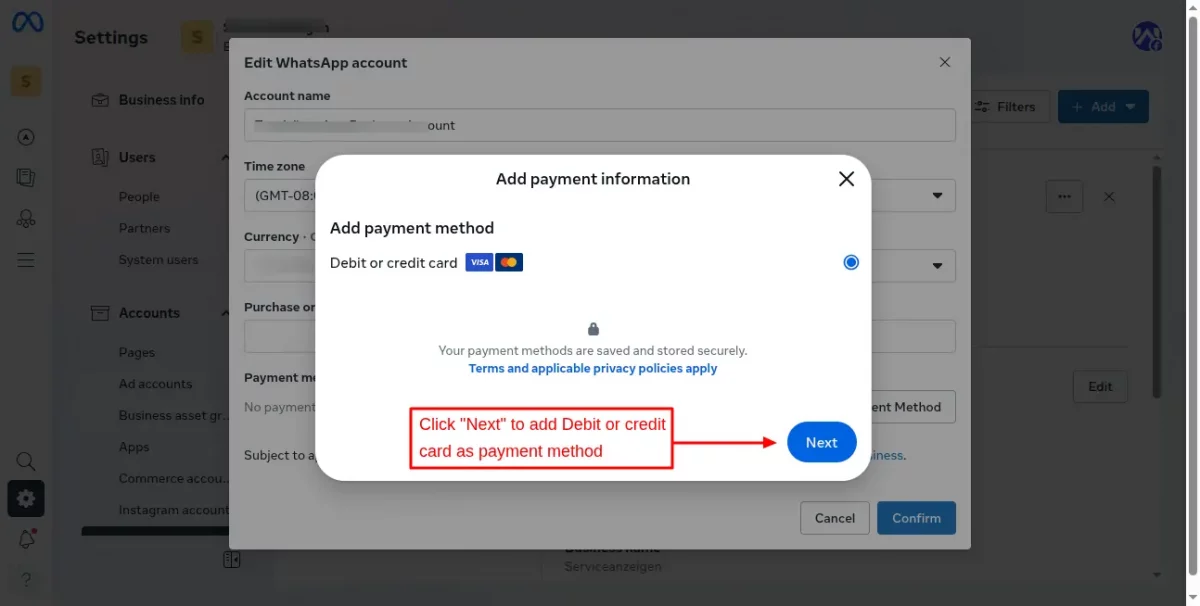
Now, a pop-up will be displayed to add a debit/credit card for adding the payment method.
How to Generate Permanent Token
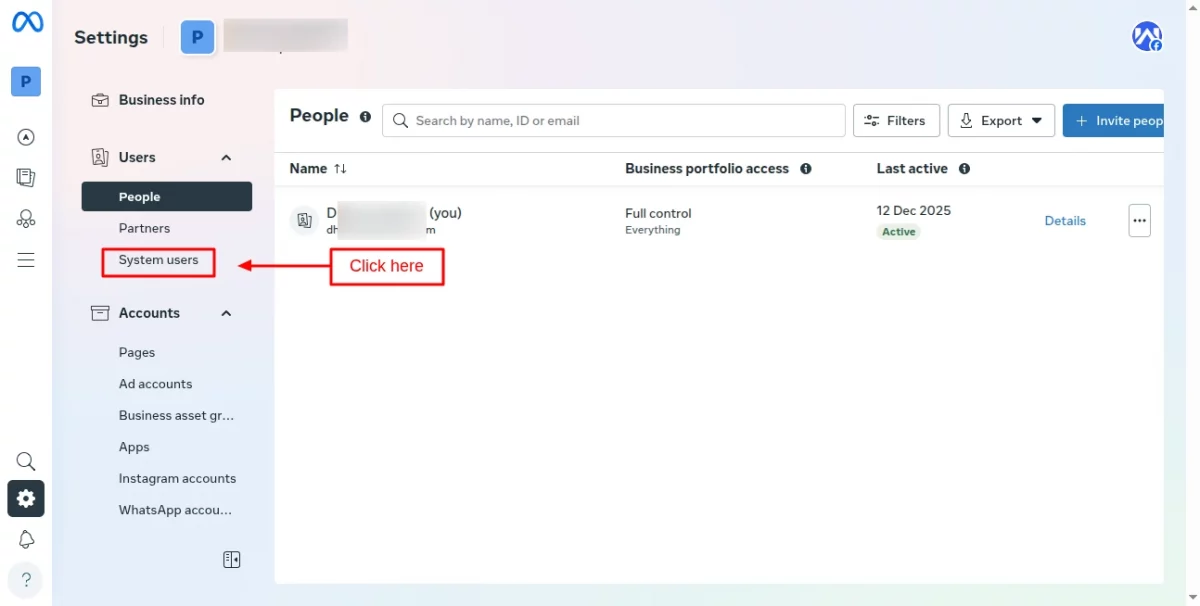
Firstly, go to Business Settings and select the account with which your app is associated.

Under Users, click on ‘System users’.
Now, click on the ‘Add’ button.
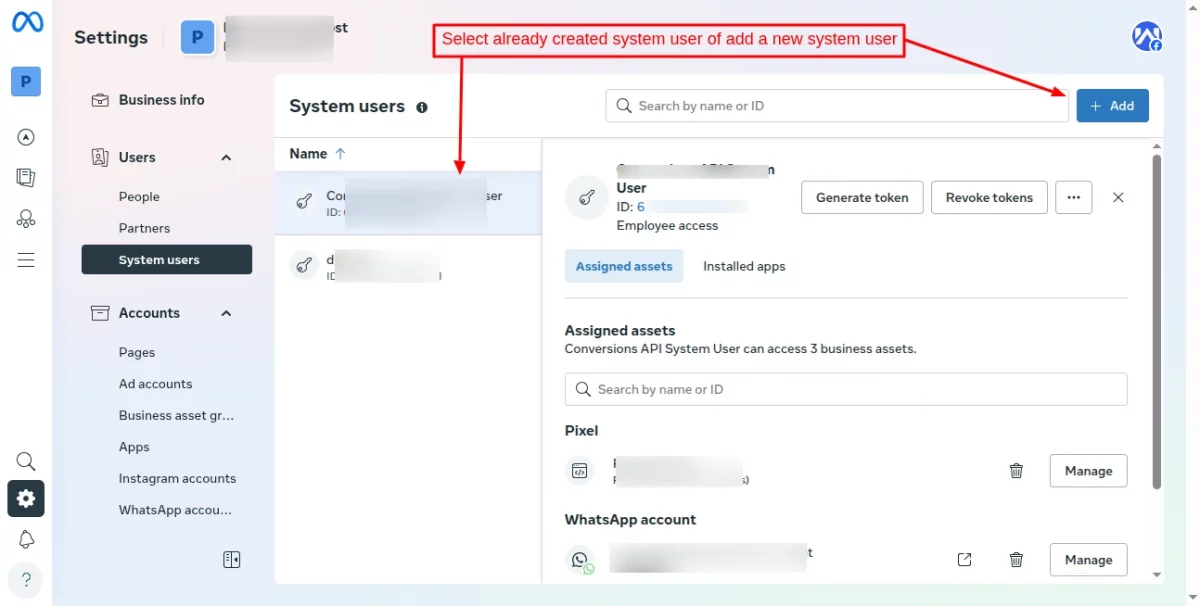
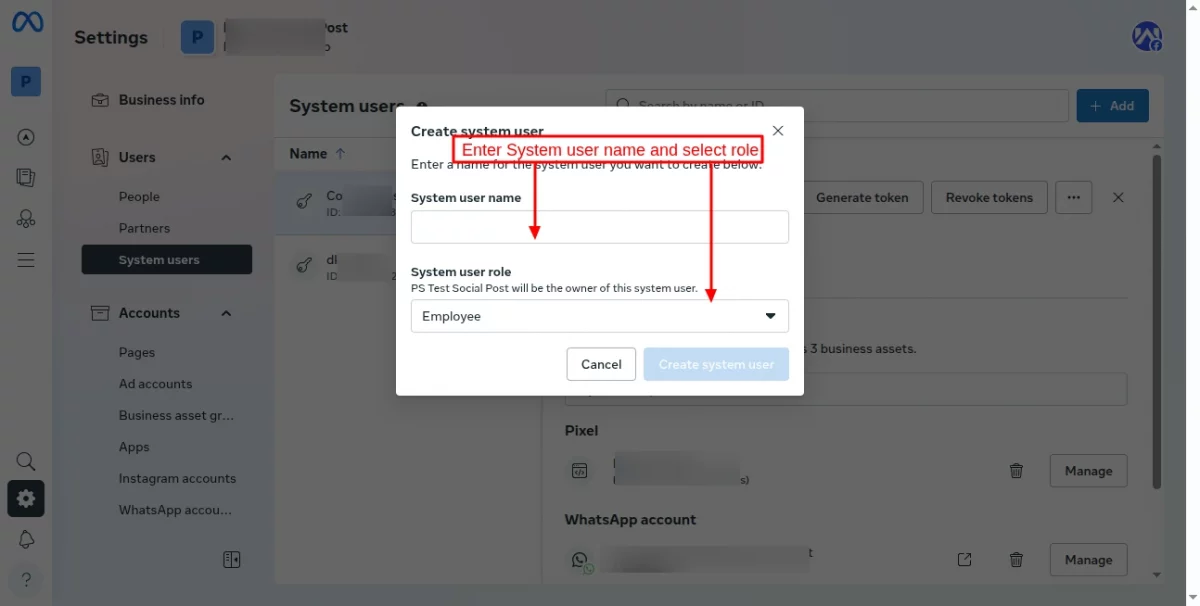
On clicking the ‘Add’ button, a pop-up appears on the page where you need to specify the system user name, select ‘Admin’ as the system user role, and click on the ‘Create system user’ button.
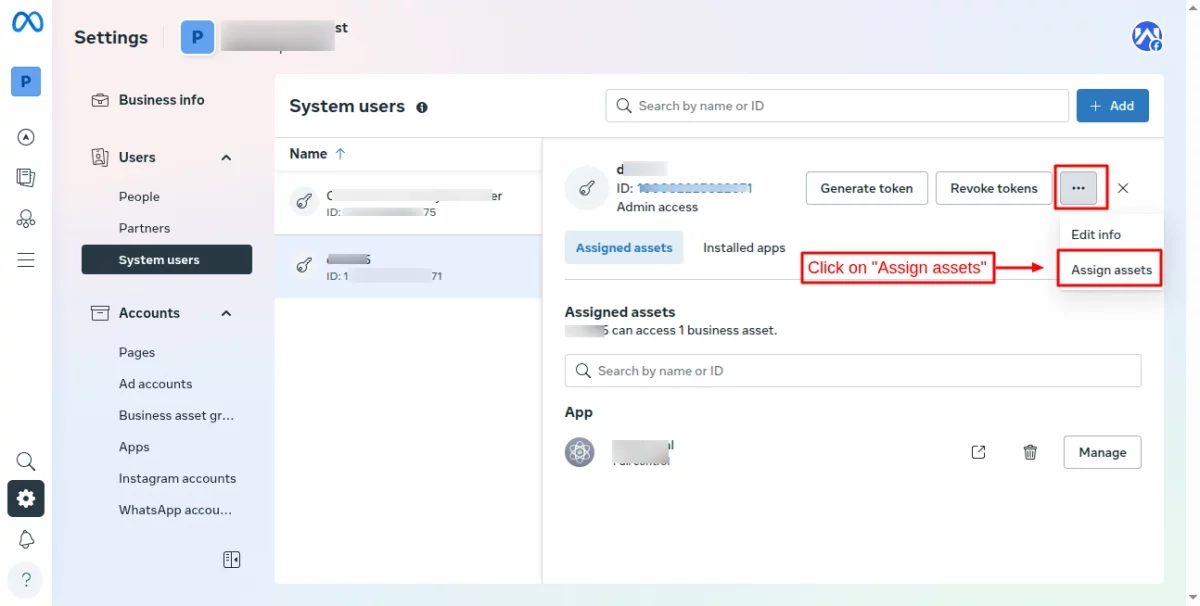
After creating/selecting the system user, you have to click on the “Assign assets” button.
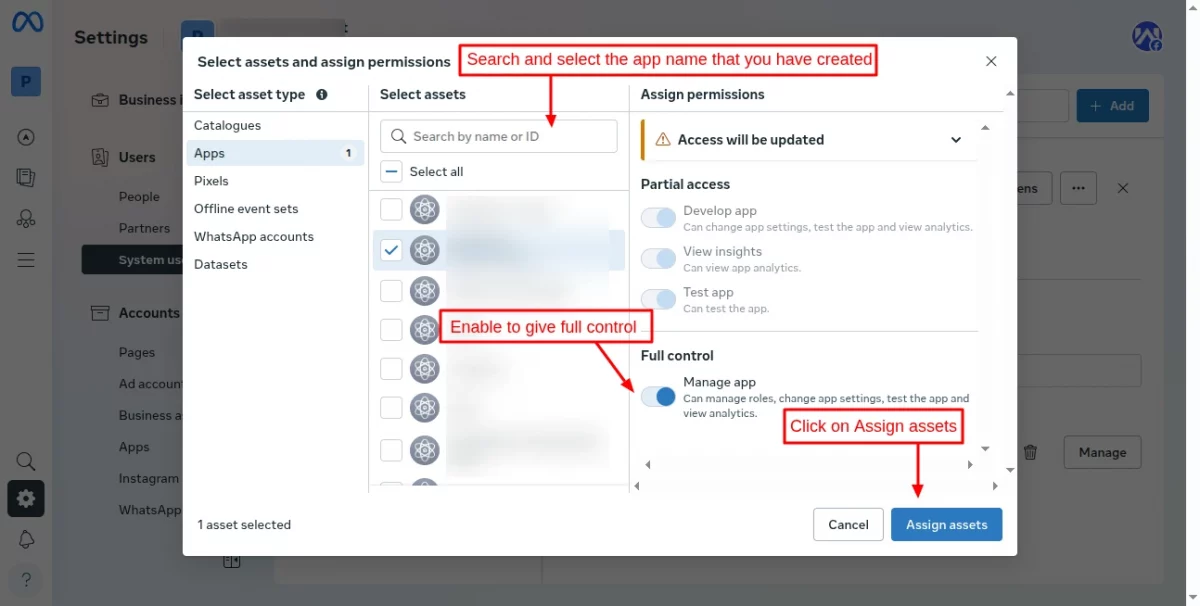
Now, the admin has to search for and select the app that you have created and give full control to the app.
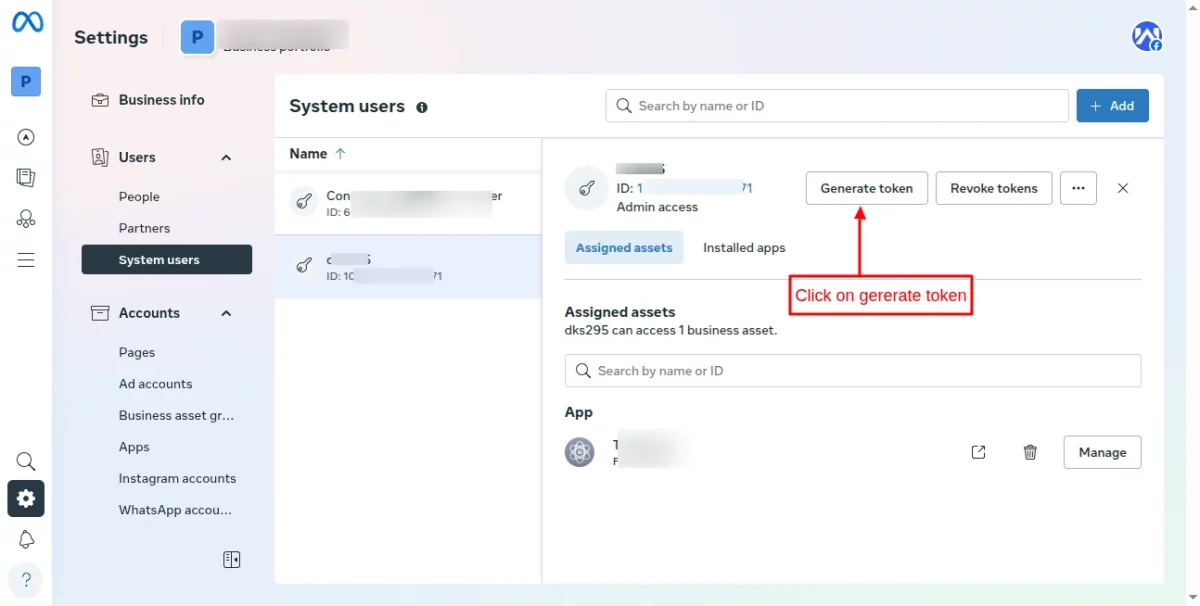
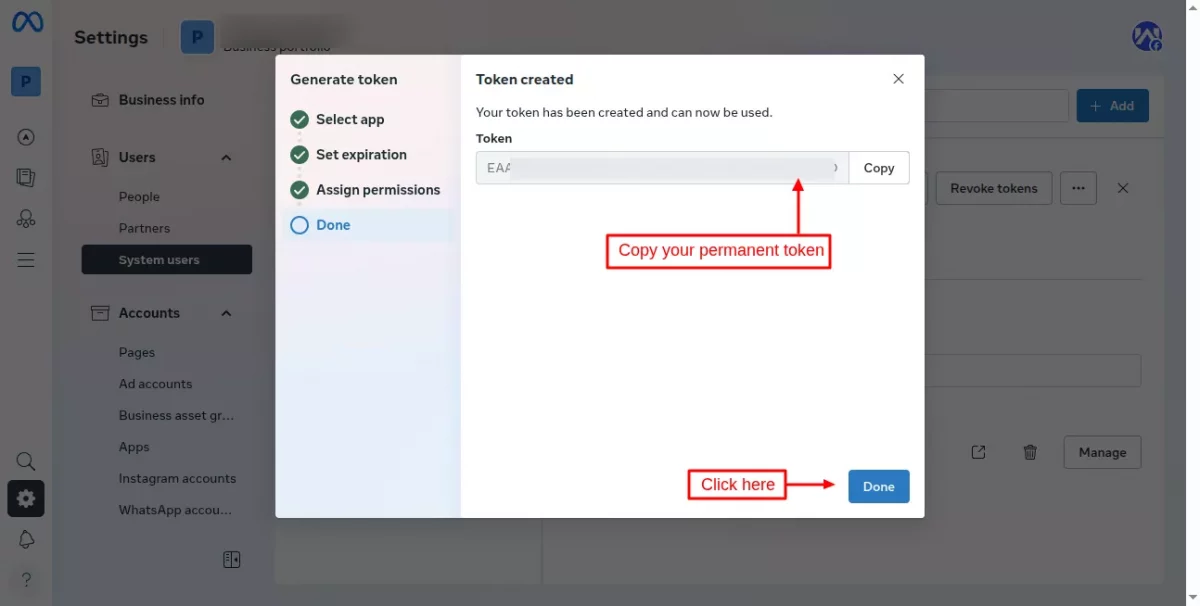
Click on the ‘Generate token‘ button.
On clicking the button, a popup appears on the page where you need to select an app.
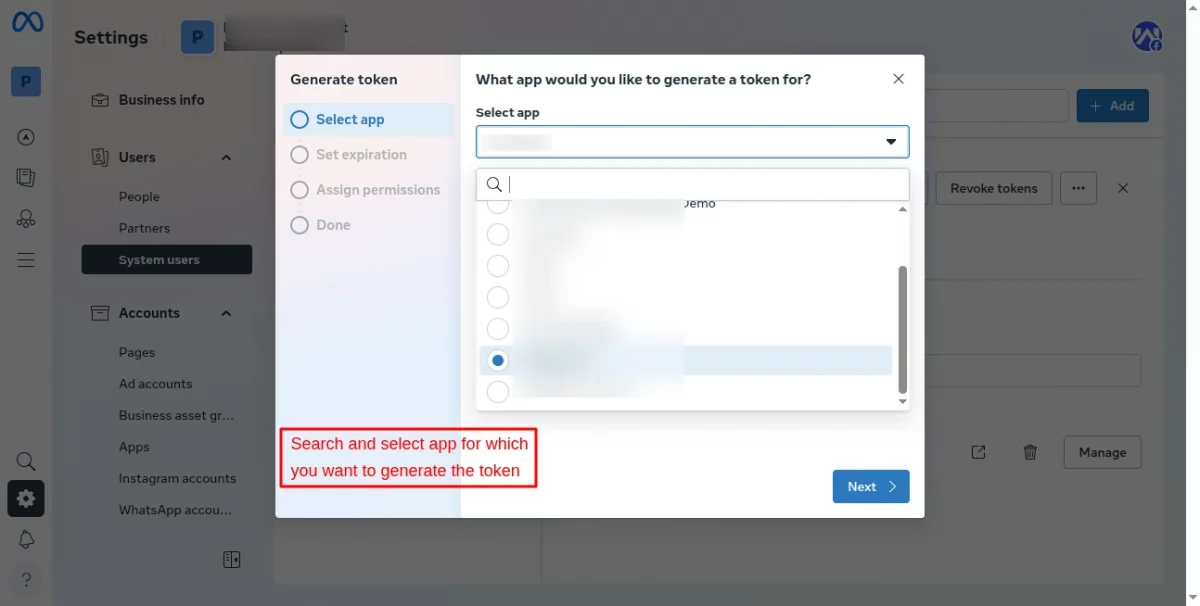
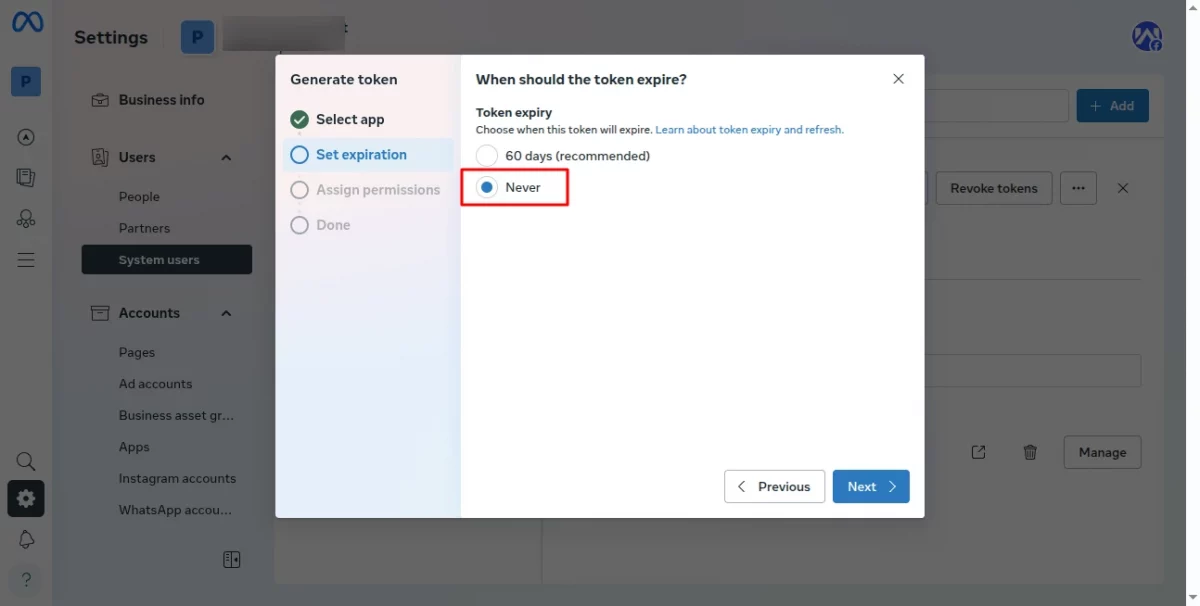
After selecting app, choose ‘Never’ for token expiration.
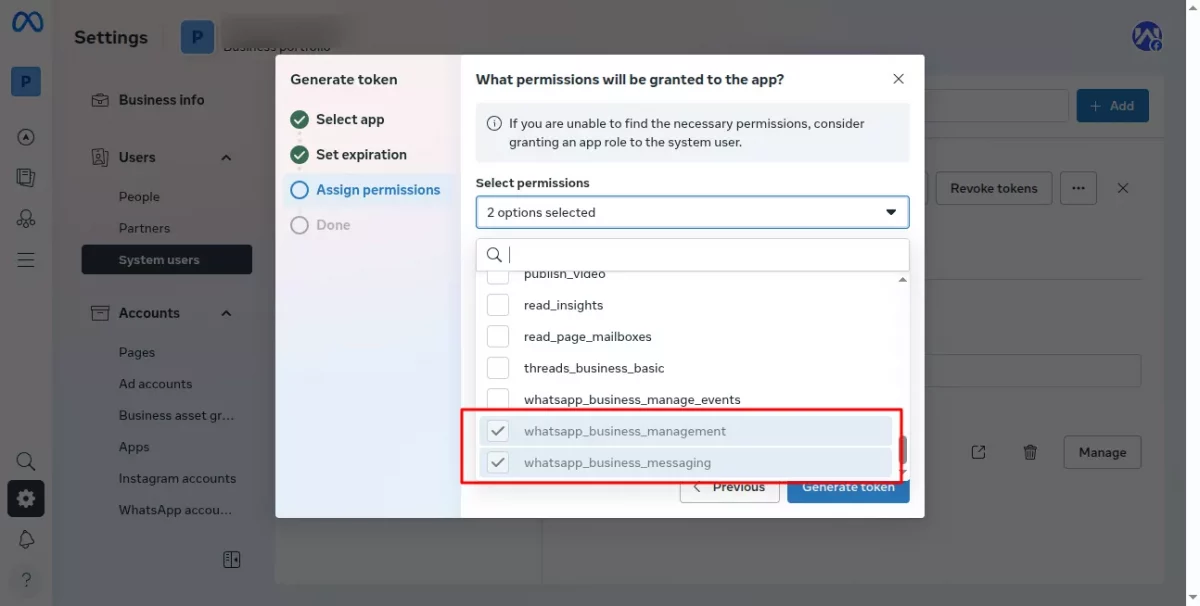
Select whatsapp_business_messaging, whatsapp_business_management permission under the “Select permissions” list.
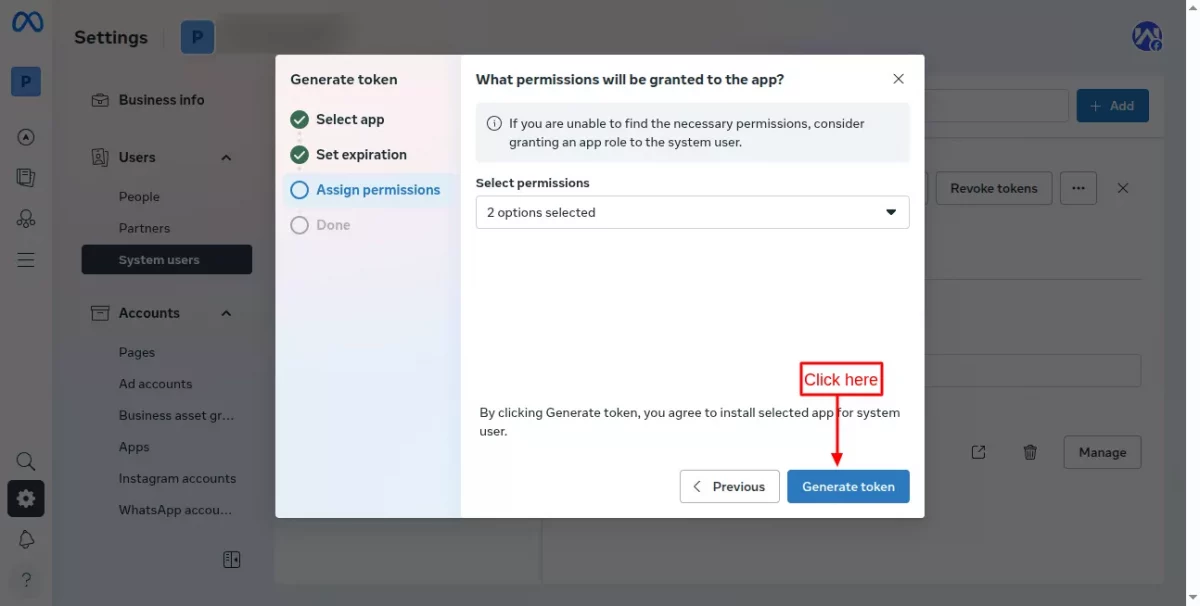
After selecting the permissions, click on ‘Generate token’ button.
Now, copy your permanent token and configure your module.
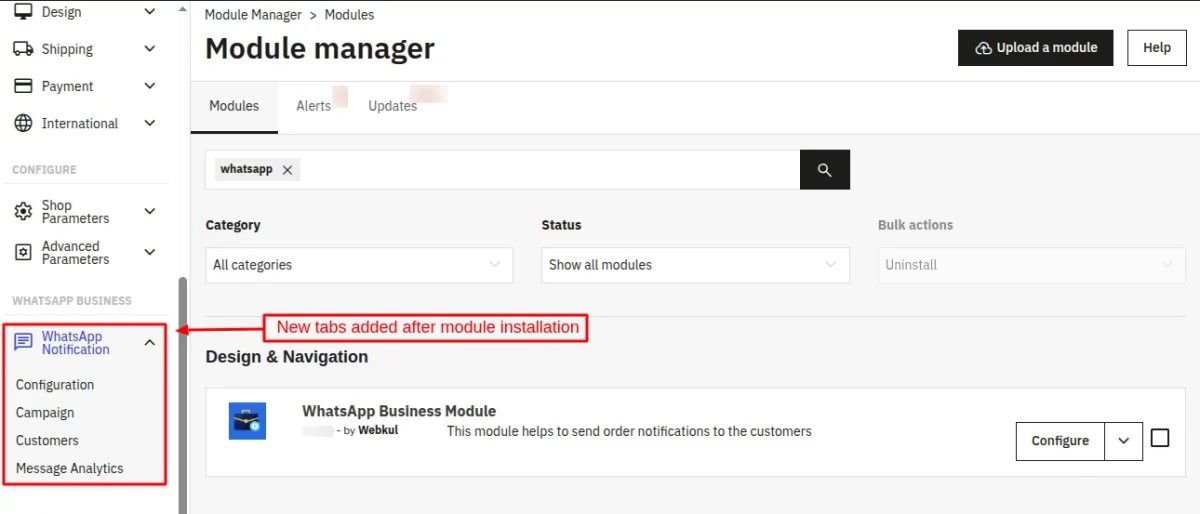
The module adds three new tabs in the back office. Those are:
1) Configuration
2) Campaign
3) Customers
4) Message Analytics
Module Configuration
Let’s understand each of them one by one. Starting with,
Tab 1: Configuration
API:
You need to enter the details like your Phone Number ID, Business Account ID, and Permanent Token to use this module.
Without these details, you will not be able to proceed further for module configuration process.
General:
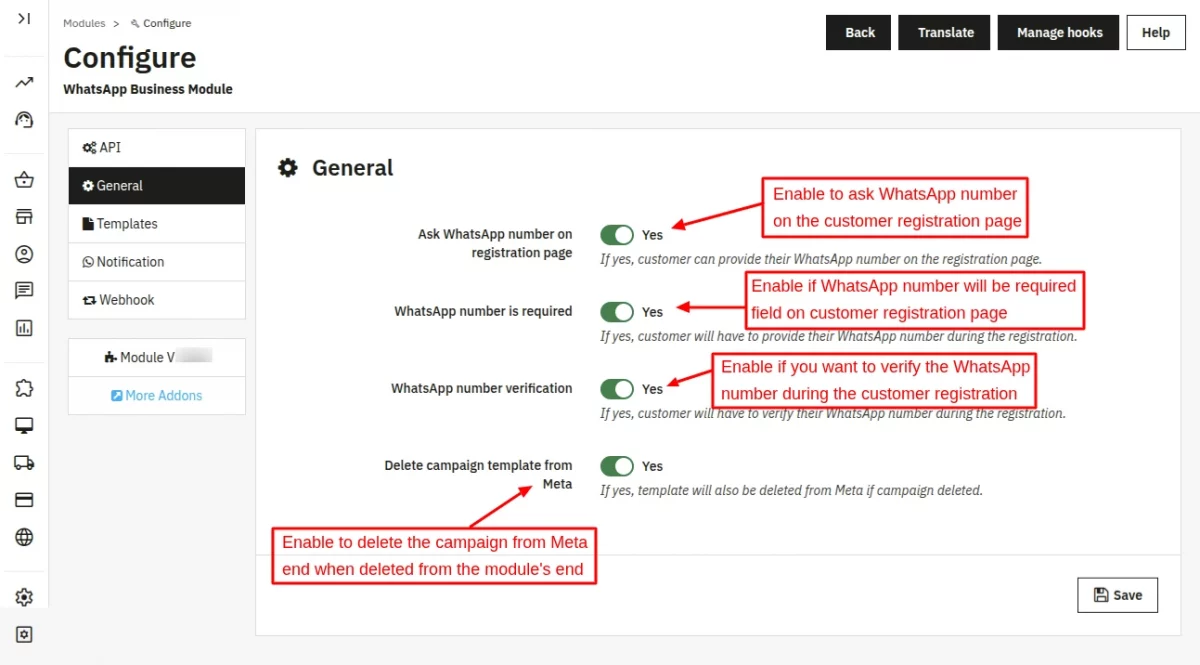
- Ask WhatsApp number on registration page: Enable this option for asking the customer to enter the WhatsApp number while registration.
- WhatsApp number is required: Enable if you want to WhatsApp number field must be required during registration.
- WhatsApp number verification: Enable, WhatsApp number must be verified during the customer registration.
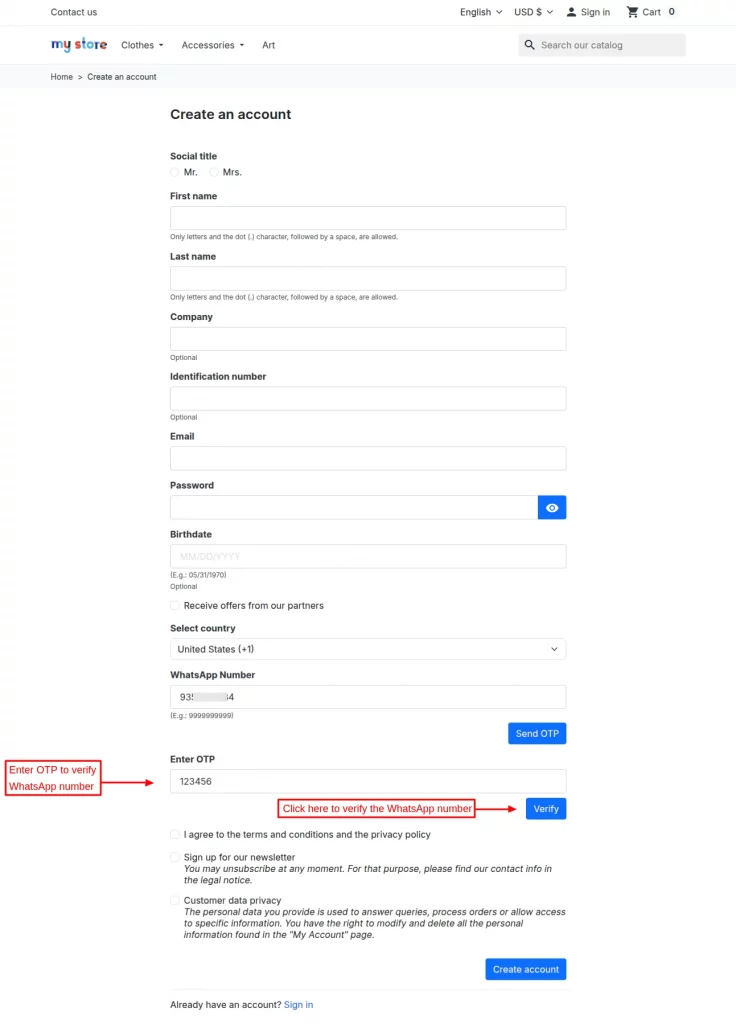
- Delete campaign template from Meta: Enable if you want to delete the campaign template from Meta’s end on deleting from the module’s end.
Templates:
You can send notifications to customers on the following 5 events:
- Order Confirmation
- Order Status Update
- Tracking Number
- Abandoned Cart
- OTP
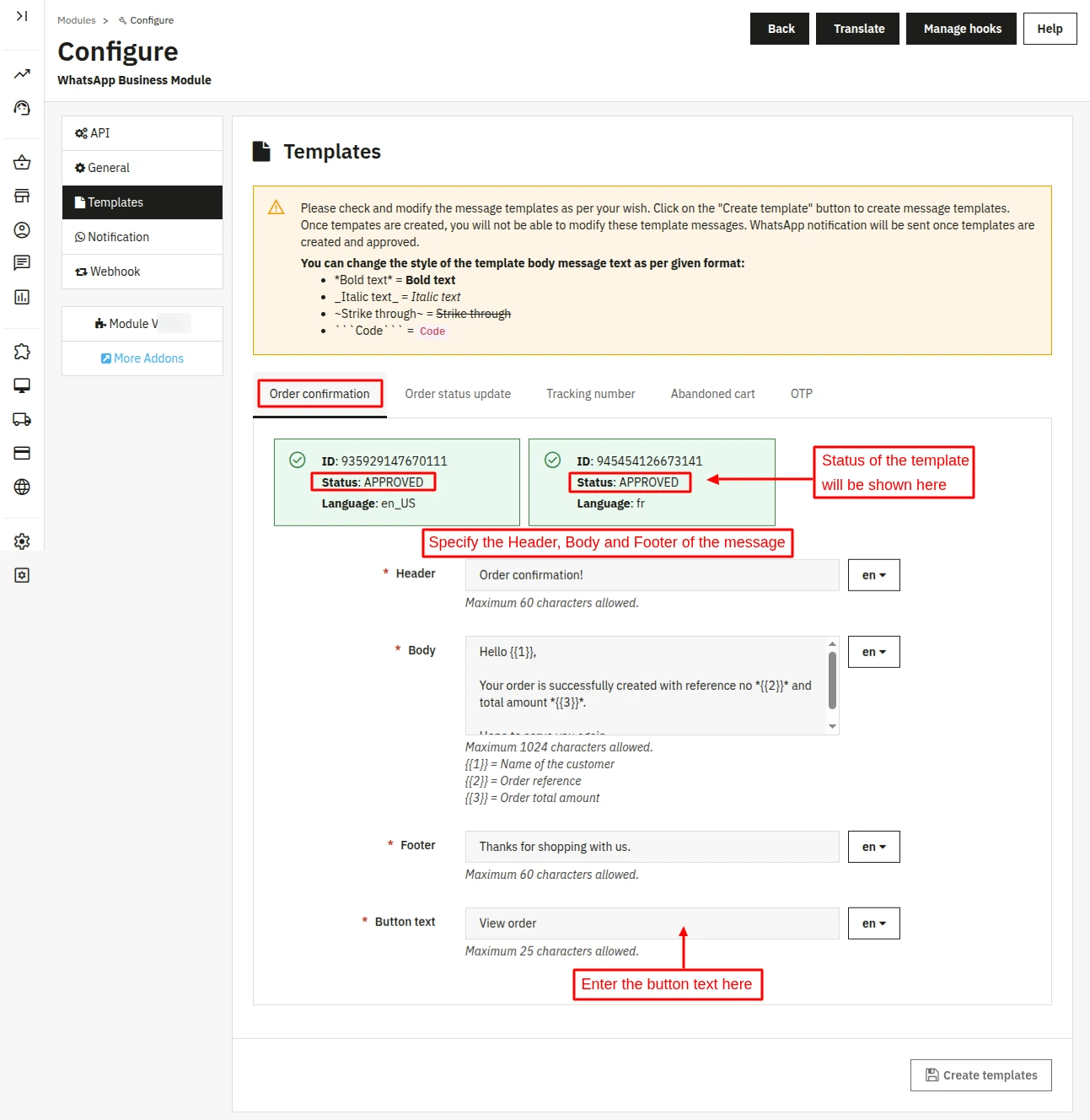
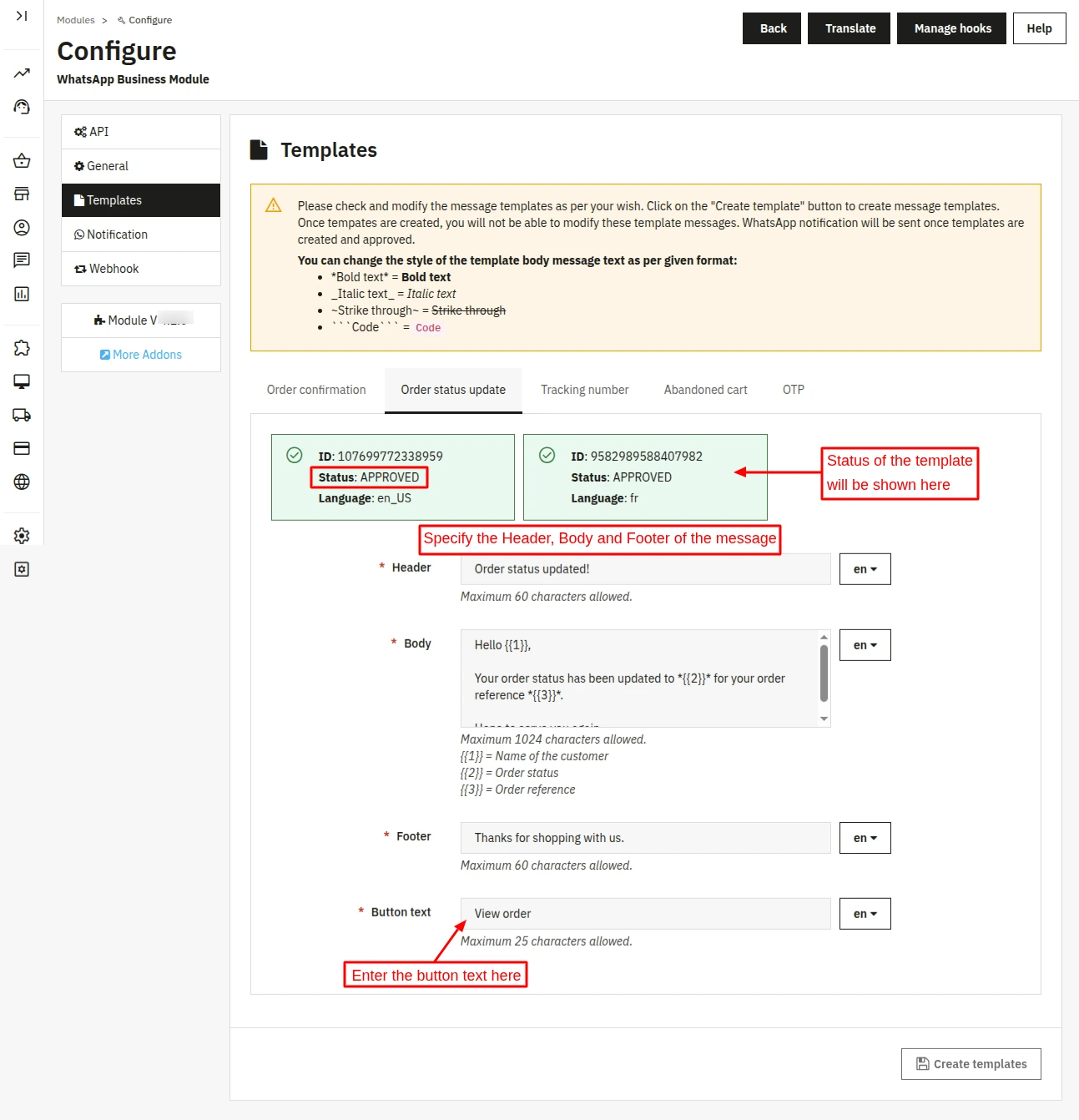
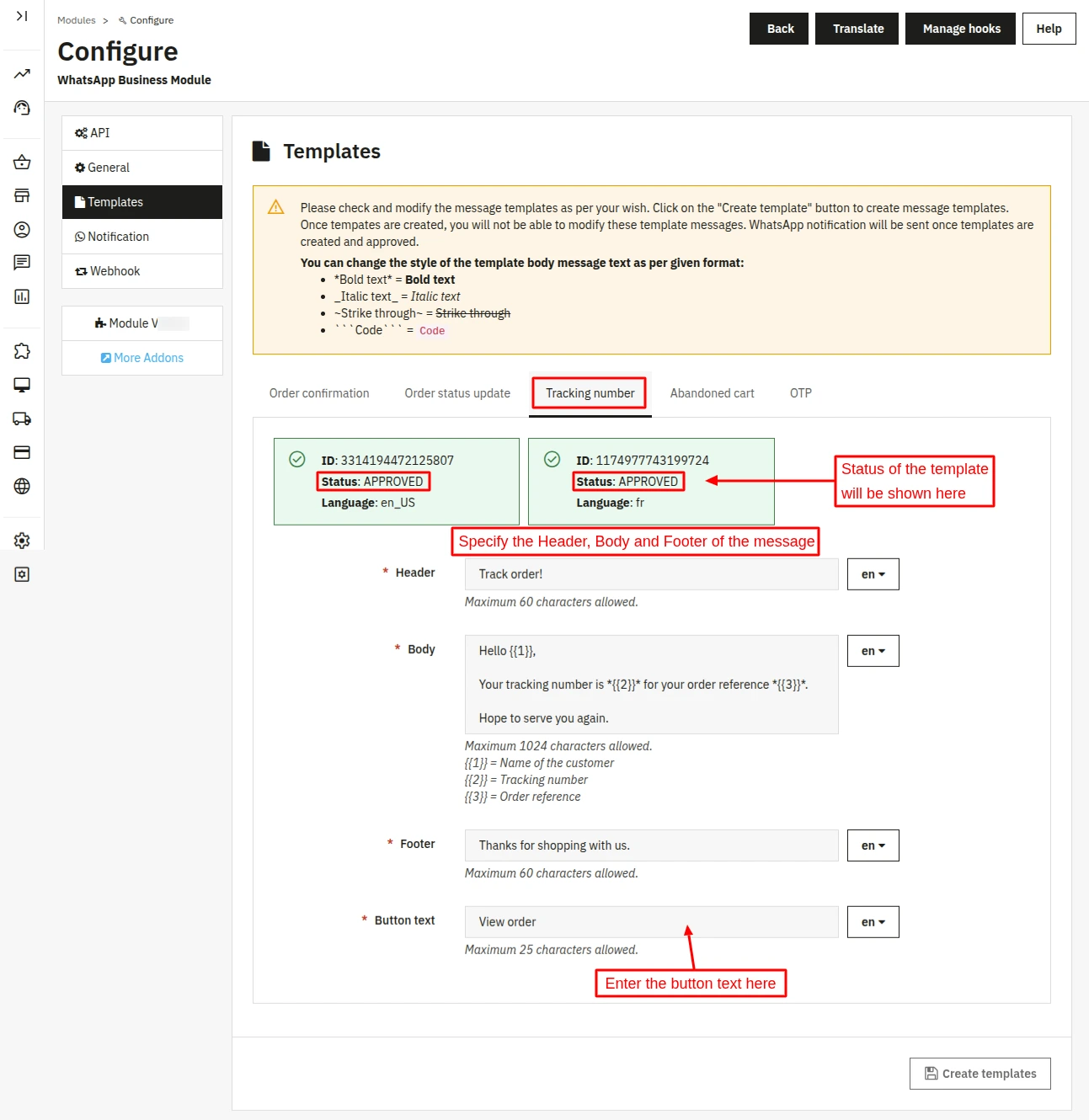
For sending the notifications, you must define its template. So here, you can set template for each event separately.
Also, note that message templates will require approval from WhatsApp before being sent out to customers.
Note: The template will be rejected by the Meta team if template content does not comply with the WhatsApp Business Messaging and Commerce policies.
In this case, you can review the rejection reason and send it for review again after updating the template contents.
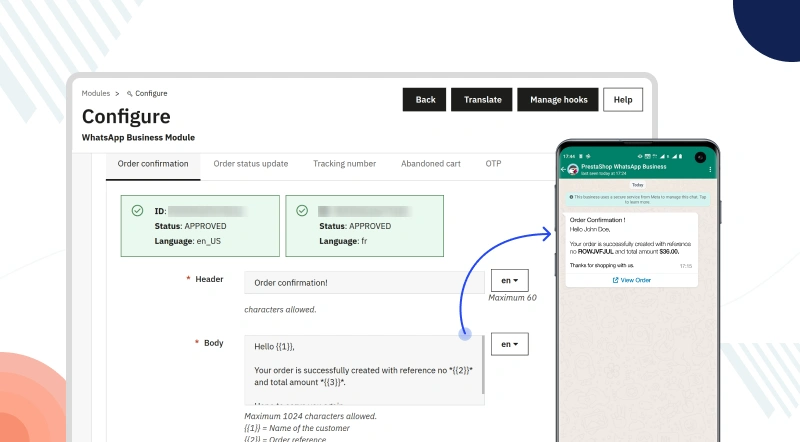
Order Confirmation:
View on WhatsApp:
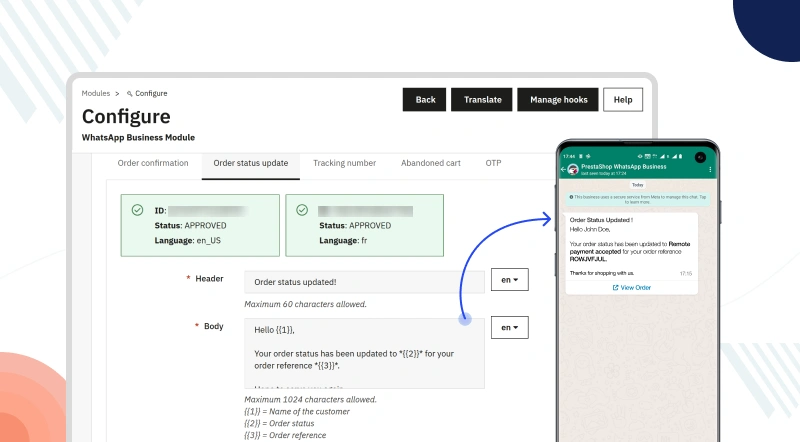
Order Status Update:
WhatsApp View:
Tracking Number:
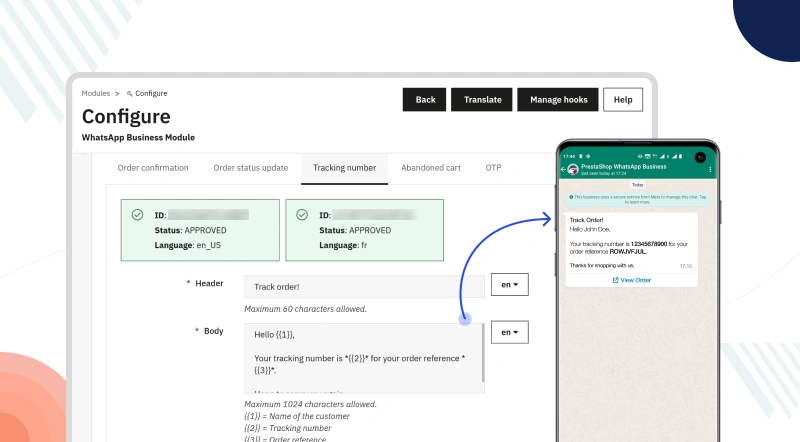
WhatsApp View:
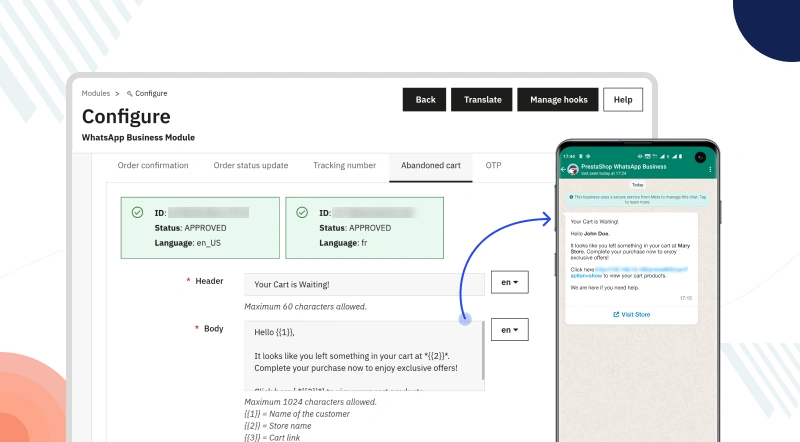
Abandoned Cart:
The admin can set the WhatsApp message template to send to the customers when their cart is abandoned.
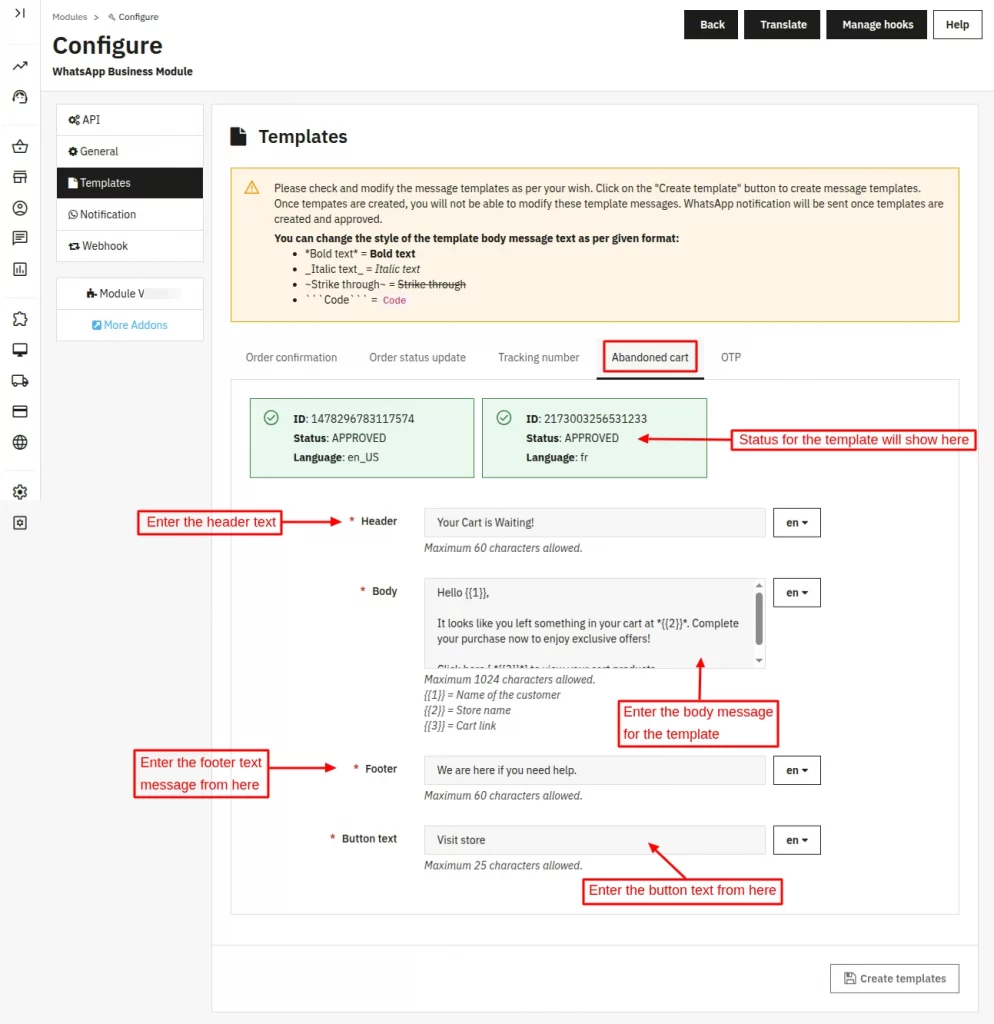
Note: A cart will be considered abandoned when a customer adds products to their cart and doesn’t purchase within 24 hours.
Also, the module will send the WhatsApp notification till 3 days when the customer’s cart is abandoned.
WhatsApp View:
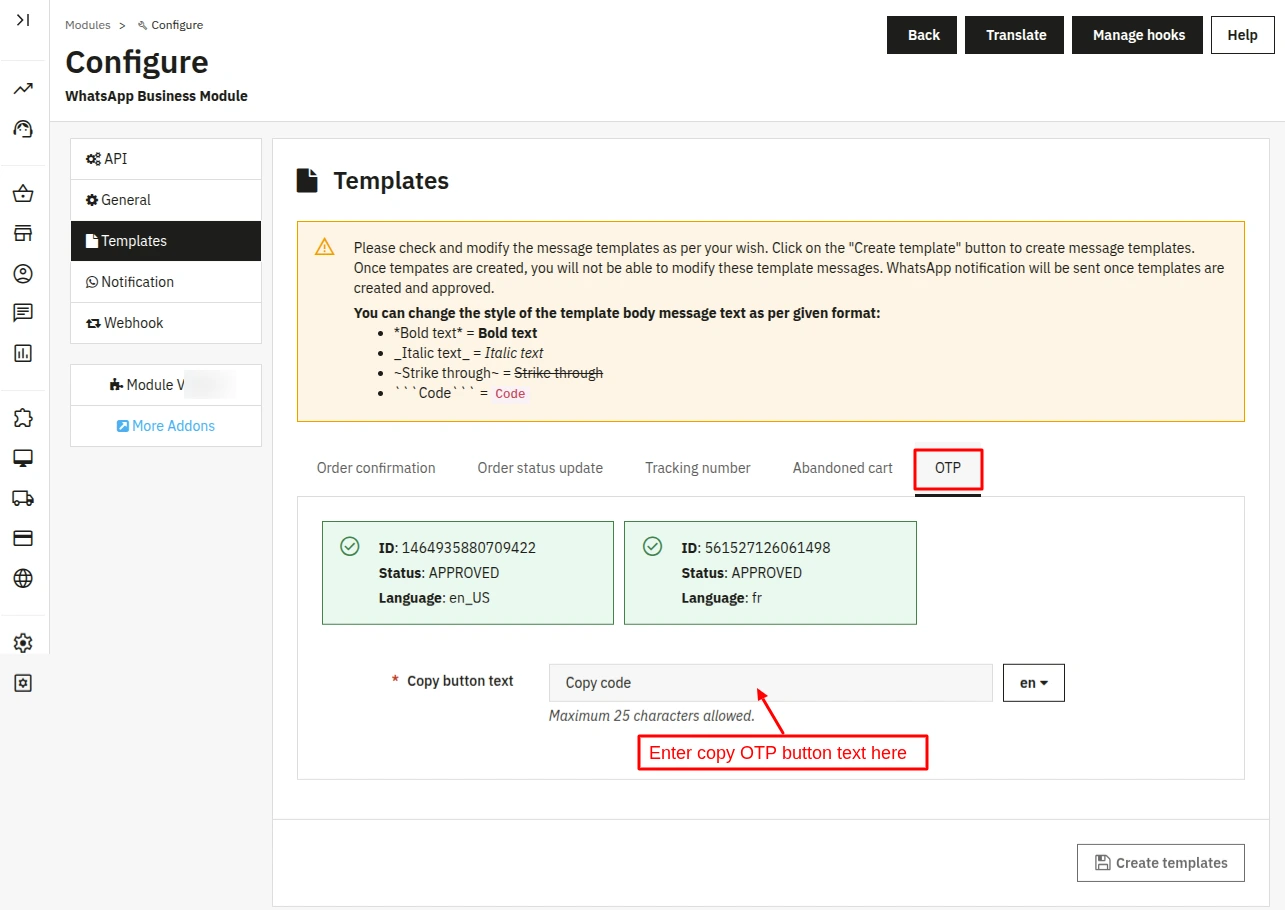
OTP:
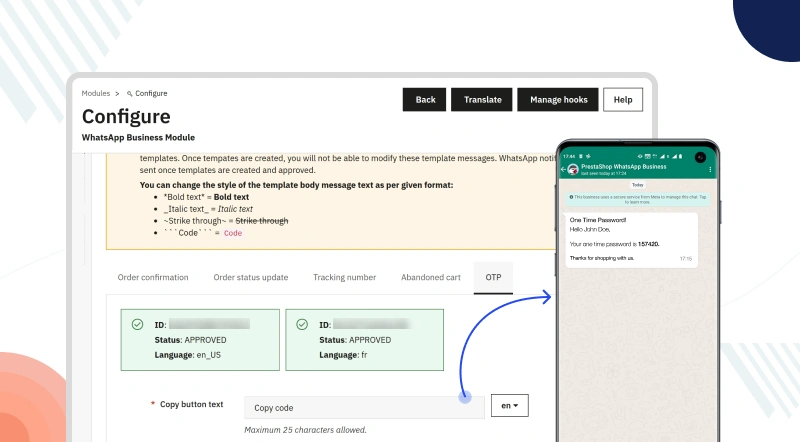
Here you will need to set the template of the OTP message which will be sent to the customer for WhatsApp number verification when he/she opts to receive the messages.
WhatsApp View:
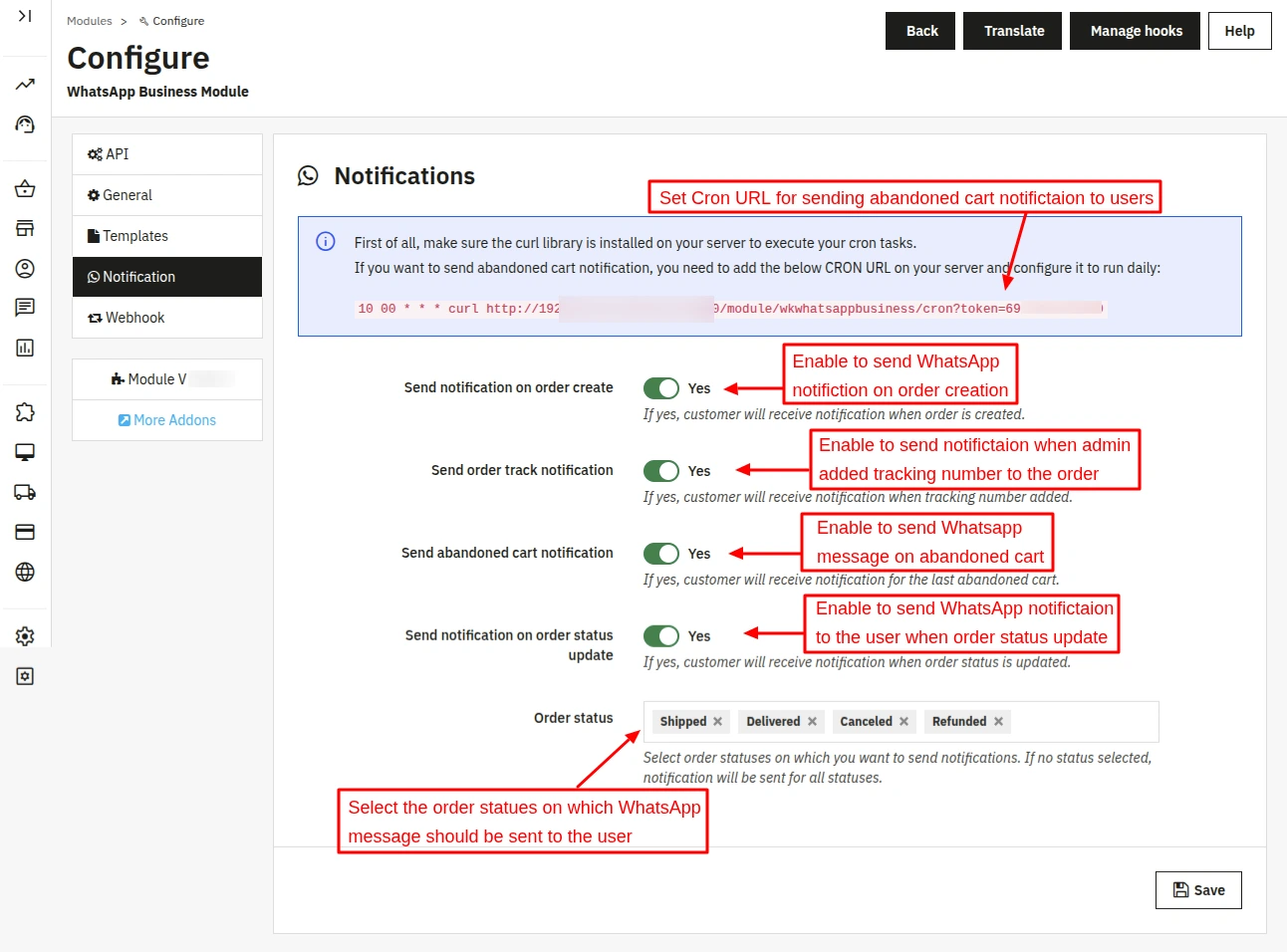
Notifications:
This tab lets the admin decide whether to send notifications to the user or not. You can configure it event-wise.
You can also select the order status for which the module sends WhatsApp notifications to the users.
Webhook:
By configuring this you can automate response to customer queries and also when you send campaign to customer there response will be replied by Webhook to proceed further.
Example:
Customer sends you any random message on WhatsApp. Say “Hi”. Now, after receiving “Hi” from customer, an automatic response will be generated and sent to the customer.

Add Campaigns
You can create campaigns for marketing purposes and send them to your customers on WhatsApp.
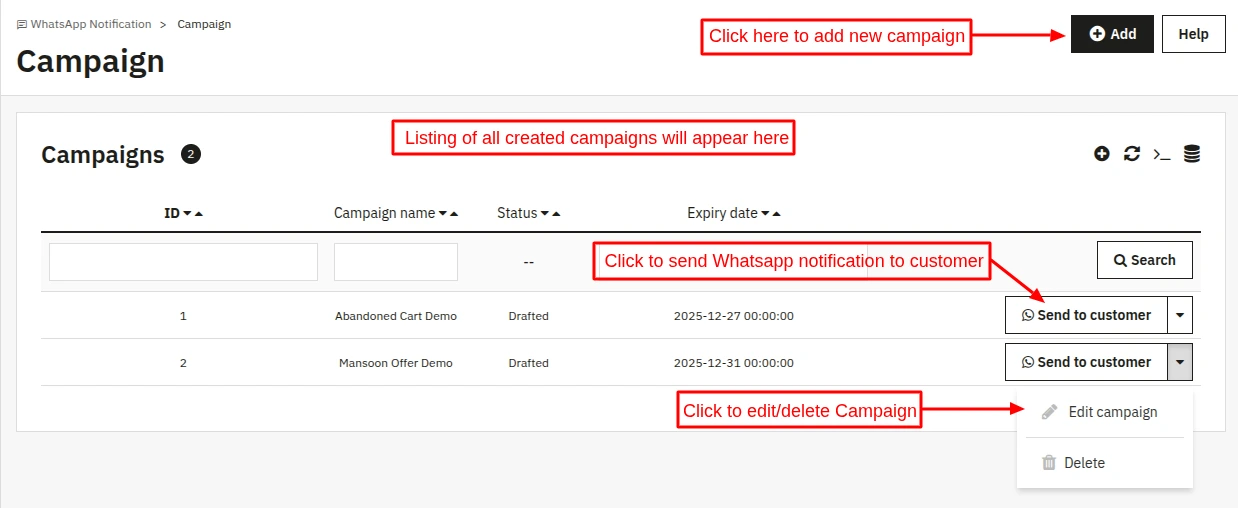
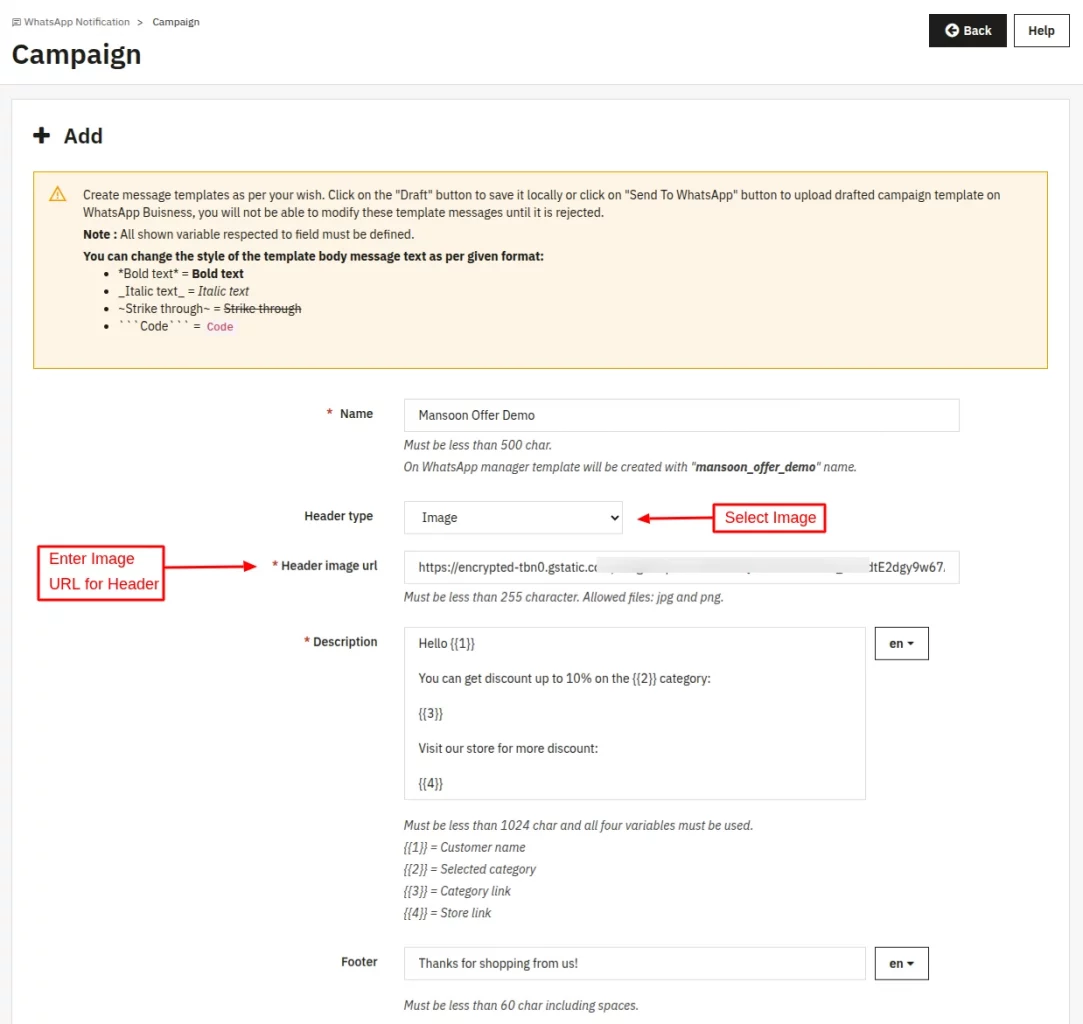
While creating Campaigns, you can set “Header Type” to either:
1) Text
2) Image
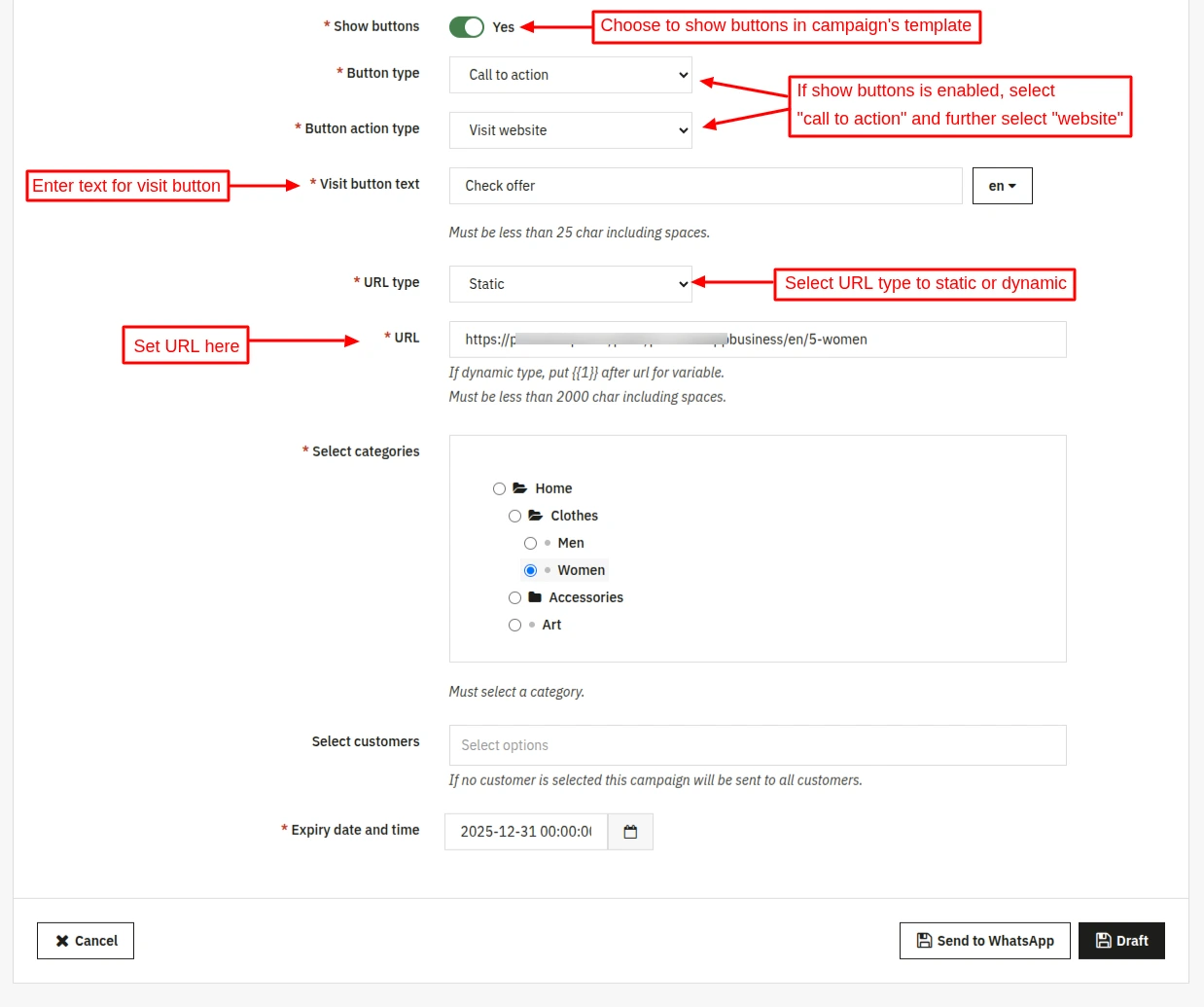
Furthermore, you can include interactive and more appealing buttons to your campaign messages. These buttons can be of 2 types:
– CTA (Call To Action):
a) Call
b) Visit Website
– Quick reply
Note: In case of campaign template rejection, you can review the reason on the Facebook developer account and take appropriate action as suggested by the Facebook team and send it again for review.
We are going to create few campaigns and see how do they look.
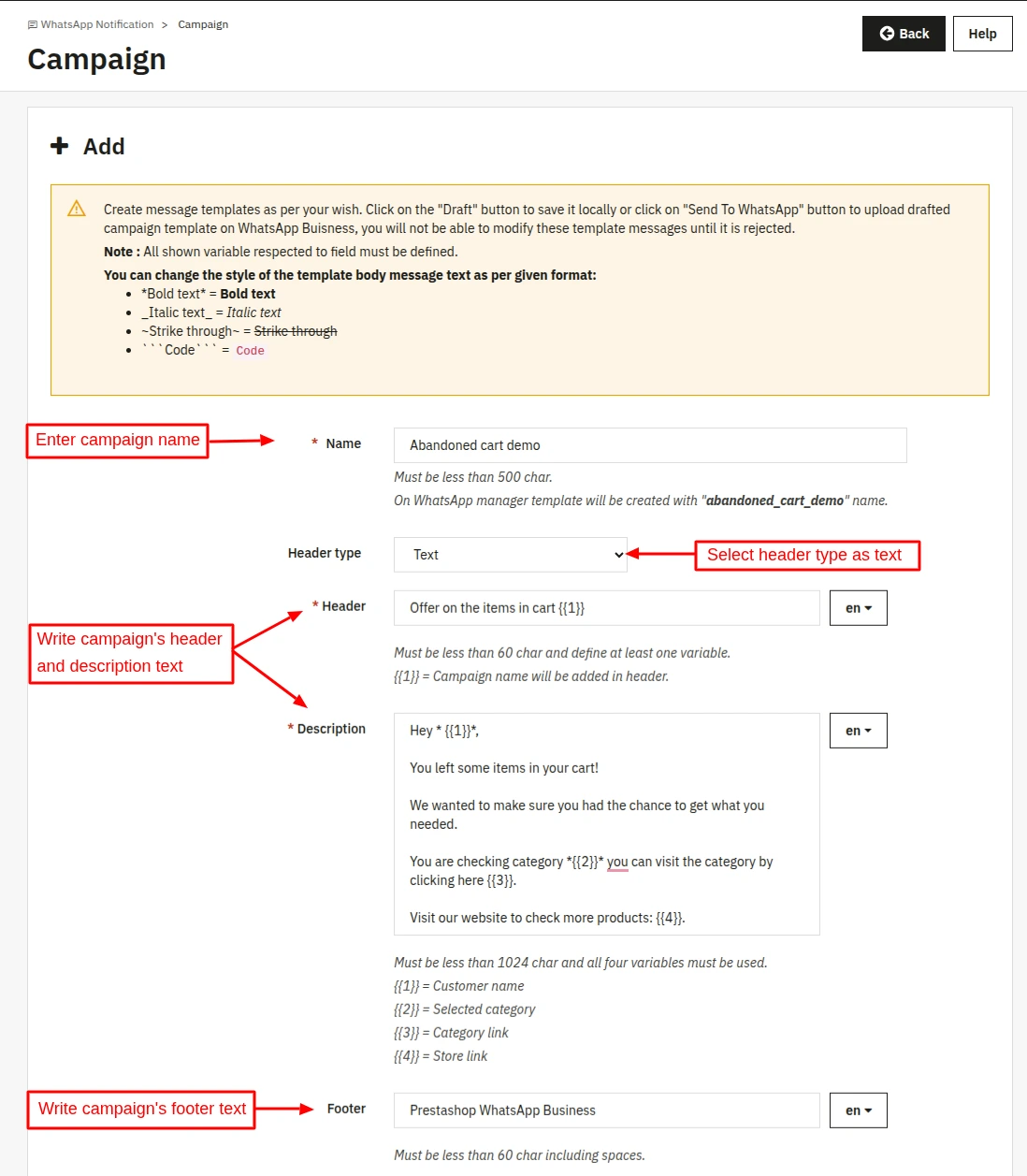
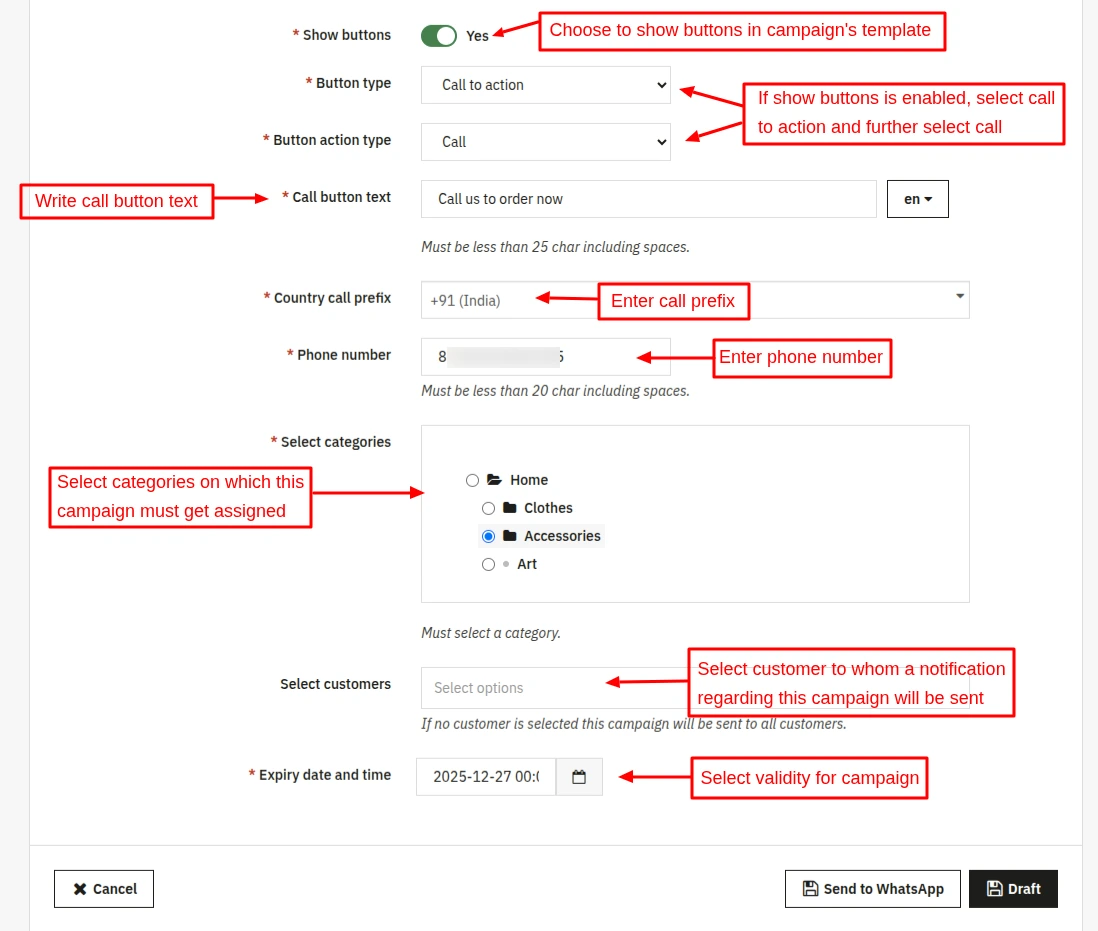
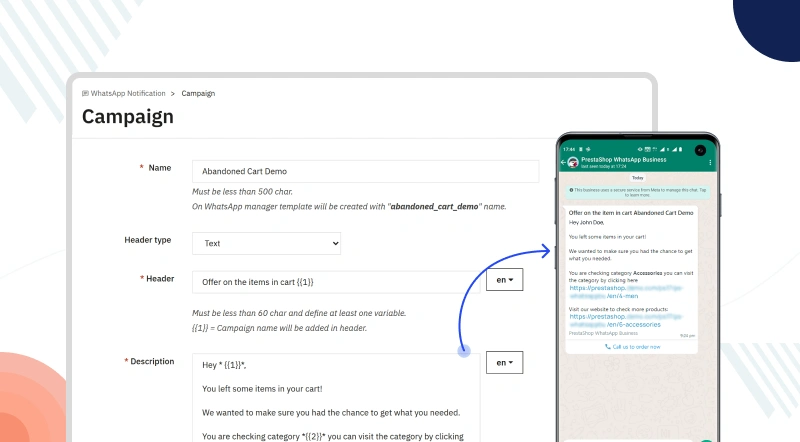
Campaign 1:
Campaign Name: Abandoned Cart Demo
Header Type: Text
Show Buttons: Enabled
Button Type: Call to Action
Button Action Type: Call
WhatsApp Look:
Campaign 2:
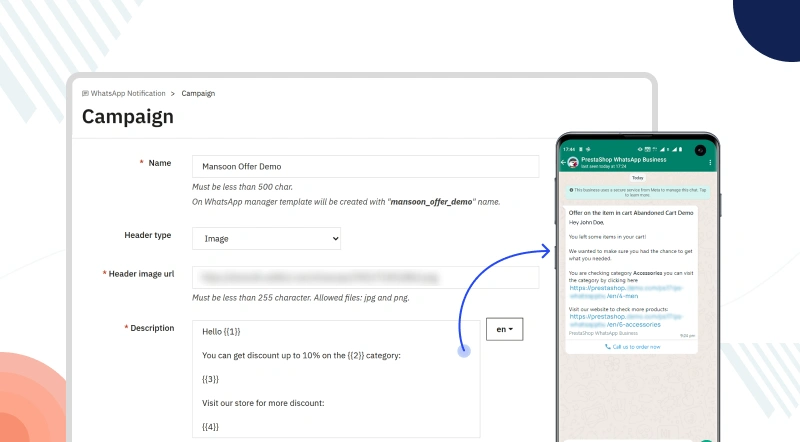
Campaign Name: Monsoon Offer Demo
Header Type: Image
Show Buttons: Enabled
Button Type: Call to Action
Button Action Type: Visit Website
View on WhatsApp:
Campaign 3:
Campaign Name: Summer Offer Demo
Header Type: Image
Show Buttons: Enabled
Button Type: Quick Reply
Button Action Type: Visit Website
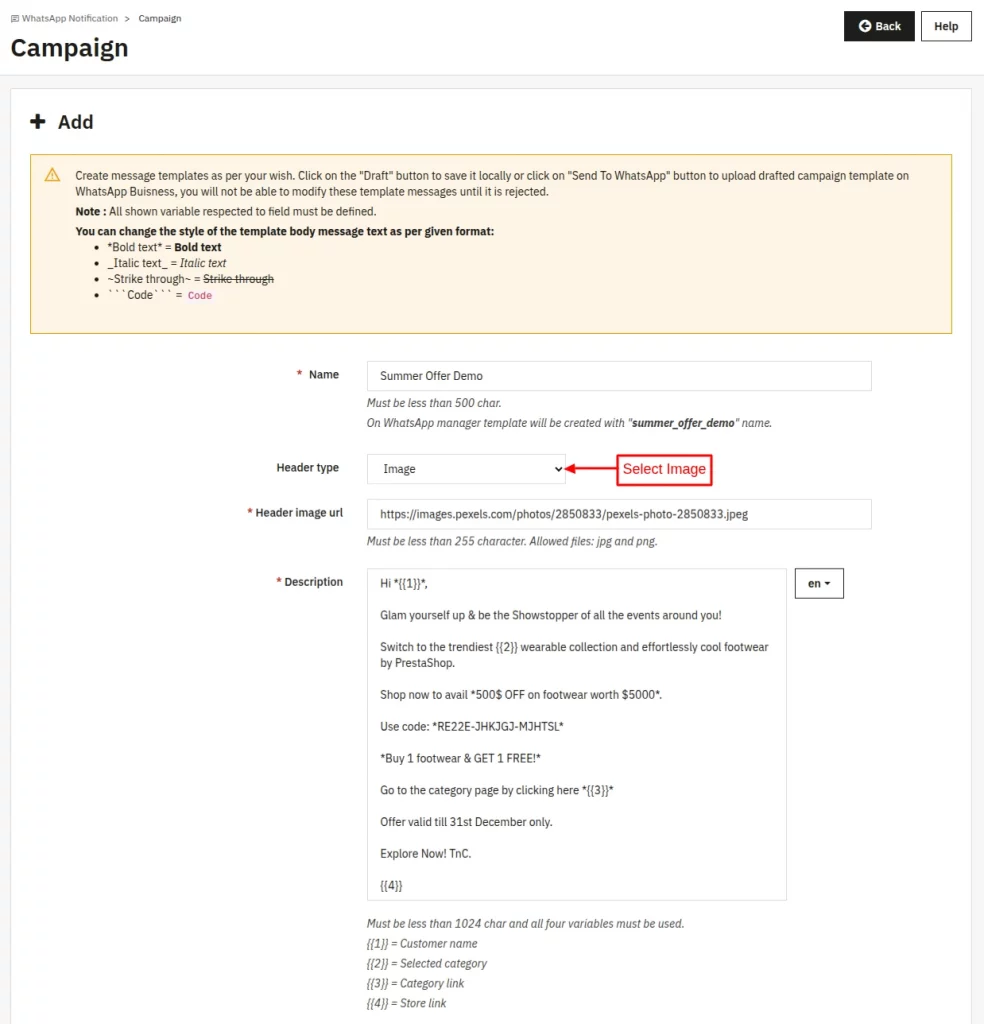
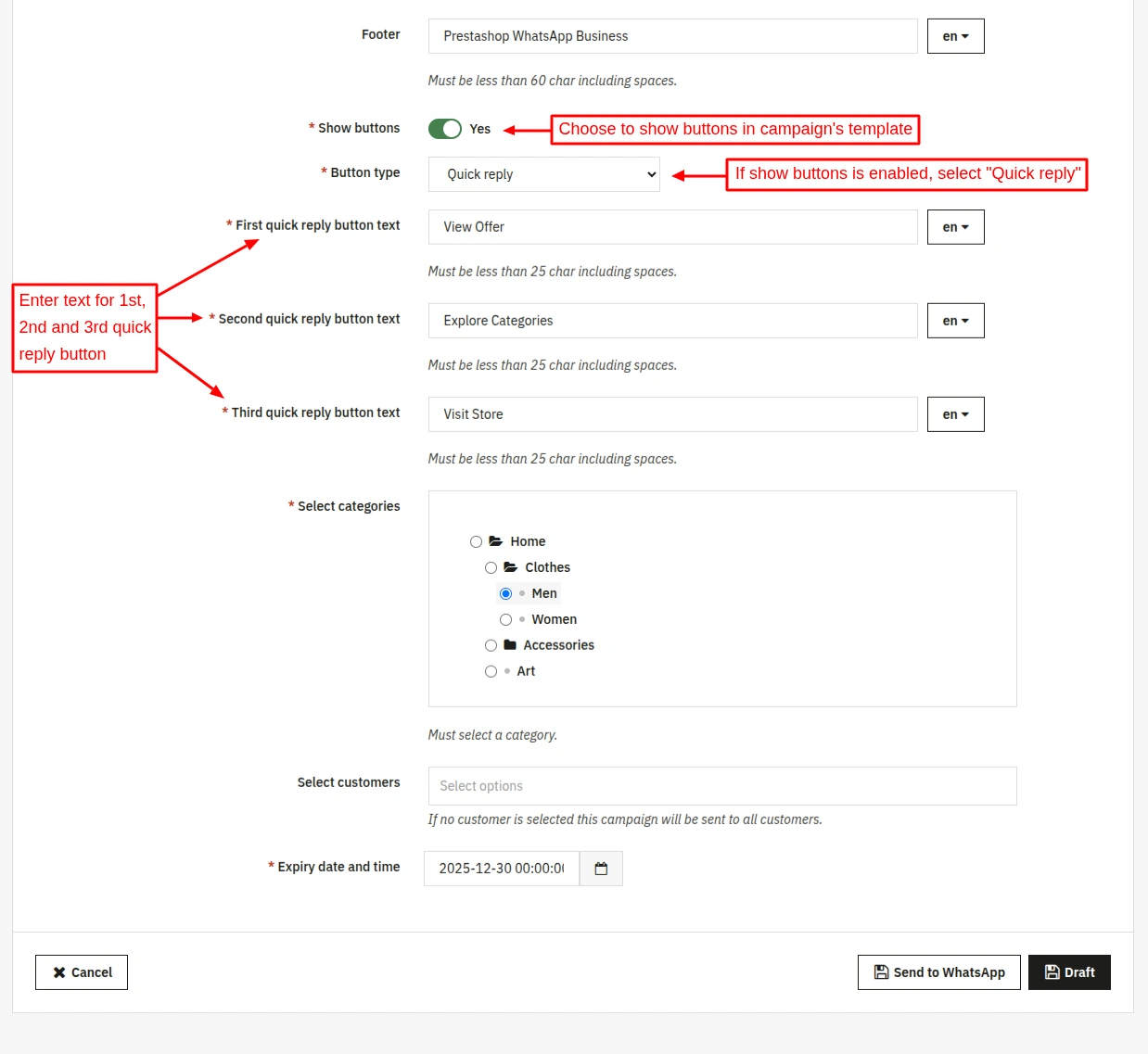
WhatsApp Look: On clicking “View Offer”.

On “Explore Categories” click.

Clicking “Visit Store“.

Customers
The admin can view the list of customers who have registered to receive the WhatsApp notification.
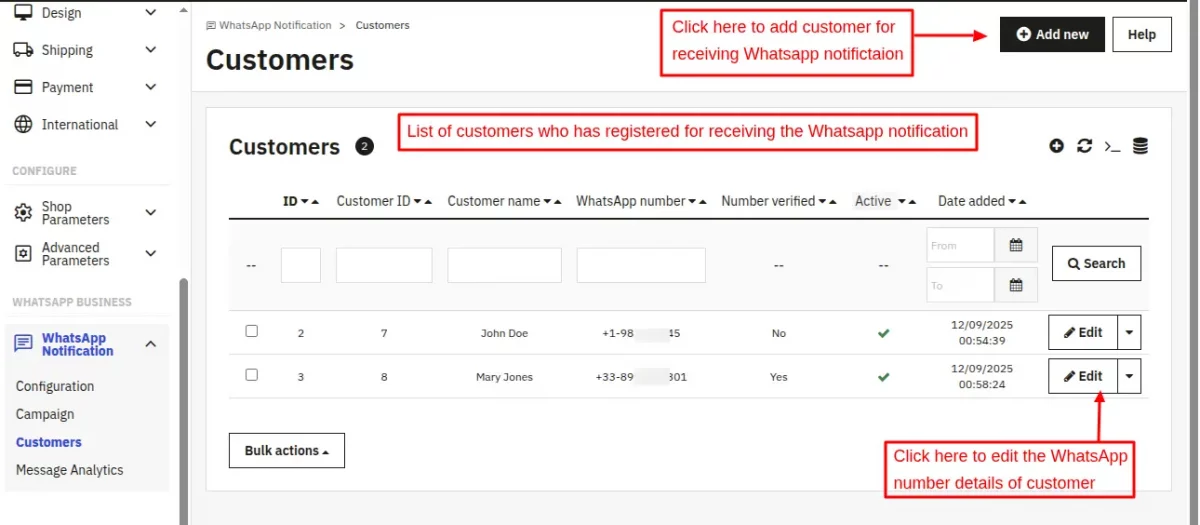
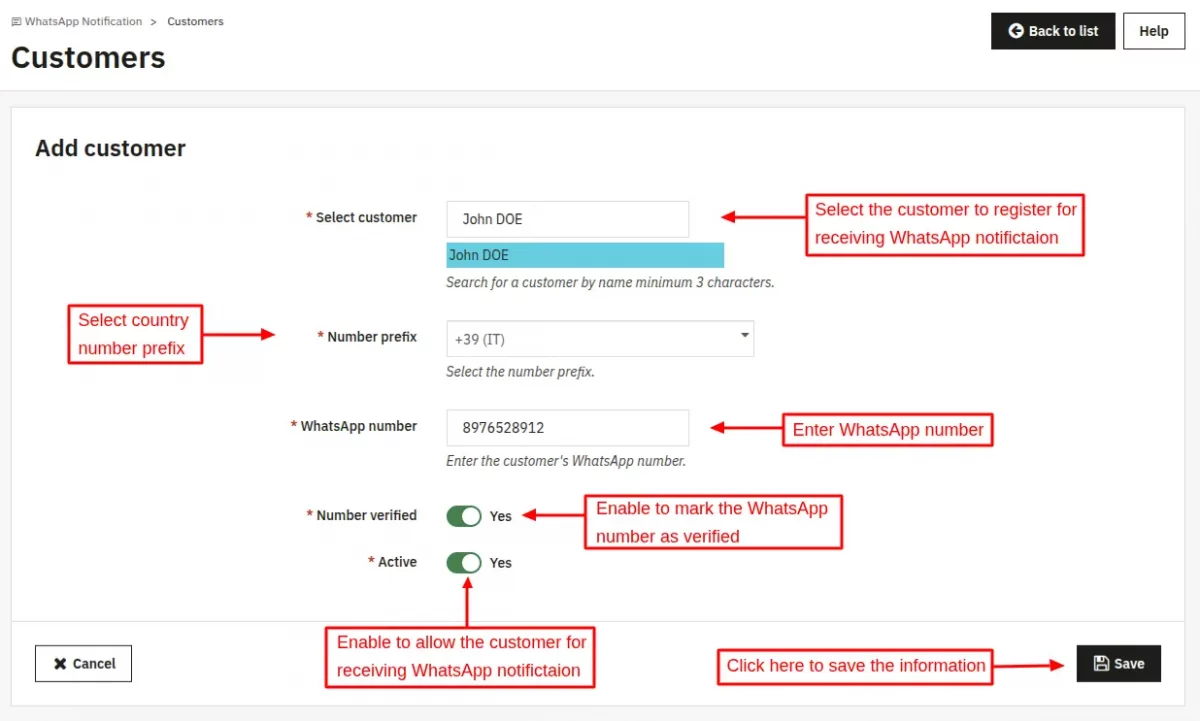
After clicking on the “Add new” button, the admin can add the customer’s WhatsApp number to receive the WhatsApp notification.
Message Analytics
You can track vital metrics, such as how many messages you have sent, delivered, and can filter data by date and view the information on a Half-hourly, Daily, or Monthly basis.

Customer End
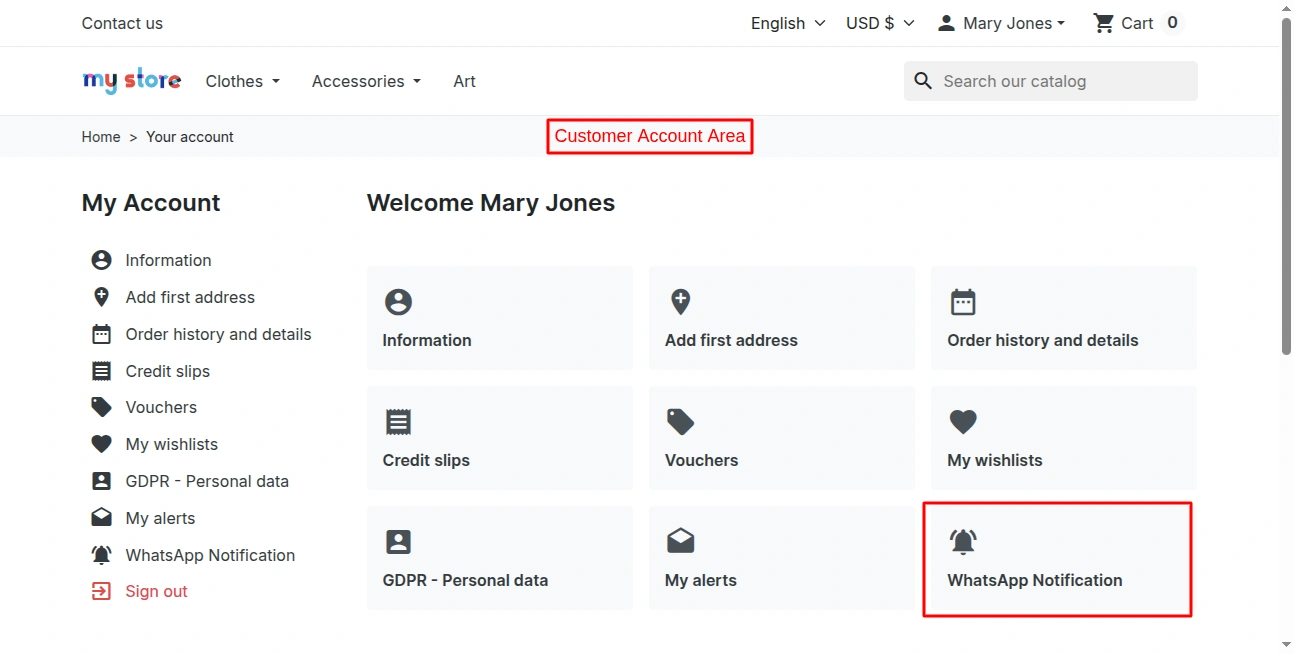
The module will add a tab named ‘WhatsApp Notification’ in the customer account area.
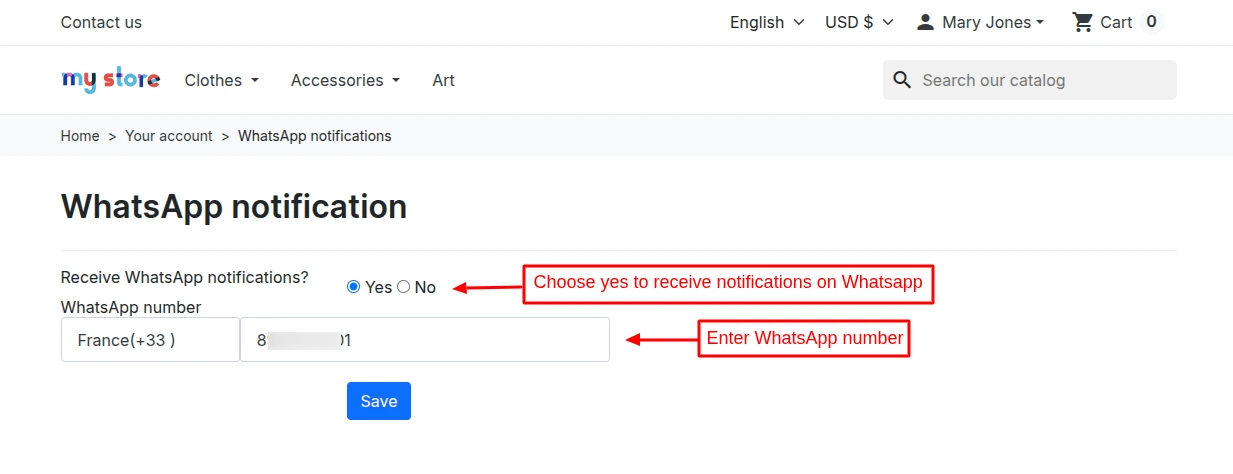
The customer can opt in to receive WhatsApp notifications from here.
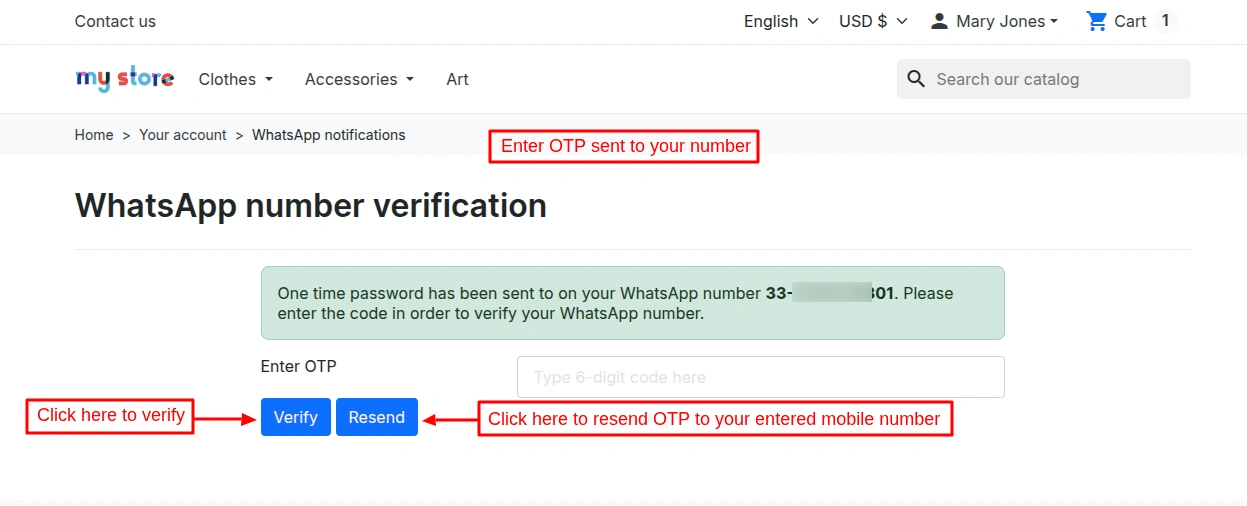
This was all about the WhatsApp Business Order Notifications | Sales Campaign Module. I hope this document will help you in checking the functionality of the module in a better way.
Also, do let us know about your views in the comments.
Support
For any kind of technical assistance or query, please raise a ticket at http://webkul.uvdesk.com or send us a mail at [email protected]
Also, please explore our PrestaShop development services & vast range of featureful PrestaShop Addons.
Current Product Version - 4.1.0
Supported Framework Version - 9.x.x, 8.x.x, 1.7.x.x


Unfortunately your documentation is really outdated
https://webkul.com/blog/prestashop-whatsapp-business-order-notifications-sales-campaign-user-guide/
Trying differenc scenarios im not able to create Whatsapp Messaging.
Pls can you send me a new update about how to setup META FOR DEVELOPERS?
Becouse the part Select an app type to “Business” is not any more in Meta
https://cdnblog.webkul.com/blog/wp-content/uploads/2022/07/22.png
Also Whatsapp is not available anymore
https://storecdn.webkul.com/showcase/590/1723014125.png
Pls see new screenshots of Meta for Business
https://prnt.sc/qILDZZxdAfkt
Thanks a lot