Back to Top

CS-Cart PayUMoney Payment Gateway

CS-Cart PayUMoney Payment Gateway allows merchants to accept secure online payments through PayUMoney on their CS-Cart store.

The add-on connects PayUMoney with CS-Cart and provides customers with a convenient payment option during checkout.

Merchants can configure the payment gateway from the CS-Cart admin panel and manage payment settings according to their store requirements.

With PayUMoney, customers can complete their orders through a secure payment process without manually handling payment details on the store.

Note:

Before installing the add-on, extract the downloaded package.

  1. Install the License Manager add-on first.
  2. Then install the required add-on.
  3. Follow the license activation steps to generate your license key.

Features

  • Easy PayUMoney Integration allows merchants to accept online payments through PayUMoney.
  • Secure Payment Processing helps merchants process customer payments safely.
  • Simple Configuration lets admins configure the payment gateway from the CS-Cart admin panel.
  • Easy Checkout allows customers to select PayUMoney as their preferred payment method.
  • Merchant Credential Support lets admins configure the required PayUMoney credentials.
  • Payment Status Management updates order statuses based on the payment result.

Installation

After downloading the CS-Cart PayUMoney Payment Gateway add-on, you’ll get one zip file, one install.txt file, and a relevant User Guide manual doc.

Please read it carefully for proper configuration.

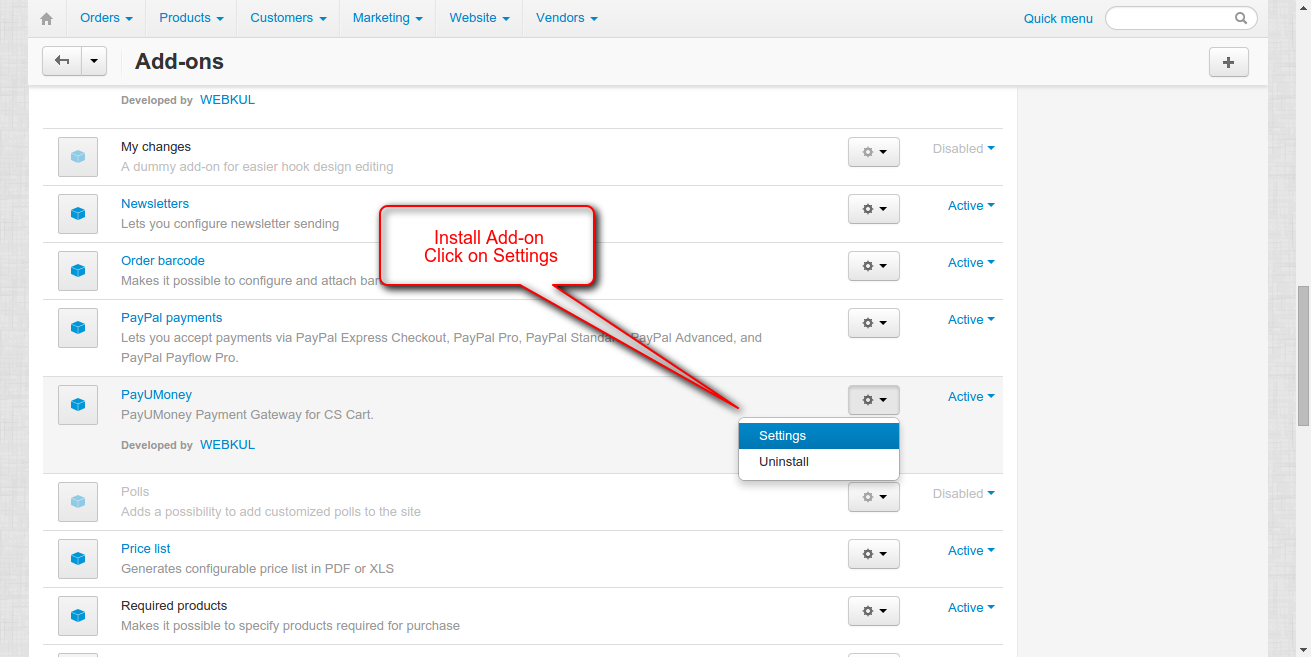
Go to Manage Add-ons, and click on “Manual Installation” as shown below in the snapshot.

CS-Cart payumoney payment gateway addon installation

Click on “Local” to browse the zip file, and then click on “Upload & Install” as shown below in the snapshot.

cs-cart-payumoney-install

Credentials from PayUMoney Payment Gateway

To use the PayUMoney payment gateway, create a PayUMoney account or sign in to your existing account.

payu-creds

From here, you can get your Merchant Key and Merchant Salt required to configure the PayUMoney payment gateway.

payu-money-transaction

You can check the transaction details by navigating to the Transactions section in your PayUMoney account.

Add PayUMoney Payment Method

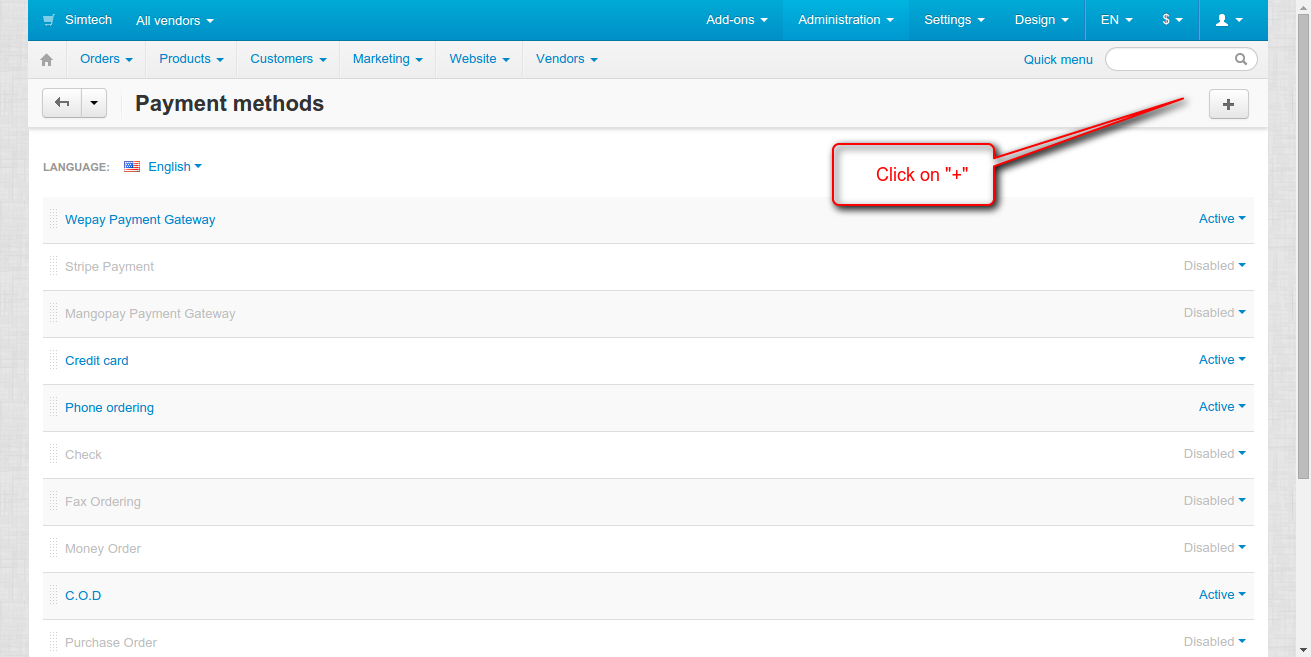
To add the PayUMoney payment method, navigate to Settings → Payment Methods in the CS-Cart admin panel.

CS-Cart Payment Method

  • Click the + button to add a new payment method.
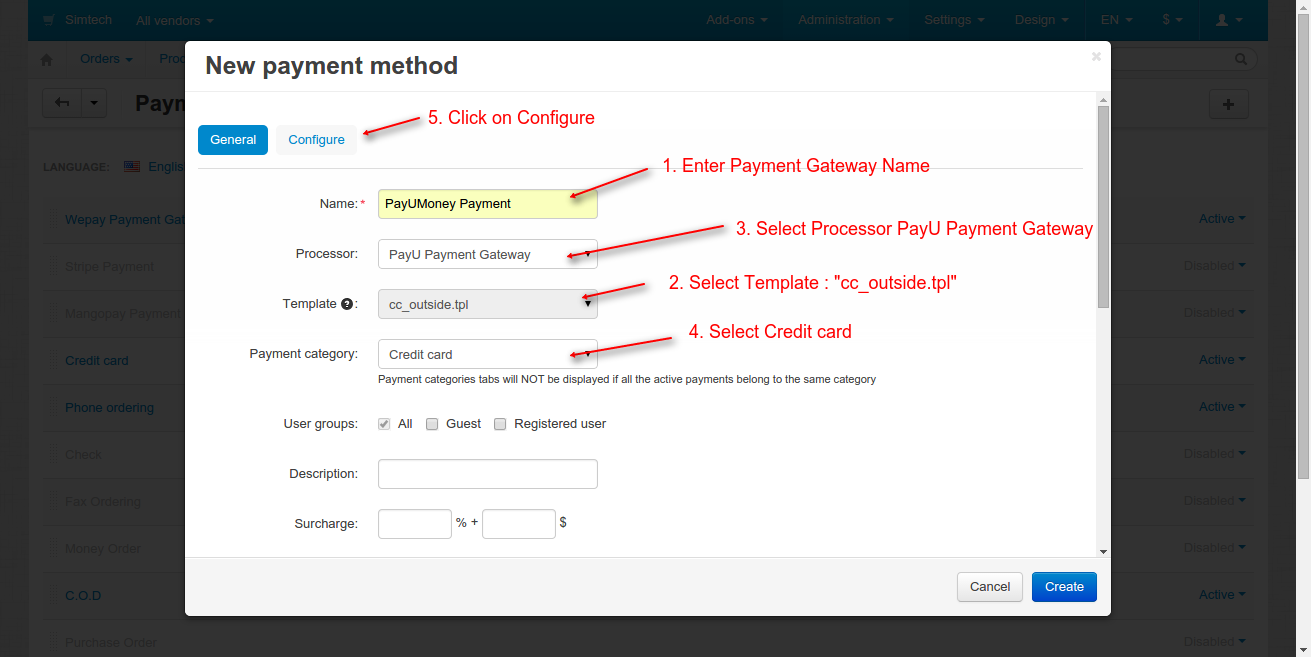
  • Enter the Payment Method Name and select PayUMoney Payment Gateway or PayUMoneyBolt Payment Gateway as the payment processor.

cs-cart-select-payumoney-payment-method

From here, select PayUMoney as the payment processor for the payment method.

Configure the Payment Settings according to your store requirements.

  • Order Status: Select the order status to apply after a successful payment.
  • Merchant Key: Enter the Merchant Key provided by PayUMoney.
  • Merchant Salt: Enter the Merchant Salt provided by PayUMoney.
  • Mode: Select the appropriate Test or Live mode for payment processing.

After entering the required PayUMoney credentials, click Save to save the payment method configuration.

Front-End:

When placing an order, the customer needs to select **PayUMoney** as the payment method at checkout.

customer-place-an-order

After selecting PayUMoney as the payment method, the customer will be redirected to the PayUMoney payment page to complete the payment.

payumoney-redirects

After selecting the PayUMoney payment method, the customer can click Place Order to proceed with the payment.

Support

If you have any questions, suggestions, or customization requests, feel free to contact us at [email protected] or submit a ticket at webkul.uvdesk.com.

Explore our premium-quality CS Cart Extensions to enhance your store functionality.

You can also explore our CS-Cart Development Services and Quality CS-Cart add-ons.

Current Product Version - 2.0

Supported Framework Version - 4.18

. . .

Leave a Comment

Your email address will not be published. Required fields are marked*


2 comments

  • Elberto Pinilla
    • Gautam Bagchi (Moderator)
  • Back to Top

    Message Sent!

    If you have more details or questions, you can reply to the received confirmation email.

    Back to Home
    On this page

    Table of Content

    Back to top