Laravel E-commerce B2B Marketplace extension Convert your Bagisto store into B2B Marketplace like Alibaba, or Indiamart.
Bagisto B2B Marketplace will create an online platform where business buyers and suppliers around the globe can connect and do business transactions with each other.
B2B Marketplace extension offers features like Supplier Microsites, RFQs, Quick Orders, Reviews, Feedback, Product Collections, and Order Management.
Key Features
-
- Multi-supplier storefront — every supplier gets a public profile page and its own product catalog served from one Bagisto installation.
-
- Supplier registration, verification, and approval — configurable whether a new supplier is approved automatically or only after an admin review.
- Request-for-Quote (RFQ) workflow — buyers post buying leads; suppliers answer with quotes; buyers approve and convert to orders.
-
- Buying Leads board — suppliers see open RFQs matching the products they stock and the categories they serve.
-
- Commission engine — a configurable commission percentage is computed per order, and supplier payouts are tracked as transactions.
-
- Pay-supplier flow — the admin pays a supplier from the order screen; the payout is recomputed server-side and can never exceed what is due.
-
- Supplier catalog management — suppliers create their own products or get products assigned from the master catalog, with their own pricing and inventory.
-
- Supplier sales tools — orders, invoices, shipments, and payouts scoped to each supplier.
-
- Two-way messaging — admin ⇄ supplier chat and supplier ⇄ customer conversations.
-
- Reviews and flags — moderated reviews plus supplier and product flag reasons, gated so only real buyers can submit them.
-
- EAV supplier attributes — a full supplier attribute system (39 attributes ship seeded) with groups, options, and admin mapping.
-
- Landing page CMS — a configurable marketing landing page with banner, features, journey steps, and popular sellers.
Requirement
-
- Bagisto: v2.4.10
Installation
Unzip the respective extension zip and then merge “packages” into the project root directory.
Go to composer.json file and add the following line under ‘psr-4’
"Webkul\\B2BMarketplace\\": "packages/Webkul/B2BMarketplace/src"
composer dump-autoload
Goto bootstrap/providers.php file and add following line under ‘providers’
Webkul\B2BMarketplace\Providers\B2BMarketplaceServiceProvider::class,
Run these commands below to complete the setup
php artisan b2b-marketplace:install
php artisan optimize:clear
That’s it, now just execute the project on your specified domain.
Supplier Profile URL Mode (Optional)
Choose how a supplier shop URL looks from Configure » B2B Marketplace » Settings » Supplier Profile Page » Supplier Profile URL Mode.
- Shop Path (default) —
http://example.com/shop/supplier1. No extra setup needed. - Subdomain —
http://supplier1.example.com/shop. Requires the steps below.
Using Shop Path? Skip these steps and do not set SESSION_DOMAIN. For Subdomain mode only:
- Point
*.example.comto your server in DNS. - Add a wildcard alias in your web server (Apache:
ServerAlias *.example.com, Nginx:server_name example.com *.example.com;) and restart it. - Add
SESSION_DOMAIN=.example.comto the .env file. - Run
php artisan optimize:clear.
Module Configuration
After the successful installation of the module login to the admin panel, and navigate to Configure » B2B Marketplace » Settings.
General
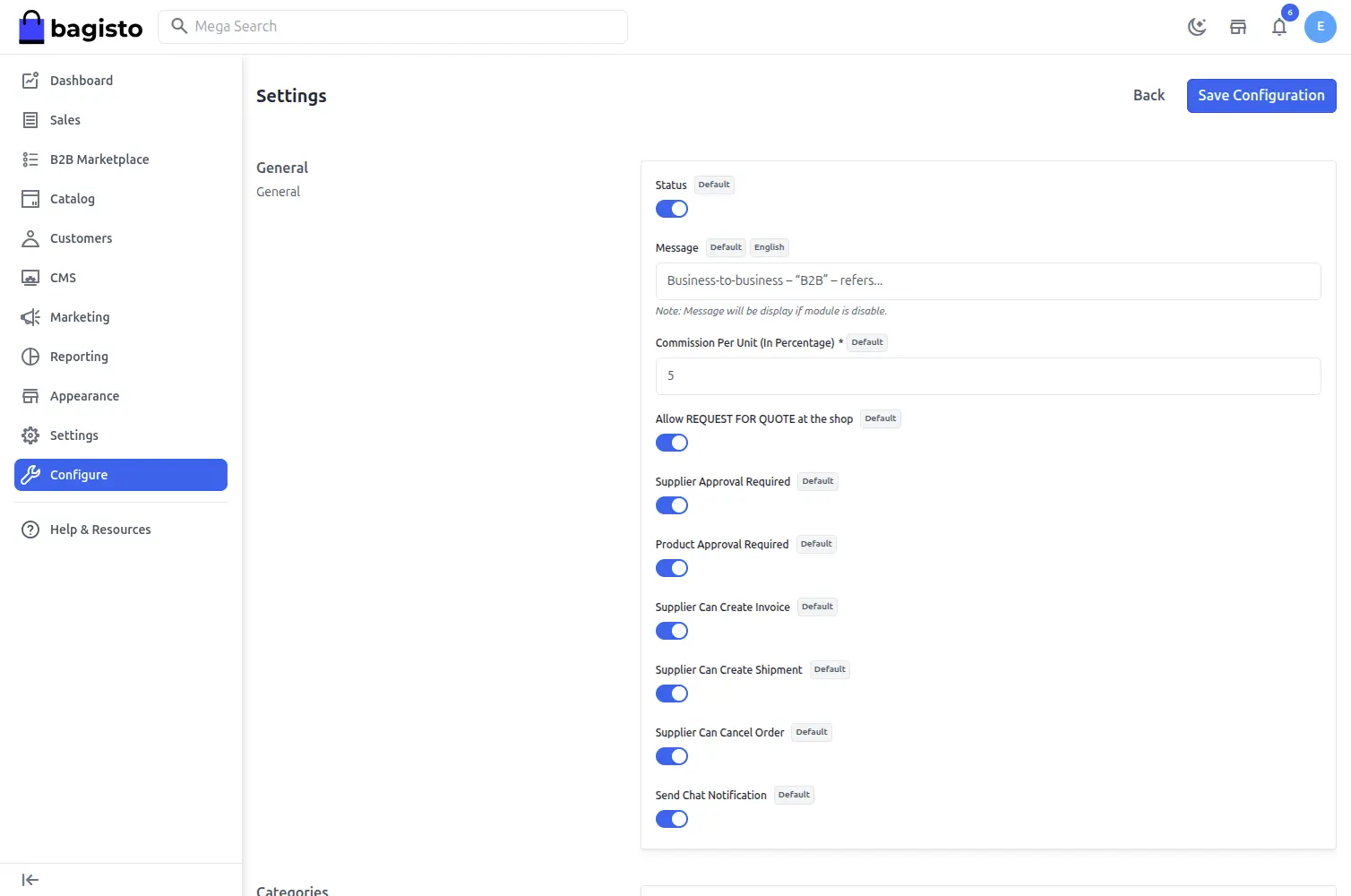
Status
Admin can Enable/Disable the B2B marketplace module.
Message
The message shown on the storefront when the module is disabled.
Allow REQUEST FOR QUOTE at the shop
Admin can allow REQUEST FOR QUOTE at the shop.
Commission Per Unit (In Percentage)
Here the admin defines to set the global commission % for suppliers that will be applicable to all.
If the admin has set global commission 10% for every supplier in the marketplace, thus when a product is purchased admin will be earning 10% of the product cost as commission.
Supplier Approval Required
Select Yes in this setting if approval is required whenever a new supplier has been registered in the B2B marketplace.
Product Approval Required
Select Yes in this setting if approval is required whenever a new product has been added by the supplier on the marketplace.
Supplier Can Create Invoice
Choose Yes in the setting if you also want to give the supplier permission to create an invoice.
Supplier Can Create Shipment
Choose Yes in the setting if you want to give the supplier also the permission to ship the product that has been ordered.
Supplier Can Cancel Order
Choose Yes in the setting if you want to give the supplier permission to cancel order.
Send Chat Notification
The admin can enable or disable this toggle button so that suppliers and customers can get message notifications in their emails.
Categories — Allow Categories for Supplier’s
Admin can allow the All or Specific Categories for Supplier’s.
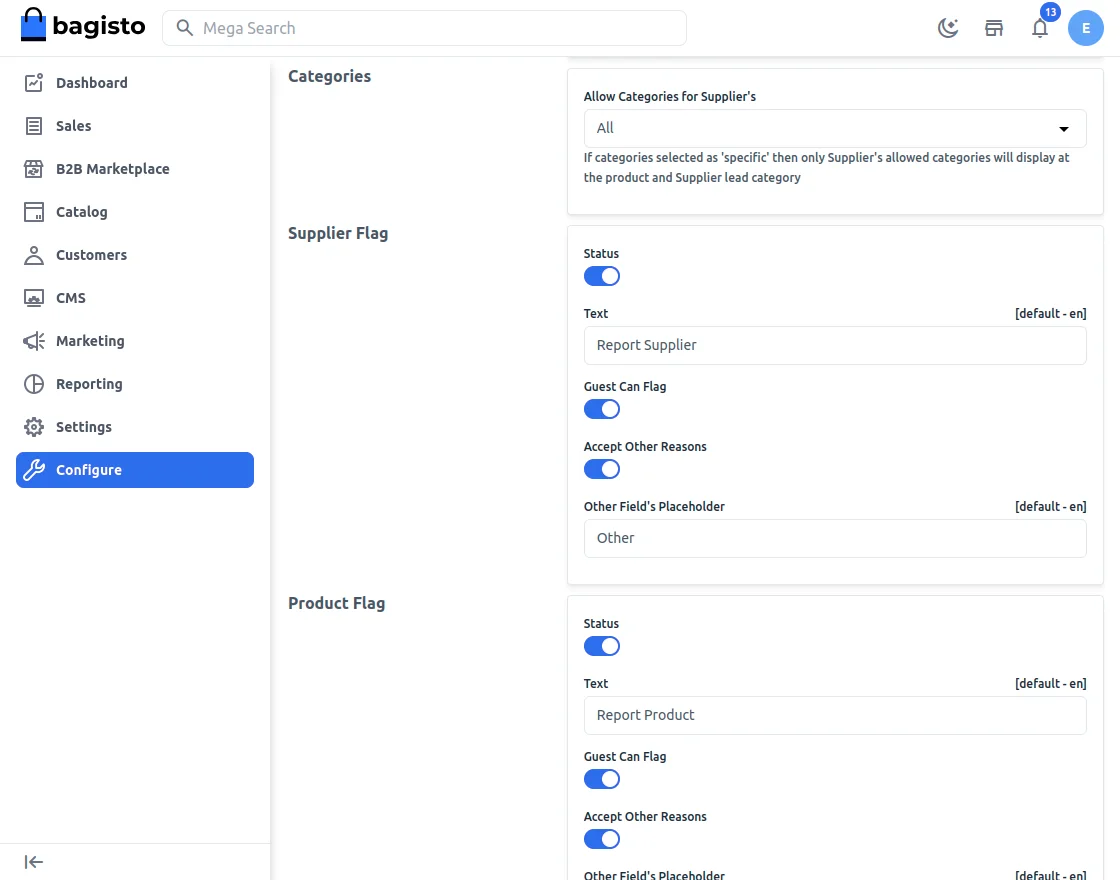
Supplier Flag
Admin can enable/disable the Supplier Flag options and can also add a custom text button label.
Set Guest Can Flag to let guests report, Accept Other Reasons to allow a custom reason, and Other Field’s Placeholder for that field’s hint text.
Product Flag
Admin can enable/disable the Product Flag options and can also add a custom text button label.
Set Guest Can Flag to let guests report, Accept Other Reasons to allow a custom reason, and Other Field’s Placeholder for that field’s hint text.
Supplier Profile Page
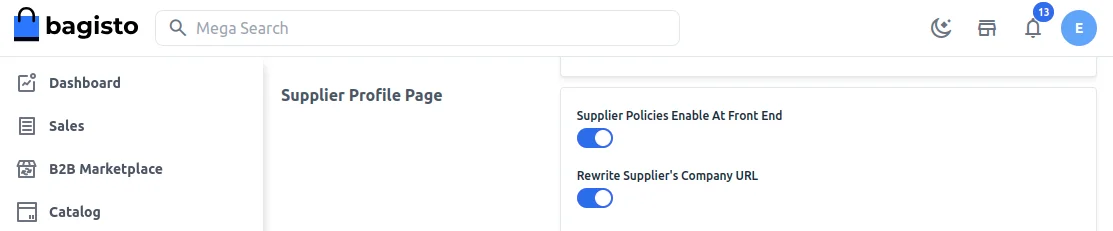
Supplier Policies Enable At Front End
Select Yes to display supplier shipping and refund policies information on supplier profile page.
Rewrite Supplier’s Company URL
Select Yes to enable suppliers to edit their shop URL.
Supplier Profile URL Mode
Choose Shop Path (default) or Subdomain for supplier shop URLs. Subdomain mode needs the extra server setup described in the installation section.
Email Verification
Enable this toggle button for email verification.

Landing Page
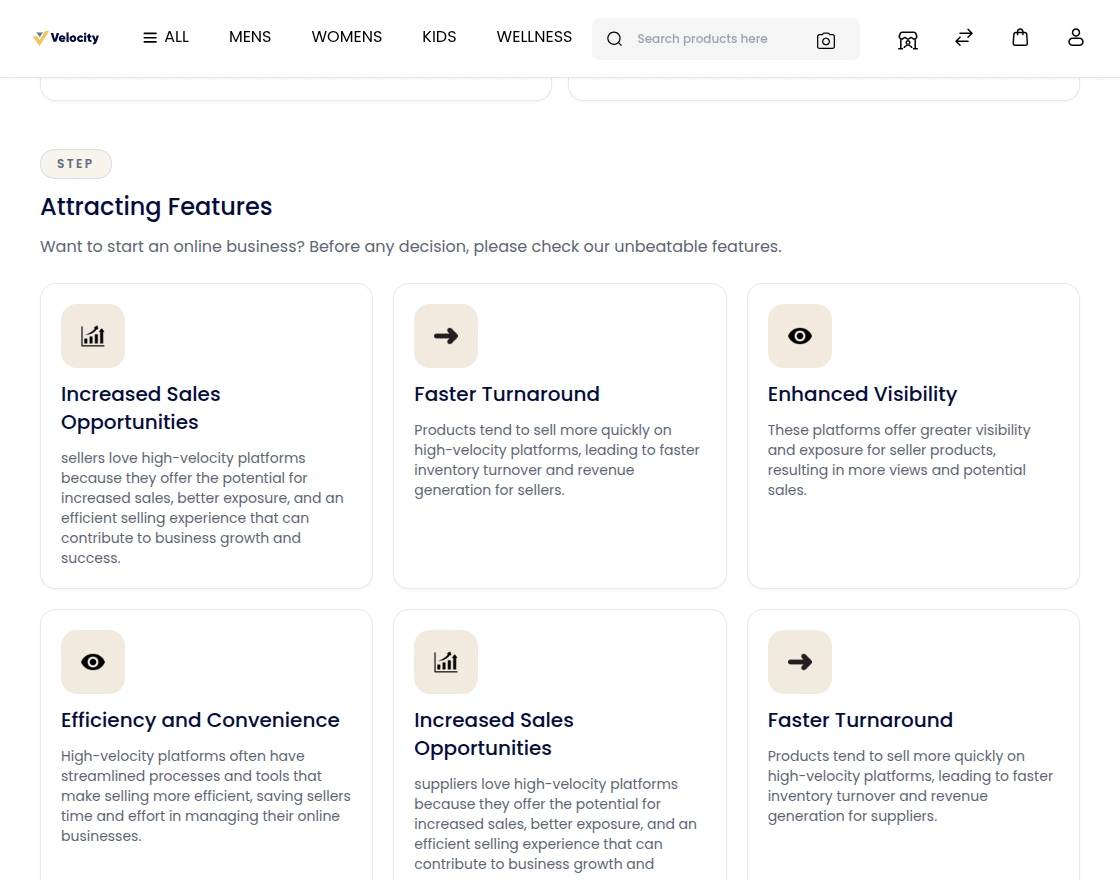
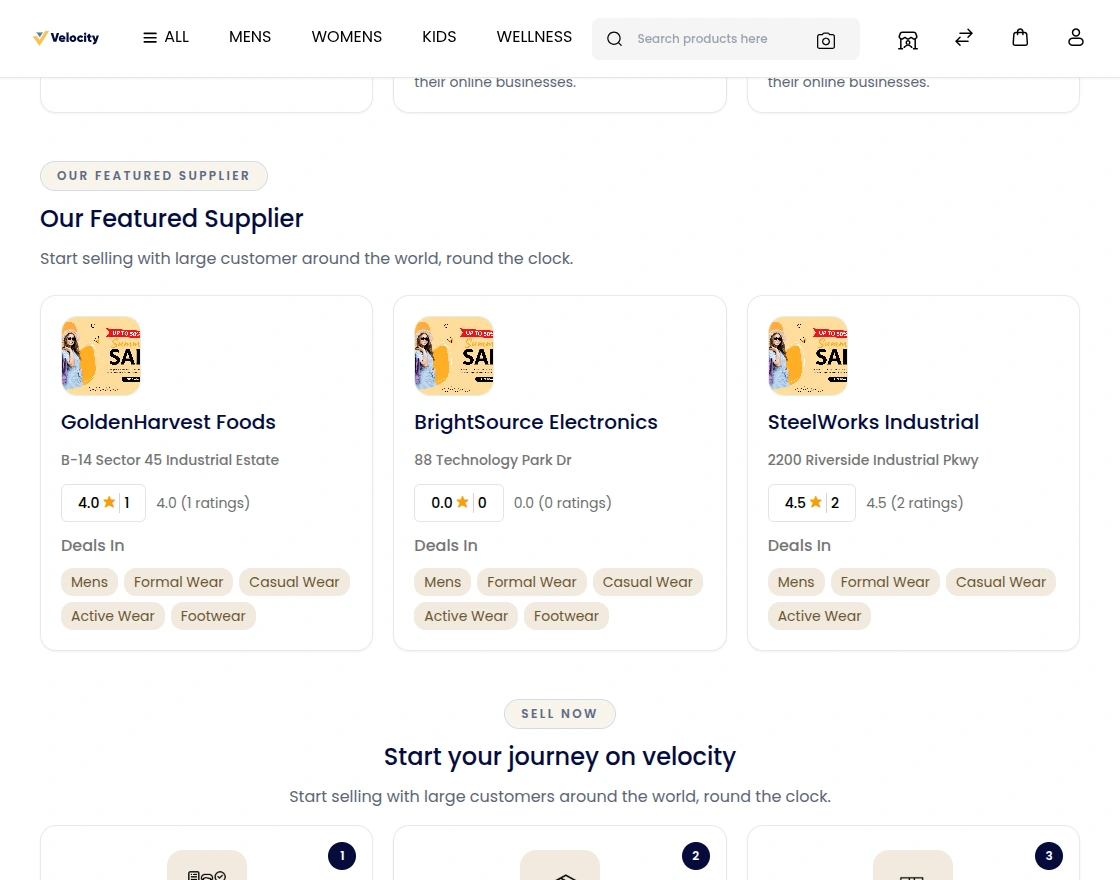
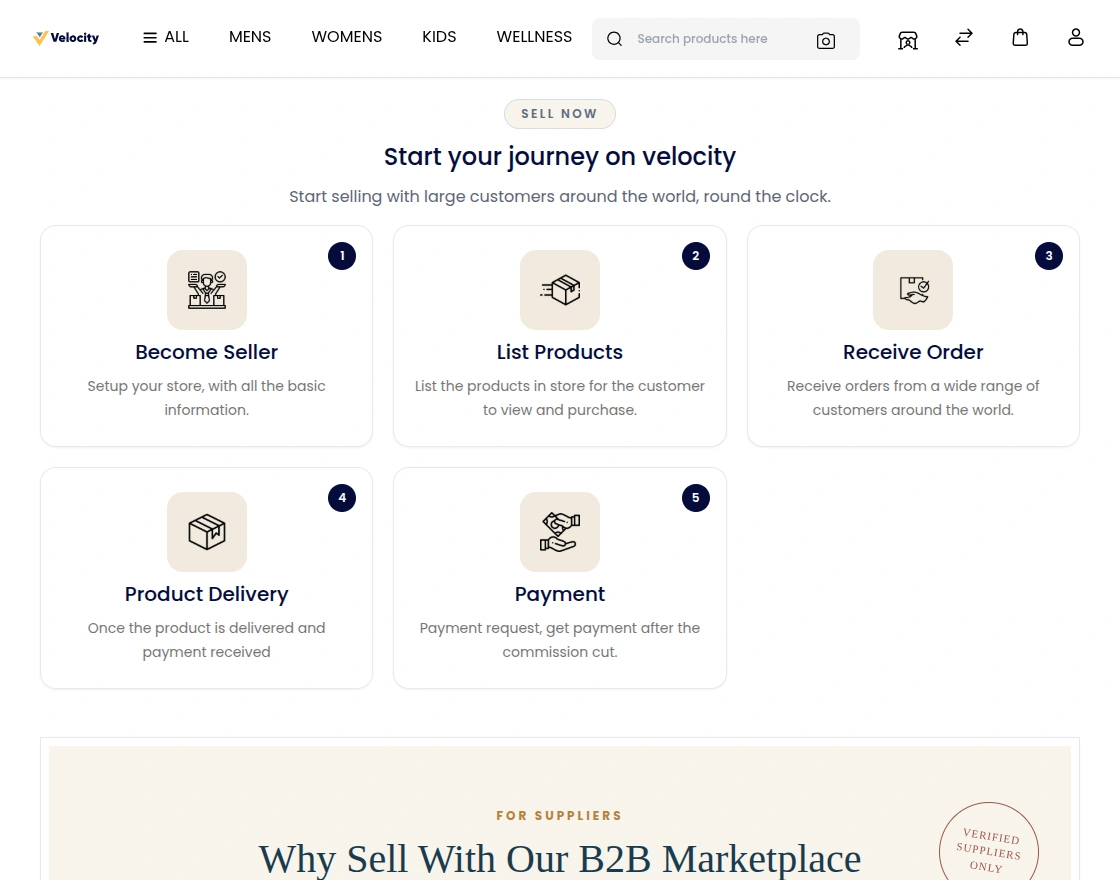
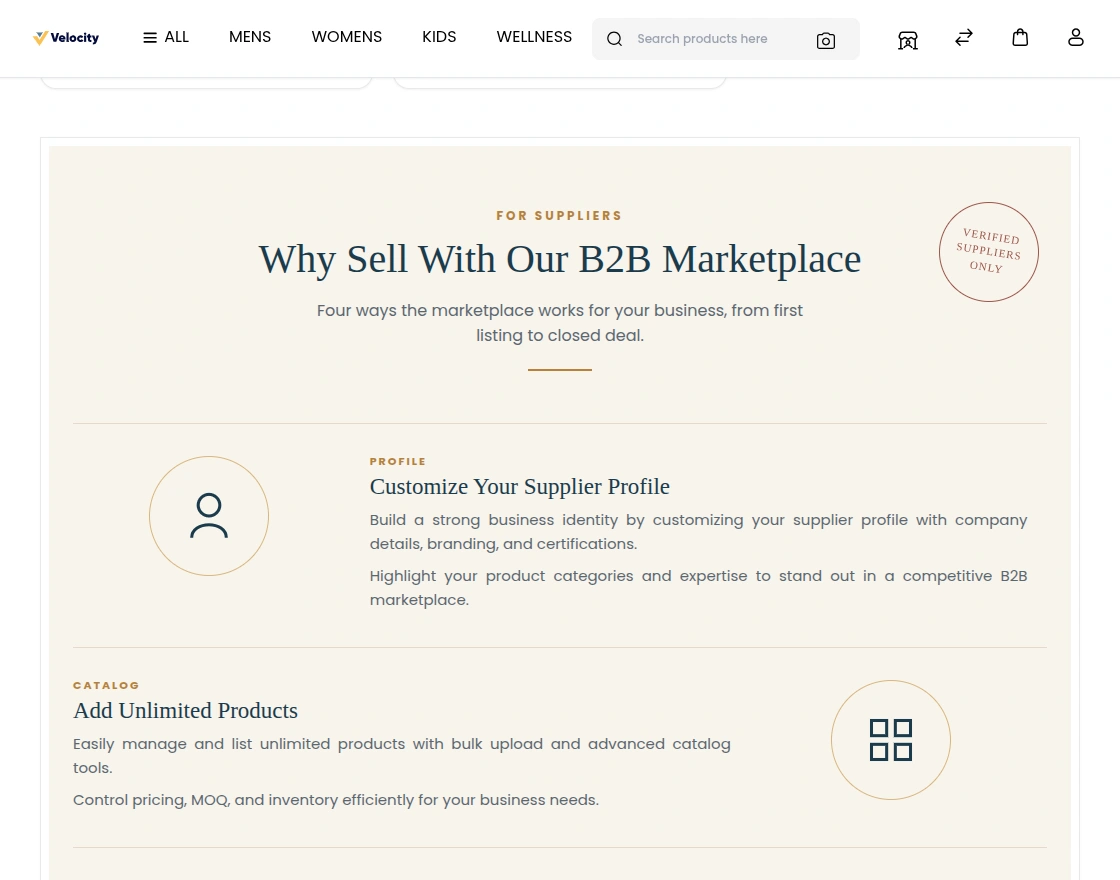
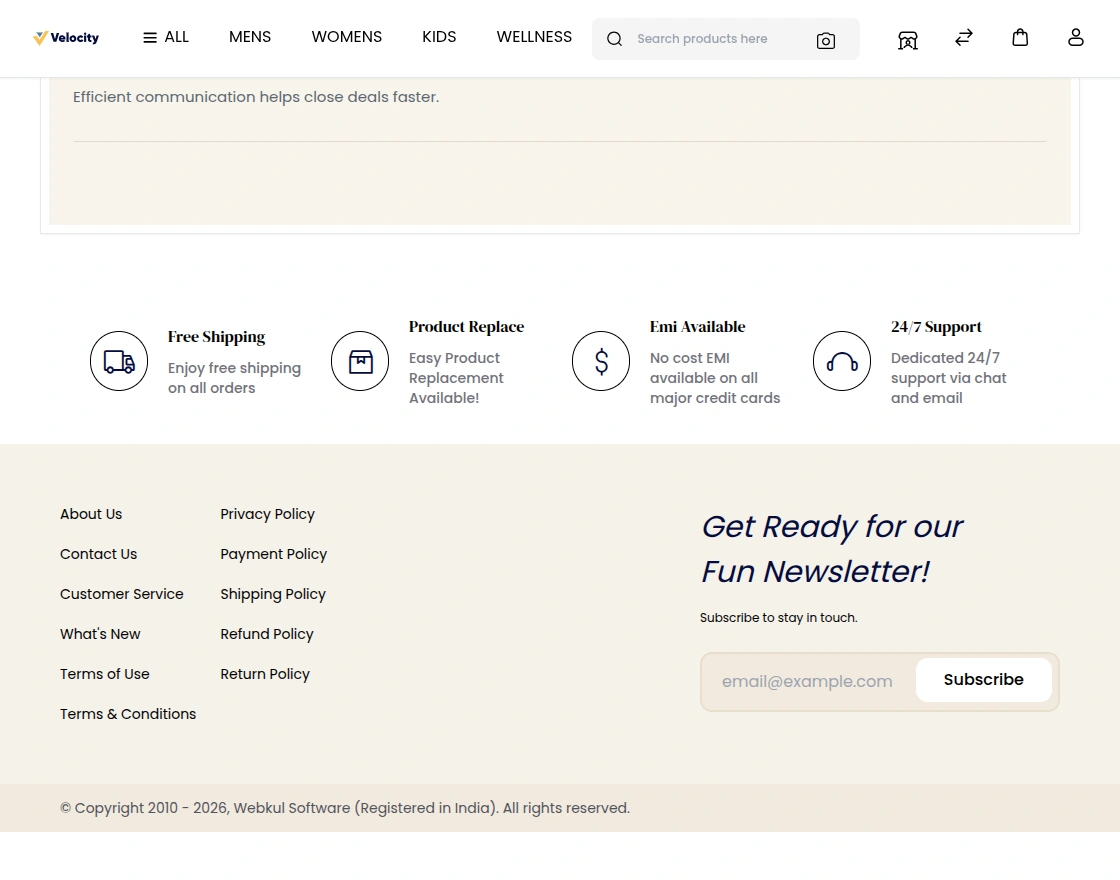
Here are the settings for your Landing Page, where you can provide descriptive information and attract suppliers to sell on your marketplace.
The landing page appears when you click Sell on your Front end.
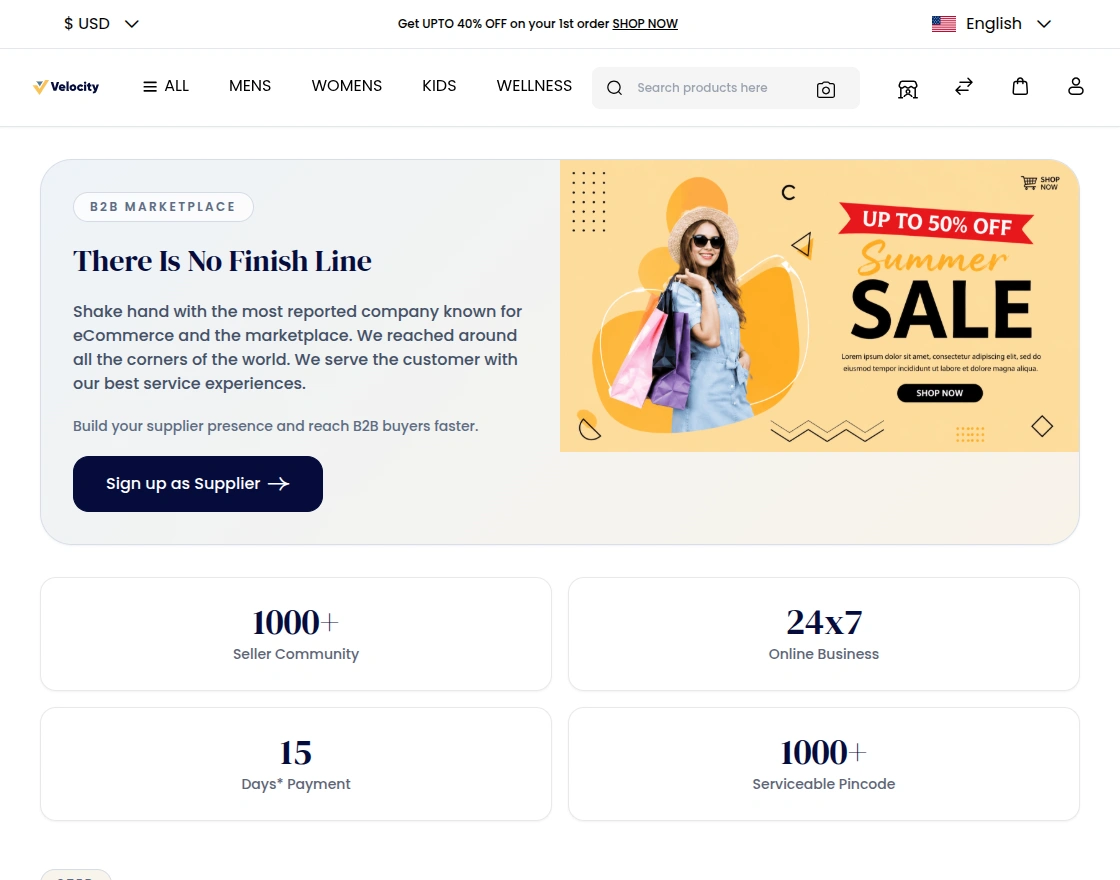
Let’s move on with each functionality.
Show Banner
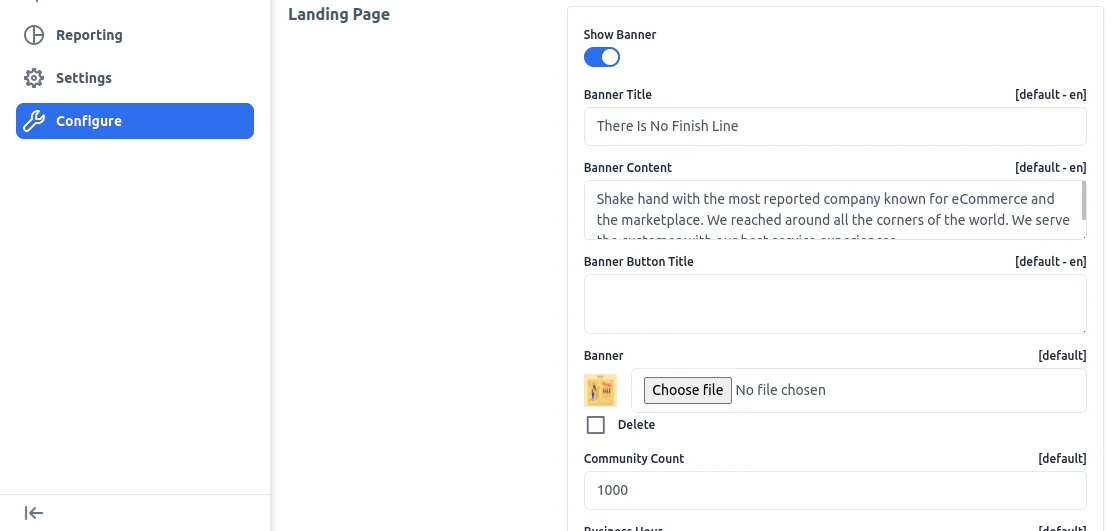
You can select Yes in the option if you want to show the banner on the landing page, following which you need to provide the banner image.
Banner Title
The main title shown on the banner to attract suppliers.
Banner Content
Here you can provide the banner content that will appear on the banner image as provided.
Banner Button Title
The label of the button shown on the banner.
Banner
Upload the banner image.
Community Count, Business Hour, Payment Duration, Serviceable Pincode
Marketplace highlights shown below the banner, for example the number of suppliers and serviceable pincodes.
Show Features
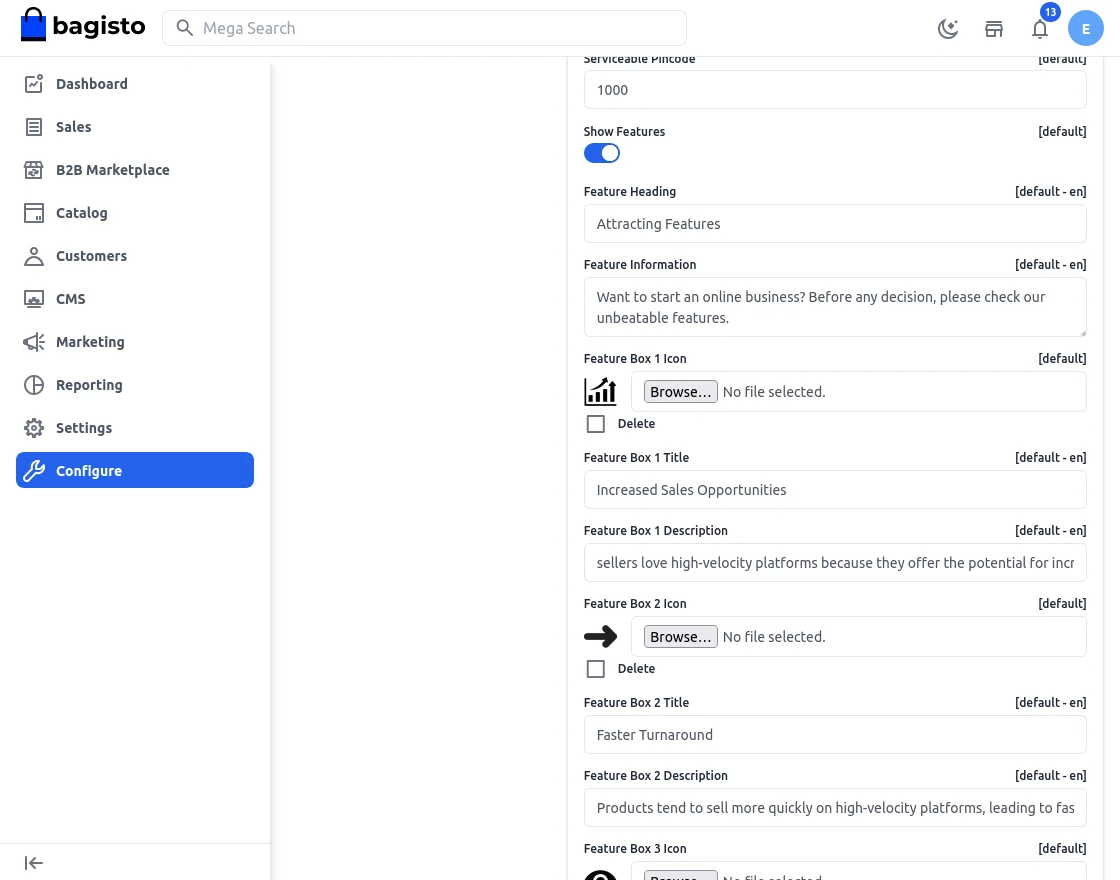
You can select the option as Yes if you are looking to showcase features of the marketplace. After selecting Yes, below you can provide the Feature heading, information, and icon.
Feature Heading
Enter the feature heading in this field.
Feature Information
Admin can add the feature information in this field that will appear under the Feature Heading.
Feature Box 1 Icon
The admin can add the feature icon on the landing page.
Feature Box 1 Title
The title shown under the feature icon.
Feature Box 1 Description
A short description shown under the feature title.
Note: The admin can set up to 9 feature boxes, each with an icon, title, and description.
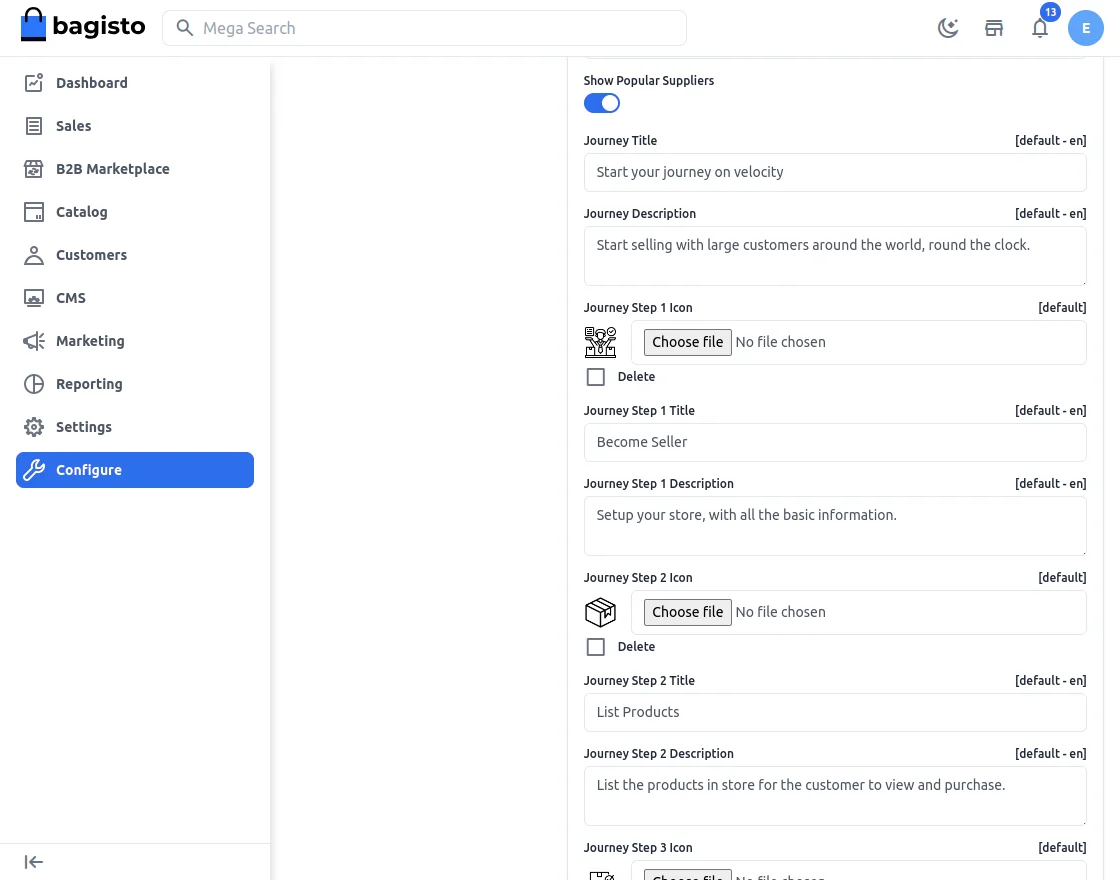
Show Popular Suppliers
The admin can select between Yes or No from the drop-down menu.
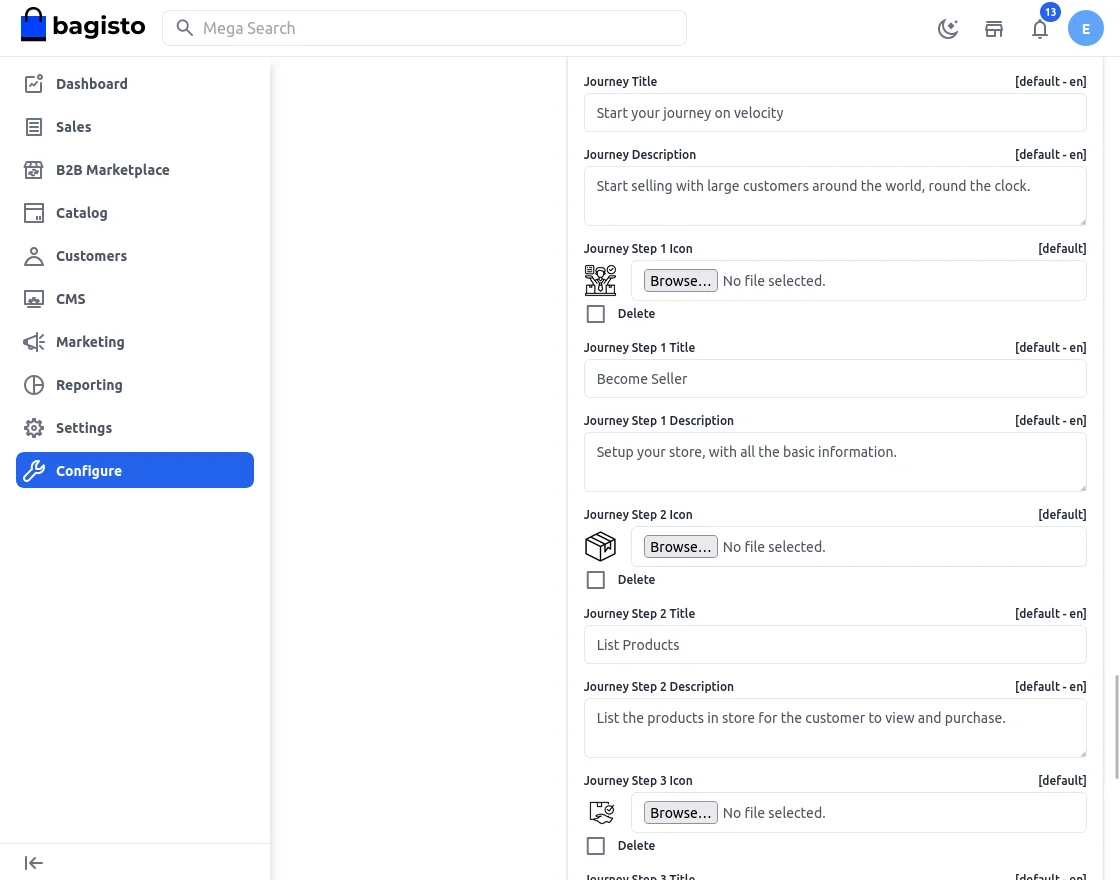
Journey Title
The heading of the supplier journey section.
Journey Description
A short introduction shown under the journey title.
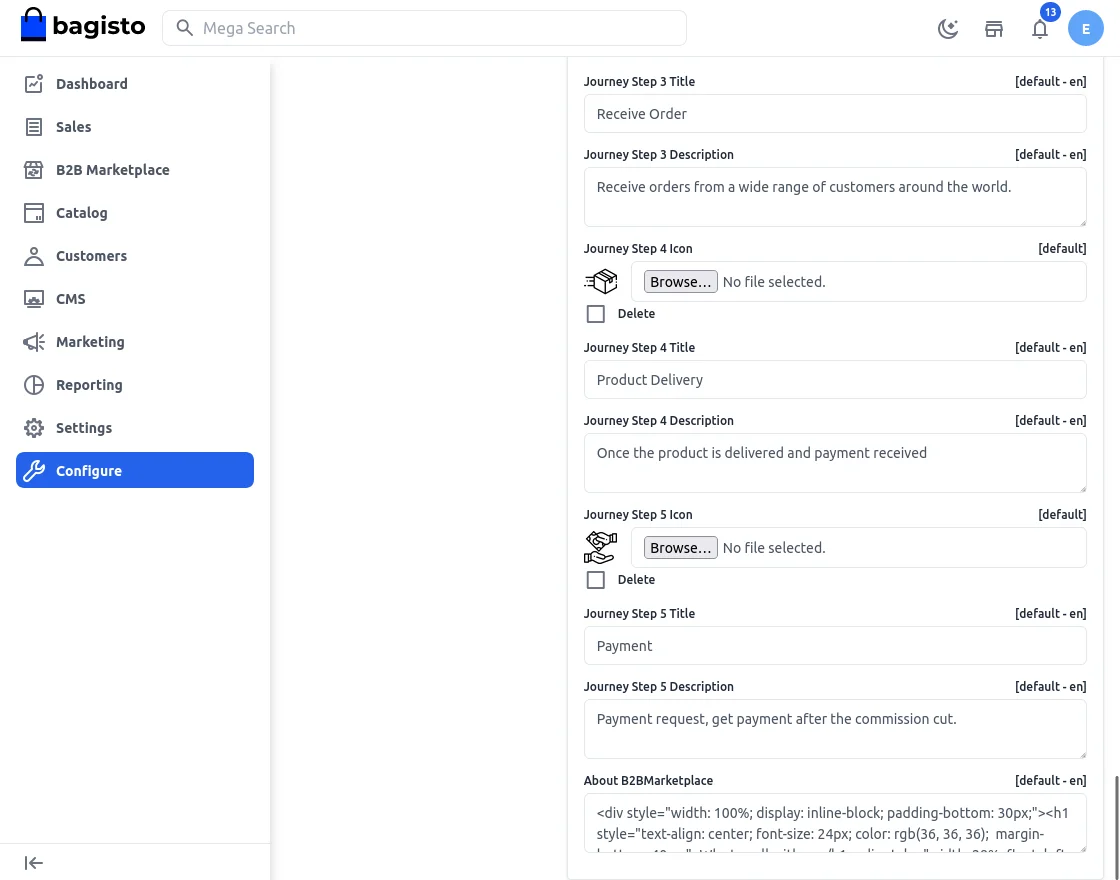
Journey Step 1 Icon, Title, Description
The icon, title, and description of each step. The admin can set up to 5 journey steps.
About B2BMarketplace
In this field, the admin can enter all the details regarding the B2B marketplace according to the requirements.
The Admin Experience
The admin panel is where the platform operator runs the marketplace. It lives under B2B Marketplace in the admin sidebar and covers suppliers, roles, attributes, reviews, chat, flags, products, categories, requested quotes, orders, and transactions. Let’s walk through each area.
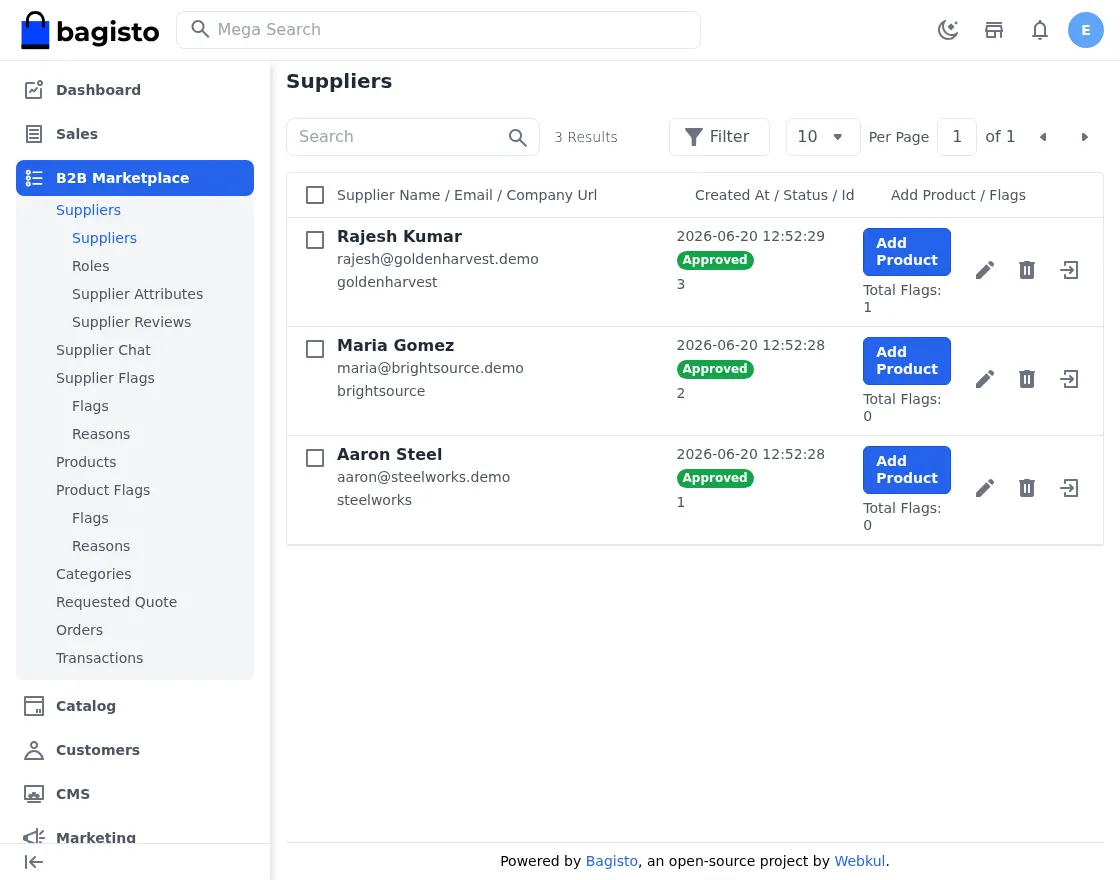
Supplier Management
The Suppliers screen lists every registered supplier with its approval status, company URL, creation date, flag count, and quick actions. From here the admin can approve or reject a supplier, add products to a supplier, edit the profile, and even log in as the supplier. This single screen is the hub of marketplace governance.
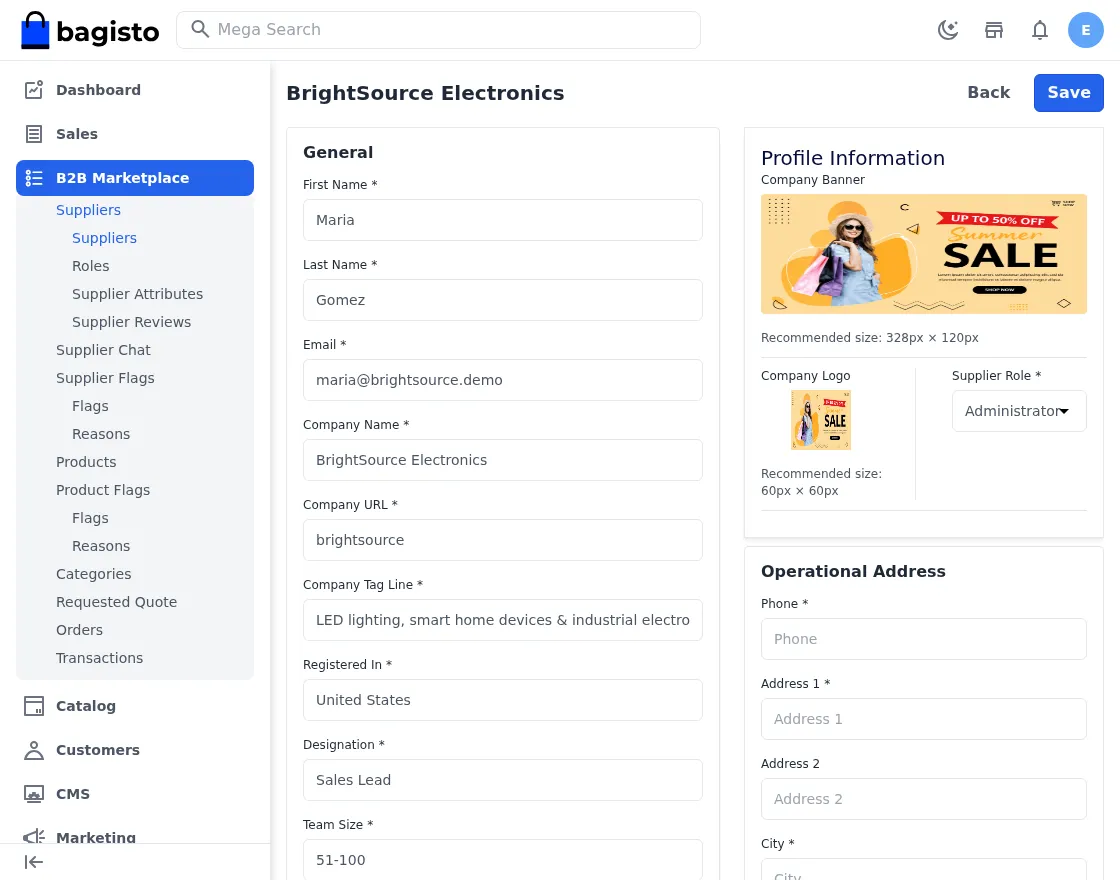
Editing a supplier opens the full profile form: general information, company details, SEO metadata, profile images, supplier role, operational and corporate addresses, social links, and more.
Supplier Roles
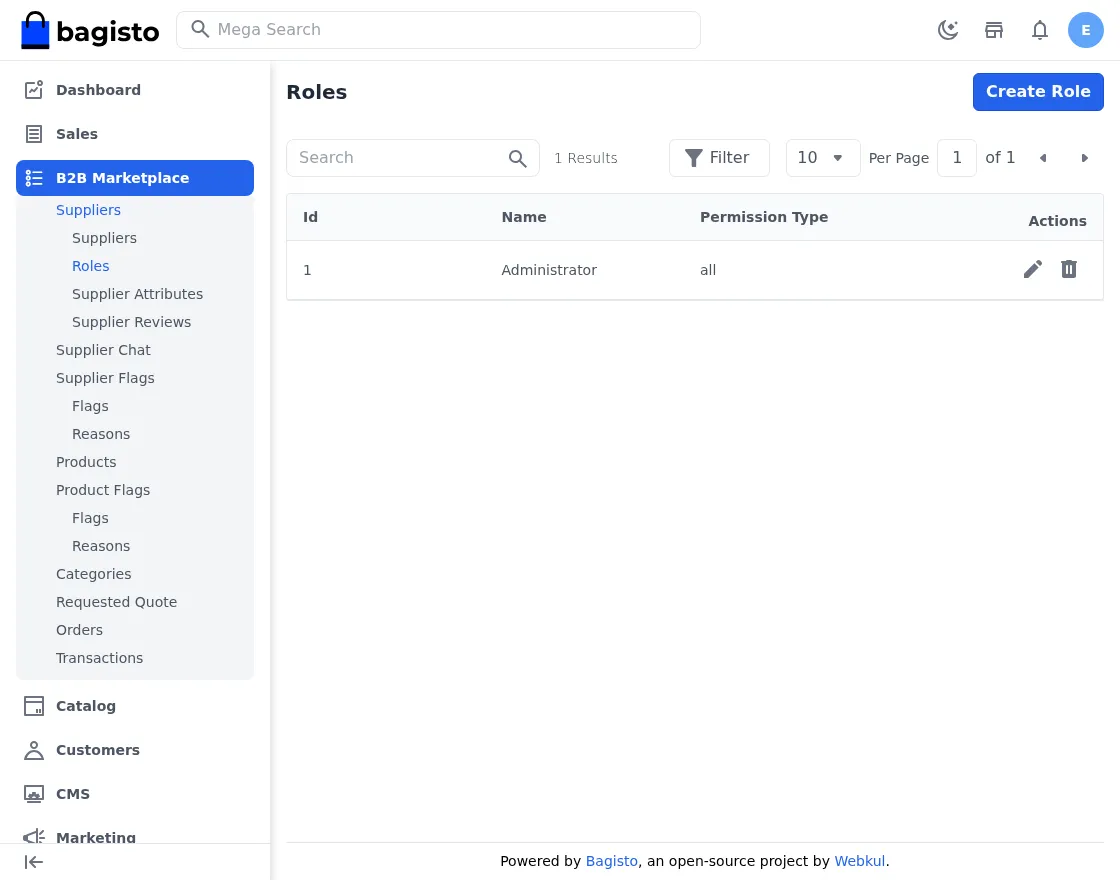
Supplier roles let you control permissions inside the supplier panel. Consequently, you can keep some suppliers restricted to catalog-only access while granting full permissions to trusted partners. The package ships with an Administrator role that has full access.
Supplier Attributes
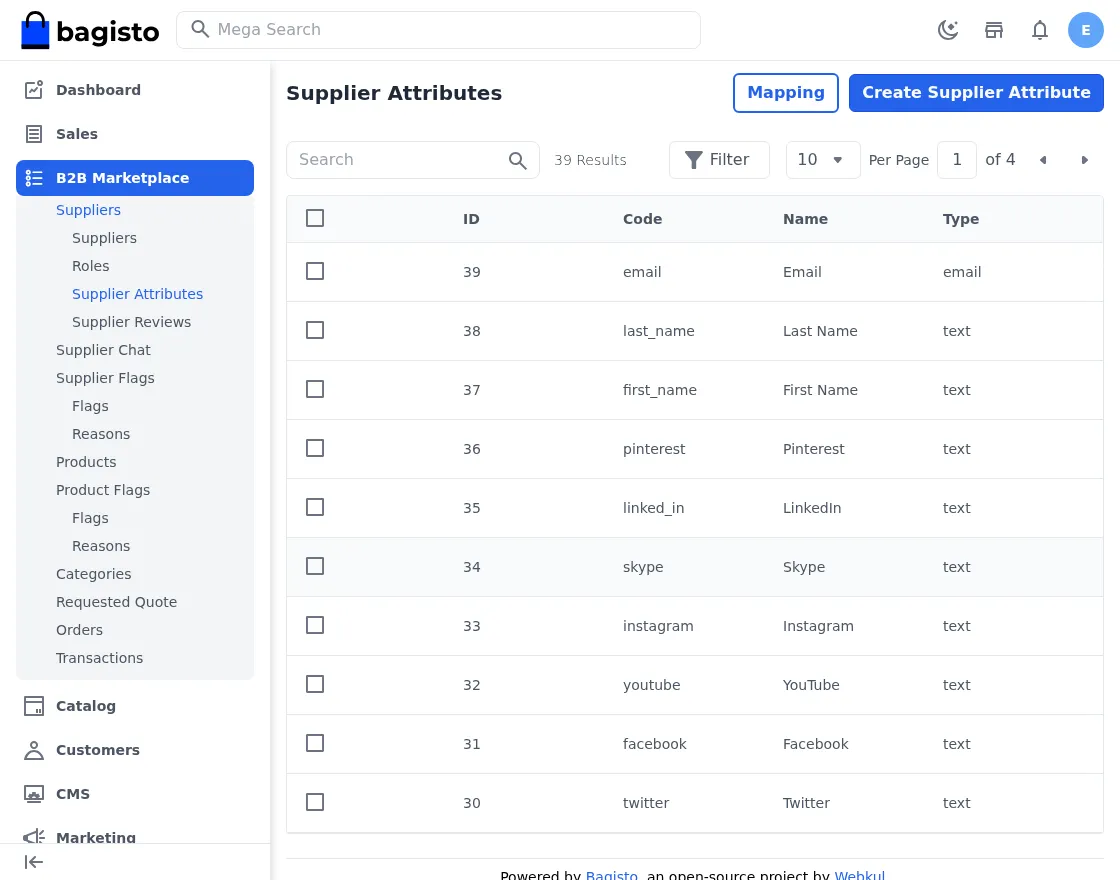
The supplier attribute system is EAV-based, just like products. The package seeds 39 attributes — first name, last name, email, social links, and more — with types, required/unique flags, and locale/channel options. Furthermore, admins can create new attributes, edit them, and manage attribute-group mapping.
Supplier Reviews
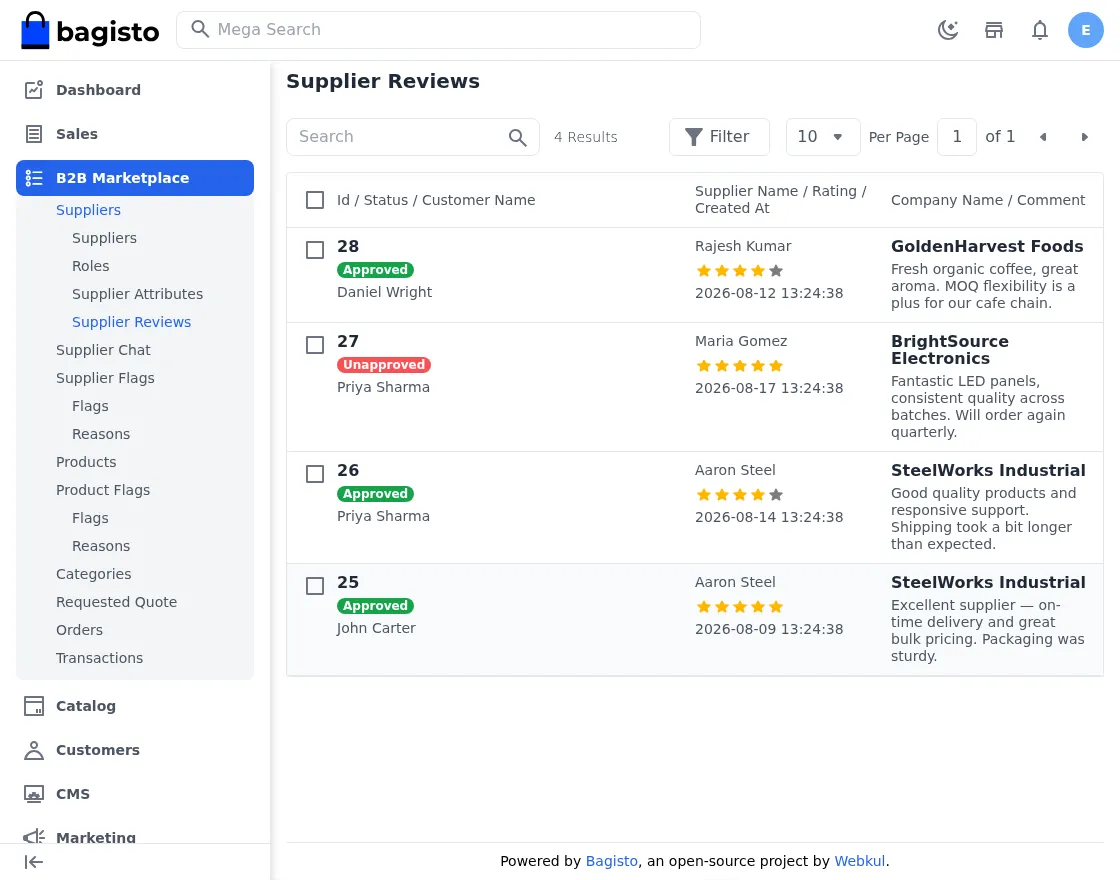
Reviews submitted by business buyers are moderated here. Each review shows the customer, supplier, rating, and comment, with an Approved/Unapproved status so only vetted feedback appears on the storefront. In this way, the platform keeps public ratings trustworthy for everyone.
Supplier Chat
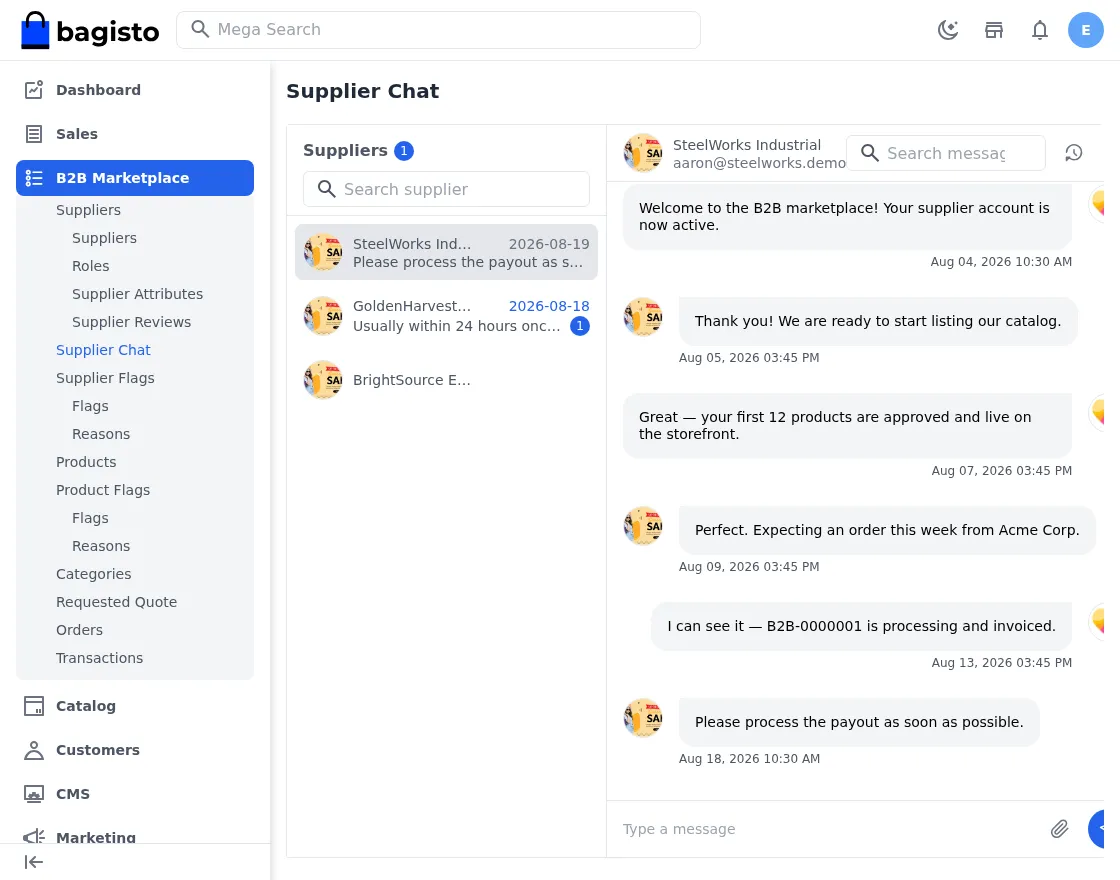
The admin and each supplier share a conversation thread.
Admins can send announcements, answer questions, and discuss approvals directly from the Supplier Chat screen, which means onboarding and support happen in one place.
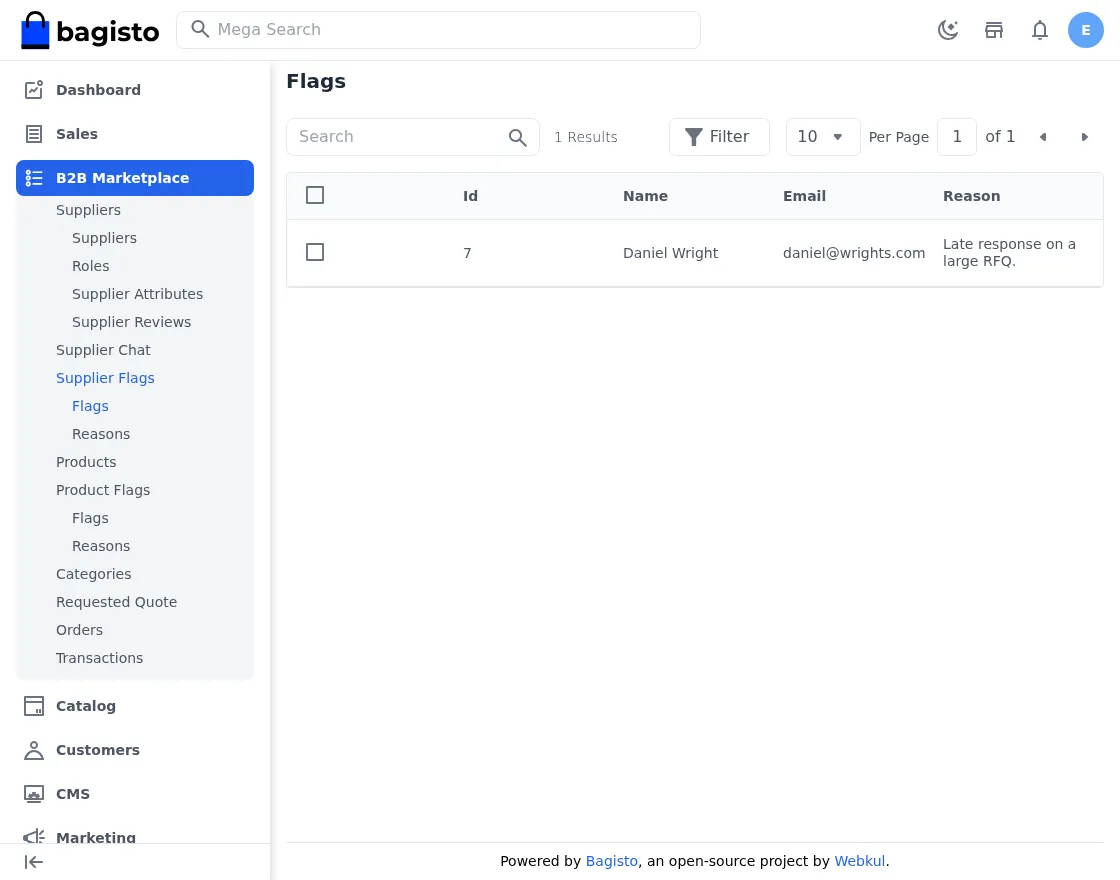
Supplier Flags and Reasons
Buyers can flag a supplier. Flags land here with the buyer’s reason, and the admin can review them. Flag reasons are managed as a separate reusable list.
Products and Product Flags
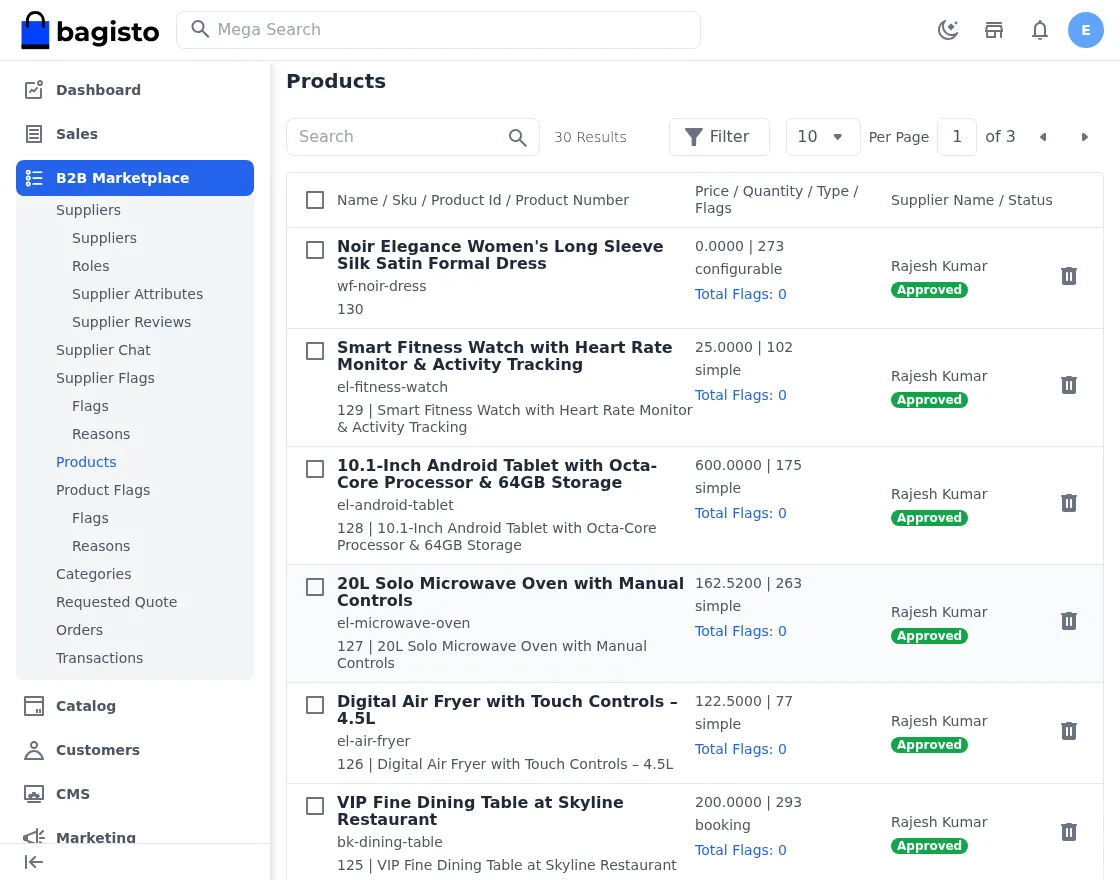
The Products screen aggregates every product across all suppliers.
The admin sees price, quantity, product type, flags, and the owning supplier, and can approve or delete each listing.
For example, our demo assigns 30 catalog products across the three suppliers.
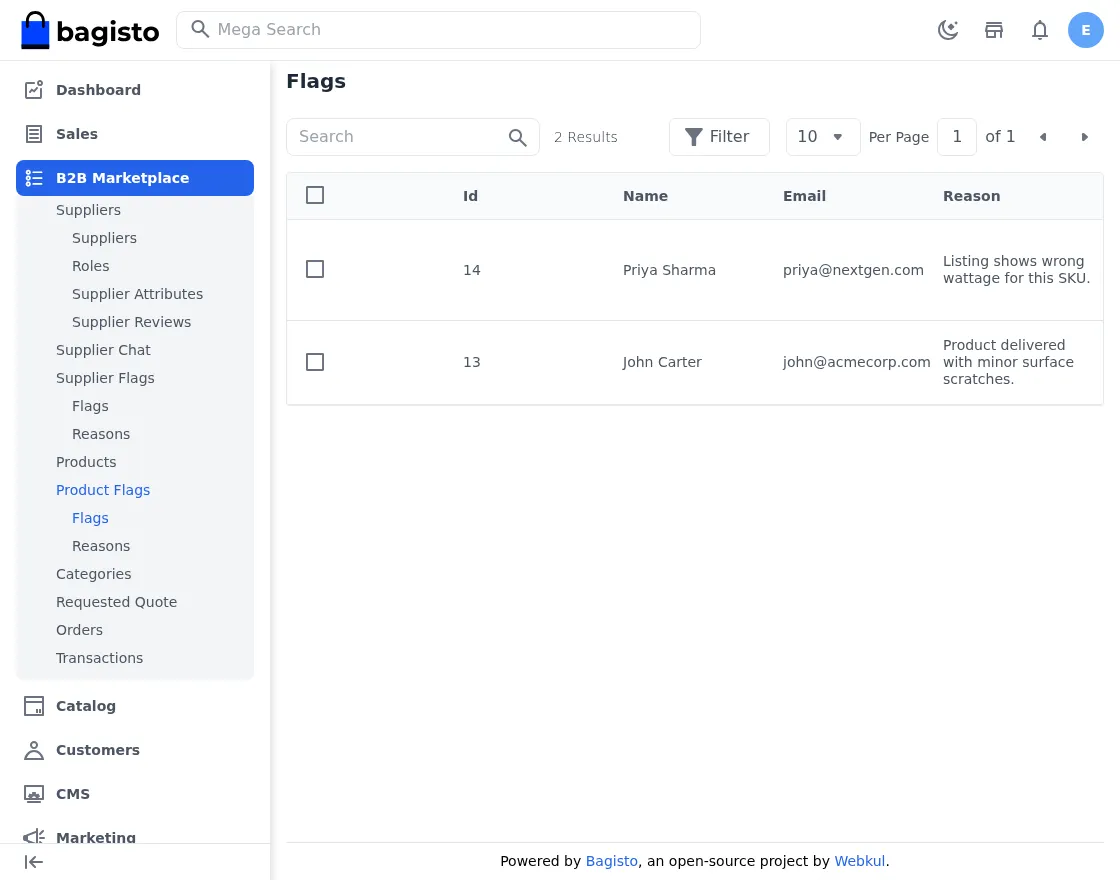
Product flags work like supplier flags — buyers report issues with a product (for example “wrong wattage” or “minor surface scratches”), and the admin can act on them accordingly.
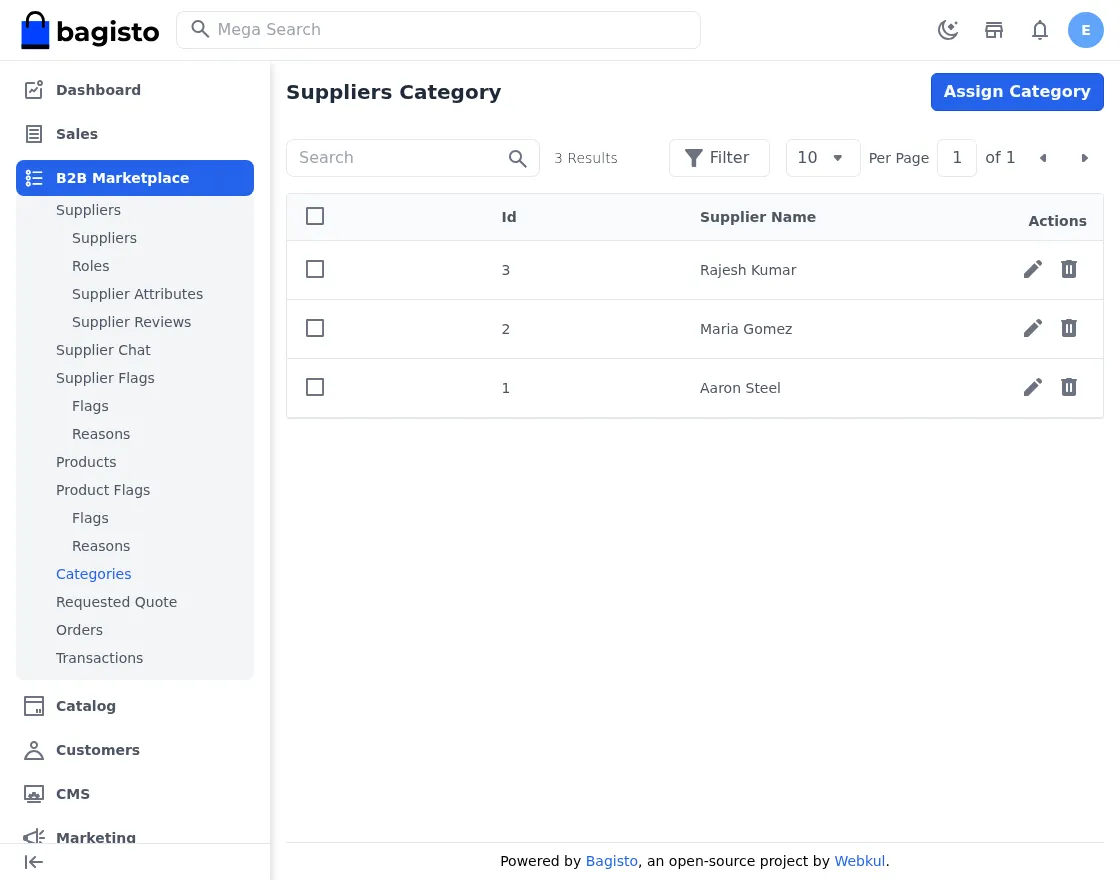
Supplier Categories
The admin assigns which catalog categories each supplier is allowed to operate in. This feeds the buying-leads matching and the supplier settings categories screen.
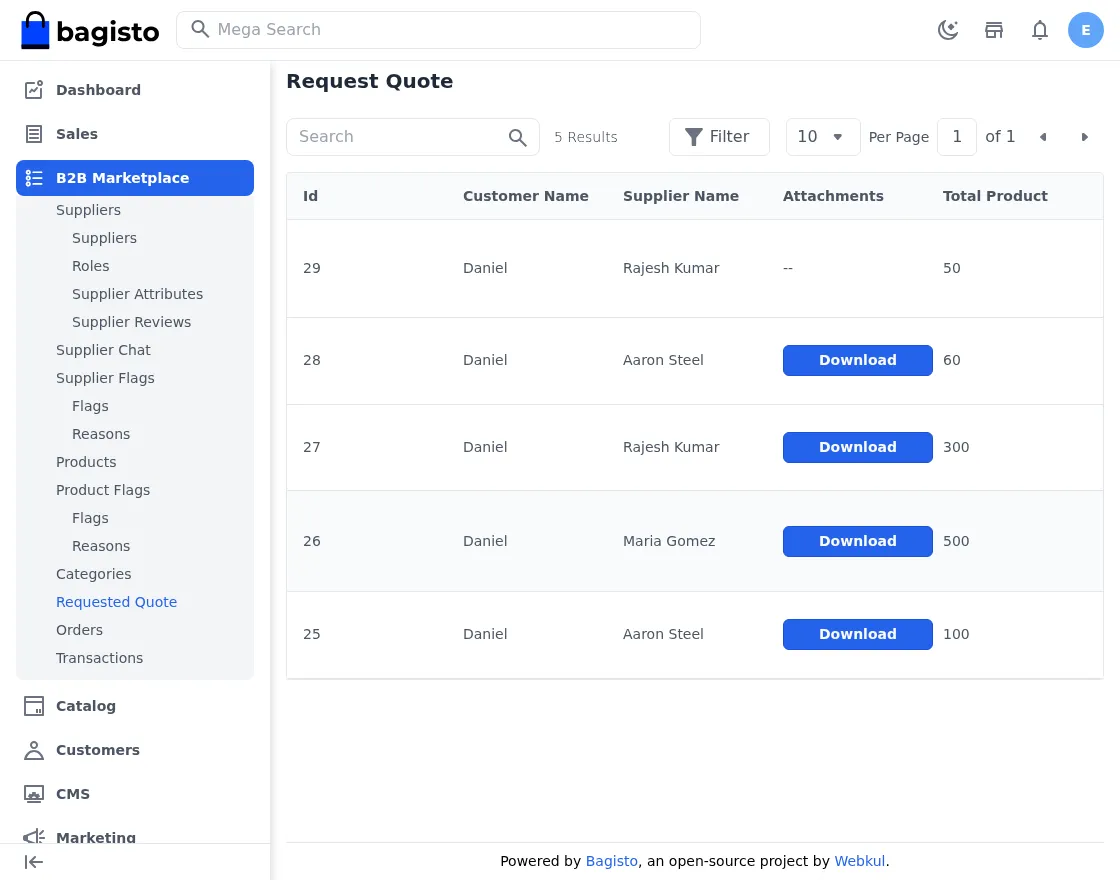
Requested Quotes
Every RFQ posted by a buyer is visible here with the customer, the assigned supplier, attachments, total products, total price, product name, sample image, and quote status. Additionally, the admin can download quote images and attachments for reference or audit.
Orders and Pay-Out
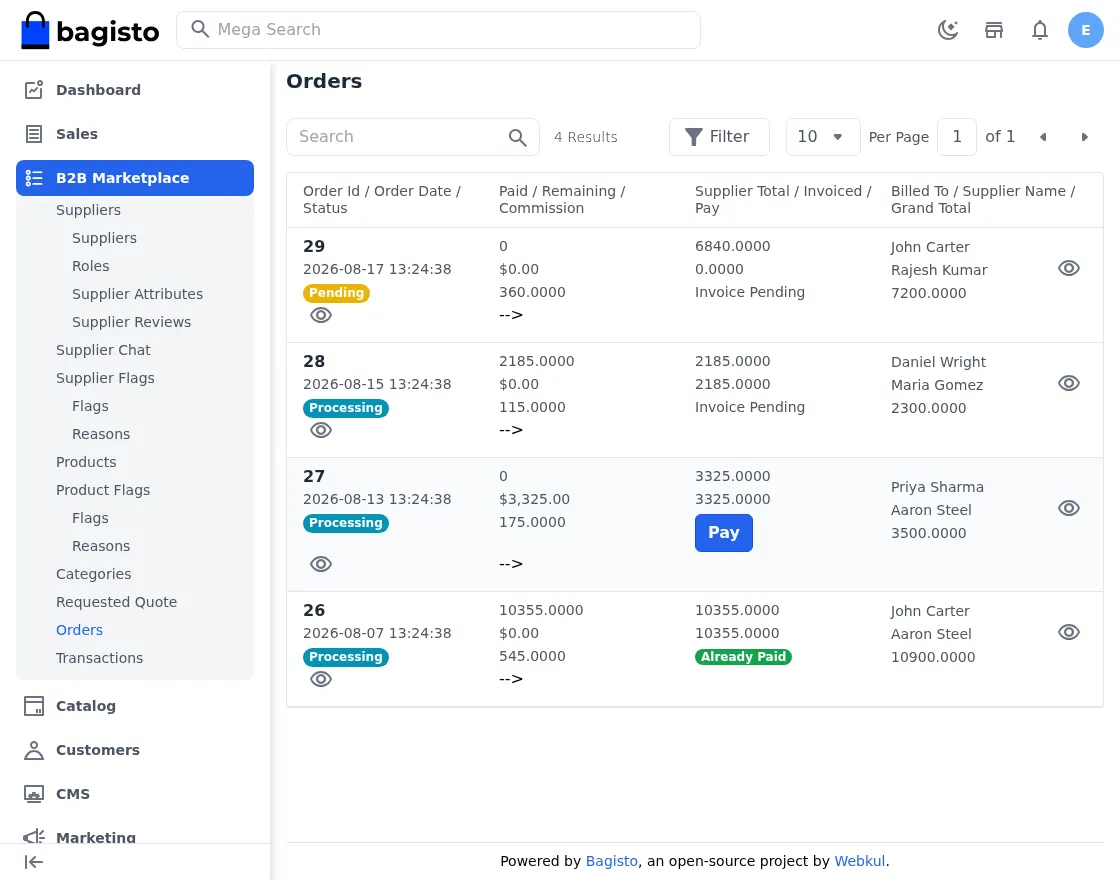
The B2B orders screen is the money screen. For every marketplace order it shows the order status, paid amount, remaining amount, commission, supplier total invoiced, billed-to customer, and the supplier. When a supplier is due, a Pay button appears.
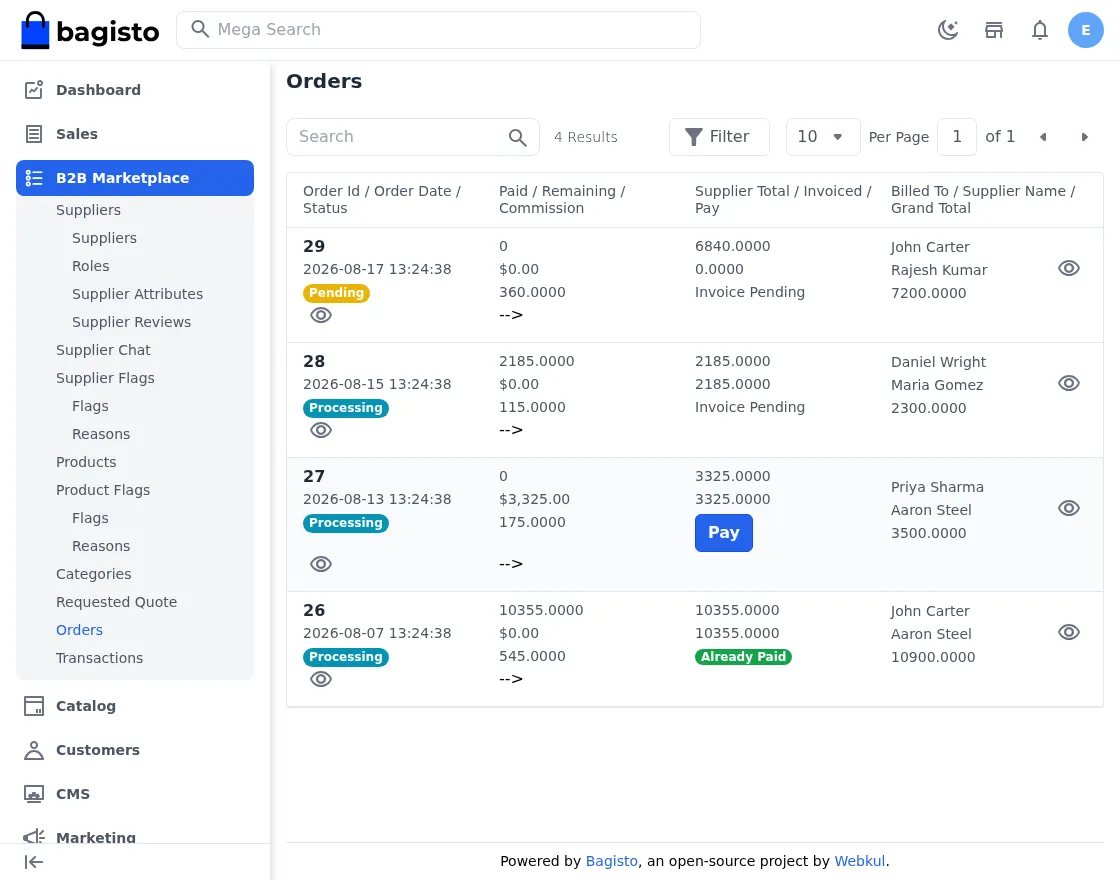
The payout is always recomputed server-side as base_supplier_total_invoiced − already paid, so the admin can never over-pay. Hence, already-paid orders show as Already Paid.
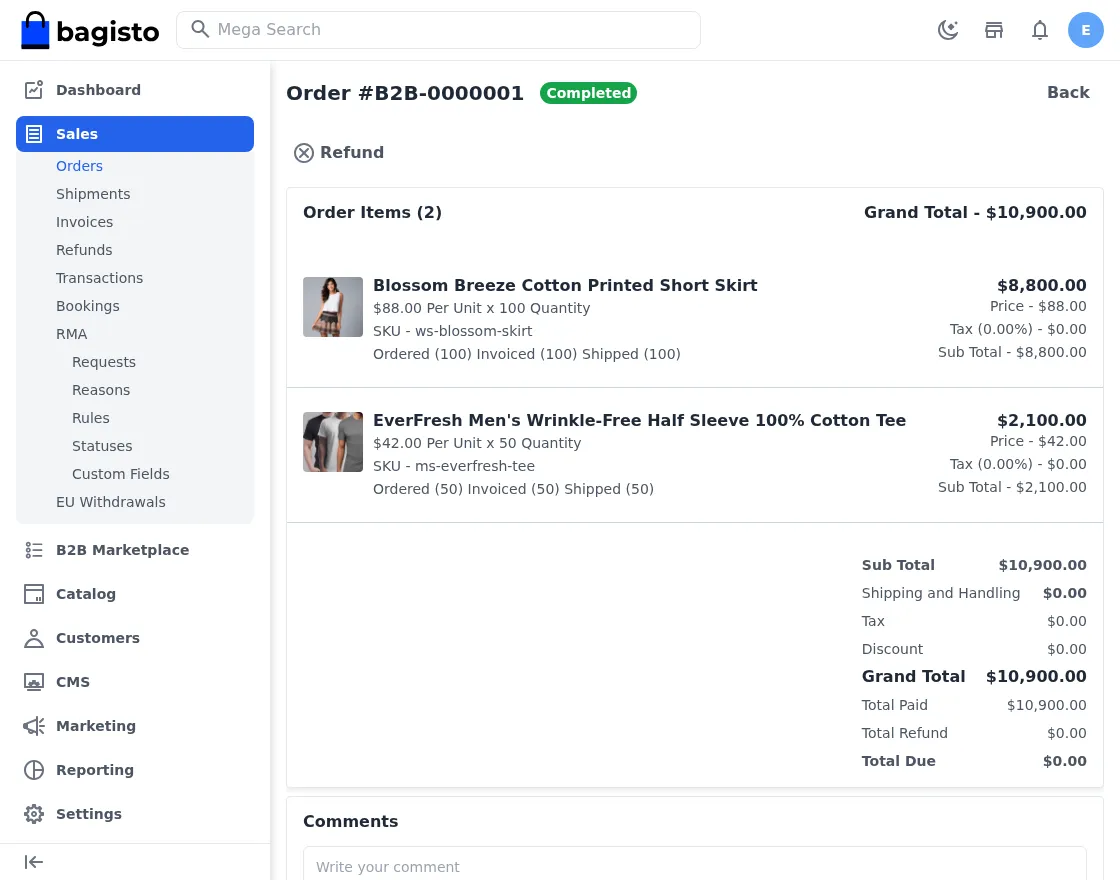
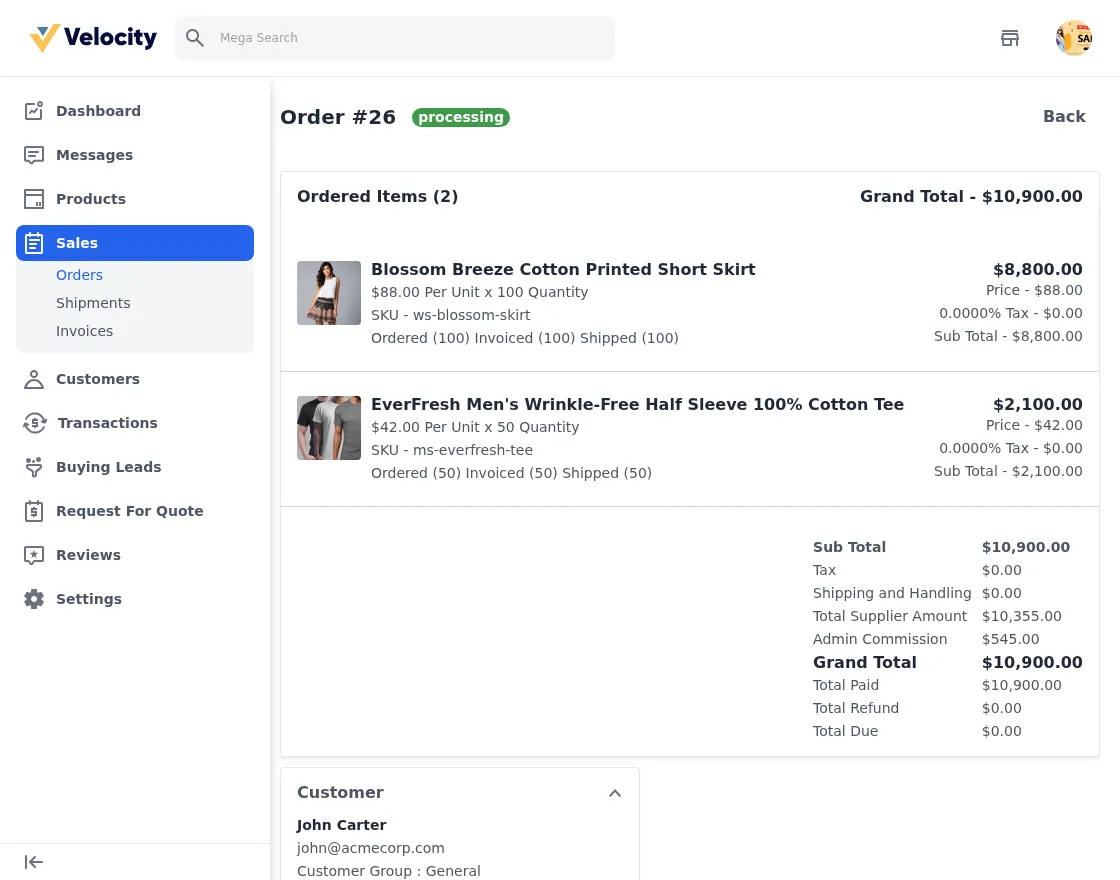
The regular order view also surfaces the B2B breakdown. Order B2B-0000001 below shows a $10,900.00 grand total split into a $10,355.00 supplier amount and a $545.00 admin commission (5%).
Transactions
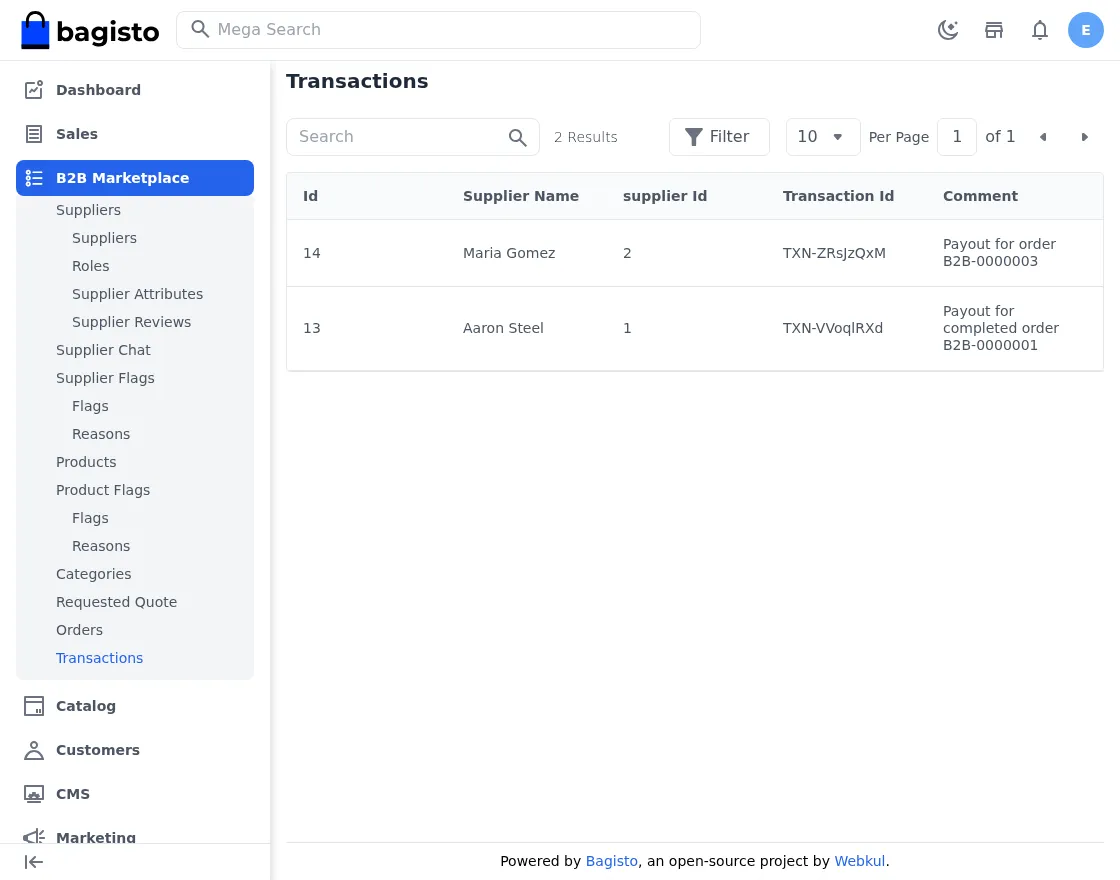
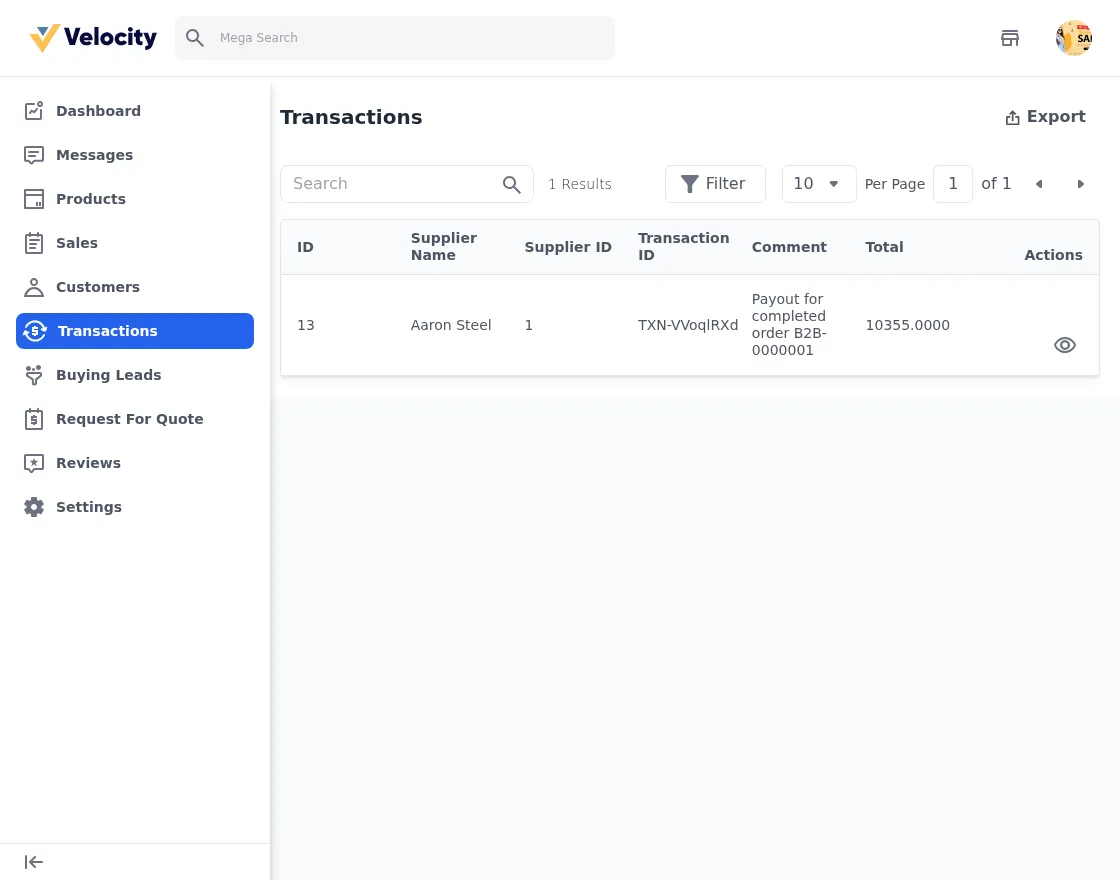
Every payout is recorded as a transaction — supplier name, supplier ID, transaction ID, comment, and total. In the demo you can see the payout for B2B-0000001 (Aaron Steel, $10,355.00) and for B2B-0000003 (Maria Gomez, $2,185.00).
The Supplier Experience
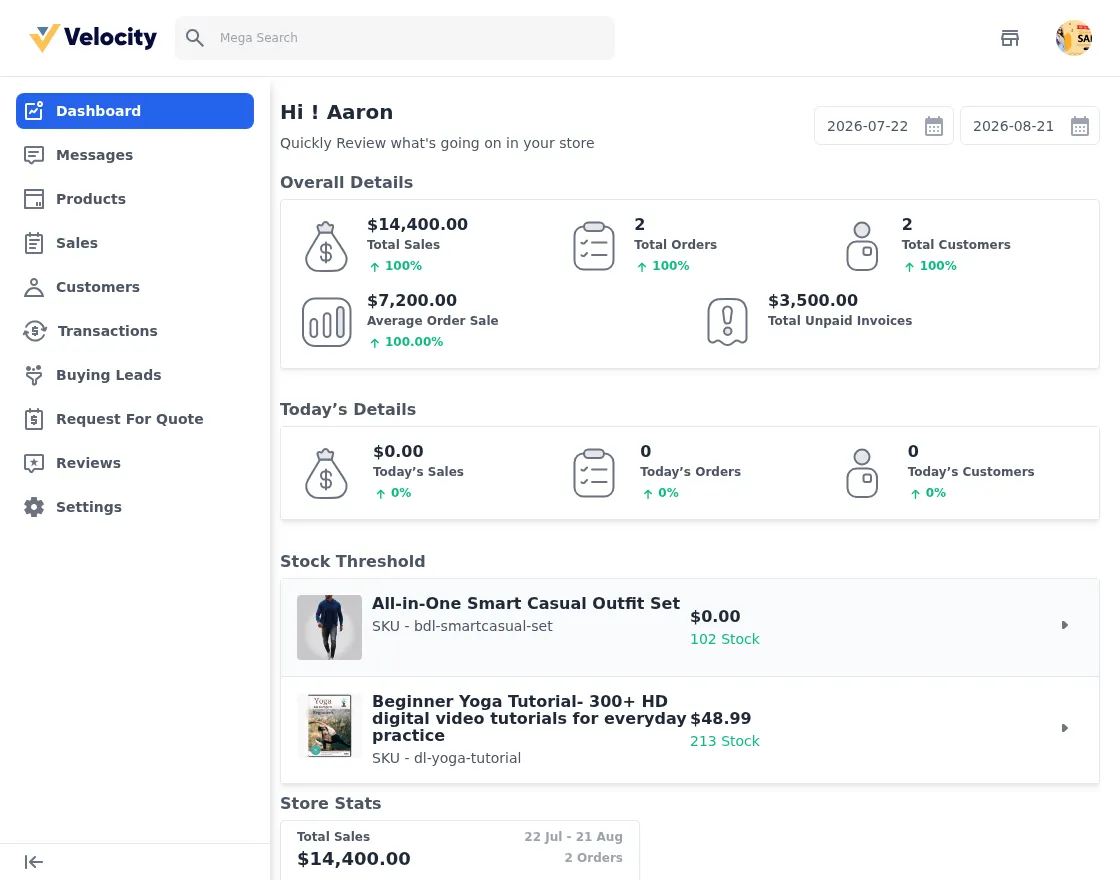
Suppliers log in at /supplier/login and land on their own dashboard. The demo supplier, Aaron Steel of SteelWorks Industrial, has two orders worth $14,400.00 total, two customers, a $7,200.00 average order value, and a stock-threshold list that warns about low inventory.
Product Catalog
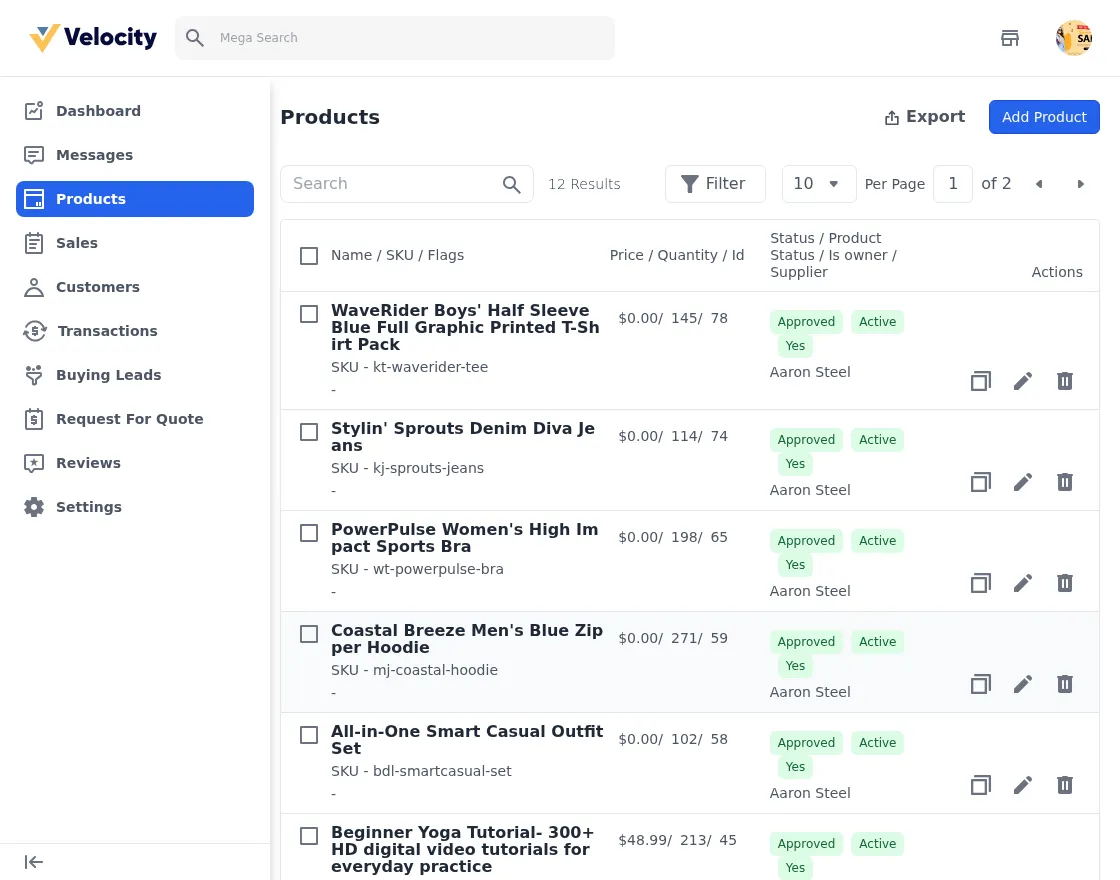
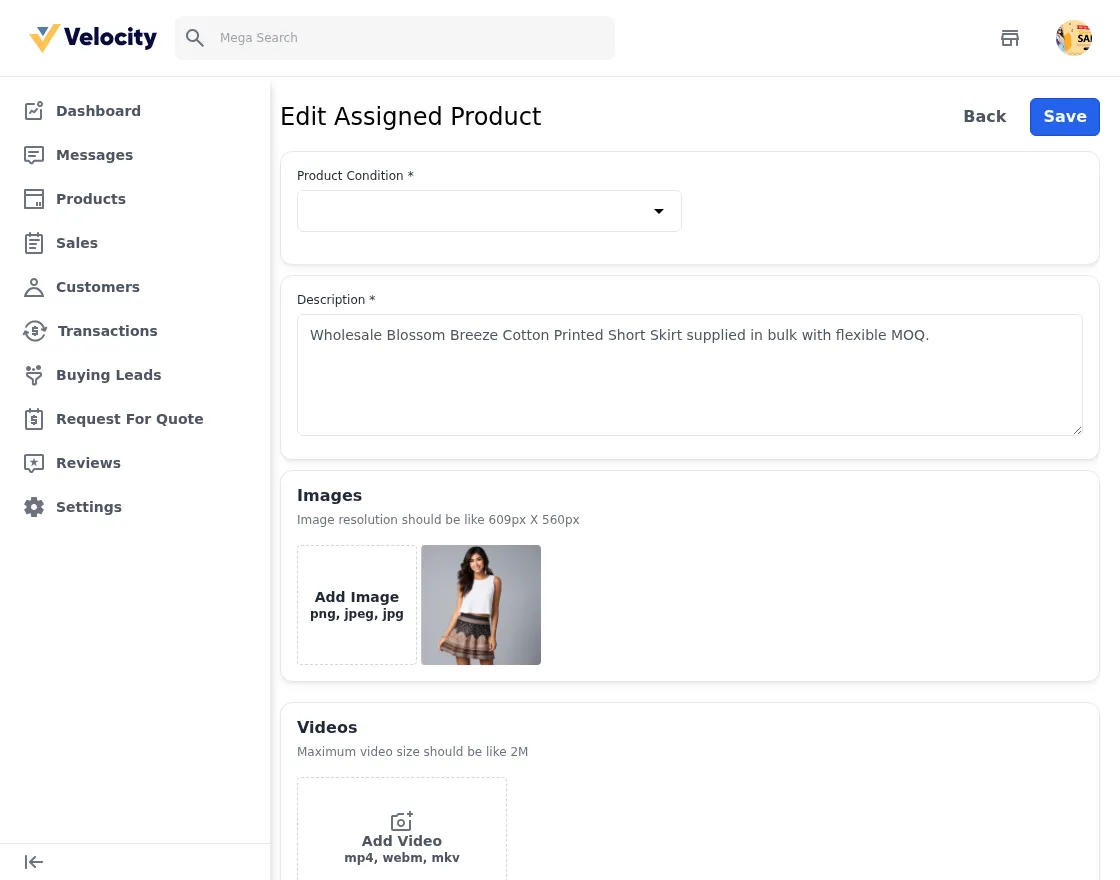
Next, the catalog screen lists the supplier’s products — 12 for SteelWorks in the demo — with price, quantity, approval and active status, and ownership. From here the supplier can add a new product, assign an existing master-catalog product, or edit price/inventory/images.
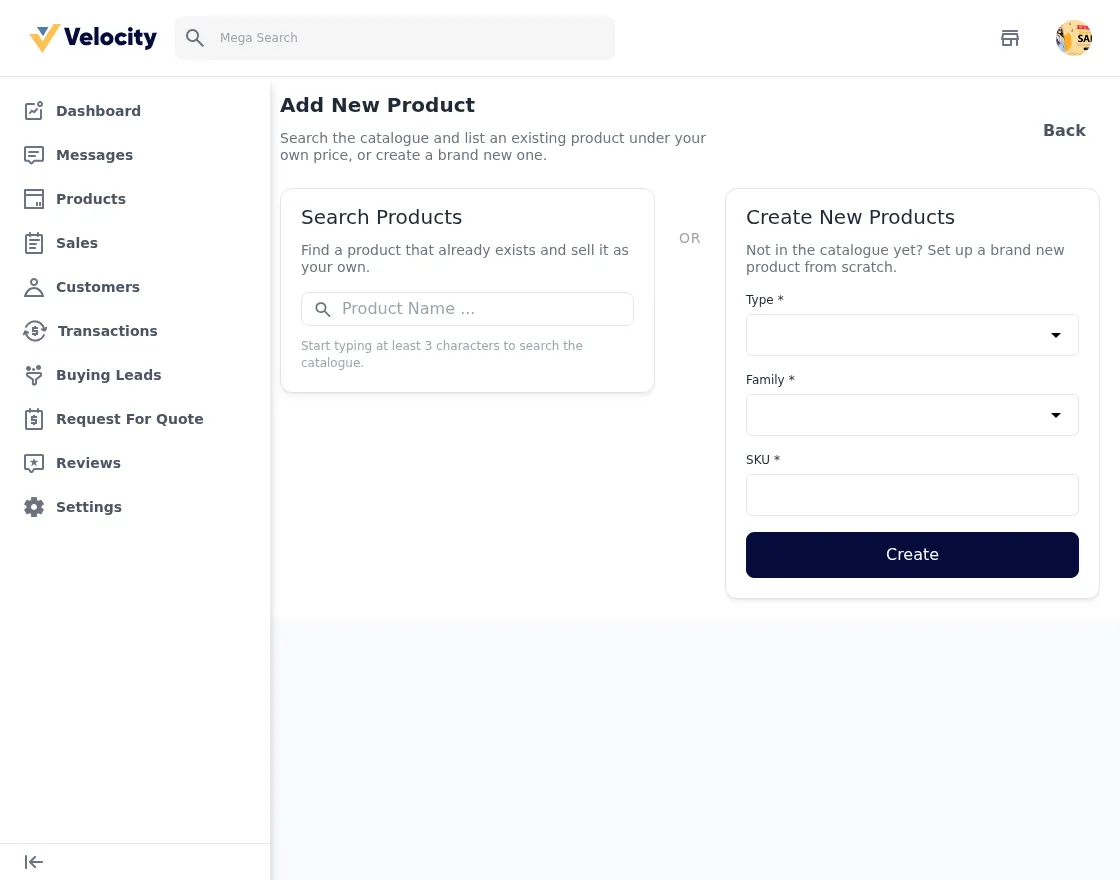
Creating a product opens a full form with pricing, inventory, images, and marketplace fields, while editing an assigned product lets the supplier manage its selling price and stock.
Orders, Invoices, and Shipments
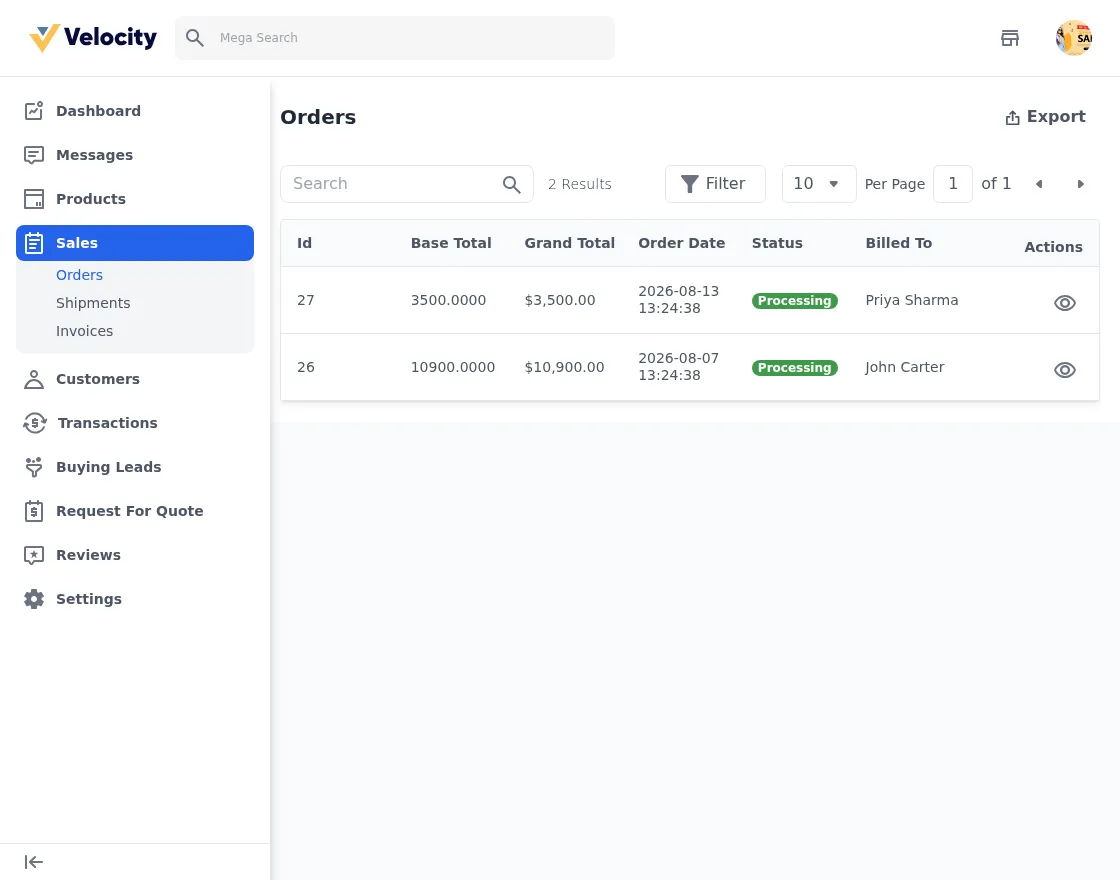
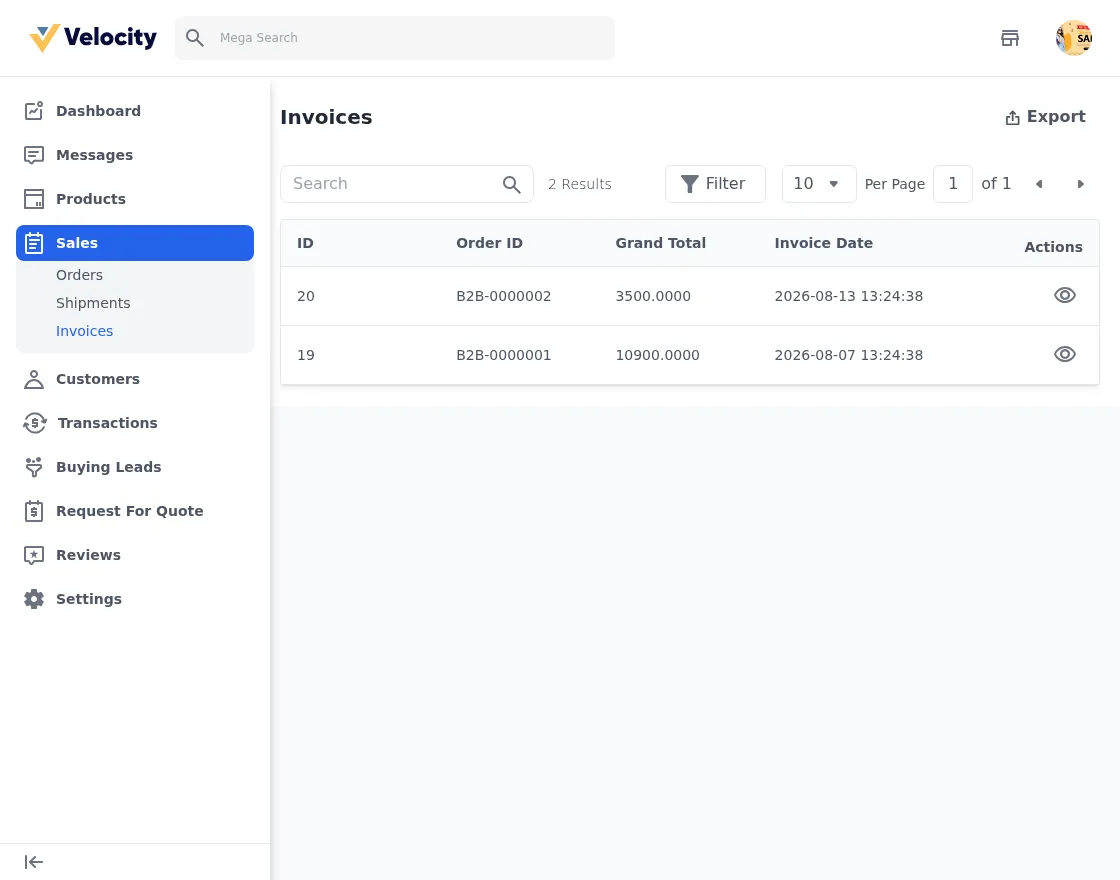
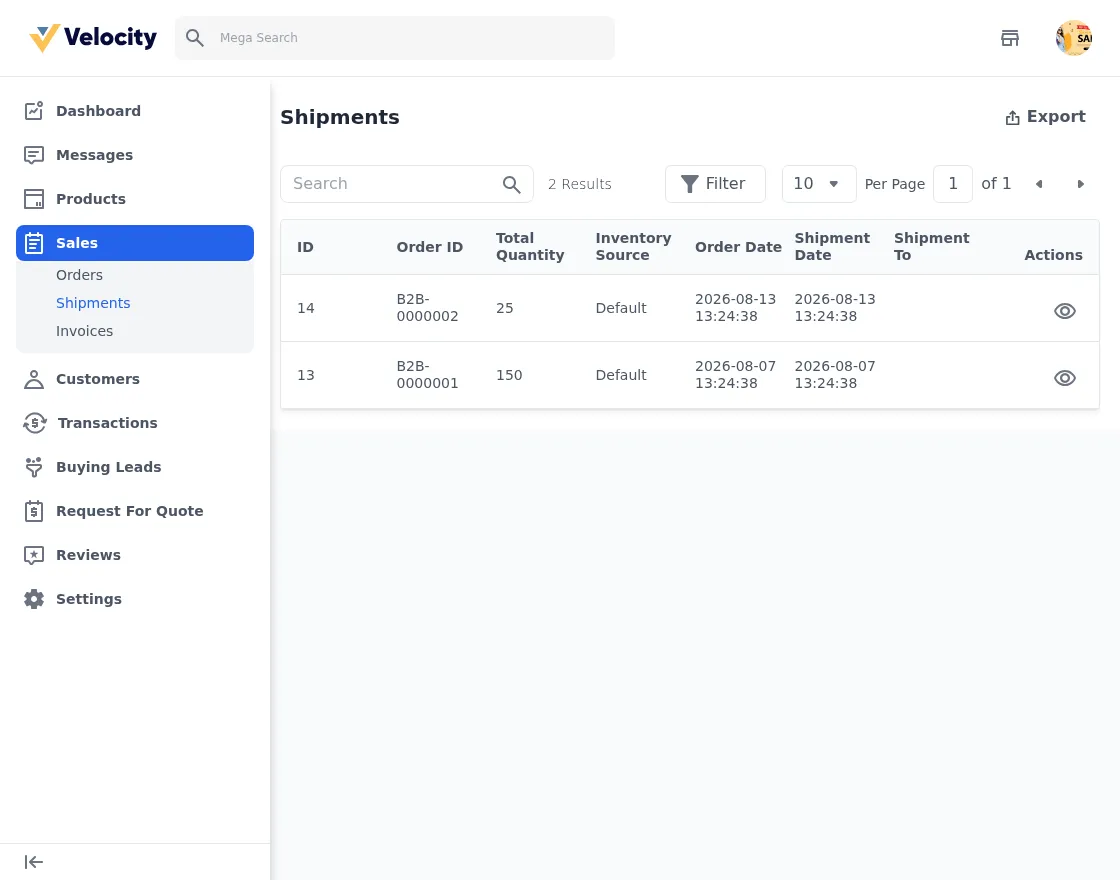
Supplier sales are fully scoped to the supplier. SteelWorks sees two orders — B2B-0000001 and B2B-0000002 — each with its own invoices and shipments. Depending on configuration, the supplier can create invoices and shipments for its own orders.
The order detail page shows the commission breakdown clearly — the supplier sees its own total supplier amount and the admin commission on the same screen.
Customers and Transactions
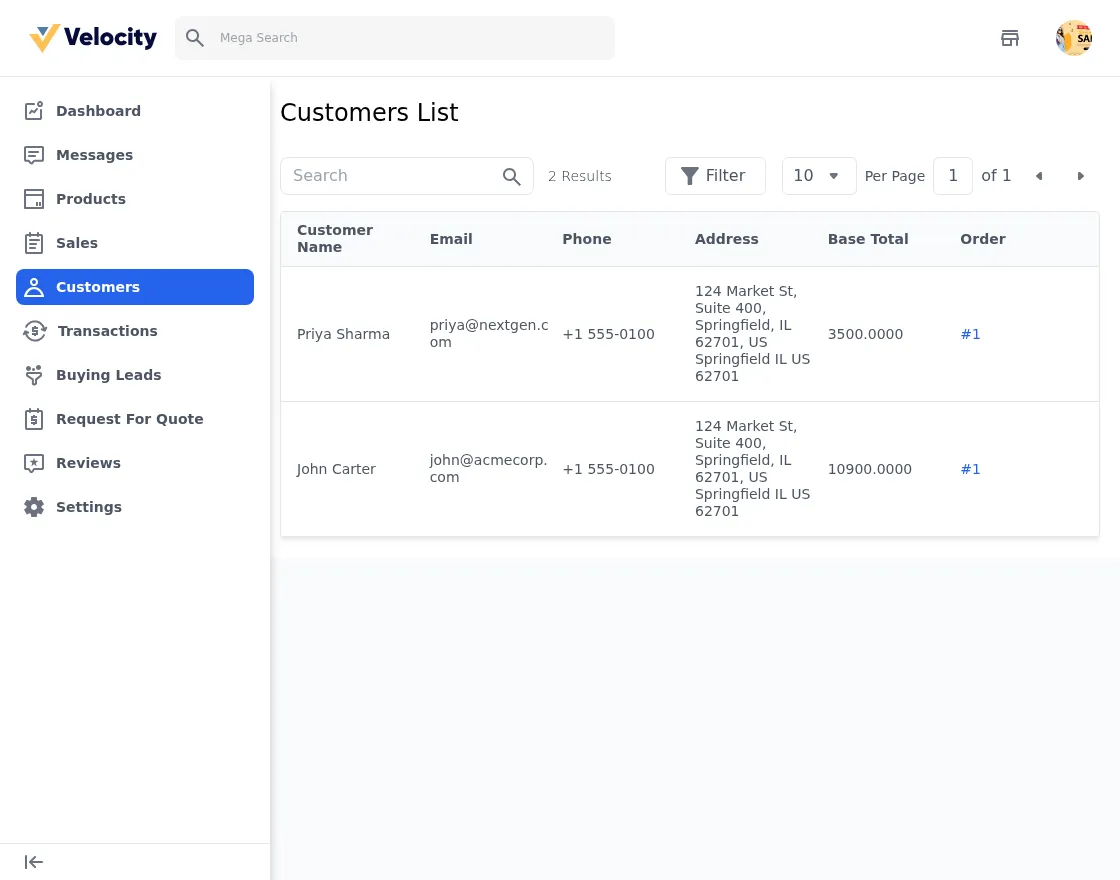
The Customers screen shows every buyer who ordered from this supplier with their total spend, and the Transactions screen lists each payout the supplier has received.
Buying Leads
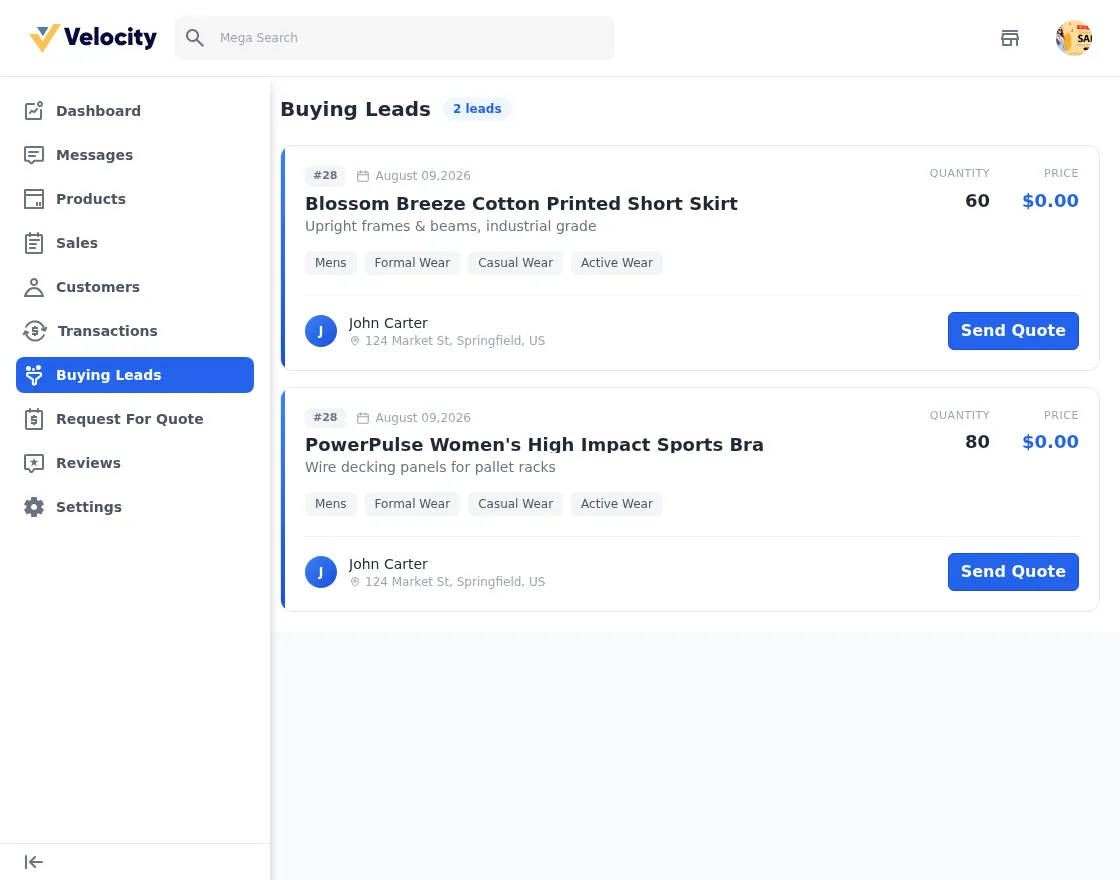
The Buying Leads board shows open RFQs that match the supplier’s stocked products and allowed categories. In the demo, SteelWorks sees two leads from John Carter of Acme Corp — one for upright racking frames and one for wire decking — each with a quantity, expected price, category tags, and a Send Quote button.
Request For Quote
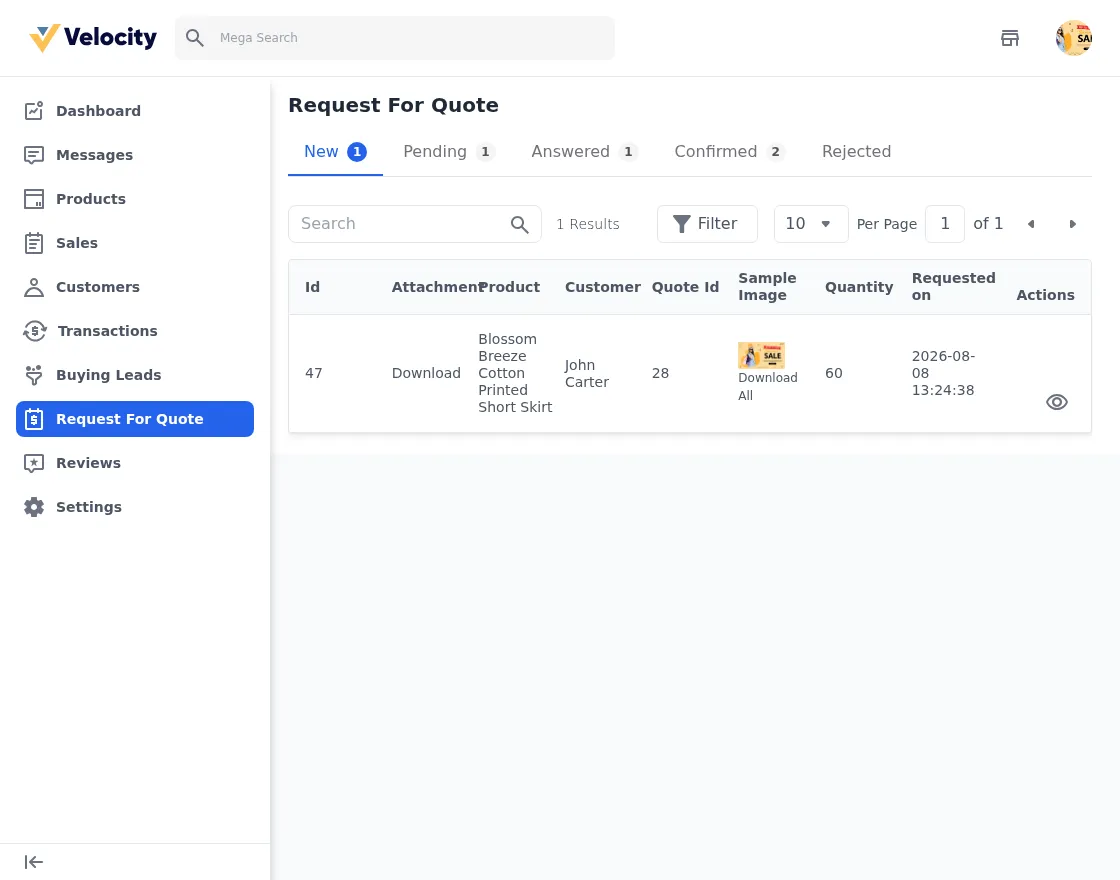
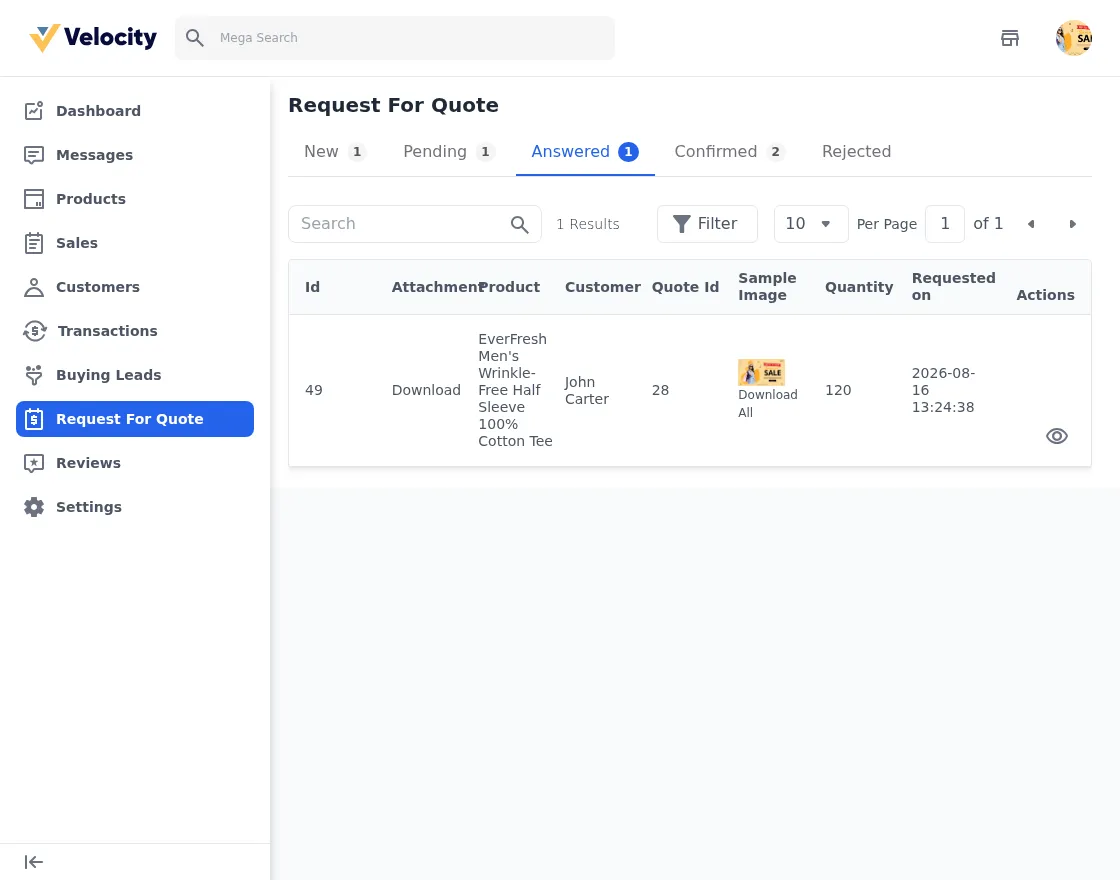
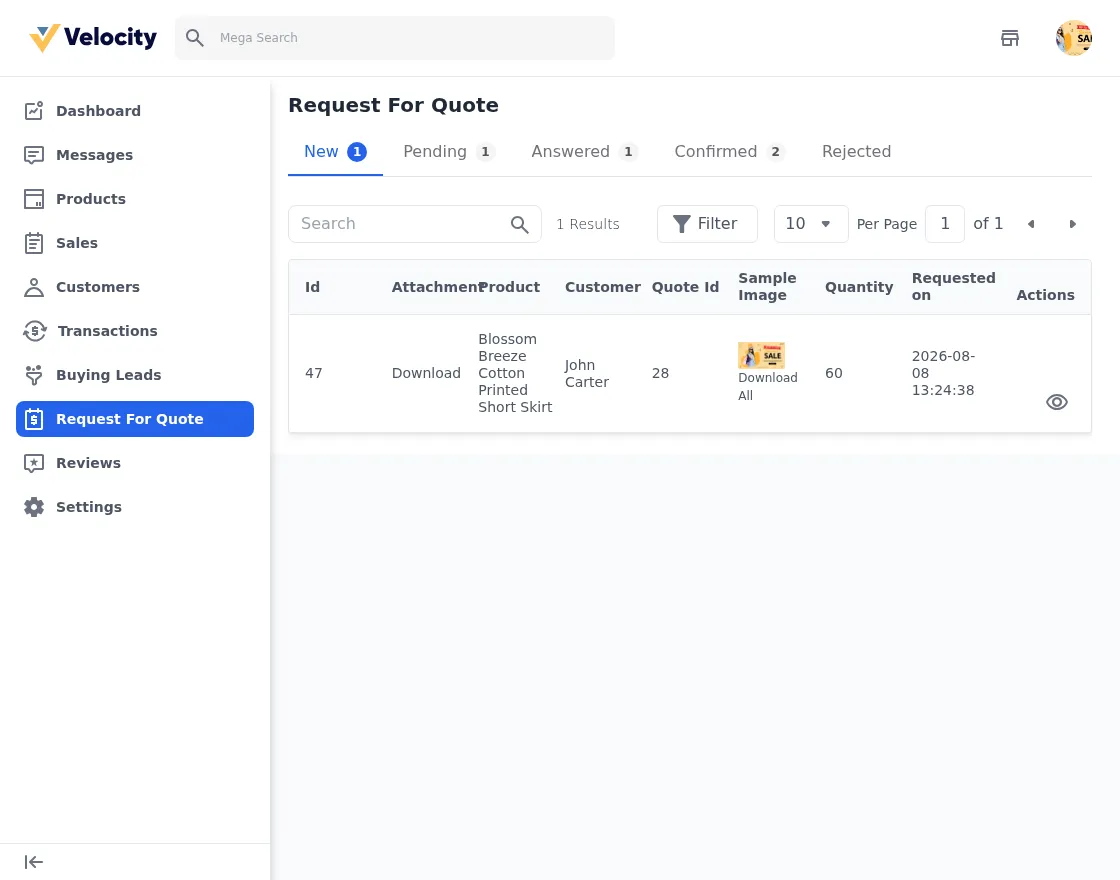
The RFQ screen organizes every request line into tabs — New, Pending, Answered, Confirmed, Rejected. In the demo, SteelWorks has 1 new, 1 pending, 1 answered, and 2 confirmed items, each showing the buyer, product, sample image, quantity, and requested date. That gives you a realistic sense of the workflow at every stage.
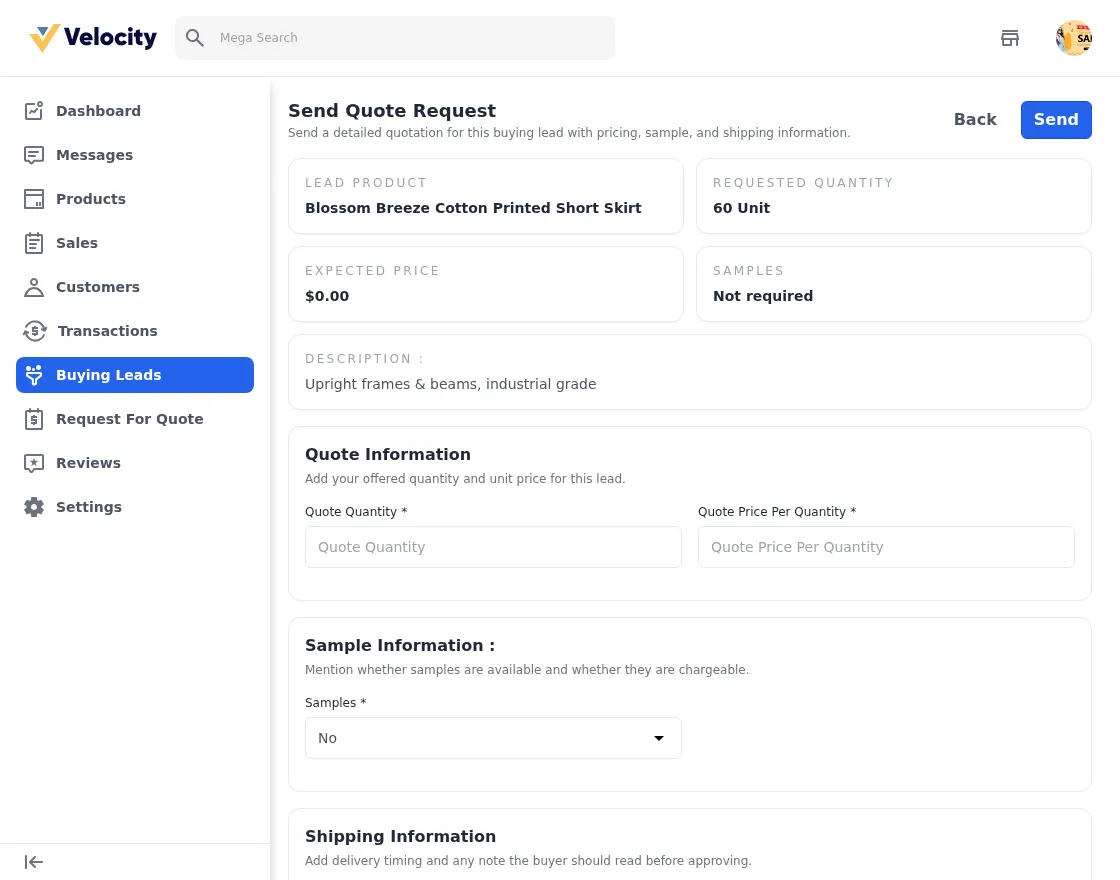
Opening a request shows the full buyer context — quote summary, expected total, quantity, expected price, and whether samples are required — with a Send Quote action to reply. Finally, the send-quote form captures the actual offer details.
The send-quote form captures quote quantity, unit price, sample availability, shipping time, and a note for the buyer — everything needed to turn a lead into an order.
Reviews and Messages
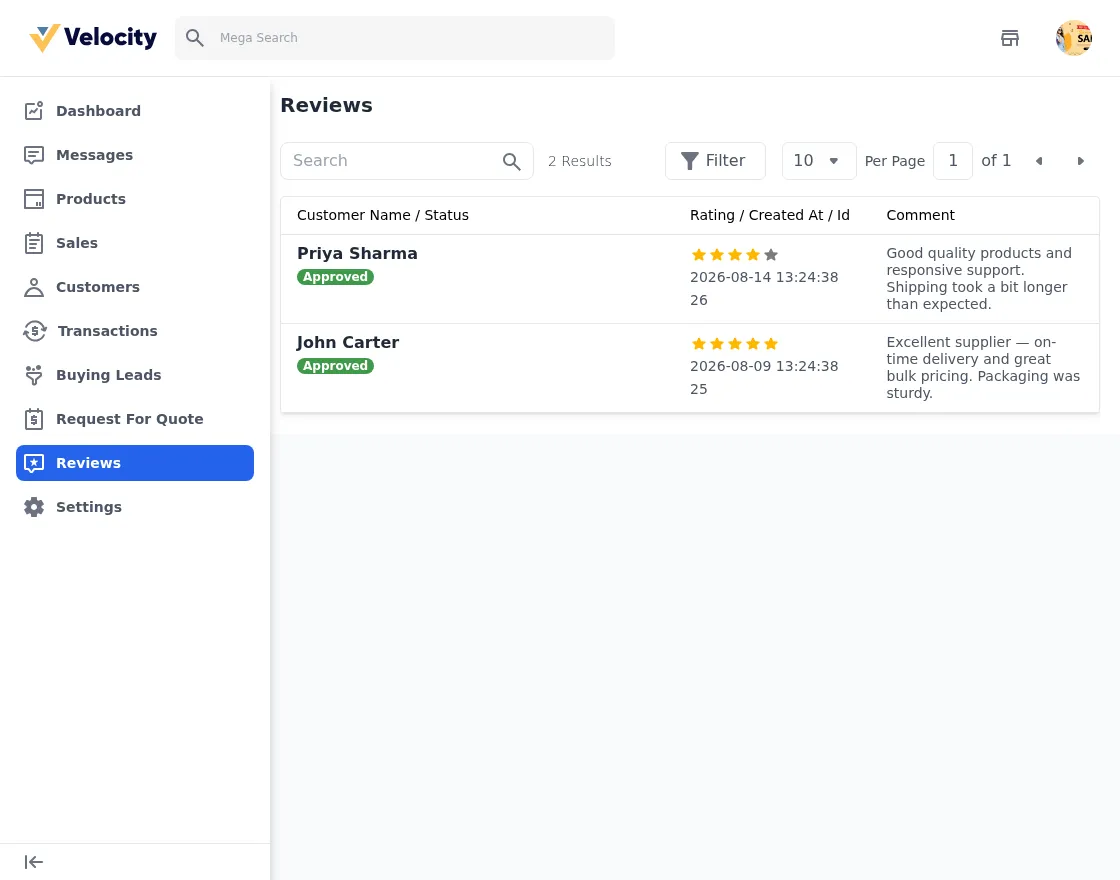
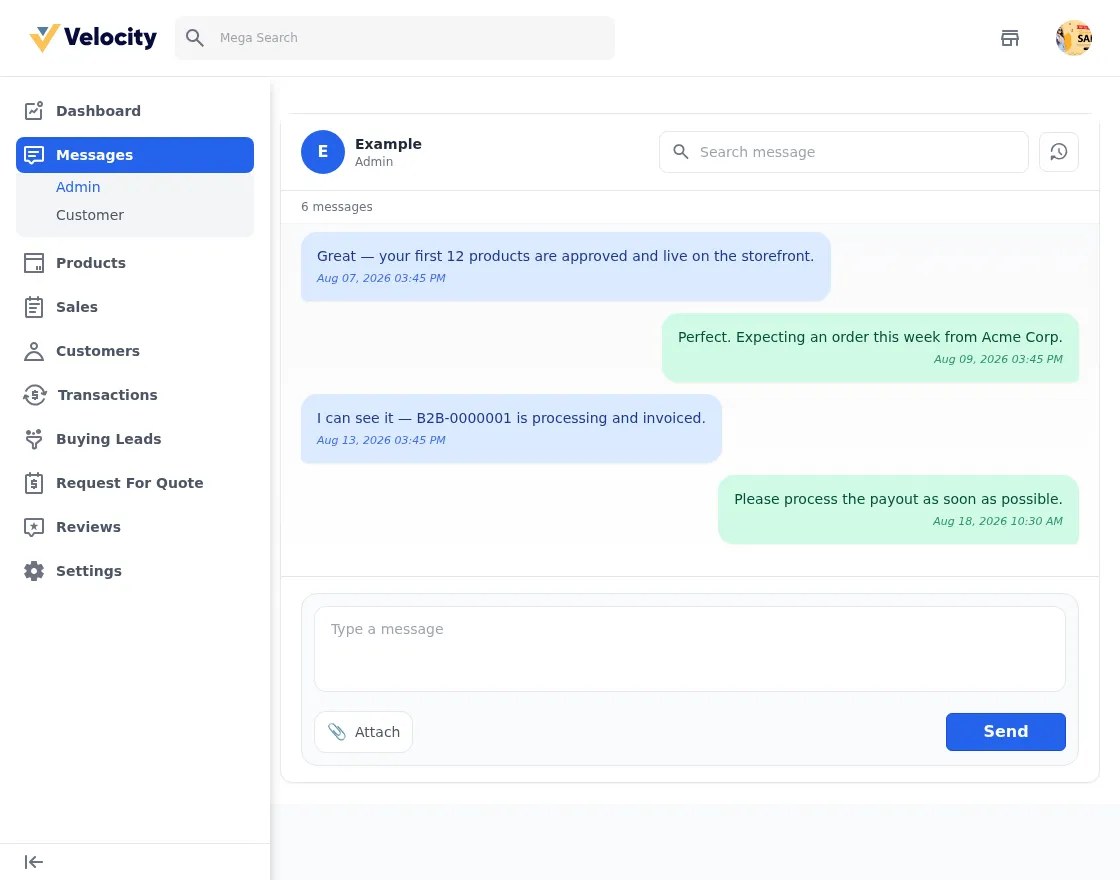
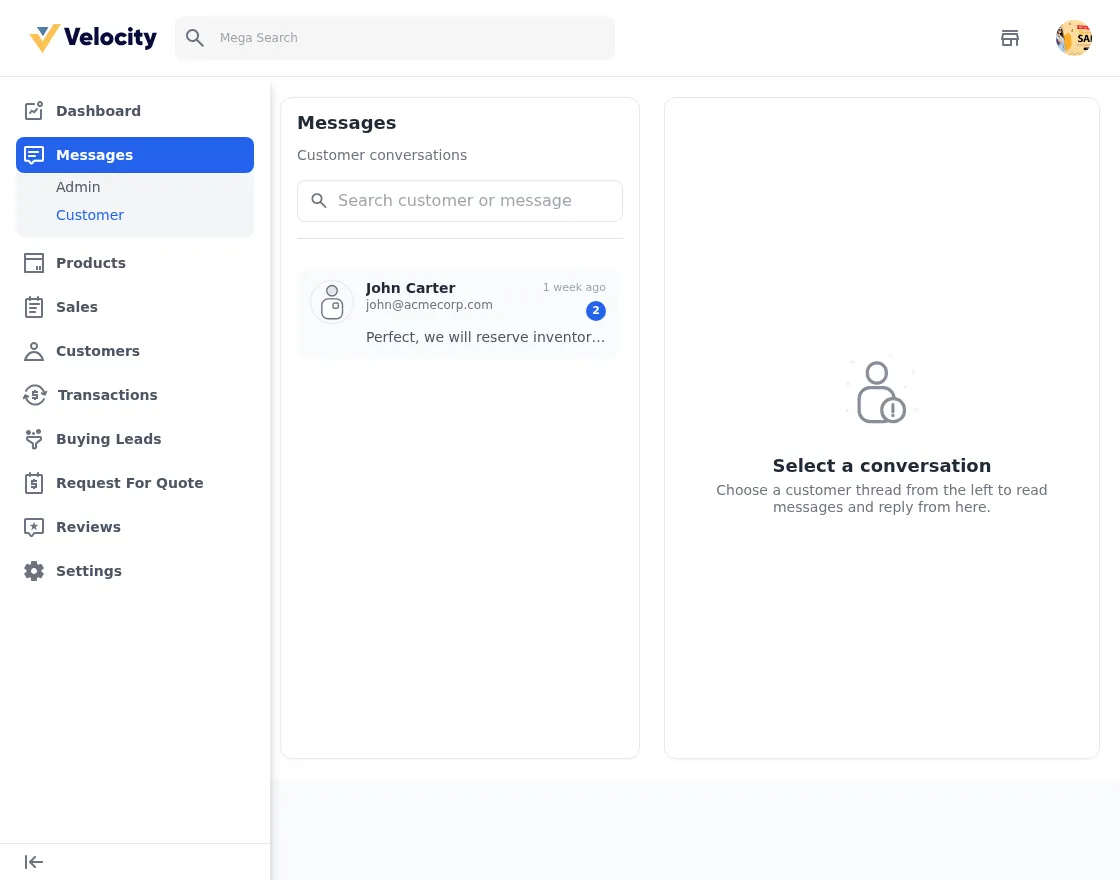
Suppliers see the reviews they have received, keep two message threads (one with the admin, one with customers), and reply from the same screens.
Settings
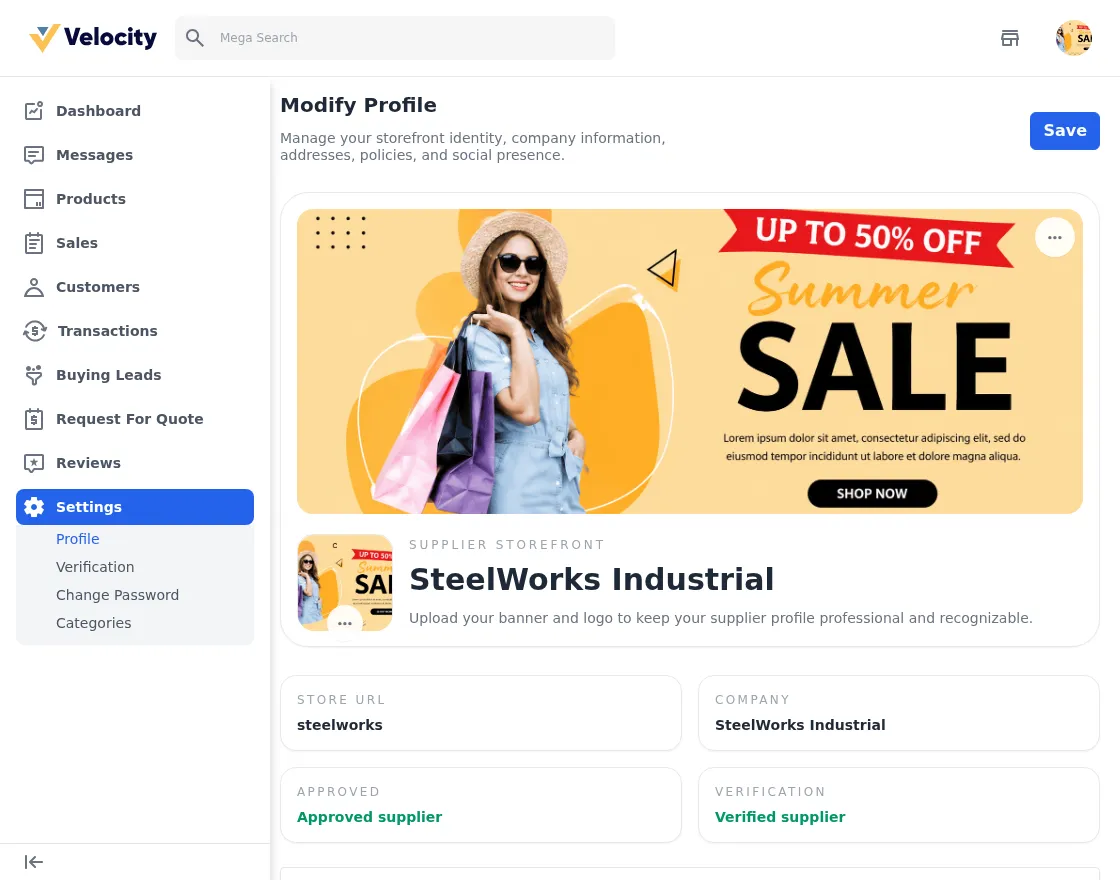
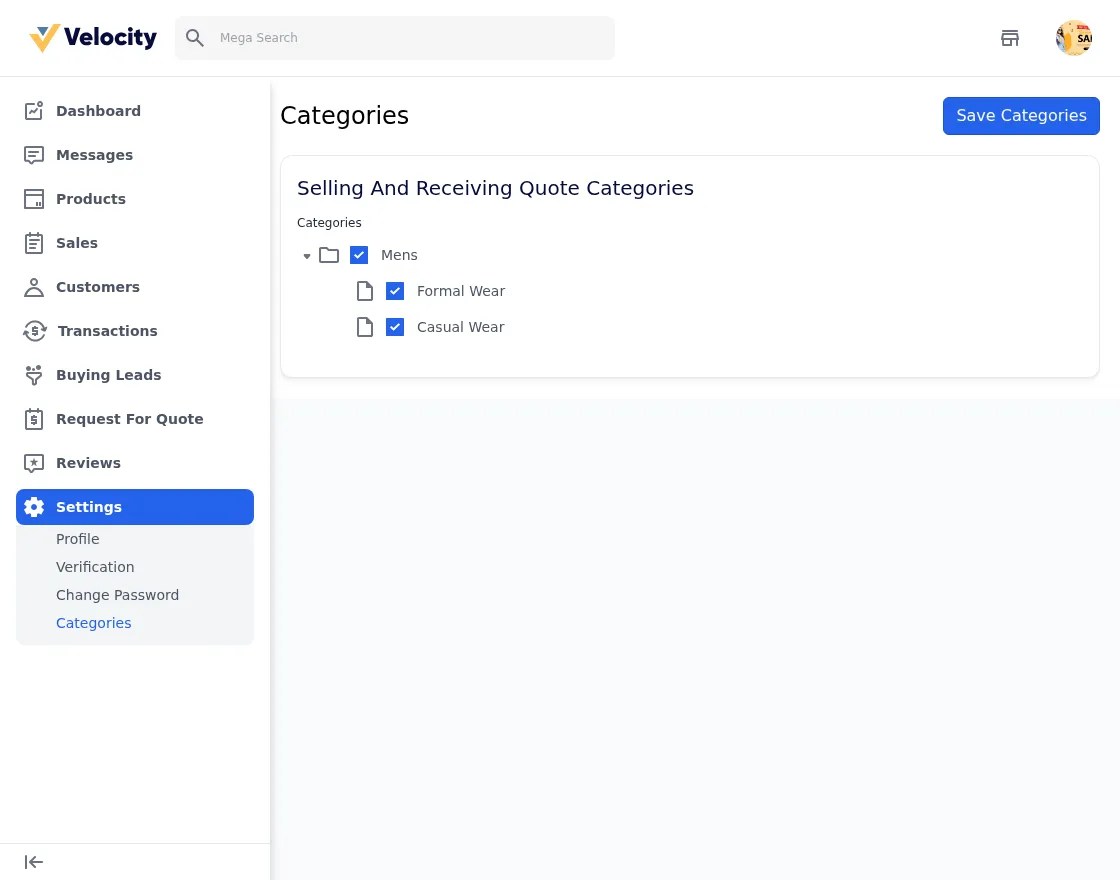
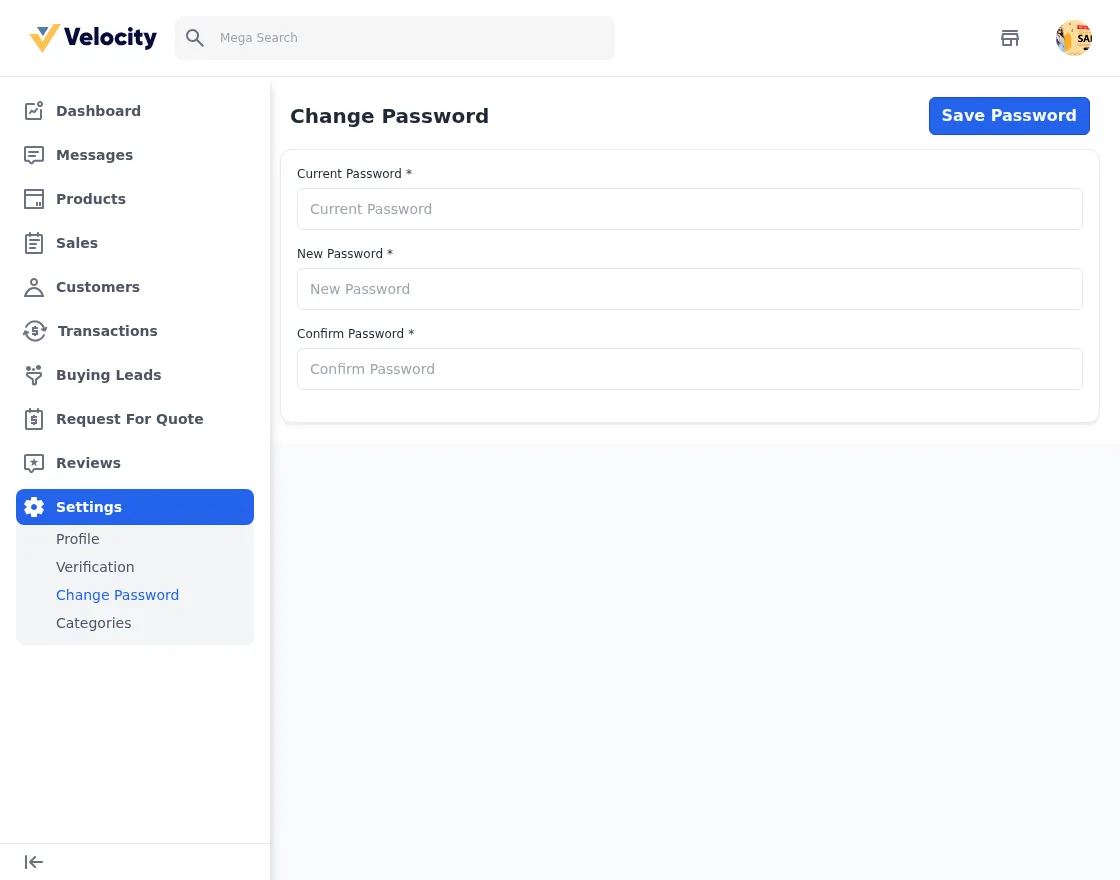
The supplier settings area covers profile, verification, password, and categories. The profile tab manages the storefront identity (banner, logo, company info, addresses, policies, SEO, social links), and the categories tab shows the categories the admin has allowed this supplier to operate in.
The Storefront Experience
Supplier Registration and Login
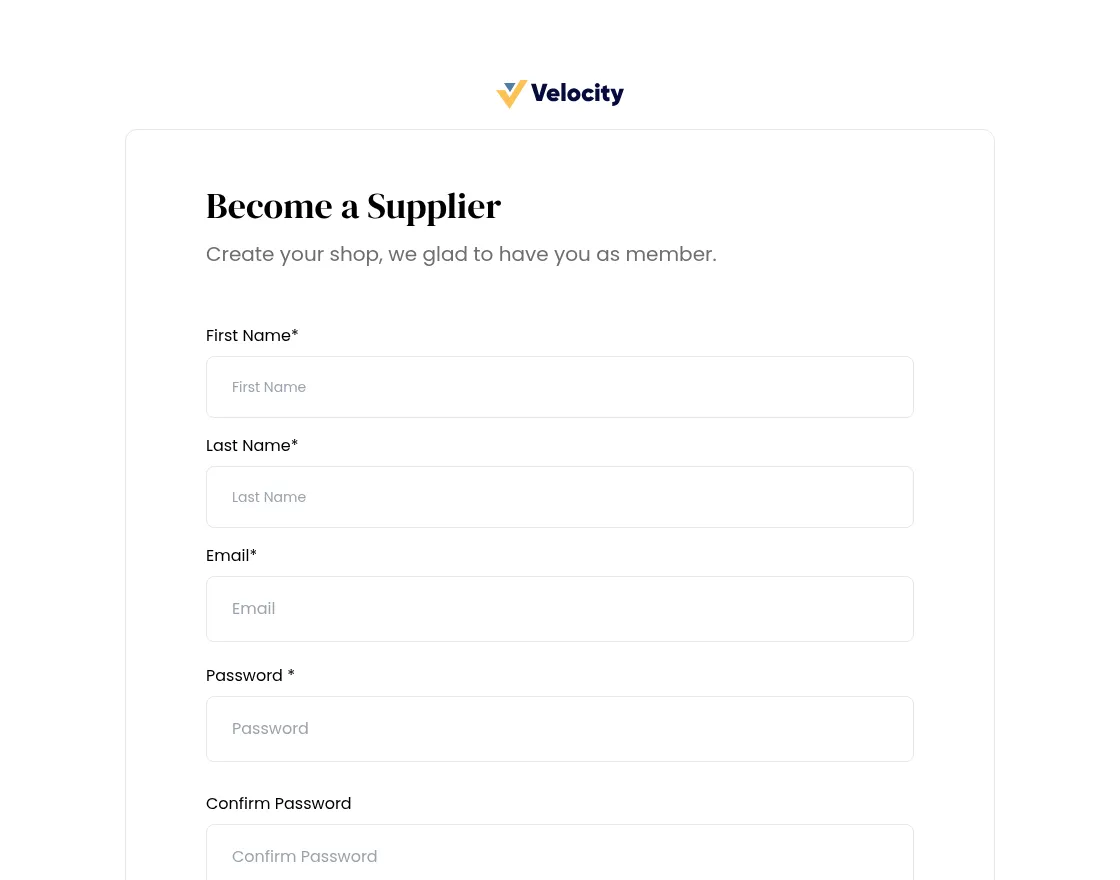
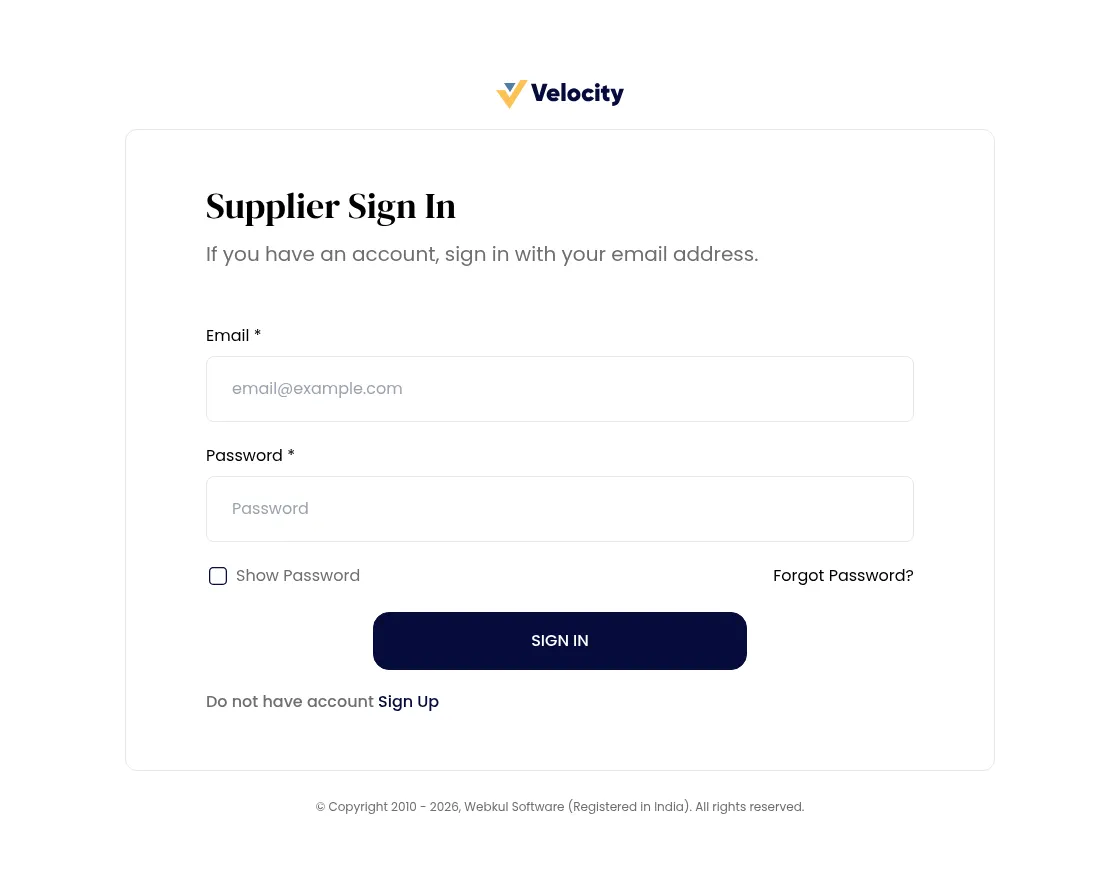
Suppliers register at /supplier/register and log in at /supplier/login. Registration captures the supplier’s identity and company details; whether the account goes live immediately or waits for admin approval depends on the approval-required configuration.
Supplier Public Profile
Similarly, each supplier has a public profile at /shop/<url> (path mode) that shows the verified badge, rating, review count, address, member-since date, response time, and the full product catalog with filters. SteelWorks Industrial shows a 4.5 rating from 2 reviews and 12 products, which is a great example of how rich these pages can be.
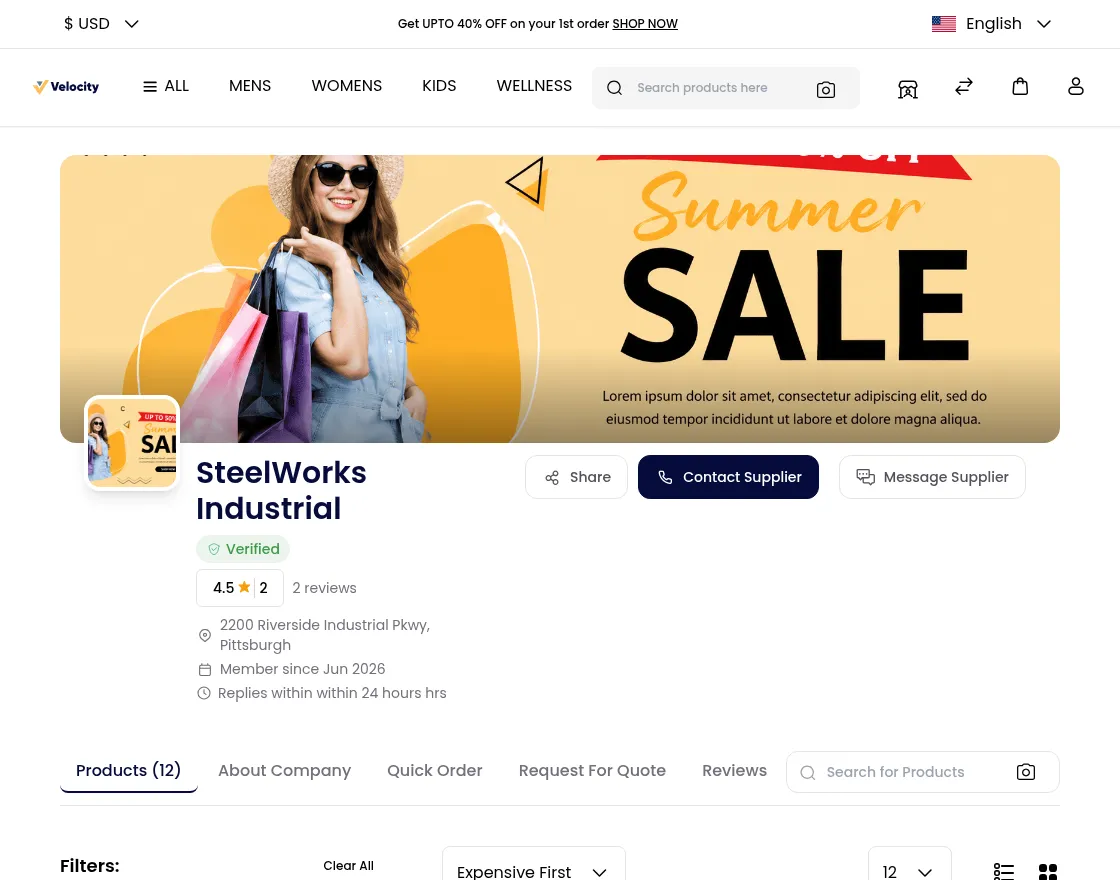
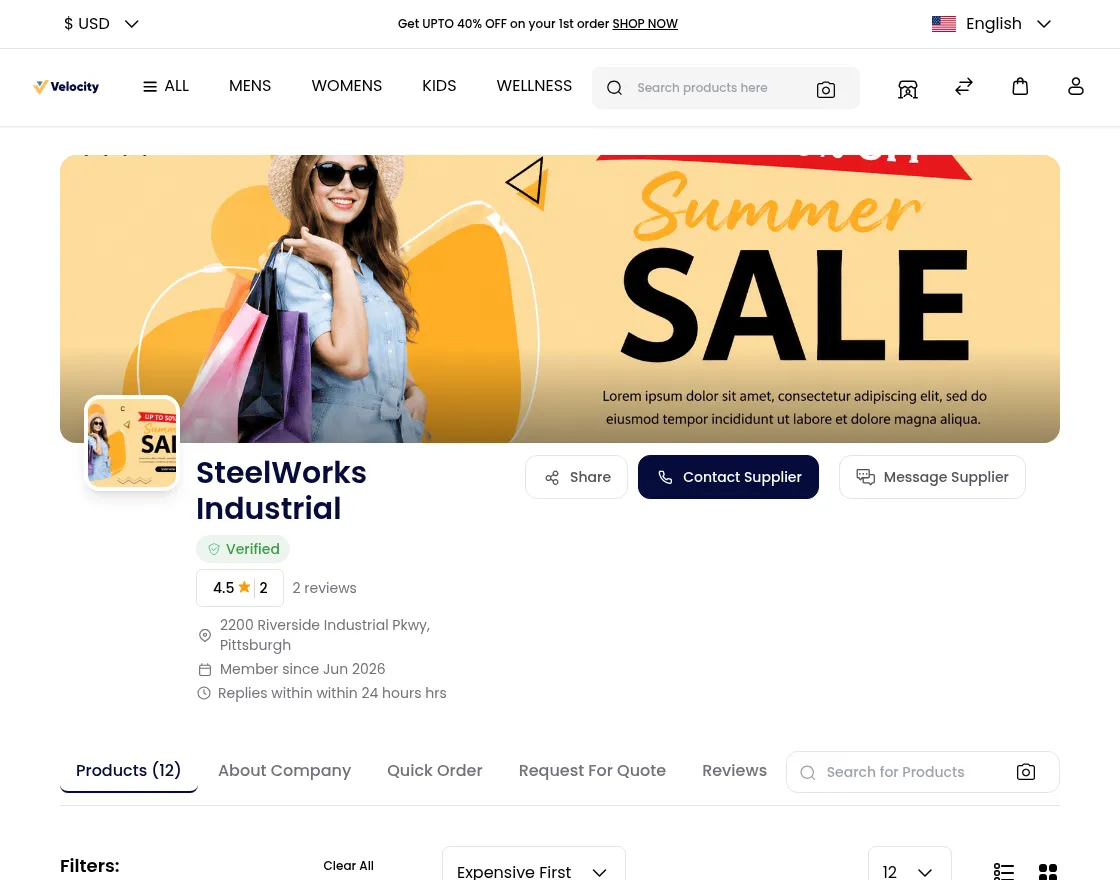
The profile page also hosts tabs for About Company, Quick Order, Request For Quote, Reviews, and Contact. The reviews tab surfaces the moderated buyer feedback with ratings.
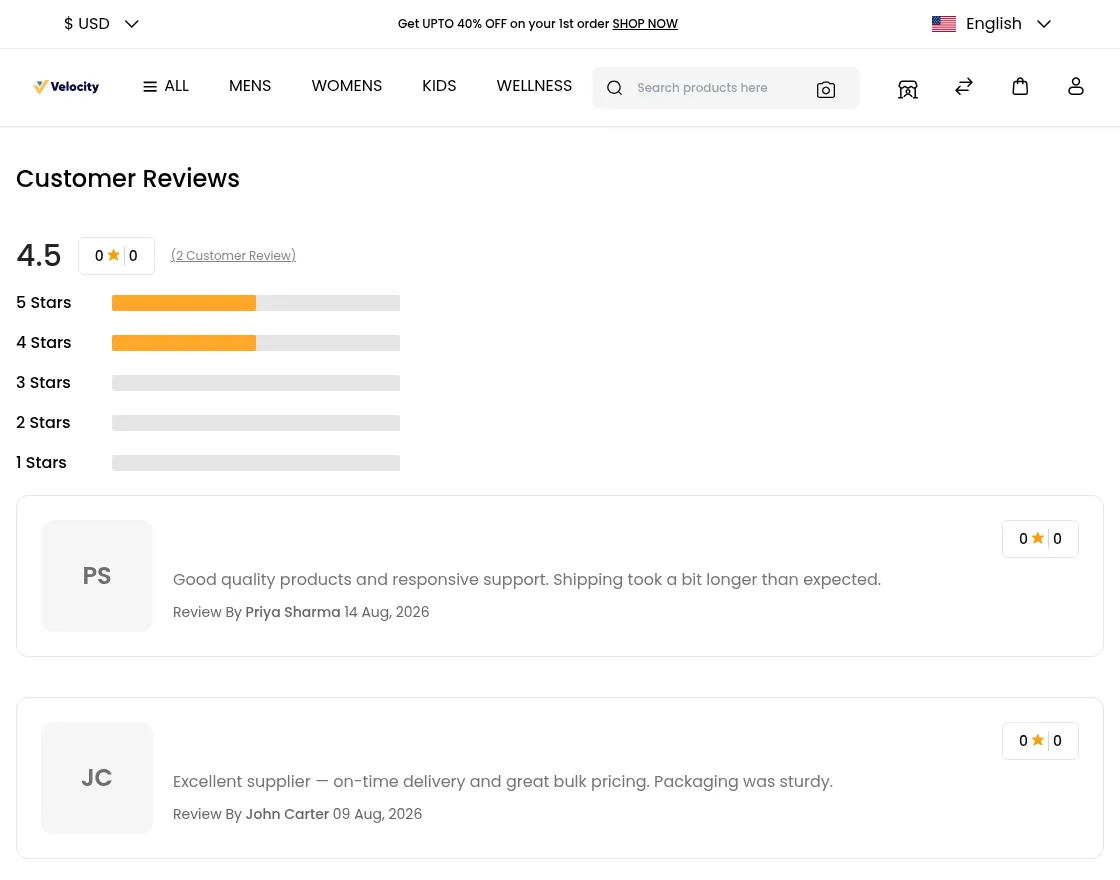
Business buyers can add products to the cart, and for marketplace items they can use Login For RFQ to negotiate wholesale pricing instead of buying at list price. In other words, the storefront serves both immediate purchases and negotiated bulk deals.
Putting It All Together: The RFQ-to-Payout Journey
To see how all the pieces work together, here is the complete end-to-end workflow the B2B Marketplace package enables, using the seeded demo data:
-
- First, a business buyer (John Carter of Acme Corp) posts an RFQ for warehouse steel shelving with quantity expectations.
-
- Next, the RFQ becomes a buying lead on the boards of suppliers who stock the requested products (SteelWorks sees 2 matching leads).
-
- SteelWorks then opens the request and sends a quote with quantity, unit price, shipping time, and a note.
-
- After that, the buyer approves the quote; the approved lines convert into a marketplace order (B2B-0000001, $10,900.00).
-
- The platform records the invoice and shipment, and then the admin pays SteelWorks from the B2B orders screen.
-
- Finally, the payout of $10,355.00 is computed after the 5% admin commission of $545.00 and stored as a transaction visible to both admin and supplier.
Support
So, that was much about the User Guide of Laravel eCommerce B2B Marketplace for any queries or doubts reach out to us at [email protected].
You can also raise a ticket at our HelpDesk System. For assistance related to B2B Marketplace Development, our team is here to help.
Please explore our Laravel Development Services and Quality Bagisto Extensions.
Current Product Version - v2.4.10
Supported Framework Version - Bagisto v2.4.10

2 comments