Laravel SaaS Phone Login extension allows every tenant to let their customers log in, register, and reset their password using a mobile number instead of only an email address.
Moreover, the extension verifies the customer’s mobile number through a One-Time Password (OTP) sent over SMS.
This happens both at the time of registration and whenever the customer changes their mobile number from the My Account section.
This helps tenants stop fake sign-ups and keep a clean, verified customer base, since only one account can ever be created against a single mobile number.
As a multi-tenant SaaS module, each tenant configures and manages Phone Login independently within their own store, while their OTP data stays isolated from other tenants.
Features of Laravel SaaS Phone Login
- Each tenant admin can enable or disable the extension from their own admin panel.
- Customers can log in using either their mobile number or email address.
- Customers can reset their password using their mobile number or email address.
- Mobile numbers are verified through an OTP (verification code) at the time of registration.
- Tenant admin can choose the SMS API provider used to send the verification code — Spring Edge, MSG91, Text Local, Twilio, or JawalbSMS.
- The SMS template used for the verification message can be configured from the admin panel.
- Tenant admin can enable or disable verification for already-registered users. When enabled, existing customers are asked to verify their mobile number before they can continue shopping.
- The extension detects the customer’s location and preselects the correct country flag, so the country code does not have to be entered manually.
- Mobile number validation happens on the go, based on the selected country.
- The mobile number is re-verified whenever the customer changes it from the My Account section.
- Only one account can be created with a single mobile number.
- Every tenant (company) gets its own isolated OTP records, so verification data never overlaps between stores.
- Built-in security: verification codes are stored as one-way hashes, expire after 10 minutes, are single-use, and are limited to a maximum of 5 attempts.
- The extension is already compatible with SMS APIs like Spring Edge, JawalbSMS, MSG91, Text Local, and Twilio. In case you are using a custom API, we will integrate the SMS API free of cost.
- Free support forever for bug fixing.
Requirements of Laravel SaaS Phone Login
Before installing the extension, make sure the following are in place:
- Bagisto: v2.4.9
- Bagisto SaaS: v2.4.9.1
- Bagisto Phonelogin: v2.4.9
- A working SMS API account (Spring Edge, MSG91, Text Local, Twilio, or JawalbSMS) to send verification codes.
Installation of Laravel SaaS Phone Login
Once you have successfully downloaded the zip file of the Laravel SaaS Phone Login.
Unzip the respective extension zip and then merge the “packages” folder into the project root directory.
Goto composer.json file and add following line under ‘psr-4’
"Webkul\\Phonelogin\\": "packages/Webkul/Phonelogin/src",
"Webkul\\PhoneloginSaas\\": "packages/Webkul/PhoneloginSaas/src"
- Goto bootstrap/providers.php file and add following line under ‘providers’.
Webkul\Phonelogin\Providers\PhoneloginServiceProvider::class,
Webkul\PhoneloginSaas\Providers\PhoneloginSaasServiceProvider::class,
- Goto config/concord.php file and add the following line.
Webkul\Phonelogin\Providers\ModuleServiceProvider::class
- Run these commands below to complete the setup
composer dump-autoload
php artisan phonelogin-saas:install
This command migrates and seeds the required database tables, publishes the configuration, and clears the cache. Once it finishes, register a new company to onboard a tenant.
Multi-Tenant Phone Login Management
Super Admin can control which tenants are onboarded onto the SaaS platform and can offer the Phone Login module to them from a single dashboard.
Each tenant gets its own isolated workspace, so verification codes (OTP logs) are always scoped to that specific company and never mix with other tenants’ data.
This gives Super Admin central control over the platform, while letting every tenant enable and configure Phone Login independently within their own store.
Tenant Configuration of Laravel SaaS Phone Login
Once the tenant administrator logs in, they can enable and configure Phone Login by navigating to Configure >> Phone Number Login Module >> General.
After the module is enabled, the phone-login features become available across the tenant’s storefront.
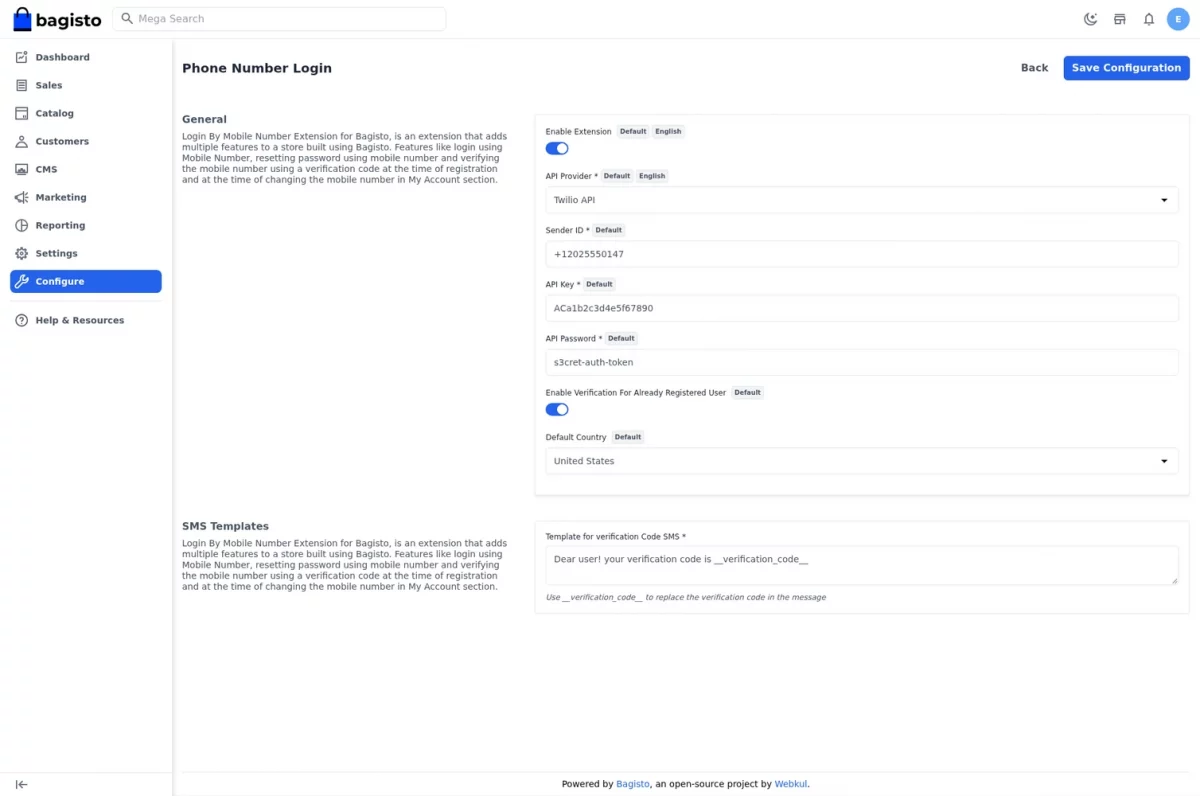
In the General section, the tenant admin can configure the following fields:
- Enable Extension: Enable or disable the Phone Login module for the store.
- API Provider: Select the SMS gateway used to send verification codes — Spring Edge, MSG91, Text Local, Twilio, or JawalbSMS.
- Sender ID: The sender ID (or “from” number, for Twilio) that appears on the verification SMS.
- API Key: The API key/authentication key provided by the chosen SMS gateway.
- API Password: The API password/auth token required by the chosen SMS gateway.
- Enable Verification For Already Registered User: When enabled, existing customers who have not yet verified their mobile number are prompted to verify it before they can continue.
Next, the tenant admin can move to the SMS Templates section to define the message that is sent to customers.
- Template for verification Code SMS: Enter the SMS body. Use the placeholder __verification_code__ anywhere in the message, and it will automatically be replaced with the generated verification code when the SMS is sent.
Once the tenant admin saves the configuration, Phone Login is active on the storefront for that tenant.
Customer Registration with Mobile Verification
When Phone Login is enabled, an additional Phone Number field appears on the customer registration form.
The field automatically detects the customer’s country and preselects the matching country flag and dial code, and it validates the number on the go.
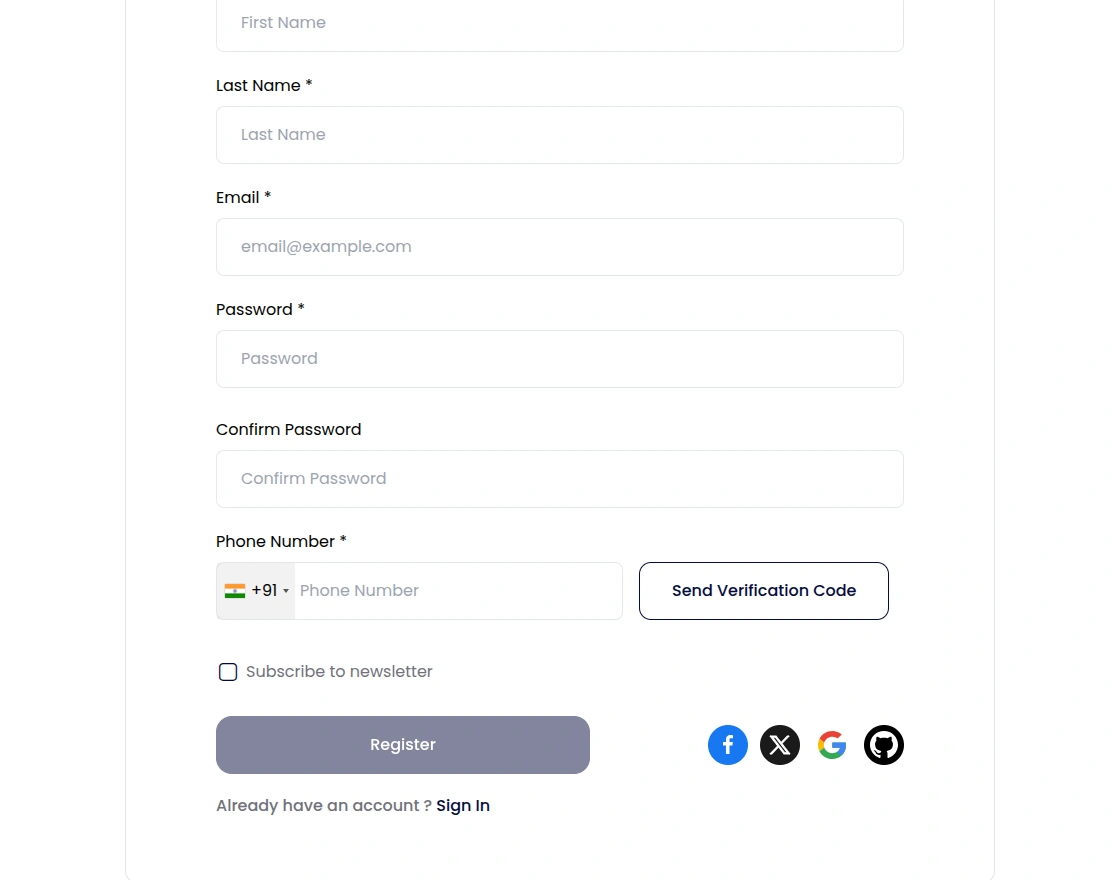
The customer enters their mobile number and clicks the Send Verification Code button. A verification code is then sent to the entered number over SMS, and an input field to enter the code appears.
The customer enters the code and clicks Verify. Once the code is verified, a success message is shown.
The Register button stays disabled until the mobile number has been verified, ensuring that every new account is created with a genuine number.
If the code does not arrive, the customer can use the Resend option to request a new one.
Login Using Mobile Number
With the module enabled, the login form accepts either an email address or a mobile number.
The customer can enter their registered mobile number (with the country code) along with their password to sign in.
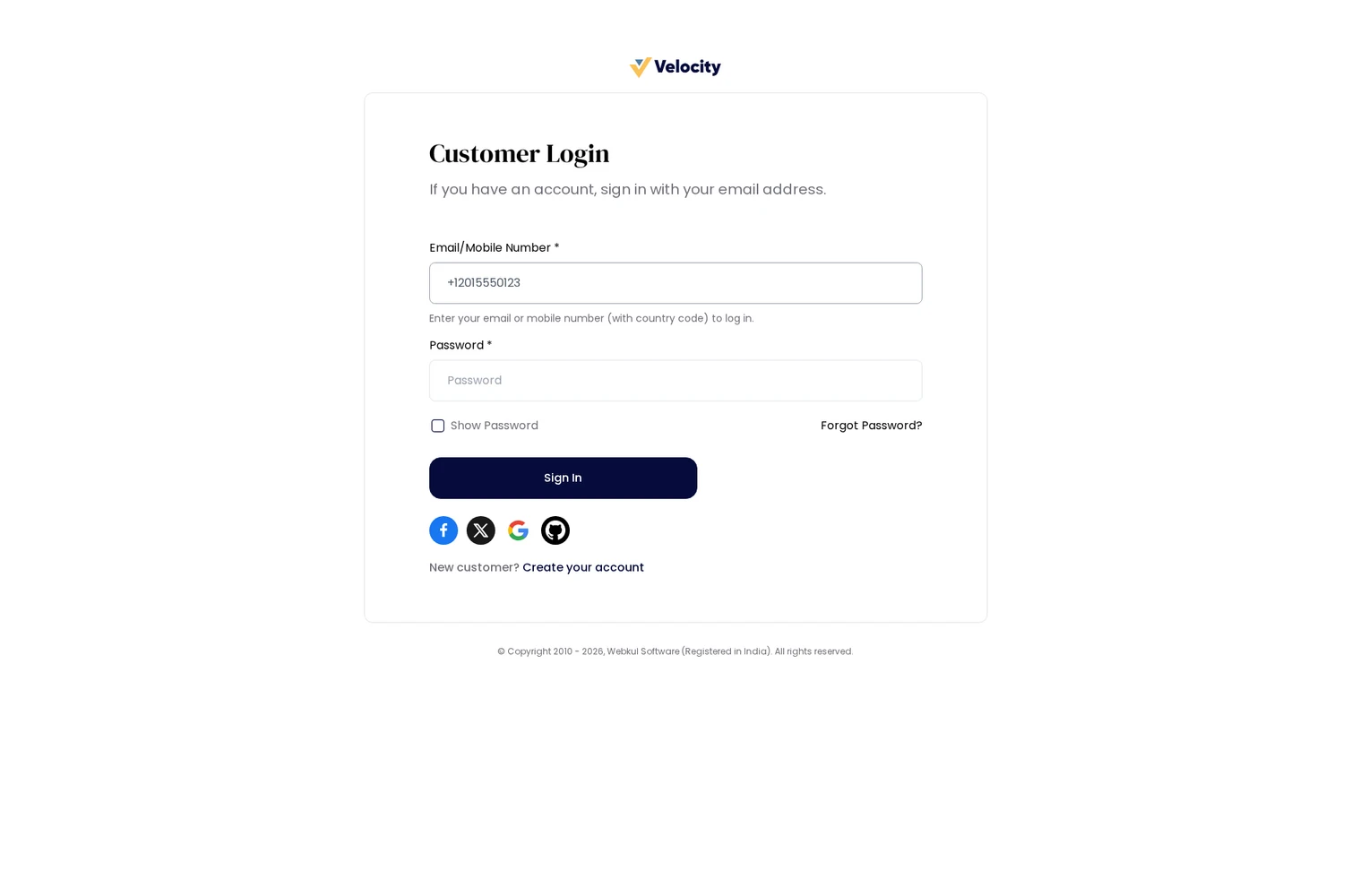
Note: To log in with a mobile number, enter it together with the country code. For example, if the number is 1234567890 and the country code is +1, enter +11234567890.
Forgot Password Using Mobile Number
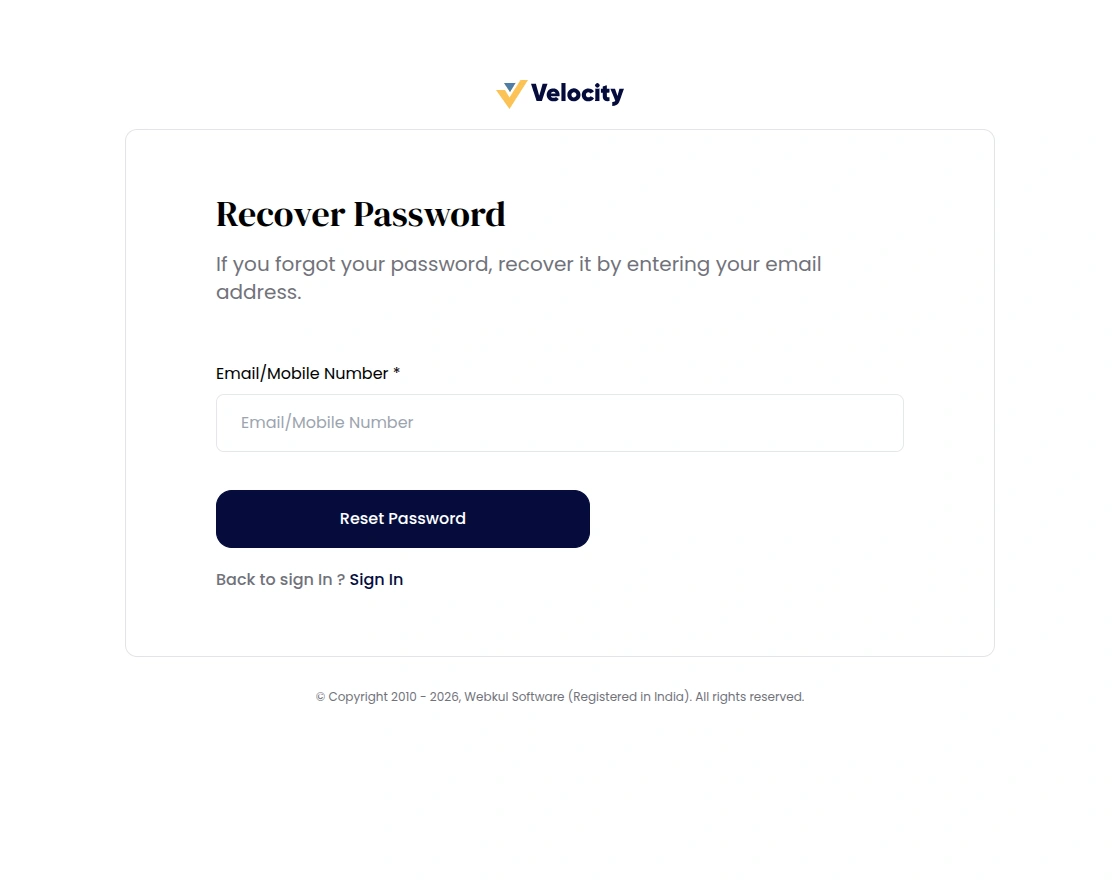
The Forgot Password flow also works with a mobile number.
On the forgot-password form, the customer can enter either their email address or their registered mobile number (with country code).
The password reset link is then sent to the email associated with that account.
Verify Mobile Number from My Account
The customer’s mobile number is displayed in their My Account >> Profile section.
When Enable Verification For Already Registered User is turned on and the number is not yet verified, the customer sees an Edit Phone option to verify it.
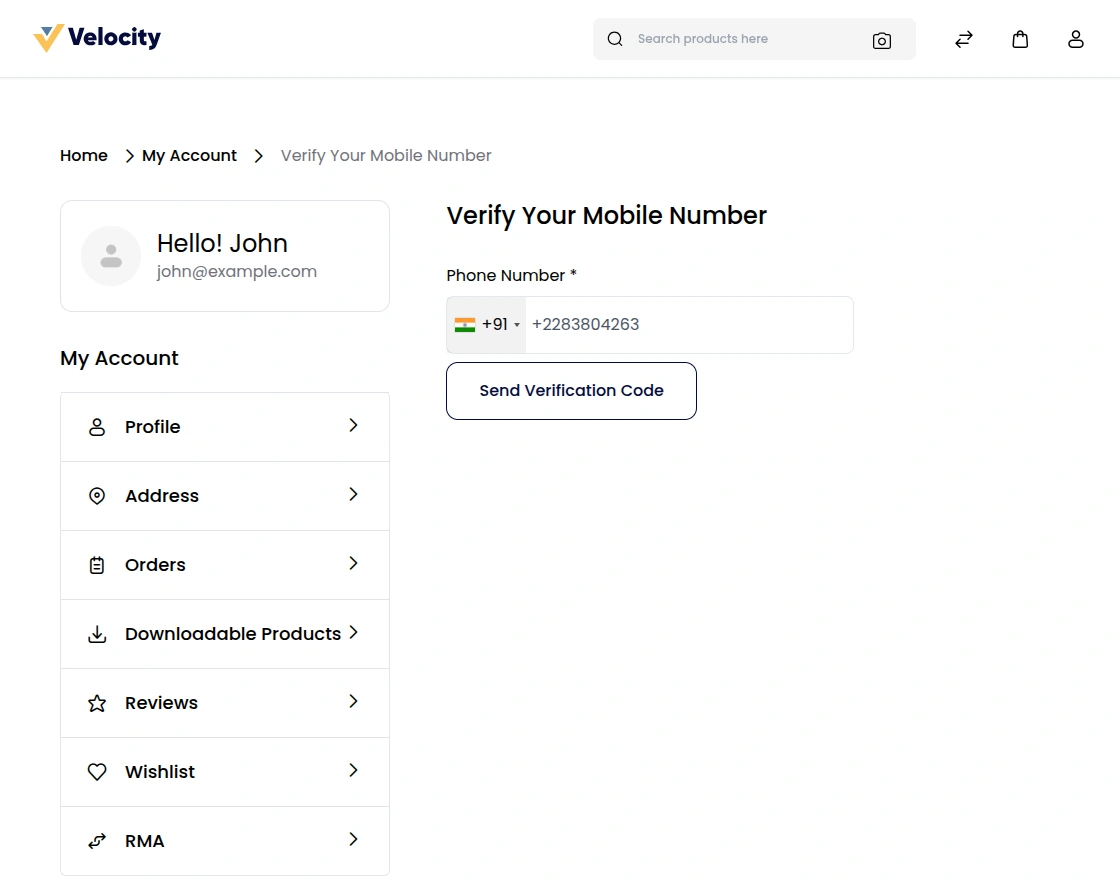
On the verification page, the customer enters (or updates) their mobile number, clicks Send Verification Code, receives the OTP over SMS, and enters it.
After clicking Verify, a verified badge is shown against the number.
The same verification step is triggered whenever the customer changes their mobile number, ensuring the new number is always genuine.
Security & Reliability
The module is built with a strong focus on security to keep the OTP flow safe against misuse:
- Verification codes are cryptographically generated and stored as one-way hashes, so the plain code only ever leaves the system inside the SMS itself.
- Each verification code expires after 10 minutes.
- A code can be used only once and is consumed after successful verification, preventing replay.
- A maximum of 5 verification attempts is allowed per code.
- The send, verify, login, and forgot-password endpoints are rate-limited to guard against abuse.
- Old verification codes can be cleared automatically using the php artisan phonelogin:clear-codes command.
Benefits & Use Cases
- Reduces fake sign-ups by ensuring every customer registers with a verified, real mobile number.
- Offers a faster, more familiar login experience for markets where customers prefer phone numbers over email.
- Lets tenants recover accounts easily, since customers can reset their password using their mobile number.
- Enforces one account per mobile number, keeping the customer base clean and free of duplicates.
- Gives each tenant on the SaaS platform full, independent control over their own Phone Login configuration and data.
Support
That’s all for Laravel SaaS Phone Login, still, have any issue feel free to add a ticket.
Also let us know your views to make the module better https://bagisto.uvdesk.com/en/
Current Product Version - 2.4.9
Supported Framework Version - 2.4.9

Be the first to comment.