CS-Cart Vendor FAQ is a useful add-on for administrators and vendors. Administrators can manage FAQ groups/FAQs for vendors to answer their questions.
This add-on allows the admin to create FAQs for vendors.
Vendors can filter their queries using these FAQs or contact the admin directly if their questions are not listed.
Explore the CS-Cart Vendor Badges add-on to assign performance-based badges to vendors and enhance their visibility and credibility.
Check out the CS-Cart Vendor Subdomain add-on to give vendors unique subdomains and boost their brand presence.
Check the video mentioned below for an overview of the extension:
Feature
- Well integrated with Multivendor and CS-Cart.
- The admin can manage FAQ groups, including adding, updating, and deleting them.
- The admin can manage FAQ questions and answers, including adding, updating, and deleting, and assign them to groups.
- The admin can assign specific FAQ questions to individual vendors.
- Vendors can view FAQs by logging into their vendor account.
- Vendors can search FAQs by name or contact the admin directly.
- Multi-language support is available.
Installation
After downloading the CS-CART Vendor FAQ add-on, you’ll get one zip file, one install.txt file, and a relevant User Guide manual doc.
Read it carefully for proper configuration.
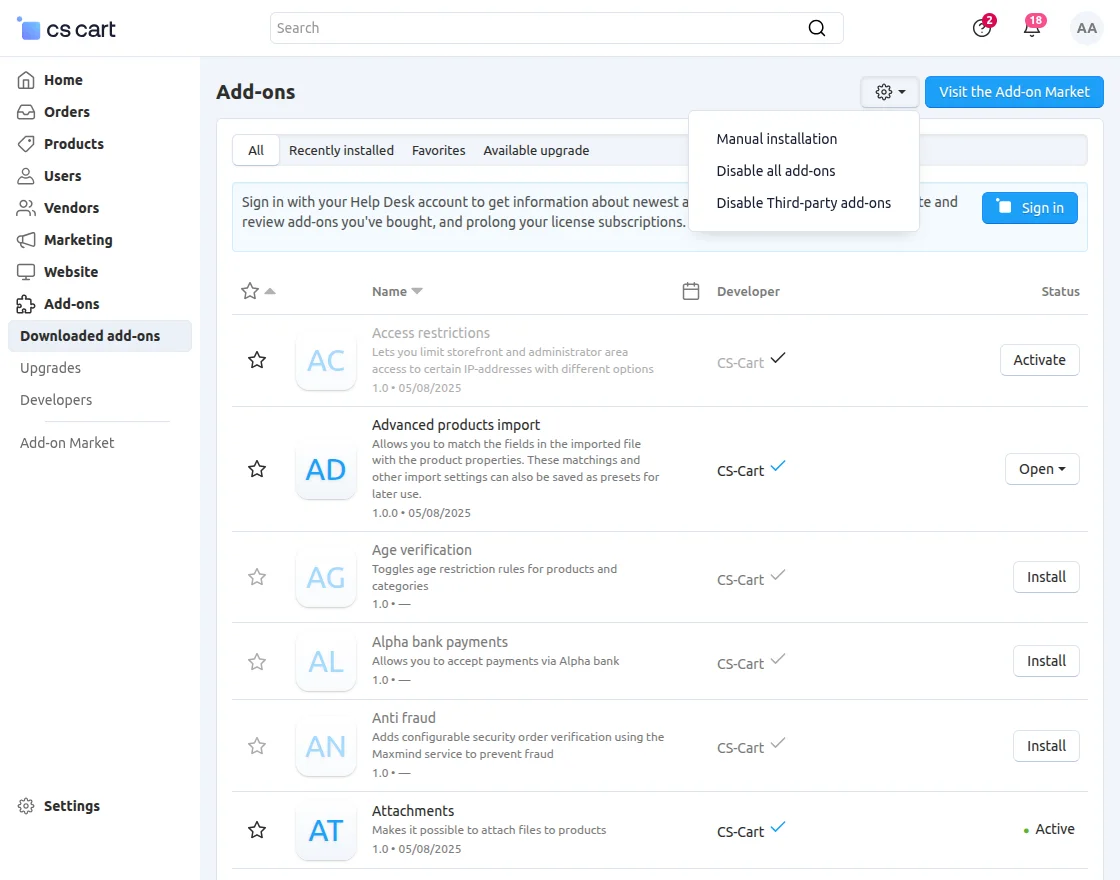
Go to Manage Add-ons, and click on “Manual Installation” as shown below in the snapshot.
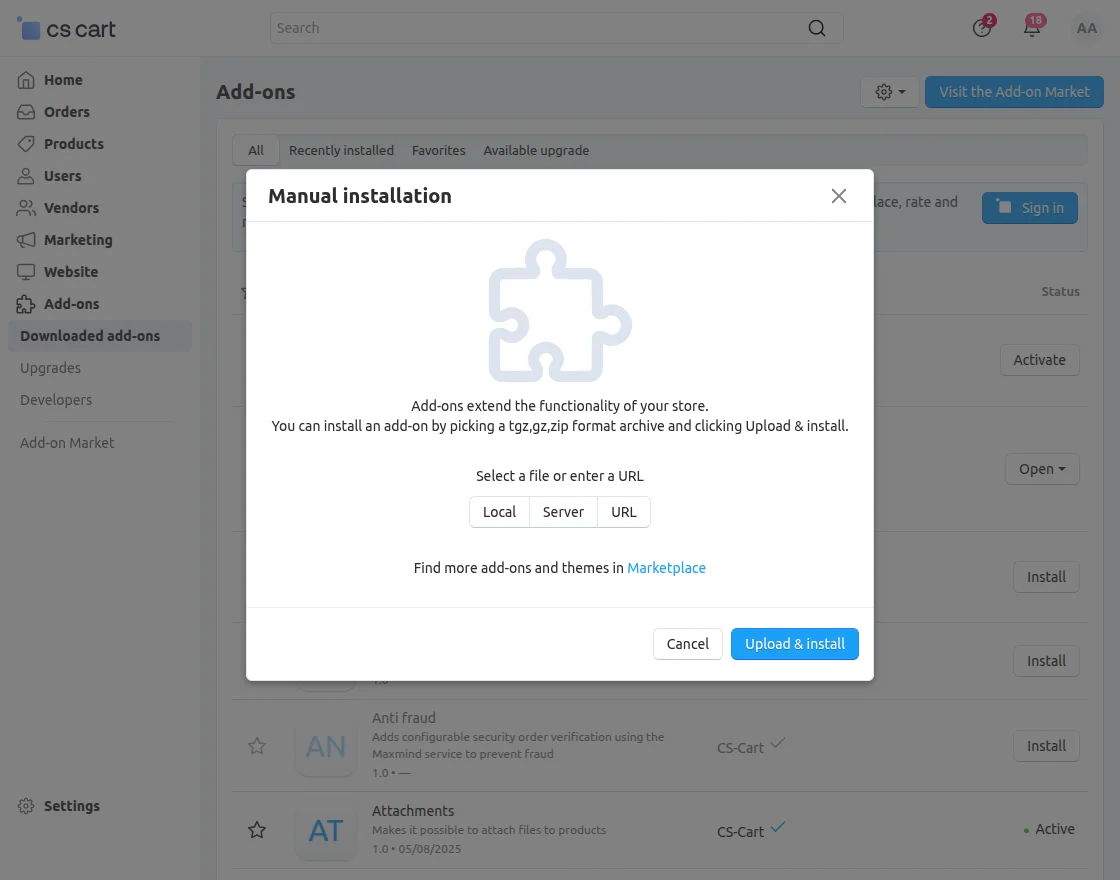
Click on “Local” to browse the zip file, and then click on “Upload & Install” as shown below in the snapshot.
Module Configuration | Admin
To configure the module, go to the Add-Ons >> Developers >> Webkul Software Pvt Ltd. >> Vendor FAQ >> Settings.
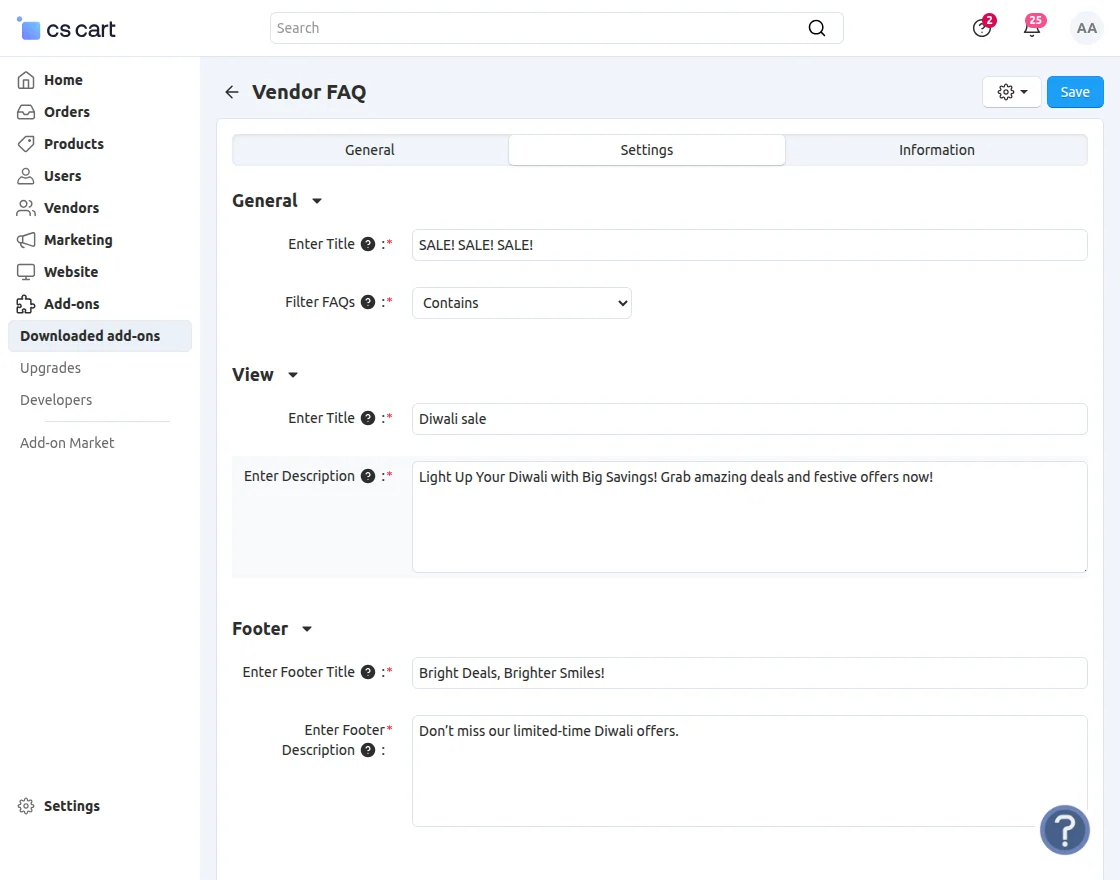
General:
- Enter Title: Fill in the heading for the page.
- Filter FAQs: Set rules to allow vendors to search FAQs.
View:
- Enter Title: Add a title here to describe the FAQ groups
- Enter Description: Describe to explain groups in detail.
Footer:
- Enter Footer Title: Add a title to display in the page footer.
- Enter Footer Description: Provide details for the footer section.
FAQs group
To manage FAQs, navigate to Marketing > Manage Vendor FAQs.
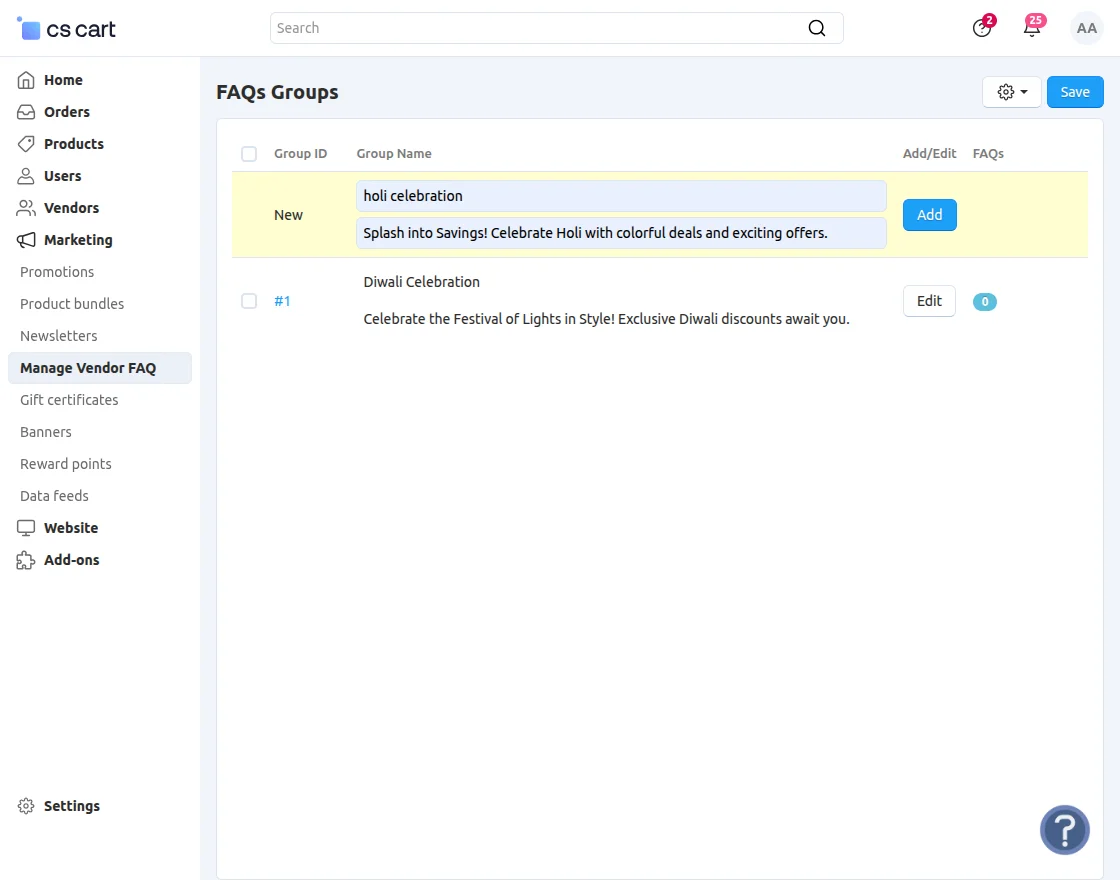
Add Group Name: Enter a unique and descriptive name for the FAQ group to help organize related questions effectively.
Add Group Description: Provide a detailed description of the FAQ group to explain its purpose and the type of questions it contains.
Assign these FAQs to the correct group and update the group to include the relevant questions and answers.
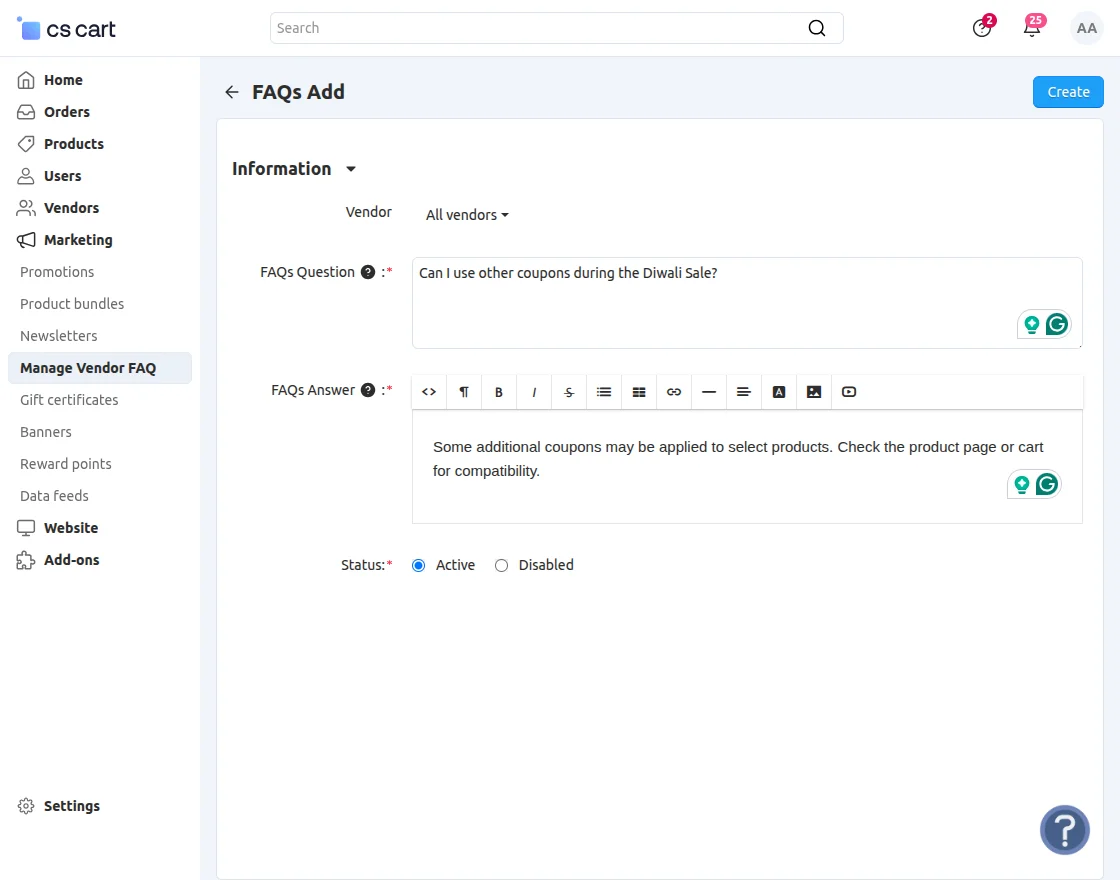
- Vendors: Select the vendor to assign the FAQ.
- FAQ Question: Type the question you want to add to the FAQ.
- FAQ Answer: Provide the answer to the FAQ here.
- Status: Select the status to control the visibility of the FAQ.
After completing the details, click to create the FAQ.
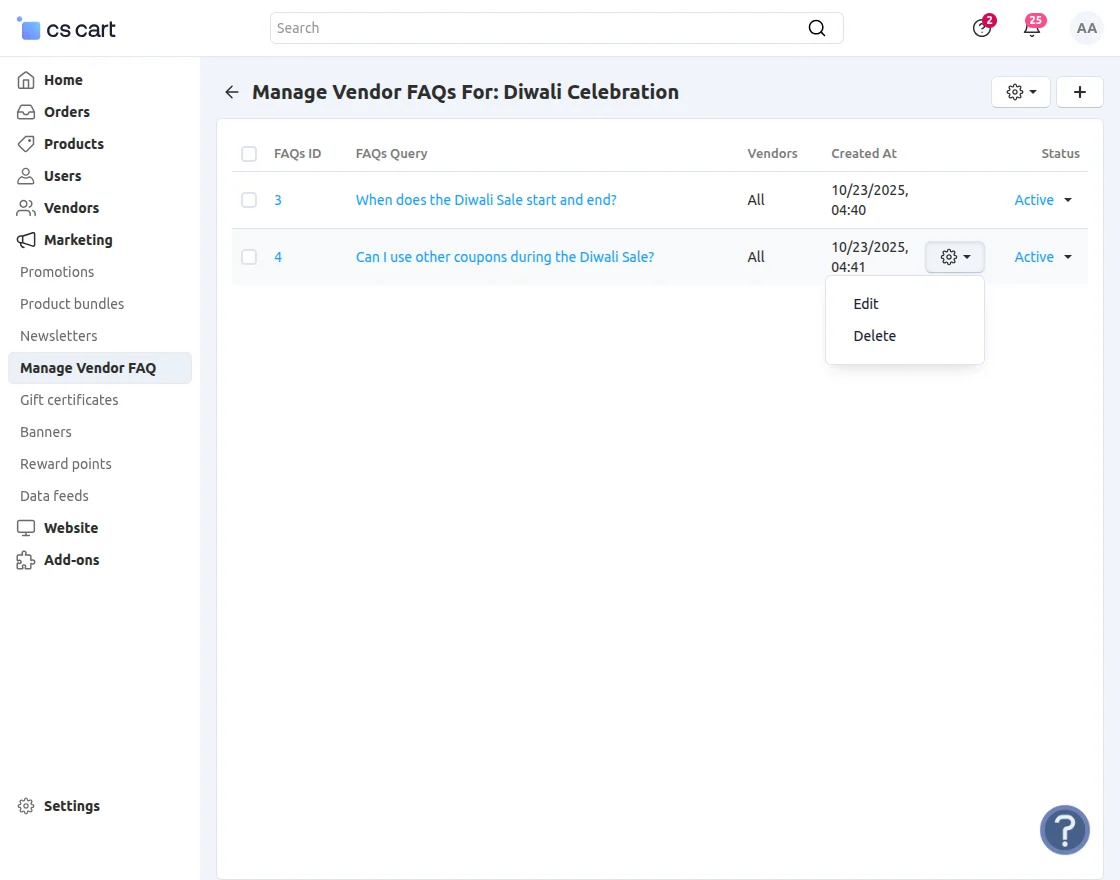
From this section, you can edit existing FAQs, delete unwanted ones, or manage them efficiently.
FAQ Panel Visibility
The FAQ panel will appear in both the admin and vendor panels.
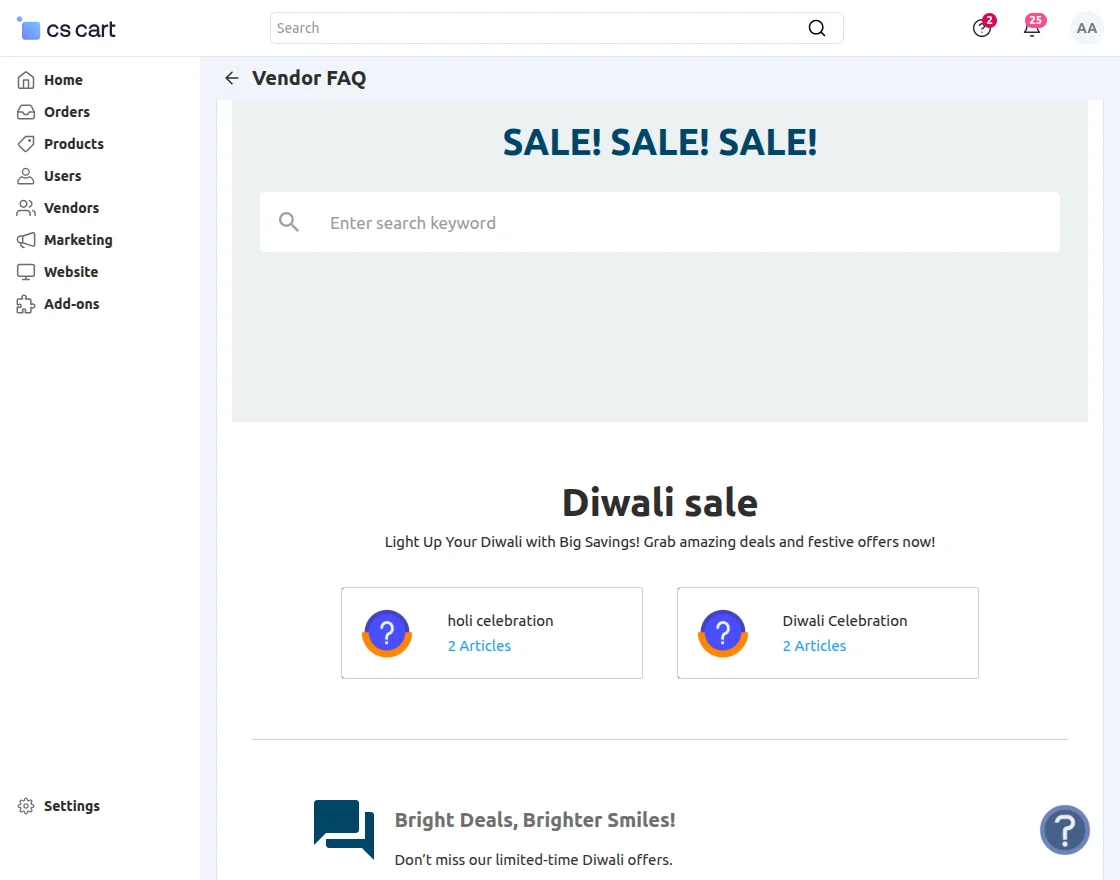
Vendors can search for queries and view the corresponding questions and related articles.
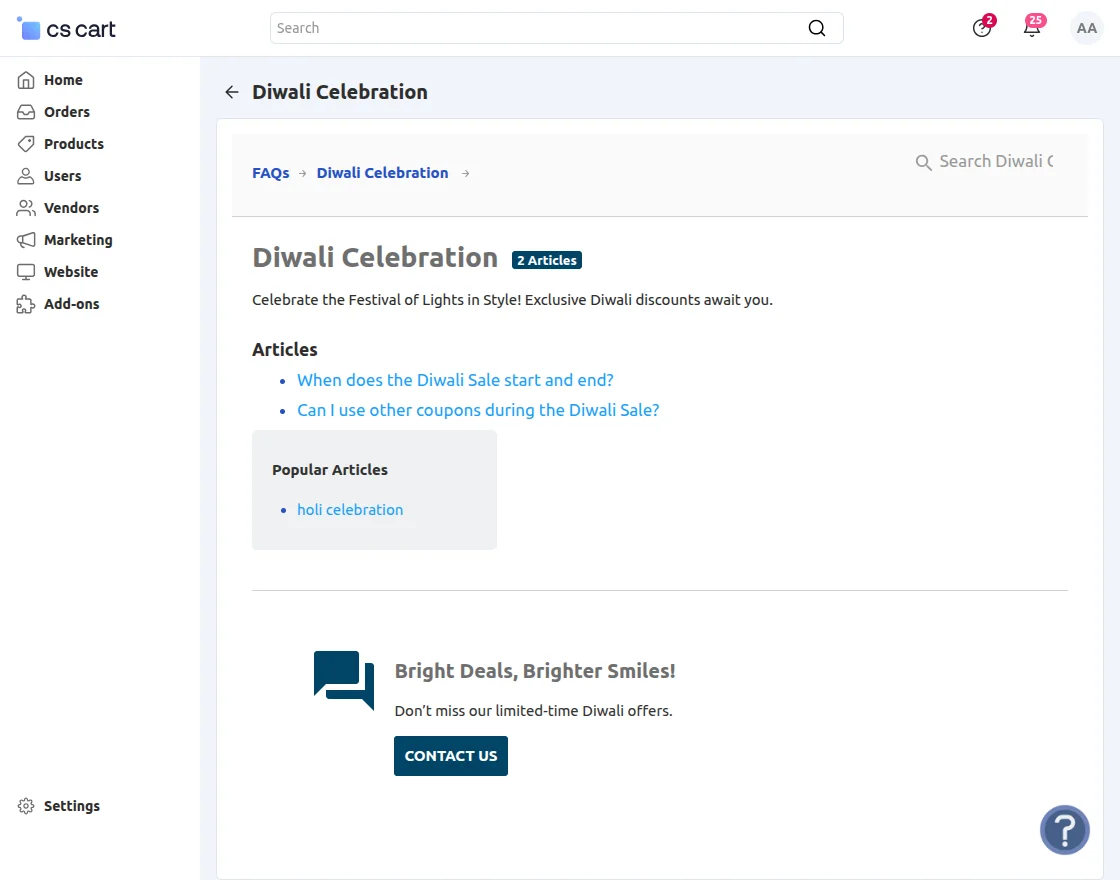
When the vendor clicks on an article, it will be displayed like this if found.
Support
If you have any questions, suggestions, or customization requests, feel free to contact us at [email protected] or submit a ticket at webkul.uvdesk.com.
Explore our premium-quality CS Cart Extensions to enhance your store functionality.
You can also explore our CS-Cart Development Services and Quality CS-Cart add-ons.
Current Product Version - 1.1
Supported Framework Version - (4.16.x - 4.18.x)


Be the first to comment.