CS-Cart Seller Plan Contract add-on helps you manage contracts efficiently. Dealing with contracts is part of running a good business.
You will have a number of business relationships involving some type of contractual commitment or obligation.
When someone offers to purchase a thing, it is signed by both the buyer and seller, this constitutes a binding agreement or ‘Deed of Sale’ between the two parties.
Where possible, it is best effort to use a contract that is customized to your profession or industry as this will include terms that are relevant to the work you do or the industry you work in.
The “CS-Cart Seller Plan Contract” addon is used to add signed terms & conditions as a contract for any seller plan. The seller has to sign digitally before registration for any selected seller plan.
This addon allows an admin to create a contract for each seller plan that includes the details of the seller company and various terms and conditions that an admin want to add to his contract.
Also, a seller has to digitally sign that contract before registration and opting for any plan to start selling his products on an online store.
Check a brief overview of the add-on –
Cs-Cart Seller Plan Contract Features:
- Well integrated with MultiVendor.
- Advance backend options for the admin to add contract data under the vendor plan.
- A Seller can digitally sign the contract before registration.
- Admin and seller both will get signed contracts via email after registration.
- Admin can set the size of the digital signature from the backend.
- The add-on allows the admin to select and upload files in various formats, such as PNG, SVG, ZIP, PDF, JPG, and JPEG.
- An admin can set fields of the contract form from the backend.
- The admin can add terms and conditions to the vendor plan contract.
- The admin can upload the stamp by choosing the image from the file.
- Sign the contract from the backend when the seller changes their plan.
- Enable or disable the contract for any plan.
- Easy to configure and manage at the admin end.
- The vendor can make changes in the contract, like a plan change, cancel the contract, and revoke the cancellation request.
Note: This addon has a dependency on the CS-Cart default vendor plan addon.
Flow Of Installation And Configuration:
When you download the “Cs-Cart Seller Plan Contract”, you’ll get one zip file and the install.txt file. Read it carefully and follow it. After that, install the zip file.
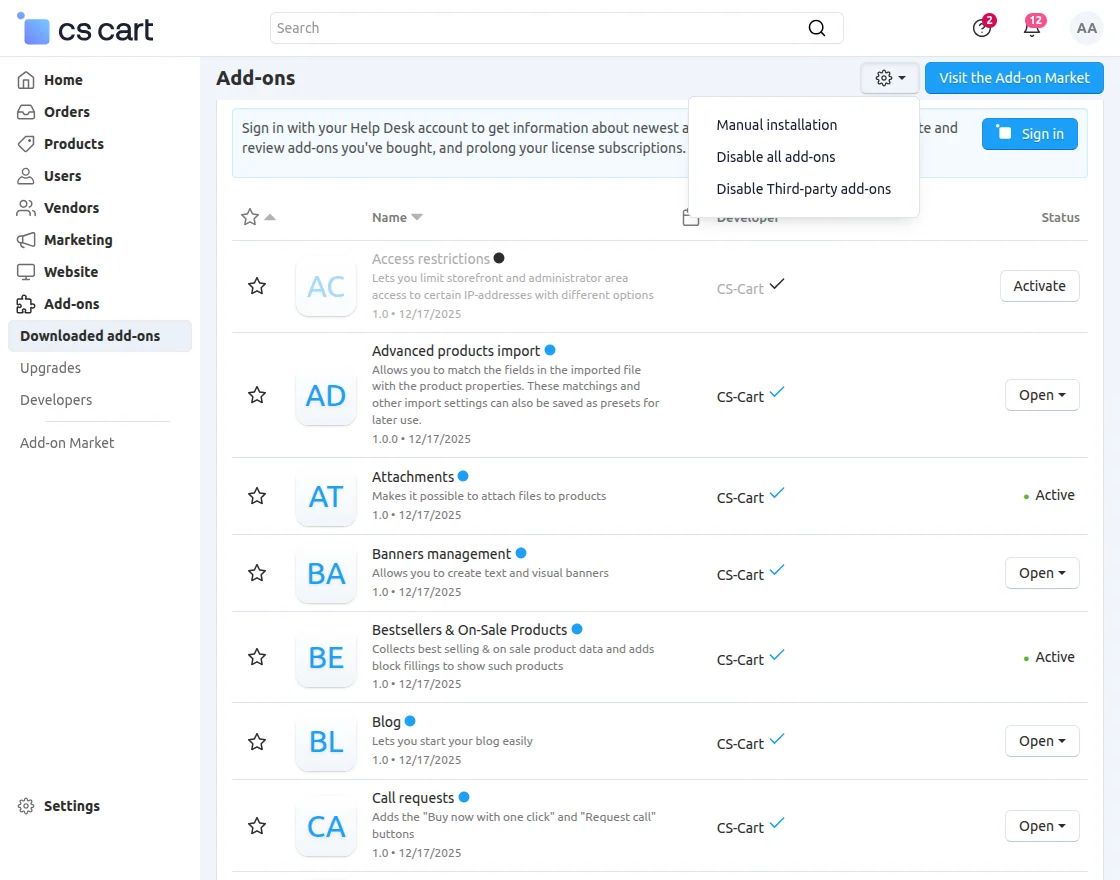
Navigate to Add-ons > Downloaded add-ons and click on the settings icon, from here you can manually install the zip file as shown below:
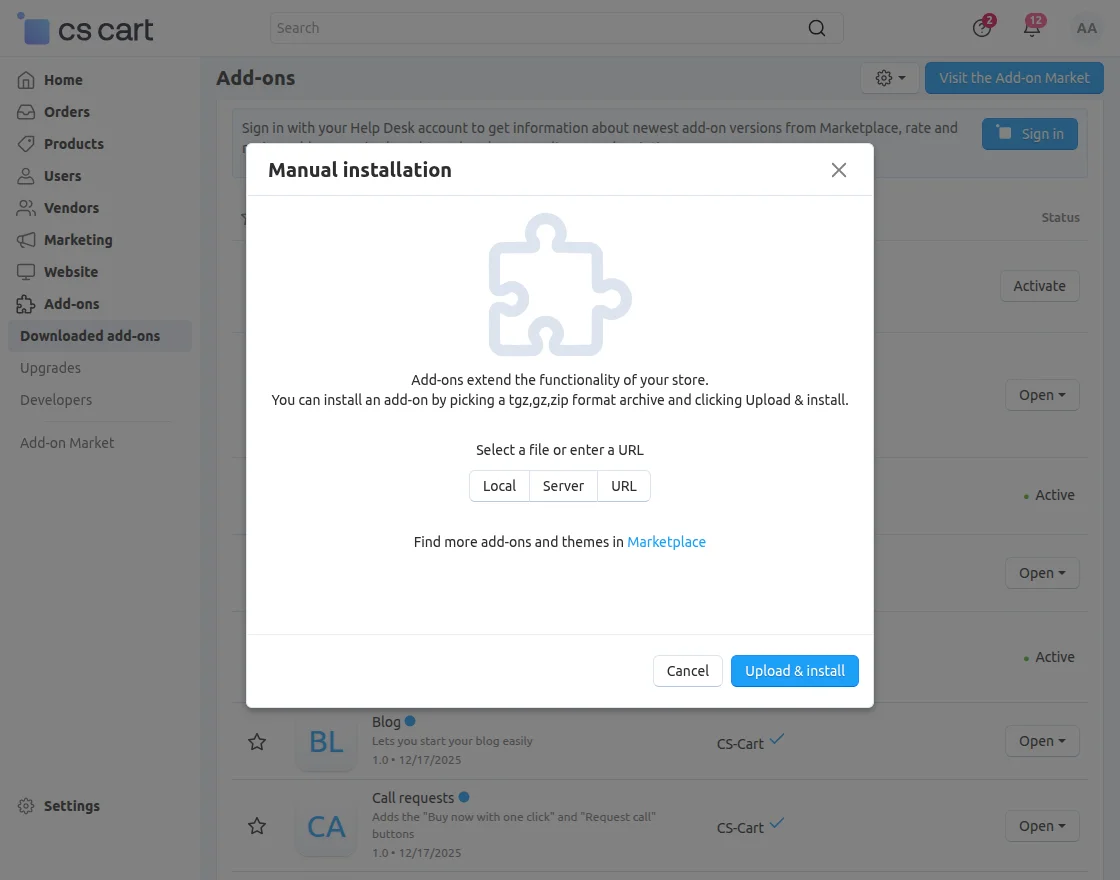
Click on “Local” to browse the zip file and then click on “Upload & Install” as shown below in the snapshot.
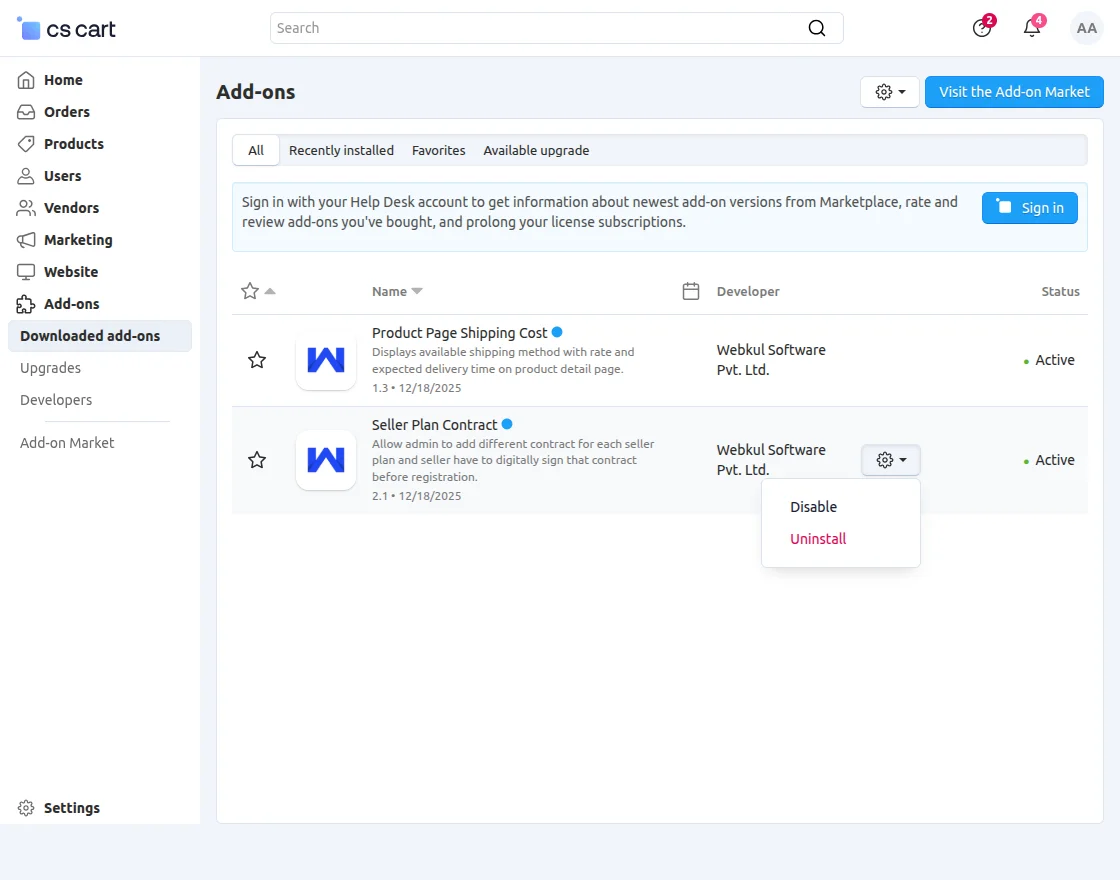
Click on “Settings” to configure the “CS-Cart Seller Plan Contract” as shown below in the snapshot.
CS-Cart Seller Plan Contract-Admin Configuration
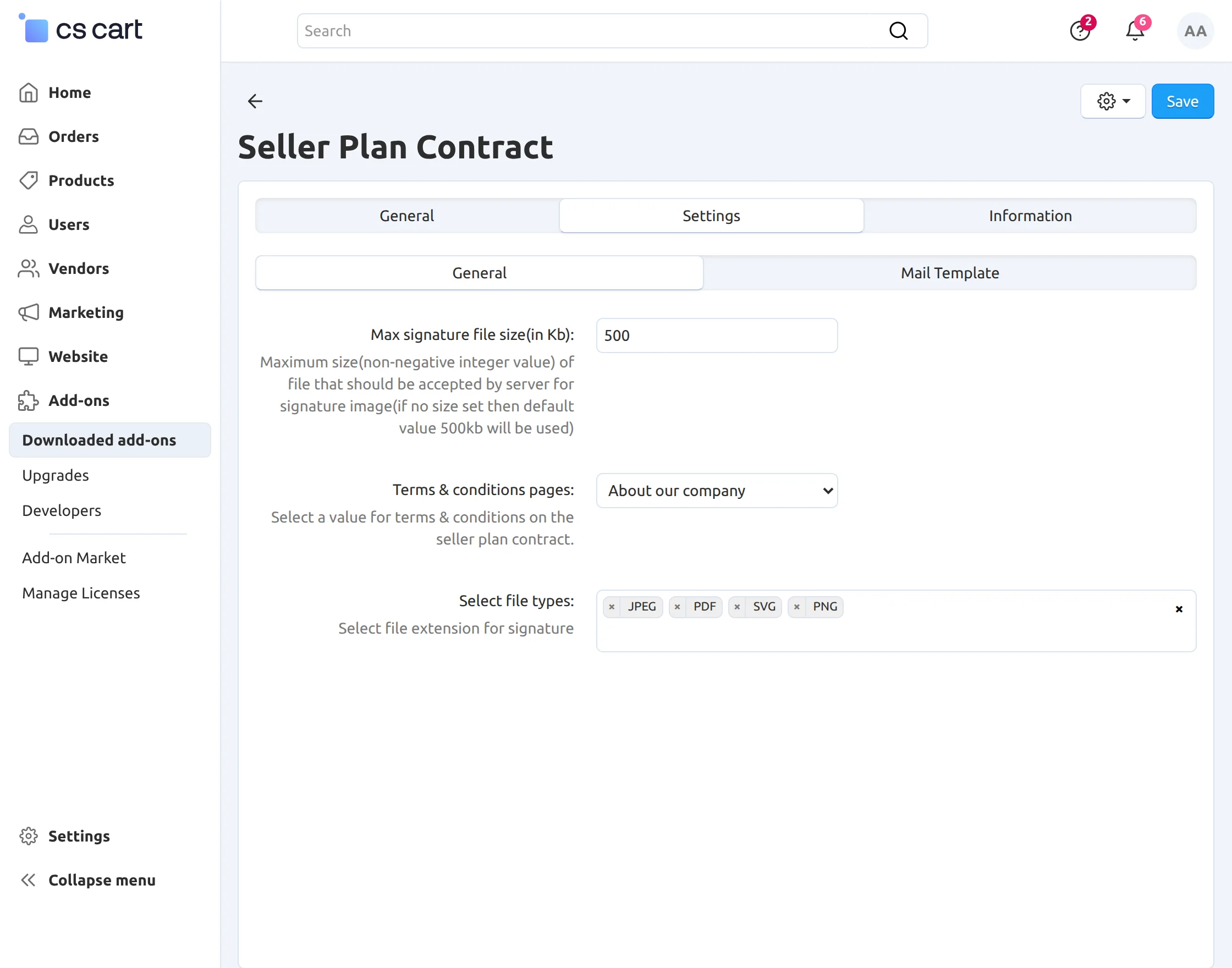
Now, after clicking on the settings, the General tab will open
Max signature file size(in kb): Enter the size of the file for the signature image. Here, the maximum size to be uploaded is 400Kb. If this field is kept blank, then the default value will be 500Kb.
Terms & Conditions pages: The admin can set terms and conditions for the seller plan contract.
Select File Types: Choose the file extensions that can be used for signatures, such as PNG, JPG, JPEG, SVG, PDF, and ZIP.
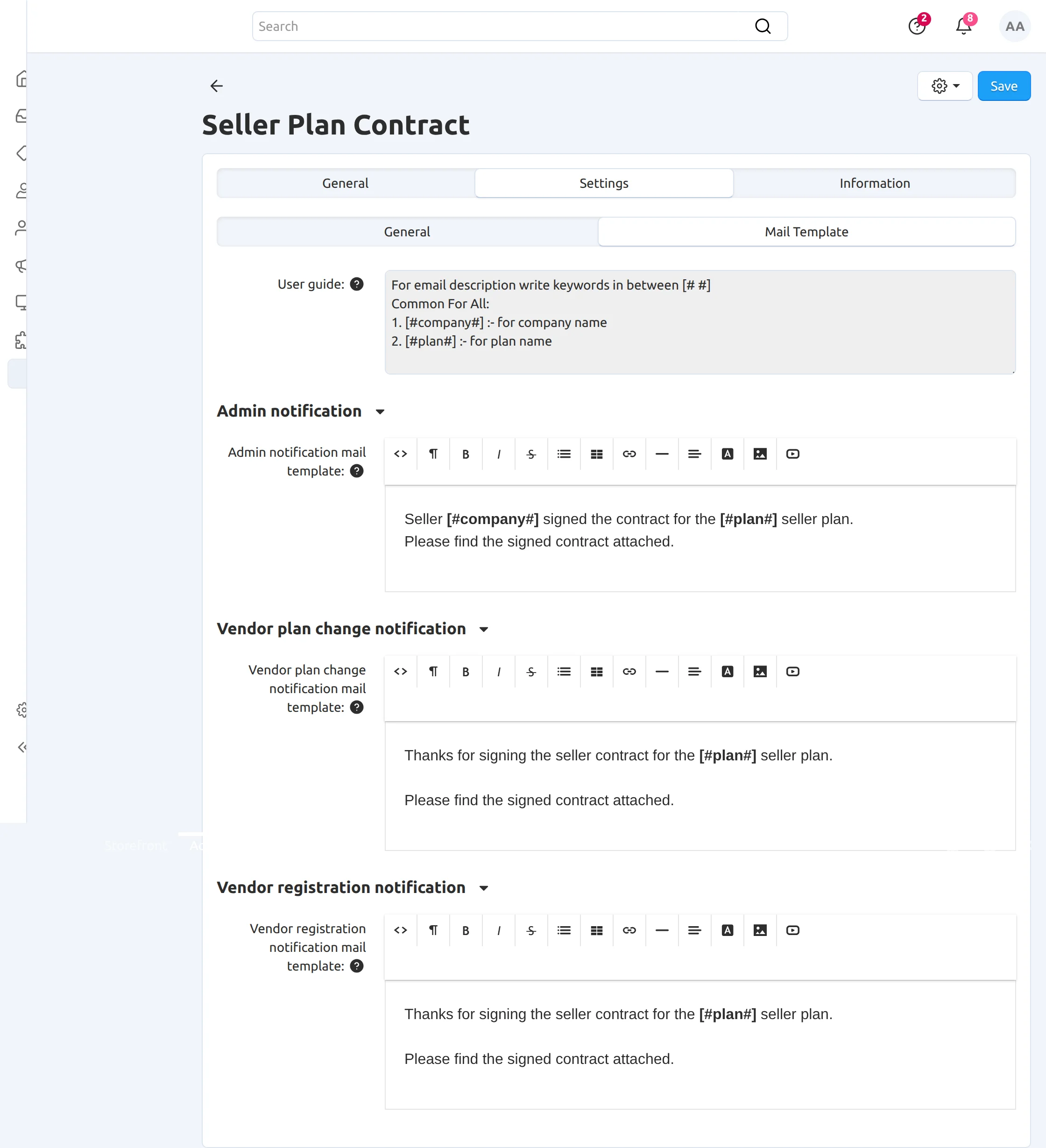
Now, on the Mail Template tab, the admin can set the Mail template for Admin notification, vendor plan change notification, and vendor registration notification.
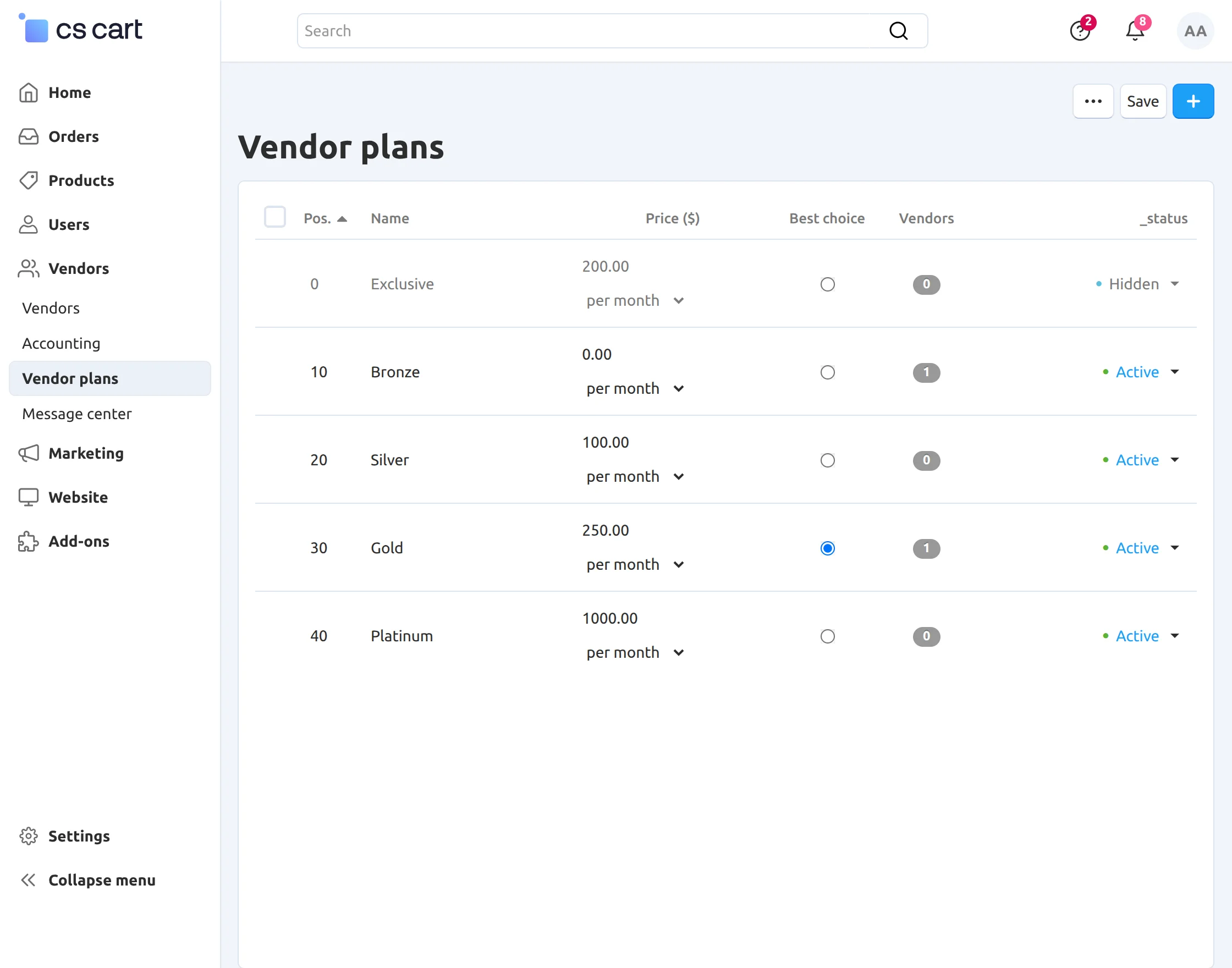
Now go to Vendors and click on “Vendor Plans” to add a contract to a selected seller plan.
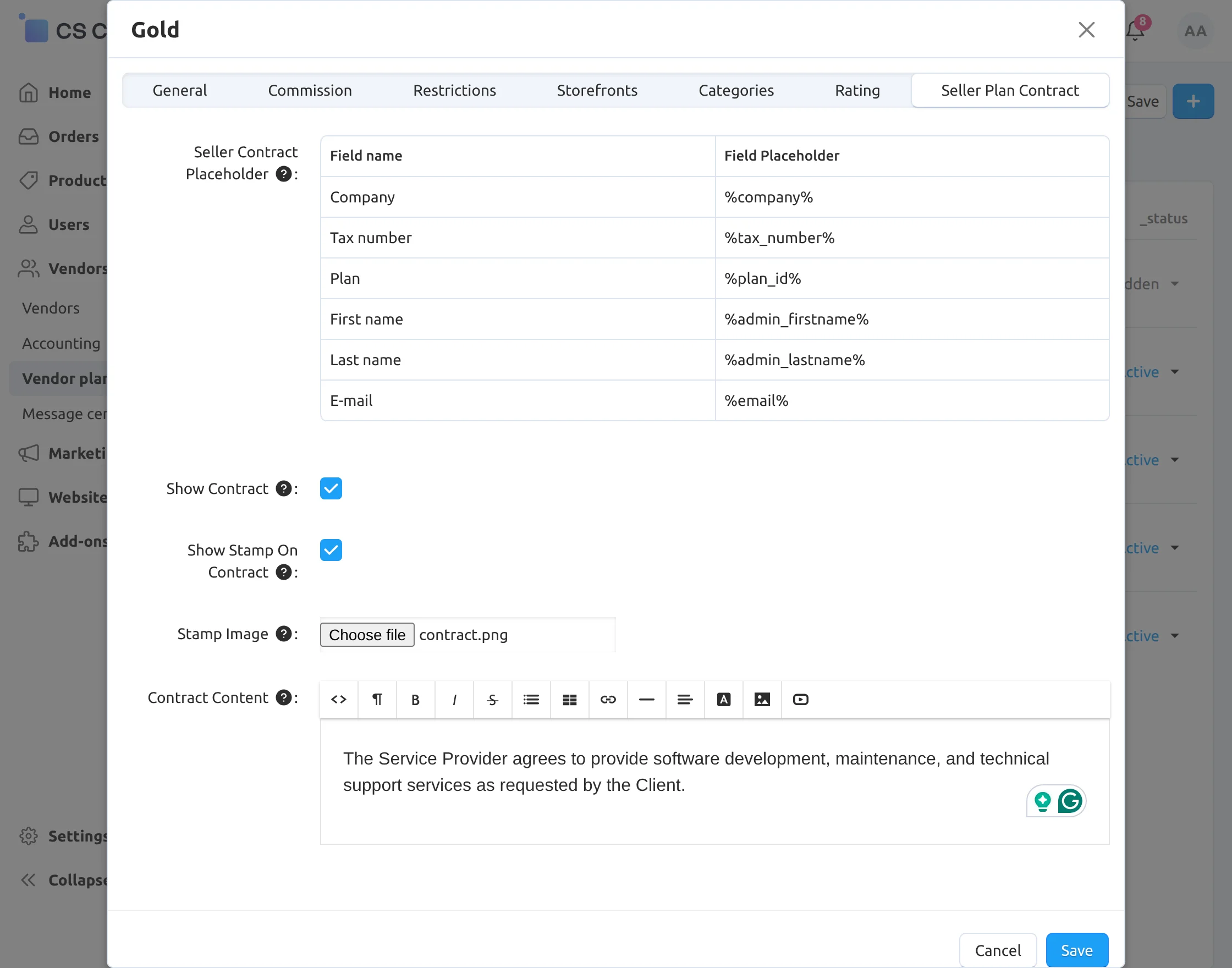
Select the vendor plan to add a contract to the plan. Here you will see the “Seller Plan Contract” tab.
After that, select the field placeholder that you want to add to the contract form and click on Save.
The admin can also show the contract, show a stamp on the contract, choose a file to upload, stamp, and add contract content.
Front-End view
Let us see how a seller can sign a contract form before registration.
Firstly, a seller has to select the seller plan to sell their products and then complete the registration form to apply.
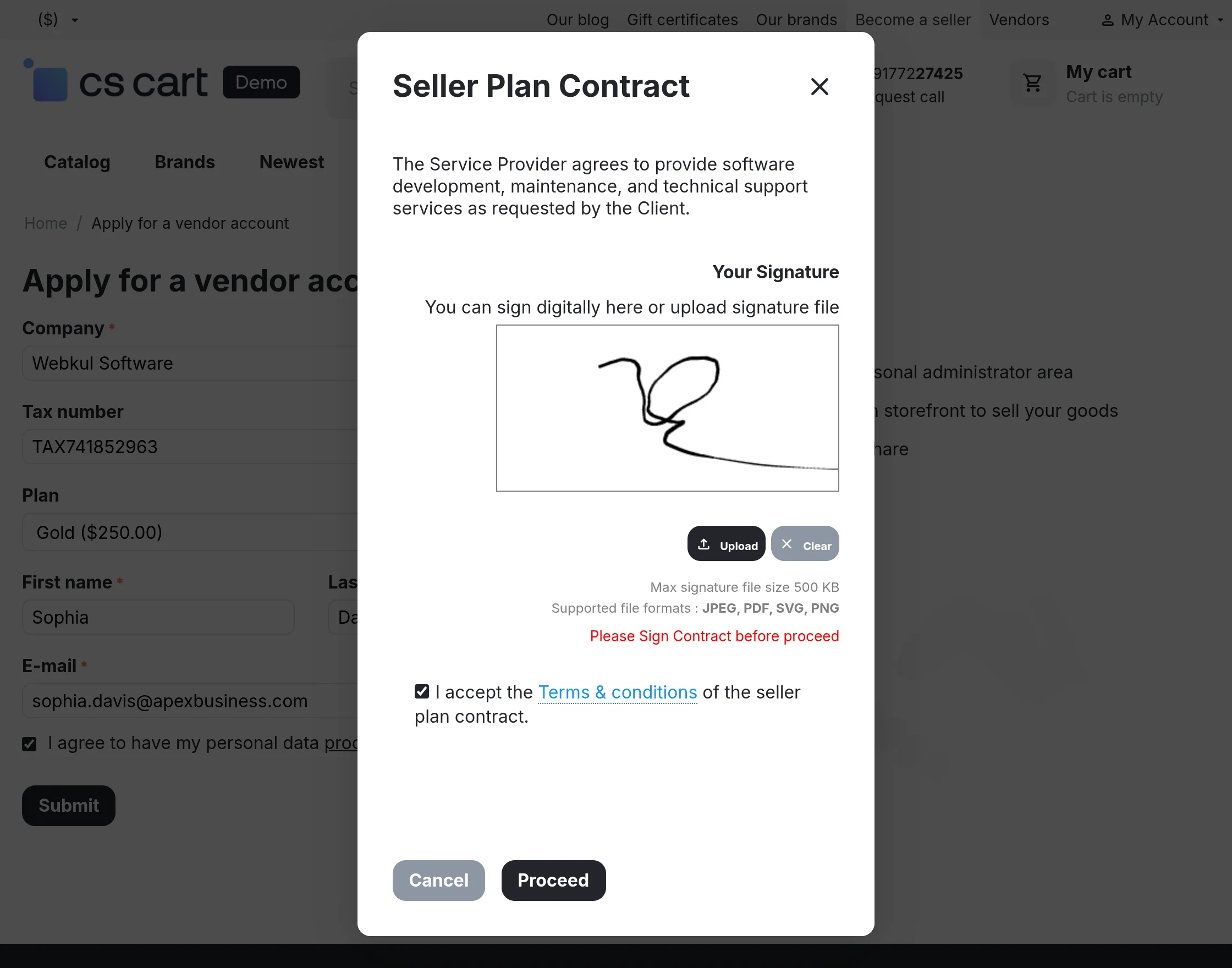
The customer needs to fill in the details to become a vendor like company name, tax number, plan, name, and email.
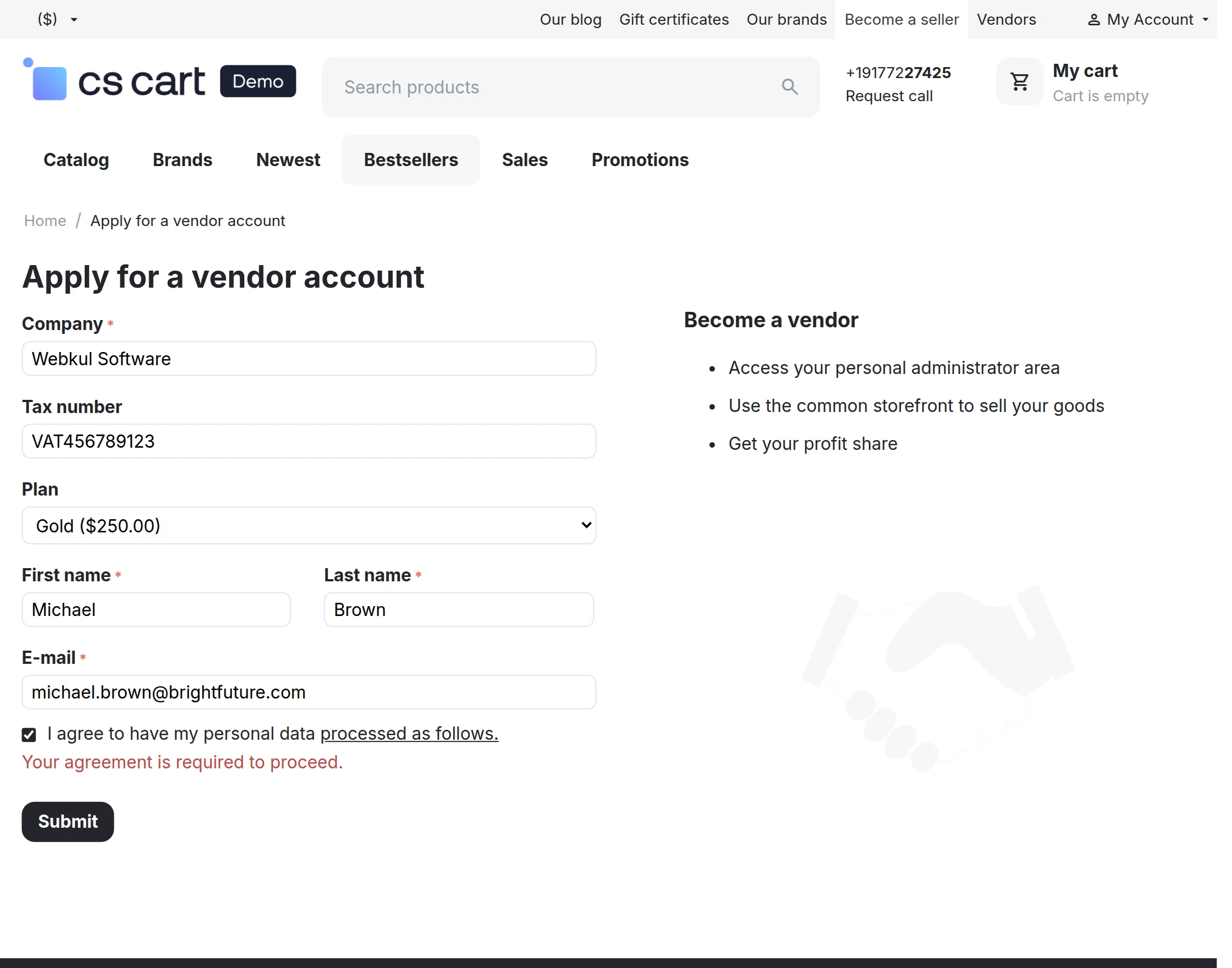
Note: The customer needs to log out first and then apply to become a vendor.
Once a seller has applied and submitted their details, they can digitally sign or upload his signature and click on “Proceed” to sign that contract.
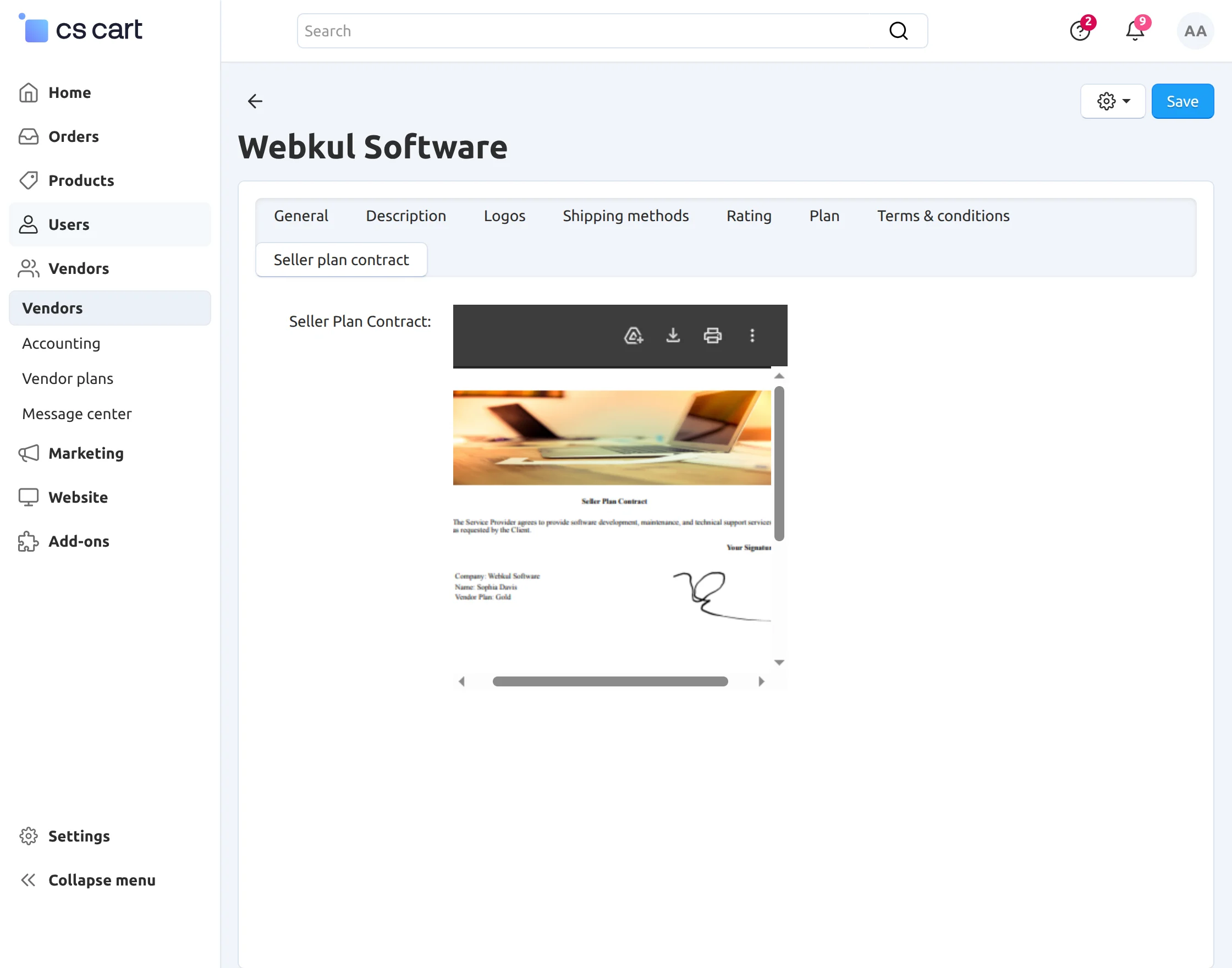
Once a seller has signed the contract, both the admin and the seller will receive a copy of the signed contract on the Seller plan contract tab.
CS-Cart Seller Plan Contract- Vendor panel
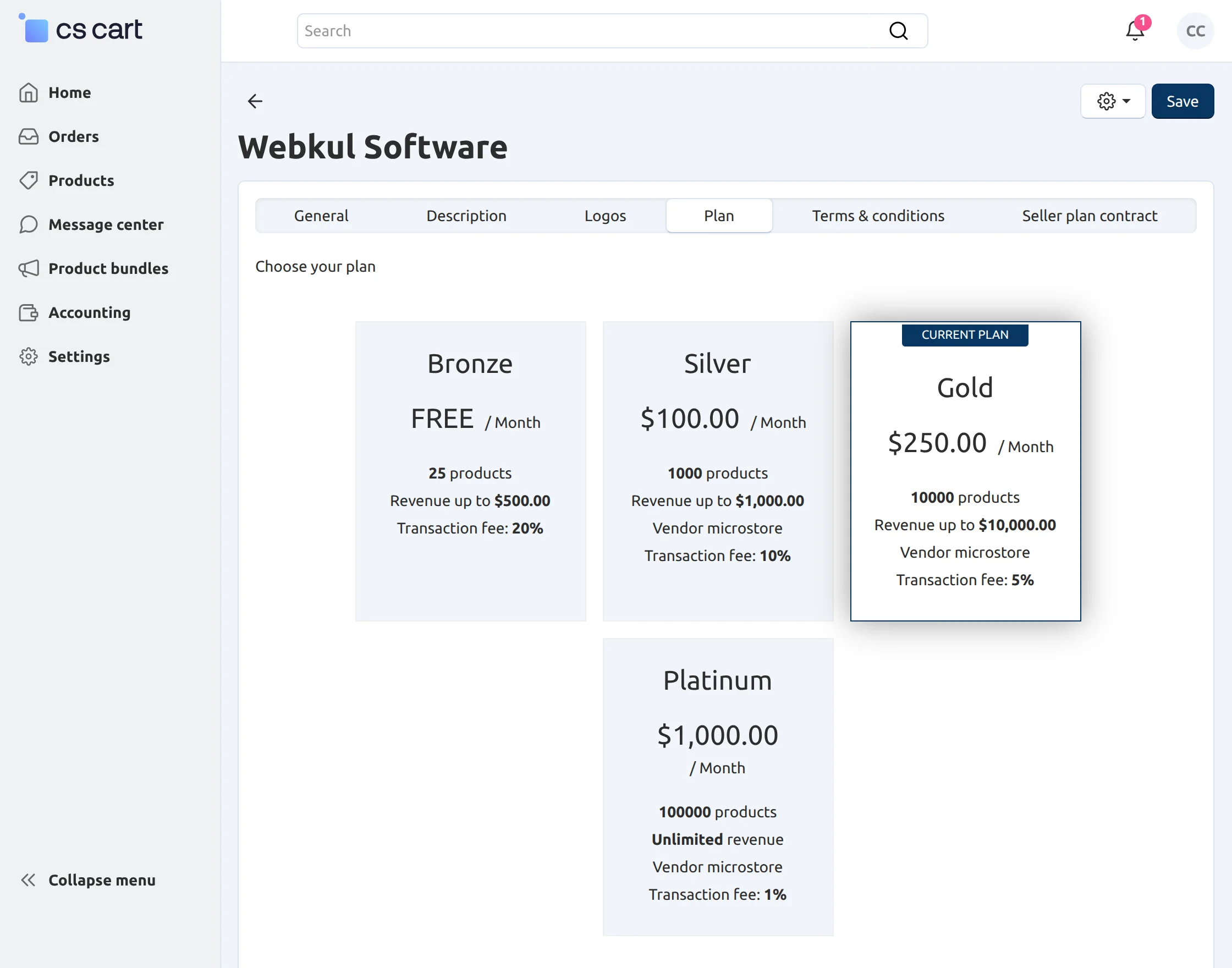
When a seller needs to change his plan, then logging into his backend panel, a seller can select the new plan by clicking on Vendor’s Profile > Seller Info > Plan, as given in the snapshot below.
After switching, a new pop-up will open, and a seller can sign the contract from the backend.
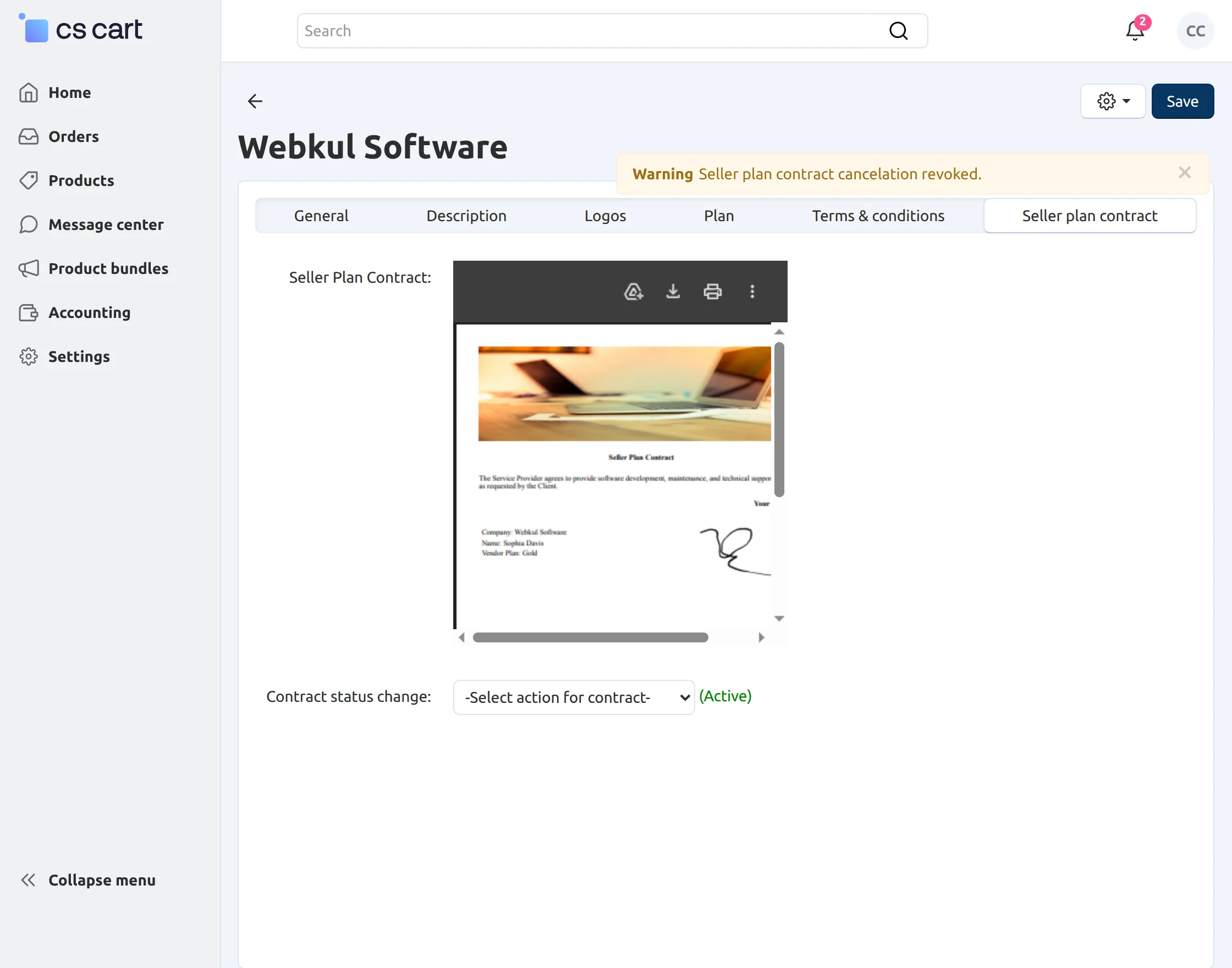
The vendor can cancel the contract by selecting the contract status change by clicking on Vendor’s Profile > Seller Info > Seller plan contract.
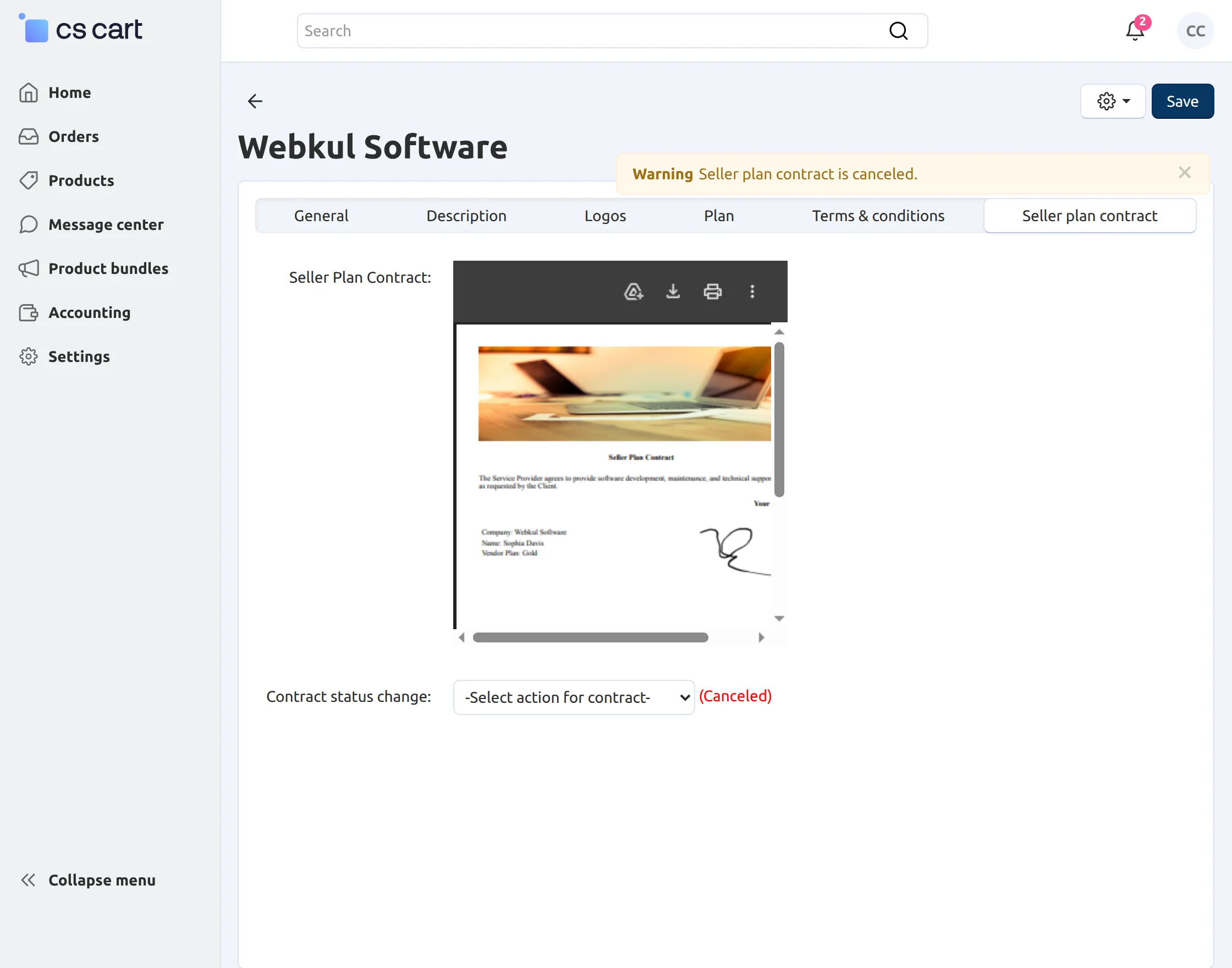
The vendor can also revoke the cancellation of the contract by selecting contract status change by clicking on Vendor’s Profile > Seller Info > Seller plan contract.
Support:
If you have any questions, suggestions, or customization requests, feel free to contact us at [email protected] or submit a ticket at webkul.uvdesk.com.
Explore our premium-quality CS Cart Extensions to enhance your store functionality.
You can also explore our CS-Cart Development Services and Quality CS-Cart add-ons.
Current Product Version - 2.1
Supported Framework Version - 4.16.x to 4.20.x

Be the first to comment.