Introduction
Odoo POS Payment Reference helps businesses collect additional details during Point of Sale payments. It allows users to configure payment references for different payment methods.
Users can enable payment references, add multiple fields, choose Text or Number as the field type, and make entries mandatory. They can also choose to display the entered references on order receipts.
During checkout, cashiers enter the required details in the Payment Reference window before validating the payment. Users can also review payment records, including the date, payment method, order, employee, and amount.
Features
- Configure payment references from POS payment method settings.
- Add multiple reference fields to collect the required payment details.
- Choose Text or Number for each reference field.
- Mark reference fields as mandatory when a value is required.
- Enter the configured reference values in the Payment Reference window during payment.
- Display entered reference details on the POS order receipt.
- Review payment transactions from the Payments section in Point of Sale.
- View the payment method, date, related order, employee, and amount.
Additionally, if you want QR-based payments and more payment gateways in POS, you can check our module Odoo POS Payment Base.
Installation
- Once you purchase the App from the Webkul store, you will receive the link to download the zip file of the module.
- Extract the file on your system after the download finishes. As a result, you will be able to see a folder named ‘‘odoo_POS_payment_reference’
- Copy and paste this folder into your Odoo Add-Ons path.
- Now, open Odoo Apps and then click on the Settings menu. Here, click on Activate Developer Mode.
- Then, open the Apps menu and click on the ‘Update Modules List’.
- In the search bar, remove all the filters and then search for ‘odoo_POS_payment_reference’.
- As a result, you will be able to see the module in the search results. Click on ‘Install’ to install it.
If you need to print more than one receipt for an order, you can also check Odoo POS Multiple Receipts.
Workflow
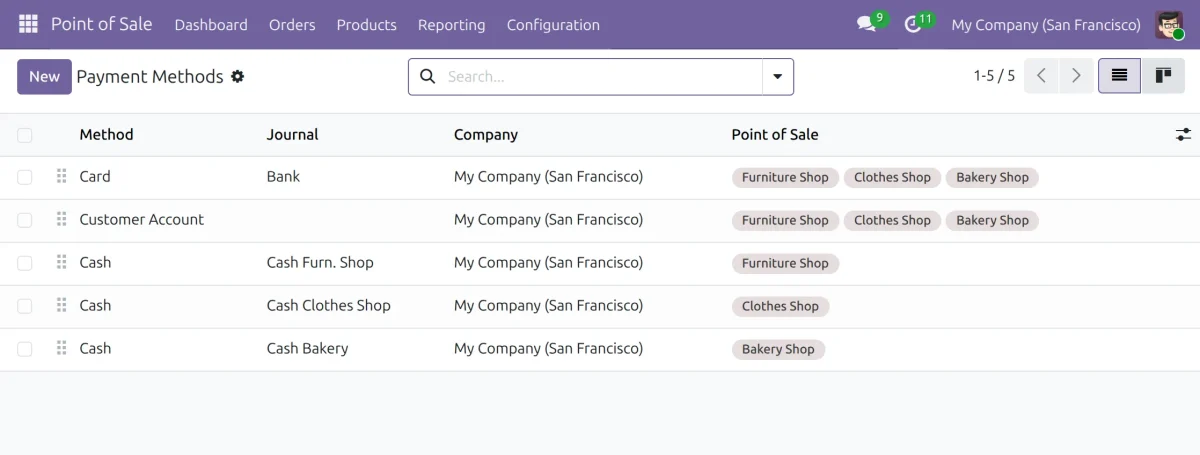
1. View Payment Methods
- Open the Point of Sale application.
- Go to Configuration → Payment Methods to view the available payment methods.
- Open the payment method you want to configure.
2. Configure Payment References
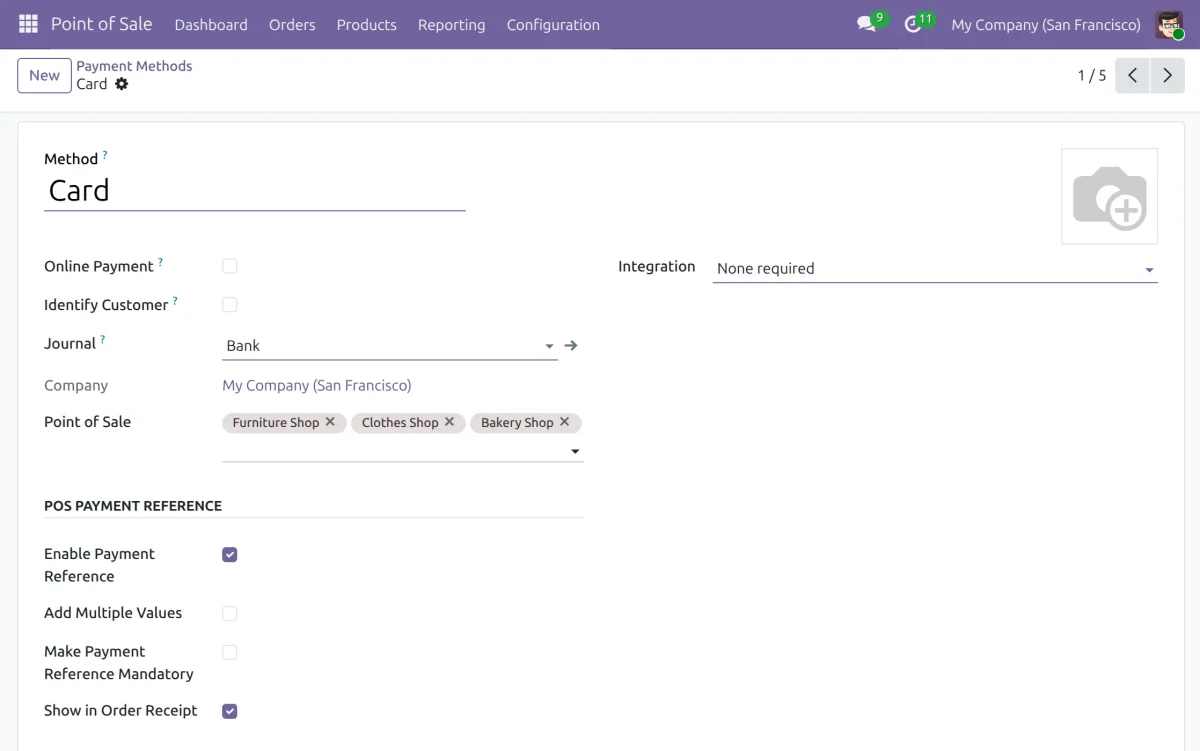
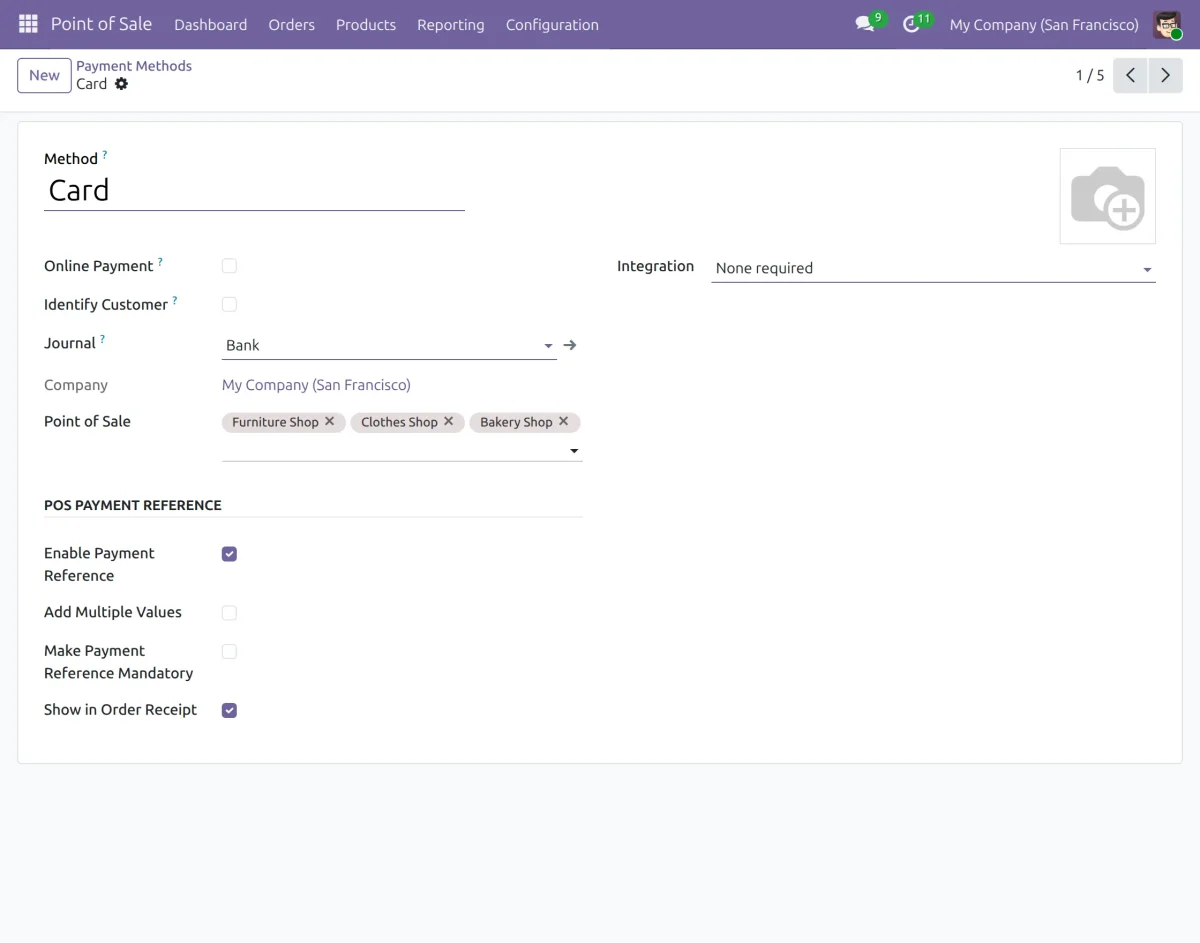
- Open a payment method, such as Card.
- Under POS Payment Reference, enable Enable Payment Reference.
- Enable Show in Order Receipt if you want the entered reference details to appear on the receipt.
3. Add Multiple Reference Fields
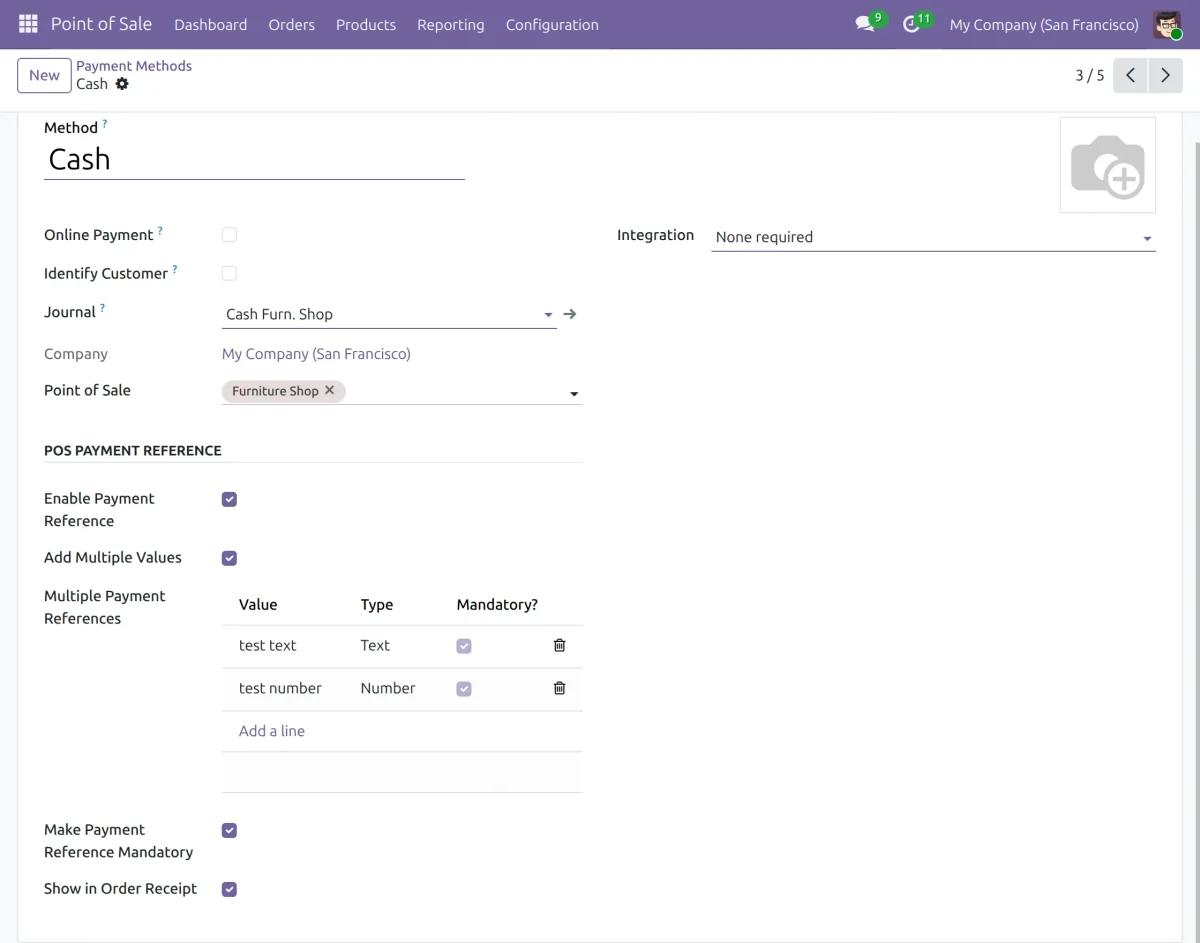
- Open the payment method and enable Enable Payment Reference.
- Select Add Multiple Values to add multiple reference fields.
- Enter the required values, choose Text or Number for each field, and mark the field as mandatory when needed.
- Enable Make Payment Reference Mandatory if users must provide the configured references.
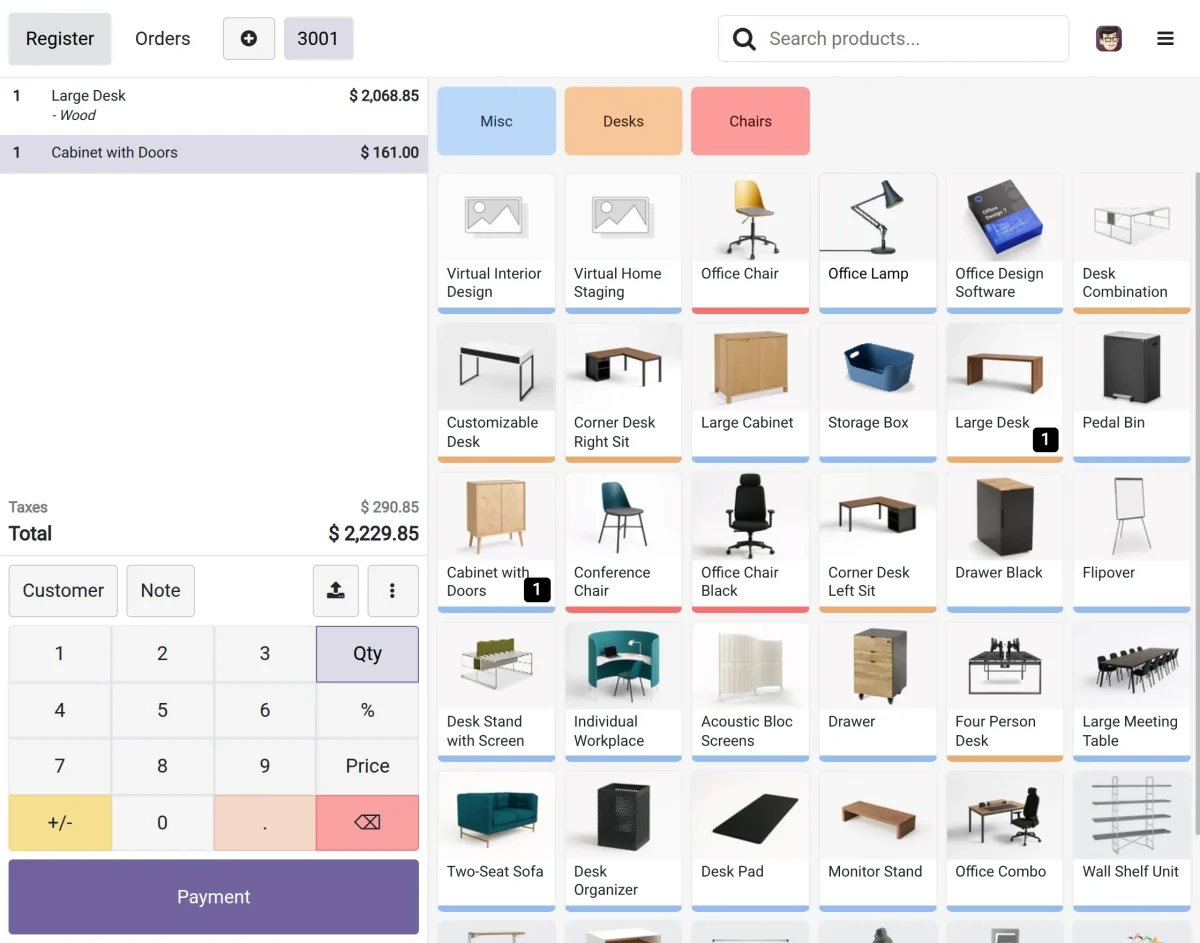
4. Add Products to the POS Order
- Open the Point of Sale session.
- Select the products the customer wants to purchase.
- Review the order and click Payment to proceed to checkout.
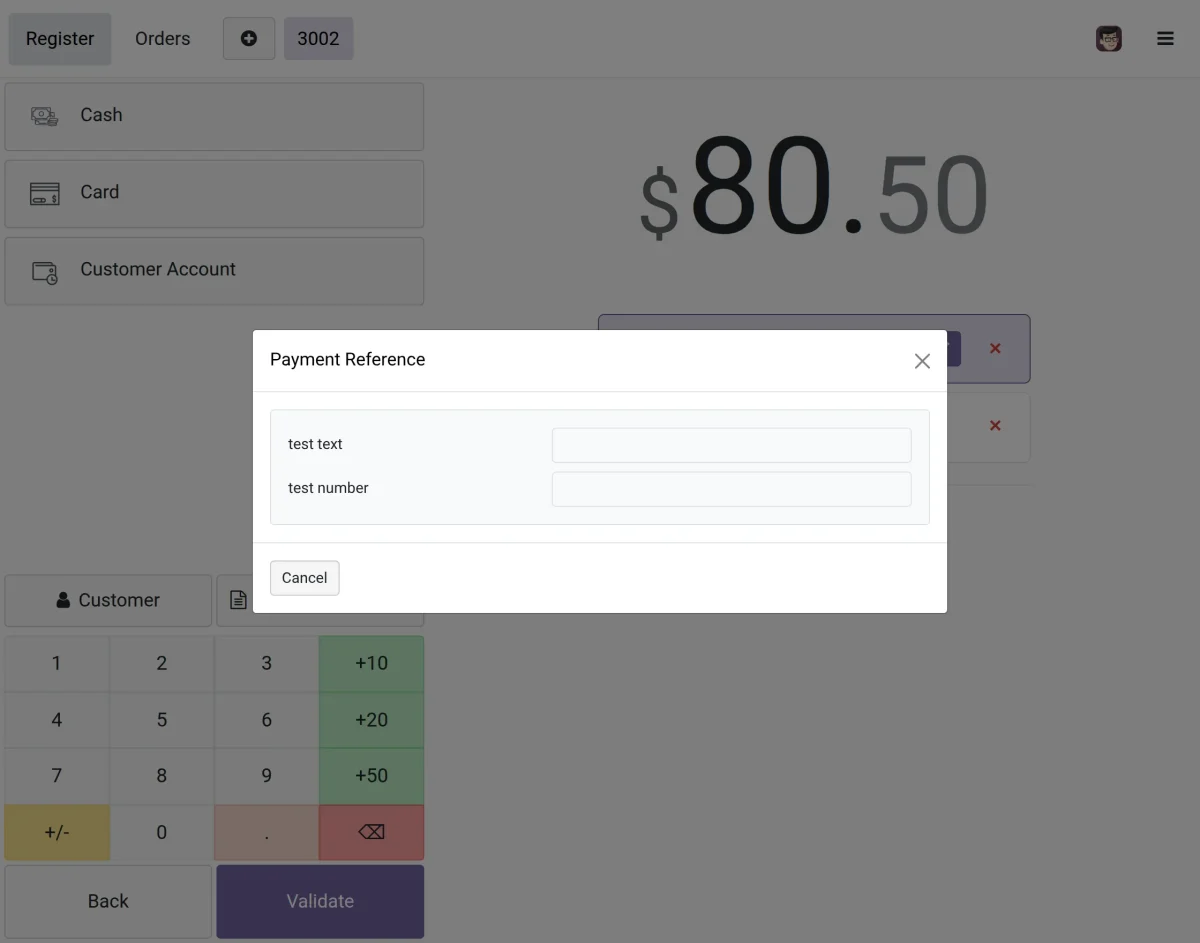
5. Enter Payment Reference Values
- Select the configured payment method during checkout.
- The Payment Reference window displays the configured fields.
- Enter the required values and click Validate to continue with the payment.
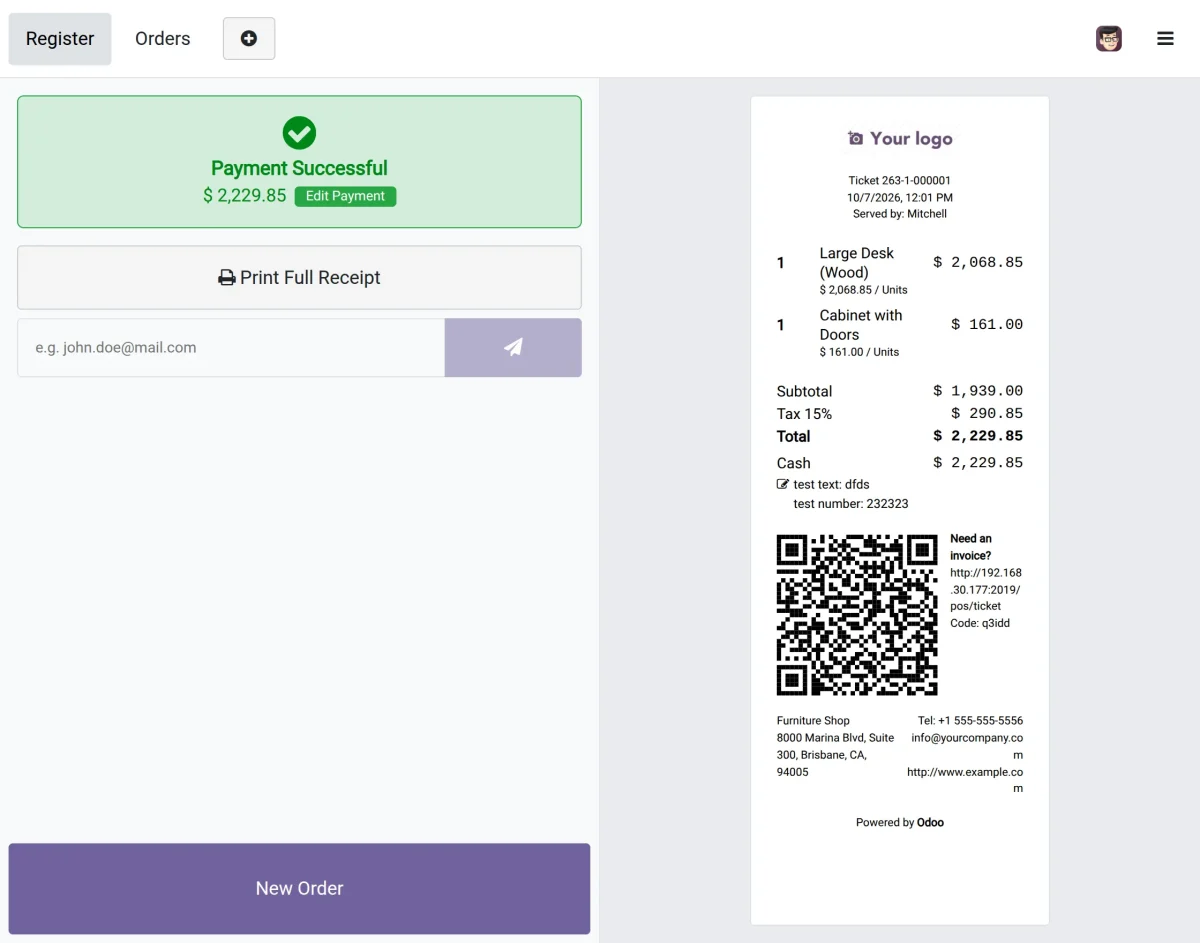
6. View the Order Receipt
- After the payment is successful, review the order receipt.
- If Show in Order Receipt is enabled, the entered reference details appear with the payment information.
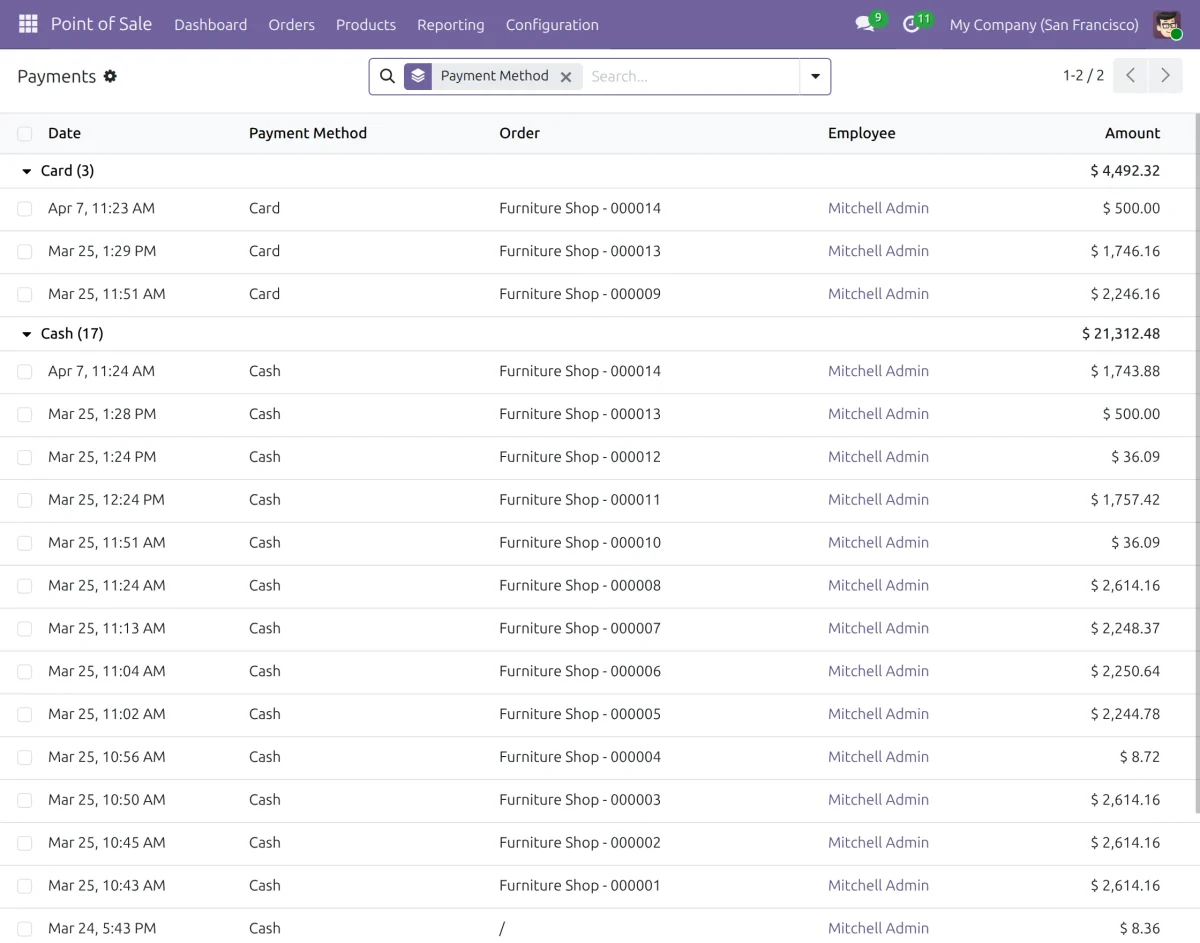
7. Review Payment Records
- Open the Payments section in Point of Sale.
- Review the available payment transactions.
- Check details such as the payment method, date, related order, employee, and amount.
NEED HELP?
Hope you find the guide helpful! Please feel free to share your feedback in the comments below.
If you still have any issues/queries regarding the same, please raise a ticket at the Webkul Support System.
Thanks for paying attention!!
Current Product Version - 1.0.0
Supported Framework Version - Odoo V20, V19, V18

Be the first to comment.