Introduction
The ERPNext Product Review After Purchase app asks your customers to review the products they bought. It works with ERPNext and the Webshop storefront.
Once you deliver, collect payment for, or complete an order, the app queues one review request per purchased product.
A scheduled job then emails each customer a secure link.
The customer rates the product on a simple public page, and Webshop stores the result as a normal Item Review.
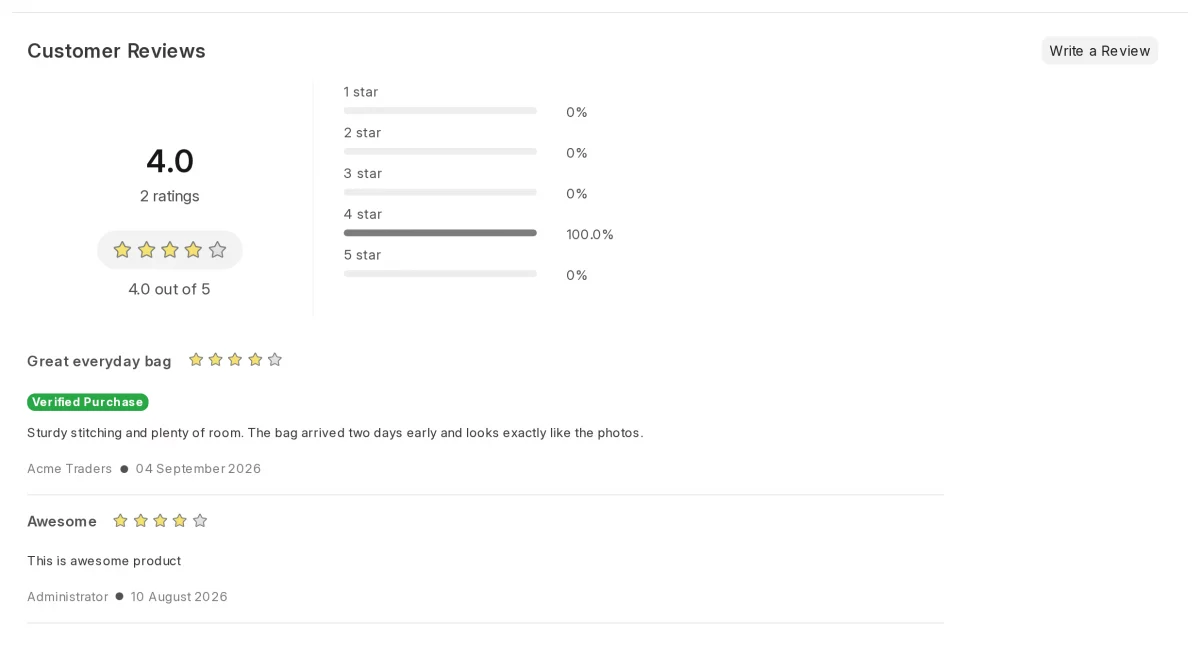
Reviews that arrive this way carry a green Verified Purchase badge in your store.
Prerequisites for using ERPNext Product Review After Purchase :
- Webshop app installed
- Published Website Item records for the products you sell.
- An Email Account with outgoing mail enabled, so the site can send email.
- Enable Reviews ticked in Webshop Settings.
- The System Manager role, to install and configure the app.
Features
1. Automatic review requests on delivery, payment, or order completion.
2. A configurable delay, in days, before the first email goes out.
3. Email templates with the customer name, item, order number, and review link.
4. Secure, single-use review links that expire after a set number of days.
5. Optional reminder emails, with a cap on the number the app may send.
6. Automatic retries when an email fails.
7. A Verified Purchase badge on storefront reviews.
8. A summary report with pending, sent, failed, and review-rate counts.
Installation
1. After purchasing the app from Webkul Store, you will receive a link to download the module ZIP file.
2. Extract the ZIP file after the download finishes.
3. Set up the module in your git repository, then fetch it using:
bench get-app --branch main https://github.com/yourorg/erpnext_product_review_after_purchase
5. Install the app on your ERPNext site using:
bench --site <your-site-name> install-app erpnext_product_review_after_purchase
6. Run the following command to complete the setup:
bench migrate
Workflow
1. First, open the desk and click Webshop in the sidebar. The app adds two entries there: Product Review Request and Review Settings.
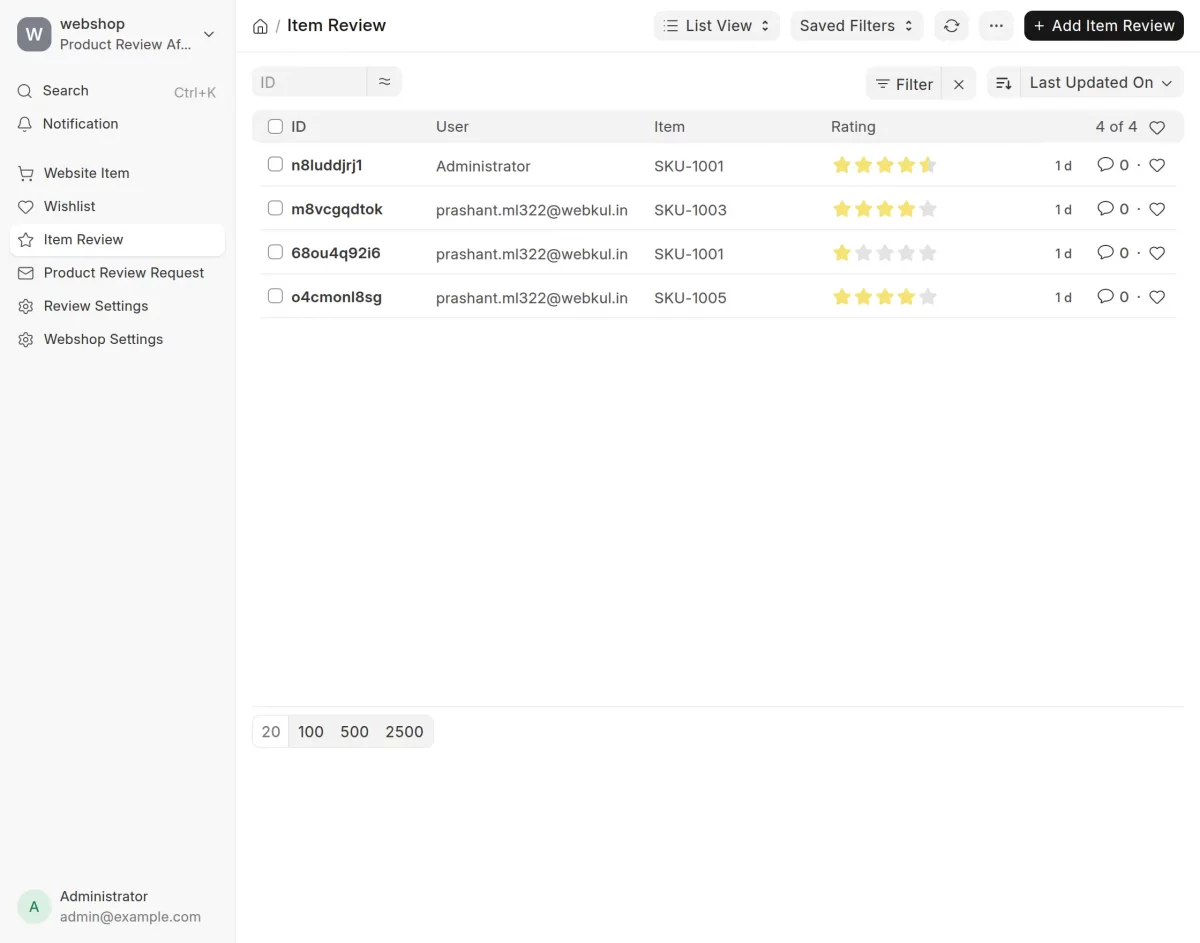
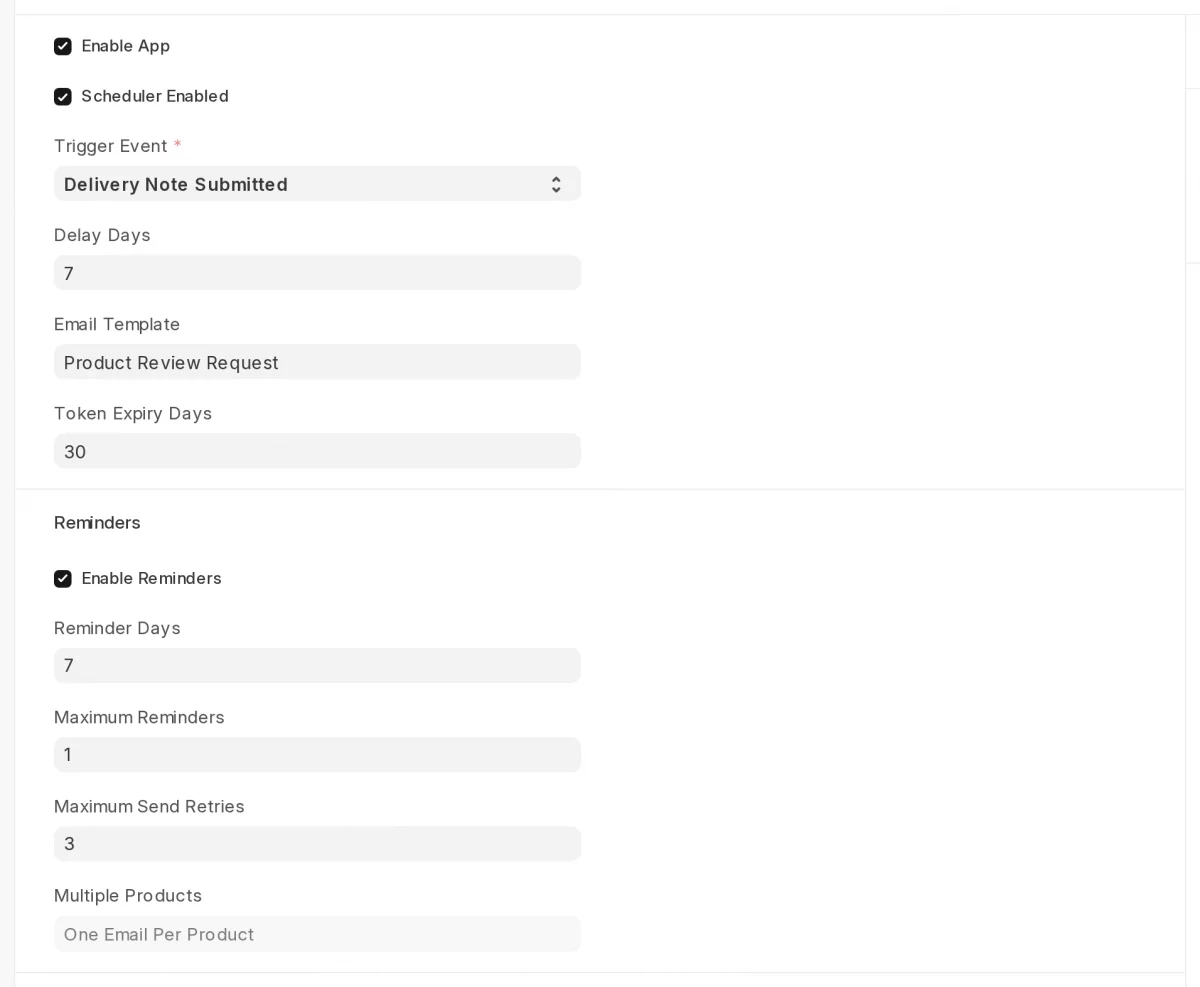
2. Then, click Review Settings to open Product Review After Purchase Settings. Tick Enable App.
Pick a Trigger Event: Delivery Note Submitted, Sales Invoice Paid, or Sales Order Completed.
Set Delay Days, Token Expiry Days, and an Email Template. Turn on Enable Reminders if you want a follow-up email. Click Save.
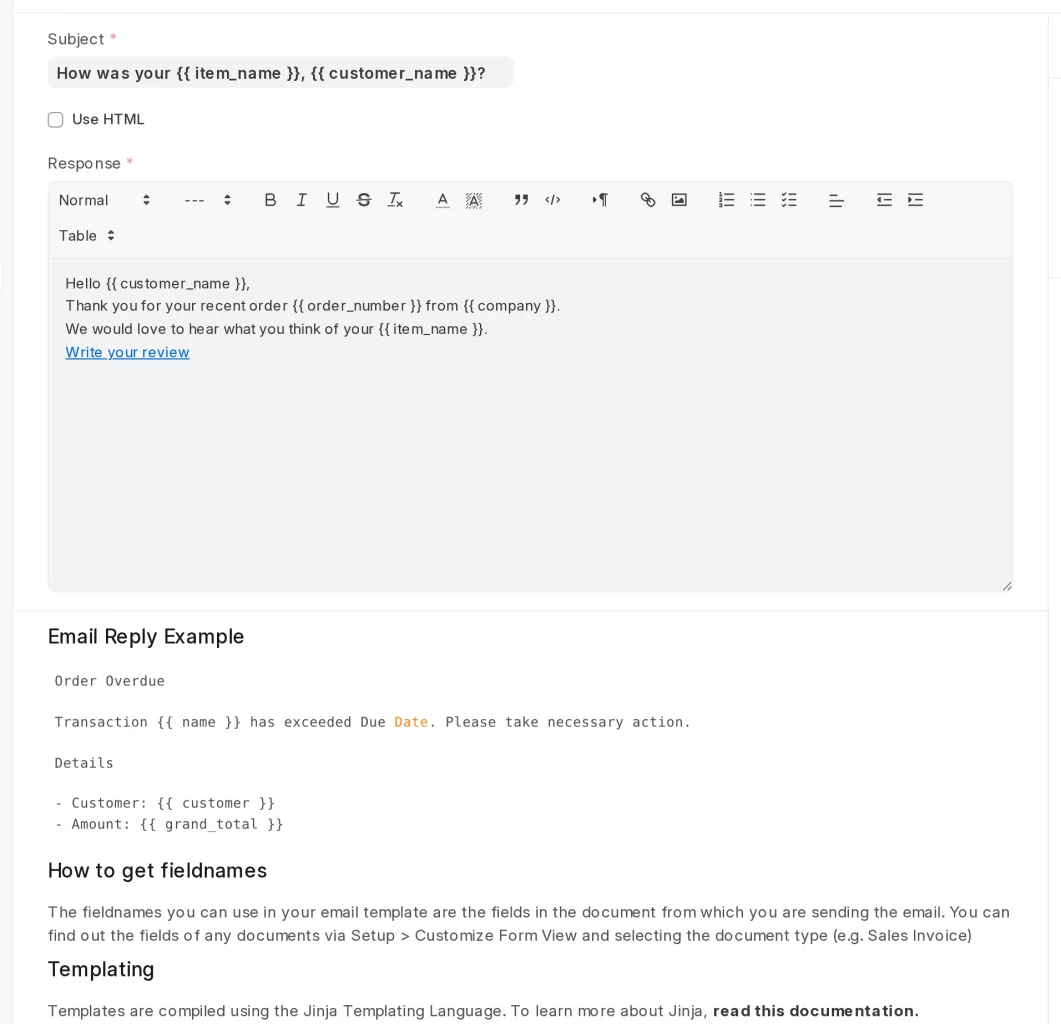
3. Next, open Email Template and write the email your customers will receive.
You can use these placeholders in the subject and body: customer_name , item_name , website_item , order_number , review_link , and company .
Always include review_link — it is the button the customer clicks.
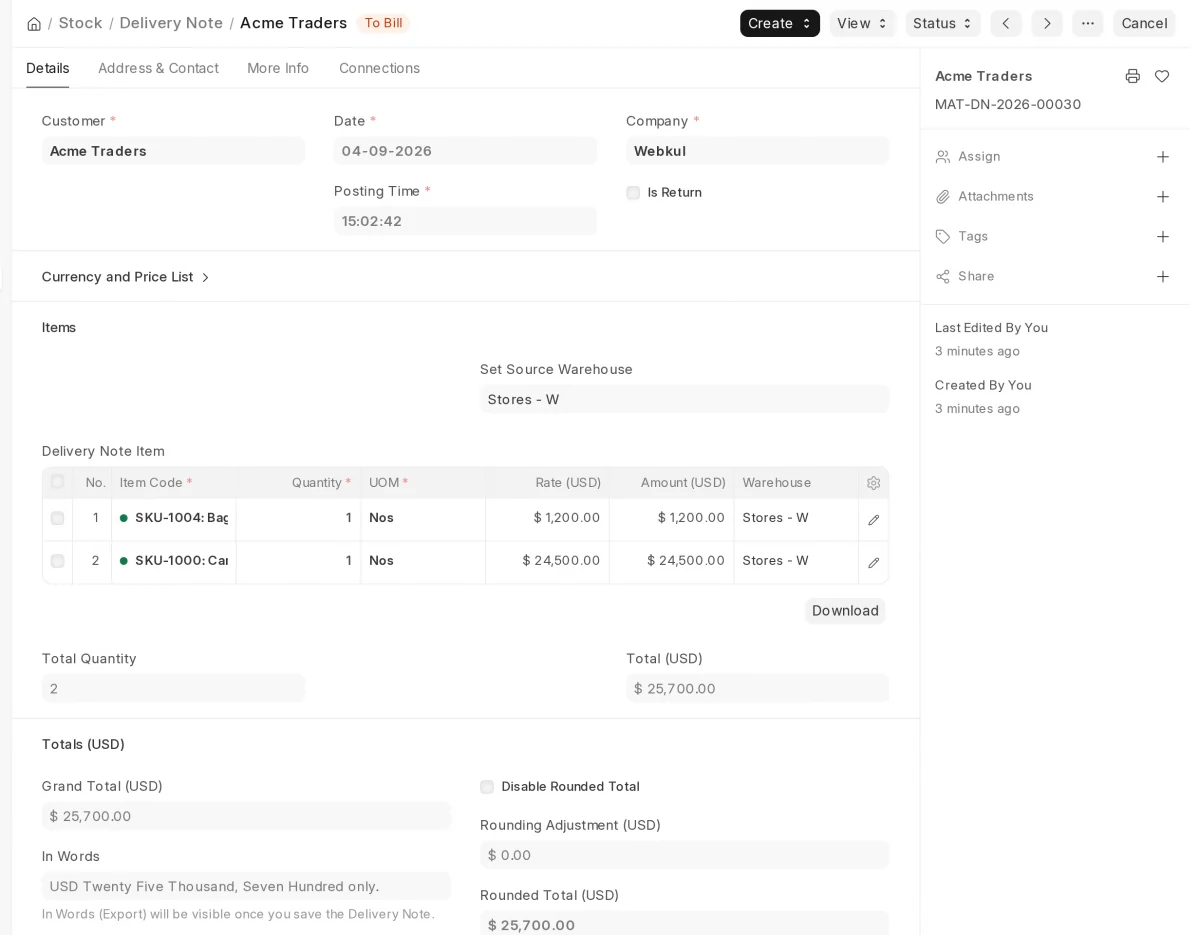
4. Now sell and deliver as you always do. Here, we deliver the order for Acme Traders and submit the Delivery Note.
5. The moment the trigger fires, the app creates one Product Review Request per purchased product that has a published Website Item.
Open the Product Review Request list to watch them. Each request moves through a status: Pending, Sent, Review Received, Failed, Expired, or Cancelled.
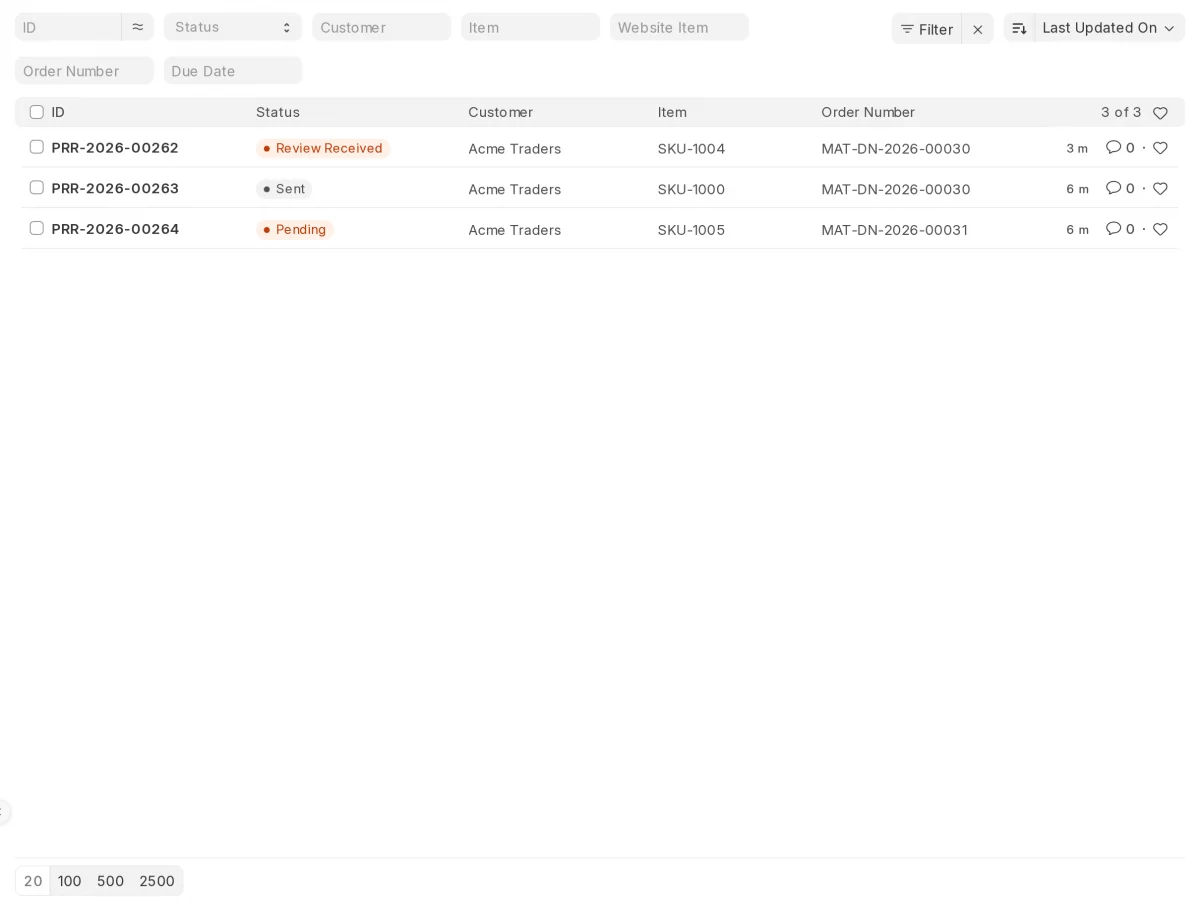
6. An hourly scheduled job emails every request whose due date has arrived, then marks it Sent.
Open a request to see the schedule: Due Date, Sent On, Expires On, and the retry and reminder counters.
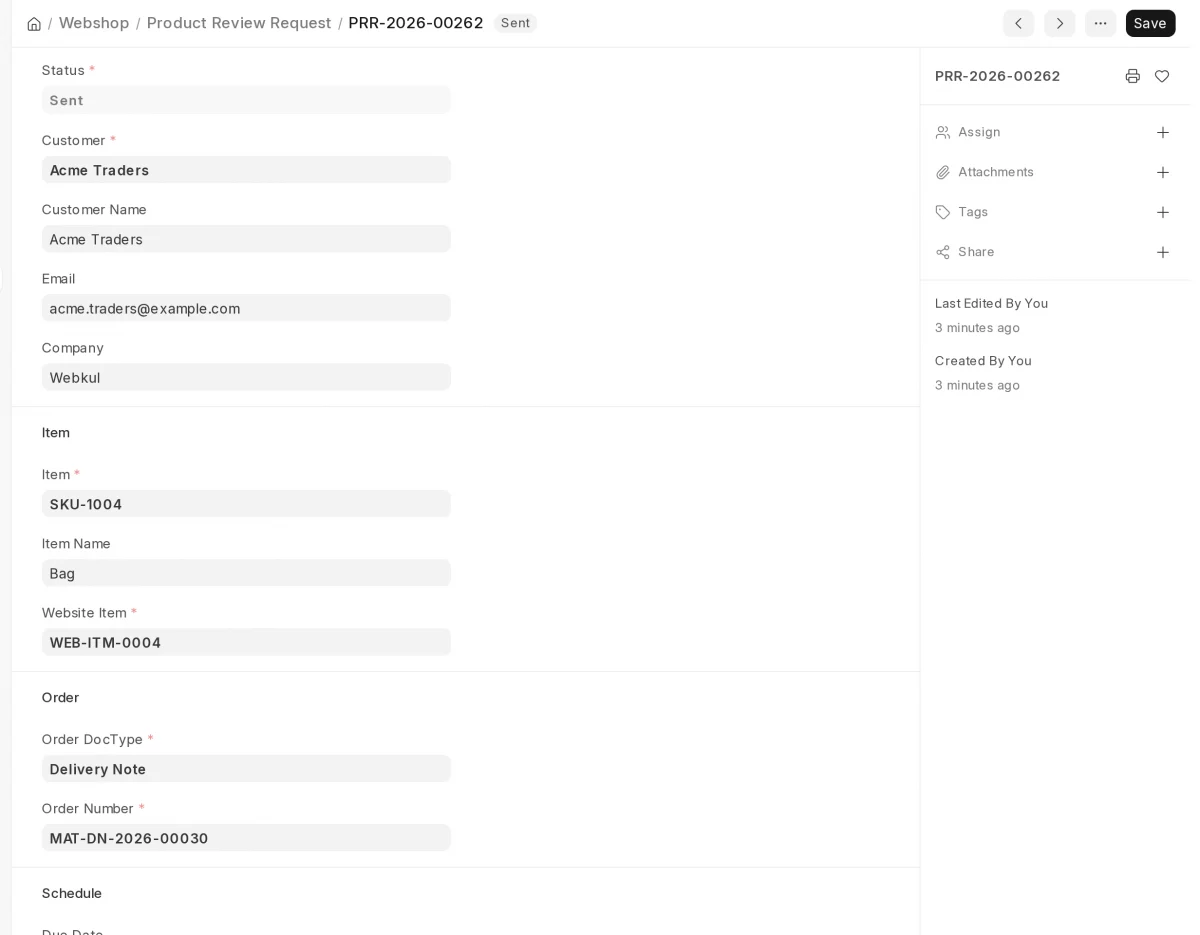
Note : Emails go out through the standard Frappe email queue. If no email goes out, check two things: the site has an active outgoing Email Account, and the settings have Scheduler Enabled ticked.
7. The customer clicks the link in the email and lands on the Review Your Purchase page. The customer needs no login — the link itself proves the purchase.
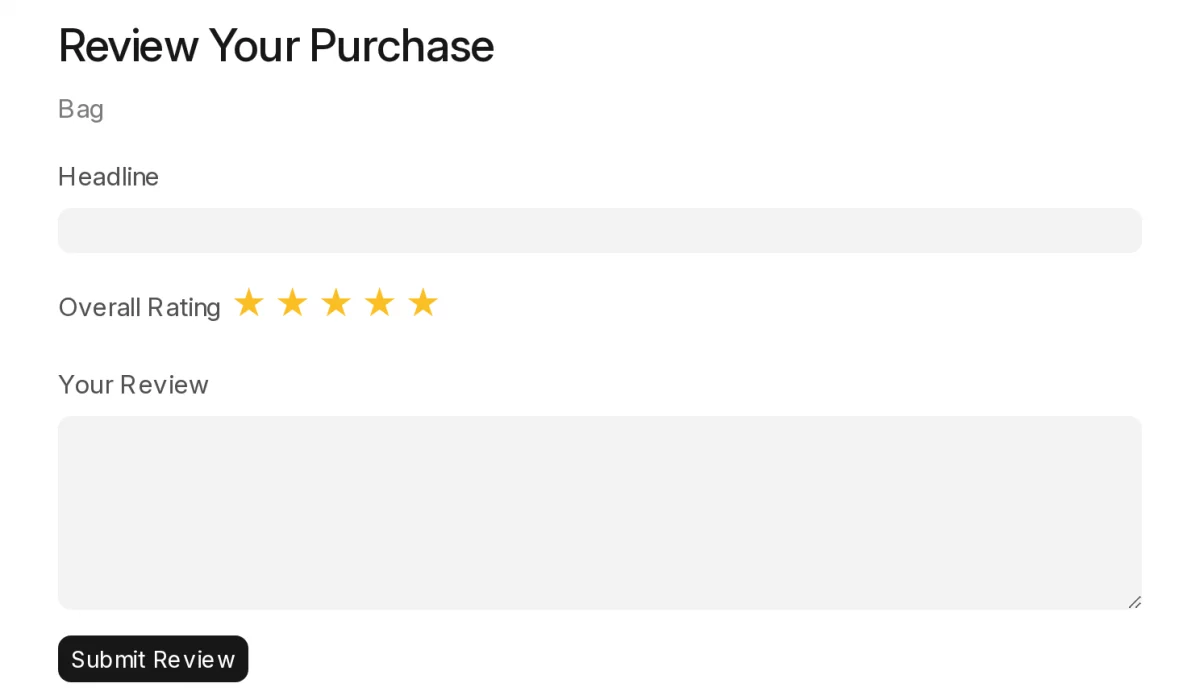
8. Then, the customer picks a star rating, writes a Headline, and adds the review text.
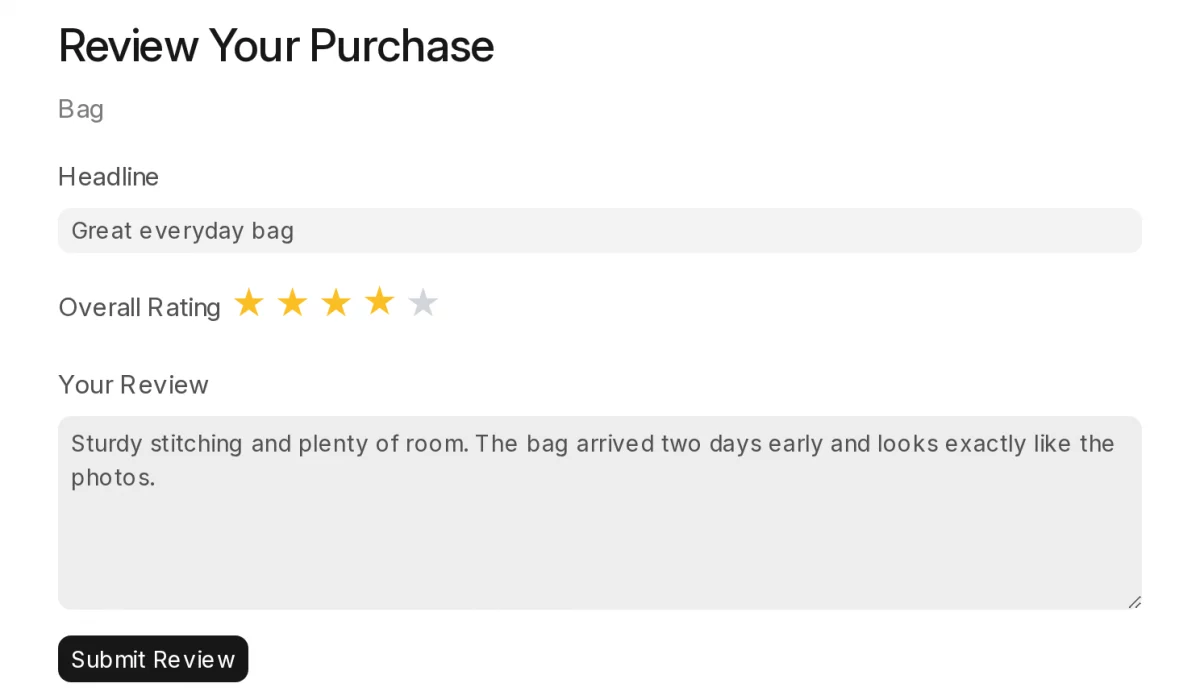
9. Finally, the customer clicks Submit Review. A thank-you message confirms the store received the review.
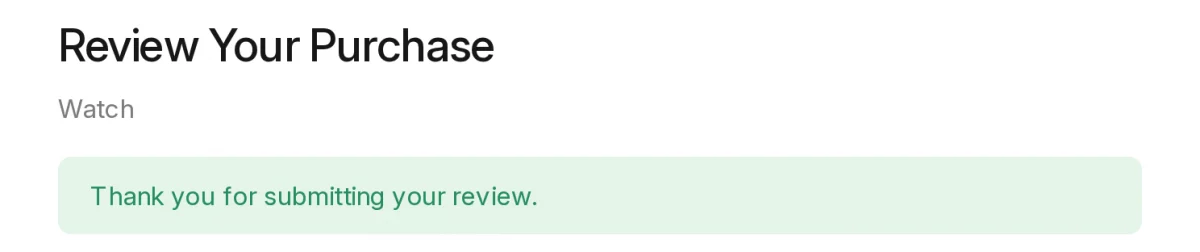
Note : Each link works once and dies on its expiry date. A used or expired link shows Review Link Unavailable instead of the form, so nobody can review the same purchase twice.
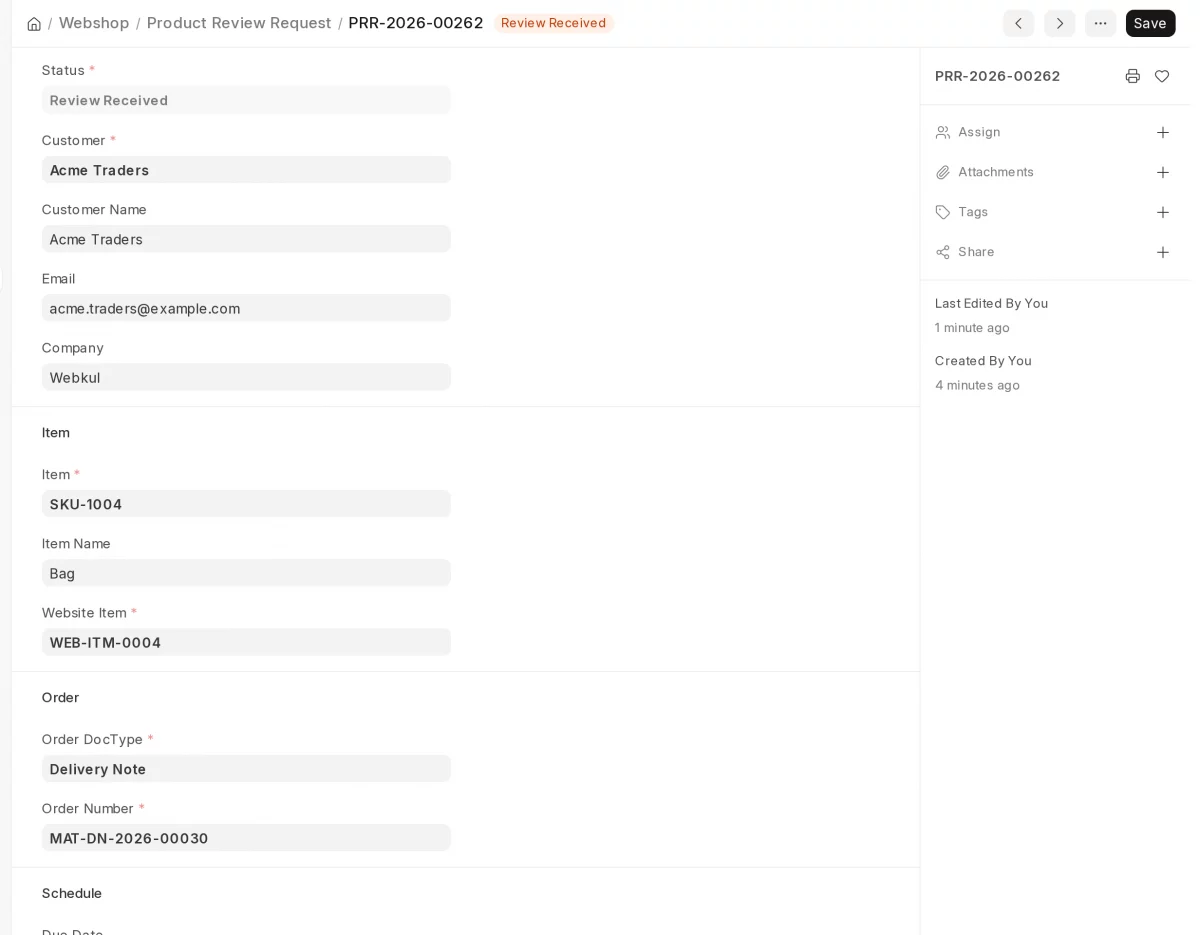
10. Back in the desk, the request now reads Review Received, with the exact time stamped on it.
11 . The review appears on the product page in your store. Because it came through a review link, it wears the green Verified Purchase badge. Reviews written any other way do not.
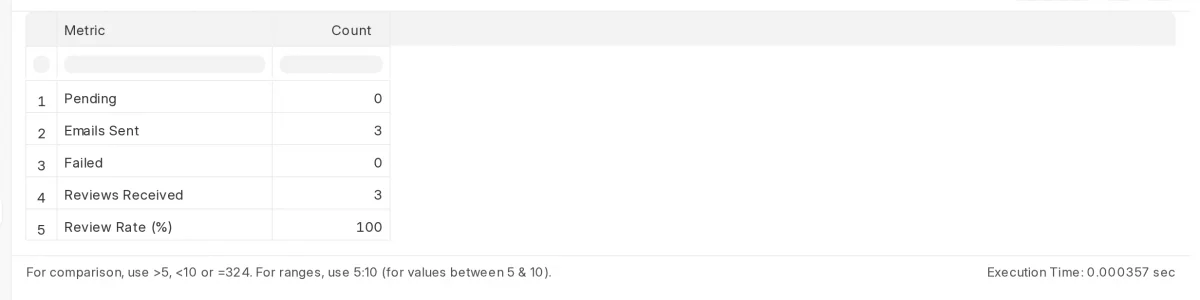
12. To see how the programme performs, open the Product Review After Purchase Summary report. It counts pending, sent, and failed requests, the reviews received, and the review rate.
Need Help?
Hope you find guide helpful! Please feel free to share your feedback in the comments below.
If you still have any issues/queries, please create a ticket at the UV Desk.
I hope this helps. In case of any further queries, contact us at our support mail.
Thanks for paying attention!!
Ready for intelligent AI powered Commerce? Your journey starts at Webkul.
Current Product Version – 0.0.1
Supported Framework Version – V16

Be the first to comment.