WooCommerce plugins slow down website performance more often than store owners realize.
You install a plugin for one feature. Then another. Before long, your store feels sluggish.
This is a common problem, but most people don’t know why it happens. In this blog, we will look at the real reasons behind it and how to fix it.
Why WooCommerce Plugins Slow Down Your Website
Not all plugins are built the same way. Some are lightweight. Others load a lot of extra code.
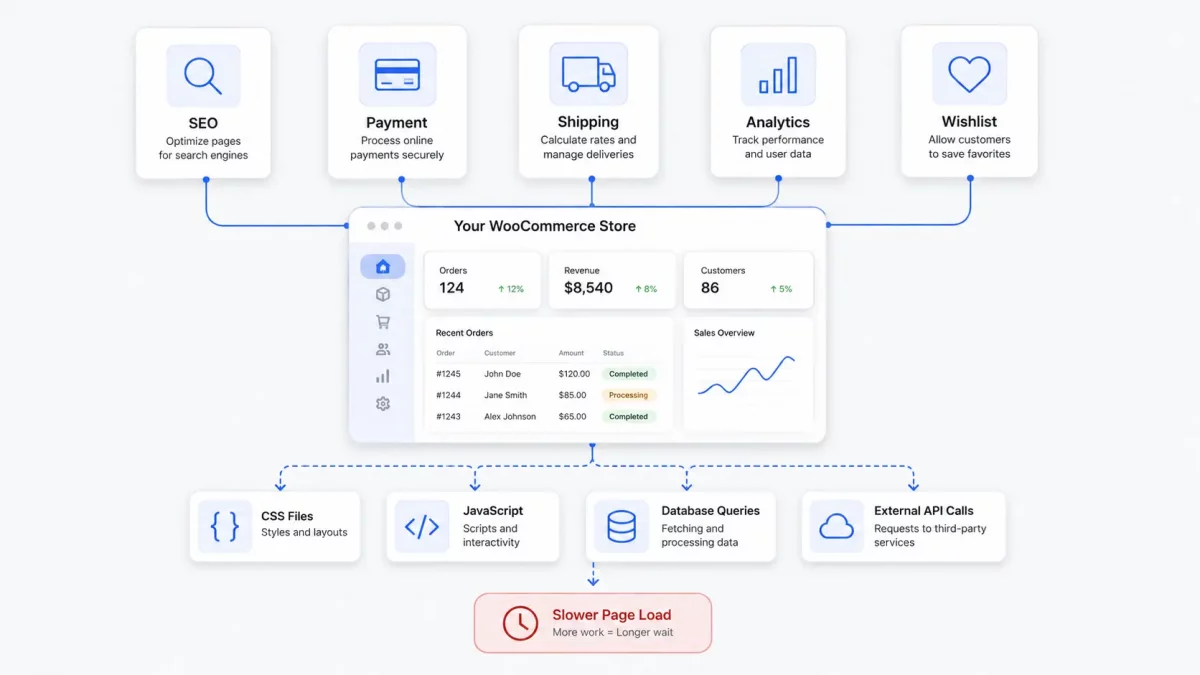
Every plugin adds scripts, styles, and database queries. More plugins mean more of everything.
This adds up fast, especially on product and checkout pages.
Common Reasons WooCommerce Plugins Slow Down Website Speed
1. Too Many Database Queries
Some plugins run extra database queries on every page load. This includes pages that don’t even need that data.
This is one of the biggest reasons WooCommerce plugins slow down website speed.
2. Loading Scripts on Every Page
Many plugins load their CSS and JS files site-wide. Even if the feature is only used on one page.
This wastes bandwidth and slows down unrelated pages.
// Example: Only load a plugin script on the checkout page
add_action( 'wp_enqueue_scripts', function() {
    if ( is_checkout() ) {
        wp_enqueue_script( 'my-plugin-script' );
    }
});
3. Poor Coding Practices
Some plugins use outdated code or inefficient functions. This increases server processing time.
Low-quality plugins are often the biggest culprits.
4. Conflicting Plugins
Two plugins can overlap in function and run duplicate processes. This wastes resources without adding value.
5. Unoptimized Third-Party API Calls
Plugins that connect to external services can slow things down if those calls aren’t cached. Every uncached request adds load time.
How to Identify Which WooCommerce Plugins Slow Down Your Website
You don’t have to guess. There are tools built for this.
- Use Query Monitor to see slow database queries
- Use New Relic or Kinsta APM to track performance per plugin
- Check load times using GTmetrix or PageSpeed Insights
// Simple way to log slow queries manually
add_filter( 'query', function( $query ) {
    error_log( $query );
    return $query;
});
How to Fix WooCommerce Plugins That Slow Down Your Website
Start by deactivating plugins one by one. Test site speed after each one.
Replace heavy plugins with lighter alternatives when possible.
Use caching plugins to reduce repeated processing.
Keep only the plugins your store actually needs.
Best Practices Going Forward
Always test a plugin’s performance impact before adding it to a live store.
Read reviews and check how often the plugin is updated.
Avoid installing plugins that duplicate existing functionality.
Review your plugin list every few months. Remove what you don’t use.
Conclusion
WooCommerce plugins slow down website speed more often than most store owners expect.
The good news is that this is fixable. Most performance issues come from a small number of problem plugins.
Test regularly, monitor performance, and keep your plugin list lean. Your store will run faster, and your customers will notice the difference.

Be the first to comment.