Magento 2 Subscription Delivery Extension lets your store sell catalog products on a recurring delivery schedule. A customer subscribes once on the product page.
During checkout, they pick their delivery days, delivery shift, and start and end dates.
A background cron engine then generates each delivery order automatically. Customers manage everything themselves from a My Subscriptions dashboard.
They can pause, resume, skip a delivery, change quantity, set a vacation hold, or unsubscribe. Admins manage subscriptions, cancellation reasons, and delivery blackout dates from a dedicated admin menu.
Features of Magento 2 Subscription Delivery Extension
- Sell any catalog product on a recurring delivery schedule — either All Products eligible or Selected Products opted in per product.
- Customer-chosen delivery days (weekday based) and delivery shift (Morning / Evening, or admin-defined time slots) selected at checkout.
- Customer-chosen Subscription Start Date and optional End Date, bounded by a configurable future-days window and cut-off hour.
- Automatic recurring order generation via a background cron engine, with optional batch processing and configurable batch size.
- Webkul Stripe Recurring Payment integration with one-click webhook generation and Test/Live modes.
- Payment-failure handling: automatic retry (max attempts + delay) or mark delivery as failed.
- Per-product or global subscription discount (%) applied to every recurring delivery.
- Subscription-only products (one-time purchase disabled) and a minimum subscription duration before cancellation.
- Customer self-service from My Subscriptions: Pause / Resume, Skip / Unskip a delivery, edit per-date quantity, Vacation hold, and Unsubscribe with a reason.
- Admin-managed Cancellation Reasons shown to customers at unsubscribe.
- Delivery Blackouts (holidays / maintenance days) with a Skip Delivery or Move to Next Available Day shift policy, plus admin override.
- Admin Manage Subscriptions grid + detail view with Force Delivery Today and a per-delivery order generation audit log.
- Subscription reference and scheduled delivery date surfaced on Sales > Orders and order view pages.
- Automatic expiration of subscriptions past their end date via a daily cron.
- This Extension is Hyva storefront compatible.
Installation
First, customers receive a ZIP folder. Next, they extract its contents on their system.
The extracted folder has a src folder, inside the src folder, you have the app folder.
The extracted folder is having an src folder, inside the src folder you have the app folder.
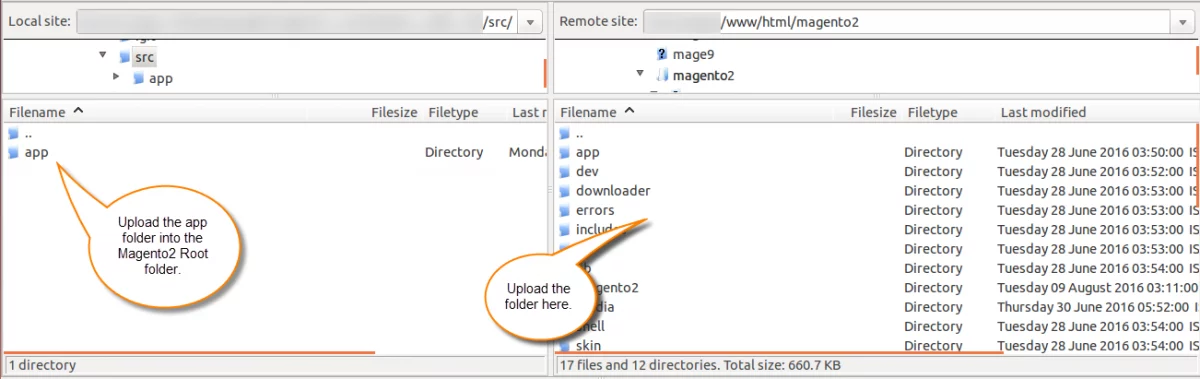
After that, run the following commands from the Magento 2 root directory.
php bin/magento setup:upgrade
php bin/magento setup:di:compile
php bin/magento setup:static-content:deploy
php bin/magento indexer:reindex
php bin/magento cache:flush
Multi-Lingual Configuration of Adobe Commerce
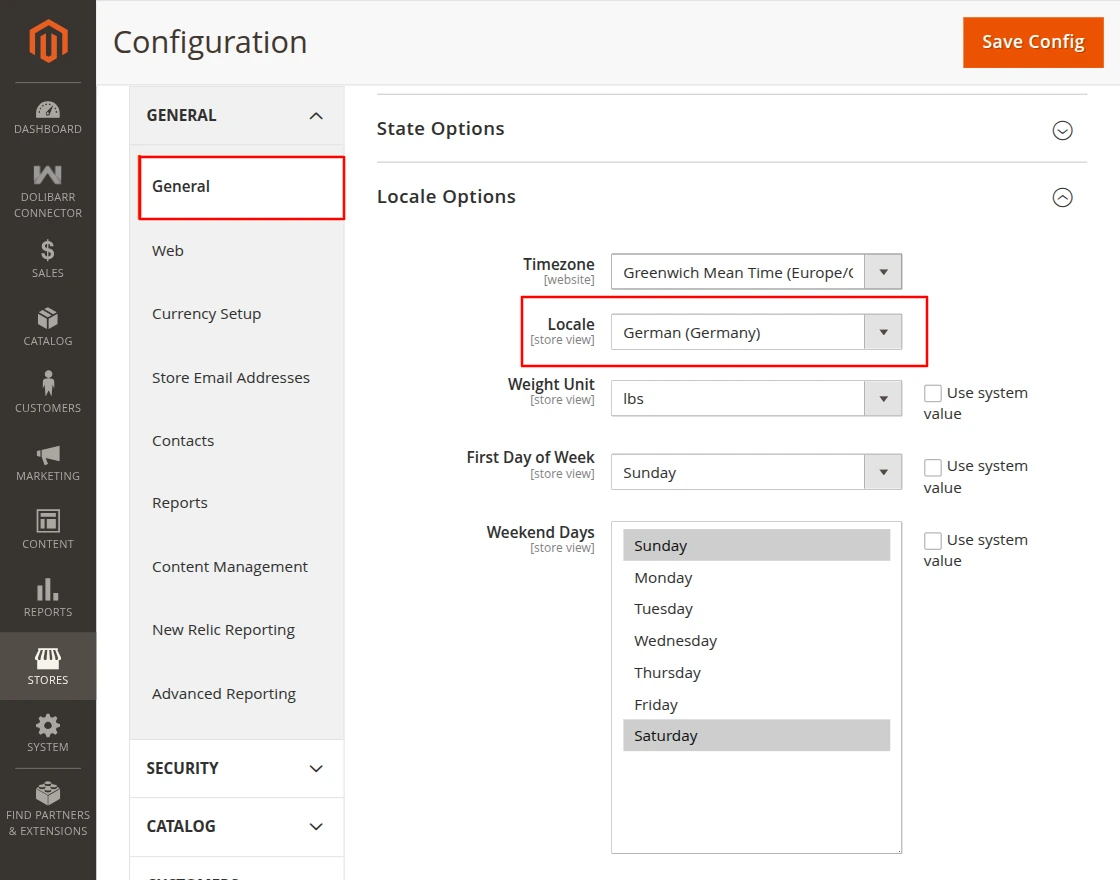
For Multilingual support, please navigate to Store>Configuration>General >Locale Options. And select your desired language from the Locale option.
Language Translation
For translating the module language, navigate through the app/code/Webkul/SubscriptionDelivery/i18n and edit the en_US.csv file.
Thereafter, rename the CSV as “en_SA.csv” and translate all right side content after the comma in the Arabic language. After editing the CSV, save it.
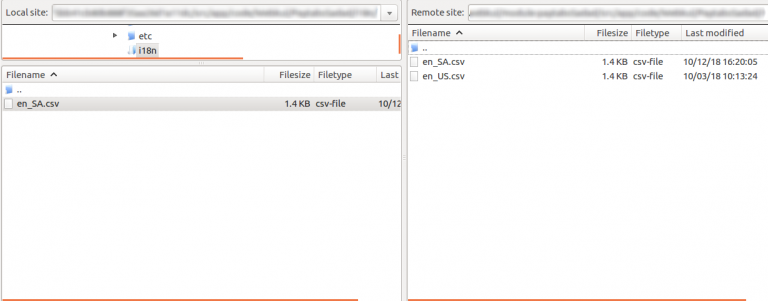
Now, upload it to the path app/code/SubscriptionDelivery/i18n, where the installation of Magento 2 is on the server.
Admin Configuration of Subscription Delivery Extension
Navigate to Stores > Configuration > Webkul > Subscription Delivery. The configuration splits into the sections below.
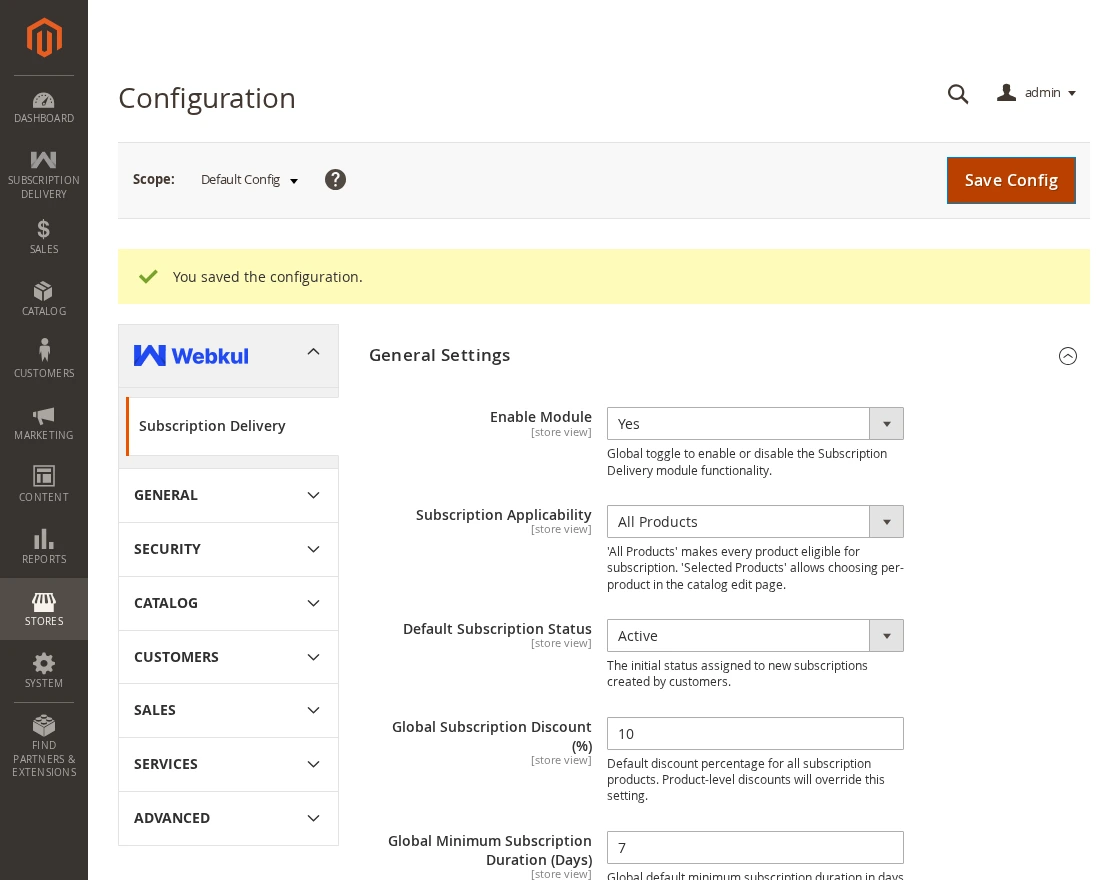
General Settings:
- Enable Module — global on/off toggle for the whole module. The admin menu appears only when this is Yes.
- Subscription Applicability — All Products (every product is subscribable) or Selected Products (opt in per product on the catalog edit page).
- Default Subscription Status — initial status for new subscriptions: Active, Paused, Unsubscribed or Expired.
- Global Subscription Discount (%) — default recurring-delivery discount; per-product discount overrides it.
- Global Minimum Subscription Duration (Days) — minimum days before a customer may cancel; per-product value overrides it.
Delivery and Scheduling
- Max Future Days — how far ahead the delivery calendar is visible.
- Allow Same-Day Delivery — permit a same-day start if ordered before the cutoff hour (default No).
- Cutoff Hour (0-23) — daily time after which the next period is locked.
- Cutoff Timezone — reference timezone for cutoff calculations.
- Delivery Time Slots — define Start Time / End Time rows via Add Time Slot. If left empty, Morning / Evening defaults are used.
Calendar and Skip Rules
- Allow Skip Delivery — let customers skip a specific delivery date.
- Allow Unskip — let customers reverse a skip before the date/cutoff.
- Skip Allowed Before Cutoff — restrict skip/unskip to before the cutoff hour.
- Vacation Mode Enabled — allow customers to pause all deliveries for a date range.
- Max Vacation Duration (Days) — maximum consecutive vacation days allowed.
Delivery Blackouts
- Enable Blackouts — turn on the global blackout system for holidays / maintenance days.
- Default Shift Policy — Skip Delivery or Move to Next Available Day when a delivery lands on a blackout date.
- Allow Admin Override — let admins force deliveries on blackout dates. This flag also controls the Force Delivery Today button.
Cron and Processing
- Daily Cron Time — time each day the renewal engine starts.
- Enable Batch Processing — split large subscription lists into batches.
- Batch Size — subscriptions processed per batch.
- Enable Retry Mechanism — auto-retry temporarily failed renewals.
- Max Retry Attempts — retry cap.
- Retry Delay (Minutes) — wait between retries.
Payment Configuration
- Allowed Payment Methods for Subscription — which Webkul payment methods are eligible.
- Allow Manual Payment — let customers pay each delivery via a manual link when auto-pay is off or fails.
- Payment Failure Action — Retry According to Policy or Mark Delivery as Failed Immediately.
Stripe Recurring Payment for Subscription Delivery Extension
The recurring payment gateway is configured at Stores > Configuration > Sales > Payment Methods > Webkul Stripe Recurring Payment.
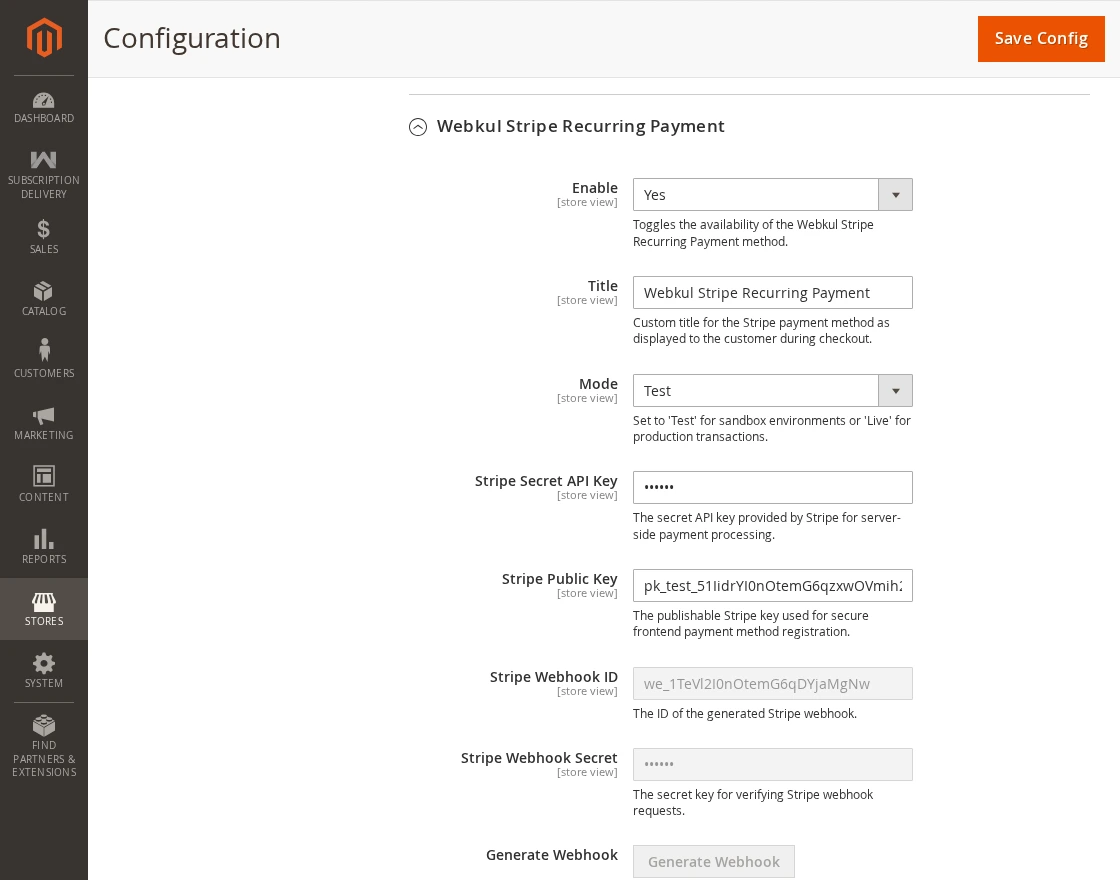
- Enable — activate the method.
- Title — checkout label (default Webkul Stripe Recurring Payment).
- Mode — Test (sandbox) or Live (production).
- Stripe Secret API Key — server-side secret key.
- Stripe Public Key — publishable key used by the checkout card field.
- Stripe Webhook ID / Stripe Webhook Secret — read-only, populated automatically after webhook generation.
- Generate Webhook — one-click button that registers a webhook in your Stripe account for
invoice.payment_succeeded,invoice.payment_failed,customer.subscription.deletedandcustomer.subscription.updated. Once generated, the button is disabled with the title Webhook already generated.
Per-Product Subscription Settings
Open Catalog > Products, edit a product, and expand the Subscription Settings group. The setup patch adds these attributes:
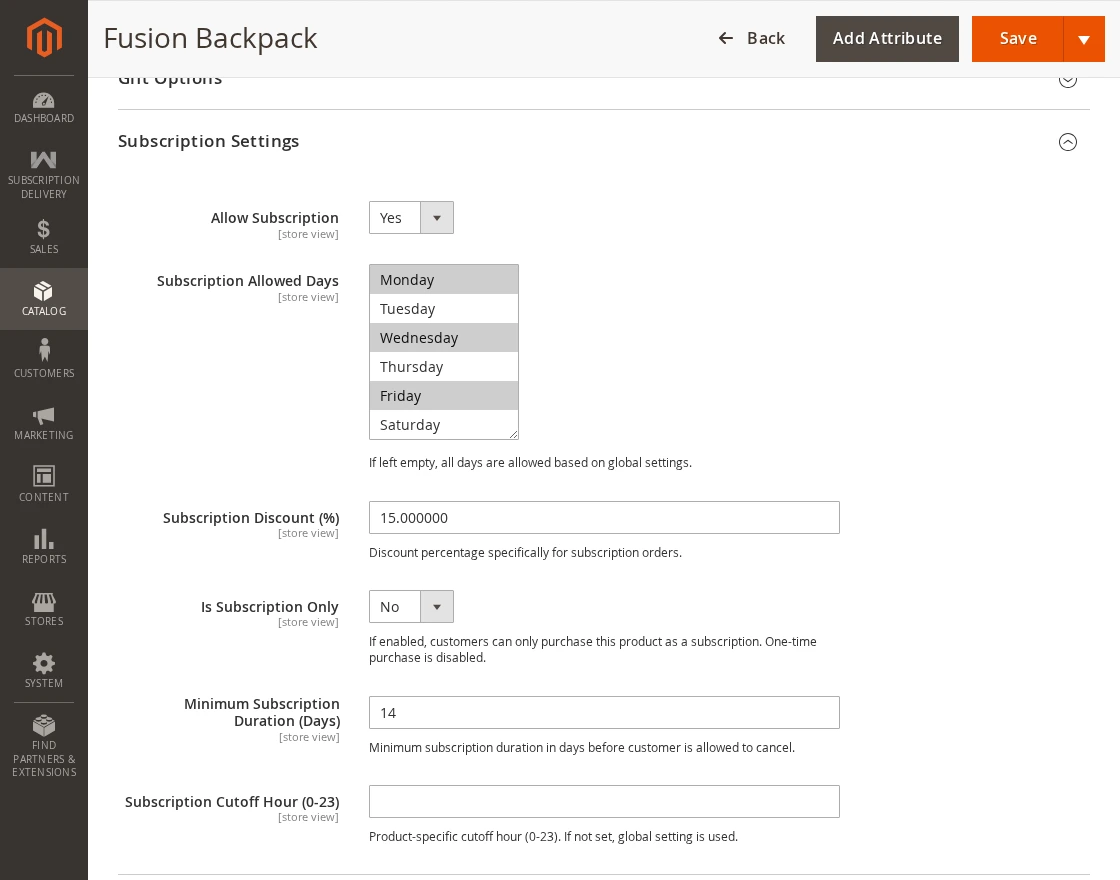
- Allow Subscription — make this product subscribable (required when applicability is Selected Products).
- Subscription Allowed Days — weekdays customers may choose for this product.
- Subscription Discount (%) — per-product recurring discount (0–100).
- Is Subscription Only — disable one-time purchase for this product.
- Minimum Subscription Duration (Days) — per-product minimum before cancellation.
- Subscription Cutoff Hour (0-23) — per-product cutoff override.
CUSTOMER WORKFLOW of Subscription Delivery
Choose a subscription on the product page
On a subscribable product, the customer sees a notice such as “This product is available for subscription.” (or “This product is available for subscription only.”).
When a discount applies, they also see “Get X% OFF on every recurring delivery!”. The product page offers two options: One-time Purchase (default) and Subscribe Product.
Selecting Subscribe Product changes the button text to Add to Subscribe. Subscription requires a logged-in account.

Review the cart
The cart flags subscription items. A subscription cart cannot contain normal products.
Magento 2 Subscription Delivery Extension blocks mixing with the message “Subscription products cannot be added to a cart with normal products. Please clear your cart first.”

Set the delivery schedule at checkout
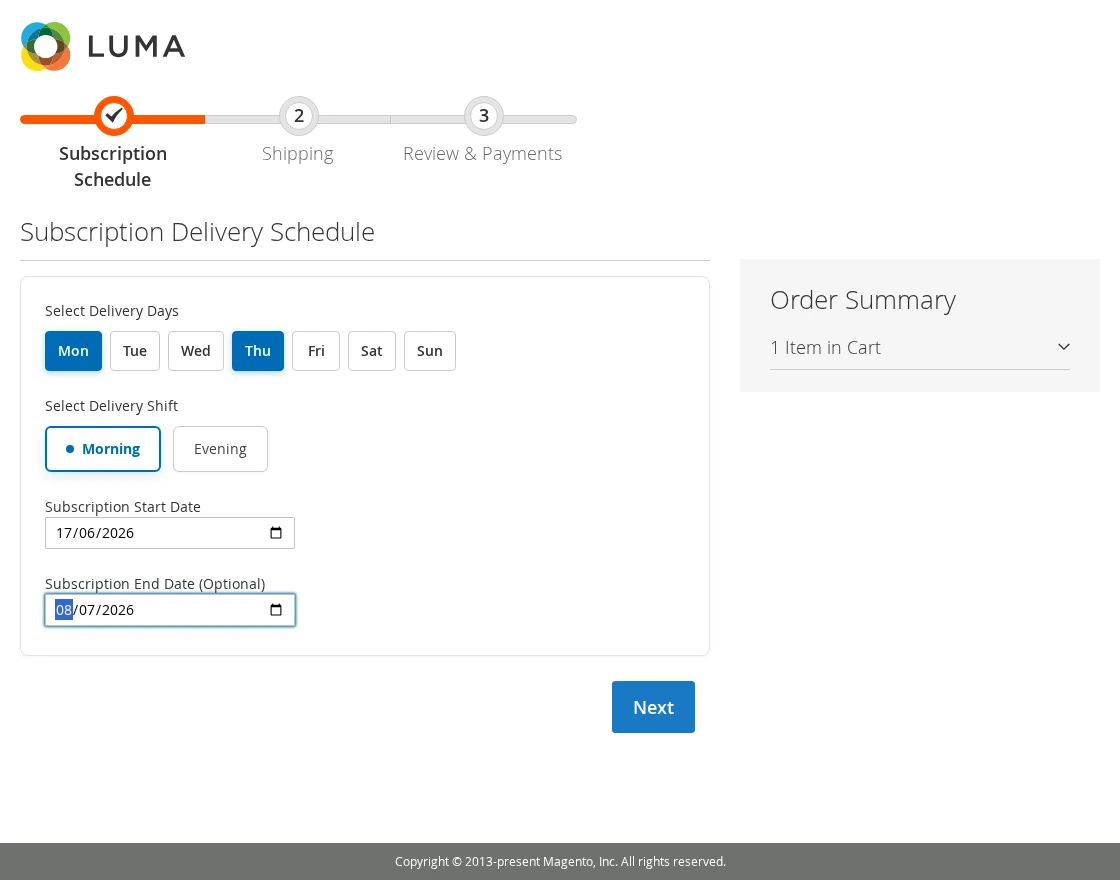
A dedicated Subscription Delivery Schedule step appears during checkout. The customer completes:
- Select Delivery Days — weekday checkboxes (Mon–Sun), at least one required.
- Select Delivery Shift — Morning / Evening radios, or admin-defined time-slot ranges.
- Subscription Start Date — required; bounded by the cutoff and Max Future Days.
- Subscription End Date (Optional) — must respect the minimum duration if set.
Pay with Webkul Stripe Recurring Payment
At the payment step the customer selects Webkul Stripe Recurring Payment and enters card details in the embedded Stripe card field.
Placing the order tokenizes the card and authorizes the first payment.

Order success
The success page confirms “Your subscription has been successfully created.” with the subscription order number and a note that renewal details follow by email.
The order placement creates the subscription record and seeds the first delivery in the audit log.

Manage from My Subscriptions
The customer opens My Account > My Subscriptions.
The list shows Subscription #, Order Id, Start Date, Next Delivery Date, Product Name, Status and a View action.
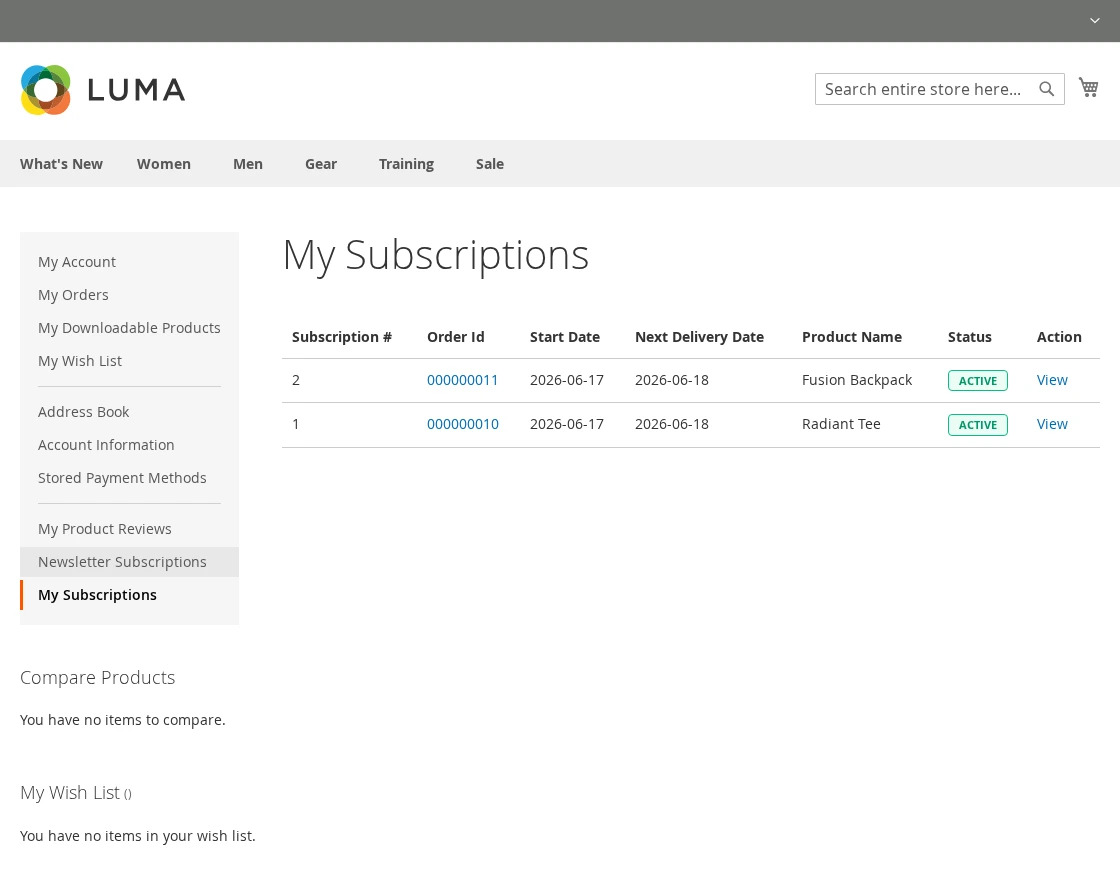
The detail page shows Subscription Information, a Vacation History section, Items Subscribed, and a Delivery Calendar of upcoming dates. Self-service actions:

- Pause Subscription / Resume Subscription — halt or resume all deliveries.
- Skip / Unskip — drop or restore a single delivery date (before cutoff).
- Edit Qty — set a per-date quantity, then Save.
- Add New Vacation — choose Start Date / End Date and Save Vacation to suppress deliveries in that range; Cancel removes a vacation.
- Unsubscribe — choose a reason (admin list or Other) to cancel; blocked until the minimum duration has passed and not reversible afterwards.

Manage Subscriptions at Admin End
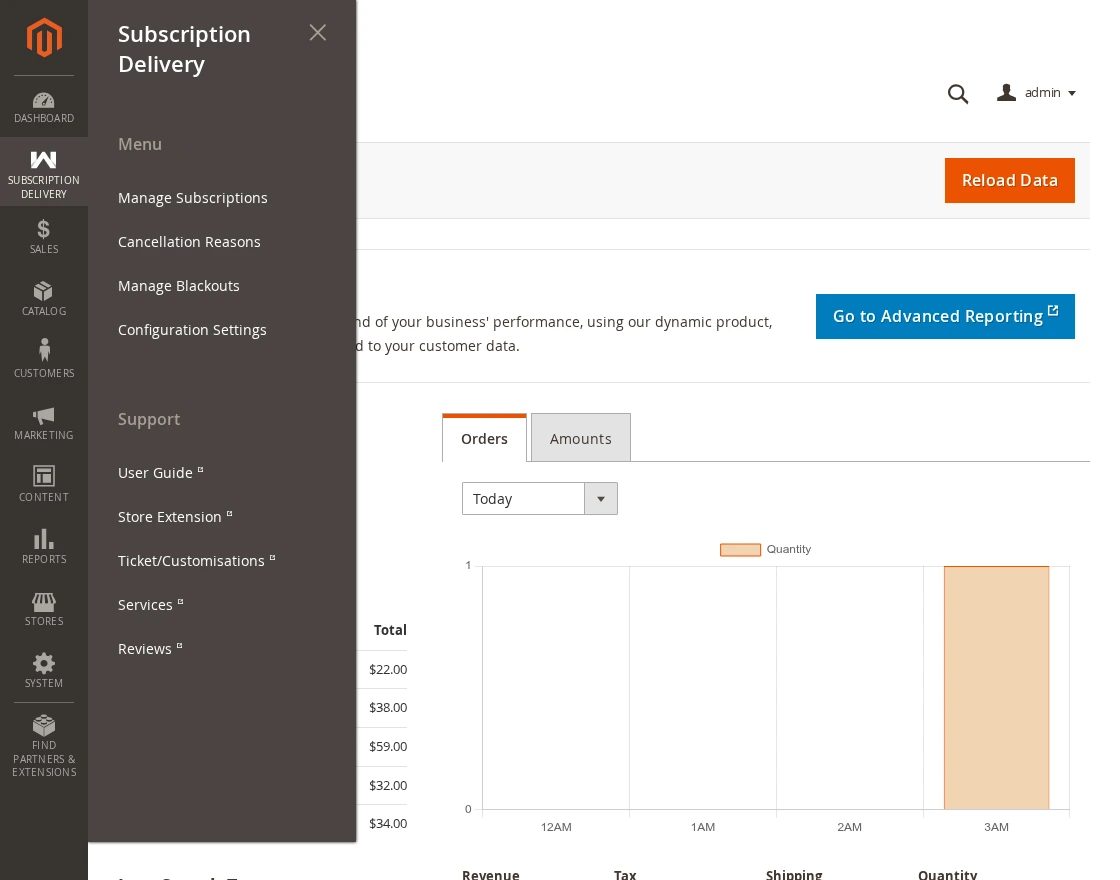
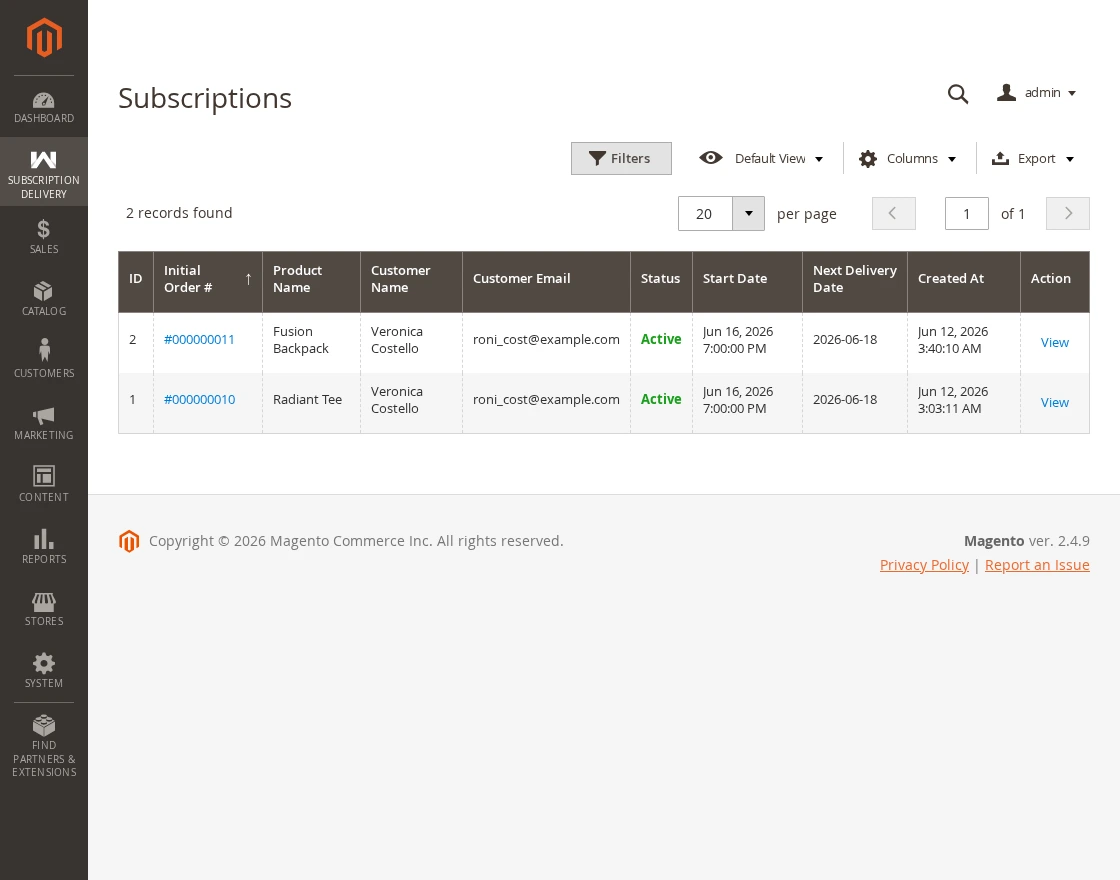
Go to Subscription Delivery > Menu > Manage Subscriptions.
The grid lists ID, Initial Order #, Product Name, Customer Name, Customer Email, Status (Active / Paused / Unsubscribed / Expired), Start Date, Next Delivery Date, Created At, and a View action.
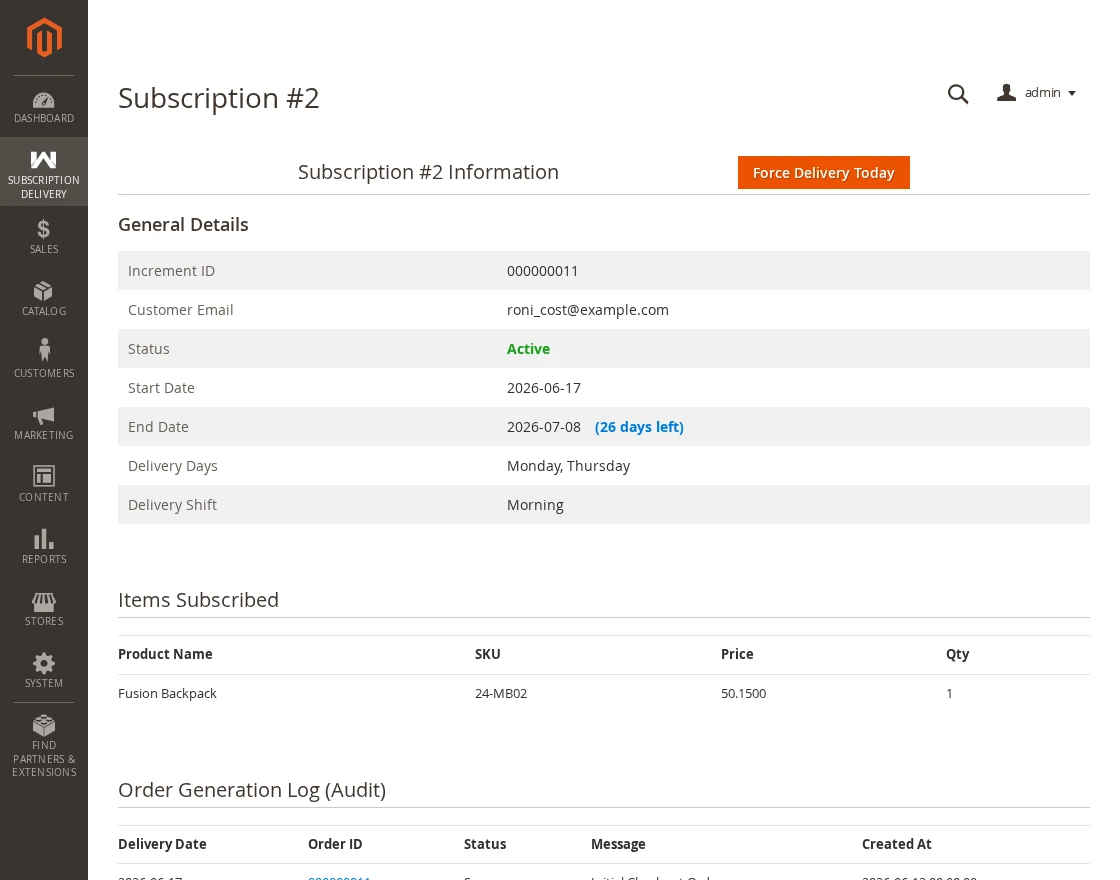
Opening a subscription shows General Details, Items Subscribed, and an Order Generation Log (Audit) of every delivery date with order ID, status and message.
When the subscription is Active and Allow Admin Override is on, a Force Delivery Today button generates an immediate order (with a confirmation, and a second confirmation if today is a blackout day).
Cancellation Reasons
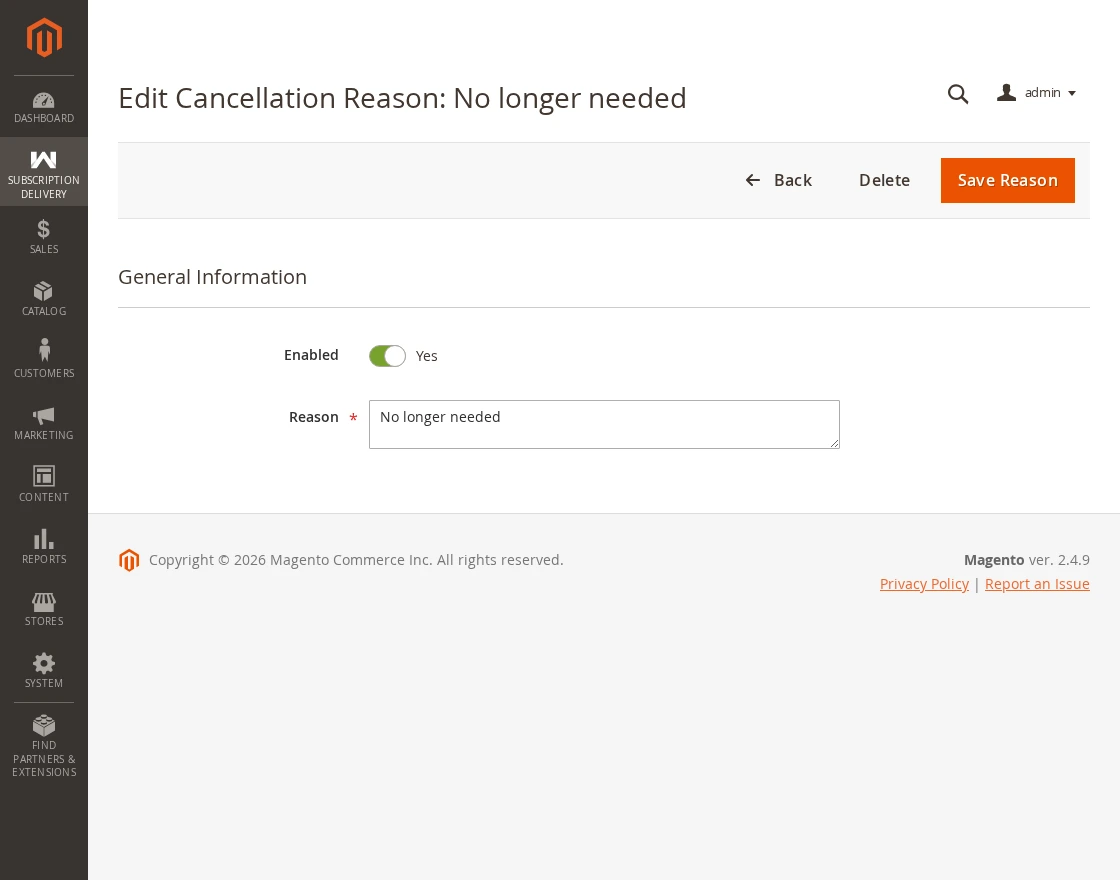
Under Subscription Delivery > Menu > Cancellation Reasons, manage the reasons customers pick at unsubscribe.
Click Add New Reason and set Enabled and Reason, then Save.

Cancellation Reason form — Enabled, Reason
Manage Blackouts
Under Subscription Delivery > Menu > Manage Blackouts, define holiday / maintenance dates.
The grid supports a Delete mass action. Click Add New Blackout Date and set Blackout Date, Label, and Shift Policy (Skip Delivery or Move to Next Available Day), then Save.
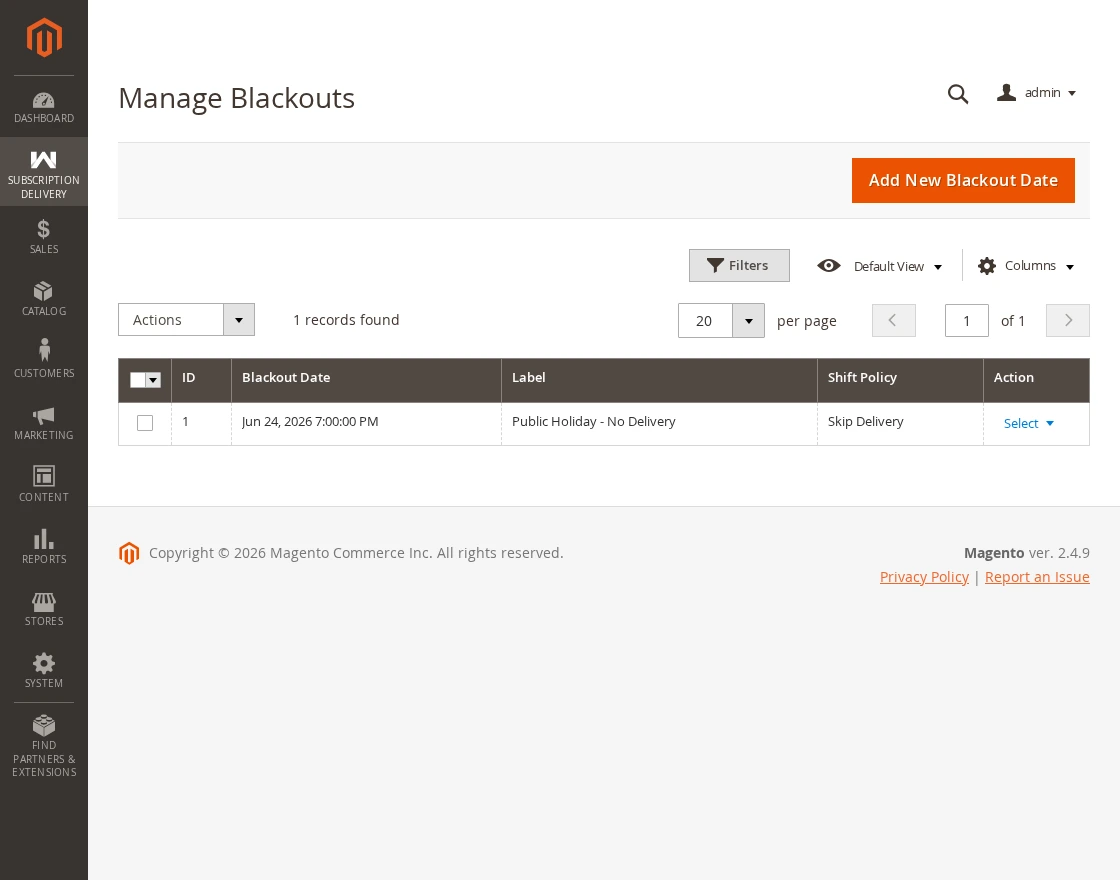
Navigation Path: Subscription Delivery → Manage Blackouts
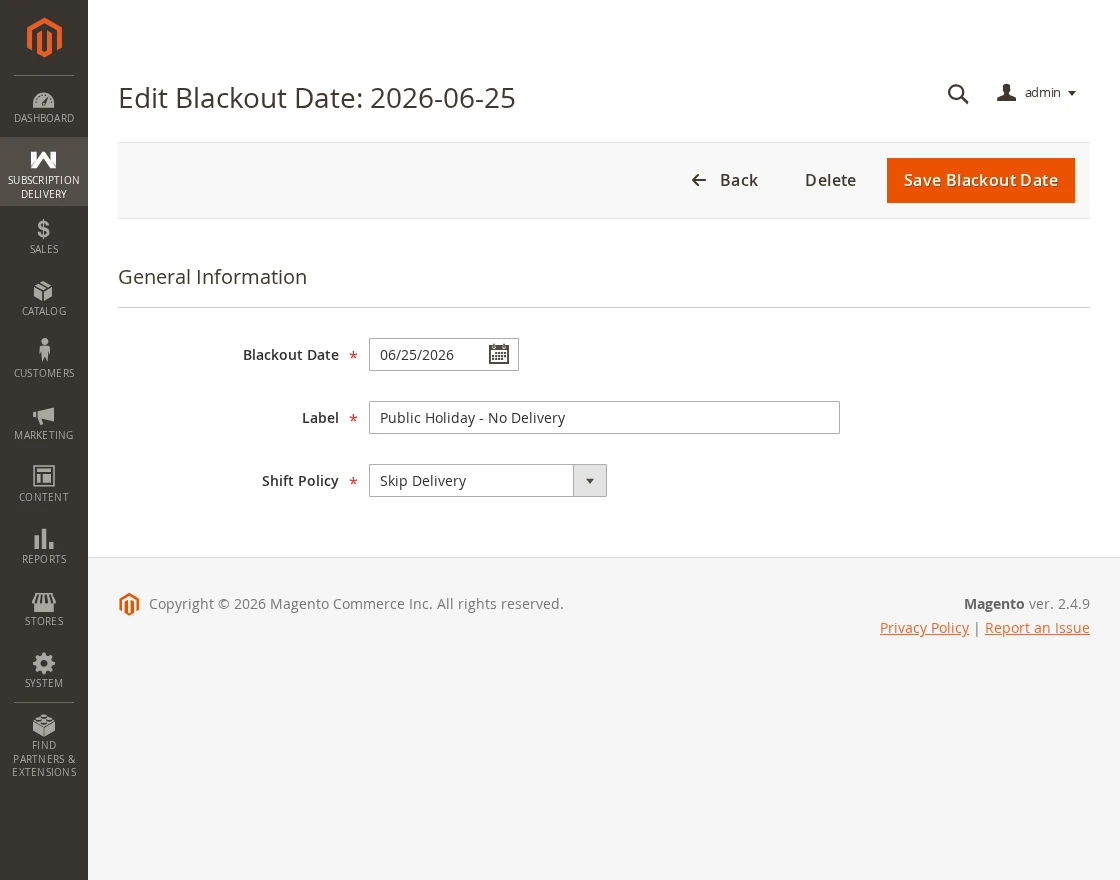
- Click Add New Blackout Date.
- Enter a Label (e.g., “New Year’s Day”).
- Enter a Label (e.g., “New Year’s Day”)
- Choose the Shift Policy for this specific holiday (Skip / Move to Next).
- Save Blackout Date
Subscription orders in Sales
Each generated delivery becomes a normal Magento order.
The Sales > Orders grid carries a Subscription ID column linking back to the source subscription, and each order view shows a Subscription Information block with the subscription ID and scheduled delivery date.
In conclusion, that’s all for the Magento 2 Subscription Delivery Extension.
Support
For any issue with the Magento 2 Subscription Delivery Extension, the admin can raise a ticket at the Webkul support system. Use the Webkul support portal: https://webkul.uvdesk.com
Furthermore, there is no need to search elsewhere; seize the chance to initiate your projects with the accredited Magento 2 development company.
For a personalized touch, engage and hire Magento developers who are focused on delivering exceptional results for your custom e-commerce projects.
Current Product Version - 4.0.0
Supported Framework Version - Magento 2.0.x, 2.1.x, 2.2.x,2.3.x, 2.4.x

Be the first to comment.