The Pimcore 12 Magento 2 Connector keeps your catalog in sync between Pimcore and Magento 2.
It syncs categories, attributes, attribute sets, and products automatically, in both directions. Moreover, every sync runs as a background job inside Pimcore Studio.
As a result, catalog management is faster and far more reliable.
Keeping a Pimcore catalog and a Magento 2 store aligned by hand doesn’t scale. So Webkul built the Pimcore 12 Magento 2 Connector to remove the copy-paste.
It bridges your Pimcore data model and your Magento store. As a result, categories, attributes, attribute sets, and products all flow automatically, in both directions.
It’s built natively for Pimcore 12 and Magento Open Source 2.4.8. Also, it brings two big upgrades over earlier versions. First, every sync runs as a restartable background job.
So large catalogs no longer block your screen or time out. Meanwhile, you watch each run on a live progress bar. Second, it’s bidirectional.
It both imports from and exports to Magento. Because of that, you can seed Pimcore from an existing store, then push curated changes back out.
The Pimcore 12 Magento 2 Connector also lives natively inside the new Pimcore Studio UI. Furthermore, it adds its own screens for credentials, mapping, and the job runner.
So there are no separate tools to learn.

Key Features of Pimcore 12 Magento 2 Connector
- Bidirectional sync — import and export for Categories, Attributes, Attribute Sets, and Products.
- Asynchronous job engine — syncs run in the background, so they never block your work.
- Live Job-Execution view — real-time progress bars, a run-history grid, and a one-click Stop.
- Multi-store & multi-language aware — maps your localized Pimcore content to the right Magento store views.
- Config-driven mapping — point the connector at your Pimcore classes and fields; nothing to hard-code.
- Reliable matching — a shared link between records keeps Pimcore and Magento in step, so re-runs update instead of duplicating.
Connecting Pimcore 12 Magento 2 Connector to Magento
The connector talks to Magento using a standard integration access token. First, open your Magento admin. Then create an integration under System → Extensions → Integrations.
Next, give it access to your catalog and stores. Finally, activate it and copy the Access Token.
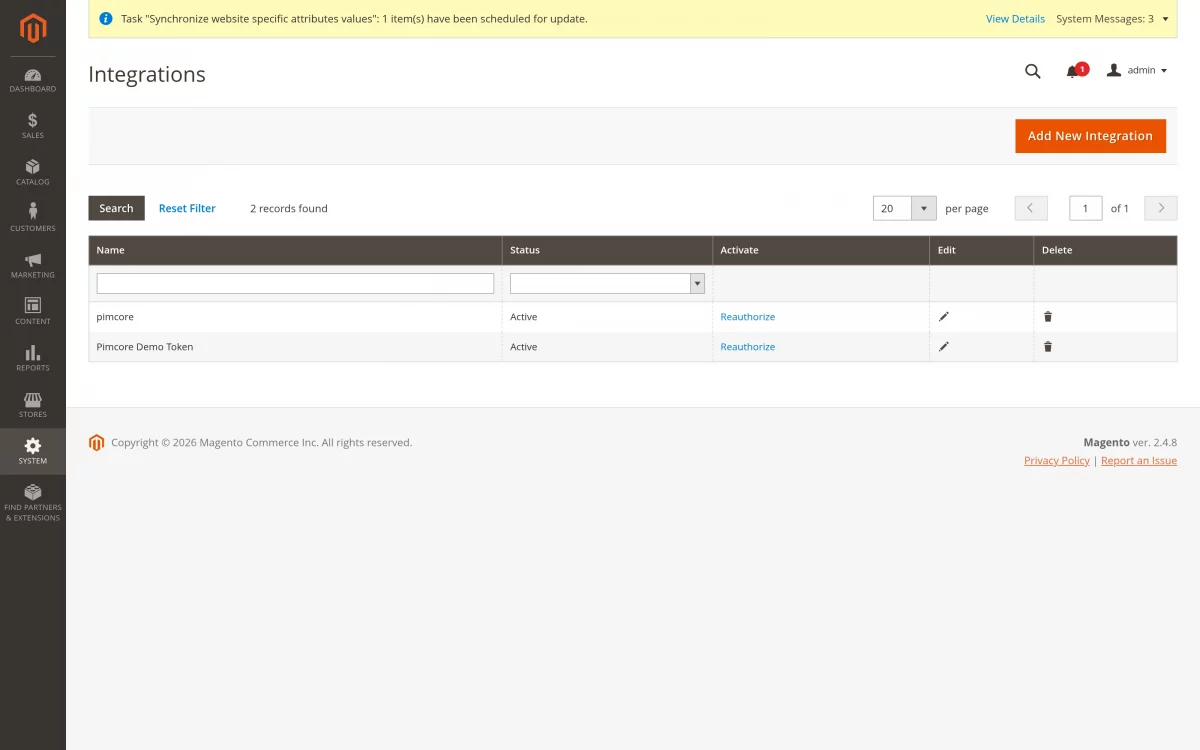
That’s all you need from the Magento side: your store URL and this access token.
Setting Up Pimcore 12 Magento 2 Connector in Studio
In Pimcore, open Magento2 Connector → Credentials. Then enter your store URL and access token. Next, click Test Connection.
The connector checks Magento live and reports how many store views it found. So you get instant confirmation that everything is wired up.
Store views, languages, and root categories are then discovered for you automatically.
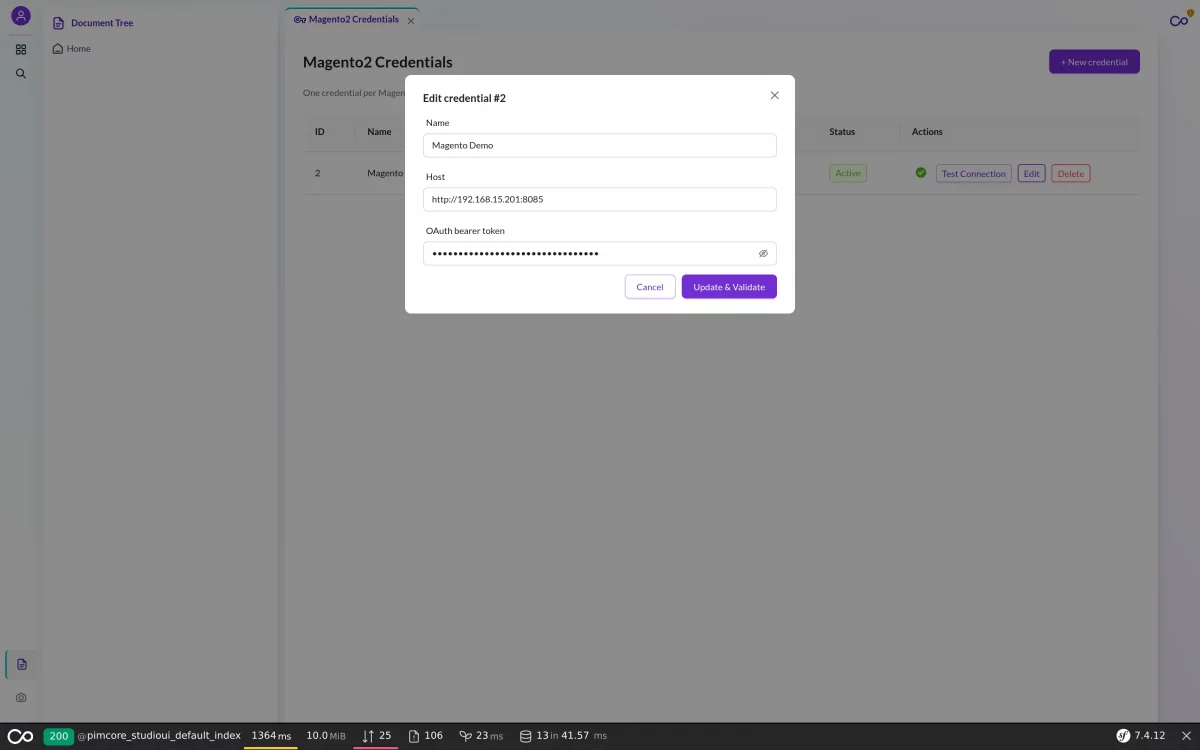
You can store several connections, such as staging and production. However, the connector works against exactly one active connection at a time. So you never push to the wrong store by accident.
Object Mapping: the Connector Adapts to Your Catalog
Most connectors force you into fixed class names. This one, however, treats “which Pimcore class is a Magento Product?” as a simple setting.
On the Object Mapping screen, you point each Magento entity at whatever classes your team already uses. So the connector adapts to your data model, instead of the other way around.
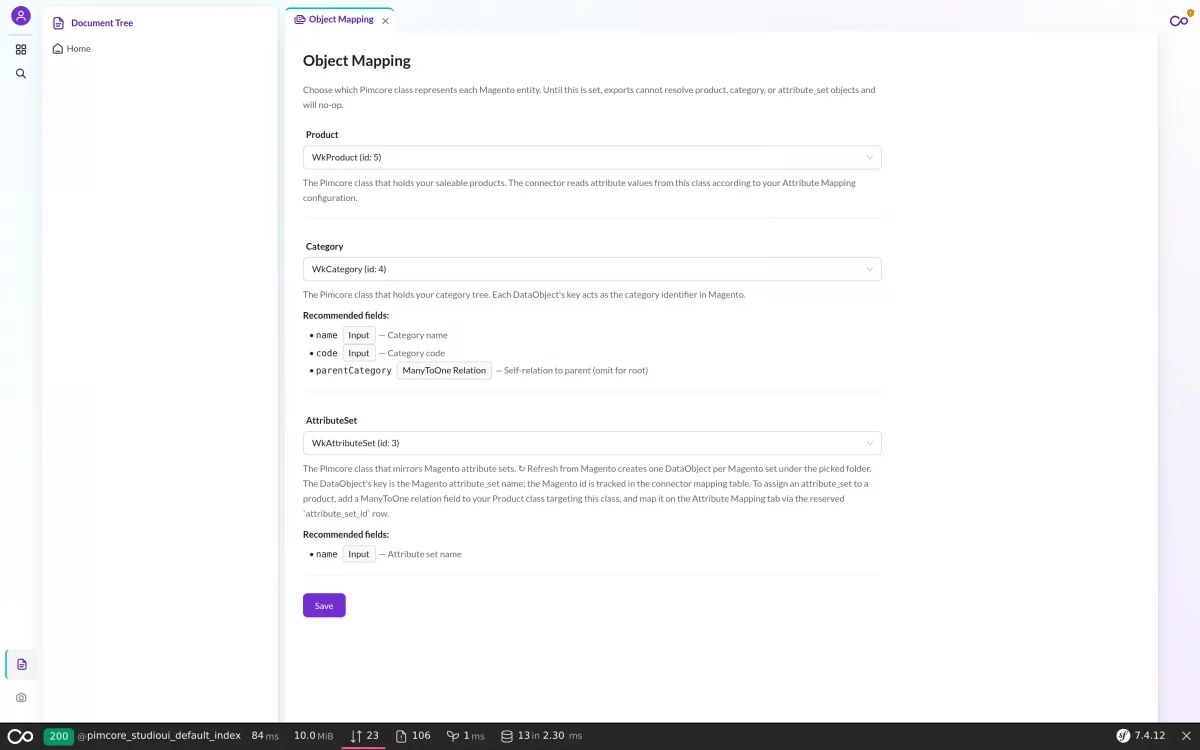
It comes pre-configured, so the Pimcore 12 Magento 2 Connector works out of the box. Also, you can repoint it any time.
Store View & Language Mapping
Magento organizes content by website → store → store-view. Pimcore, on the other hand, works in localized fields.
So the connector bridges the two with a simple channel-by-locale grid. A channel maps to a Magento website. Meanwhile, a locale maps to a store view’s language.
As a result, each value is entered once and reused across every store view it belongs to.

On export, this turns one Pimcore product into the right localized update for each store view. For example, German values go to the German store view, and French to the French one.
Best of all, it all comes from the same product.
Category Mapping
Categories sync both ways as a real tree. First, you choose where the two catalogs connect.
That means the Magento root your categories hang under, plus Pimcore folder where imported categories land. Import then mirrors Magento’s tree into Pimcore.
Export, in turn, pushes your Pimcore hierarchy out and preserves nesting. It even relocates a category in Magento if you move it in Pimcore.
Finally, localized names, descriptions, and meta fields flow per store view.
Attribute & Field Mapping
The Attribute Mapping screen tells the connector which Pimcore field feeds which Magento attribute — once, for both directions.
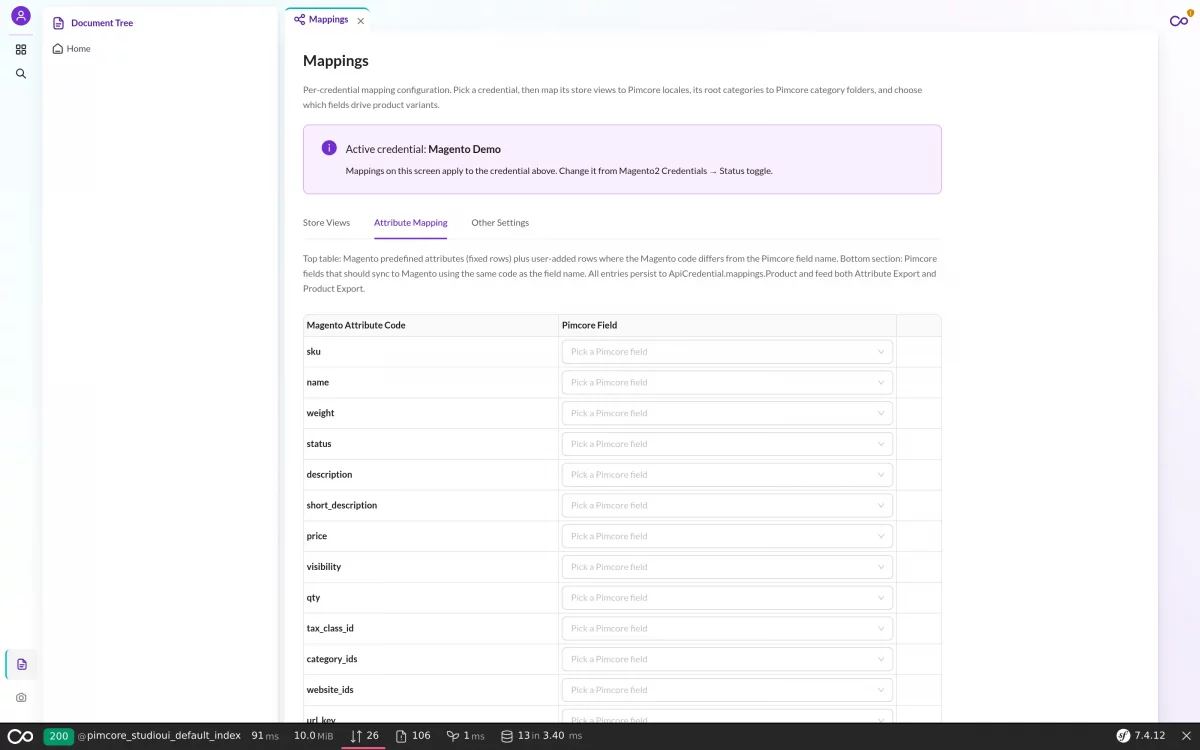
- Built-in fields — Magento’s standard fields (name, price, status, description, and so on). Pick Pimcore field that feeds each.
- Custom attributes — your own catalog fields (color, material, brand…). The connector will even create the attribute in Magento for you if it doesn’t exist yet.
- Options stay in sync — for dropdowns and multi-selects, the connector keeps Magento and Pimcore option lists aligned automatically.
Image & Media Mapping
Pick which Pimcore image fields flow into the Magento gallery. Then the connector only uploads what’s missing. So re-runs never create duplicates.
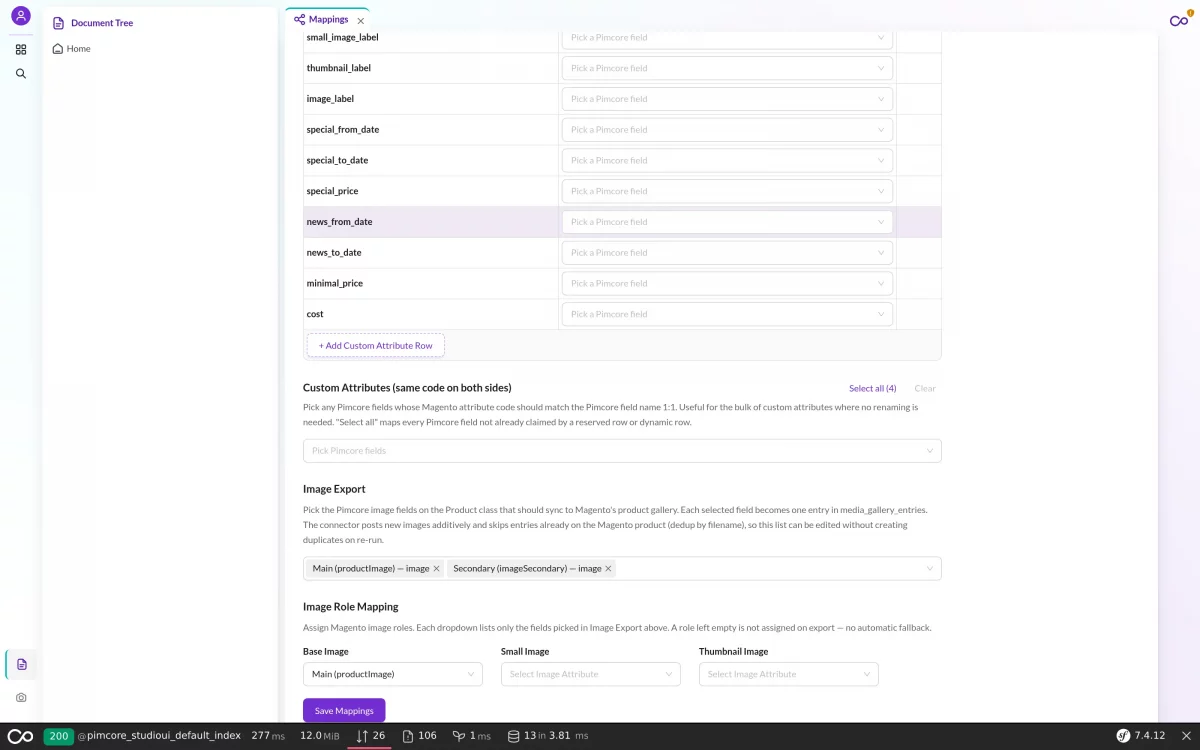
You also assign the base, small, and thumbnail roles, and the connector keeps them correct on every export.
Watch Pimcore 12 Magento 2 Connector Sync Live
This is the connector’s backbone. Every transfer runs as a background job, whether it’s an import or an export. So it never ties up your screen.
Meanwhile, you get a live progress bar, running read and write counts, and a history of every run. You can even close the tab, and the job keeps going. Need to stop one?
Then a single Stop ends it cleanly, with nothing left half-finished.
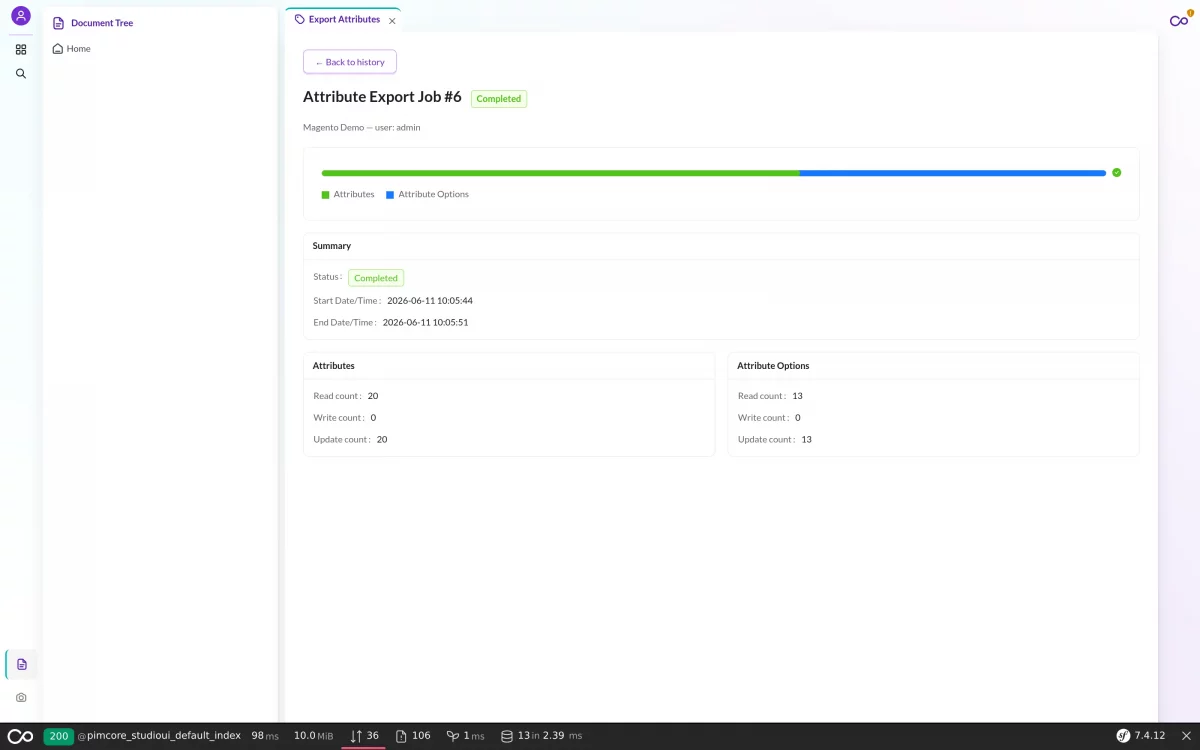
For big catalogs, you can even run several jobs at once. Plus, the connector keeps them from stepping on each other.
Exporting to Magento 2
With your mapping saved, open Export → Product. Then pick the connection and click Export. The connector then pushes your products out.
It fans each one across your store views with the right localized values, categories, websites, and images.
Exports are safe to re-run. Instead of duplicating, the connector updates what already exists. Sometimes a product can’t be exported, say a missing attribute set or SKU.
In that case, it’s flagged as a clear warning that tells you exactly what to fix. Finally, when standing up a fresh store, export Categories, Attributes, and Attribute Sets first.
Then add Products on top.
Importing from Magento 2
Already have a live Magento store? Then import it into Pimcore in a few clicks. In fact, it’s the fastest way to onboard a catalog. Import is also additive.
So each run creates what’s missing and updates what exists. As a result, you can bootstrap once and re-run any time without duplicates.
Run the imports in order: Attribute Sets, Attributes, Categories, then Products. Product import then brings in everything else.
Specifically, it covers core fields, the attribute set, and categories.
It also brings custom attributes, localized values, website assignments, the media gallery, and related products.

Because import and export stay linked, the workflow is simple. First, import to seed Pimcore. Then enrich your content there. Finally, export it back.
As a result, every change lands on the original Magento product.
The Result in Your Magento 2 Store
Once the export finishes, your Pimcore data is live in Magento. That includes structure, attributes, media, and translations.
For example, categories appear in Catalog → Categories with their hierarchy intact.
Meanwhile, products appear in Catalog → Products with their attribute set and website assignment.
Their mapped attributes and gallery images also land in the correct base, small, and thumbnail slots.

Switch the store-view scope in Magento, and you’ll see the matching localized values from Pimcore. So a single edit in Pimcore Studio propagates cleanly into Magento.
Better still, it stays consistent on every run.
Try Pimcore 12 Magento 2 Connector
Want to see it in action? Then try the live demo. It gives you a Pimcore 12 Studio environment with the connector already installed and connected to a Magento store.
So you can map attributes and run a sync without setting anything up. Finally, when you’re ready to roll it out, grab it from the Webkul Store.
Your purchase includes the bundle, documentation, and support.
Have a question or a non-standard setup in mind? Reach out at webkul.uvdesk.com and our team will be glad to help.
Please explore our Pimcore Development Services and Quality Pimcore Extensions.
For more Pimcore blogs click here

Be the first to comment.