Introduction
Odoo POS Close Session From Backend helps users close Odoo POS sessions directly from the backend screen. The module adds a simple close session button in the POS session form.
Managers and staff can close running POS sessions without opening the POS interface manually. This helps make session handling faster and easier.
When the session is closed, Odoo POS Close Session From Backend updates the session status automatically and also shows a notification message on the POS screen.
Features
- Close POS sessions directly from backend screen.
- Use a simple button to close sessions quickly.
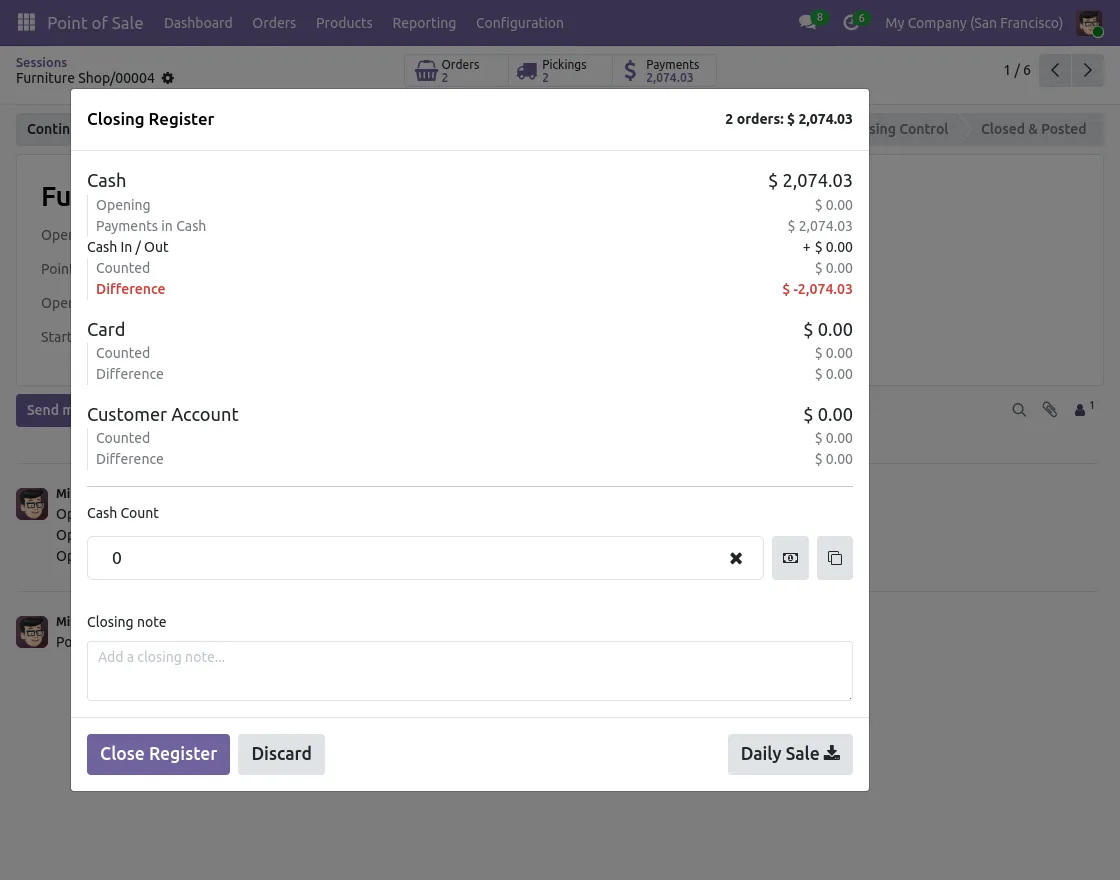
- See a confirmation pop-up before closing session.
- Close and update POS sessions in one click.
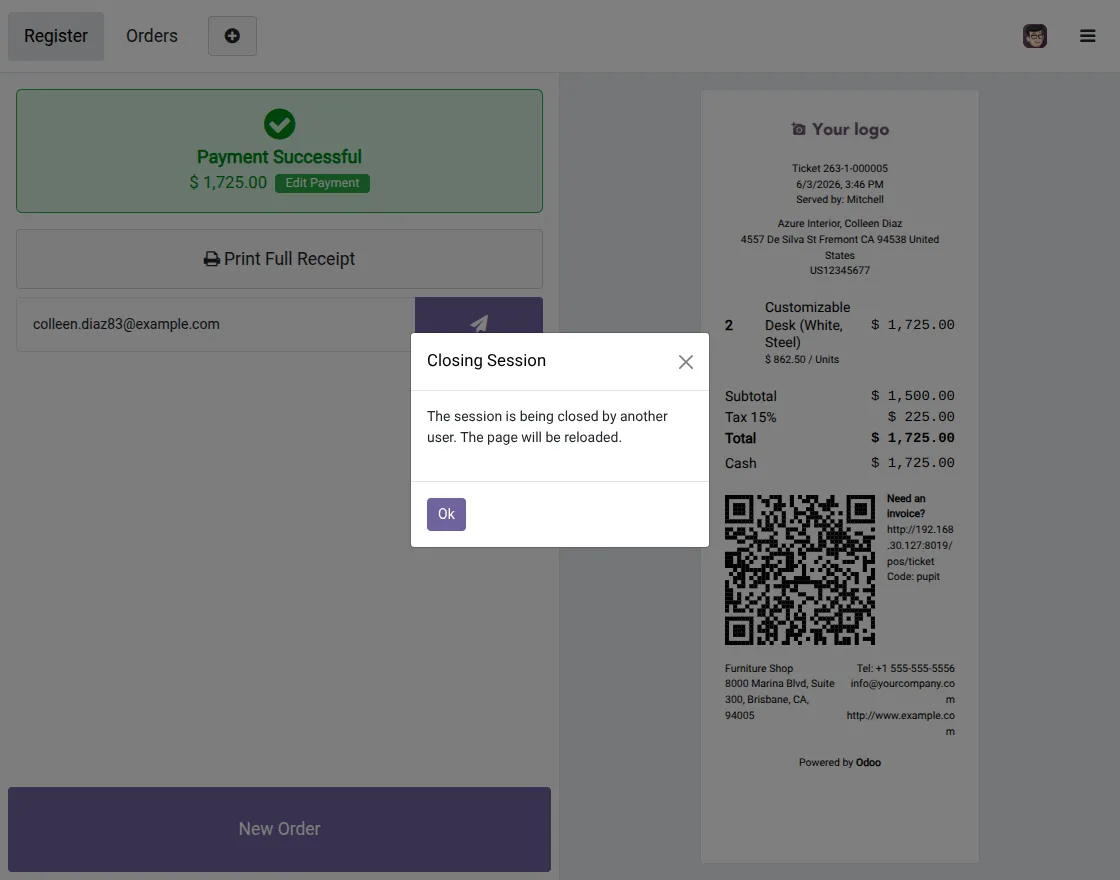
- Show instant messages on POS screen after session closure.
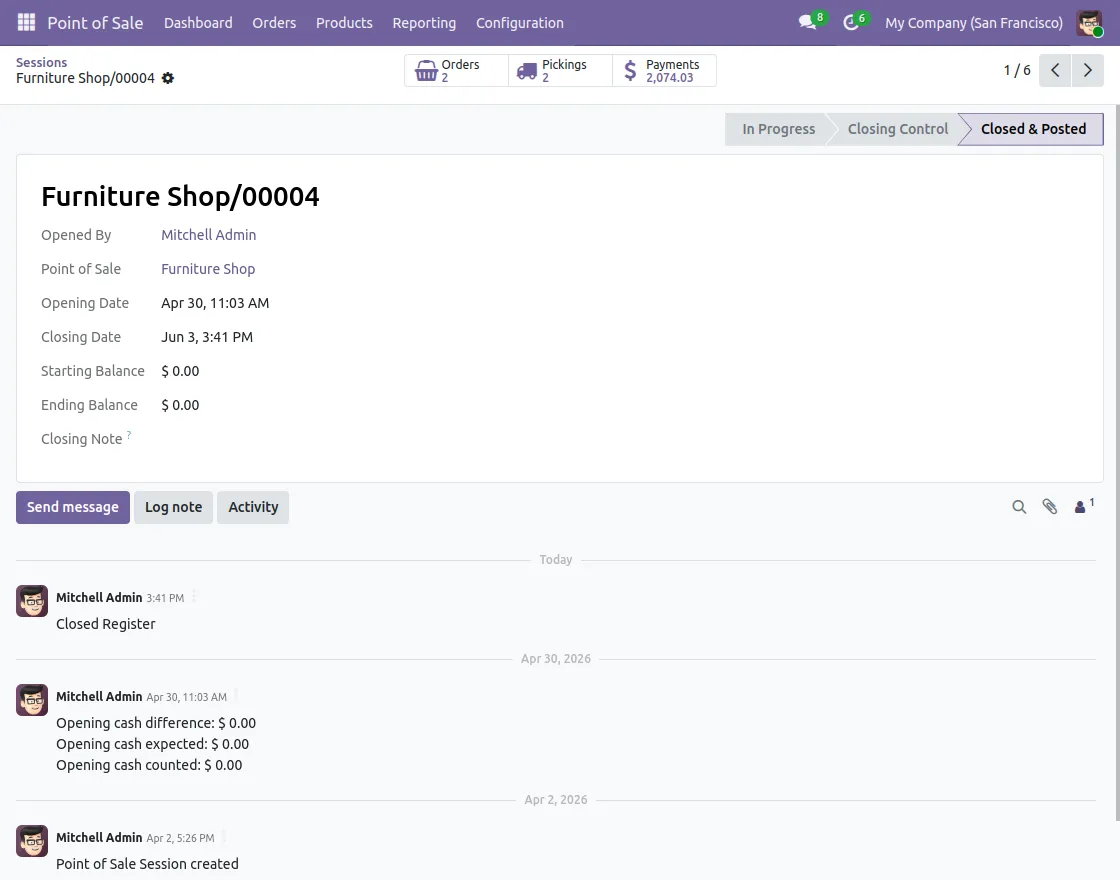
- Update session status automatically in backend.
- No need to open POS frontend to close sessions.
- Help managers handle POS sessions more easily.
- Save staff time with faster session management.
Installation
- Once you purchase the App from Webkul store, you will receive a link to download module’s zip file.
- Extract the file on your system after download finishes. As a result, you will be able to see a folder named- ‘pos_close_session_from_backend.’
- Copy and paste this folder inside your Odoo Add-Ons path.
- Now, open Odoo App and click on the Settings menu. Here, click on Activate Developer Mode.
- Then, open Apps menu and click on ‘Update Modules List.’
- In the search bar, remove all the filters and search ‘pos_close_session_from_backend.’
- You will be able to see module in the search results. Click on ‘Activate’ to install it.
Workflow
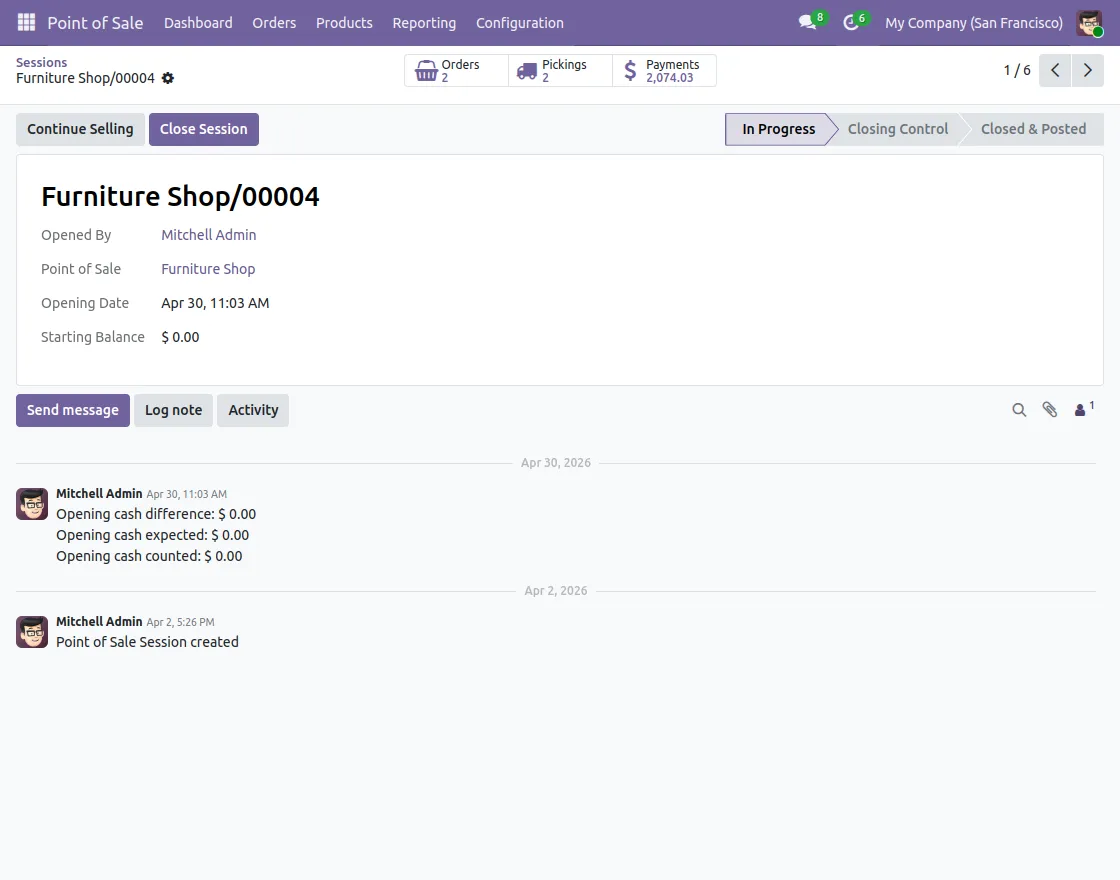
- After installing Odoo POS Close Session From Backend, users can close a running POS session directly from the session form using the Close Session button.
2. After clicking the Close Session button, a Session Close Confirmation Dialog opens.
3. Once the session is closed from the backend, the POS session status is automatically updated to Closed & Posted without opening the POS frontend.
4. When a POS session is closed from the backend, an instant notification message is displayed on the POS screen and the page is automatically reloaded.
Need Help?
Hope you find guide helpful! Please feel free to share your feedback in the comments below.
If you still have any issues/queries, please create a ticket at the UV Desk.
I hope this helps. In case of any further queries, contact us at our support mail.
Thanks for paying attention!!
Current Product Version - 1.0.0
Supported Framework Version - Odoo V19, V18, V17

Be the first to comment.