In PrestaShop, overriding the ObjectModel is a common way to extend core entities like Customer, Product, or Order without modifying core files.
In this guide, we’ll walk through a real-world implementation:
Adding a blacklist flag to customers by overriding the Customer ObjectModel.
What You’ll Build
By the end of this tutorial, you will:
- Add a new field
is_black_listedin the customer table - Extend the
CustomerObjectModel - Set a default value for new customers
- Keep everything upgrade-safe inside a module
Step 1: Create Module Structure
Create the following folder structure:
modules/
└── customerblacklist/
    ├── customerblacklist.php
    ├── classes/
    │   └── CustomerBlackListInstall.php
    └── override/
        └── classes/
            └── Customer.php
Step 2: Add a New Column to the Customer Table
We first extend the database schema by adding a new column.
classes/CustomerBlackListInstall.php
class CustomerBlackListInstall
{
    public function addColumn()
    {
        return Db::getInstance()->execute(
            'ALTER TABLE `' . _DB_PREFIX_ . 'customer`
             ADD COLUMN `is_black_listed` TINYINT(1) NOT NULL DEFAULT 0'
        );
    }

    public function removeColumn()
    {
        return Db::getInstance()->execute(
            'ALTER TABLE `' . _DB_PREFIX_ . 'customer`
             DROP COLUMN `is_black_listed`'
        );
    }
}
Step 3: Override the Customer ObjectModel
Now we extend the core Customer model.
override/classes/Customer.php
class Customer extends CustomerCore
{
    public $is_black_listed;

    public function __construct($id = null)
    {
        self::$definition['fields']['is_black_listed'] = [
            'type' => self::TYPE_BOOL,
            'validate' => 'isBool',
            'default' => 1,
        ];

        parent::__construct($id);

        if (!$this->id) {
            $this->is_black_listed = 1;
        }
    }
}
What’s happening here?
- We extend
CustomerCore - Add a new field to
$definition - Set a default value for new customers
Step 4: Create the Main Module File
customerblacklist.php
class Customerblacklist extends Module
{
    public function __construct()
    {
        $this->name = 'customerblacklist';
        $this->version = '1.0.0';
        $this->author = 'Webkul';
        $this->bootstrap = true;

        parent::__construct();

        $this->displayName = 'Customer Blacklist';
        $this->description = 'Adds blacklist flag to customers';
    }

    public function install()
    {
        require_once __DIR__ . '/classes/CustomerBlackListInstall.php';
        $installer = new CustomerBlackListInstall();

        return parent::install() && $installer->addColumn();
    }

    public function uninstall()
    {
        require_once __DIR__ . '/classes/CustomerBlackListInstall.php';
        $installer = new CustomerBlackListInstall();

        return parent::uninstall() && $installer->removeColumn();
    }
}
Step 5: Install and Enable Override
- Go to Module Manager
- Upload and install the module
- Clear cache:
- Advanced Parameters → Performance
- Make sure:
- Disable Overrides = NO
Verify the Implementation
After installing the module, you can verify that the new field has been added and is working correctly.
- Register a new customer from the storefront or back office.
- Navigate to:
Advanced Parameters → Database → SQL Manager - Click on “Add new SQL query” and use the following query:
SELECT id_customer, firstname, lastname, email, is_black_listed FROM ps_customer;
- Execute the query.
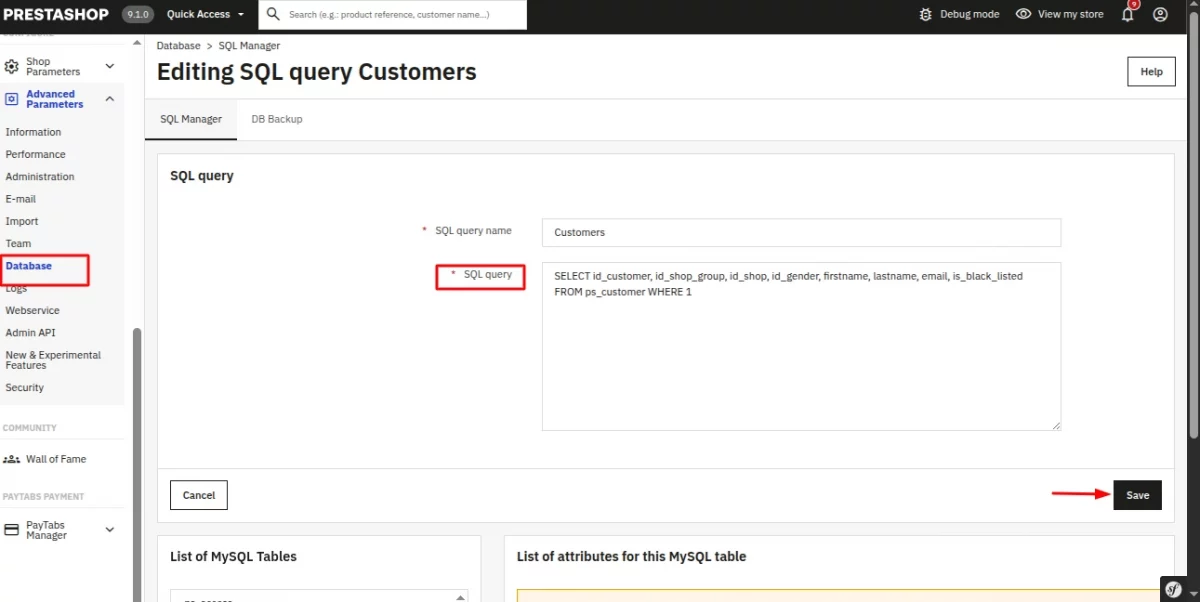
In the results, you will see the newly added column is_black_listed.
For newly created customers, its value will be set automatically based on the default defined in the override.
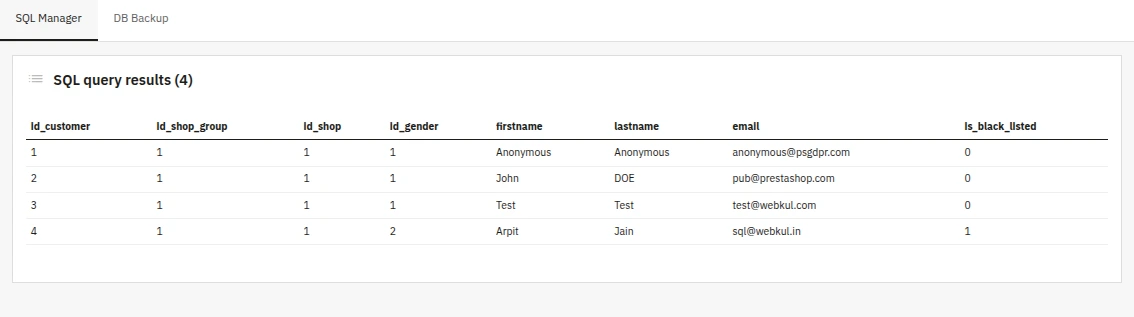
Result
Now:
- A new field
is_black_listedis added to customers - Default value =
1 - Accessible via
$customer->is_black_listed - When a new customer is created, the is_black_listed field is populated with the desired data as per the override.
Conclusion
Overriding ObjectModel in PrestaShop allows you to extend core entities in a clean and upgrade-safe way.
In this example, we successfully:
- Extended the
Customermodel - Added a custom database field
- Controlled default behavior
This same approach can be used for:
- Adding custom product attributes
- Extending order logic
- Enhancing customer data
That’s all about this blog. Hope it will help you.
If you are facing any issues or have any doubts about the above process, please feel free to contact us through the comment section.
Also, you can explore our Prestashop Development Services and a large range of quality Prestashop Modules.
For any doubt, contact us at [email protected]

Be the first to comment.