Introduction
Direct Refund From Paypal is an Odoo module that helps users process PayPal Refund directly from the system. It removes manual steps and improves accuracy in refund operations.
With this module, users can manage Refund Tracking, Transaction records, and Invoice-linked refunds in one place. This ensures a clear and structured Direct Refund process.
The module follows a proper Credit Note workflow, making every PayPal Refund aligned with accounting standards. It also ensures transparency using Refund Reason and tracking details.
Prerequisites for using Odoo Direct Refund From Paypal
Odoo Direct Refund From Paypal works in conjunction with the following module:
Odoo Website Paypal Express Checkout Payment Acquirer
You need to install the module mentioned above to use Odoo Direct Refund From Paypal.
Features
- Create Credit Note to initiate a structured and compliant refund workflow
- Support both full and partial Transaction refunds with controlled amount validation
- Require mandatory Refund Reason before confirming any PayPal Refund action.
- Maintain complete Refund Tracking for all refund records and activities
- Link every refund automatically with its related Invoice and Transaction
- Record refund details including amount, date, and Refund Reason.
- Enable quick navigation between Invoice, Transaction, and refund entries
- Improve financial accuracy with proper Credit Note based refund process
- Ensure secure and reliable Direct Refund workflow for all transactions
Installation
- Once you purchase the App from Webkul store, you will receive a link to download module’s zip file.
- Extract the file on your system after download finishes. As a result, you will be able to see a folder named- ‘payment_paypal_refund’.
- Copy and paste this folder inside your Odoo Add-Ons path.
- Now, open Odoo App and click on the Settings menu. Here, click on Activate Developer Mode.
- Then, open Apps menu and click on ‘Update Modules List.’
- In the search bar, remove all the filters and search ‘payment_paypal_refund’.
- You will be able to see the module in the search results. Click on ‘Activate’ to install it.
Workflow
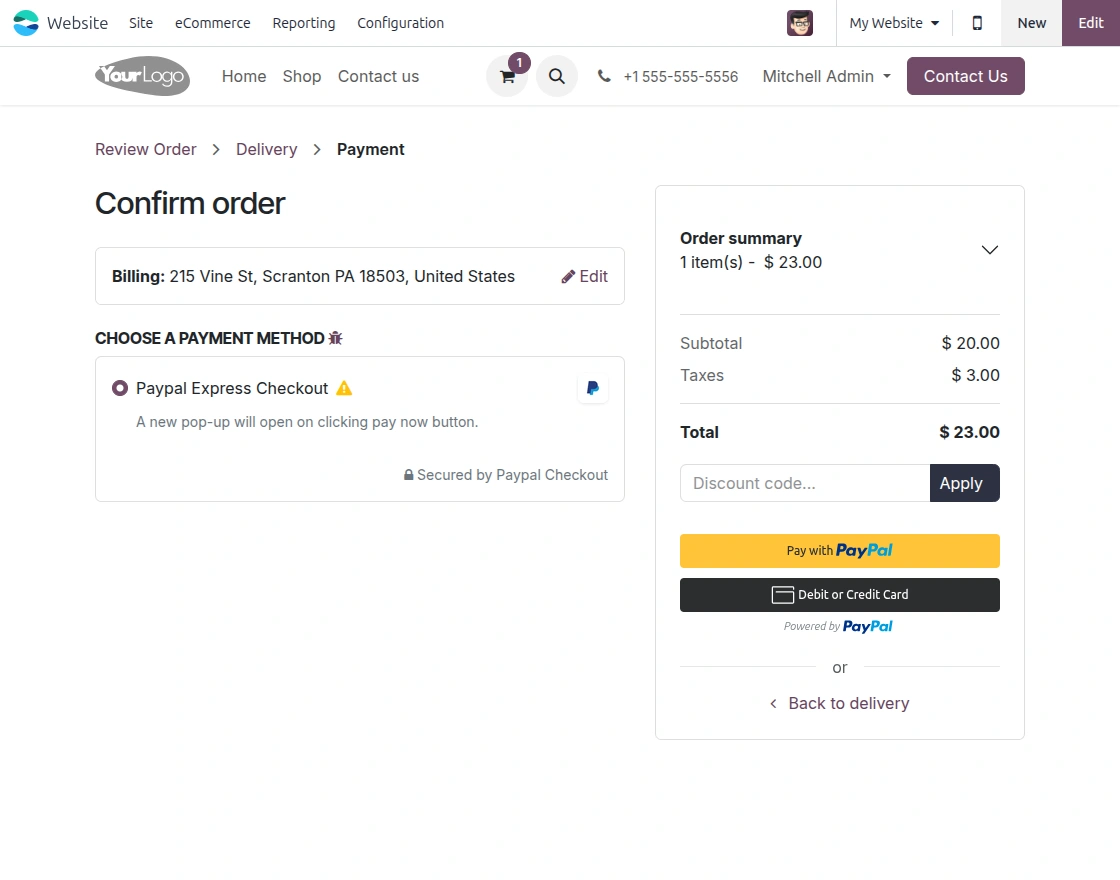
1. Confirm the Sale Order Using the Paypal Express Checkout payment Method
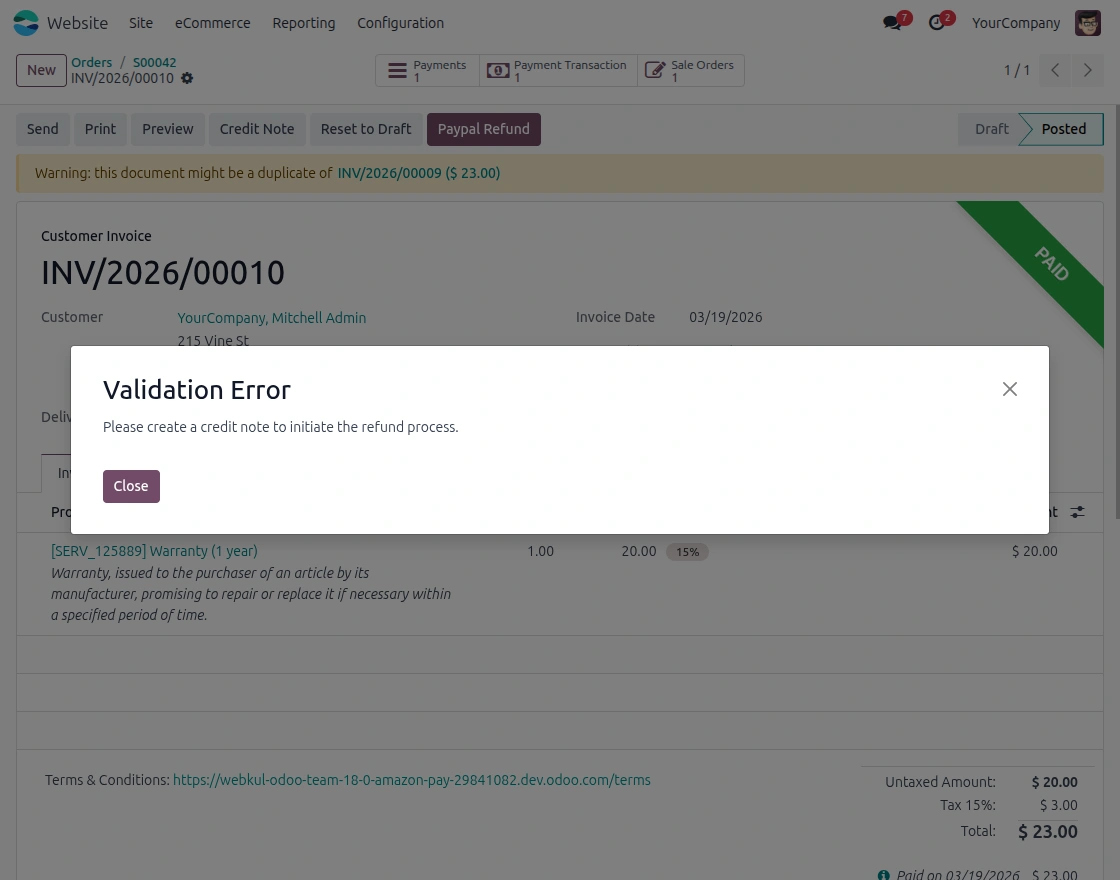
2. First Create the Credit Note , then go to the Paypal Refund. Validation Error comes when you directly try to select the Paypal Refund Button.
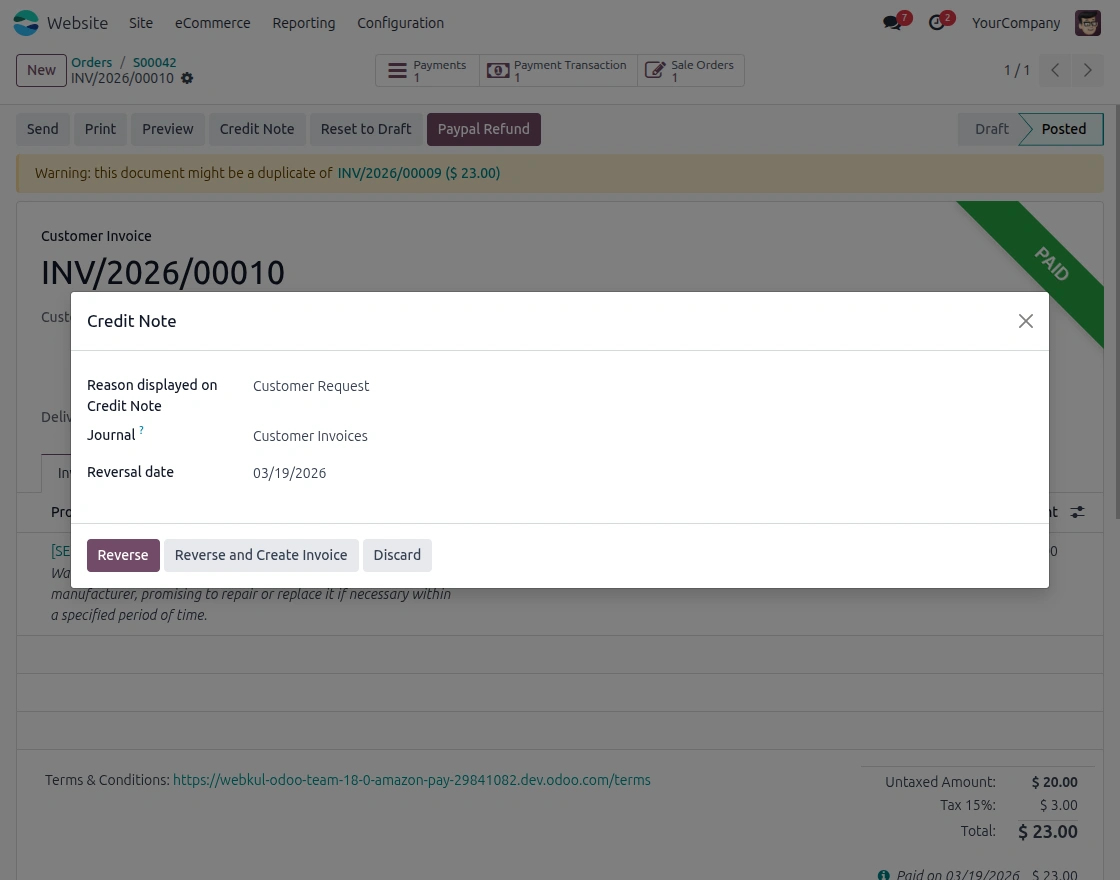
3. While Creating the Credit Note, select Refund Reason and other fields, Select them according to the requirement.
4. In Payal Refund , Refund reason is mandatory to be selected to Proceed forward. Also check the Refund amount for the refund.
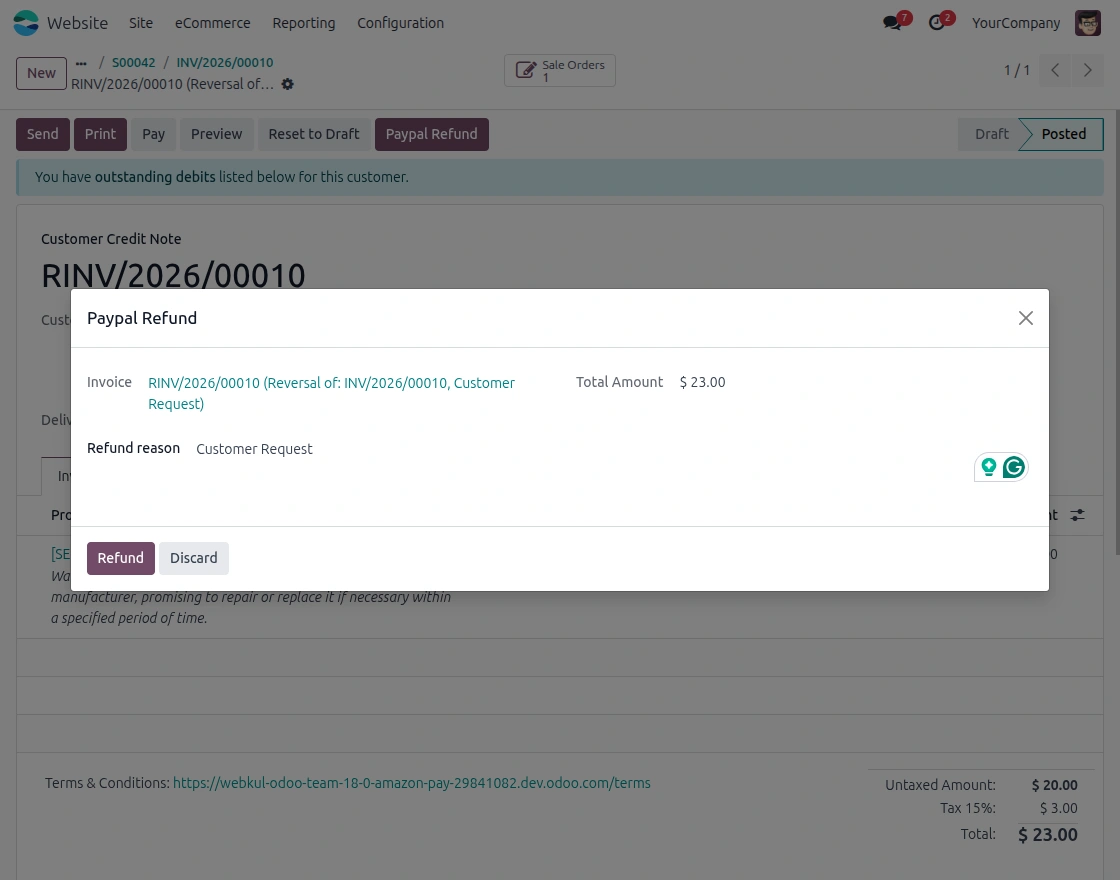
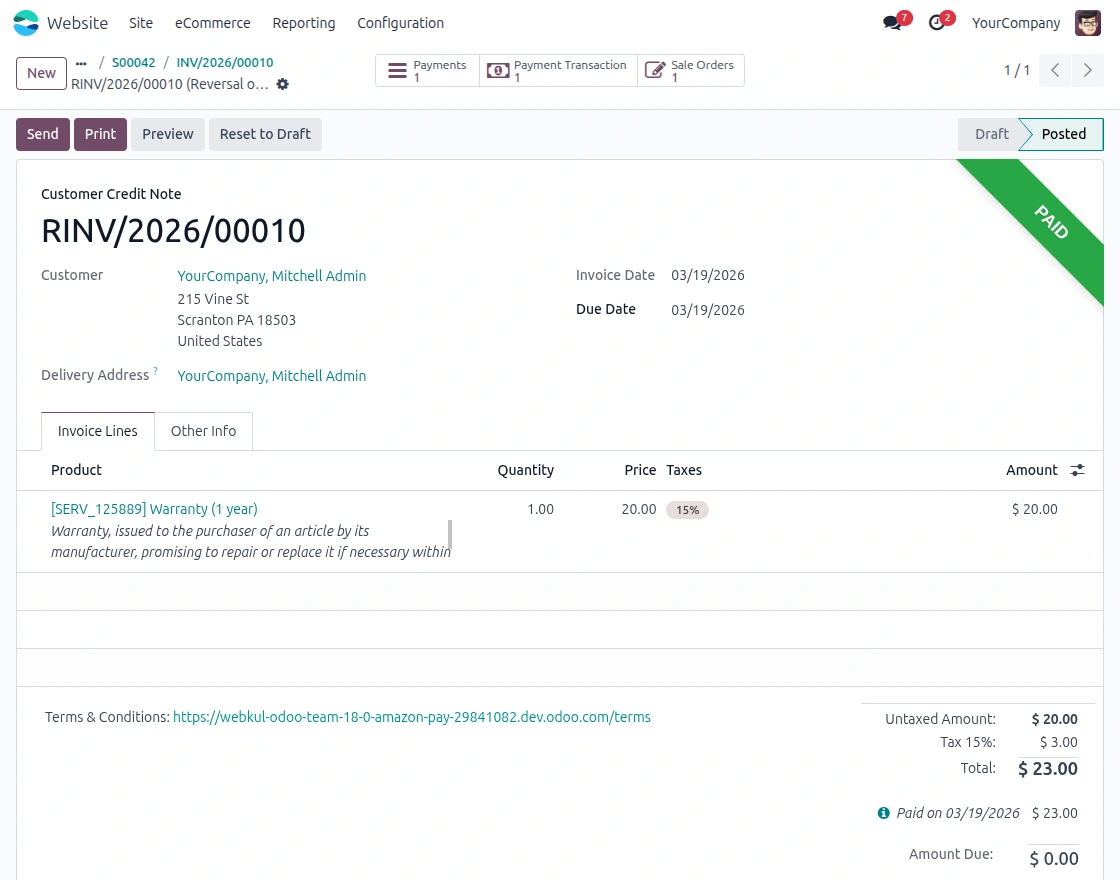
5. This screen shows the generated credit note created during the refund process, where the user can review and validate refund details. Select Payment Transaction for the linked PayPal transaction.
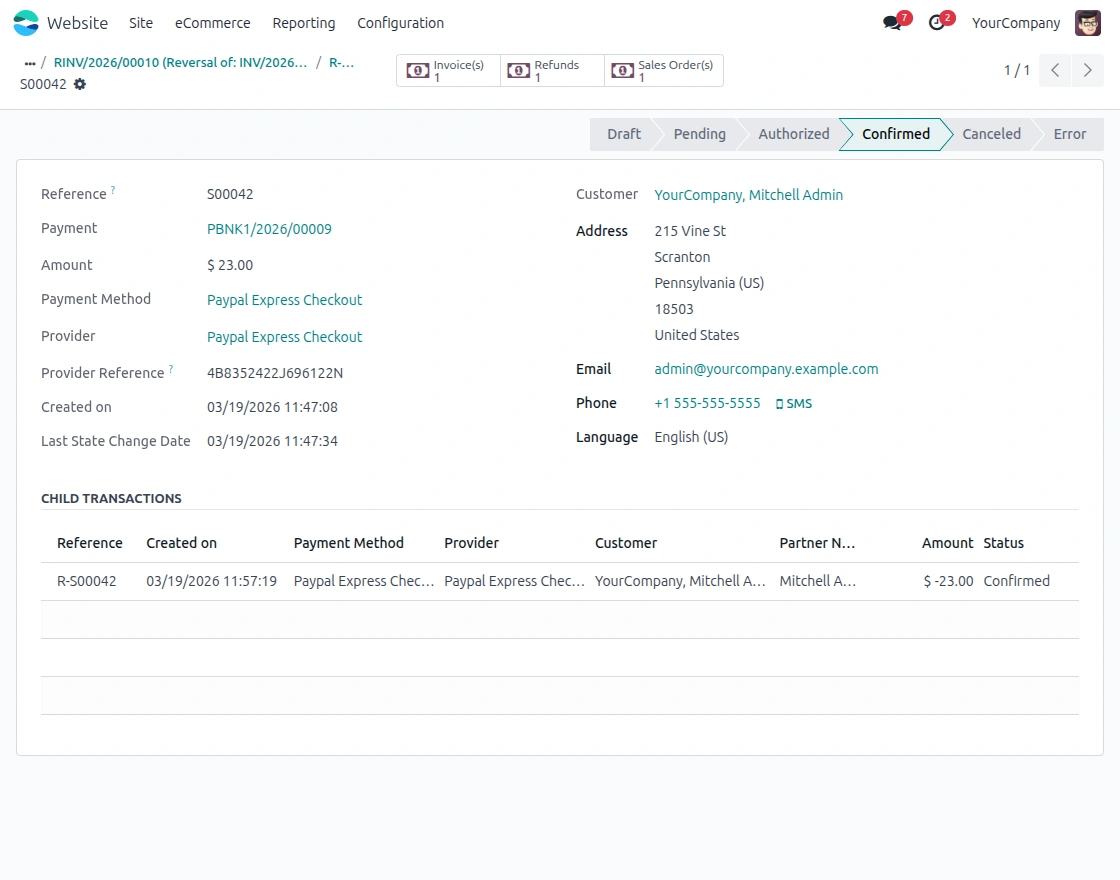
6. Click on Source Transaction from the Field to see the Child transaction. Child transaction shows other important details
Need help?
Hope you find guide helpful! Please feel free to share your feedback in the comments below.
If you still have any issues/queries, please create a ticket at the UV Desk.
I hope this helps. In case of any further queries, contact us at our support mail.
Thanks for paying attention!!
Current Product Version - 1.0.0
Supported Framework Version - Odoo Version 19, 18, 17

Be the first to comment.