Introduction
Krayin CRM Odoo Connector connects Odoo with Krayin CRM to sync leads, partners, products, and users from one place. The module helps teams keep CRM data same in both systems with controlled sync options.
Using the connector, businesses can manage CRM data in Odoo while keeping Krayin CRM updated. It supports real-time actions, bulk data transfer, and scheduled imports.
Prerequisites for using Krayin CRM Odoo Connector
Krayin CRM Odoo Connector works in conjunction with the following module:
You must install the above-mentioned module to use Krayin CRM Odoo Connector properly.
Features
- Set up and manage the Krayin CRM connection directly from Odoo using a single configuration screen.
- Automatically sync create, update, and delete actions from Odoo to Krayin CRM without manual effort.
- Import companies, contacts, and products from Krayin CRM into Odoo in bulk and export updated data back to Krayin CRM.
- Use cron schedulers to fetch new and updated data from Krayin CRM into Odoo at fixed intervals.
- Map Odoo CRM stages and lead sources with Krayin CRM pipelines and sources for consistent lead flow.
- Manually link existing records using Krayin Record IDs to keep data aligned with Krayin CRM Odoo Connector
- Apply duplicate checks to avoid creating duplicate partners and products during sync.
- Import leads and CRM users from Krayin CRM into Odoo for correct ownership and assignment.
- Track import and export operations using detailed feeds and logs.
Installation
- Once you purchase the App from Webkul store, you will receive a link to download module’s zip file.
- Extract the file on your system after download finishes. As a result, you will be able to see a folder named- ‘krayin_odoo_connector’
- Copy and paste this folder inside your Odoo Add-Ons path.
- Now, open Odoo App and click on the Settings menu. Here, click on Activate Developer Mode.
- Then, open Apps menu and click on ‘Update Modules List.’
- In the search bar, remove all the filters and search ‘krayin_odoo_connector’
- You will be able to see module in the search results. Click on ‘Activate’ to install it.
Workflow
Configure Krayin CRM Connection
- Log in to your Odoo apps
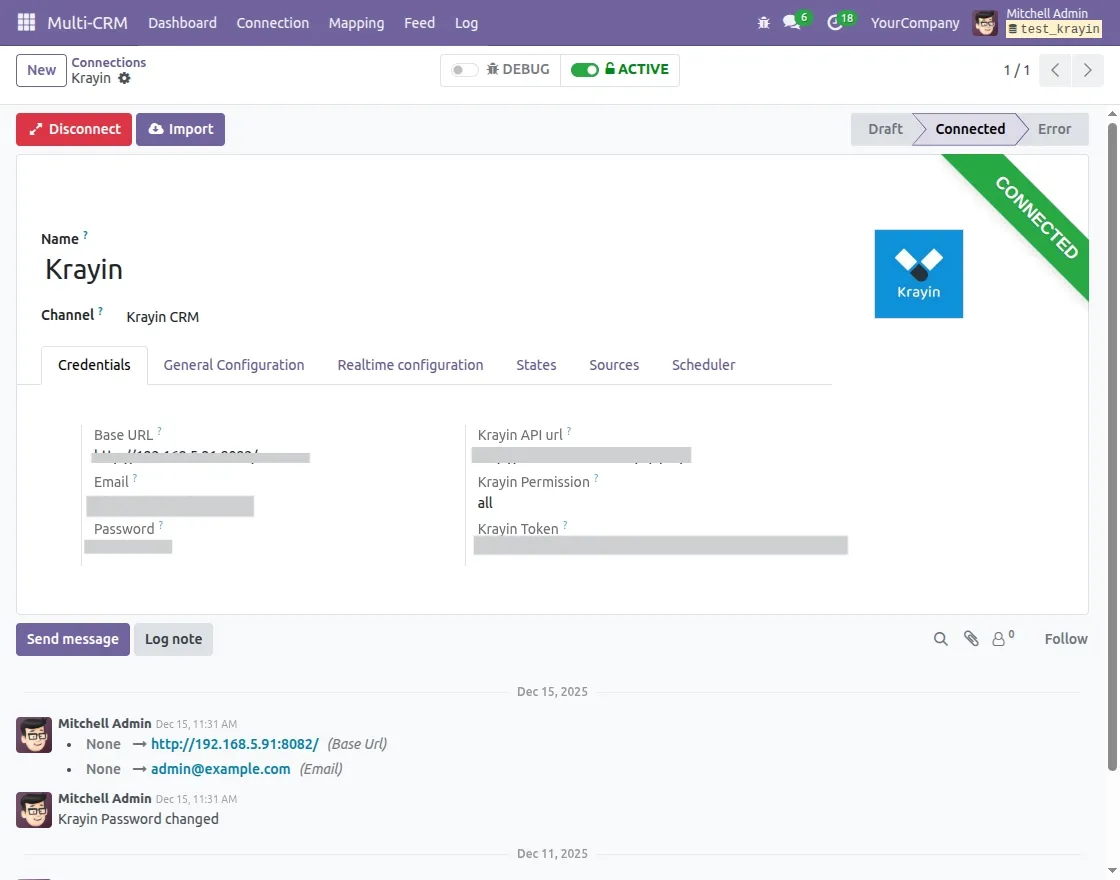
- Go to Multi-CRM → Connections and click on new button to create a new connection for Krayin CRM.
- Enter the name of the connection and select the Channel as Krayin CRM
- In the Credentials tab, enter the Base URL of Krayin instance along with the email and password

- Click on the connect button after adding the details to connect with Krayin CRM. The connection is successful.
Configure General Settings
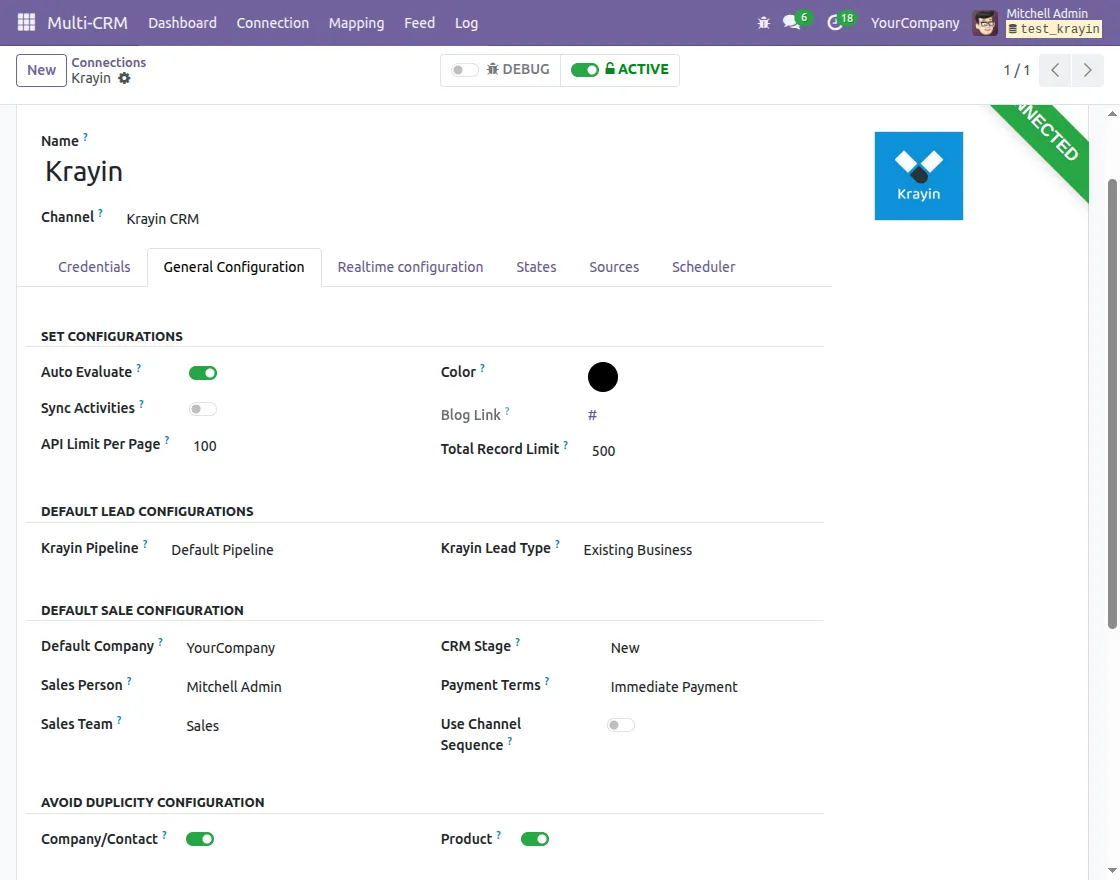
- Go to Multi-CRM → Connections → Krayin → General Configuration to manage default sync behavior and adjust the lead and sale configuration.
Set Configurations
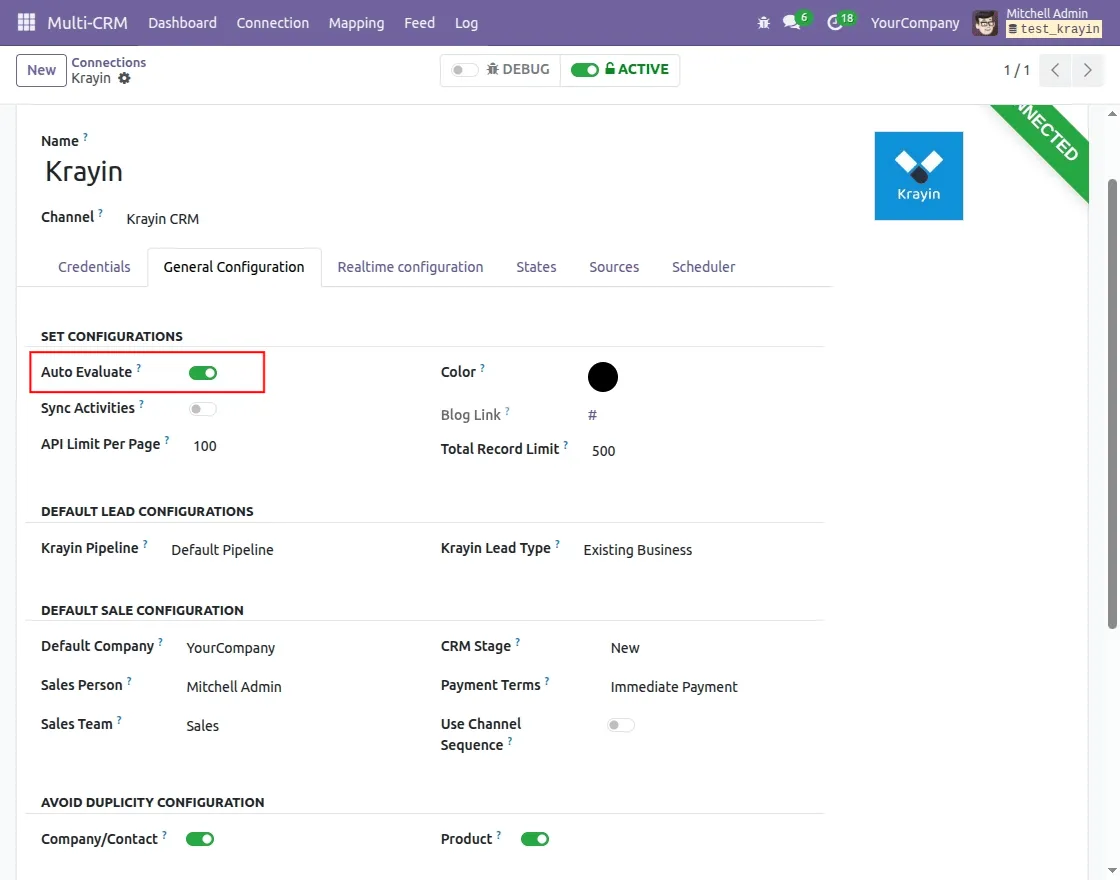
Auto Evaluate: Automatically evaluates feeds after data is manually imported from Krayin CRM into Odoo
Sync Activities: Imports lead-related activities such as notes and follow-ups from Krayin CRM to Odoo.
API Limit Per Page: Defines the number of records fetched per API call from Krayin CRM.
Color: Sets a visual identifier for this connection, useful when managing multiple CRM connections.
Blog Link: Optional reference link for documentation or internal use.
Total Record Limit: Specifies the maximum number of records processed in a single operation.
Default Lead Configurations
Krayin Pipeline: Selects the default Krayin CRM pipeline used when importing leads into Odoo.
Krayin Lead Type: Defines the lead type assigned to imported leads, such as Existing Business.
Default Sale Configuration
Default Company: Company assigned to records created through this connector.
Sales Person: Default salesperson assigned to imported leads and related records.
Sales Team: Sales team linked to leads coming from Krayin CRM.
CRM Stage: Initial Odoo CRM stage assigned to newly imported leads.
Payment Terms: Payment term automatically applied when records are created via the connector.
Use Channel Sequence: When enabled, the connector’s sequence is used for record numbering instead of Odoo’s default.
Avoid Duplicity Configuration
Company / Contact: Prevents duplicate companies and contacts during synchronization by matching existing records.
Product: Avoids duplicate product creation while importing product data from Krayin CRM.
Configure real-time sync
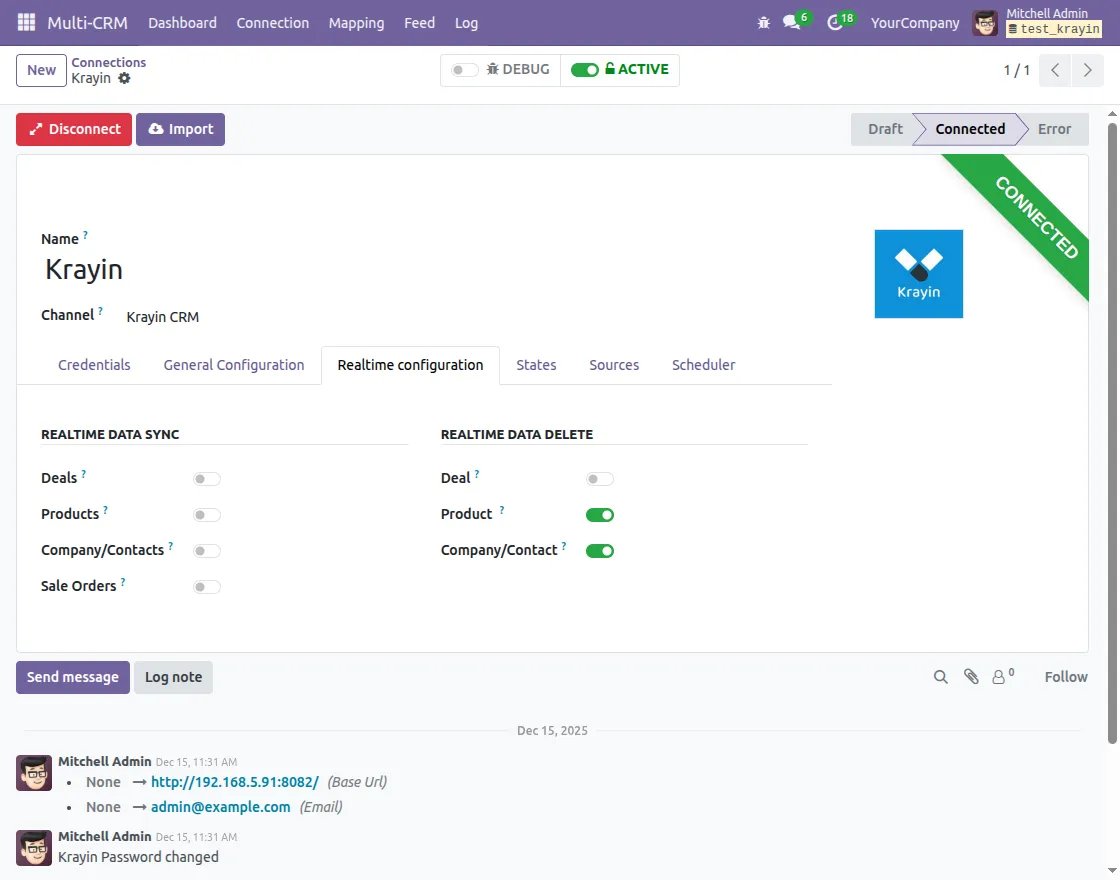
Real-time data sync for data and delete data from Odoo to Krayin CRM is available for Company/Contacts and Product only.
Set CRM State mapping
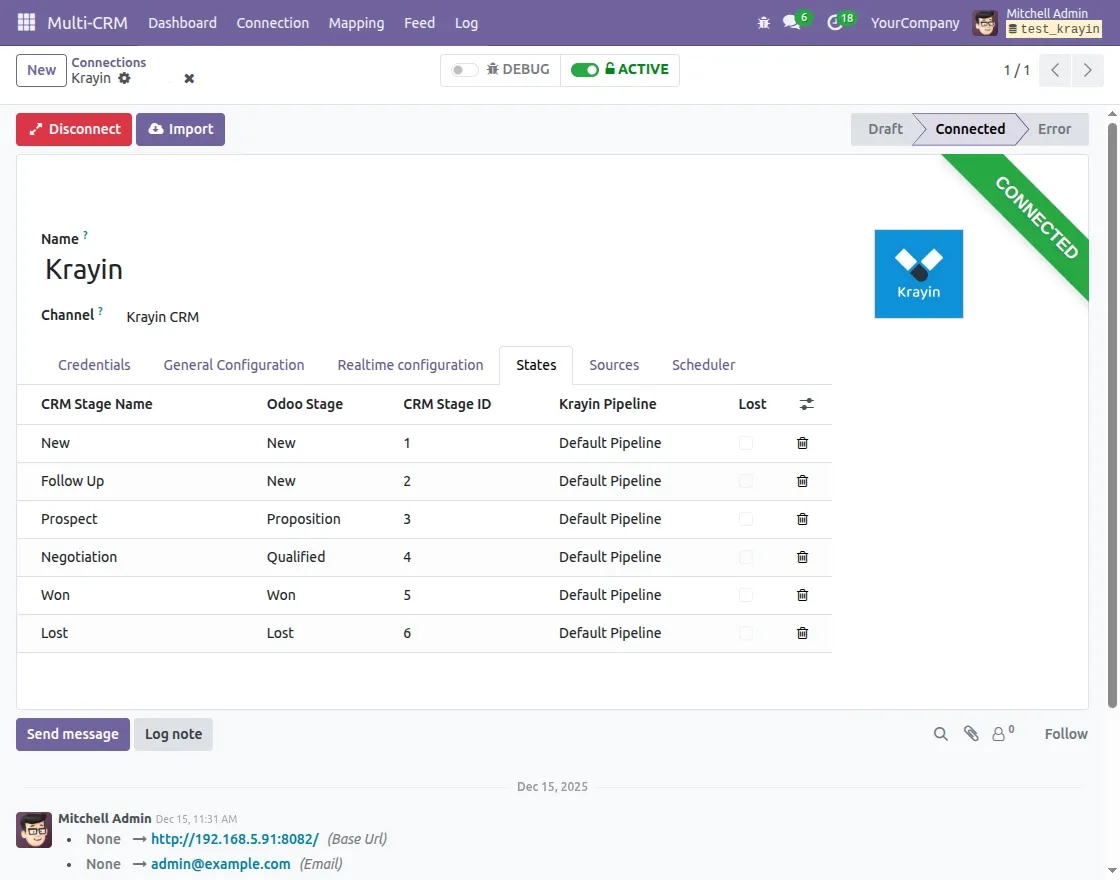
- Go to Multi-CRM → Connections → Krayin → States.
- The system lists all lead stages fetched from Krayin CRM along with their CRM Stage ID.
- For each CRM Stage Name, select the corresponding Odoo Stage from the dropdown.
- Choose the Krayin Pipeline to which the stage belongs.
- Enable the Lost option for stages that represent lost opportunities.
- Save the mapping to apply it during lead synchronization.
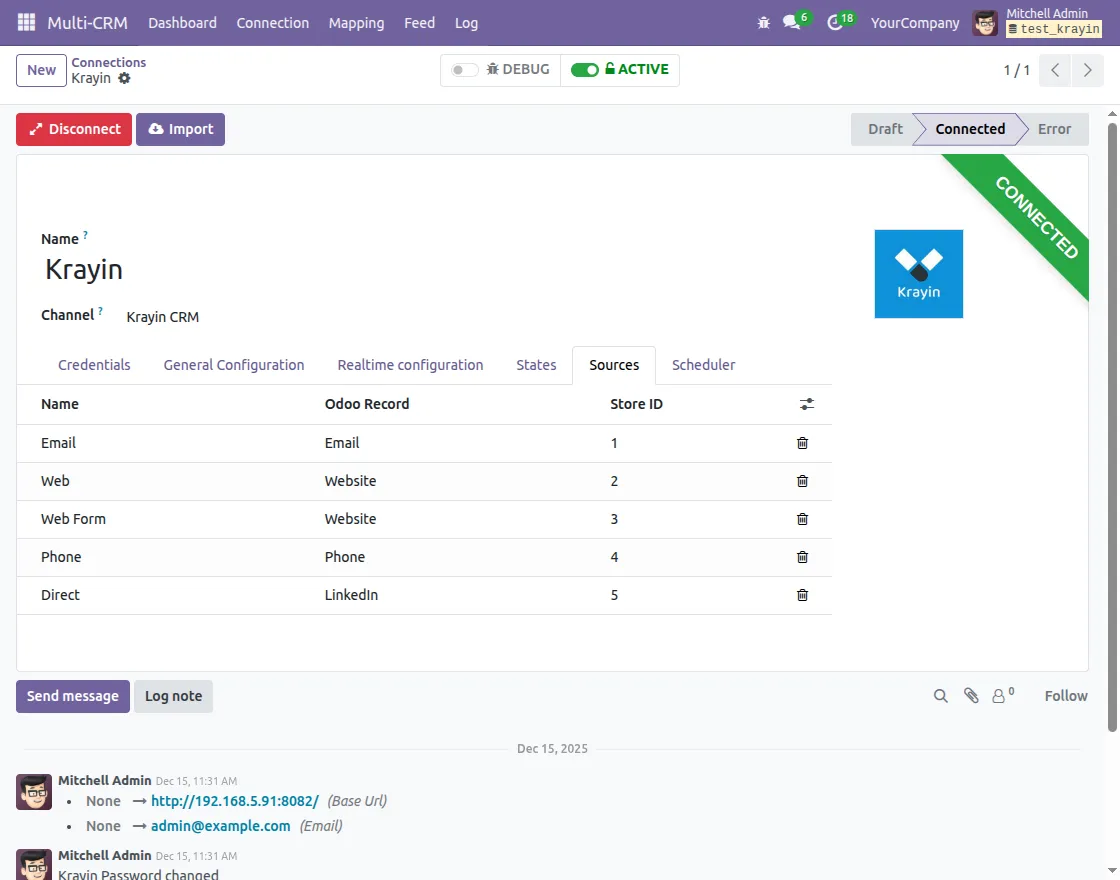
Map CRM Lead Sources
- Go to Multi-CRM → Connections → Krayin → Sources.
- For each Krayin Source Name, select the matching Odoo Record.
- Review the Store ID, which uniquely identifies the source from Krayin CRM.
- Save the mapping to apply it to incoming leads.
Set Up Cron Schedulers
The Scheduler tab allows you to automate data import from Krayin CRM into Odoo using cron jobs at fixed intervals
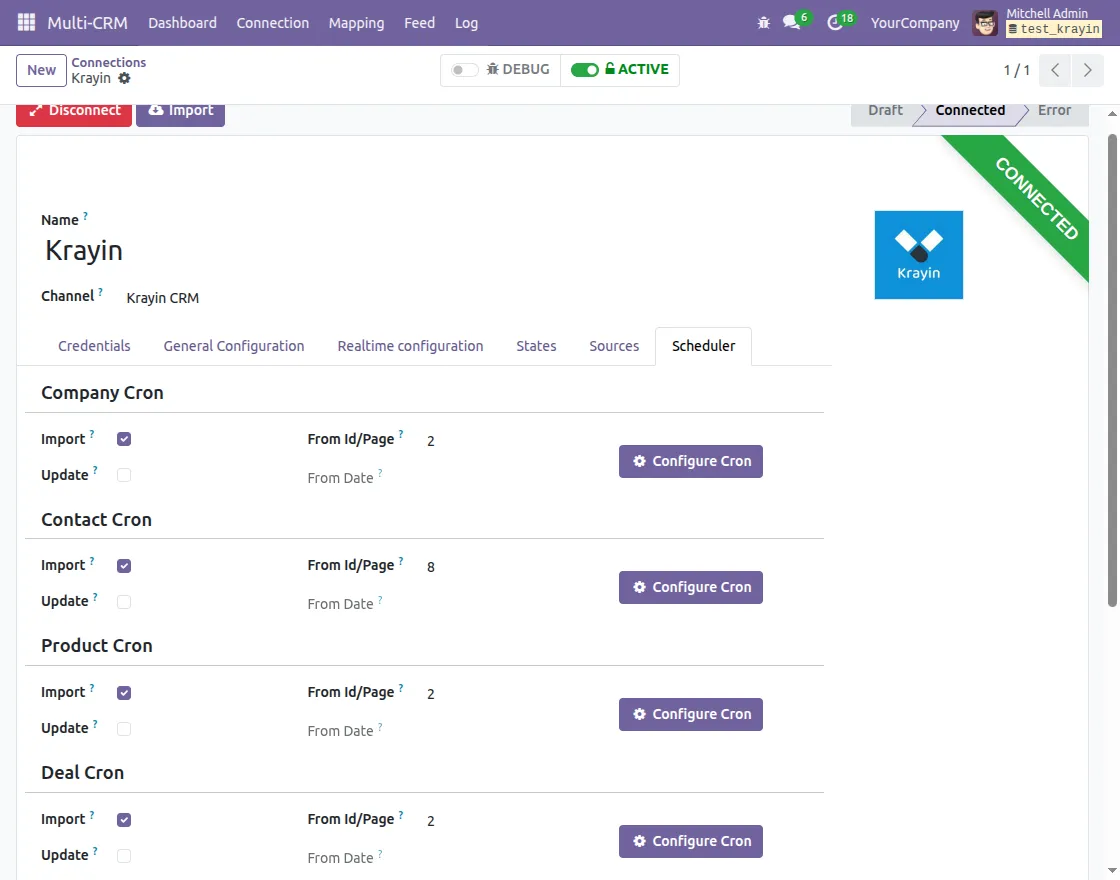
- Go to Multi-CRM → Connections → Krayin → Scheduler.
- Select the data type for which you want to configure the cron
- Enable Import to fetch new records from Krayin CRM
- Set From ID/Page to define the starting point for fetching records in batches.
- (Optional) Use From Date to import records updated after a specific date.
- Click Configure Cron to define the execution schedule.
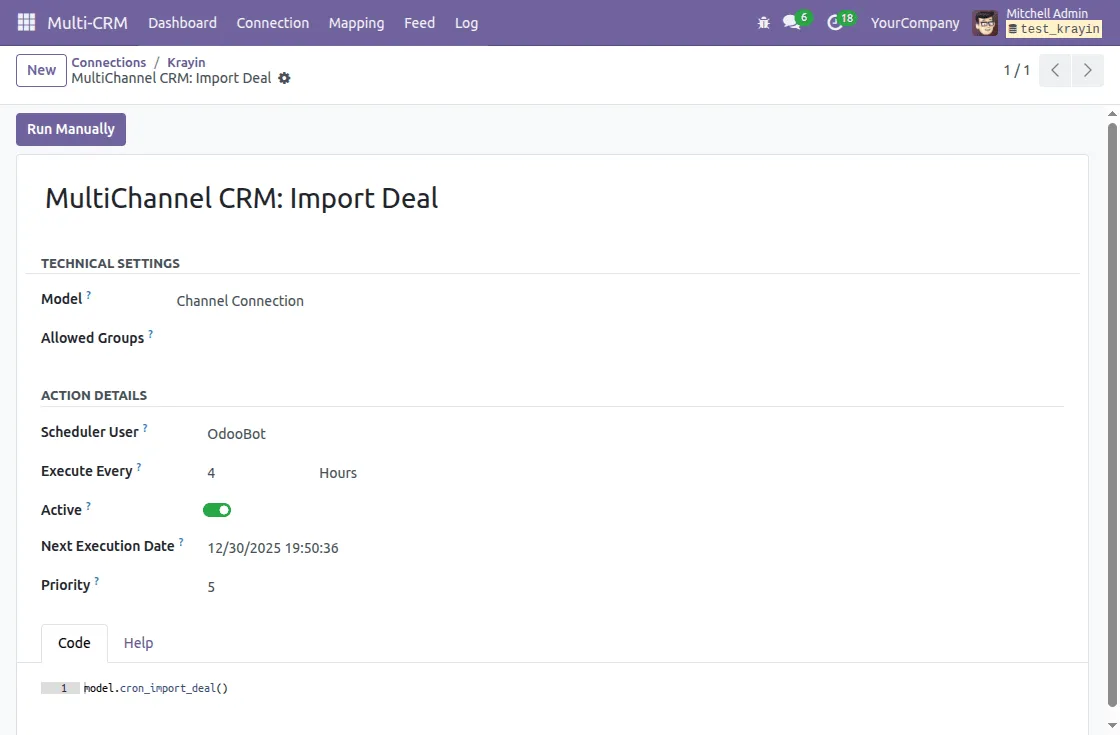
- Scheduler User: User under which the cron runs. By default, this is OdooBot.
- Execute Every: Defines how often the cron job runs (for example, every 4 hours).
- Active: Controls whether the cron job is enabled or disabled.
- Next Execution Date: Shows the next scheduled run time for the cron job. You can also set it.
- Priority: Defines the execution order when multiple cron jobs run at the same time.
- Run Manually: Allows you to trigger the cron job instantly without waiting for the scheduled time.
Import/Export Data
Krayin CRM Odoo Connector allows you to manually import and export data between Odoo and Krayin CRM whenever required. This is useful for one-time syncs or quick updates.
Import Data from Krayin CRM to Odoo
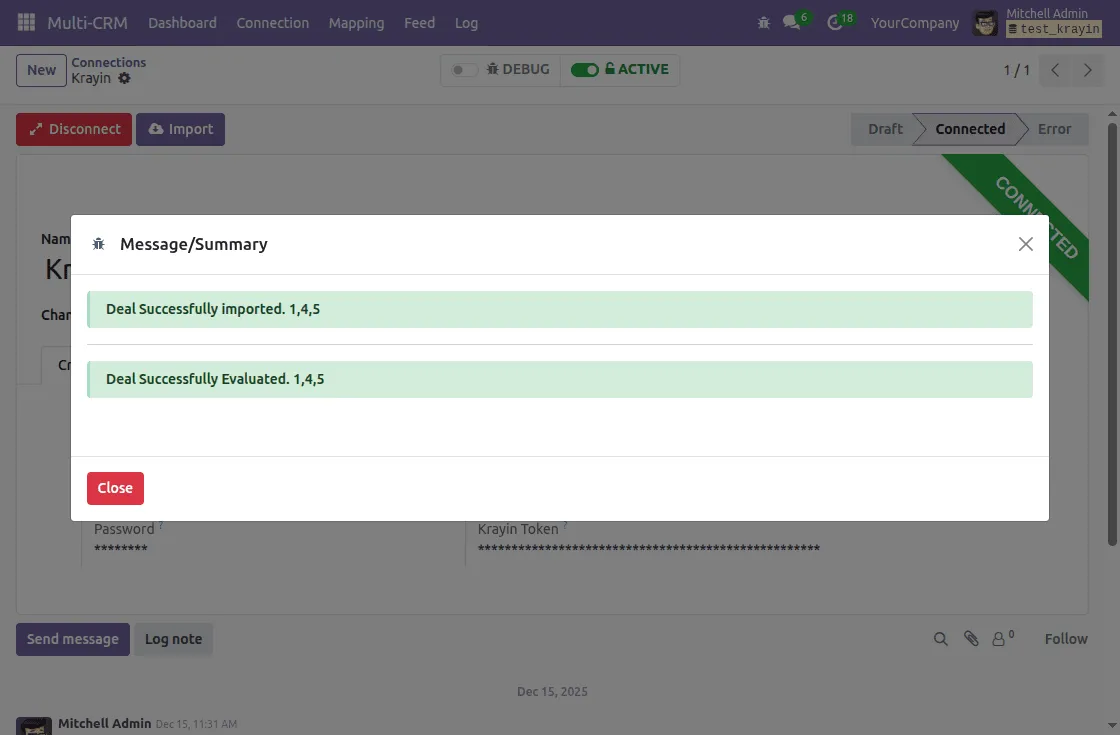
You can manually import records from Krayin CRM into Odoo using the Import option in Krayin CRM Odoo Connector.
- Go to Multi-CRM → Connections → Krayin.
- Click on the Import button and select the data type you want to import(Company, contact, lead, product, and user)
- You can choose to filter the data by ID or import All
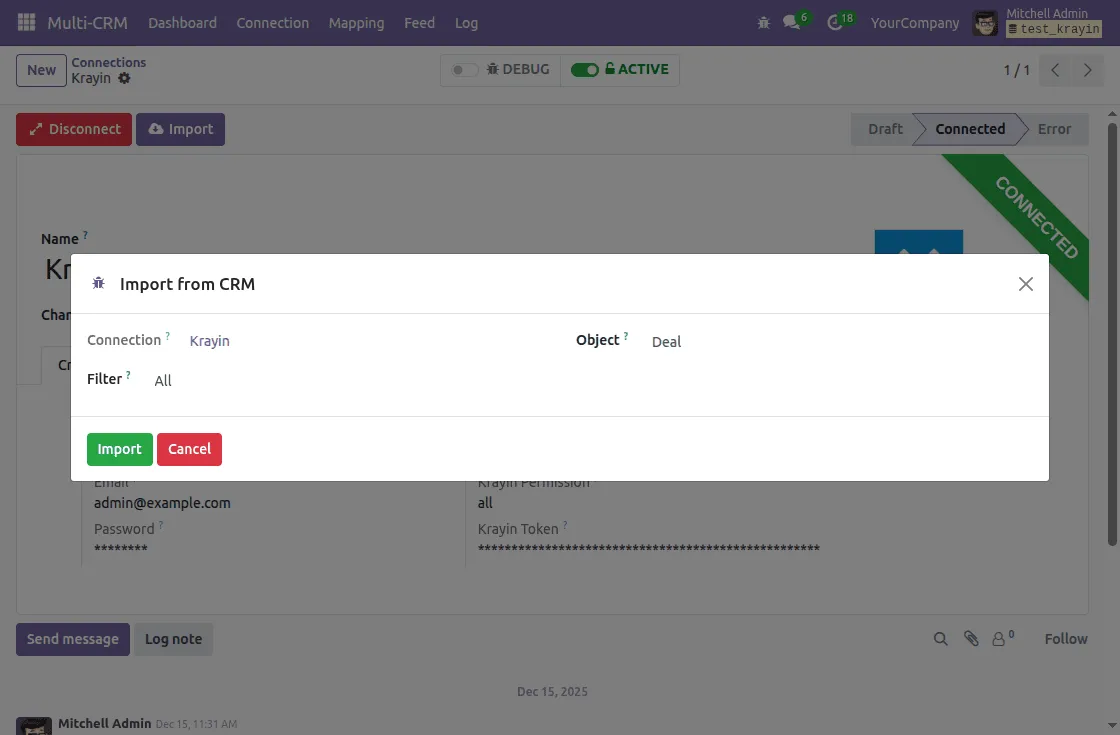
- Click on the Import button to confirm the import and data is successfully imported.
Export/Update data from Odoo to Krayin CRM
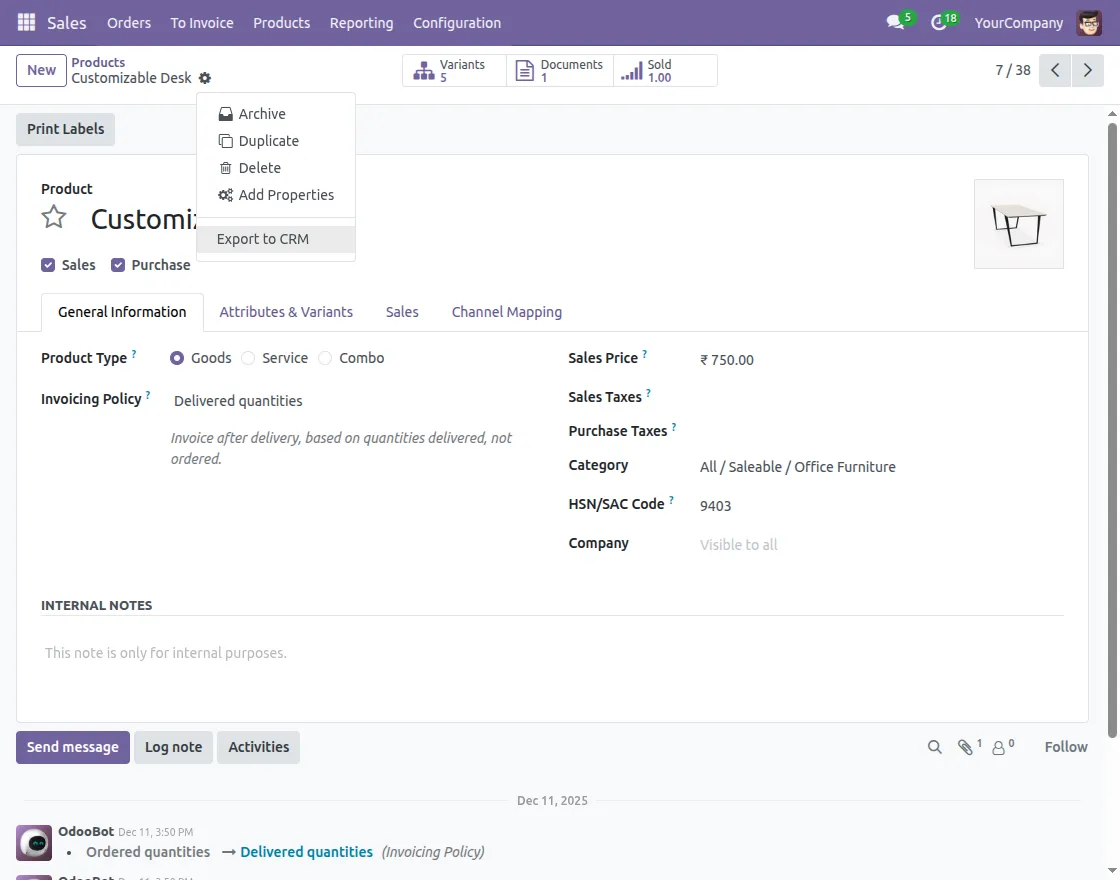
You can export or update selected records from Odoo to Krayin CRM directly from the record form.
- Open the record you want to export (Company, Contact, or Product).
- Click on Export to CRM in the gear icon of the record
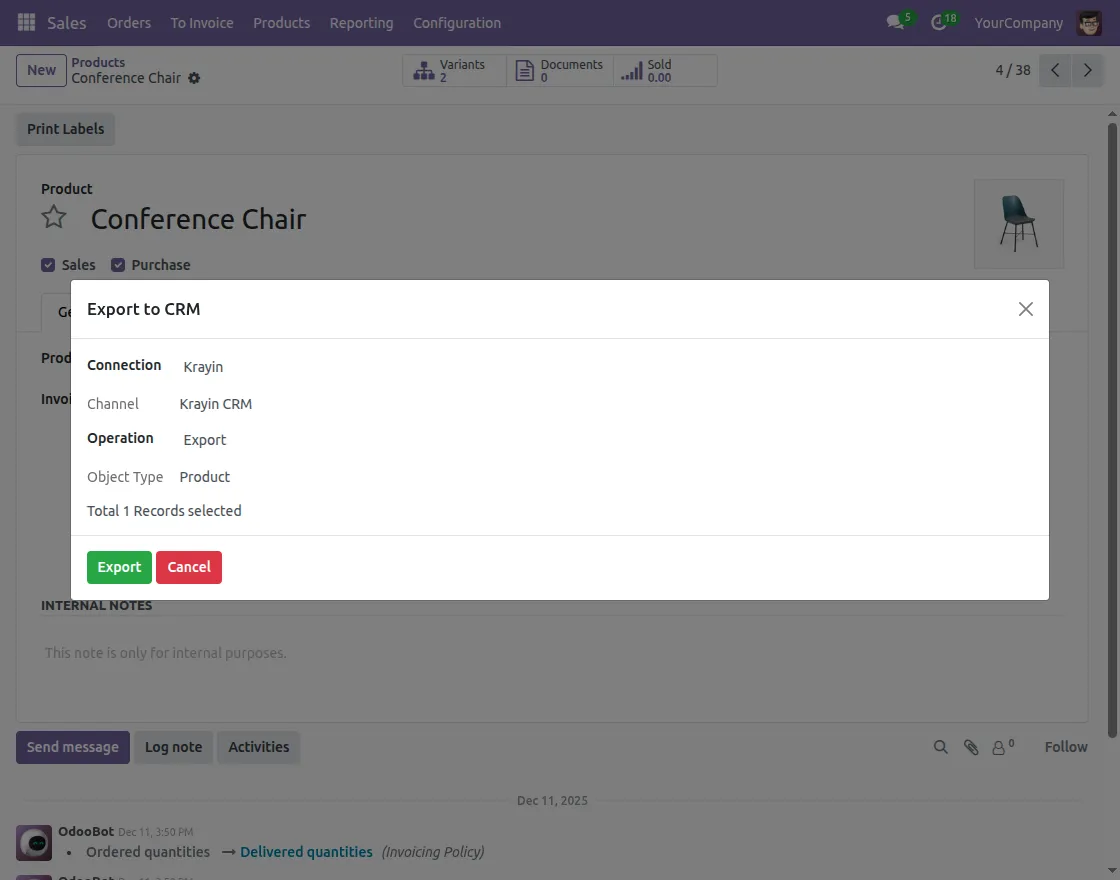
- A pop-up will appear. Select the connection and set the operation to either Update or Export as per your requirement, and click on export
Feed Evaluation
The Feeds section helps you review incoming data from Krayin CRM before it is created or updated in Odoo. Feeds allow you to control how records are processed and mapped.
To automatically evaluate feed when any data is manually imported to Odoo, you can enable the Auto Evaluate option in the General Configuration
- Go to Multi-CRM → Connections → Krayin → General Configuration and enable the Auto Evaluate option
You can also manually evaluate the feed if the auto-evaluate option is not enabled.
- Go to Multi-CRM → Feeds and open a feed.
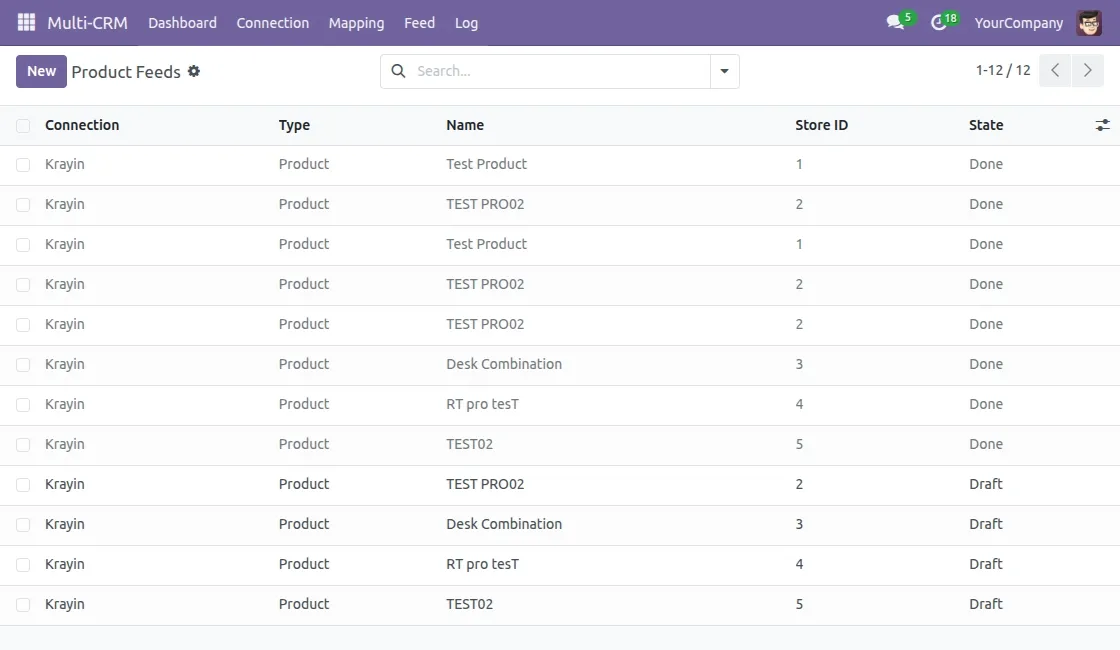
- Open any feed that is not done and click on evaluate to successfully create its mapping
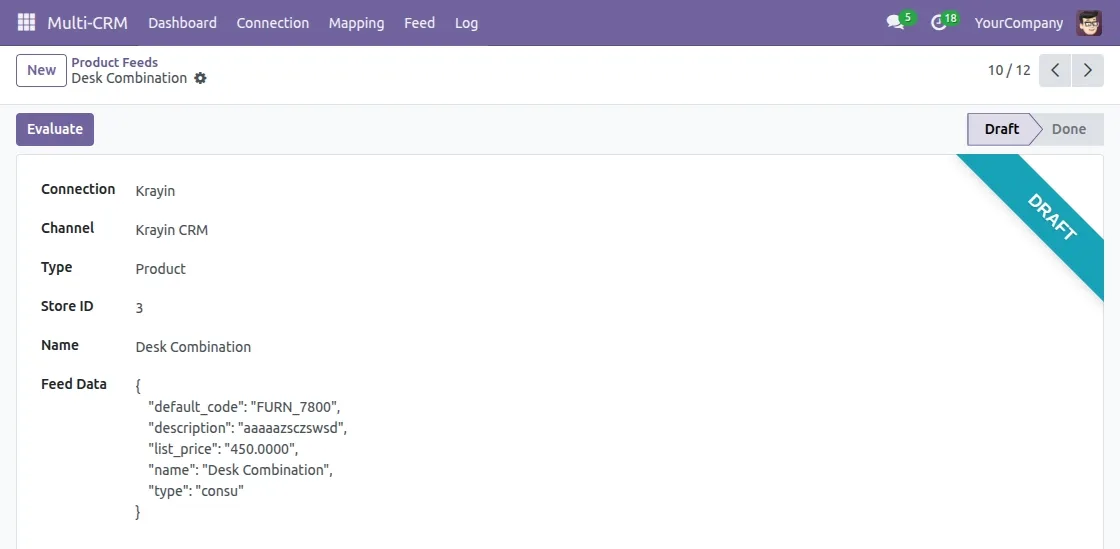
Mapping
After the data is successfully evaluated, the corresponding mapping is created for it, mapping it through the Krayin Record ID. If a record already exists in Odoo, you can link it manually instead of creating a new one.
- Go to Multi-CRM → Mapping and open the mapping for contact to view the contact mapping.
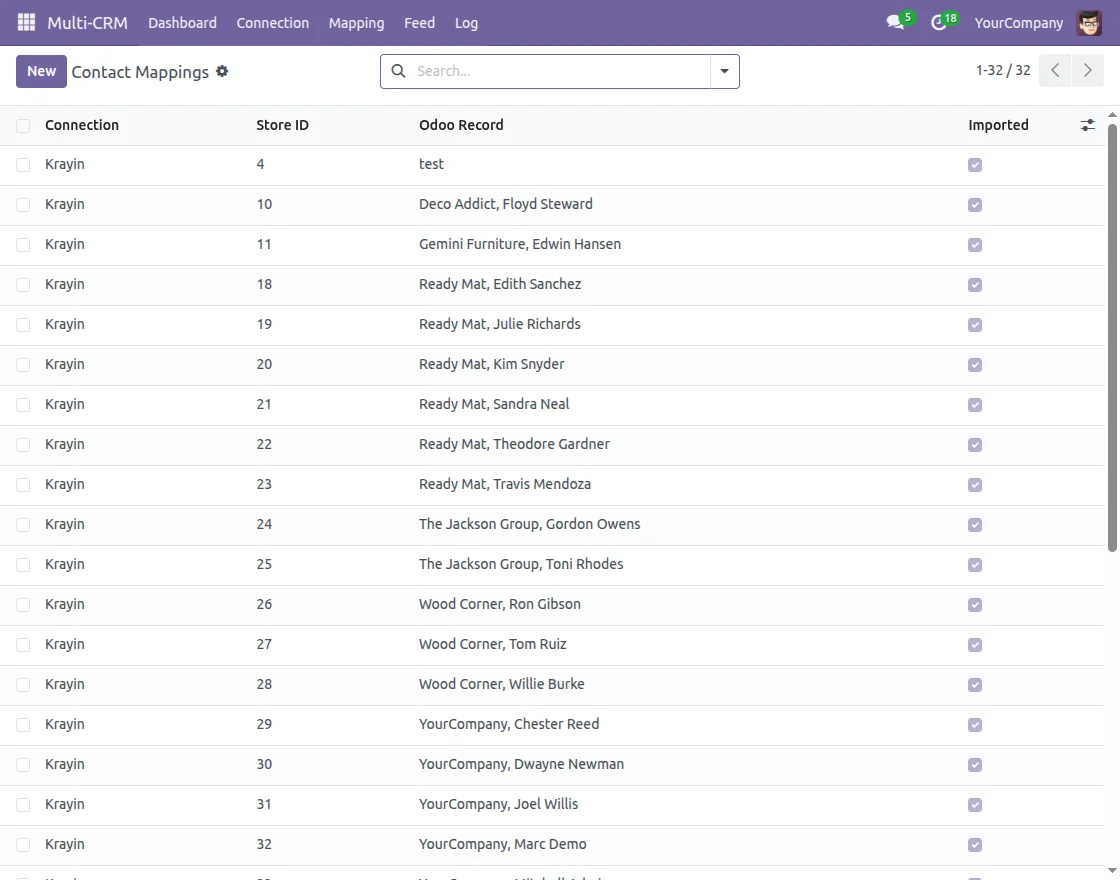
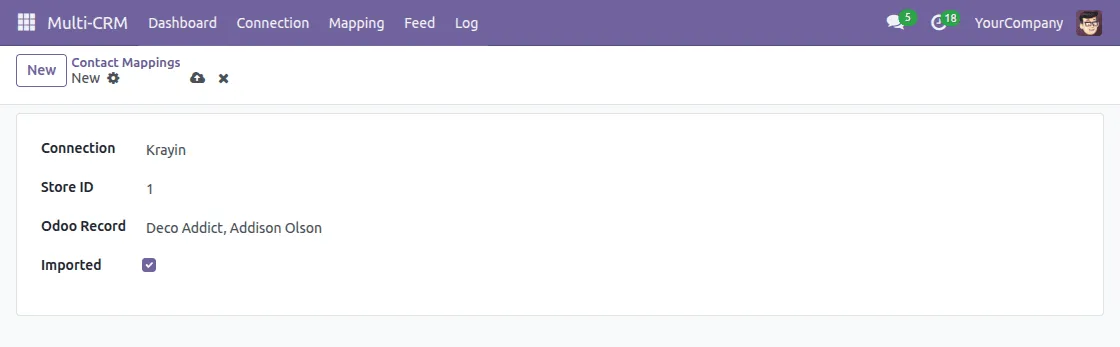
- Click on the New button to create a new mapping for any existing record.
- Select the connection, enter the Krayin ID, and select the Odoo record for which you want to create the mapping
- Save the mapping, and it will be created successfully.
View Operation Logs
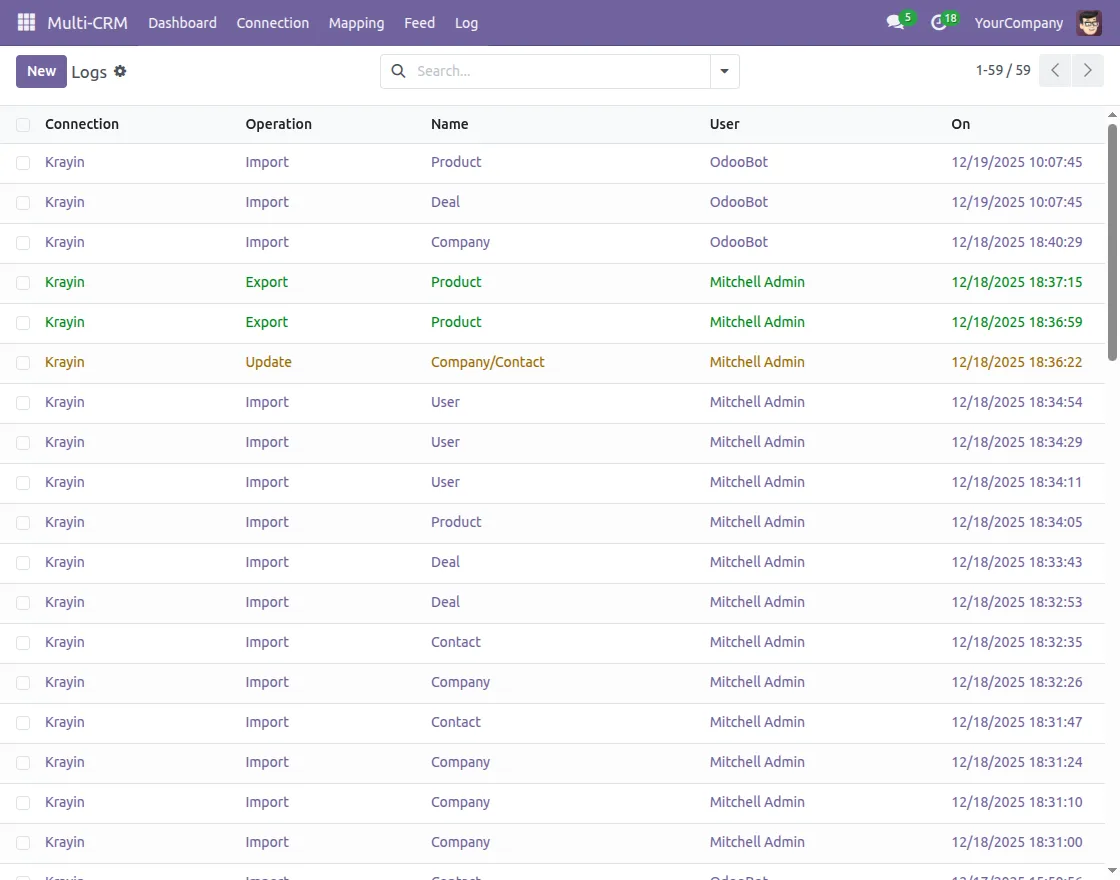
With Krayin CRM Odoo Connector you can view logs of all import, export, and update operations between Odoo and Krayin CRM.
- Navigate to Multi-CRM and click on the Logs tab to view the logs
Need Help?
Hope you find guide helpful! Please feel free to share your feedback in the comments below.
If you still have any issues/queries, please create a ticket at the UV Desk.
I hope this helps. In case of any further queries, contact us at our support mail.
Thanks for paying attention!!
Current Product Version - 2.0.1
Supported Framework Version - Odoo V18

Be the first to comment.