Magento 2 marketplace Video Player module enables both admins and sellers to upload and customize different types of product videos directly on the product page.
Adding videos to product pages improves product visibility, engages customers more effectively, and helps them make better purchasing decisions.
With Marketplace Video Player, you can upload and manage different video types including MP4, WebM, YouTube, Vimeo, Drive, and CDN videos.
The Marketplace Video Player module gives you the flexibility to showcase your products using various types of videos.
Note- The video upload size depends on upload_max_filesize in phpconfig.
Features
- Admin and seller can upload MP4, WebM, YouTube, Vimeo, Drive, and CDN videos to the product page.
- Admin can customize the video player’s appearance by adjusting the primary color and enabling features like play large, mute, volume, and fullscreen.
- Admin and Seller can easily upload multiple videos and corresponding images in bulk using a CSV file, streamlining product management.
- Admin and Seller can set a preview image for each video that will be displayed before the video starts playing.
- Admin can enable auto-play functionality so that videos automatically start when a customer visits the product page.
- Admin gets the Option to make videos loop automatically when they finish playing, enhancing the user experience.
- Magento 2 Marketplace Video Player enables admins and sellers to mass upload product videos simultaneously.
Explore the Magento 2 Marketplace TAT Driven Orders extension that helps sellers follow turnaround time (TAT) rules when accepting orders.
Check the overview of the Magento 2 Marketplace Video player module working –
Installation
The installation is quite simple just like the standard Magento 2 extensions.
#Download module
Firstly, you need to log in to the Webkul Store, go to My Account>My Purchased Products section, verify, and then download and extract the contents of this zip folder on the system.
#upload folder
Firstly, you need to log in to the Webkul Store, go to My Account>My Purchased Products section, verify, and then download and extract the contents of this zip folder on the system.

#Run commands
Next, you need to run the following commands:
php bin/magento setup:upgrade
php bin/magento setup:di:compile
php bin/magento setup:static-content:deploy
php bin/magento indexer:reindex
php bin/magento cache:flush
Language Transalation
For translating the module language, navigate through thesrc/app/code/Webkul/Mpvideoplayer/i18n and edit the en_US.csv file.
Thereafter, rename the CSV as “en_SA.csv” and translate all right side content after the comma in the Arabic language. After editing the CSV, save it.

Now, upload it to the path src/app/code/Webkul/Mpvideoplayer /i18n where the installation of Magento 2 is on the server.
The Magento 2 Marketplace Video Player extension will be translated into the Arabic Language. It supports both RTL and LTR languages.
The user can edit the CSV like the image below.

Engage and hire Magento developers to solely concentrate on your personalized e-commerce projects for a unique experience.
Module Configuration – Magento2 Marketplace Video Player
After successfully installing the module, the admin can navigate to: Stores → Configuration → Webkul → MP Video Player → MP Video Player Configuration
To configure the MP Video Player, the admin must first enable the module using the dropdown option, as shown below.
The admin can also control video behavior by setting options such as Video Auto Play and Loop Video to either Yes or No, based on requirements.
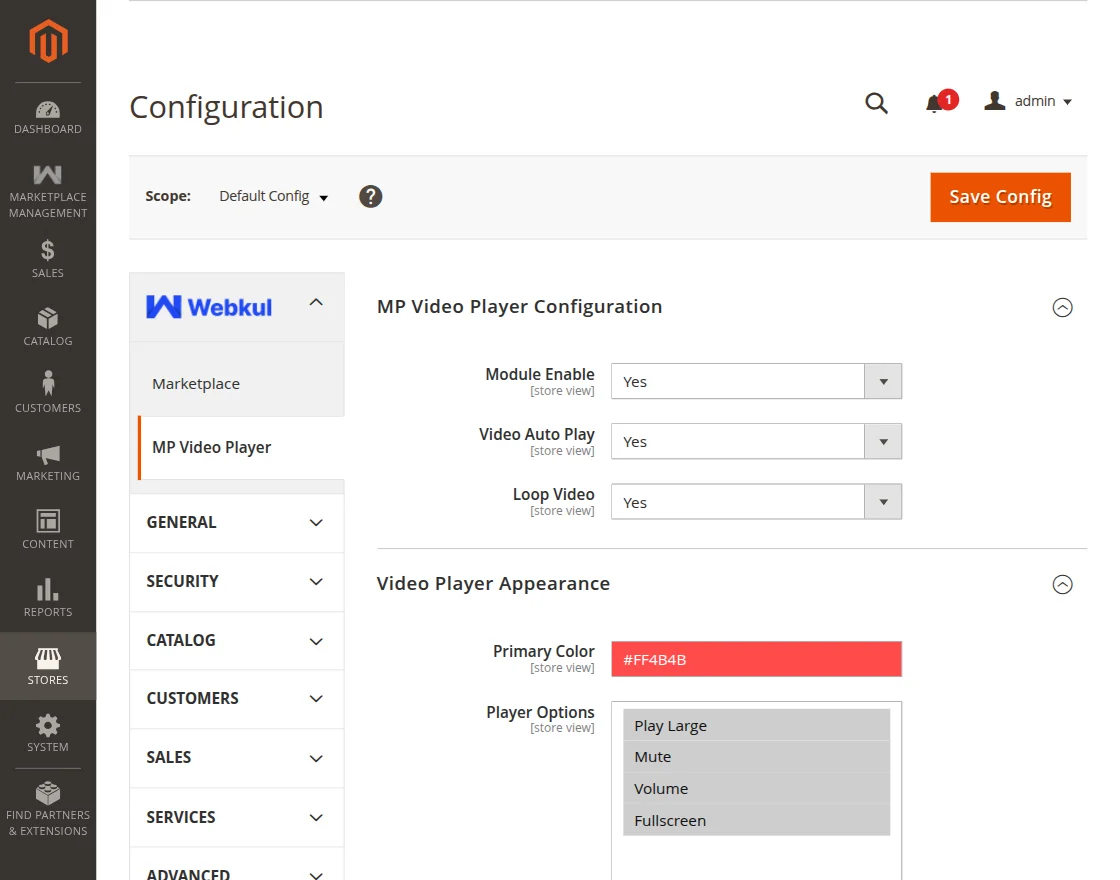
The admin can customize the appearance of the video player by selecting a primary color and enabling preferred player controls such as fullscreen, volume, and mute options.
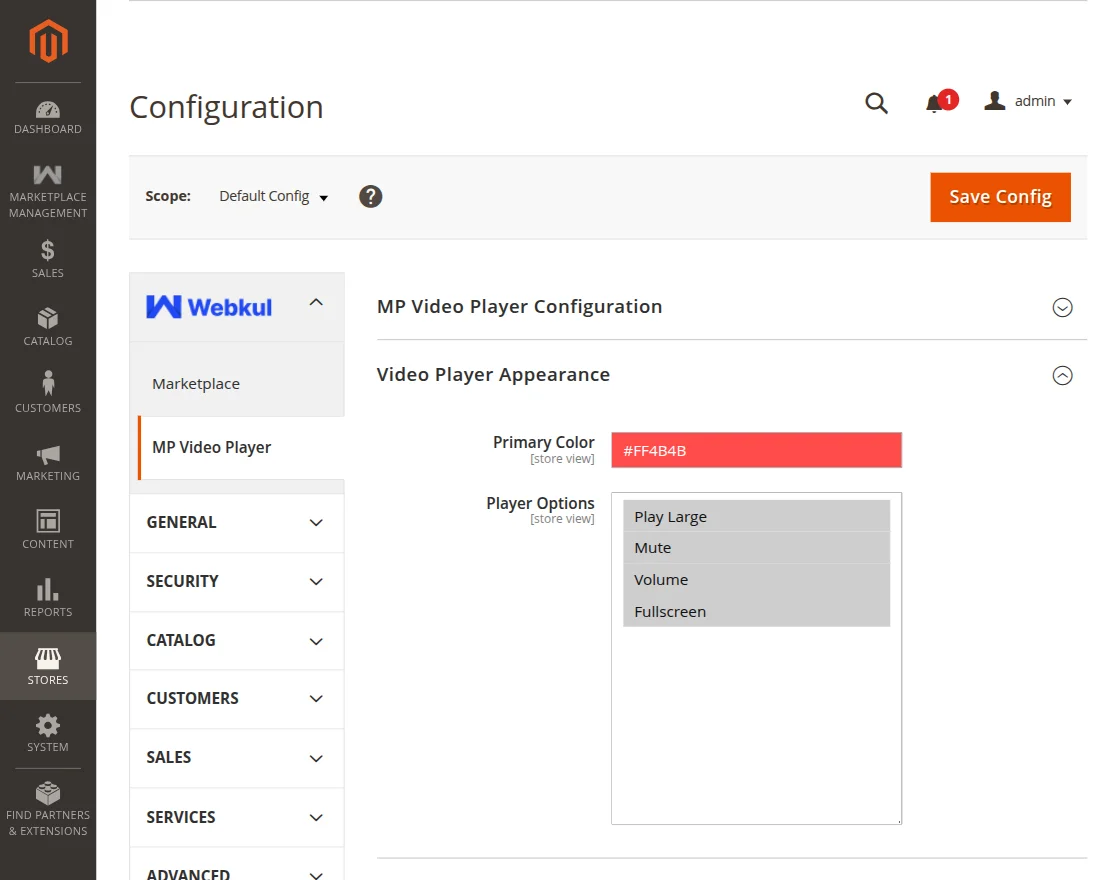
Click Save Config to apply and save the changes.
How to Upload and Manage Product Videos as Admin
To upload and customize videos for products, navigate to: Dashboard → Catalog → Products.
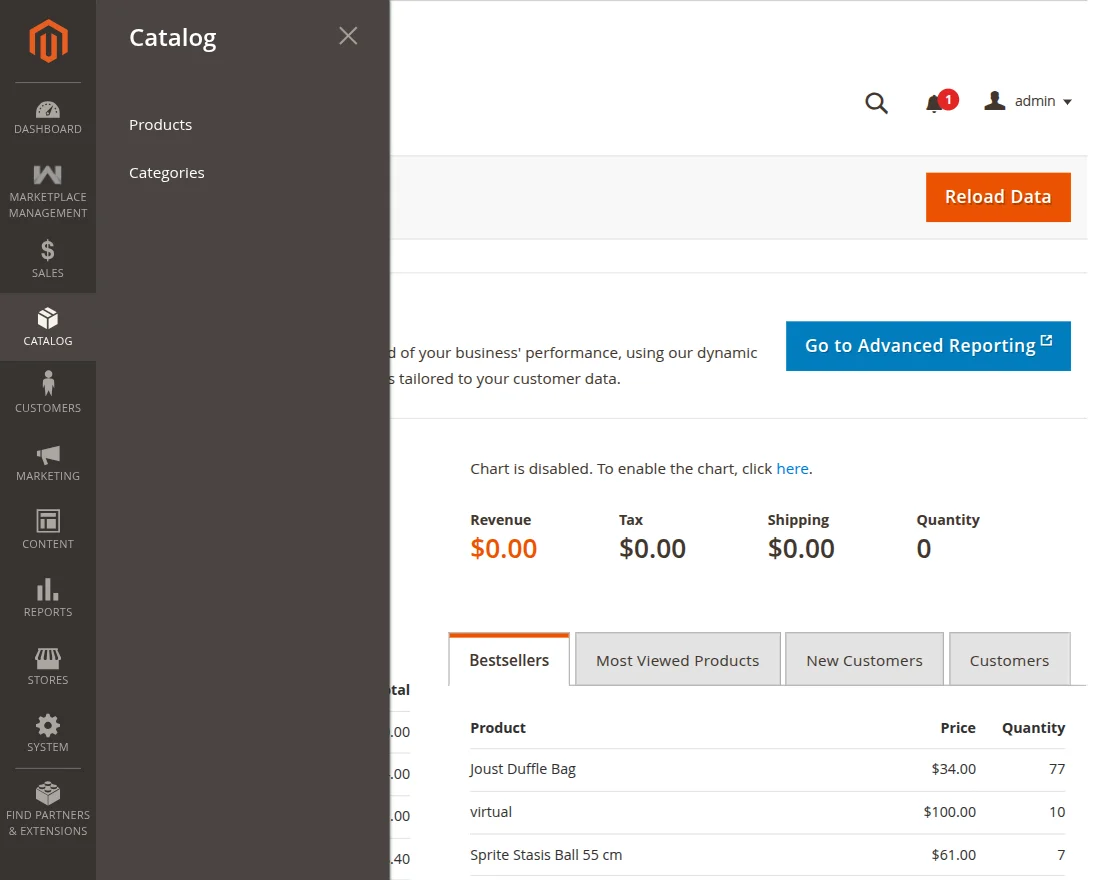
Select the product you wish to add a video to, then click Edit.
Note: You can also add videos when creating a new product by following the same steps during product creation.

Under the Images and Videos section, click on Add Video.
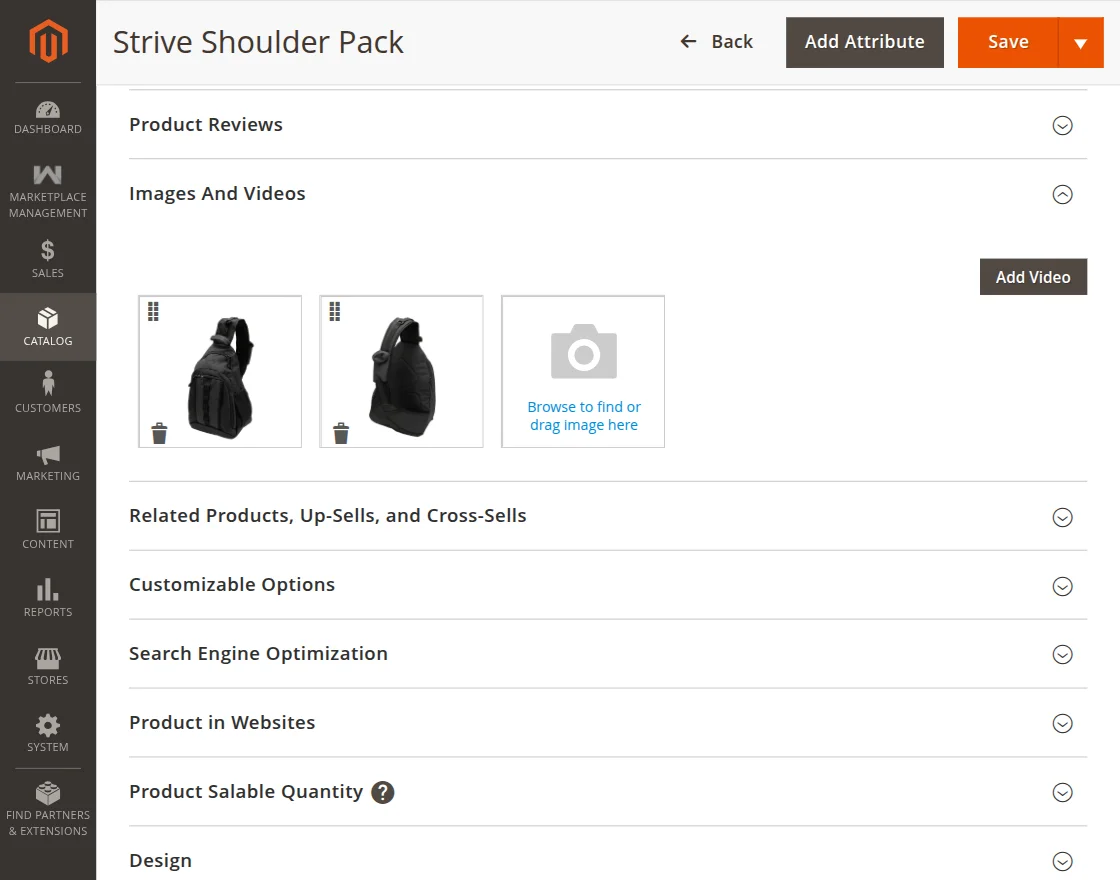
Select the video source (upload video or paste the video URL for YouTube, Vimeo, Drive, or CDN).
Set a title, description, upload a preview image, and select the Role as Base, Small, Swatch, or Thumbnail for the video.

Click Save to add the video.
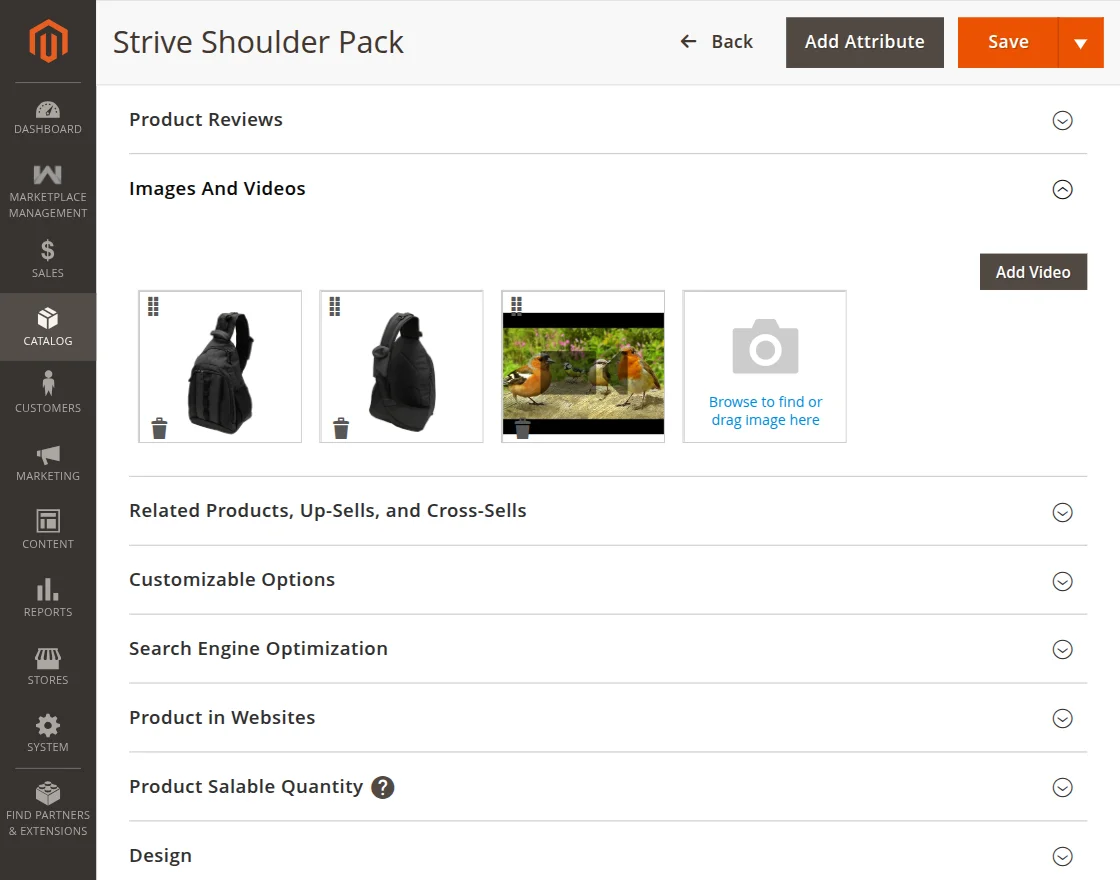
Click Save to apply the changes and display the video on the product page.
Types of Product Videos Admins and Sellers Can Upload
Admins and sellers can upload different video types for products:
MP4 Videos
MP4 videos are the most commonly used format for video content due to their high compatibility across browsers and devices.
- The admin/seller can upload MP4 videos directly from the admin panel or seller dashboard.
- MP4 videos can be added to any product, including Simple Products, Configurable Products, Grouped Products, and more.
- Admins/Sellers can select a title, description, and preview image for the uploaded video, making it easy to manage and display correctly on the frontend.

WebM Video Upload
WebM is a video format optimized for web use. It is supported in modern browsers and provides better compression for video files, ensuring faster load times.
- Admins/Sellers can upload WebM videos, providing a lightweight alternative to MP4.
- Just like MP4 videos, WebM videos can be linked with product pages and customized with titles, descriptions, and preview images.
- This format helps improve loading speeds, particularly for mobile users, since WebM is more efficient than MP4.

YouTube Video URL
With YouTube integration, admins can add YouTube videos directly into the product pages by simply entering the video URL.
- Admins/Sellers can easily add a YouTube video URL by copying and pasting the URL of a YouTube video into the admin panel or seller dashboard.
- Admin/Sellers can customize how the video appears with a preview image and set specific player options like autoplay or looping.
To add youtube video Url you have to configure youtube API keys in configuration.
With the Youtube API key configured, users can upload videos directly to YouTube without leaving the Magento admin panel.
Once uploaded, the extension can automatically embed the YouTube videos into product pages, enhancing the shopping experience.

To add this functionality Navigate to Store > Configuration > Catalog >Catalog> Product Video > YouTube API Key. Add Youtube API key and save the changes.

Once the YouTube API key configuration is saved, add the video source URL and the title and description will be automatically fetched.
Next, set the preview image for the product and save the changes.

Vimeo Video URL
Similar to YouTube, Vimeo is another popular platform for hosting videos. The Magento 2 Marketplace Video Player extension supports Vimeo URLs for easy embedding.
- Admins/Sellers can enter a Vimeo video URL directly into the admin panel or seller dashboard to display Vimeo videos on product pages.
- Like with YouTube videos, Vimeo videos can be customized by adding preview images, setting player options, and adding descriptions.
- The flexibility to use Vimeo allows admins/sellers to integrate professional or branded videos easily into product listings.

Google Drive Video URL
For admins/sellers who have video files stored on Google Drive, this option allows them to integrate Drive videos into their product pages.
- Admins/sellers can generate a Google Drive video URL and add it directly to the product page.
- This feature is useful for businesses that store their video content on Google Drive and want to keep everything centralized.
- Video customization options such as titles, descriptions, and preview images can also be applied to these videos.

CDN Video URL
A CDN (Content Delivery Network) video URL allows videos stored on a CDN to be embedded on product pages.
Moreover, it is especially useful for high-quality videos that need fast delivery across the globe.
- Admins/sellers can add video URLs from external CDNs, which ensures fast video loading from multiple server locations worldwide.
- The CDN video URL supports high-performance streaming, making it ideal for large, high-definition videos.
- The admin/sellers can add and manage CDN-hosted videos just like other video types, ensuring a seamless shopping experience for customers.

Mass Upload Product Videos for admin:
For admins who need to upload videos for multiple products at once, the Magento 2 Marketplace Video Player offers a mass upload option.
To mass upload videos, the admin should navigate to Marketplace Management → Mass Upload Product Videos.
Admin can upload a CSV file that contains product details and associated video/image data, linked by the product SKU.
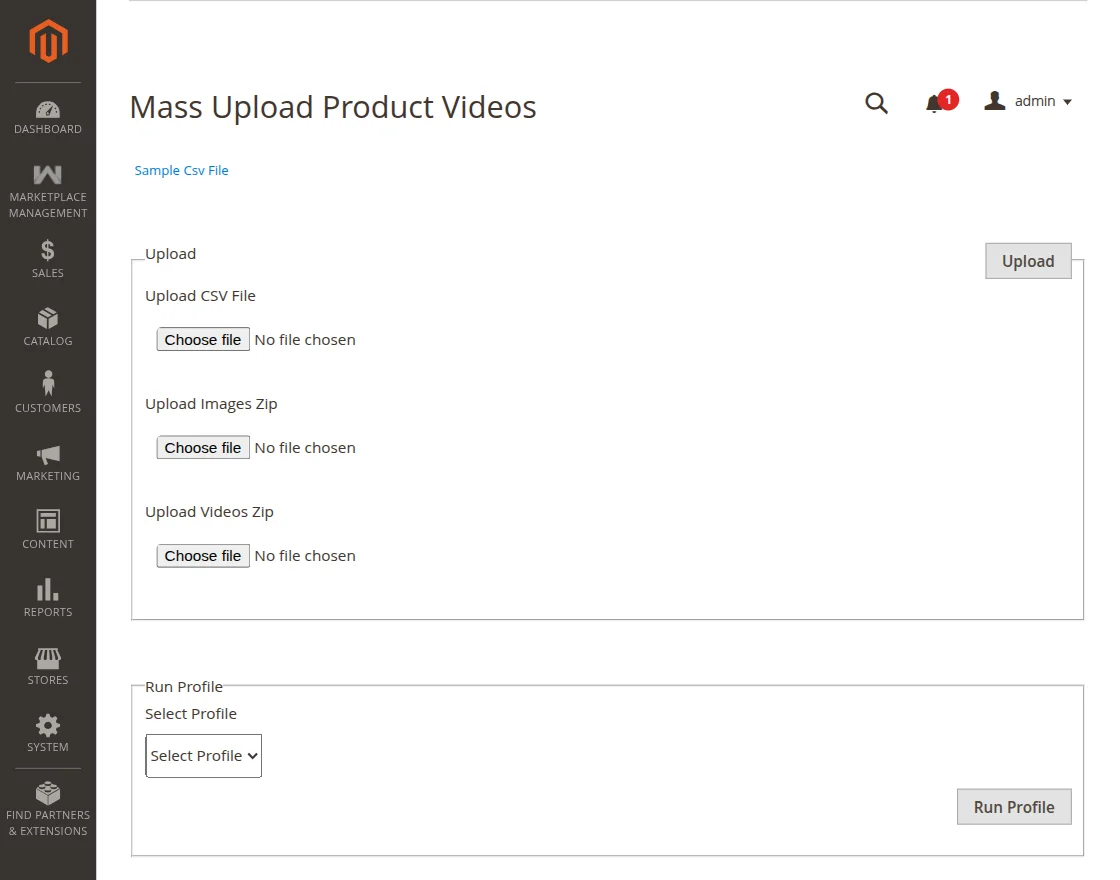
After admin uploads the CSV and video/image zip files, a pop-up confirms that the files have been successfully uploaded.

In the Run Profile section, select the CSV file linked to the products.

The image below shows that the products have been successfully uploaded via mass upload.

Seller Configuration
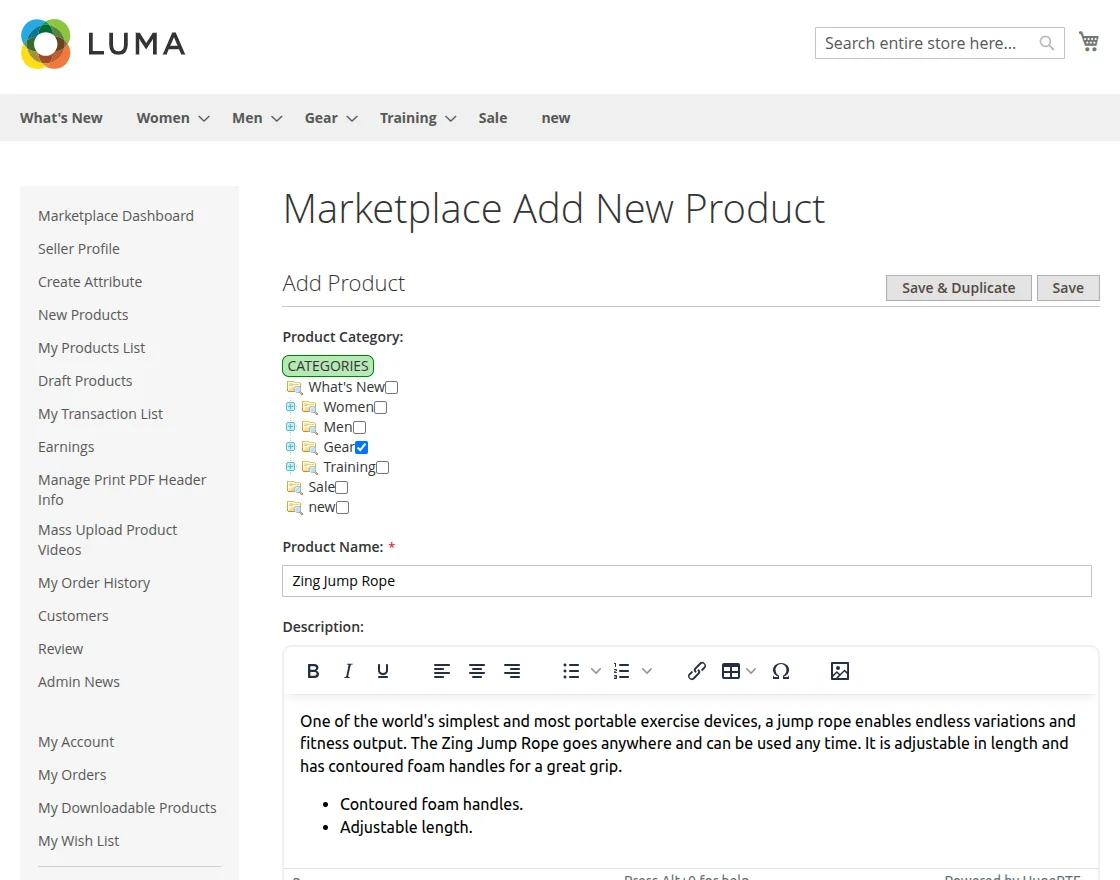
To add videos and images, the seller needs to log in to the seller account to access the vendor dashboard.

Next, click New Products, choose the product type you want to create, and then click Continue.
Note: Sellers can edit existing products to add product videos.

In the product details, navigate to Product Images and click Add Video.

Select the video source (upload video or paste the video URL for YouTube, Vimeo, Drive, or CDN).
Set Title, Description, upload a preview image, and select the Role as Base, Small, Swatch, or Thumbnail for the video.
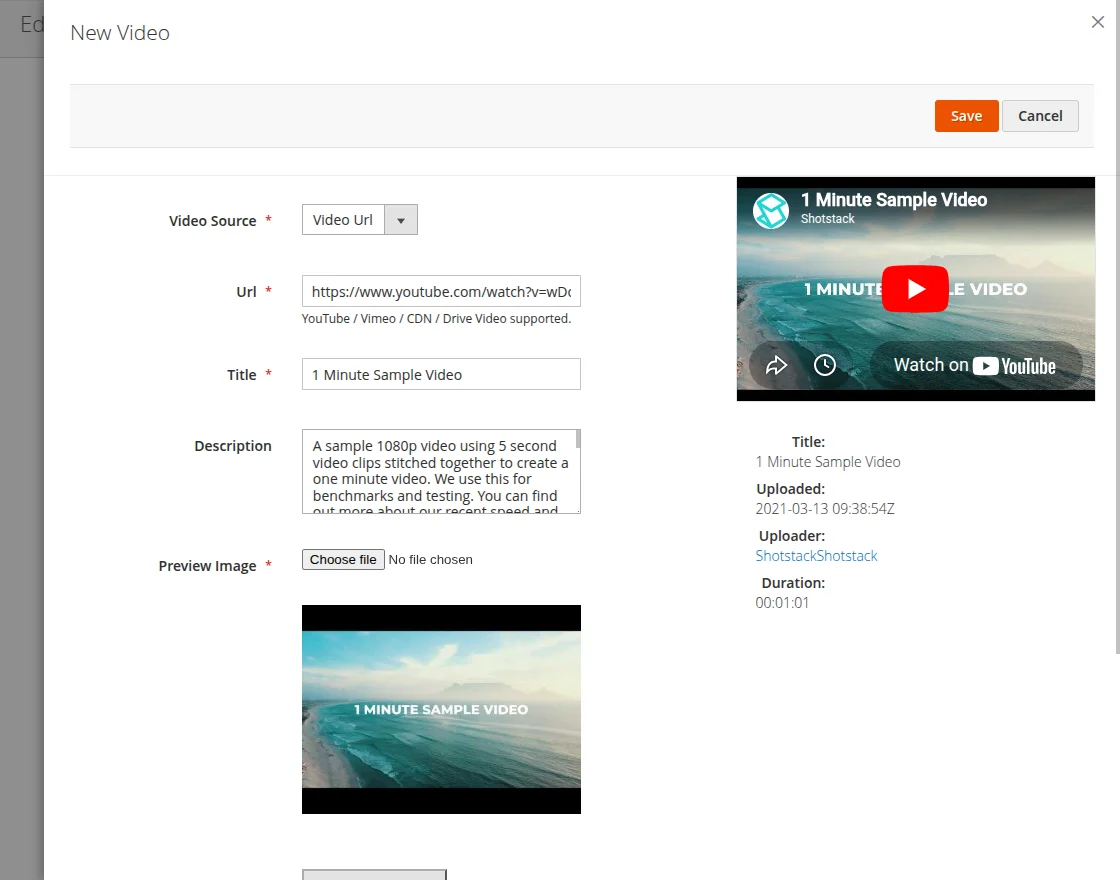
Click Save to add the video.
Click Save to apply the changes and display the video on the product page.
Mass Upload Product Videos for sellers:
Sellers can upload mass product videos. It helps sellers to facilitate uploading multiple product videos via zip files.
To upload mass product videos, log in to the seller panel and navigate to Mass Upload Product Videos. From there, upload the CSV file along with the video/image zip files and click Upload to proceed.

Once the seller uploads the CSV, image, and video zip files, a confirmation pop-up will appear indicating that the files have been uploaded successfully.

After the files are uploaded successfully, navigate to the Run Profile section, select the desired profile, and click Run Profile.
The confirmation screen will then display that the mass product video upload has been completed successfully.

User Front-End View
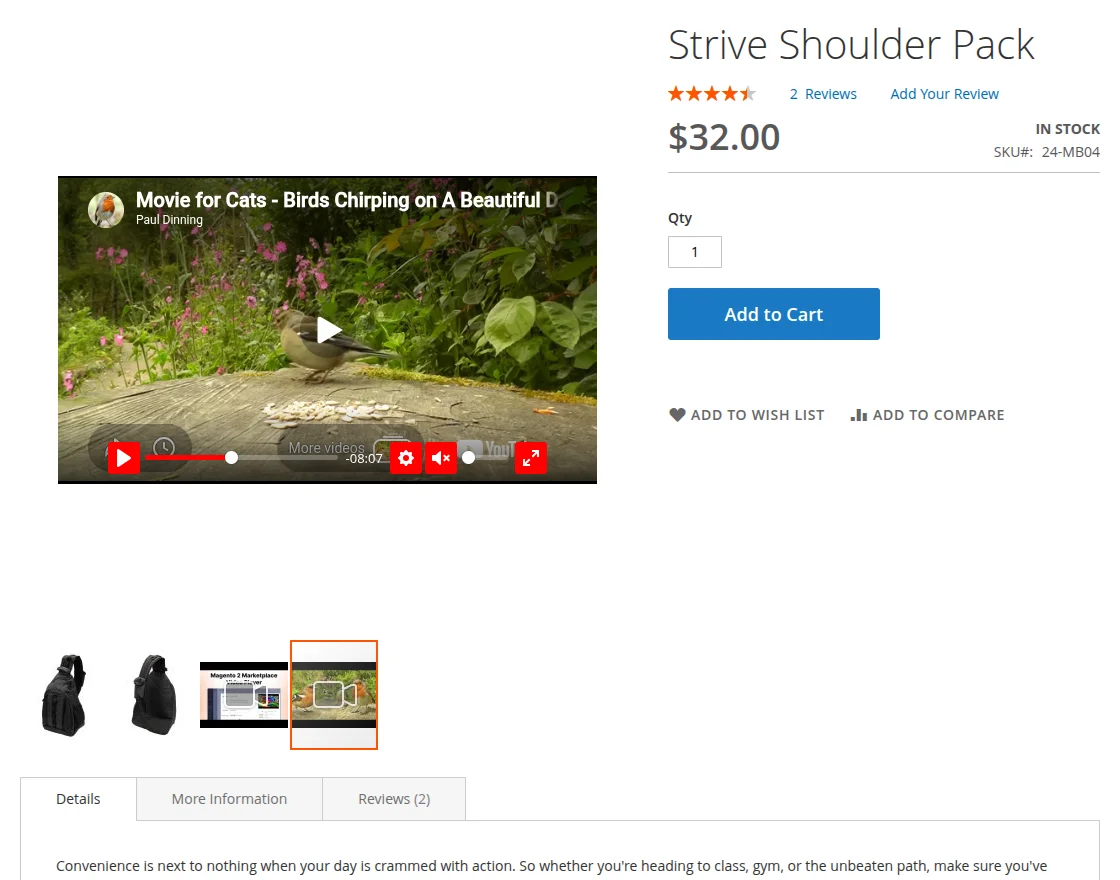
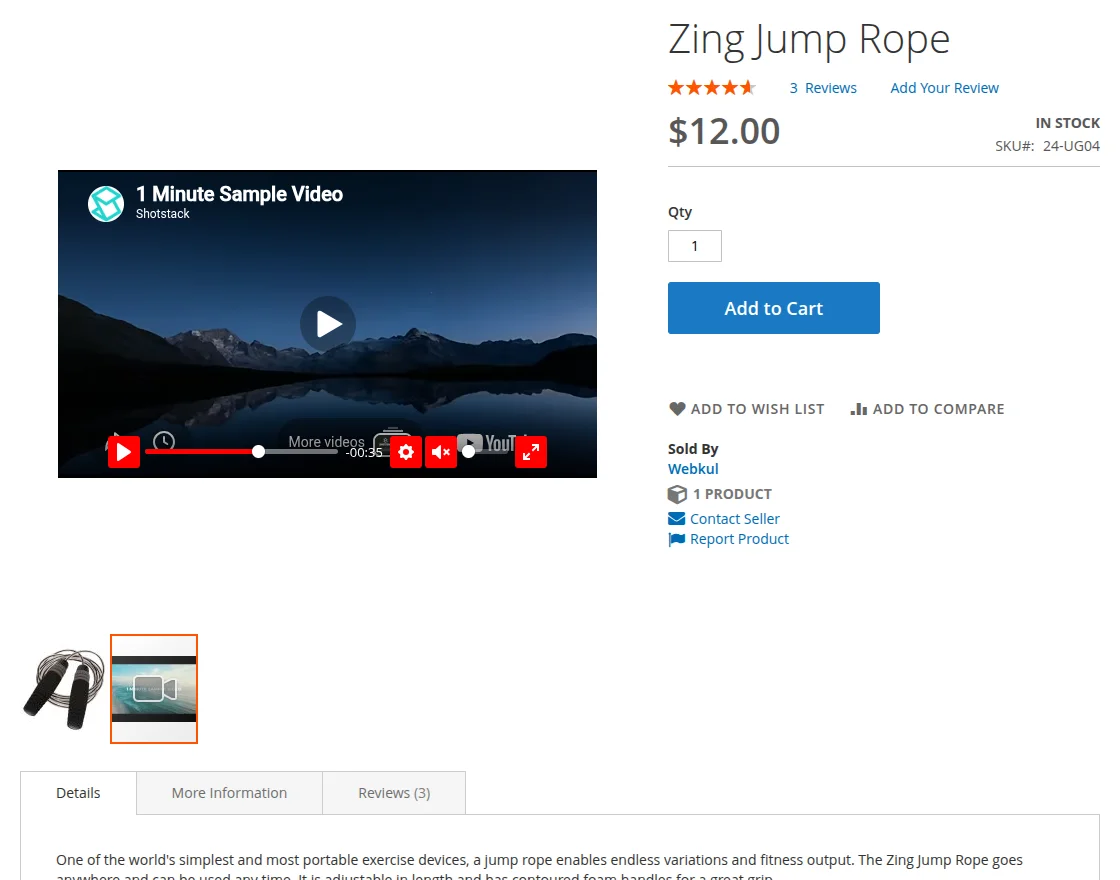
After uploading and configuring the video, it appears on the product page alongside other product images.
Furthermore, the customers will be able to play the video directly on the product page.
The video player will allow users to control the video, and the preview image will give them a snapshot of what to expect.
Below is a preview of how the admin’s product video appears to customers on the storefront.
Below is a preview of how the seller’s product video appears to customers on the storefront.
Support
That’s all for the Magento 2 Marketplace Video Player module.
If you still have any issues feel free to add a ticket and let us know your views to make the module better http://webkul.uvdesk.com/ or drop us an email at [email protected].
Current Product Version - 4.0.1
Supported Framework Version - Magento 2.0.x, 2.1.x, 2.2.x,2.3.x, 2.4.x

Be the first to comment.