CS-Cart WooCommerce Connector allows an admin to sync WooCommerce products and orders to the CS-Cart store.
It also allows the admin to map WooCommerce’s categories, payment methods, and shipping methods with CS-Cart.
Using this add-on, the admin is no longer required to configure the product data and information on both stores separately.
The admin can sync the product and orders from WooCommerce to the CS-Cart store, and can also manage multiple accounts to exchange and synchronize the data between CS-Cart and WooCommerce.
Note – This Connector will only work with PHP 7 plus version.
- Before installing the add-on, extract the downloaded package.
- Install the License Manager add-on first.
- Then install the required add-on.
- Follow the license activation steps to generate your license key.
Check a brief overview of the plugin
Features
- Well integrated with CS-Cart and CS-Cart Multivendor.
- The product information, like name, price, quantity, and other attributes, gets updated in real-time.
Allows admin –
- To import products from the WooCommerce store to the CS-Cart store with product variations (Product Variation Add-on will be required).
- To map it with the CS-Cart category.
- Mapping of WooCommerce payment methods with CS-Cart payment methods.
- Mapping of WooCommerce shipping methods with CS-Cart shipping methods.
- Synchronization of orders from WooCommerce to CS-Cart and from CS-Cart to WooCommerce in real-time.
- Admin can handle multiple WooCommerce merchant accounts from the CS-Cart Panel.
- The store status will also be shown on the store edit page.
- Added a new order status mapping tab and also added an option to select the default order status.
- Also added multiple settings on the Product tab, such as Variation type, SEO/Slug from WooCommerce, WooCommerce product link, export products, export categories, etc.
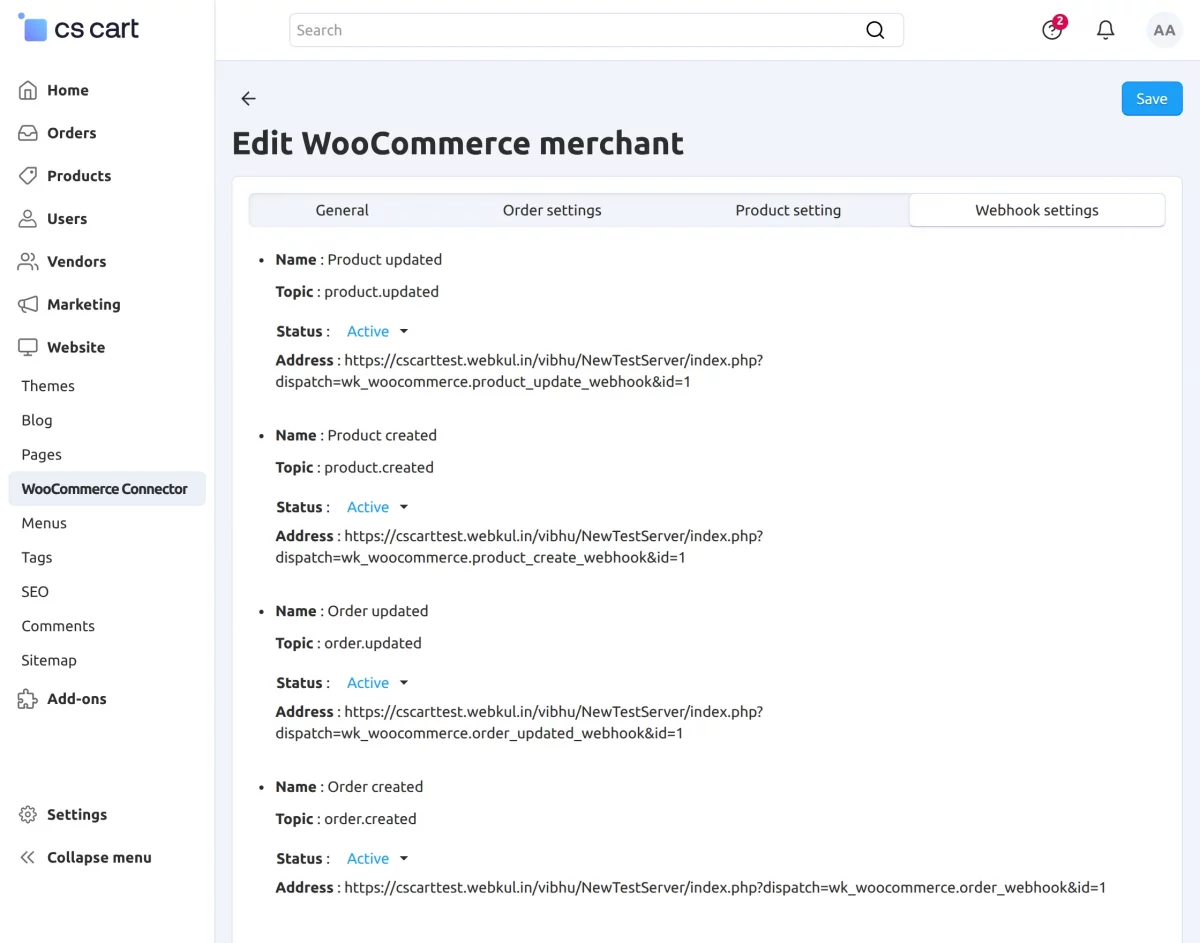
- Option to change hook setting for product update, a product created, order update, and also order created, etc.
- The domain has also been added to the store management page.
- Also, have the option to export products from the product detail page
- Option to export products from the product detail page
- On the product management page, a delete button to delete the product and a link to the WooCommerce product are provided.
- WooCommerce store currency can be mapped with CS-Cart store currency.
- Supports product and order auto-sync.
Flow Of Installation And Configuration:
When you download the “CS-Cart WooCommerce Connector”, you’ll get one zip file and the install.txt file. Read it carefully and follow it. After that, install the zip file.
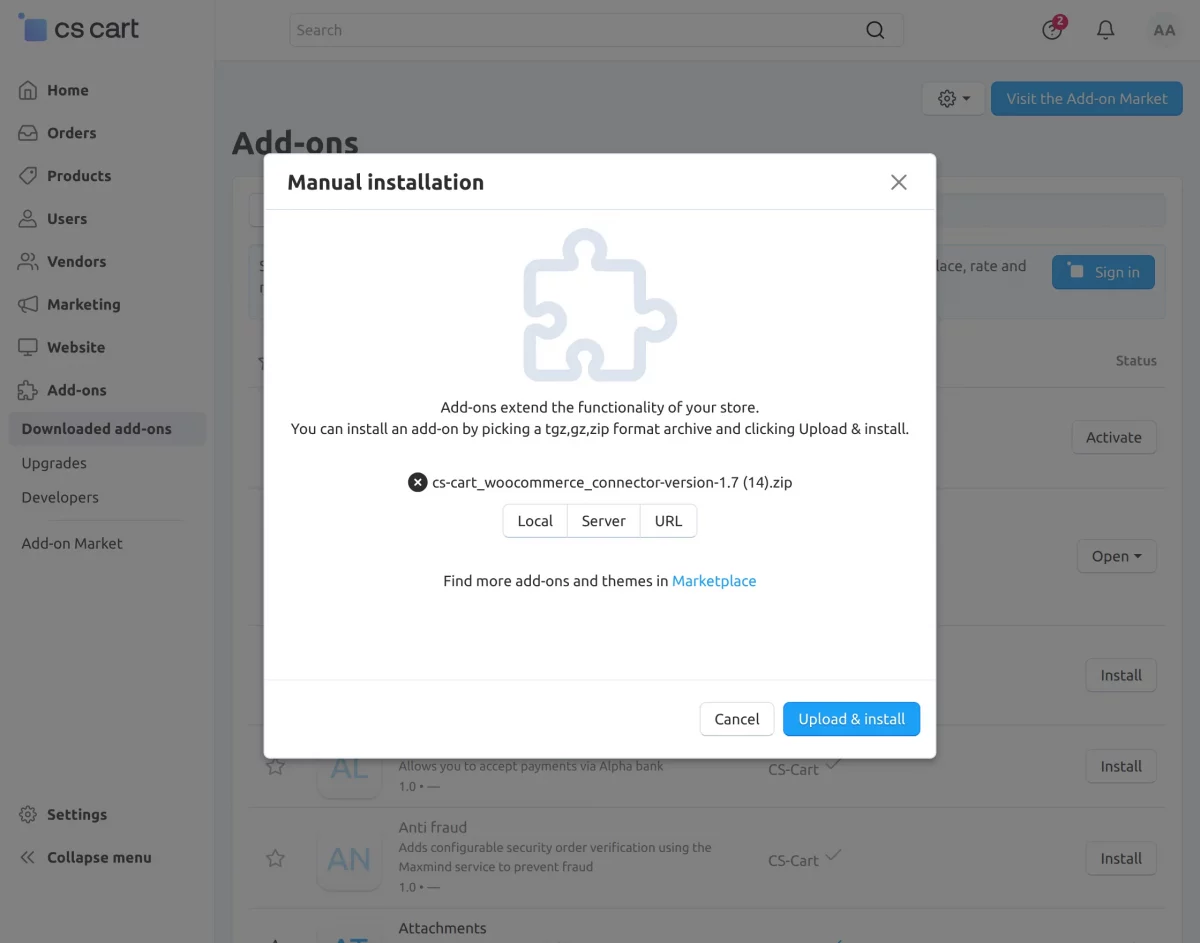
Navigate to Add-ons > Downloaded add-ons and click on the settings icon, from here you can manually install the zip file as shown below:

Click on “Local” to browse the zip file and then click on “Upload & Install” as shown below in the snapshot.
Activate Add-on
Once you install and activate the CS-Cart WooCommerce Connector add-on, you can begin configuring its settings.
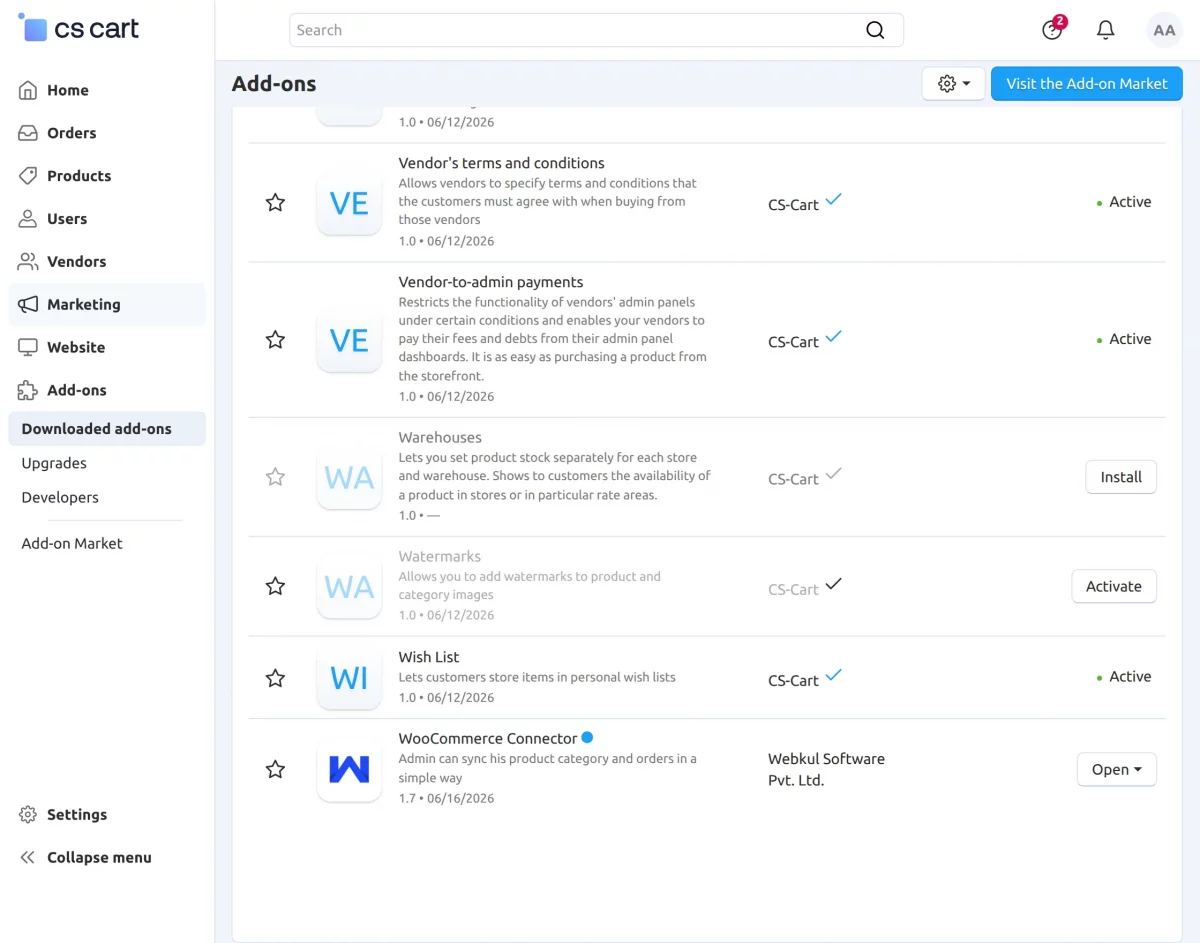
CS-Cart WooCommerce Connector Addon – Admin Configuration
Now go to the website and click on WooCommerce Connector to add an account and configure.
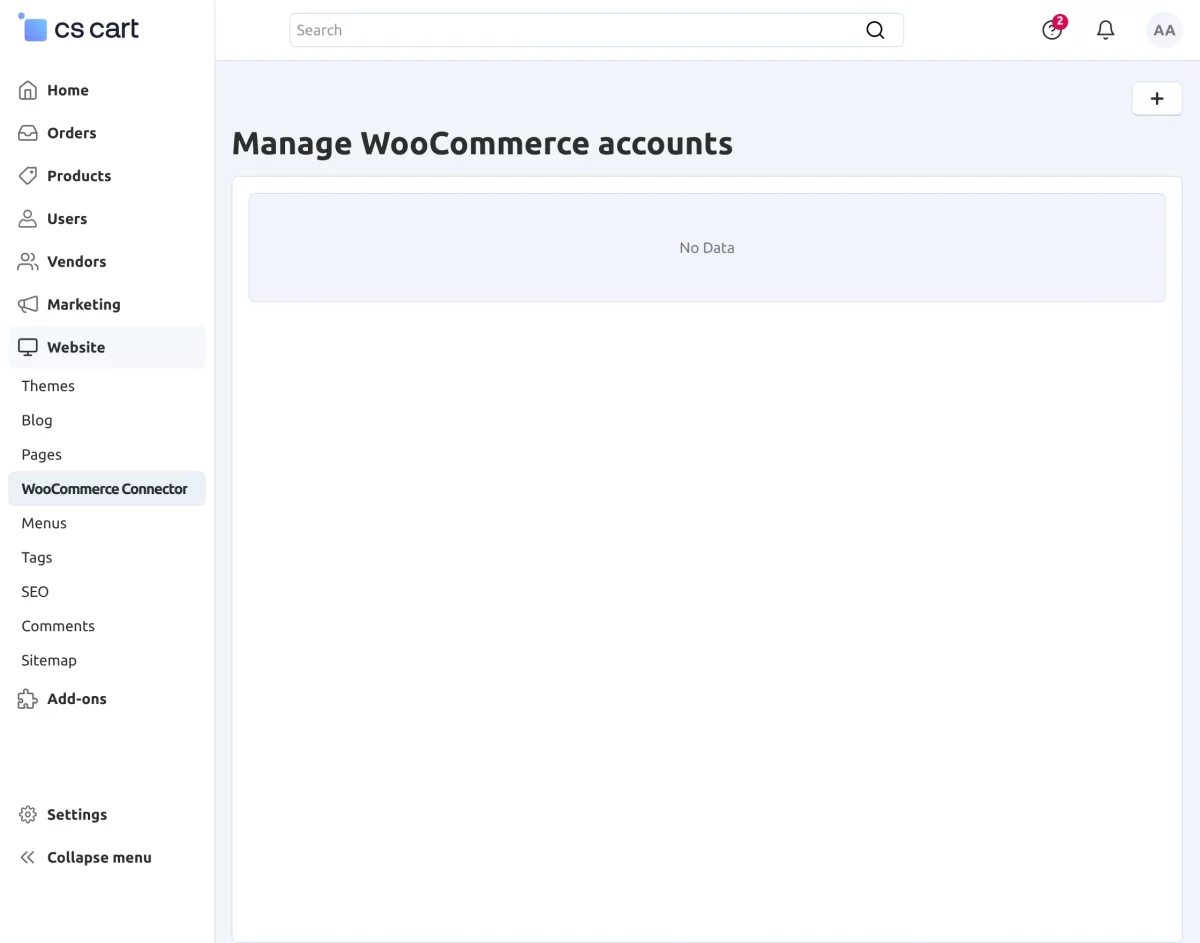
After that, click on the plus icon to add a new WooCommerce account.

Now, in the General tab, you will need to enter the WooCommerce app name and WooCommerce store URL and click on ” Authenticate ” to authenticate the account, as shown in the snapshot below –
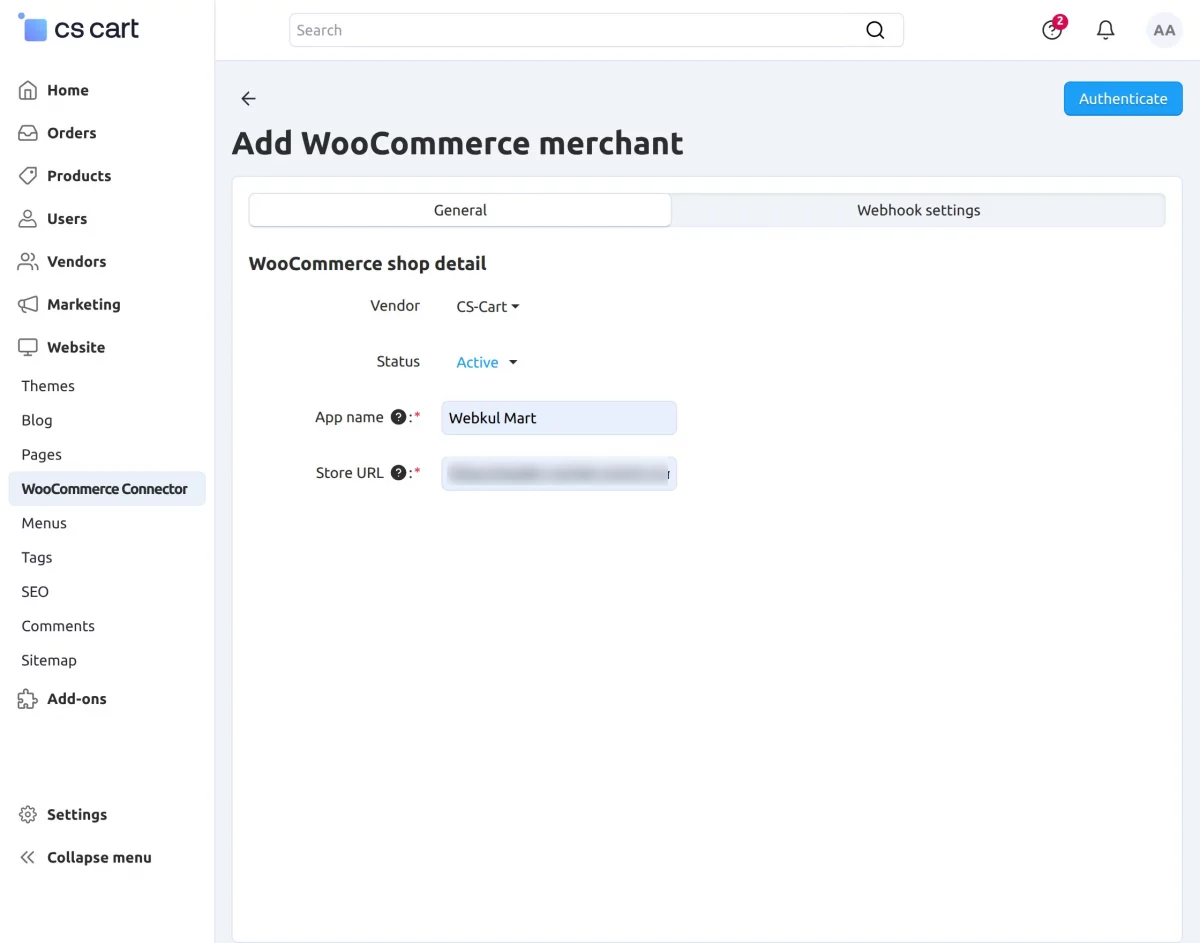
Further, when you click on authenticate, the WooCommerce account details will get fetched automatically, and the details will get filled in as shown below in the snapshot –

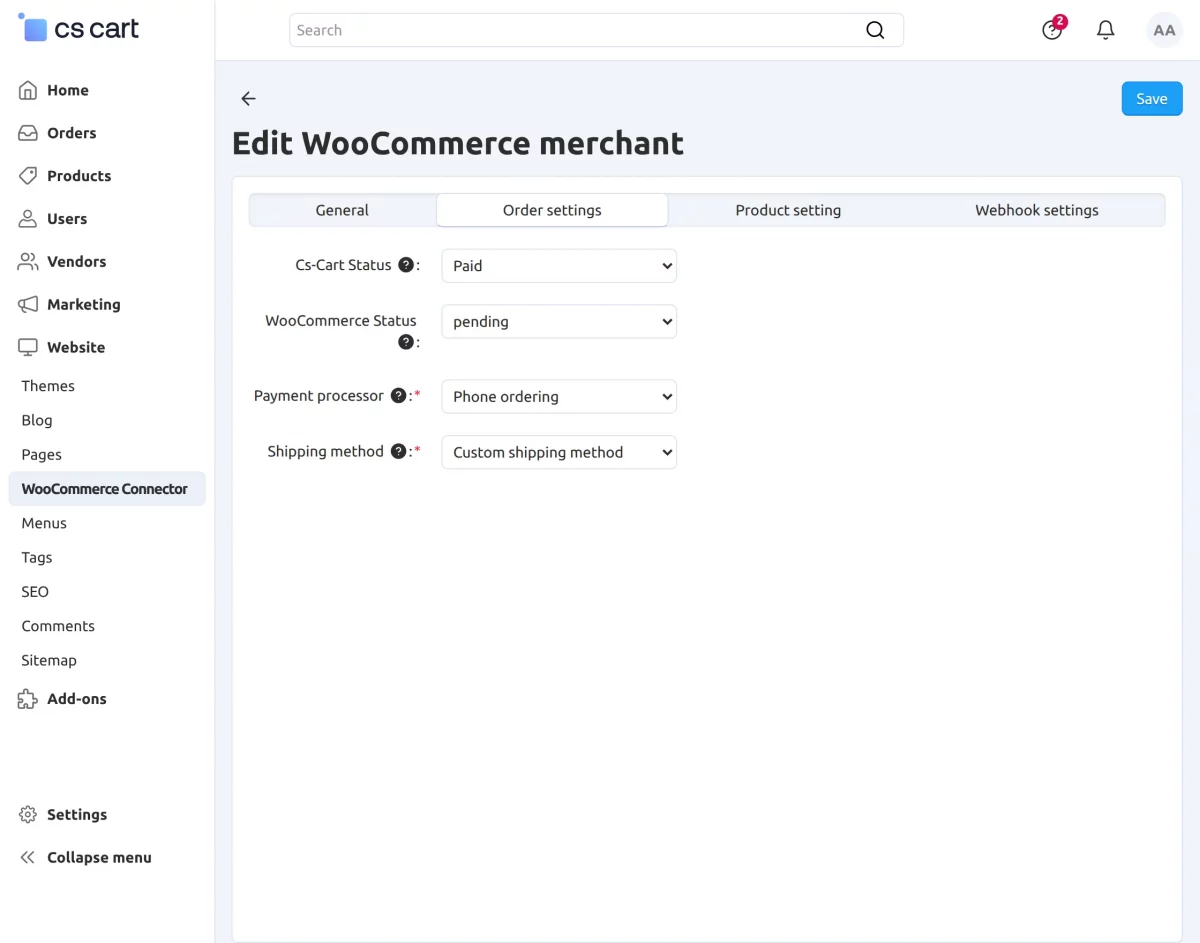
Now, after the General Settings, Configure the Order settings, select the Payment Processor and Shipping method for export and import WooCommerce orders from here, as shown below –
CS-Cart Status: CS-Cart default status when creating an order.
WooCommerce Status: WooCommerce default status when creating an order.
Payment Processor: Select the default CS-Cart payment processor when creating a WooCommerce order in CS-Cart.
Shipping Method: Select the default CS-Cart Shipping method when creating a WooCommerce order in CS-Cart.
For product setting, select the desired category to which WooCommerce products get imported, and also select the currency from here.
Click on the plus icon to select the CS-Cart category.
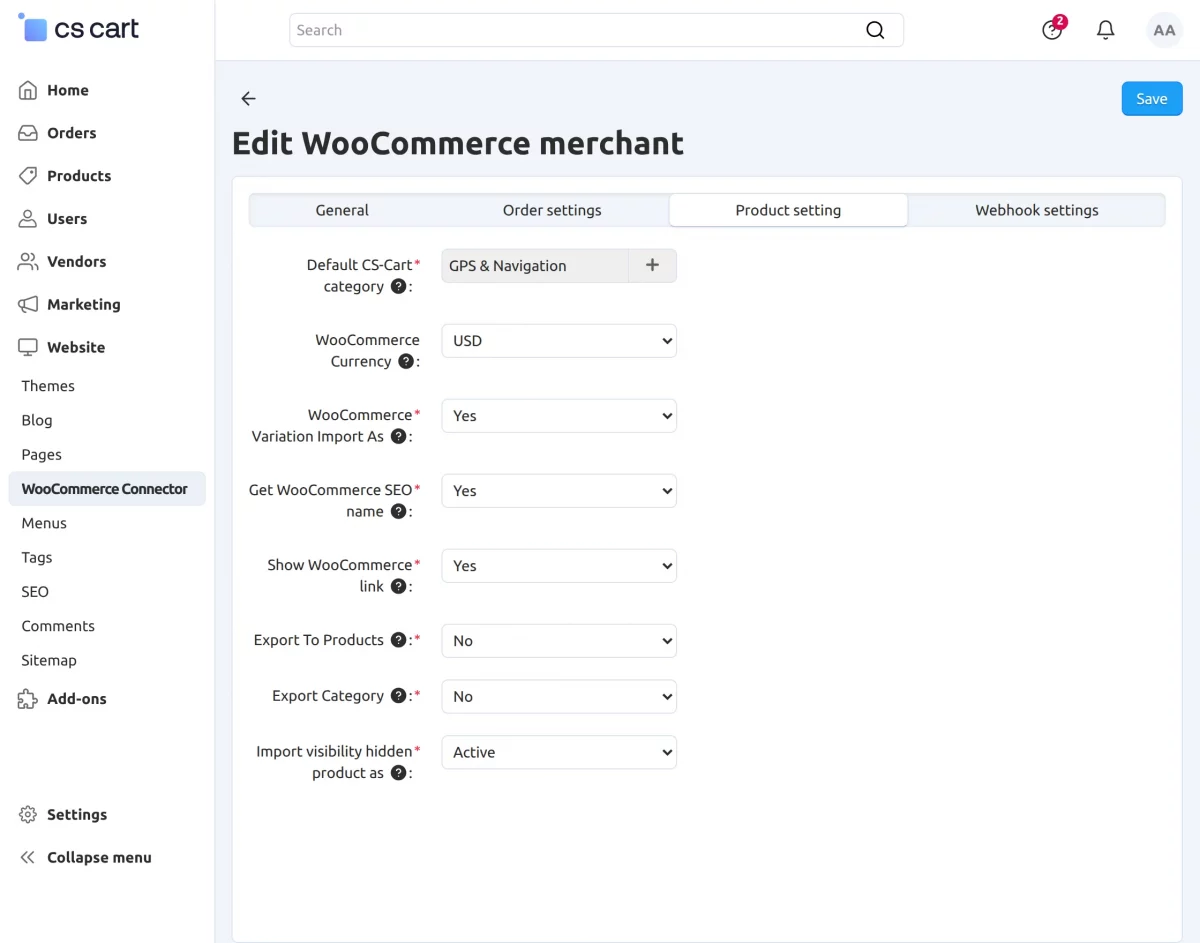
When you click on the plus icon, a new pop-up of the CS-Cart category will open. Select the category and click “Choose”.
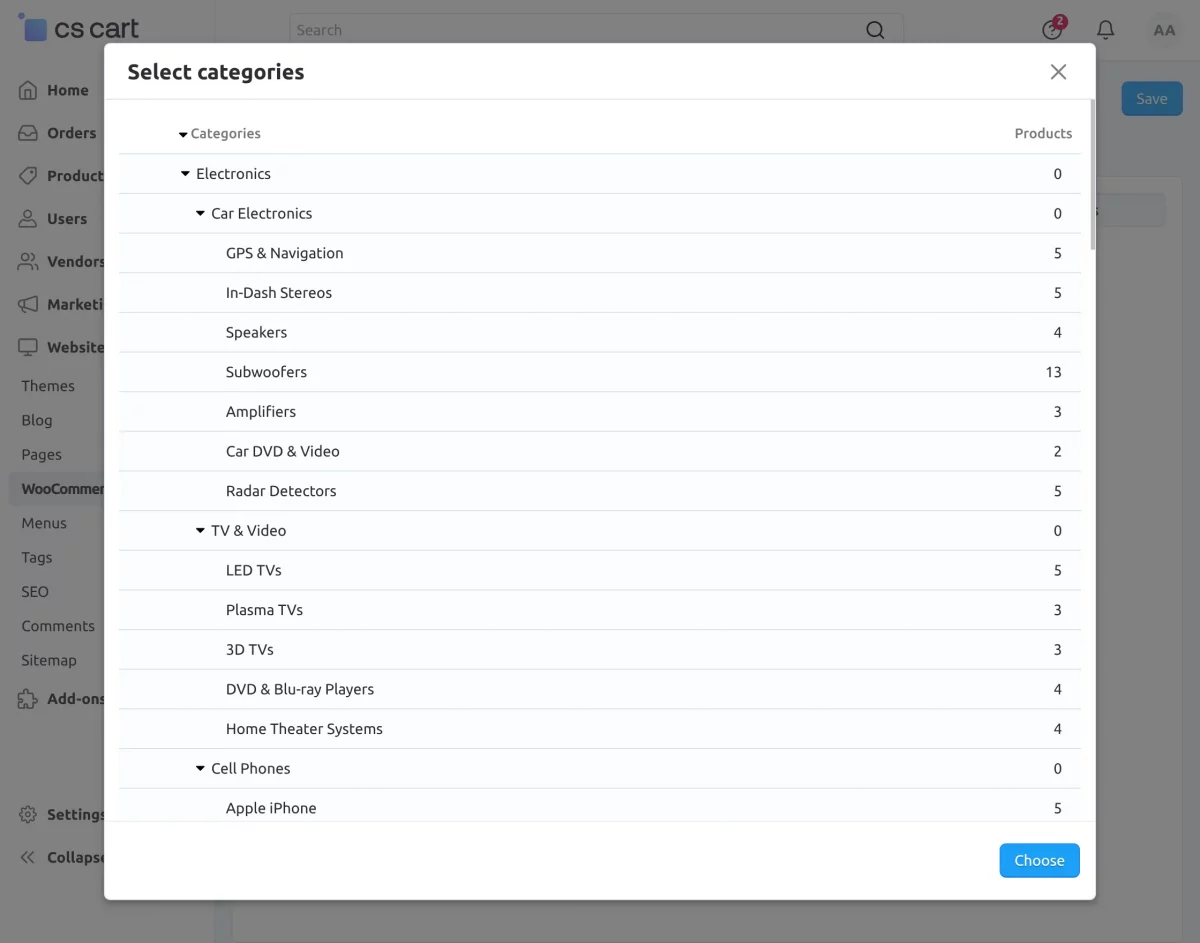
WooCommerce Currency: You can choose the WooCommerce Store’s currency here.
WooCommerce Variation Import as: If you want to create (Variations as one product), then select yes, and if not, then select no (Variations as separate products). Cs-cart to WooCommerce.
Get WooCommerce SEO name: Here, you can decide whether to import the SEO name or not.
Show WooCommerce Link: You can choose whether or not the WooCommerce link should appear on the management or product import pages here.
Export to Products: Here, you can select yes or no to export products or not from CS-Cart to WooCommerce.
Export Category: Here, you can select yes or no to export the category or not from CS-Cart to WooCommerce.
Import Visibility Hidden: Get WooCommerce catalog visibility of hidden products in the CS-Cart with the given status.
In Webhook settings, click Register Order Webhook and Register Product Webhook as shown below to create webhooks for products created or updated, and for orders created in real time. After configuring various settings click on Save.
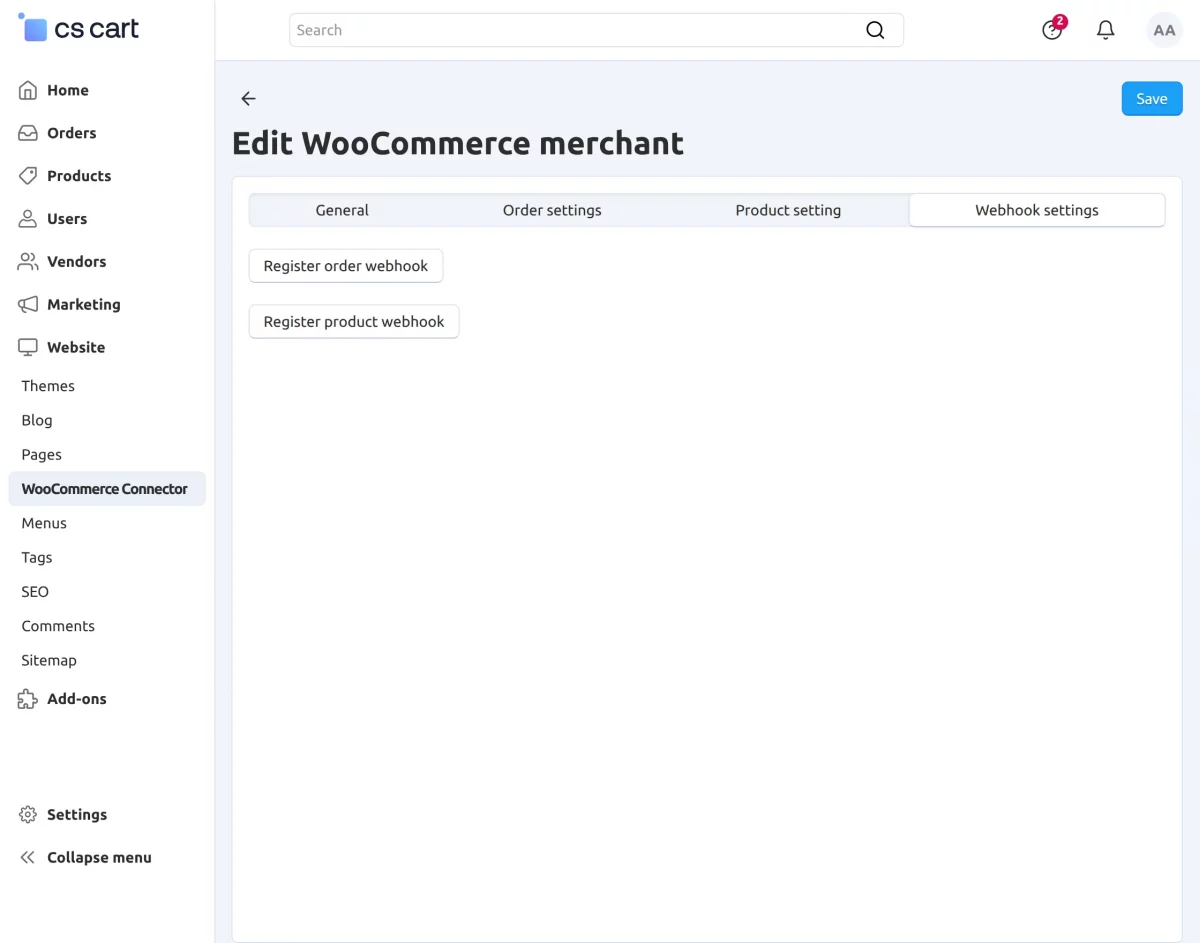
After Webhook settings, it will redirect to the page shown below.
Once the account gets created, one can perform various actions from the WooCommerce store to the CS-Cart store, like Category mapping, Manage products, Manage orders, Shipping mapping, Payment method mapping, and Deletion of the account.

Workflow of CS-Cart WooCommerce Connector
1. Category Mapping :
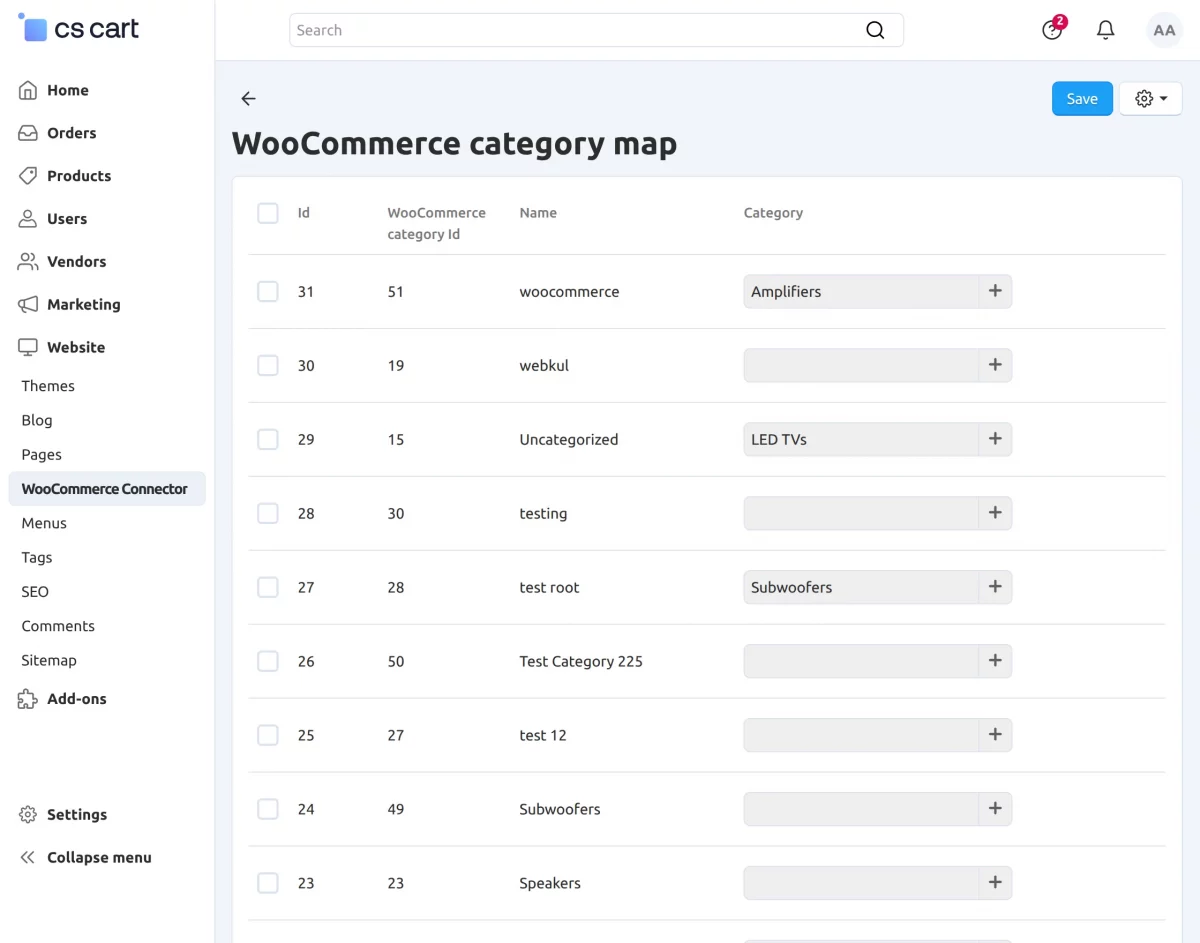
In category mapping, you can map the WooCommerce category with the CS-Cart category to import products.
After selecting the category, the store admins can import the categories by clicking on the Import Categories option.

Select the CS-Cart category and map it with the corresponding WooCommerce category. After completing the mapping, click the Save button.
2. Manage Products :
In this section, to import products from WooCommerce, click on “Import Products”.

When the admin clicks on the Import Products option then the following pop-up will appear.
The admin can import the products according to the WooCommerce product status and click on the Import button.

This will redirect the admin to the page mentioned below for product mapping.

The admin can map a single product by clicking on the Product Mapping option present in front of the product.
Moreover, they can multi-select the products and click on the Product Mapping button for bulk import.

Likewise, the store admin will export the products to WooCommerce by clicking on Export Products.
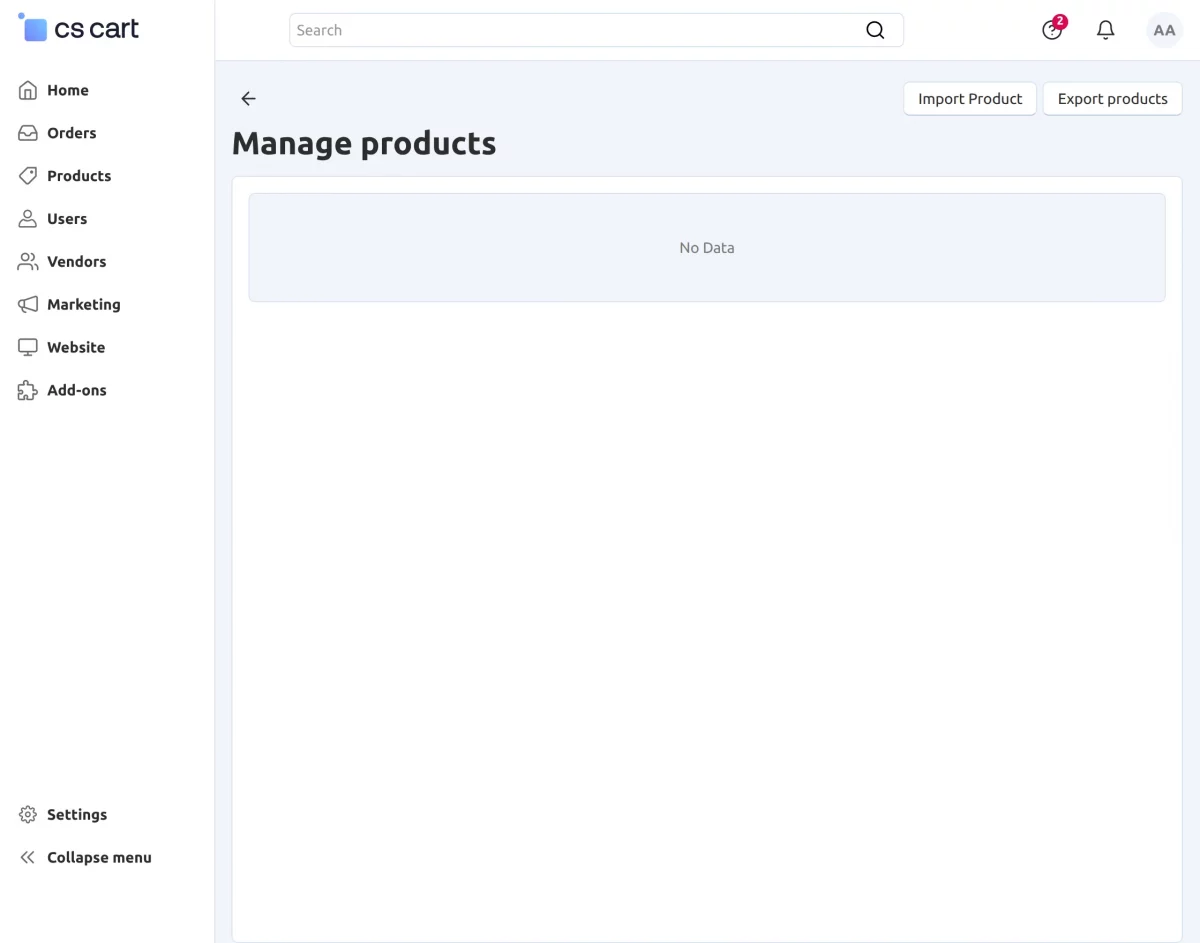
This will redirect the admin to the image below. From here, the admin can export any particular product or export a bulk.

To export a single product, the store admin will click on the Export to WooCommerce option presented in front of that product.
The CS-Cart admin will have to multi-select all the products and click on the Product Mapping button present in the top-right corner.

3. Manage Orders :
In this section, you can see the list of WooCommerce orders and CS-Cart orders, both separately, as there exists the synchronization of orders from WooCommerce to CS-Cart and from CS-Cart to WooCommerce in real-time, as shown below –
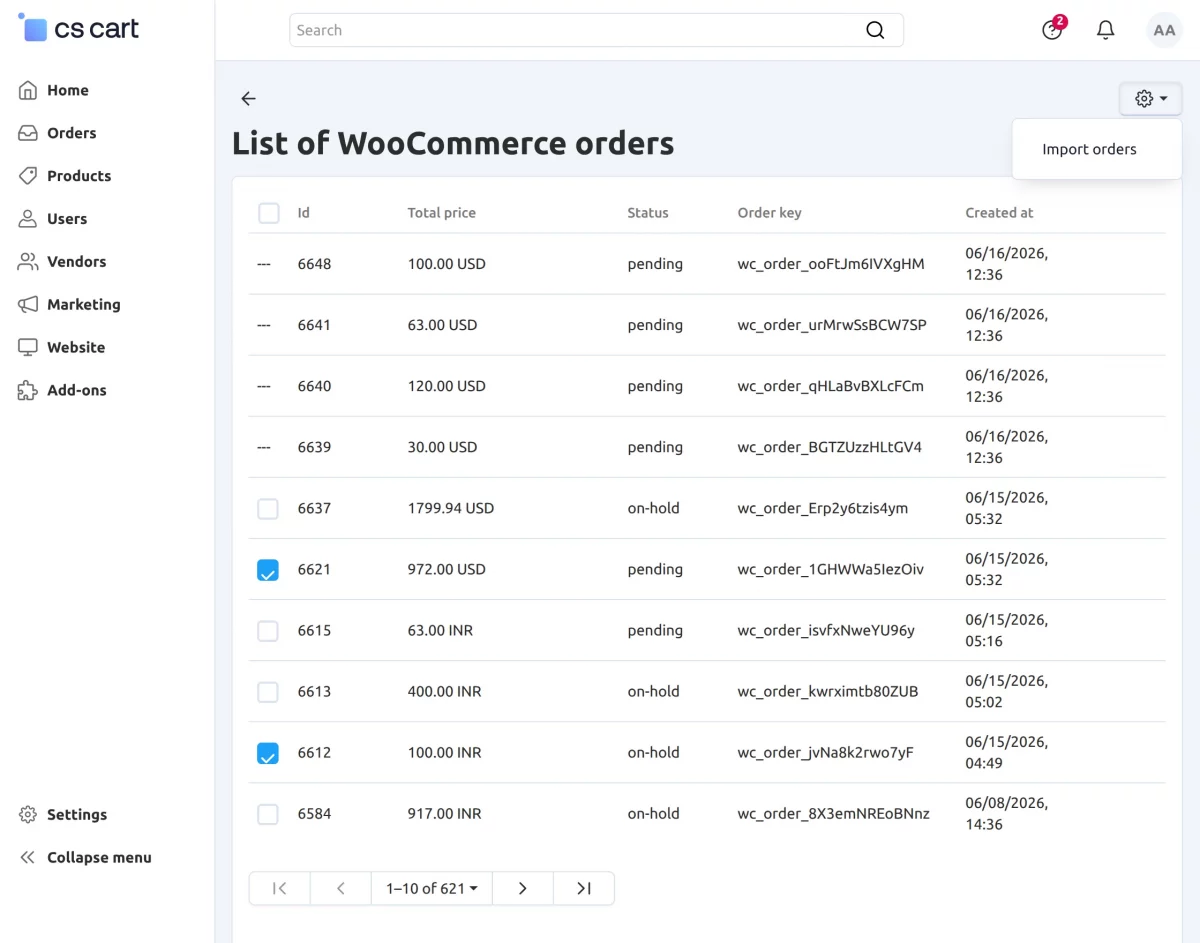
To import orders into CS-Cart, click on List of WooCommerce Orders. Here, you can import orders individually or perform a bulk import of multiple orders.
Single Order Import – To import a single order, click the gear icon next to the order and select Import Order.
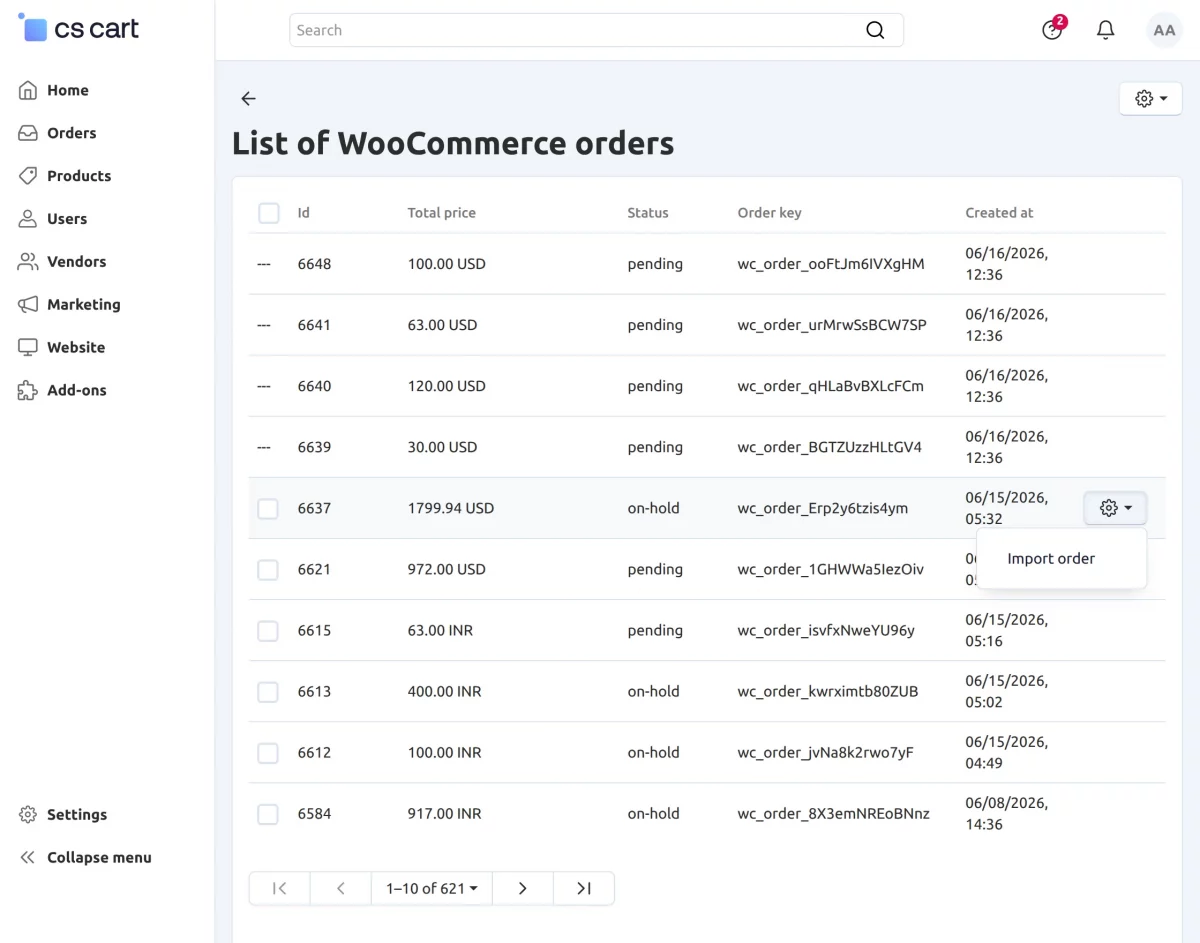
Bulk Order Import – To import multiple orders, select the desired orders, click the gear icon in the top-right corner, and then choose Import Orders.
To export orders, go to Manage Orders and click the Export Orders button.
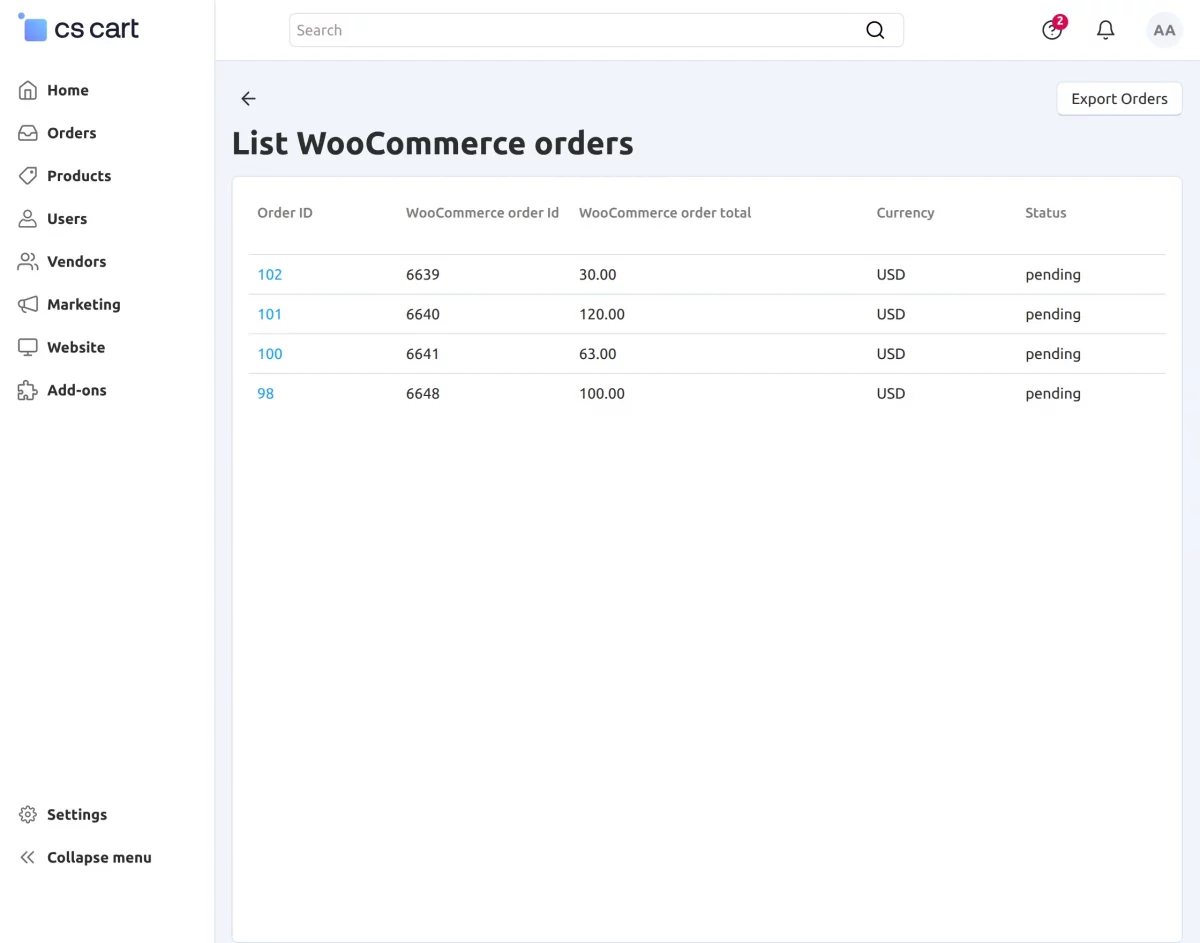
Single Order Export – To export a single order, click the gear icon corresponding to the order and select Export Order.

Bulk Order Export – To export multiple orders, select the desired orders, click the gear icon in the top-right corner, and choose Export Orders.

Note- If a new order is placed by the customer, then it will get auto-sync at the WooCommerce end.
4. Shipping Mapping :
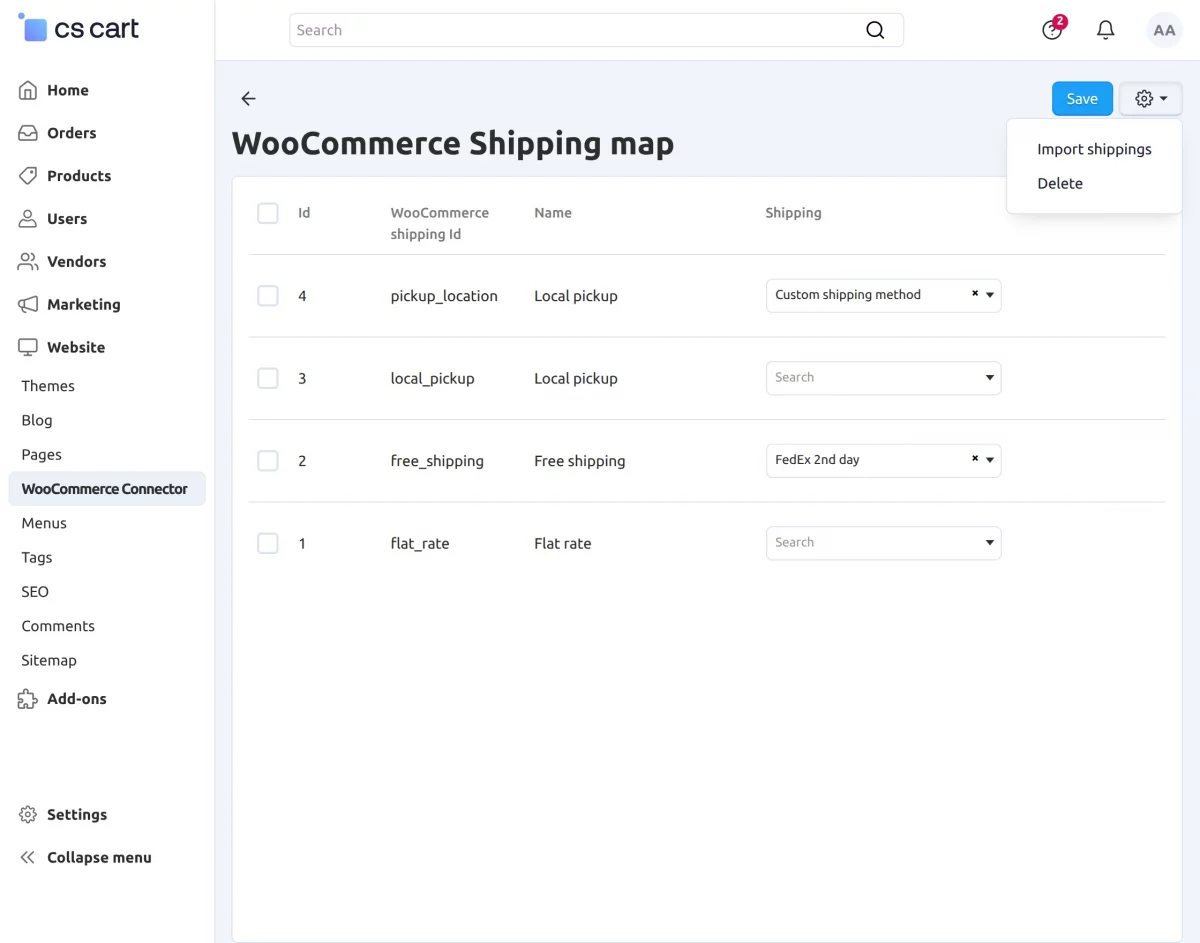
In this section, you can map WooCommerce shipping methods with CS-Cart shipping methods.
You need to click on the following icon to import shipping.

Now, the imported shipping will display as shown in the screenshot below.
After that, the imported shipping will be mapped with the CS-Cart store.
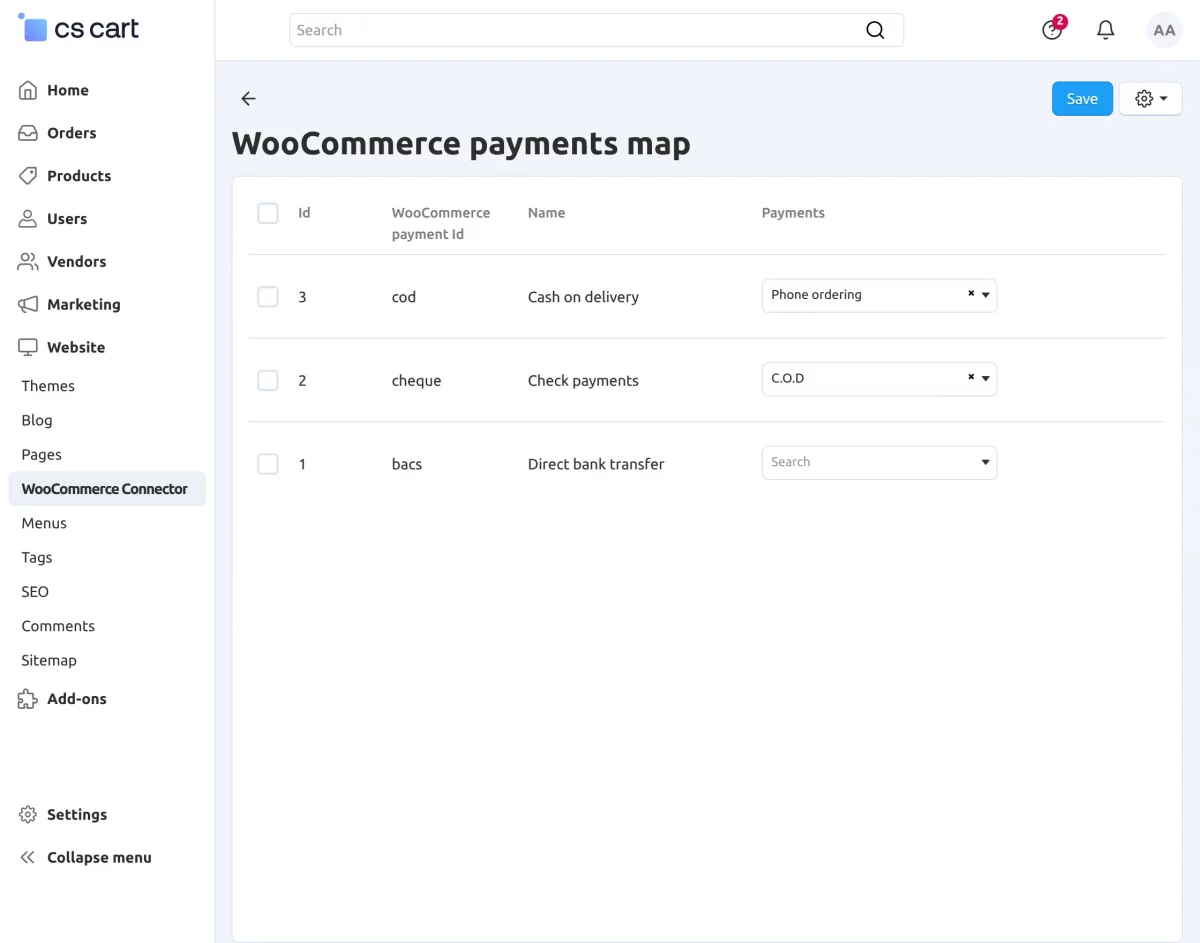
5. Payment Method Mapping :
In this section, you can map WooCommerce payment methods with the CS–Cart Payment methods.
All the payment methods will get imported when the store admin clicks on the Import Payments button.
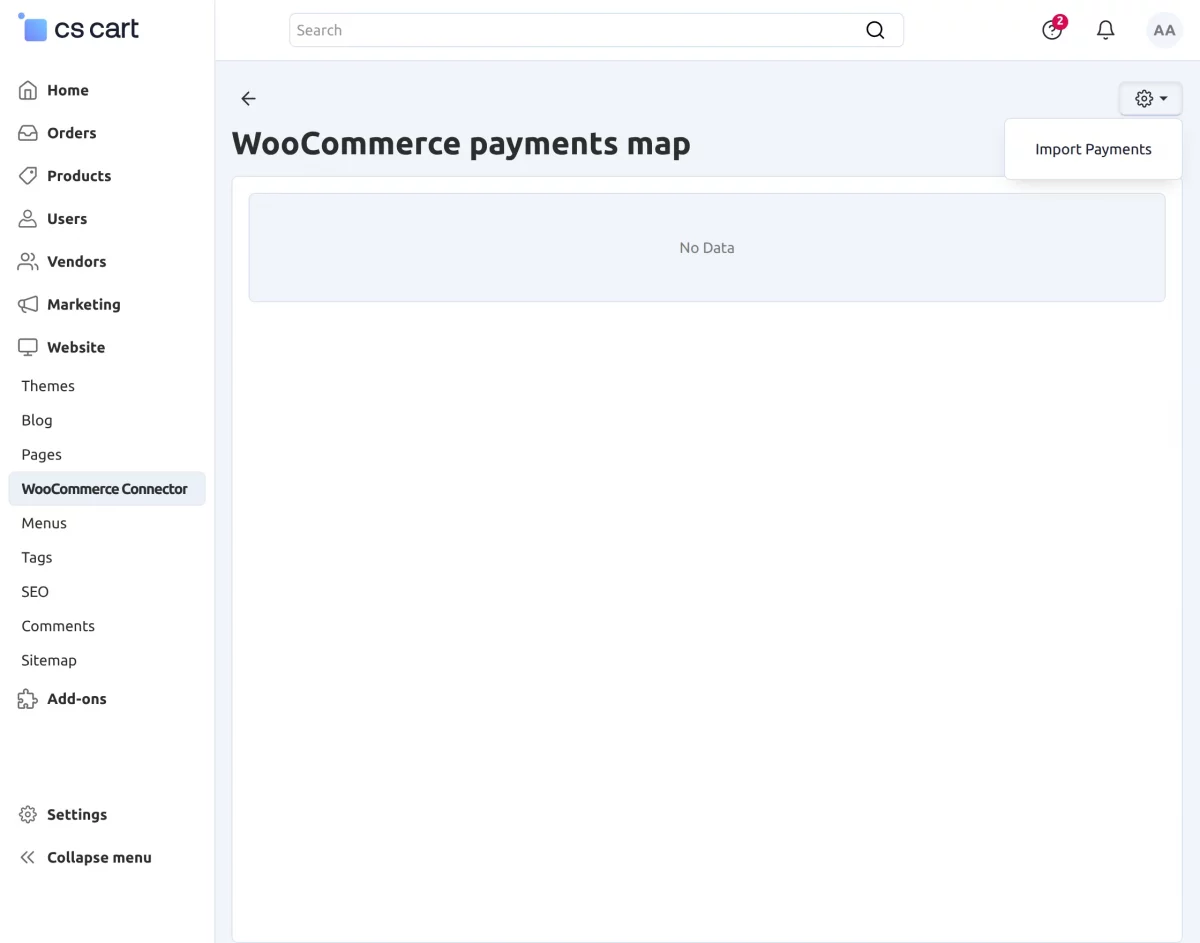
Once the payment methods are imported, the store admin will map the CS-Cart payments with WooCommerce payments by multi-selecting and clicking on the Import Payments option, as shown below.
6. Status Mapping:
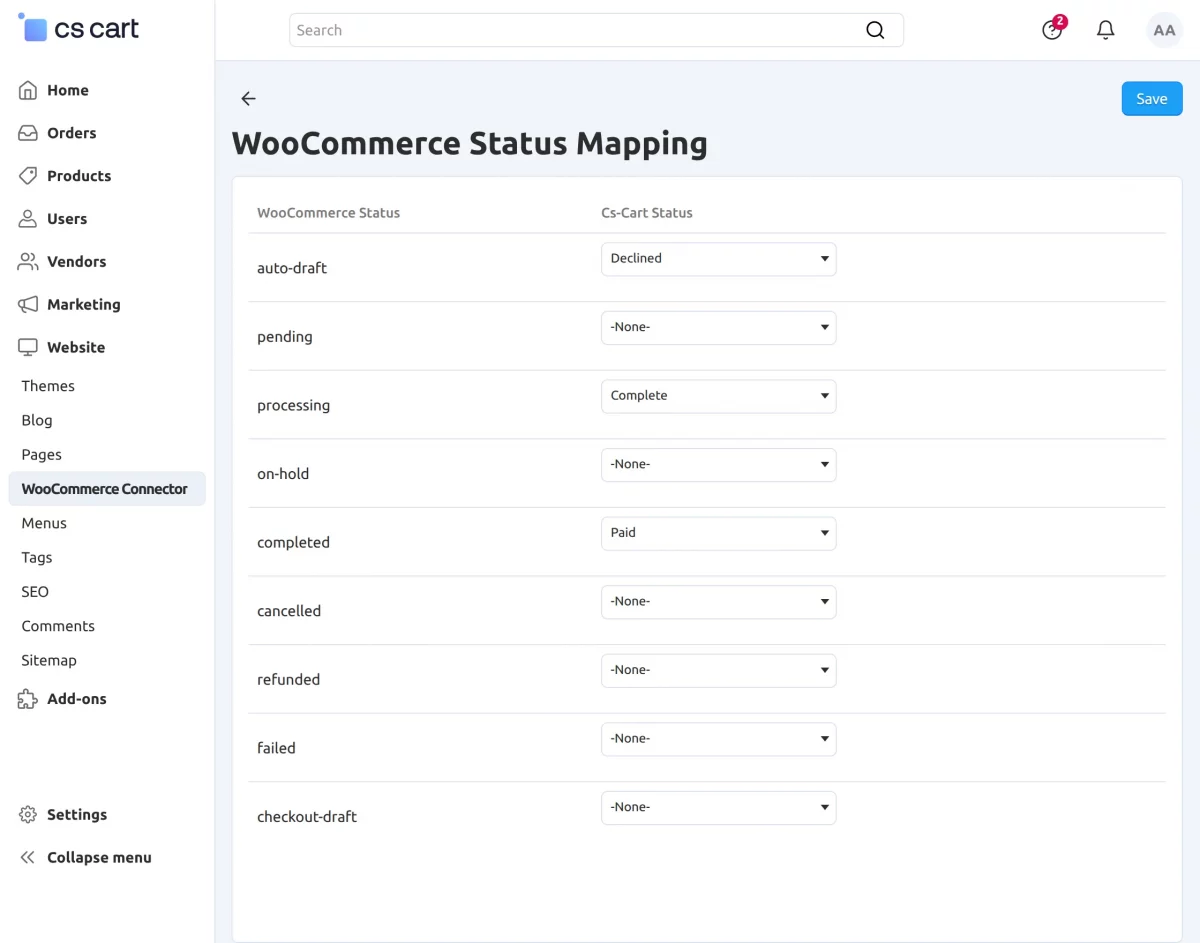
The CS-Cart admin can map the status of the orders that are imported to the WooCommerce website.
The admin can see the screenshot below, and from here they will map the CS-Cart order status with WooCommerce orders.
7. Currency Mapping:
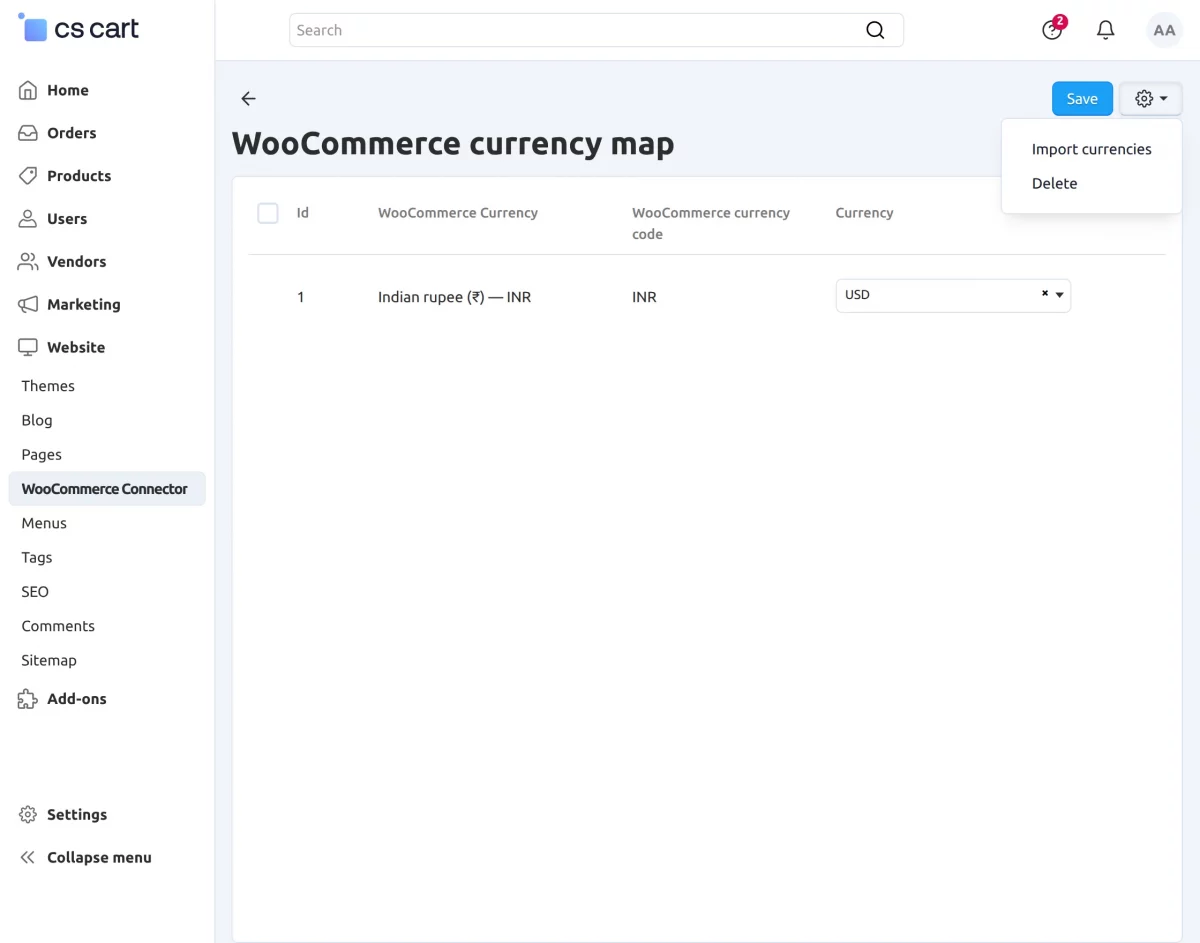
The admin will select Currency Mapping from the dropdown menu as per the screenshot.
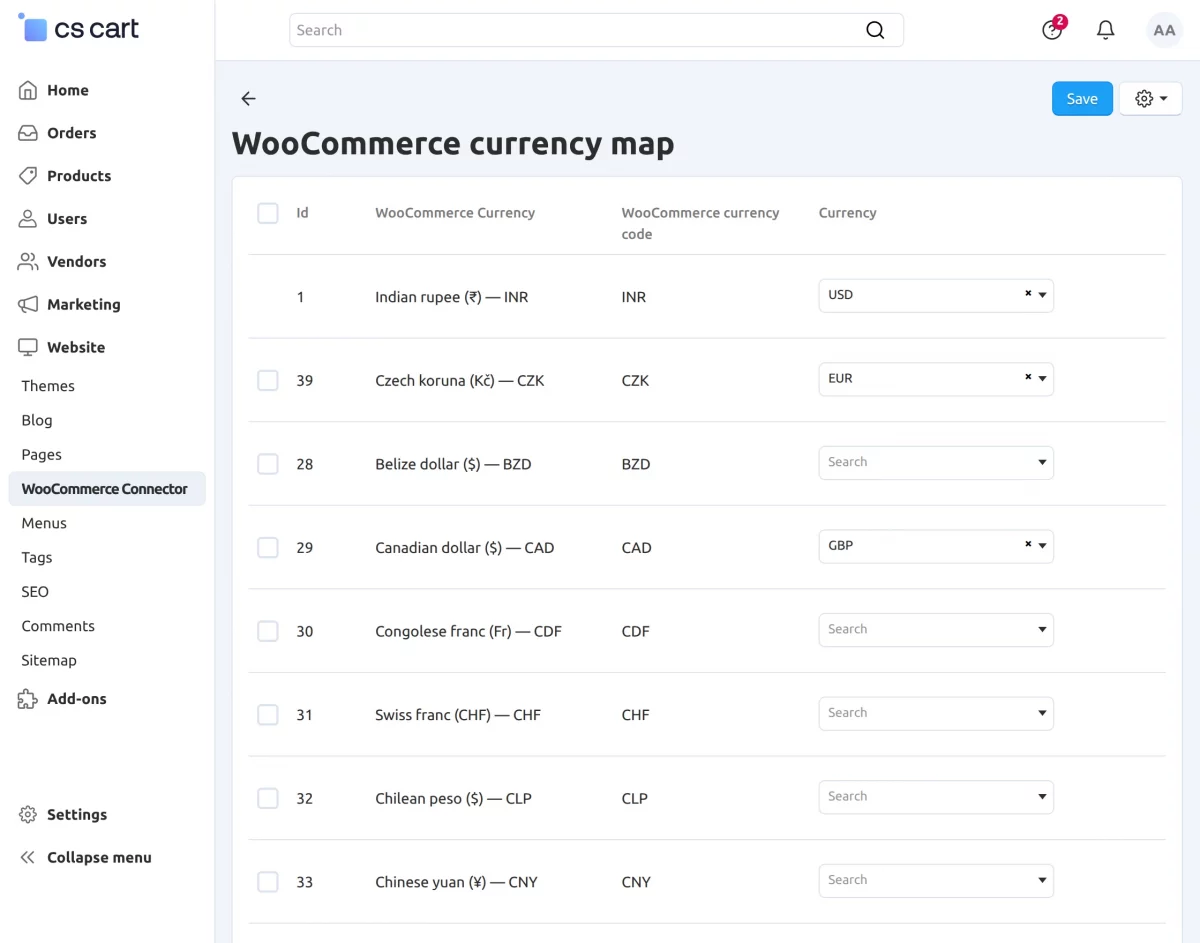
After that, click the gear icon and select Import Currencies to import all currencies from WooCommerce into CS-Cart.
Select the corresponding CS-Cart currency and map it with the WooCommerce currency. Once the mapping is complete, click the Save button.
8. Delete Account :
In this section, the admin can delete the created account.

Support
If you have any questions, suggestions, or customization requests, feel free to contact us at [email protected] or submit a ticket at webkul.uvdesk.com.
Explore our premium-quality CS Cart Extensions to enhance your store functionality.
You can also explore our CS-Cart Development Services and Quality CS-Cart add-ons.
Current Product Version - 1.7
Supported Framework Version - 4.16.x to 4.20.x


Looking to buy this. How does this deal with variable products, does it only bring the parent (variable) in or does it bring the in children (variation)