INTRODUCTION
Customize Employee Profile As You Want With Odoo Employee Profile Page!
Employee Profile Page is necessary for every organization whether it’s small or big. It allows you to get the complete information about the employees of your organization as it contains various fields like profile photos along with name, department etc.
Employee Profile Page not only helps you to get the information about the employees but also allows your employees to connect with other employees of the organization.
Odoo Employee Profile Page module helps the users to create a fully customizable profile of their employees as they want. The module not only allows the users to create a profile page but also allows the user to publish the employee’s profile on the website.
Users can also set the employee profile page view from the backend in the form of a Table or tabs as required. The employee profile page is an important factor for the organization as of now everyone is working remotely.
Odoo Employee Profile Page also consists of Employee email to contact and the organizational hierarchy chart of the employee. Which helps you to create transparency and connect with your employees easily.
FEATURES
- Providing the feature of creating an employee profile page in Odoo.
- Easy process to create the employee profile in odoo.
- Admin can customise the profile page as required.
- Add image, customisable search message, text color for the employee profile page.
- Add the public fields to the Employee profile page so that anyone can go through.
- Enable/Disable to show Organisational chart in the Employee profile page.
- Enable/Disable to show the Employee email in the Employee profile page.
- Admin can create the profile tabs in Odoo backend.
- Add the public fields in the profile page distinguished by the Profile tabs.
- Admin can set Profile Page view type as Table or Tabs.
- Admin can also set the view type of Organization Hierarchy chart by adding the number of levels in the backend configuration.
INSTALLATION
- Once you purchase the App from the Webkul store, you will receive the link to download the zip file of the module.
- Extract the file from your system after the download finishes. As a result, you will be able to see a folder named- ‘employee_profile_page’.
- Copy and paste this folder inside your Odoo Add-Ons path.
- Now, open the Odoo Apps and then, click on the Settings menu. Here, click on Activate the Developer Mode.
- Then, open the Apps menu and click on the ‘Update Modules List’.
- In the search bar, remove all the filters and then, search ‘employee_profile_page’.
- As a result, you will be able to see the module in the search result. Click on ‘Install’ to install it.
WORKFLOW
Backend Configuration
- Firstly, login to the Odoo Instance and go to the Employees module.
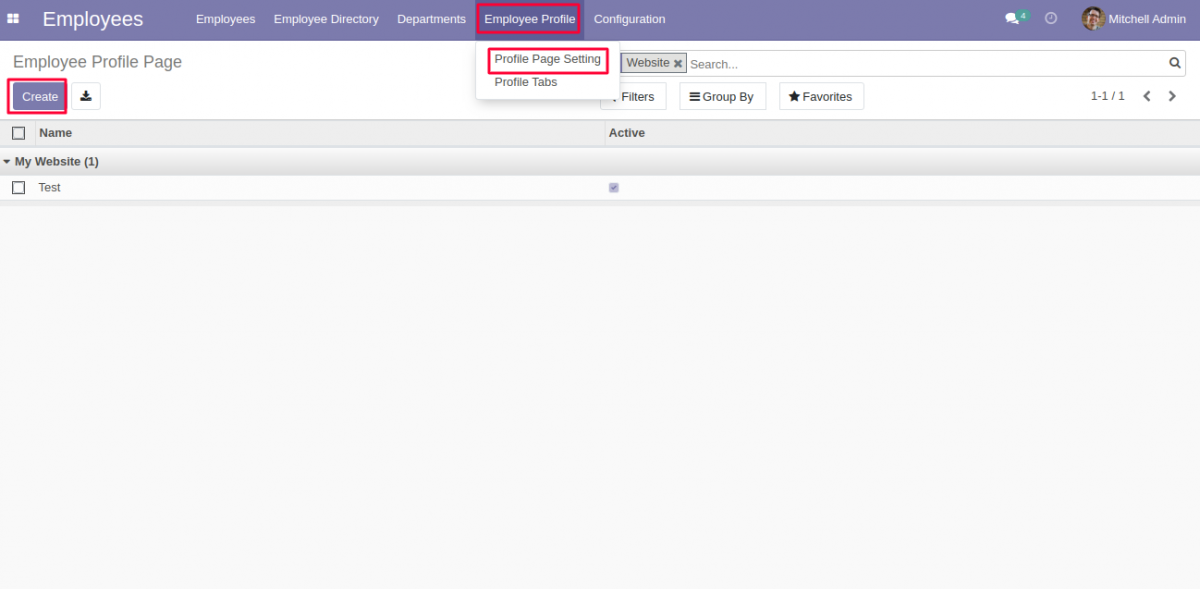
- Here, go to the Profile Tabs under the Employee Profile Tab. Now, click on the Create button to create the new profile tabs.

- Now, go to the Profile Page Setting under the Employee Profile tab. Click on the Create button to create a Employee Profile Page
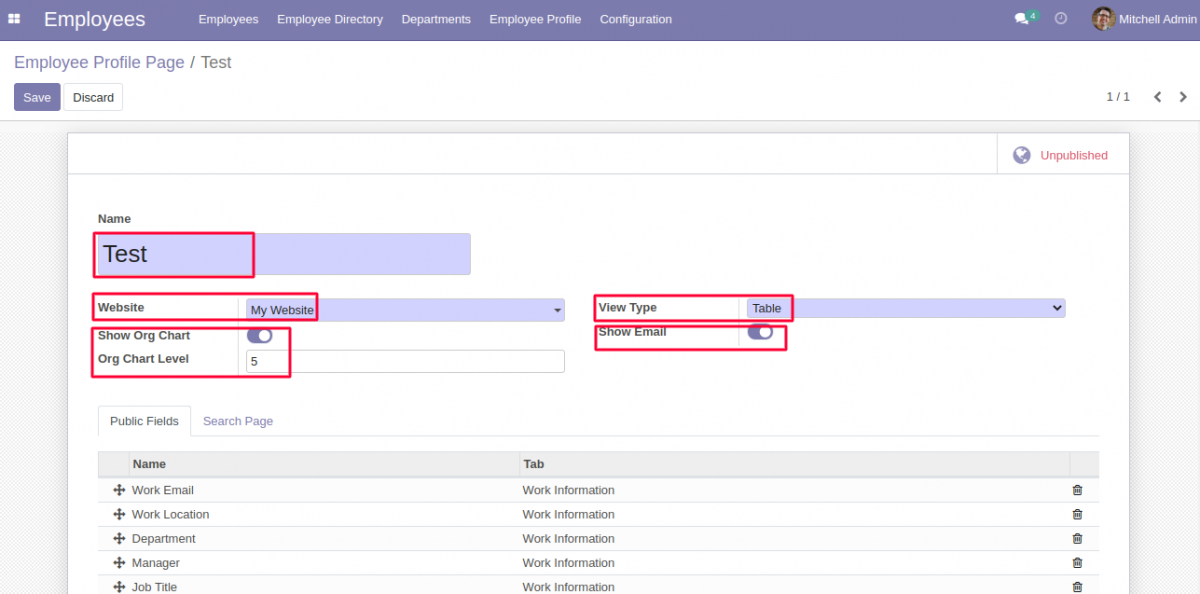
- Add name for the Profile page, select the website on which you want to publish the employee profile page.
- User can enable/disable Org. chart in the profile page. If user is going to enable the setting then add the number of the org chart level.
- Select the view type for the Profile page as Table or Tabs.
- User can also enable/disable show email on the employee profile page as required.
- Now, add the public fields for the profile page, these fields are visible to all the profile viewers. Add the new field by clicking on Add a Line.

- Select Tab, Field and add Name then Save the Employee Field.

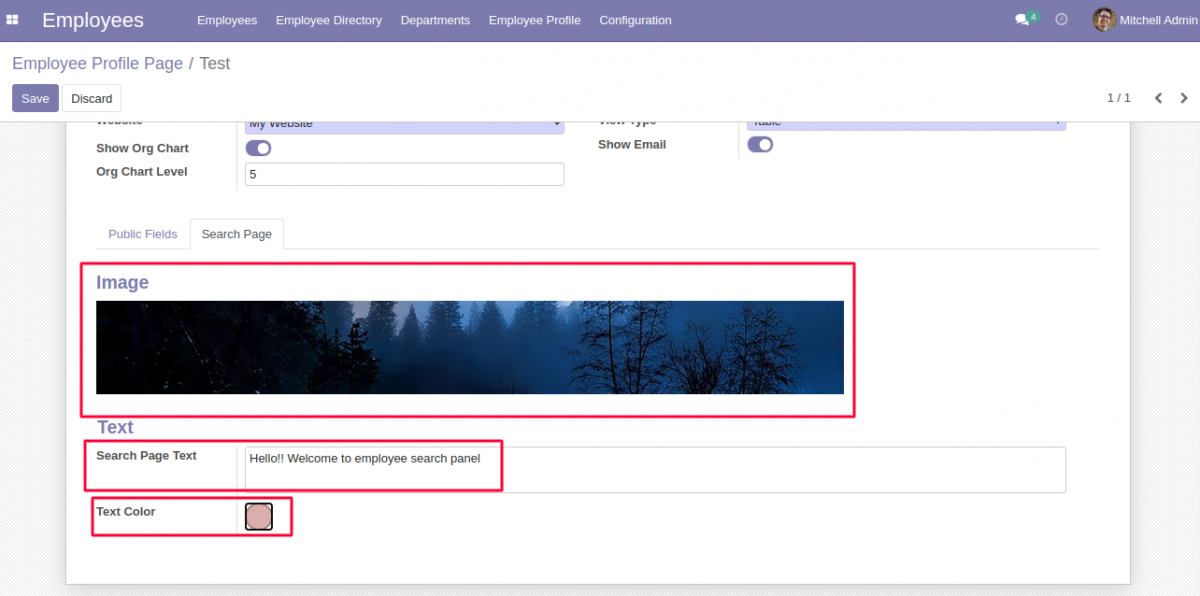
- Now, add the image for search page which makes it attractive. Search page text with the text colour then save the employee profile and publish it on the selected website.
Website View of Odoo Employee Profile Page
- Now, go to the website; Click on the Search Employee tab. Here, is the defined search page text with defined color.
- In the search bar you can search the profile page of the required employee.

- Employee Profile page with Table view type. You can check the Send Email and View Organization Chart button also on the Employee Profile Page
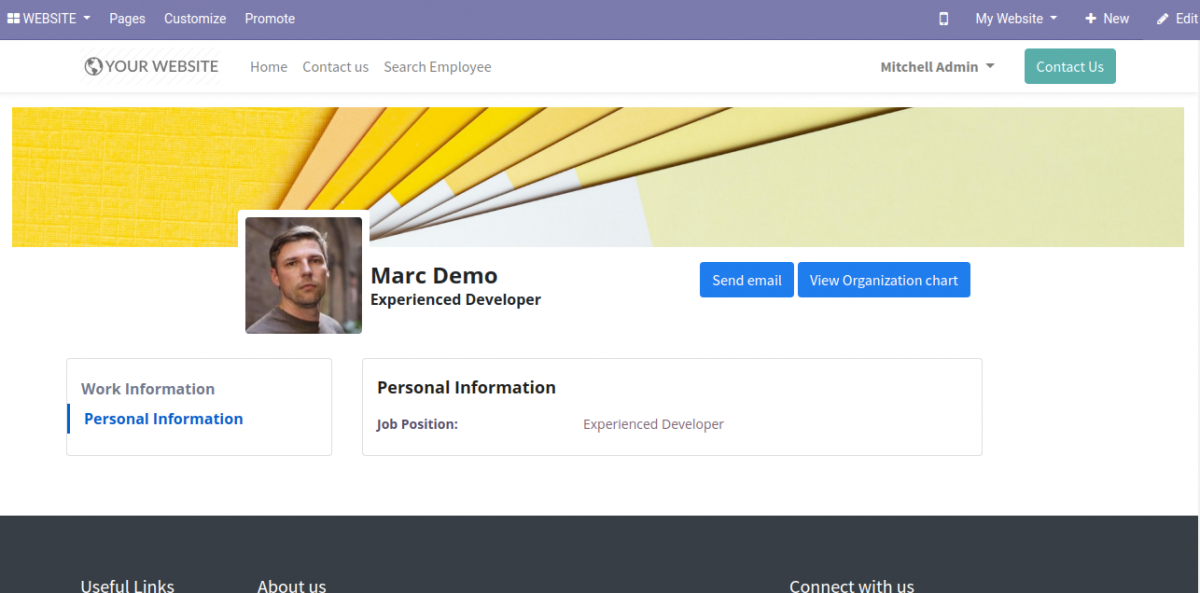
- Organization hierarchy chart according to the defined level.

- Employee Profile in the Tab view Format

Also, REFER THE USER GUIDES OF OTHER MODULES
NEED HELP?
Was this guide helpful? Please share your feedback in the comments below.
If you have any issues/queries regarding the module please raise a ticket at
https://webkul.uvdesk.com/en/customer/create-ticket/
Also, please explore our odoo development services & a large range of quality Odoo Apps.
For any doubt contact us at [email protected].
Thanks for reading!!
Current Product Version - 1.0.0
Supported Framework Version - Odoo V14


Be the first to comment.