We are here with another feature within the Multivendor Marketplace App for Shopify called “Admin Staff“.
It enables the store owner to add members and assign different permissions to them in order to manage activities on admin panel.
Once we approve the charges, the system adds an additional USD 10 per month to your current multivendor plan.
Features of Admin Staff
Admin can add staff members from his panel.
He can permit him/her to manage admin’s account on his behalf.
Additionally, the admin can also deny access to any section of his account as needed.
Admin can see all the activities of the staff in “Admin Staff Activity” section.
He can edit, delete or disable the staff as per his requirement.
Now admin can give access to the staff subcategory wise.
Activation of this Feature in Admin Staff
To make this feature work within the app, you need to enable it from the “Feature App” section of the admin panel.

Scroll down to get the feature and click on “Enable” button to activate this feature.

Once you click this enable button, you need to agree with the additional amount of USD 10 and approve the charges.


In this way, you can activate this feature within your Multivendor app.
How does this feature work
To add staff members, the admin should initially navigate to the ‘Seller’ section. Next, they need to click on the ‘Add Staff’ button within the ‘My Staff’ menu.
Furthermore, this process enables streamlined management of staff accounts


In this section, the admin can easily add staffs by providing their details and subsequently manage their permissions by granting or denying access as needed.
Additionally, the admin now has the option to select subcategories to assign specific access to staffs members, as shown in the provided image, ensuring more detailed permission management.
Additionally, this feature offers more granular control over staff permissions.
When the admin wants to modify access, they must manually update the settings by ticking or unticking the appropriate checkboxes.
Additionally, this process ensures precise control over granted permissions
Furthermore, it is important to carefully verify the selections to ensure accurate access control.


Once the admin clicks the Save button after entering all staff details, the system adds the staff member successfully.
The newly added staff member receives an email notification once the admin grants permission.
The system also sends login credentials via email, allowing the staff member to access the admin’s account.
As an admin, you can customize the content of this email from the “Mail Configuration” section.

Once the staff gets all the details via mail, he can manage admin’s account on his behalf.

Now you will find the change password for staff template in the mail settings

Now admin can change the staffs password by following steps:
Admin>>Sellers>>My Staff>>Three dots>>Edit Staff>>Change Password>>Save
Now, the admin will provide a public URL to his staff from where the staff can login to the admin’s account to manage permitted activities.
You can get this public URL for your staff from the “Instruction for Marketplace” menu of the admin panel in the “Configuration” section.

Once this URL is entered, a login page for your staff is automatically displayed.
Staff can use his credentials received via mail to get access to the admin’s account.

Once the staff logs into this page, the system redirects them to the admin panel, where they can manage the sections of the admin account permitted by the admin.

After accessing the ‘My Account’ section, the staff member will subsequently find options to update account details.
Moreover, they can also change their account password as per their preference

That is how, an added staff can manage the admin’s account.
Update on Export Notifications for Orders and Seller Earnings
We’ve made an important update to how export notifications are sent for orders and seller earnings.
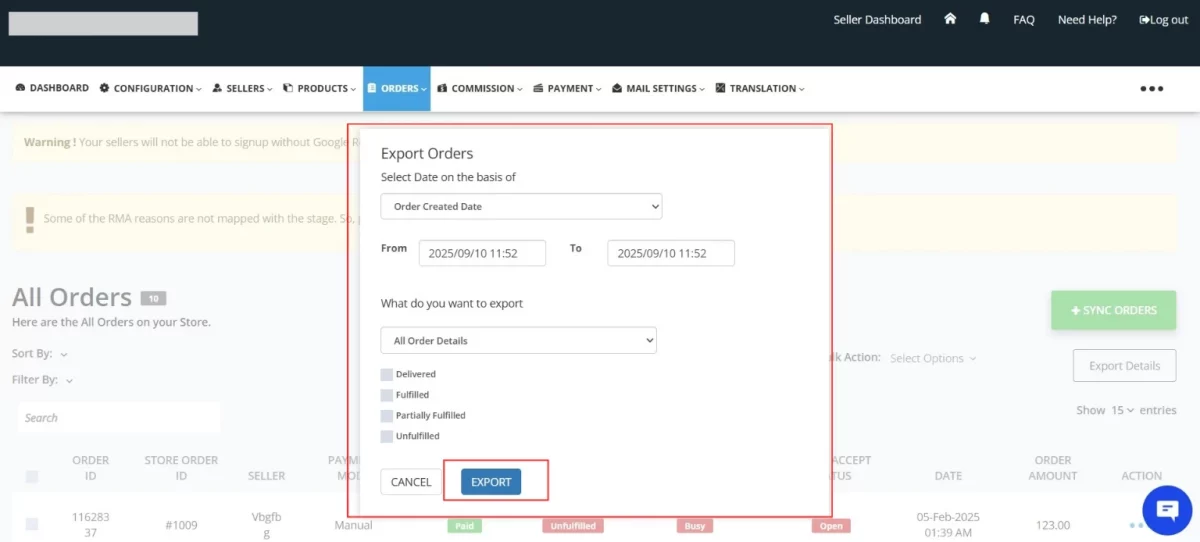
Previously, the system always sent these export emails to the admin. With this update, the system now sends the emails to the Admin Staff when they export order and seller earnings details.
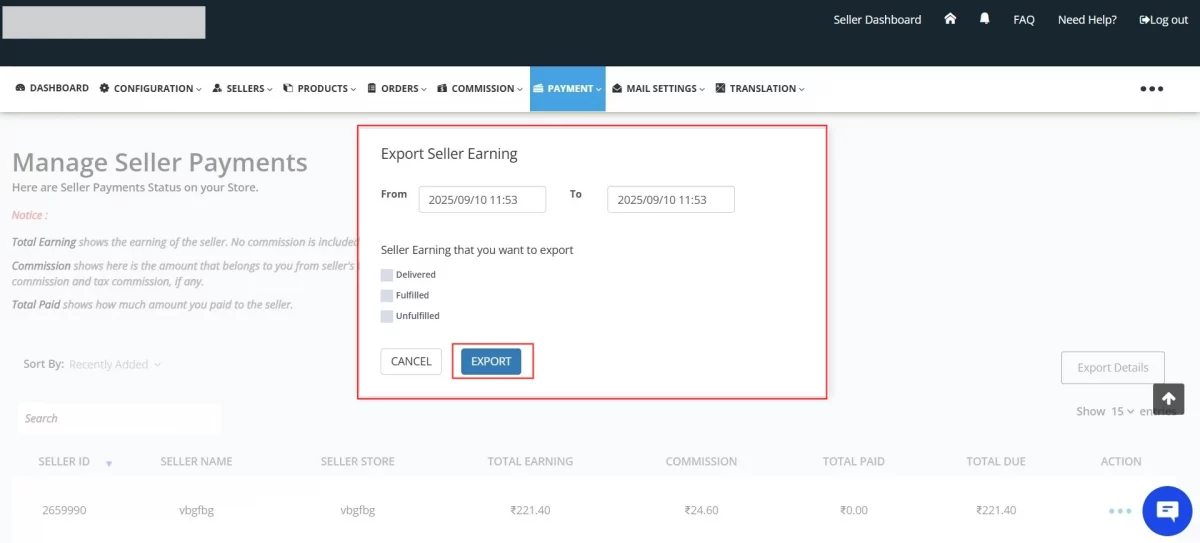
This improvement ensures that the right person always receives the export notification, making workflows smoother and more efficient.
Note:
- If the exported data exceeds 500 records, the system sends an email to the Admin Staff.
- If the exported data is fewer than 500 records, the system downloads the file directly in the browser.
Demo Link
Support
Hope you like this blog. To get more interesting blog keep in touch with us.
If you need any kind of support, simply raise a ticket at https://webkul.uvdesk.com/en/. You can contact [email protected] to get proper assistance.
Thank You for reading this Blog!


Be the first to comment.