Introduction
Odoo AI-OCR Document Digitization utilizes advanced AI tools to extract text from scanned documents and convert it into structured data.
This module automates data entry for various documents, reducing manual effort and minimizing errors.
With Odoo AI-OCR Document Digitization module, businesses can design custom templates tailored to different document types, ensuring consistent and accurate data capture every time.
Features
- Extract text from scanned documents using advanced OCR and AI models.
- Convert documents like invoices and sales orders into records within Odoo, minimizing manual input.
- Create and reuse templates for efficient and accurate data extraction.
- Add custom keywords to ensure accurate data capture, even with changing document layouts.
- Automate the process to reduce errors and enhance data reliability.
- Speed up document processing, allowing staff to focus on core business activities.
- The Odoo AI-OCR Document Digitization module can handle increasing document volumes as business needs grow.
- Simplify the processing of similar documents in the future.
- Reduce labour costs associated with manual data entry tasks.
Installation
- Once you purchase the App from the Webkul store, you will receive the link to download the zip file of the module.
- Extract the file on your system after the download finishes. As a result, you will be able to see a folder named- ‘odoo_invoice_digitization’
- Copy and paste this folder inside your Odoo Add-Ons path.
- Now, open the Odoo App and click on the Settings menu. Here, click on Activate the Developer Mode.
- Then, open the Apps menu and click on ‘Update Modules List.’
- In the search bar, remove all the filters and search ‘odoo_invoice_digitization’
- You will be able to see the module in the search results. Click on ‘Install’ to install it.
AI Pricing Policy
When you upload a PDF to the Odoo AI-OCR Document Digitization module, the AI reads the text and converts it into a structured format. But how does it calculate the cost?
Let’s break it down in simple terms:
1. AI Charges Based on Tokens
- AI models like OpenAI GPT-4o and Gemini AI charge per token.
- Each AI provider (OpenAI or Gemini) has different rates per 1,000 tokens.
2. Example for Cost Calculation for GPT-4o, GPT-4o Mini & Gemini AI
> GPT-4o Pricing Cost Example
OpenAI charges $0.01 per 1,000 image tokens for GPT-4o.
If 1 image contains 500 tokens, the cost calculation is:
(500 tokens ÷ 1,000 tokens) × $0.01 = $0.005
🔹 So, the pricing cost for 1 image in a PDF is $0.005 using GPT-4o.
> GPT-4o Mini Image Processing Cost
OpenAI charges $0.0075 per 1,000 image tokens for GPT-4o Mini.
If 1 image contains 500 tokens, the cost calculation is:
(500 tokens ÷ 1,000 tokens) × $0.0075 = $0.00375
🔹 So, the pricing cost for 1 image in a PDF is $0.00375 using GPT-4o Mini.
> Gemini AI Pricing Example
Google charges $0.0375 per 1 million tokens for Gemini AI (for prompts up to 128k tokens).
If 1 image contains 258 tokens, the cost calculation is:
(258 tokens ÷ 1,000,000 tokens) × $0.0375 = $0.000009675
🔹 So, the pricing cost for 1 image in a PDF is approximately $0.00001 using Gemini AI.
⇒ Learn More About AI Pricing
- OpenAI GPT-4o & Mini Pricing: Open AI Pricing Details
- Google Gemini AI Pricing: Gemini Pricing Details
Workflow
1. Install the Odoo AI OCR Document Digitization module.
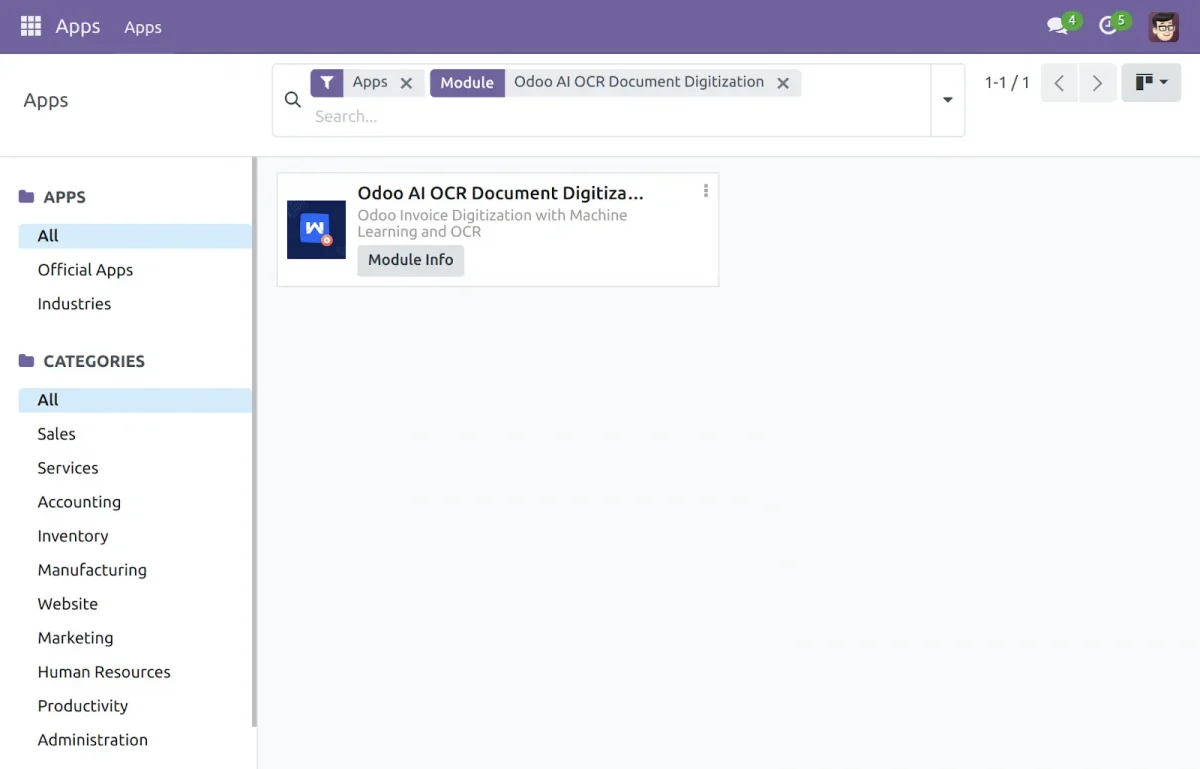
2. After installing the Odoo AI-OCR Document Digitization module, go to OCR Pipelines and select OCR Templates (sale order, invoice, purchase order) to view or edit templates.

3. After clicking on the Invoices Template, you can view all the fields, field types, labels, examples, and default values.

4. And by clicking on a field, you can also edit the existing fields.
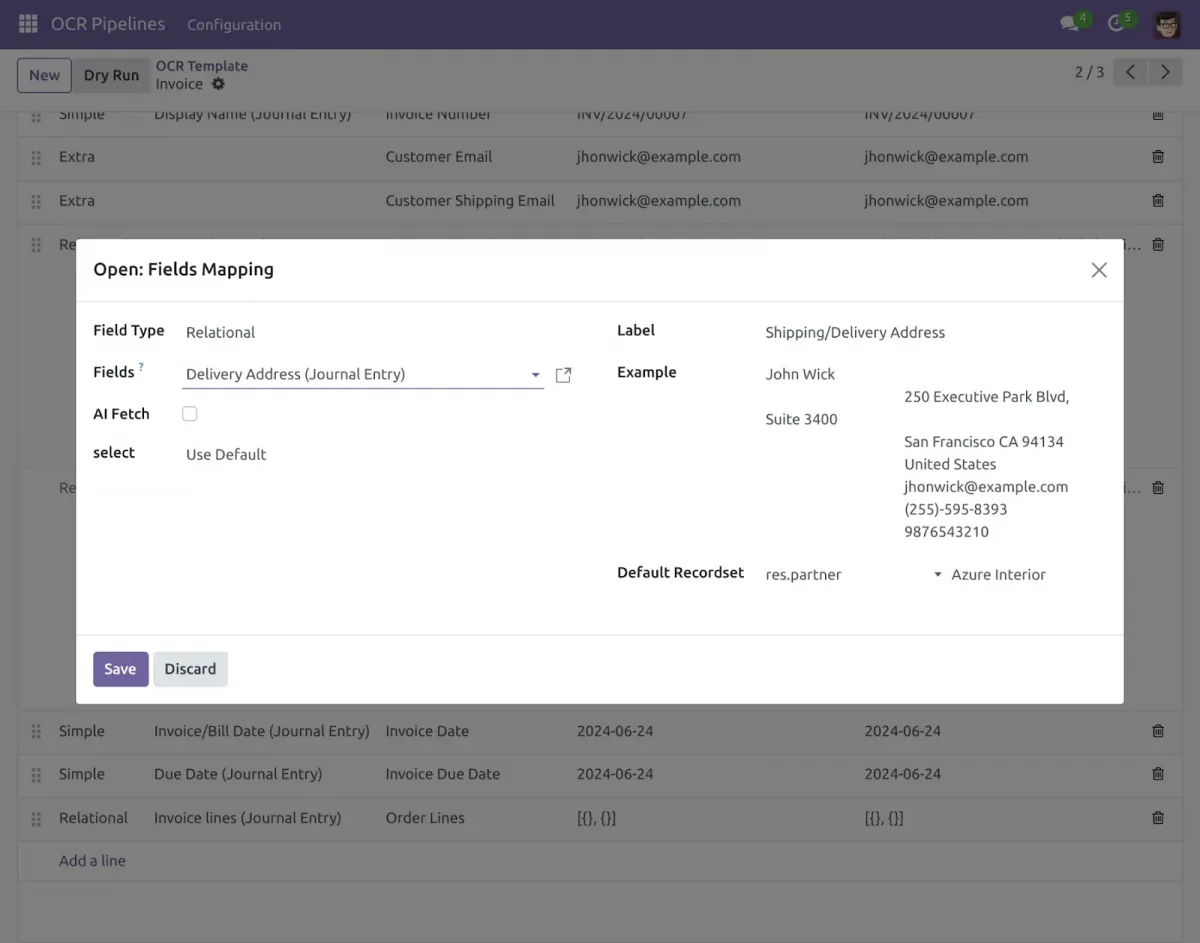
5. By clicking on NEW at the top left corner you can create a new template. Once you have entered the necessary information, you can save the template for future use in your OCR processes.

6. You can Create field Mapping accordingly and add fields that define exactly what you want to fetch from the documents.

7. Clicking on Dry Run opens this tab, where you can upload the PDF file from which you want to extract data. Click Create Record to save the record in the Odoo system.

- You can also extract data directly by clicking on AI.

NEED HELP?
Hope you find the guide helpful! Please feel free to share your feedback in the comments below.
If you still have any issues/queries regarding the same, please raise a ticket at the UV Desk.
I hope this helps. In case of any further queries, contact us at our support mail.
Thanks for paying attention!!
Current Product Version - 1.0.0
Supported Framework Version - Odoo V17


Be the first to comment.