Magento 2 Multi Vendor Extension provides a platform where multiple sellers (vendors) can register to marketplace, list, and sell their products or services to customers.
Adobe Commerce Marketplace Extension converts your online store into a complete online marketplace shop.
Therefore, using Magento 2(Adobe Commerce) Marketplace Extension, the seller can manage the inventory, shipment, Seller Profile page, Seller Collection page, and much more.
The seller can add multiple product types like Simple, Configurable, Virtual & Downloadable.
Furthermore, Magento 2 Marketplace Plugin supports all the Magento 2 templates and themes and it is compatible with RWD (responsive web designs).
If you’re looking to make your customers as resellers on your Magento 2 store, then you can check Magento 2 Reseller Extension
Important Notes:
- If you’re using Magento version 2.3.0-2.3.3, then please install the Patch file v2.3.0-2.3.3 available in the Magento 2 Marketplace plugin zip.
-
There is no need to install the patch for versions above Magento v2.3.3.
- The greater version of the Marketplace Extension will not work with the lower version of Magento.
- If you have Magento 2.0.x then you can use a lower version of the Marketplace.
- The Multi-Vendor Marketplace version 2.0.1 will not work with the Magento 2.0.x version, it will work with Magento 2.1.x.
- To manage the Multi-Source Inventory feature at the sellers’ end. You must have installed Marketplace MSI for Magento 2.
Watch below video tutorials to understand Multi Vendor Marketplace Extension workflow:
Video tutorial #1
Video Tutorial #2
Video Tutorial #3
Video tutorial #4
Video tutorial #5
Video tutorial #6
Video tutorial #7
Video tutorial #8
Features of Magento 2 Marketplace Extension
- Magento 2 multi vendor module is compatible with the Hyva Theme.
Note: Hyva module currently supports only the default vendor dashboard.
Advance Admin End Features
- Easy configuration of the Marketplace Module.
- Also, magento 2 multi vendor module offers an Attractive design for managing the Products, Sellers, and commissions.
- Additionally, this module provides an option to view the list of all the sellers in the marketplace in one place.
- Furthermore, the admin can set the status of the seller profiles as Approve/Disapprove/Deny/Processing
- Even, the admin can allow a separate vendor dashboard.
- Admin can manage the Seller profile page setting.
- Admin can assign a category and subcategory to the seller.
- Further, the Admin can view, approve, disapprove, update, deny, and delete a seller-requested product.
- Admin can enable/disable minimum order functionality.
- Admin can set minimum order amount.
- The admin can Inline edit the products in the admin end grid.
- Admin can send global news to sellers.
- Admin can manage the fulfillment label, text and image.
Other Features of Admin End
- Additionally, the admin can view the list of unapproved seller products.
- Plus, the admin can approve mass products and sellers at a time.
- The Admin can allow a seller to add a product limit for a customer on product purchases.
- Furthermore, the admin can allow a seller to add related products, up-sell products, and cross-sell products from the seller’s panel.
- Plus, the seller gets a mail notification when product inventory reaches the specified minimum level set with the admin.
- Also, the seller can view hints for fields if enabled and the admin can set them.
- Configuration setting for SKU prefix that the admin can configure for seller’s products.
-
In addition, the admin can view notifications for seller requests, seller products, and feedback reviews.
- The admin can create email custom templates too.
- Admin can choose and customize between three different layouts for Landing Page as well.
- Also, the admin can configure marketplace landing page options like- banner, banner content, button label, icons, etc
- In addition, the admin can choose to auto-approve orders or not.
- Also, the admin can view the Product Preview for product approval.
- The admin can enable/disable separate dashboard seller wise.
- Additionally, features a Product Assignment tab to render the product grid to mass assign products to the seller in the seller edit page in the admin panel.
- Make SKU configurable Static/Dynamic for seller’s products so that admin can set accordingly.
- Admin can now refine the search process of enabling the seller filter in layer navigation.
- The Admin can do TAX management for the seller’s product.
- The admin can use Google Analytics to analyze website data.
Seller End Key Features
- An interactive vendor dashboard in a separate vendor panel.
- Separate Seller Profile with Company Logo and Seller Collection Page with Company Banner.
- The seller can delete his logo and banner from the seller’s profile
- Vendors can access their customer grid, reviews, and activities quickly.
- Additionally, this module offers a different Product type for Seller (Simple, Downloadable, Virtual, Configurable).
- Also, allows the seller to add/update/delete products from their dashboard
- Mass delete of product in seller’s product list.
- So, using a dashboard seller can track his income, latest order, comment and reviews, recent orders, and recent comments with the total sales matrix.
- In addition, allow vendors to make a withdrawal request to the admin for their remaining amount via a separate vendor panel.
- Additionally, this module provides an attractive landing page with top 4 sellers with their top 3 products too.
- The marketplace sells page (in the case of layout 2 and layout 3) works as seller central where a seller can separately create his account.
- Furthermore, allow the seller to edit the shop URL for the Profile page, collection page, review page, and Location page.
- Sellers can add social media icons on their profile pages as well.
- The module uses Ajax checks for vendor/seller shop URLs.
- Magento 2 multi vendor module provides a captcha security feature so that customers can contact sellers. customer can give their reviews.
- The module allows sellers to inline edit products in the seller end grid.
- The plugin allows the seller to create a partial shipment and partial invoice for his orders.
- The module allows the seller to add/edit/delete configurable product attributes.
- Sellers can now filter products and orders from general filters provided on top of grid listing.
- Sellers will get low-stock notifications.
- Seller can now add draft products.
- Seller can manage fulfillment label, text and image.
Other Seller End Key Features
- Different seller commissions for every seller.
- Display total Payout and remaining amount of seller’s in the seller’s dashboard
- Separate seller’s product collection.
- Also, the sellers can get low stock notifications when the admin will enable the option.
- A seller can manage the order from the front end that will be approved from the admin end.
- The seller can set the minimum order amount.
- Seller profile link for each item on the customer order view page.
- Also, the seller can use Google Analytics to analyze website data.
Additional Features of Seller End
- Additionally, the sellers can view notifications for product approval, new orders, and new transactions.
- Tax/VAT information for the seller profile page can be given.
- The seller can change their profile page background color too.
- The seller can add a Return and Shipping policy when the admin will enable it.
- Allow sellers to add Carrier and Tracking numbers for orders.
- A vendor can create a duplicate copy of a product listing.
- Product filter by name, date, and status in the seller’s product list
- The Admin can see the seller’s transaction details of the total payout from the admin panel.
- The seller can view the total earnings of his store Day, Month & Year-wise with the help of a vivid sale vs period (Day, Month & Year) graph.
- Allow vendors to add information store-wise.
- Automatically generate seller product URLs like- Profile, Collection, Location & feedback URL.
- The seller can add a sample URL, link sample URL, and link URL for downloadable products.
- In addition, the sellers can visualize their top-selling category with the help of the Pie chart view.
- Also, display sales reports by using charts, sales by location, and sales stats, and filter the reports by year, month, week, and day in the seller dashboard.
- Moreover, customers can view all the details about the product given by the seller.
- Even, sellers can refund their order with return quantity to stock option and add comment option
- Option to configure products with available attributes-key features.
- Add Videos along with your product images at the add new product page in the Marketplace.
- Public pages of sellers are SEO friendly too.
- Also, the seller’s order can be filtered by order id, date, and status in the seller’s order history page.
- Seller’s transaction report with download record in CSV and search filter by transaction id and date too.
Customer End Features
- Customers will do shopping from the variety of product options available.
- In addition, customers can search sellers by seller shop name on the seller list page
- The customers can compare the products based on price, vendor rating, and location too.
- Also, customers can give product ratings and reviews.
- Additionally, the customers can also view the rating of the seller.
- Moreover, the customers can view all the details about the product given by the seller.
- Plus, the customer can contact the seller with captcha support as well.
- Furthermore, customers can also compare the price of the products of different sellers.
- The customers can view the seller profile page as well.
- In addition, the customer can place an order of different seller products by using the same cart.
- Also, a customer can send a request to the admin to become a marketplace seller
- Even, a customer can check out at once having multiple sellers’ products in the shopping cart.
Installation of Magento 2 Marketplace Extension
The installation is quite simple just like the standard Magento 2 extensions.
#Download Module
Firstly, you need to log in to the Webkul Store, go to My Account>My Purchased Products section, verify, and then download and extract the contents of this zip folder on the system.
#Upload Folder
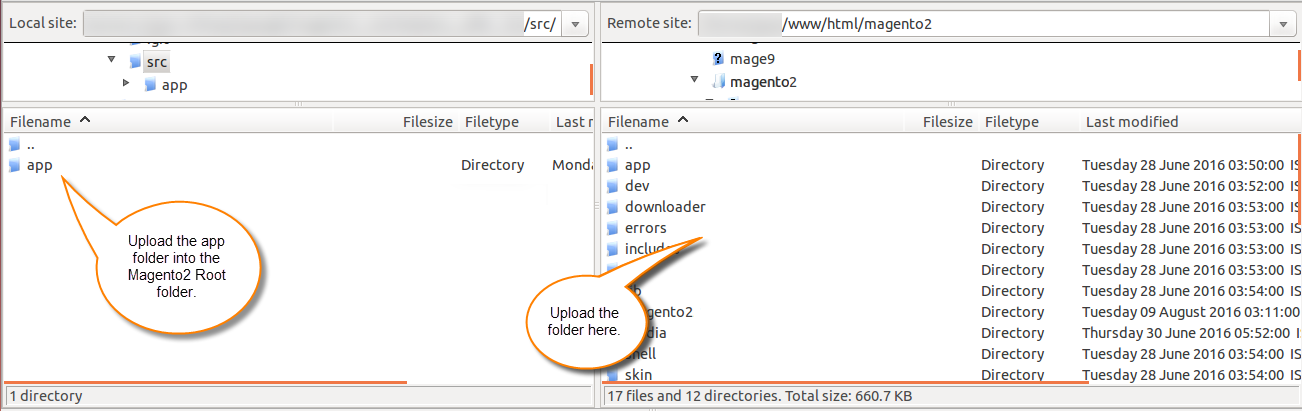
When the module zip extracts, follow path src>app and then copy the app folder into the Magento 2 root directory on the server as shown below:
# Run Commands
php bin/magento setup:upgrade
php bin/magento setup:di:compile
php bin/magento setup:static-content:deploy
php bin/magento indexer:reindex
php bin/magento cache:flush
Run below mentioned commands to start admin news related messages.
php bin/magento queue:consumers:start admin.news.published &
Run below mentioned commands to start low stock seller’s products related messages.
php bin/magento queue:consumers:start seller.product.lowstock &
Configuration for Multi-lingual Support
In addition, for multilingual support, the admin will navigate through Store > Configuration > General > Locale Options.
Furthermore, select the locale as German (the language into which admin wants to translate his store content).

Magento 2 Multi Vendor Extension Translation
For translating the module language, navigate through src/app/code/Webkul/Marketplace/i18n and edit the en_US.csv file.
Thereafter, rename the CSV as “en_SA.csv” and translate all right side content after the comma in the Arabic language. After editing the CSV, save it.
Now, they have to open the file named en_US.CSV for editing.

Now, upload it to the path src/app/code/Webkul/Marketplace /i18n where the installation of Magento 2 is on the server.
The module translates into the Arabic Language. It supports both RTL and LTR languages.
The user can edit the CSV like the image below.

Thus, the language translation completes.
Arabic Translation – Magento 2 Marketplace Extension
Step 1:
So, most importantly, If a user wants to translate their module from English into the Arabic language.
Then they need to follow the path app/code/Webkul/Marketplace/i18n in their unzipp Magento Marketplace folder.
Forthwith, here the user will get a CSV file with the name “en_US.csv” as shown below in the snapshot.

Step 2:
Straightaway just renames this en_US.csv to “ar_SA.csv” as shown below in the snapshot.

Step 3:
Moreover, right-click on this rename CSV file and click the edit button to translate all right side content of this CSV after the comma into the Arabic language.
Now, see the actual CSV file after opening it up:

Even the users can edit the CSV as per the below screenshot:

Step 4:
Now after translating the content of the CSV save it and then upload it to the path app/code/Webkul/Marketplace/i18n. Where you have installed the Magento 2 on the server.
Then, the module gets translate into the Arabic Language.

How to get Google Analytics Tracking ID
To get the google analytics ID, the user will need to get the Google Analytics Account first. Here, the user can click on the Sign in to Analytics or Start for free if don’t have an analytics account.

Now click on the Start for free to create a google analytics account.

Now, sign in using the google account to create and set up analytics properties. Thus a welcome message will display to the user. Now click on the Start measuring.

Additional Details
Now enter the further required details to continue.

So, after entering the required details click on the Next button.

Now, enter the property name, and select the reporting time zone, and currency.

Now click on the Show advance options to create a Universal Analytics property. You can select as per your convenience, but we have selected Create a Universal Analytics property only.

Now, select from the available options and click on the Create button.

Terms and conditions
Accept the terms & conditions and process further.

Now select the events for which you want to receive the email notifications from Google and click on the Save button.

Thus, you can simply copy the Tracking ID from the screen and paste it into the module configuration.

Magento 2 Marketplace Extension Configuration
Afterward the successful installation of the Magento 2(Adobe Commerce) Marketplace Extension, the admin is able to view the marketplace configuration setting under Store > Configuration > Marketplace.
Let us explain the importance of all the fields one by one-

General Settings – Magento 2 Multi Vendor Extension
Here, the admin can set –
- Admin Name – Firstly the admin needs to enter his name.
- Admin Email-ID – After that In this field, the admin will enter their email address.
- Global Commission Rate – Then, in the global commission, the admin needs to enter a global commission rate in percentage, this commission mechanism is applicable to all the sellers.
Additionally, let us say as an example there is a seller S1 and his/her product(P1) price is 100 USD.
So on the sale of product P1 seller will get 80 USD and the admin will get 20 USD as commission if the commission is configured as 20%.
- Deduct Discount Amount From – With this feature the admin can set the deduction of the discount amount, whether it will be deducted from the seller’s total amount or admin commission amount, or both.
- Allow Seller to Manage Orders – By enabling “YES”, the admin allows the sellers to manage the orders from the front end.
Now, the seller can generate invoices for their order products, generate a tracking number, and shipment for the orders of their products.
In addition, the seller can notify the customers by sending them emails, cancel/refund the order, and even print the order.
- Move Product Tax to Seller Account – Thus, most importantly, If this option is disabled then, the product Tax amount will forward into the Admin account otherwise, it will go into the Seller account.
- Seller Approval Required – Likewise, partner or seller approval is the same as product approval, during sign-up of the seller if the admin allows this option.
Furthermore, then the user who will sign up in the store as a seller will convert into the seller automatically. The store owner can set YES or NO.
Set Captcha Enable –
If this is set as “Yes” then if any user contacts the seller then on the Contact Form, the additional question appears for the security purpose.
Furthermore, if the option is set as “No” then the customer can contact the sellers without any additional security questions.
- Allow Seller for Google Analytics – The admin can select “Yes” to let the seller use google analytics.

Fulfillment Settings –
- Image – Upload the image by selecting them and will be shown on product page which will be fulfill by admin.
- Label – Write the name and will be used to show in fulfillment label at admin and seller product edit page.
- Text – Write a text and will shown on product page.
Fulfillment settings also manage by the seller in their marketplace edit profile section as shown in below image:

The Fulfillment option is also visible at frontend and specifies the fulfillment of this product as shown in image below:

Manage Google Analytics – Magento 2 Marketplace Extension
The admin can navigate to the Store>Configuration>Sale>Google API, enable the module and enter the Analytics Tracking ID here in the Account Number.

Allow Seller Separate Dashboard: Marketplace Extension
Also, the admin can allow the vendors to have a separate dashboard in the Magento 2 Multi Vendor Extension.
The admin selects this option as “Yes”, as a vendor is also a customer, the vendors are able to have a separate dashboard.
That will not have the account section for the customer however only the vendor dashboard.
Now, the Admin can also upload a logo for the Seller’s Separate Dashboard which is visible on the upper left of the Separate Vendor Panel View.
Therefore, set up this option the admin will navigate to Stores > Configuration > Webkul > Marketplace > Seller Dashboard Layout Setting.
Minimum Order Amount Settings
This section allows the admin to set the minimum order amount to be applicable to the customers.

- Enable – Enable this feature for the marketplace store.
- Minimum Amount – Now define the minimum order amount.
- Amount Value for Sellers – if this value is yes then the amount value will be used for those sellers who have not filled the minimum order amount.
Seller Dashboard Layout Settings
Here, the admin will select the option “Allow Seller Separate dashboard” and set it to “Yes”.

So, below find the comparison wherein we are going to show you the changes that take effect after the admin sets this setting “Allow seller separate dashboard” as “Yes” & “No”
When the option is set to No
Furthermore, when the option is set to “No” which is the default one. In this case, the vendor’s account will have the vendor and customer panel both.
Both the panel is displayed as per the below image.
Vendor Dashboard


Separate Seller Panel – Magento 2 Marketplace Extension
Now, if the admin sets the setting “Allow seller separate dashboard” as “Yes“. Then, in this case, also the vendor and customer panel will have separate dashboards.
Hence, both panels will no longer be visible on the same dashboard.
Therefore for the vendor panel, the vendor needs to log into his vendor account. And for the customer panel, he needs to log in to the customer account separately as per the below image.

Furthermore, by clicking the Vendor Login link, the seller is able to see the new login section and can enter his credentials to log in to his account panel.

After login, the vendor dashboard will appear as shown in the below snapshot.


So, let’s go through the various options that are available on the above page.
Vendor Account Drop-Down
Therefore, after clicking on the vendor account drop-down option will show the account related options which include –
- Account Settings
- Buyer Dashboard
- Logout
Account Settings
In addition, clicking the account settings menu option will redirect the vendor to the marketplace edit seller profile page.
Now, the vendor can edit his profile information and view his collection and profile pages by clicking the buttons provided.
Additionally, on this page, the vendor can manage his payment information, google analytics, and much more.


Vendor Dashboard – Magento 2 Marketplace Extension
Therefore after clicking the Vendor Dashboard menu option, the vendor will switch to his buyer account panel page.
Here, the vendor can see his buyer account panel and the various other options related to it.

Furthermore, in the Buyer dashboard, the user can see the Vendor Dashboard option. Further, by clicking the Vendor Dashboard menu option, the user will switch back to his vendor account panel page.
Sign Out
Therefore, most importantly, after clicking on the sign-out button will log out the vendor from his account panel and redirect the vendor to the store home page.
Seller Notifications – Magento 2 Marketplace Extension
Consequently, clicking the notification icon will show the recent notifications for the:
- Orders(Place Order by customer/after the admin approves an order),
- Products(add/approve by the admin),
- Transactions(when the admin makes a payout to the seller), and
- Feedback(After the approval of seller feedback by the admin).

Thereafter, clicking the “View All” option on the notification panel will redirect you to the grid view of the notifications.

Home Icon – Magento 2 Marketplace Extension
After clicking the home icon will redirect the vendor to the home page as shown below in the snapshot.

Vendor Side – Panel account option
Dashboard
After clicking on the dashboard, the vendor can see the complete statistics for his store account. The vendor can see the –
- Pending orders quantity
- Number of orders in process
- Complete orders quantity
Moreover, the vendor can also see the following details:
- Total number of orders that have been placed by the customers
- The total number of products available,
- The total number of logged-in customers,
- The lifetime sales and the total payout that is made by the admin to the vendor.
Now, the seller can also find the details of the latest orders that have been placed by the customers.
Orders
Now, clicking the Orders menu option will bring up the section to view all the orders that have been placed for this vendor’s products.
Here, the UI components have been used to display the grid that uses Ajax to display the grid data.

Clicking the “Order” link under the column View will allow the seller to view the complete order details.
in short, the seller can then accordingly generate the shipments, invoice, send emails to customers,cancel the order and print the order details.

Products

- Taping the Add Products menu option brings up the section to add the products. from here the seller can easily add in his products.

- Here, the seller can easily add their product. After filling the details they need to click on save.
- When the seller click on draft, It adds their products as a draft, it will not visible on frontend. Draft product are those product that are saved but not yet published.

Draft Products
- You can check the draft product list by navigating through Products> Draft products.

- Hence, under the My product List, the seller will find all of his products. Here, the UI components have been used to display the grid that uses ajax to display the grid data.
- In the product list, you will get options for manage the products – Enabled products, disabled products, low stock. out of stock, pending products,denied products by admin.
- Quantity Sold: The quantity/number of Products sold by the seller.
- Visibility : It shows where the product will be visible.
- Quantity Confirmed: It confirms that the quantity of the product order has been received and accepted.
- Quantity Pending: If the quantity status is “Pending,” your order has been received by the seller, but your payment has not yet been processed.

- Here, when seller click on edit, You can edit your product as shown in image below.
- While editing a product, If the fulfillment checkbox is enabled, then the fulfillment will be done by the admin. If disabled, fulfill by the respective seller as show in image below –

- Also, In Marketplace Extension, the seller can add filters according to their product status. The seller can choose a status from the available options.
- the seller can also view the pending products and can see the remarks of products which is given by admin as shown in the image below:

- The seller can also view the denied products as shown in image below:

- Lastly, under the Configurable Attribute menu option, the seller can create the attribute for Configurable Products including Attribute Code, Attribute Label, Catalog Input Type, and Values Required.

Customers
Now, under this section, the seller can view all of his customers and can see the order placed by the customers as well.
Here, the UI components have been used to display the grid that uses ajax to display the grid.

Seller Transactions – Magento 2 Marketplace Extension
Forthwith, under the transactions, the sellers can check their statements (their total earnings) and can make a request for the Withdrawal(for their remaining payout).
Henceforth, clicking the “Make a Withdrawal” button will send an email to the admin that the seller wants to make a withdrawal.

Afterward, by clicking the View link the vendor can see the transaction details as shown below in the snapshot.

Timely Earnings Report
Even, the seller can view the earning report of the store in terms of the day, month & year wise.
Day Wise Report
Also, the seller can view the earning report of the store day-wise.

The seller can select the period as “Day”, and will enter the specific day to day period. A sales vs day-wise graph will show you the sales day-wise.
In addition, the seller can view the grid view of the total earning day wise.
Month Wise Report
The seller can view the earnings report of the store Month wise.

The seller can select the period as “Month”, and will enter the specific starting and ending month period. A sales vs Month wise graph will show you the sales month wise.
In addition, the seller can view the grid view of the total earning month wise.
Year Wise Report
Most importantly, the seller can view the earnings report of the store Year wise.

Seller Invoice & Packing Slip PDF Header
Under this menu option, the seller can add their Invoice and Packing slip Address/Vat/Tax information and this is visible in the header of the pdf files.

Seller Reviews – Magento 2 Marketplace Extension
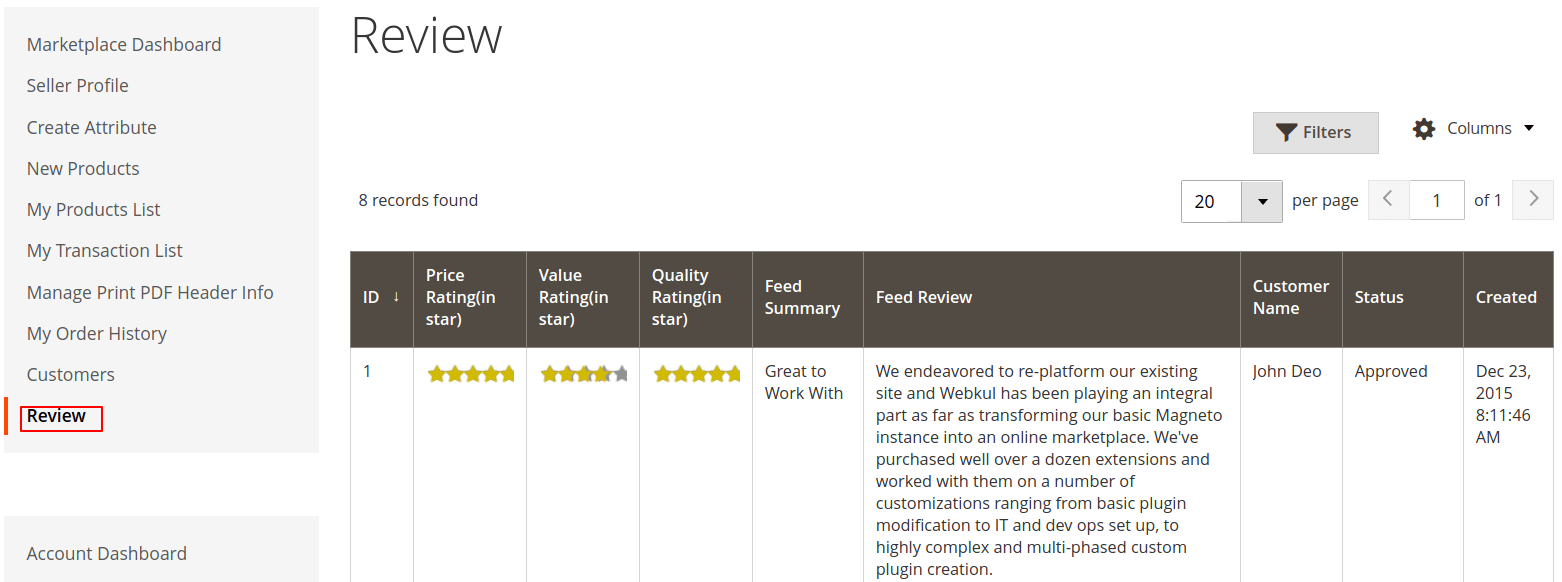
Also, under this section, the seller can find all the reviews and ratings given by the customers.
The vendor can check the price, value, and quality ratings along with the feed summary, review, and the customer name with the status of the review as well.
Here, the UI components have been used to display the grid that uses ajax to display the grid.

Admin News – Magento 2 Marketplace Extension
Here, The seller will get news for any sale, offer or regarding any updated news.
These News are managed by admin and show to every seller on their dashboard.

Seller Profile Settings – Magento 2 Marketplace Extension
After, clicking the settings menu option will redirect the vendor to the marketplace edit seller profile page.
Here, the vendor can edit his profile information and can view his collection and profile pages by clicking the buttons provided for the same.
Hence, the vendor can manage his payment information on this page as well as much more.
Product Flag Management: Magento 2 Marketplace Extension
For managing the Product Flags configurations the admin will navigate to Stores > Configuration > Marketplace > Product Flags.
Define Minimum Order Amount
This section allows the sellers with the feature to set the minimum order amount for the customers.

Minimum amount setting alert to customer

Multi Seller Product checkout by customer

Seller Profile link on order view page
Customers can get the seller’s profile link for each item on the order view page.

Report Flag – Marketplace Extension
In addition, with the Multi Vendor Marketplace Extension, the admin will allow the customer to report a flag against the seller and seller’s product too.
This exactly means that if the customer is having any issues with a particular product or the seller then they can report the flag from the front end itself.
Seller Flag Management
Now, for managing the Seller Flags configurations the admin will navigate to Stores > Configuration > Marketplace > Seller Flags.

As shown in the above image the admin will have to add the following field:
Enable: Firstly, the admin will enable the seller flag feature.
Text: This text is displayed to the customer on the seller profile page.
Guests Can Flag: Then, the admin will allow the guest users to report a flag against the seller.
Reason: Then, This field will show whether the reason is required or not. If this is set to Yes then below two fields get visible:
- Accept Other Reasons: Now, if this field is set to yes then the customer will type their own reason otherwise they have to select from the available reasons.
- Other Field’s Placeholder: This field is visible only if the “Accept Other Reasons” field is set to yes. This will be the placeholder for the other reason field.
Note: If this field is set to ‘Yes, Required’, make sure some reasons are created and enabled. The First 5 reasons will show on the flag creation page.
Seller Flag Reason
Even, the admin can add multiple reasons for the seller flags which can be selected by the customer while reporting the flag against the seller.
And, for adding a new Flag reason the admin will navigate to Marketplace Management > Seller Flag Reason as shown in the image below:

After that, the list of added reasons gets visible to the admin as shown in the image below:

And, for adding more reasons the admin will click on the New Reason button. Just after that, the form will appear with the details like:
Flag Reason: The new reason will display at the front end.
Status: The admin will set the status as enable to show it in the front end.

Once the reason is added the admin click on the Save button.
Customer Reports Flag for the Seller
As a result, after the backend configurations, the customer can now report a flag against the seller by clicking on the seller’s store name on the product page.

Now, this will take the customer to the seller’s profile page. There the customer will see the Report Seller button just below the store name as shown in the image below:

Then, after clicking on the Report Seller, the customer will provide the report details. Details are the same for registered and guest customers.
Note: For the registered customers the Name and Email fields get Auto-filled and Non-Editable. Whereas, for the guest customers the same is Unfilled and Editable.

After Submitting the form the details are visible to the admin at the backend. For this, the admin will view the seller profile under Manage Seller.
Under the Customer Information box, the admin will select Flags which will view the list of flags generated by the customers for that particular seller.

The admin can also take actions against the seller according to the flags. The admin can Deny/ Suspend the seller.
For this, the admin will navigate to Marketplace Management > Manage Sellers and click on deny as shown in the image below:

Product Flag Management: Magento 2 Marketplace Extension
For managing the Product Flags configurations the admin will navigate to Stores > Configuration > Marketplace > Product Flags.

As shown in the above image the admin will have to add the following field:
Enable: The admin will enable the product flag feature.
Text: This text will reflect the customer on the product page (front end).
Guests Can Flag: The admin will allow the guest users to report a flag against any product.
Reason: This field will show whether the reason is required or not. If this is set to Yes then below two fields will appear:
- Accept Other Reasons: If this field is set to yes then the customer will type their own reason otherwise they have to select from the available reasons.
- Other Field’s Placeholder: This field will reflect only if the “Accept Other Reasons” field is set to yes. This will be the placeholder for the other reason field.
Note: If this field is set to ‘Yes, Required’, make sure some reasons are created and enabled. The First 5 reasons will show on the flag creation page.
Product Flag Reasons
The admin can add multiple reasons for the product flags which will get selected by the customer while reporting the flag against any particular product.
For adding a new Flag reason the admin will navigate to Marketplace Management > Product Flag Reason as shown in the image below:

Admin can click on Product Flag Reason to check the reason list. The list includes the pre-added reasons.

Click on New Reason to add one more to the reason bucket. Provide the details like Flag Reason and Status that a new reason will be added to the existing list of product flag reasons.
Customer Reports Flag for Product
After the admin configurations, the customers can raise issues by clicking on Report Product just below the Contact Seller Button.

After clicking on the Report Product, the customer will provide the report details. Details will be same for registered and guest customers.
Note: For the registered customers the Name and Email fields will be Auto-filled and Non-Editable Whereas, for the guest customers the same will be Unfilled and Editable.
- Report Product Flag
Under this, the customer can either select the existing reasons or add their own reason.

After Submitting the form the details will be visible to the admin at the backend. For this, the admin will view the product in edit mode.
Under the Product Flags section the list of flags created will be visible which includes fields like ID, Name, Email, Created Date, and Flag Reason as shown in the image below:

The admin can take actions against the product according to the flags. The admin can Deny/ Suspend the seller.
For this, the admin will navigate to Marketplace Management > Manage Product and will click on Deny under Deny attribute as shown in the image below:

After that, the admin will have to provide the reason for denying the product. The admin can also check the checkbox to notify the respective seller via email about the denial of the product.

After clicking on Deny, the product status will be changed to denied. The filter can be applied as shown in the image below:

Just after tapping the Done button, the product list will get filtered with the status as Denied as shown in the image below:

Vendor Attribute
Now, the admin can add an attribute and allow it for sellers but only configurable or super attributes will be visible under vendor attributes at the admin end.

Furthermore, the admin can create new attributes from Add New Attribute button and enable/disable added attributes in bulk mode from the Action tab.

If those configurable attributes are enabled for the vendor then we can see those attributes at vendor dashboard > configurable attribute.

Seller Product Settings –

Attribute Set ID
Attribute Set ID is the default ID for your global catalog. Admin can select multiple attributes set from the Multi-Select list.
Product Approval Required
By this option, the admin can restrict automatic approval of the product e.g If the seller adds a product, every time the product will be moderated by the admin, the store owner can set YES or NO.
Product Update Approval Required
By this option, the admin can restrict automatic approval when a seller tries to update any parameter of the product.
e.g If a seller edits a product, every time the product will be moderated by admin, the store owner can set YES or NO.
Allow Category Tree View like admin product Category Tree
If this option is selected as “Yes“, then the seller on his add/edit product page will find the category tree view for selecting the category for the products as is displayed.

Allowed Categories for the seller to add products
Using this field admin can restrict sellers to use only some selected categories to add products. Those categories which are not selected by the admin will not appear.
Product Type For Seller
Here admin will select different product types and these selected product types can be added by the seller from the front end.
Allow seller to add products with SKU type
Admin can allow the sellers to add the products with two types of SKUs – Static and Dynamic.
In the static type of SKU, Seller set SKU will be used.
In the dynamic type of SKU, automatically created SKU will be used.

Product SKU Prefix
The value put by the admin in this field will be added at initial to the SKU that will be set by the seller. Also, this field only applies to seller products.
For example – If SKU prefix = “xyz” & product SKU is “T-Shirt” then, the product SKU becomes => xyzT-Shirt
Allow Seller to Add Related Products
Admin can allow sellers to add ‘Related Products’ while creating or editing products from the seller’s panel.
Allow Seller to Add Up-Sell Products
Admin can allow sellers to add ‘Up-Sell Products’ while creating or editing products from the seller’s panel.
Allow Seller to Add Cross-Sell Products
Admin can allow sellers to add ‘Cross-Sell Products’ while creating or editing products from the seller’s panel.
Allow Seller to Add Limit on Product Purchase for Customer
Admin can allow the seller to set product purchase quantity limits for buyers.

If Admin Allowed limit on the Product Qty on Product Purchase for Customer
Here admin can enter the default value that will use when the seller does not set any product purchase limit.
For example, if the admin set a default 5 product purchase quantity and the seller do not set any limit then the customer can only buy 5 product quantity.
If the seller sets some product quantity limit then that limit will be used.

Seller Order’s Settings : Magento 2 Marketplace Extension

Order Approval Required
When set as “Yes”, the admin is to approve each order manually, and only after that the seller will get notified about the order.
If this is set to “No”, the order notification will automatically be sent to the seller.

When the admin approves an order, the seller will receive and notification email and then the seller will be able to manage and view the order from his seller’s panel.
Inventory Settings & Seller Profile Page Settings


Enable Low Notification
If “Enable Low Notification” is selected as “Yes”, then seller get notified through their e-mails when their inventory decreases with subsequent orders.
Low Stock Quantity
Here admin will enter low stock quantity, which will allow sending a low stock notification mail to sellers when product quantity will be equal to or less than this quantity.
Banner Image
The admin can change the default seller’s banner image from here.
Display Seller Profile
If the admin set this to “yes”, then the seller information will be visible under the Marketplace Dashboard menu, on the product and on the landing page.
If the admin set this option as disabled, then the seller information will be hidden from the Marketplace Dashboard, product, and the Marketplace landing page.
Also, the seller will not be able to see the customer details, that will be hidden on the Order View page, Shipping slip, Invoice, Credit Memo page.

Seller Information Display Card Type
The seller information can be displayed on the product page for which the admin can select the desired design or card type as Type 1 and Type 2.
This is done to display the information about the seller which the customer can view and refer to.
If Admin selects Card Type as Type 1-

If Admin selects Card Type as Type 2-

Enable Color Picker
If this option is set to “Yes”, then the seller can change their profile page background color as per their need.
Seller Policies Enable at the frontend
There is an option – ” Seller policies Enable at frontend ” if the admin sets it as “Yes”, then the seller shipping, returns, shipping policies, and privacy policies will be visible at the frontend.
If the admin has set it as “No”, then the shipping and other policies will not be visible at the front end.
Rewrite Seller’s Shop URL
When this option is set “Yes”, then the seller can change the URL to any name they want, and then that new name will appear.
The seller can change the Url of the Profile page, Review page, Collection page & Location page.

Allow to automatic create seller public URL on Seller registration
If the admin select “Yes” for this field then when a new customer creates a new account it automatically creates the seller public URL at the time of registration.
If the admin set this option as “No“, then the seller will have to manually add his rewrite URLs.
Allow showing featured sellers
The admin can enable this option to show the featured sellers on various locations of the front-end. Featured sellers can be added in:
1. Pages
2. Blocks
In the case of Pages:
The admin needs to navigate through Content > Pages as per below image:

After that admin can create a new page or edit the existing one by selecting edit option under action.

Insert Widget
Now, admin has to select Edit with page builder >Edit HTML Code> Insert Widget under the Content as per the below image:

After clicking on Insert Widget the admin can select Widget Type as Vendor Featured to display the seller profile at the front end.
For the reference see the below image:

Note:- Herein, an extra Transaction effect option will be visible only in the case of the Magento Enterprise edition.
Otherwise, in the case of the community edition, the field will be the same as above.
Widget Type:
Select the Widget Type as Vendor Featured to show the seller profile at the front end.
widget Options:
Transaction Time– Here the admin has to enter the transaction time in milliseconds which decides the transaction time between two featured sellers.
Width– This will decide the width of the seller featured profile which will display on the front end.
The ratio of Height- Width- The Admin can decide the ratio of height and width of the featured seller profile display.
Seller Ids– Admin has to enter the Ids of the seller which they want to show at the front end and each seller Ids are separate by a comma.
Front-End view

In the case of Blocks
The admin has to navigate through Content > Blocks as per below image:

After that admin can create a new Block or edit the existing one by selecting edit option under action.

Now, Admin has to select Edit with page builder >Edit HTML Code> Insert Widget under the Content as per below image:

After clicking on Insert Widget the admin can select Widget Type as Vendor Featured to display the seller profile at the front end.

Here, the admin has to enter
- Transaction Time between two featured sellers,
- Width of the featured seller profile,
- Seller Ids of the sellers which they want to make visible on the front-end and
- The ratio of Height: The admin will select the width.
Storefront View – Magento 2 Marketplace Extension

Marketplace Seller Review Settings

When Marketplace Seller Review is set to “YES”, then the customer can make a review only after the purchase and if “NO” is selected then the customer can make a review before the product purchase.
Landing Page Settings
From here admin can enable or disable the Seller registration from Customer Registration Page. Admin can also choose from the 3 layouts and customize them as per their need.
Display Seller Registration Block on Customer Registration Page
From here admin can enable or disable the seller registration from the customer registration page.
When selected ‘No’


When the option is set as “No”, and if Layout 2 or 3 is selected then it will work as a Seller Central. For detailed information about this, you check the
Marketplace Seller Central Blog at https://webkul.com/blog/magento2-marketplace-seller-central/.
When selected ‘Yes’


Layout Configuration
Case 1: When Layout1 is selected
Admin Panel


Marketplace Landing Page Layout
Here admin can choose from various layouts that will be shown on the front-end.
Marketplace Landing Page Head Title
Here admin will enter the Head title of the Marketplace landing page and that name will appear on the front-end.
Display Banner, Banner Image & Banner Content
Here admin will enable the option “Display Banner” so that the banner will be displayed on the front-end.
In the “Banner Image” section, the admin will choose and upload the banner image.
For the “Banner Content”, the admin will write the content which will be displayed over the banner image in the Marketplace.
MarketPlace Landing Page Label 1
Here admin will enter some catchy lines and it will be displayed above all feature’s icons.
Marketplace Landing Page Label 2
Here admin will enter some content that will be displayed above the top 4 seller blocks.
Marketplace Landing Page Label 3
Here, Admin will enter the content for displaying the above “View All Seller” button.
Marketplace Landing Page Label 4
Here admin will enter the content for displaying above marketplace content.
Marketplace Landing Page Button Label
Here admin will enter the label for the landing page button label and it will get displayed on banners.
Display Icons-
Admin can set this as “Yes or No” and then anyone can see Feature icon and Feature label.
Likewise, the admin will select for all the Feature icons 1,2,3,4 and Feature Label and it will be displayed as per the admin setting.

About Marketplace
Here admin will enter the content inside the box provided.
Marketplace Seller List Page Bottom Label
Here admin will enter the label which will be displayed at the bottom of the MarketPlace Seller List Page.
Marketplace Seller List Page Top Label
Here admin will enter the label which will be displayed at the top of the MarketPlace Seller List Page.


Case 2: When Layout 2 is selected
Admin Panel

Marketplace Landing Page Layout
Here admin can choose from various layouts that will be shown on the front-end.
Marketplace Landing Page Head Title
Here admin will enter the Head title of the Marketplace landing page and that name will appear on the front end.
Display Banner, Banner Image & Banner Content
Here admin will enable the option “Display Banner” so that the banner will be displayed on the front-end.
In the “Banner Image” section, the admin will choose and upload the banner image.
For the “Banner Content”, the admin will write the content which will be displayed over the banner image in the Marketplace.
Marketplace Landing Page Button Label
Here admin will enter the label for the landing page button label and it will get displayed on banners.
Terms and Conditions URL
Here admin has to enter the Terms & Conditions Page link address.

Case 3: When Layout3 is selected
Admin Panel


Marketplace Landing Page Layout
Here admin can choose from various layouts that will be shown on the front end.
Marketplace Landing Page Head Title
Here admin will enter the Head title of the Marketplace landing page and that name will appear on the front-end.
Display Banner, Banner Image & Banner Content
Here admin will enable the option “Display Banner” so that the banner will be displayed on the front-end.
In “Banner Image” section, the admin will choose and upload the banner image.
For the “Banner Content”, the admin will write the content which will be displayed over the banner image in the Marketplace.
Marketplace Landing Page Button Label
Here admin will enter the label for the landing page button label and it will get displayed on banners.
Marketplace Landing Page Label 1
Here admin will enter some catchy lines and it will be displayed above all feature’s icons.
Marketplace Landing Page Label 2
Here admin will enter some content that will be displayed above the top 4 seller blocks.
Marketplace Landing Page Label 3
Here, Admin will enter the content for displaying above the “View All Seller” button.
Display Icons-
Admin can set this as “Yes or No” and then anyone can see the Feature icon and Feature label.
Likewise, the admin will select all the Feature icons 1,2,3,4,5, and Feature Label and it will be displayed as per the admin setting.
Admin will explain the overall workflow of the Marketplace through the five icons.
Any Seller can register themselves in the Marketplace, they can customize their profile and add details, then add products for their shops.
After adding the product, selling will be done and they will generate profit from sales.
Terms and Conditions URL
Here admin has to enter the Terms & Conditions Page link address.


Seller Layered Navigation: Magento 2 Multi Vendor Extension
Using this field the admin can enable a section of layered navigation on the category collection page.
Display Seller Filter in Layered Navigation– The admin can set this section to ‘Yes’, in order to enable the filter on the product page.
Display Name for Admin in Layered Navigation–
This section contains the information in which way the admin wishes to display his/her name in the layered navigation section.
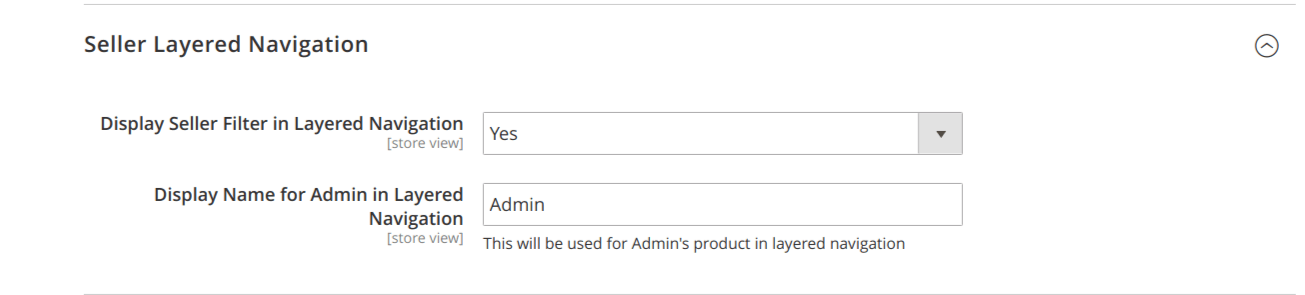
Henceforth, in the frontend the navigation which appears as below-

The customer can apply the filter here to sort out the products of desired sellers.

Seller’s Sitemap settings
The admin can manage the seller’s sitemap setting from the admin dashboard. To manage the sitemap, the admin can navigate to Store> configuration> marketplace> seller’s sitemap setting.

- Allow Seller’s Url in Sitemap– The admin can enable or disable the seller’s url in the sitemap
- Allow Seller’s Profile Url in Sitemap– The admin can enable or disable the seller’s profile in the sitemap
- Seller’s Profile URL Frequency in Sitemap– The admin can set the frequency to update the seller’s profile in the sitemap accordingly.
- Seller’s Profile URL Priority in sitemap– The admin can set the priority of the seller’s profile from low to high (0.0 to 1.0)
- Allow Seller’s Collection URL In Sitemap– The admin can enable or disable the seller’s collection in the sitemap
- Seller’s Collection URL frequency in Sitemap– The admin can set the frequency to update the collection URL in the sitemap
- Seller’s Collection URL Priority in Sitemap– The admin can set the priority of the collection URL in the sitemap.
Now, the admin can manage and add sitemap from the Marketing> Site Map from the admin dashboard.

Here, the admin can add a new Sitemap or edit the existing one.

The admin can even manage the existing one sitemap by clicking on the file name. When clicked on the URL, the admin will redirect to the sitemap.
To add a new sitemap, the admin can click on Add Sitemap, here the admin will have to enter the filename, path.
Select the store view for which the admin wants to generate the sitemap and then click on save.

This is how the sitemap can be generated from the admin dashboard for the seller’s profile and seller’s collection page.

Marketplace Profile Page Fields Hints
Using this field, admin can Enable or Disable the profile hints.
Including shop URL, profile id, Profile Payment Information, Profile Meta Description, Profile Meta Keywords, Shipping & Return Policies and many more.

Marketplace Product Page Fields Hints
Using this field, the admin can Enable or Disable the product page fields hints which will assist the seller while adding a product.


Marketplace Transactional Emails – Magento 2 Marketplace Extension
Now, admin can select the custom templates from Marketing > Communications (Email Template).
Created custom templates will be added to the drop-down and admin can use the desired template.

Admin can select the created template like this-


Marketplace Landing Page
The Marketplace Extension is based upon a responsive theme which makes the marketplace landing page more beautiful than before, incorporating an alluring banner with its content.
The page is divided into 4 different labels, between the Banner Image and Footer links, showing icons like Registering Yourself, Adding products, Start Selling, and Generating Revenues.
The second label will display the top 4 sellers of the marketplace, with their top three selling products, Seller logo, Shop Title, and a button to redirect to view the full collection of the seller.
The label also contains the option to ‘view the list of all the sellers of the marketplace at one place.
You can see there are four icons that display the overall working of the Marketplace in a list. Any Seller can register themselves in the Marketplace, then add products for their shops.
After adding the products into their shops, selling will be done and then revenue will be generated for the sale.

After clicking on View All, you will be redirected to a new page, where the customer can search seller by a shop and all the seller’s information will be there along with the seller’s logo.
There will be a “View All” button which will display all the products of the seller.

New Vendor Sign-Up – Magento 2 Marketplace Extension
Seller signup is very easy, the user can signup for the seller using the marketplace landing page button.
Or from the store My Account link, and during signup, they need to choose “Want To Become Partner”.
If they want to signup as a seller then they need to choose YES else NO. If they choose YES then they need to put their shop URL which will be unique as per the screenshot.

The shop URL input field is Ajax driven by which the seller can see whether that particular URL exists or not as below screens. As per the screen, that URL exists.

As per the below screen, that URL does not exist.

Marketplace Seller Panel Management
After approval as a seller, the marketplace dashboard will be available to the seller. So, the seller can edit their profile, add new products, and delete their products.

The seller can also view the notification count for product approval, new orders placed, and new transactions.
As well as view their transaction list, customer list, review, and order history and draft products.
Here, You can check your draft product and from select option you can edit or delete them.

The sellers can even click the notification bell icon to quickly view the new notifications for products, transactions, and orders. Please refer to the screenshot.
You can see there are many tabs for the base Magento 2 Marketplace Extension to manage the seller profile and to add a product in the store. Let us explain all of them.
Seller Profile
Edit Seller Profile Information
Using this menu seller will have shop information like shop name, the location of their shop, banner image, shop logo, company locality, shop meta description, and many more parameters.
In the Seller profile panel, the seller can add their various social media links, contact number, Background color.
(if enabled by the admin), Shop title, Company Banner, Company Logo, Tax/Vat number, and Payment details, Policy details, etc.


Edit Seller Shop URL-
One can now edit the different Shop page’s URLs as required for Profile Page, Collection Page, Review page & Location Page,
Then can set it accordingly as shown in the screenshot, which will be displayed in the URL of the particular page requested.
The seller can manage the custom URL for the shop.

Edit Seller Payment Information-
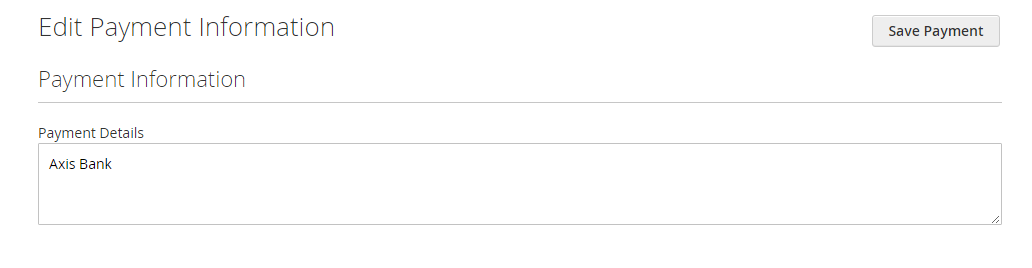
Under the Payment Details, the seller can add their bank account or PayPal id or any kind of payment information.
Seller Profile View
The admin can set the seller profile view layout by navigating through Marketplace Management >> Configuration >> Seller Profile Page Settings
Case 1: If the admin selects the Layout 1.

Frontend View of Seller’s Profile – Layout 1
After entering all the information, sellers will get an amazing page for their shop as below.
Seller’s Profile Page

The customer ratings are visible on the seller profile page as shown below in the snapshot.

Seller’s Collection Page
When the user will click on “Products” or “View All Products”, the user will be able to see all the Seller’s Product which can be browsed by categories.
From here buyer can add a product to his cart and proceed to further process.

Seller’s Product Page
In the product page, the customer can view the review for that particular product along with the shop link for that seller as shown in the below image.

Contact Seller
When the buyer clicks on the “Contact Seller” button on the Seller’s product page then the popup for the contact seller will open.

Email Template For Product Page Contact Seller
The admin can set the email template for the product page to contact the seller by clicking on Stores>Configuration>Marketplace Transactional Emails>Ask Question to Seller Regarding Product Template.

Seller’s Feedback Page
Buyers can rate the seller according to his/her opinion under their profile with star rate votes and feedback messages as shown below.


Seller’s Location Page
By clicking on the seller location below the Seller’s shop name the buyer will be redirected to the seller’s location(for showing location, please add the company locality of the seller) page.
From the seller’s location, page buyers can view the seller’s location on the map.

Case 2: If the admin selects the Layout 2.

Frontend View of Seller’s Profile – Layout 2
If Layout 2 is selected in Seller profile page settings then the seller will get amazing page for their shop as given below.
Sellers Profile Page


The customer ratings are visible on the seller profile page as shown below in the snapshot.

Seller’s Collection Page
When user will click on “Products” or “View All Products”, the user will be able to see all the Seller’s Product which can be browsed by categories.
From here buyer can add a product to his cart and proceed to further process.

Contact Seller
When the buyer clicks on the “Contact Seller” tab on the seller’s profile page, then the popup for the contact seller will open.

Email Template For Contact Seller
The admin can set the email template to contact the seller on Seller’s Profile by clicking on Stores>Configuration>Marketplace Transactional Emails>Ask Question to Seller Template.

Seller’s Feedback Page
Buyers can rate the seller according to his/her opinion under their profile with star rate vote and feedback message as shown below.

Seller’s Location Page
By clicking on the seller location below the Seller’s shop name the buyer will be redirected to the seller’s location page.
From the seller’s location, page buyer can view the seller’s location on the map.

New Products
Admin BackEnd Setting For Allowed Attribute Set & Product Type For The Seller.
Well, the admin can set the functionality for not showing the select drop-down for selecting the attribute set and product type for adding products at the seller end as per the below cases-
Case 1 :
If the admin set only one “Attribute set” and one “Product type” then –
In this case, the seller will be directly taken to the “add product page” without being prompted to select the Attribute Set and the Product Type for the new product.
This will cut the selection of these two options for the sellers where the admin set only one Attribute set and only one Product type for the sellers.


Case 2 :
If the admin set more than one “Attribute Set” and “Product Type” then – in this case:
The seller will have to first set the Attribute set and the Product type for the new product, and then the seller will be taken to the Add New Product form page.


Case 3 :
If the admin set only one “Attribute Set” and more than one “Product type” then – in this case:
The seller will first have to set the Product Type for the new product, and then the seller will be taken to the Add New Product form page.


Case 4 :
If the admin sets more than one “Attribute Set” and only one “Product type” then – in this case:
The seller will first have to set the Attribute Set for the new product, and then the seller will be taken to the Add New Product form page as per the below screenshot.

The seller can add products from the seller’s end. Let us explain all the Product types one by one below.
Simple Product

After inserting Attribute Set and Product type, the below page will be open, in which you have to enter whole information about the product and save it. It’s all about adding a new product.
When the seller click on drafts, It add their product as a draft, It will not visible on frontend. It Will be list in draft products.
Short description, SKU, price, and special price information.

Stock, availability, visibility, tax class, weight information and URL key.

Meta title, meta keywords, meta description, set allowed product quantity, and product images.


Downloadable product information, create configurations and select related products.
Select up-sell products.

Select cross-sell products.

The seller can make any image as the base image by clicking on that particular product image. Please refer to the image below.

Front-end (Product Page):

The sellers can also add videos along with the product images.
The admin needs to enter his YouTube account API Keys in the admin backend panel by navigating to Stores->Configuration-> Catalog->Product Video.
Here, the admin will enter his account(YouTube) API key and then save the configuration.


Now the sellers will be able to see the “Add Video” button on their add product page as shown below in the snapshot.

Clicking the “Add Video” button will bring up a section to add the video details. Here, the seller needs to fill in the required fields and save the configuration to add the video.

Downloadable Products
The seller can add Downloadable Product in Magento 2 Marketplace Extension.
Downloadable Products can be sold into Zip files such as software, e-books, images, music, or video.

Adding up a downloadable product will create an additional field to enter the URL, as mentioned in the screenshot.

Virtual Product
The seller can add Virtual Product which does not have a physical presence.

Configurable Product

Before creating a configurable product, the Seller needs to create the attribute for Configurable Products including Attribute Code, Attribute Label, Catalog Input Type, and Values Required.

The seller can add a Configurable product as shown below. You must create an attribute for Configurable product.
After entering all the details about the product, the seller will click on “Create Configuration” and then the following pages will appear for the attributes code selection.

Select Attributes–

Now, the seller will select the attributes value and then click on the Next button.
Attributes Values– The seller will select attribute values from the check-box as per the image below.

Now, the seller will select options for bulk images, pricing, and quantity.
Upload bulk images- Here, the seller can select an option like “Apply unique images by attribute to each SKU” and
Then select an attribute from the drop-down and upload image(s) for each attribute values.
Bulk price and quantity- In the Pricing and Quantity, the seller will select the attribute from the drop-down and then enter different quantities for each attribute values.


Now, the seller can review the product and then click on “Generate Products”.
After successful addition of the product, the seller can see it on the product add the page and then save that product.

Duplicate Product
A vendor can also create a duplicate copy of a product. A duplicate product can be created either at the time of editing or adding a new product.
To create a duplicate copy of an existing product, edit product and click Save & Duplicate button.

Once the duplicate product is created all the product information will be copied from the original product except the following:
- Status – It will be disabled.
- SKU – Hyphen (-) sign with a # number will be added.
- Stock – It will be zero.
- Stock Availability – It will be out of stock.
My Product List
Using this menu sellers can manage their products like they can edit their products, track their product sales, and can check their ordered stock quantity as per the screenshot.
There is a mass delete option by which sellers can delete a whole product at a time.

The seller can use the Filter property in which products can be filtered according to Product Name, Status & Date.
You can see this as below screenshot.

My Transaction List
The seller can see their Transaction in this field. They can see whole statements(Total seller earning, Total Sales, and Commission ) and total Payout.
They can also make a withdrawal request for the remaining payout. Clicking the “Make a Withdrawal” button will send an email to the admin that the seller wants to make a withdrawal.

The seller can also filter the transaction using Transaction id, Date, and view whole transaction details.

Earnings
The sellers can easily with accurate statistics able to see the store earning report. By navigating to the “Earnings” option on sidebar.

Timely Earnings Report
The seller can view the earning report of the store in terms of the day, month & year wise.
Day Wise Report
The seller can view the earning report of the store day-wise.

The seller can select the period as “Day”, and will enter the specific day to day period. A sales vs day wise graph will show you the sales day wise.
In addition, the seller can view the grid view of the total earnings day-wise.
Month Wise Report
The seller can view the earnings report of the store Month wise.

The seller can select the period as “Month”, and will enter the specific starting and ending month period. A sales vs Month wise graph will show you the sales month wise.
In addition, the seller can view the grid view of the total earning month wise.
Year Wise Report
The seller can view the earnings report of the store Year wise.

The seller can select the period as “Year”, will enter the specific starting and ending year period. A sales vs year-wise graph will show you the store earnings year wise.
In addition, the seller can view the grid view of the total earnings year-wise.
Multi-site, Multi-store, Multi-Currency – Magento 2 Marketplace Extension
Multi-Store
Setting up Multi store Magento 2 is one of the variable functionalities Magento 2 brings to store owners.
This feature allows you to create stores as many as you need only in a single configuration.
All stores that share the same domain and be set up as subdomains of the same domain.
It has entirely different domains, yet possibly shares the same backend for easier administration.

Multi-Site
The website is the top-level container for sites, shipping methods, payment methods, and so on.
If you want to create completely separate sites that do not share the cart, shipping methods, and so on.
It is obligatory to create separate websites that will use the same domain or different domains.

Multi-currency.
Configure Currency Magento 2 to determine what currency customers will allow using when checking out your store.
The currency symbol will appear in product prices and sales documents such as orders and invoices. Most interestingly, store admins are able to customize their appearance if needed.
Moreover, with Magento 2 configuration, you can set more than 20 currency units of the corresponding countries in the world.
If your store accepts multiple currencies, Currency Chooser is available in the header of the storefront.

The customers can choose their preferred currency at the store front-end.


My Order History
Using this field seller can see their products order history in one shop. Order histories can filter by Order Id, Date, and Status.

After clicking the “Download All Invoice Slip & Download All Shipping Slip”, a popup will appear where the seller can download the invoice and packing slips by entering “From” and “Until” date.

After clicking on View Order, Order Details will display with Buyer information, Shipping address, shipping method, Billing address, Payment method, Items ordered as shown below.
Along with that, a seller can manage shipment, add the tracking number, the creation of credit memo, sending emails, printing of invoices, etc. Just by viewing order in ‘My order history’.

Refund
The seller can also refund the amount to his/her customers from the Magento 2 Marketplace Extension.
After creating the invoice, the seller will click on “Credit Memo” like the image below:

The seller can update the quantity for the refund and can also add the adjustment fees.
You can check the below image for a better understanding:

Customer
Under this section, the seller will be able to view all of his customers and can see the order placed by the customers as well.
The seller can also view his customer’s details like- Name, Email, Contact Number, Gender, Address, Base Total, and Order Number.

Customer Review
The seller will be able to view all the review and ratings given by the customers.
The vendor can check the price, value, quality ratings along with the feed summary, review, date and the customer name with the status of the review as well.
Manage Print PDF header Info
Here seller will enter Invoice and Packing Slip Address/VAT/Tax Information which will appear in the header of PDF files.

Marketplace Dashboard
Using seller dashboard seller can track his income, 5 top selling products, total sales over time, total payout, and the remaining amount that is left to be paid out.
Also, the seller can track his paid commission, orders and can filter the results using year, month, week and day using an interactive map.
Seller will be able to see his top-selling category list. Similarly, the seller can see his sales statistics
Such as total sales over time,orders over time , average order value over time, as a graph and can filter the results using the year, month, week, and day shown in below image –

Using seller dashboard seller can track his latest order, notifications, price rating, value rating,quality rating, Latest comment and reviews in their Activities section.

If Seller has any doubts or query then, they can frequently ask the questions or doubts to the admin by clicking on Ask Question to Admin button.
This is a way of communication between Seller and Admin for Seller’s query.

Admin News
The seller can see the news listing published by admin in the “Admin News” as shown in below image –

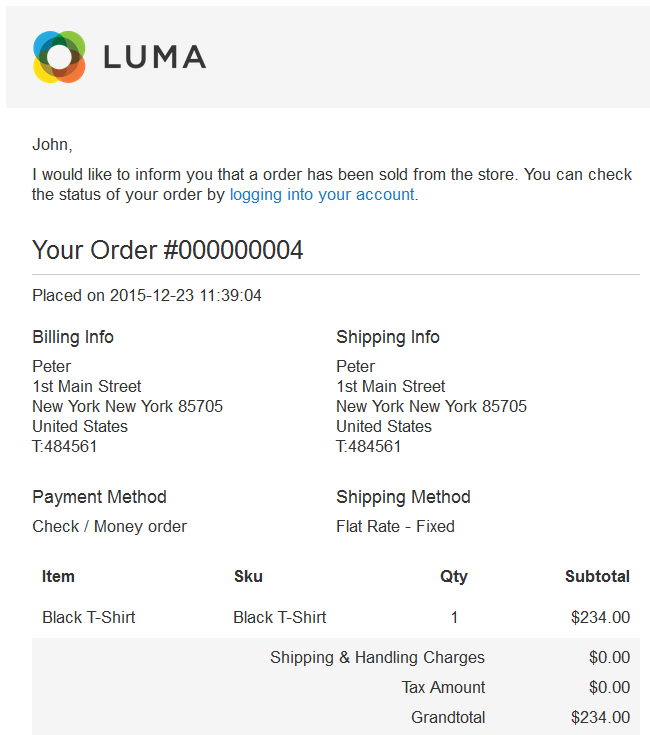
Seller Order Notification Mail Template
In the Magento 2 Marketplace Extension, if an order is placed and its invoice is created then the seller will receive product sold notification mail with their product details.
For example, if an order is placed with three products (A, B, C) of Seller (x,y,z) respectively.
So when order invoice will be created then sellers (X, Y, Z) will receive an email for their products (A, B, C respectively) with order details.
Marketplace Admin Management
After the successful setup of the Magento 2 Marketplace Extension, the admin will be able to see “Marketplace Management” as per the below screen.
The admin can also view the notification count for new seller requests, add or edit seller product and new feedback.
The admin can also view the notification count for new seller requests, add or edit seller product and new feedback.

Please refer from the screenshot below:
Manage Products
This menu is responsible for managing Seller’s Product from Marketplace configuration panel (Store > Settings > Configuration).
Product approval is required then, in this case, every product added by seller needs to be approved by admin.
Product approval will happen from the Manage Product menu as per the screenshot. There is also a Deny and remark option by which admin can deny and remark the Seller’s product for a valid reason.

On clicking on the Product image, admin can see enlarged image for the better view and at the bottom, there is a link to view product detail.

The admin can give remark to any pending product by clicking on the Remark button as shown in image below –

The admin can deny any approved product by clicking on the Deny button for a particular reason.

Manage Seller
This menu is responsible for Seller Management from marketplace configuration panel (Store > Settings > Configuration).
If partner approval is required then, in this case, the admin needs to set the status of the seller:
- Disapprove- Admin can disapprove the seller.
- Approve- Admin can approve the seller.
- Processing- Admin can set the status of the seller profile from pending to processing.

View Seller’s Order-
When the admin clicks on “Order” then all the orders of that seller will be displayed. Admin can also see the amount left to be paid to the seller.

In the Magento 2 Marketplace Extension, the admin can deny any seller by clicking on the Deny Button and entering the reason.
To clear out the message admin can click the reset button.

View/Edit Seller’s Information-
Click the Marketplace Manage seller menu and select the seller to open the below page with the seller information. Here, admin can edit any detail and then save it.

Admin can see Payment details entered by a Seller during account creation. These payment details will be used by the admin to pay the sellers.

The admin can set the commission in percentage for any particular seller and can also see Total Sale, Total Seller Sale, Total Admin Sale.

The admin can assign categories to a seller by going to the Assign Category option as visible in the screenshot below. The seller can now add products and select only the assigned categories.

When the admin needs to assign any product or mass assign products to any particular seller, the admin will click the menu item “Product Assignment”.
Here the admin finds a complete list of products in the catalog.
Admin checks the Ids of the products that are to be assigned to the seller and click the save customer button after that to assign the products to the seller.

The admin can assign attribute set to the vendor as per the below image.

Using this field admin can remove any seller from the Marketplace and make him a normal customer.

Assign Seller to the Product
Just like the admin assigns product to the seller, in Magento 2 Marketplace Extension, the admin also assign sellers to products.
For this, the admin opens the product in edit mode and then select the seller to assign the product:

Note: This functionality does not work for the products which are already assigned to their respective sellers.
Likewise, for doing this, first, the admin needs to un-assign that product from the edit seller page to which it is assigned.
Admin Product List
Here the admin can see the seller’s name in the product list.
Note: If products are already created by the admin or sellers then execute given command to assign seller or admin id on products.
php bin/magento assign:mp:product

Manage Commission
Here in the Magento 2 Marketplace Extension, admin can view details like Seller ID, Commission percentage, Total Sales, Received Amount, Remaining Amount, Commission value and Last paid.

Seller Transaction
Here, the admin can view the transaction detail which comes after the admin pays the seller.

Manage Feedback
This menu is responsible for all the reviews. Admin can approve, unapproved, and delete the reviews. Unapproved or deleted.
Reviews will not appear in Seller’s account. Admin can also see the ratings for price, value, and quality in terms of the star.

Manage News
This menu is responsible for all the news that are published by admin. These news will visible to all sellers.

Here, the admin can also add the news by clicking on “New News” and It will be visible to all sellers in their admin news section.

When Admin set seller Profile to No
When the admin set the seller profile page setting for “Show Seller Profile” to “No” at the back end.
Under Stores>Configuration>Marketplace >Seller profile Page Settings as shown below, many pages are affected by this setting.

Landing Page – Magento 2 Marketplace Extension
Seller information is hidden from the marketplace landing page as shown below.

On the product page, the seller information which is visible to the customers is hidden as shown below in the screenshot.
Product Page

Seller Order History Page
On My Order History page, the buyer information hides from the seller as shown below.

The buyer information also hides at the View Order Details page as shown below in the screenshot.

Now, you can see the buyer details are hidden for the Shipment Tab as shown below in the screenshot.

Furthermore, the Packaging Slip downloaded as a PDF does not have any buyer details on it as shown below in the screenshot.

Invoice and Credit Memo
Invoice
Now, the buyer information will hide on the View Invoice Details page of the seller as shown below.


Credit Memo
However, buyer information is hidden at the Credit Memo Generation page .
Additionally, on the View Credit Memo details page, the buyer information is hidden as per the below screenshot.


Additionally, the Buyer information is hidden from the downloaded Credit Memo pdf as shown below –

How to Use Advanced Pricing in Multi-Vendor Marketplace?
Advanced pricing can be said as the special price offered to a specific group of customers. Also, advanced pricing can be implemented on simple, virtual, downloadable, and bundle products.
And Advanced pricing data is synchronized with product pages. For example, if you update a tier price quantity, the system updates the value on the product page.
- On the admin end, the advance pricing can be set on the product. For this,
- The admin needs to open the product in edit mode.
- After which under Price we have Advanced Price, where we can set
- Special Price(along with the date of validity)
- Tier Price

How To Make Tier Price Visible On Seller End?
Certainly, the Tier Price is a major component of Advance Pricing which gives the customer the advantage of receiving a discount on the basis of the quantity purchased.
That is, you offer a quantity discount on a product listing or product page in the storefront. However, the discount can be applied to a specific store view or customer group.

Extended Functionality- The Magento 2 Marketplace Extension is having an additional feature.
That enables the seller to have a facility to set tier price for the product for a specific group of people too.
Moreover, this achieves by Magento 2 Custom Attribute Marketplace Add-on, we can simply go to Custom Attributes in the admin panel.
Also, the admin can select the ‘tier_price’ attribute and under the Action drop-down, click on ‘Show In Front.

Now, the attribute Tier Price could be seen on seller front when we open the product in edit mode.

Note- In order, to have the functionality of Tier Pricing in Seller end you must have the add-on, Custom Attribute Marketplace Add-on.
Support
Therefore, In conclusion, that’s all for the Magento 2 Marketplace Extension.
For any queries or doubts, you can reach out to us by dropping an email at [email protected] or raising a query at our HelpDesk system.
For more such kinds of extensions, you can view our Magento 2 Extensions.
Current Product Version - 5.0.2
Supported Framework Version - Magento 2.0.x, 2.1.x, 2.2.x,2.3.x, 2.4.x


Also if I disable the separate vendor panel it does not show the options in customers` front, as if the module was not there.
backend admin in M2 seems to be normal.