Booking App for Shopify is all set to let the merchants & the customers import the booking events to the Google Calendar using ICS File Download Add-On.
With ICS File download add-on, the merchant will provide downloadable files to the customers via mail on each booking approval.
Thus, customers can import the file onto the Google Calendar and remain updated with their upcoming booking events.
Moreover, the merchant can download the ICS file from the Bookings section of the app. Once downloaded, he/she can also import the events to Google Calendar.
Steps to Download the .ics File
Firstly, visit the Add-On section of the Booking App and click the install button to enable the ICS file Download Add-on.

Now, as soon as the customer places an order, you need to approve the request (in case the auto-approval tab is disabled). Once you approve the request, visit the edit booking section.
Booking App-Admin Panel>>Bookings>>Edit Booking (Action).
There, you can view the option to download the ICS file for the approved booking.
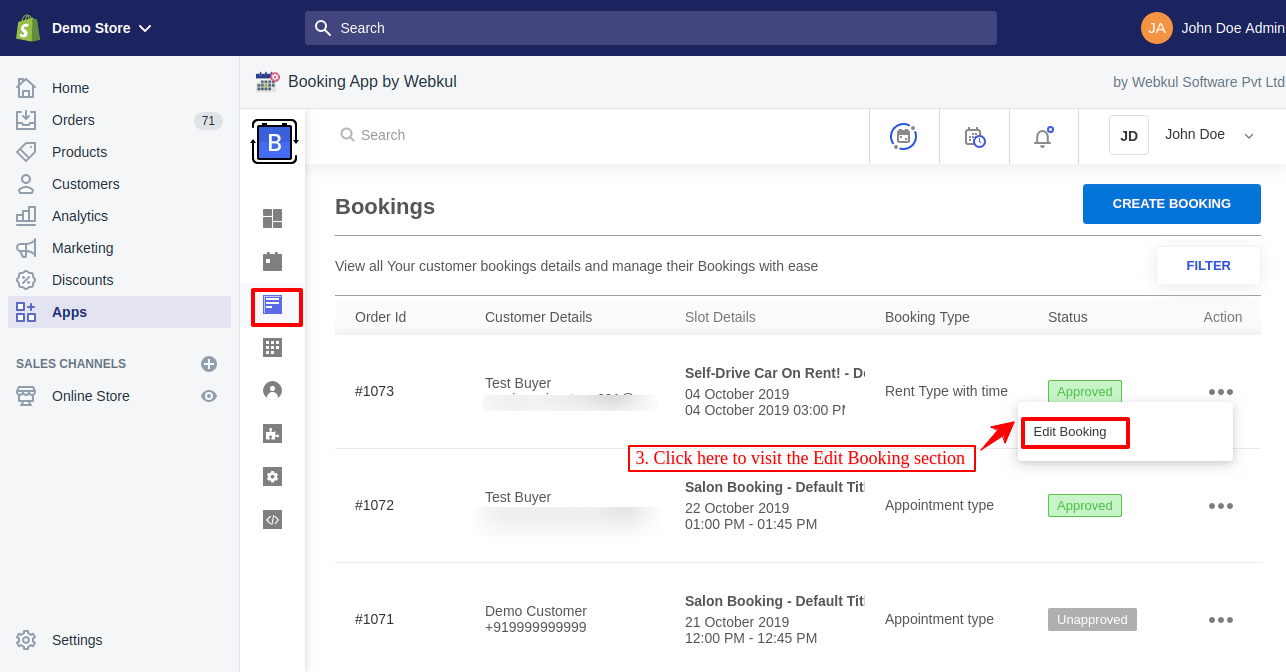
In the Edit Booking section, get the ICS file download option.
Admin Downloading ICS File from the App

Also, the customer will receive an email regarding the same. In the mail, the customer will see the option to download the ICS file of the booking.
Customer Downloading ICS File from the Mail

In order to add this link to the mails, you need to configure the mail content from the app by adding a placeholder:
“{%google_calendar%}” {%ics%}
Refer the screenshot:-

This way, both you and your customers can download the file from the app & the mail respectively.
Now, let’s see how to import the downloaded file onto the Google calendar to update the booking events.
Steps to Import the Booking Events to Google Calendar
As both admin and customers have the ICS file for the bookings. Both need to have an account on Google to make use of the Google Calendar for updating booking events.
Log in to Google Calendar.
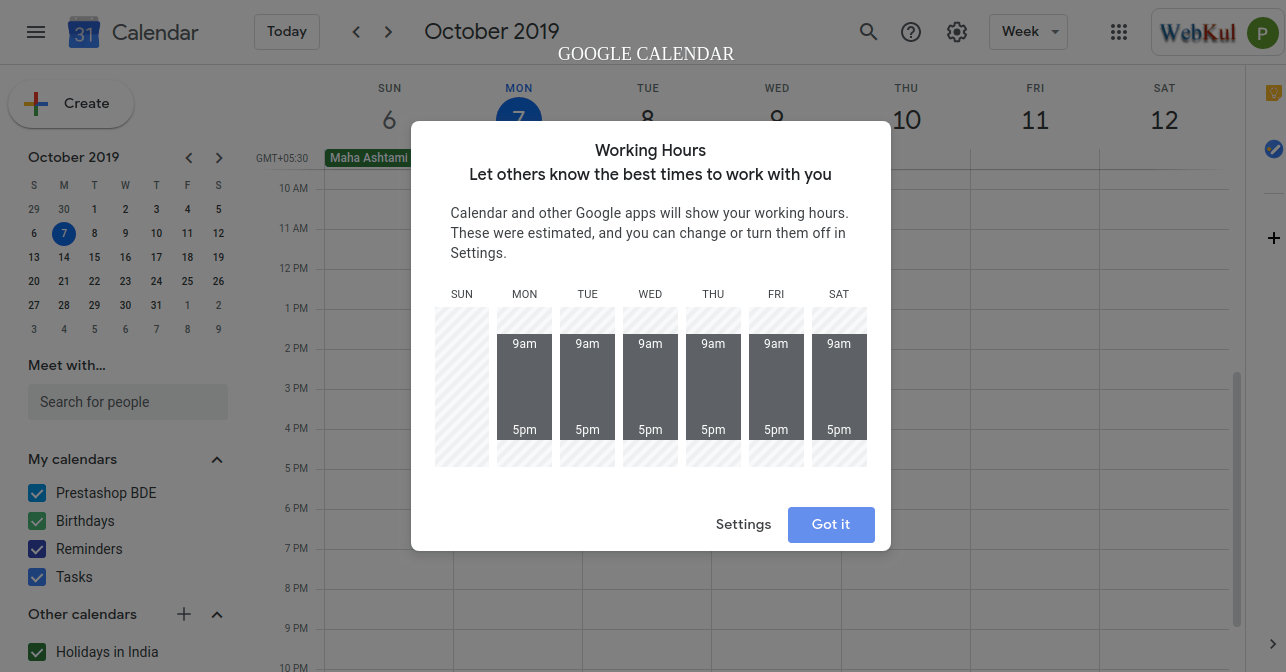
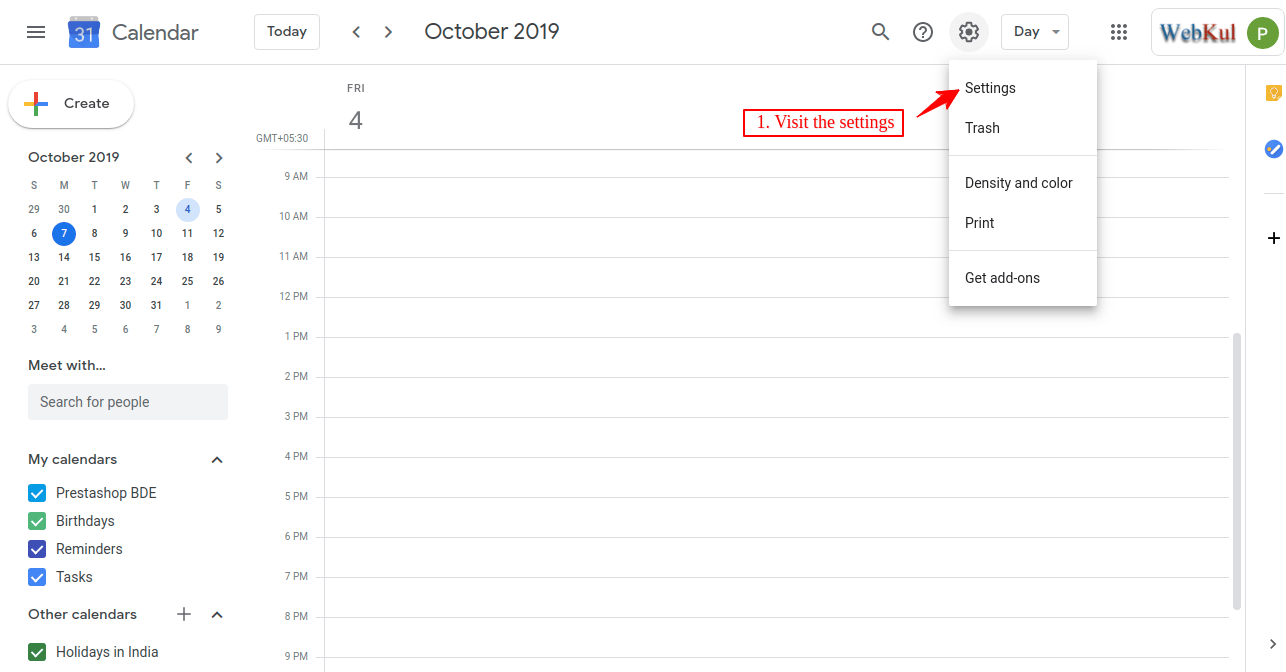
Go to the Settings.
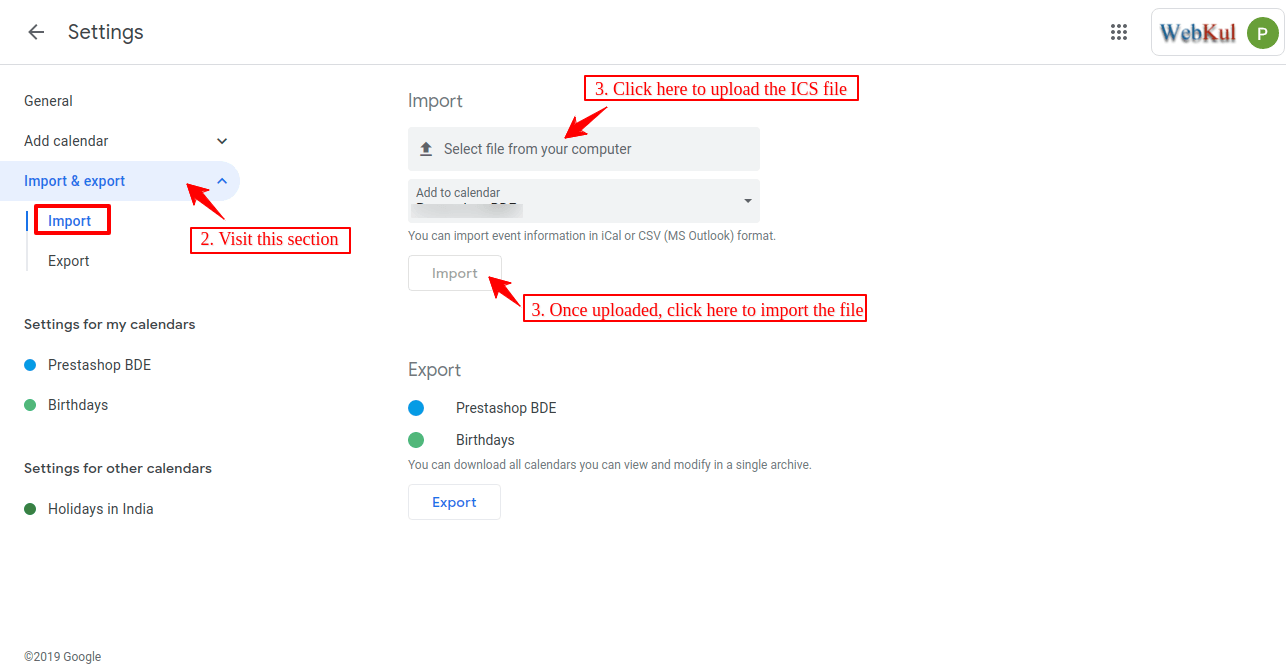
Now, Click the Import & Export button & proceed to import the downloaded ICS file.
Upload the .ics file and hit the Import button.
Once imported, you can view the booking events on the Google Calendar like this:
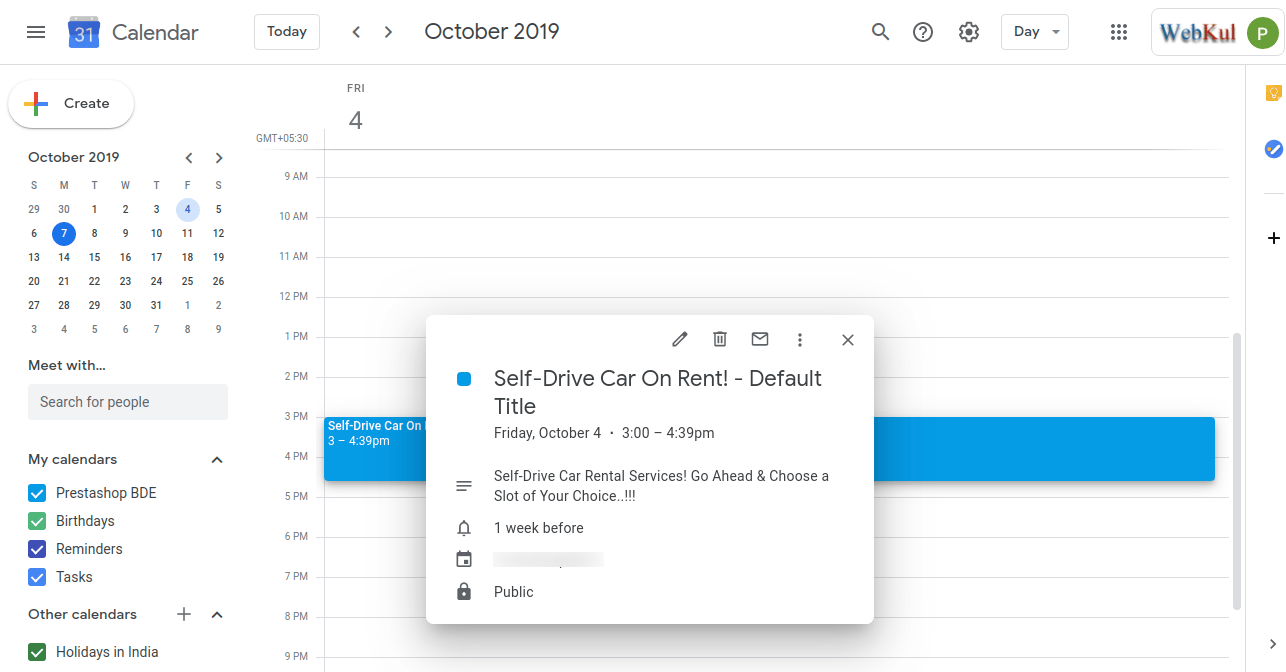
This way, you can add events to Google Calendar using the file download Add-On.
Check the Google Calendar Feature of the Booking App!
Demo
You can click on the link below to get the backend as well as frontend demo links: https://webkul-booking-app-demo-2.myshopify.com/pages/demo
Need Help?
Hope you like this blog!
To get more interesting blogs, keep in touch with us. If you need any kind of support, just raise a ticket at https://webkul.uvdesk.com/en/.
Also, you can contact [email protected] to get proper assistance.
Thank You for reading this Blog!


Be the first to comment.