
PrestaShop DHL Shipping: Integrate your PrestaShop store with DHL using REST API and offer reliable DHL shipping options to your customers.
PrestaShop DHL Shipping calculates the cost of each DHL service based on shipping address, destination address, and product dimensions.
The module facilitates the store owners to create shipping labels.
Note: PrestaShop DHL Shipping module is MultiShop Compatible.
Features of PrestaShop DHL Shipping
- Provide multiple DHL shipping methods to customers on PrestaShop store.
- Display shipping cost for each DHL shipping method on the checkout page.
- Calculates shipping rates based on shipping address, destination address, and product dimensions.
- Use the module in test mode before going into production.
- Send an order in a single package or multiple packages.
- While creating multiple packages for an order, select products and their quantity that will be sent in a package.
- Create shipping labels.
- Add custom label text to display on the shipping label.
- Track order from order details page.
- Request a Pick-up for orders.
- Customer can also track their orders from order details page.
- Paper less trade option is available for international shipments.
Note
- DHL Shipping module is completely based on REST API. This module is a rate calculator which will display the rates calculated directly from DHL shipping method’s website based on admin’s shipping address and customer’s delivery address taking into consideration the mentioned product dimension and weight Note: Display of a particular shipping method will totally depend upon the API.
- DHL API credentials are not same as your DHL account credentials. You have to get credentials from DHL support through email. So please contact to DHL support to get DHL api credentials.
- Module takes into consideration DHL express rates.
How to Install PrestaShop DHL Shipping
- Firstly, go to the module manager in the back office and click on ‘upload a module’.
- After that, drag and drop the module file or select the file from the system.
- In this way, the module installation will be successful.


How to get API Keys
To obtain the API keys, you need to log in or create an account on the DHL Developer Portal.

After logging in, navigate to your User Dashboard.

On the User Dashboard, click on the ‘Create app’ button to create an app.

Complete the following steps to create an App:
- Enter the App Name
- Enter App Description
- Select the required APIs
- Click the “Create App” button

Once you have successfully created an App, you will be redirected back to the dashboard. Your app will show one of the following statuses:
- Pending: all selected services require approval.
- Mixed: some services are approved, and some require approval.
- Approved: all selected services are approved.
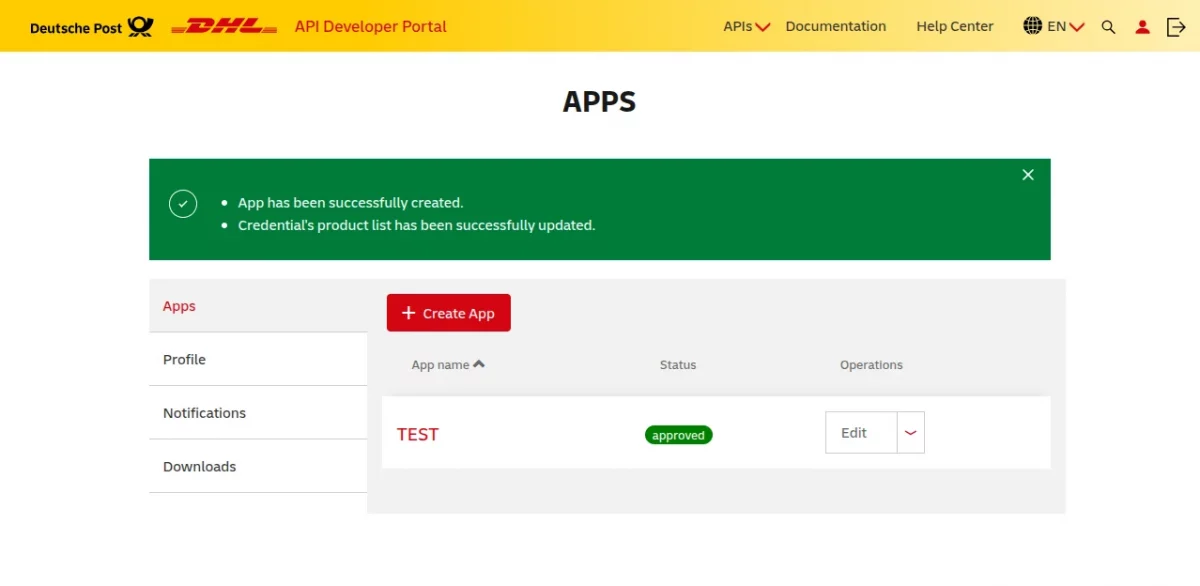
Once all required services are approved, open the app from your dashboard to view the API credentials.

DHL Shipping Configuration
After the successful installation of the module, the admin needs to configure it.
The module configuration is sub-divided into for sections:
- DHL API Credentials
- Shipper Information Settings
- Packaging Information
- E-mail settings
DHL API Credentials
Under this tab, the admin:
- Choose to use the module in sandbox or live mode.
- Needs to specify DHL API key, secret, and account number he got from DHL account.


Shipper information settings
Under this tab, the admin needs to specify shipper’s name, address, and contact details.

Packaging information
Under Packaging Info, the admin can:
- Select the dimension unit as Matric (CM/KG) or Imperial (IN/LBs)
- Select the number of days after order he will generate shipment.
- Enable or disable waybill doc generation.

E-mail settings
Once the shipping label gets generated, an email will be sent to customer containing order tracking details if this field is enabled.

Note: After installing the module the admin needs to install the DHL services. It is mandatory to install the DHL services in order to work with this module properly.
The admin can view a list of domestic and international DHL shipping methods under carriers. Go to Shipping->Carriers.

Front End Flow
Suppose a Customer purchases multiple products with multiple quantities in a single order.

At checkout, the buyer will find the DHL Shipping methods with their costs.

Admin can view the name of the DHL shipping carrier with their shipping rate in order page.
Further, a drop-down menu is available for the admin in the DHL Shipping Details Block.
From here, he can select whether to generate a single or multiple packages for the order.


Paper less trade
This option is primarily used for international shipments.

Suppose Admin selects Multiple Package creation for the order. After this, select the products and its quantity to send in respective packages.

Admin can create more packages by clicking on “Add more packages” button.
The admin can decide the product and its quantity to send in the packages.
Once admin has created his own packages, Click on “Create shipment label” tab. This will enable label creation for the packages.

Once the labels for the packages are generated, admin can download the shipping label and also track the order Package wise.

Customers can also track their order from their order detail page.

This is how admin can add DHL shipping methods to their store.
DHL Pick Up Functionality
In this module, there is also a feature to request a pick up. Admin can generate a pick up request from the Order detail page.

When Admin clicks on ‘Request DHL Pick-Up’ tab, a pick up form pops up which needs to be filled in by the admin. DHL Pick Up Request form has three parts :
- Requestor Details
- Place Information
- Pick Up Time Information
On the Requestor Details Form section, Admin needs to fill in the details of the Person who is requesting the pick up from DHL.

In Place Information section, admin needs to enter the place details from where pick up has to be taken by DHL.

On Pick Up Time Information section, Admin will enter the desired Pick up date and Time.

After generating a pick up request, the admin can also modify or cancel it.
Note – Admin can generate One pick up request for one order irrespective of whether the order is sent in single or multiple package.

This is how admin manages DHL shipping on its website along with single/multiple package creation, generating shipping labels and track the order as well as request a pick up.
So, this was all about Prestashop DHL shipping Module. I hope this document will help you in checking the functionality of the module in a better way.
Also, do let us know about your views in the comments.
In case, if you are looking for a DHL shipping module for marketplace, then do checkout the blog.
Support
For any kind of technical assistance or query, please raise a ticket or send us a mail at support@webkul.com
Also, please explore our Prestashop development services and vast range of quality Prestashop addons.
Current Product Version - 7.0.1
Supported Framework Version - 9.x.x, 8.x.x, 1.7.x.x


Be the first to comment.