WooCommerce WhatsApp Order Notifications plugin allows store managers to communicate order updates to customers via WhatsApp. It automatically sends notifications after a purchase is made.
Additionally, the admin can manually send updates from the order editing page.
This plugin integrates seamlessly with WooCommerce, ensuring that order details are well-organized and easy to understand.
It enhances customer communication by providing fast updates. Its user-friendly design makes managing notifications a breeze.
If you’re looking for a way to add a custom prefix or suffix to your orders, check out the Custom Order Prefix for WordPress WooCommerce.
Note – This plugin is compatible with WooCommerce’s latest High-Performance Order Storage (HPOS) and Cart and Checkout block.
Explore our WooCommerce Product Import – XML CSV URLs plugin that enables the admin to easily import products from XML & CSV URLs or through FTP/SFTP details.
Features
- When customers place an order, they get automatic alerts via WhatsApp.
- The store admin has the option to send updates manually from the order editing section.
- A message is also sent through WhatsApp whenever there is a change in the order status.
- It integrates seamlessly with WooCommerce to provide order information.
- Enhances customer engagement by delivering quick updates through WhatsApp.
- Features an easy-to-use interface for handling and sending notifications.
- The admin can opt to send order updates to their own WhatsApp number as well.
Installation of WooCommerce WhatsApp Order Notifications
The user will get a zip file that he has to upload in the “Add New” menu option in the WordPress admin panel.
For this, log in to WordPress Admin Panel, then under the Dashboard, hover your mouse over the “Plugins” menu option, which brings out a Sub-Men,u then select the “Add New” option.
After this, you will see an option on the top of your page that is “Upload Plugin”, now click the option to upload the zip file.

By clicking on the “Upload Plugin” option, below that, you will see a button “Choose File” Click on the button to browse for the zip file as per the snapshot below.

After browsing the file, click the “Install Now” button to install the plugin as per the snapshot.

Now when the plugin is installed correctly, you will see the success message & an option to activate the plugin.
Henceforth now, click on “Activate Plugin” to activate the installed plugin.

After the plugin is installed successfully, it is visible under the Installed Plugins section as per the image below.

Module Translation
To learn how to translate the module, you can click here.
Activate and Update Plugin
Check how to activate your WooCommerce plugin through the purchase code and get updates on Webkul Modules directly on the Plugins page.
Sign Up – Twilio Account
To initiate your Twilio account. Now, enter your name and email address. Then set your password and click on the start your free trial button.

Therefore, as a result, a verification email is sent to your registered email ID.

Now, verify your email by clicking on the Confirm your Email link enclosed within the mail.

Further, you need to enter your Phone number and click on the Send verification Code button.

Now, enter the verification code received on the number provided by you, and then click on the submit button.

A pop-up will appear on your screen Click on the Confirm button to activate your sandbox account as shown below.

Log in – Twilio Account
Moreover, if you already have a Twilio account, first enter your email ID to log in, and then click the Continue button to proceed.

WhatsApp Configuration
To send and receive messages from the Sandbox to the Application, the store admin needs to go to the following web page.
Note – To receive OTP on your WhatsApp, you need to send join “Content visible in the Twilio Account” from your WhatsApp number to the Twilio number (+14155238886).
- Send a message to the Twilio number with the verification code to join.

You will receive a confirmation text on your device as shown below.

- Send a One-Way Message.
- Two-Way Messaging.

Now, as we can check, Twilio has received the message

Now, click on the Next Step button

Message service Credentials
Firstly, the admin needs to log in to the Twilio account.
The admin will navigate to Messaging -> Services in the Twilio side panel.

In the Services dashboard, the admin will click on Create Messaging Services.

Then, the admin will enter the name for the friendly messaging services.
After this, the admin will click on Create Messaging Services

In the next step, the admin will add Senders to Service by clicking on Add Senders.

Then, the admin will select the sender type as a phone number and click on Continue.

Next, the admin will select the phone number and confirm it.

Now, senders have been added and the admin assigns the sender to their service by clicking on add sender.

Next, the admin will move to the next step.

After configuring step 3, the admin will move toward the Next step: Add Compliance info.

Now, the admin will click on the Complete Messaging Service Setup.
Then, a popup notification of a successful update will appear.

Finally, the admin can see the Service ID and use it in the WooCommerce WhatsApp Order Notification.

Order Detail Content ID Credentials
In the Twilio dashboard, the admin will navigate to Messaging -> Content Template Builder at the Twilio side panel.
Now, the admin will click on Create New.

Then, the admin will add the template name and the template language.
Next, select the content type. Then, click on Create.

Then, add the content in the Content body section and write ” {{1}} “, where the Order Detail is visible .
Example:Hello {{1}}, thank you for your order #{{2}}!
{{3}}.We’ll notify you when your items are shipped. If you have any questions, feel free to contact us.
Thank you for shopping with us!😊

Then, the admin will add sample text and click on save with samples.

Then, submit it for WhatsApp review.
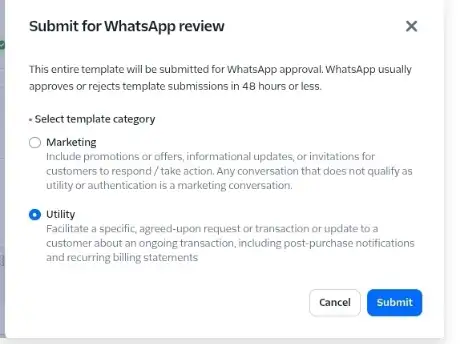
A pop will show the Successful message and the ORder Detail Content SID will be created.

Live Environment – Module Configuration
Twilio Live Environment Setup
Go to Twilio
- Log in with your Twilio credentials.
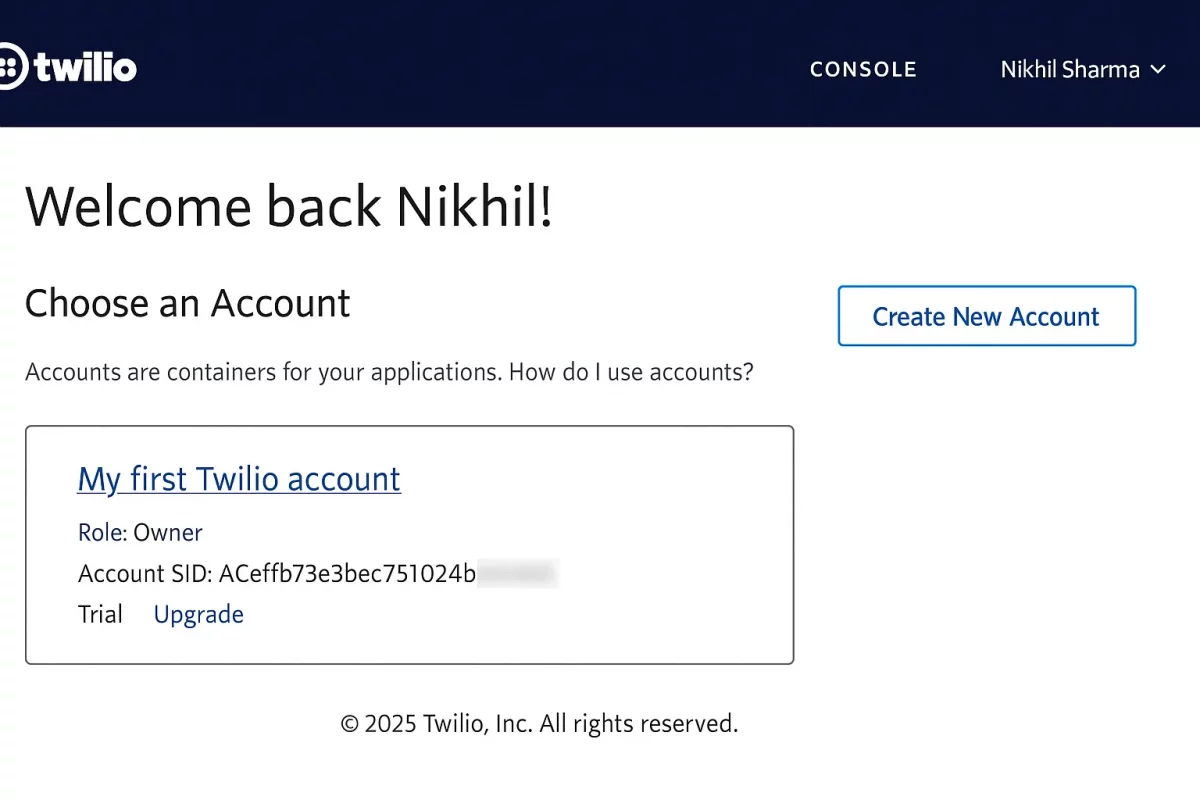
- After login, you will see the welcome page:
Click on My first Twilio account - This page displays:
- Account SID
- Role: Owner
- Trial → Upgrade
This is the account you will use to configure your Twilio Live (Production)
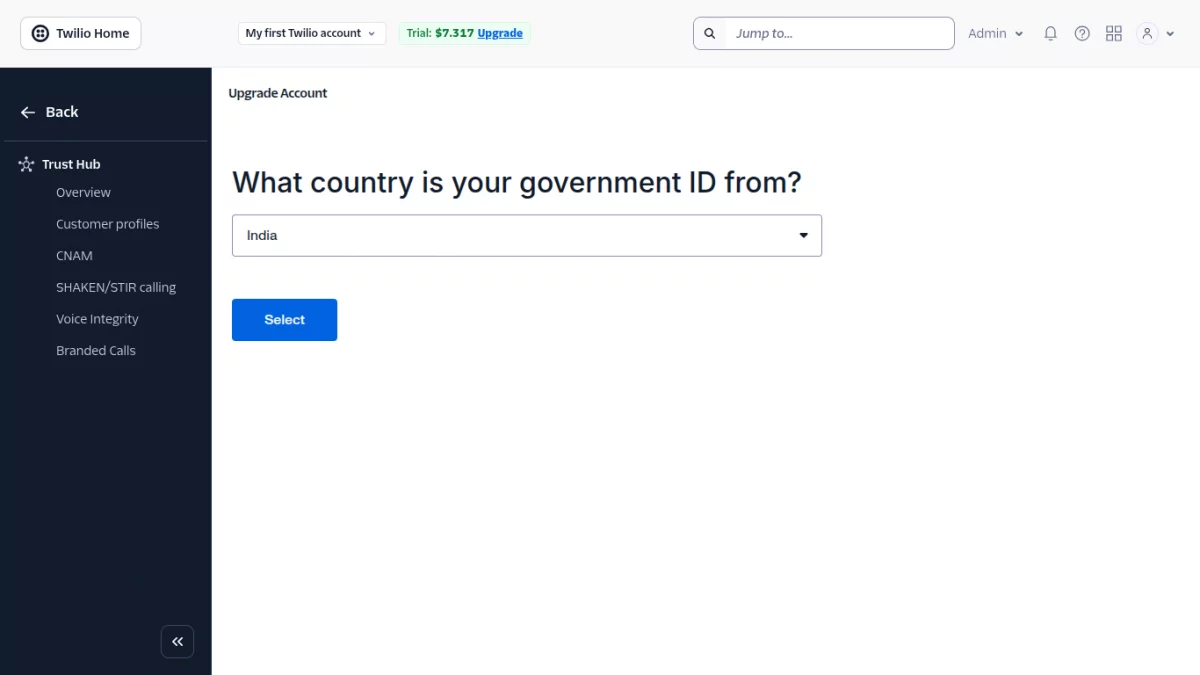
After clicking on Upgrade, Twilio will ask you to select your country to continue the account upgrade process
After selecting your country, Twilio will ask you to upload a valid government-issued photo ID. Choose an option such as Driver License, National ID, PAN Card, Passport, or Voter ID to continue verification.
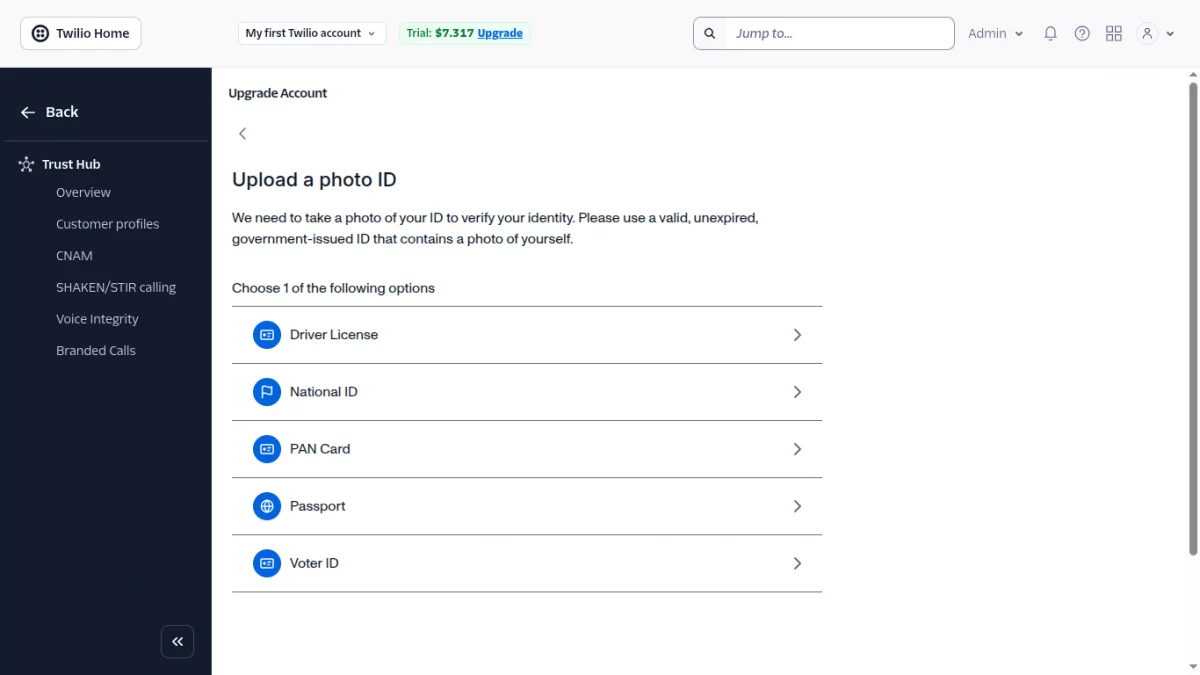
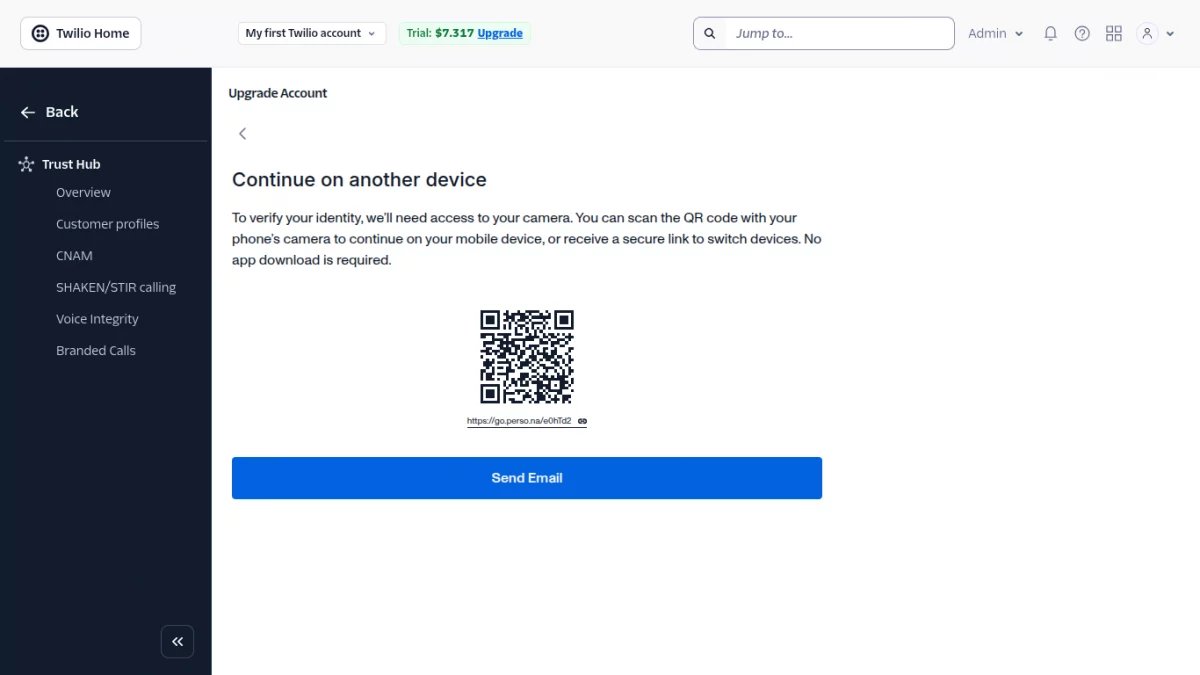
Once you select the ID type, Twilio will prompt you to upload clear front and back photos. After submitting the documents, wait for Twilio to review and approve your identity verification.
After your identity is approved, Twilio will unlock the option to request WhatsApp Business access. You can now proceed to submit your business details and enable a WhatsApp-enabled phone number.
After Twilio approves your WhatsApp access, add your business phone number under Messaging → Senders → WhatsApp Senders.Complete the verification to activate it for live WhatsApp messaging.
After you activate your WhatsApp number, create a Messaging Service by going to Messaging → Services.This service will generate the Messaging Service SID required for your WooCommerce plugin.
WhatsApp Template Approval
All outgoing messages must use Meta-approved templates. Examples include:
Order confirmation
Order shipped
COD order alert
Admin notifications
You must use templates for messages sent . Approval usually takes time.
Twilio WhatsApp Pricing Overview
Twilio charges are per message, and rates depend on your country and message type:
For example
For transactional / utility / OTP messages, expect around $0.006 – $0.008 per message (varies slightly by country).
Monthly Cost Example
If you send 10,000 messages per month:
Mostly transactional messages →Approx. $60 – $80 per month
Note: Currently, Twilio WhatsApp does not support message delivery to U.S. phone numbers due to WhatsApp (Meta) and carrier restrictions. As a result, WhatsApp messages sent via Twilio may fail for U.S. numbers even in a live environment. Please consider this limitation when planning WhatsApp communication
Configuration
WhatsApp Order Notification plugin
Environment – Select the Live environment.
Account SID – Enter Twilio Account SID.
Auth Token – Enter Twilio Auth Token.
Twilio Mobile No. – Enter the default Twilio Mobile number.
Message Service ID – Enter Message Service ID from Twilio Account
Send Message to Admin – Checkbox to enable or disable sending messages to Admin.
Admin WhatsApp Number – Field to enter the Admin’s WhatsApp Number.

After configuring the Settings section, the Admin configures the WhatsApp message templates For this they tap on the Templates button.

Here, the admin can set the template for Order Message or Order Status Message.
- Order Message – Set Template for the message that will be sent when a new order is placed.
- Order Status Message – Set Template for message which will be sent when order status changes.
- Order Content SID – Enter Order Content SID
- Order Status Content SID – Enter Order Status Content SID
Now, when you click the Create button under Order Content and Order Status Content SID, the keys will be fetched automatically.
Now, click on the Save changes button
So, that is it for the configuration part of the plugin. Let’s check below how the user receives Order-based messages on their numbers.
WhatsApp Notification Flow:
Order Placement Notification:
Whenever a customer places an order, both the customer and the admin will receive a WhatsApp message containing the order details.
Order Status Update Notification:
When the admin updates the order status, a WhatsApp message reflecting the new status will be sent to both the customer and the admin.
This ensures both parties are always informed of the current order progress.
Manual WhatsApp Notification
Admin also gets the functionality to manually update customers on WhatsApp through a dedicated button. For this, they navigate to WooCommerce>Orders.
Here, they can edit an order and select Send WhatsApp Notification from Order Actions to manually update customers.

Customer End WhatsApp Order Messages
Whenever a customer purchases a new product or admin updates an existing order, the system sends a WhatsApp notification using the specified template.
Order Message Data and Order Status Message


Support
So that is it for the WooCommerce WhatsApp Order Notifications plugin. If you need further assistance, please email us at [email protected] .
Current Product Version - 1.0.1
Supported Framework Version - WordPress - 6.8.1, WooCommerce - 9.9.4


Be the first to comment.